Making an AR/Lunch Payment on the Parent Portal
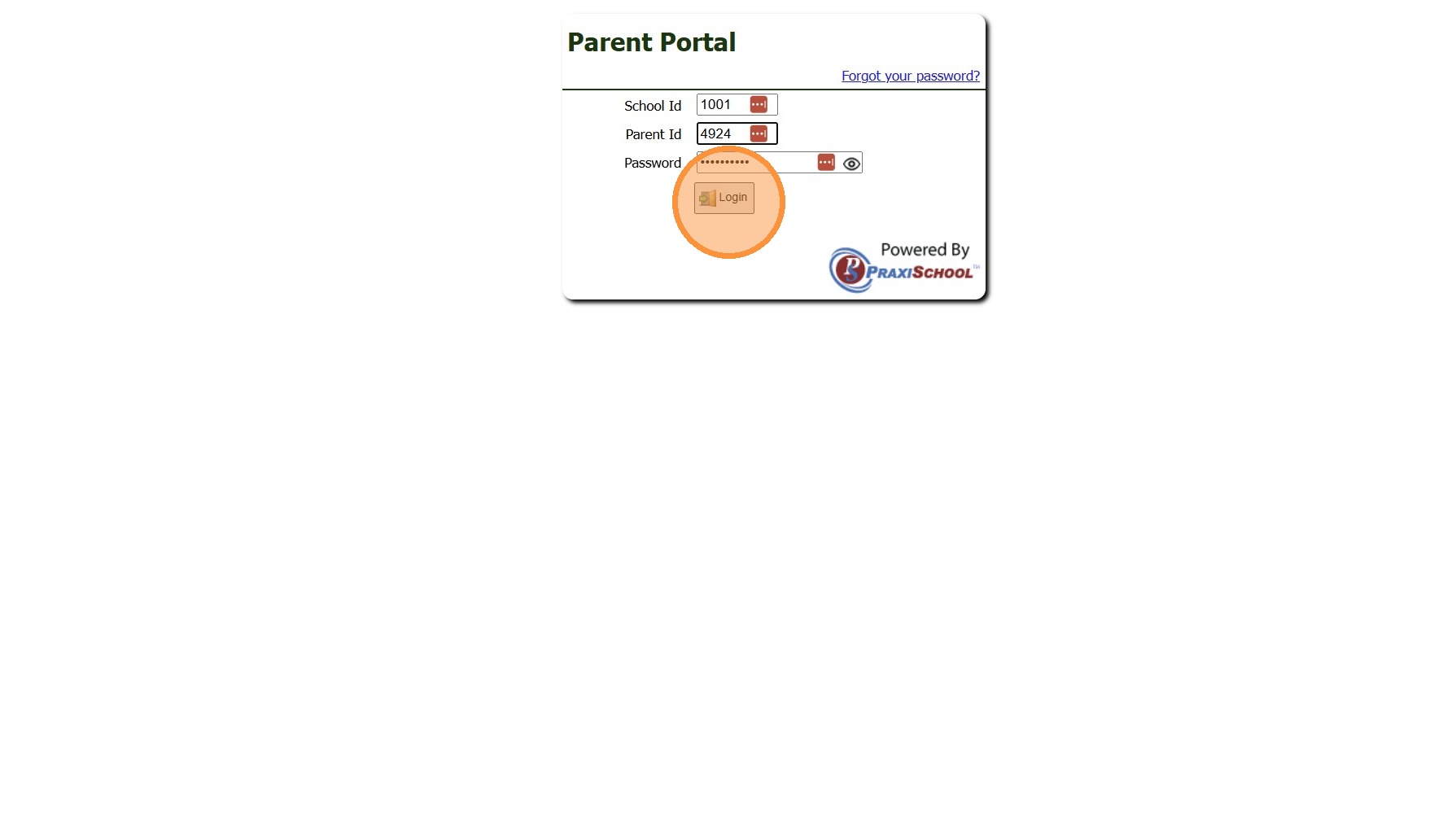
1. Log into the Parent Portal
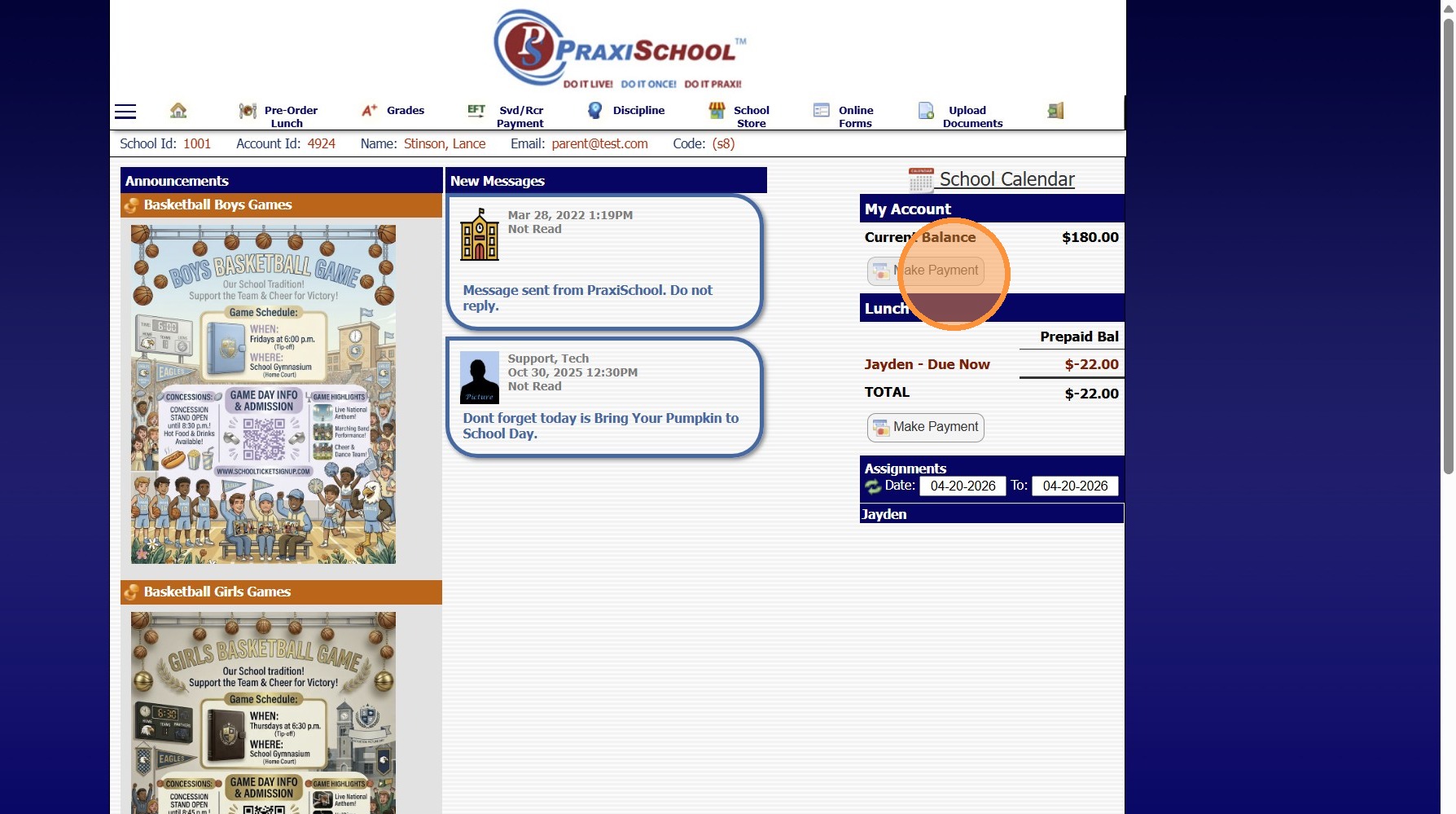
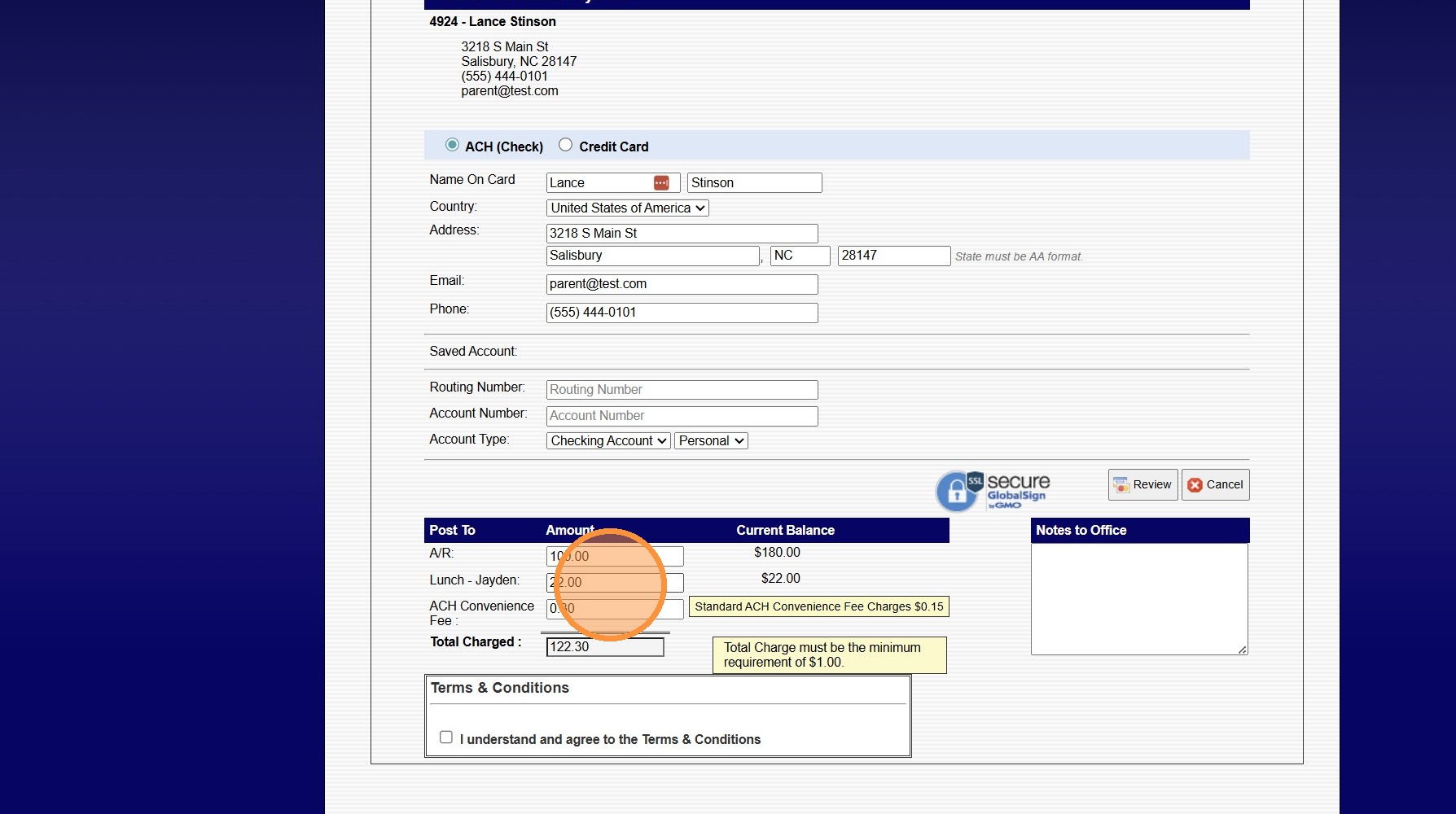
2. Click "Make Payment"
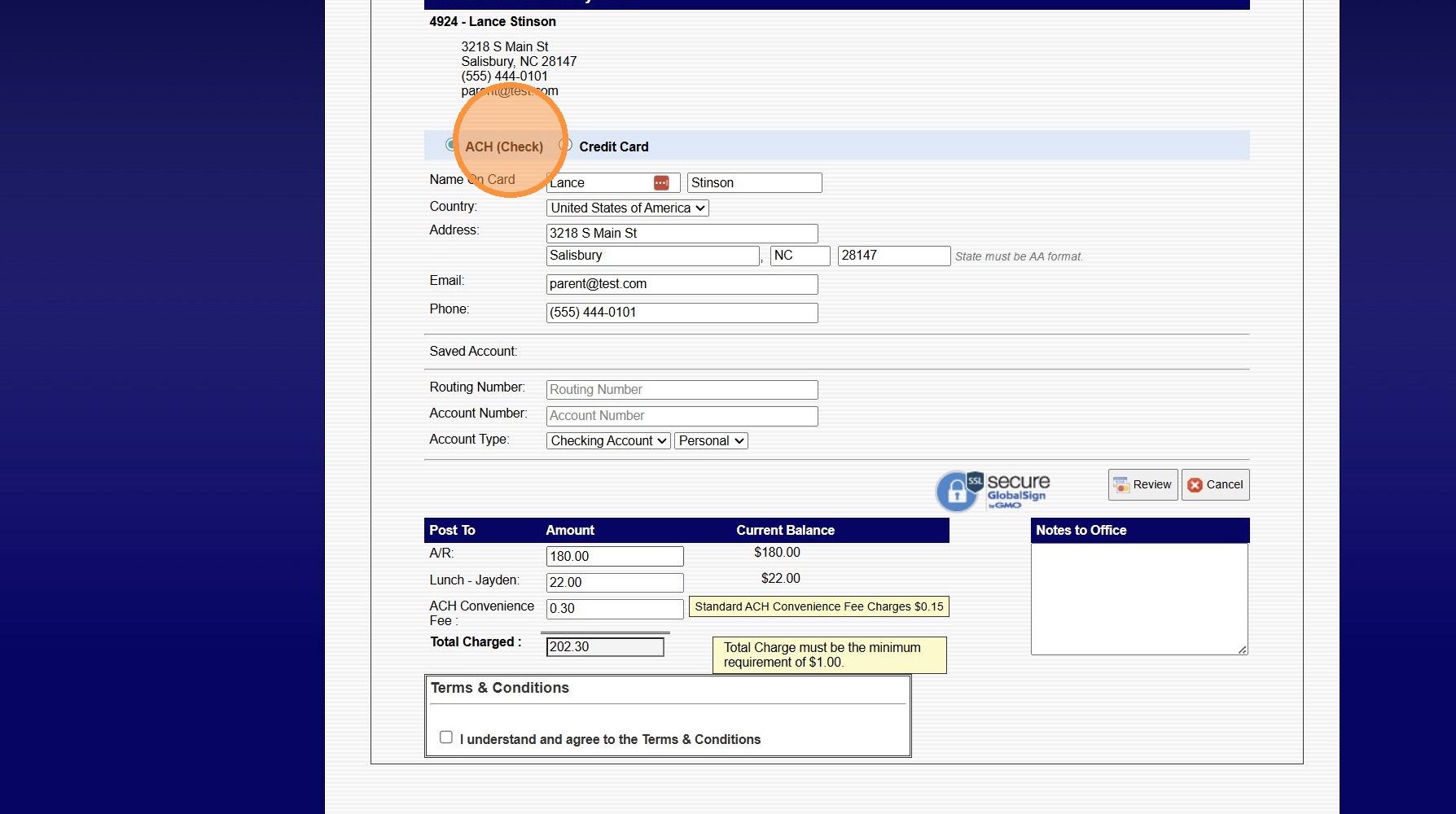
3. Select ACH or Credit Card
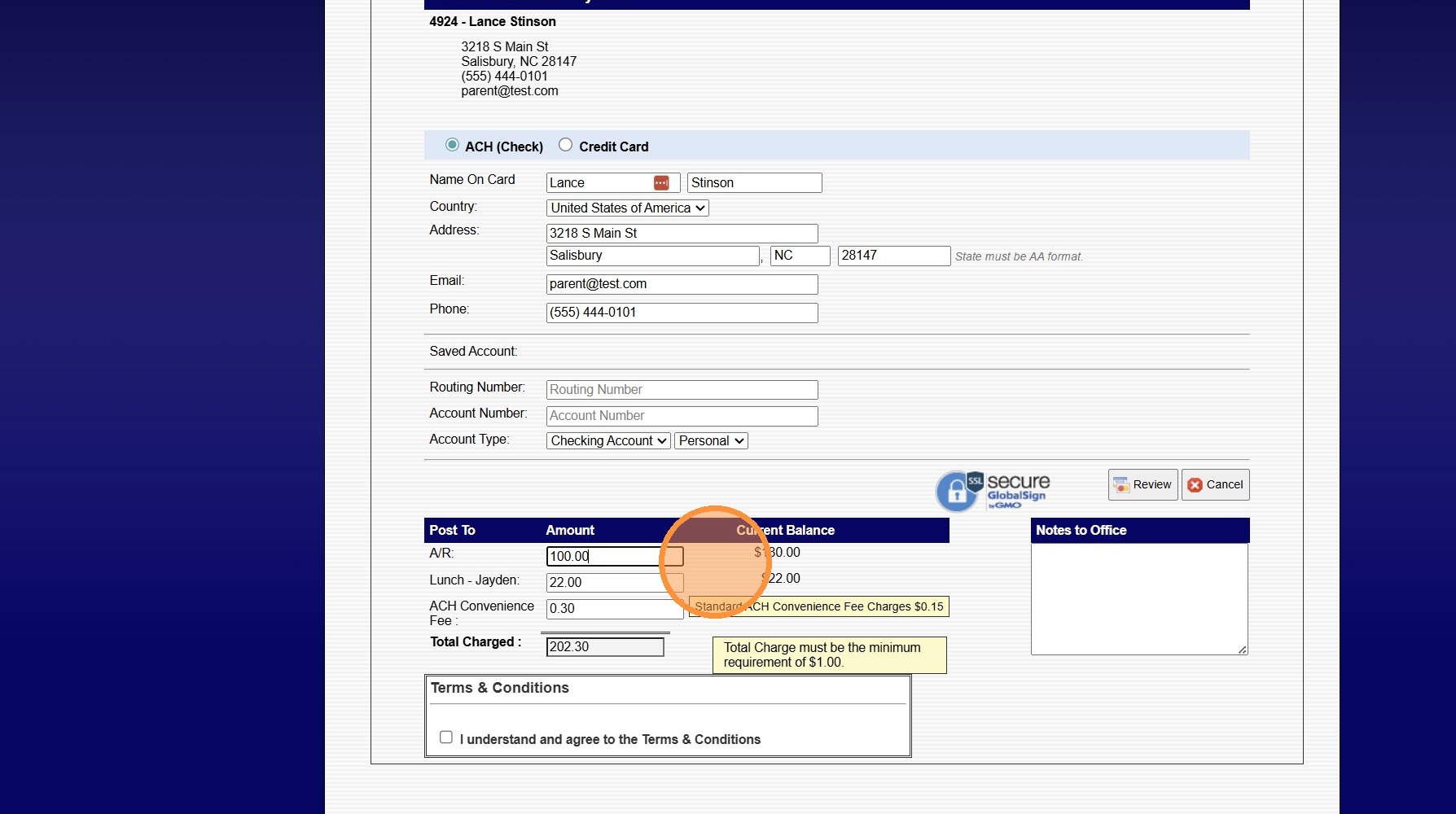
4. AR Amount Due will Auto Populate
(Click in the Amount Field to Edit Amount to Pay)
5. Lunch Amount Due will Auto Populate
(Click in the Amount Field to Edit Amount to Pay)
8500.1.6
Related Articles
Making a Payment from the Student Portal
1. Log into the Student Portal (Enter School ID, Parent ID & Password) 2. Click "Make Payment" 3. Select ACH or Credit Card 4. Enter ACH or Credit Card Information 5. Enter Payment Amount in the A/R Field 6. Check Terms & Conditions Box 7. Click ...Making an AR Deposit
Making an AR Deposit 1. Click "Accounting" 2. Click "A/R Tasks" 3. Click "Make Deposit" Making a Date Range Deposit 4. Select "Date Range" from Dropdown 5. Select Start & End Date (Use Calendar to select Year, Month & Date) 6. Enter Deposit Date 7. ...Posting a Check Payment That Includes Both AR & Lunch Payments
Posting a Check Payment That Includes Both AR & Lunch Payments Posting a Check Payment to the Accounts Receivable that Includes Funds for a Students Lunch Account. 1. Log into PraxiSchool 2. Click "Admin" 3. Click "Accounts Receivable" 4. Search for ...Making an AR Deposit
Making an AR Deposit Making a standard AR Deposit including all items in the Make Deposit screen. 1. Log into PraxiSchool 2. Click "Accounting" 3. Click "A/R Tasks" 4. Click "Make Deposit" 5. Click "Start Deposit" to Make a Full Deposit 6. Enter the ...Posting a Payment to an Accounts Receivable (Parent Billing Account)
Posting a Payment to an Accounts Receivable (Parent Billing Account) 1. Log into PraxiSchool 2. Click "Admin" 3. Click "Accounts Receivable" 4. Select AR Account to Post Payment 5. Click the "$" Symbol 6. Select the Payment Type 7. Enter Payment ...