Posting a Payment to an Accounts Receivable (Parent Billing Account)
Posting a Payment to an Accounts Receivable (Parent Billing Account)
1. Log into PraxiSchool
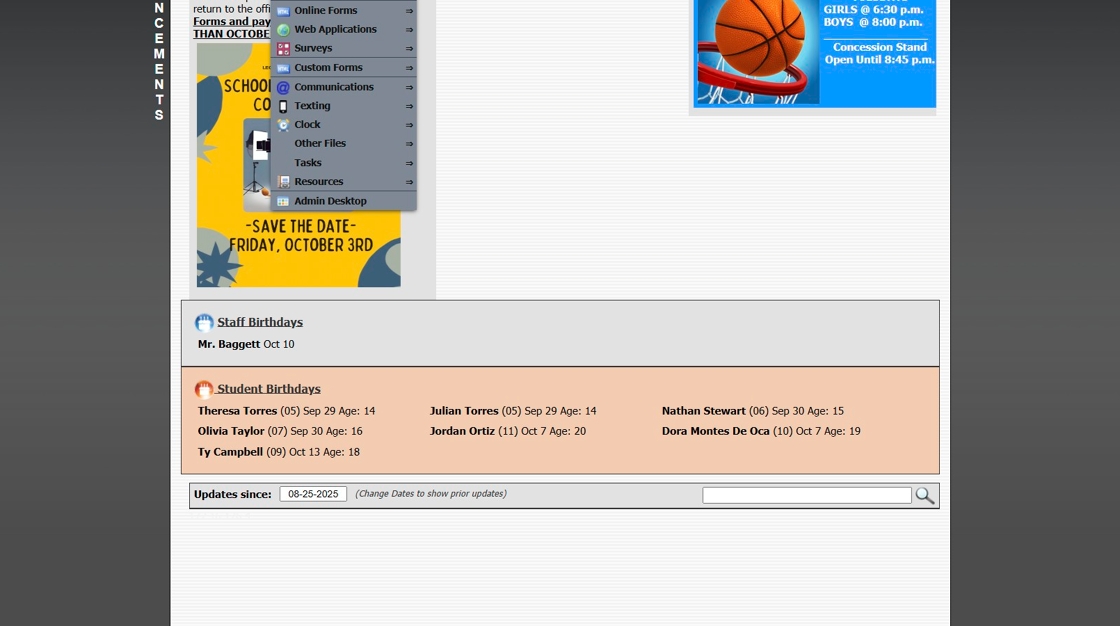
2. Click "Admin"
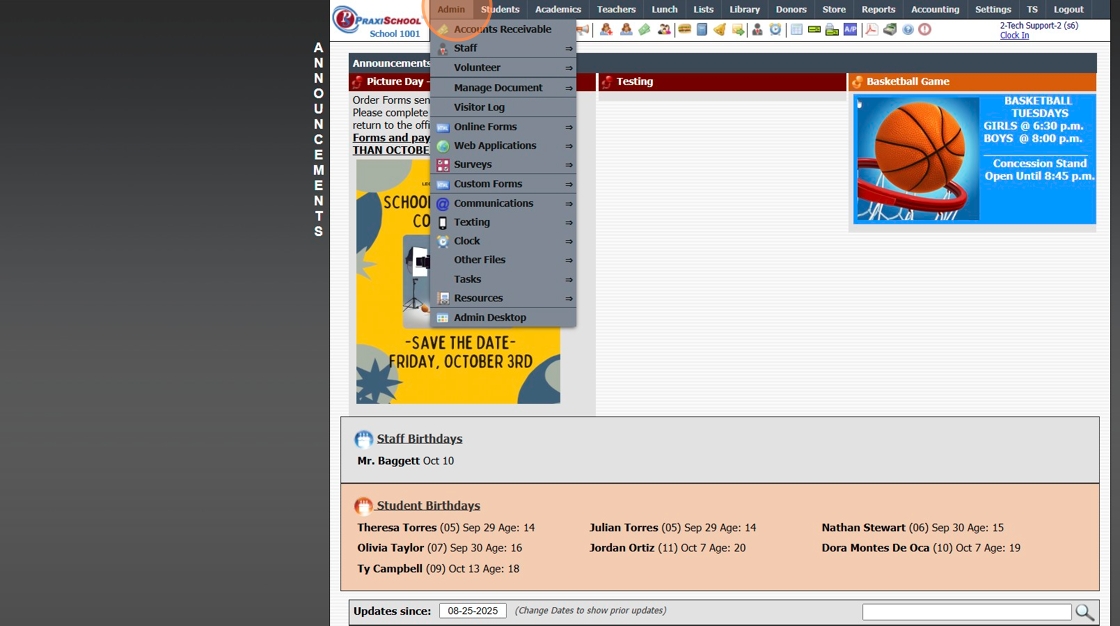
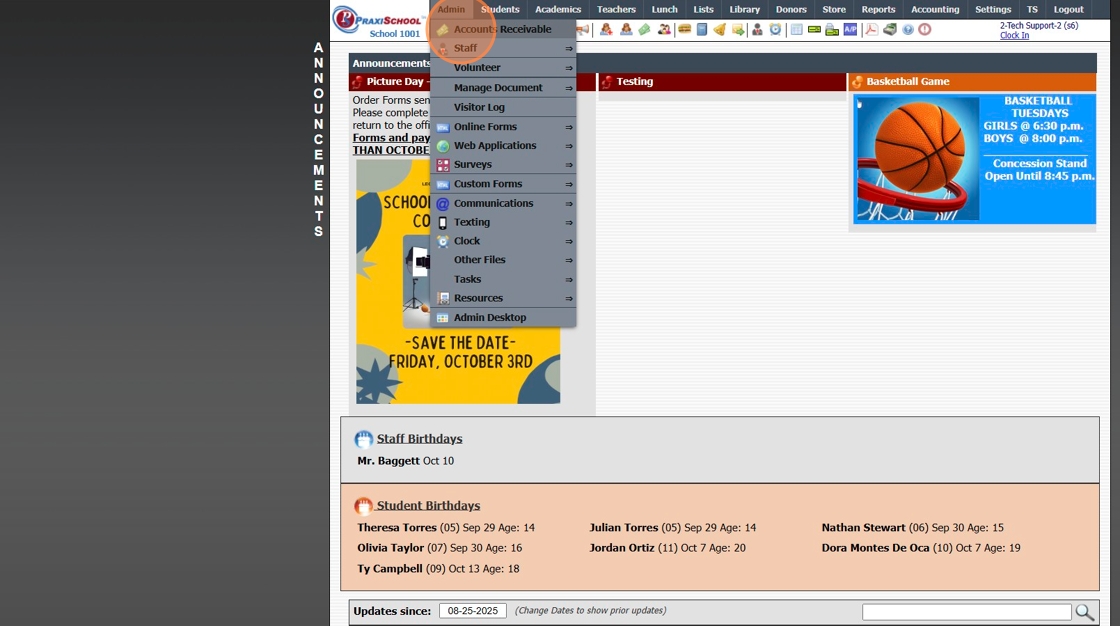
3. Click "Accounts Receivable"
4. Select AR Account to Post Payment
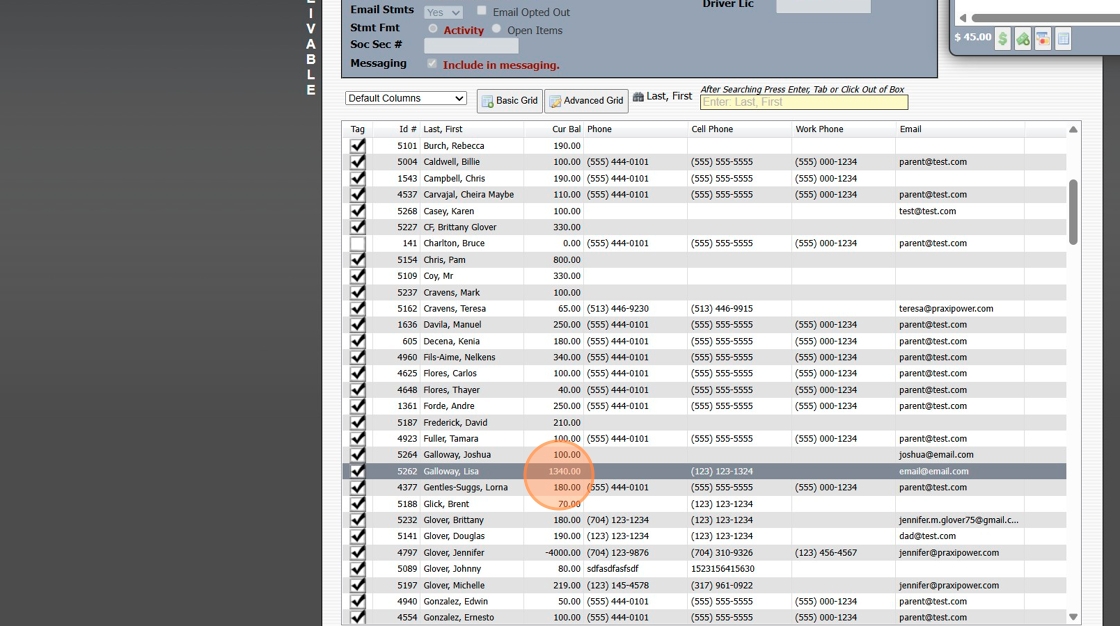
5. Click the "$" Symbol
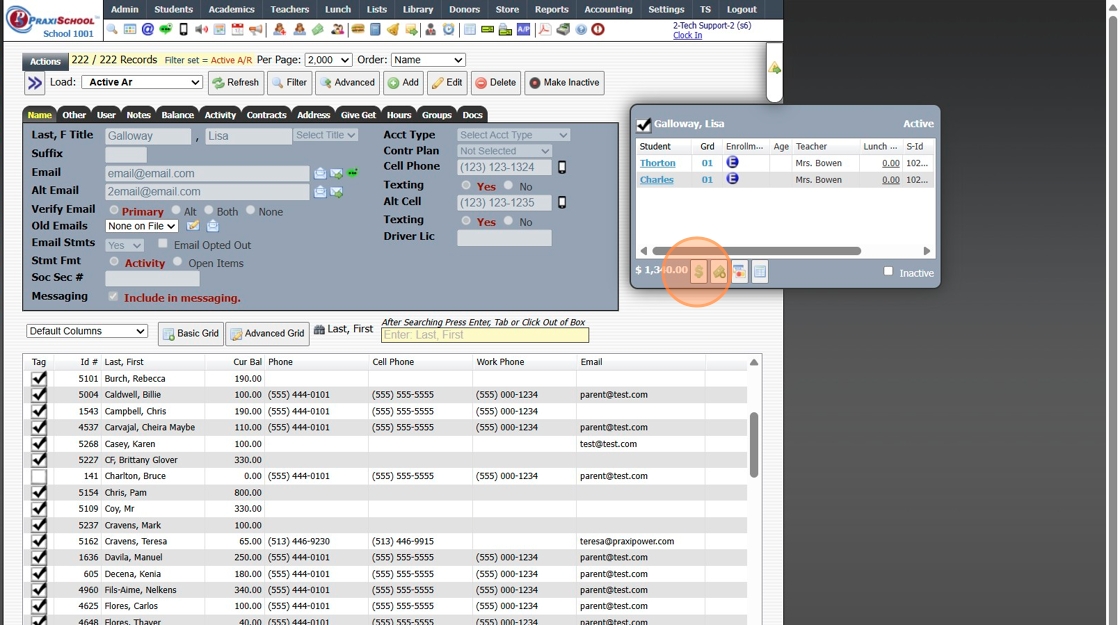
6. Select the Payment Type
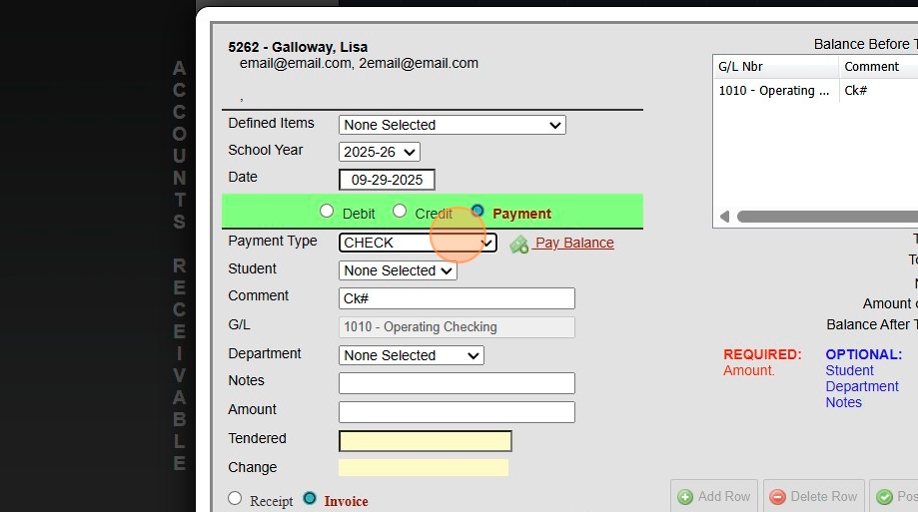
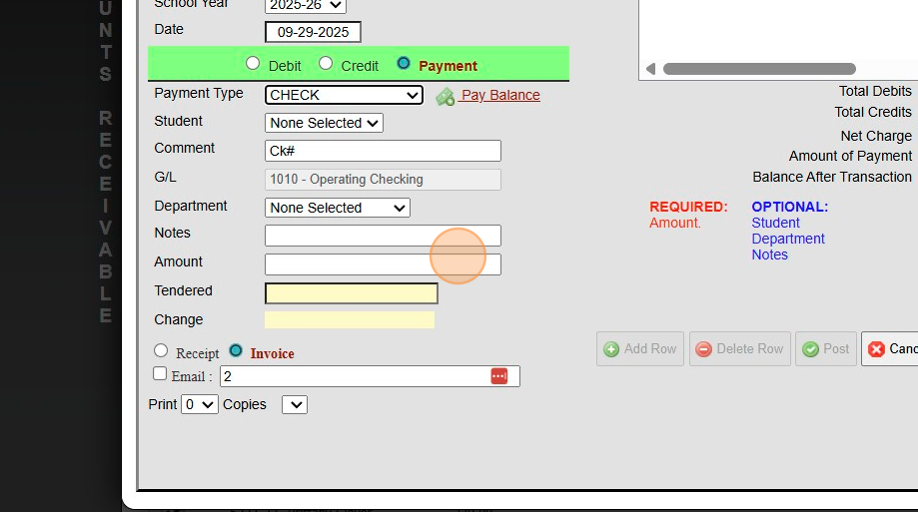
7. Enter Payment Amount
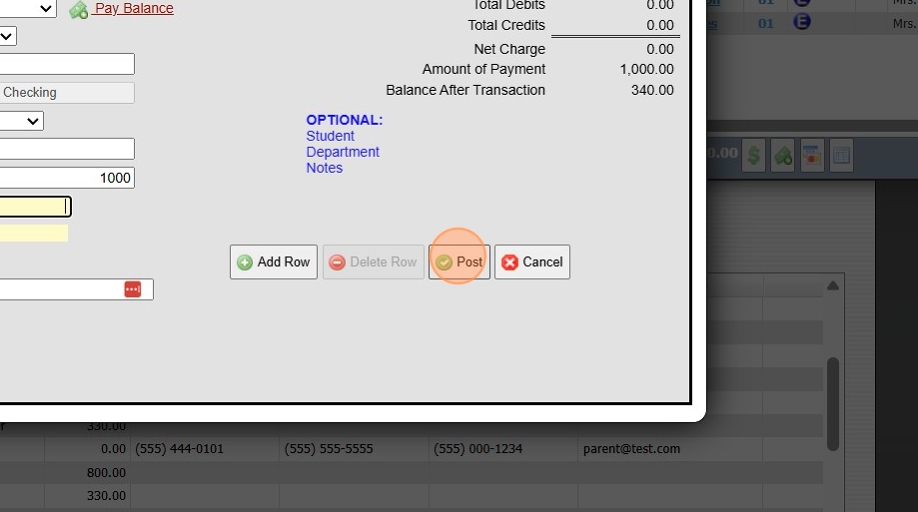
8. Click "Post"
1000.1.6
Related Articles
Posting a Returned Check/ACH in Accounts Receivable
Posting a Returned Check/ACH in Accounts Receivable 1. Log into PraxiSchool 2. Click "Admin" 3. Click "Accounts Receivable" 4. Select AR Account 5. Click "Actions" 6. Click "Post Returned Check" 7. Enter Returned Check Date 8. Enter Check Number or ...Creating Accounts Receivable Accounts
Creating Accounts Receivable Accounts 1. Log into PraxiSchool 2. Typically Student AR Accounts are Created in the Student Wizard (T) 3. After Creating the Student File, the Primary AR Account is Created from the A/R Account Toggle 4. A Secondary AR ...Posting a Check Payment That Includes Both AR & Lunch Payments
Posting a Check Payment That Includes Both AR & Lunch Payments Posting a Check Payment to the Accounts Receivable that Includes Funds for a Students Lunch Account. 1. Log into PraxiSchool 2. Click "Admin" 3. Click "Accounts Receivable" 4. Search for ...Posting a Refund to an AR Account (Owed Balance)
Posting a Refund to an AR Account (Owed Balance) 1. Go to Accounts Receivable 2. Select Student Account 3. Click "Actions" 4. Click "Refund Account" 5. Enter Refund Date 6. Click "Check & Credit" 7. Make sure Bank Acct General Ledger is Selected 8. ...Posting a Charge & Payment to an AR Account Using the Add Row Feature
1. Click "Admin" 2. Click "Accounts Receivable" 3. Select AR Account 4. Click the $ Icon 5. Select a Defined Item for the Charge or Enter Manually 6. Click "Add Row" Tip: Additional Charges can be Added Using the Add Row Feature 7. Select Payment 8. ...