Posting a Charge & Payment to an AR Account Using the Add Row Feature
1. Click "Admin"
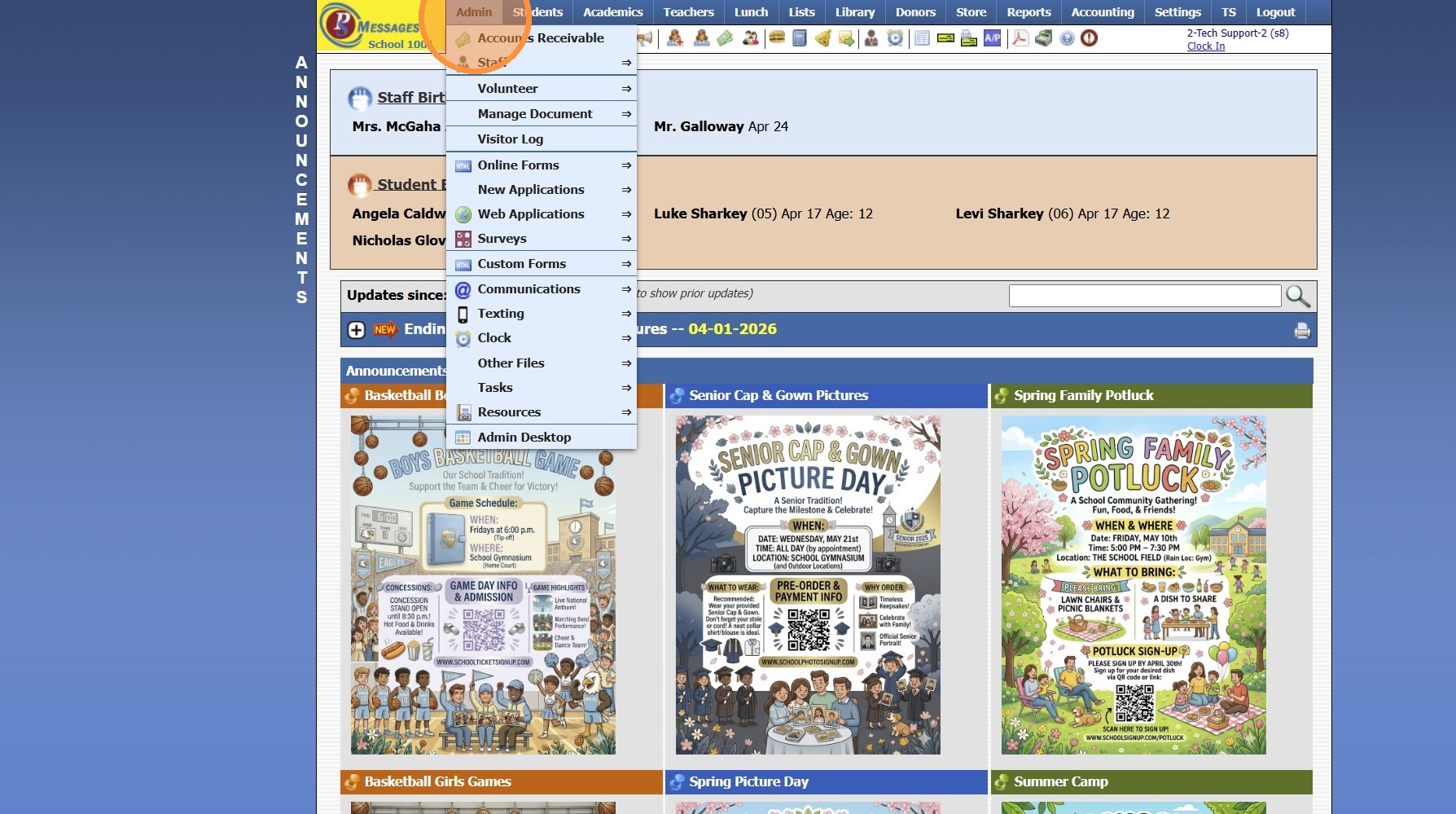
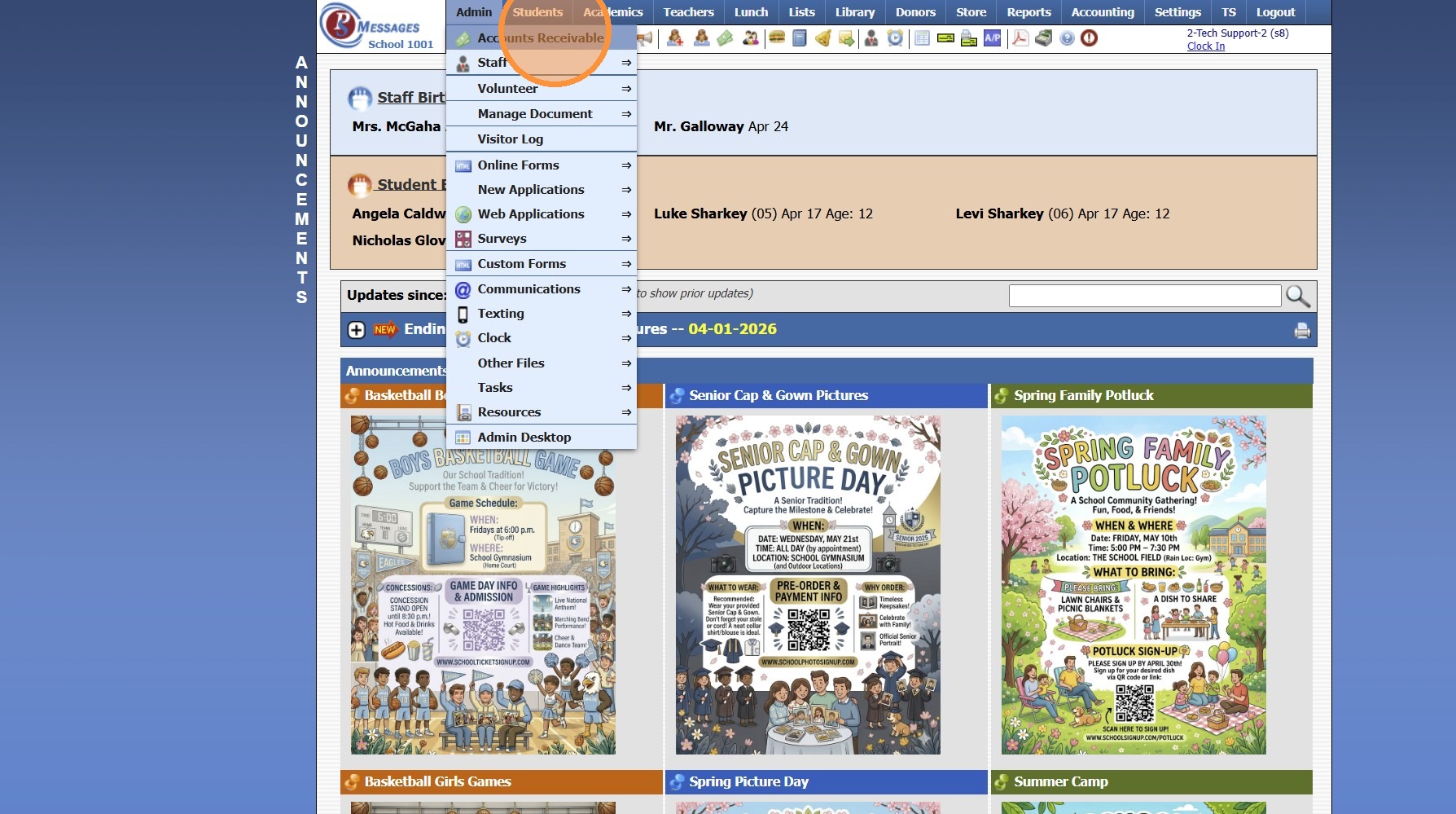
2. Click "Accounts Receivable"
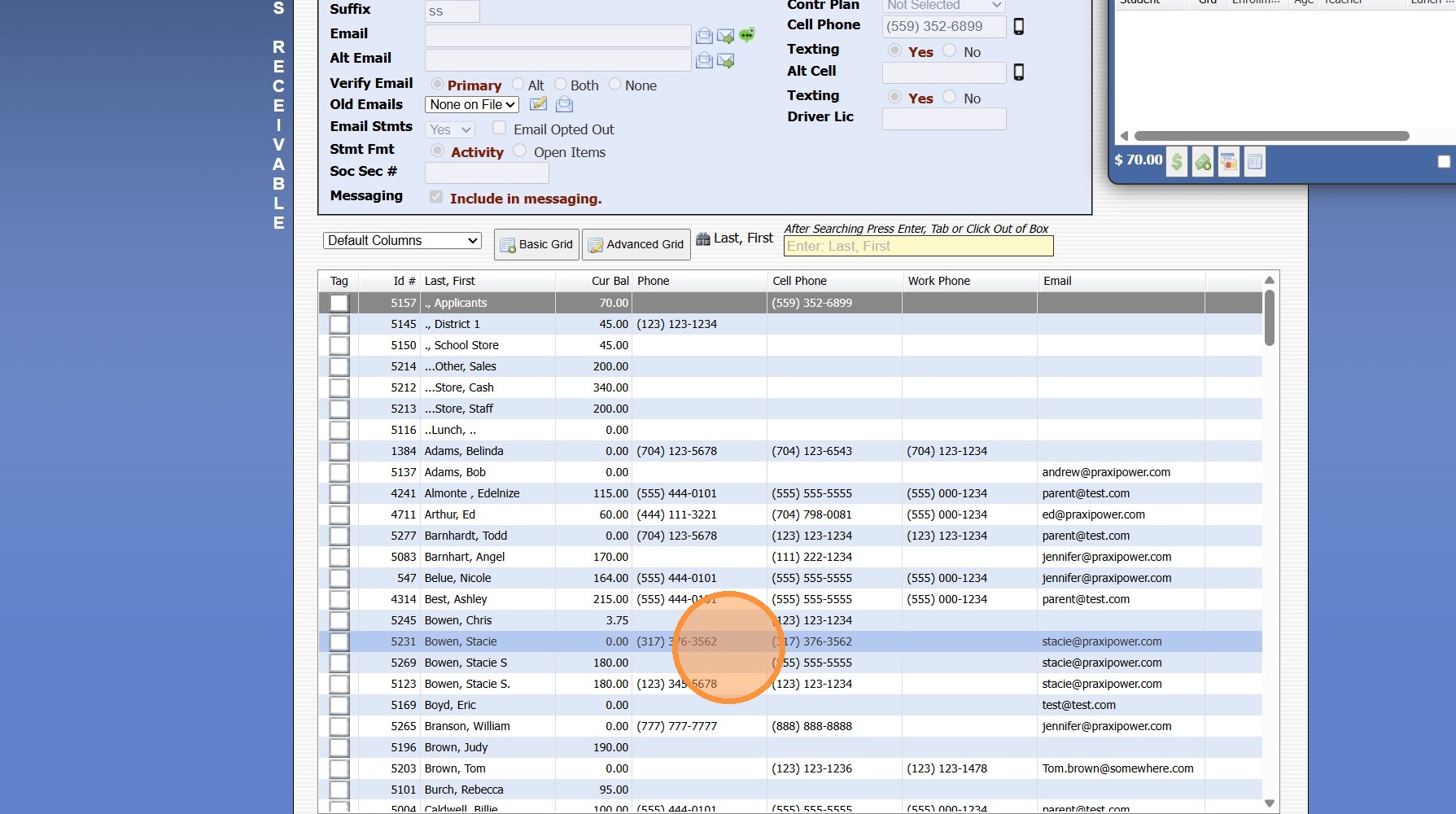
3. Select AR Account
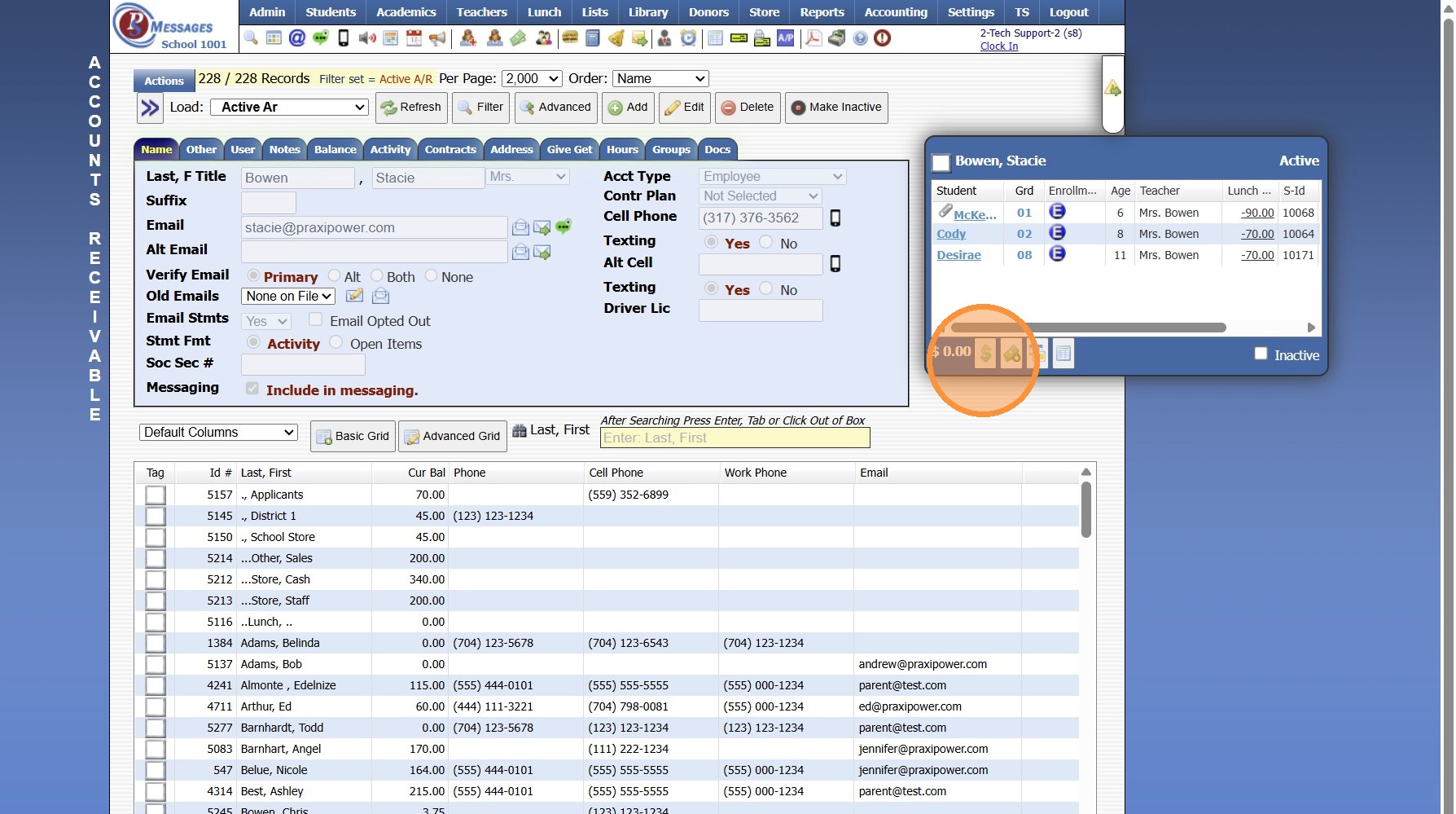
4. Click the $ Icon
5. Select a Defined Item for the Charge or Enter Manually
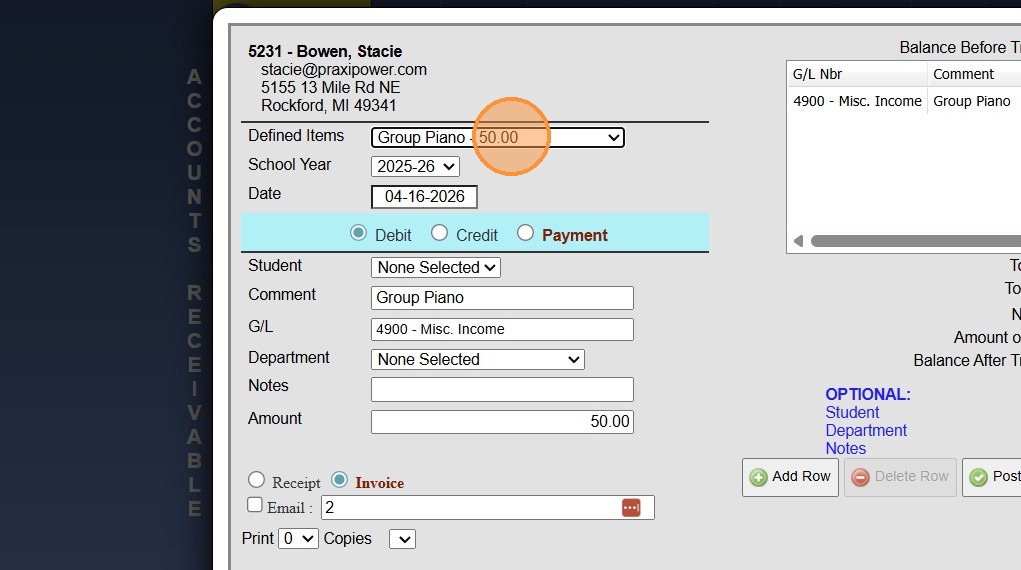
6. Click "Add Row"
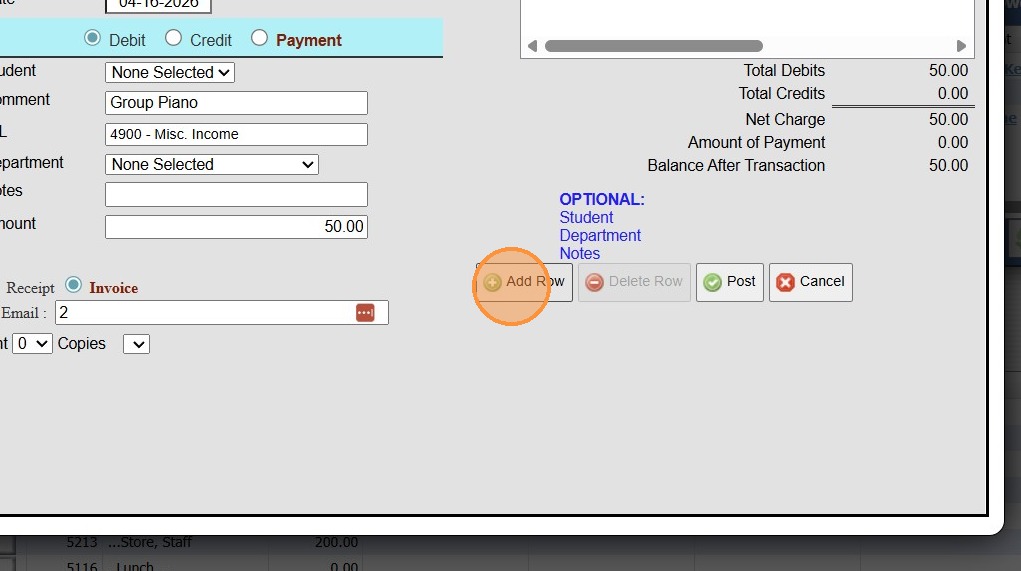
Tip: Additional Charges can be Added Using the Add Row Feature
7. Select Payment
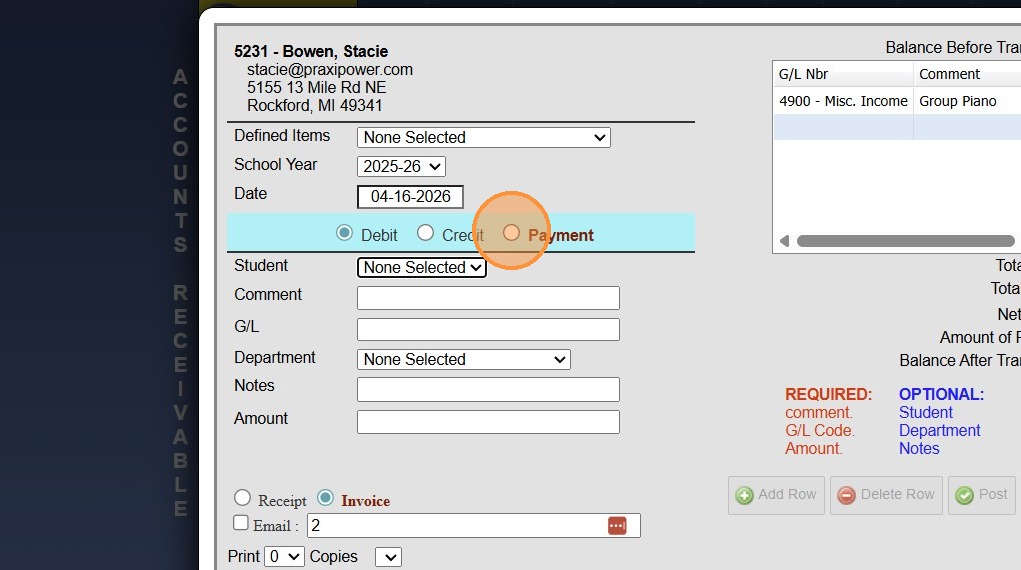
8. Select Payment Type
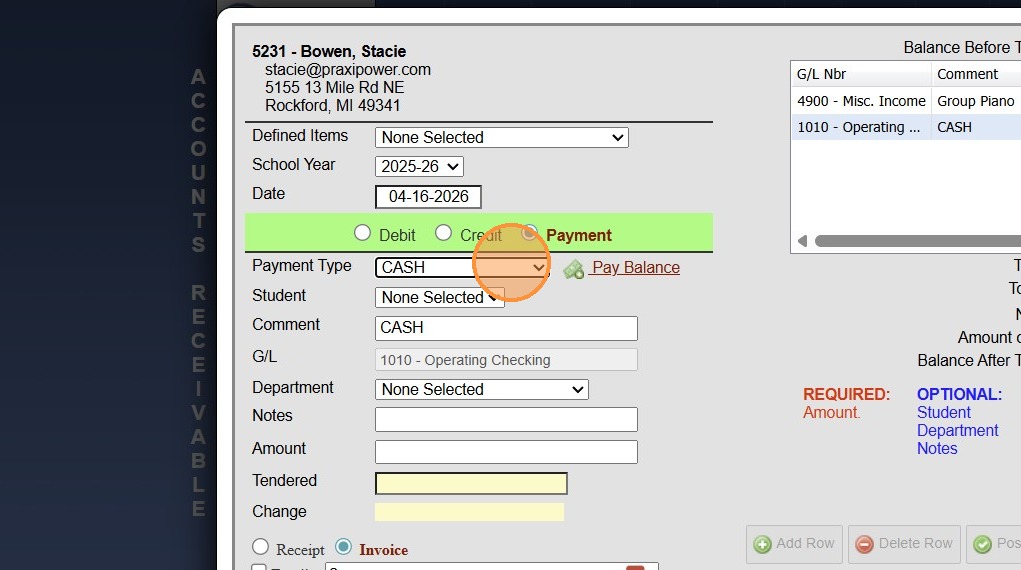
9. Enter Payment Amount
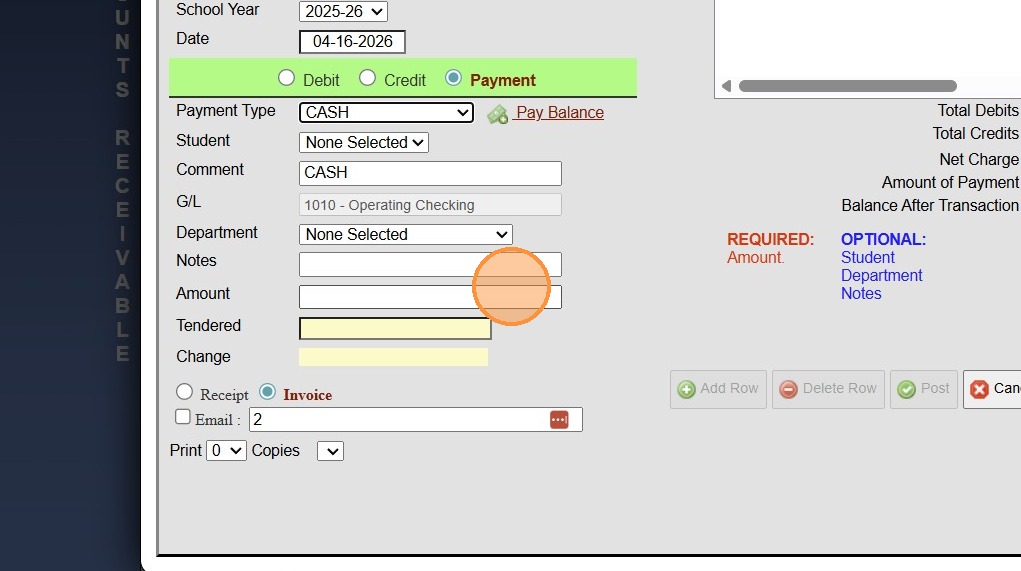
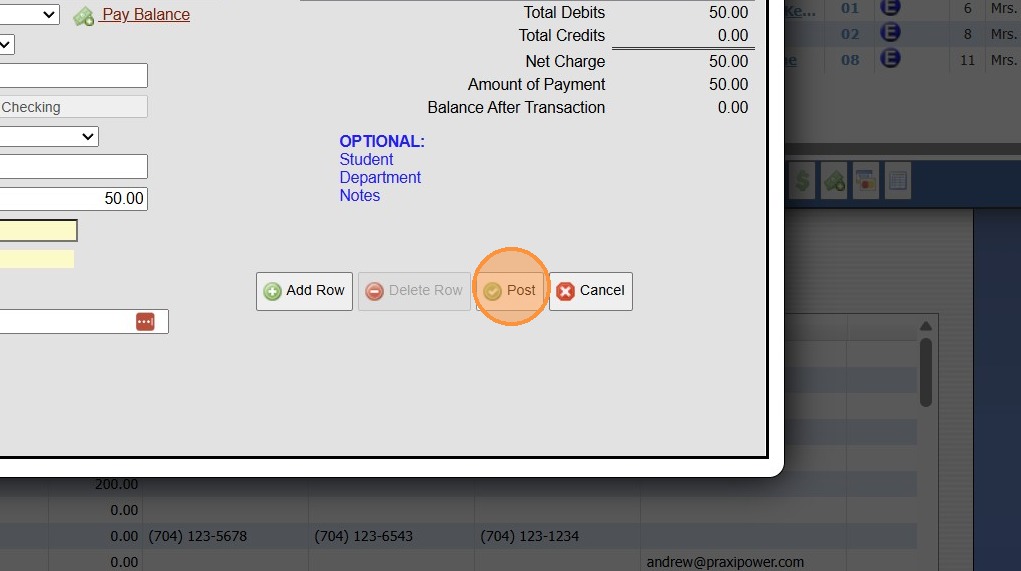
10. Click "Post"
1000.1.35
Related Articles
Posting a Check Payment That Includes Both AR & Lunch Payments
Posting a Check Payment That Includes Both AR & Lunch Payments Posting a Check Payment to the Accounts Receivable that Includes Funds for a Students Lunch Account. 1. Log into PraxiSchool 2. Click "Admin" 3. Click "Accounts Receivable" 4. Search for ...Posting a Payment to an Accounts Receivable (Parent Billing Account)
Posting a Payment to an Accounts Receivable (Parent Billing Account) 1. Log into PraxiSchool 2. Click "Admin" 3. Click "Accounts Receivable" 4. Select AR Account to Post Payment 5. Click the "$" Symbol 6. Select the Payment Type 7. Enter Payment ...Volunteer Hours Feature
NOTE: You must attend a training webinar for Volunteer Hours or Verify to PraxiPower that you have watched all 5 of the training videos. Once you have done that, your school ADMINISTRATOR can email jennifer@praxipower.com with your school id and a ...Posting a Refund to an AR Account
Posting a Refund to an AR Account 1. Go to Accounts Receivable 2. Select Student Account 3. Click "$" in the Blue Box 4. Select the "Account Refund" option from the Defined Item Dropdown Menu 5. Verify Date and Update Amount (if necessary) 6. Enter ...Posting a Refund to an AR Account (Owed Balance)
Posting a Refund to an AR Account (Owed Balance) 1. Go to Accounts Receivable 2. Select Student Account 3. Click "Actions" 4. Click "Refund Account" 5. Enter Refund Date 6. Click "Check & Credit" 7. Make sure Bank Acct General Ledger is Selected 8. ...