Posting a Refund to an AR Account (Owed Balance)
Posting a Refund to an AR Account (Owed Balance)
1. Go to Accounts Receivable
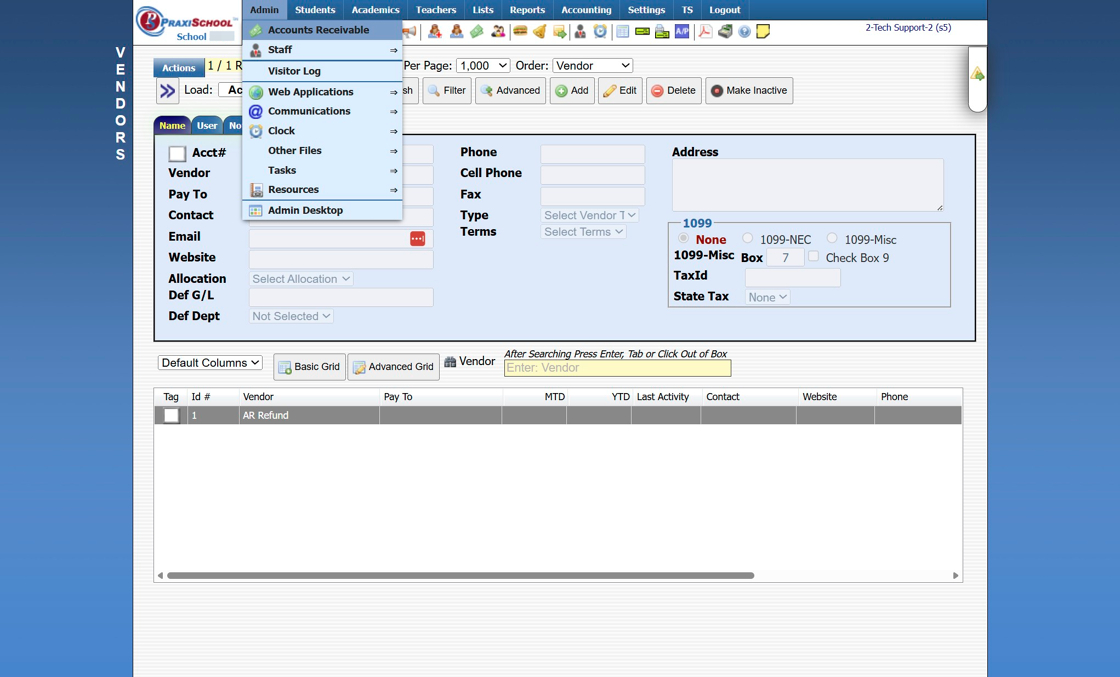
2. Select Student Account
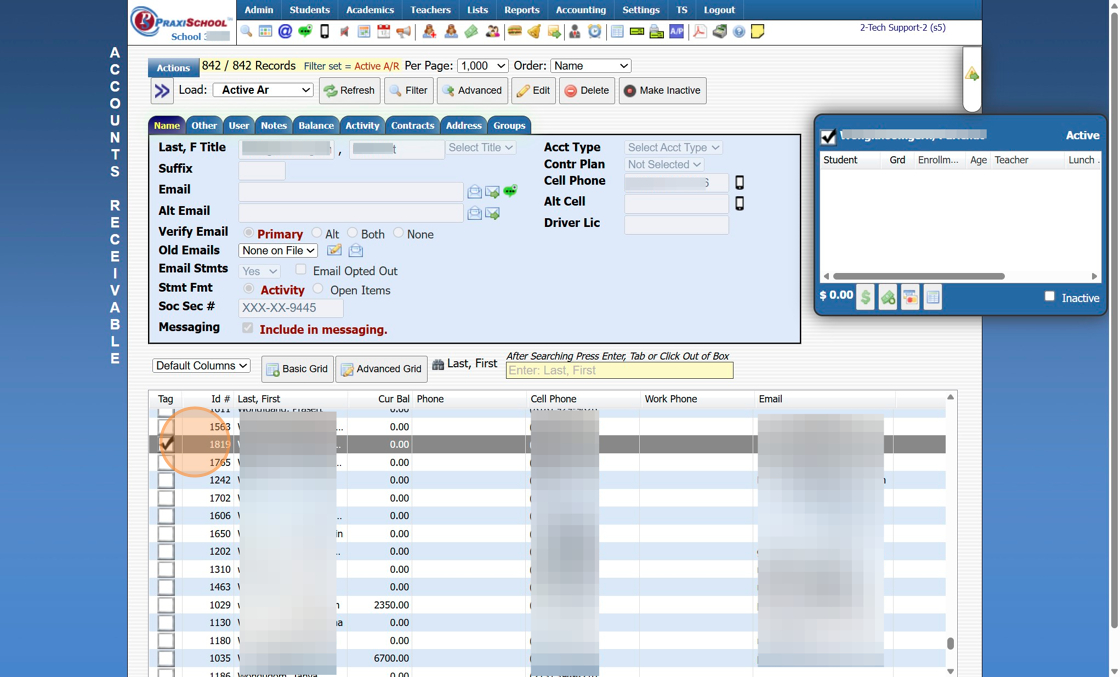
3. Click "Actions"

4. Click "Refund Account"

5. Enter Refund Date

6. Click "Check & Credit"

7. Make sure Bank Acct General Ledger is Selected

8. Make sure Clearing Acct General Ledger is Selected

9. Select Vender

10. Enter Billing Account Name

11. Enter Refund Amount

12. Enter Refund General Ledger Number

13. Enter Any Comments

14. Click "Post Refund"

1000.1.27
Related Articles
Posting a Refund to an AR Account
Posting a Refund to an AR Account 1. Go to Accounts Receivable 2. Select Student Account 3. Click "$" in the Blue Box 4. Select the "Account Refund" option from the Defined Item Dropdown Menu 5. Verify Date and Update Amount (if necessary) 6. Enter ...AR Account Balance Write-Off
1. Click "Admin" 2. Click "Accounts Receivable" Tip: If a Balance Write-Off Transaction Item has not already been Created, Click on this Link: Creating a Balance Write-Off Transaction Item Posting the Balance Write-Off 3. Select AR Account 4. Click ...Posting a Check Payment That Includes Both AR & Lunch Payments
Posting a Check Payment That Includes Both AR & Lunch Payments Posting a Check Payment to the Accounts Receivable that Includes Funds for a Students Lunch Account. 1. Log into PraxiSchool 2. Click "Admin" 3. Click "Accounts Receivable" 4. Search for ...Transferring Lunch Balances to AR - Owed/Credit Balances
1. Click "Lunch" 2. Click "Process Transactions" 3. Click "Transfer To A/R" Transferring Owed & Credit Balances 4. Select "<> 0 " Transferring Owed Balances Only 5. Select "> 0 " 6. Set Grade Levels 7. Click "Refresh" 8. Select "Transfer To A/R 1" to ...Posting a Payment to an Accounts Receivable (Parent Billing Account)
Posting a Payment to an Accounts Receivable (Parent Billing Account) 1. Log into PraxiSchool 2. Click "Admin" 3. Click "Accounts Receivable" 4. Select AR Account to Post Payment 5. Click the "$" Symbol 6. Select the Payment Type 7. Enter Payment ...