AR Account Balance Write-Off
1. Click "Admin"
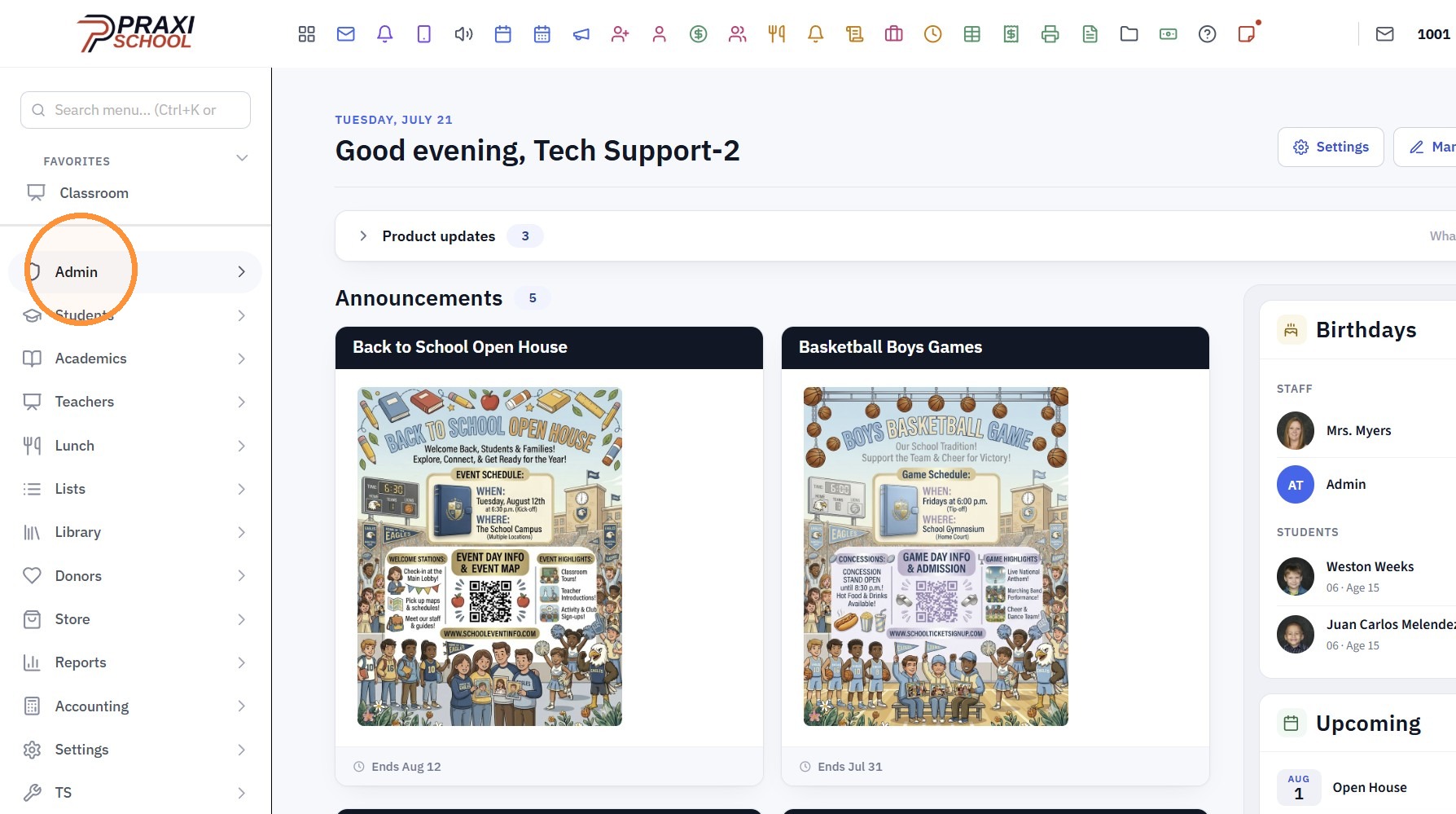
2. Click "Accounts Receivable"

Tip: If a Balance Write-Off Transaction Item has not already been Created, Click on this Link: Creating a Balance Write-Off Transaction Item
Posting the Balance Write-Off
3. Select AR Account
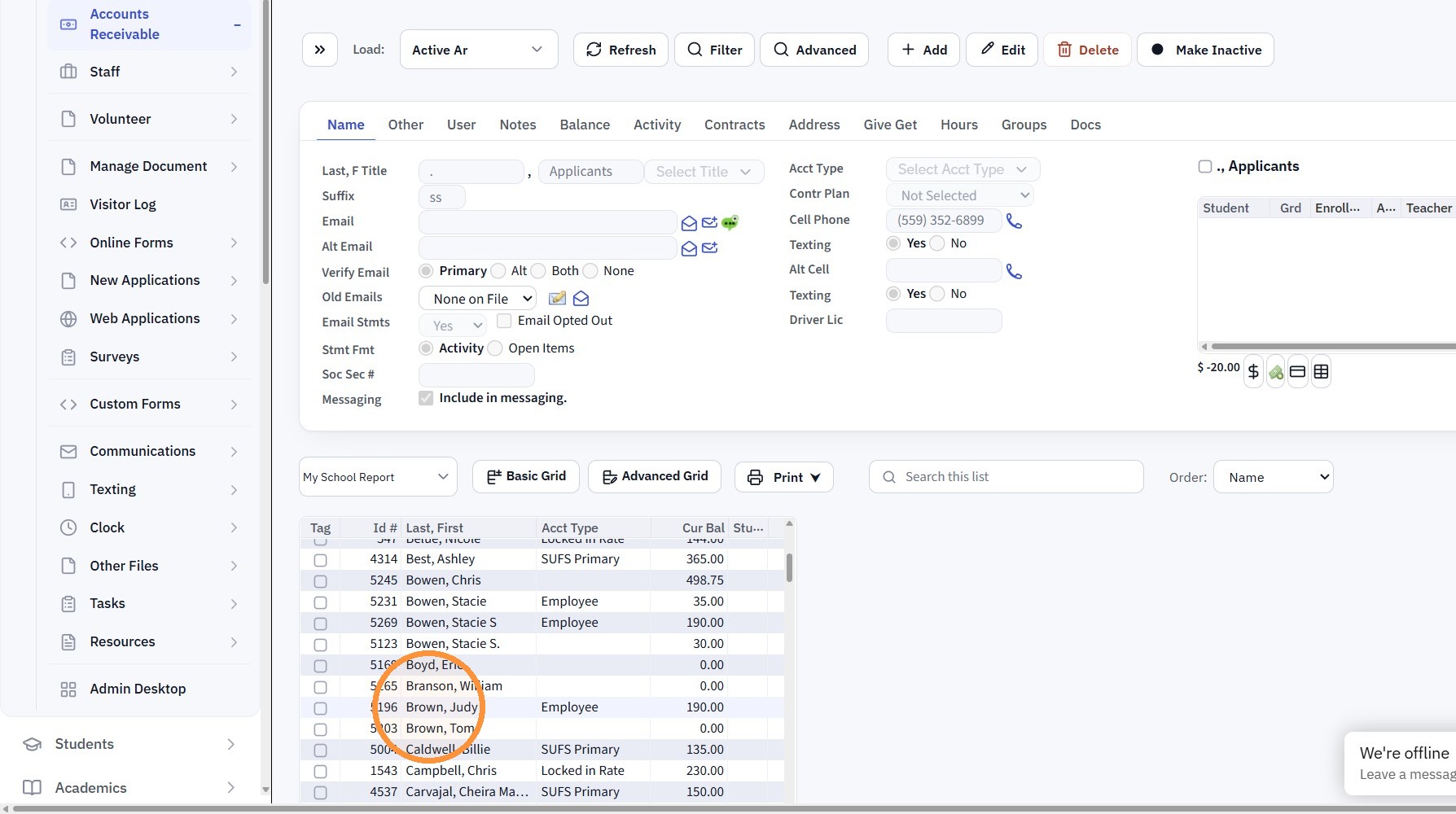
4. Click the "$" Icon
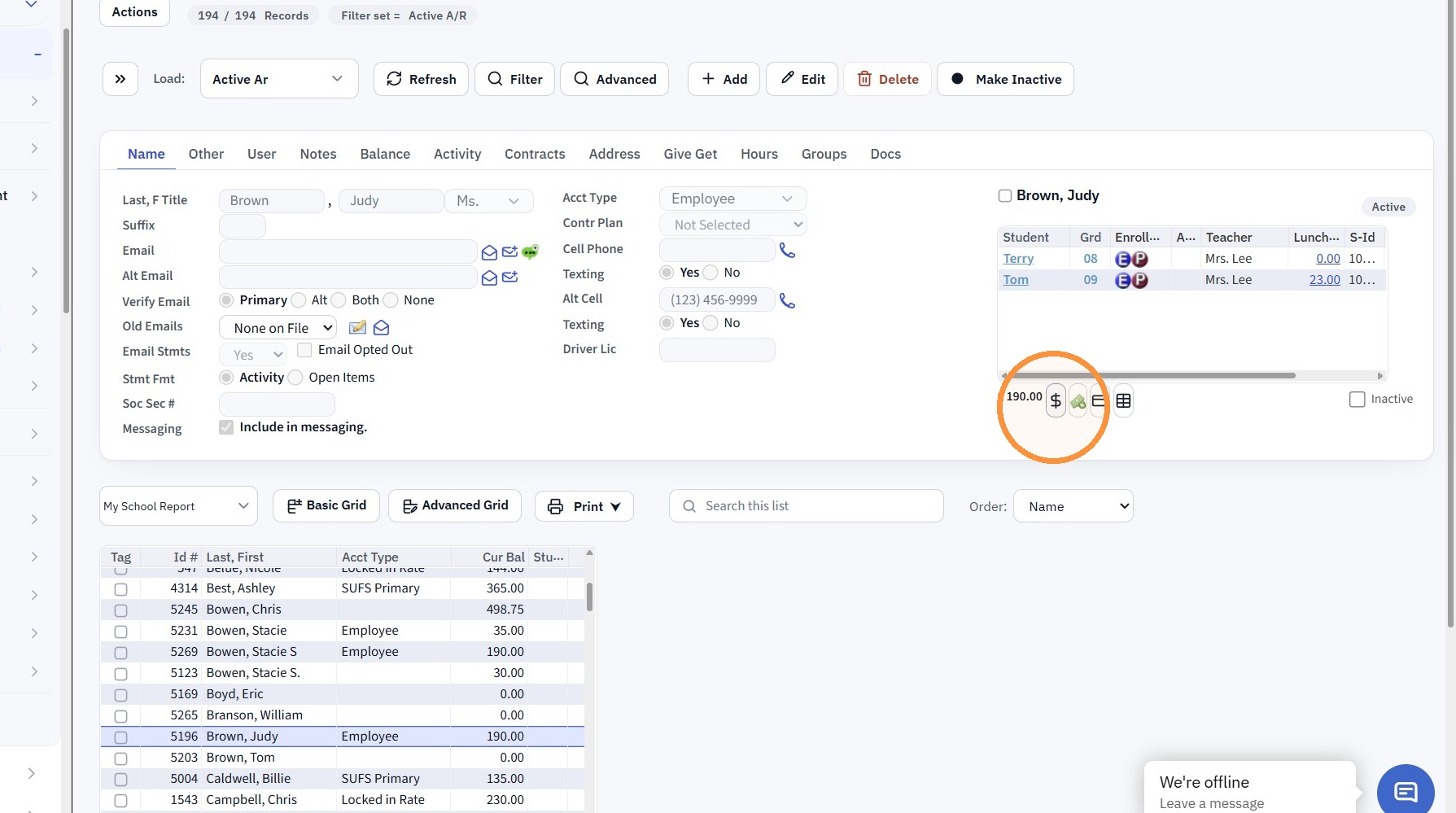
5. Select the Defined Item for Balance Write-Off
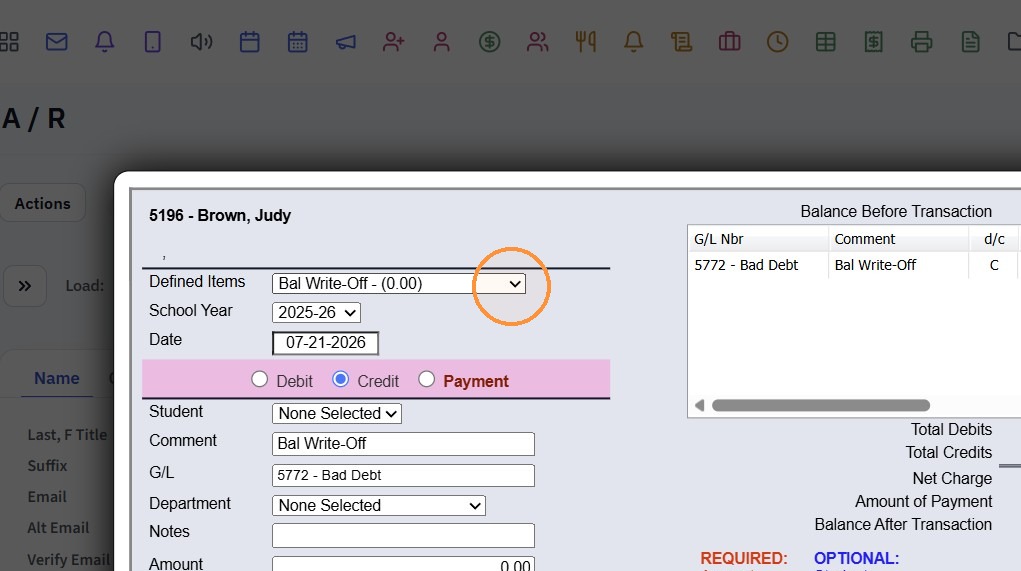
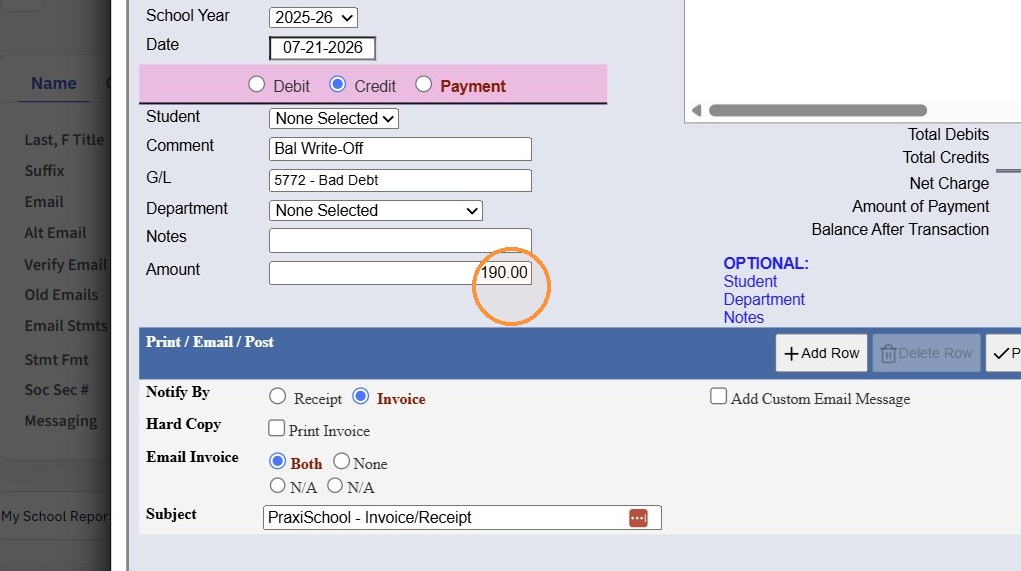
6. Enter the Amount to Write-Off
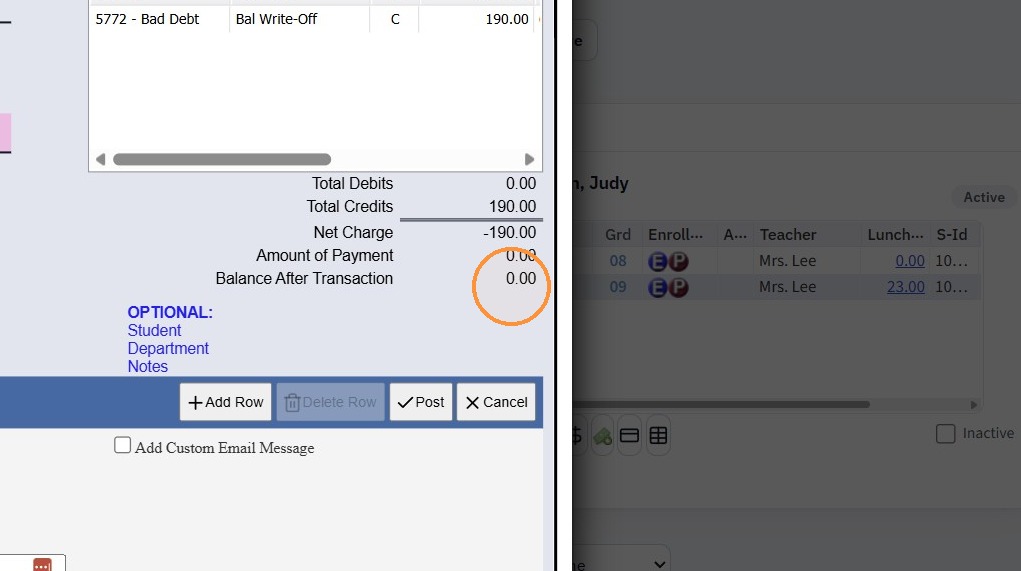
7. If Writing Off the entire Balance, the Balance After Transaction will show $0.00
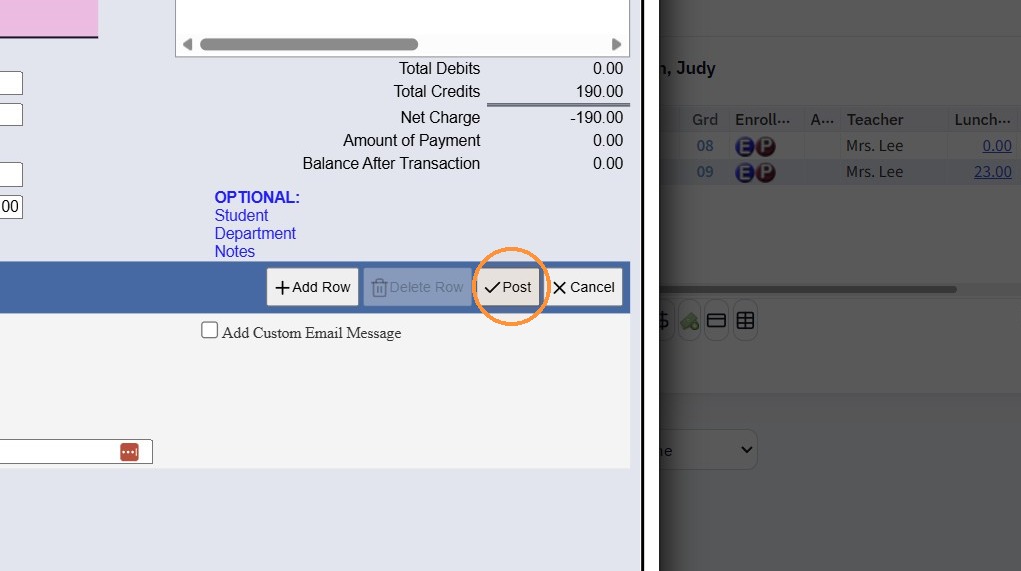
8. Click "Post"
Noting the Balance Write-Off
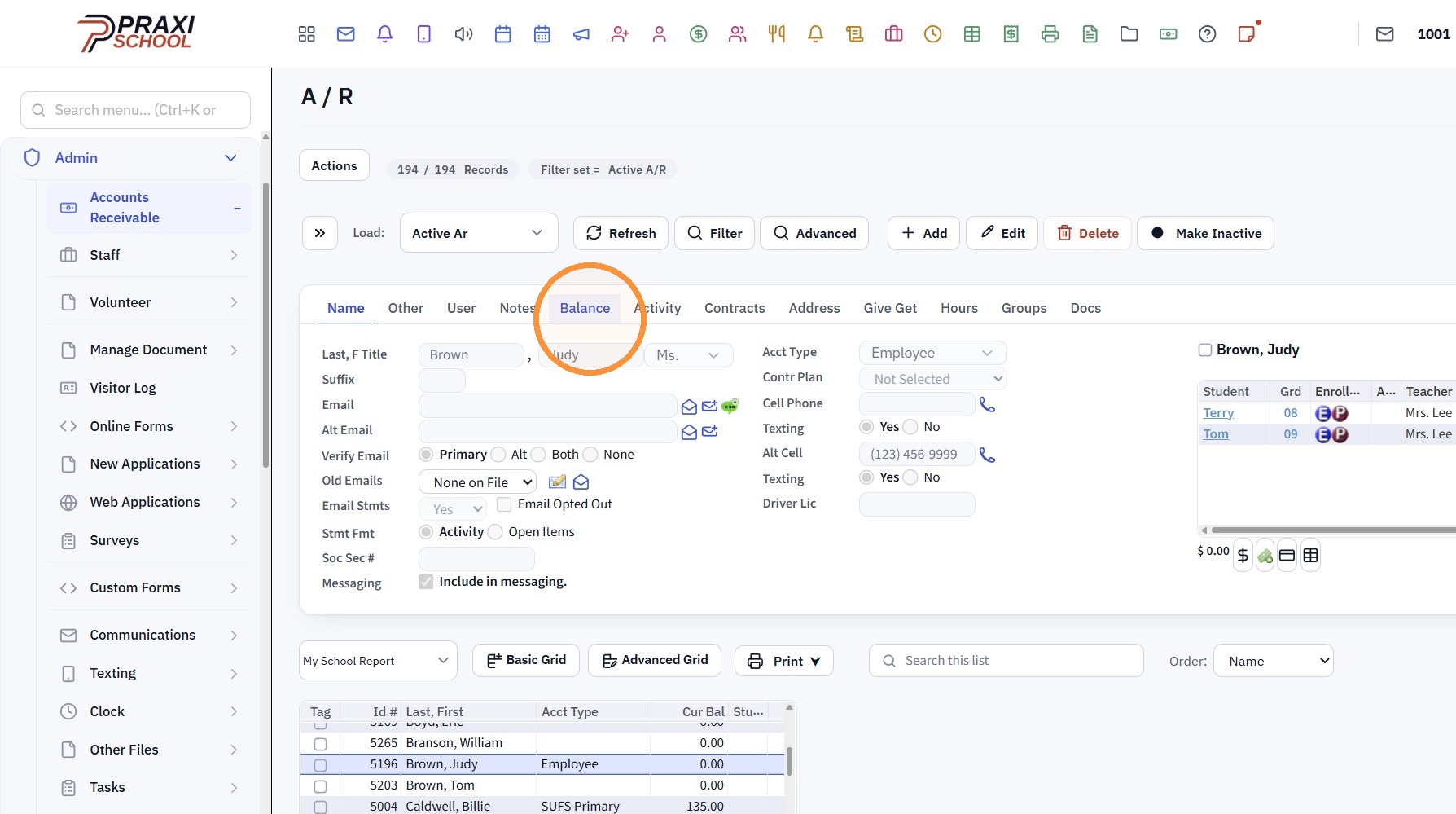
9. Click "Balance"
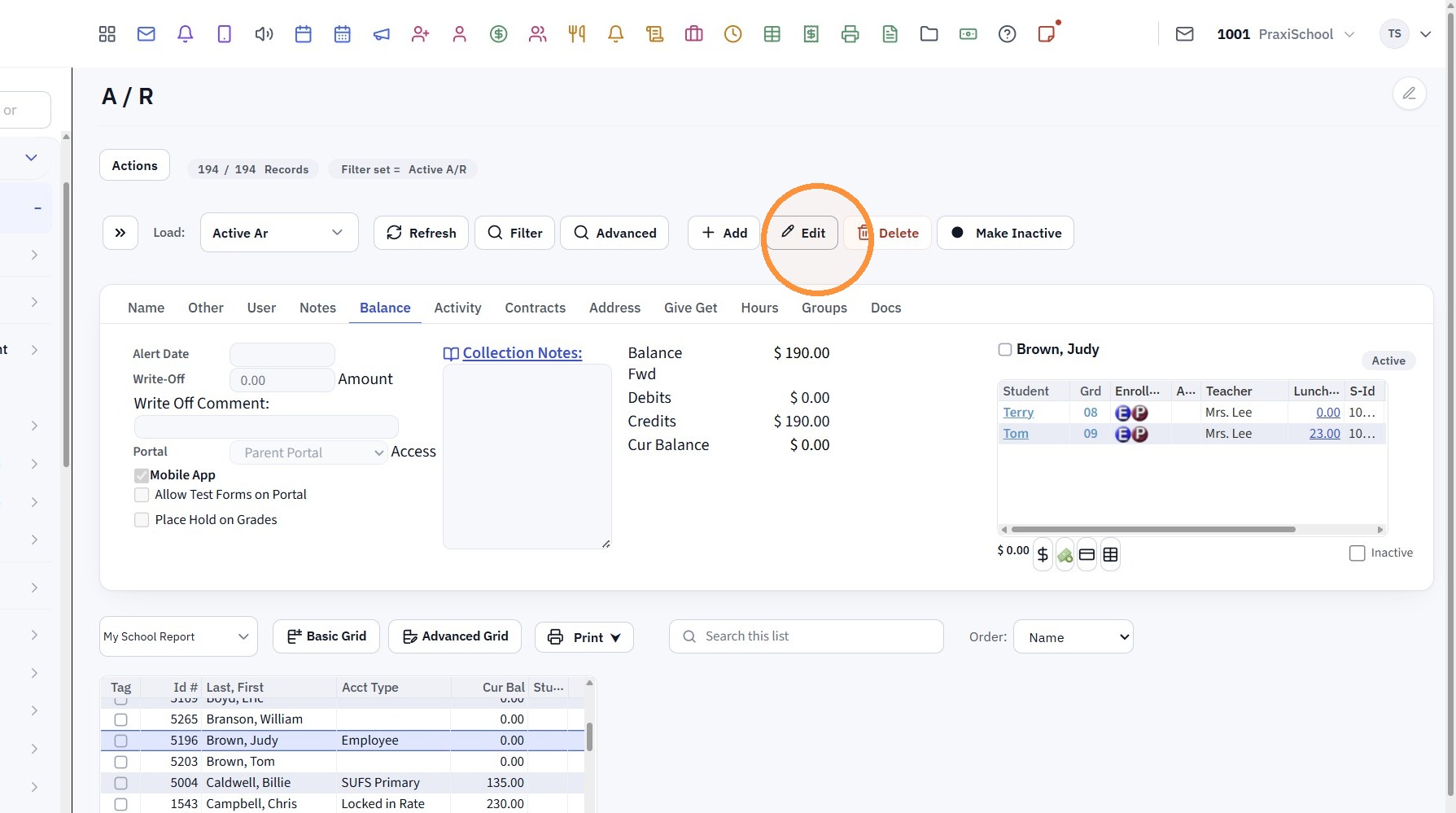
10. Click "Edit"
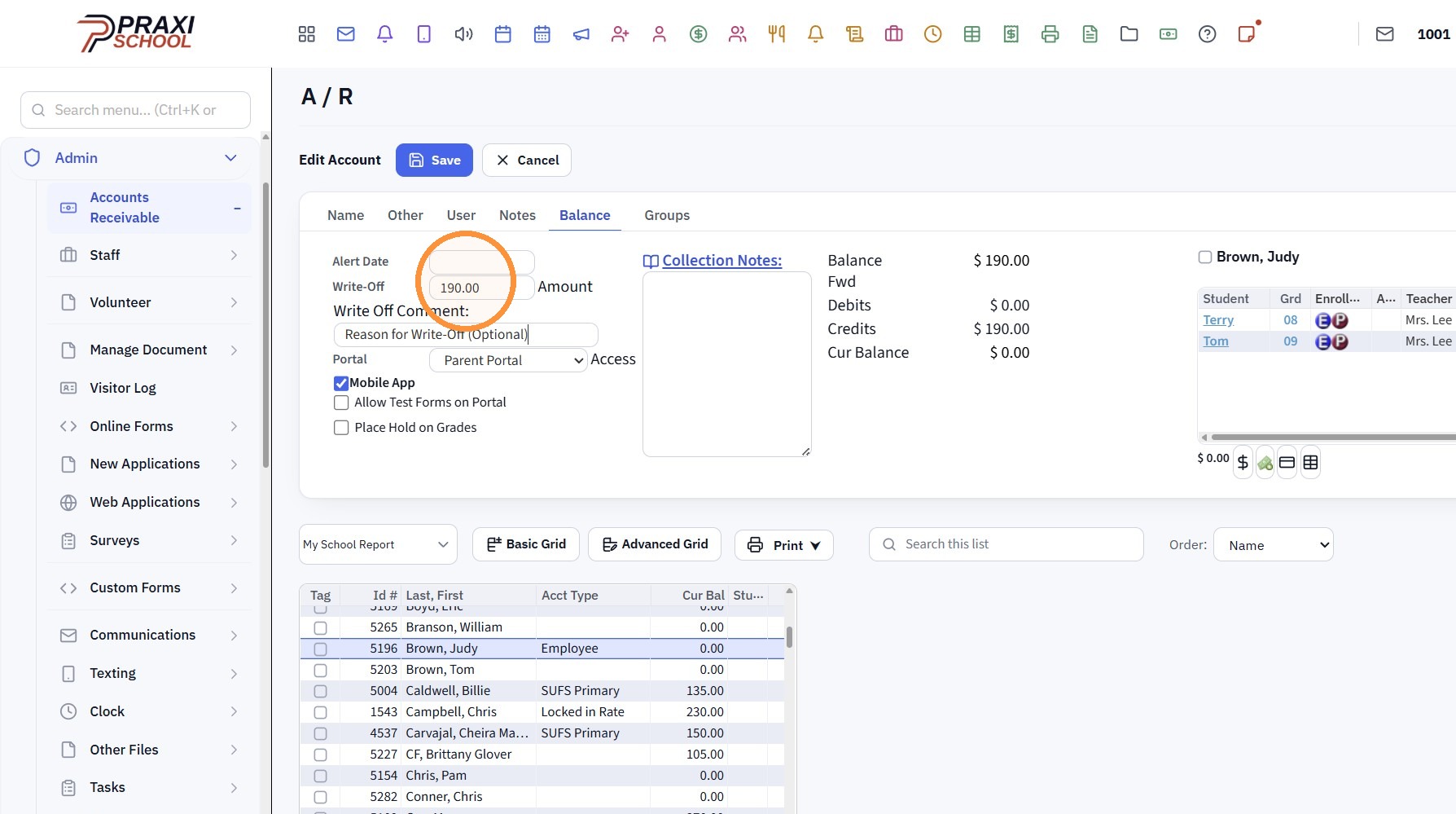
11. Enter the Amount that was Written-Off
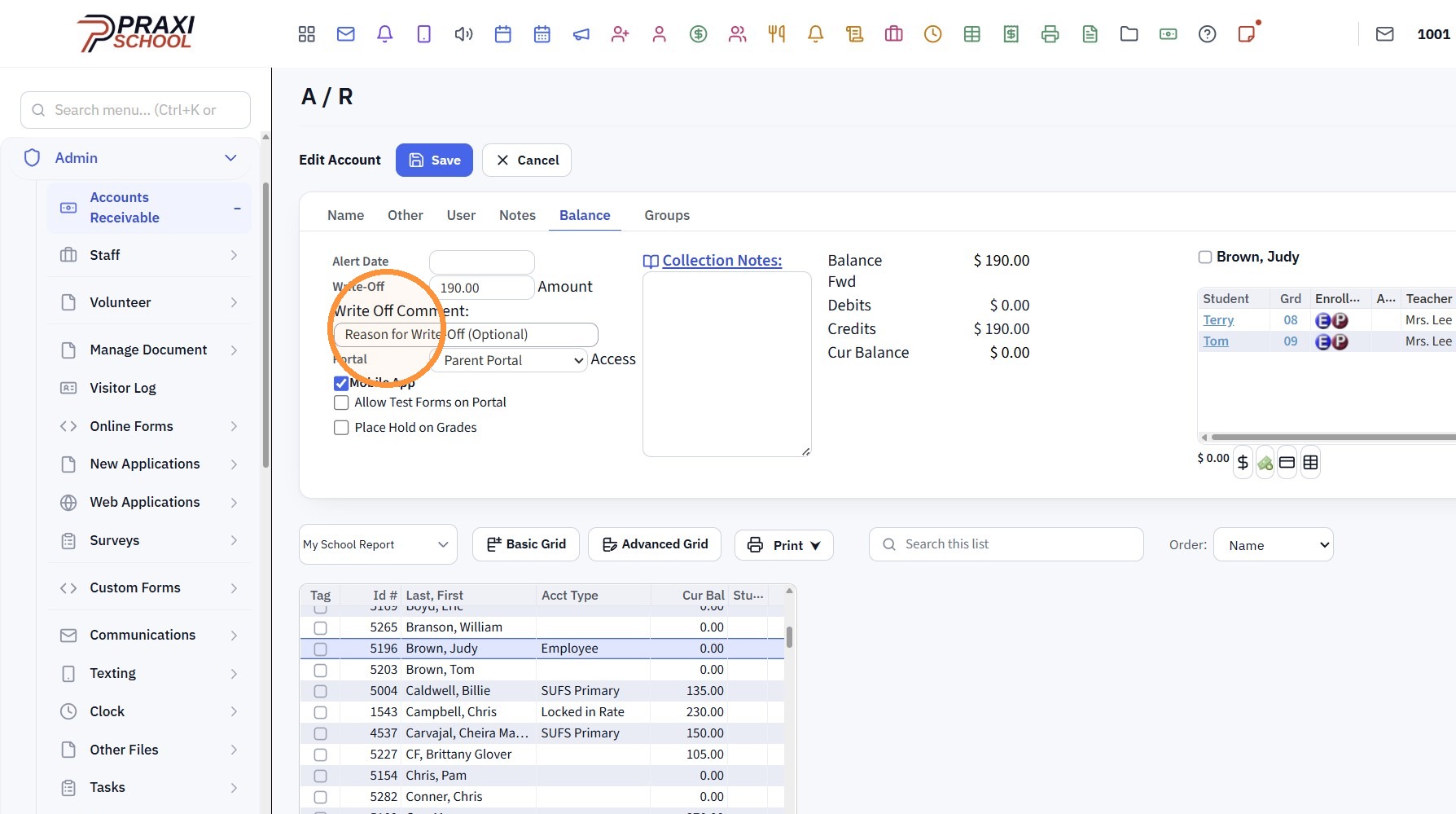
12. Enter the Reason for the Write-Off (Optional)
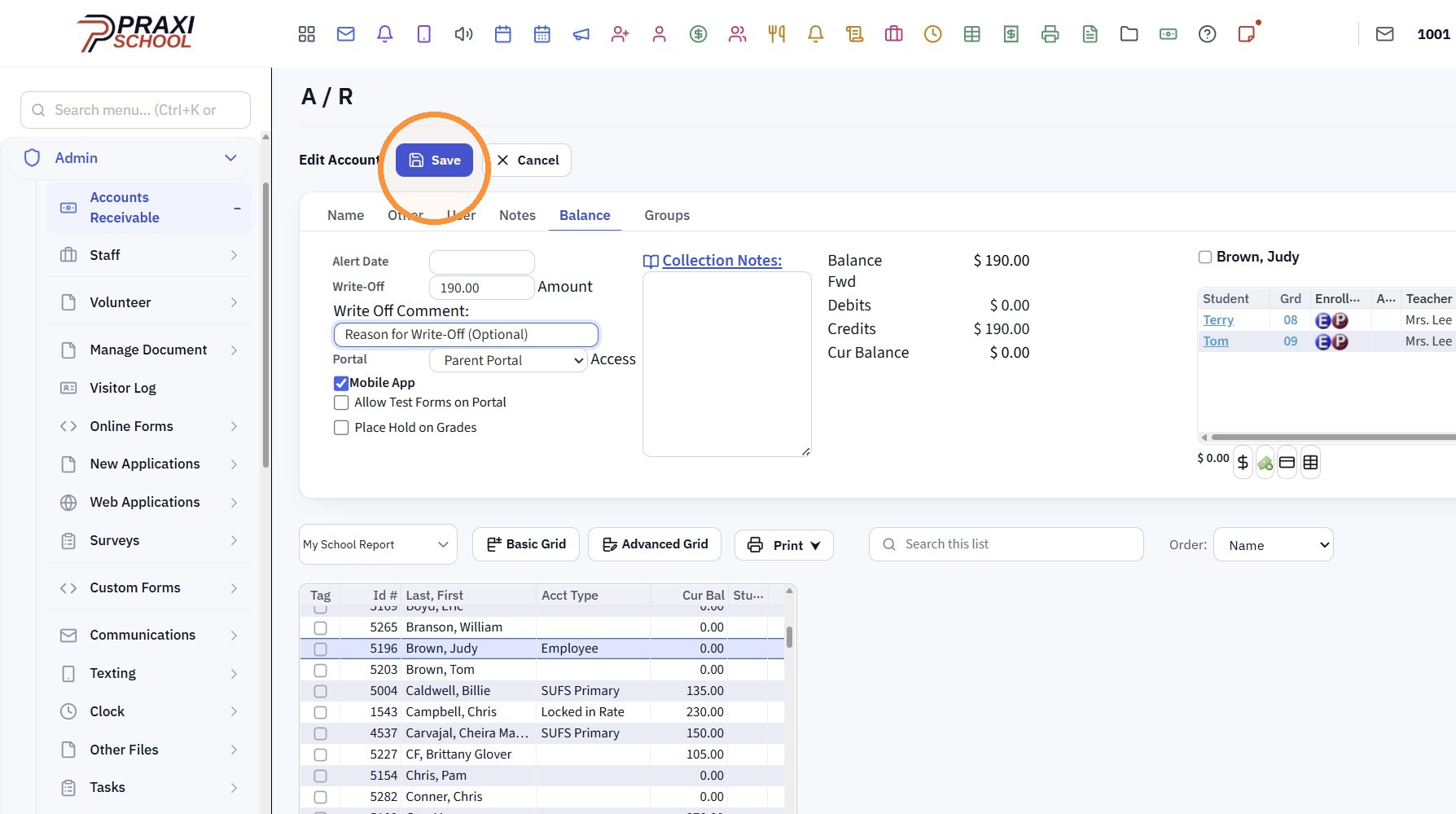
13. Click "Save"
1001.1.37
Related Articles
Creating a Balance Write-Off Transaction Item
1. Click "Lists" 2. Click "A/R Accounting" 3. Click "Transaction Items" 4. Click "Add" 5. Enter the Description & Comment for the Balance Write-Off 6. Click "Credit" 7. Select the Write-Off General Ledger Number 8. Click "Save" 3500.11.5.1Posting a Refund to an AR Account (Owed Balance)
Posting a Refund to an AR Account (Owed Balance) 1. Go to Accounts Receivable 2. Select Student Account 3. Click "Actions" 4. Click "Refund Account" 5. Enter Refund Date 6. Click "Check & Credit" 7. Make sure Bank Acct General Ledger is Selected 8. ...Transferring Funds from an AR Account to a Student Lunch Account
Transferring Funds from an AR Account to a Student Lunch Account 1. Click "Admin" 2. Click "Accounts Receivable" 3. Select AR Account 4. Click the "$" 5. Click "Debit" 6. Select Student 7. Enter Comment "Transfer to Lunch" 8. Select Lunch General ...Posting a Refund to an AR Account
Posting a Refund to an AR Account 1. Go to Accounts Receivable 2. Select Student Account 3. Click "$" in the Blue Box 4. Select the "Account Refund" option from the Defined Item Dropdown Menu 5. Verify Date and Update Amount (if necessary) 6. Enter ...Students: Viewing AR Connections
Students: Viewing AR Connections 1. Click "Students" 2. Click "Students" 3. Select Student 4. Click "A/R" tab 5. Primary AR Account w/Hyperlink to AR Account 6. Secondary AR Account w/Hyperlink to AR Account 1500.4.17