How to Add a New Student in the Student Wizard (T)
How to New Student in Student Wizard (T)
1. Click "Students"
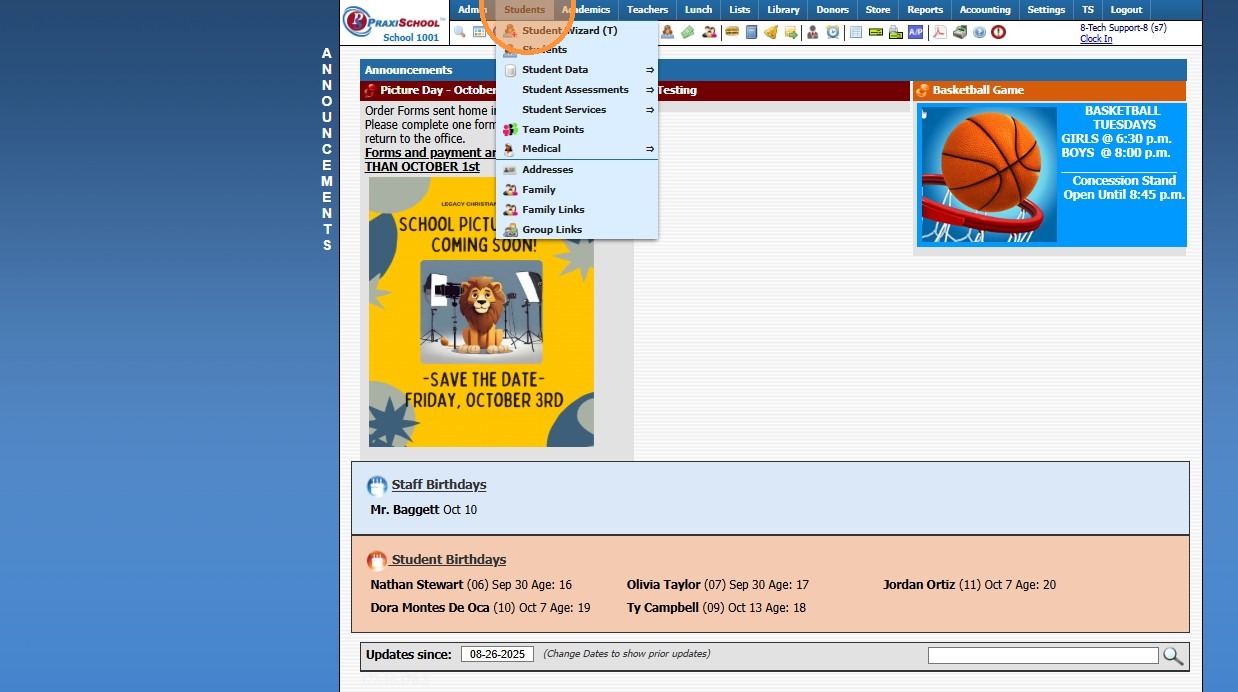
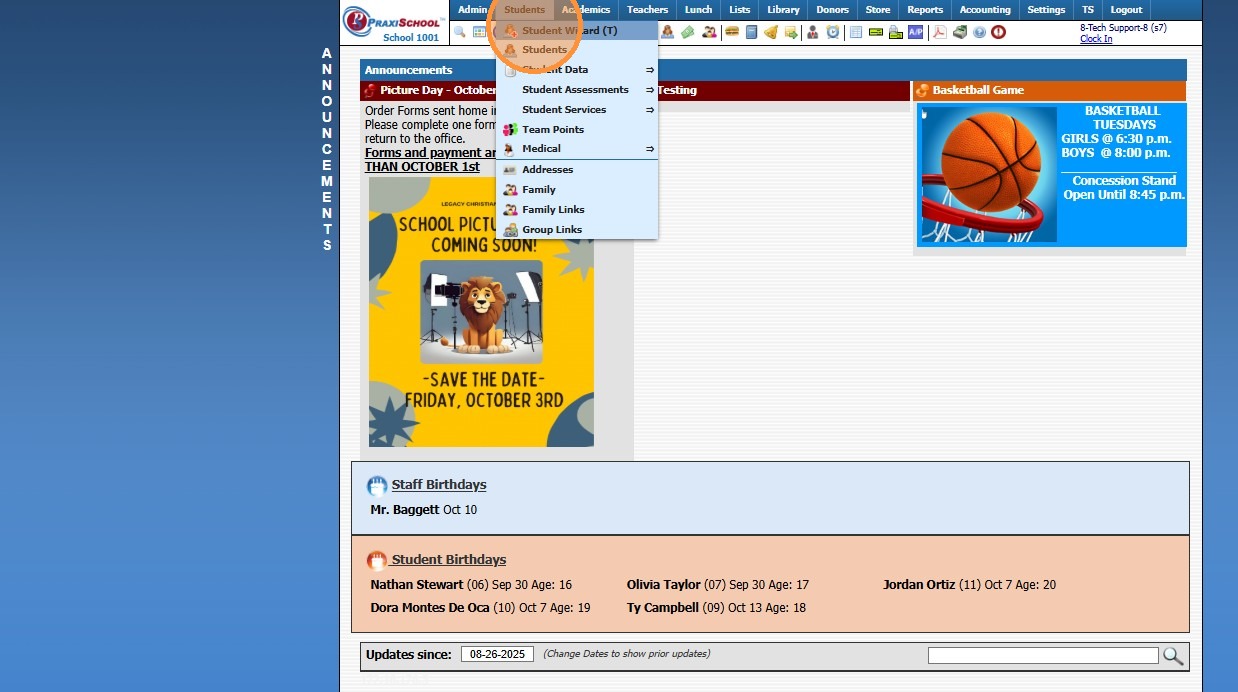
2. Click "Student Wizard (T)"
3. Click "New Student"
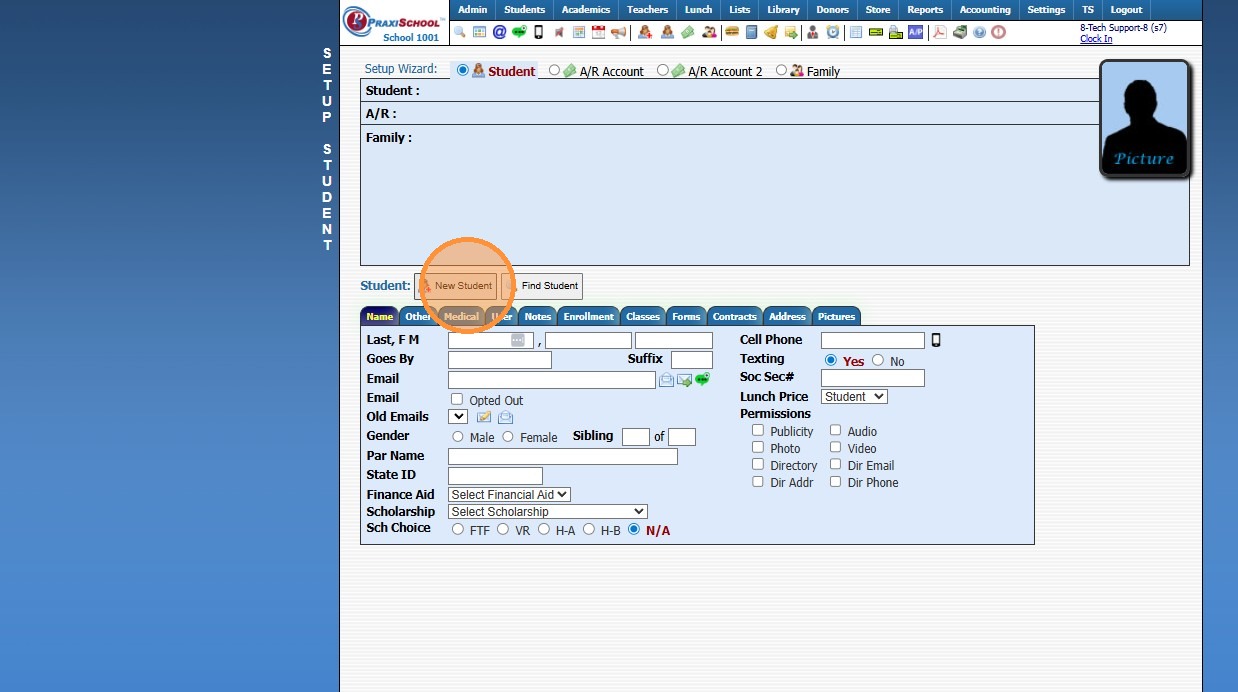
4. Add the Student's Name
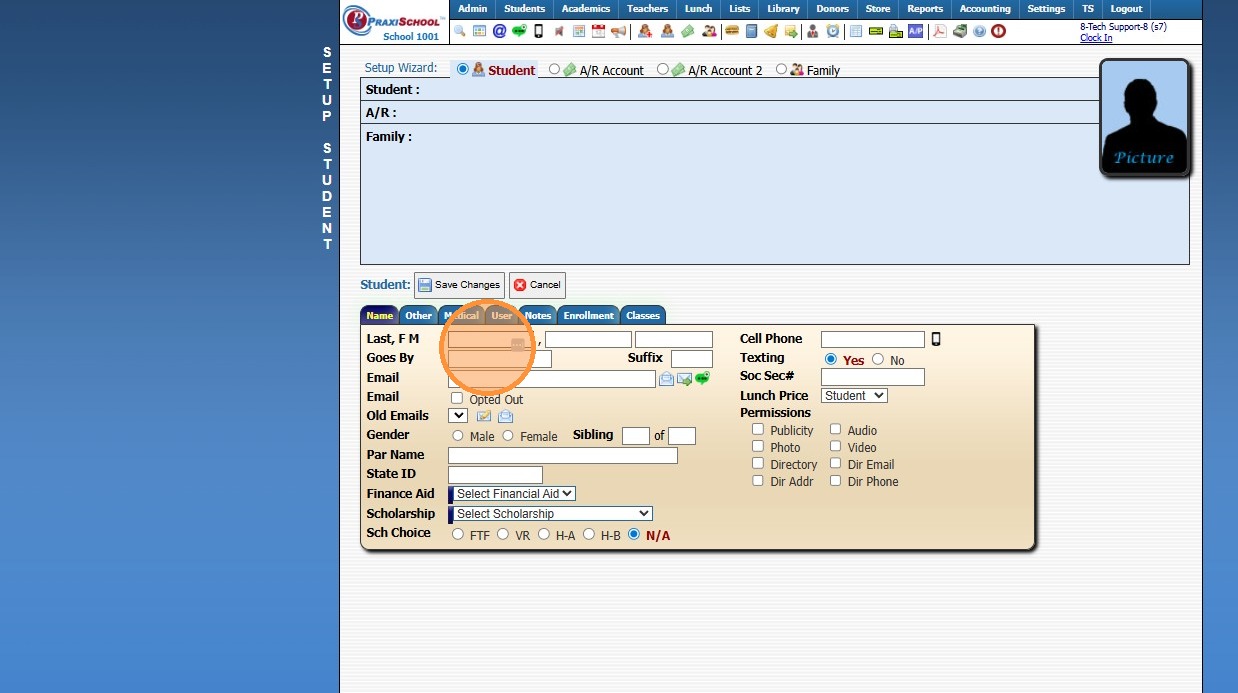
5. Add the Goes By Name
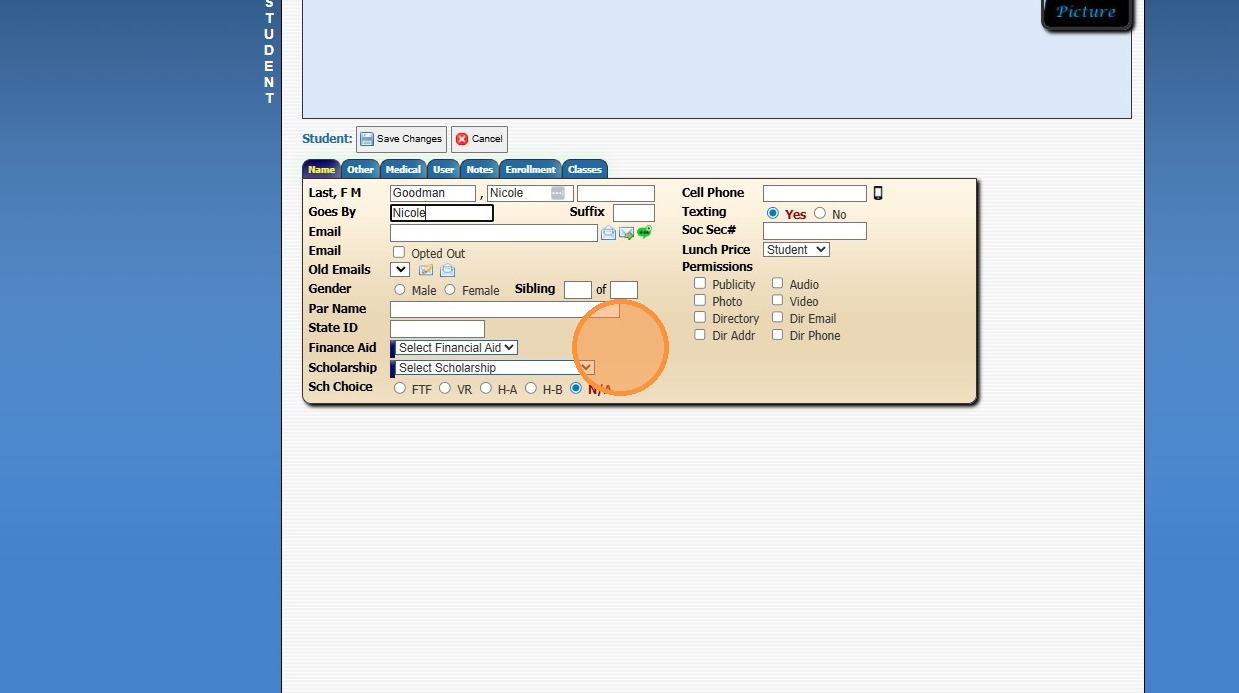
6. The other fields and tabs are available for you to use to use but they are optional
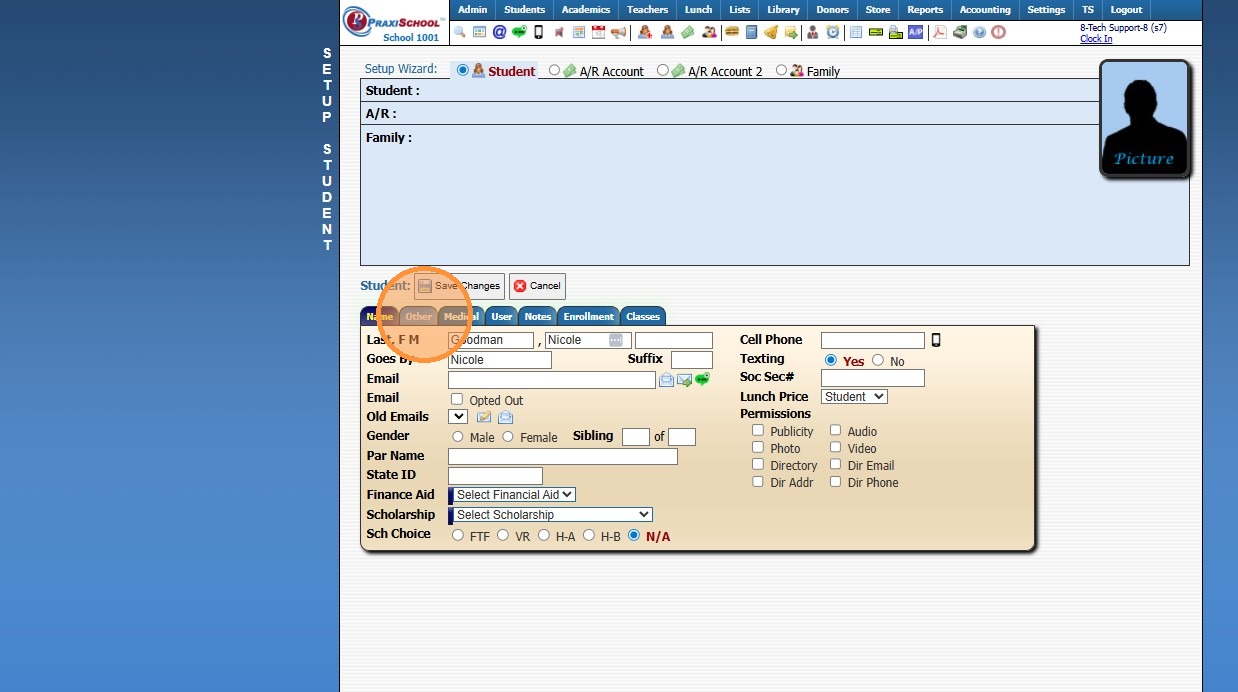
7. Click "Save Changes"
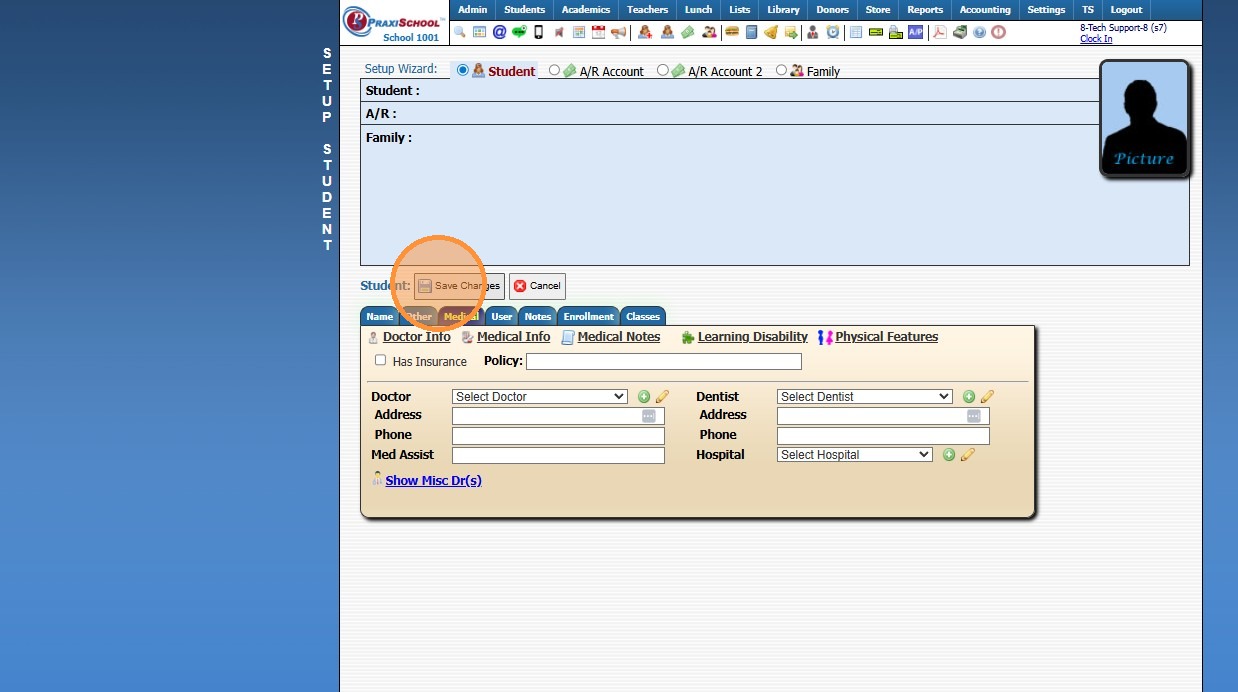
8. Click "Address"
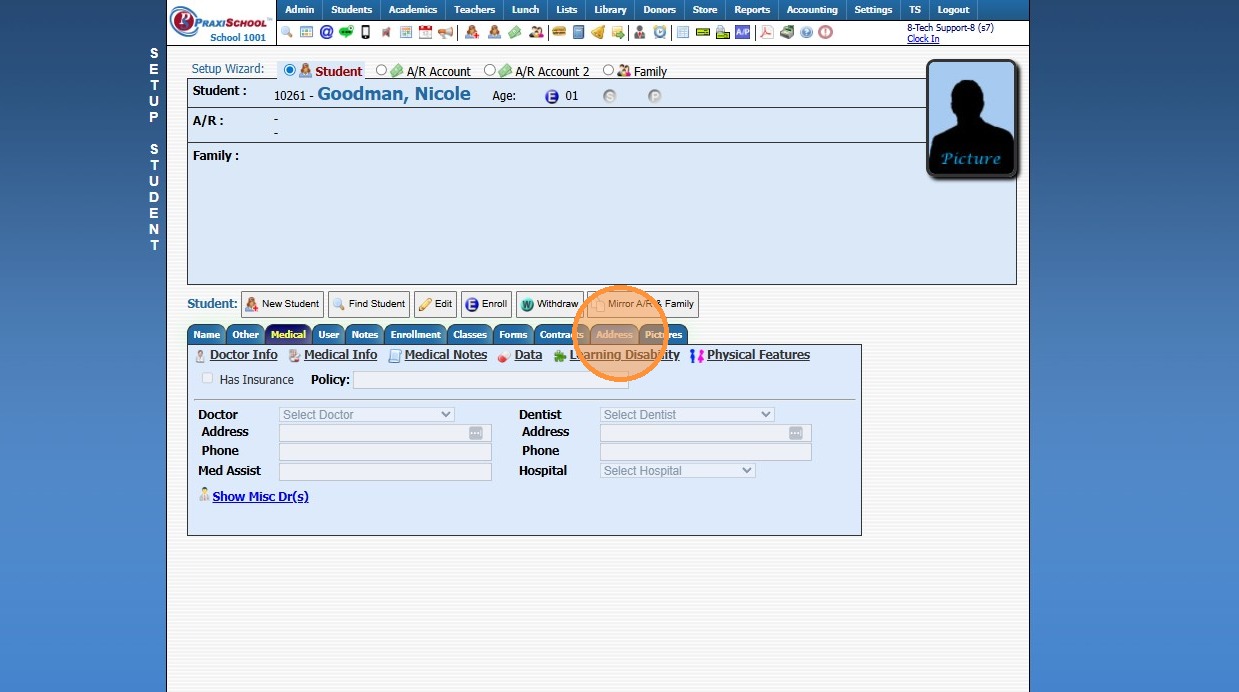
9. Click "New Address"
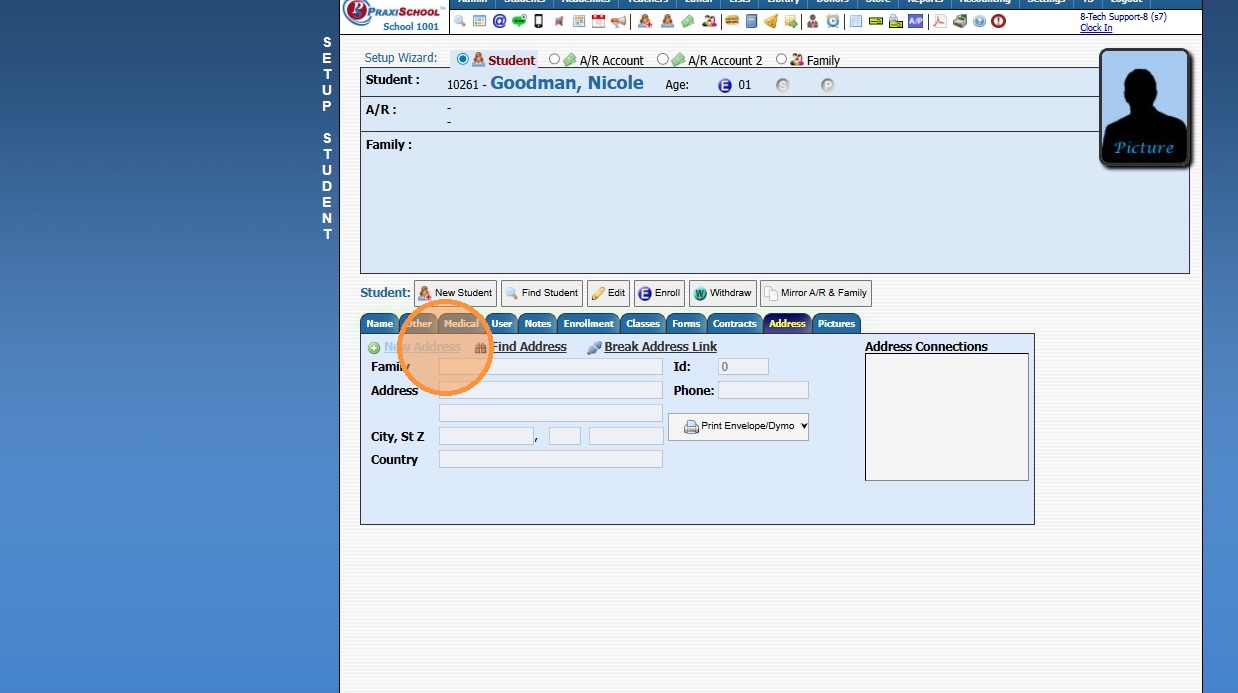
10. Add the Address
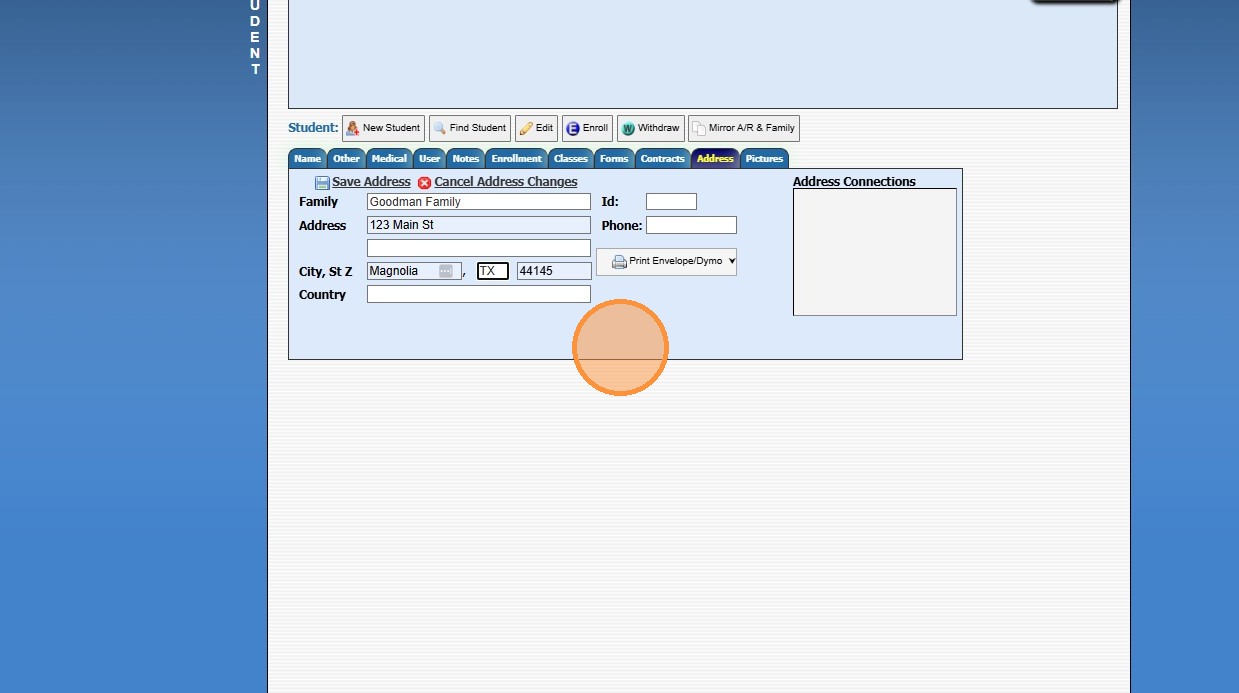
11. Click "Save Address"
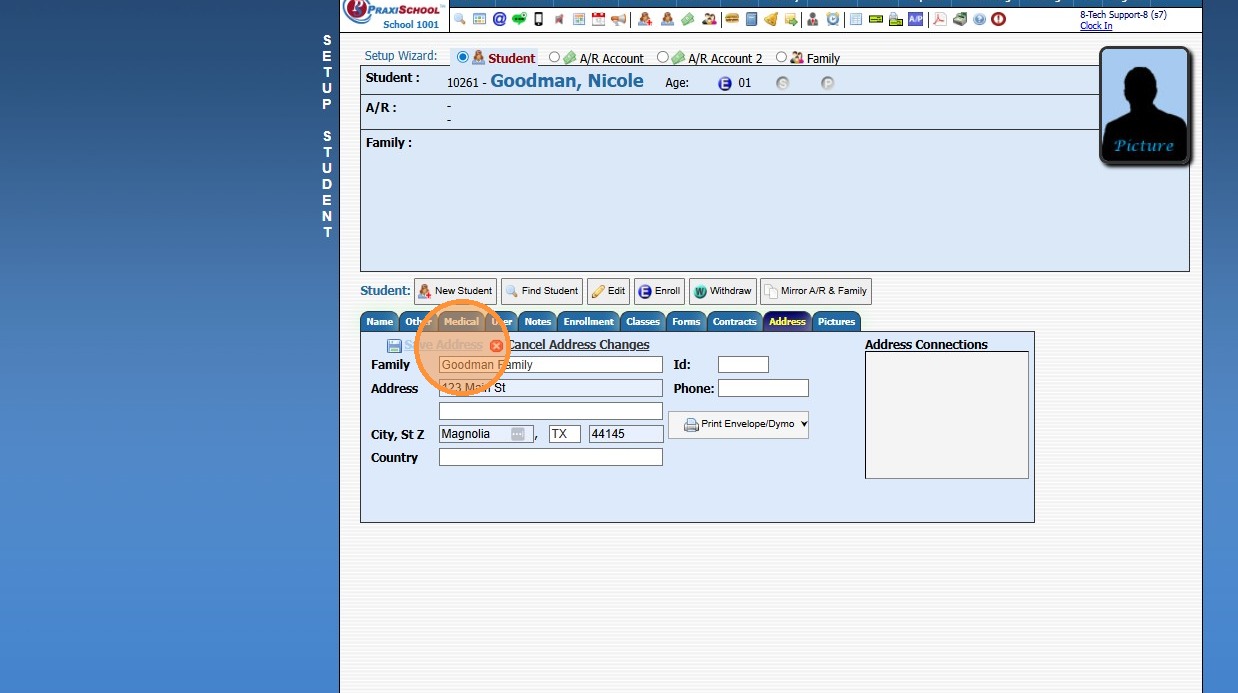
12. Click "Enroll"
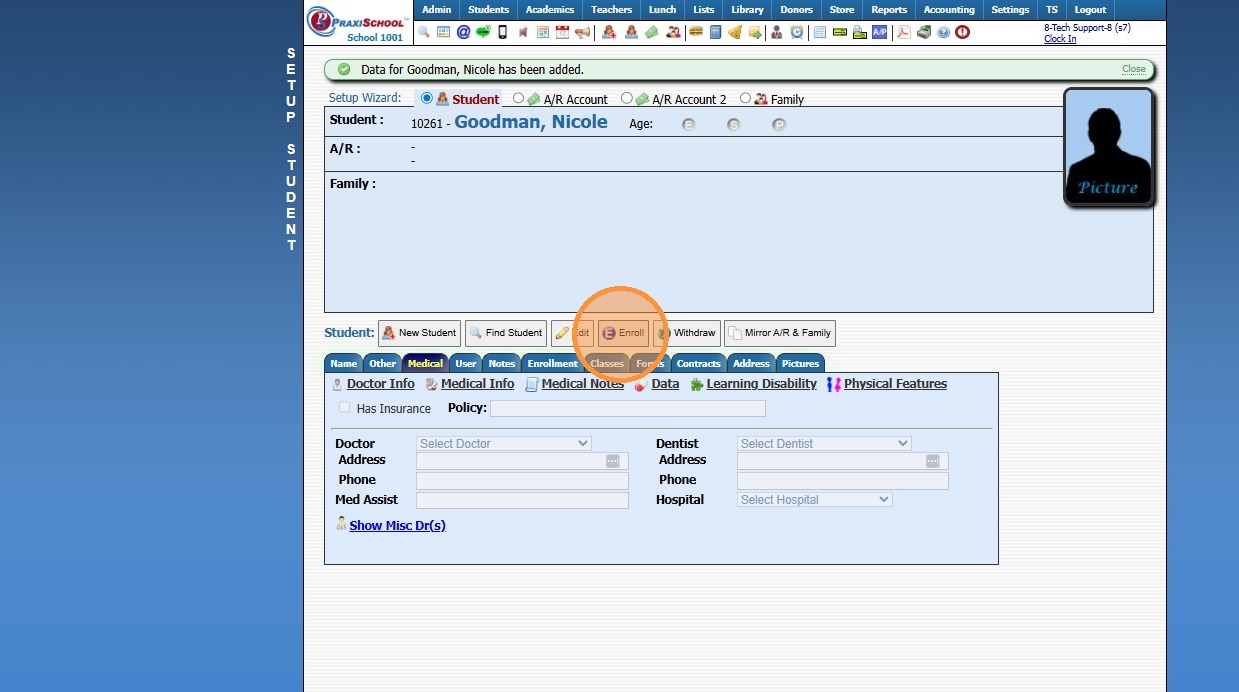
13. Select "Current" to Enroll in the Current School Year
Select "Summer" to Enroll in the Summer Session
Select "Next Year" to Pre-Register for the Next School Year
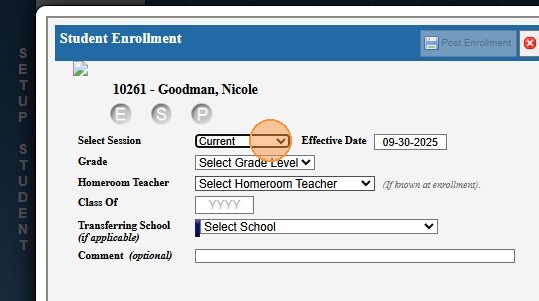
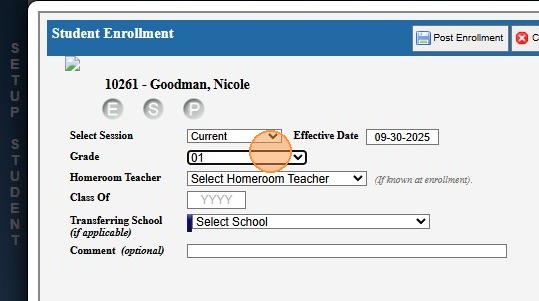
14. Select Grade Level for the Corresponding Session
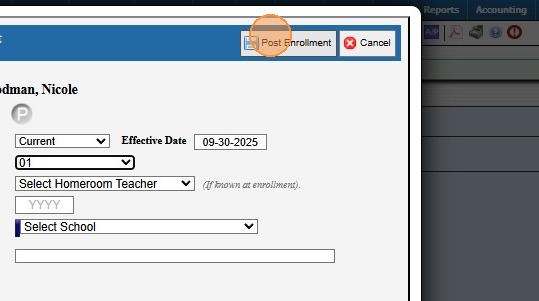
15. Click "Post Enrollment"
How to Add Primary Parent/AR Info
16. Click the "A/R Account" Toggle
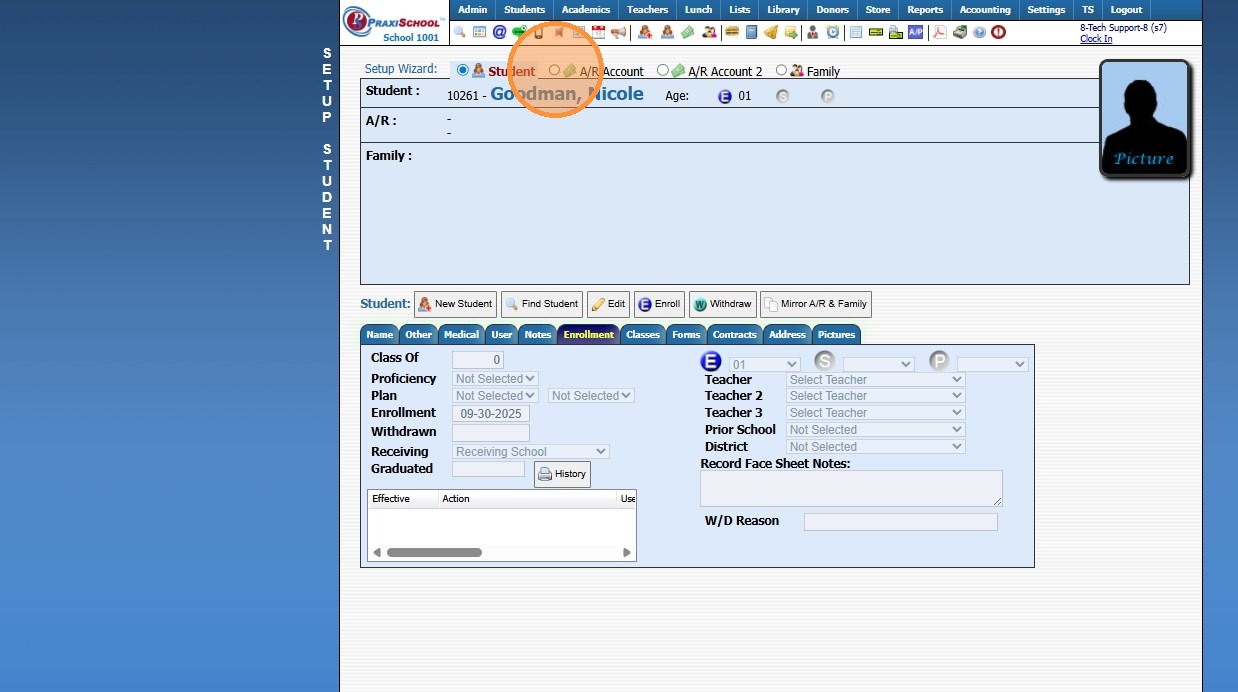
17. Click "New Account"
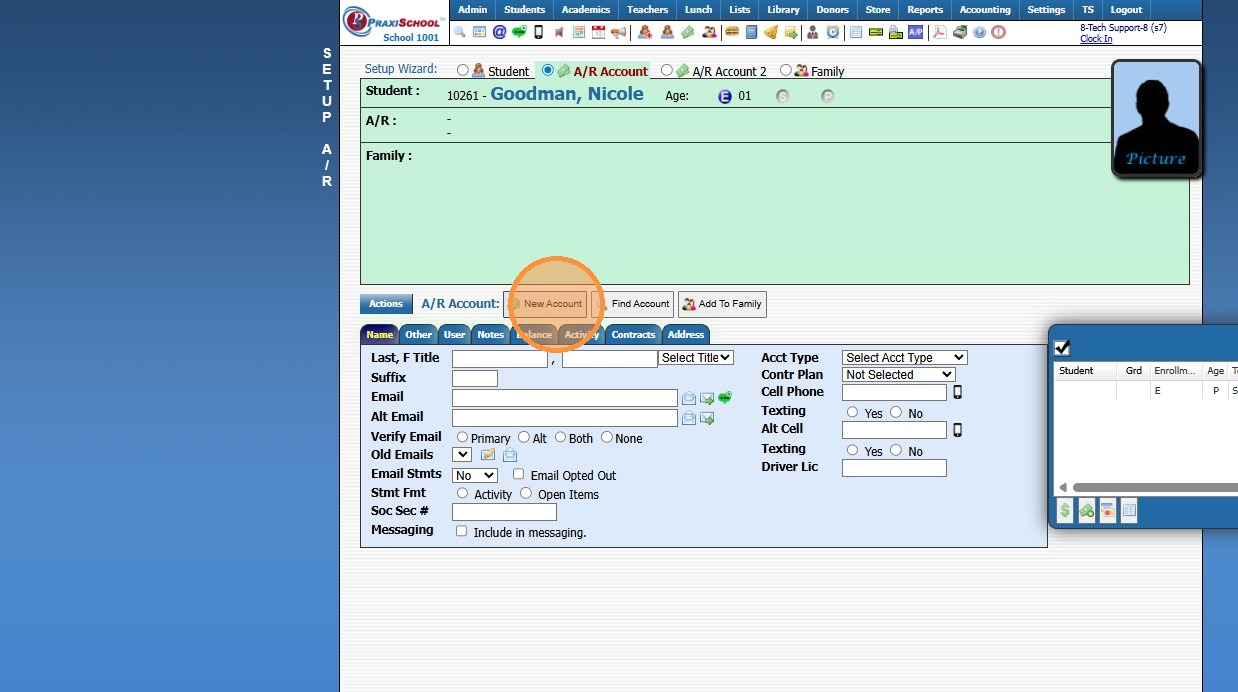
18. Add the Parent/Guardian Name
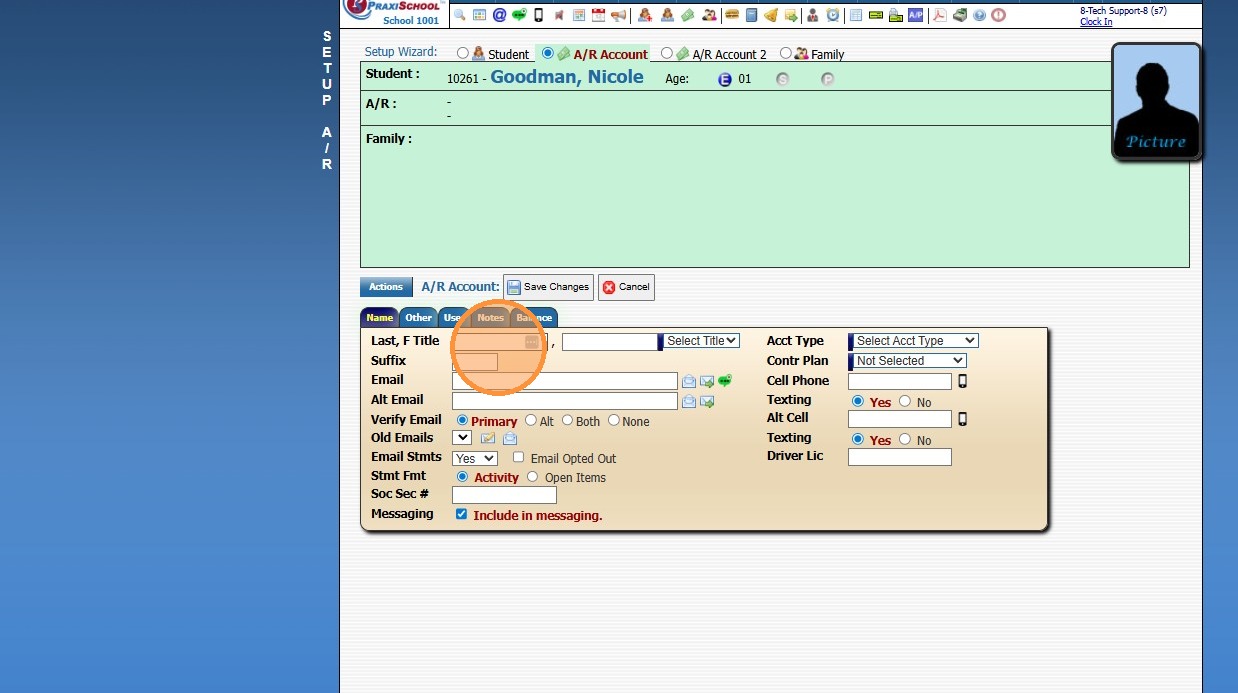
19. Click "Save Changes"
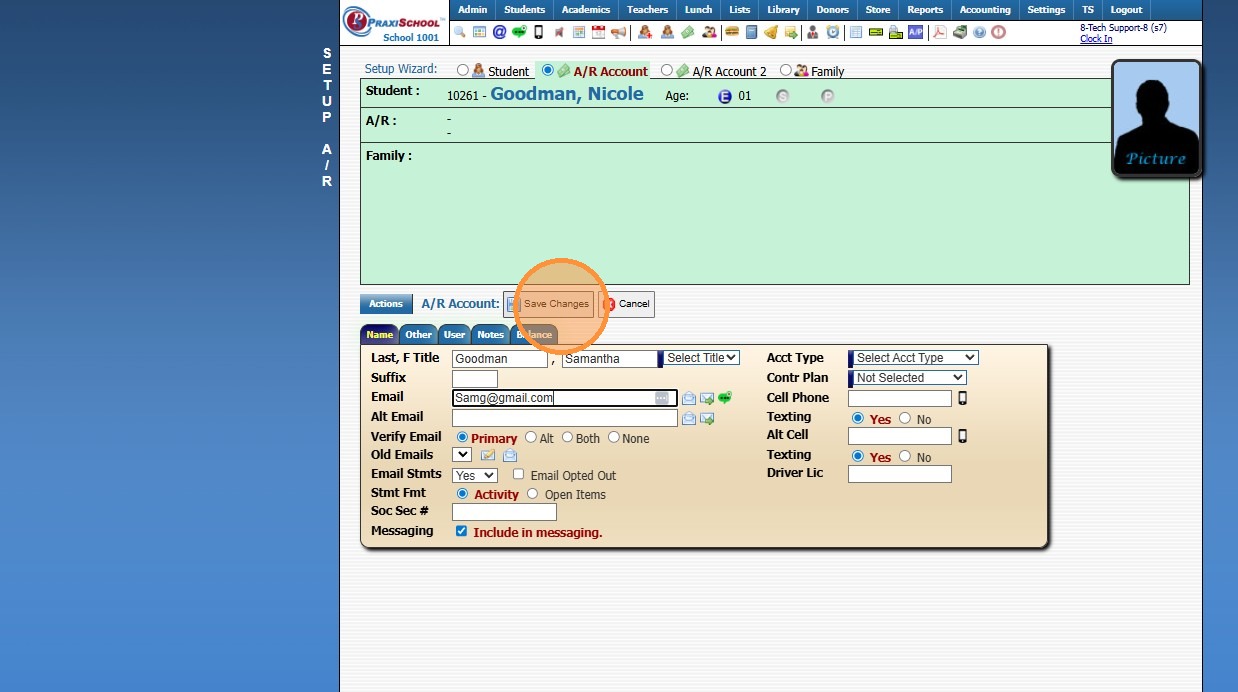
20. Click "Add To Family"
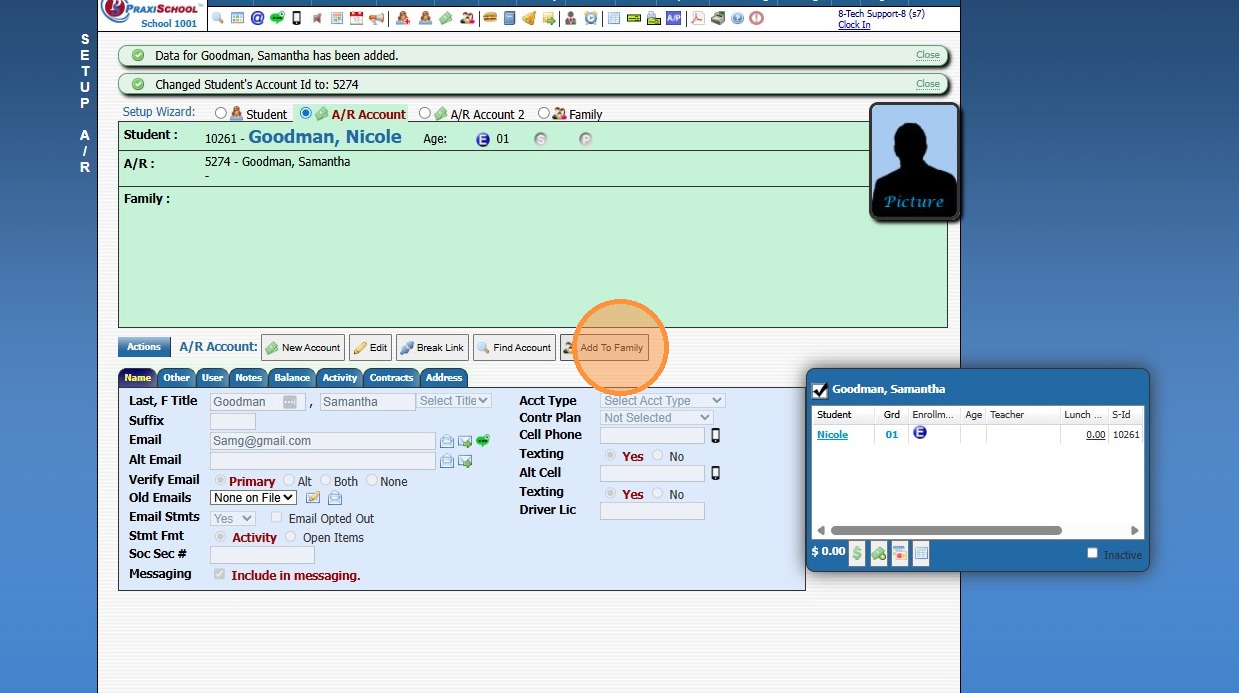
21. Select the "Relationship"
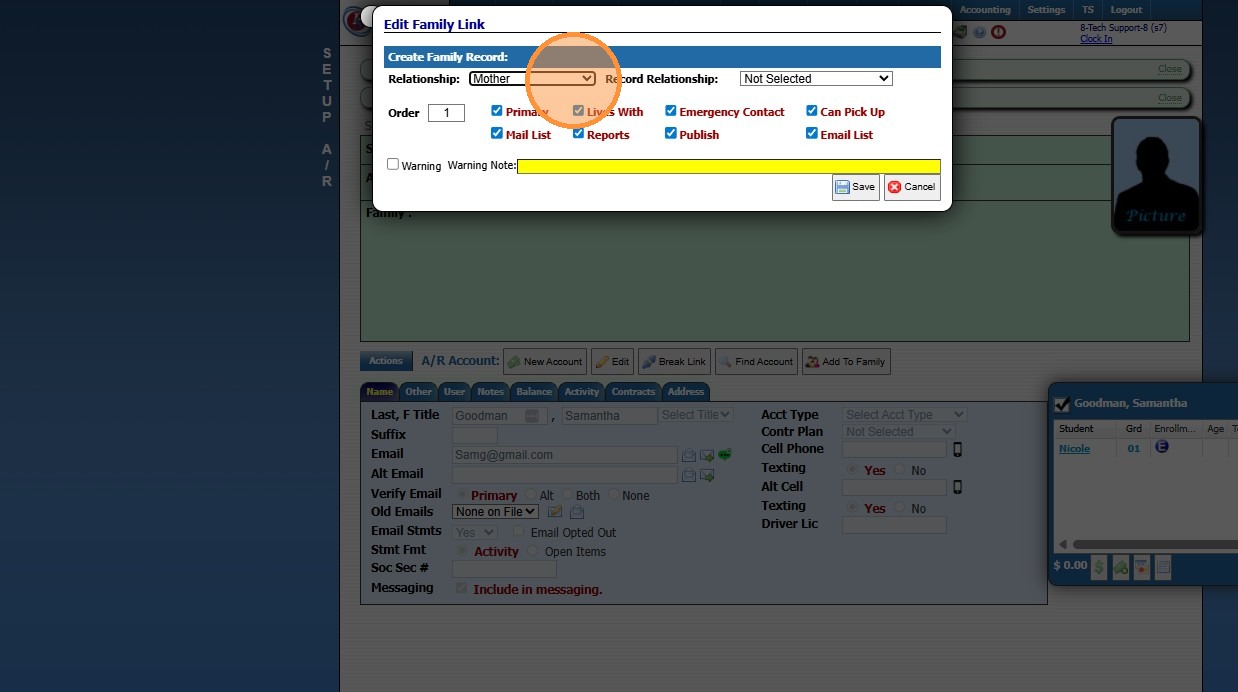
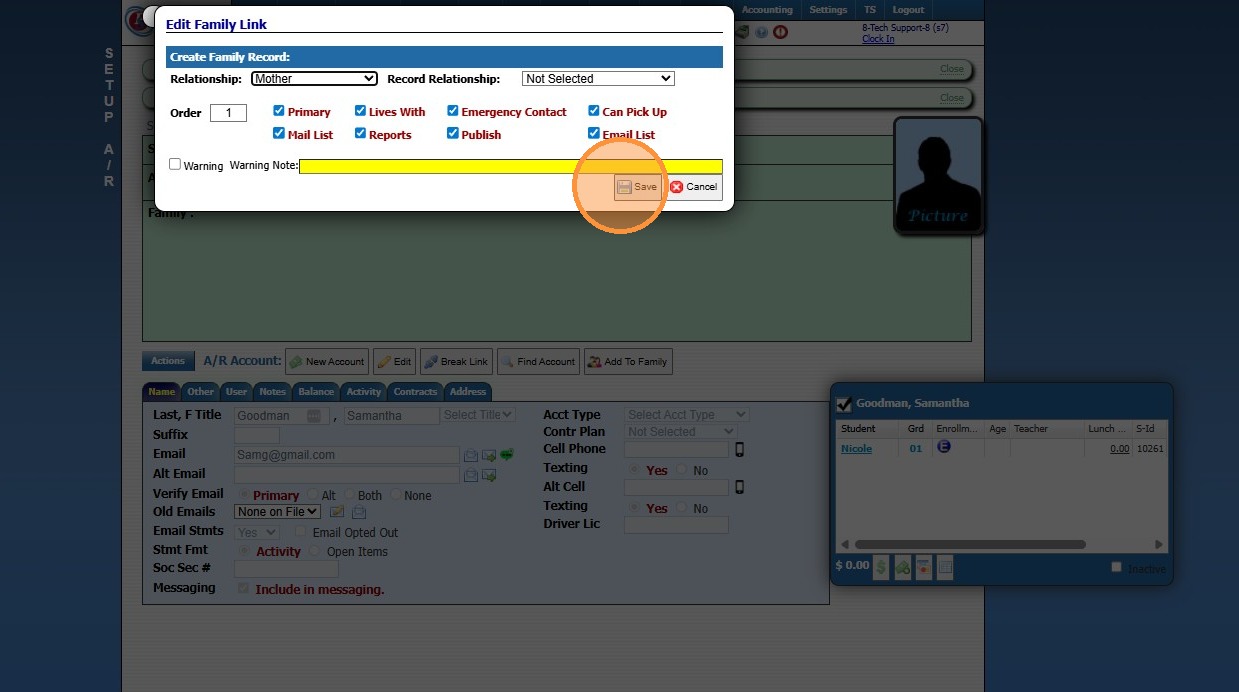
22. Click "Save"
How to Add Additional Family Member
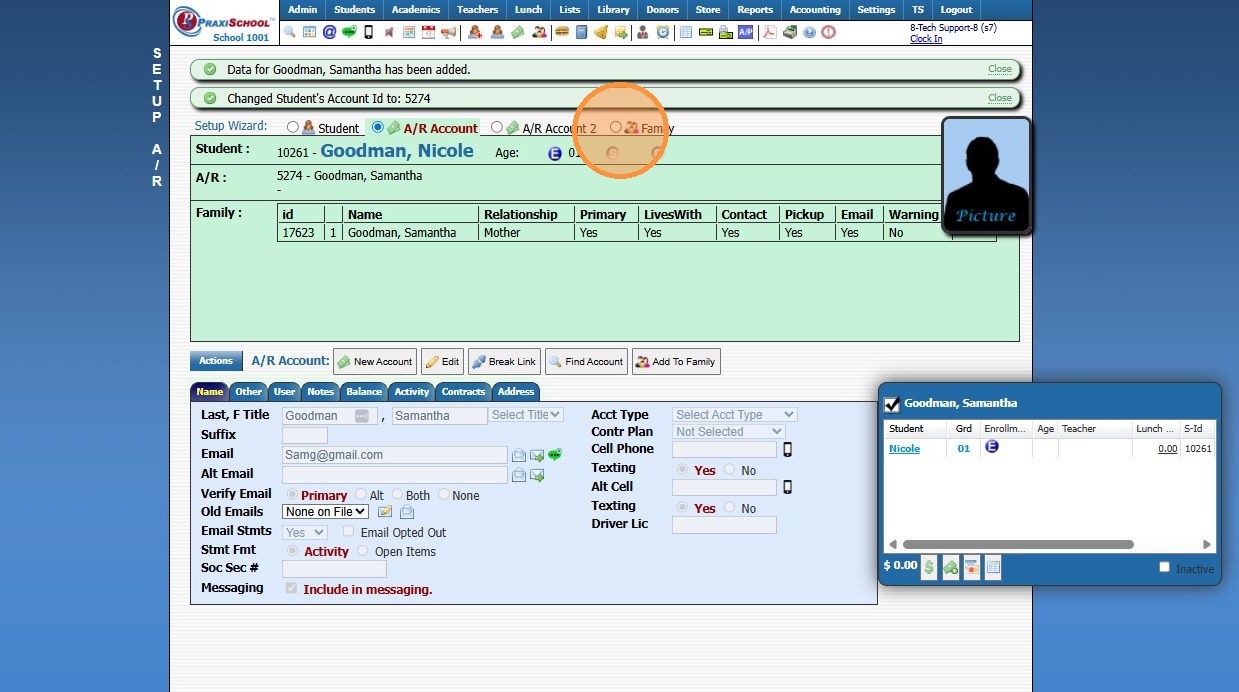
23. Click the "Family" Toggle
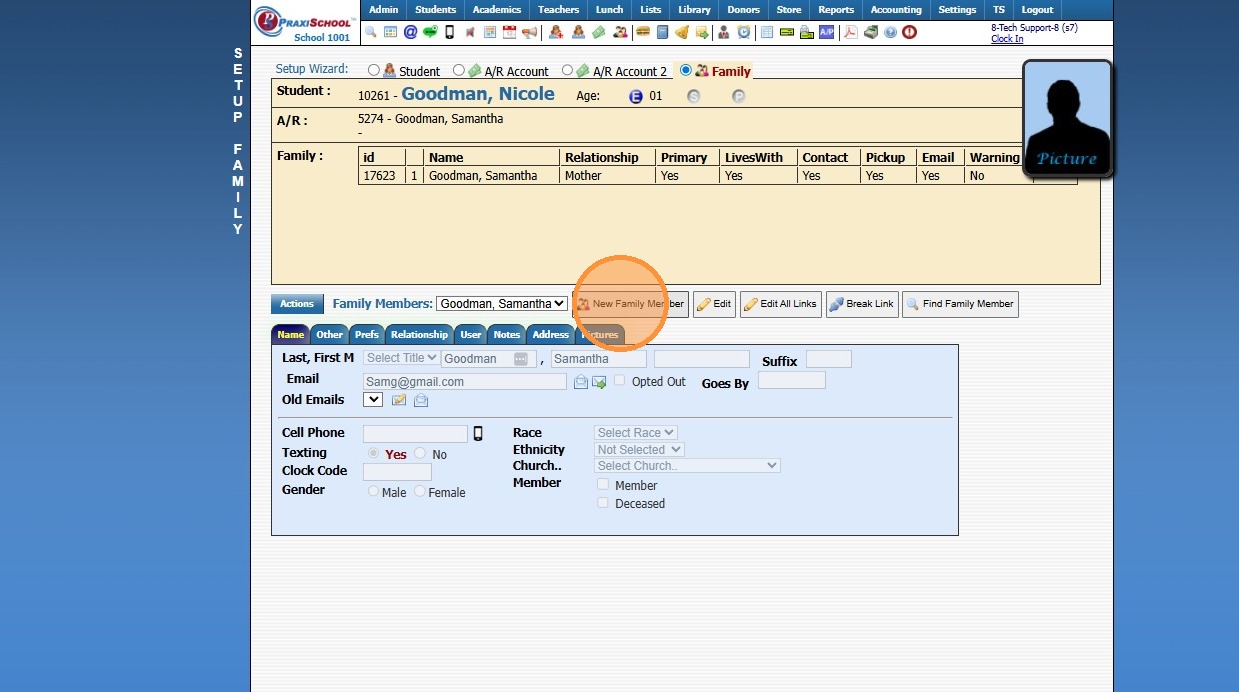
24. Click "New Family Member"
25. Select the "Relationship"
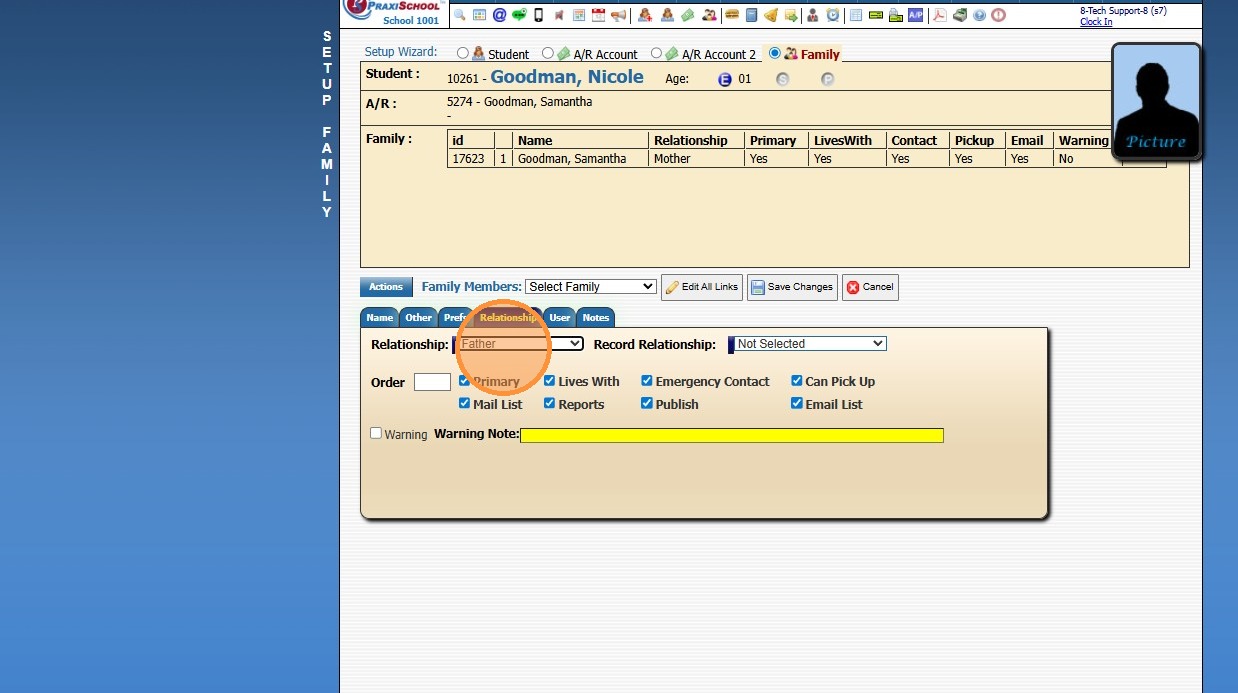
26. Click the "Name" Tab
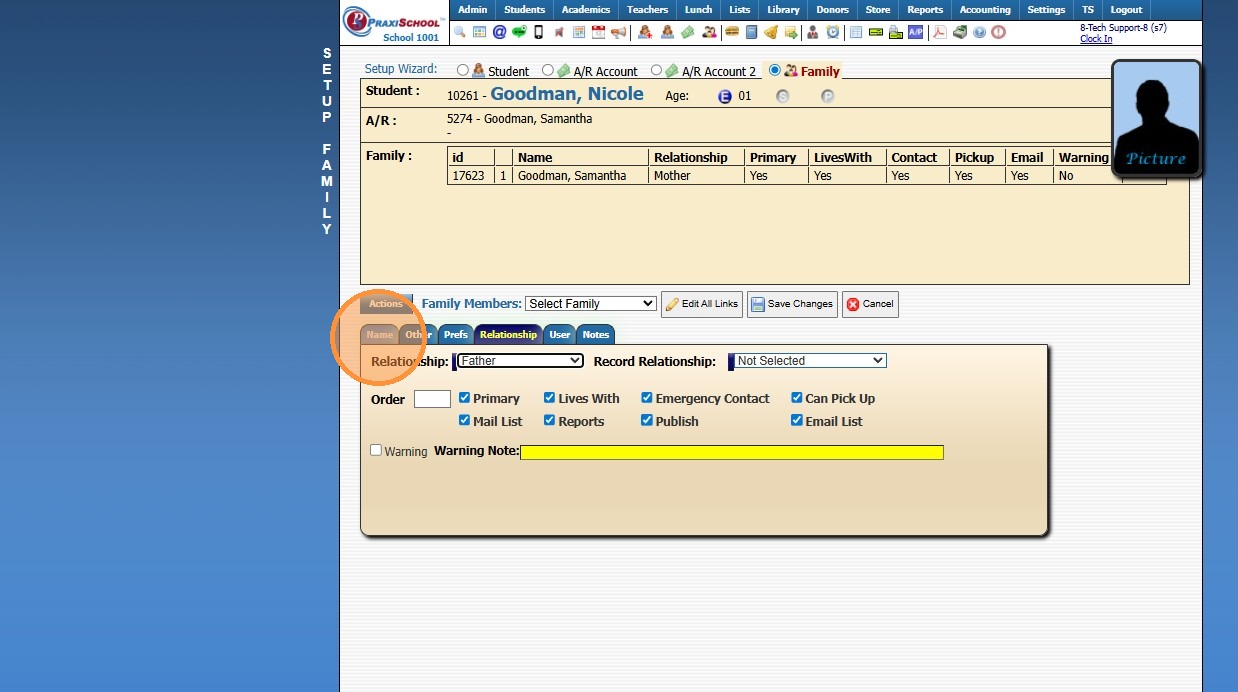
27. Add the Family Member's Name
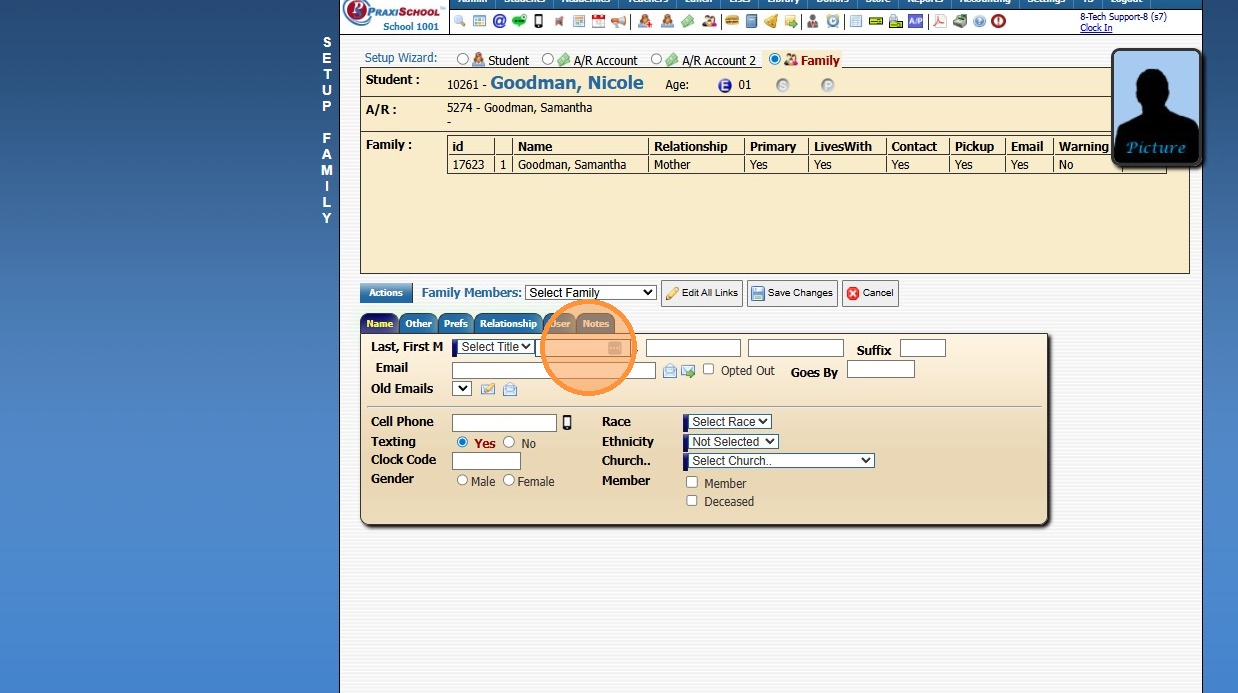
28. Click "Save Changes"
Related Articles
I accidentally added students in the student file. How do I add and attach those students to the Parent Accounts?
1. Click "Students" 2. Click "Student Wizard (T)" 3. Click "Find Student" 4. Search Student Name 5. Select & Click "Ok" 6. Click "Address" tab to Verify Address has been Added Address had Not been Added 7. Click "New Address" 8. Enter Address ...Adding a Secondary AR to a Student
1. Click "Students" 2. Click "Student Wizard (T)" 3. Click "Find Student" 4. Look-Up Student & Click "Ok" 5. Click on the "A/R Account 2" Toggle 6. Click "New Account" 7. Enter Secondary Parent Name 8. Enter Secondary Parent Email Address 9. Enter ...Icon Toolbar - Student Wizard Icon
Icon Toolbar - Student Wizard Icon Click on the Student Wizard Icon for Quick Access the Student Wizard 7500.1.10Accepting New Applicants
1. Click "Admin" 2. Click "Web Applications" 3. Click "New Applicants" 4. Select Application 5. Click the "Enrollment" Tab 6. Click "Add Activity" 7. Select "Accepted" 8. Check the "Process Enrollment" Box 9. IF Duplicate Entries Populate, Select to ...Creating Accounts Receivable Accounts
Creating Accounts Receivable Accounts 1. Log into PraxiSchool 2. Typically Student AR Accounts are Created in the Student Wizard (T) 3. After Creating the Student File, the Primary AR Account is Created from the A/R Account Toggle 4. A Secondary AR ...