Adding a Secondary AR to a Student
1. Click "Students"
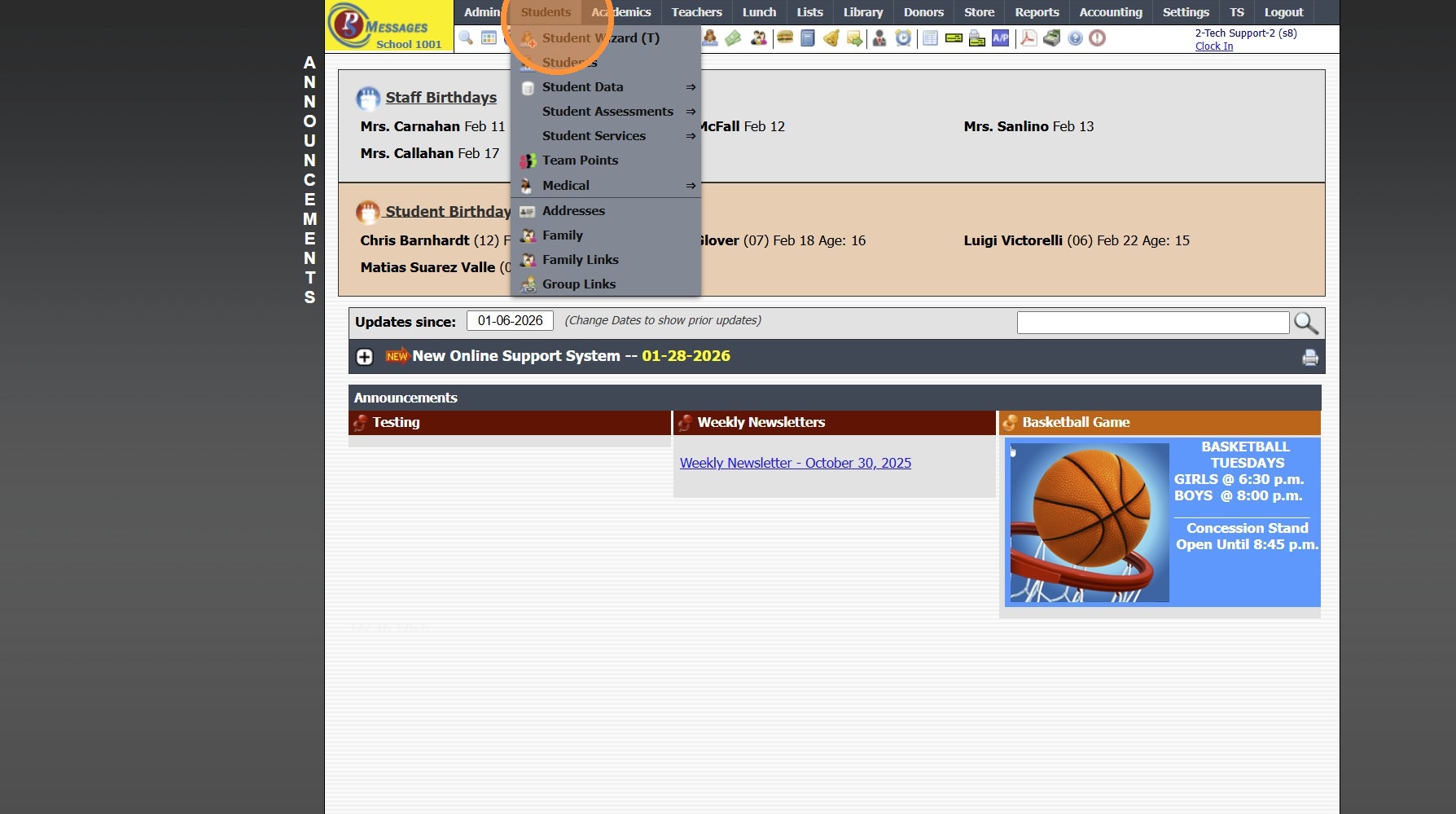
2. Click "Student Wizard (T)"
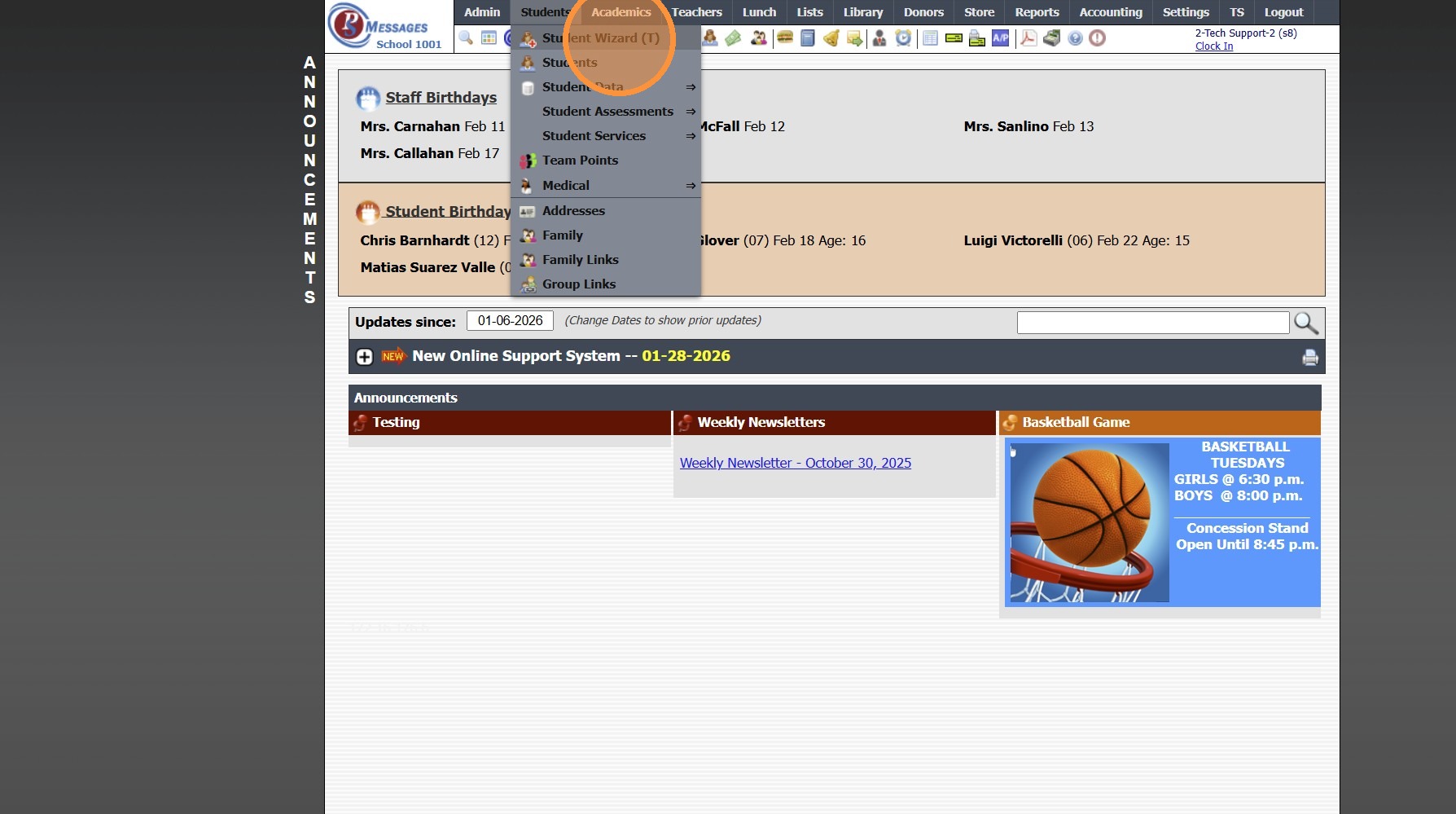
3. Click "Find Student"
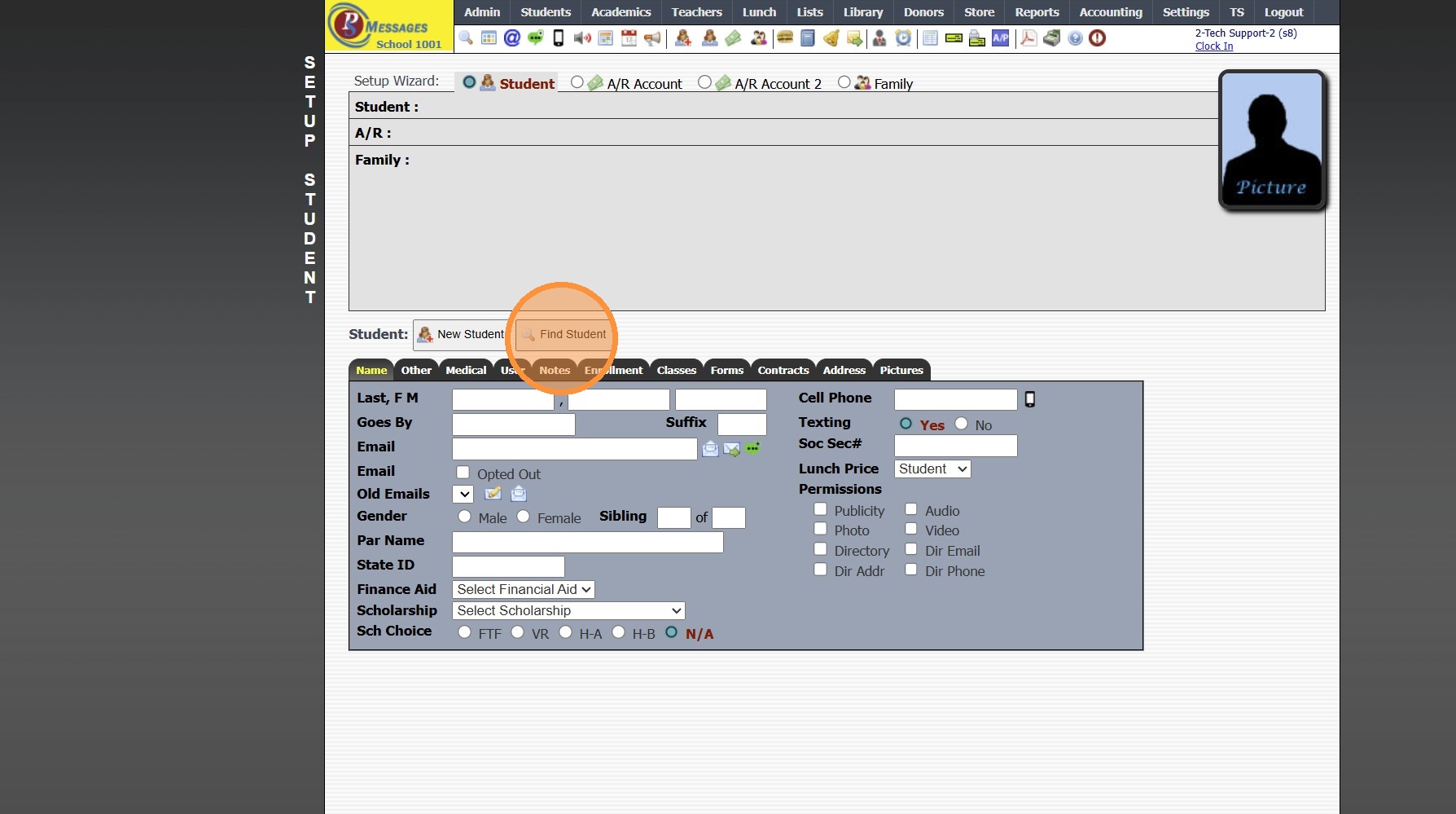
4. Look-Up Student & Click "Ok"
5. Click on the "A/R Account 2" Toggle
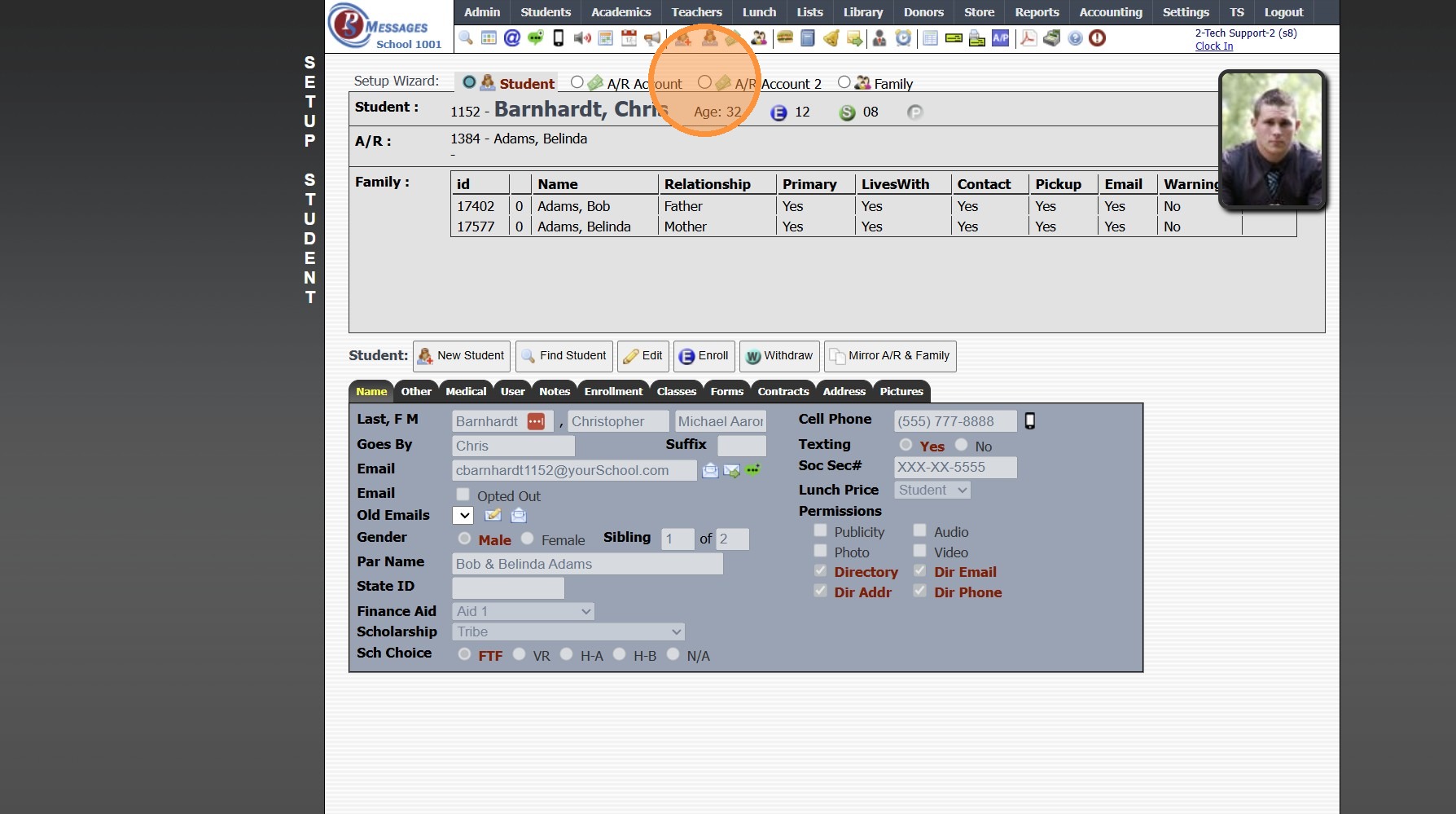
6. Click "New Account"
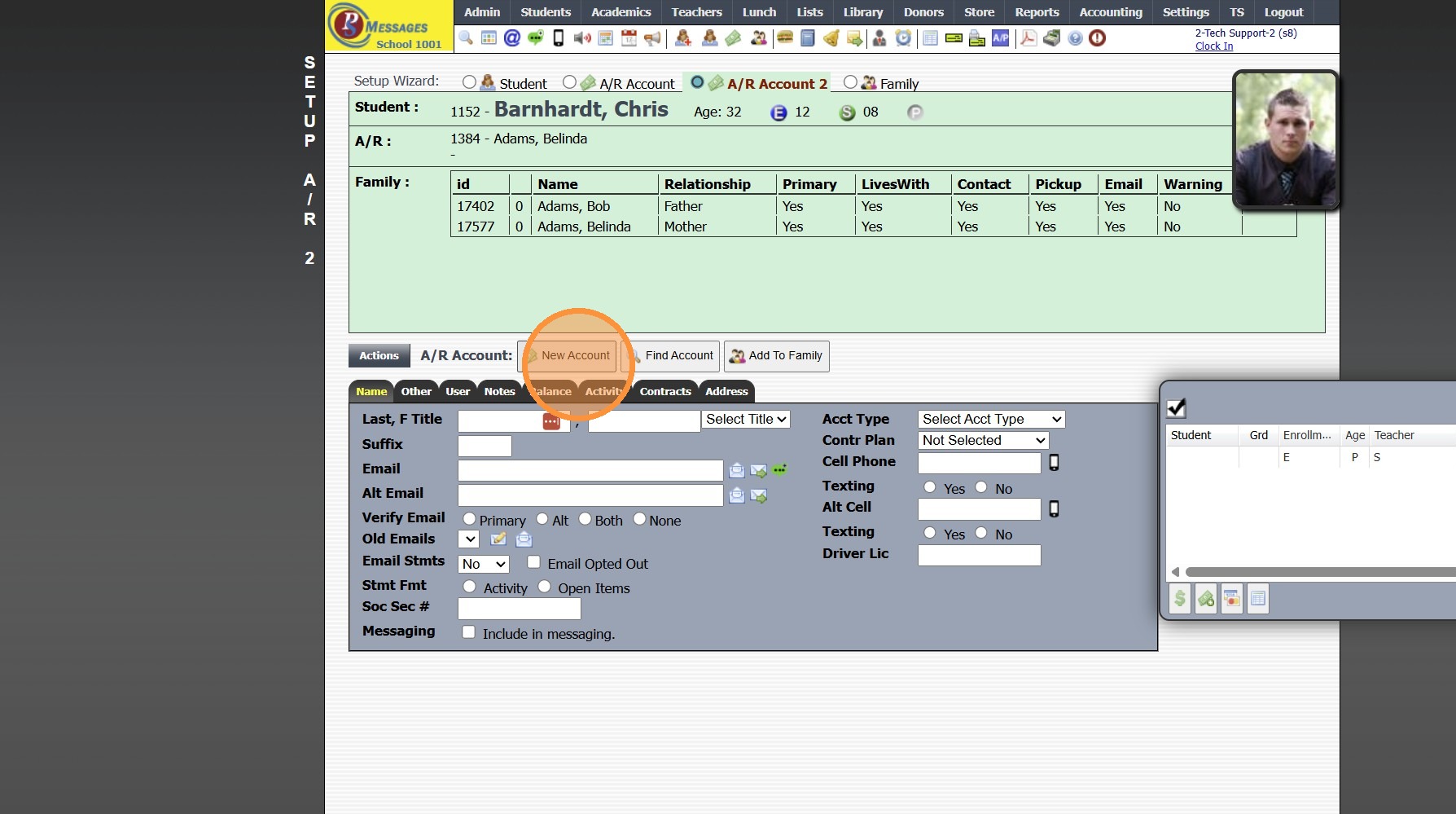
7. Enter Secondary Parent Name
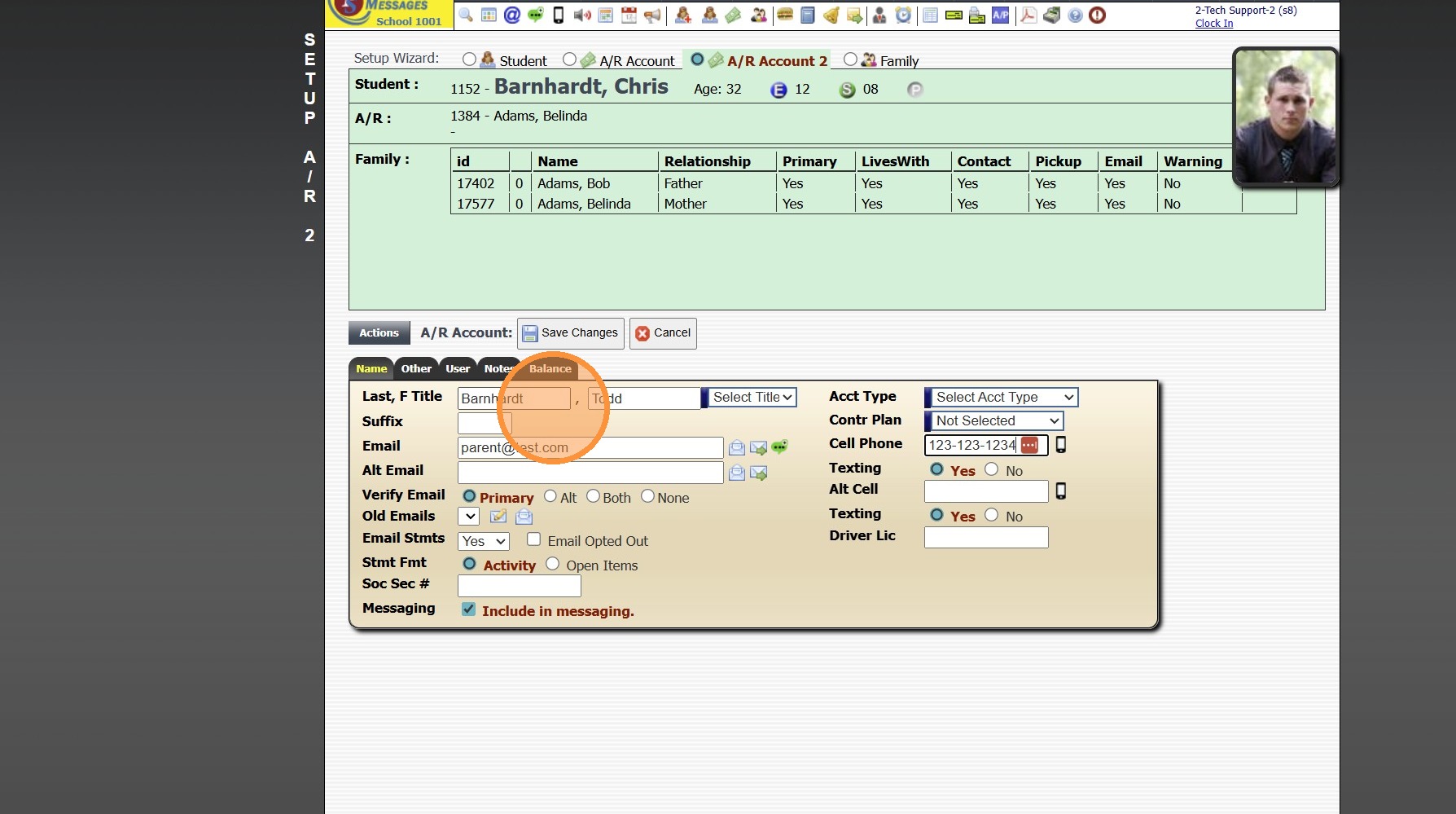
8. Enter Secondary Parent Email Address
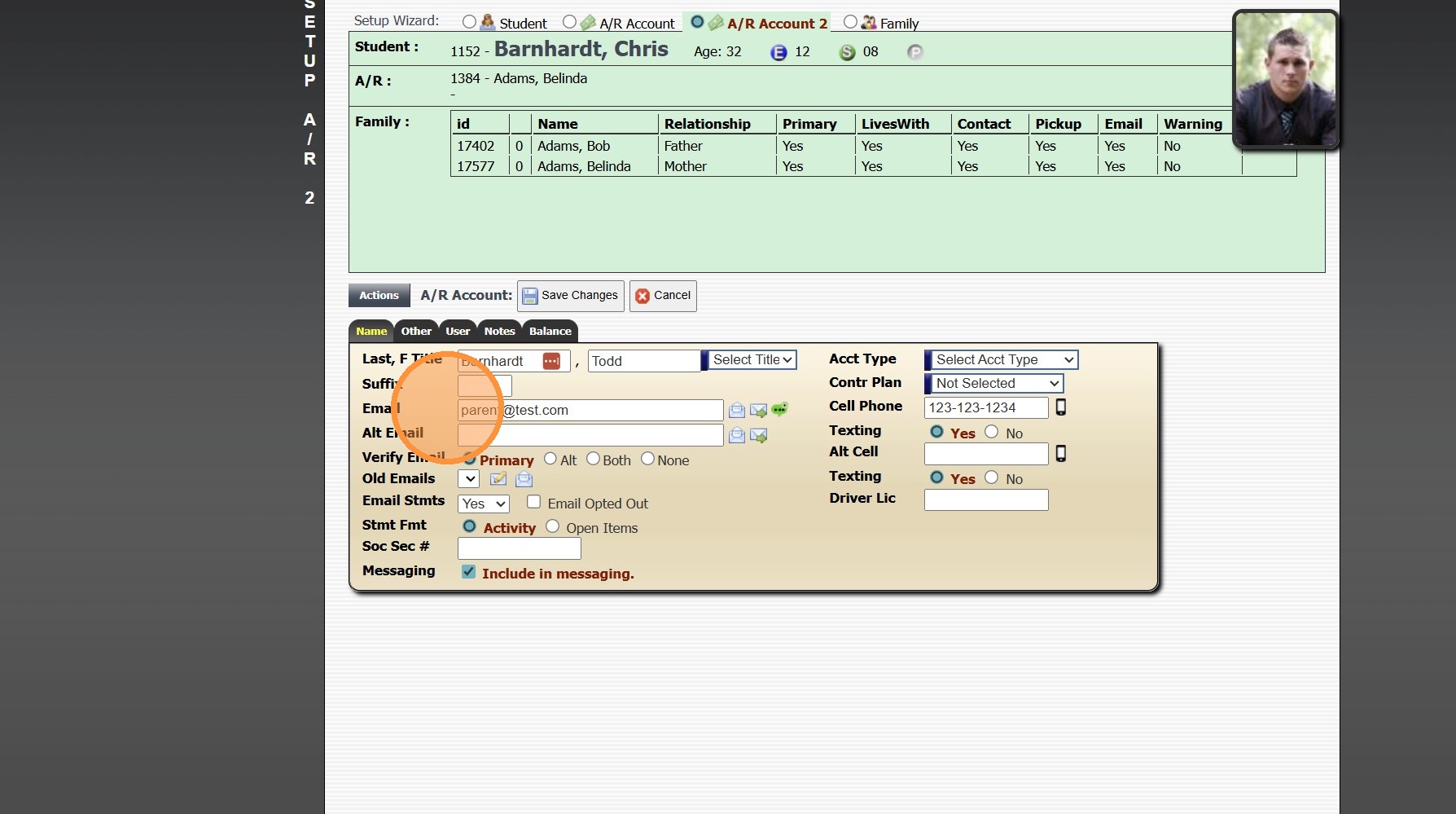
9. Enter Secondary Parent Cell Phone
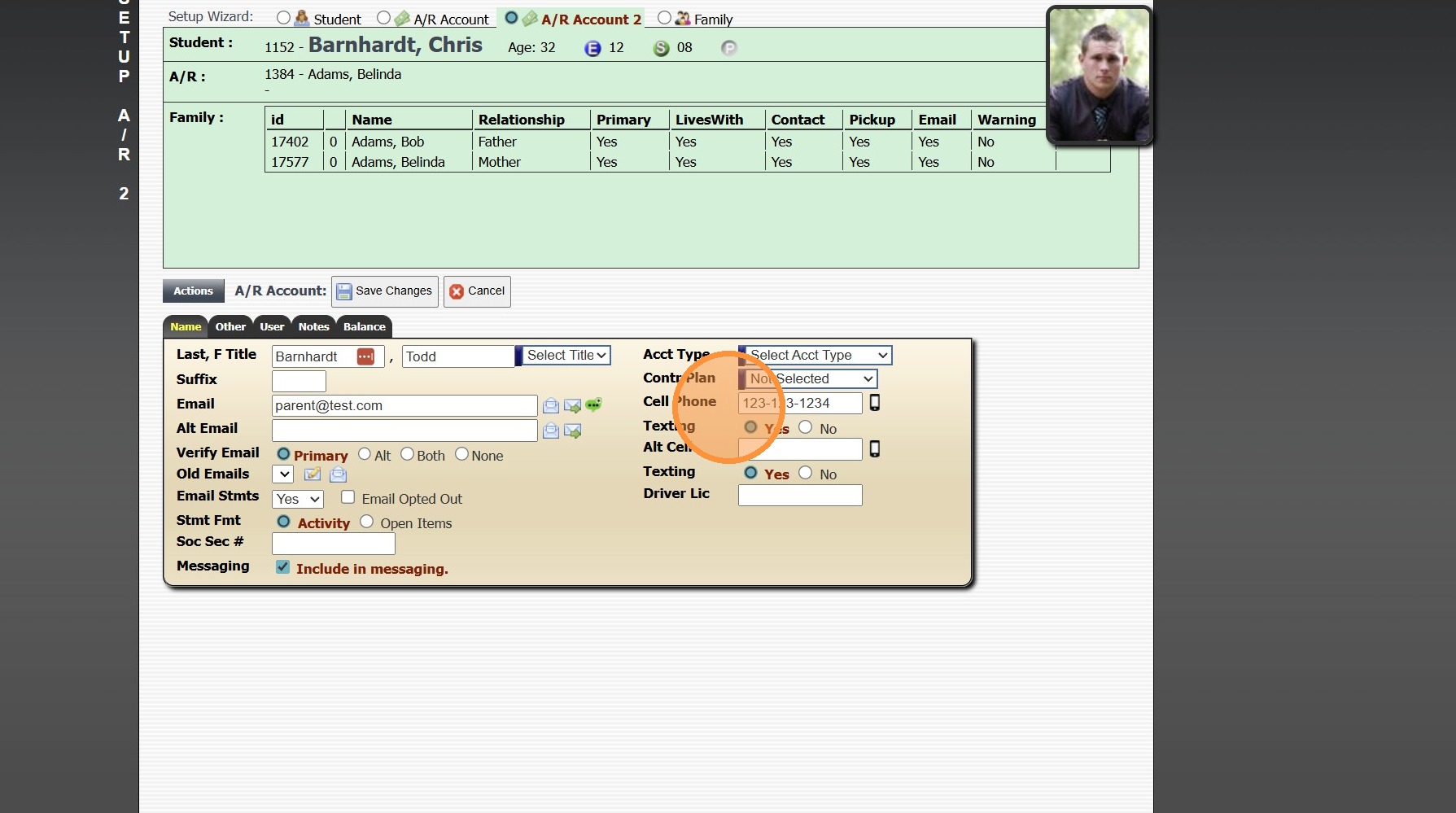
10. Click "Other"
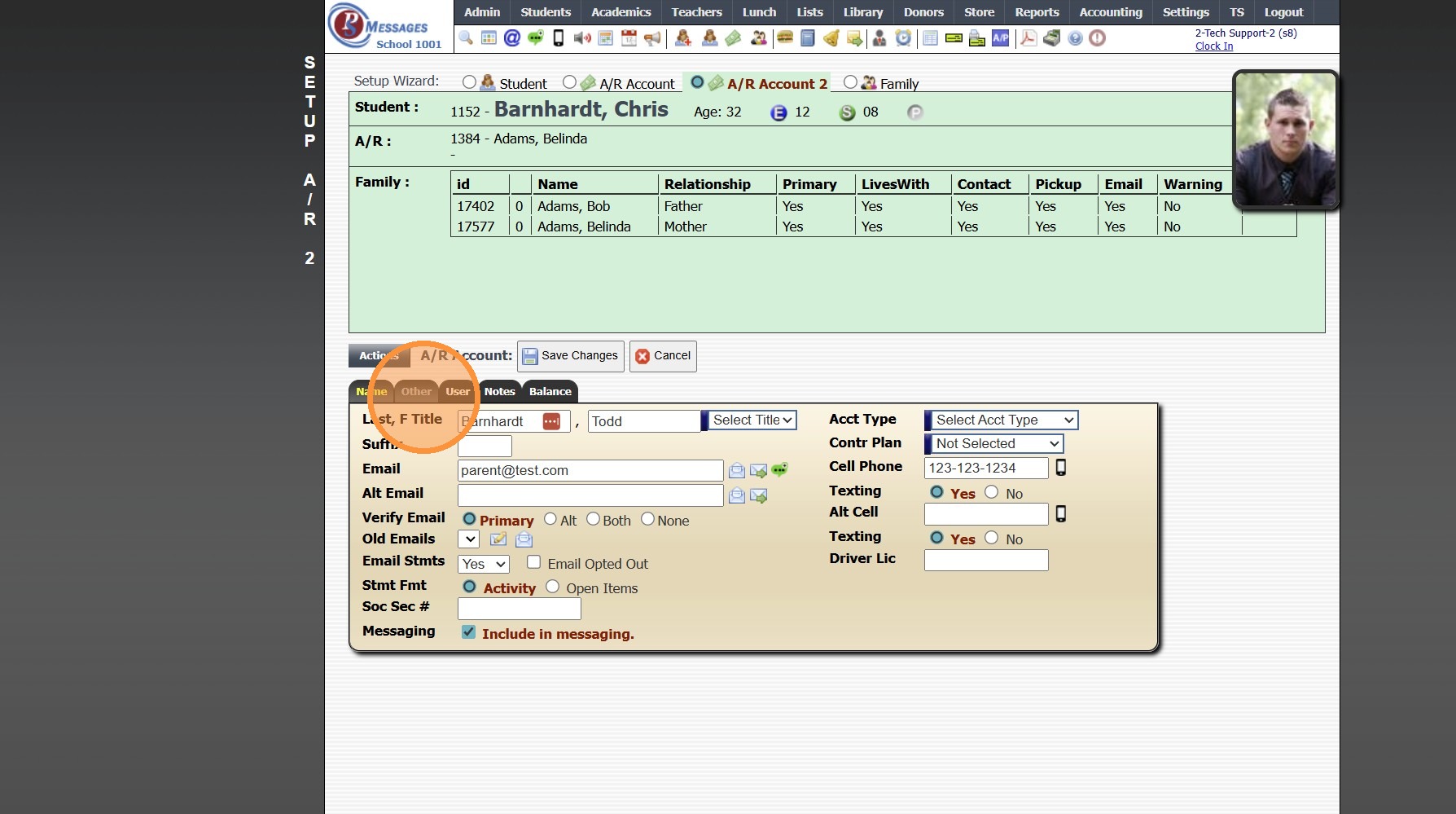
11. Enter Employer, Occupation & Work Phone (Optional)
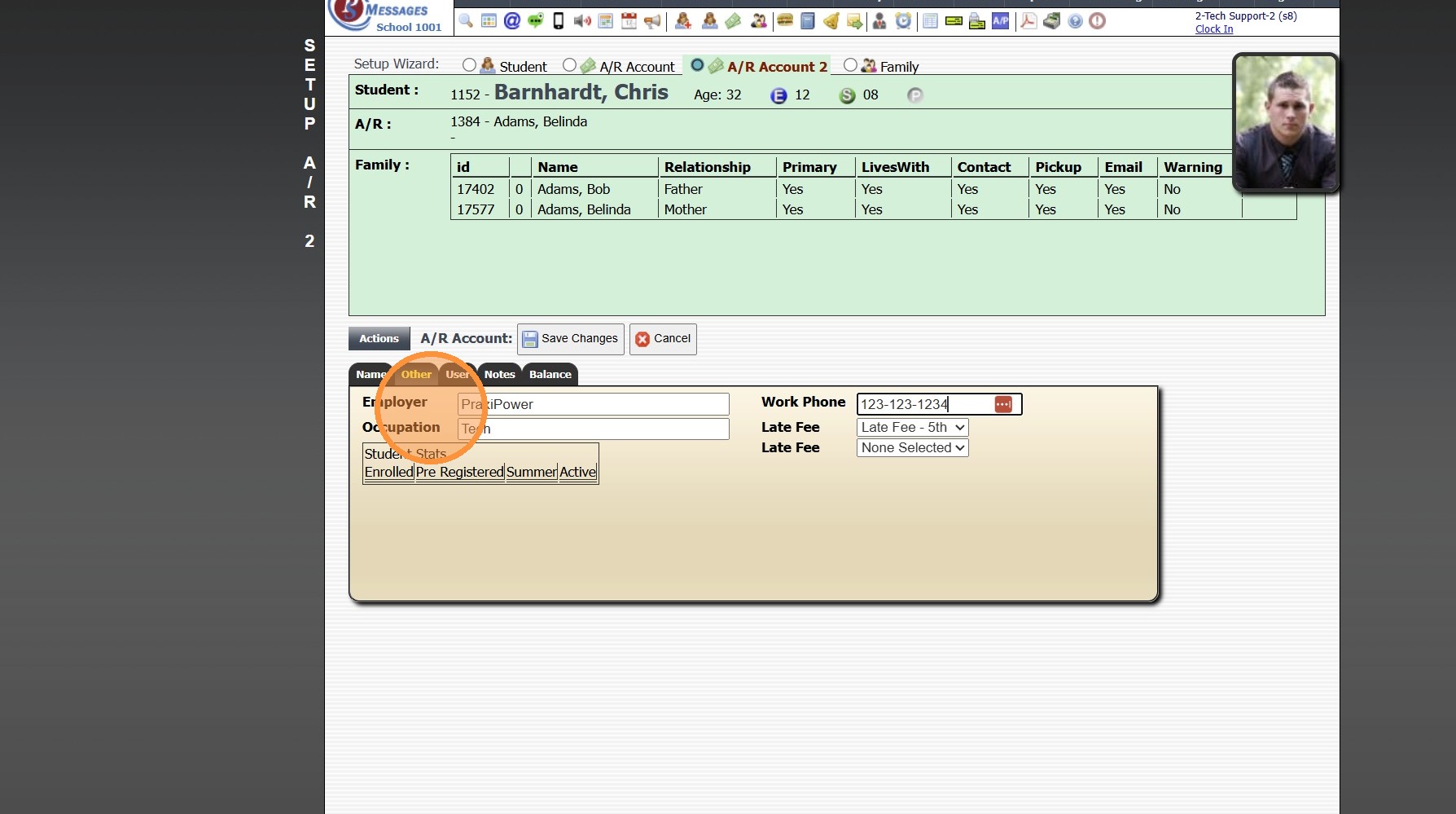
12. Click "Balance" Tab
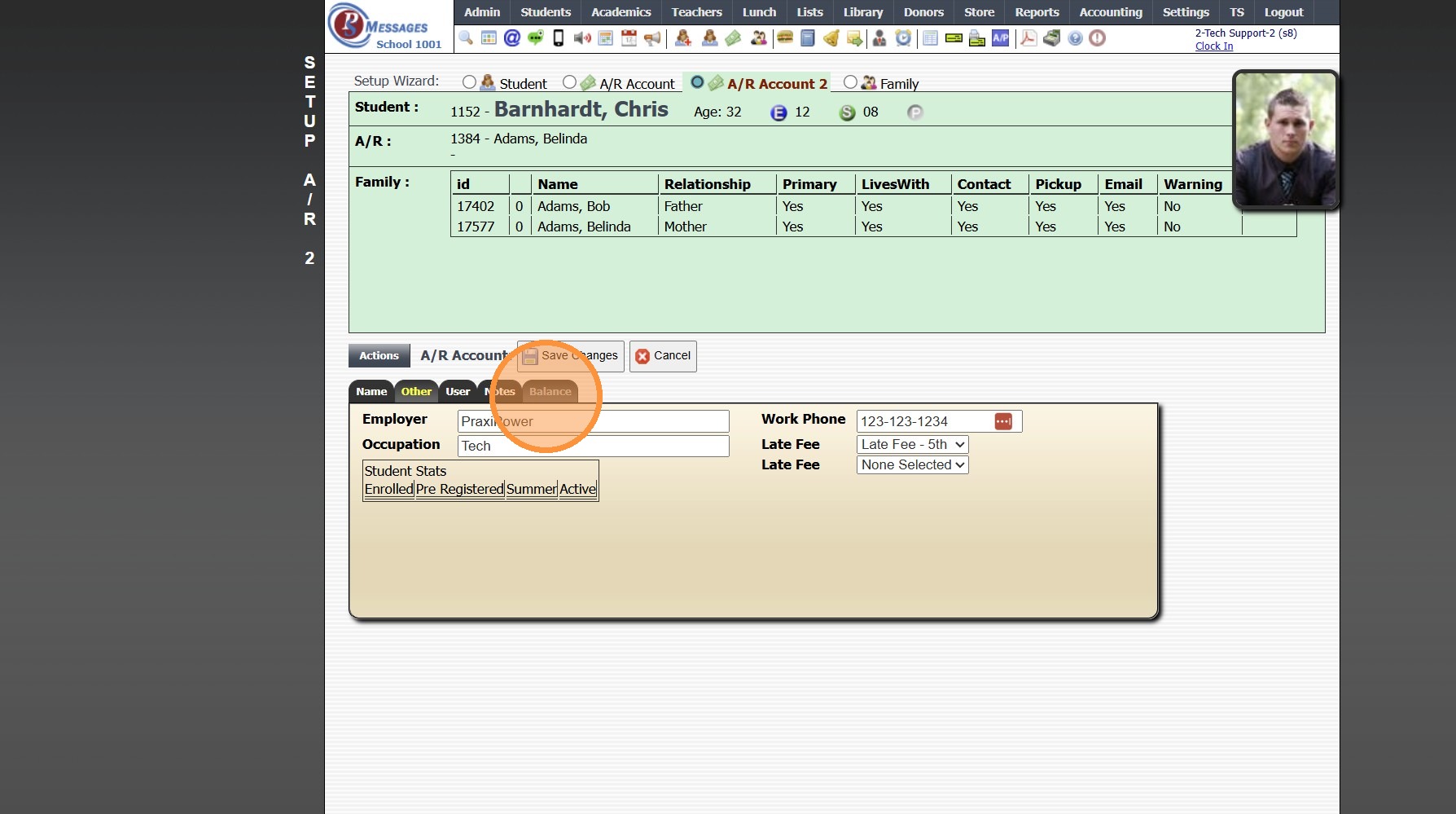
13. Select Portal Access
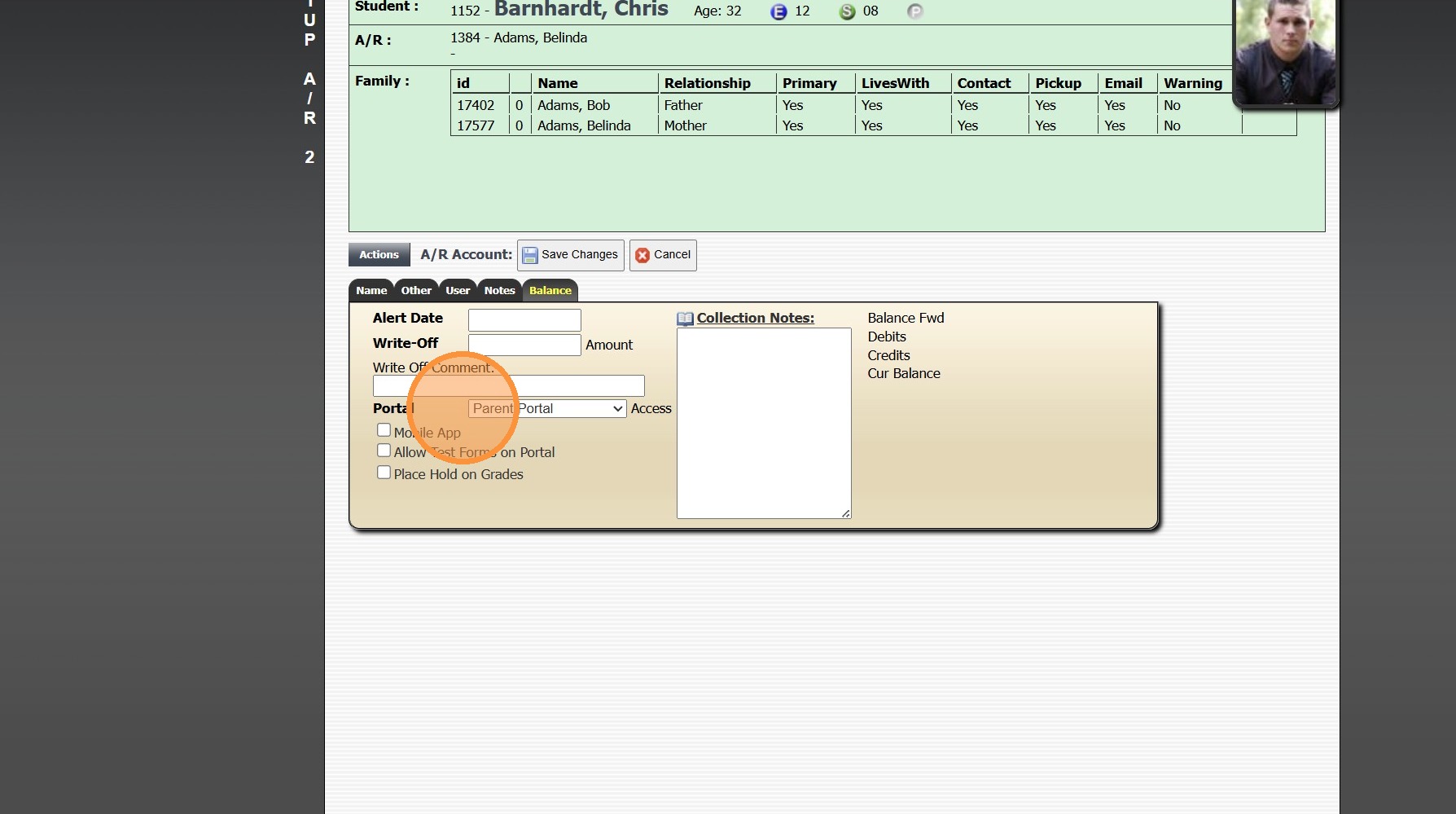
14. Check "Mobile App" to give Access to Mobile App
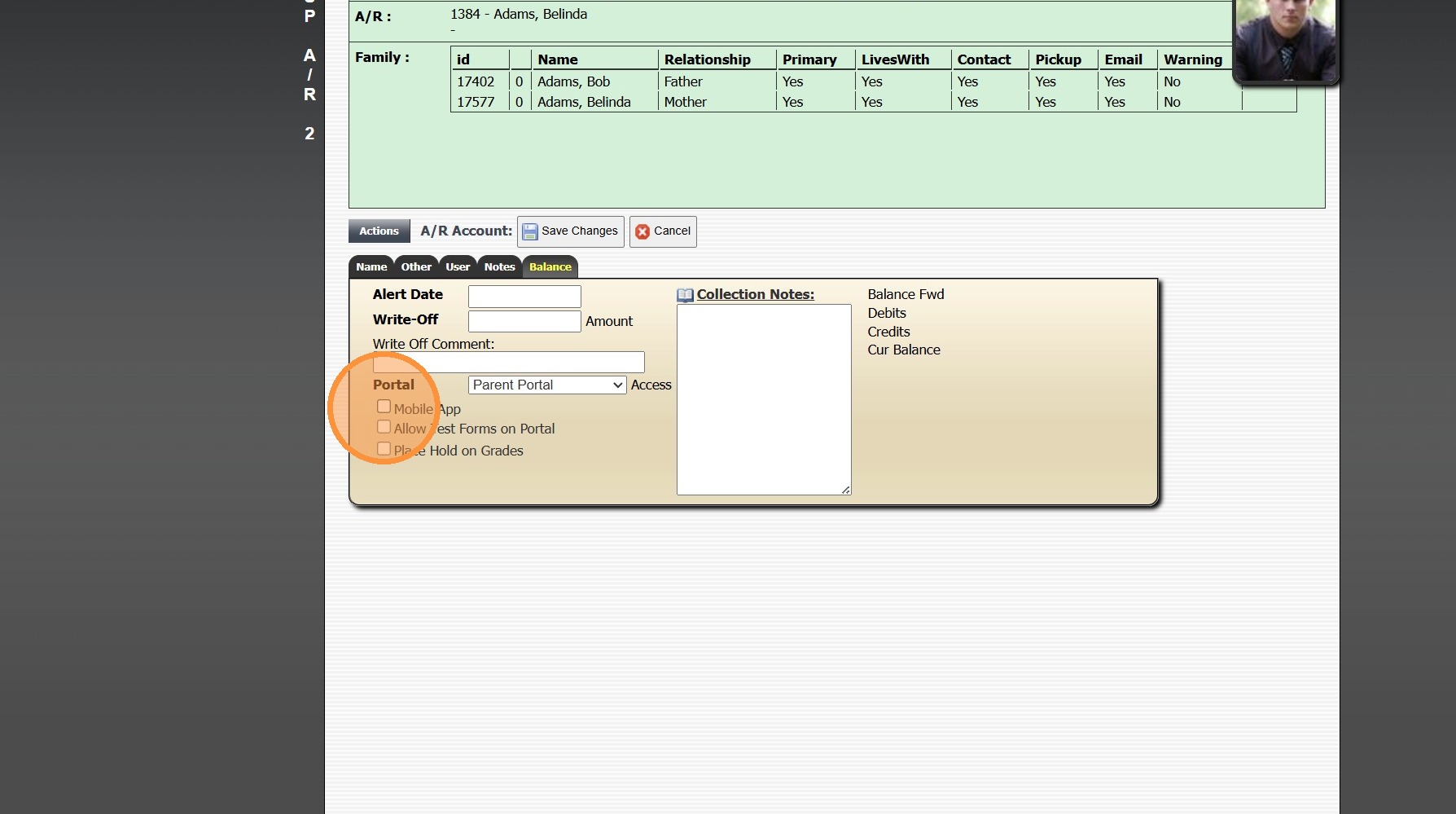
15. Click "Save Changes"
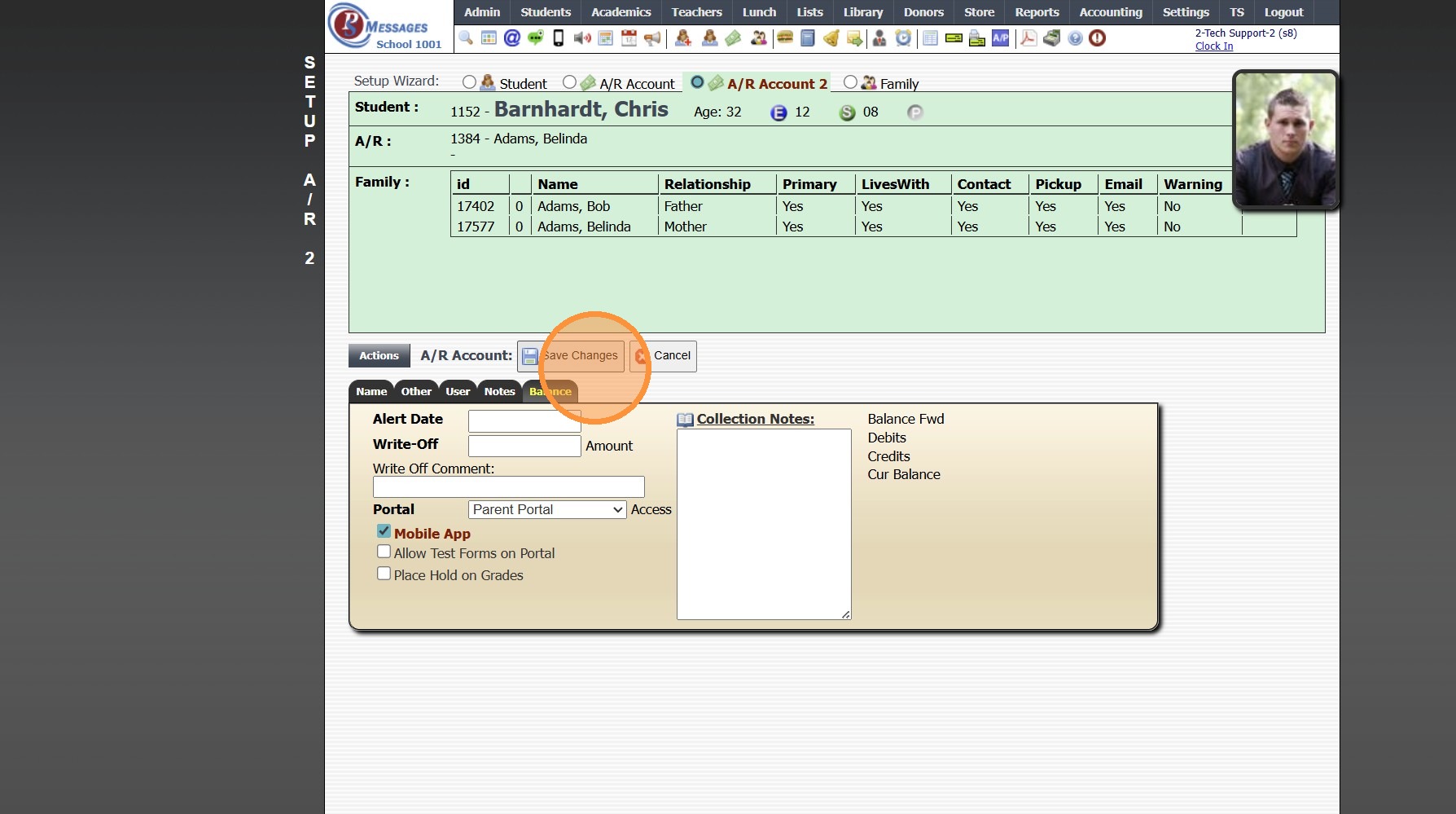
Continue IF Secondary Parent is NOT Already in Family File
16. Click "Add To Family"
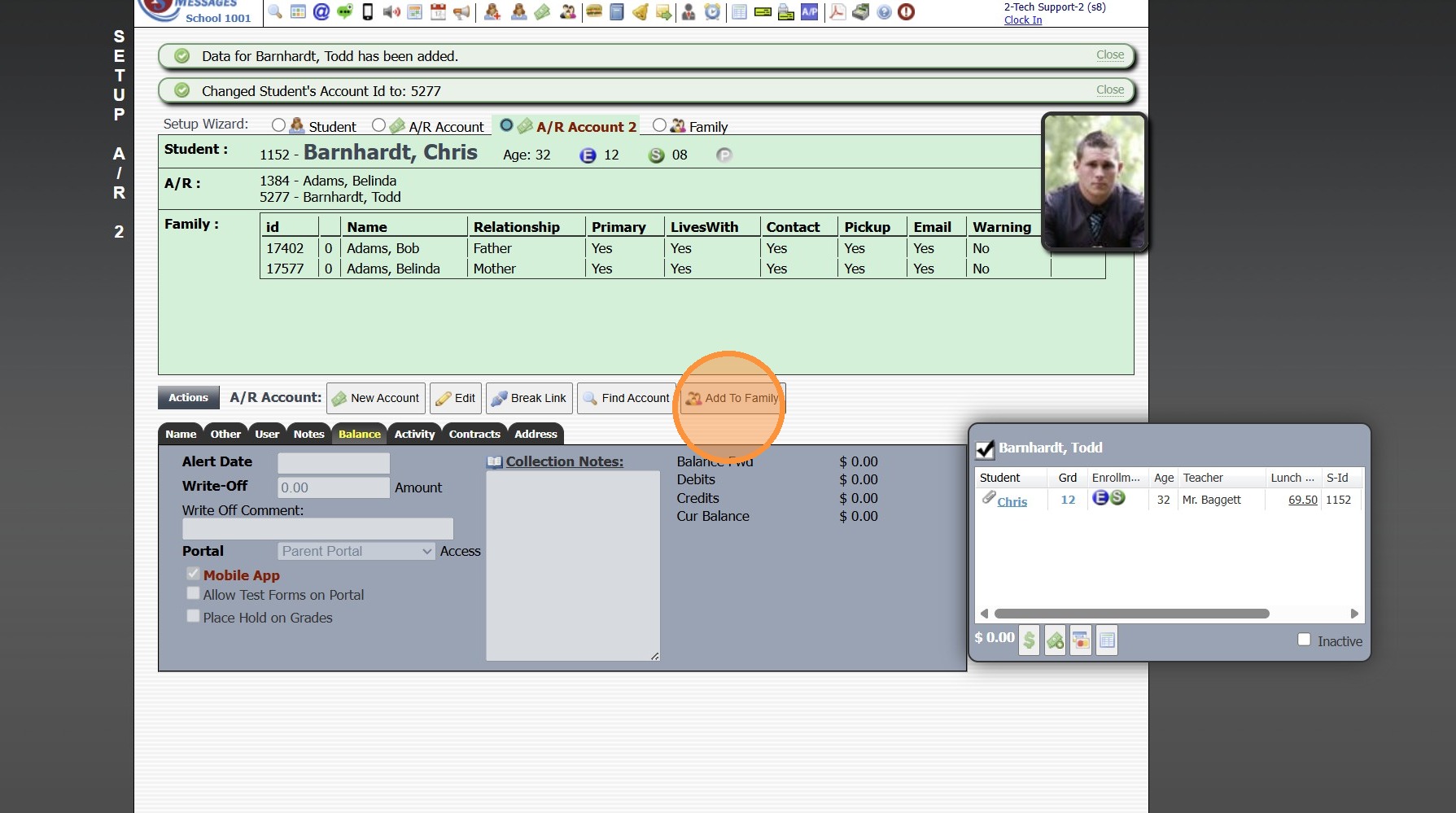
17. Select the Secondary Parent's Relationship to Student
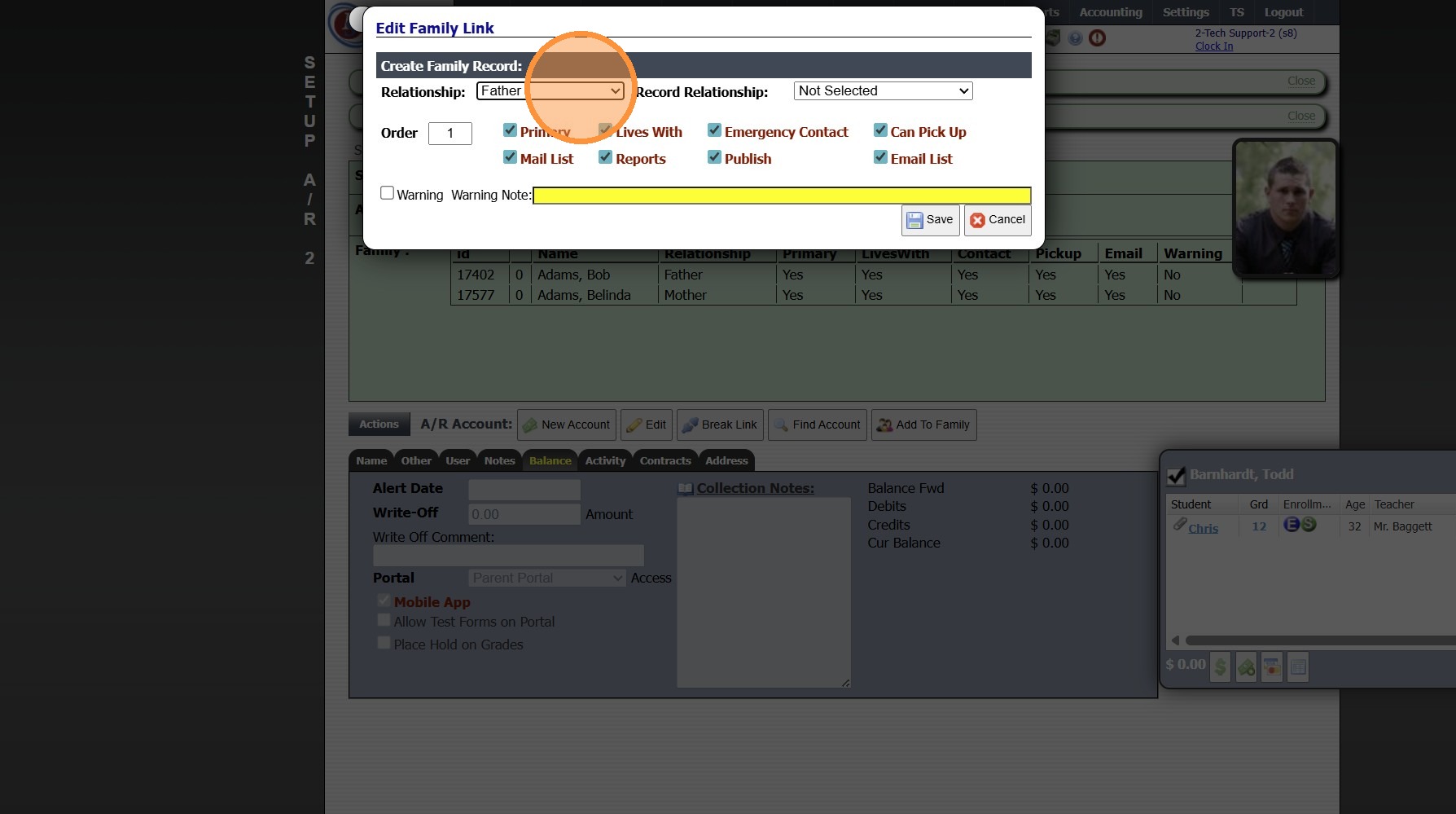
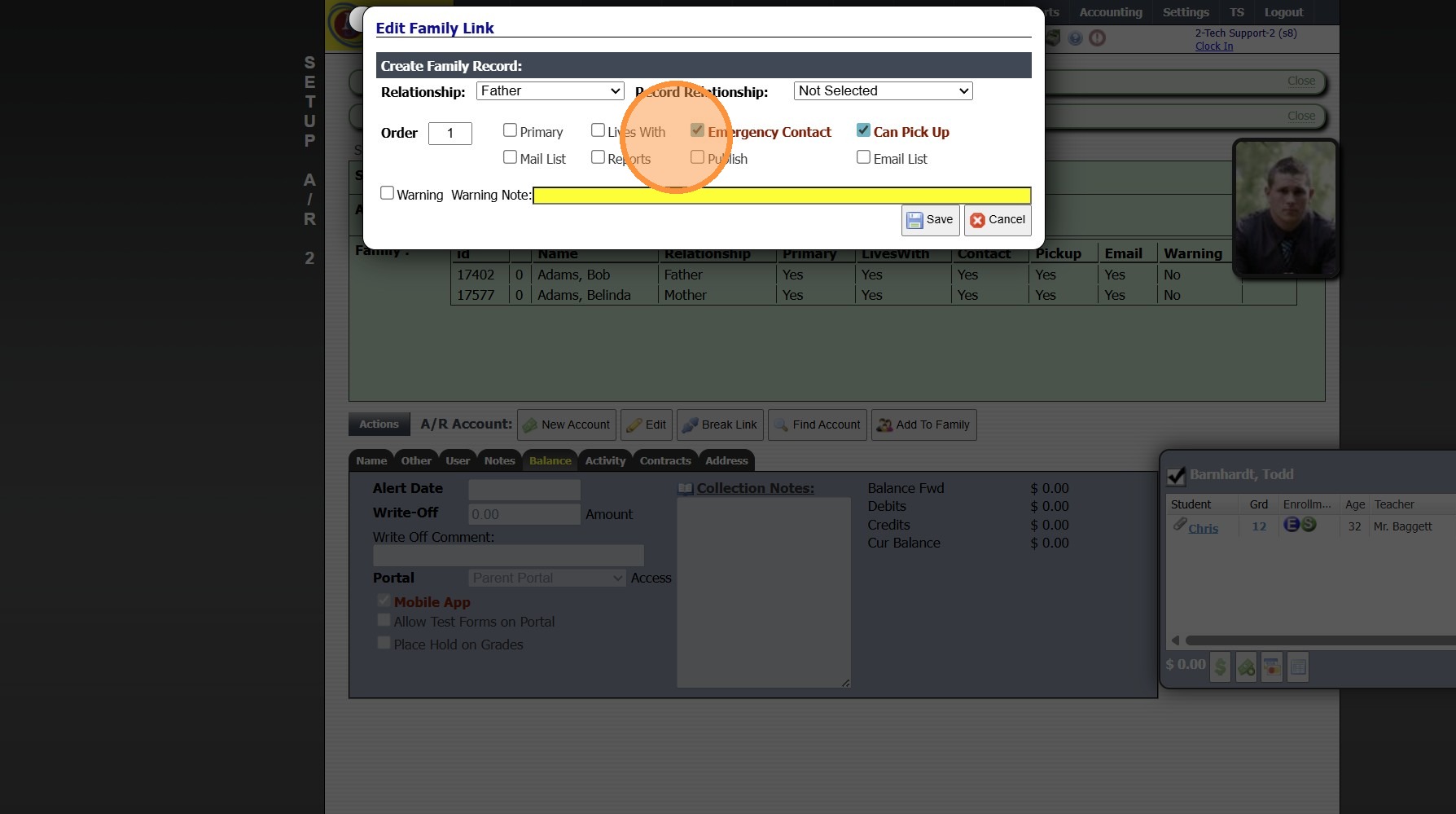
18. Select Appropriate Options
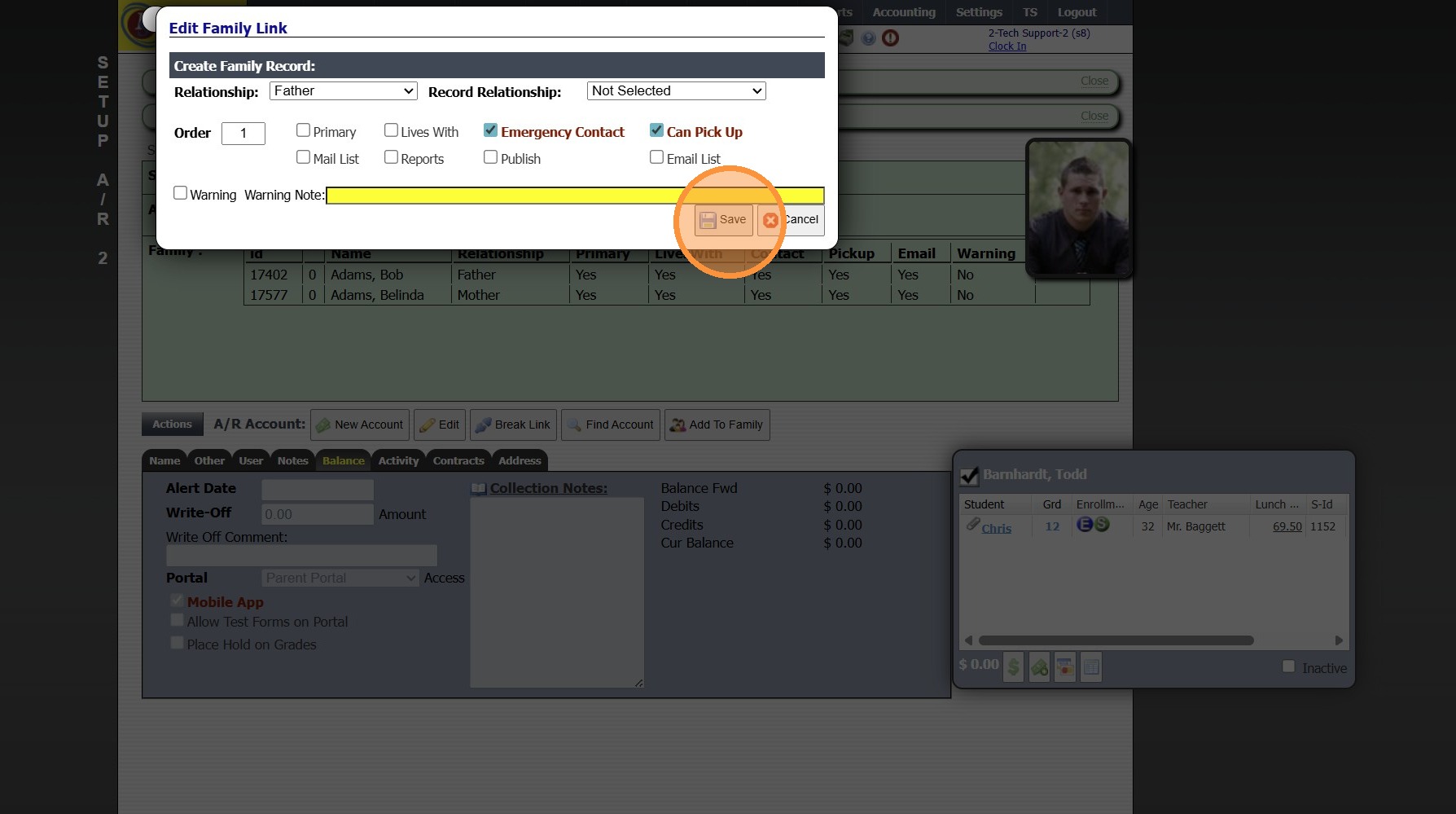
19. Click "Save"
1500.4.27
Related Articles
Adding a Transaction Item to a Student's AR Account
Adding a Transaction Item to a Student's AR Account Adding a Transaction Item to a Student's AR Account from Defined Items or Manually 1. Log into PraxiSchool 2. Click "Admin" 3. Click "Accounts Receivable" 4. Select Billing Account 5. Click $ to Add ...Adding Billing Contracts to a Student's AR Account
Adding Billing Contracts to a Student's AR Account 1. Log into PraxiSchool 2. Click "Admin" 3. Click "Accounts Receivable" 4. Select the Billing Account 5. Click the "Contracts" tab 6. Click "New" 7. Click "Add Template Group" 8. Select Student (only ...Students: Viewing AR Connections
Students: Viewing AR Connections 1. Click "Students" 2. Click "Students" 3. Select Student 4. Click "A/R" tab 5. Primary AR Account w/Hyperlink to AR Account 6. Secondary AR Account w/Hyperlink to AR Account 1500.4.17Mark Student Forms Received / Adding a Comment
Mark Student Forms Received / Adding a Comment 1. Click "Students" 2. Click "Students" 3. Select Student & Click "Forms" tab Mark Received 4. Select Received Form 5. Click "Mark Received" Edit / Add Comment 6. Select Submitted Form 7. Click "Edit" 8. ...Adding Batch Contracts to Student Billing Accounts
Adding Batch Contracts to Student Billing Accounts Tip: Tip! All Contract Templates must be set up prior to Batch Adding. Only contracts that have a set dollar amount can be added in the batch process. The NOW financing option in Contract Templates ...