Creating a Saved Payment & Setup a Payment Amount and Schedule
Creating a Saved Payment & Setup a Payment Amount and Schedule
1. Click "Accounting"
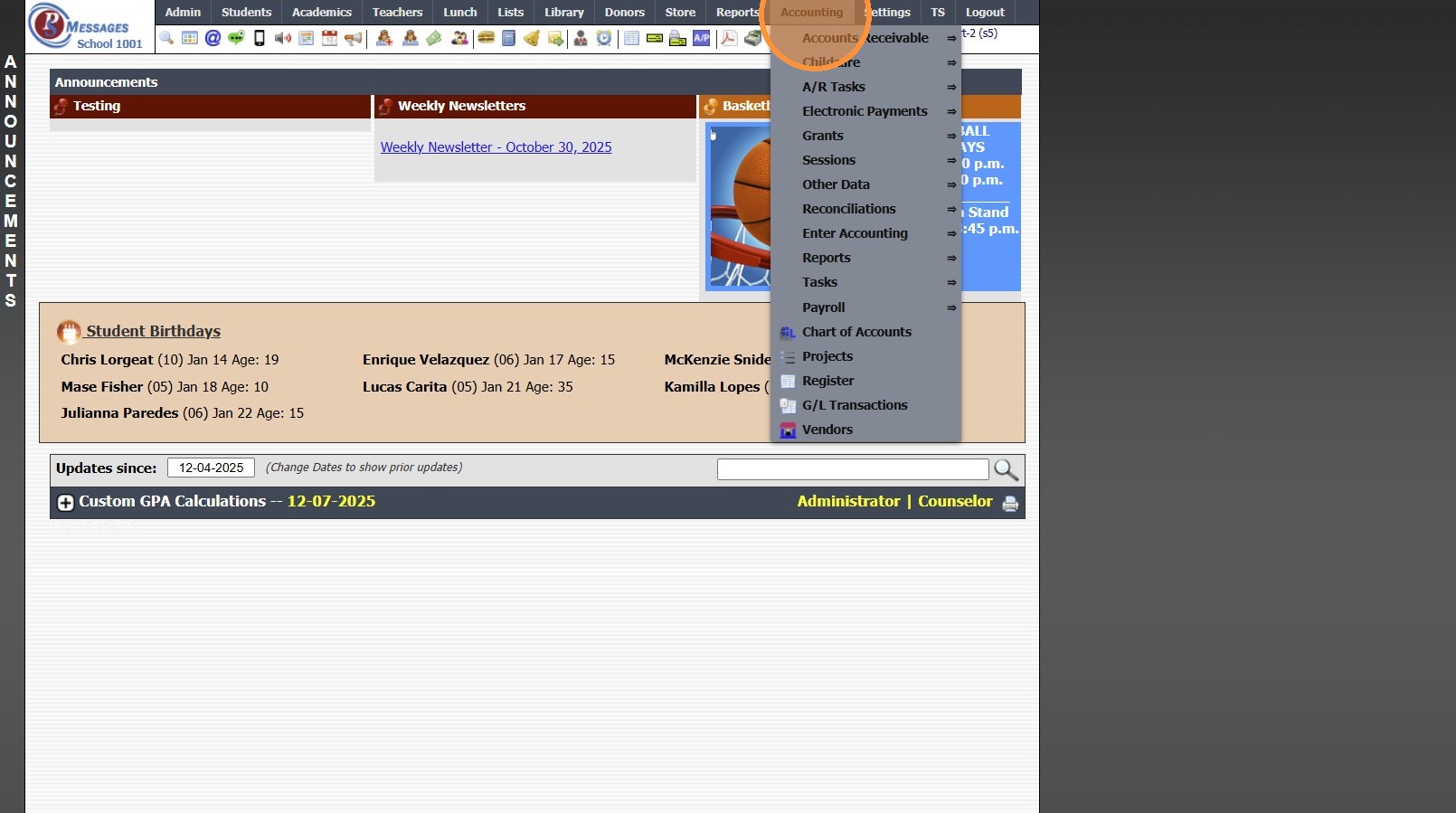
2. Click "Electronic Payments"
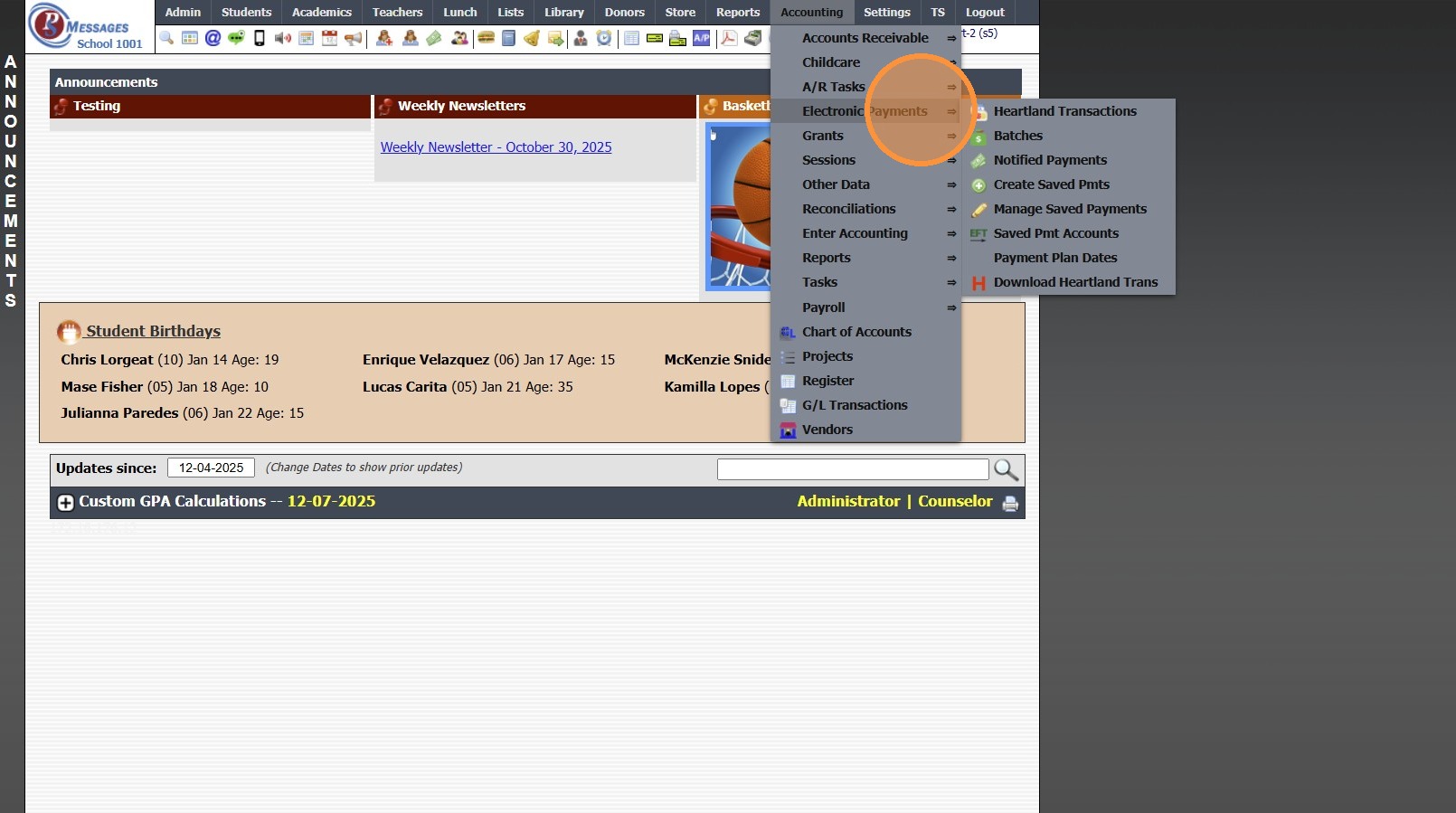
3. Click "Create Saved Pmts"
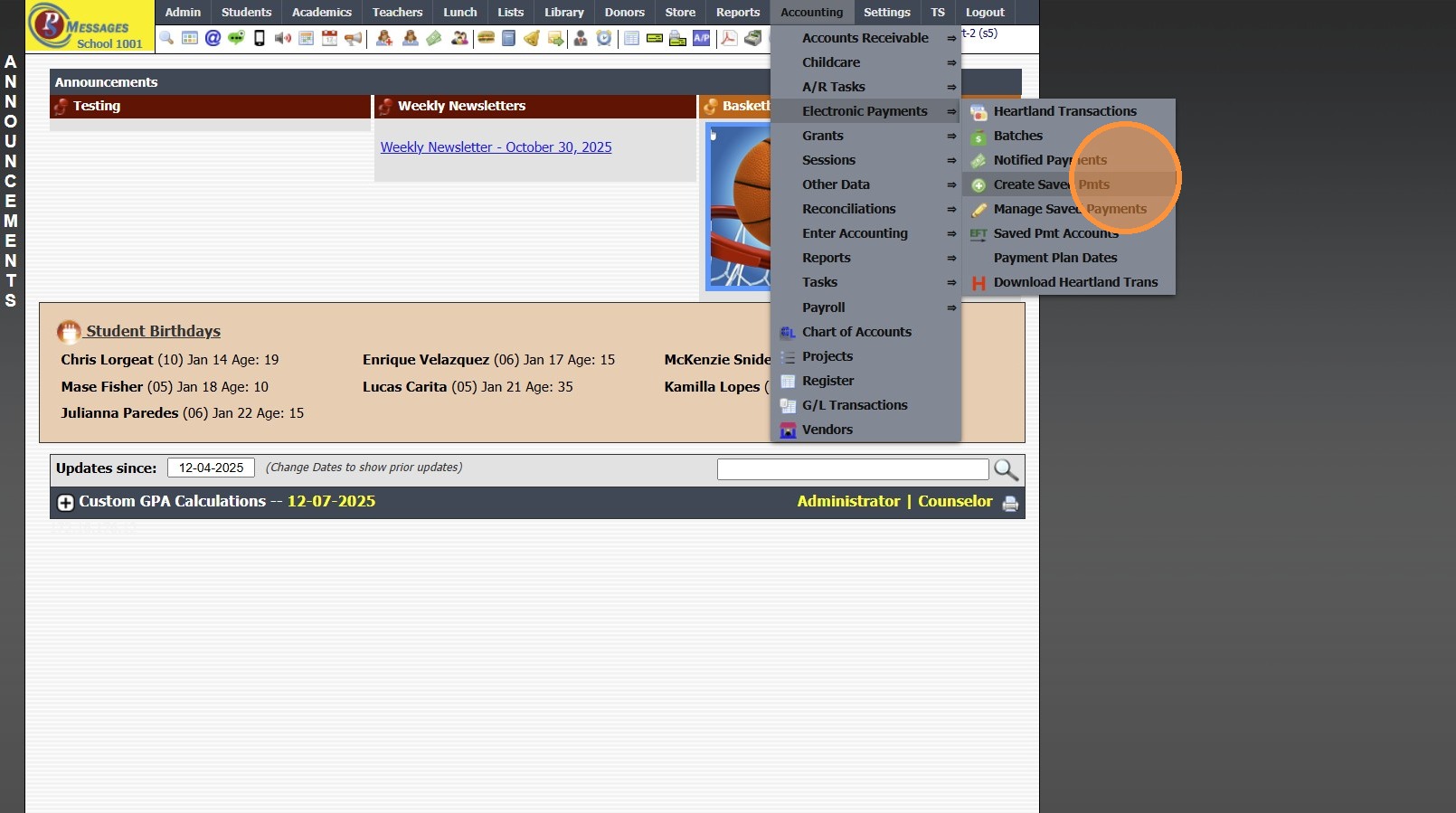
4. Search Account Name & Select
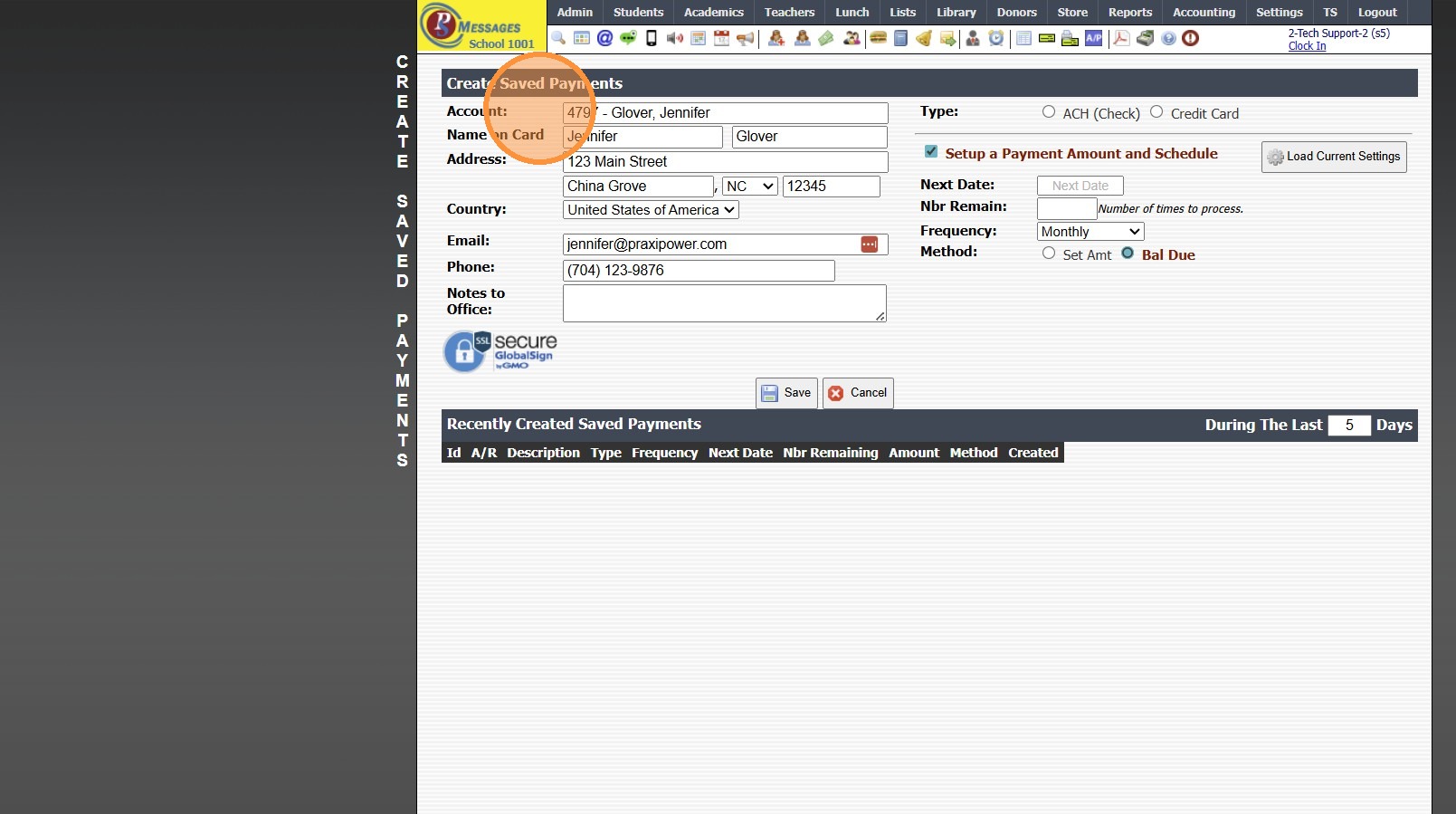
5. Verify Address, Email & Phone Number on File Matches Billing Address for Method of Payment
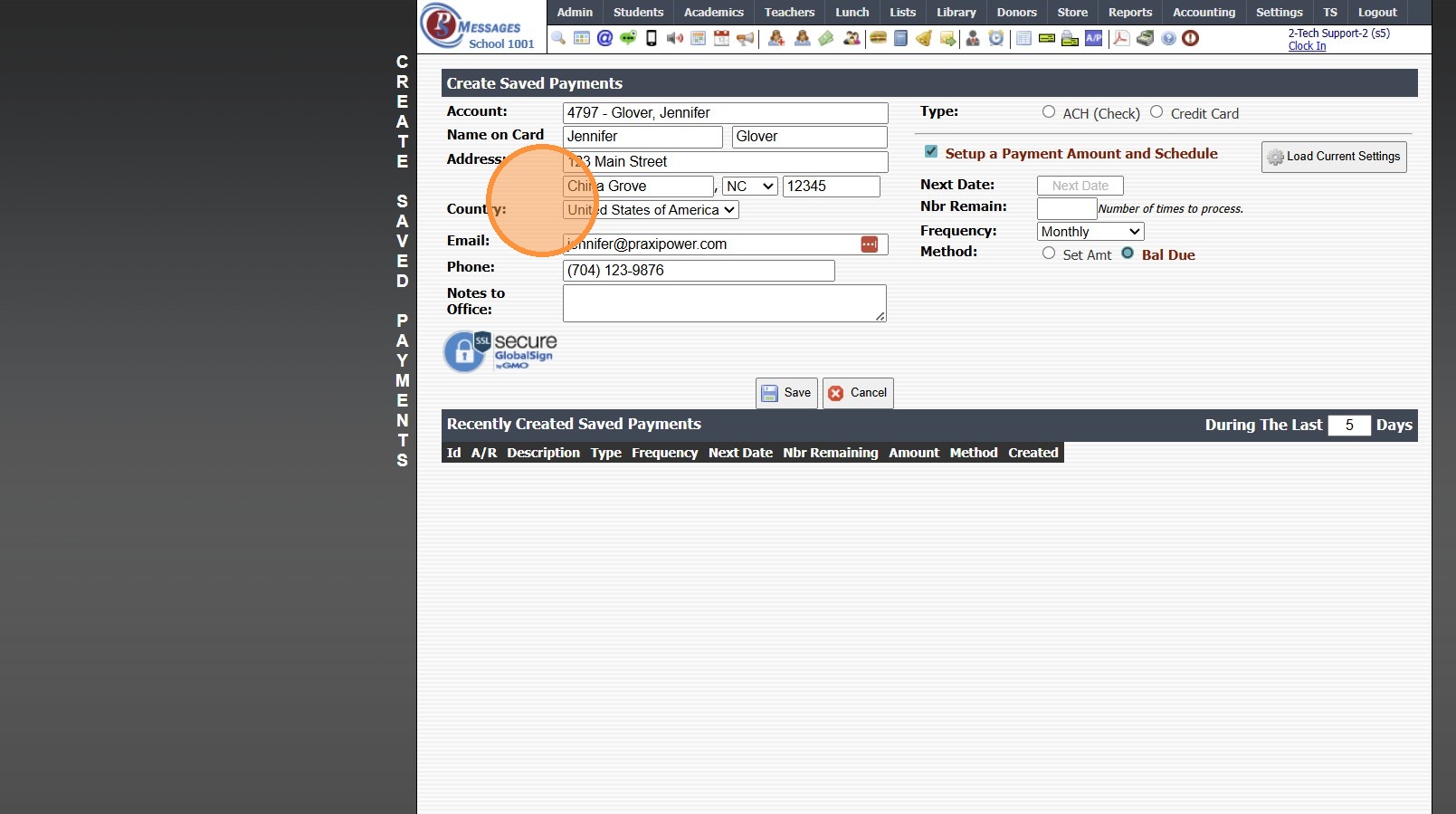
6. Select ACH to Create for a Bank Account
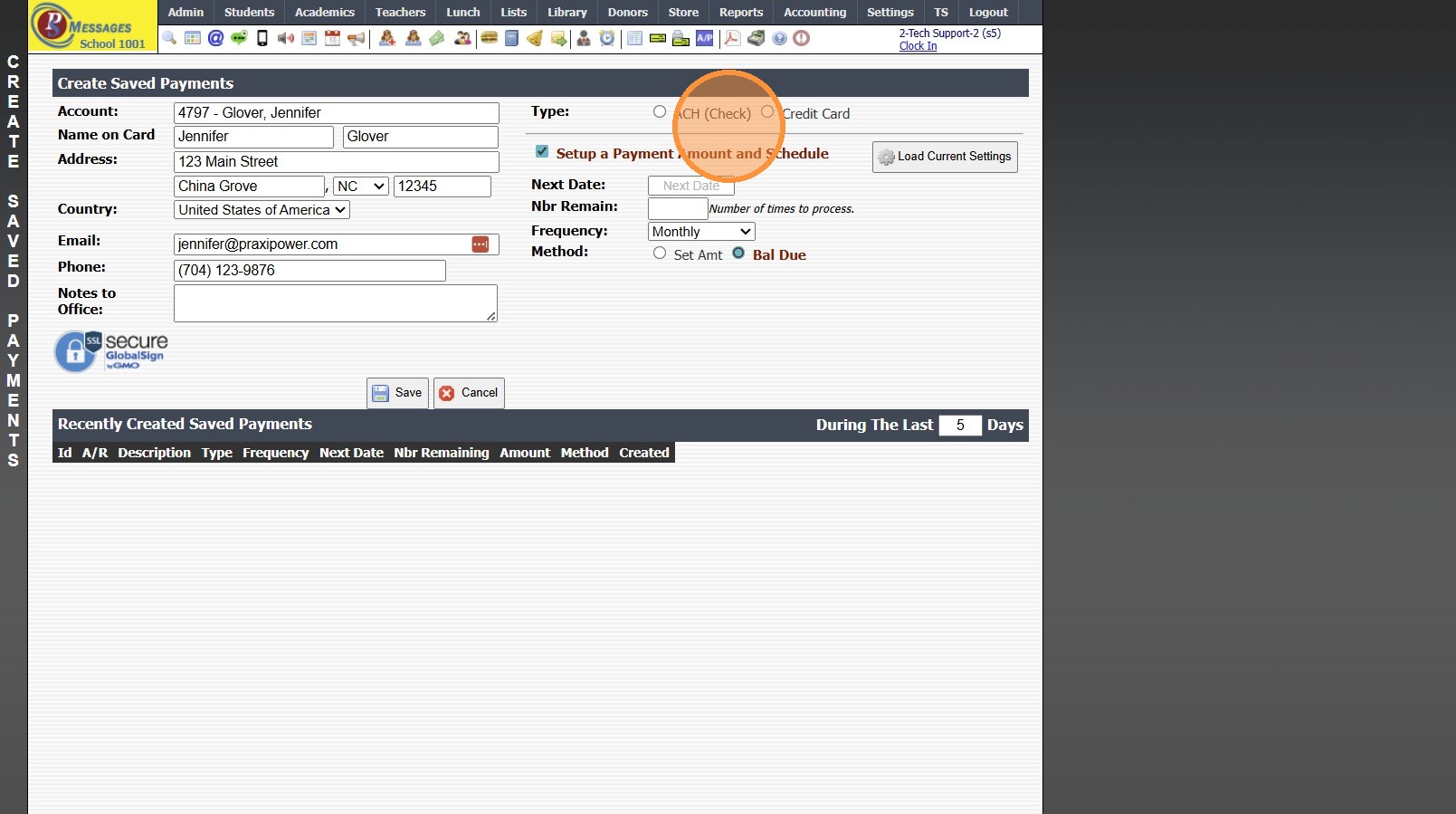
7. Enter Bank Account Information
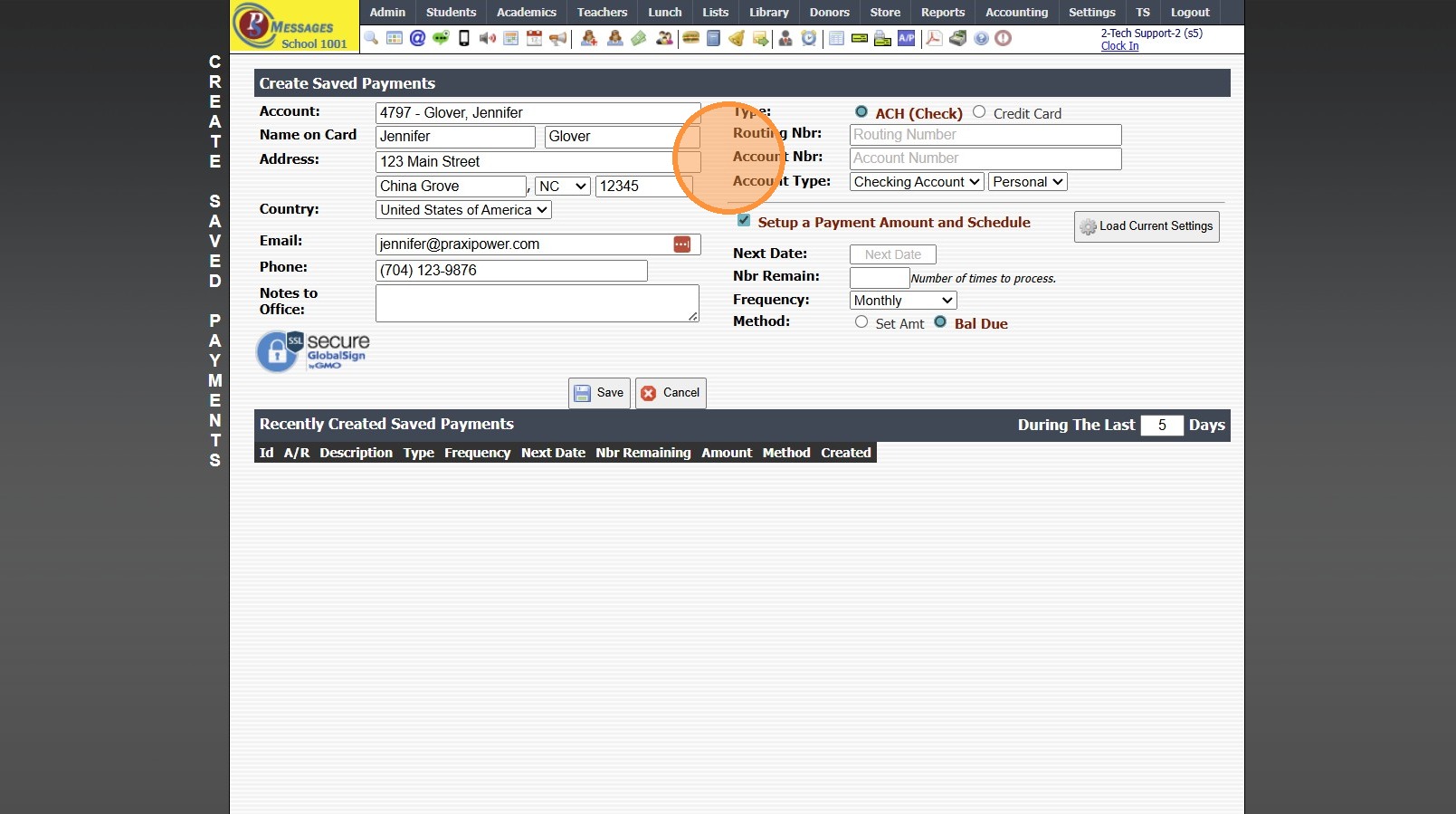
8. Select Credit Card to Create for a Credit / Debit Card
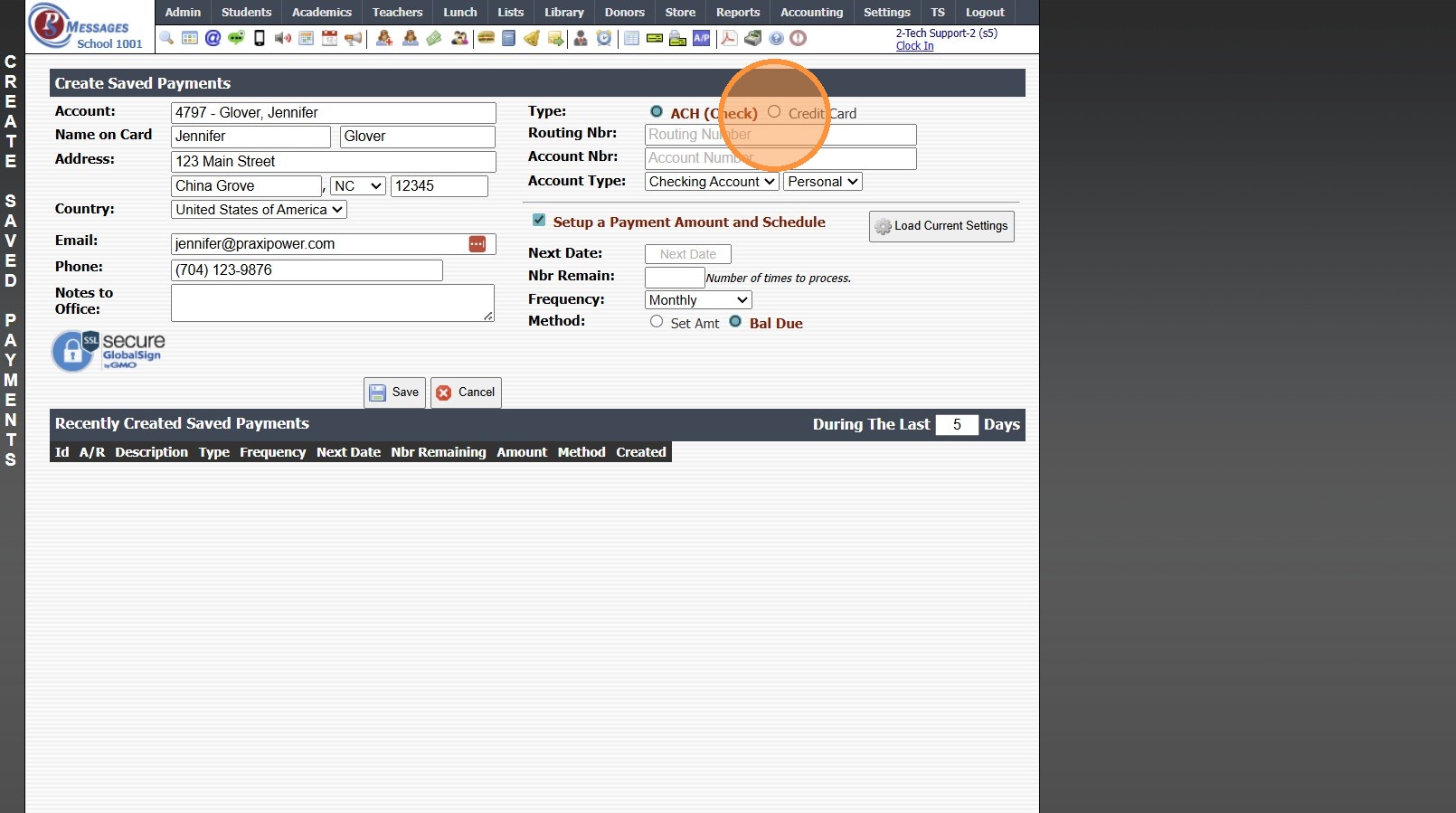
9. Enter Card Information
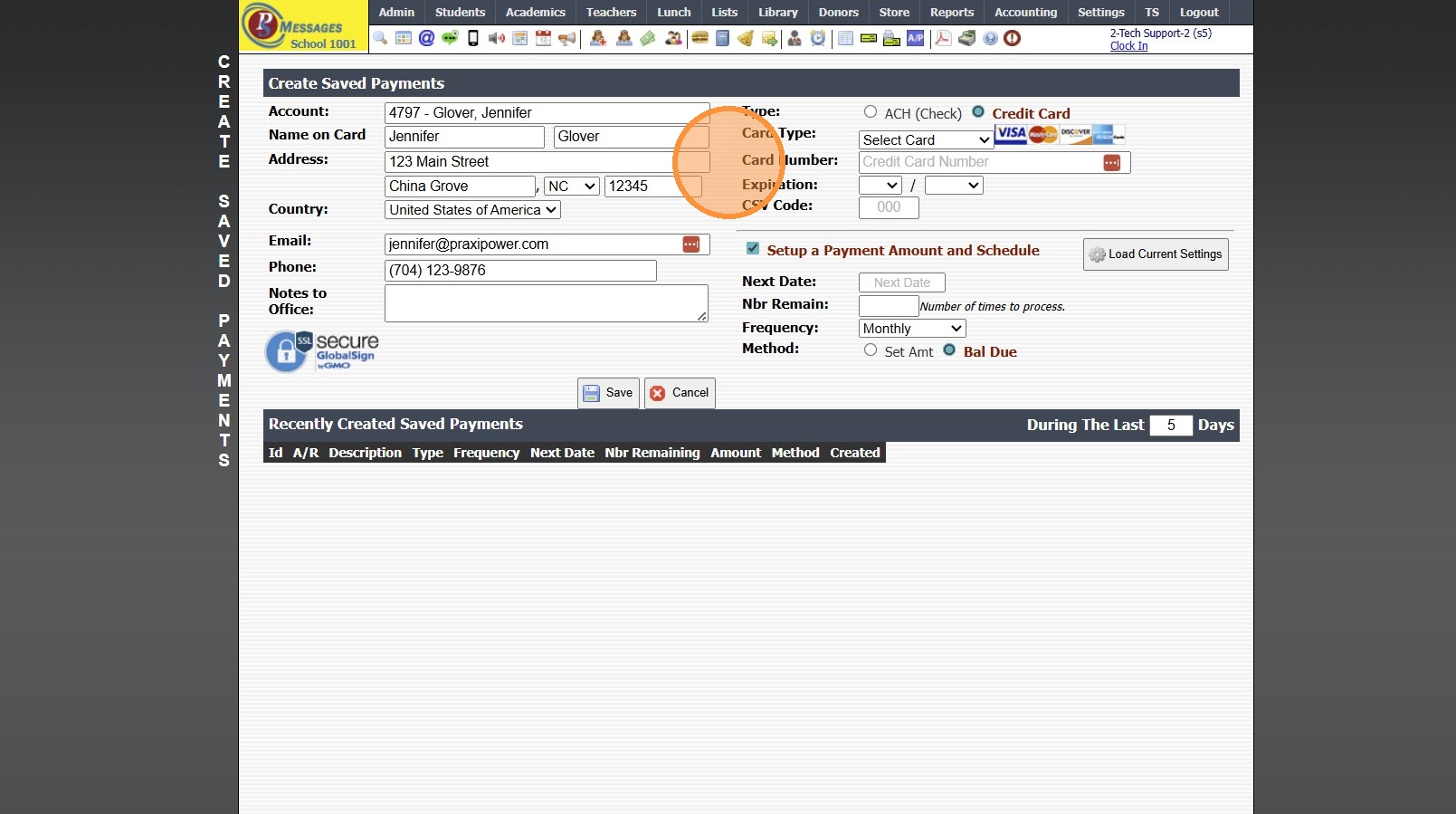
10. Enter the Next Due Date
(This is the Date the Payments will begin and the Date that will determine the when the Payments process going forward)
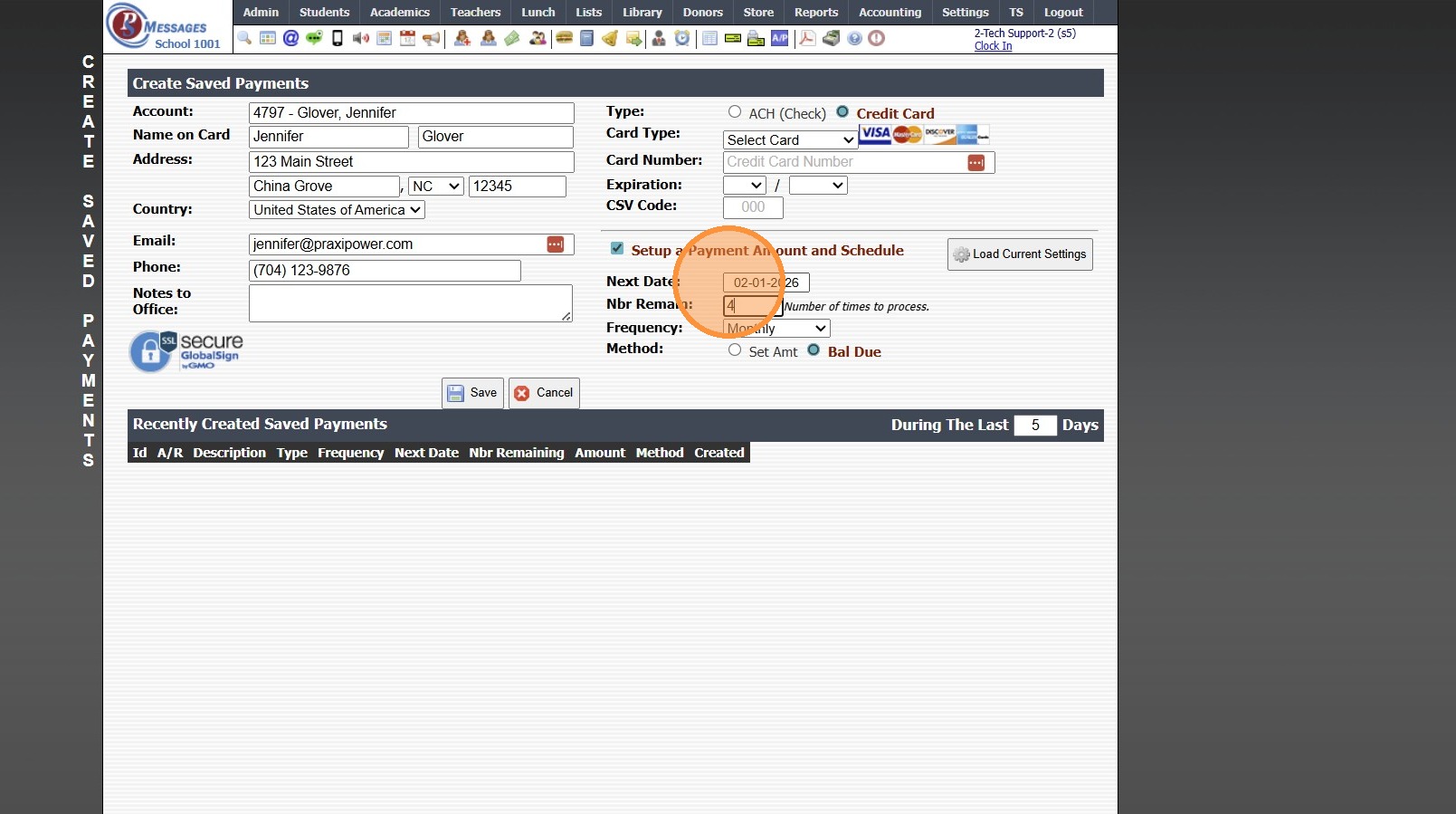
11. Enter Number of Payments to Process
(Ex. If setting up for 10 monthly payments, enter "10")
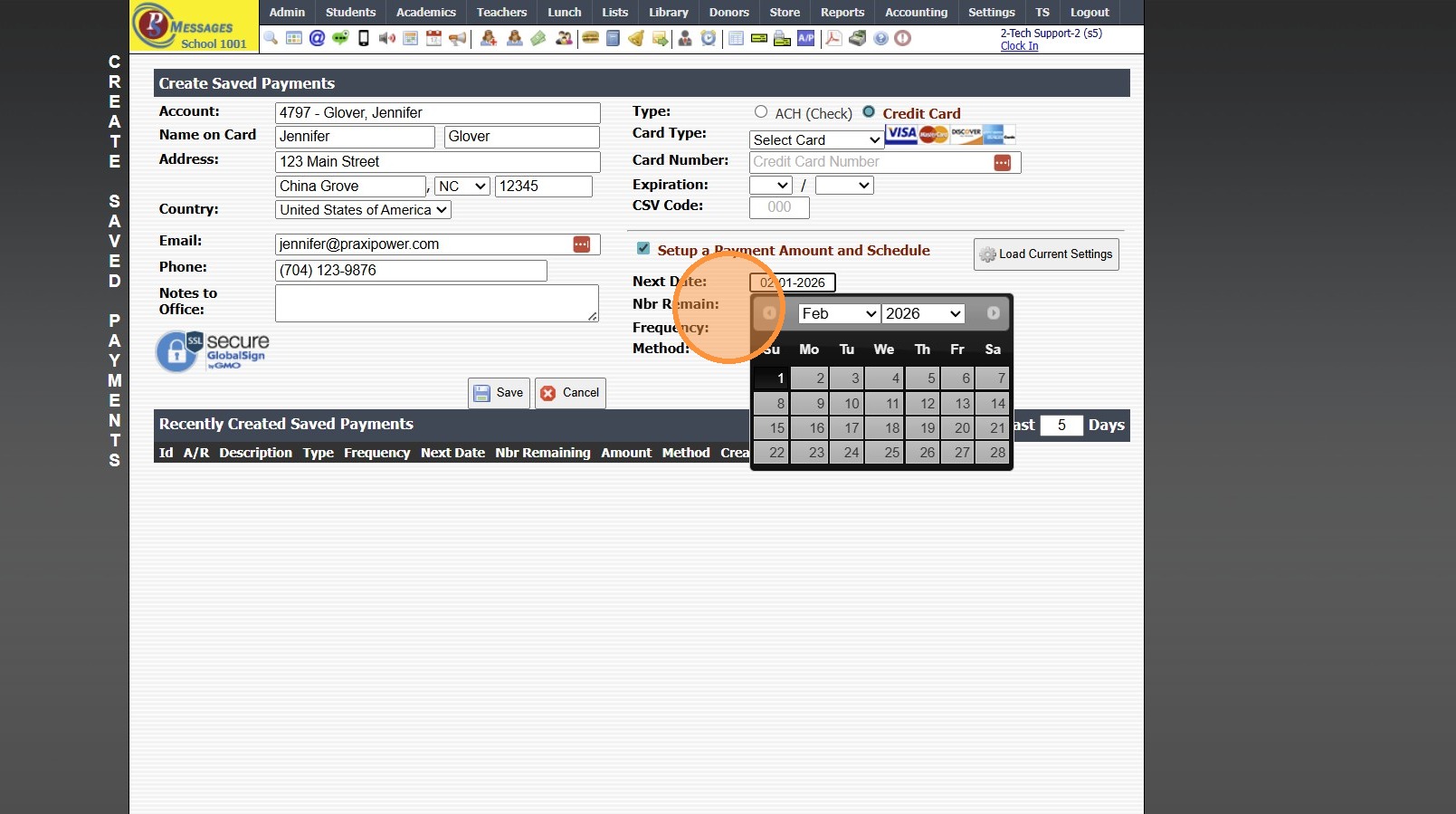
12. Select Frequency
(Ex. Monthly, Semesterly, etc)
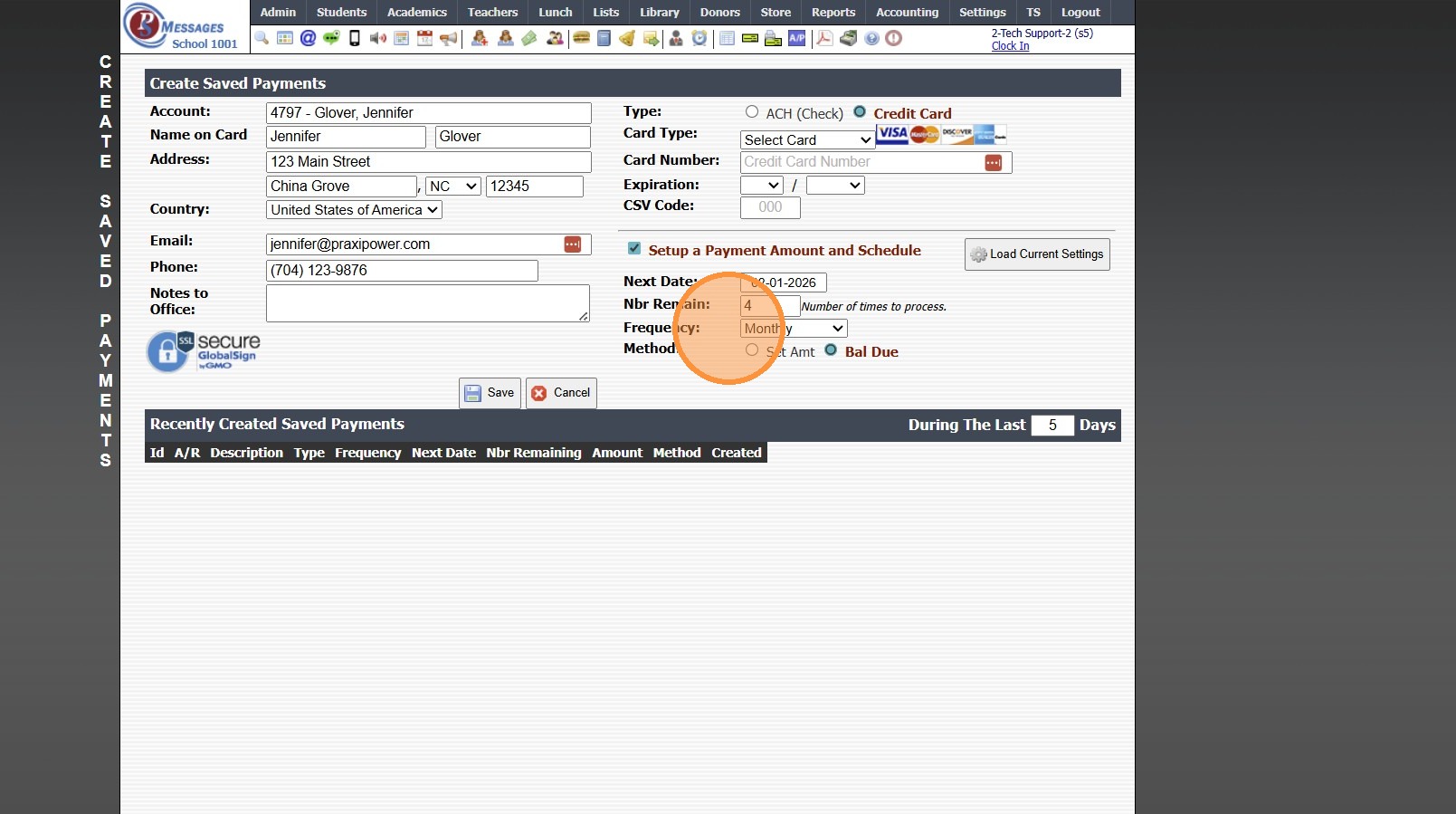
13. To Enter a Specific Amount, Select Set Amount
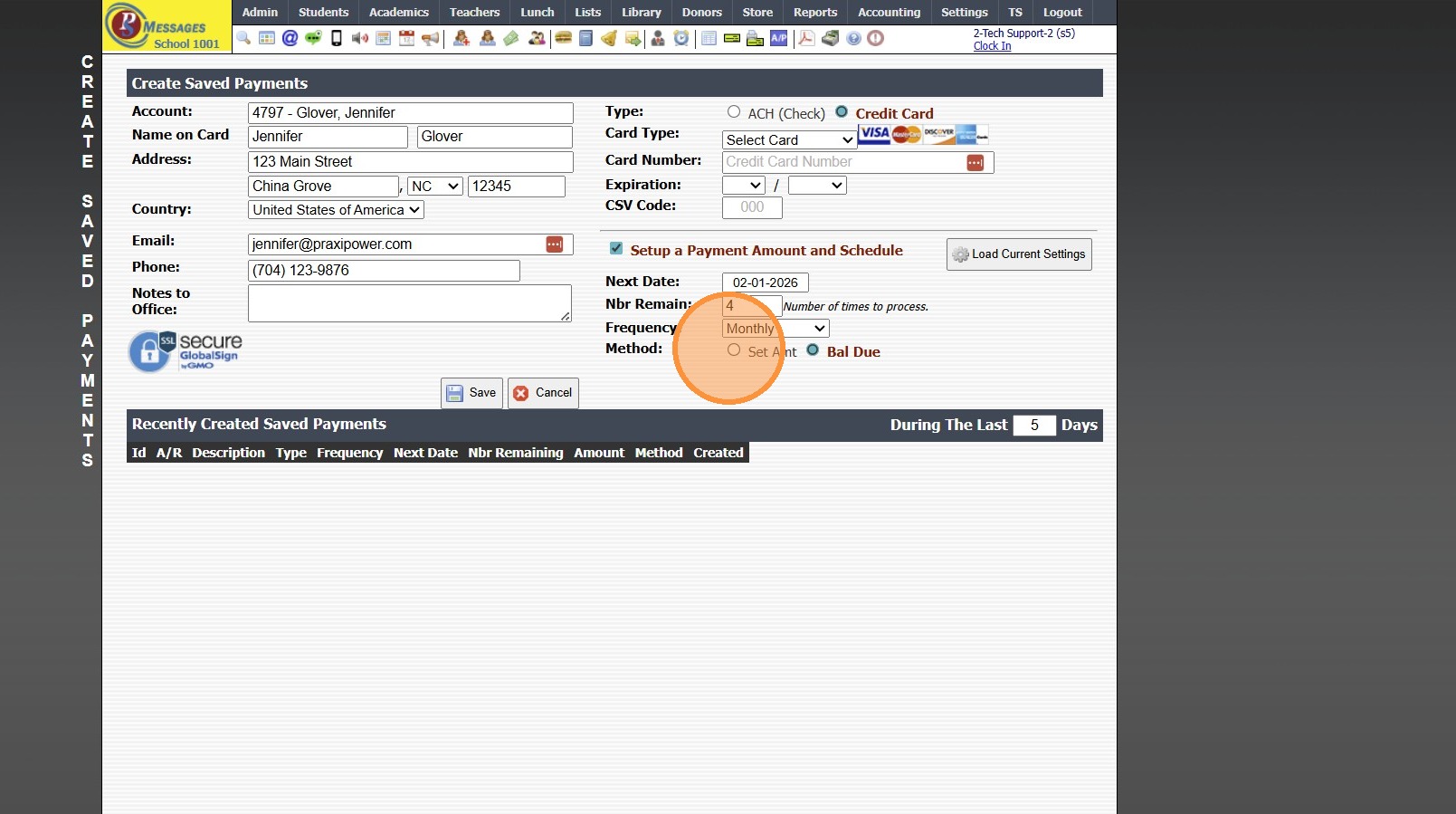
14. Enter Amount to Process
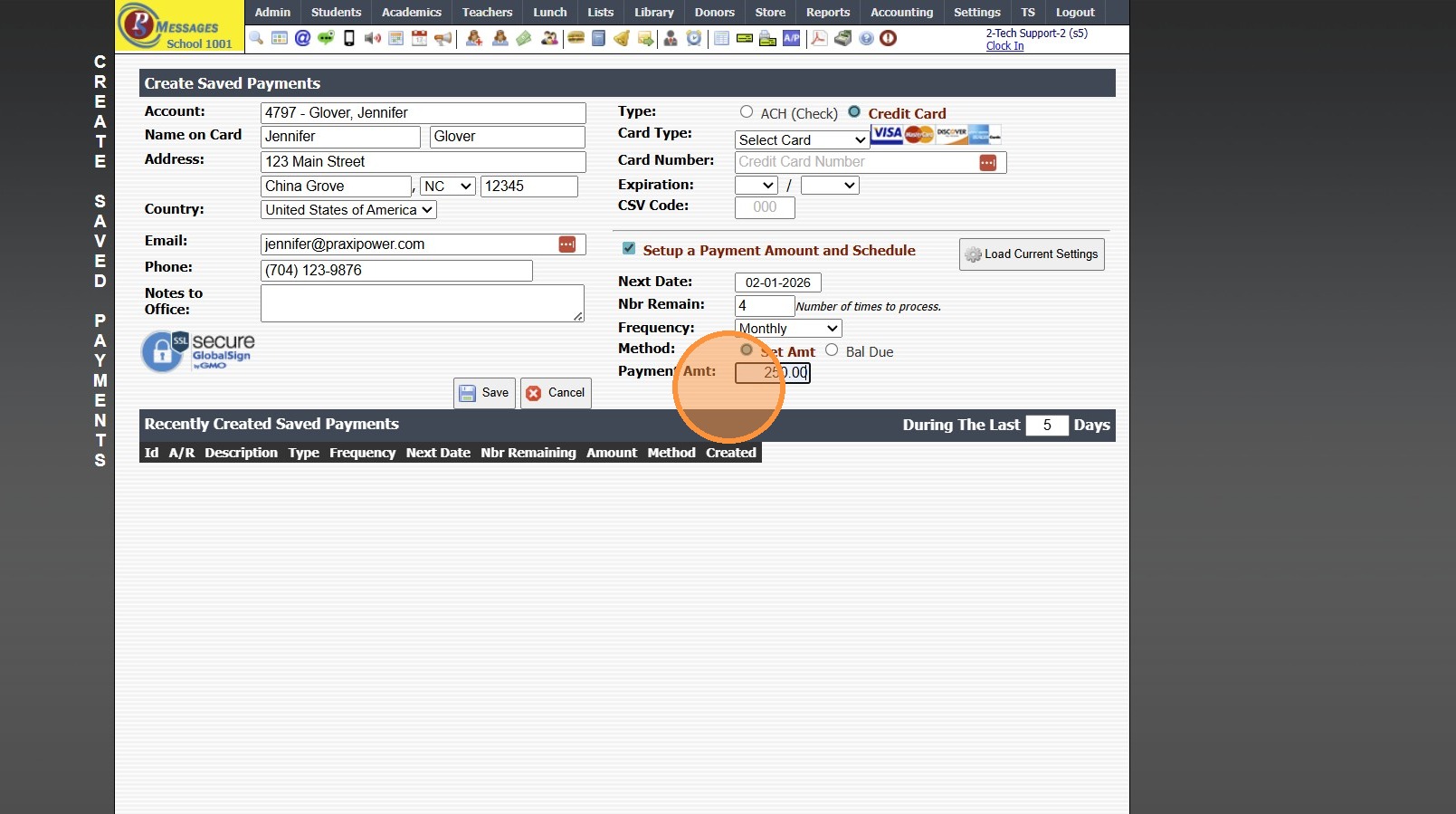
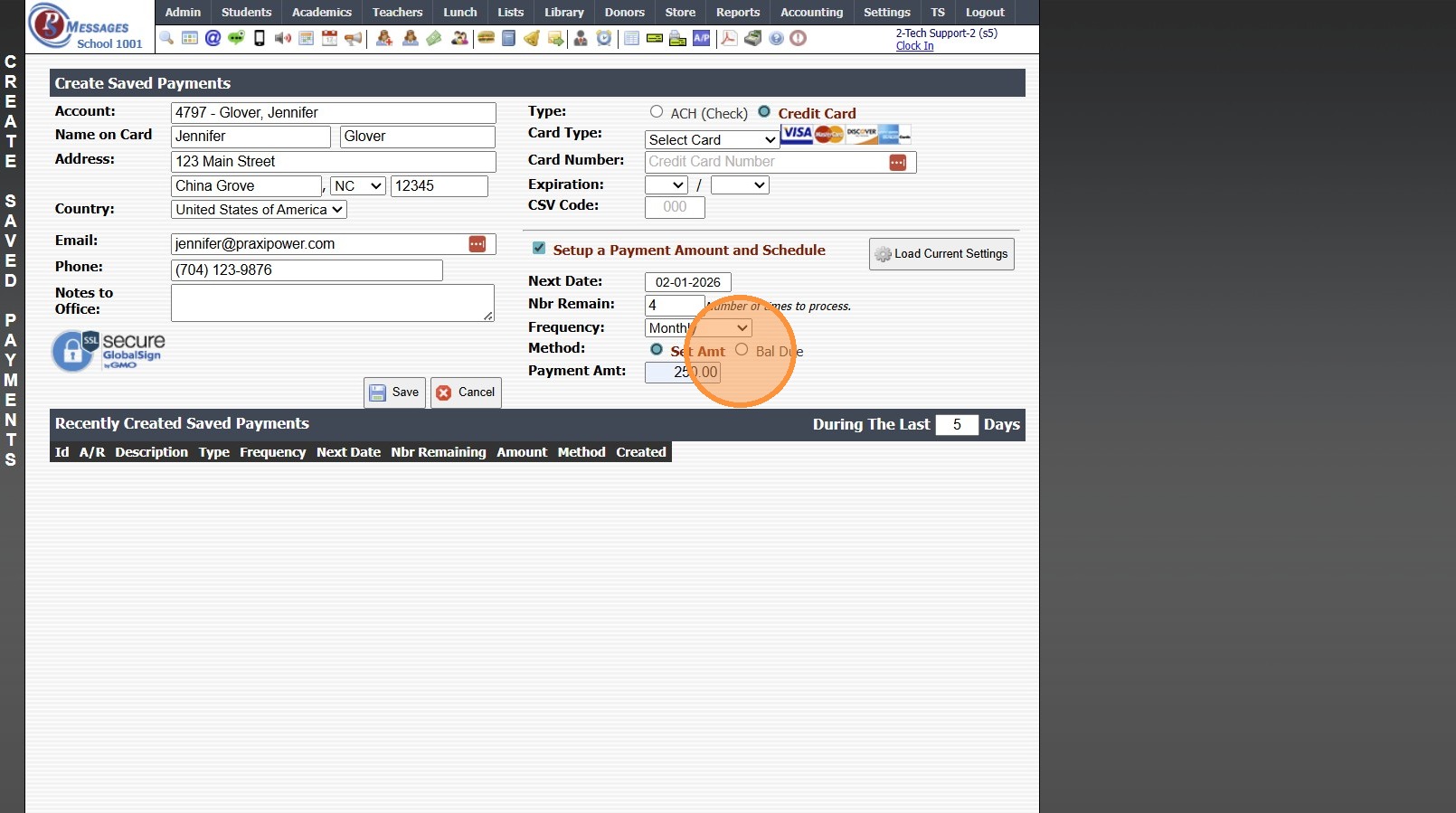
15. To Process the Full Current Balance on the Account, Select Bal Due
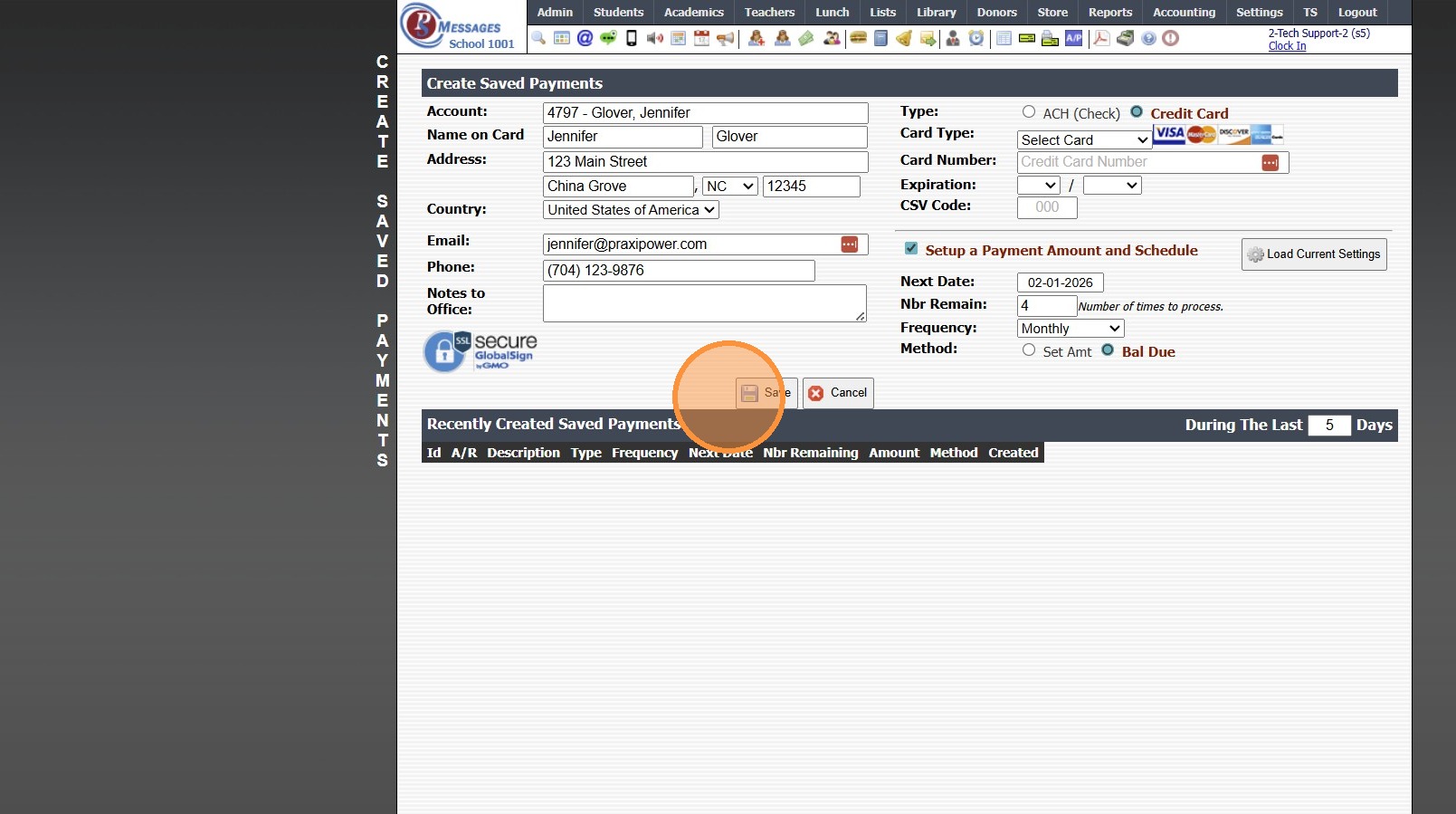
16. Click "Save"
17. 6000.4.6
Related Articles
Creating a Saved Payment
Creating a Saved Payment 1. Click "Accounting" 2. Click "Electronic Payments" 3. Click "Create Saved Pmts" 4. Search Account Name & Select 5. Verify Address, Email & Phone Number on File Matches Billing Address for Method of Payment 6. Select ACH to ...General Ledger Report (Filter) - Setup GL Filters
1. Click "Accounting" 2. Click "Reports" 3. Click "General Ledger" 4. Select "Filter" from Dropdown Menu Creating GL Filters 5. Select the Setup GL Filters Hyperlink 6. Clicking Setup GL Filters Opens the Screen for Creating GL Filters 6000.10.18Creating & Setting Admin Terms & Conditions for CC/ACH Payments
Creating Terms & Conditions 1. Click "Lists" 2. Click "Administration" 3. Click "School HTML" 4. Click "Add" 5. Enter Description (Ex. Admin ACH/CC Terms & Conditions) 6. Click "Save" 7. Click in Text Box 8. Enter Standard Terms & Conditions Verbiage ...Printing My Schedule (By Class)
Printing My Schedule (By Class) 1. Click "Settings" 2. Click "User Settings" 3. Click "My Schedule (Class)" 4. Schedule can be Printed, Emailed or Saved to a PDF 6500.4.4Making a Payment from the Student Portal
1. Log into the Student Portal (Enter School ID, Parent ID & Password) 2. Click "Make Payment" 3. Select ACH or Credit Card 4. Enter ACH or Credit Card Information 5. Enter Payment Amount in the A/R Field 6. Check Terms & Conditions Box 7. Click ...