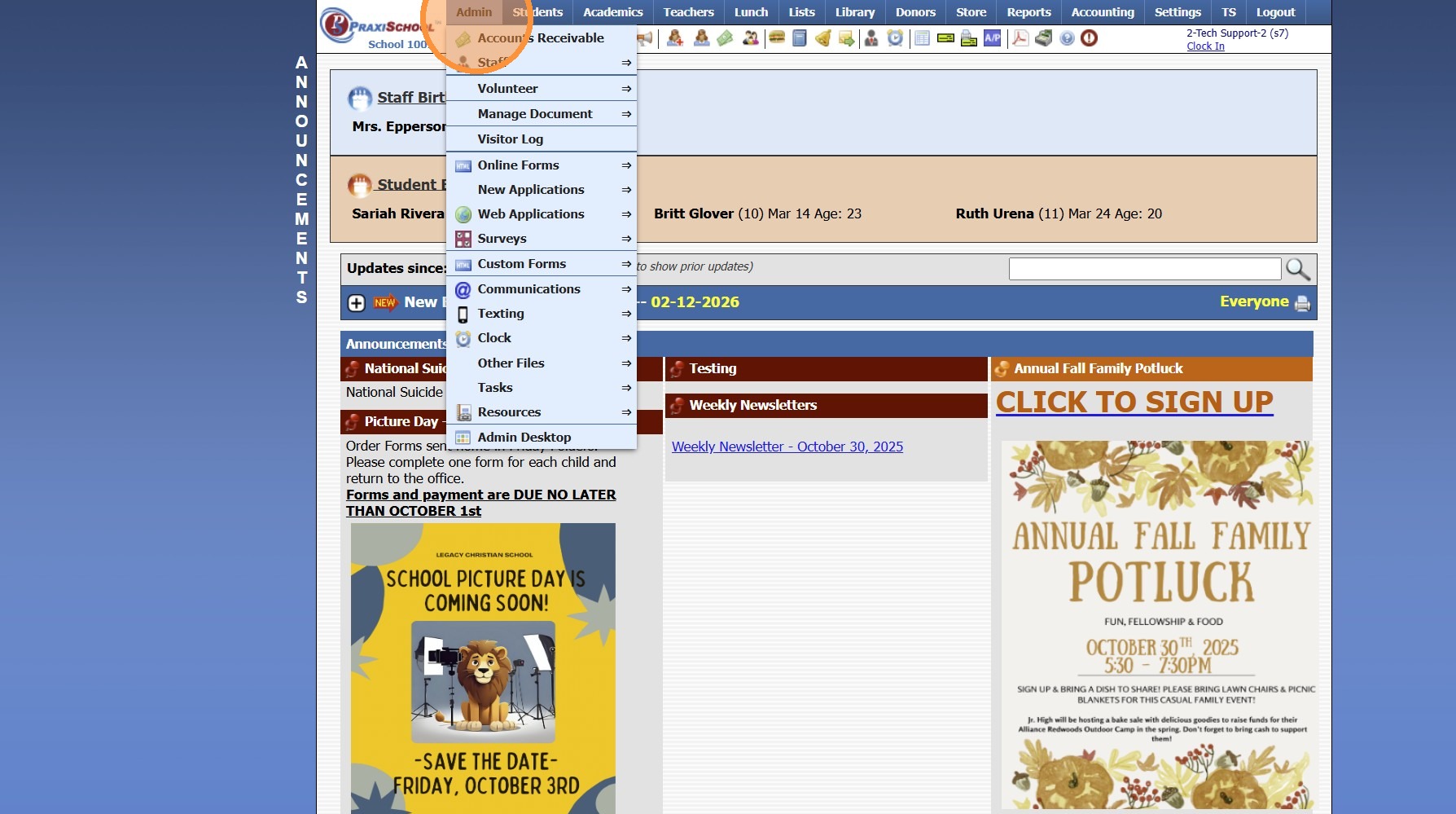
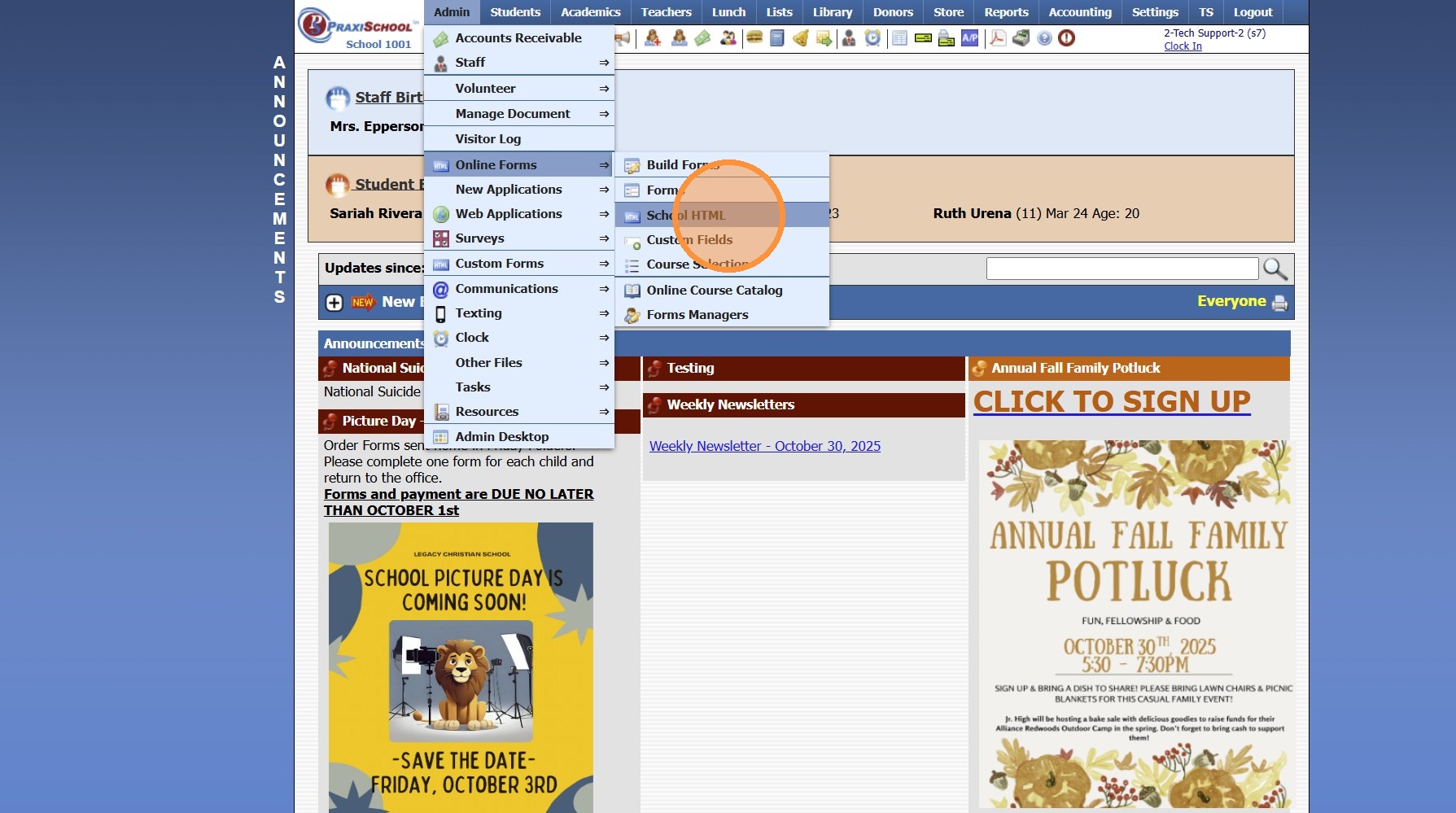
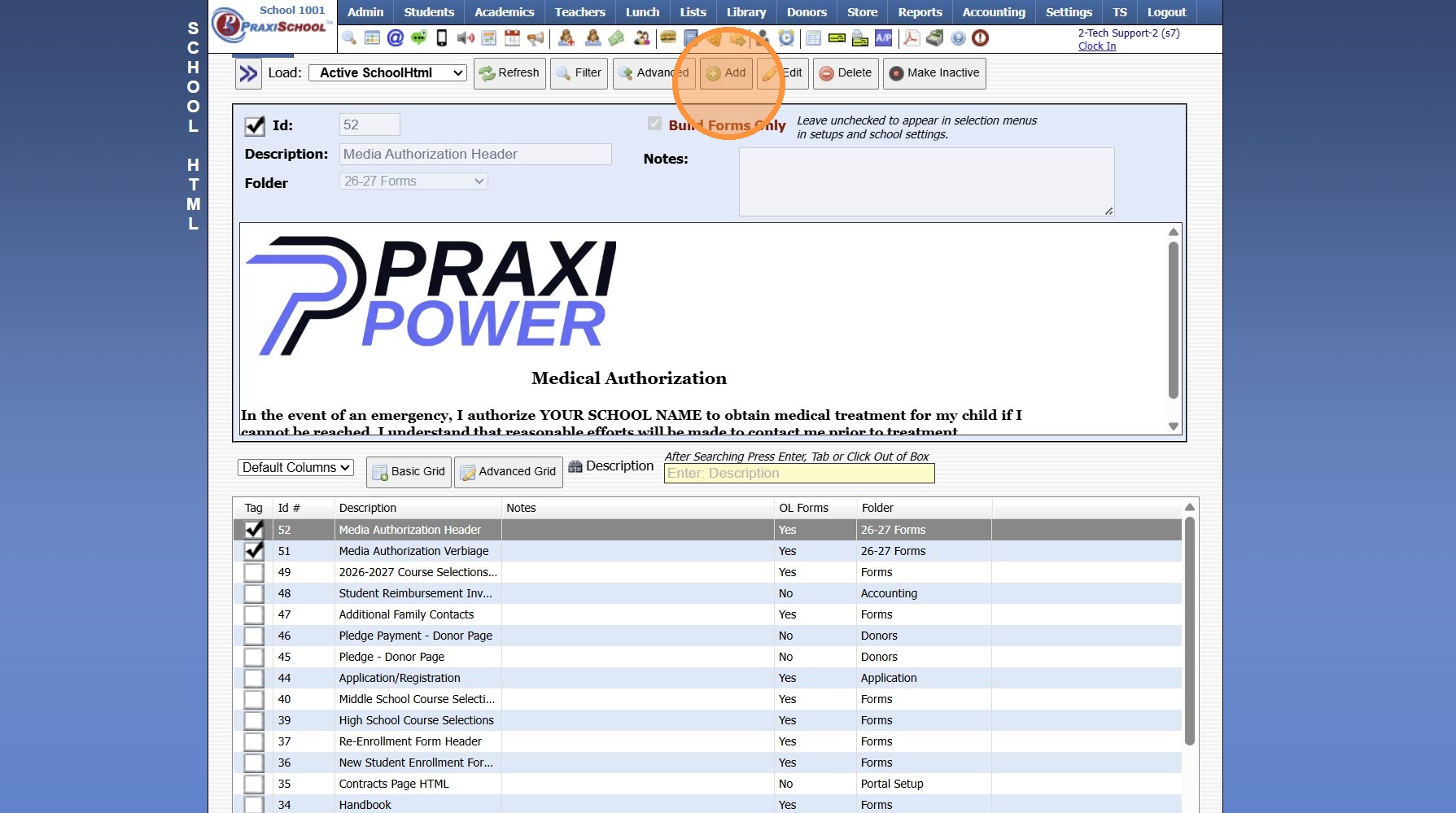
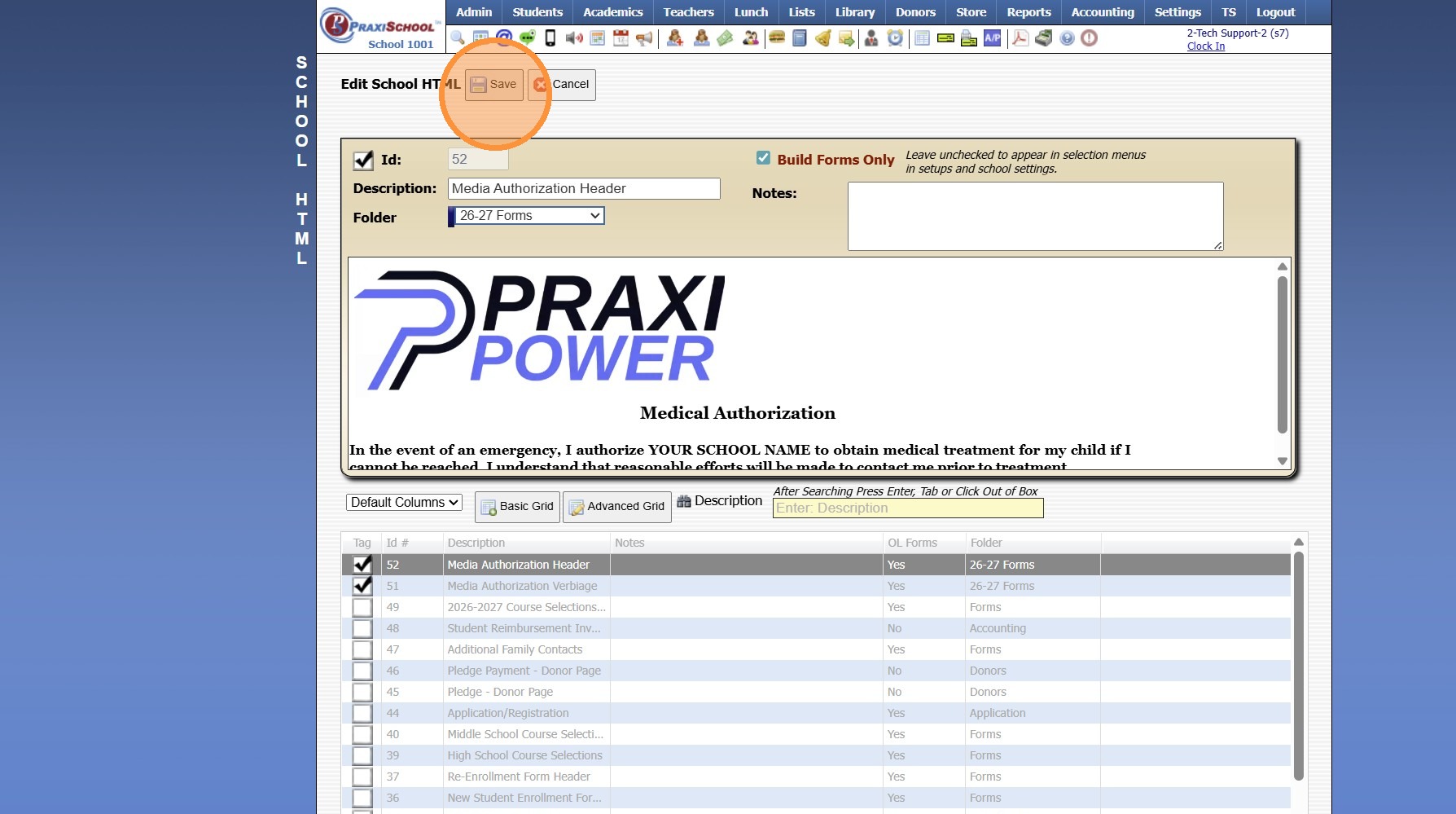
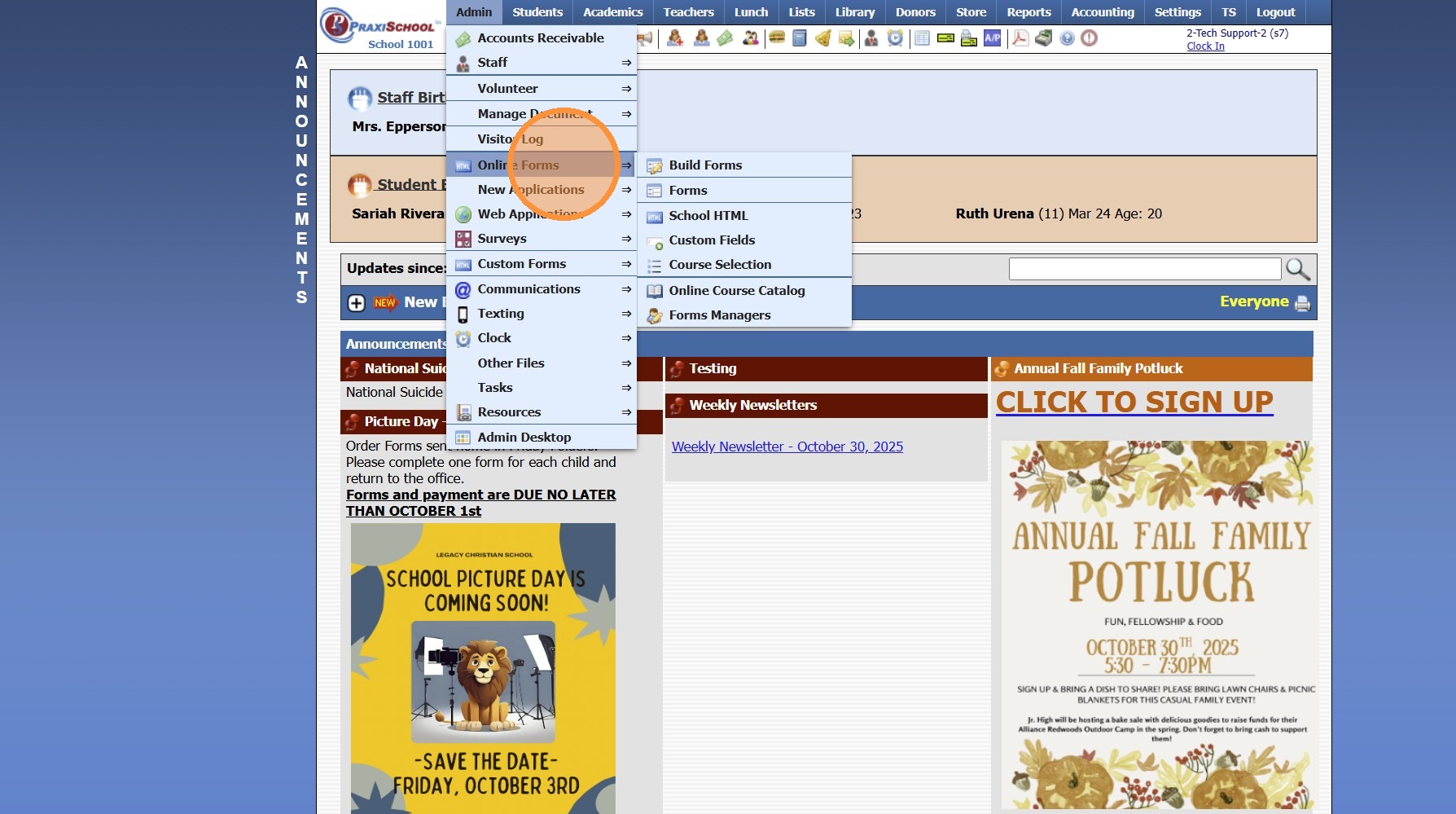
Adding School HTML for Online Forms


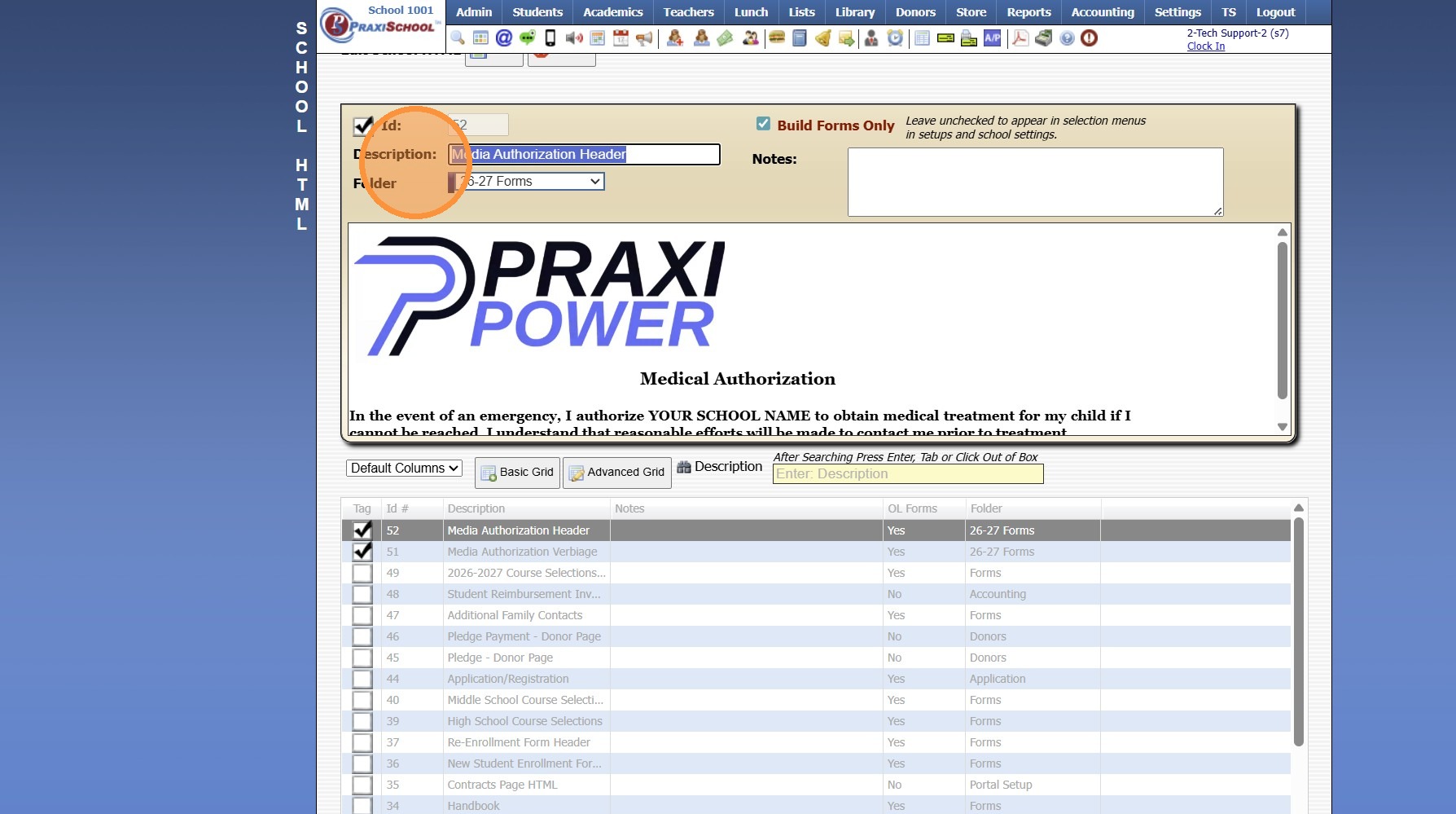
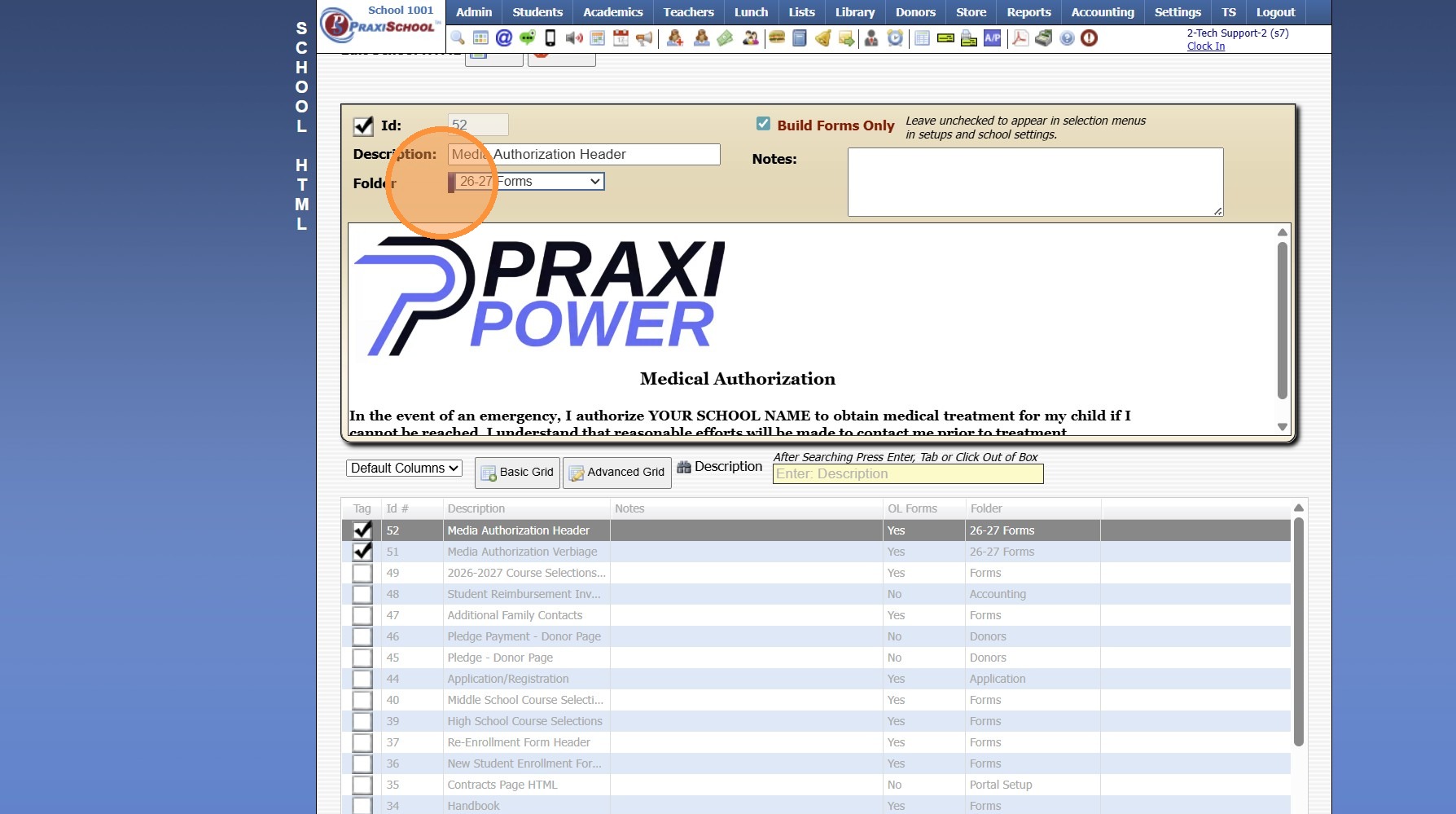
6. Select a Folder or Click the Blue Bar & Add a New Folder

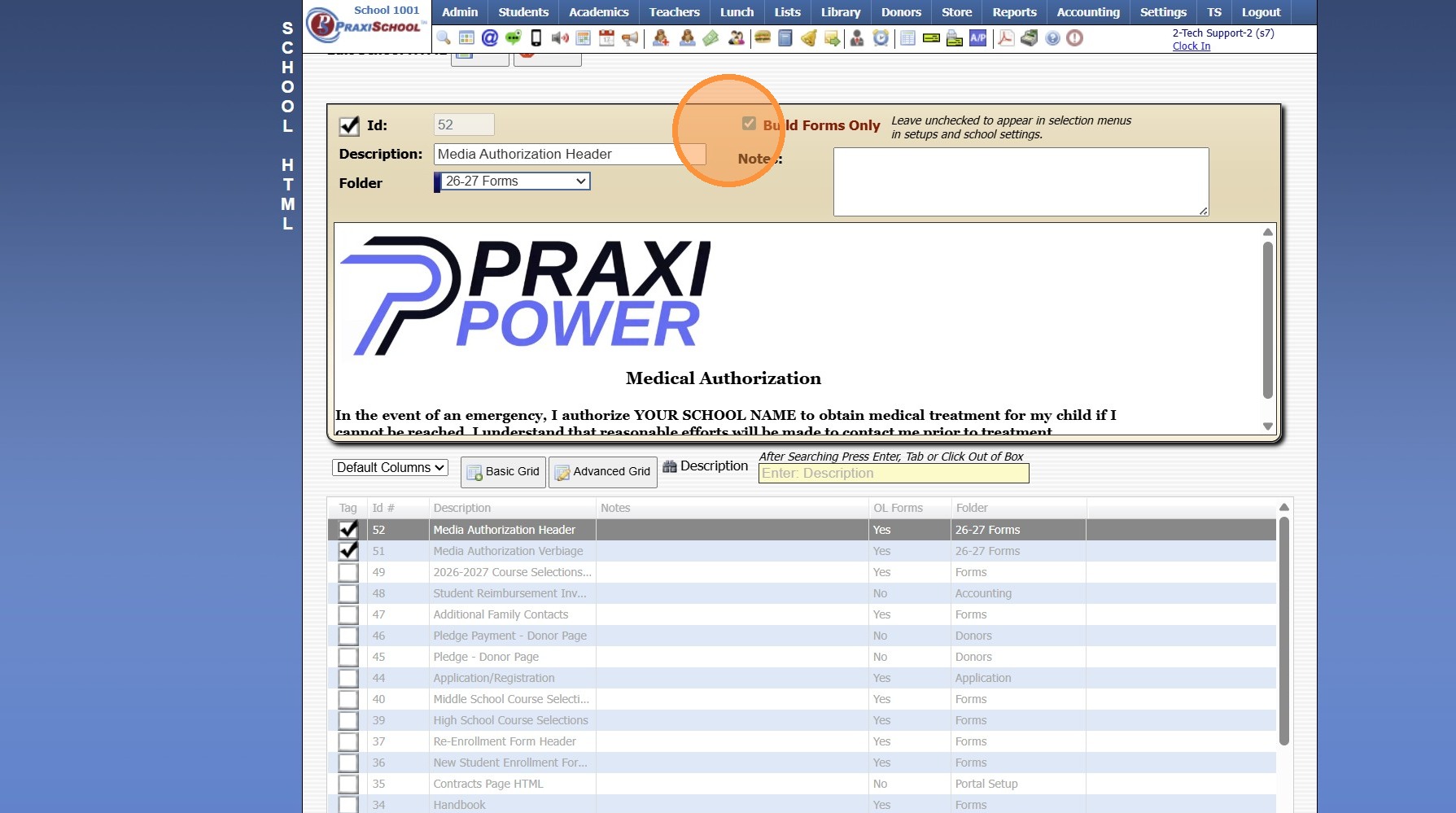
7. Check the Build Forms Only Box
(If this box is NOT checked, the HTML will not be available to add to an online form.)


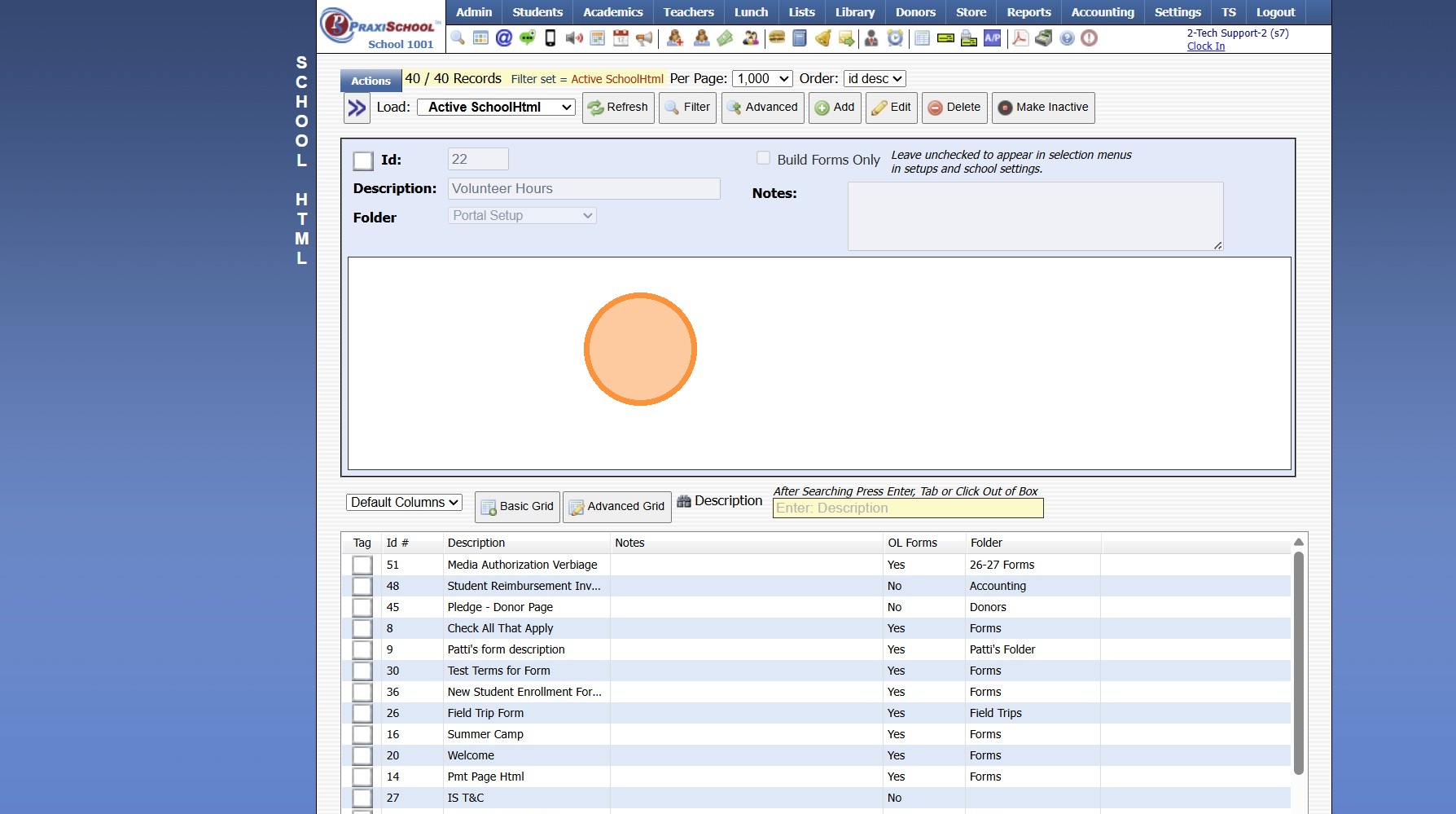
Simple Text HTML
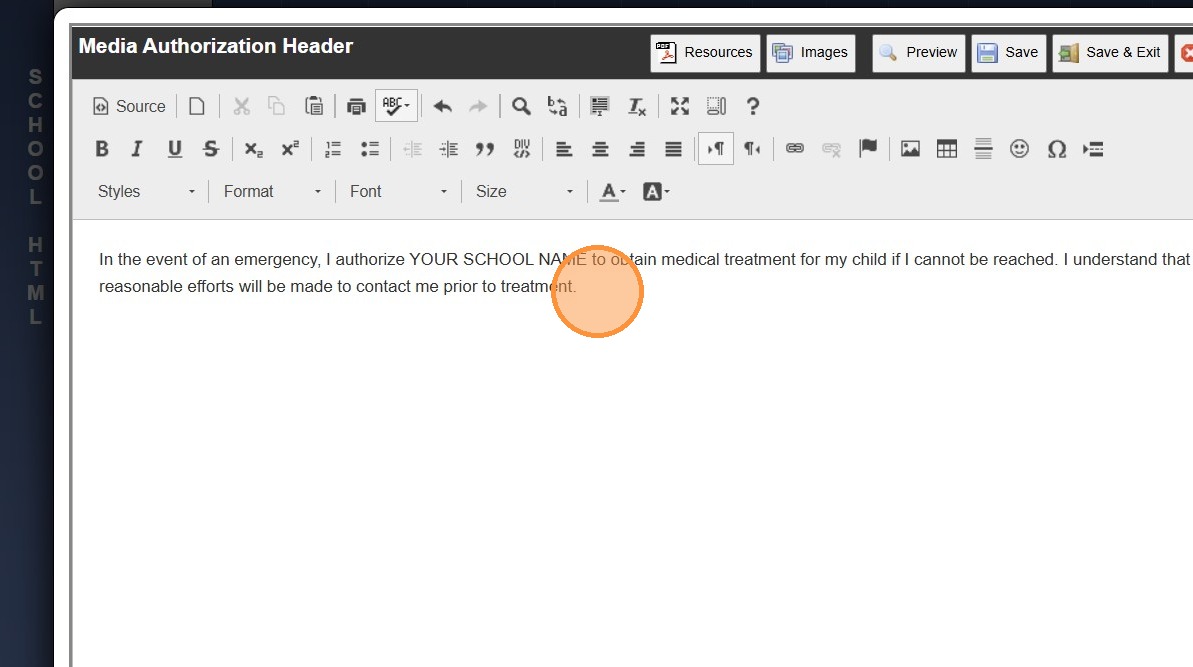
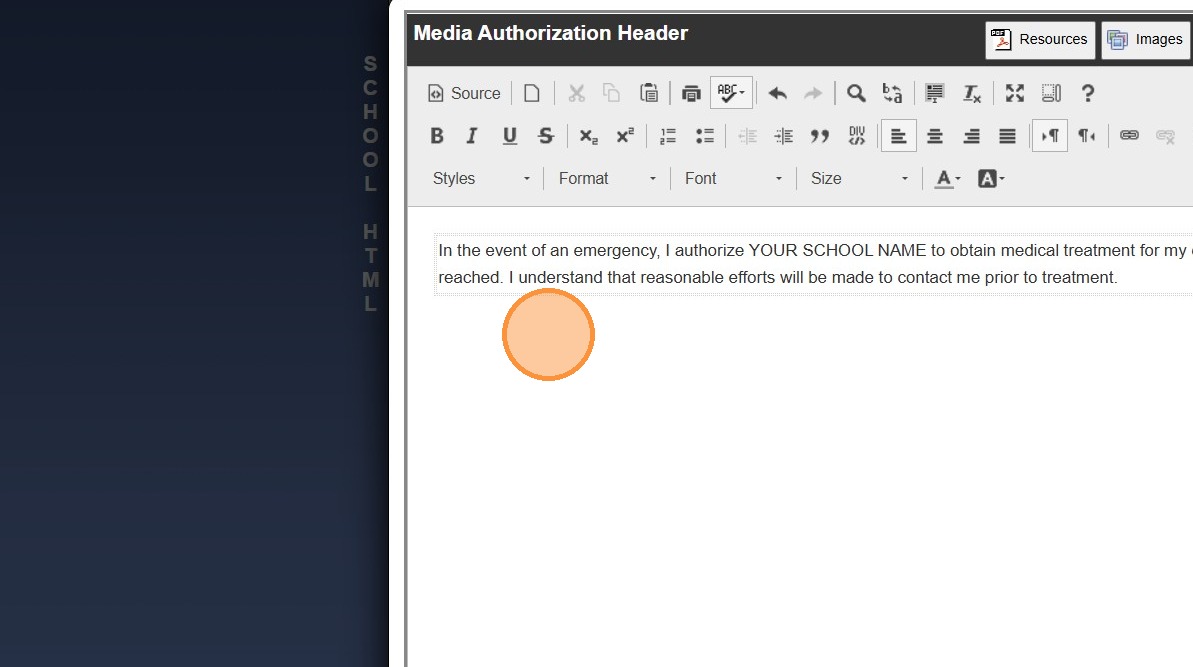
10. Type Verbiage into HTML Box
(Use this for Short Text Entries)

Long Text Entries/Logo HTML
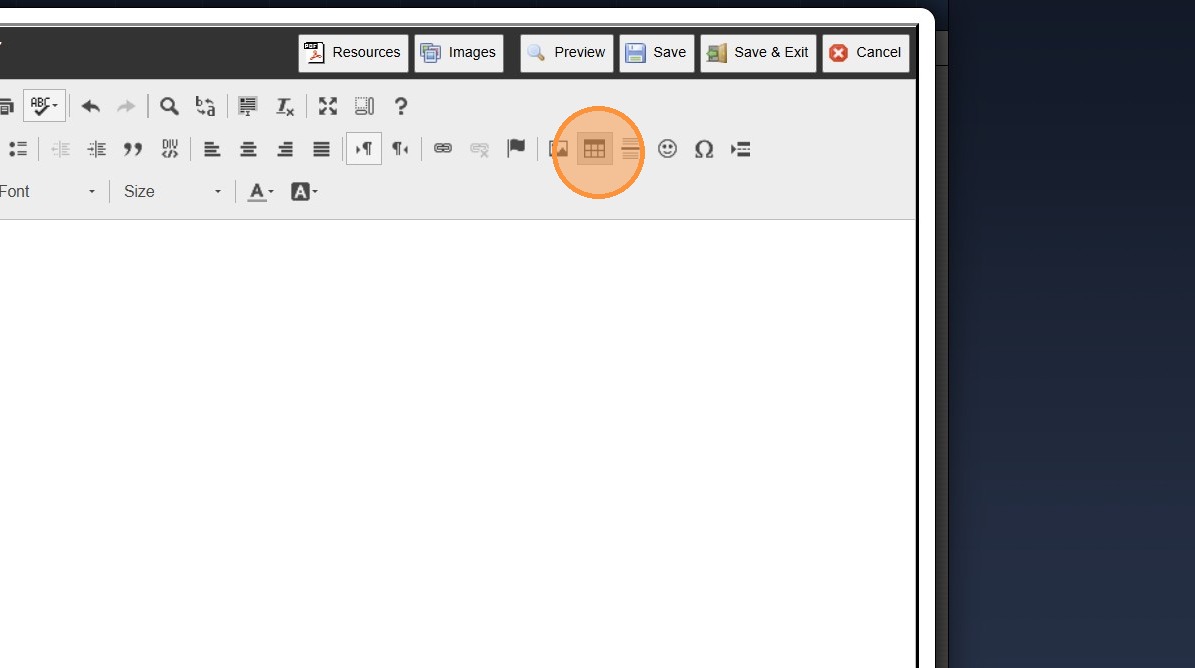
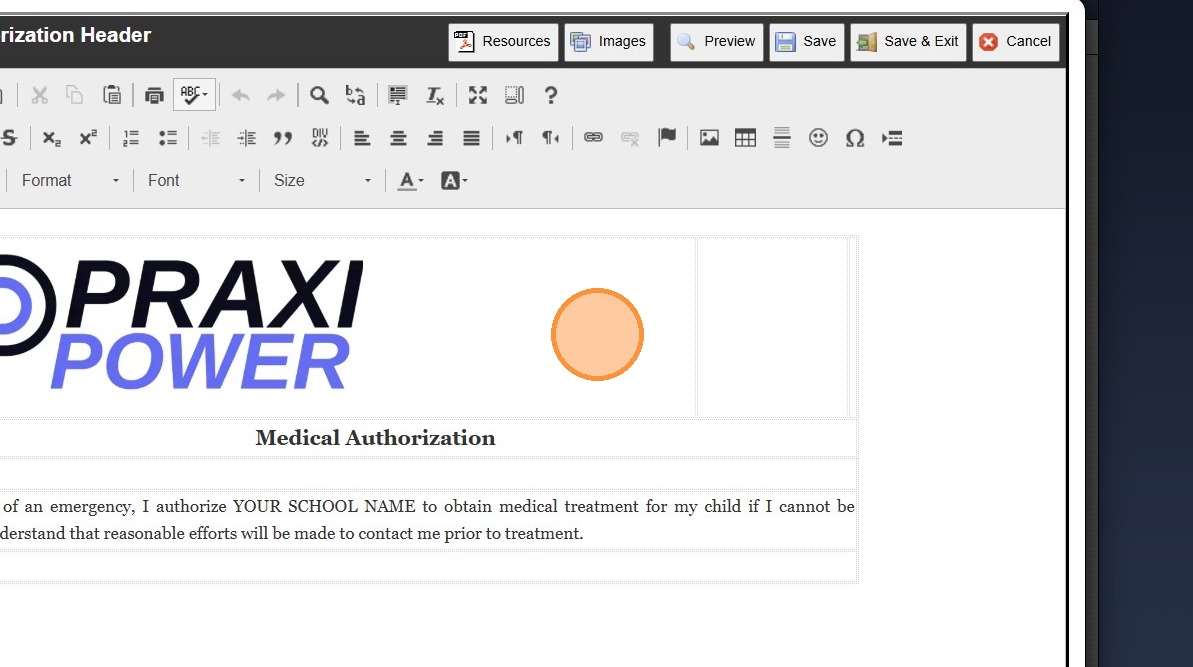
11. Click the Table Icon to Create a Table

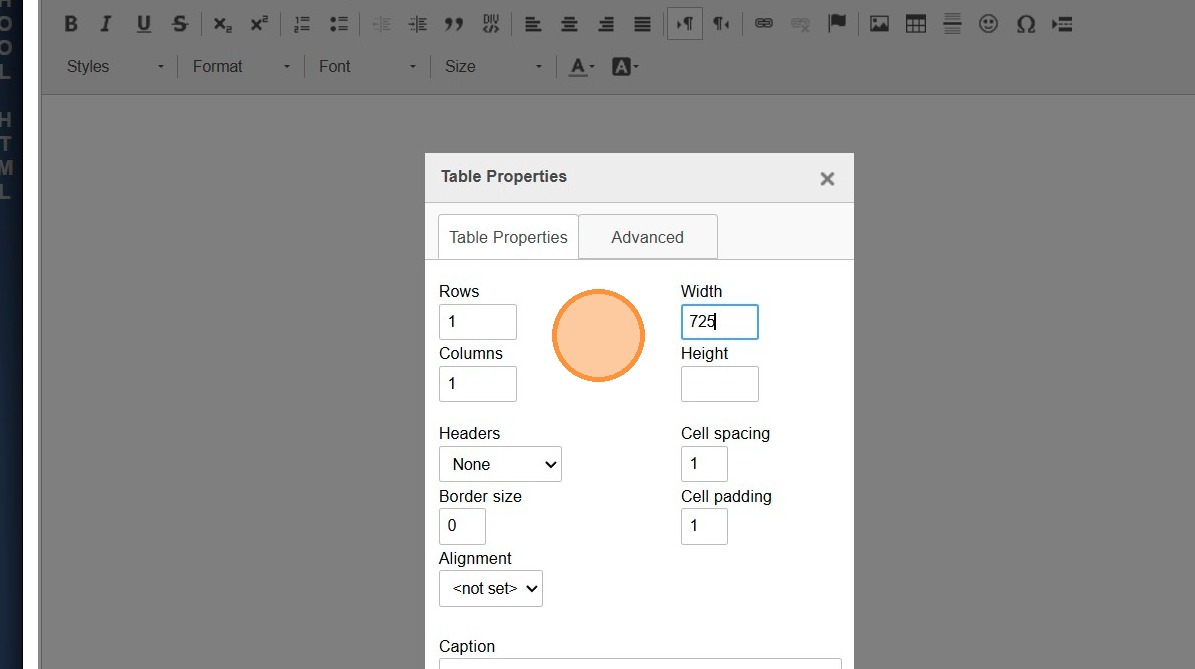
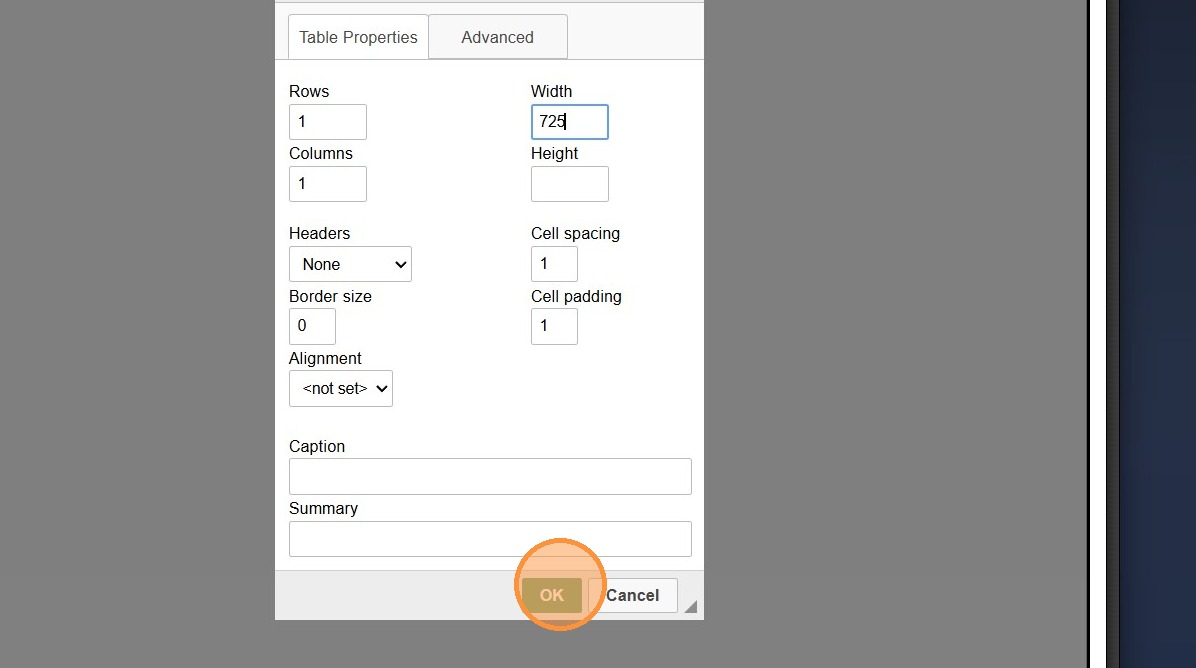
12. Recommended Options:
Rows - 1
Columns - 1
Width - 725 (Using this Width keeps the text inside the Form boundaries)


14. Add Verbiage to Textbox

15. Individual Textbox Fields can be Split to Add & Center Logo (Optional)


Related Articles
Online Forms Auto Start & End Dates
Online Forms Auto Start & End Dates 1. Click "Admin" 2. Click "Online Forms" 3. Click "Forms" 4. Select "Styles & Functionality" tab 5. Enter Auto Start & End Date and Time 1000.6.4
Adding Required Forms
Adding Required Forms 1. Click "Lists" 2. Click "Enrollment" 3. Click "Forms" 4. Click "Add" 5. Enter Form Name & Type (Order, Abbreviation & Comment can be added) (Optional) 6. Click "Save" 3500.1.9
Accessing & Previewing Online Form Templates
1. Click "Admin" 2. Click "Online Forms" 3. Click "Forms" 4. Select Form 5. Click "Header HTML" 6. Click "Preview Form" 7. A Preview of the Form will Populate 1000.6.20
Areas to Check for Updates on Replicated Forms
1. Click "Admin" 2. Click "Online Forms" 3. Click "Forms" 4. Select Form 5. Click "Styles & Functionality" Tab 6. Click "Edit" 7. Update Auto Start & Auto End Dates (If Using) 8. Click "Portal" Tab 9. Update Verbiage (If Using & Verbiage Contains ...
Accessing Enrollment Forms from the Parent Portal
1. Log into the Parent Portal (Enter School ID, Parent ID & Password) 2. Select "Online Forms" from the Toolbar 3. If Online Forms is not on the Toolbar, Click to Expand the Menu 4. Select "Online Forms" 5. Select the Student 6. Select the Form 7. ...