Creating a HTML Form Header with Details

Creating a HTML Form Header with Details


1. Click "Admin"
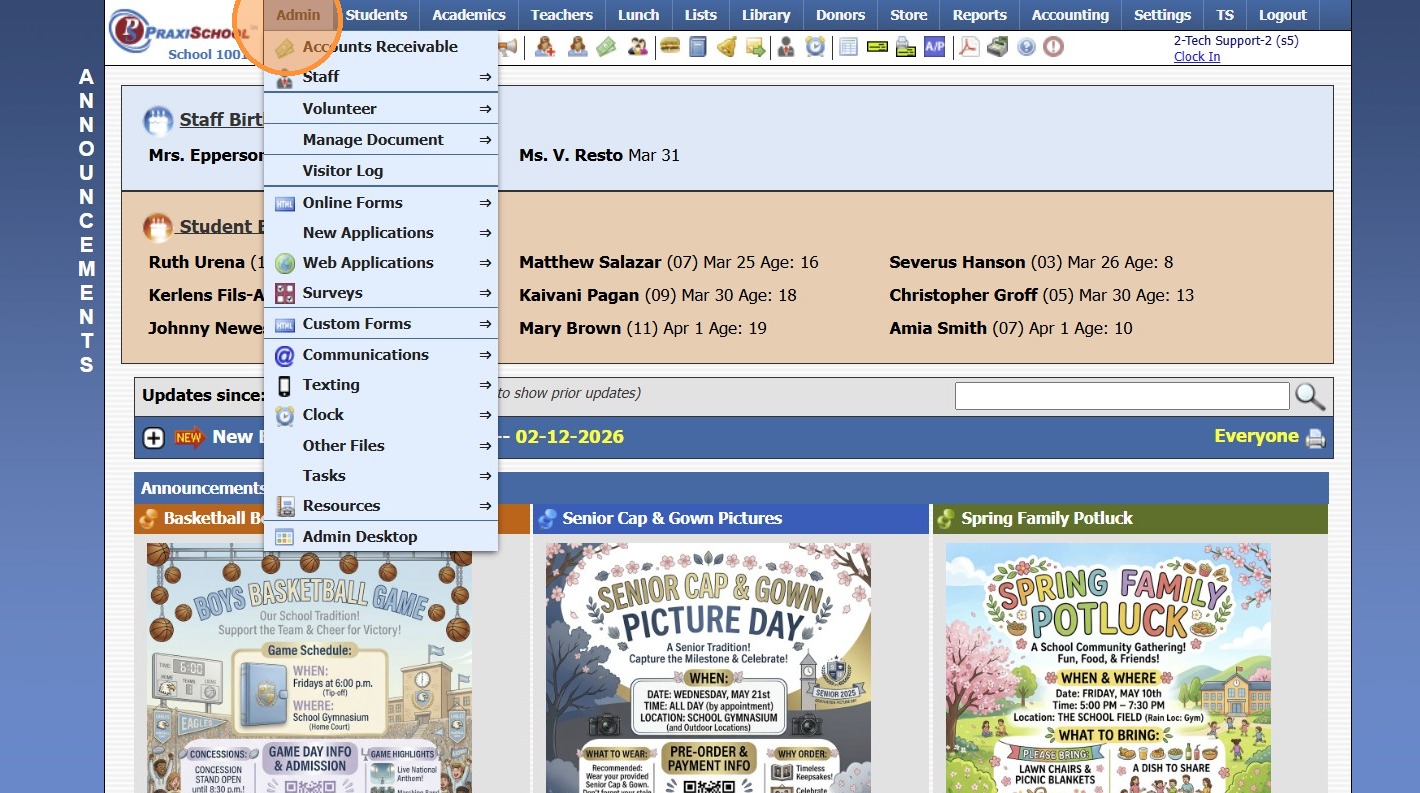
2. Click "Online Forms"
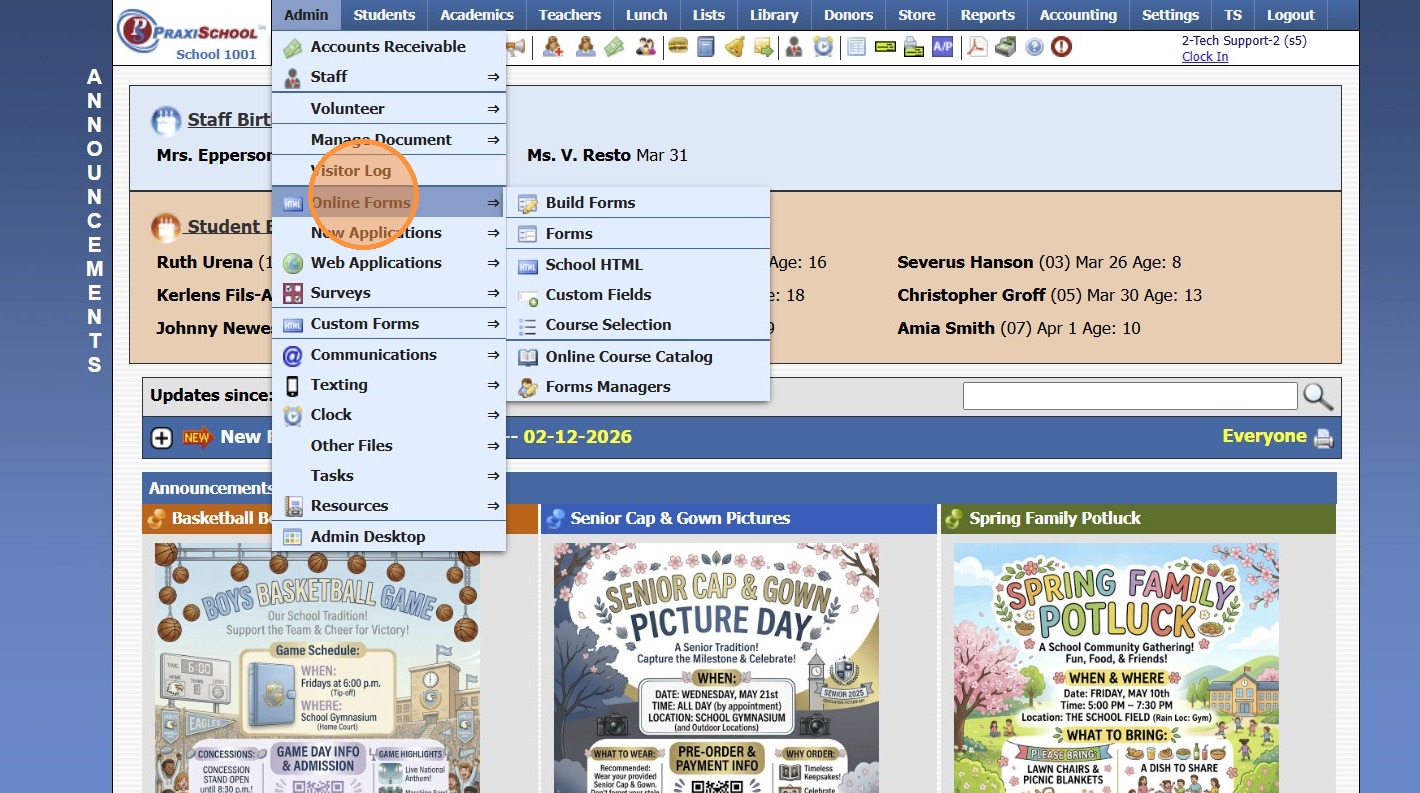
3. Click "School HTML"
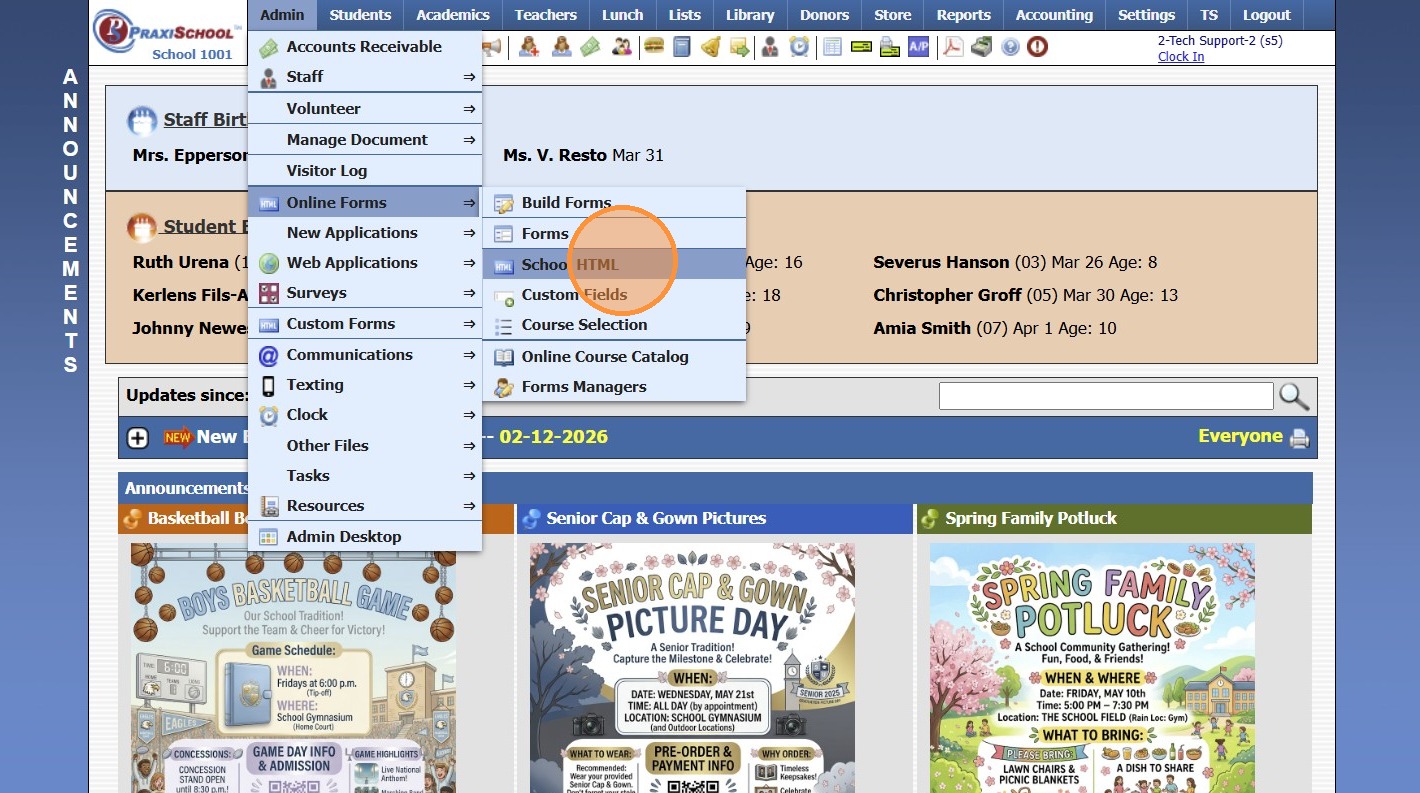
4. Click "Add"
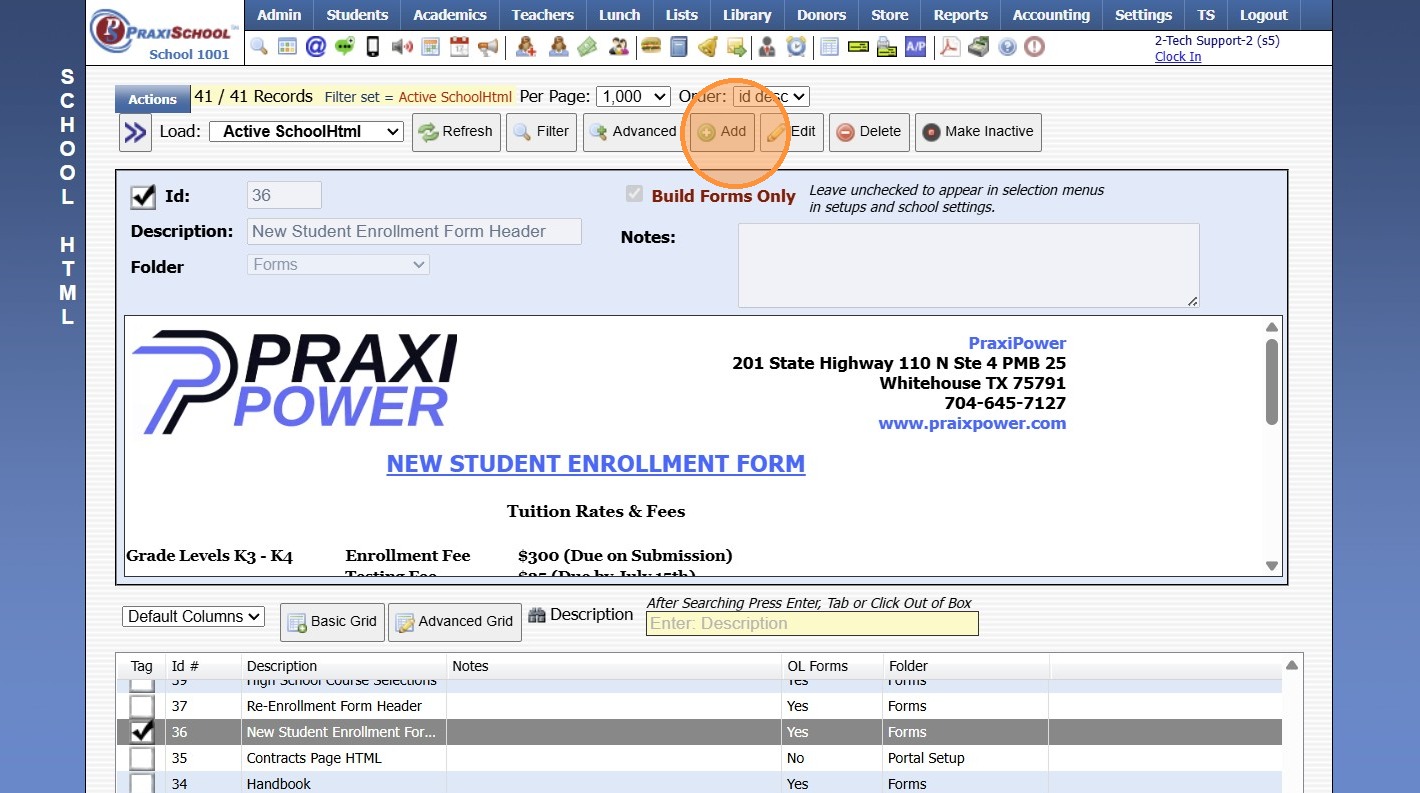
5. Enter Description, Select Folder & Check Build Forms Only Box
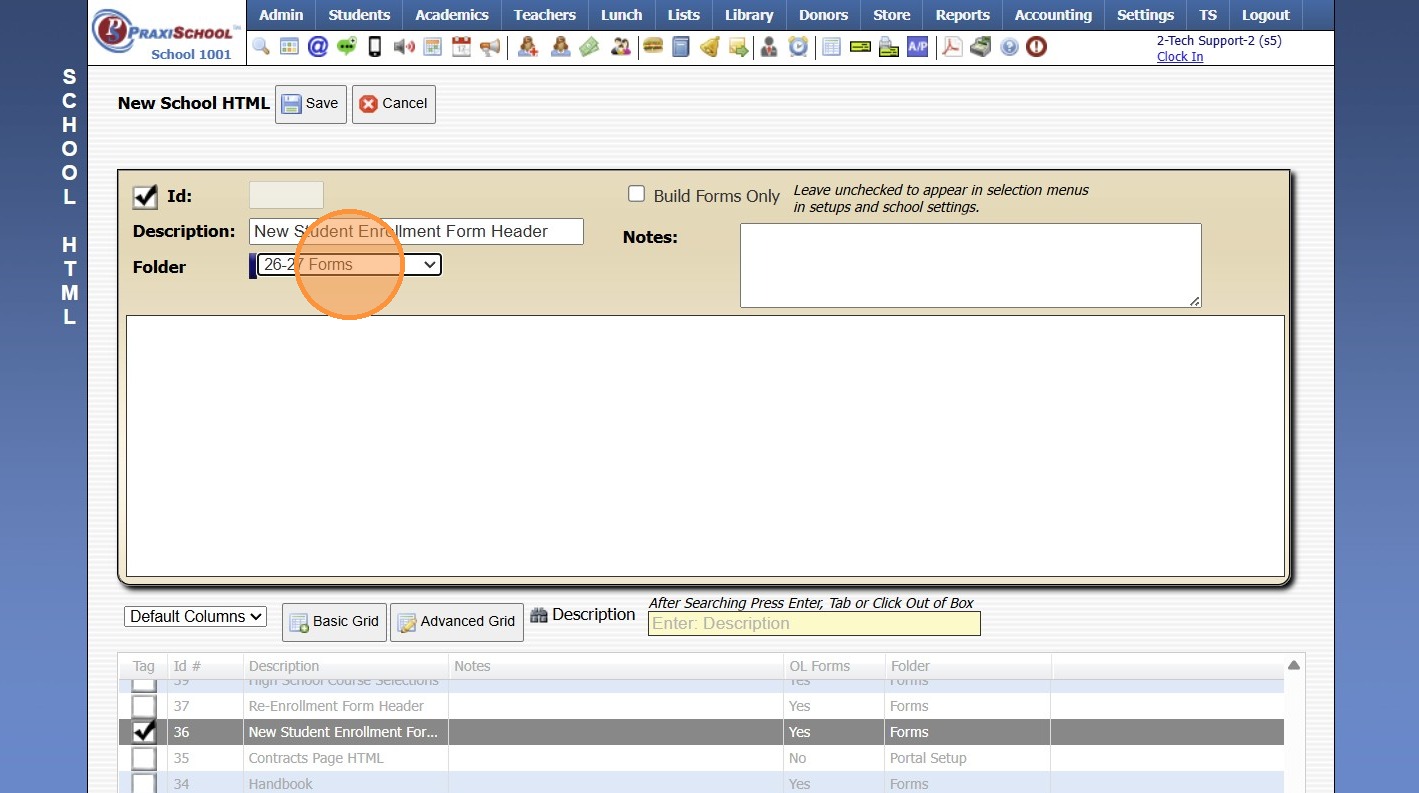
6. Click "Save"
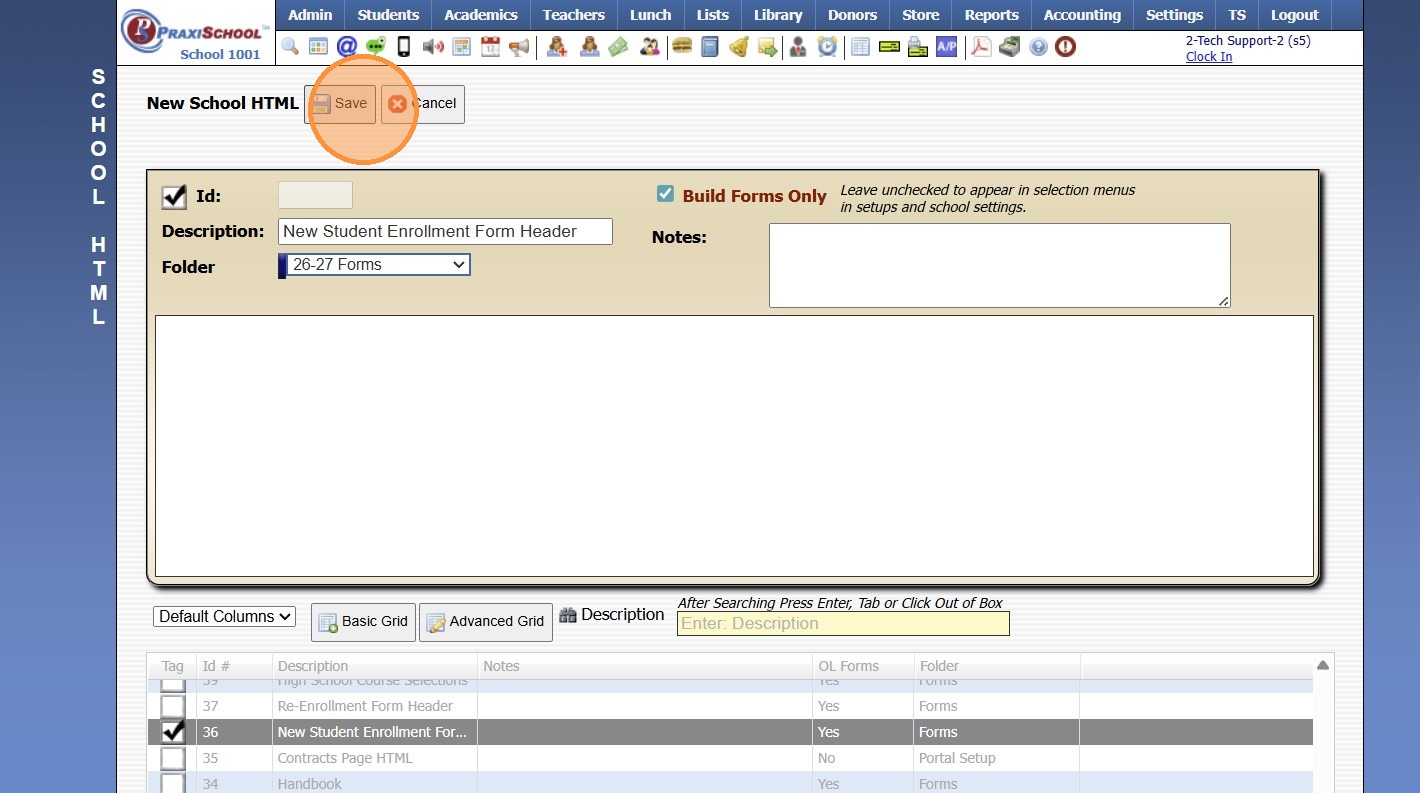
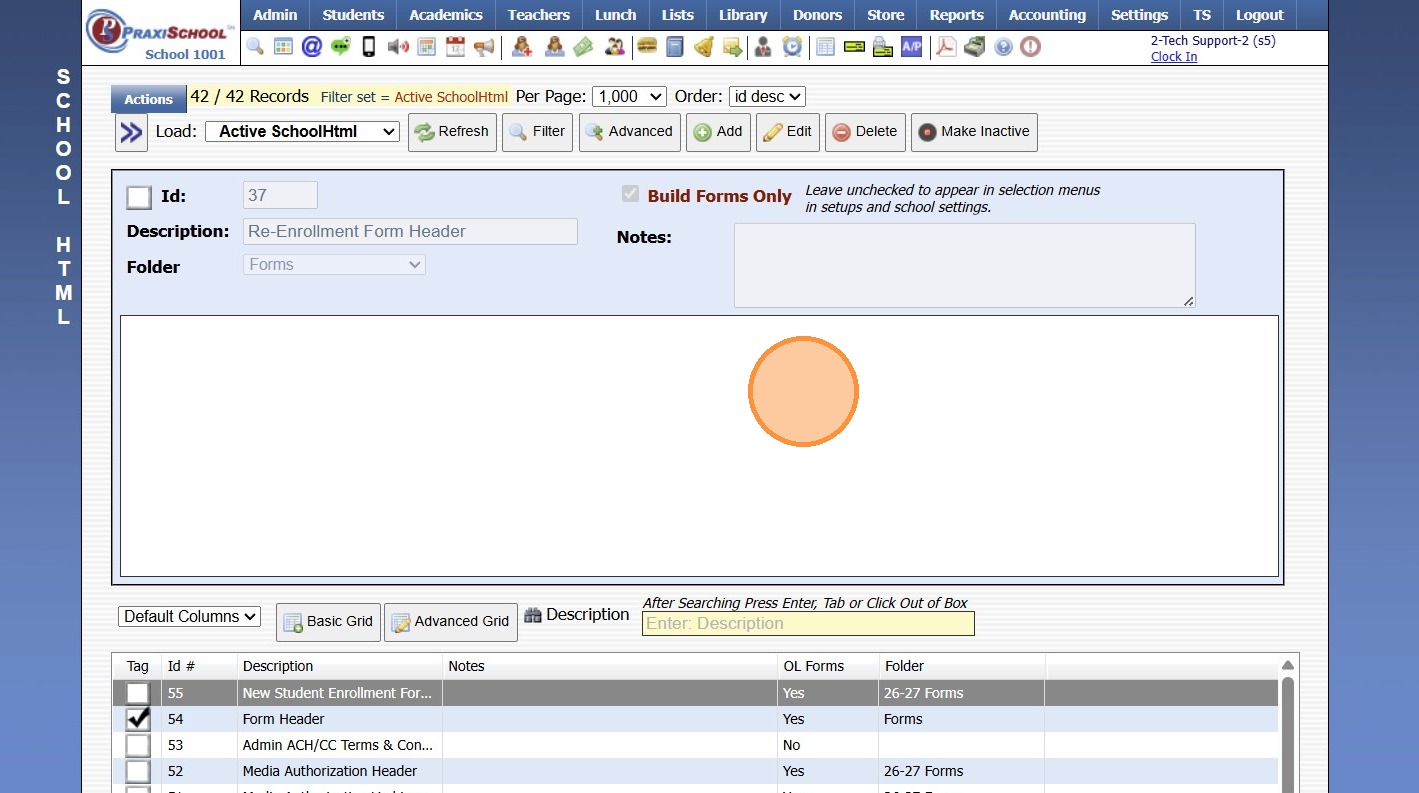
7. Click inside the HTML box
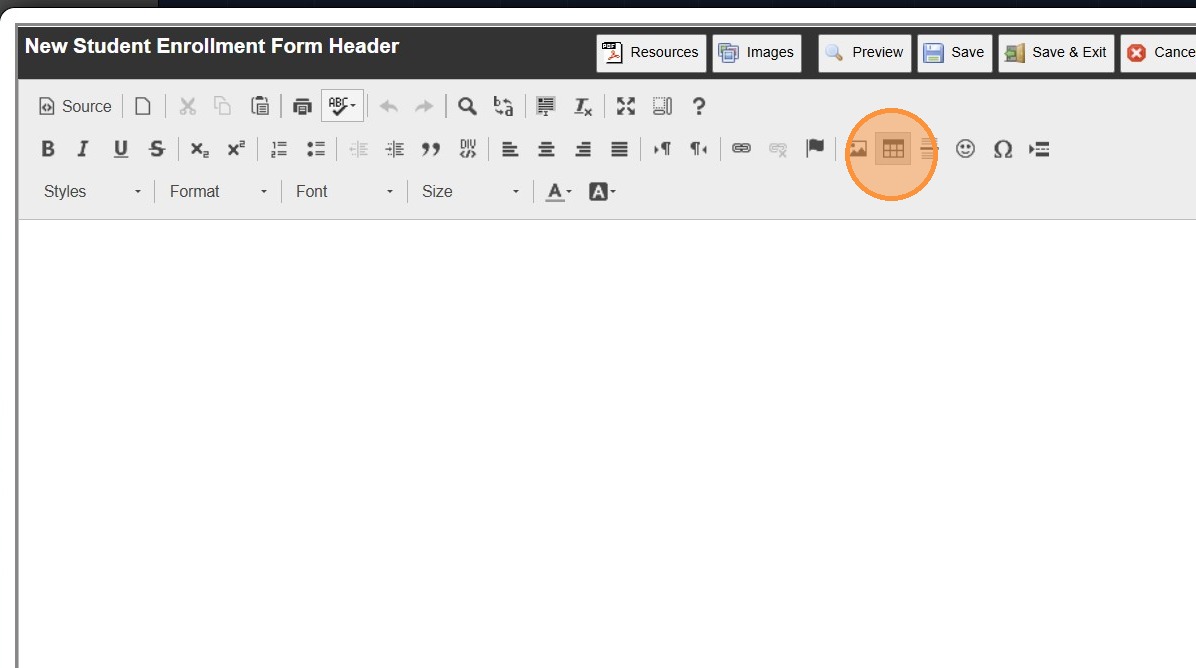
8. Click the Table Icon to Add a Table
9. Enter Number of Rows & Column & Set Width to 725
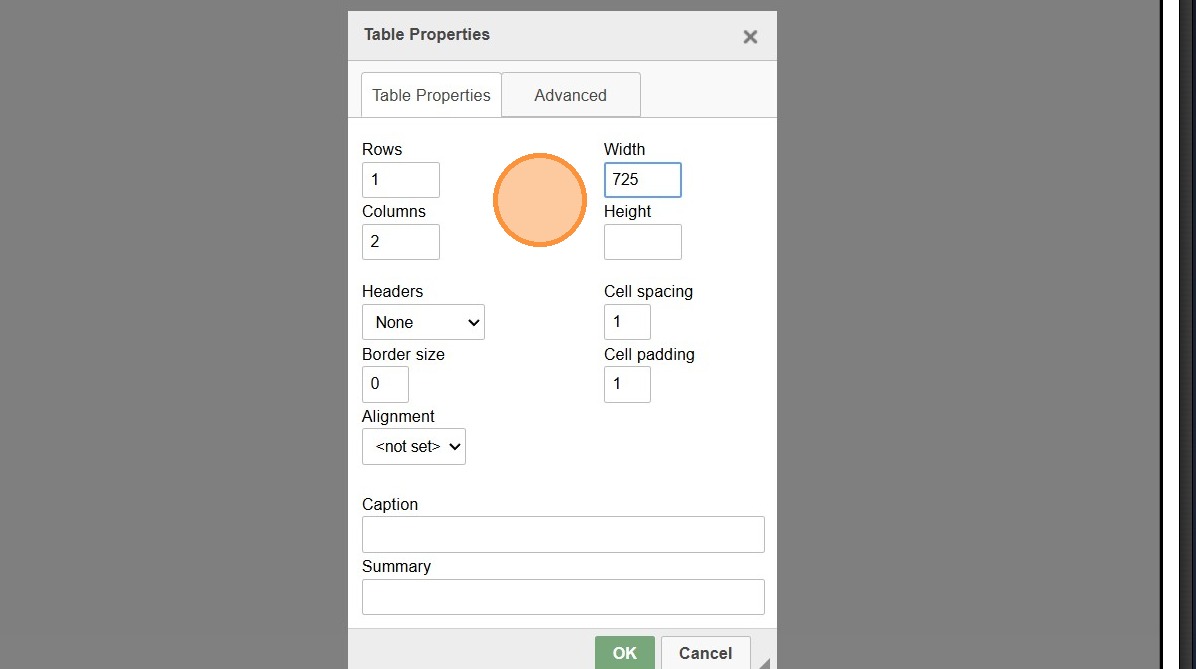
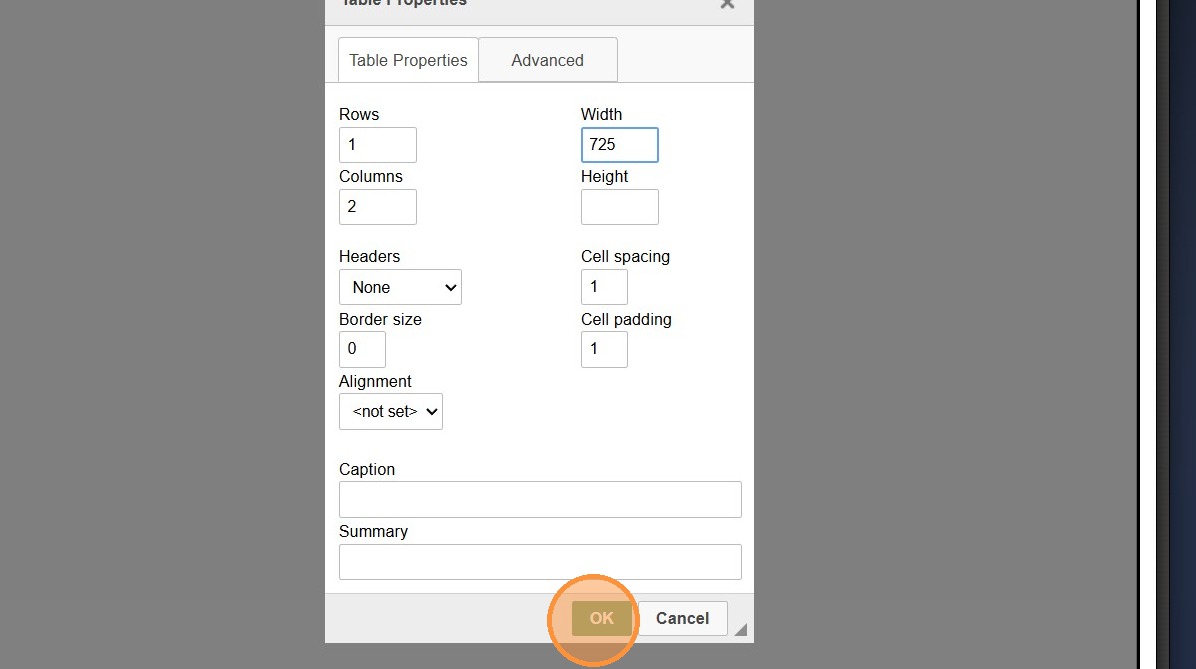
10. Click "OK"
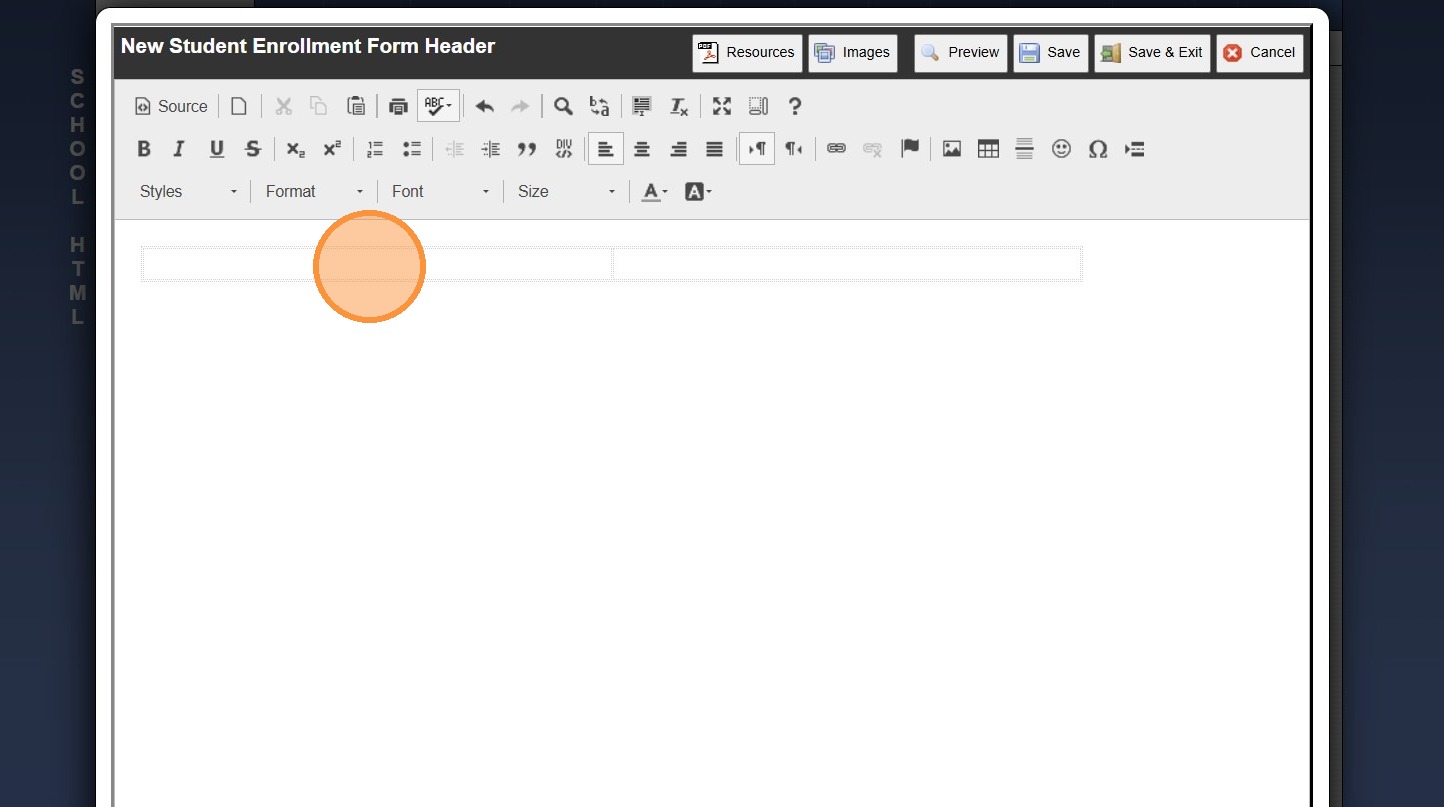
11. Click inside Table
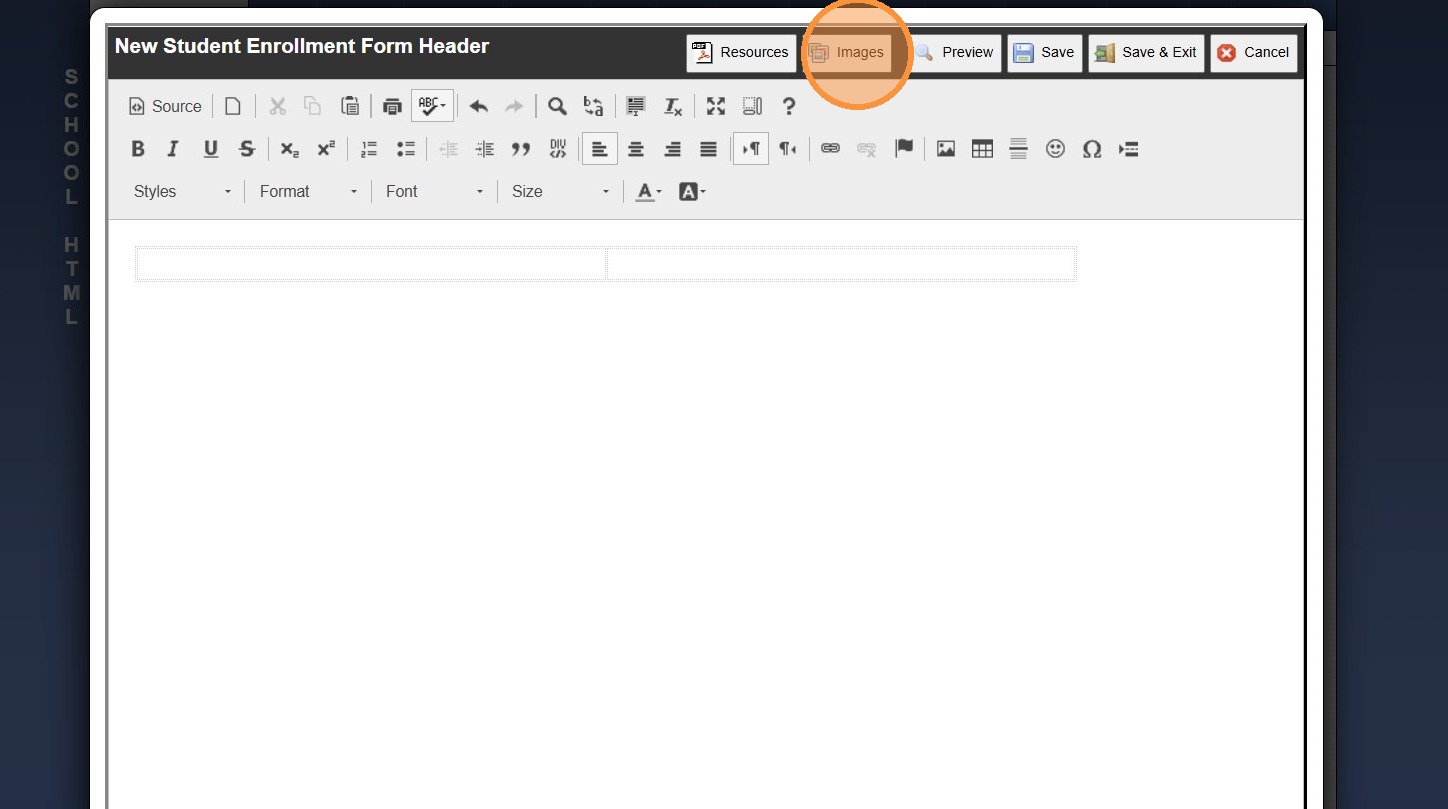
12. Click "Images"
13. Select Folder with Uploaded Logo & Click on Logo
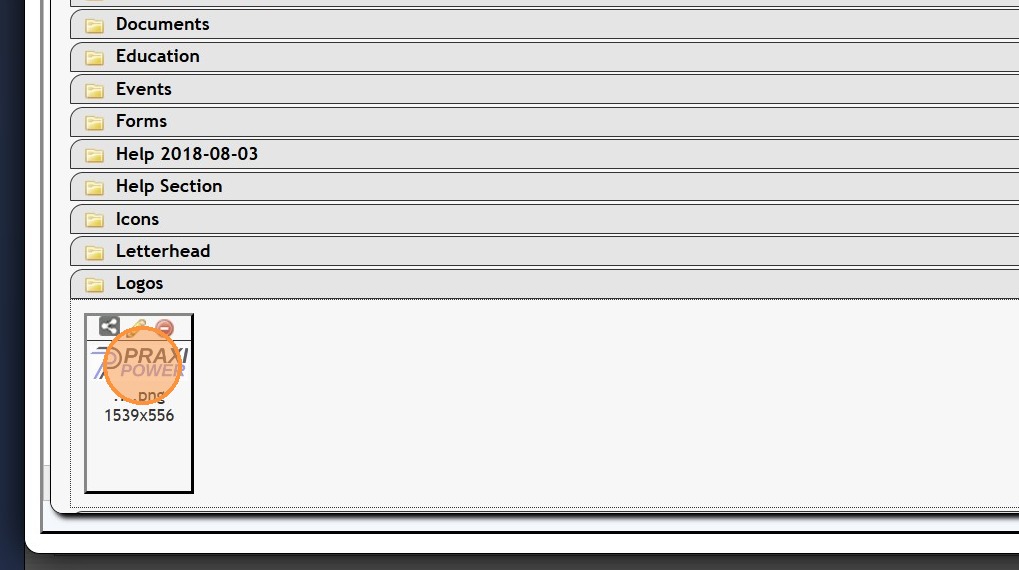
14. Logo is Now Added to Form Header
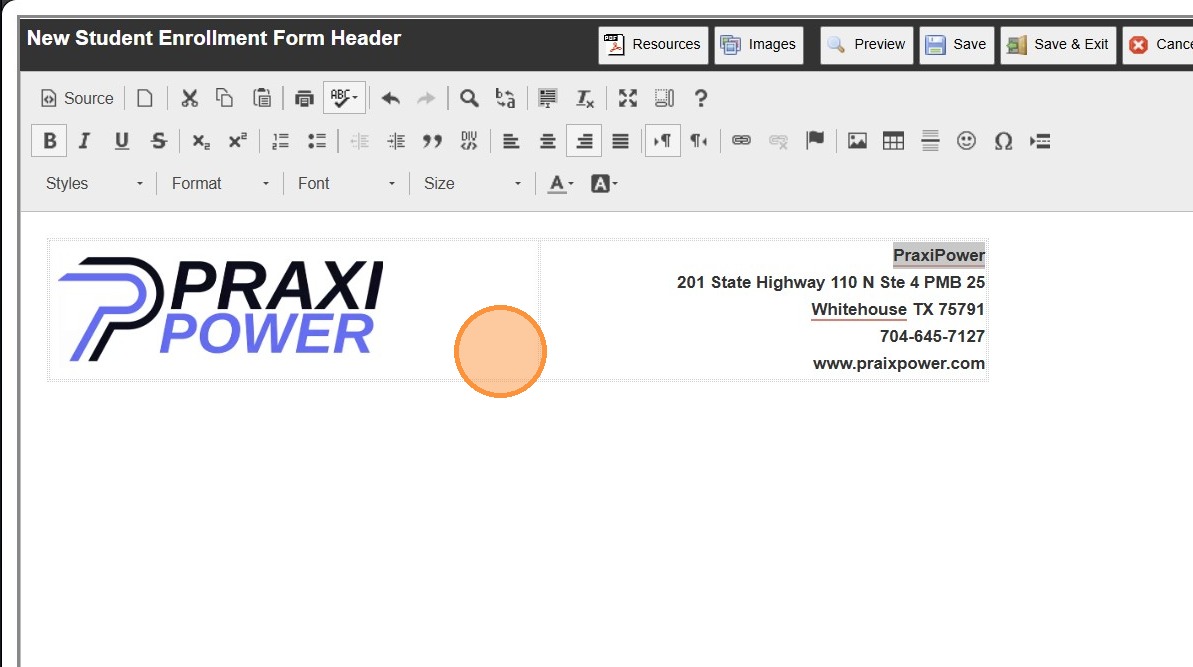
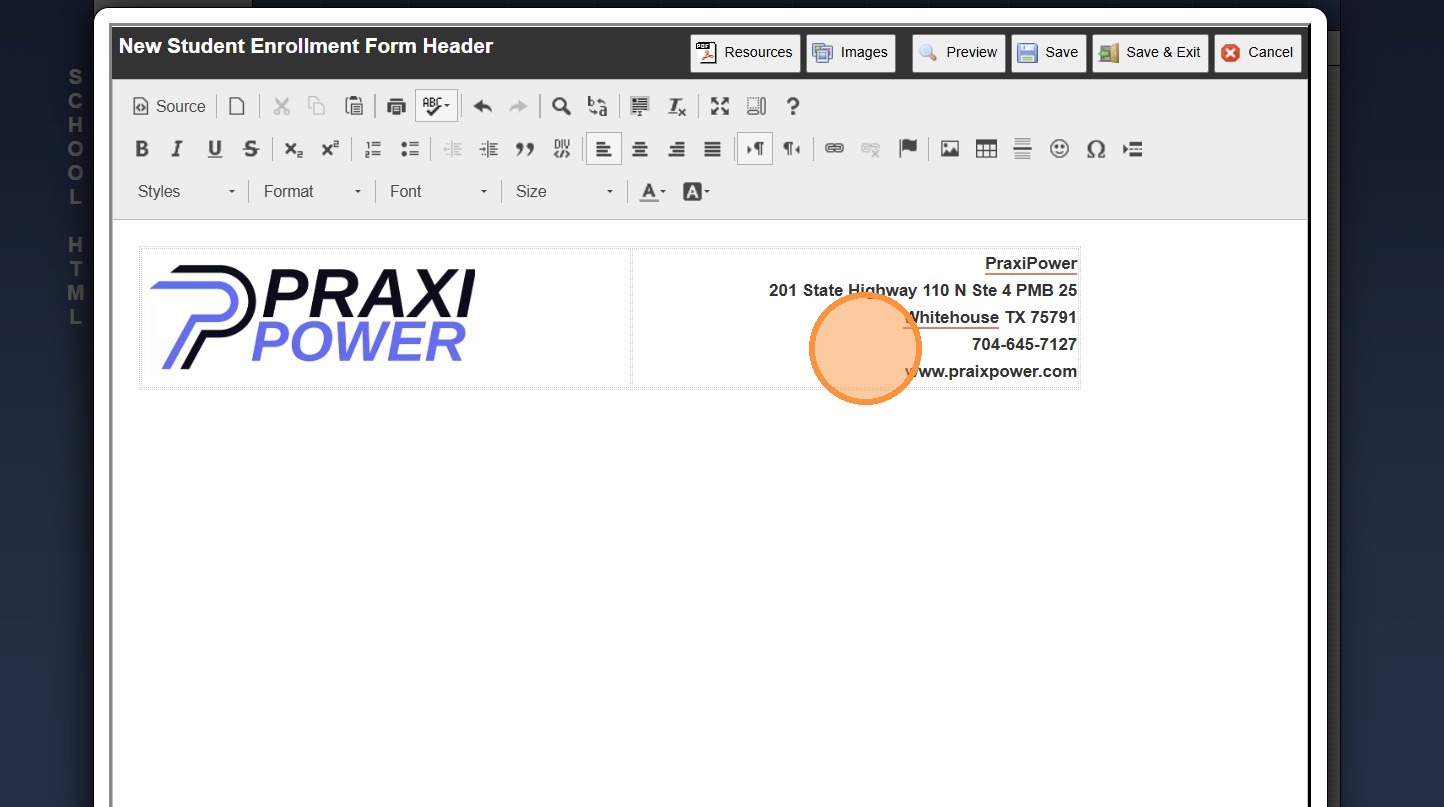
15. Enter School Information
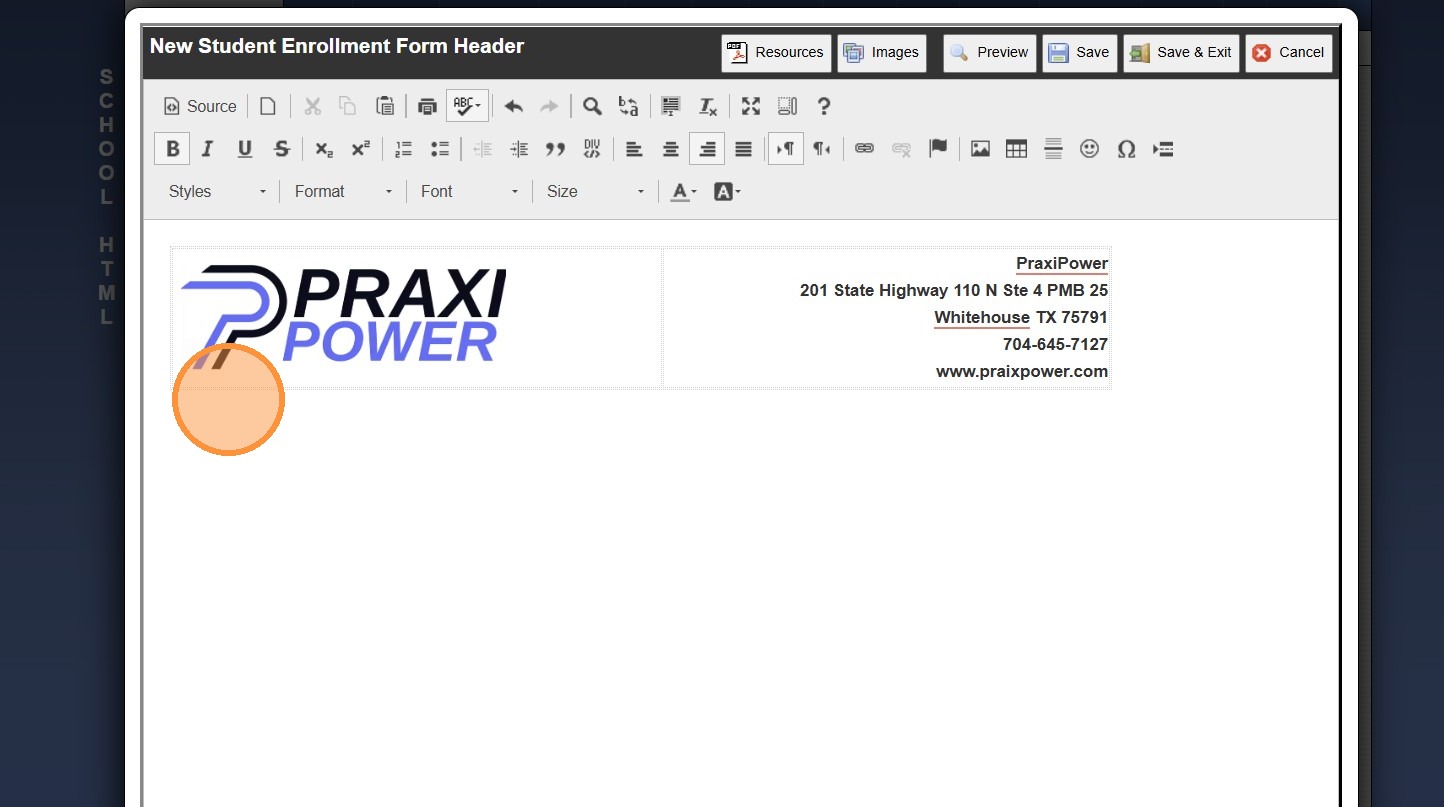
16. Click Area Outside of Table where a New Table will be Placed
17. Click the Table Icon to Add a Table
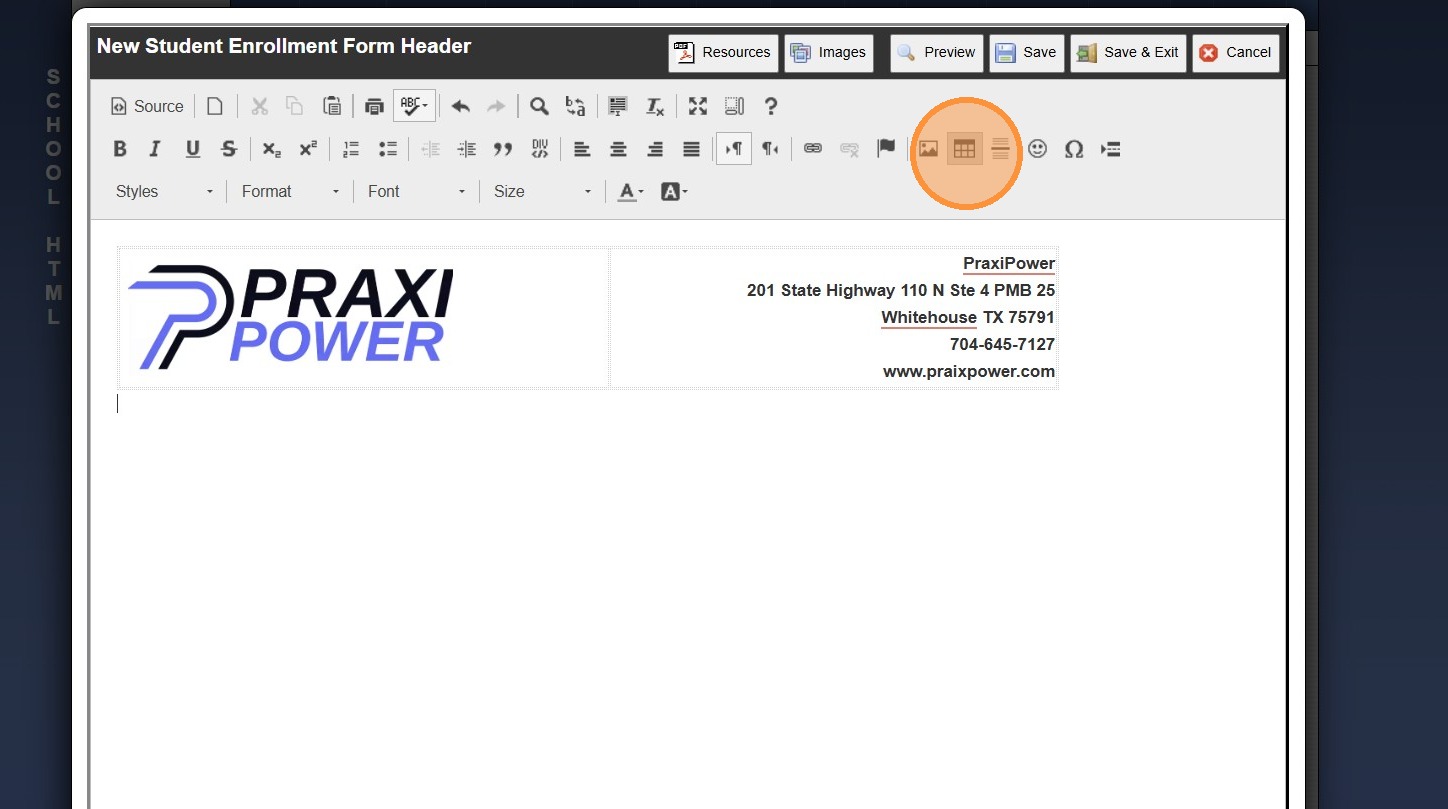
18. Enter Number of Rows & Column & Set Width to 725
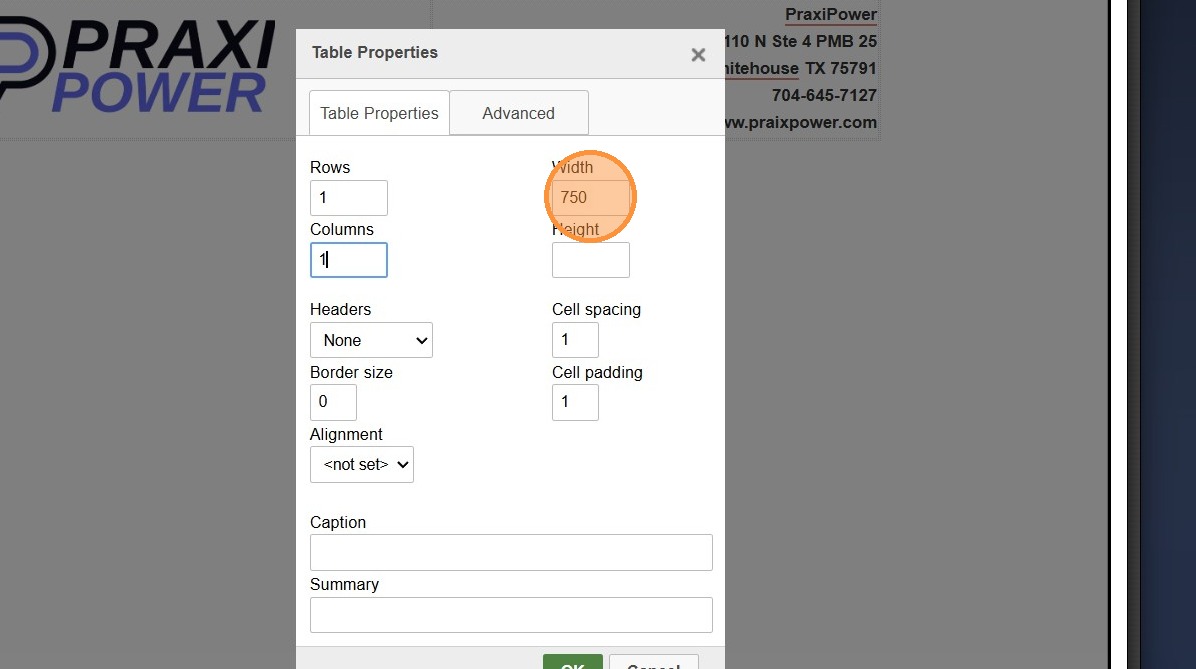
19. Click "OK"
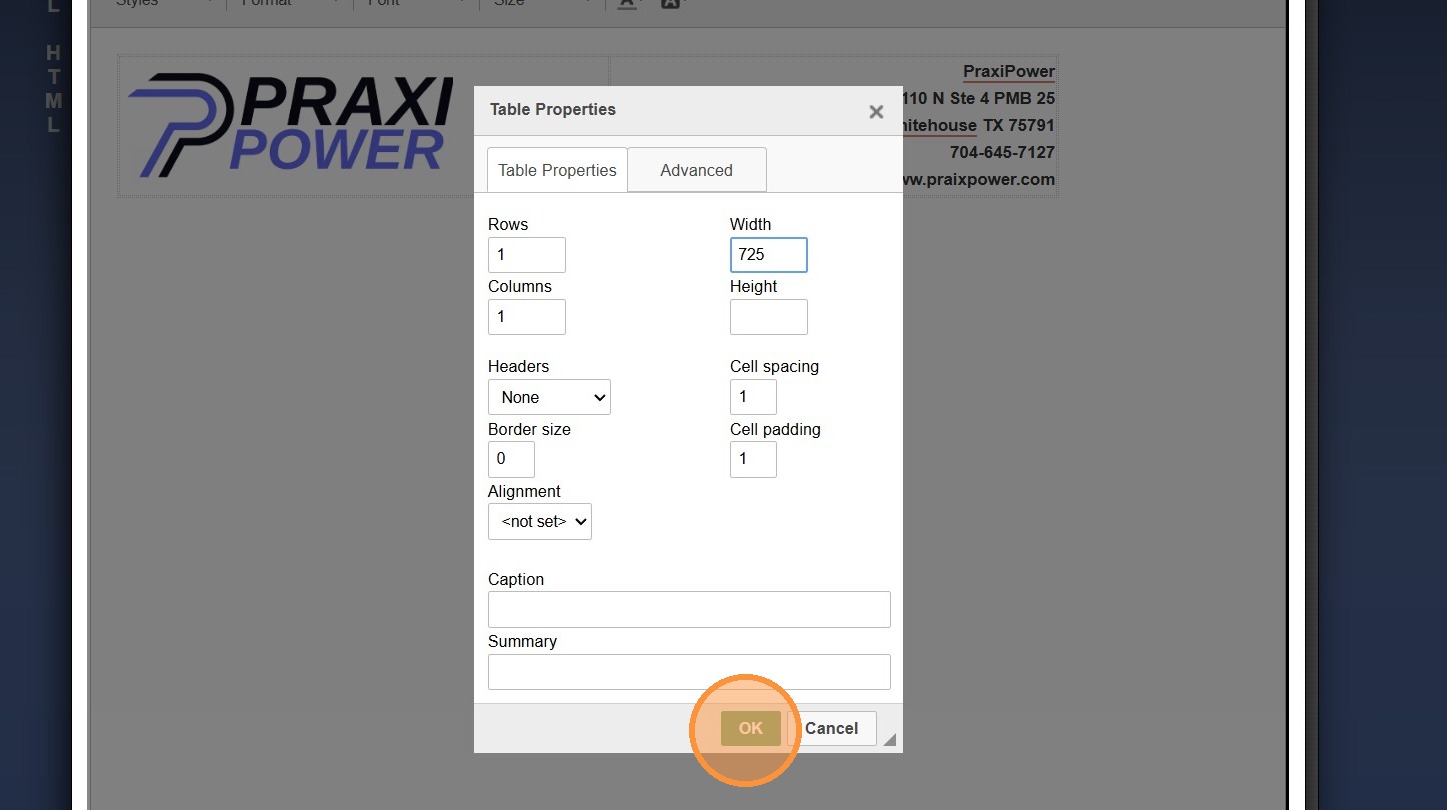
20. Enter Form Name
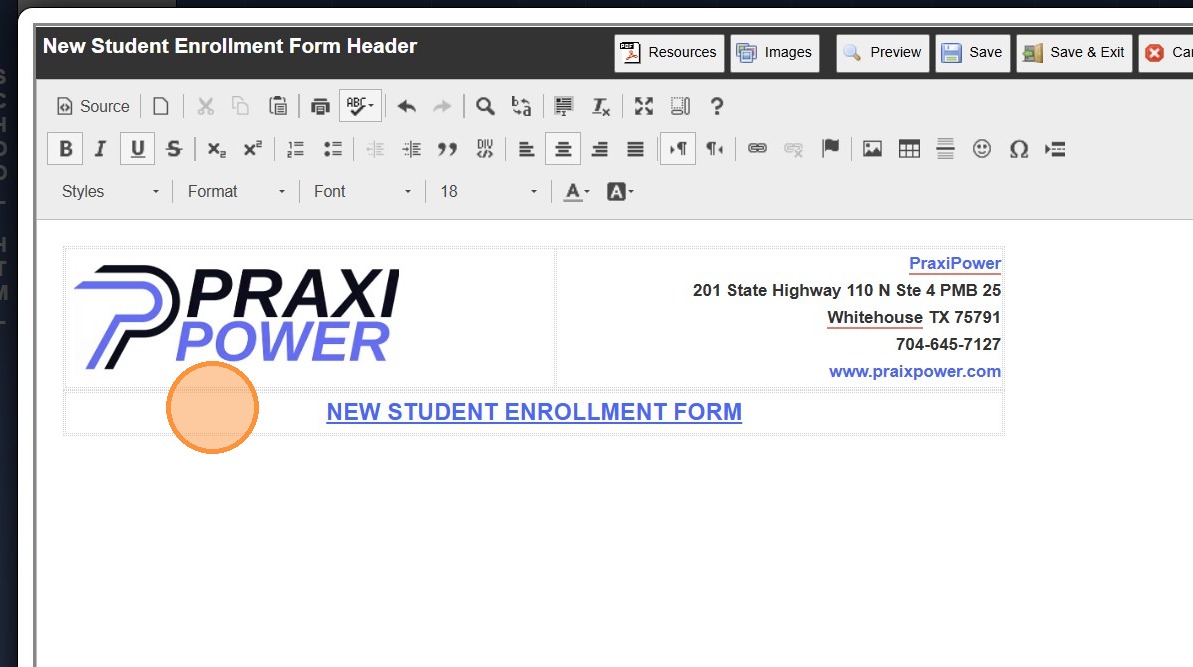
21. Continue Adding Table Fields & Data
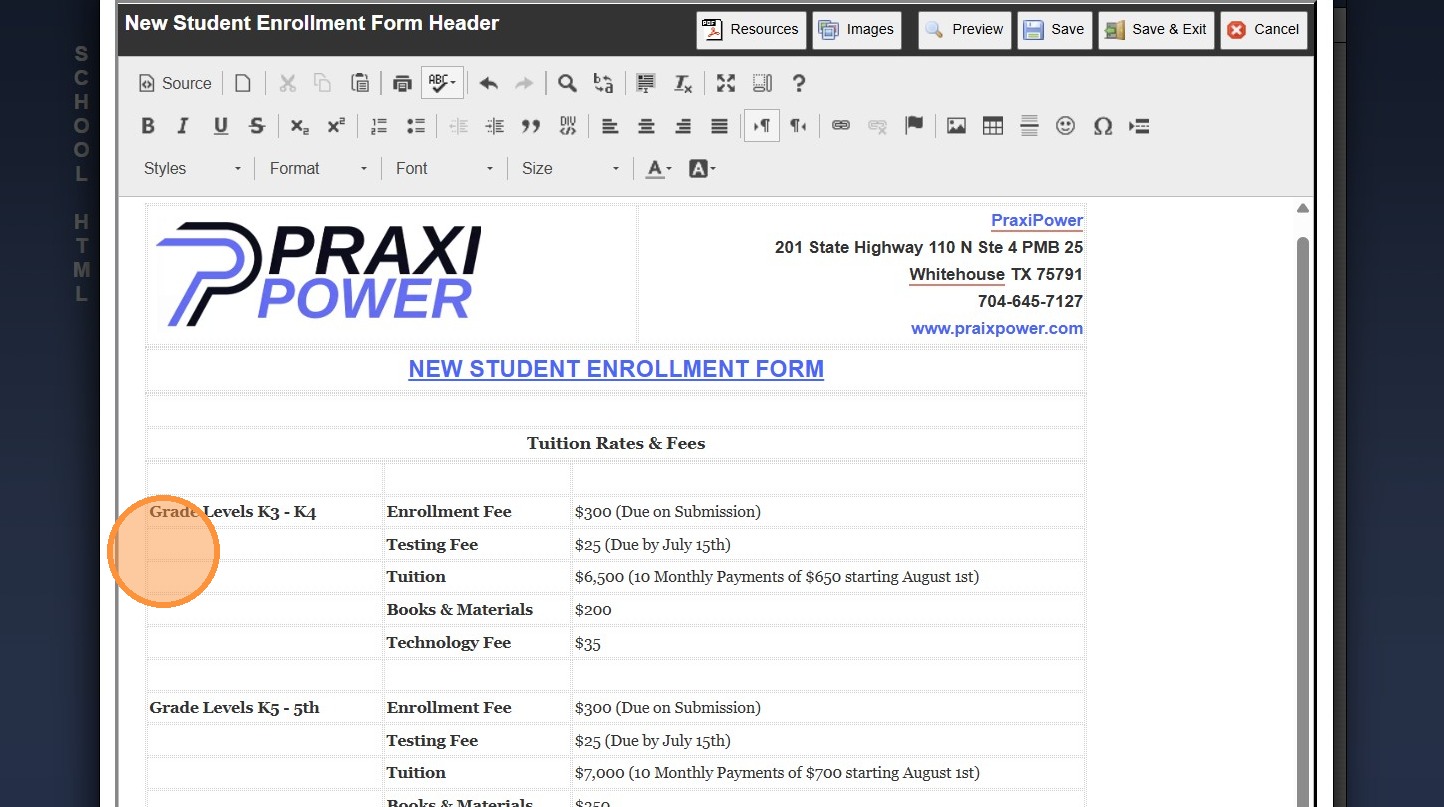
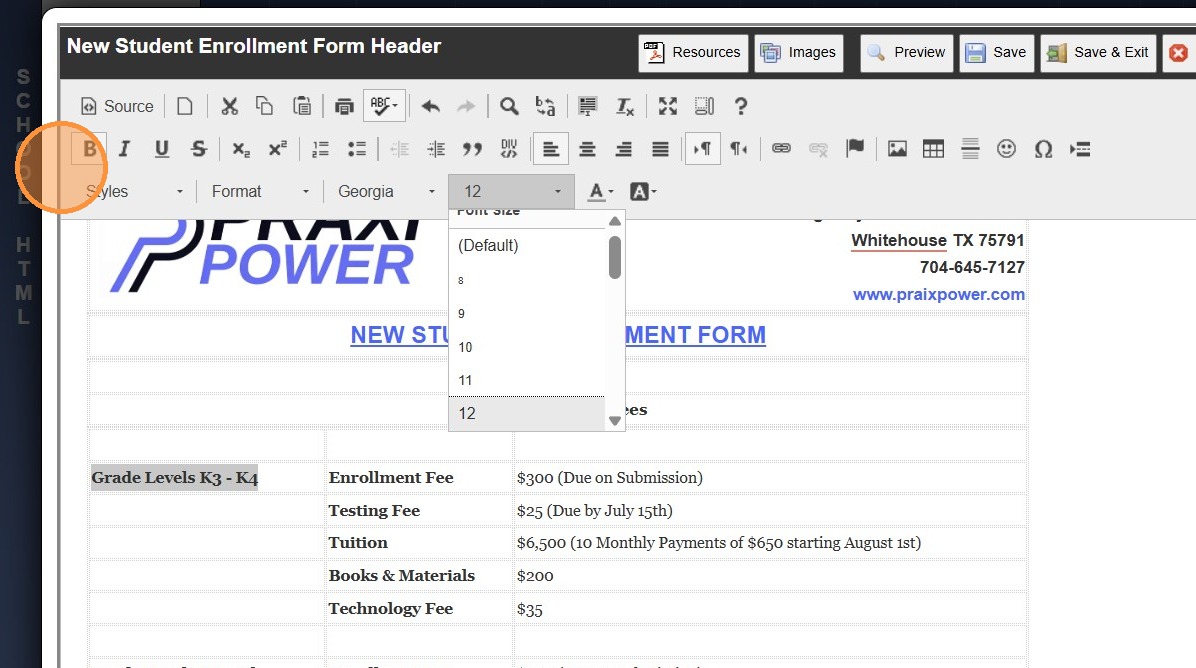
22. Highlight Text to Change the Font and/or Size
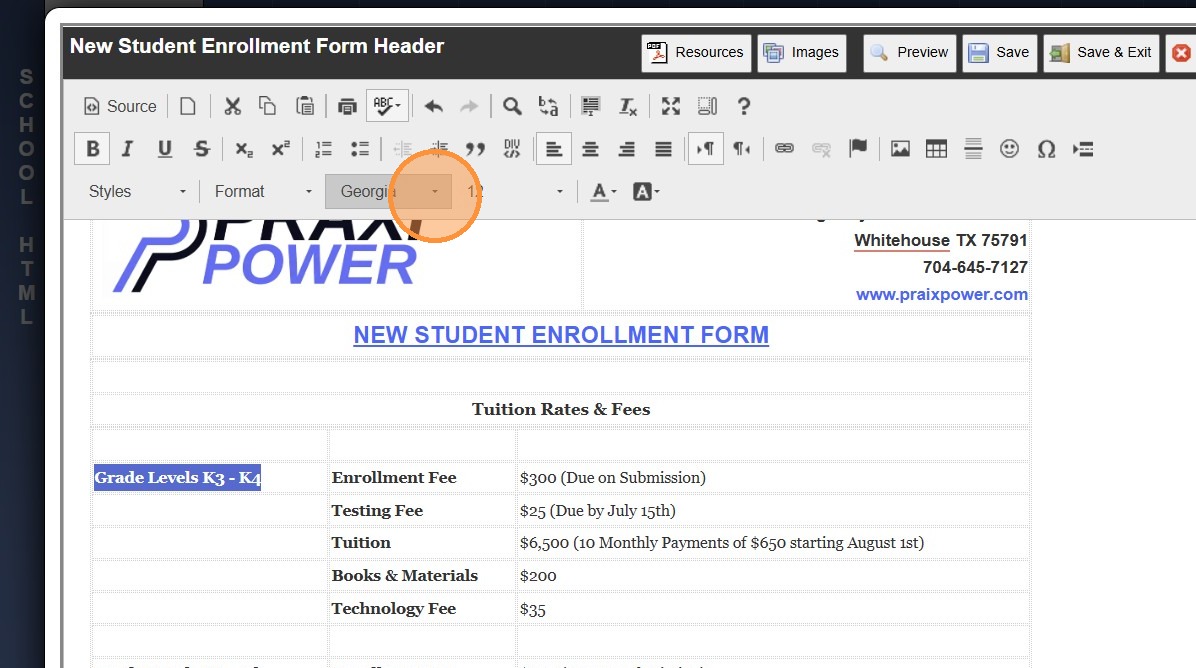
23. Bold, Underline or Make Highlighted Text Italicized
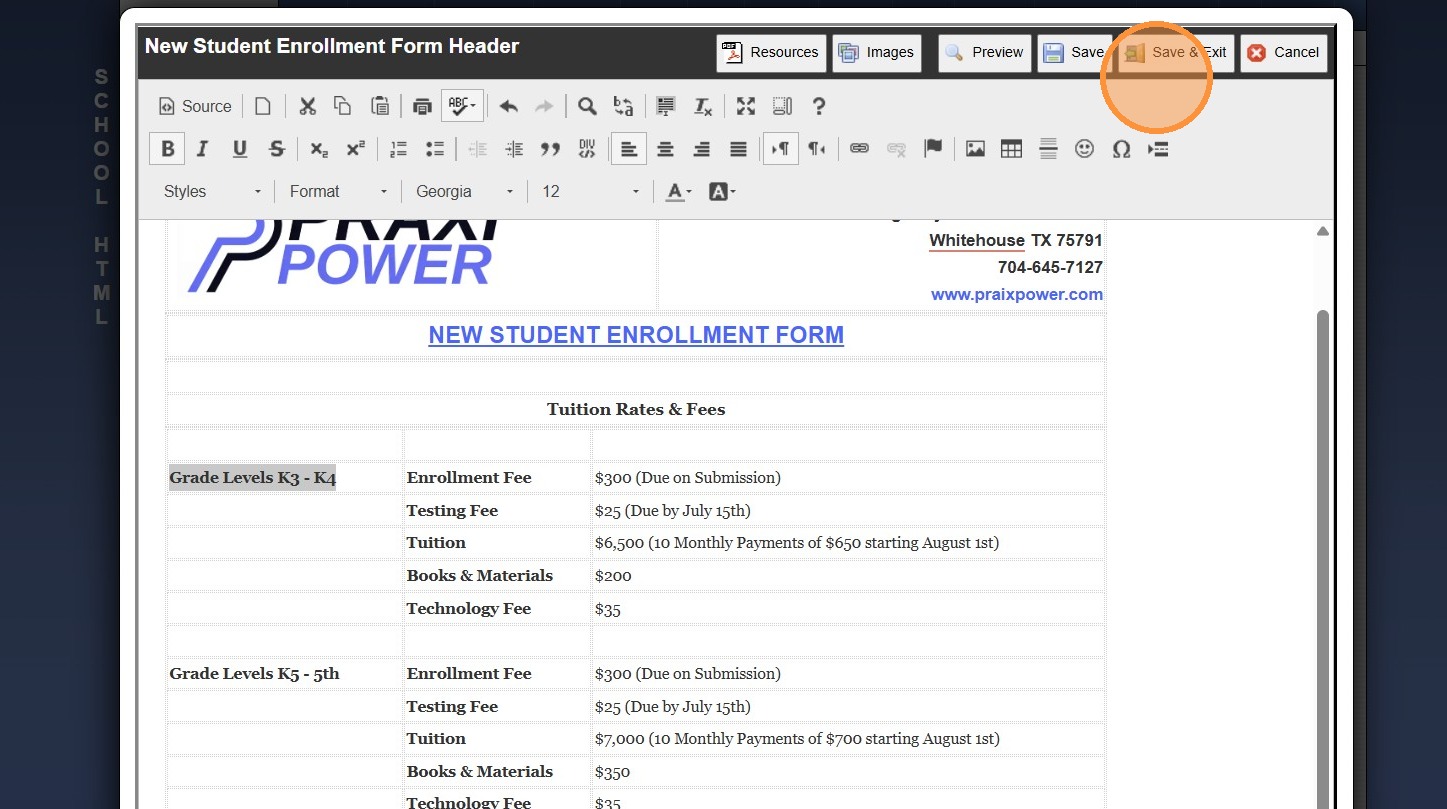
24. Click "Save & Exit"


1000.6.8

    • Related Articles

    • Creating a Simple HTML Form Header

      1. Click "Admin" 2. Click "Online Forms" 3. Click "School HTML" 4. Select "Form Header" 5. Click inside the HTML box 6. Highlight "SCHOOL LOGO HERE" 7. Click "Images" 8. Select Uploaded Logo 9. Enter the School Name, Address, Phone Number & Website ...
    • Accessing & Previewing Online Form Templates

      1. Click "Admin" 2. Click "Online Forms" 3. Click "Forms" 4. Select Form 5. Click "Header HTML" 6. Click "Preview Form" 7. A Preview of the Form will Populate 1000.6.20
    • Creating Teacher HTML Pages

      1. Log into PraxiSchool 2. Click "Admin" 3. Click "Resources" 4. Click "Teacher Html" 5. Click "Add" 6. Enter Page Title 7. Display If: Teacher - Will be visible to Students and Parents of Students in Teacher's Classes Class - Will be visible to ...
    • Creating a www Form

      1. Click "Admin" 2. Click "Online Forms" 3. Click "Forms" 4. Click "Add" 5. Add Form Name, Description and Portal Form Name 6. Select the For Portal Option: "From Your Website (Only new registration)" 7. Click "Test" to put in Test Mode until Form is ...
    • Creating an AR Portal Form

      1. Click "Admin" 2. Click "Online Forms" 3. Click "Forms" 4. Click "Add" 5. Add Form Name, Description and Portal Form Name 6. Select the For Portal Option: "Parent - A/R Portal" 7. Click "Test" to put in Test Mode until Form is Built 8. Select ...