Viewing Active & Inactive Online Forms
1. Navigate to Admin > Web Applications > New Applicants

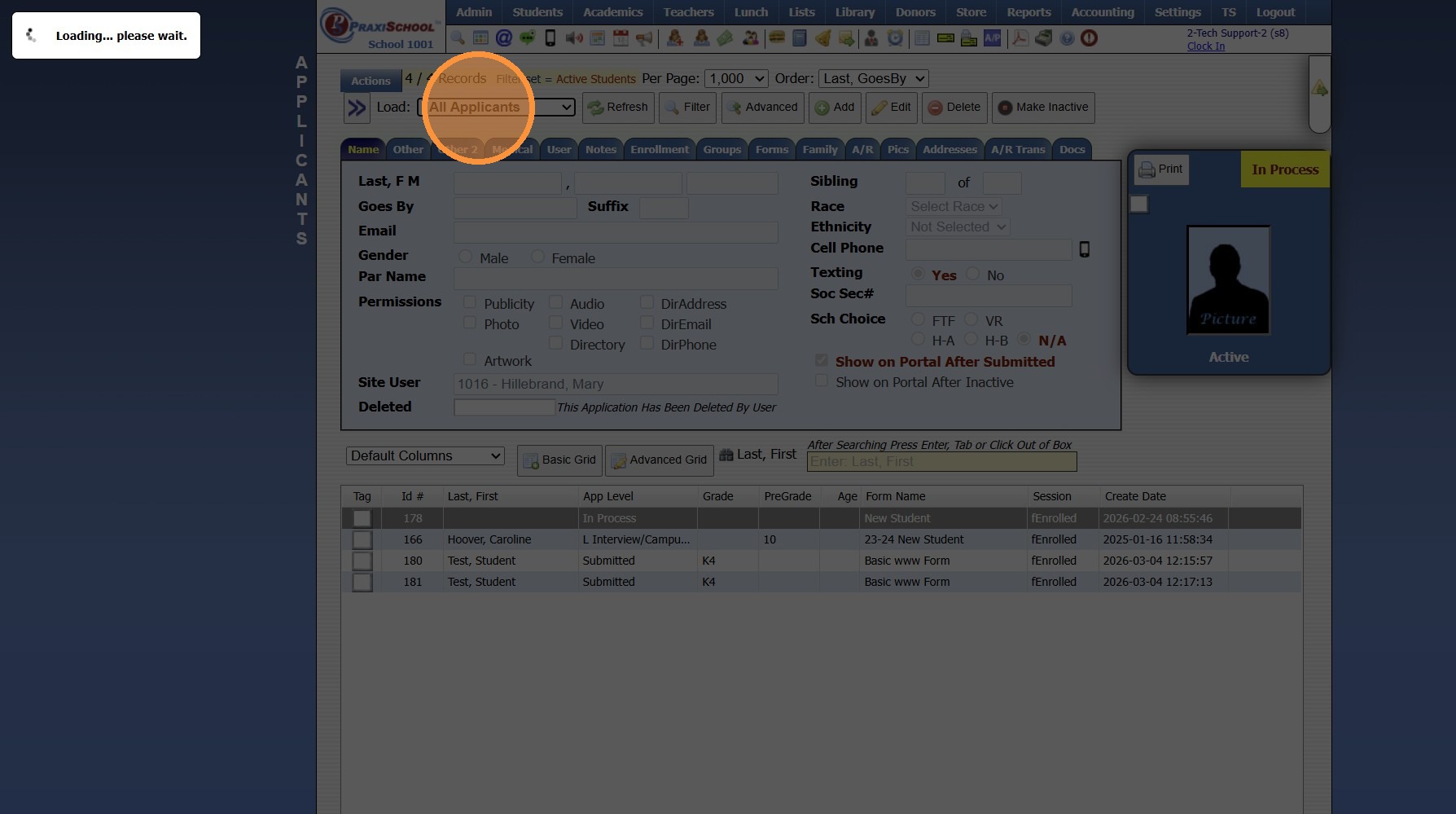
2. Select "All Applicants" from the Dropdown Menu
(This will Display All New Applications)
3. Navigate to Admin > Web Applications > Portal Submissions

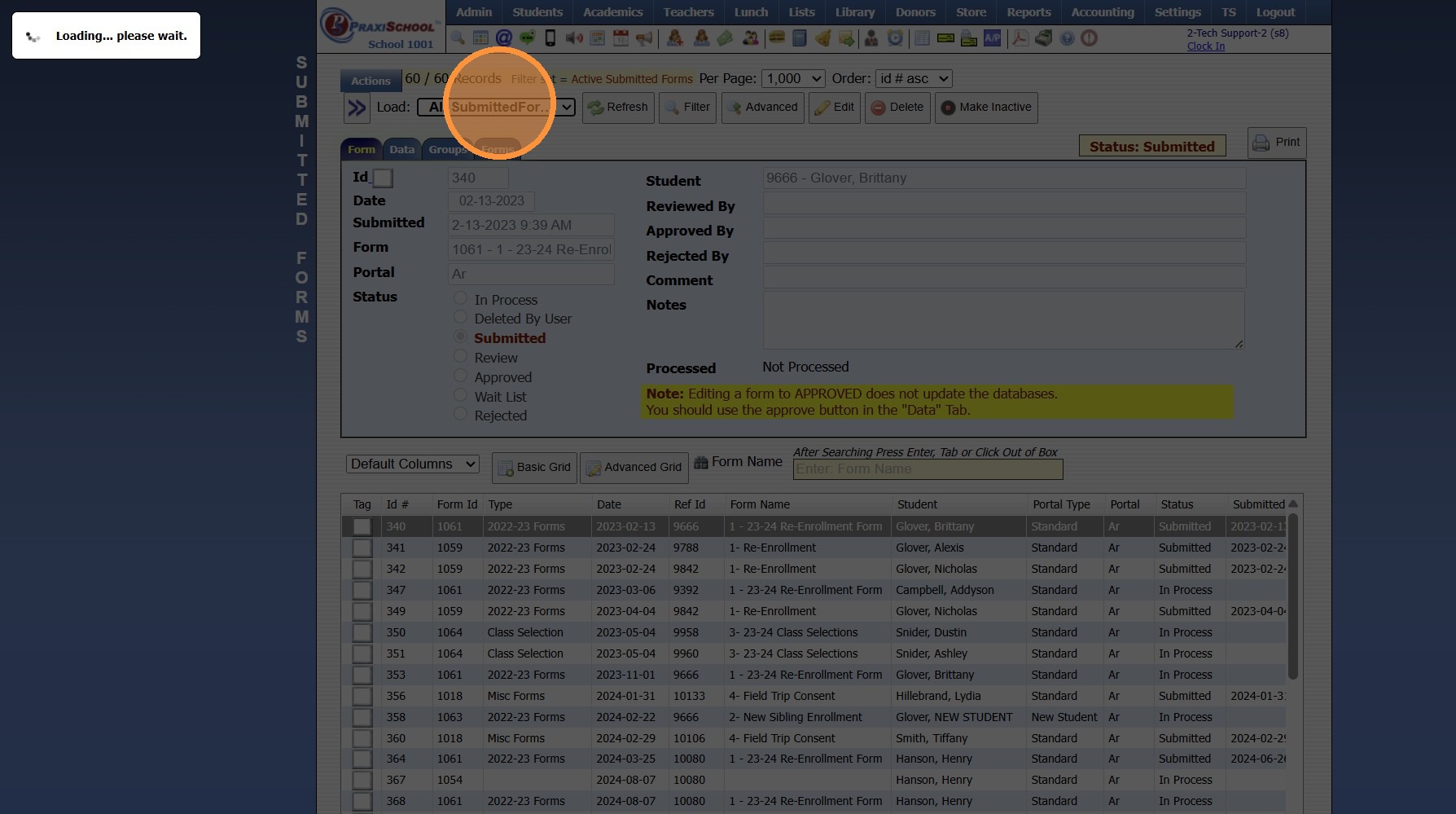
4. Select "All SubmittedForms" from the Dropdown Menu
(This will Display All Forms Submitted from the Parent Portal)
Related Articles
Adding Headers to Online Forms
1. Click "Admin" 2. Click "Online Forms" 3. Click "Forms" 4. Select Form to Add Header 5. Click the "Header HTML" Tab 6. Click "Edit" 7. Select Created Form Header from Dropdown to Show on Form 8. Select Created Form Header from Dropdown for Printing ...
Online Forms Auto Start & End Dates
Online Forms Auto Start & End Dates 1. Click "Admin" 2. Click "Online Forms" 3. Click "Forms" 4. Select "Styles & Functionality" tab 5. Enter Auto Start & End Date and Time 1000.6.4
Adding School HTML for Online Forms
1. Click "Admin" 2. Click "Online Forms" 3. Click "School HTML" 4. Click "Add" 5. Enter Description 6. Select a Folder or Click the Blue Bar & Add a New Folder 7. Check the Build Forms Only Box (If this box is NOT checked, the HTML will not be ...
Adding a Thank You for Submitted Online Forms
1. Click "Admin" 2. Click "Online Forms" 3. Click "Forms" 4. Select Form 5. Click the "Thank You" Tab 6. Click "Edit Thank You" 7. Enter Thank You Email Verbiage 8. Search Merge Data Field to Insert Merge Field (Ex. First Name - ^firstName^) 9. Place ...
Setting a Checkbox Field to Default to Checked in Online Forms
1. Click "Admin" 2. Click "Online Forms" 3. Click "Build Forms" 4. Select the Form 5. Click the Page 6. Select the Section 7. Select Field to Add OR Click the Pencil Next to Field to Edit 8. Check the Set Default Value Box 9. Type "Yes" 10. Click ...