Adding a Thank You for Submitted Online Forms

Adding a Thank You for Submitted Online Forms


1. Click "Admin"
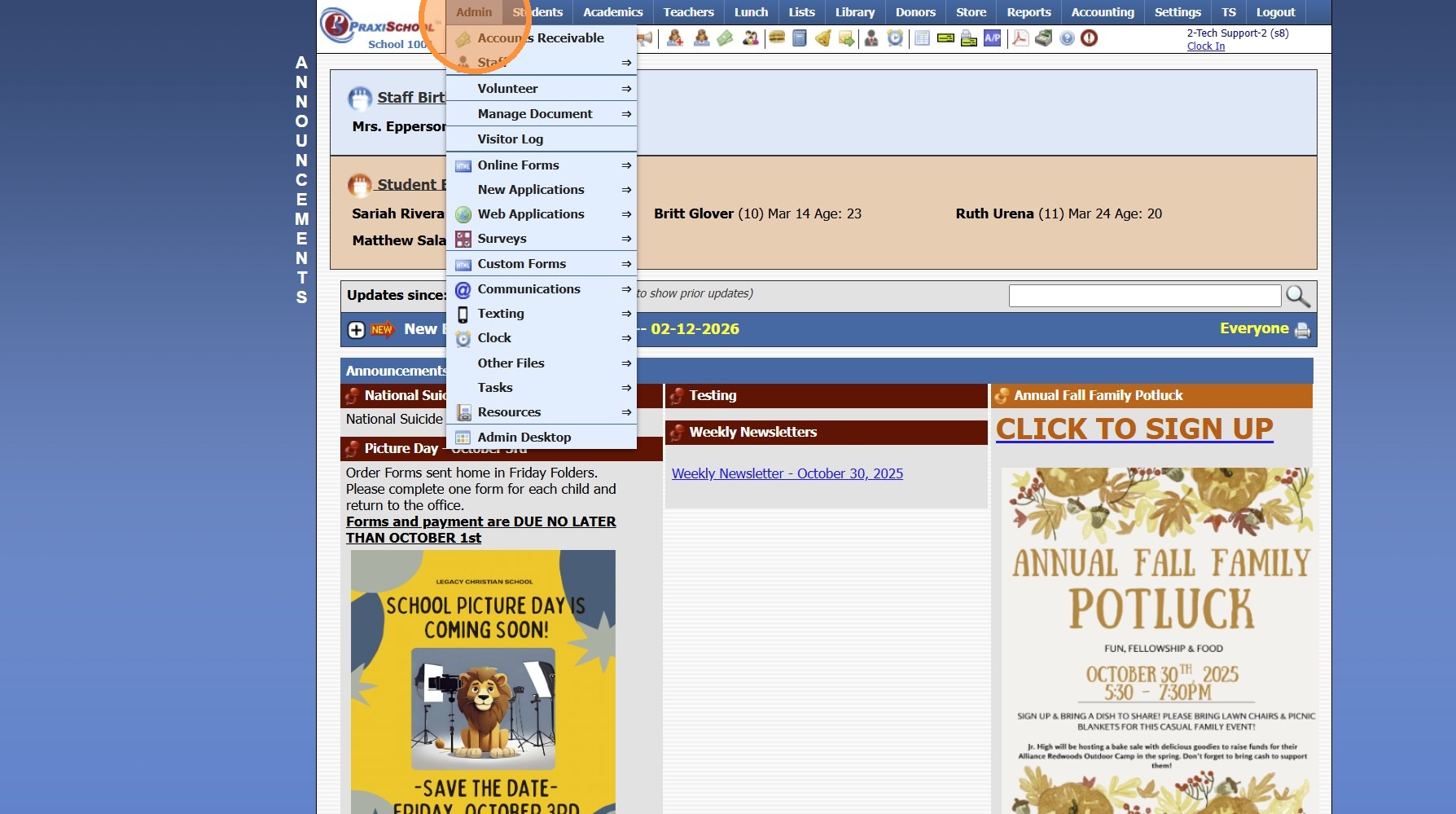
2. Click "Online Forms"
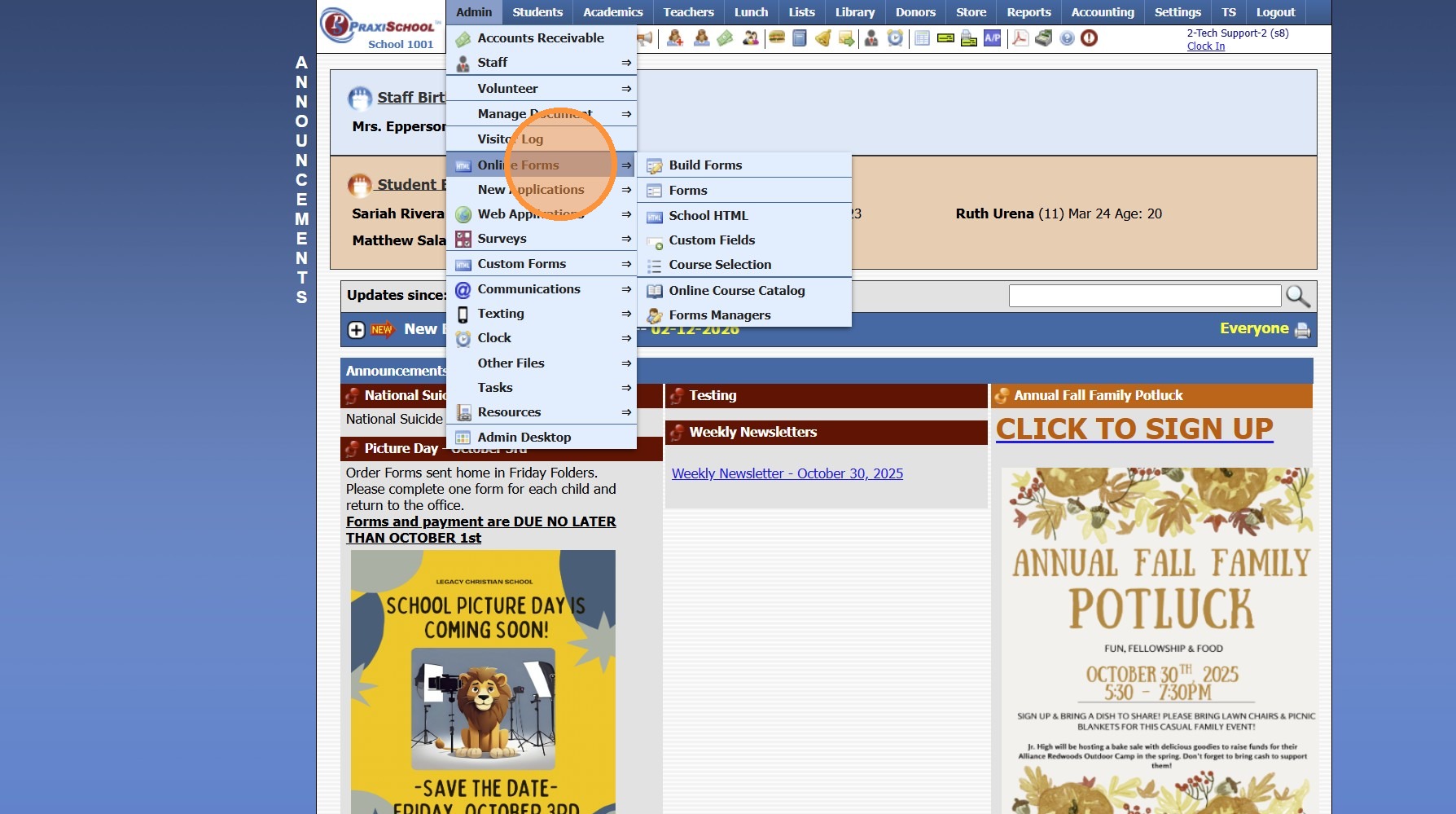
3. Click "Forms"
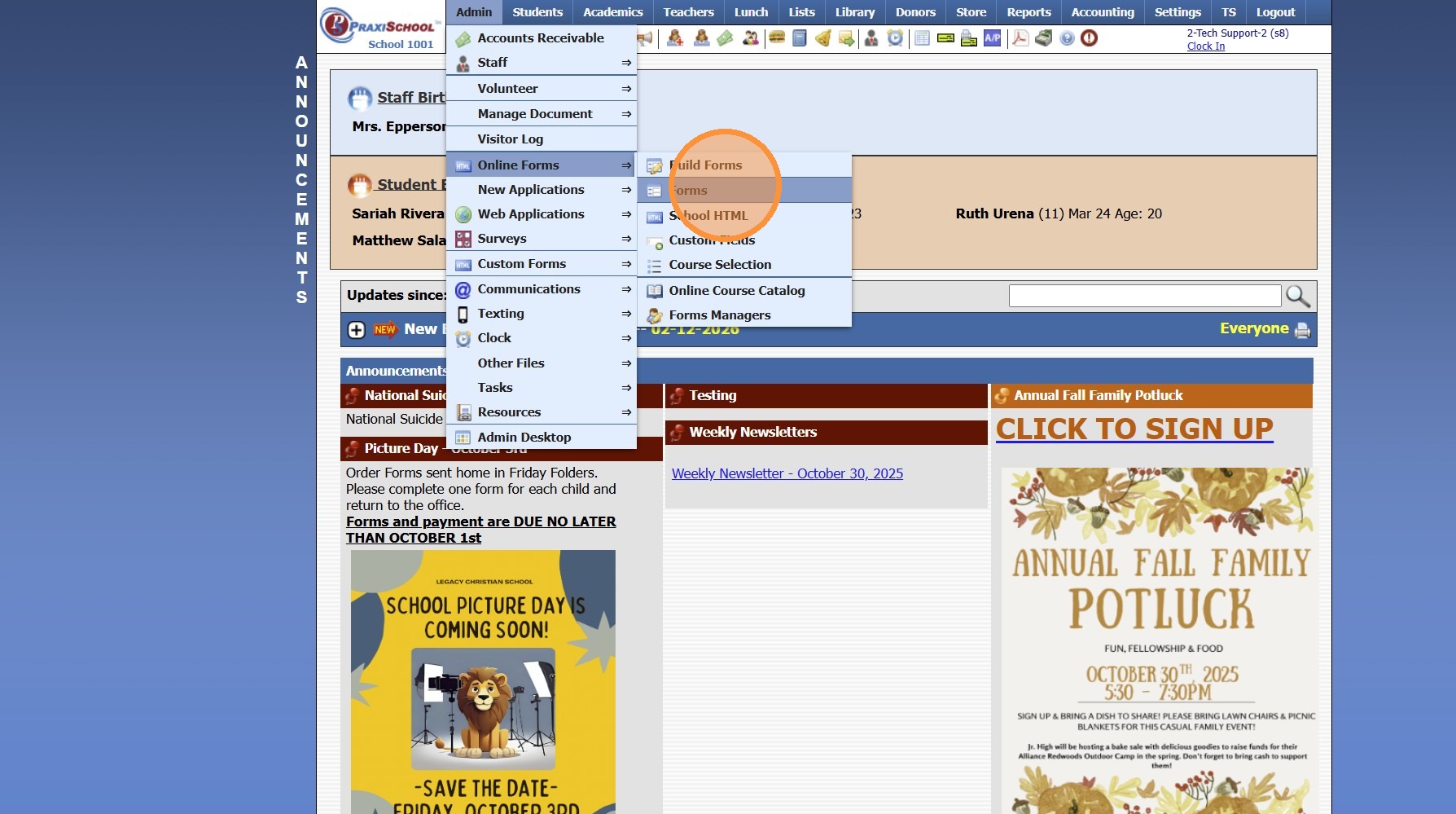
4. Select Form
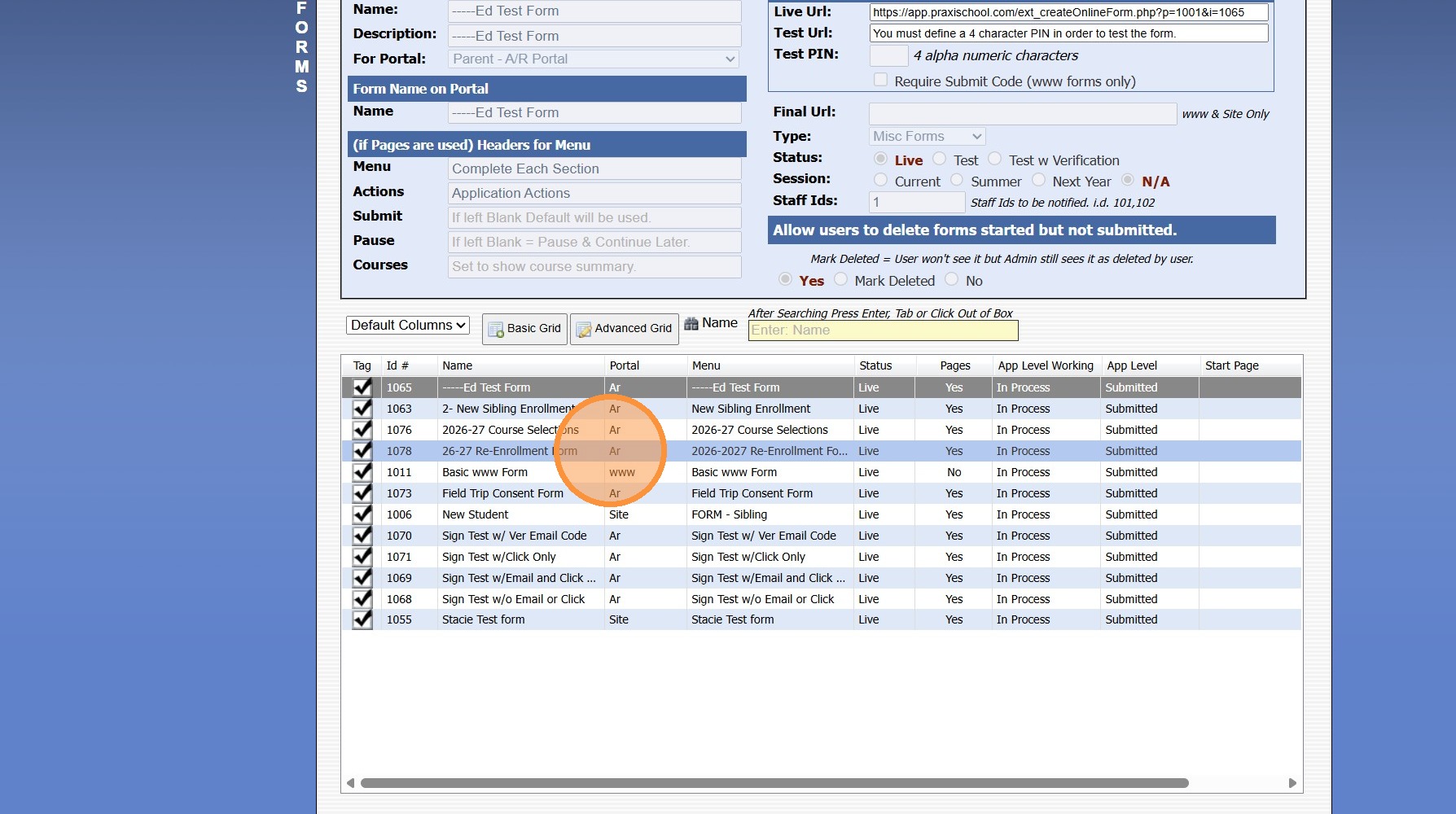
5. Click the "Thank You" Tab
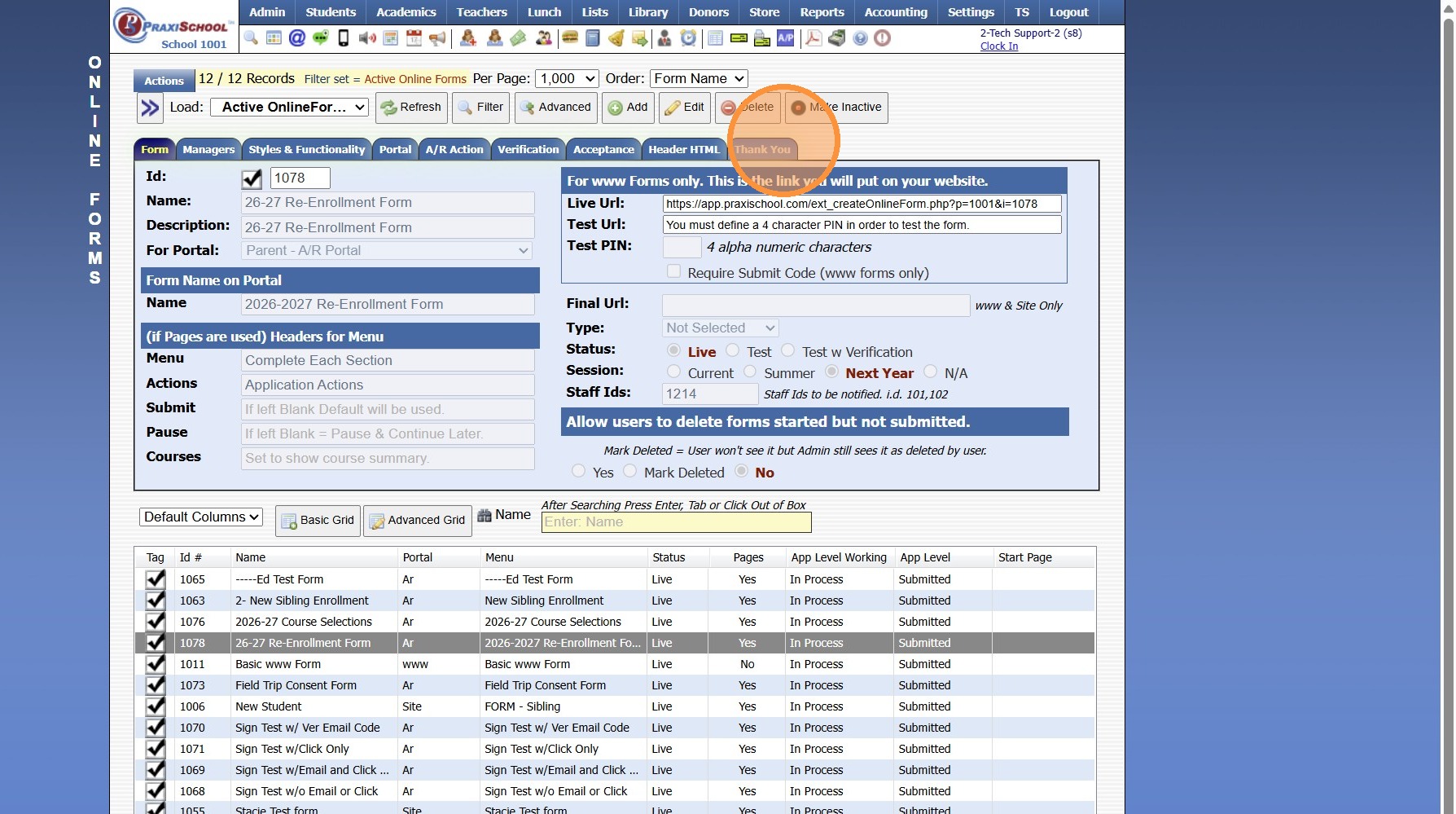
6. Click "Edit Thank You"
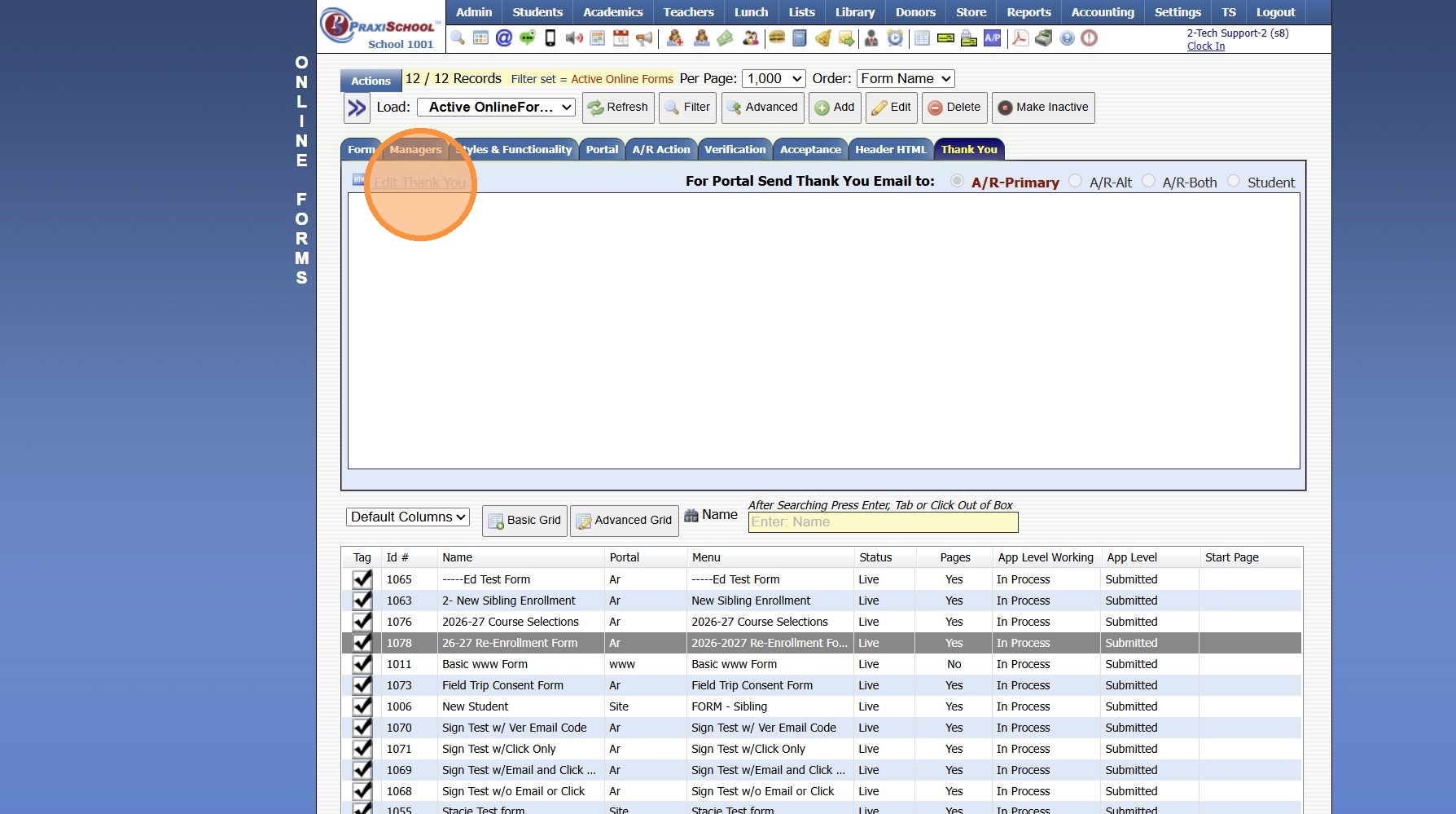
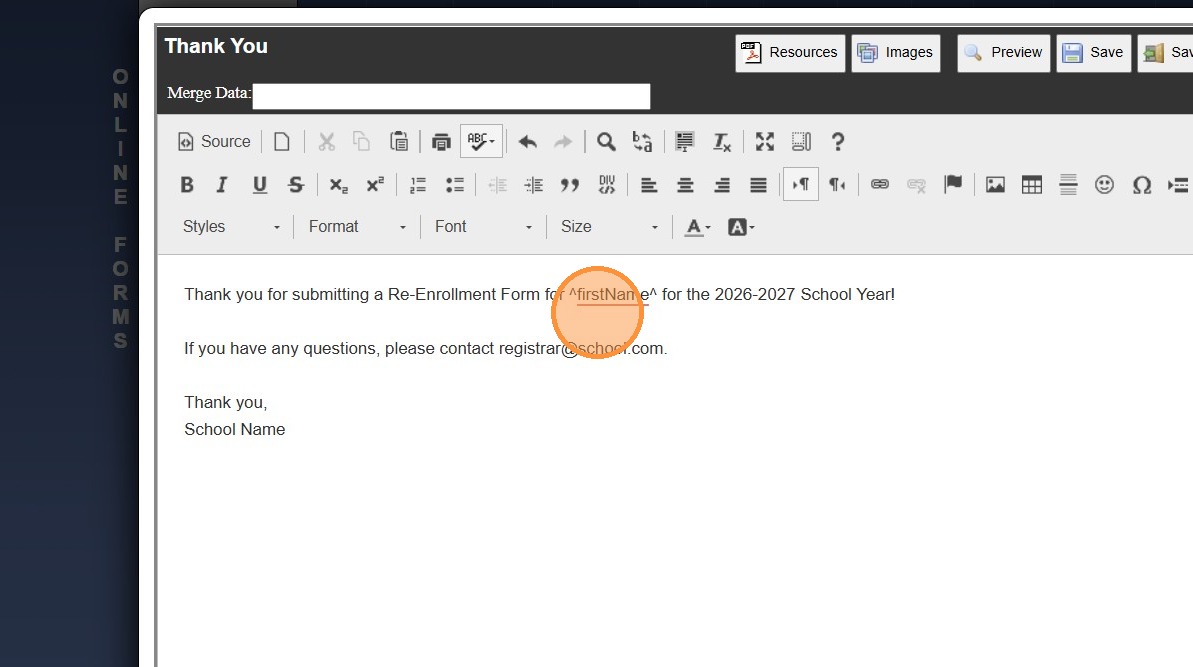
7. Enter Thank You Email Verbiage
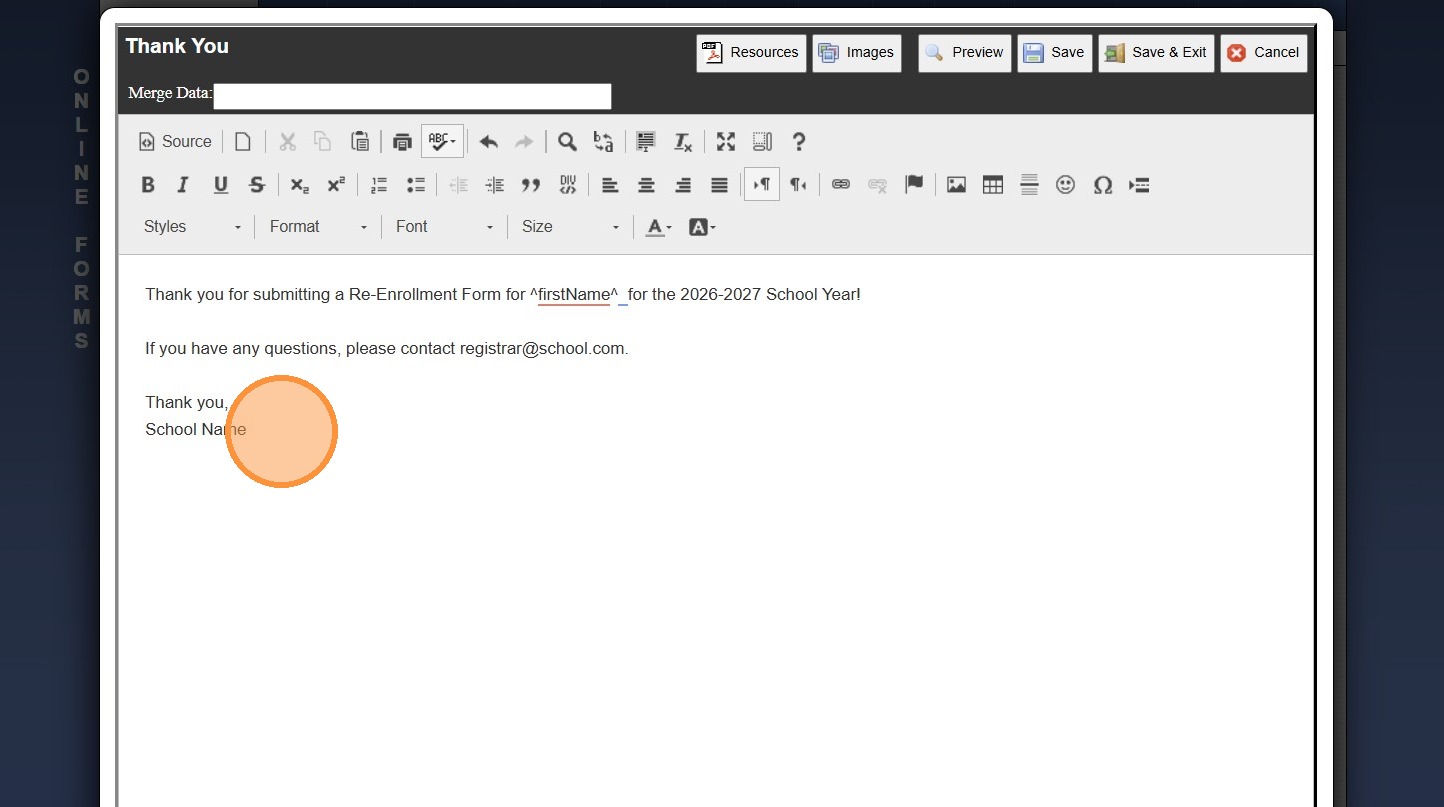
8. Search Merge Data Field to Insert Merge Field
(Ex. First Name - ^firstName^)
9. Place Cursor where the Merge Data Field Should be Added
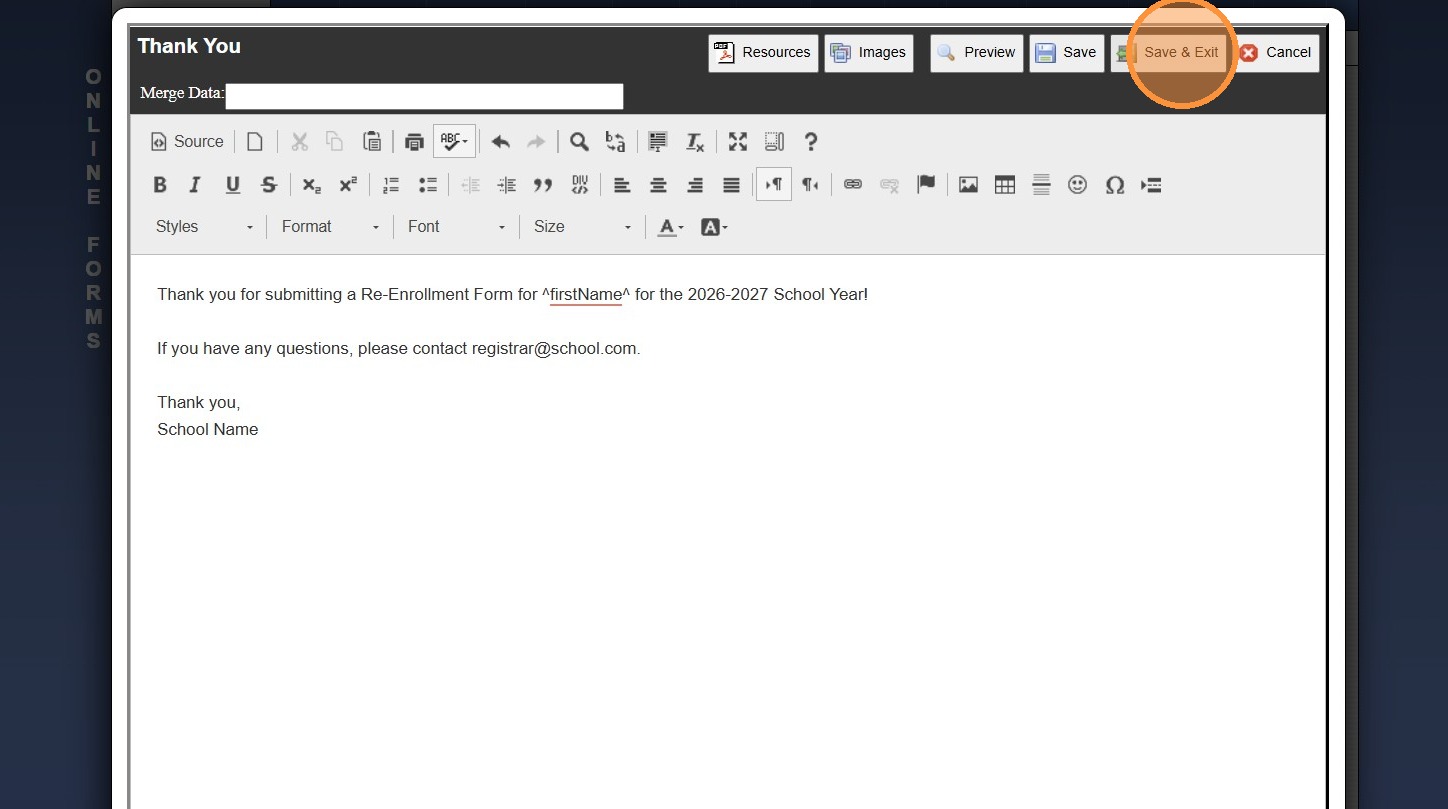
10. Click "Save & Exit"


1000.6.9

    • Related Articles

    • Adding School HTML for Online Forms

      1. Click "Admin" 2. Click "Online Forms" 3. Click "School HTML" 4. Click "Add" 5. Enter Description 6. Select a Folder or Click the Blue Bar & Add a New Folder 7. Check the Build Forms Only Box (If this box is NOT checked, the HTML will not be ...
    • Why are Dates not Populating on Submitted Forms?

      Tip: The 2 Most Common Reasons Dates are not Populating on Submitted Forms are: Set Default Value is Checked for Field in Build Forms OR Date was not Entered in Correct Format. See Instructions Below. 1. Click "Admin", "Web Applicants" & Select New ...
    • Mark Student Forms Received / Adding a Comment

      Mark Student Forms Received / Adding a Comment 1. Click "Students" 2. Click "Students" 3. Select Student & Click "Forms" tab Mark Received 4. Select Received Form 5. Click "Mark Received" Edit / Add Comment 6. Select Submitted Form 7. Click "Edit" 8. ...
    • Setting Form In Process & Submitted Levels

      1. Click "Admin" 2. Click "Online Forms" 3. Click "Forms" 4. Select Form 5. Click the "Styles & Functionality" Tab 6. Click "Edit" 7. Verify Process Level is set to In Process 8. Verify Submitted Level is set to Submitted 9. Click "Save" 1000.6.5
    • Online Forms Auto Start & End Dates

      Online Forms Auto Start & End Dates 1. Click "Admin" 2. Click "Online Forms" 3. Click "Forms" 4. Select "Styles & Functionality" tab 5. Enter Auto Start & End Date and Time 1000.6.4