Using Merge Data Fields in Emails
1. Select Database to Send Email From
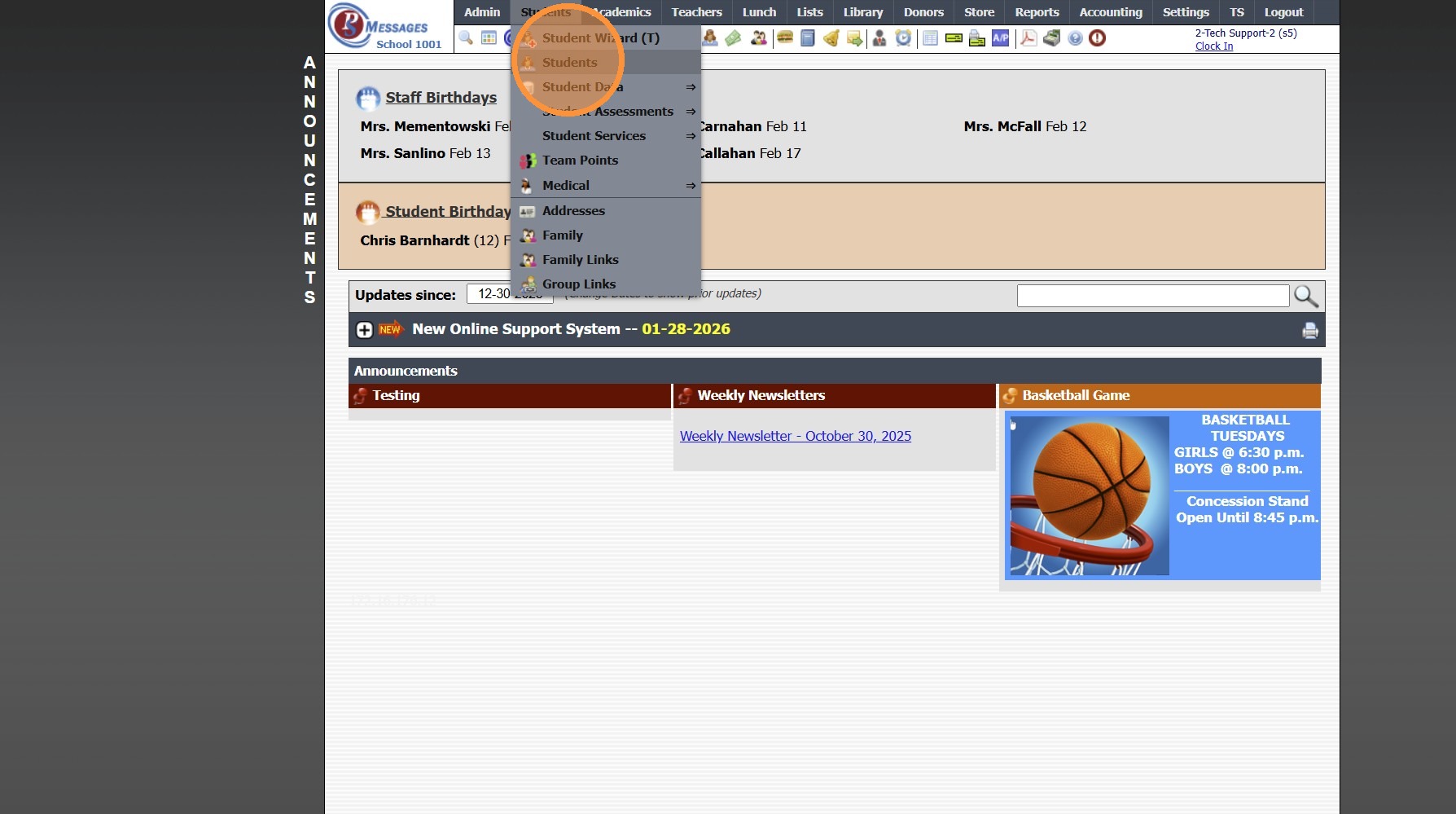
2. Click "Actions"
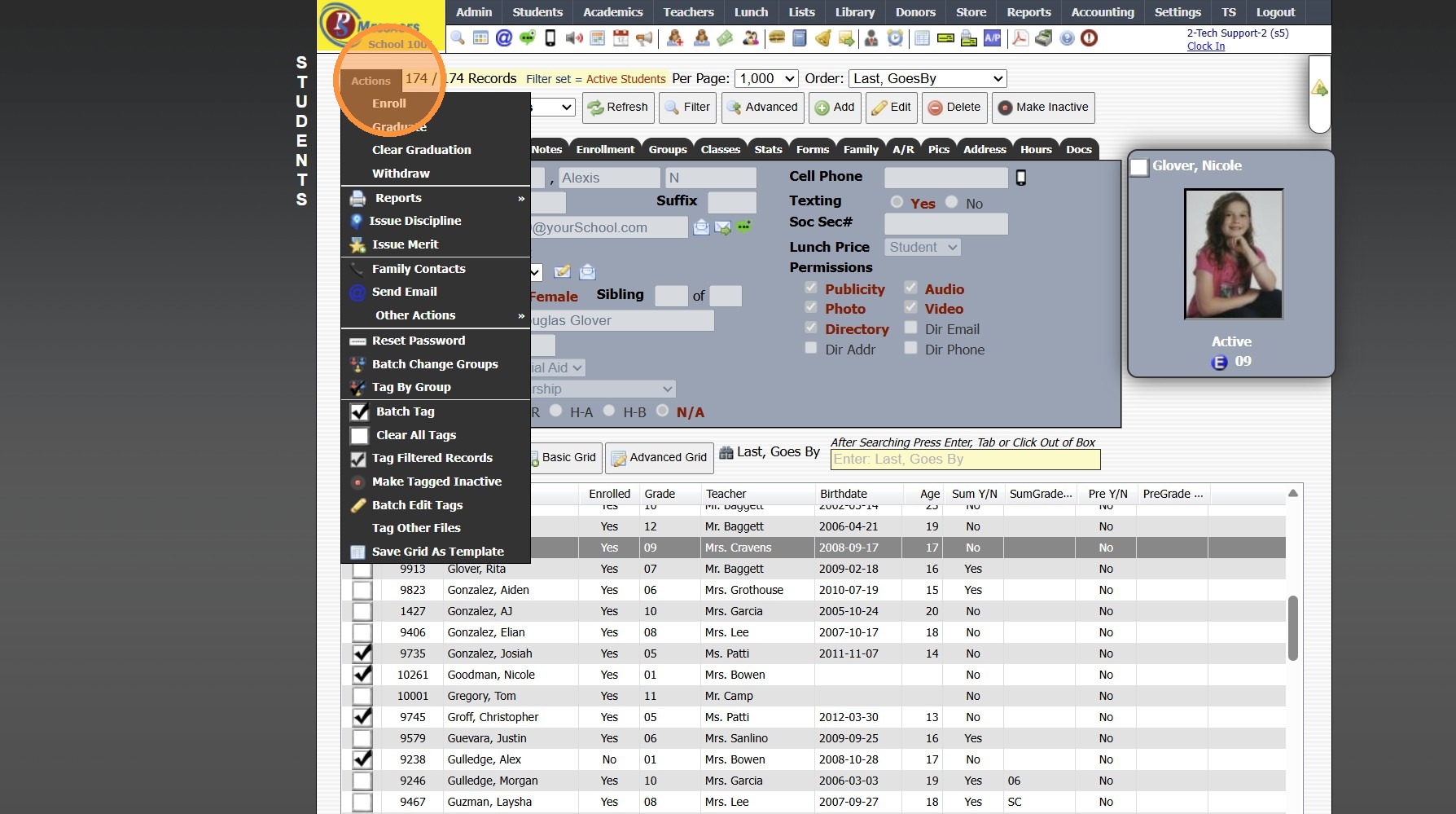
3. Click "Send Email"
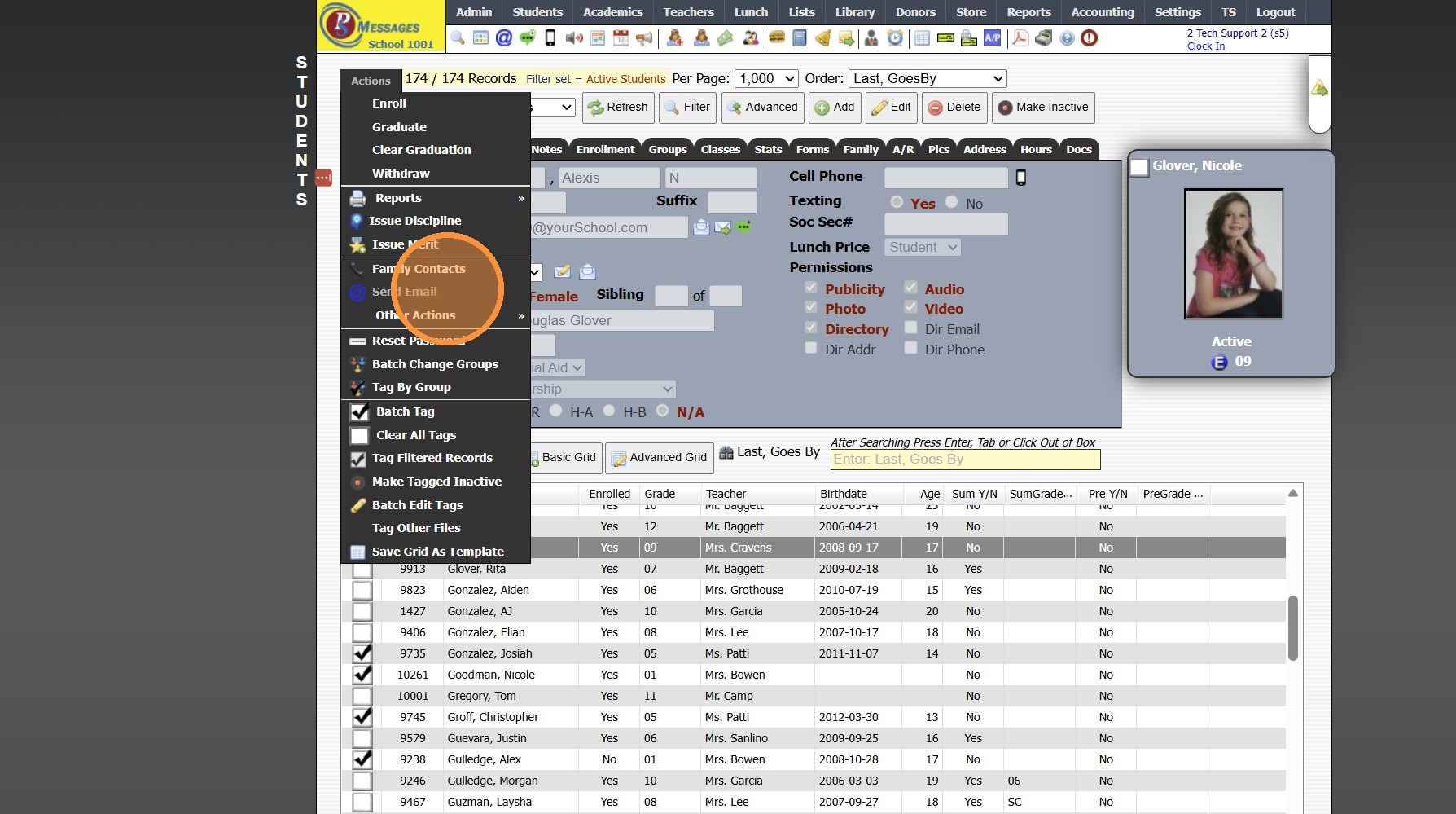
4. Click "Dear ^arFirstName^ ^arLastName^,^firstName^ has been invited to sing at this year's Spring Chorus Concert! Please complete the attached form giv..."

5. Select Merge Data Field
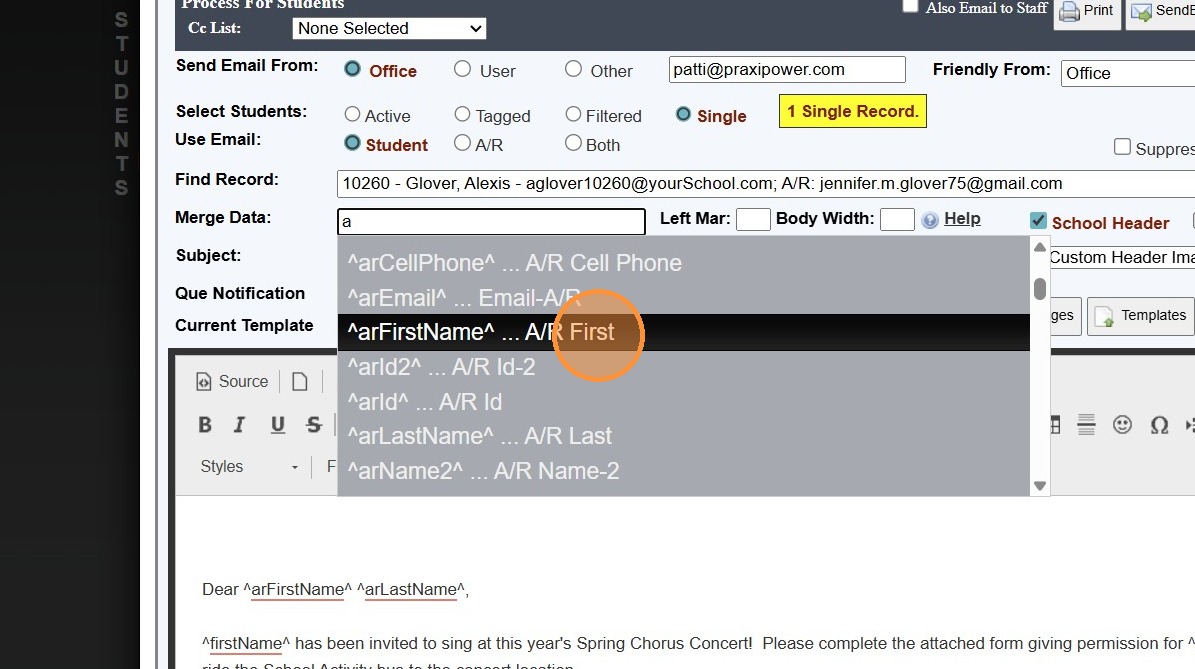
6. Click in the Email Body to Place the Merge Data Field
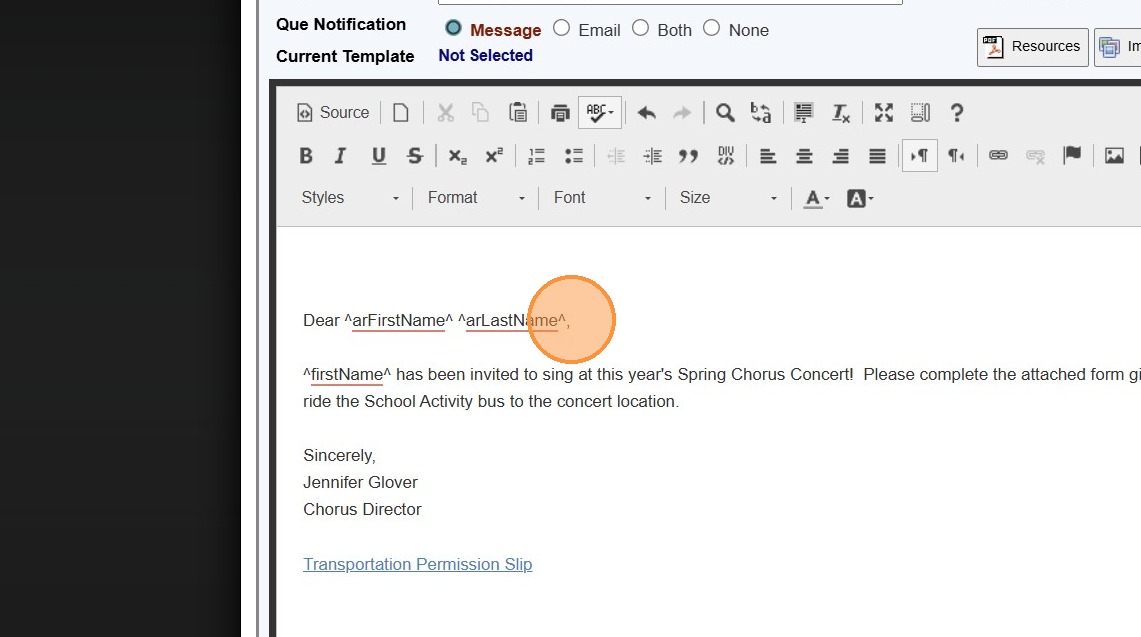
To Preview Email
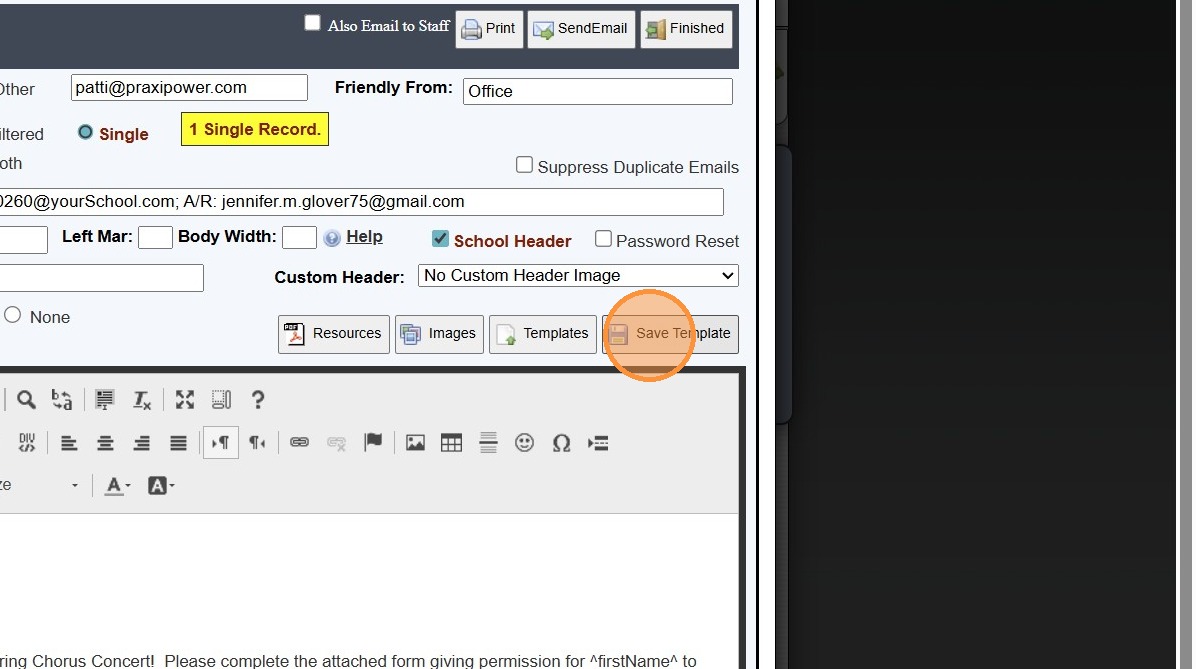
7. Click "Save Template"
8. Name Template
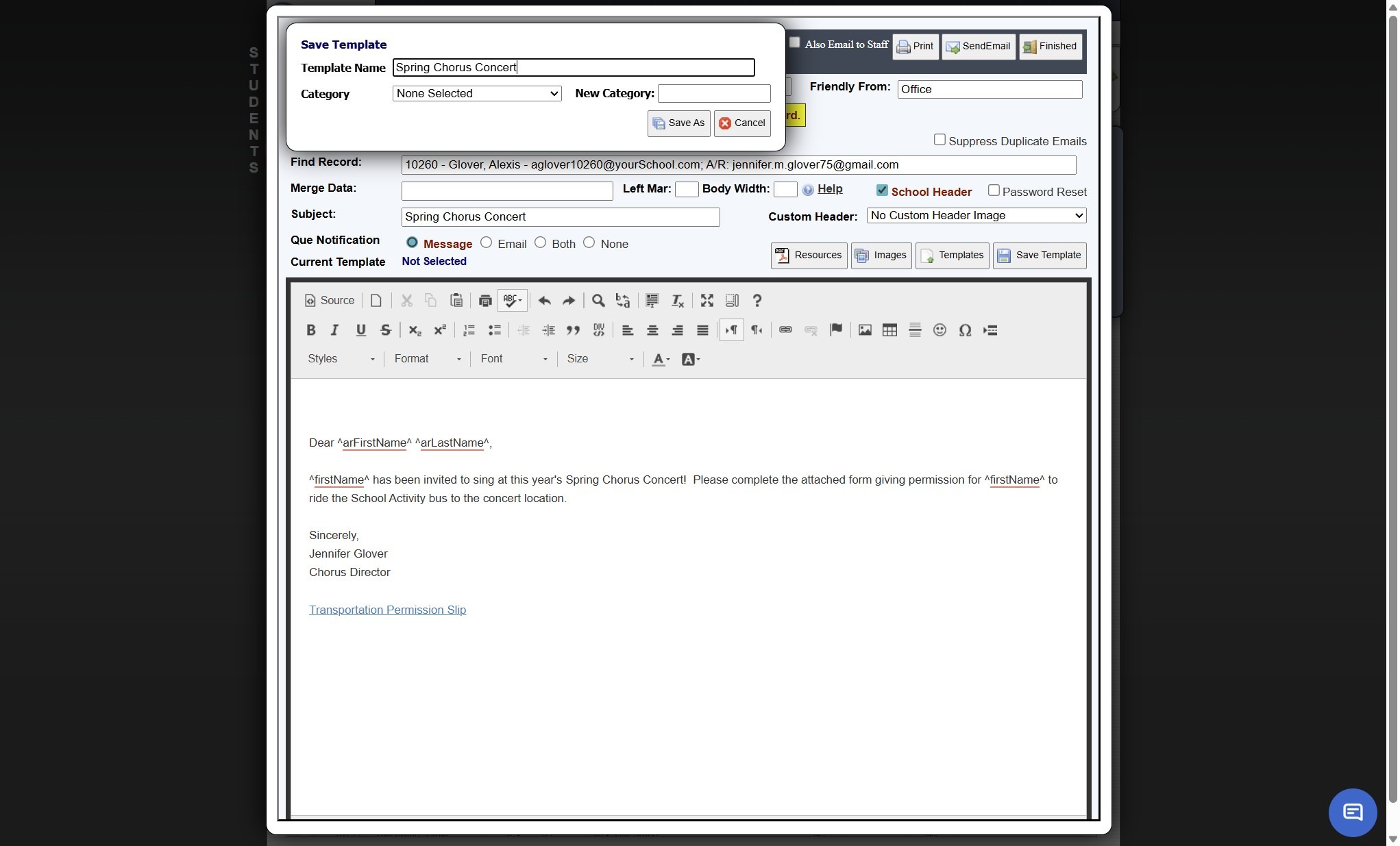
9. Select a Category

10. Click "Save As"

11. Click "Print"
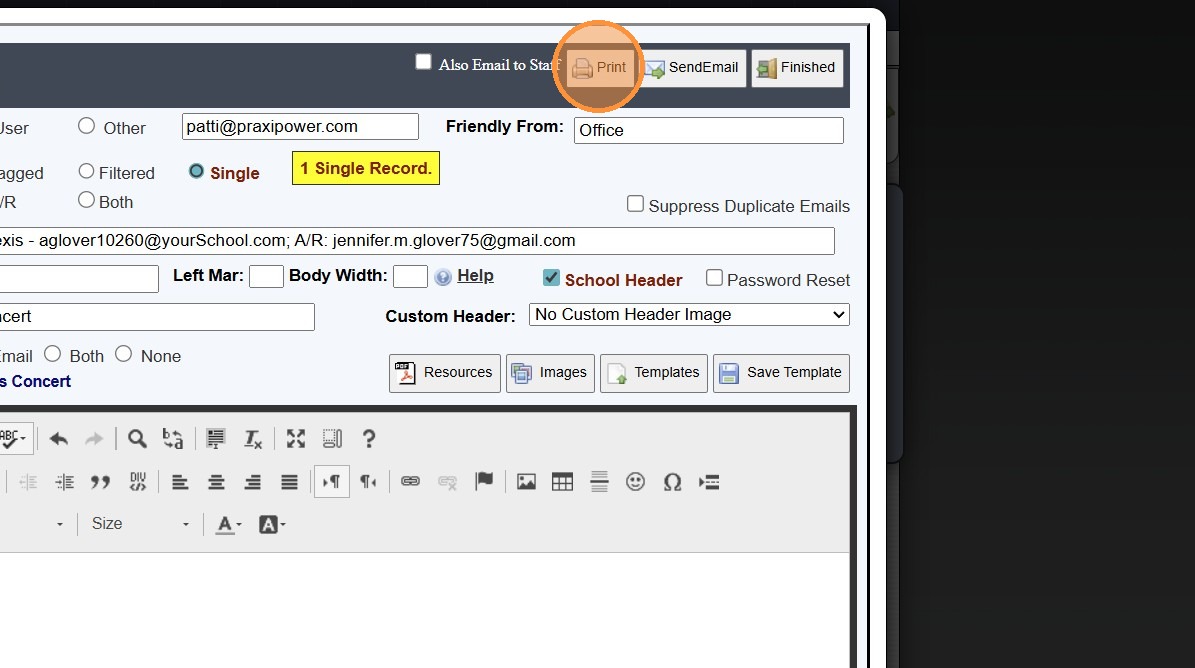
12. Merge Data will Populate Into Email

7000.3.4
Related Articles
Email Options - Using Friendly Name, Que Processing Notification Options & Suppressing Duplicate Emails
Sending School Wide Email Blasts Tip: School Wide Email Blasts can now be Accessed from the Icon Toolbar OR from the Admin Tab! Icon Toolbar Option 1. Click the "@" Icon Admin Tab Option 2. Click "Admin" 3. Click "Tasks" 4. Click "Send School Wide ...Creating Custom Fields for Online Form/Surveys
Custom Fields create for Online Forms are for the purpose of Printing the Form Only, Custom Fields do NOT Save to the Student, AR nor Family Files. 1. Click "Admin" 2. Click "Online Forms" 3. Click "Custom Fields" 4. Click "Add" 5. Select or Add a ...Approving Portal Submissions - Viewing Data
1. Click "Admin" 2. Click "Web Applications" 3. Click "Portal Submissions" 4. Select SUBMITTED Form (Forms Marked In Process have not been submitted and should NOT be approved" 5. Click the "Data" tab to View Submitted Form Data 6. Highlighted Fields ...UPDATE: Adding Prior School Data to Transferring Student Transcripts
UPDATE: Adding Prior School Data to Transferring Student Transcripts 1. Click "Academics" 2. Click "Transcripts" 3. Click "Transcripts" 4. Select the Student's Transcript 5. Click "Actions" 6. Click "Add/Edit Scores" 7. Click "Add" 8. Enter data for ...Sending Welcome Emails to Staff, AR (Parents) and Students
1. Log into PraxiSchool and Select the Database To Send the Welcome Email From (i.e. Staff, AR or Students) 2. Click "Actions" 3. Click "Send Email" 4. Click "Templates" 5. Click to Open Folder and click on the "Welcome" Email Template 6. Click ...