Creating Custom Fields for Online Form/Surveys

Creating Custom Fields for Online Form/Surveys

Custom Fields create for Online Forms are for the purpose of Printing the Form Only, Custom Fields do NOT Save to the Student, AR nor Family Files.


1. Click "Admin"
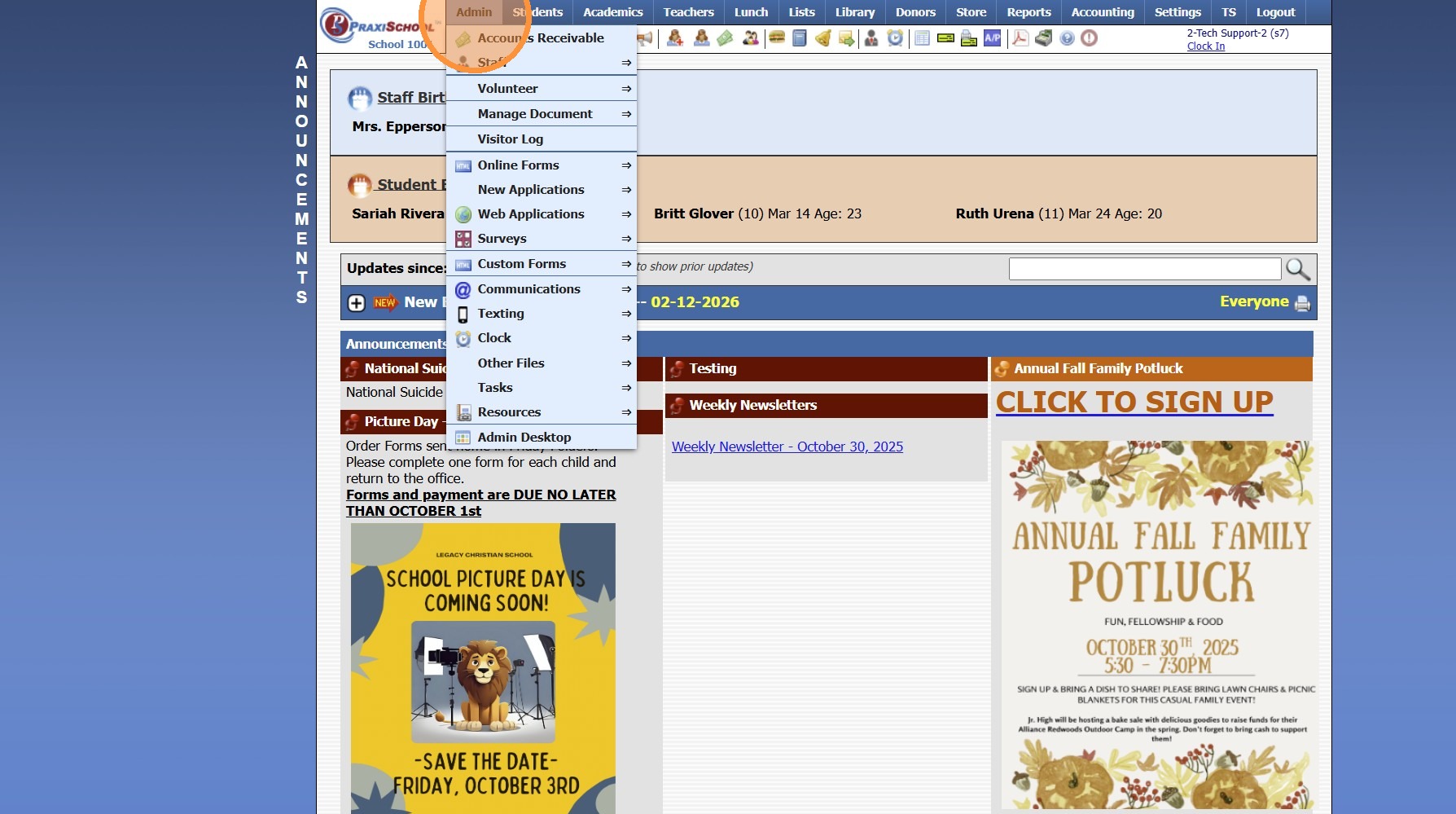
2. Click "Online Forms"
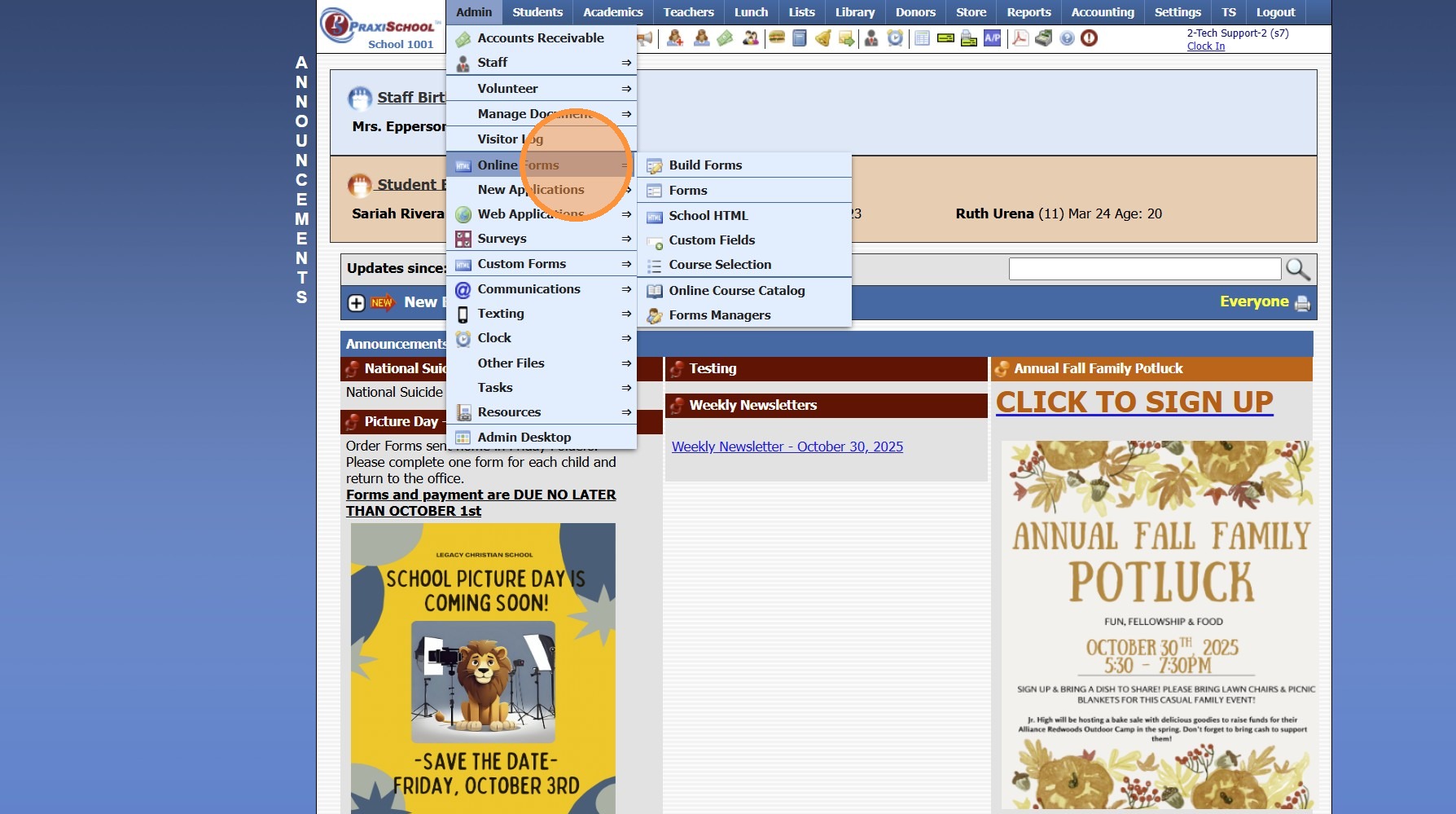
3. Click "Custom Fields"
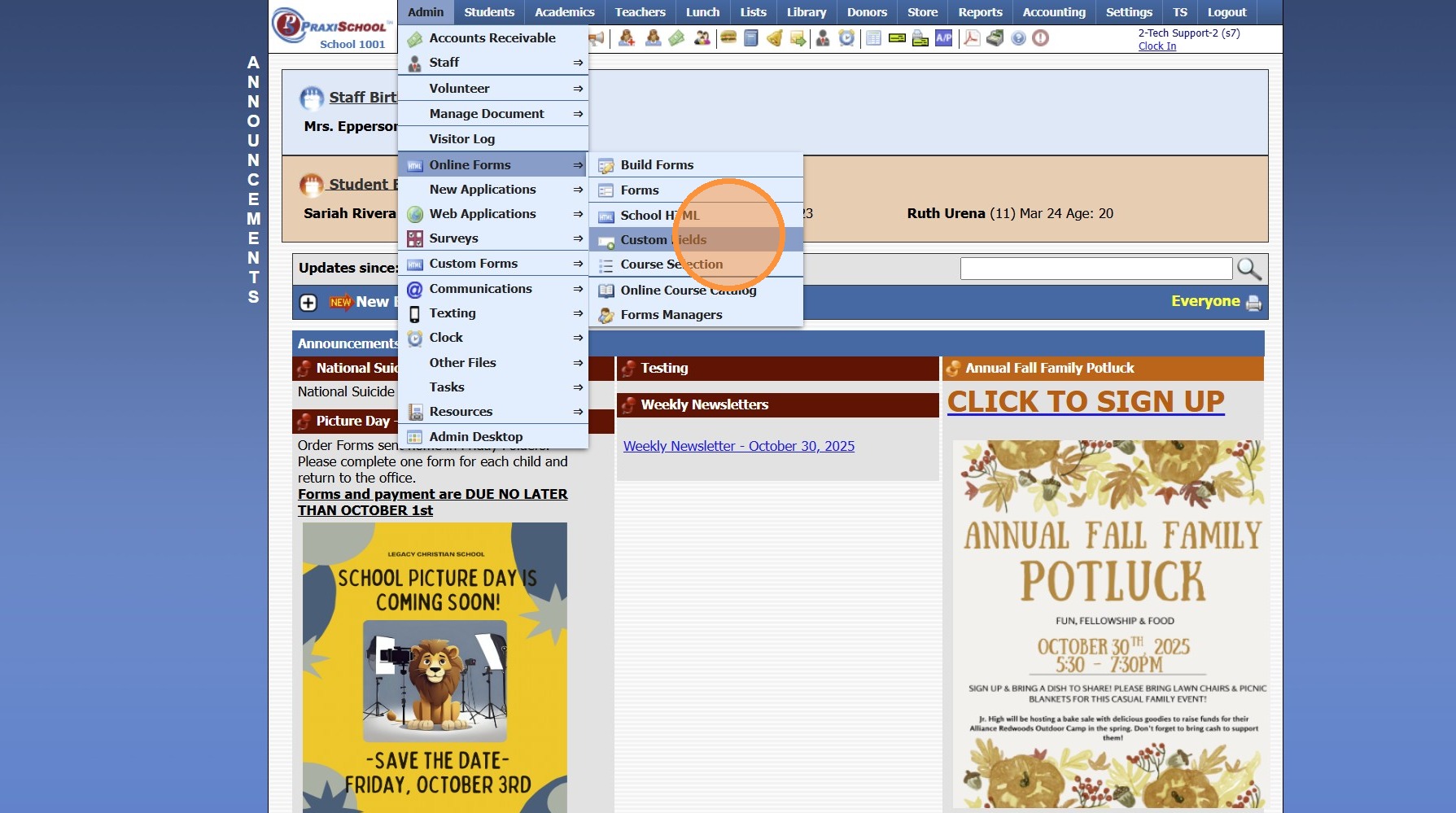
4. Click "Add"
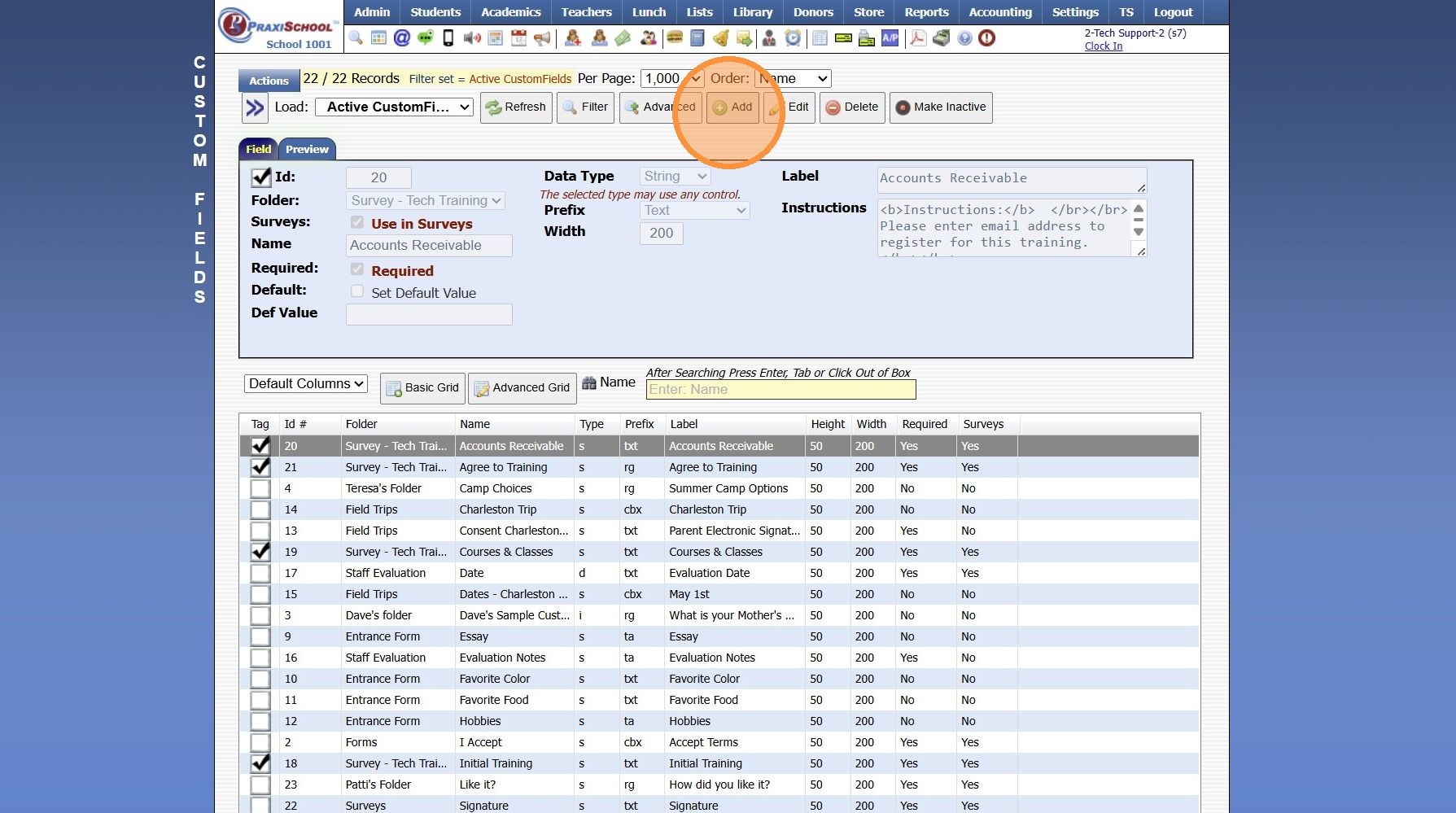
5. Select or Add a Folder (Optional)
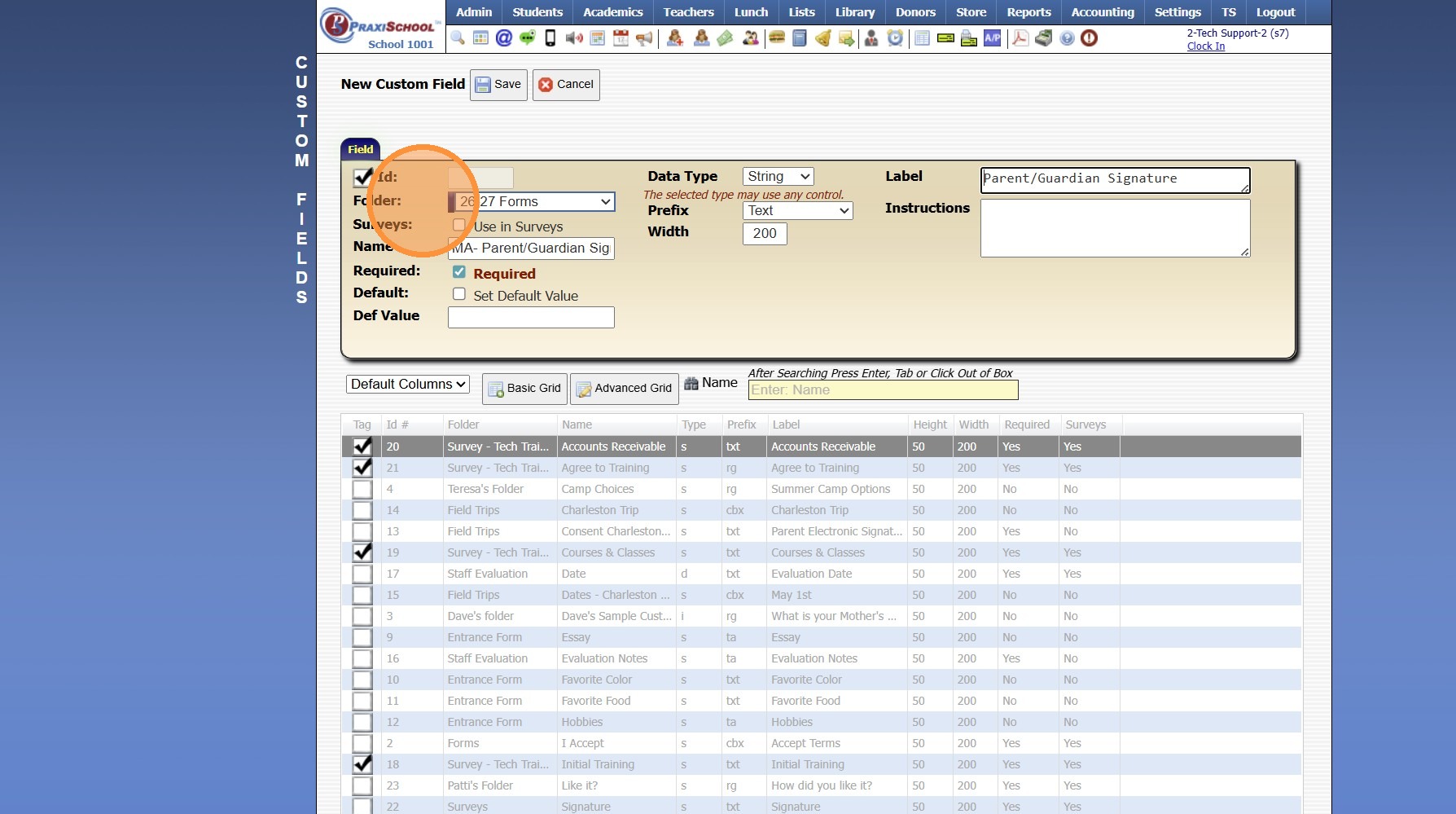
6. If Adding for a Survey, Check Use in Surveys Box

7. Enter Field Name
(Field Name is not visible on Online Forms or Surveys, it is for Differentiating Fields when Added them to Online Forms/Surveys)
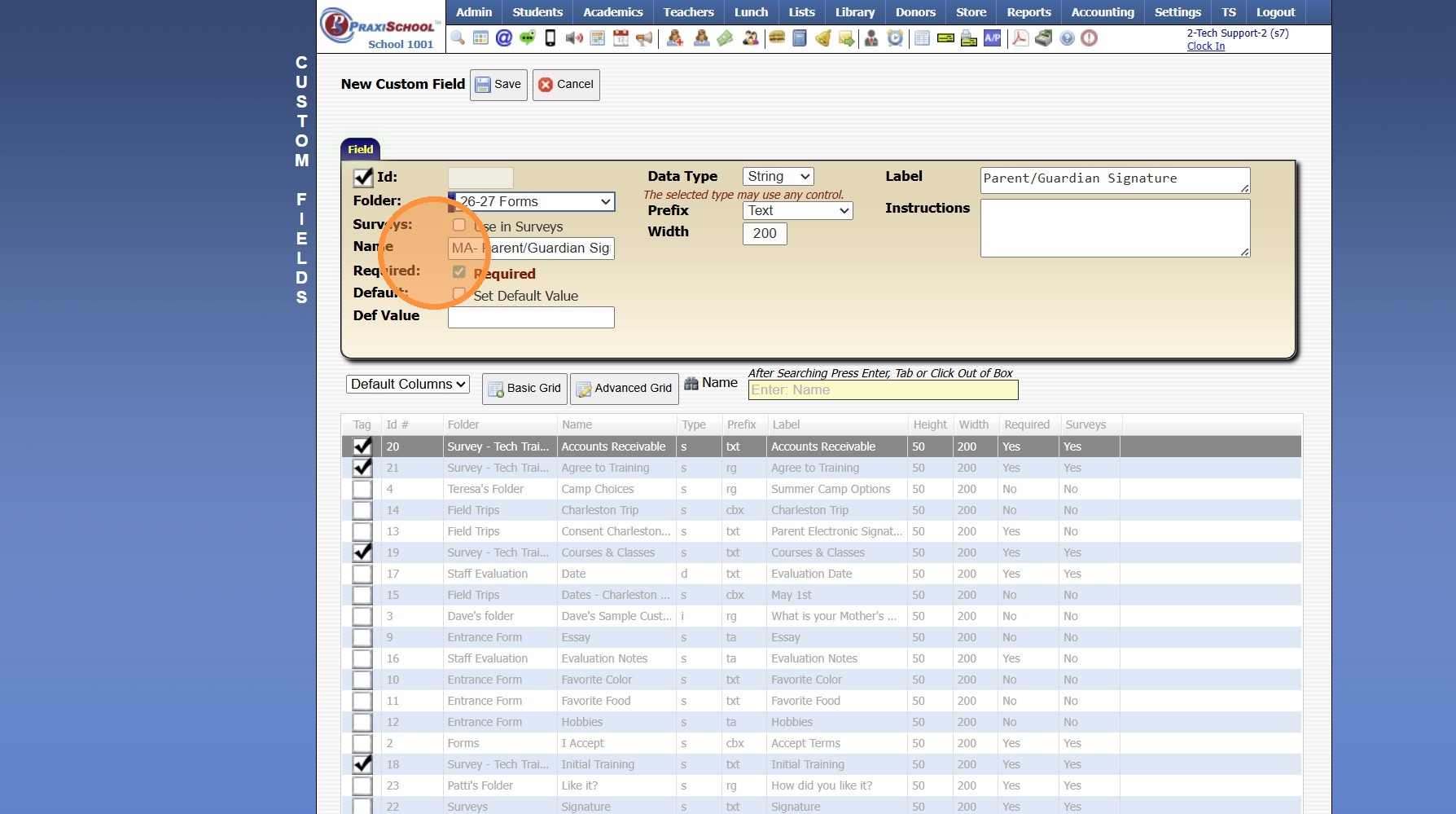
8. If the Field is Required, Check Box for Required
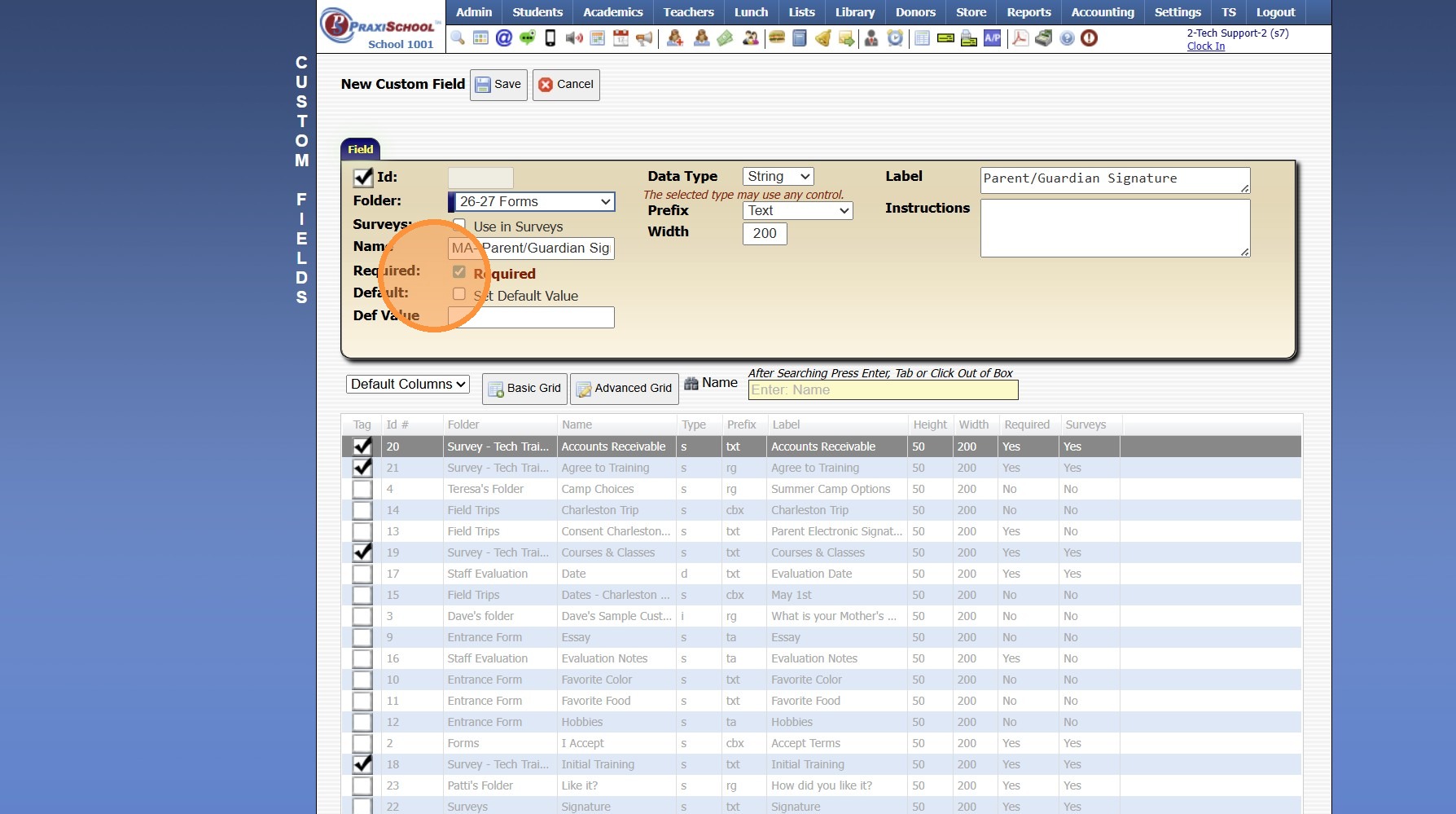
9. Select Data Type & Prefix
(Ex. String- A short answer field, Text- A short answer field.)
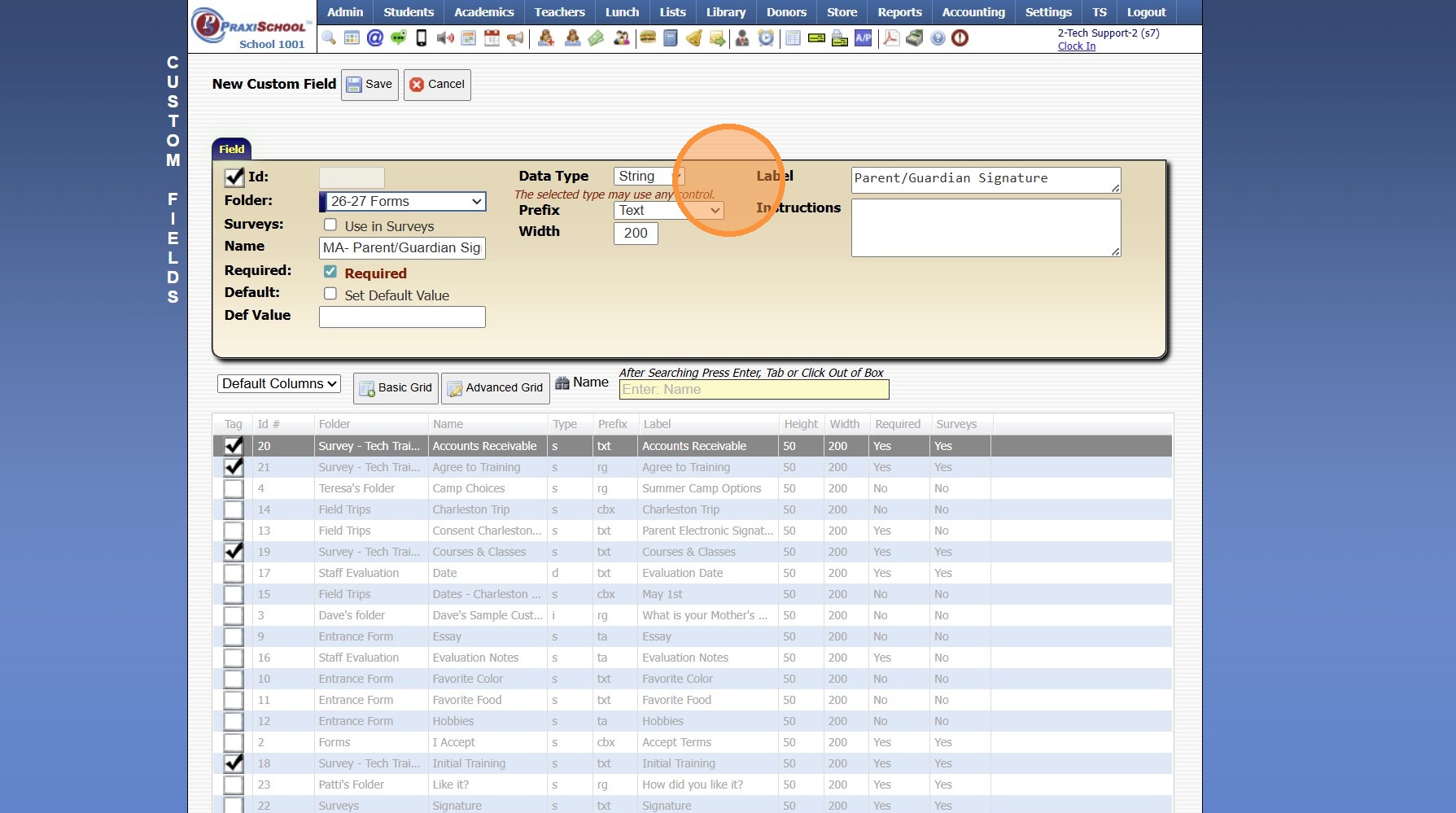
10. Enter Label
(The Label is the Custom Field Verbiage that Appears on the Form/Survey)
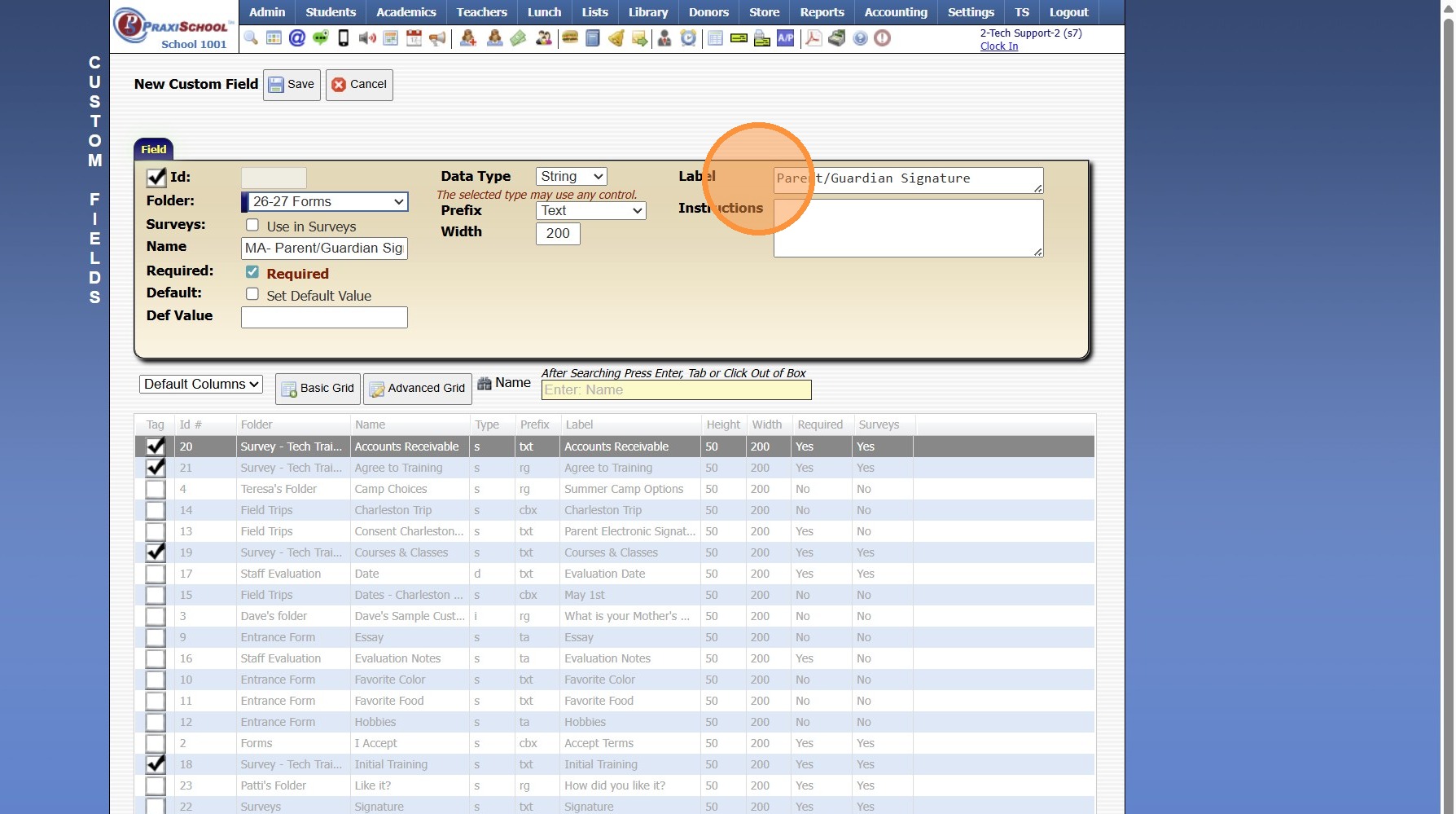
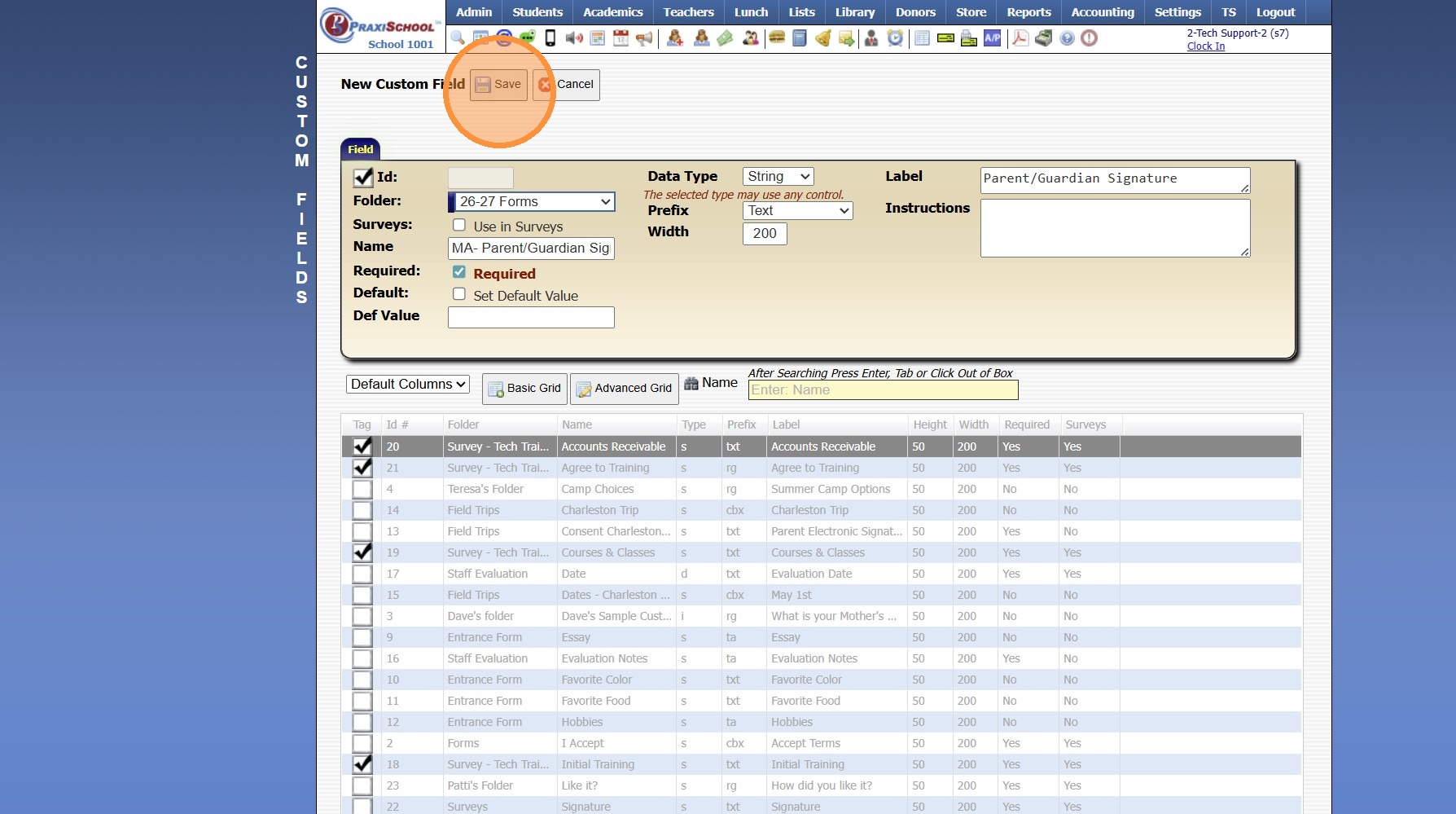
11. Click "Save"


1000.6.12

    • Related Articles

    • Online Form Types and Portal Options

      Online Form Types and Portal Options Online Form Types 1. Parent - A/R Portal (Forms for Existing Families, available on Parent Portal) 2. Student Portal (Forms for Existing Students, available on Student Portal) 3. From Your Website (Only new ...
    • Creating a www Form

      1. Click "Admin" 2. Click "Online Forms" 3. Click "Forms" 4. Click "Add" 5. Add Form Name, Description and Portal Form Name 6. Select the For Portal Option: "From Your Website (Only new registration)" 7. Click "Test" to put in Test Mode until Form is ...
    • Accessing & Previewing Online Form Templates

      1. Click "Admin" 2. Click "Online Forms" 3. Click "Forms" 4. Select Form 5. Click "Header HTML" 6. Click "Preview Form" 7. A Preview of the Form will Populate 1000.6.20
    • Creating an AR Portal Form

      1. Click "Admin" 2. Click "Online Forms" 3. Click "Forms" 4. Click "Add" 5. Add Form Name, Description and Portal Form Name 6. Select the For Portal Option: "Parent - A/R Portal" 7. Click "Test" to put in Test Mode until Form is Built 8. Select ...
    • Creating a Site Portal Form

      1. Click "Admin" 2. Click "Online Forms" 3. Click "Forms" 4. Click "Add" 5. Add Form Name, Description and Portal Form Name 6. Select the For Portal Option: "Application Site (Only new registration)" 7. Click "Test" to put in Test Mode until Form is ...