Approving Portal Submissions - Viewing Data
1. Click "Admin"

2. Click "Web Applications"

3. Click "Portal Submissions"

4. Select SUBMITTED Form
(Forms Marked In Process have not been submitted and should NOT be approved"

5. Click the "Data" tab to View Submitted Form Data

6. Highlighted Fields indicate new or updated data

7. Click "Print" (Optional)

8. Click "Approve"

9. Select Process Enrollment type
(Select "None" if submitted form is NOT a Re-Enrollment form)
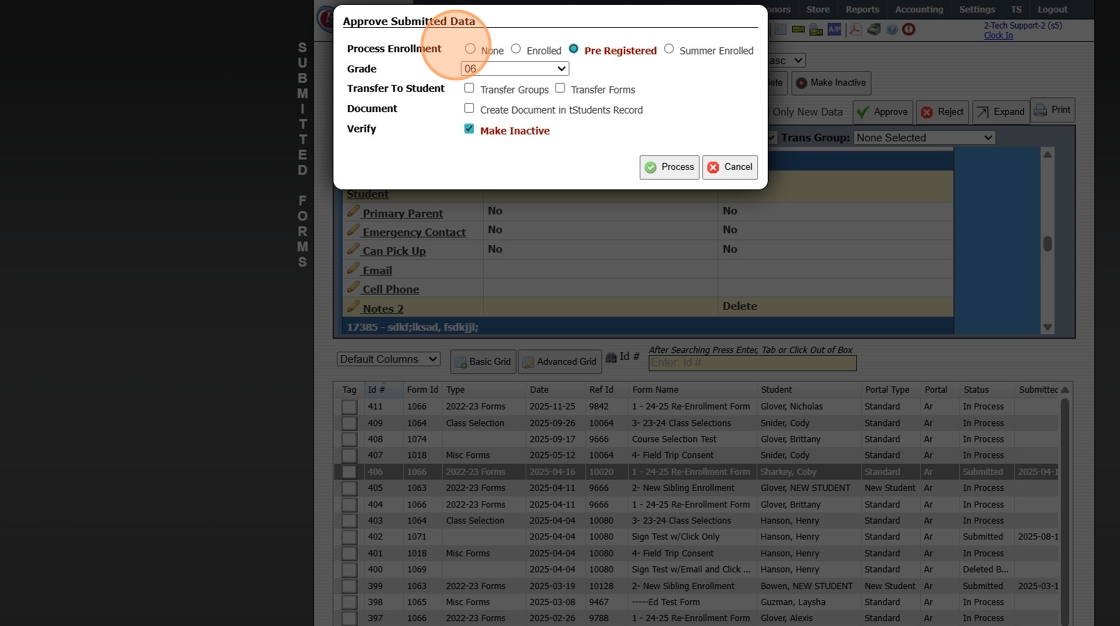
10. Transfer To Student - Check box to Transfer Groups and/or Transfer Forms
(This would only be used if Groups/Forms are being tracked while form is active)
Document - Check box to Create Document in Student Record
(This would only be used if Documents were uploaded from the Parent/Student Portal)

11. Verify - Make sure the Make Inactive box is checked
(This makes the form inactive when processed so that the form is no longer in the Active form section to be approved)

12. Click "Process"

Related Articles
Viewing Site User Data
Viewing Site User Data 1. Click "Admin" 2. Click "Web Applications" 3. Click "Site Users" 4. Select Site User 5. Site User Name, Email, Relationship to Student and Phone Numbers are visible under the Name tab If the check box for Test Forms is ...Volunteer Hours Data - Approving Volunteer Hours in Batch
Volunteer Hours Data - Approving Volunteer Hours in Batch 1. Click "Admin" 2. Click "Volunteer" 3. Click "Volunteer Hours Data" 4. Tag Volunteer Hours to Approve 5. Click "Actions" 6. Click "Approve Hours" 7. Select "Approve Tagged Hours" toggle 8. ...Viewing, Approving or Denying Staff Time Off Requests
Viewing, Approving or Denying Staff Time Off Requests 1. Click "Admin" 2. Click "Staff" 3. Click "Vacations" 4. Select Time Off Request 5. Click "Edit" 6. Select "Approved / Denied" 7. Enter Number of Requested Hours / Days (Optional) 8. Enter Follow ...Viewing Active & Inactive Online Forms
Viewing New Applicant Forms 1. Navigate to Admin > Web Applications > New Applicants 2. Select "All Applicants" from the Dropdown Menu (This will Display All New Applications) Viewing AR Portal Online Forms 3. Navigate to Admin > Web Applications > ...Viewing Parent, Student & Applicant Portal Activity
1. Click "Admin" 2. Click "Other Files" 3. Click "Portal Activity" 4. Activity from Portal is Visible 1000.13.7