Uploading Student Documents
1. Click "Admin"
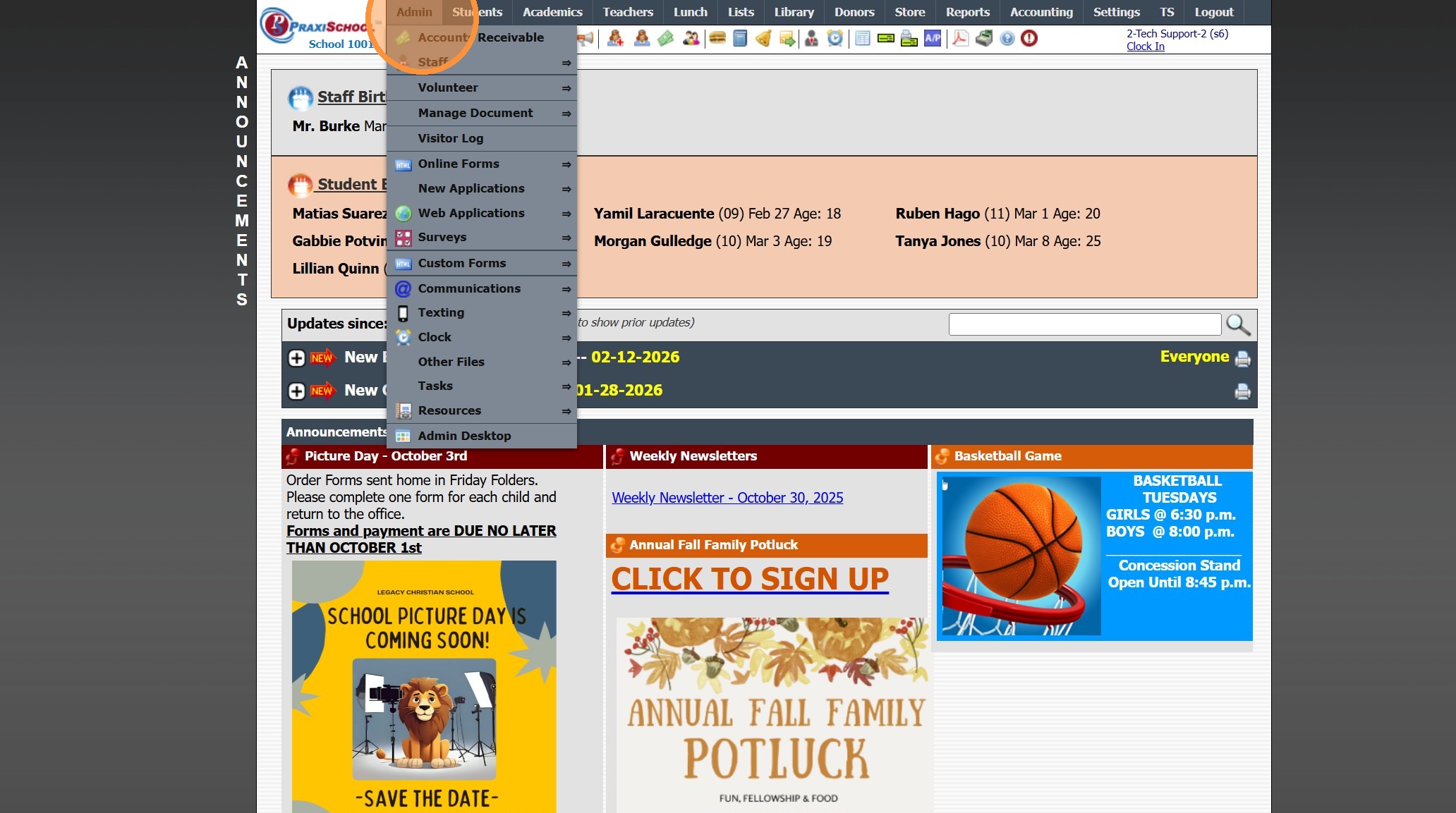
2. Click "Manage Document"
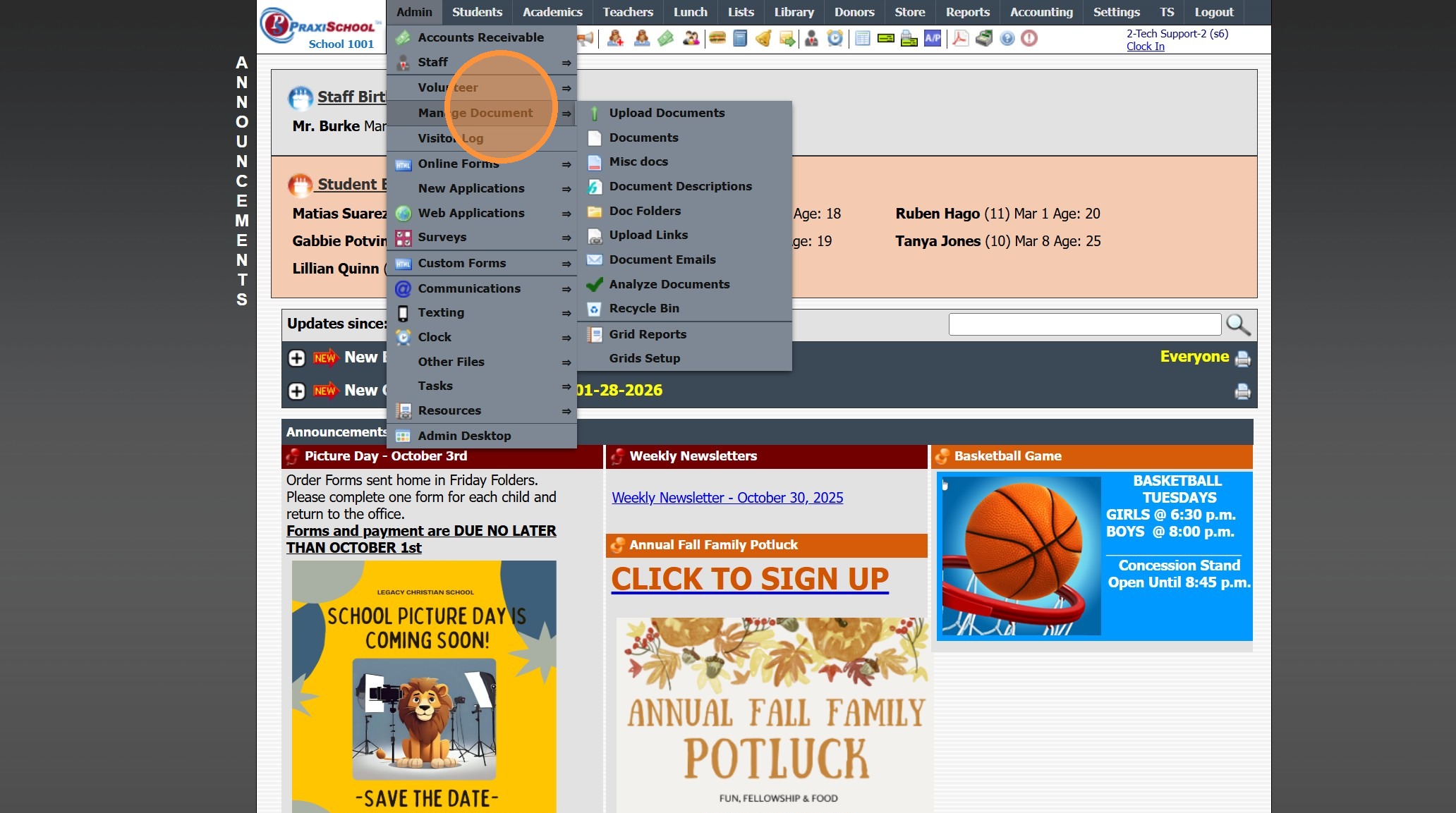
3. Click "Upload Documents"

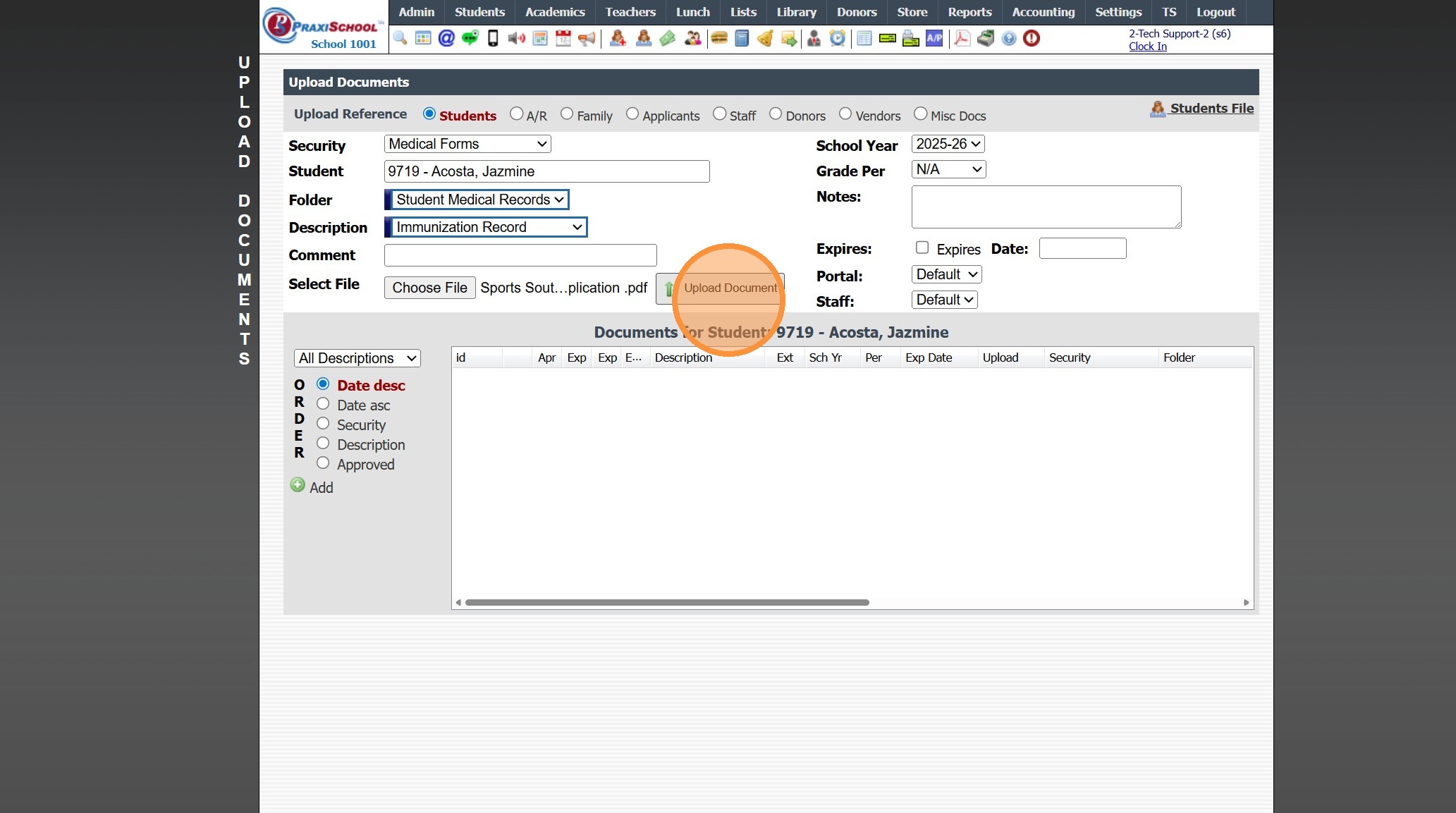
4. Select the "Security"
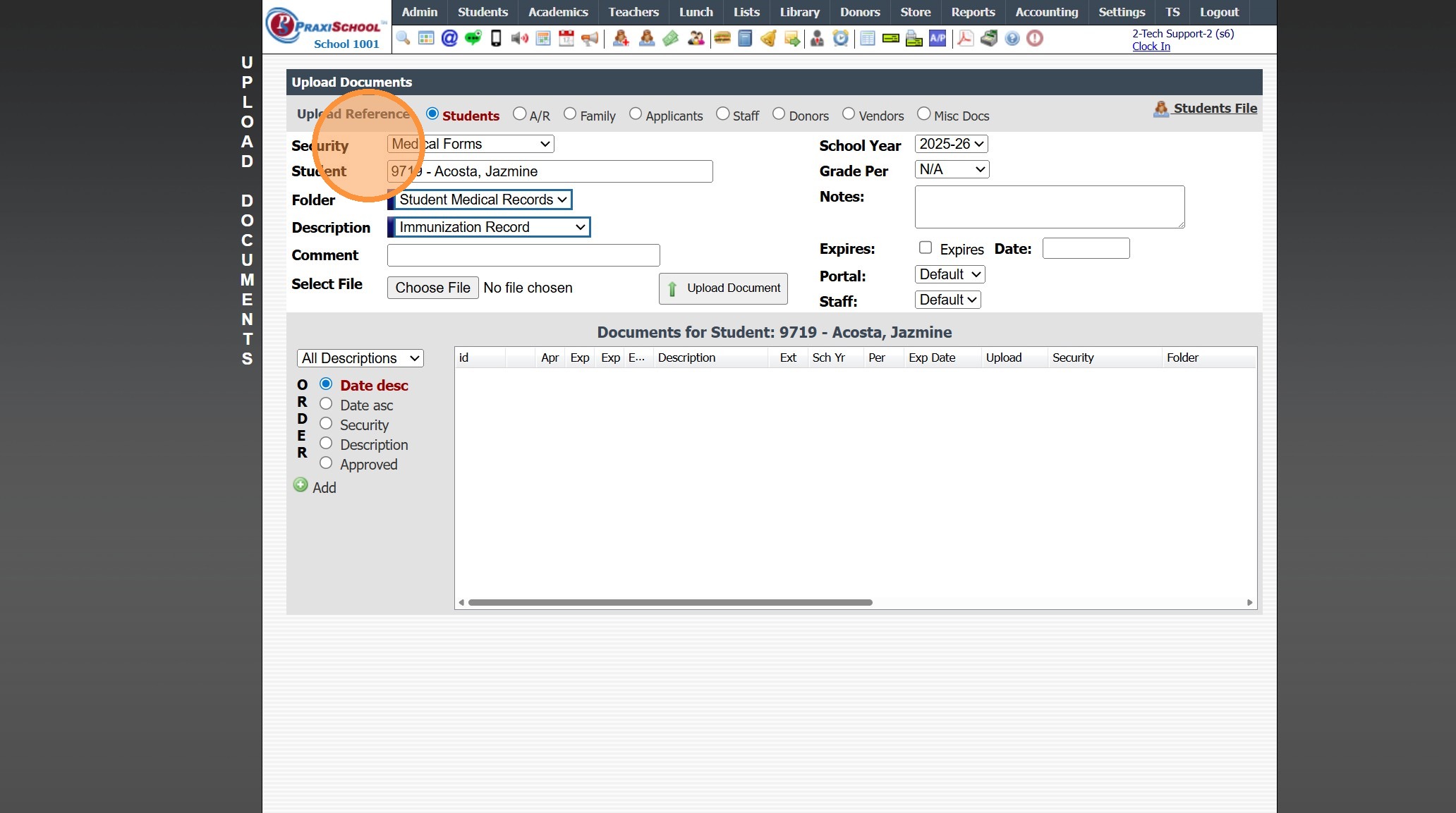
5. Select the "Student"
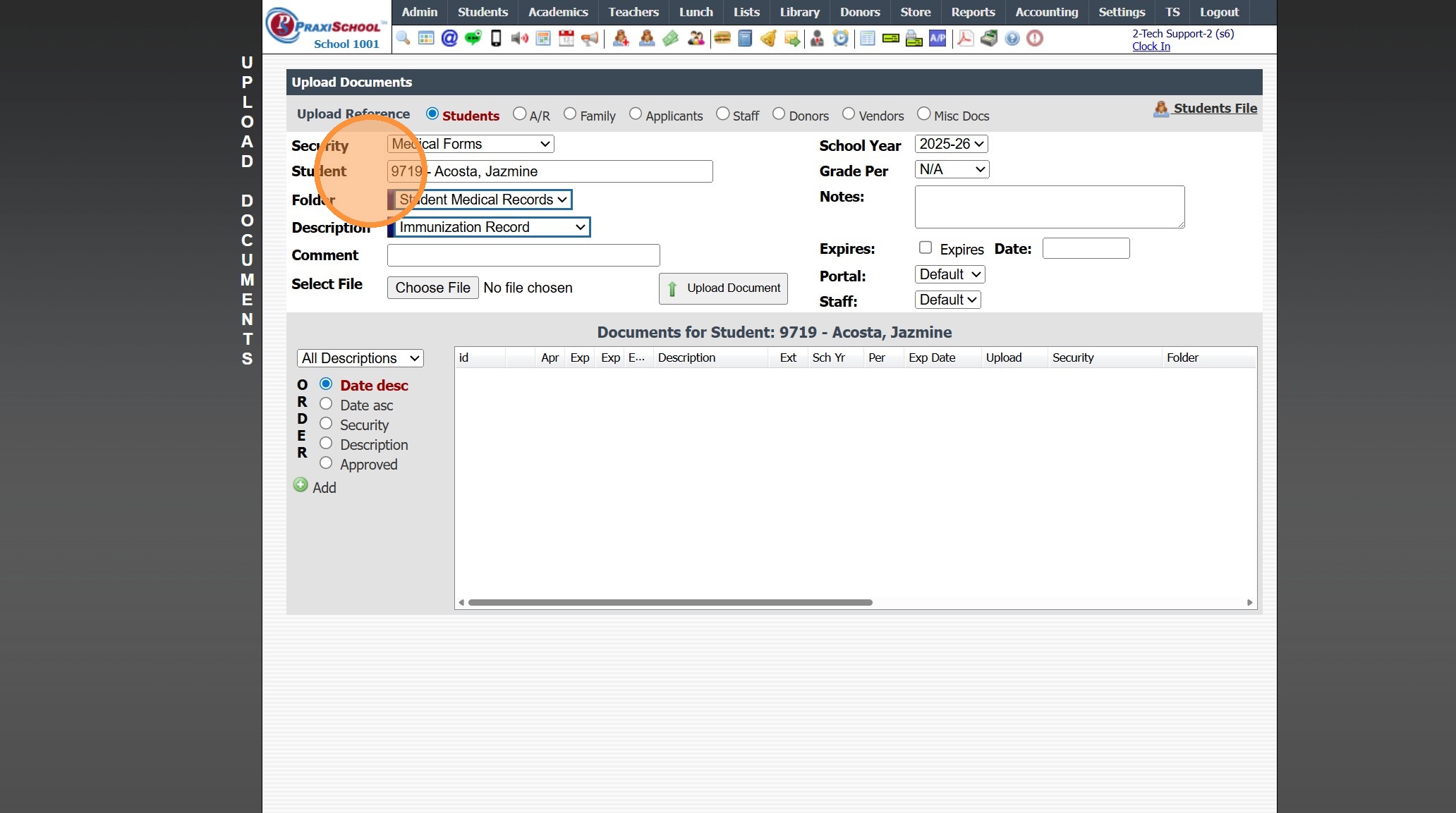
6. Select the "Folder"
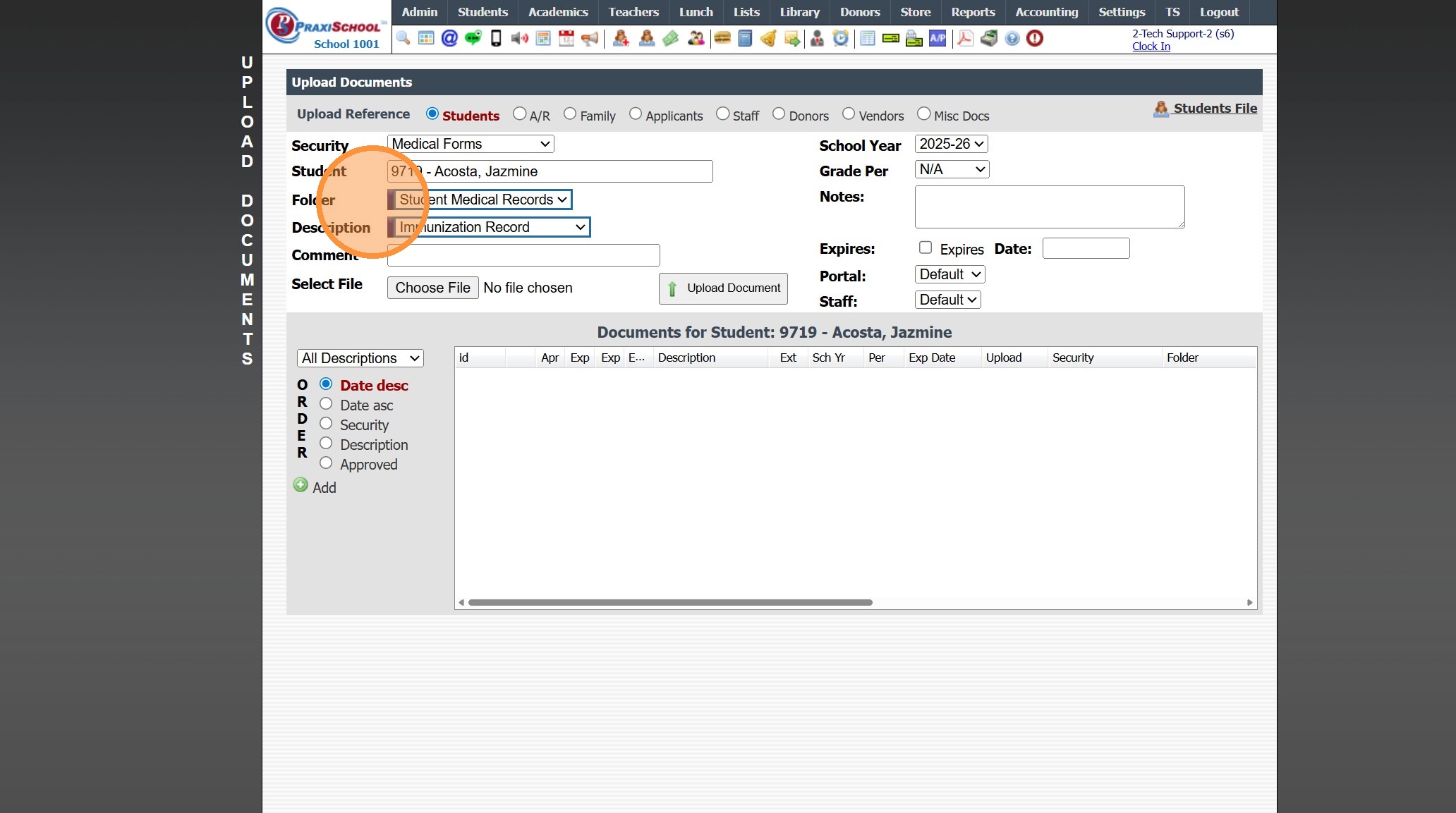
7. Select the "Description"
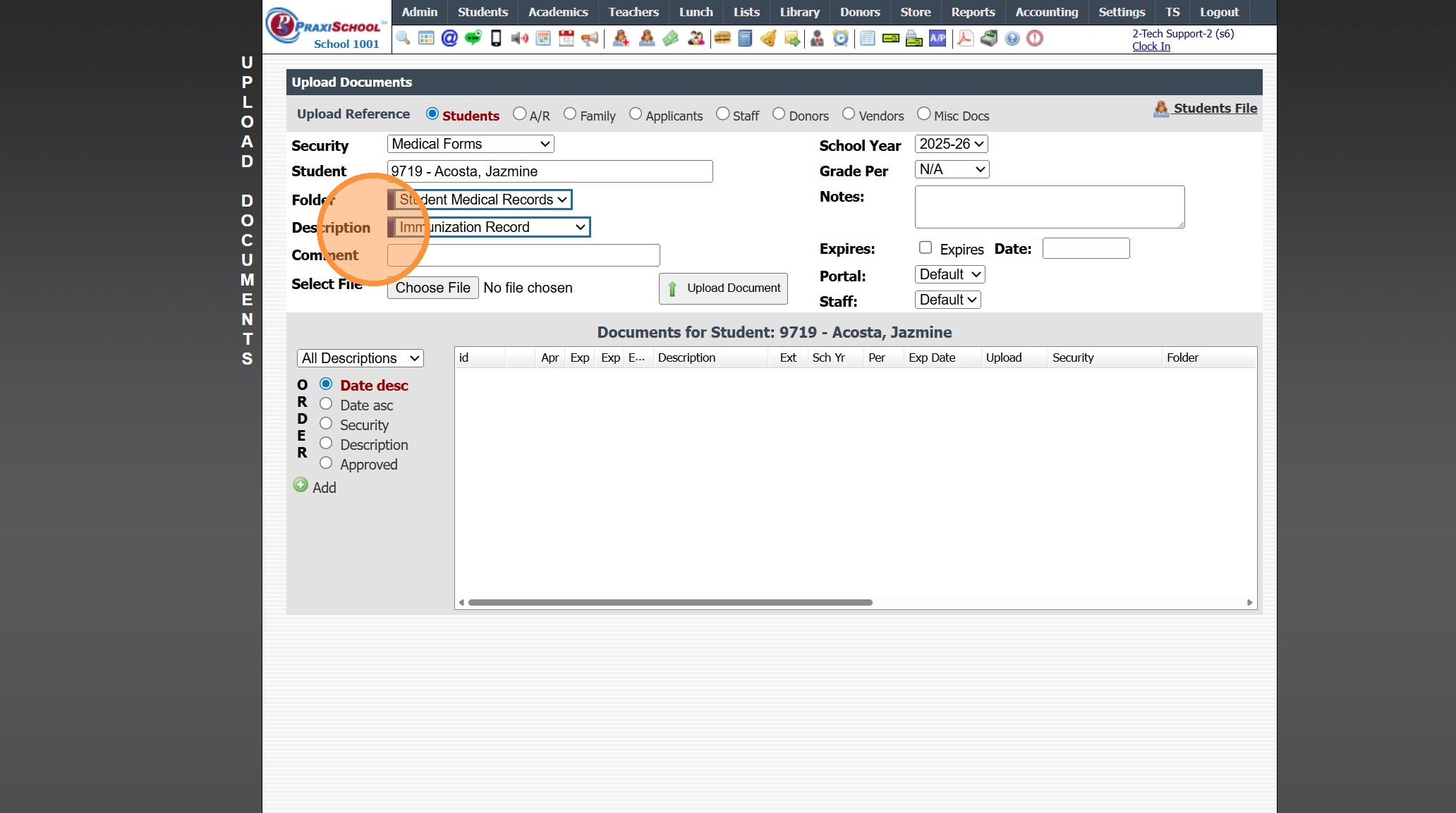
8. Click "Choose File" & Select Document to Upload
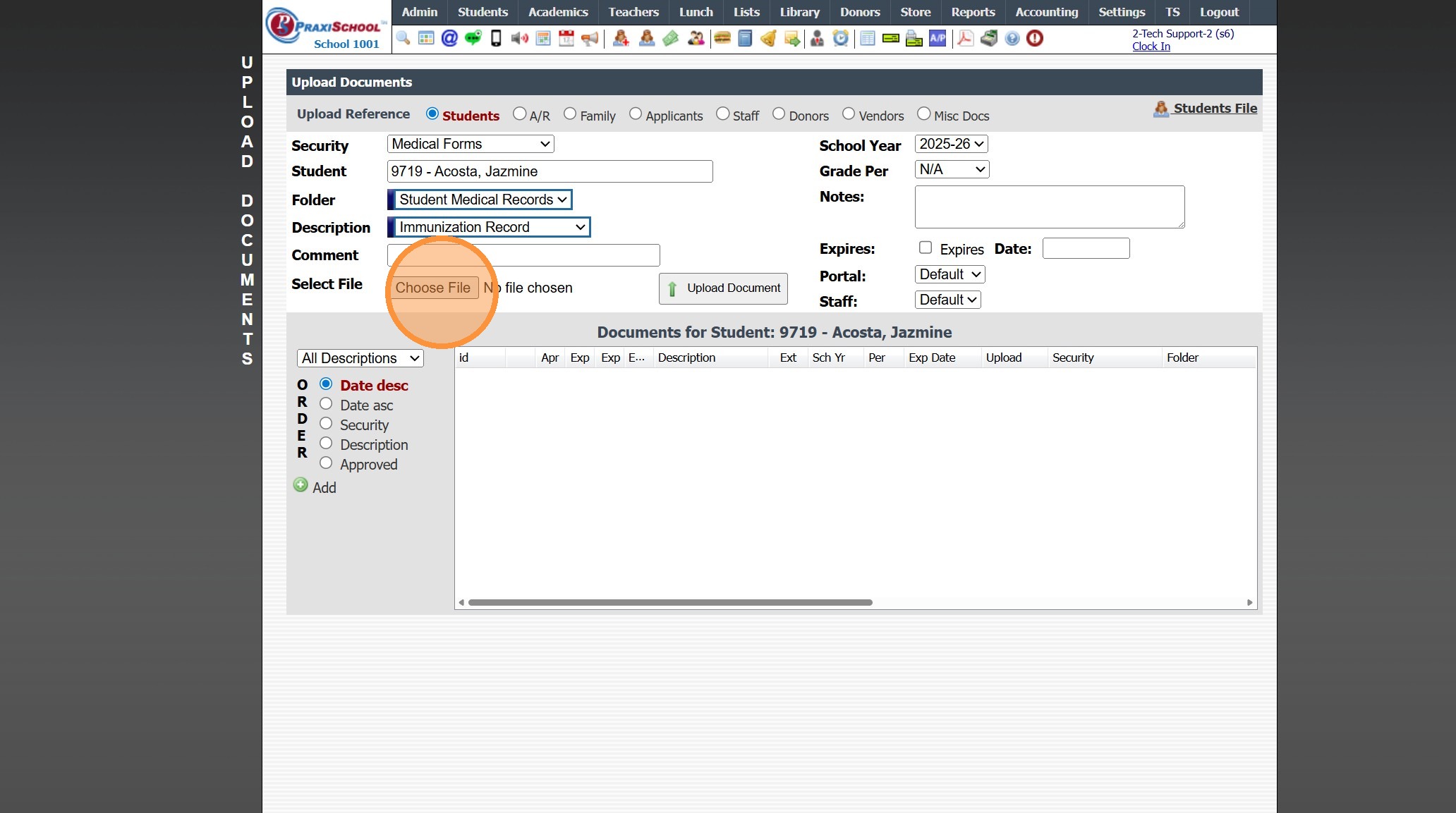
9. Verify School Year
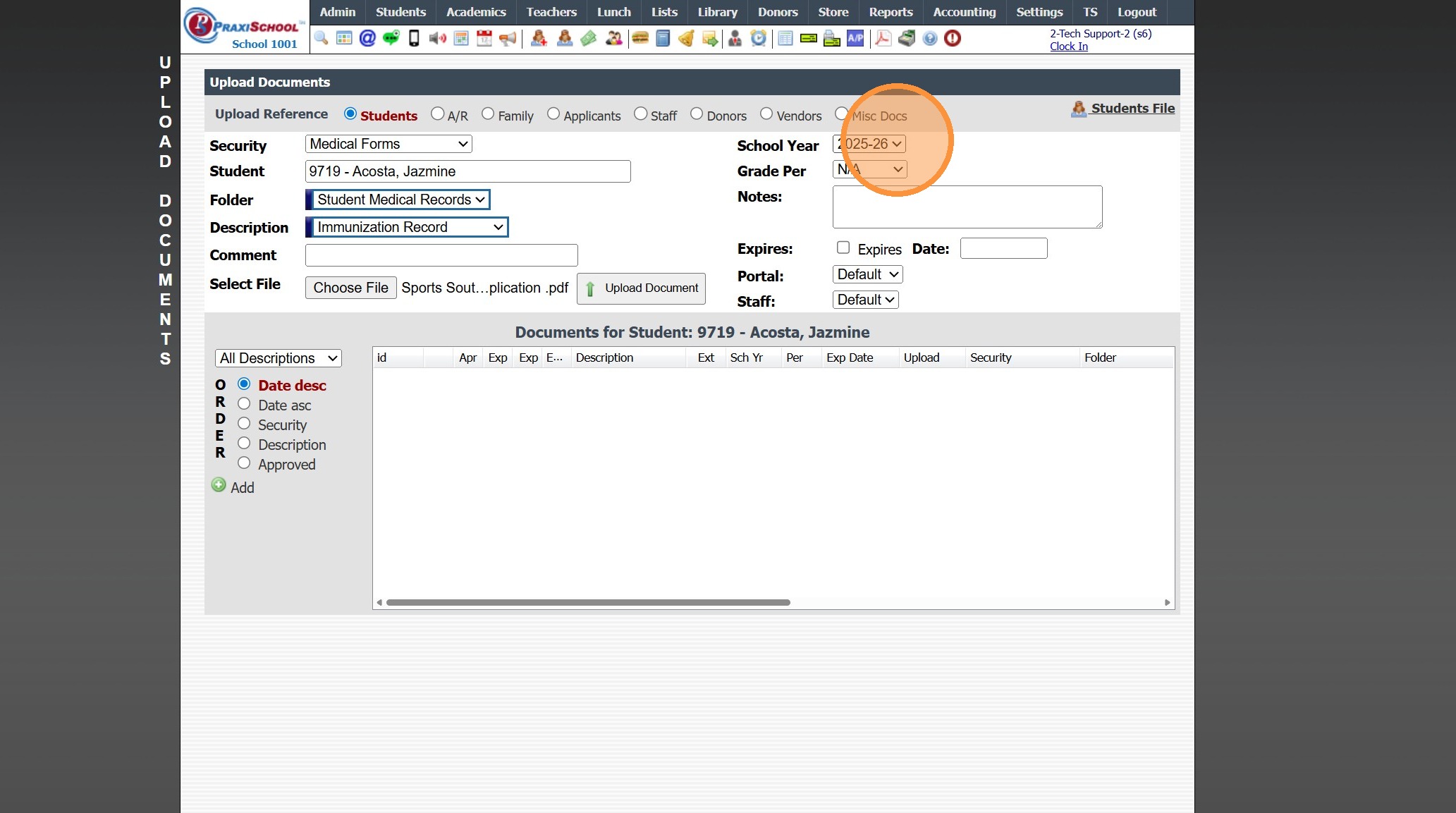
10. Click "Upload Document"
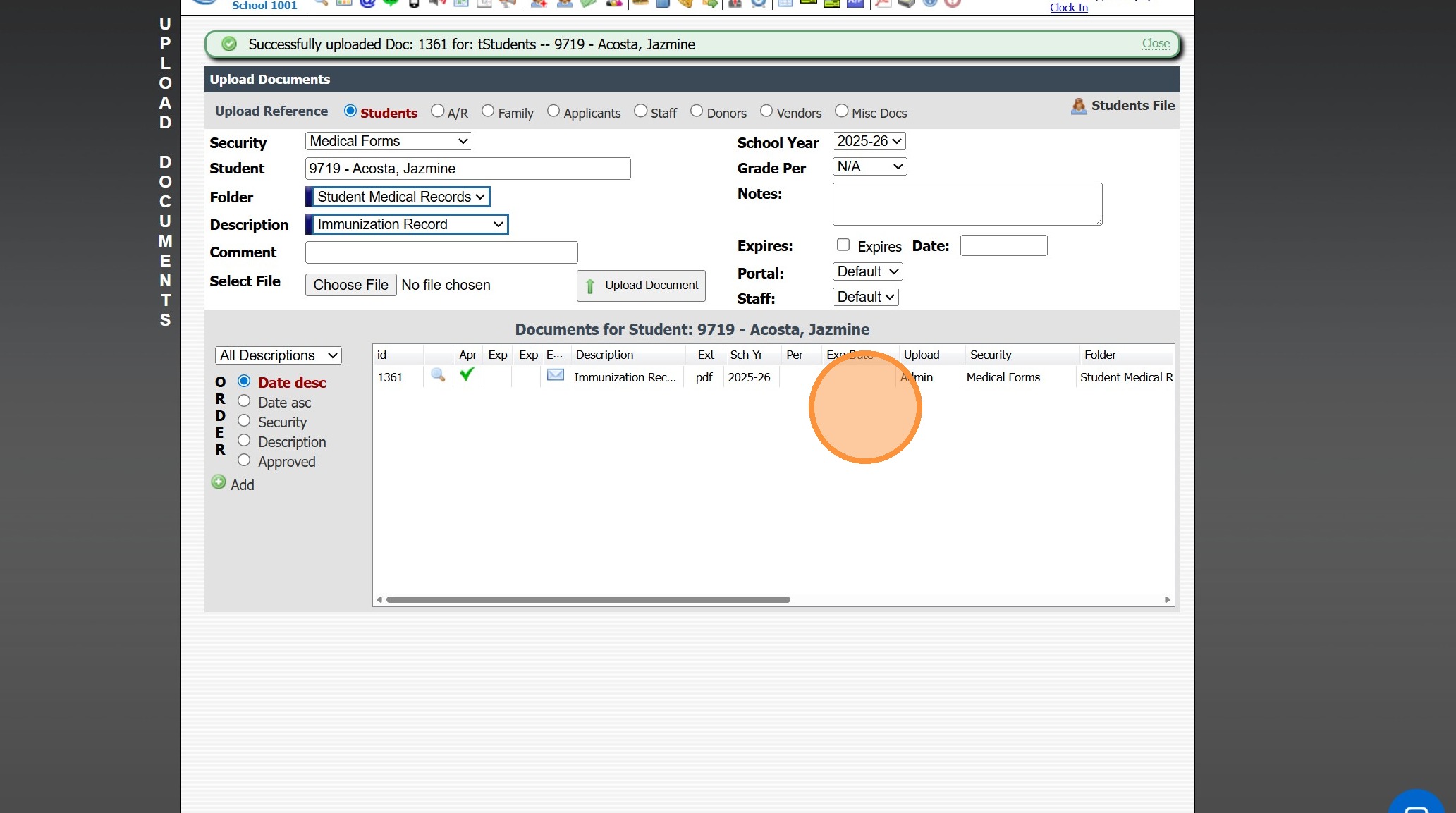
11. Uploaded Document is Visible in Documents Screen for Student
1000.4.1
Related Articles
Uploading Student Documents from the Student File
1. Click "Students" 2. Click "Students" 3. Select Student 4. Click the "Docs" Tab 5. Click "Add" 6. Select the Security, Folder & Description 7. Click "Choose File" 8. Verify School Year 9. Click "Upload Document" 1000.4.1.1Uploading Student / Staff Photos Individually
1. Go to the Student or Staff Database 2. Select the Student or Staff 3. Click the "Pics" Tab 4. Click "Upload Picture" 5. Click "Choose File" & Select the Image 6. Click to Upload (Photo can be Cropped prior to Uploading to the Student / Staff file) ...Emailing Student Documents
1. Click "Students" 2. Click "Students" 3. Select Student 4. Click the "Docs" Tab 5. Click Envelope Icon Next to Document to Email OR From the Email Screen All Documents or a Folder of Documents can be Emailed 6. Select Process Option 7. Edit/Enter ...Document Management Overview and Training
Welcome to the PraxiSchool Document Management Overview and Training! Below you will find information about Document Management features, Document Management setup information and the Document Management training videos. Please review each video ...Approving Documents Upload in the Parent, Student or Applicant Portal
1. Click "Admin" 2. Click "Manage Document" 3. Click "Documents" 4. Click "Actions" 5. Click "Approve Documents" 6. Click "Select All" or Select Individual Record(s) to Approve 7. Click "Save Changes" 8. Click "Finished" 1000.4.2