Emailing Student Documents
1. Click "Students"
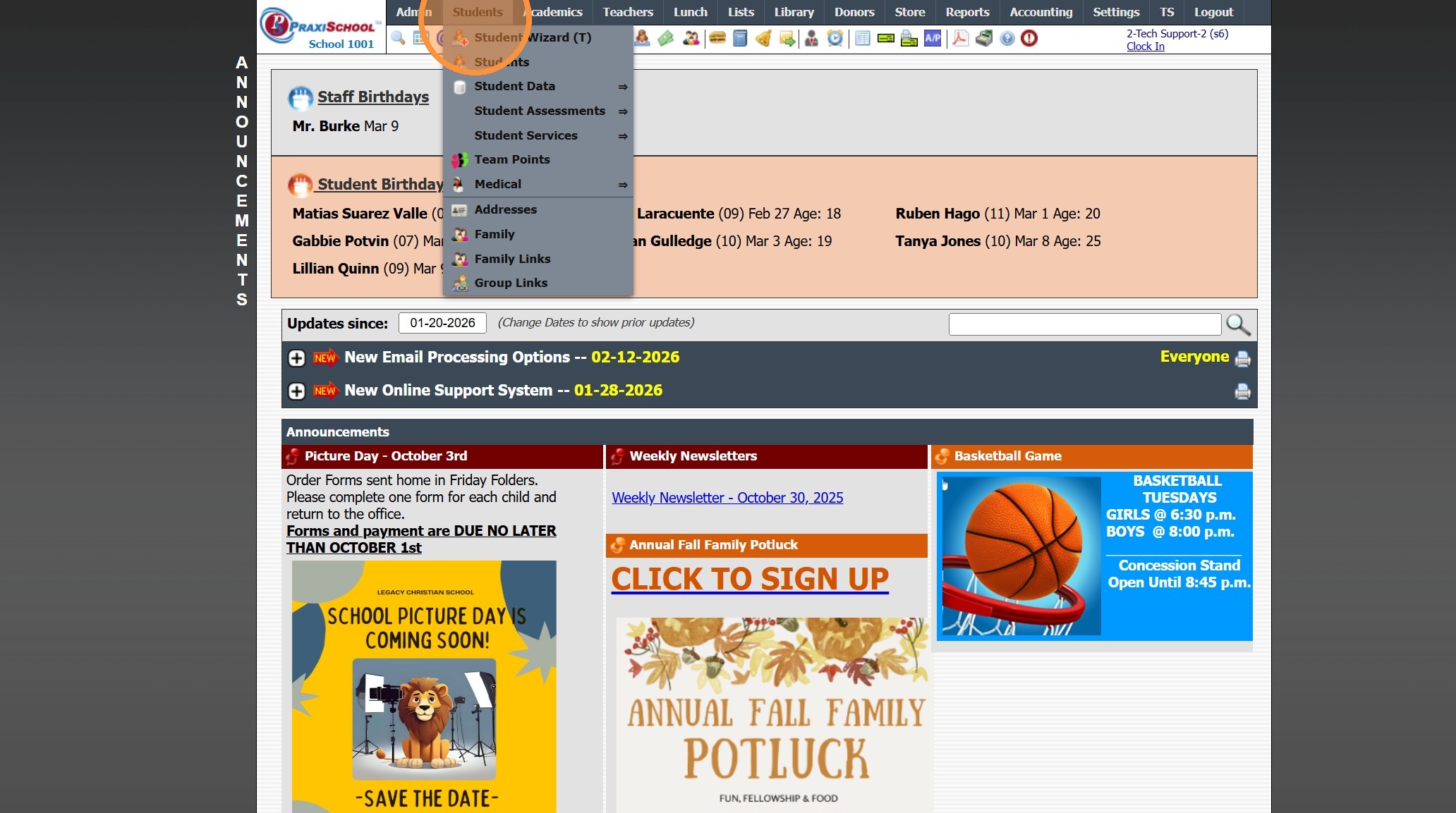
2. Click "Students"
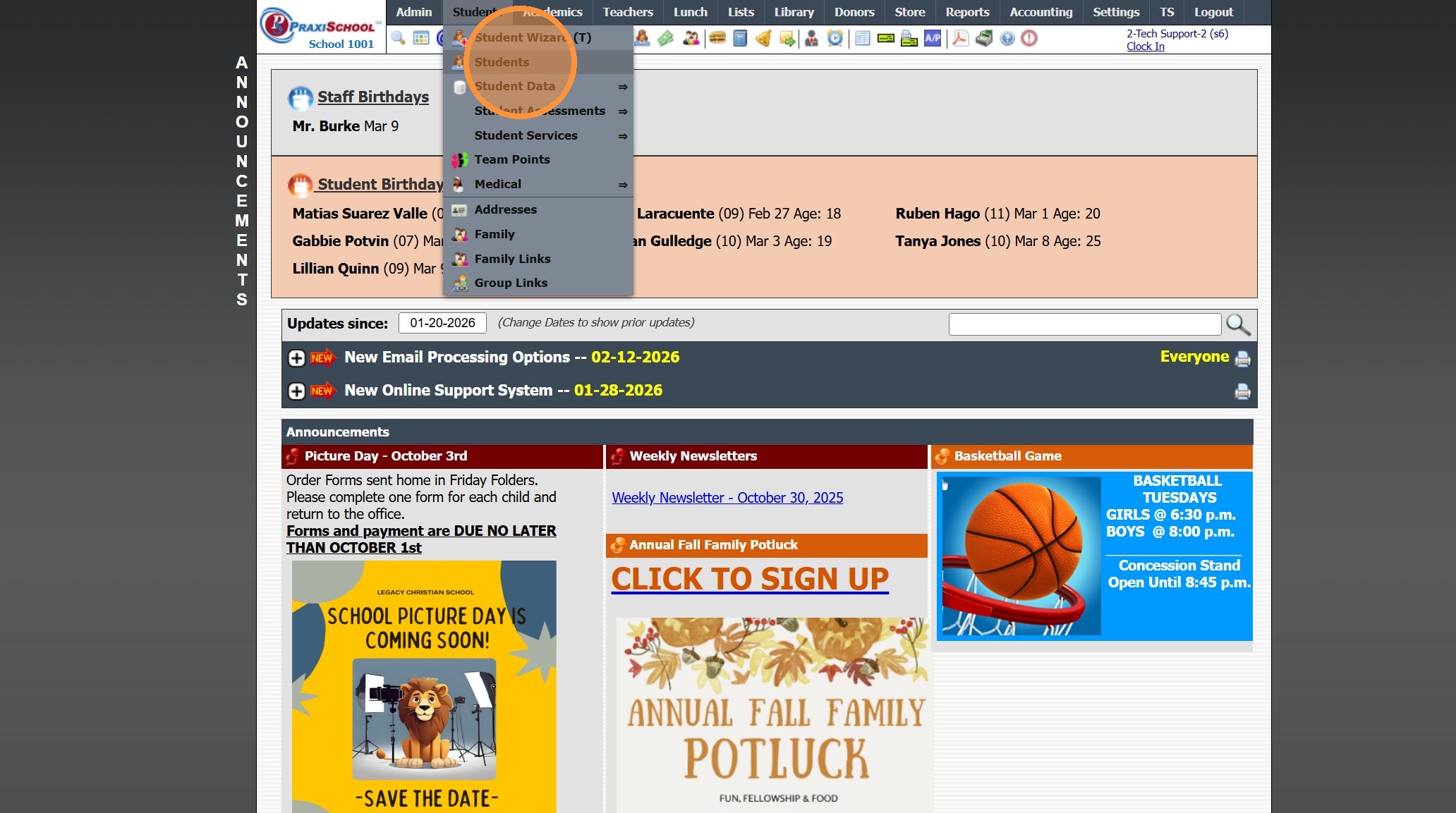
3. Select Student
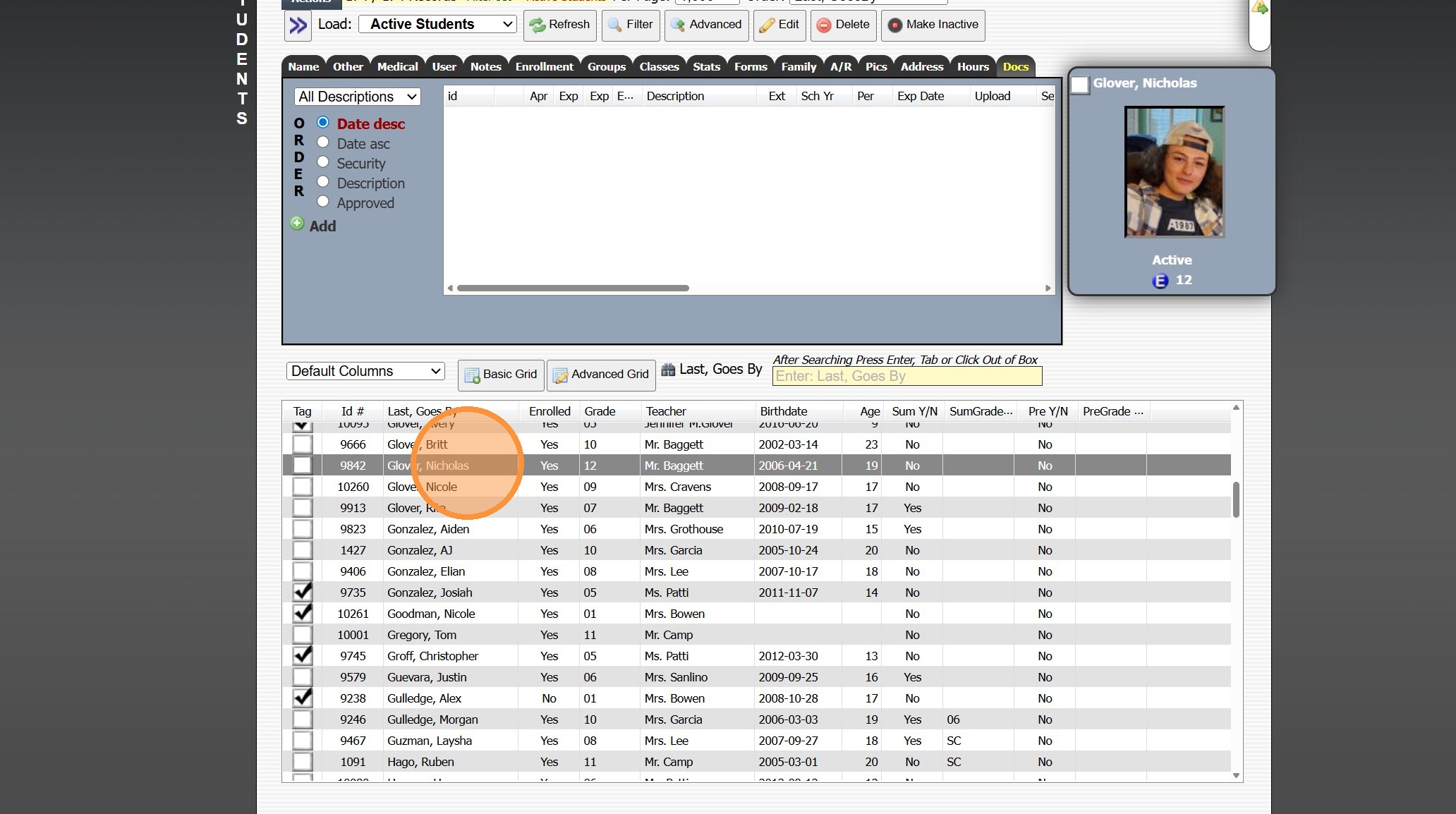
4. Click the "Docs" Tab
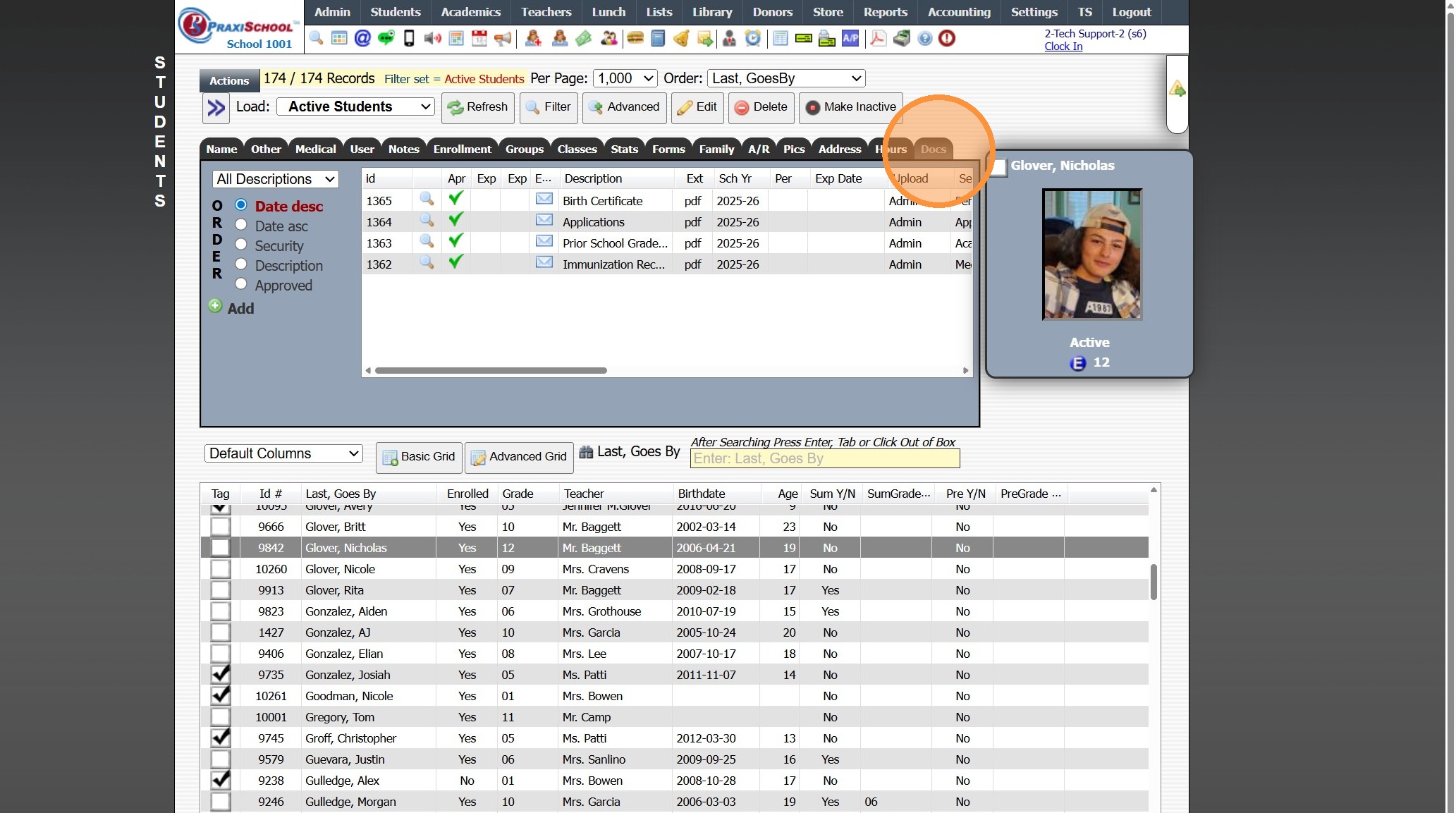
5. Click Envelope Icon Next to Document to Email
OR
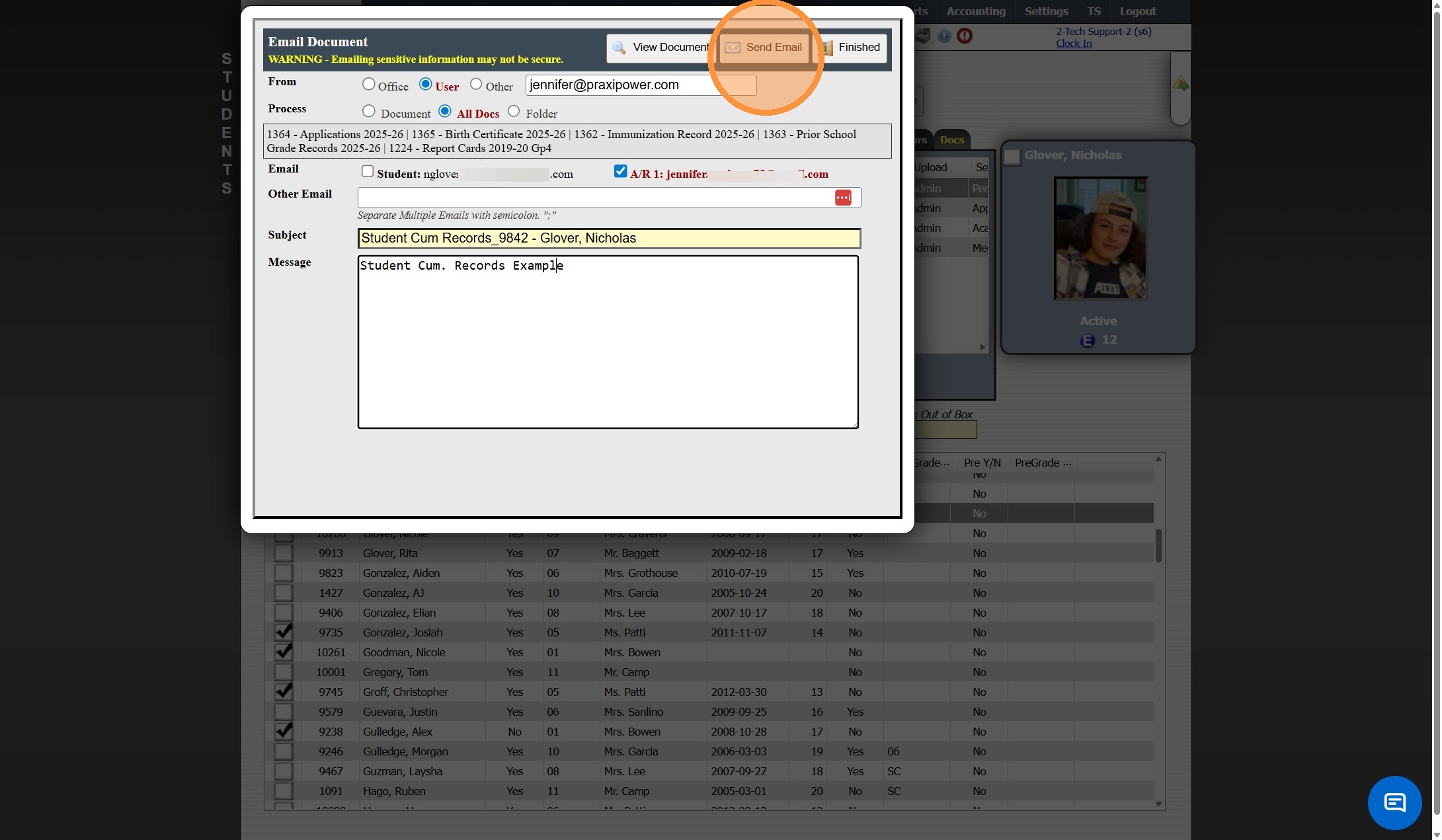
From the Email Screen All Documents or a Folder of Documents can be Emailed
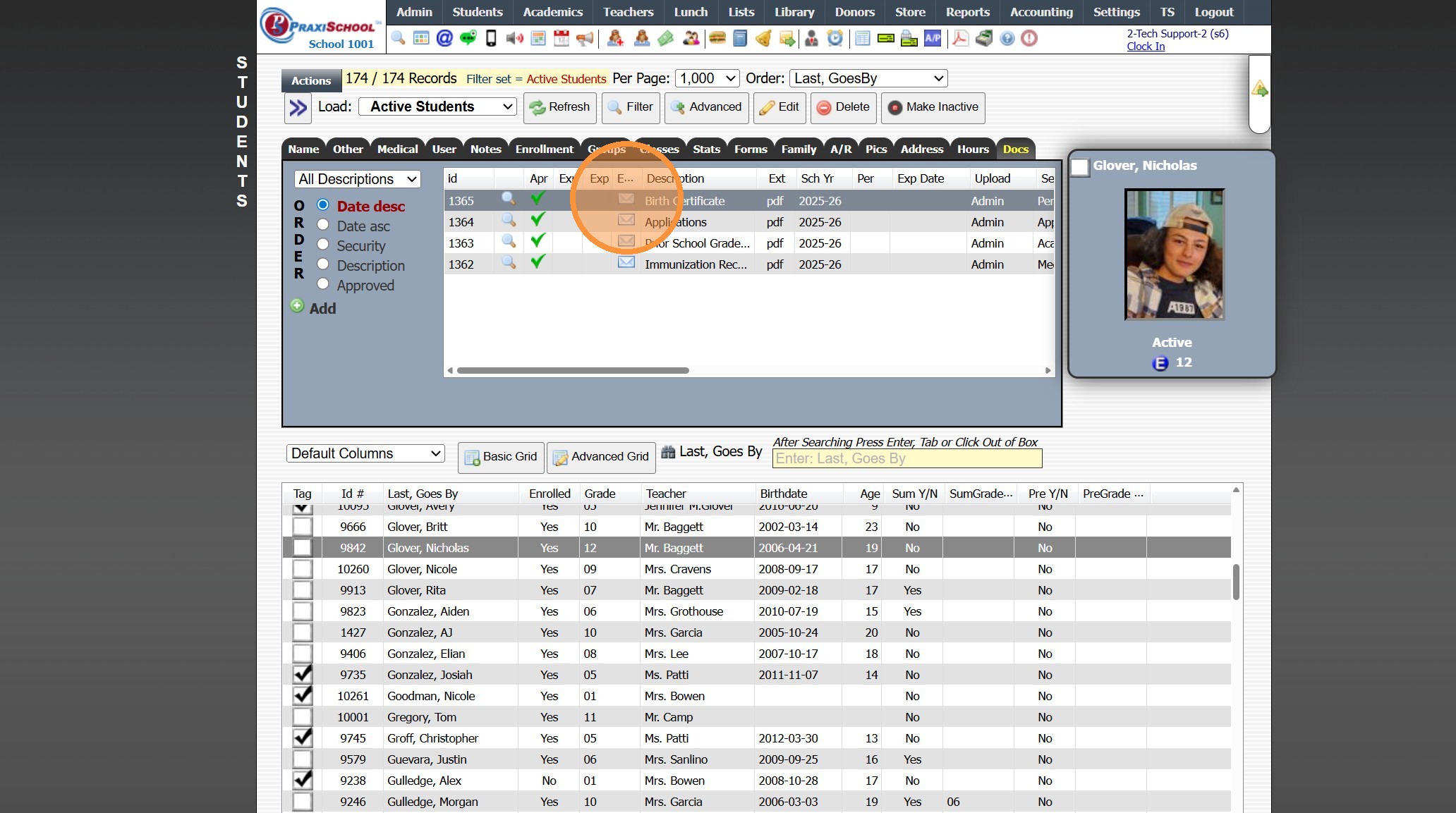
6. Select Process Option
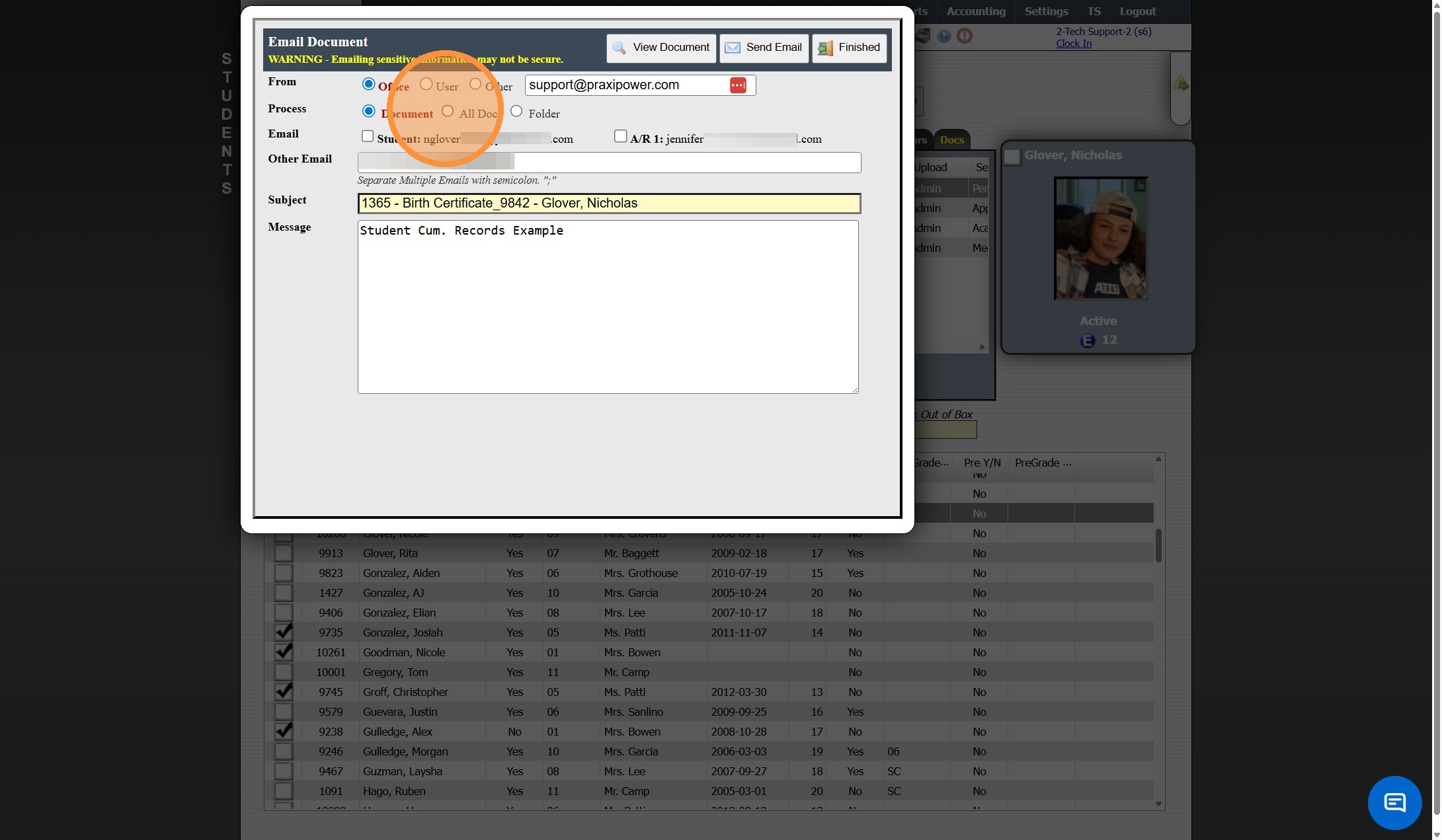
7. Edit/Enter the Subject
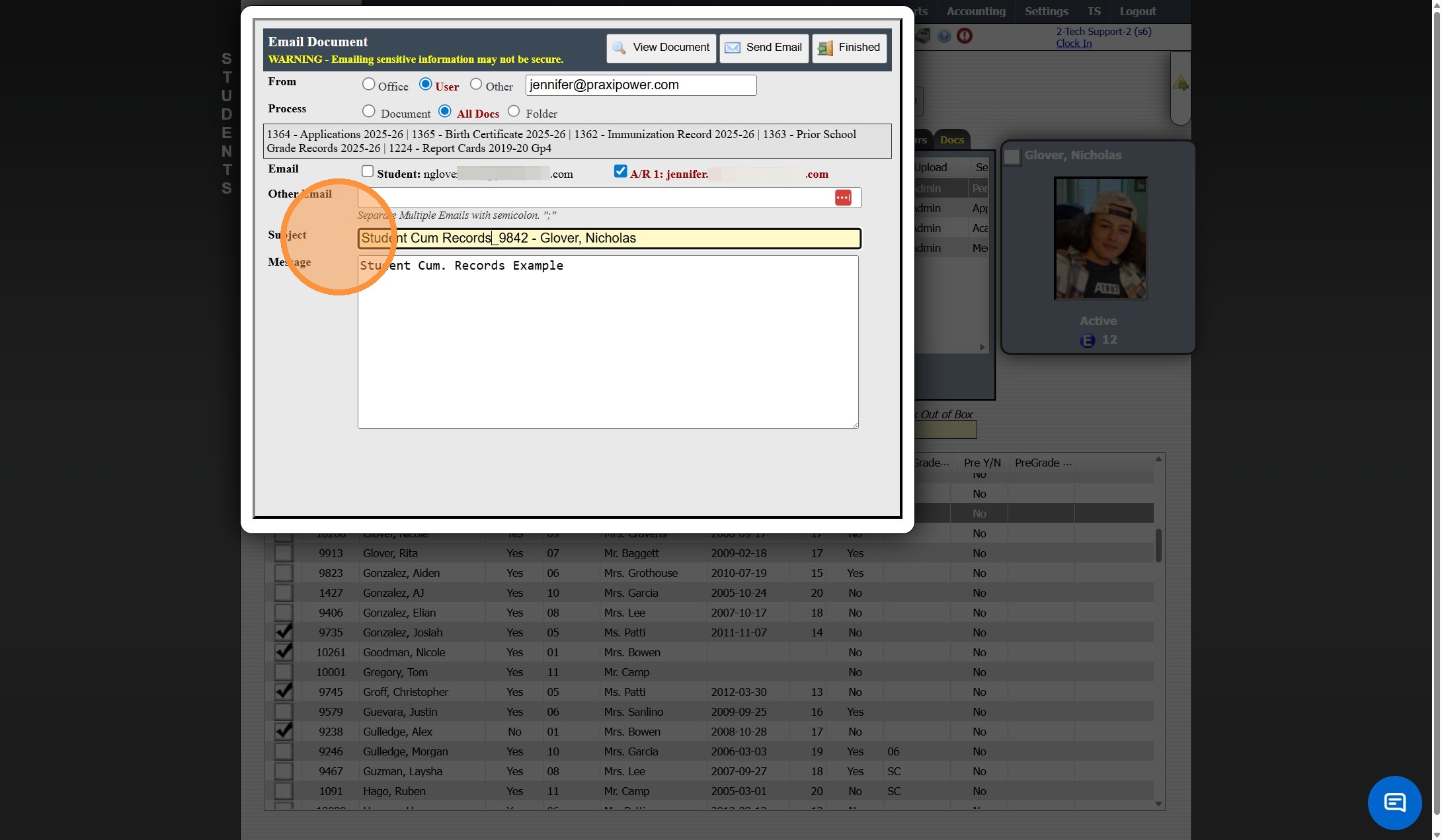
8. Edit/Enter the Email Message
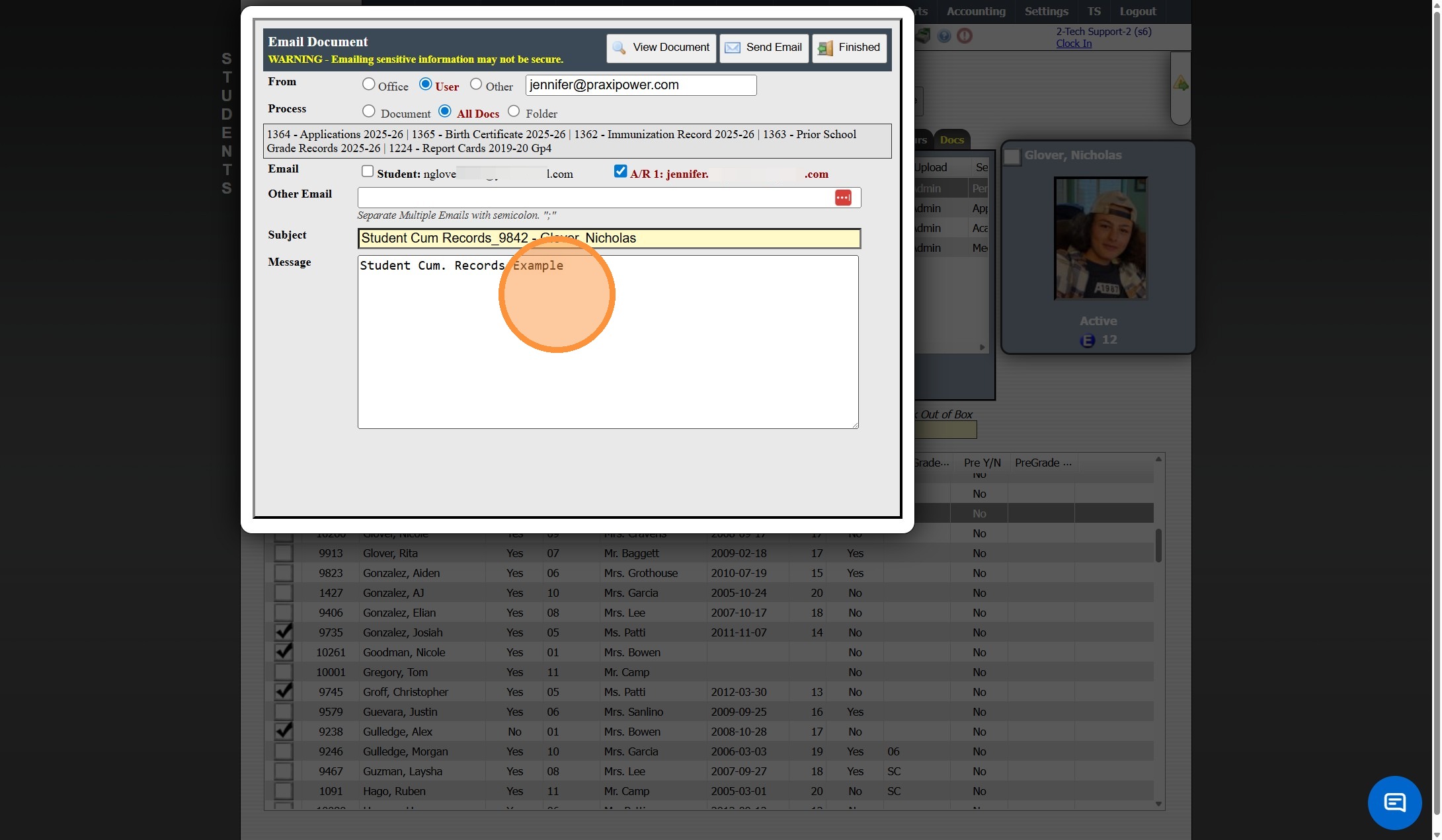
9. Click "Send Email"
1000.4.7.1
Related Articles
Uploading Student Documents
1. Click "Admin" 2. Click "Manage Document" 3. Click "Upload Documents" 4. Select the "Security" 5. Select the "Student" 6. Select the "Folder" 7. Select the "Description" 8. Click "Choose File" & Select Document to Upload 9. Verify School Year 10. ...Emailing a Report Card for a Withdrawn Student
Emailing a Report Card for a Withdrawn Student 1. Click "Academics" 2. Click "Grades Reports" 3. Click "Print Report Cards" 4. Select the "Process For 1 Student" option 5. Select the "All Students" option 6. Select the Student Tip: If emailing a ...Approving Documents Upload in the Parent, Student or Applicant Portal
1. Click "Admin" 2. Click "Manage Document" 3. Click "Documents" 4. Click "Actions" 5. Click "Approve Documents" 6. Click "Select All" or Select Individual Record(s) to Approve 7. Click "Save Changes" 8. Click "Finished" 1000.4.2Uploading Student Documents from the Student File
1. Click "Students" 2. Click "Students" 3. Select Student 4. Click the "Docs" Tab 5. Click "Add" 6. Select the Security, Folder & Description 7. Click "Choose File" 8. Verify School Year 9. Click "Upload Document" 1000.4.1.1Documents - Misc Documents
1. Click "Admin" 2. Click "Manage Document" 3. Click "Misc docs" 4. Click "Add" 5. Enter the Description & Comment for the Misc Documents 6. Enter Notes for Information pertaining to Misc Documents 7. Click "Save" 8. Click the "Docs" tab 9. Click ...