Approving Documents Upload in the Parent, Student or Applicant Portal
1. Click "Admin"
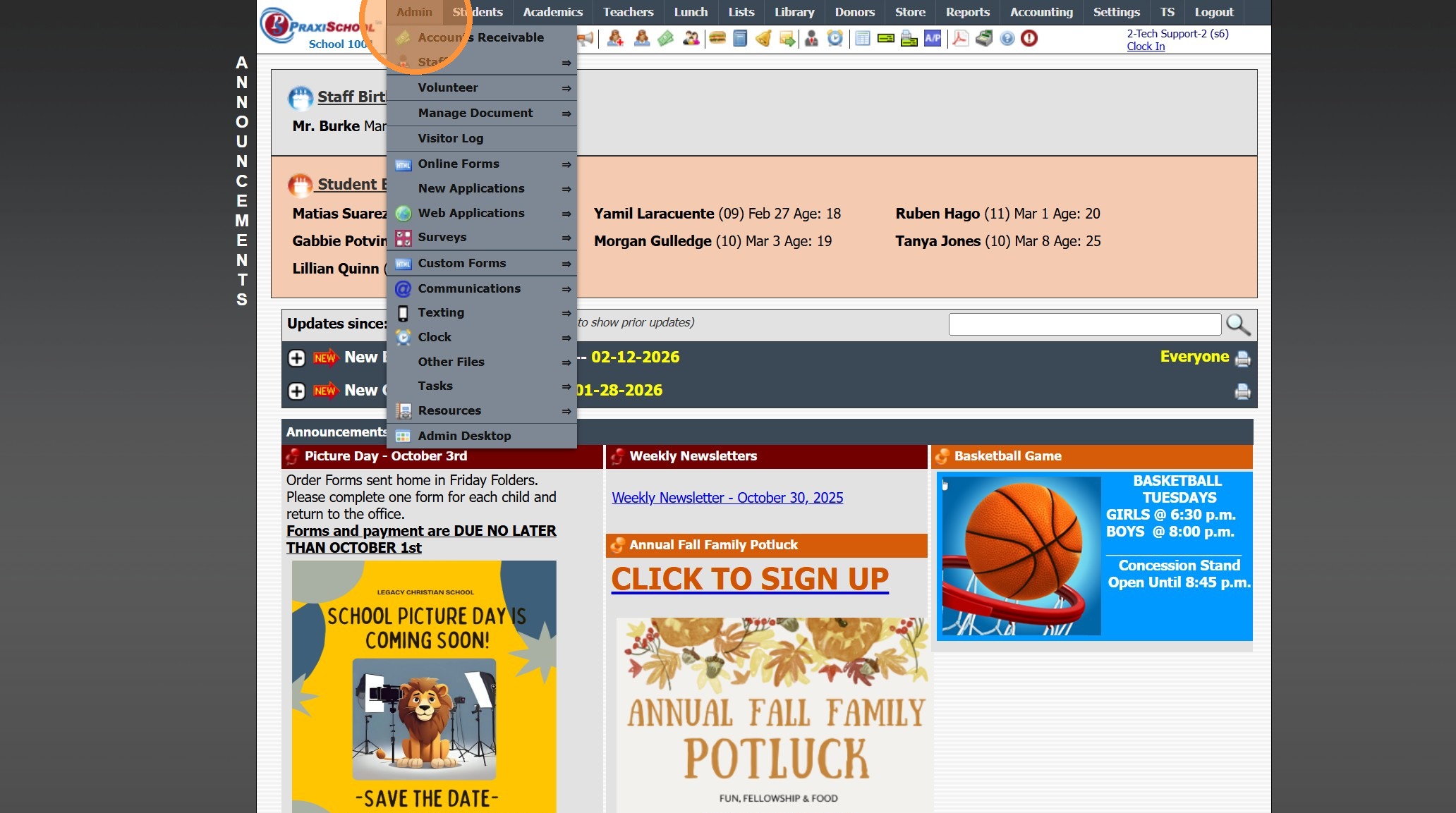
2. Click "Manage Document"
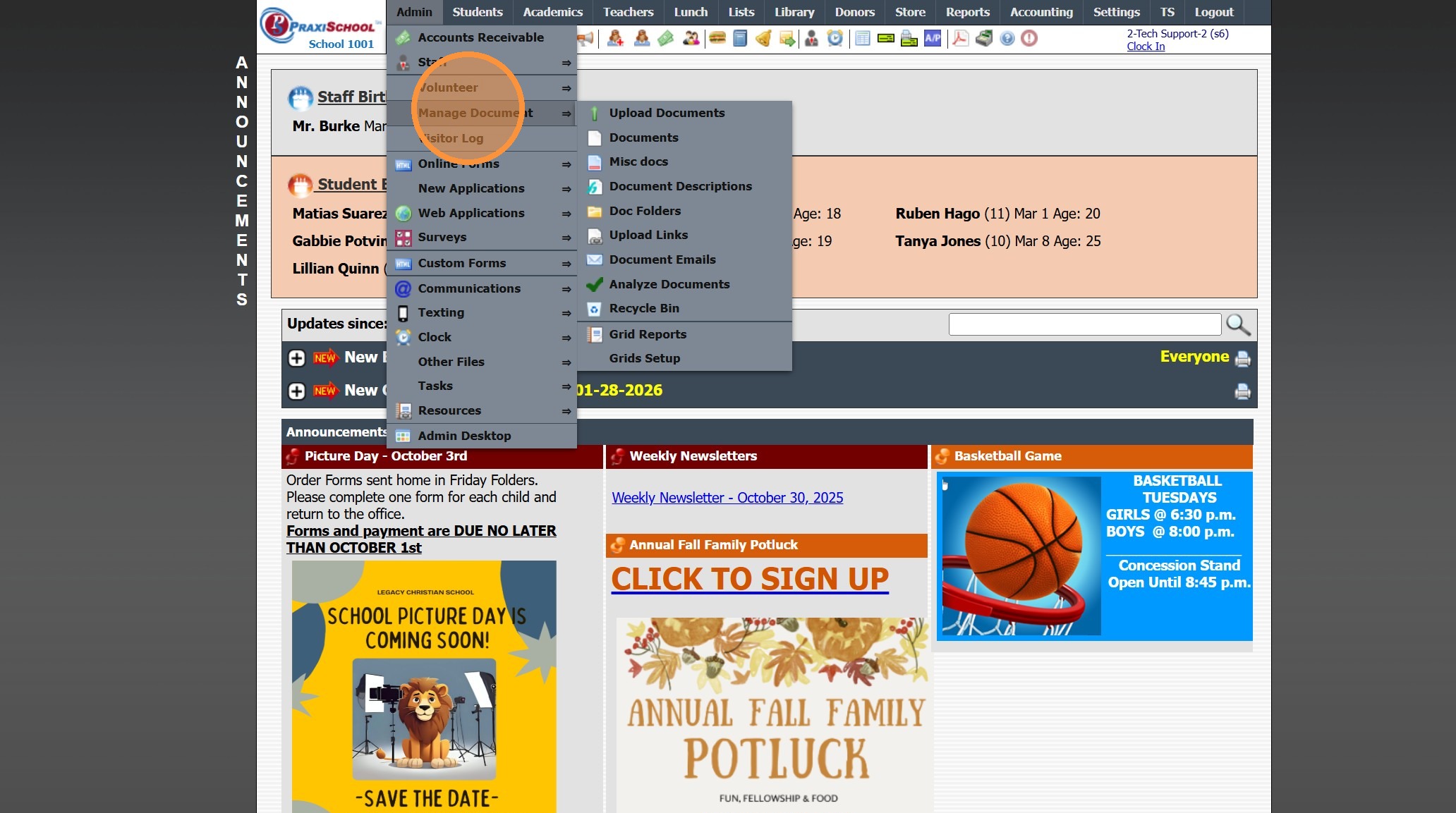
3. Click "Documents"
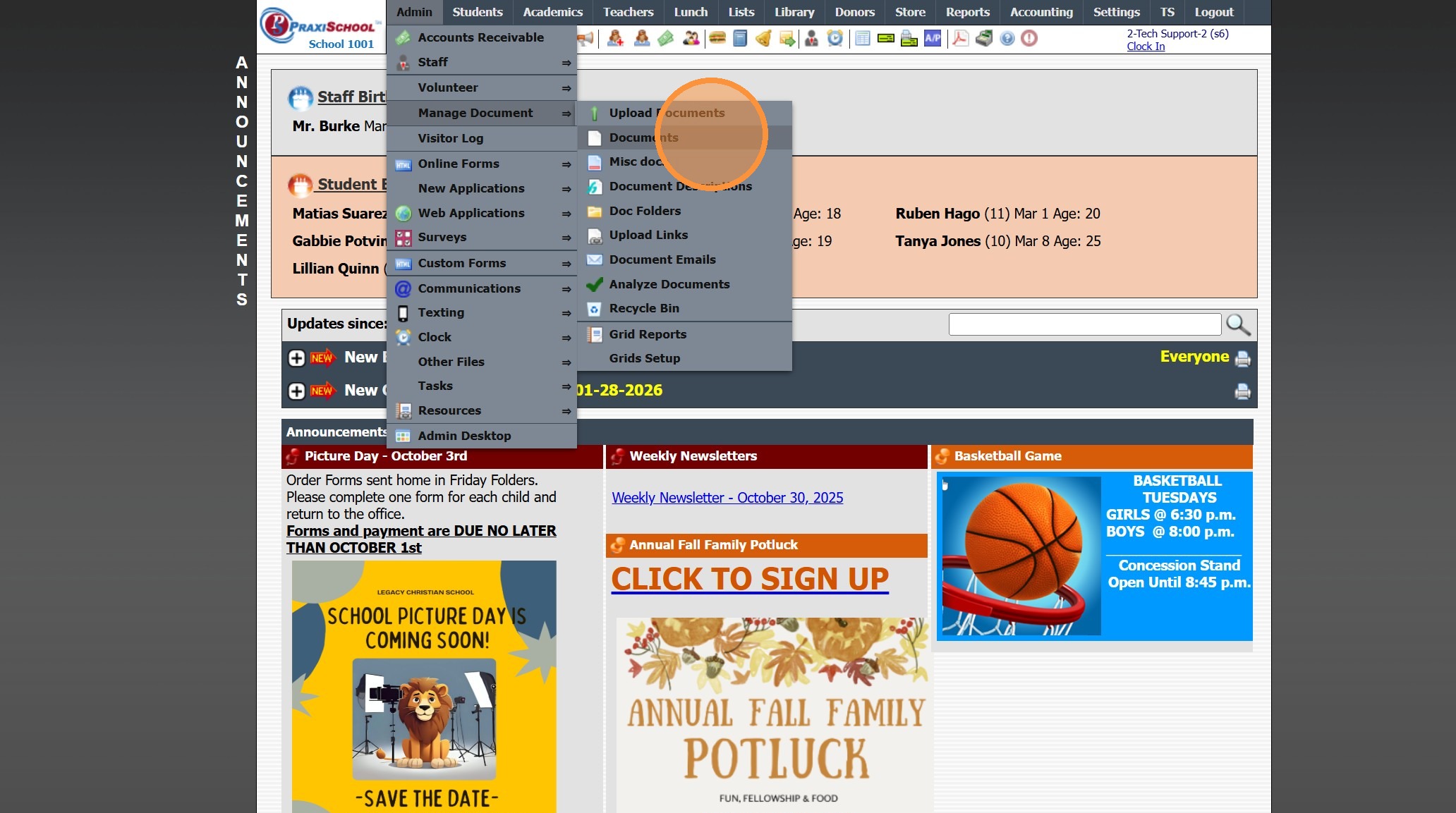
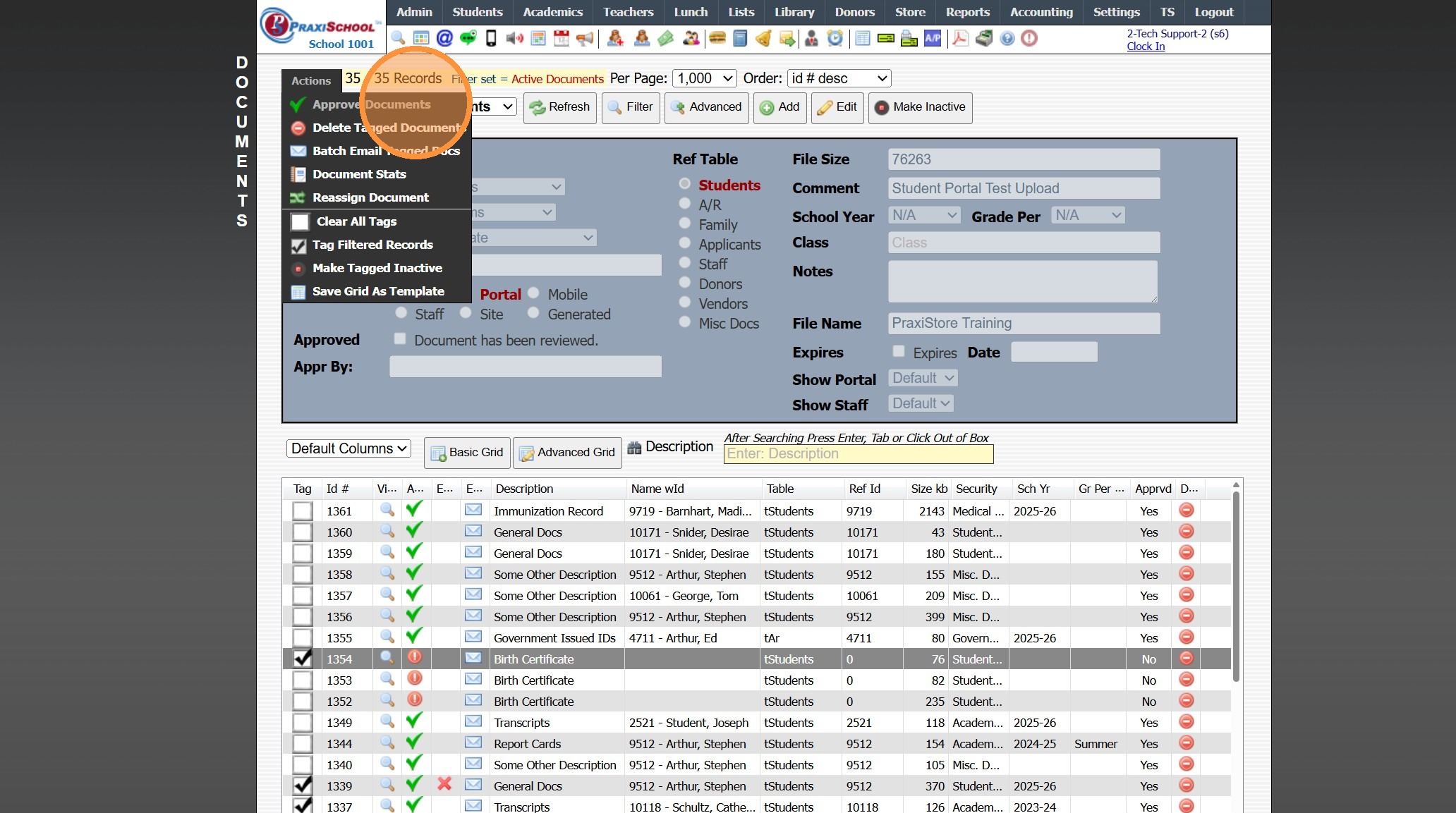
4. Click "Actions"
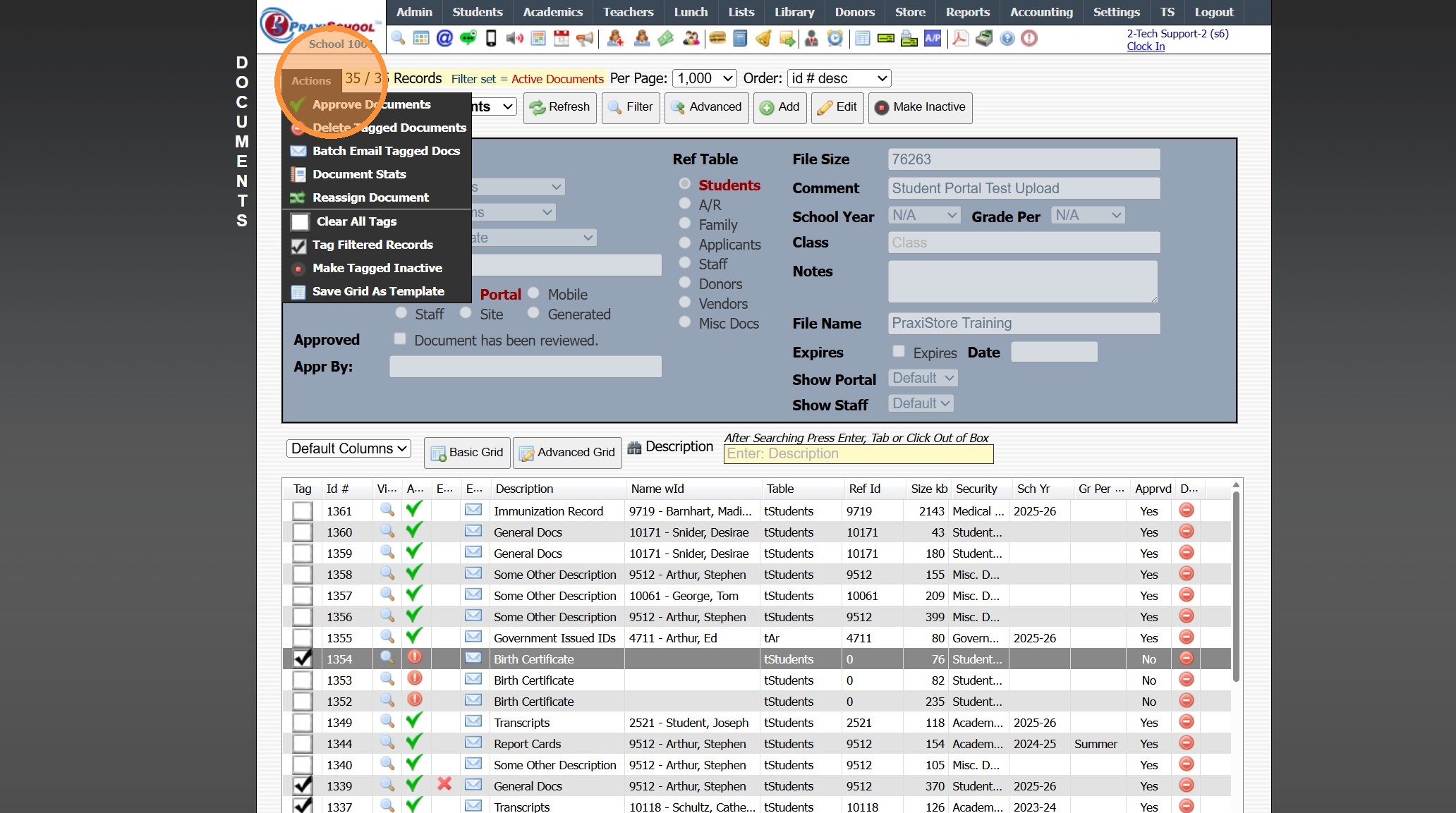
5. Click "Approve Documents"
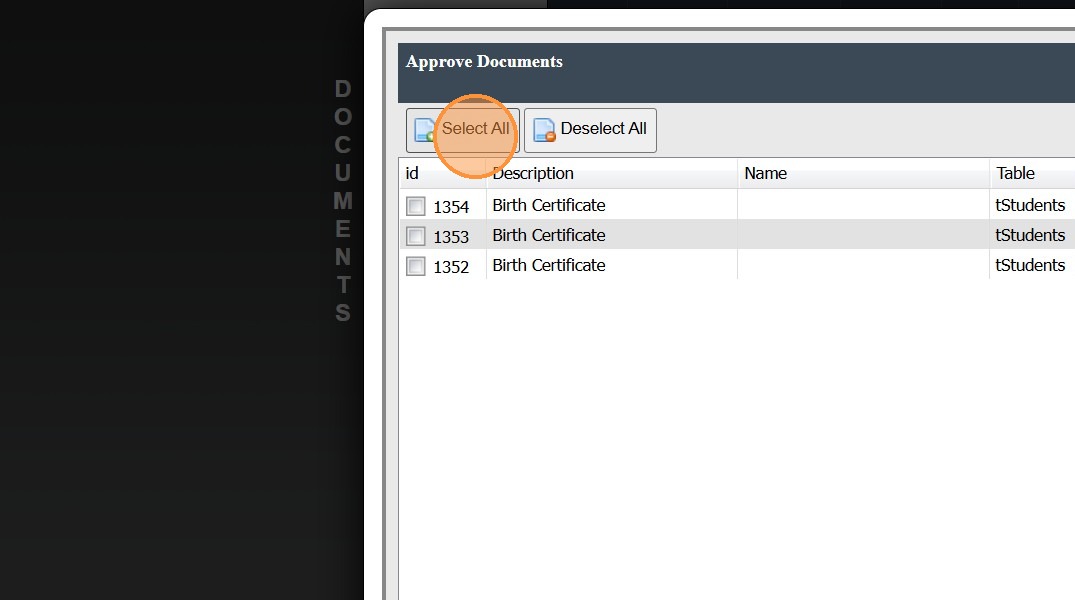
6. Click "Select All" or Select Individual Record(s) to Approve
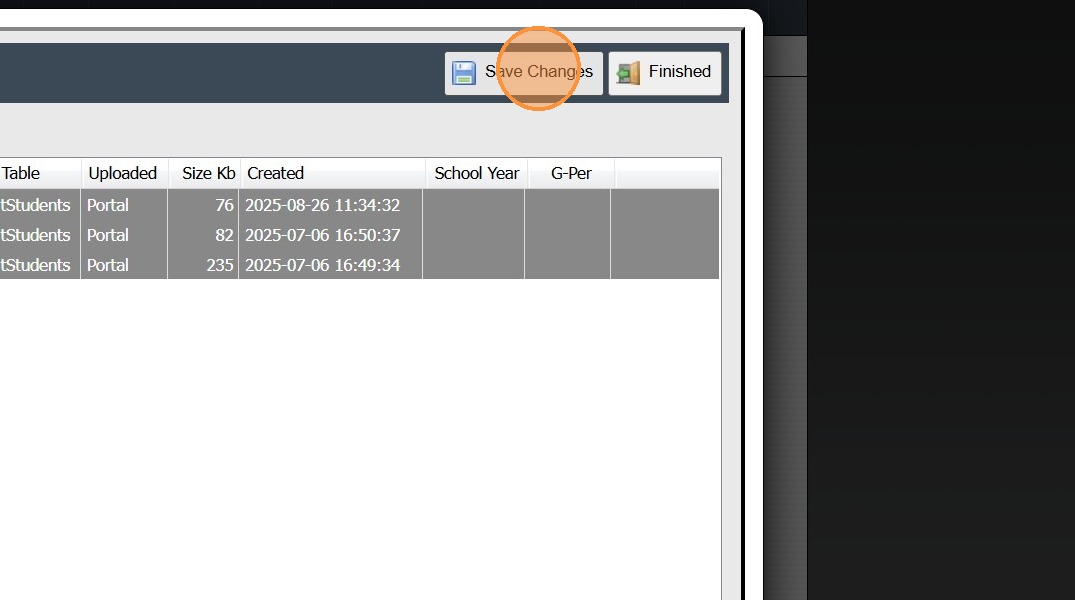
7. Click "Save Changes"
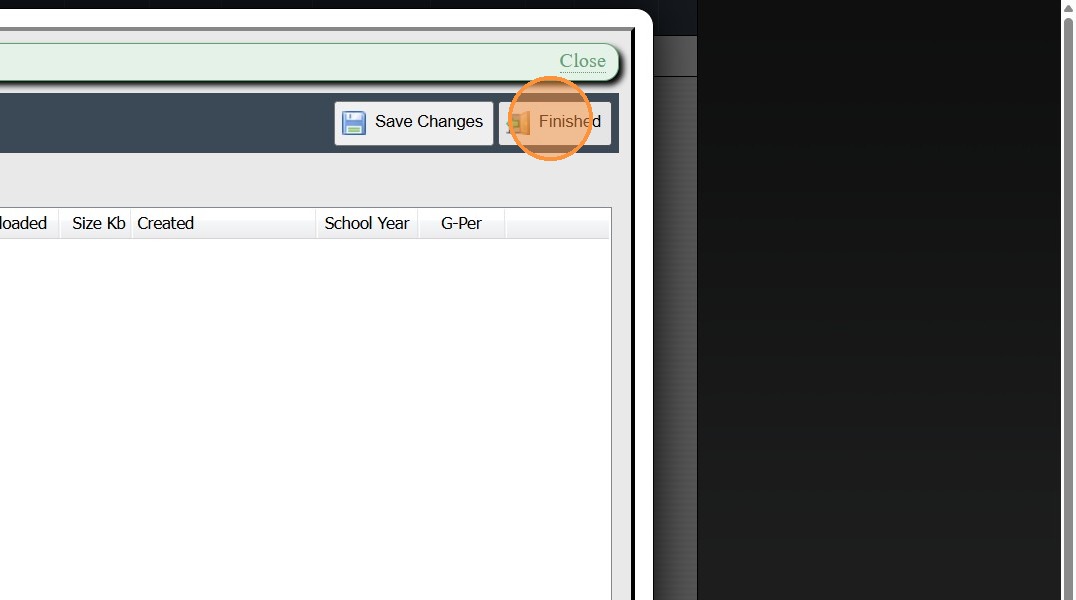
8. Click "Finished"
1000.4.2
Related Articles
Setting the Master Password for Parent, Student & Applicant Portals
Setting the Override Password for Parent, Student & Applicant Portals 1. Click "Settings" 2. Click "School Settings" 3. Click "Portal" 4. Enter Portal Override Password (Must be at least 5 characters) (Once Portal Override Password has been set, it ...Approving Portal Submissions - Viewing Data
1. Click "Admin" 2. Click "Web Applications" 3. Click "Portal Submissions" 4. Select SUBMITTED Form (Forms Marked In Process have not been submitted and should NOT be approved" 5. Click the "Data" tab to View Submitted Form Data 6. Highlighted Fields ...Viewing Parent, Student & Applicant Portal Activity
1. Click "Admin" 2. Click "Other Files" 3. Click "Portal Activity" 4. Activity from Portal is Visible 1000.13.7Uploading Student Documents
1. Click "Admin" 2. Click "Manage Document" 3. Click "Upload Documents" 4. Select the "Security" 5. Select the "Student" 6. Select the "Folder" 7. Select the "Description" 8. Click "Choose File" & Select Document to Upload 9. Verify School Year 10. ...Creating Document Portal Upload Links
Creating Document Portal Upload Links 1. Click "Admin" 2. Click "Manage Document" 3. Click "Upload Links" 4. Click "Add" 5. Click the "Server Docs" field. 6. Enter a description for the document 7. Select the header if you want to group documents ...