Viewing Parent, Student & Applicant Portal Activity
1. Click "Admin"
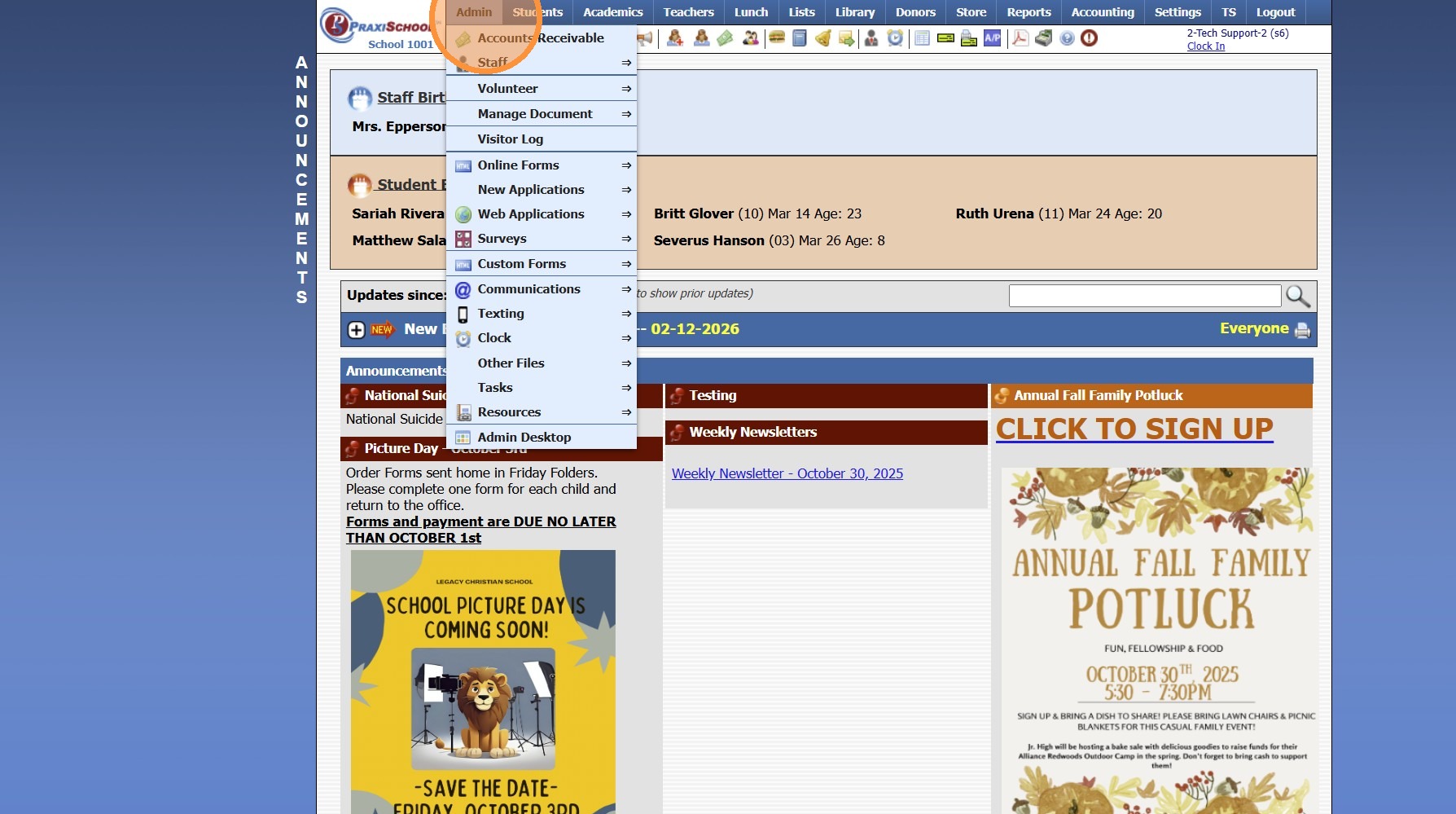
2. Click "Other Files"
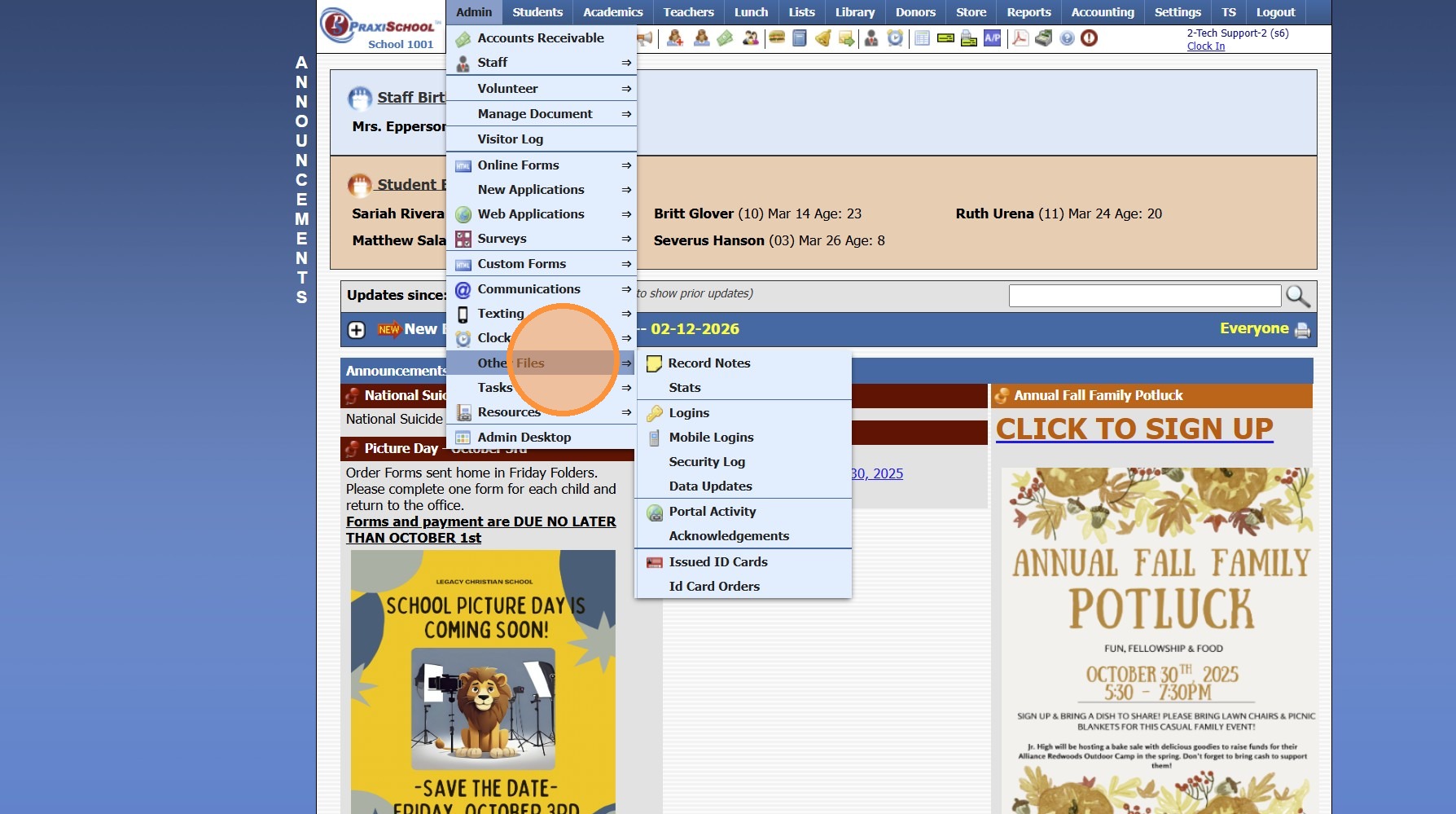
3. Click "Portal Activity"
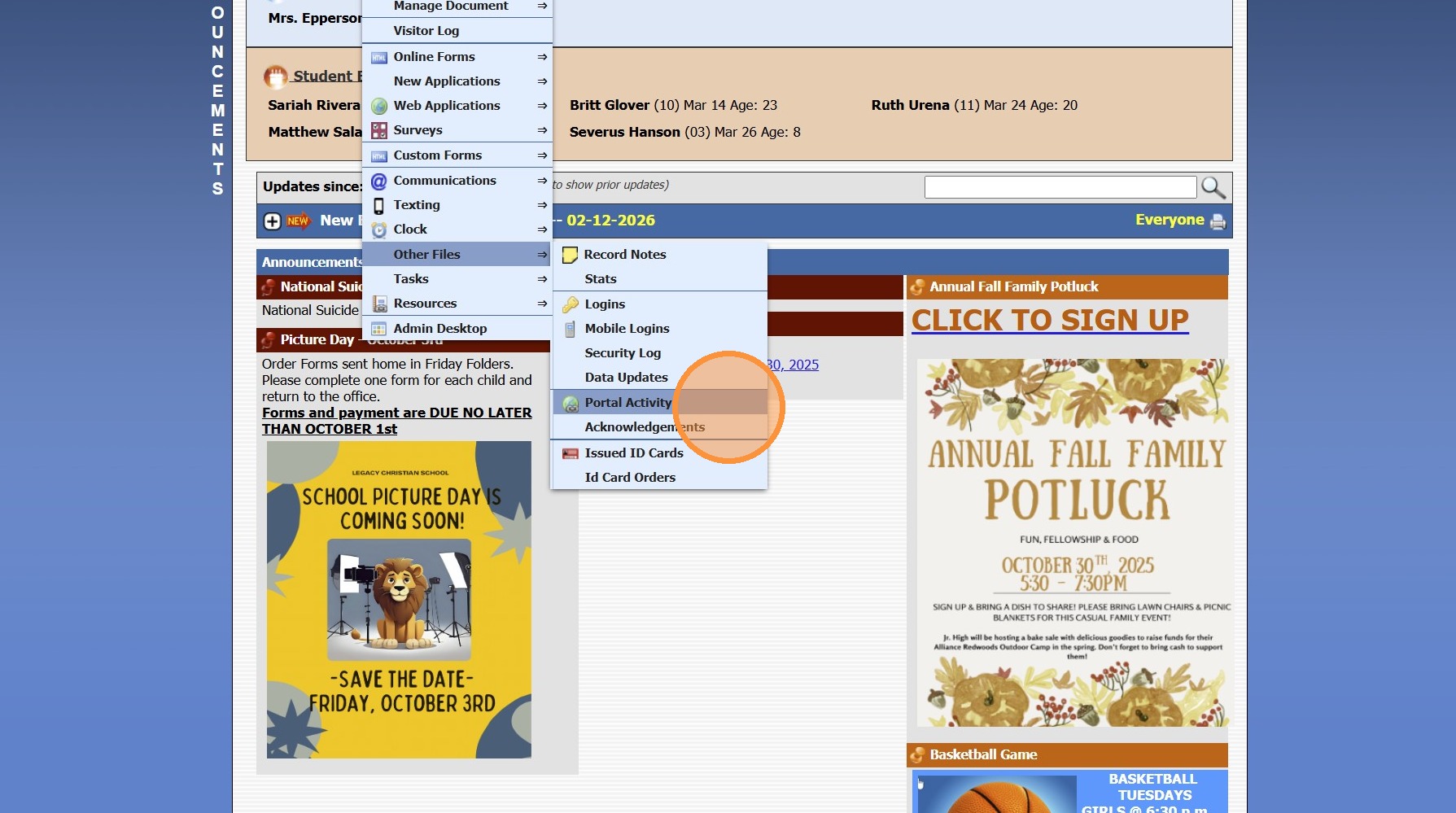
4. Activity from Portal is Visible
1000.13.7
Related Articles
Setting the Master Password for Parent, Student & Applicant Portals
Setting the Override Password for Parent, Student & Applicant Portals 1. Click "Settings" 2. Click "School Settings" 3. Click "Portal" 4. Enter Portal Override Password (Must be at least 5 characters) (Once Portal Override Password has been set, it ...Setting the Override Password for the Parent, Student & Applicant Portal
1. Click "Settings" 2. Click "School Settings" 3. Click "Portal" 4. Enter the Password 5. Confirm the Password 6. Click "Save" 6500.2.89Printing Account Activity from the Parent Portal
1. Click Menu Bar to Expand the Menu 2. Click "Billing" 3. Click "My Account" 4. Select Start Date 5. Select End Date 6. All Transactions for Selected Date Range will Generate 7. Click "Print" 8. Printed Account Activity will Generate with the Total ...Student Directory Portal Options
Student Directory Portal Options 1. Click "Reports" 2. Click "Student Directory" 3. Select Sort & Filter Option 4. If Ignore Directory Preferences is not Selected, Options Selected by Administration and Selected by Parent / Student will be visible on ...Approving Portal Submissions - Viewing Data
1. Click "Admin" 2. Click "Web Applications" 3. Click "Portal Submissions" 4. Select SUBMITTED Form (Forms Marked In Process have not been submitted and should NOT be approved" 5. Click the "Data" tab to View Submitted Form Data 6. Highlighted Fields ...