Setting the Override Password for the Parent, Student & Applicant Portal
1. Click "Settings"
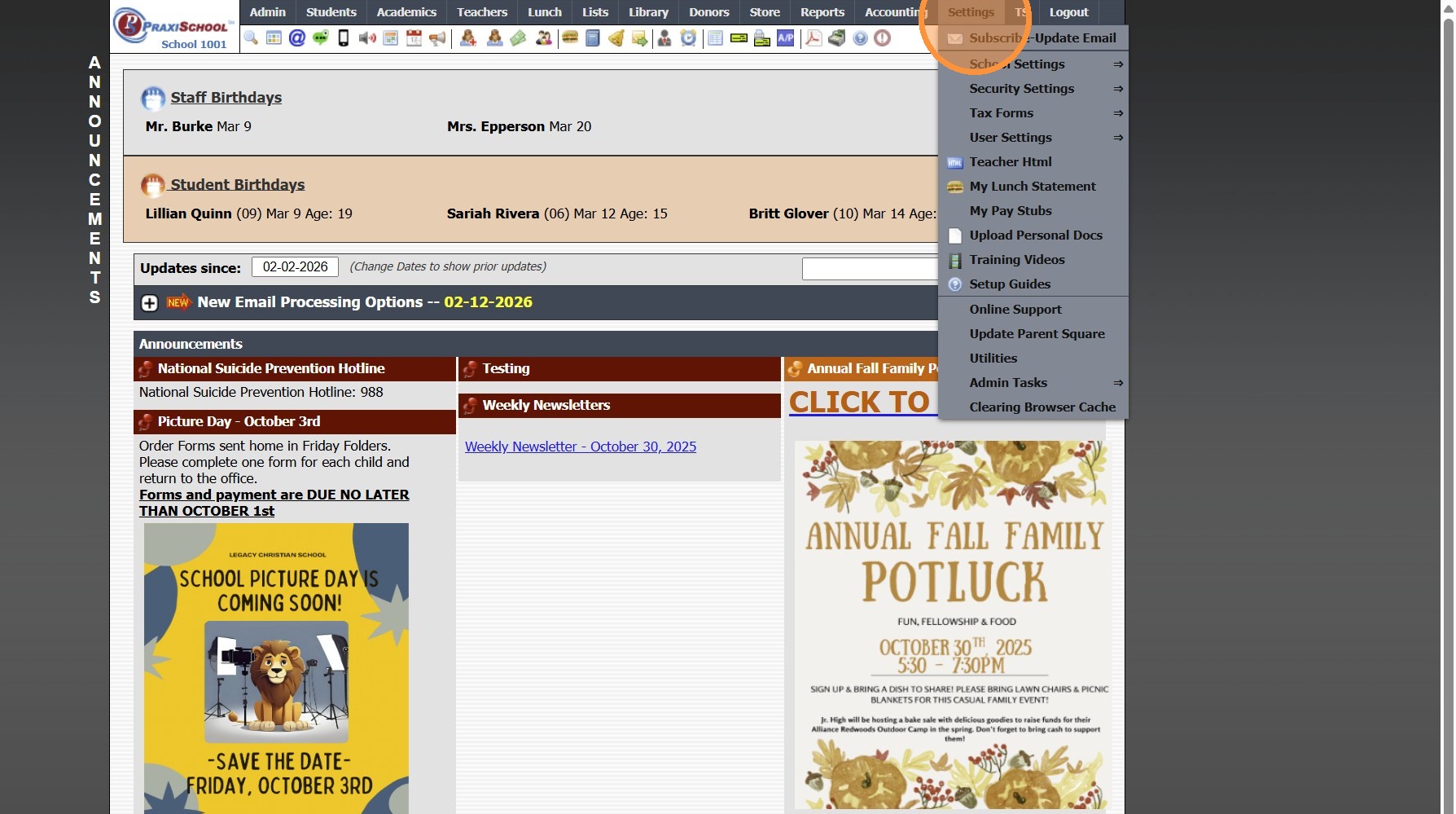
2. Click "School Settings"
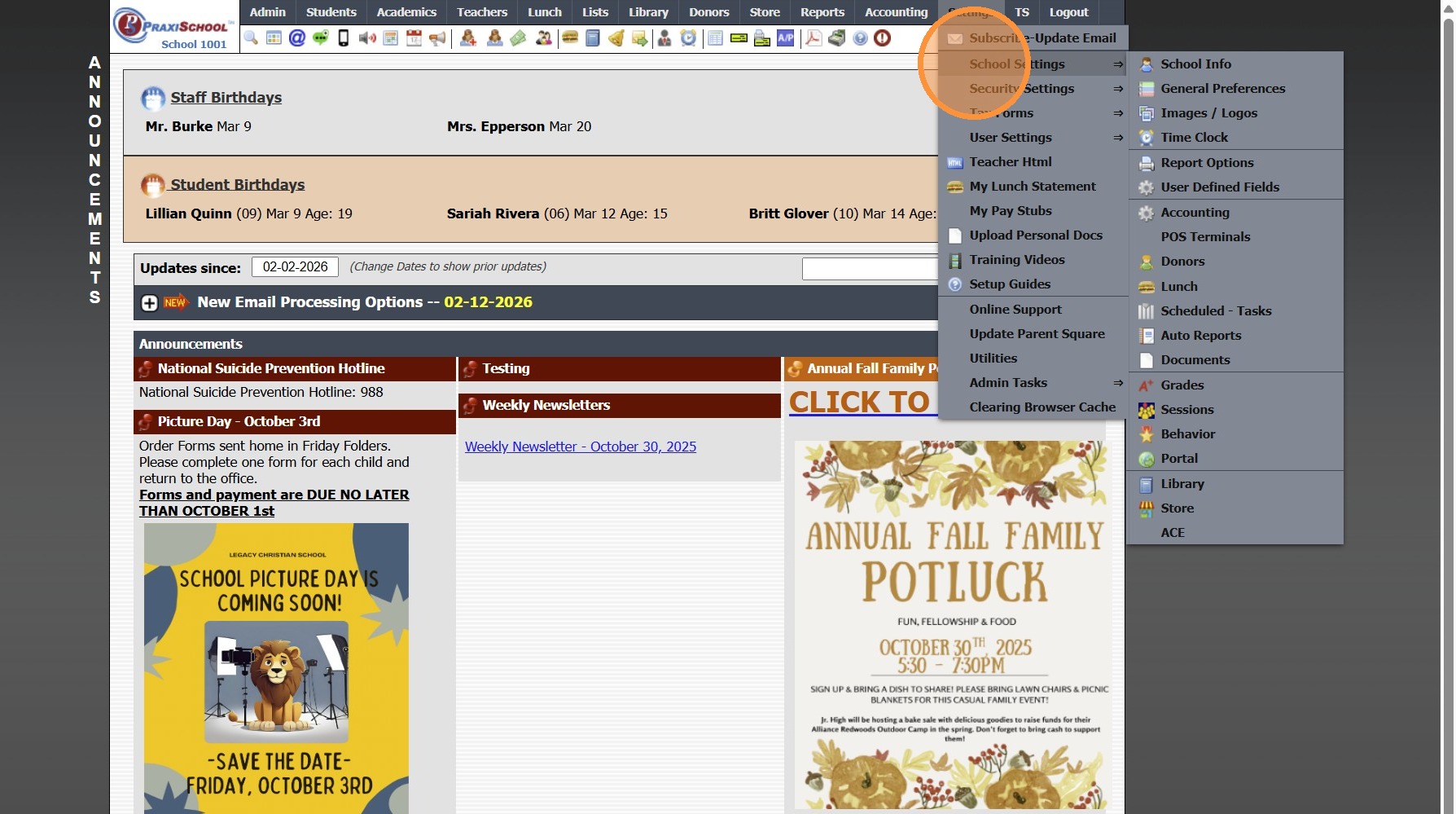
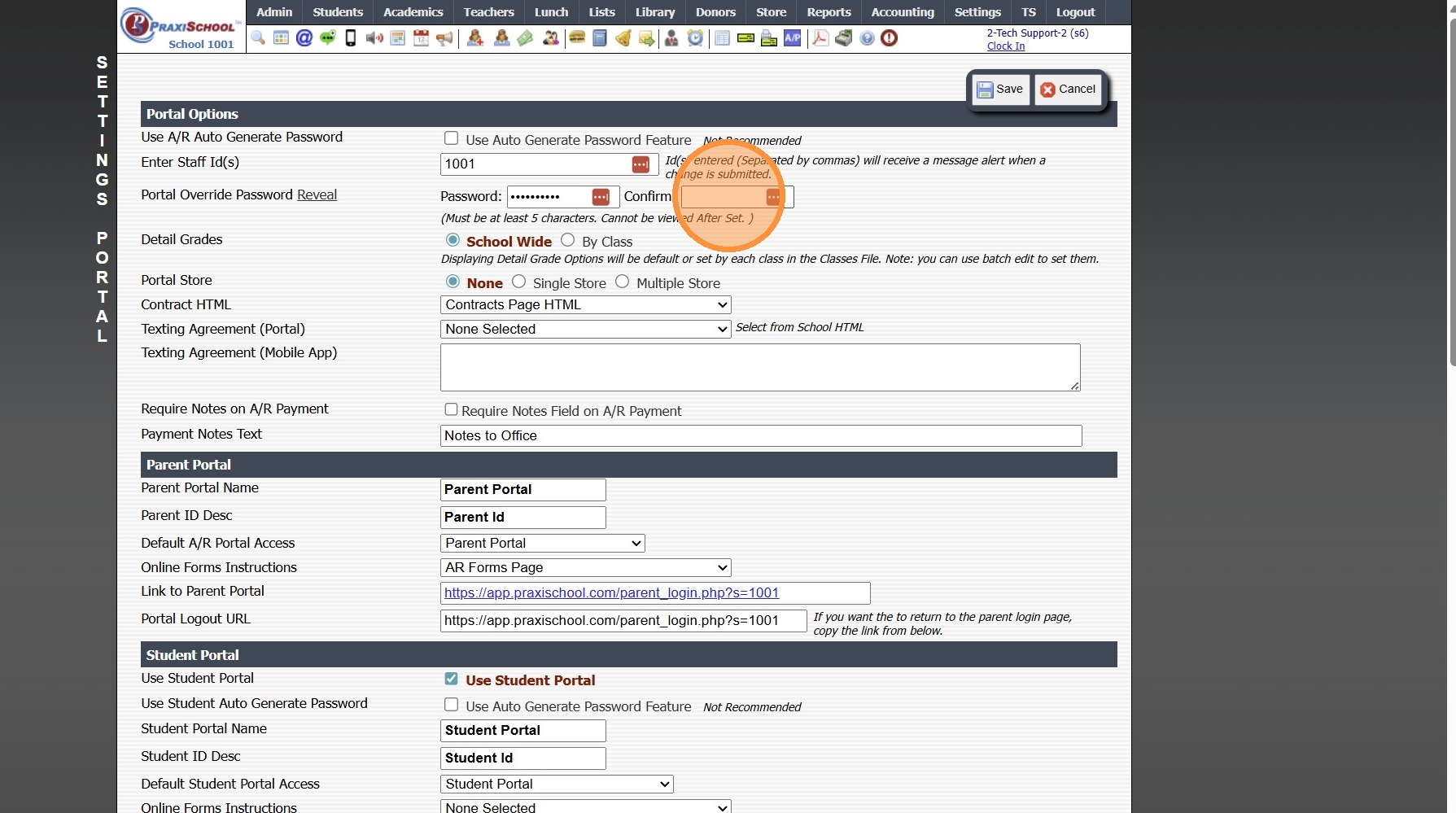
3. Click "Portal"
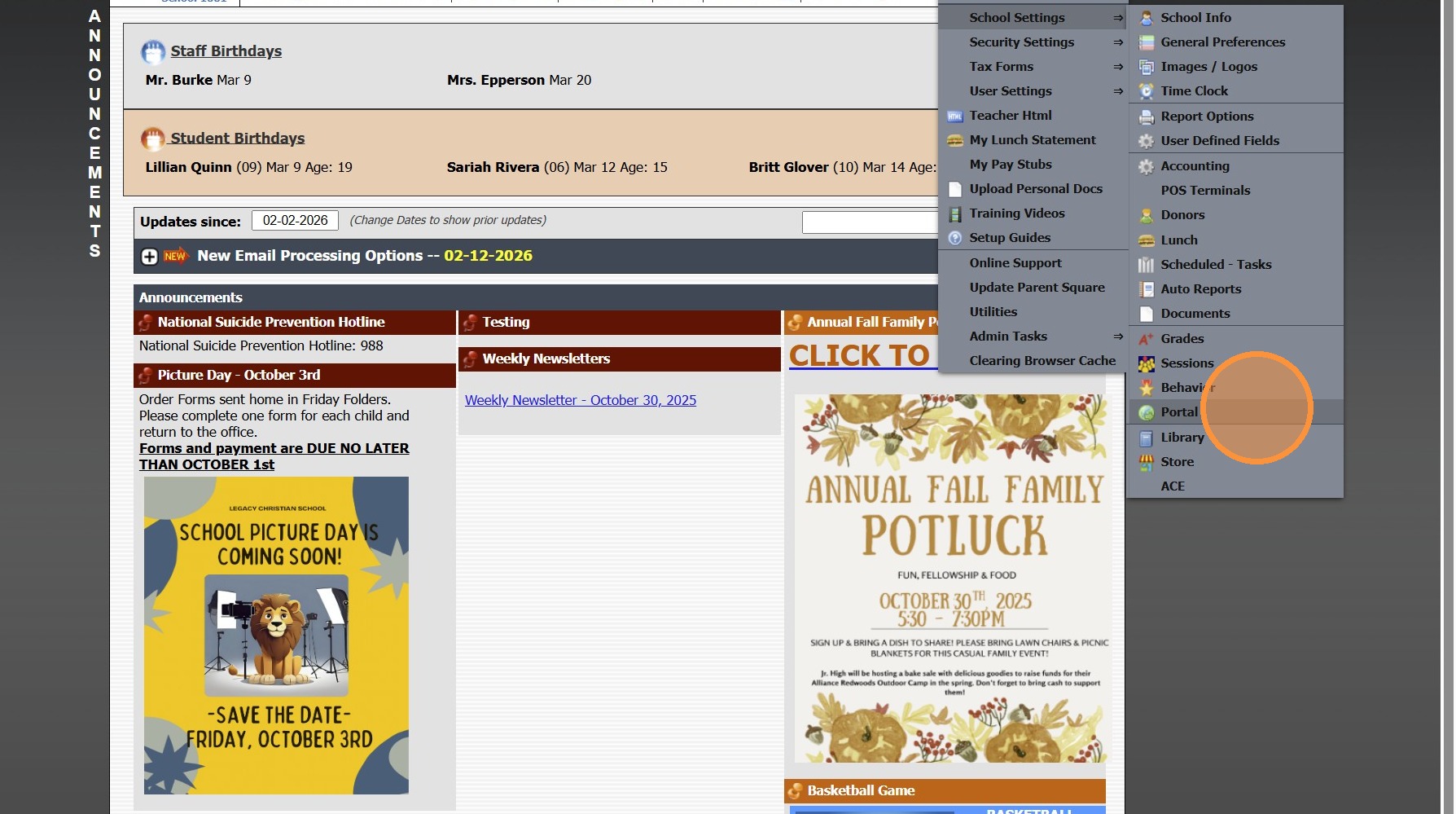
4. Enter the Password
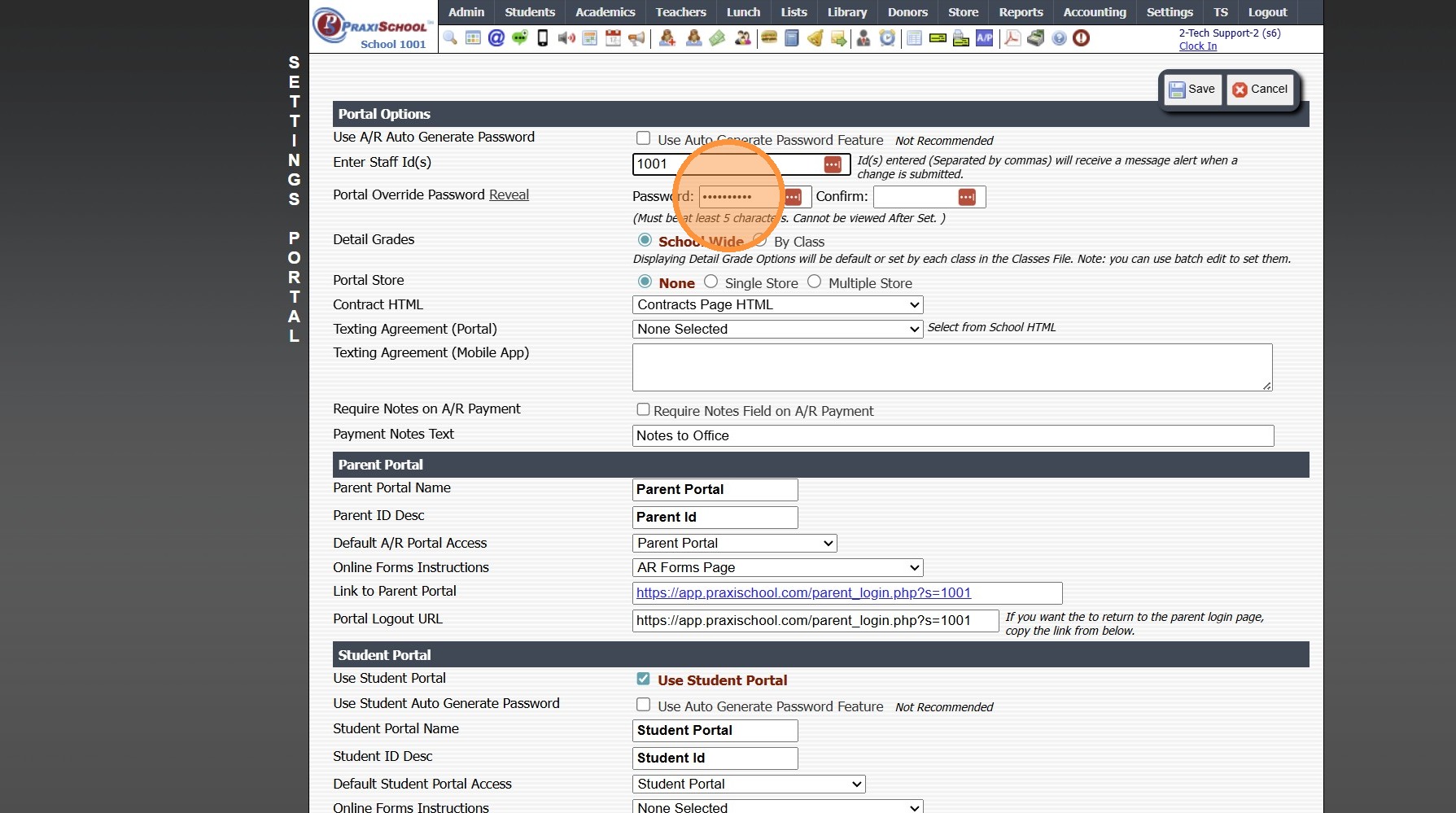
5. Confirm the Password
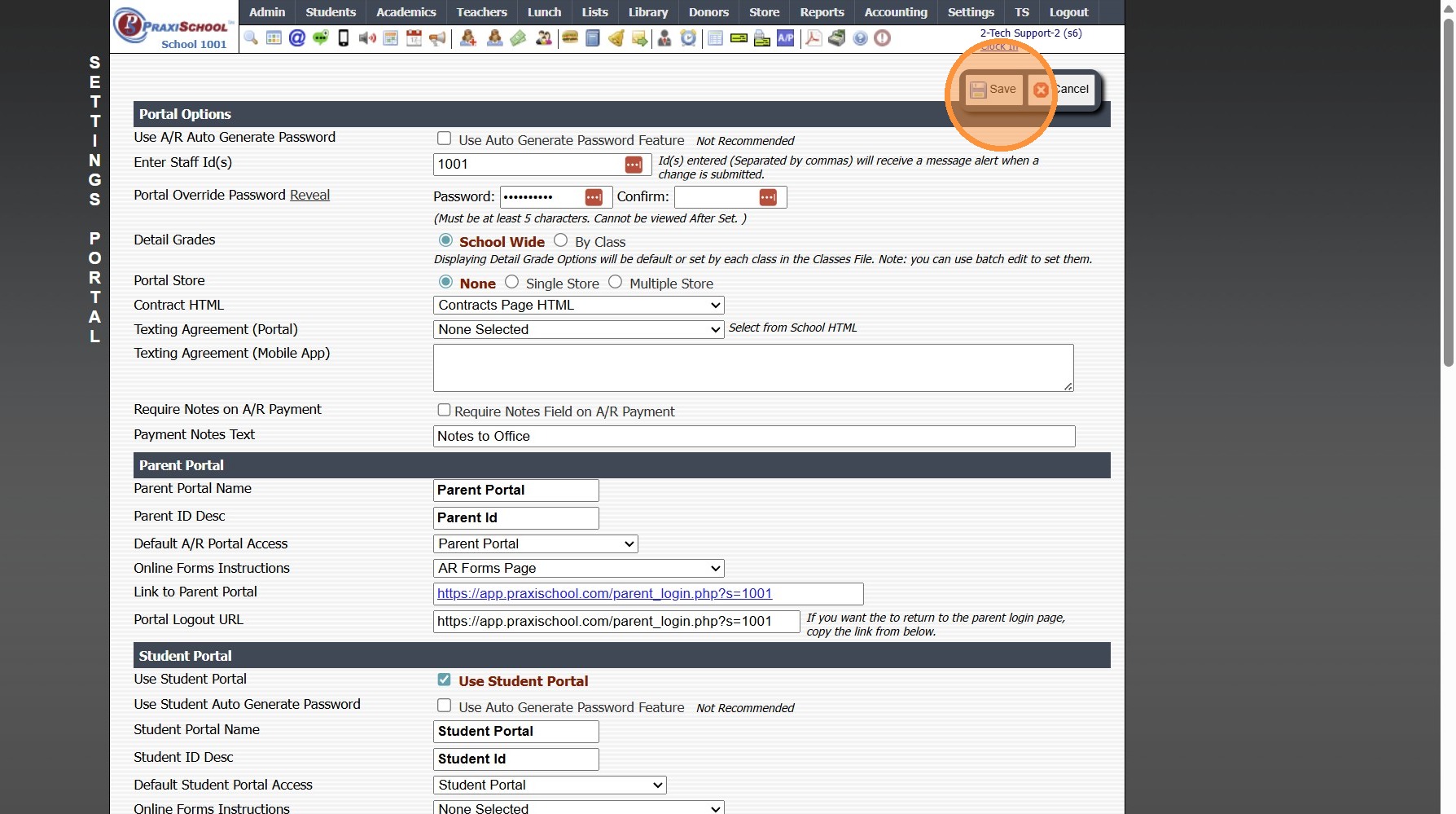
6. Click "Save"
6500.2.89
Related Articles
Setting the Master Password for Parent, Student & Applicant Portals
Setting the Override Password for Parent, Student & Applicant Portals 1. Click "Settings" 2. Click "School Settings" 3. Click "Portal" 4. Enter Portal Override Password (Must be at least 5 characters) (Once Portal Override Password has been set, it ...Viewing Parent, Student & Applicant Portal Activity
1. Click "Admin" 2. Click "Other Files" 3. Click "Portal Activity" 4. Activity from Portal is Visible 1000.13.7Sending a Password Reset Link - Parent Portal
1. Click "Admin" 2. Click "Accounts Receivable" 3. Select Parent 4. Click "Actions" 5. Click "Reset Password" 6. Click "Send Reset Link" 7000.6.2Accessing Enrollment Forms from the Parent Portal
1. Log into the Parent Portal (Enter School ID, Parent ID & Password) 2. Select "Online Forms" from the Toolbar 3. If Online Forms is not on the Toolbar, Click to Expand the Menu 4. Select "Online Forms" 5. Select the Student 6. Select the Form 7. ...Accessing the Parent Portal
1. Open Email & Click on Link to Set Password 2. Enter Parent ID (located in email) 3. Enter Email Address that Welcome Email was Sent To 4. Enter Temporary Password (located in email) 5. Enter Desired Password & Confirm Password 6. Click "Submit" to ...