Documents - Misc Documents
1. Click "Admin"
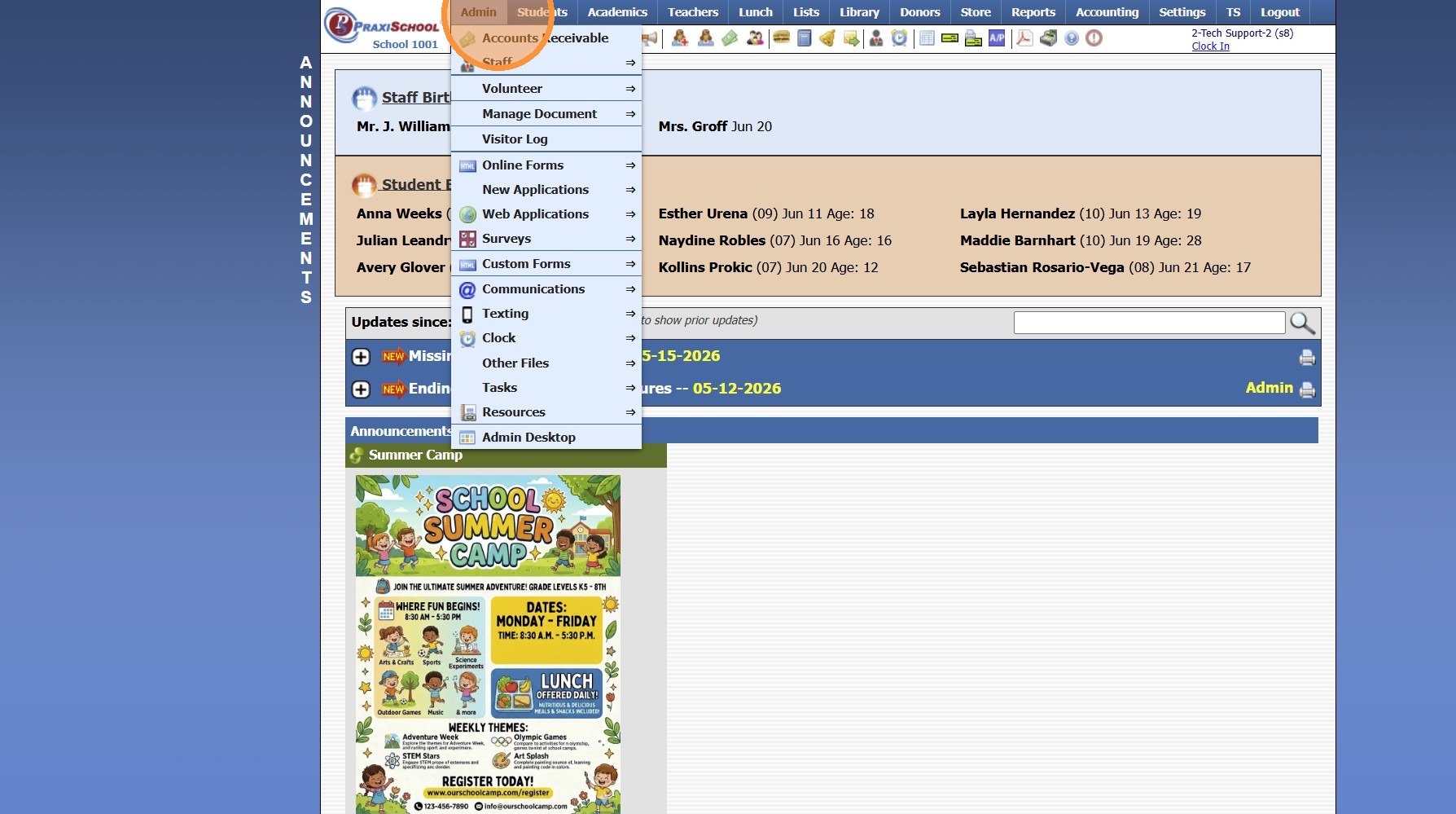
2. Click "Manage Document"
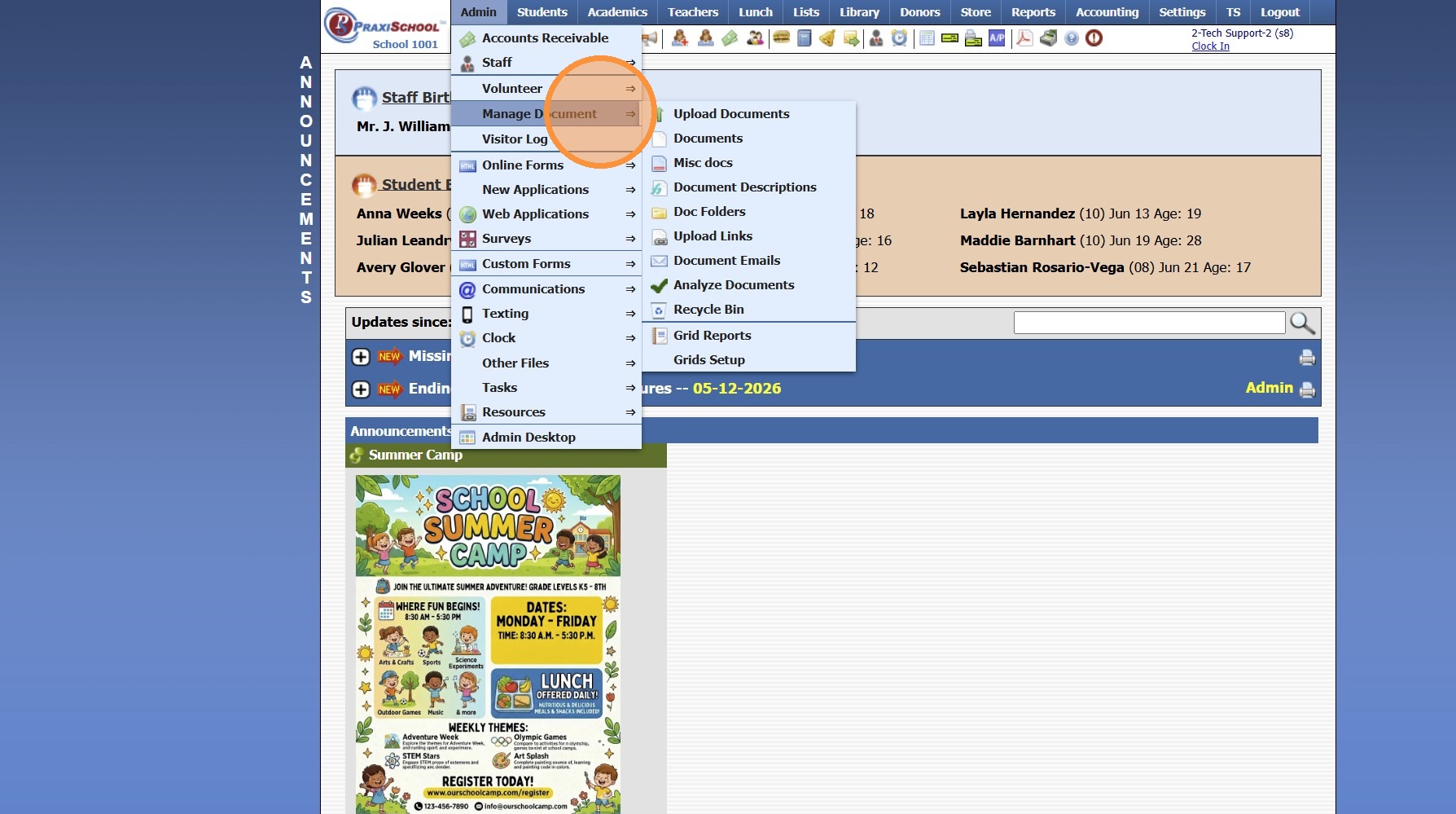
3. Click "Misc docs"
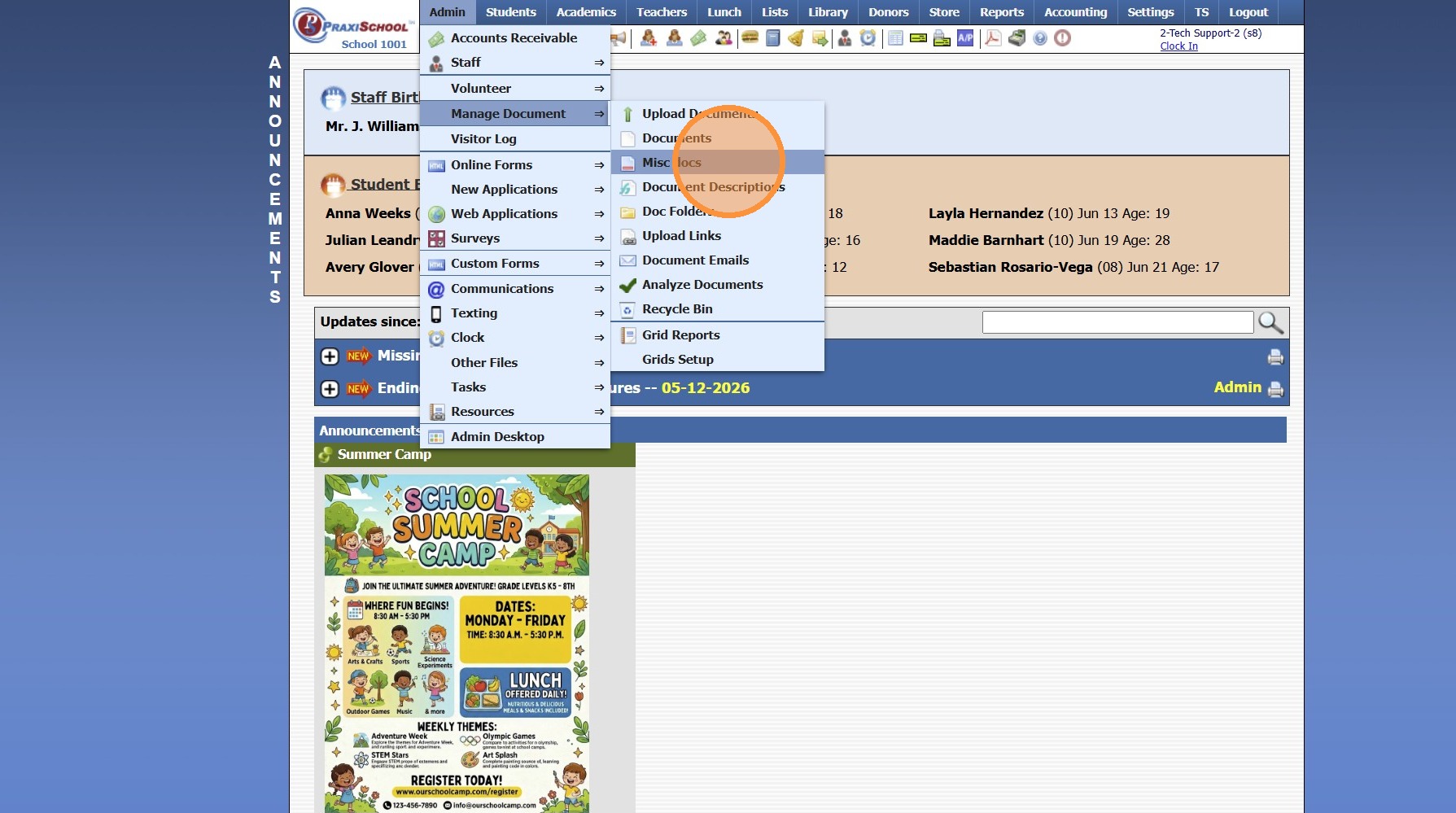
4. Click "Add"
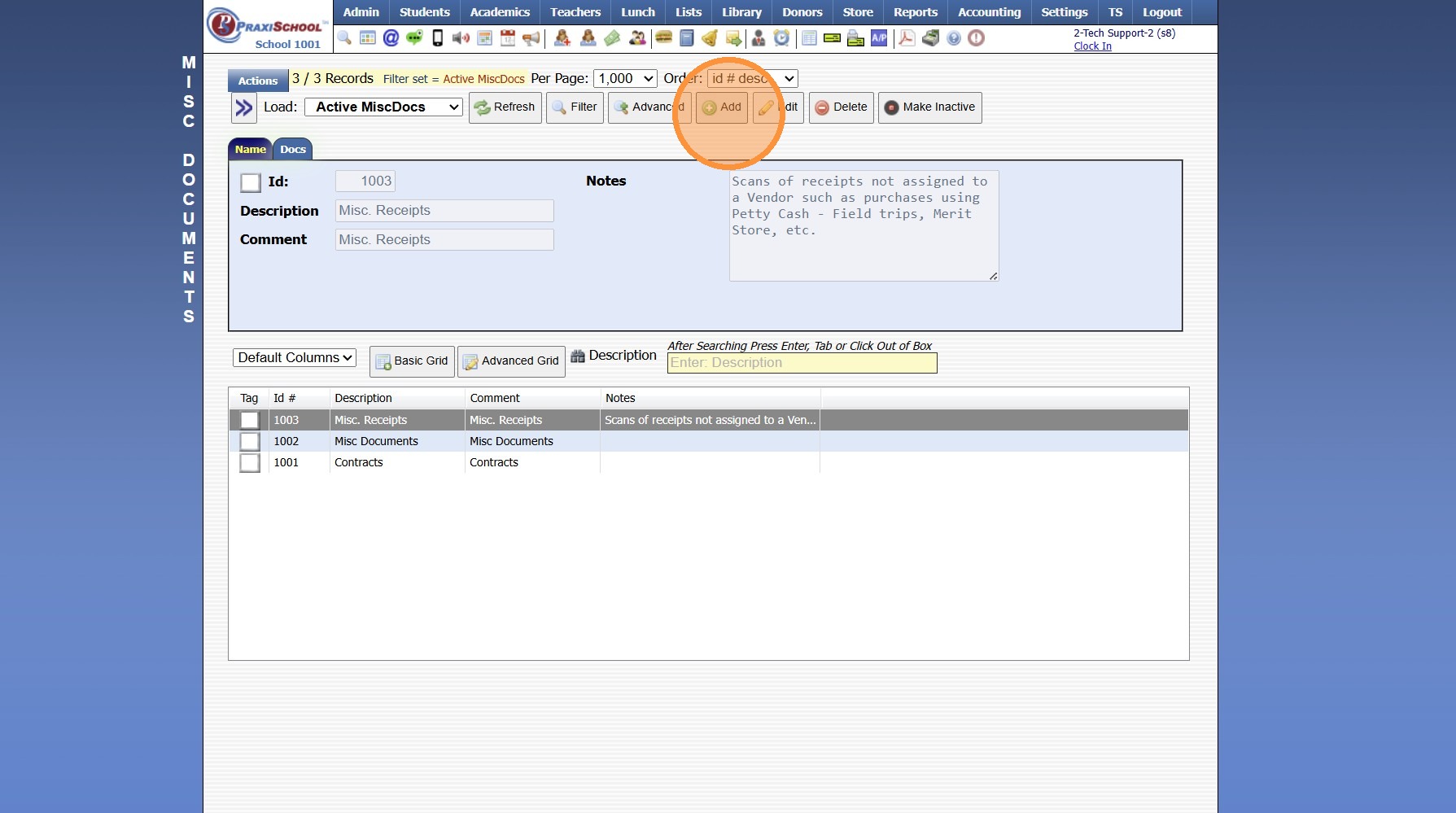
5. Enter the Description & Comment for the Misc Documents
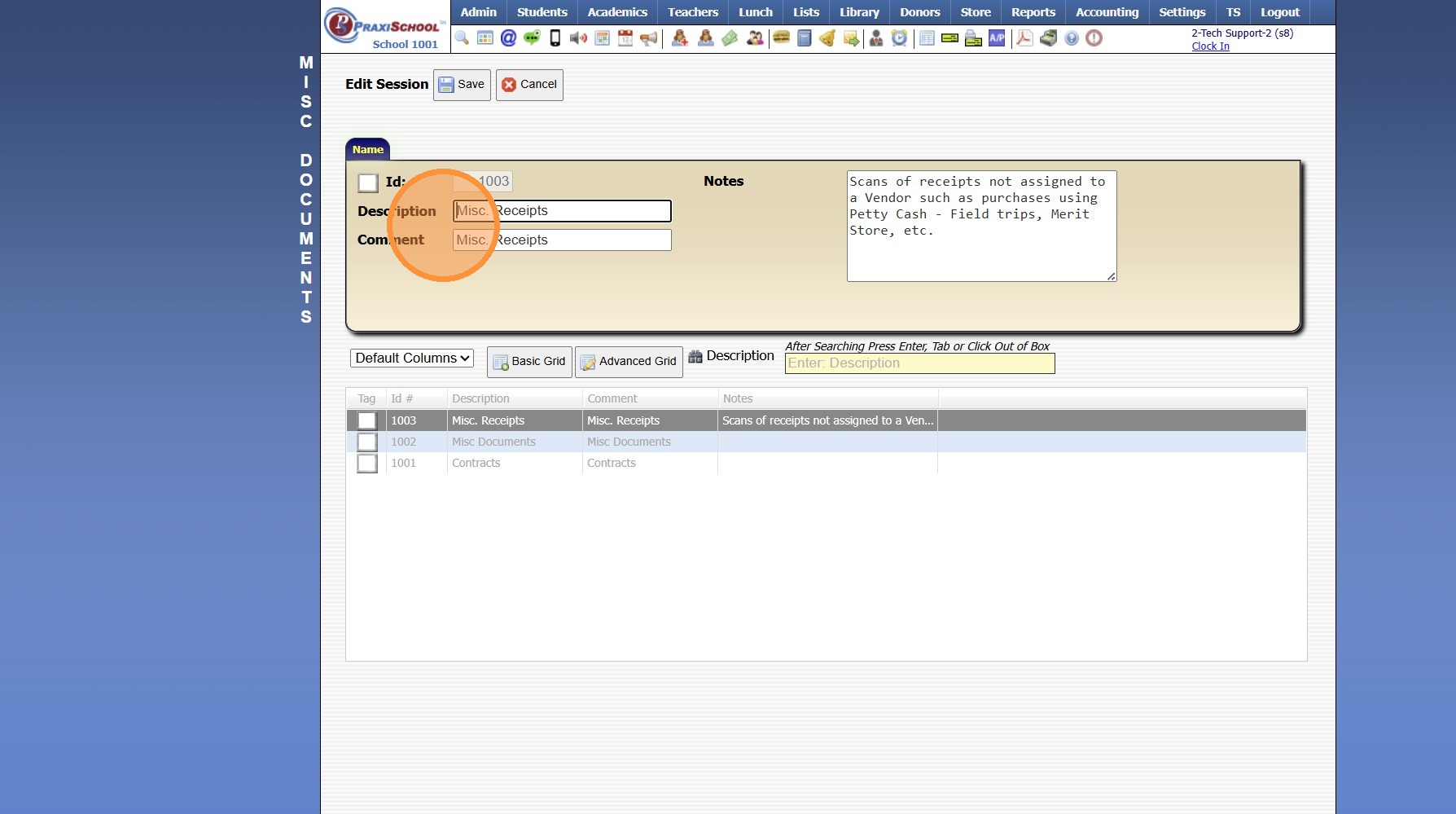
6. Enter Notes for Information pertaining to Misc Documents
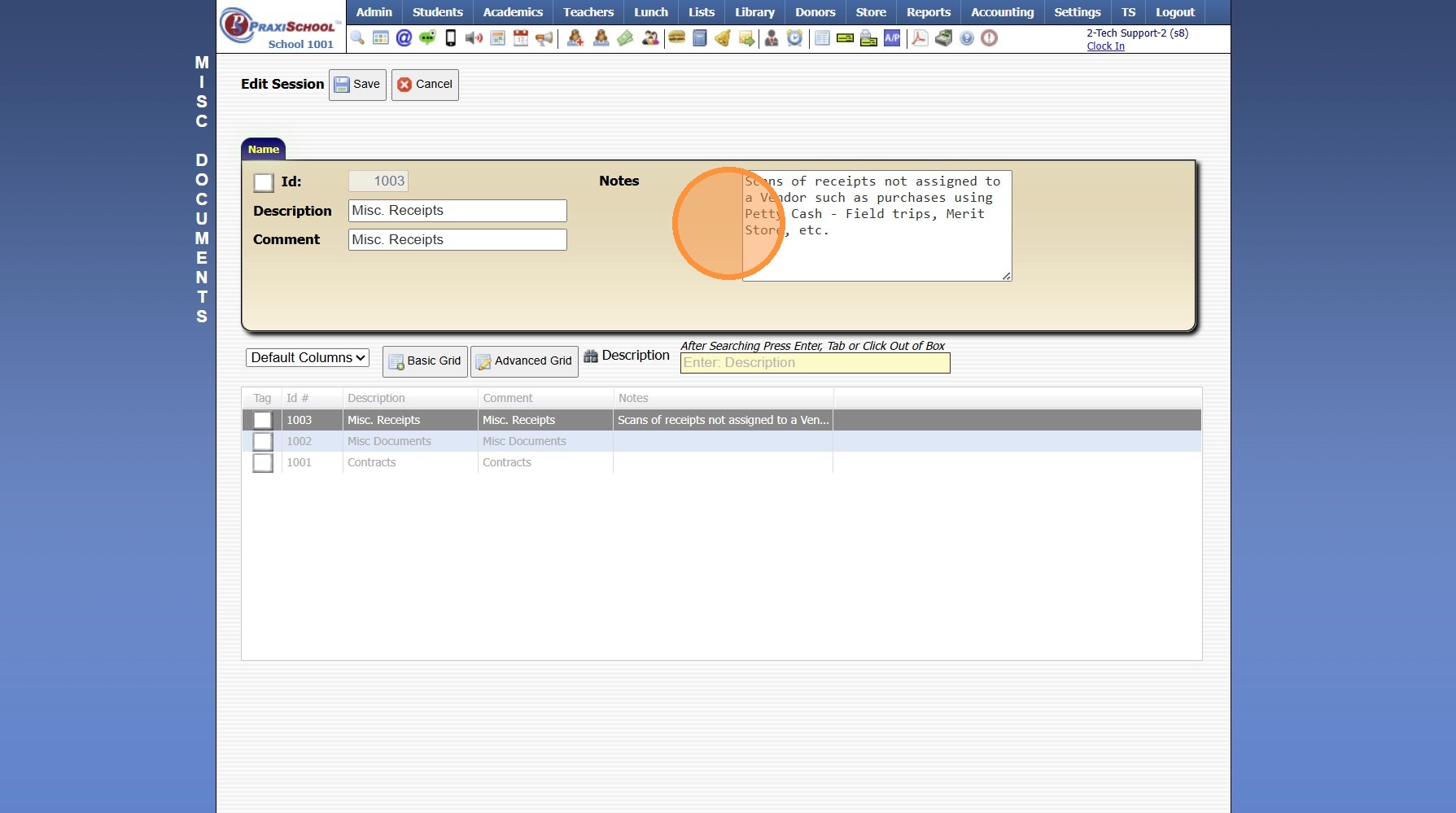
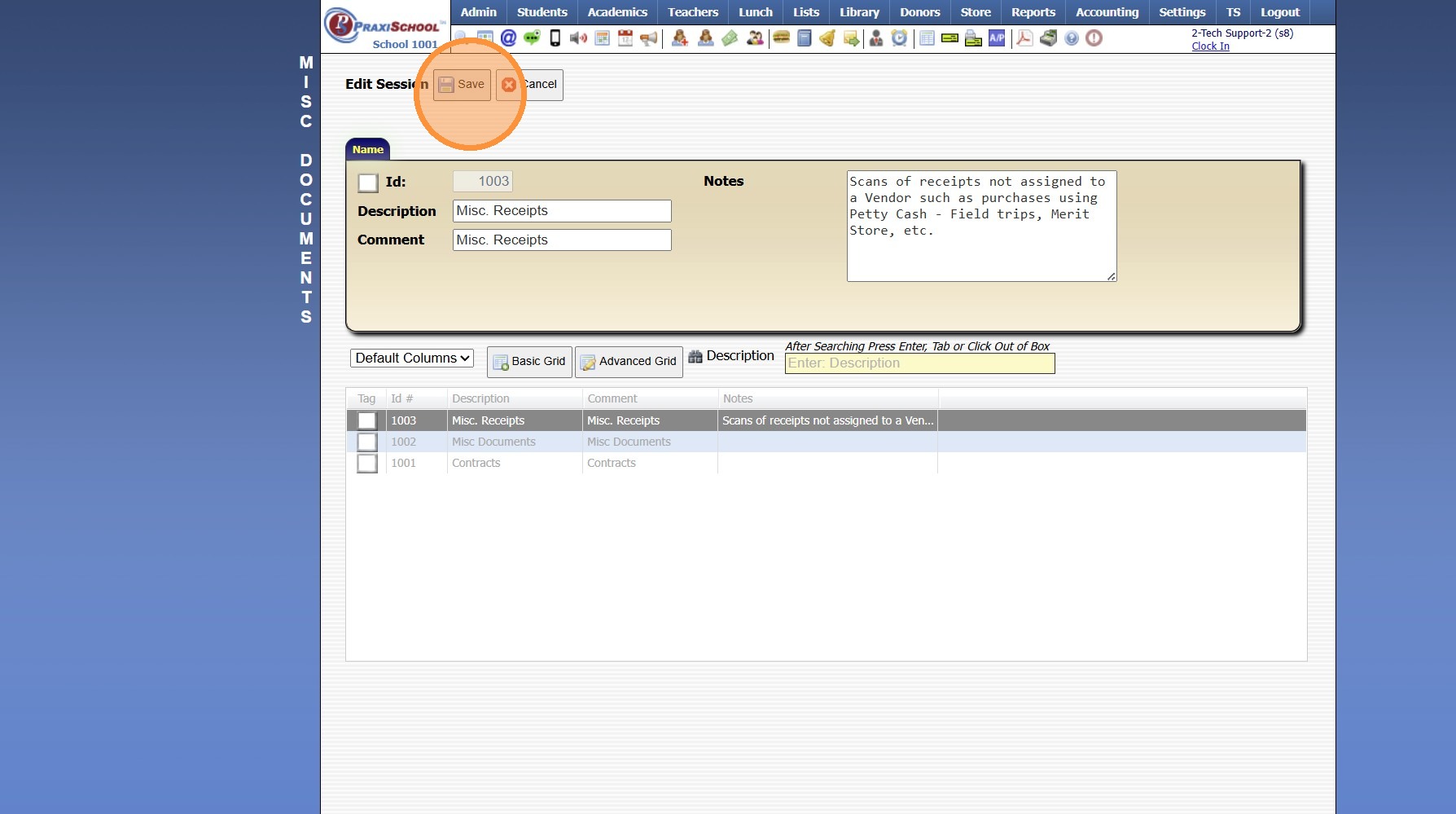
7. Click "Save"
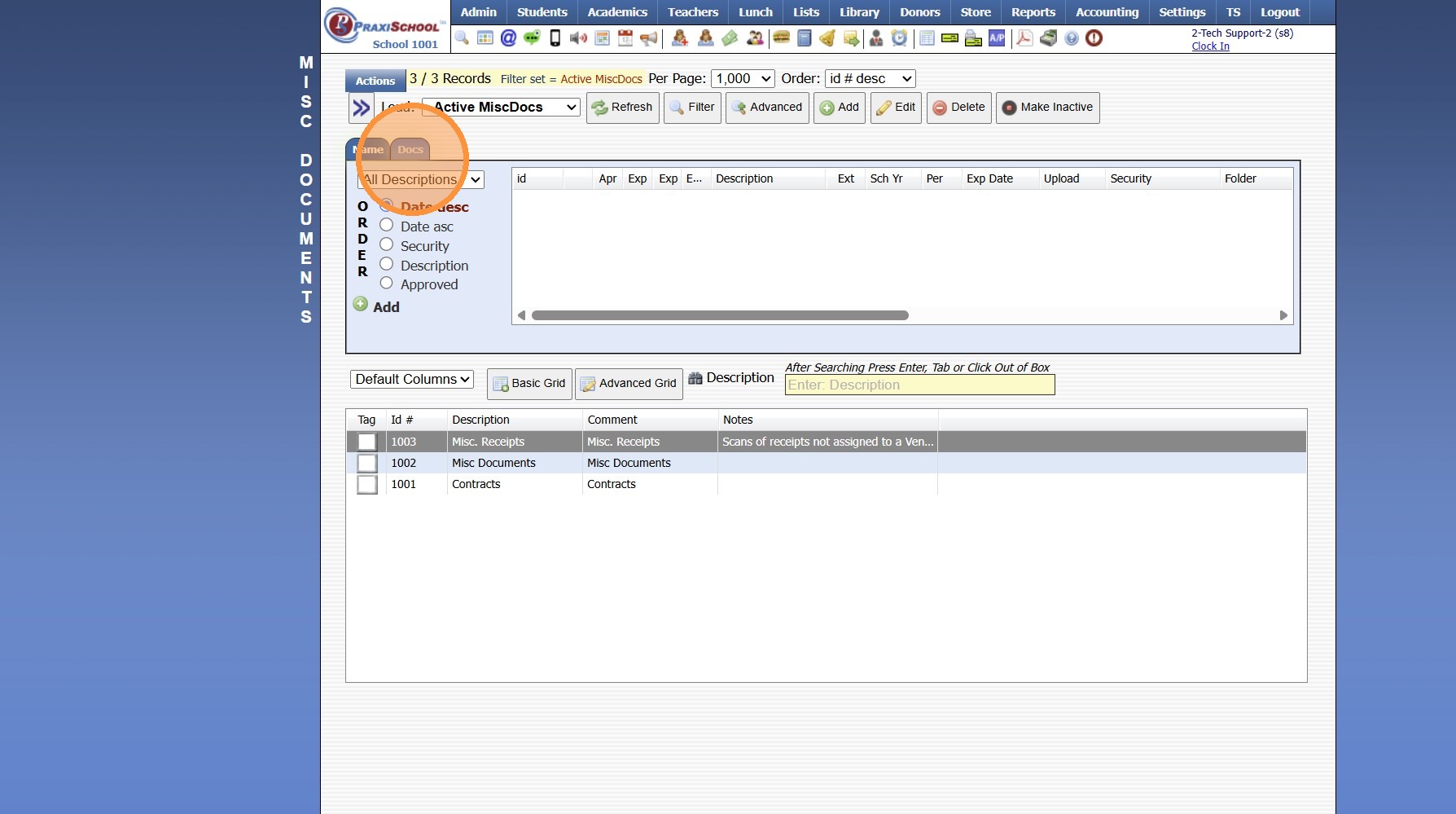
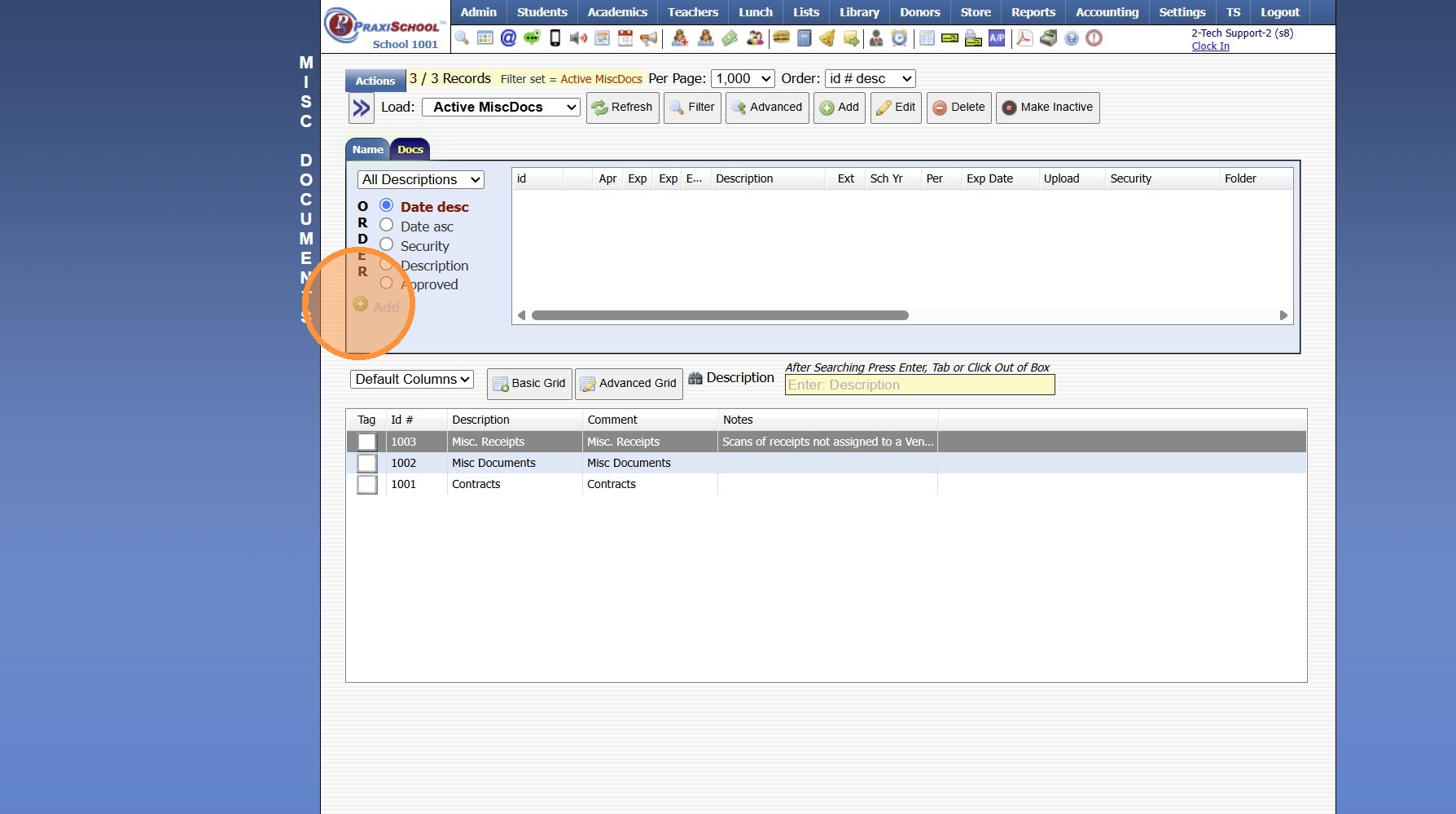
8. Click the "Docs" tab
9. Click "Add" to go to the Document Upload Screen
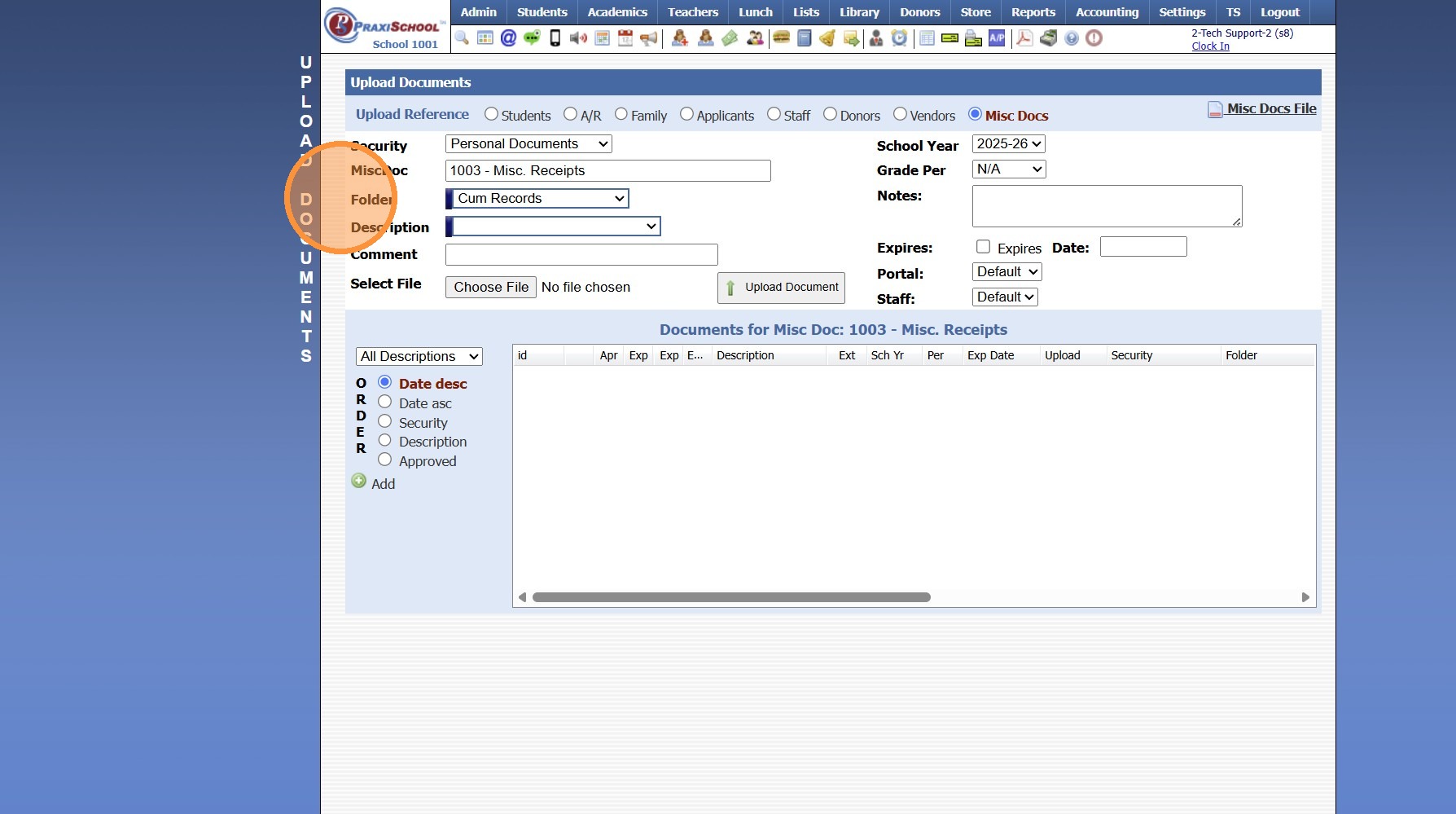
10. Select Document Security, Folder & Description
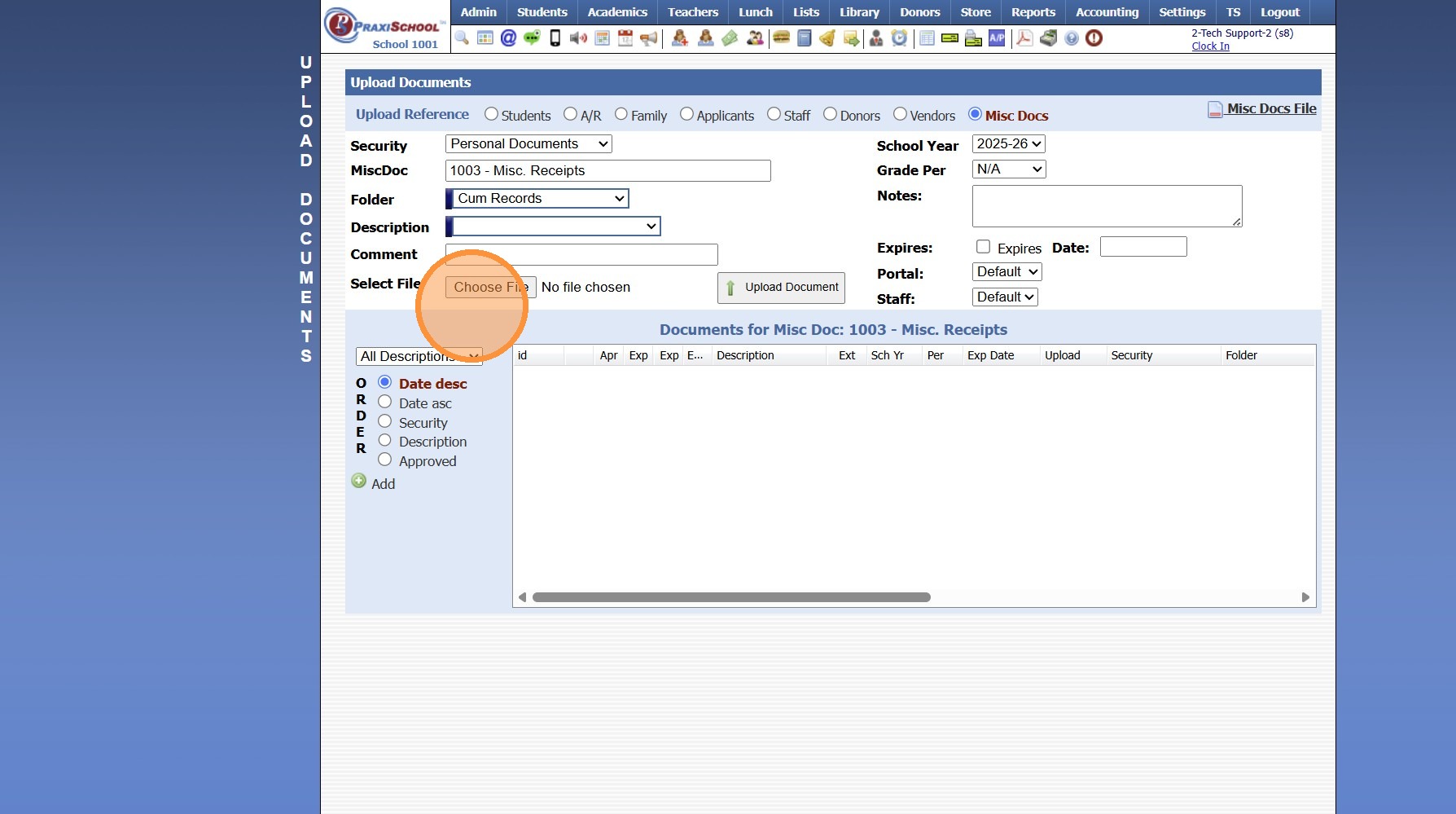
11. Select File to Upload
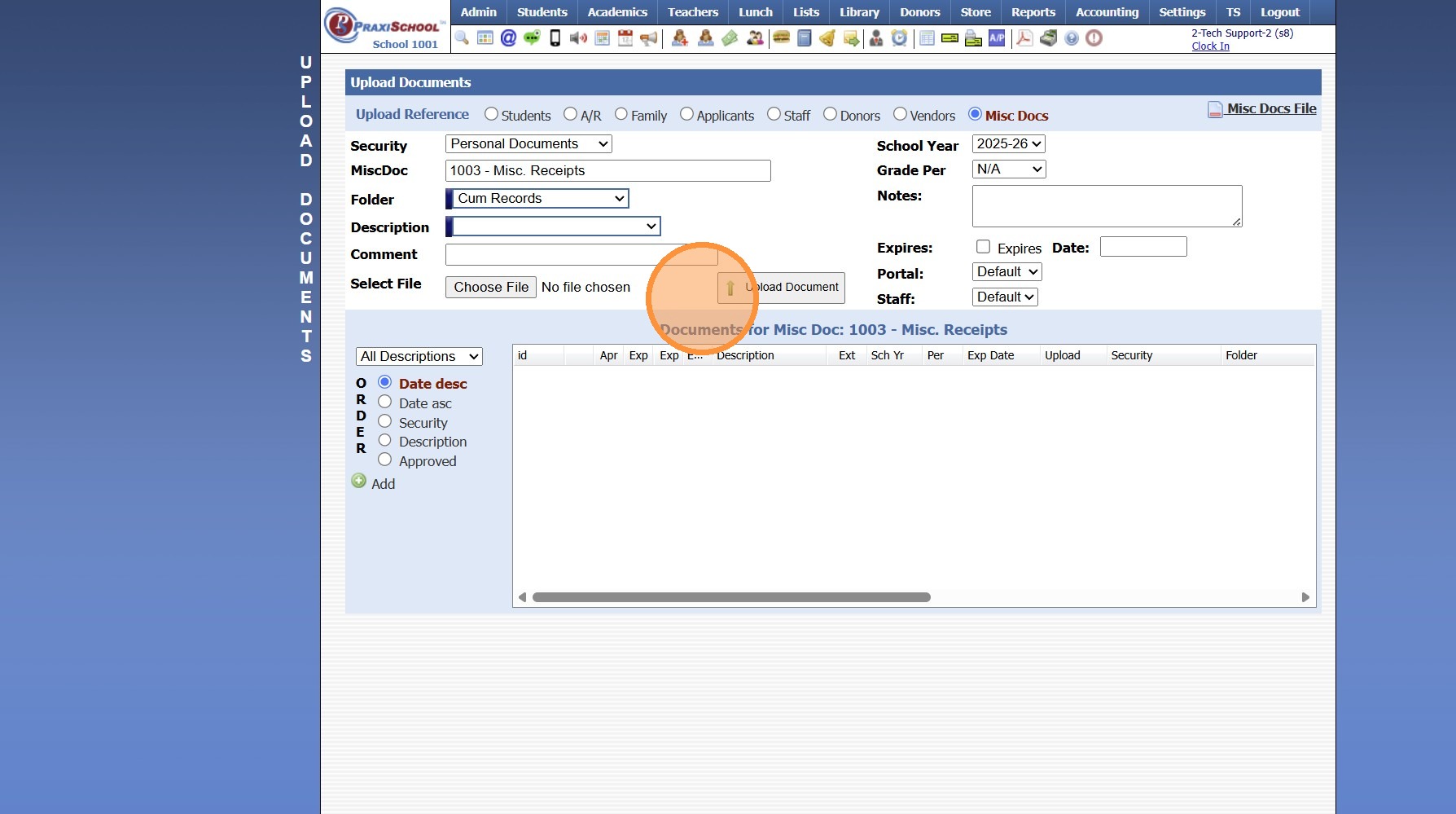
12. Click "Upload Document"
1000.4.3
Related Articles
Recycling Managed Documents
Recycling Managed Documents 1. Click "Admin" 2. Click "Manage Document" 3. Click "Recycle Bin" Deleting in Batch 4. Tag Documents in Recycling Bin to Delete 5. Click "Actions" 6. Click "Delete Tagged Documents" Deleting Individual Documents 7. Select ...Restoring Recycled Documents
Restoring Recycled Documents 1. Click "Admin" 2. Click "Manage Document" 3. Click "Recycle Bin" Restoring in Batch 4. Tag Documents in Recycling Bin to Restore 5. Click "Actions" 6. Click "Restore All Tagged" Restoring Individual Documents 7. Select ...Emailing Student Documents
1. Click "Students" 2. Click "Students" 3. Select Student 4. Click the "Docs" Tab 5. Click Envelope Icon Next to Document to Email OR From the Email Screen All Documents or a Folder of Documents can be Emailed 6. Select Process Option 7. Edit/Enter ...Uploading Student Documents
1. Click "Admin" 2. Click "Manage Document" 3. Click "Upload Documents" 4. Select the "Security" 5. Select the "Student" 6. Select the "Folder" 7. Select the "Description" 8. Click "Choose File" & Select Document to Upload 9. Verify School Year 10. ...Viewing & Adding Documents in Accounts Receivable
Viewing & Adding Documents in Accounts Receivable 1. Click "Admin" 2. Click "Accounts Receivable" 3. Select AR Account 4. Click "Docs" tab Viewing Documents 5. Select the Document 6. Click the Magnifying Glass Icon to View Adding Documents 7. Click ...