Viewing & Adding Documents in Accounts Receivable
Viewing & Adding Documents in Accounts Receivable
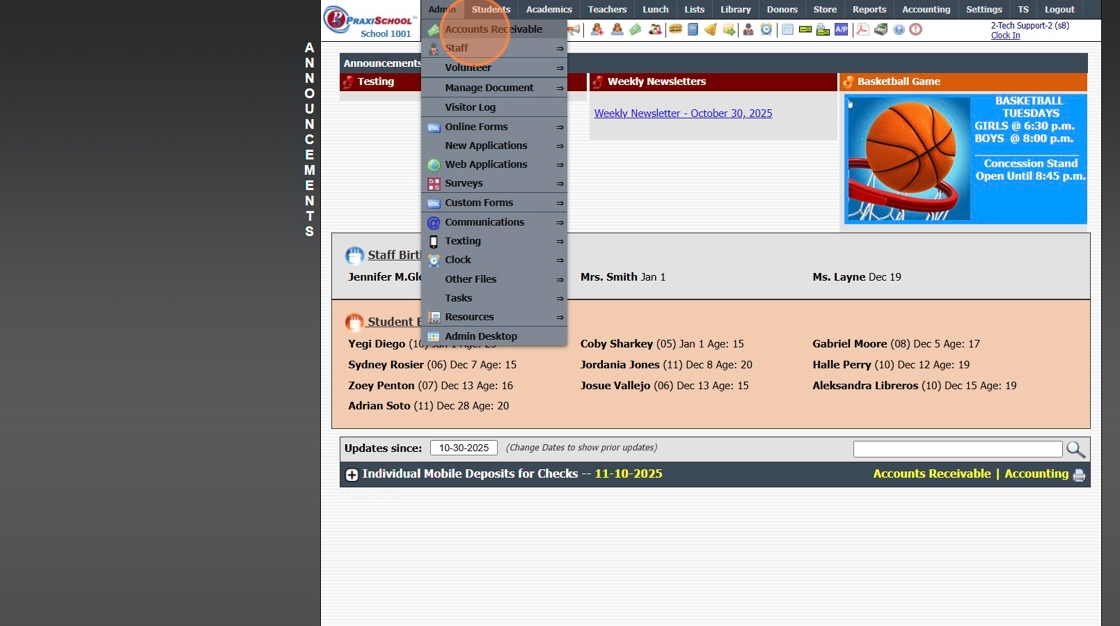
1. Click "Admin"

2. Click "Accounts Receivable"
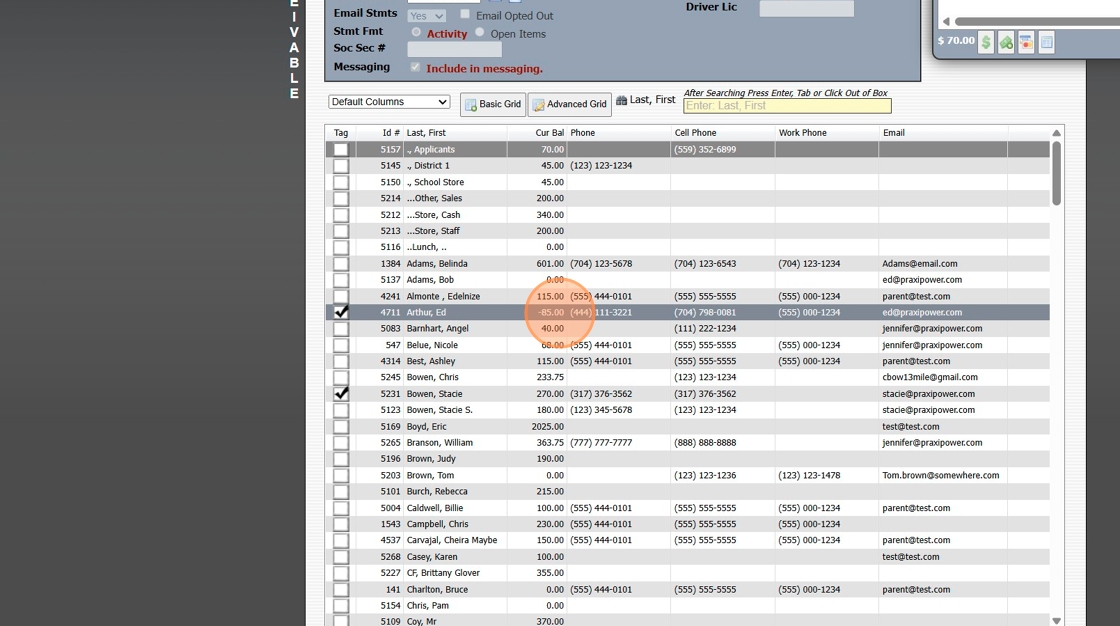
3. Select AR Account
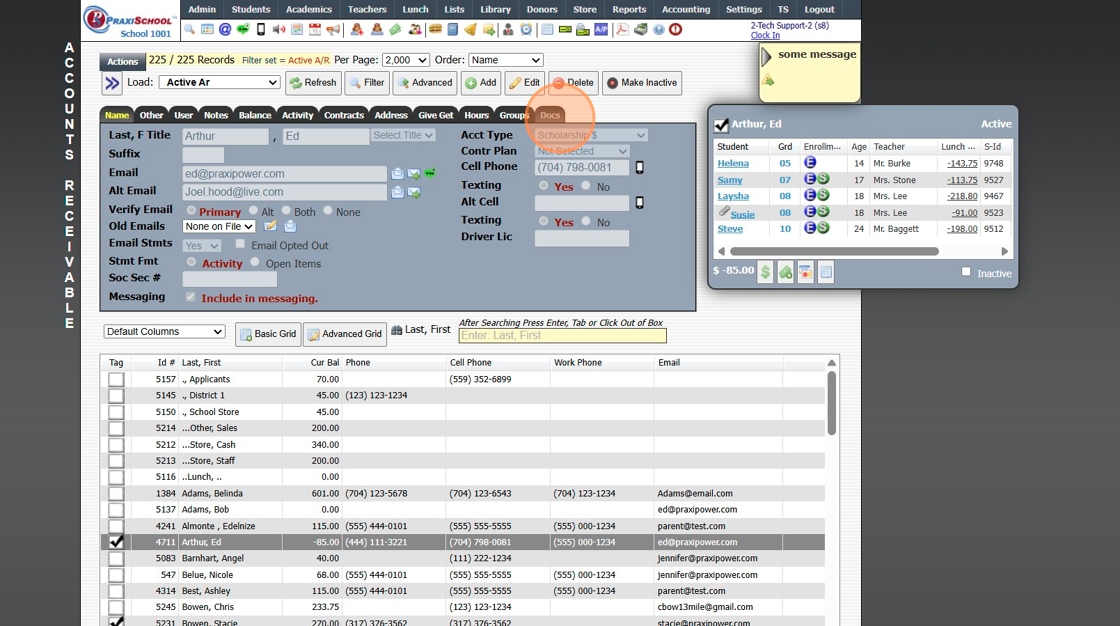
4. Click "Docs" tab
Viewing Documents
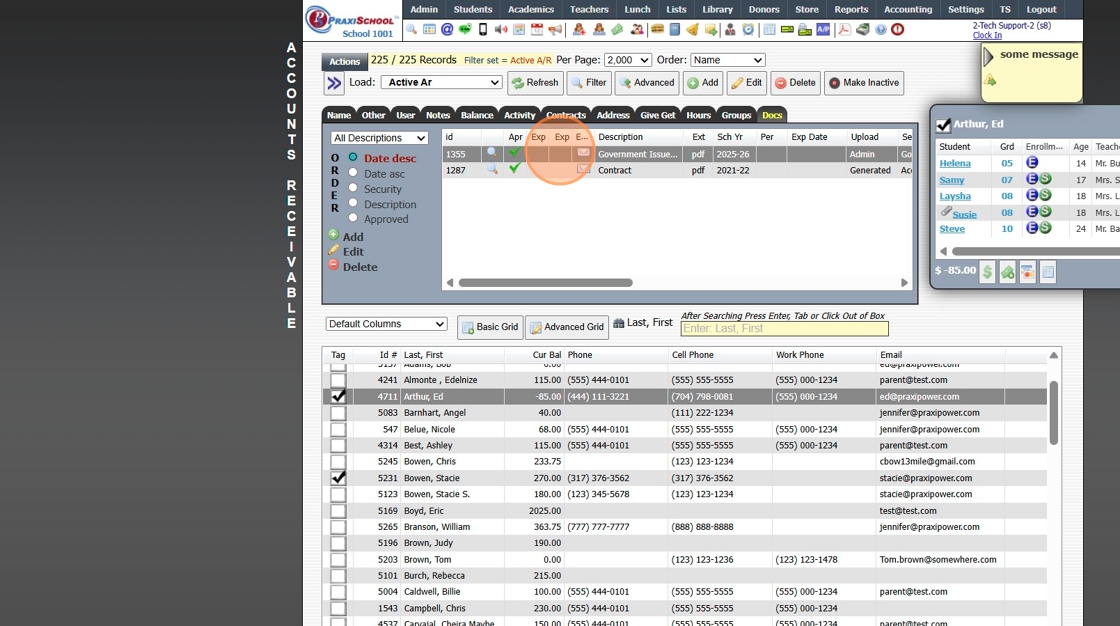
5. Select the Document
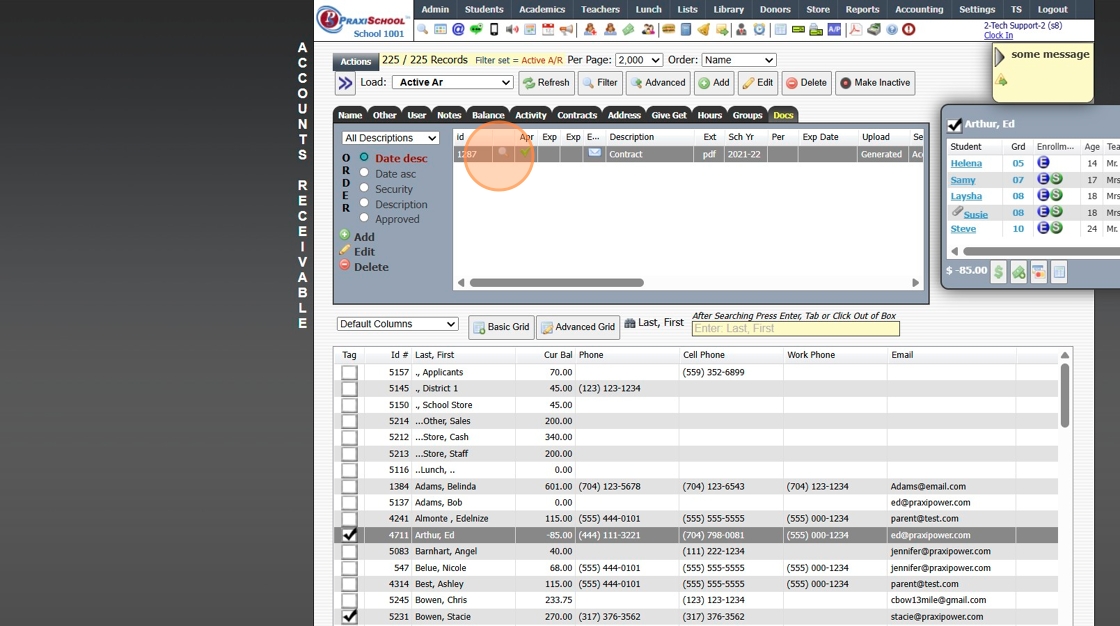
6. Click the Magnifying Glass Icon to View
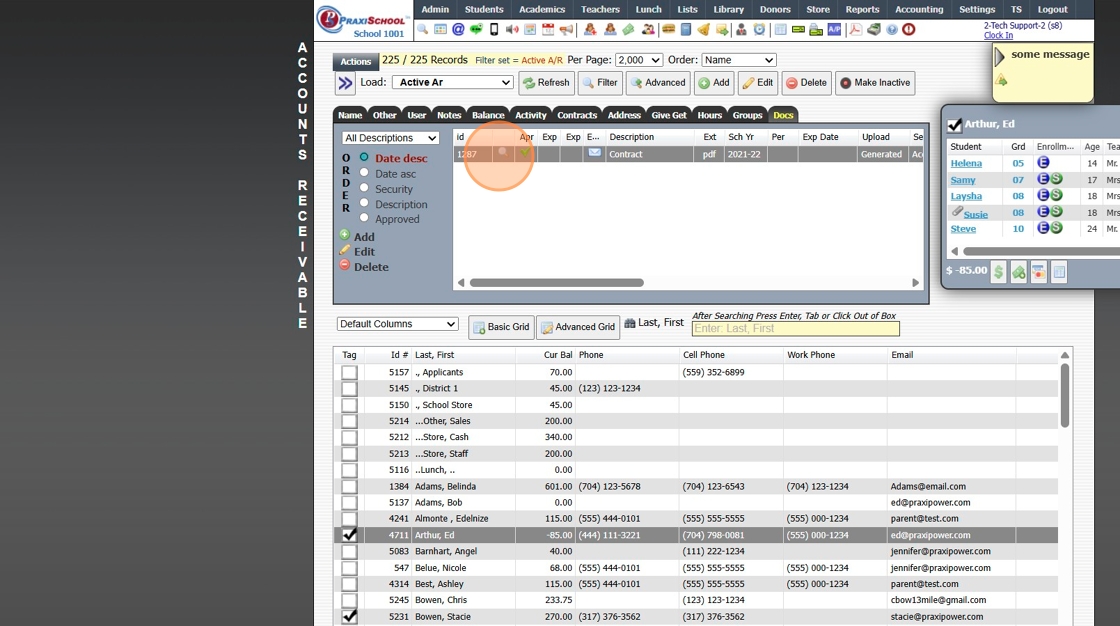
Adding Documents
7. Click "Add"
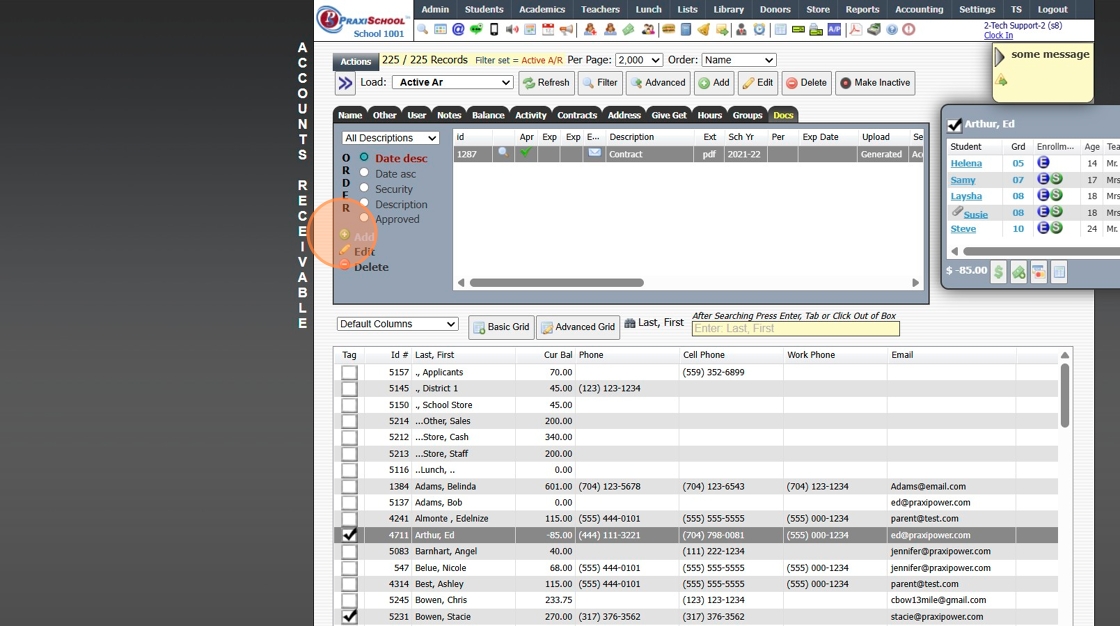
8. Select the Upload Reference (A/R)
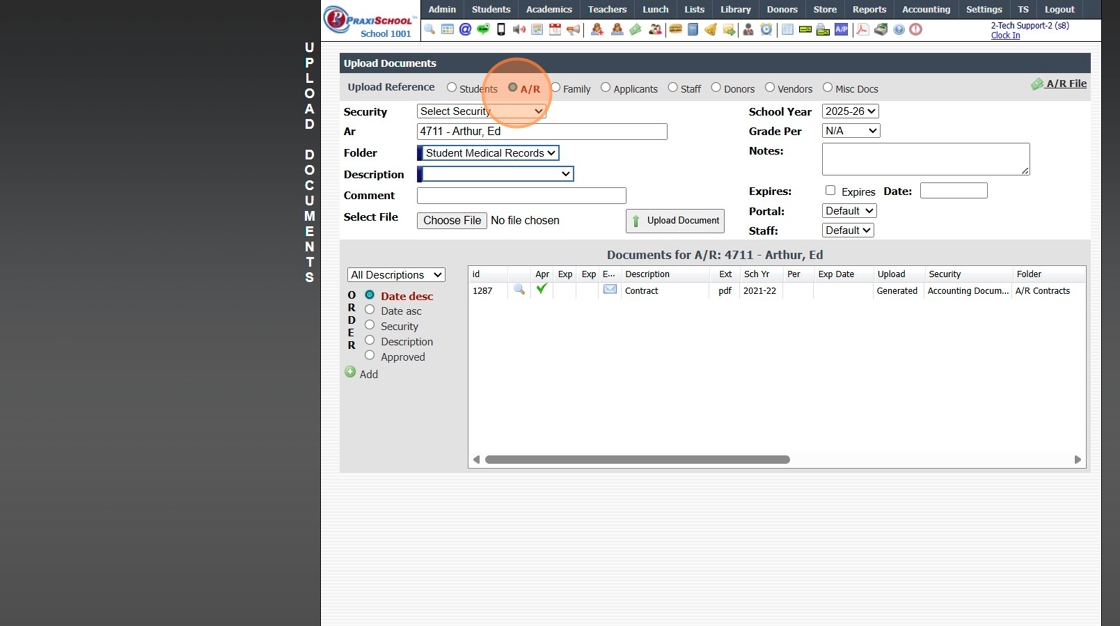
9. Select the Security

10. Select the Folder
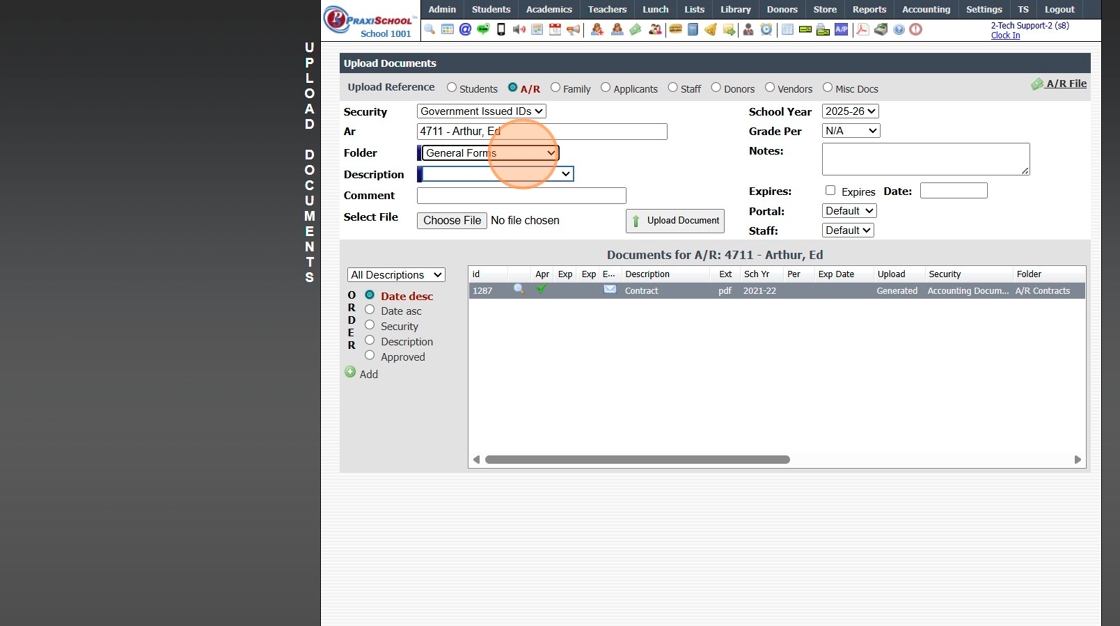
11. Select the Description
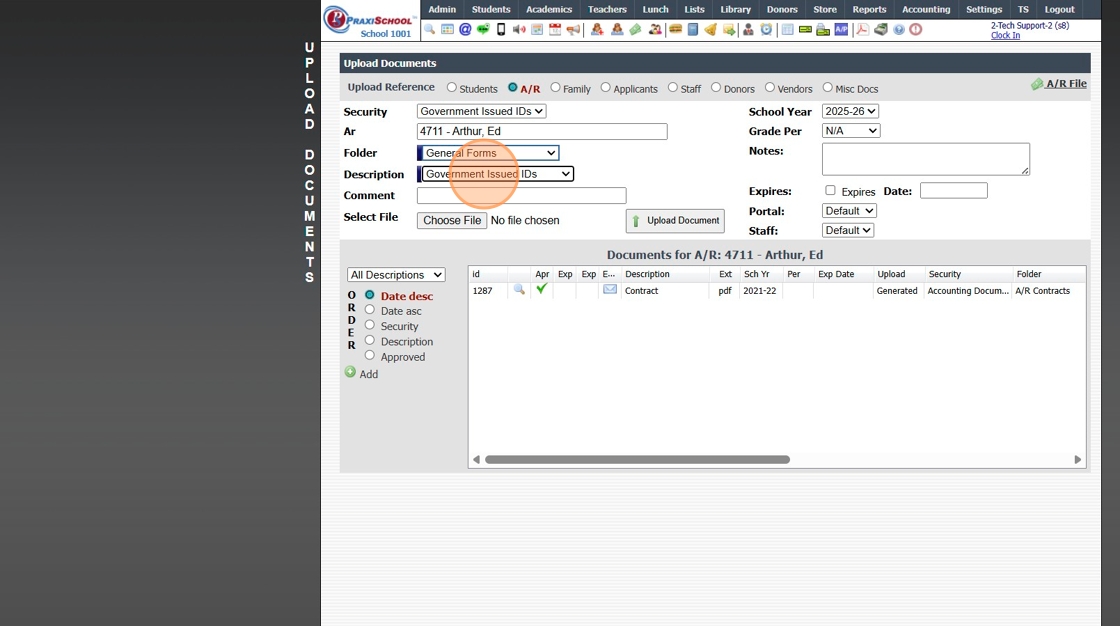
12. Click "Choose File"
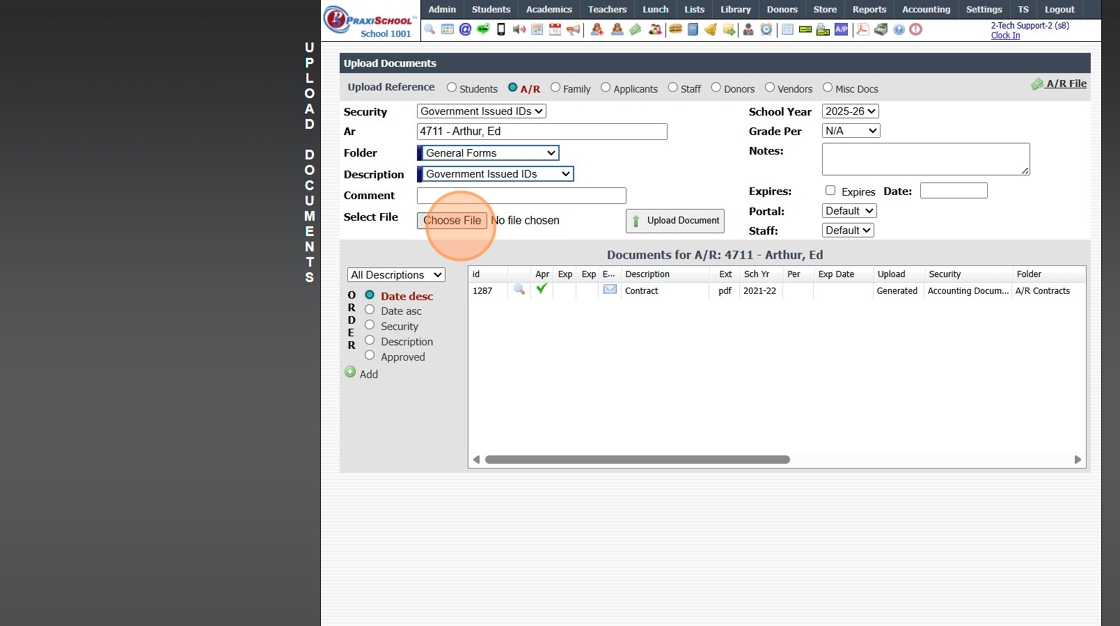
13. Select the School Year / Grade Period & Enter Notes (If Applicable)
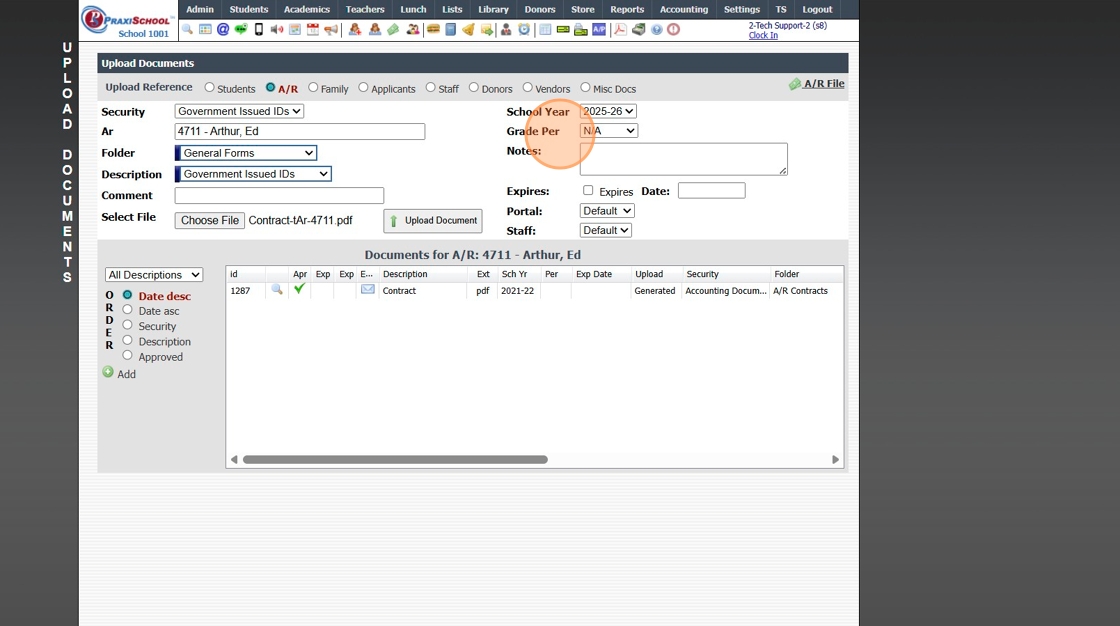
14. Click "Upload Document"

15. Document is visible in the Document List
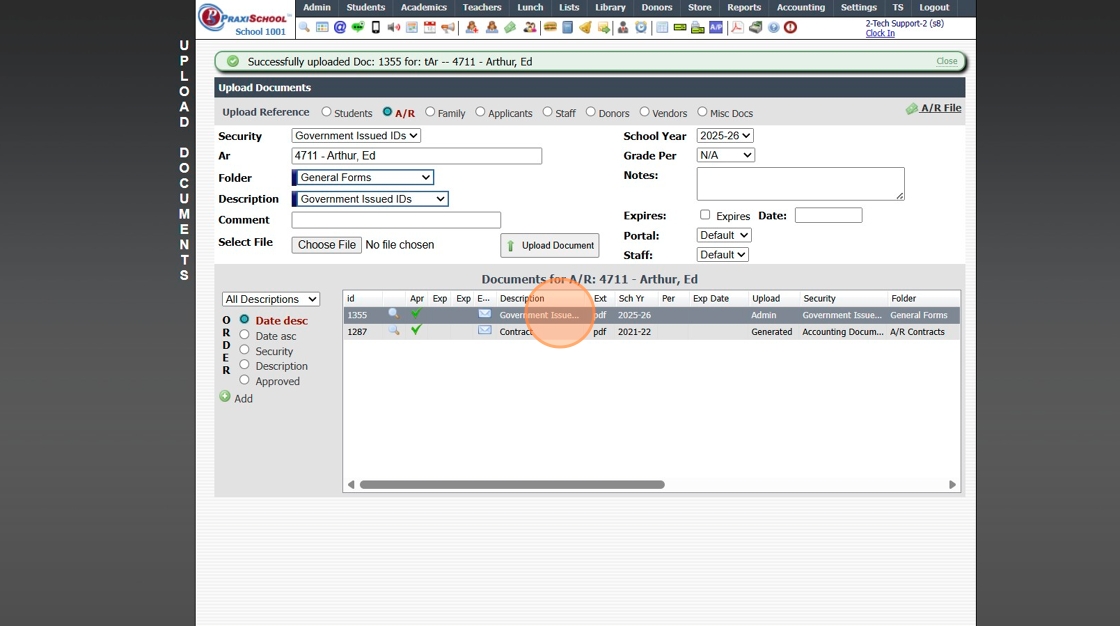
16. Document is visible in the AR Docs tab
1000.1.3
Related Articles
Icon Toolbar - Accounts Receivable
Icon Toolbar - Accounts Receivable Click on the Accounts Receivable Icon for Quick Access to the Accounts Receivable Database 7500.1.12Creating Accounts Receivable Accounts
Creating Accounts Receivable Accounts 1. Log into PraxiSchool 2. Typically Student AR Accounts are Created in the Student Wizard (T) 3. After Creating the Student File, the Primary AR Account is Created from the A/R Account Toggle 4. A Secondary AR ...Printing Labels in Accounts Receivable
Printing Labels in Accounts Receivable 1. Click "Admin" 2. Click "Accounts Receivable" 3. Click "Actions" 4. Click "Reports" 5. Click "Print Labels" 6. Select the Label Template 7. Click "Design Mode" to Print with Lines to Align Labels (Optional) 8. ...Printing an Accounts Receivable Statement
Printing/Emailing an Accounts Receivable Statement 1. Log into PraxiSchool 2. Click "Admin" 3. Click "Accounts Receivable" 4. Select Account 5. Click "Actions" 6. Click "Statements" 7. Click "Statements" 8. Enter the Detail Date Range 9. To Include ...Generating an Accounts Receivable Aging Report
Generating an Accounts Receivable Aging Report 1. Log into PraxiSchool 2. Click "Admin" 3. Click "Account Receivable" 4. Click "Actions" 5. Click "Reports" 6. Click "A/R Aging" 7. Select Based On Option 8. Select Desired Options 9. Select desired ...