Updating Heartland ACH Convenience Fees
1. Click "Settings"
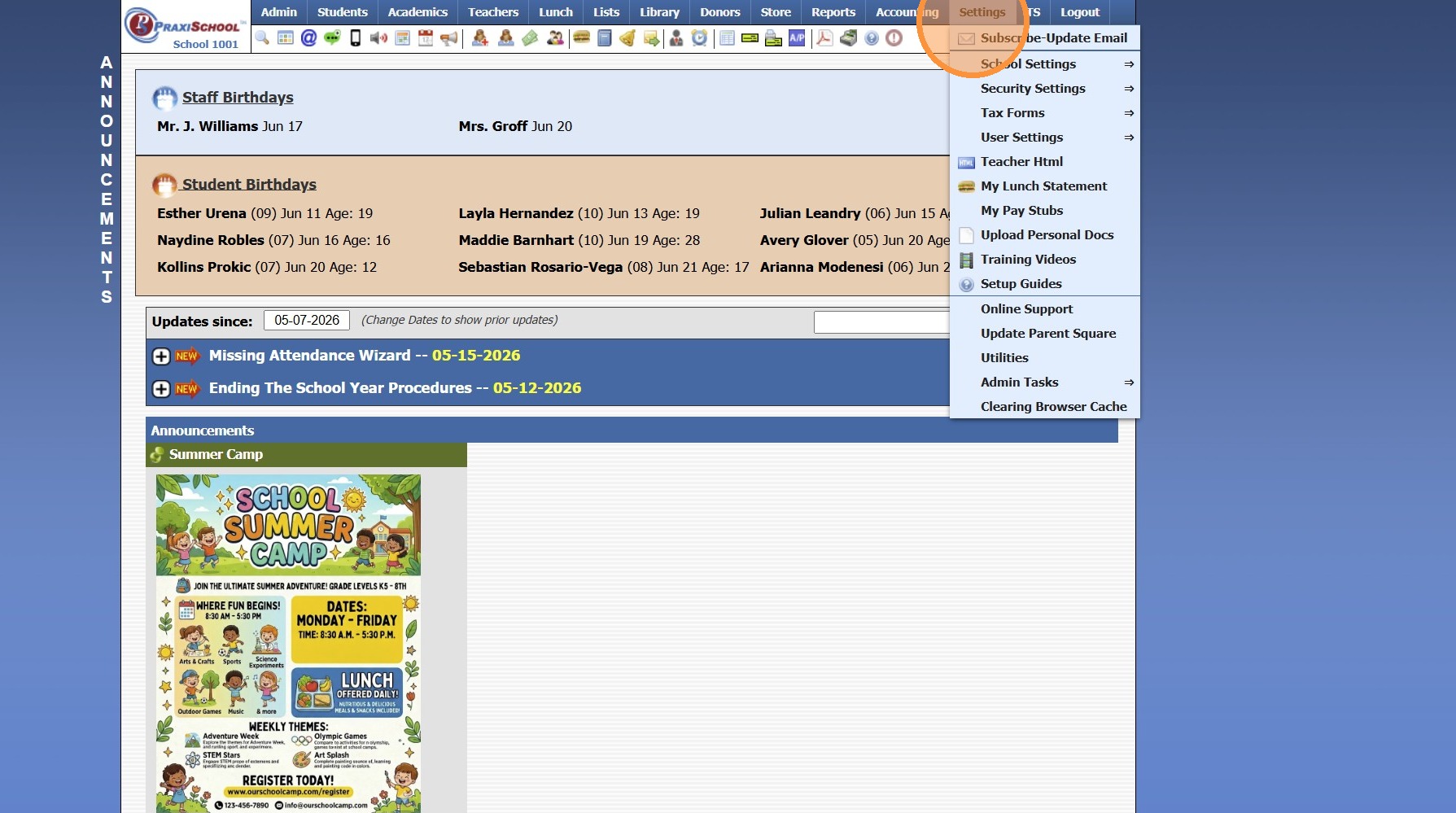
2. Click "School Settings"
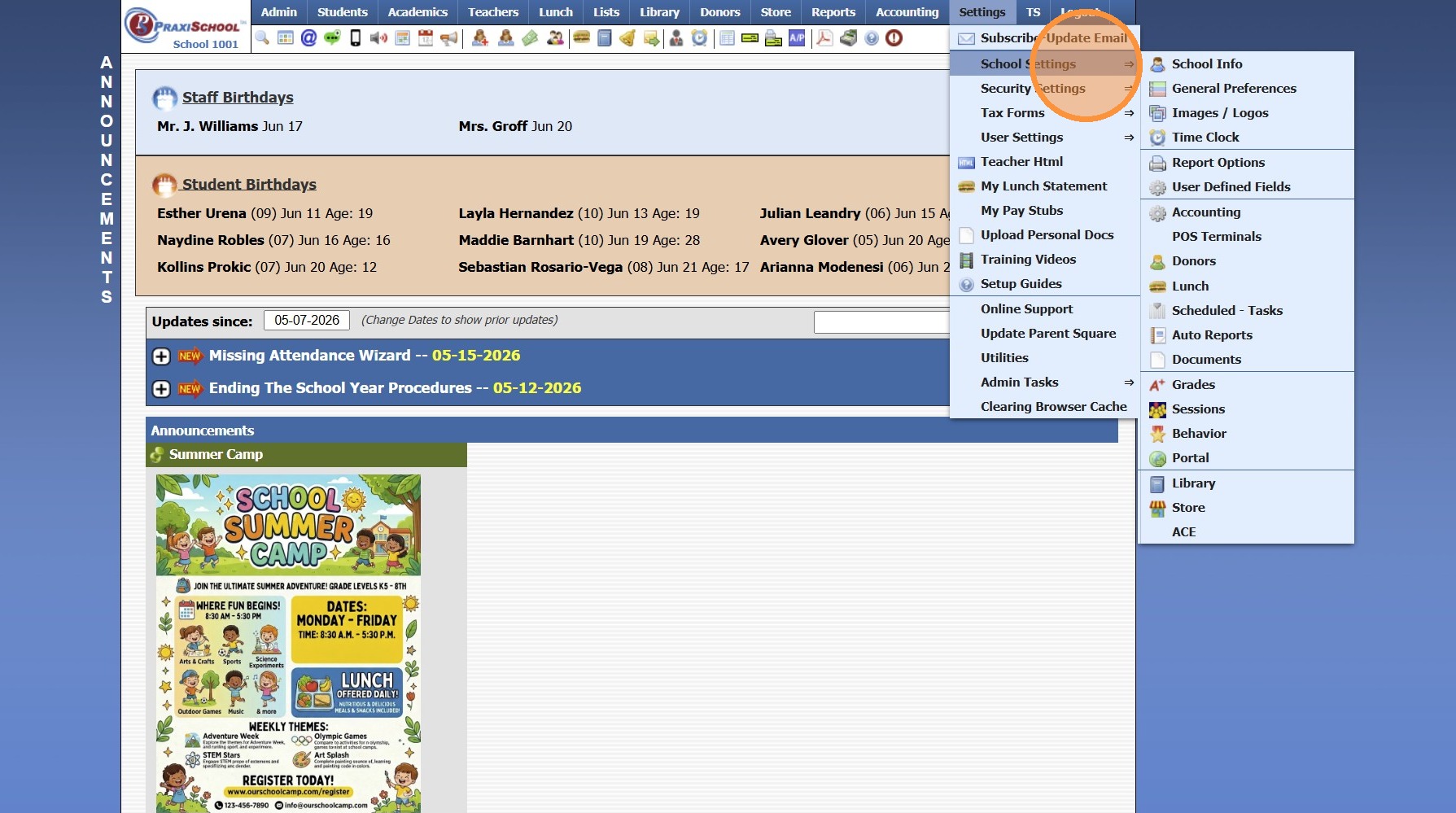
3. Click "Accounting"
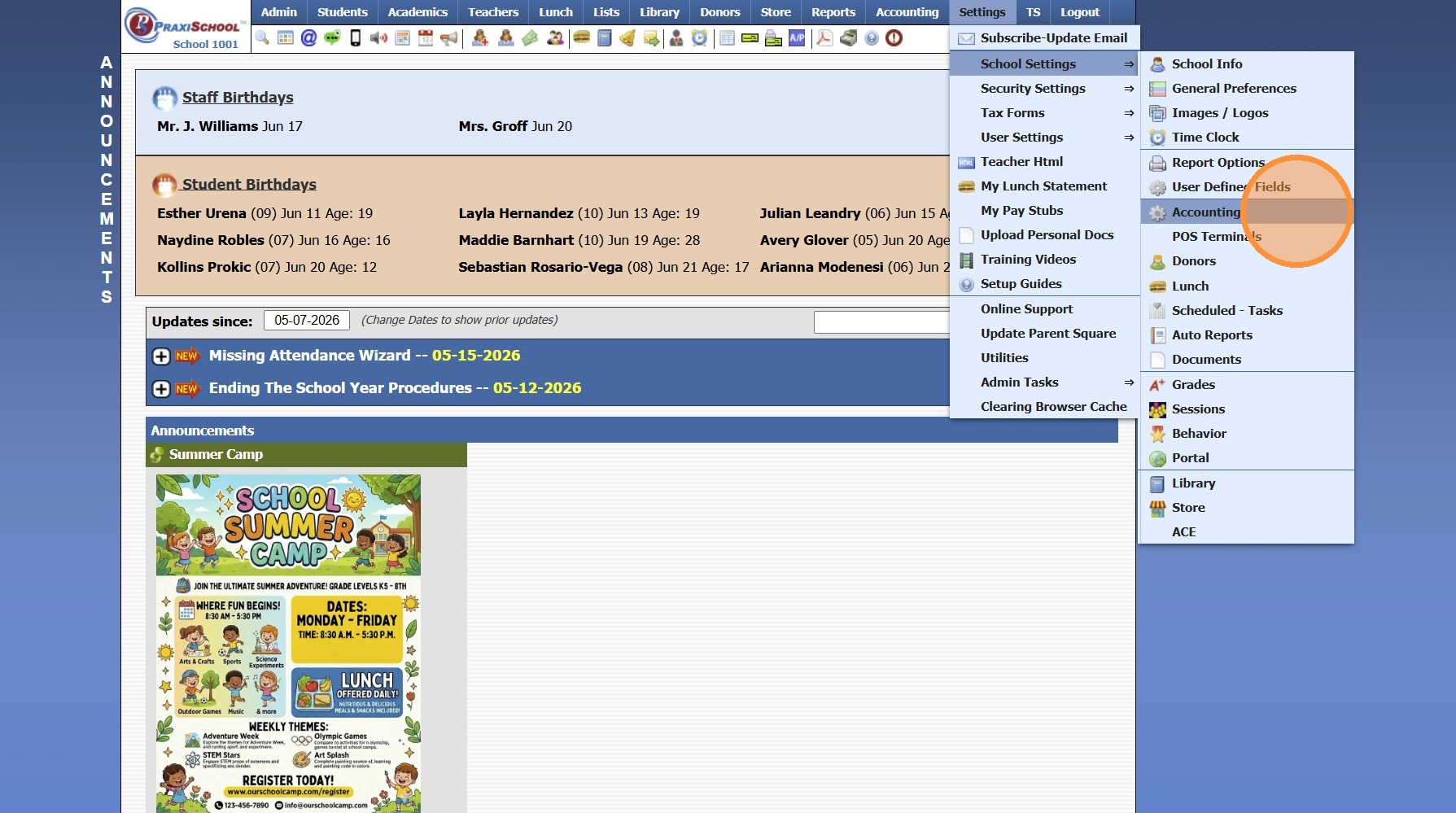
4. From the Accounting Settings screen, Scroll Down
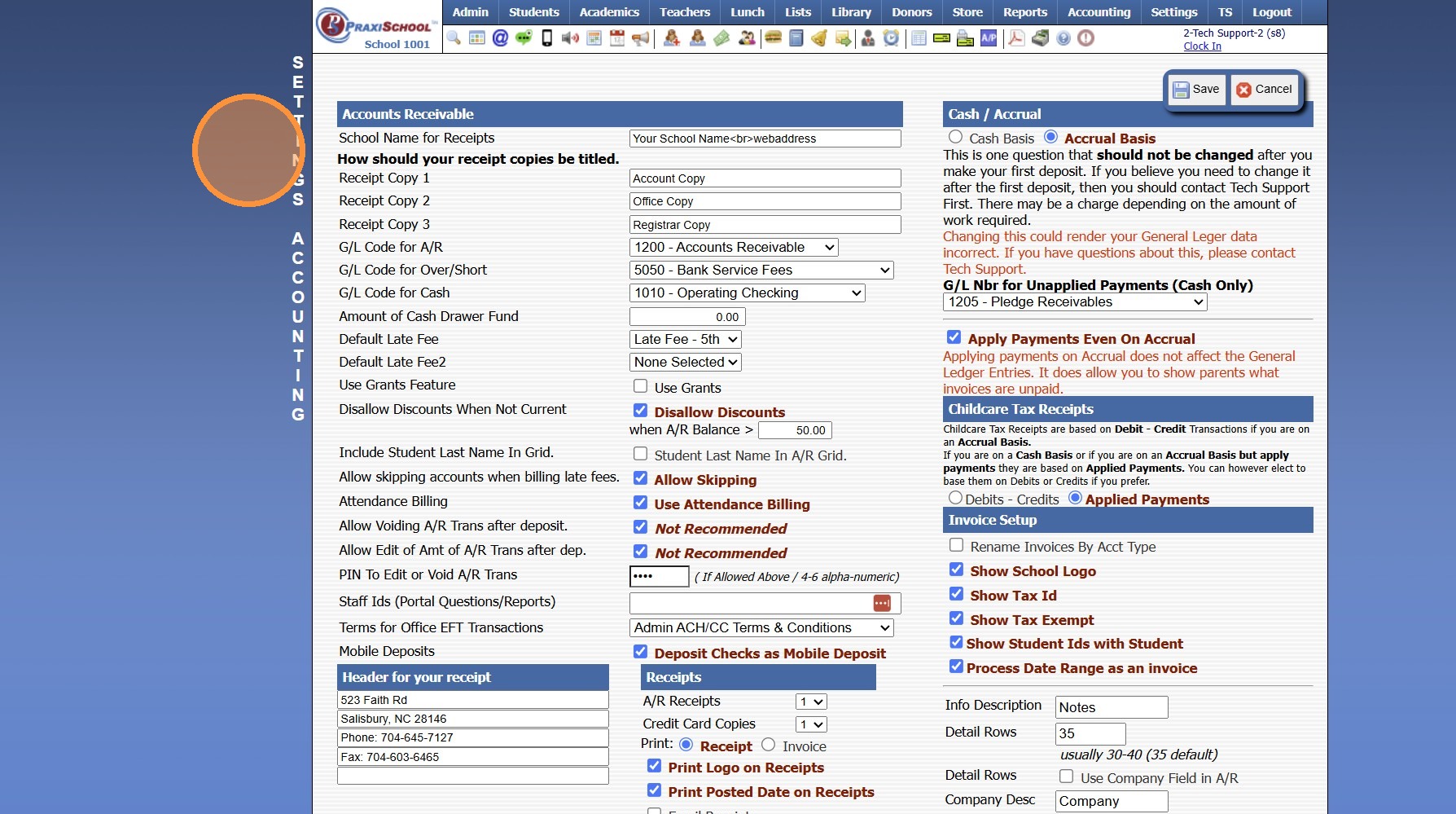
5. Update the ACH Service Fee A/R& Lunch to $1.50
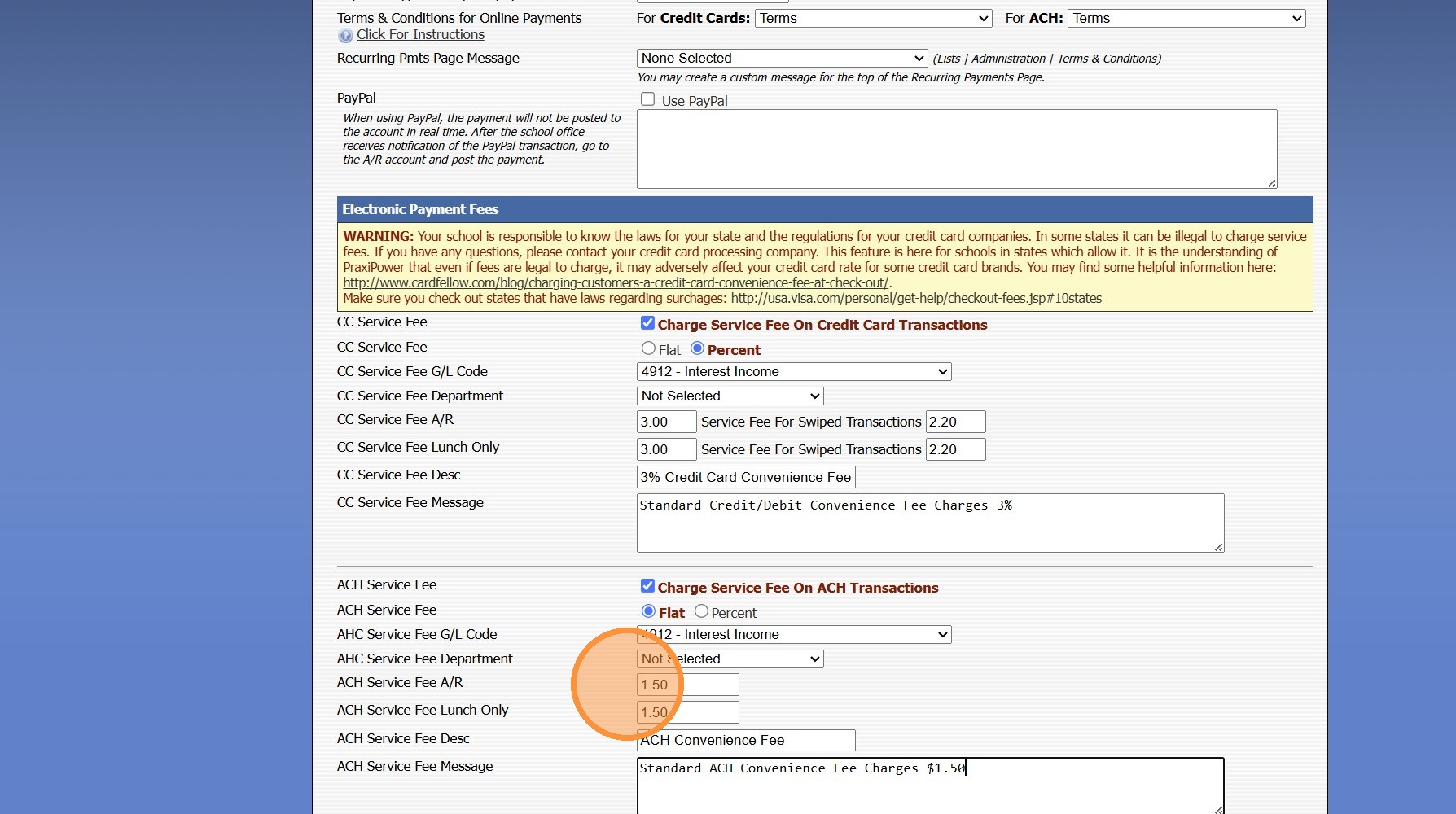
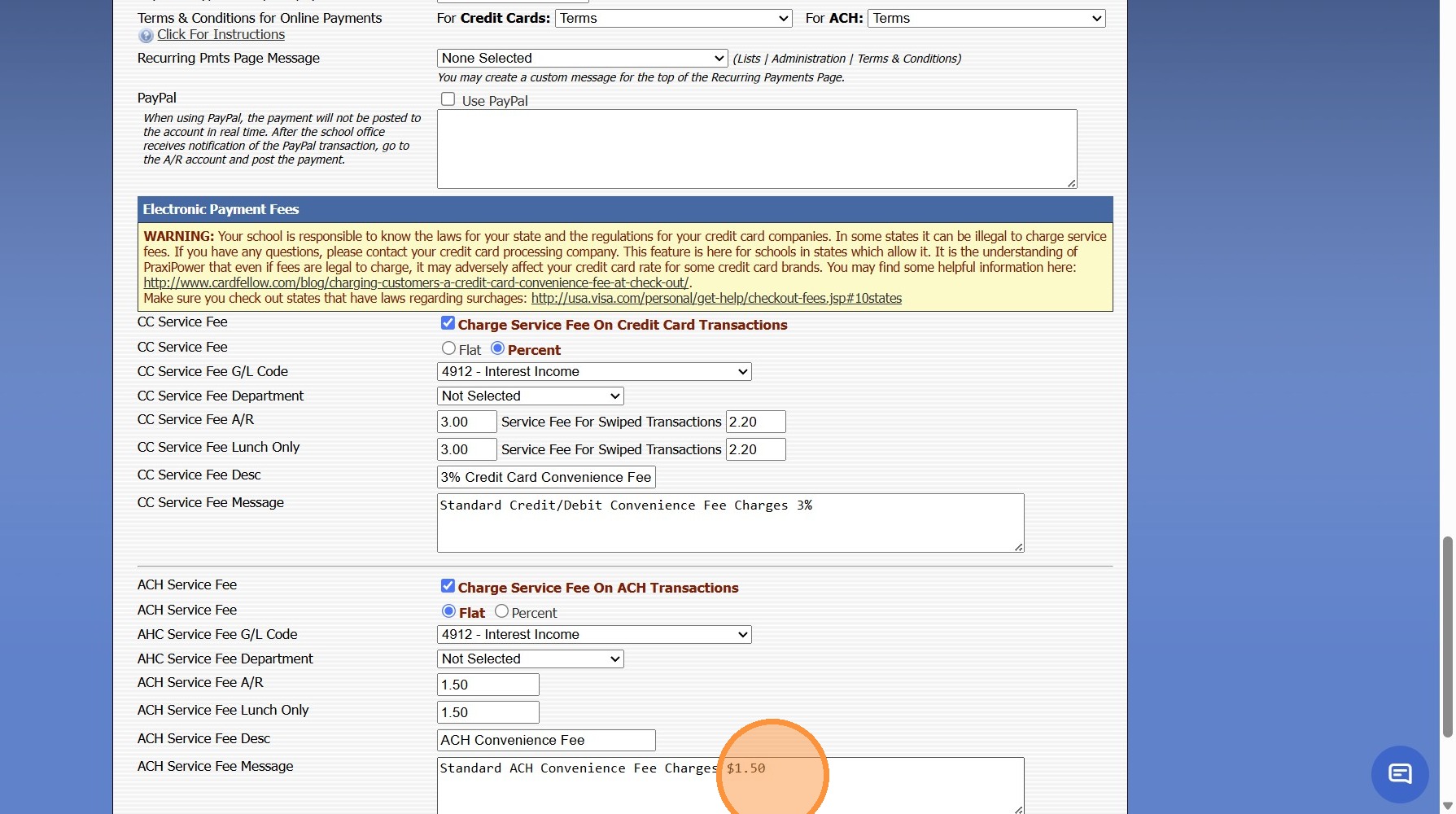
6. Update the ACH Service Fee Message to $1.50
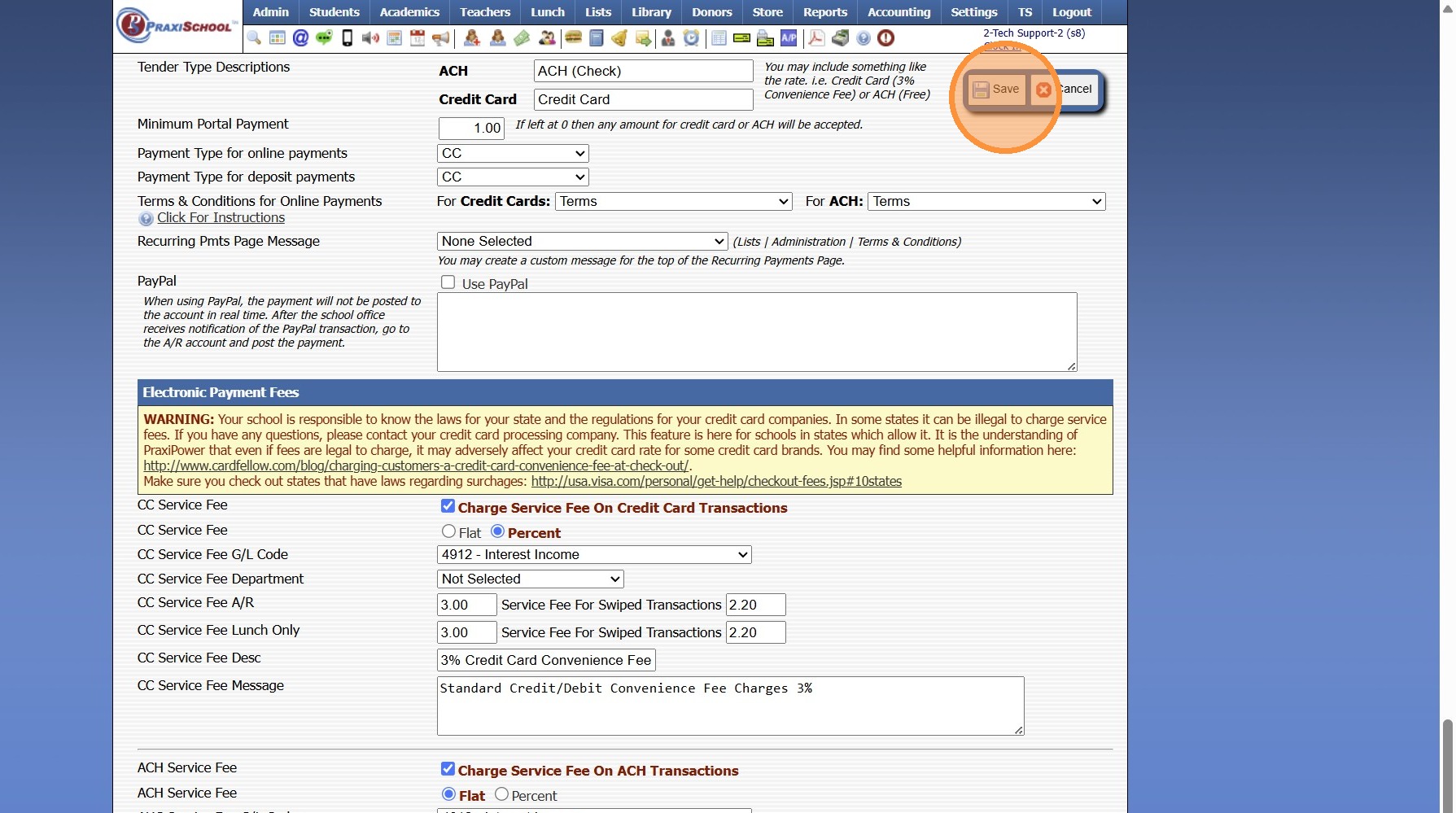
7. Click "Save"
6000.4.16
Related Articles
Heartland Declined ACH Message - Blacklist
Heartland Declined ACH Message - Blacklist 1. Click "Accounting" 2. Click "Electronic Payments" 3. Click "Heartland Transactions" 4. Select the non-successful transaction 5. [MessageDescription] => 233 - Transaction declined. Please contact the ...Heartland Payments Set Up Details
Heartland Payments is eager to assist in establishing a merchant processing account (MID) for credit/debit and echeck (ACH). The purpose of this document is to furnish details specific to each option as well as the boarding portals (labeled ...Batches Step 1 - Updating Batches
1. Click "Accounting" 2. Click "Electronic Payments" 3. Click "Download Heartland Trans" 4. Set Date Range 5. Click "Credit Card" 6. Click "Update Batches" 7. Click "ACH" 8. Click "Update Batches" 6000.4.13Download Heartland Transaction Report
Download Heartland Transaction Report 1. Click "Accounting" 2. Click "Electronic Payments" 3. Click "Download Heartland Trans" 4. Set Date Range 5. Click "Download Transactions" 6. Report will Download for Review 6000.4.11Late Fees - Percentage
1. Click "Lists" 2. Click "A/R Accounting" 3. Click "Late Fees" 4. Click "Add" 5. Enter Late Fee Name & Comment 6. Enter Balance Greater than Amount (only set this if accounts should not be billed when balance is lower than a certain amount) 7. ...