Unapply a Payment
1. Click "Admin"

2. Click "Accounts Receivable"

3. Select AR Account
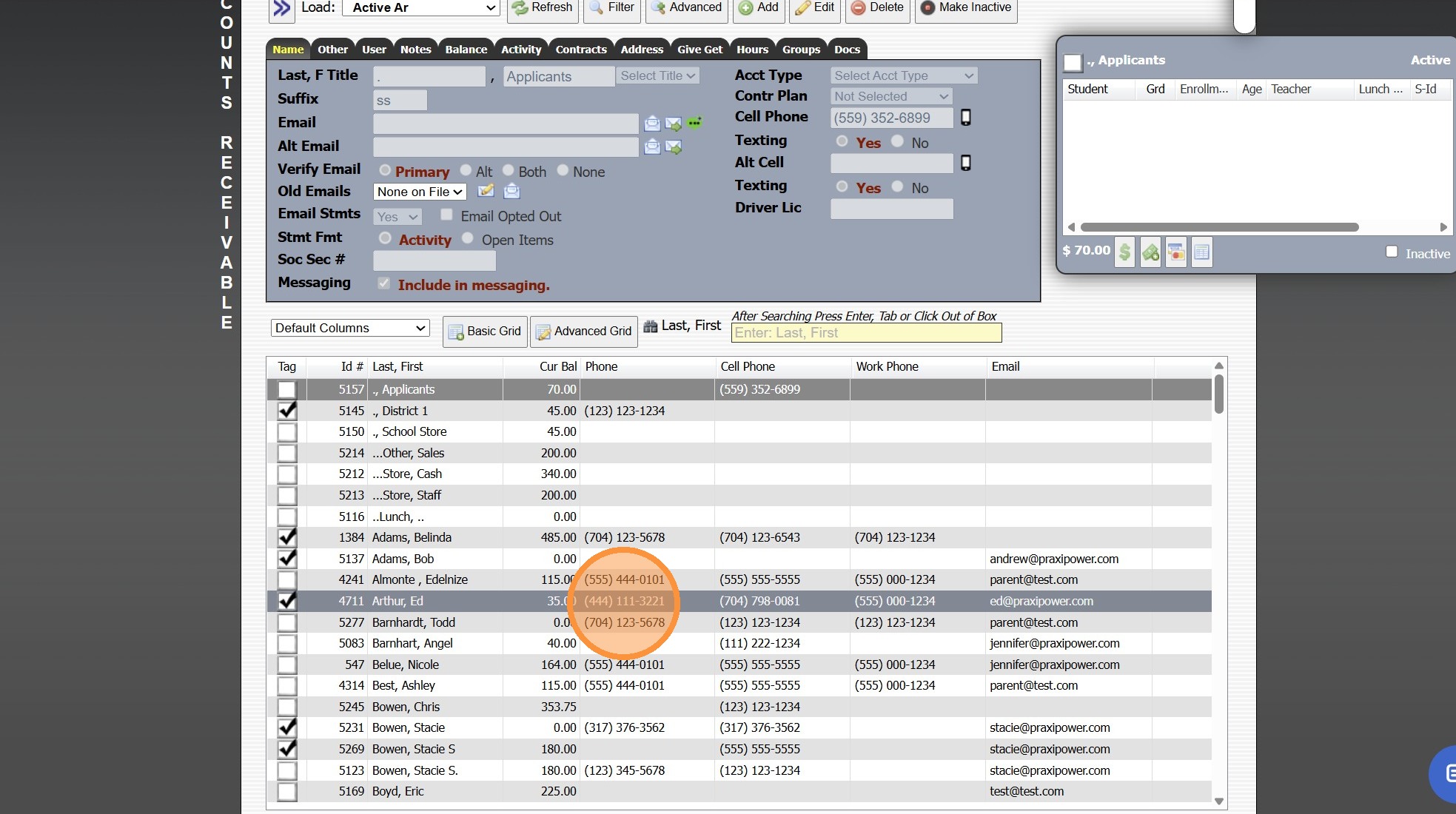
4. Click the "Activity" Tab
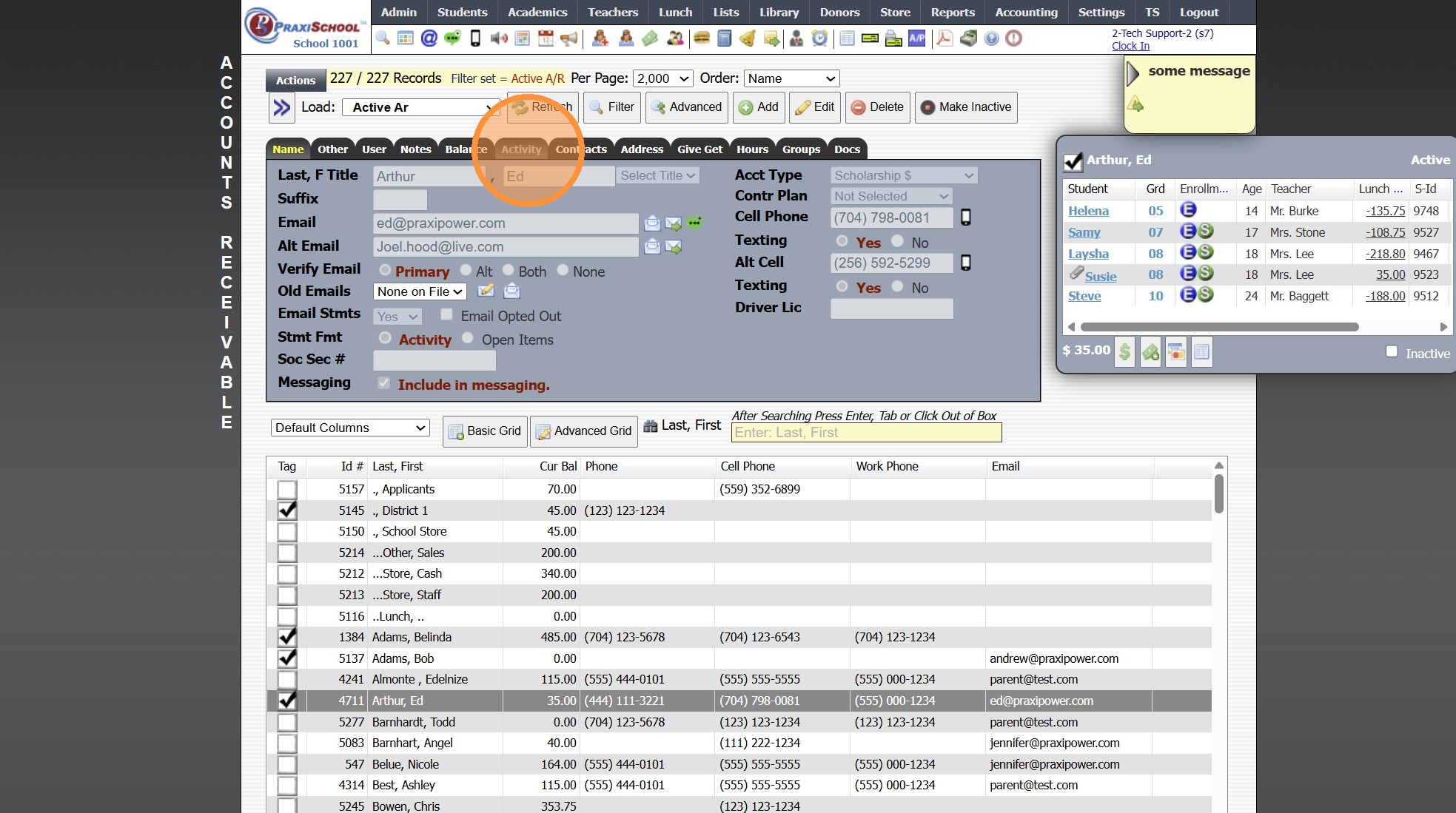
5. Click "Expand"
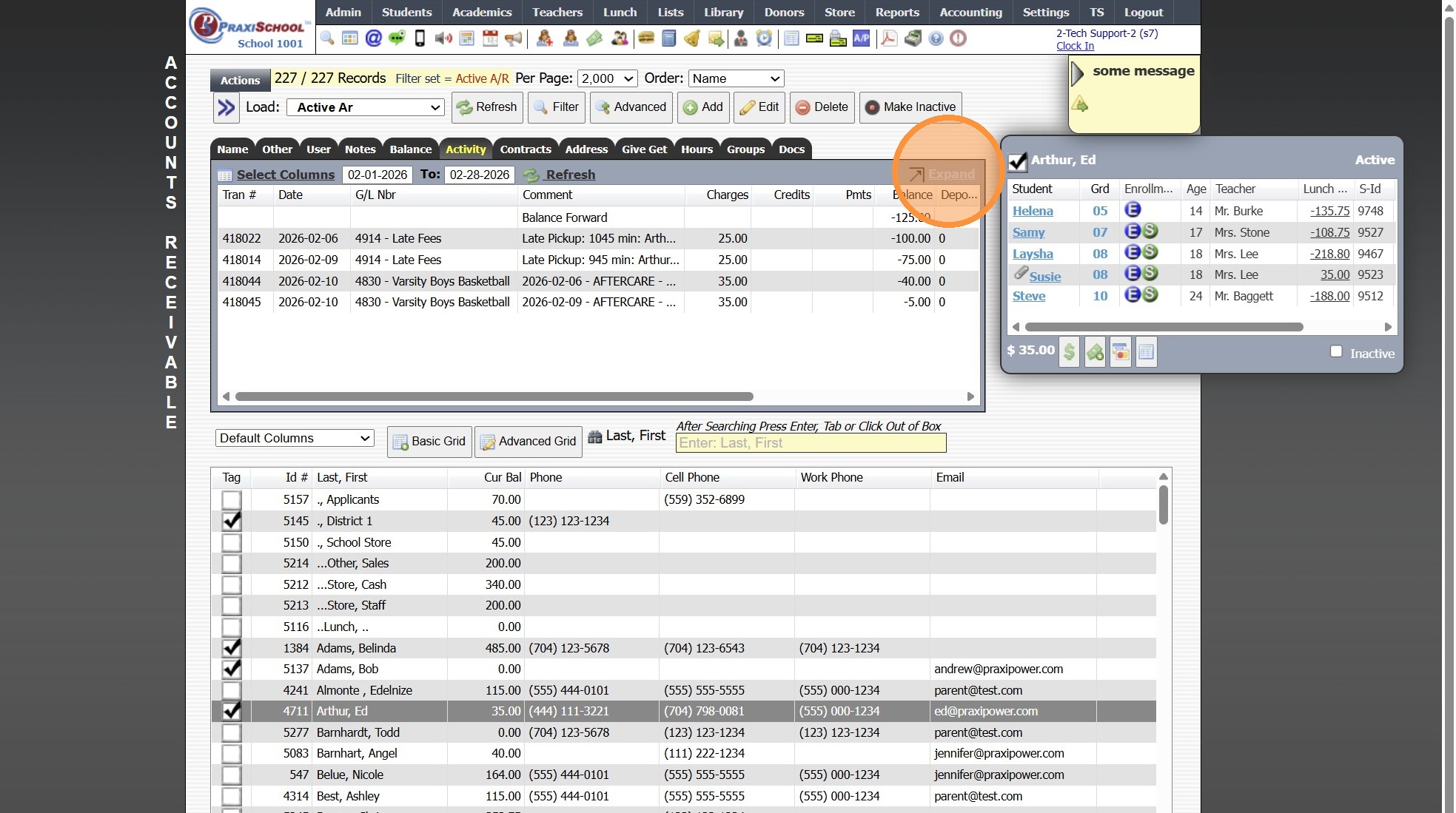
6. Select Payment
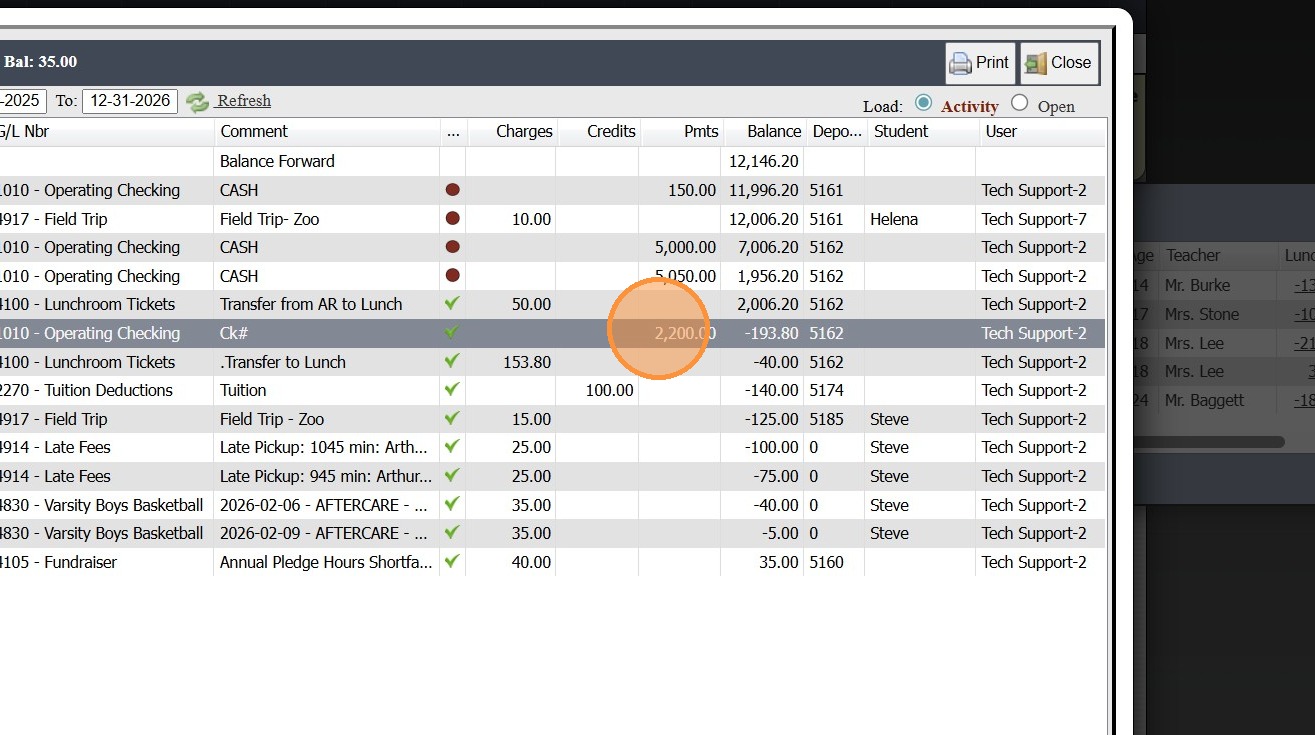
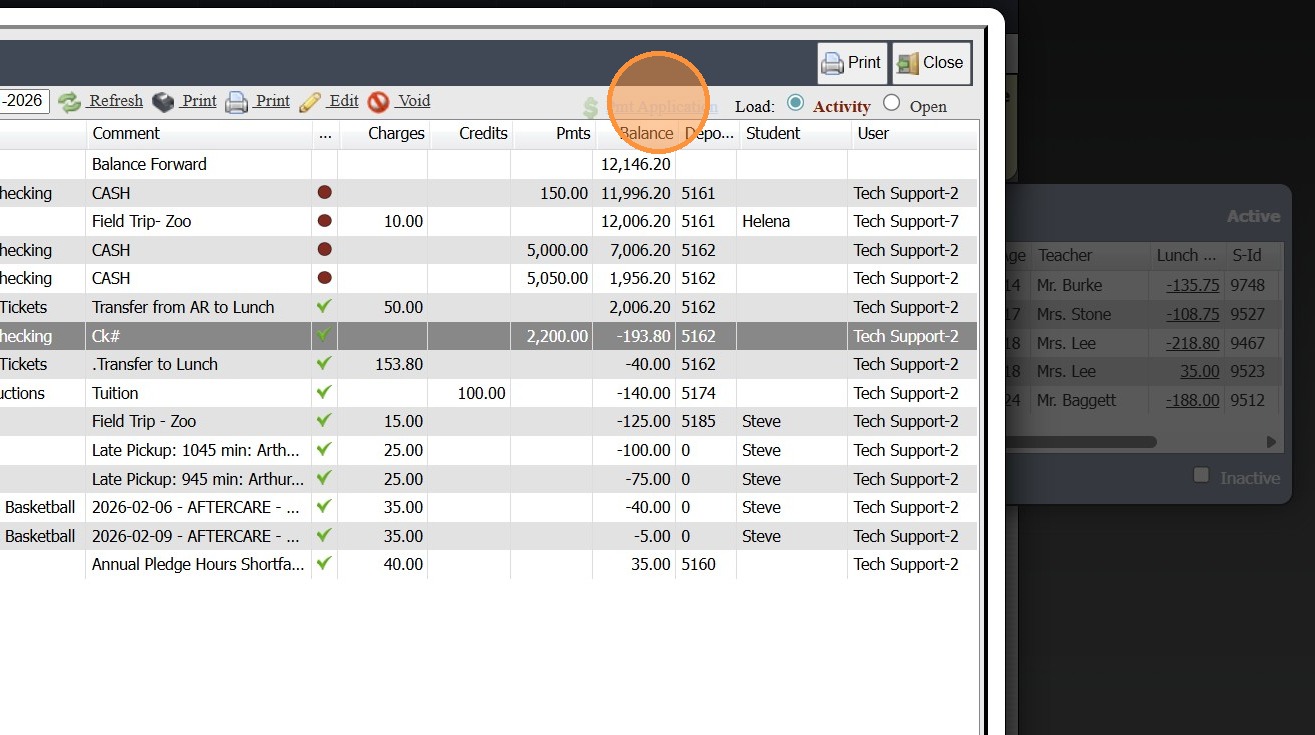
7. Click "Pmt Application"
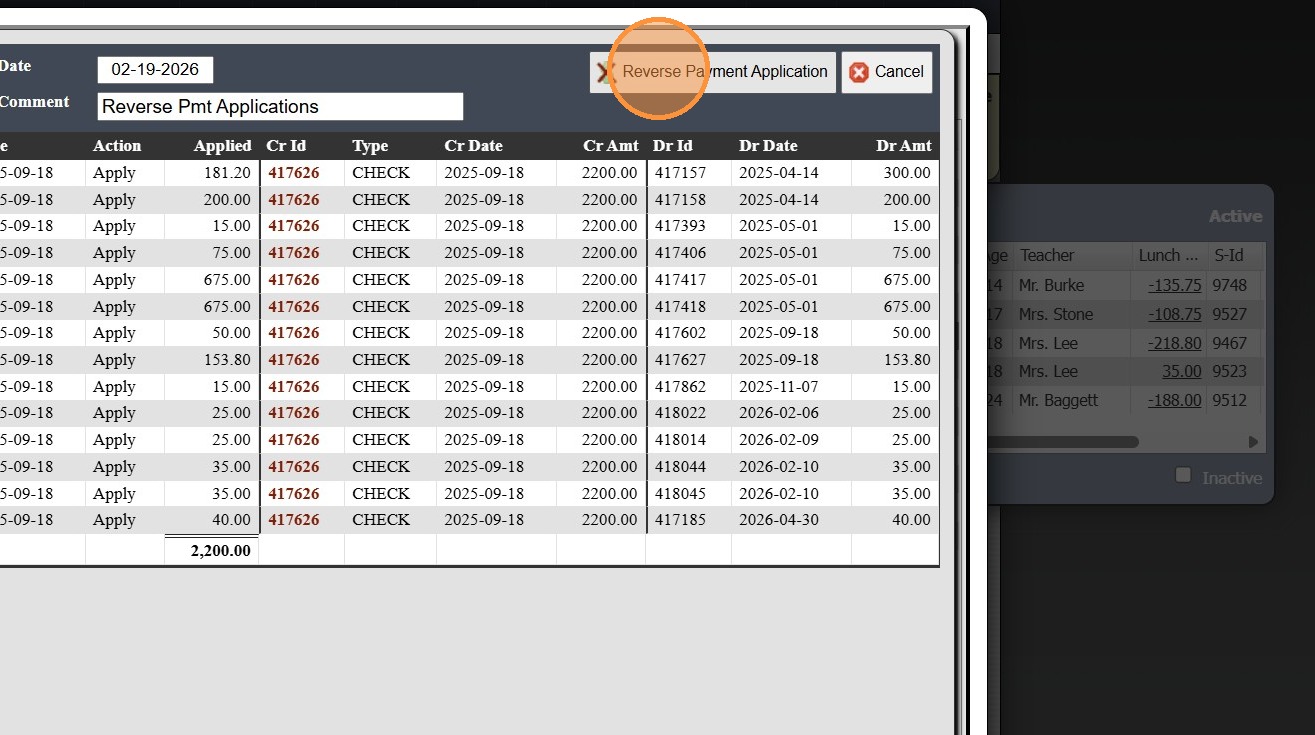
8. Click "Reverse Payment Application"
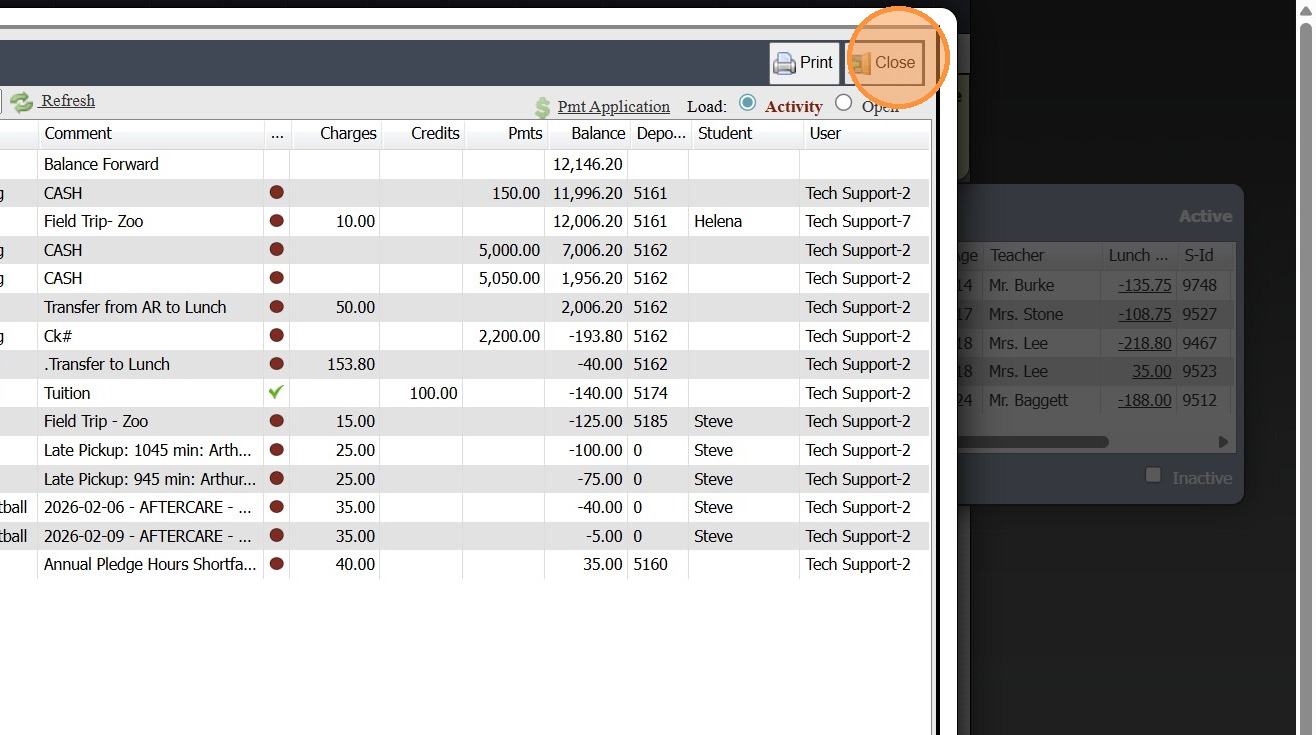
9. Click "Close"
1000.1.34
Related Articles
Creating a Saved Payment
Creating a Saved Payment 1. Click "Accounting" 2. Click "Electronic Payments" 3. Click "Create Saved Pmts" 4. Search Account Name & Select 5. Verify Address, Email & Phone Number on File Matches Billing Address for Method of Payment 6. Select ACH to ...Creating a Saved Payment & Setup a Payment Amount and Schedule
Creating a Saved Payment & Setup a Payment Amount and Schedule 1. Click "Accounting" 2. Click "Electronic Payments" 3. Click "Create Saved Pmts" 4. Search Account Name & Select 5. Verify Address, Email & Phone Number on File Matches Billing Address ...Making a Payment from the Student Portal
1. Log into the Student Portal (Enter School ID, Parent ID & Password) 2. Click "Make Payment" 3. Select ACH or Credit Card 4. Enter ACH or Credit Card Information 5. Enter Payment Amount in the A/R Field 6. Check Terms & Conditions Box 7. Click ...Posting a Payment to an Accounts Receivable (Parent Billing Account)
Posting a Payment to an Accounts Receivable (Parent Billing Account) 1. Log into PraxiSchool 2. Click "Admin" 3. Click "Accounts Receivable" 4. Select AR Account to Post Payment 5. Click the "$" Symbol 6. Select the Payment Type 7. Enter Payment ...Applying an Accounts Receivable Payment to Billed Charges
Applying an Accounts Receivable Payment to Billed Charges 1. Log into PraxiSchool 2. Click "Admin" 3. Click "Accounts Receivable" 4. Click on Open Apply Icon 5. Check Box Next to Payment First 6. Check Box Next to Charge(s) After Checking the Payment ...