Placing Store Orders from the Parent Portal Without Payment Requirements
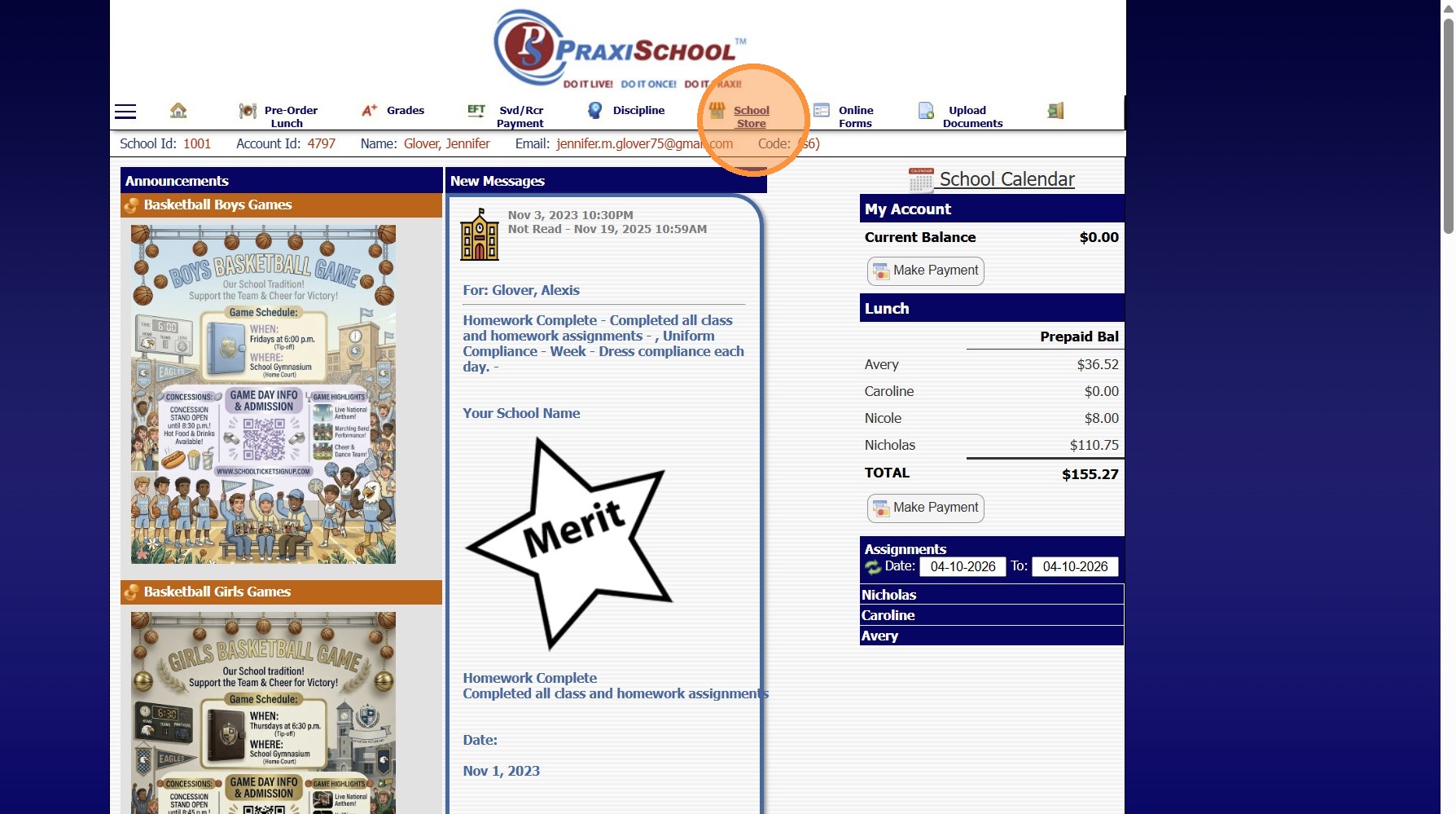
1. Click "School Store"
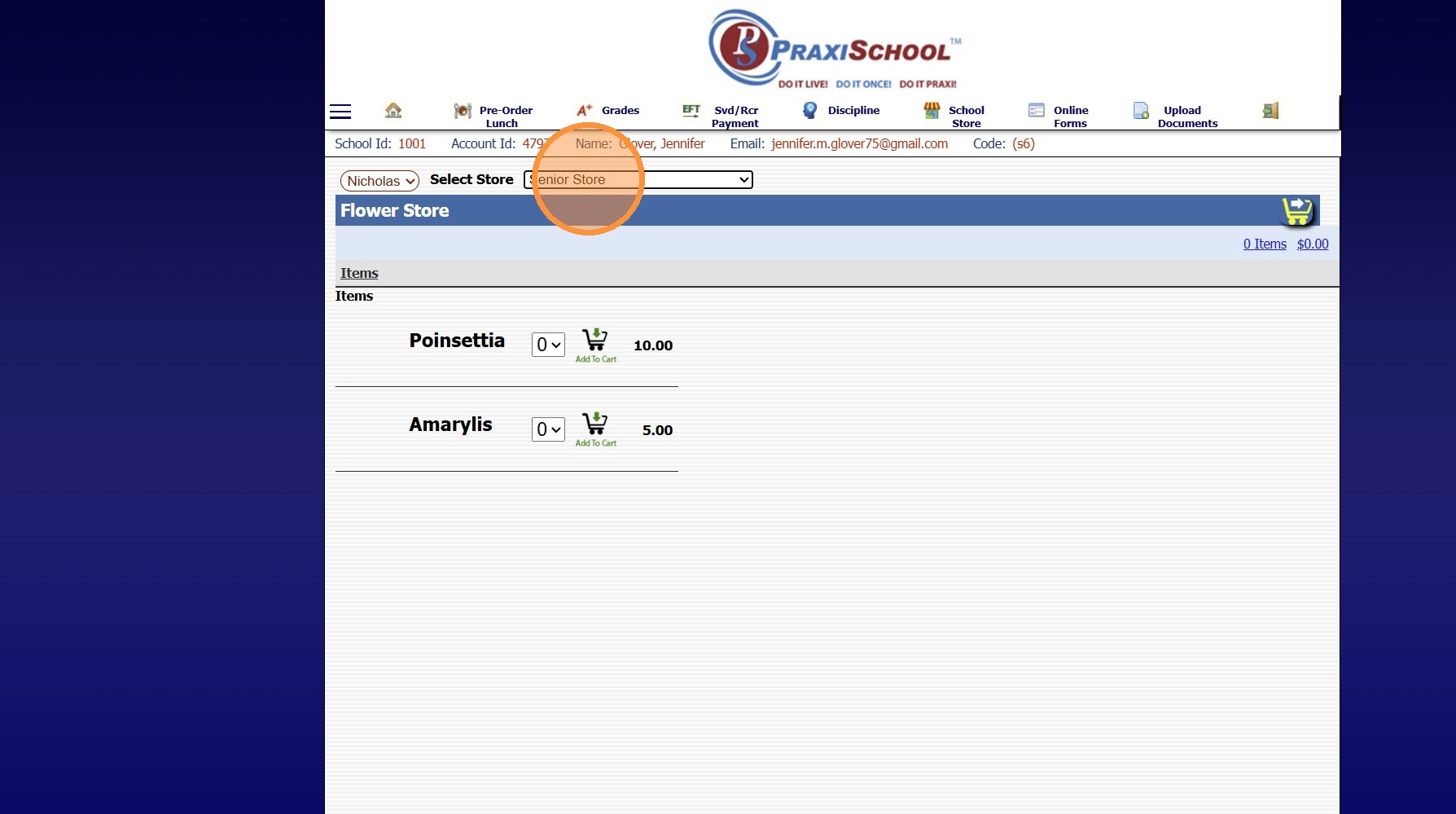
2. Select the Store
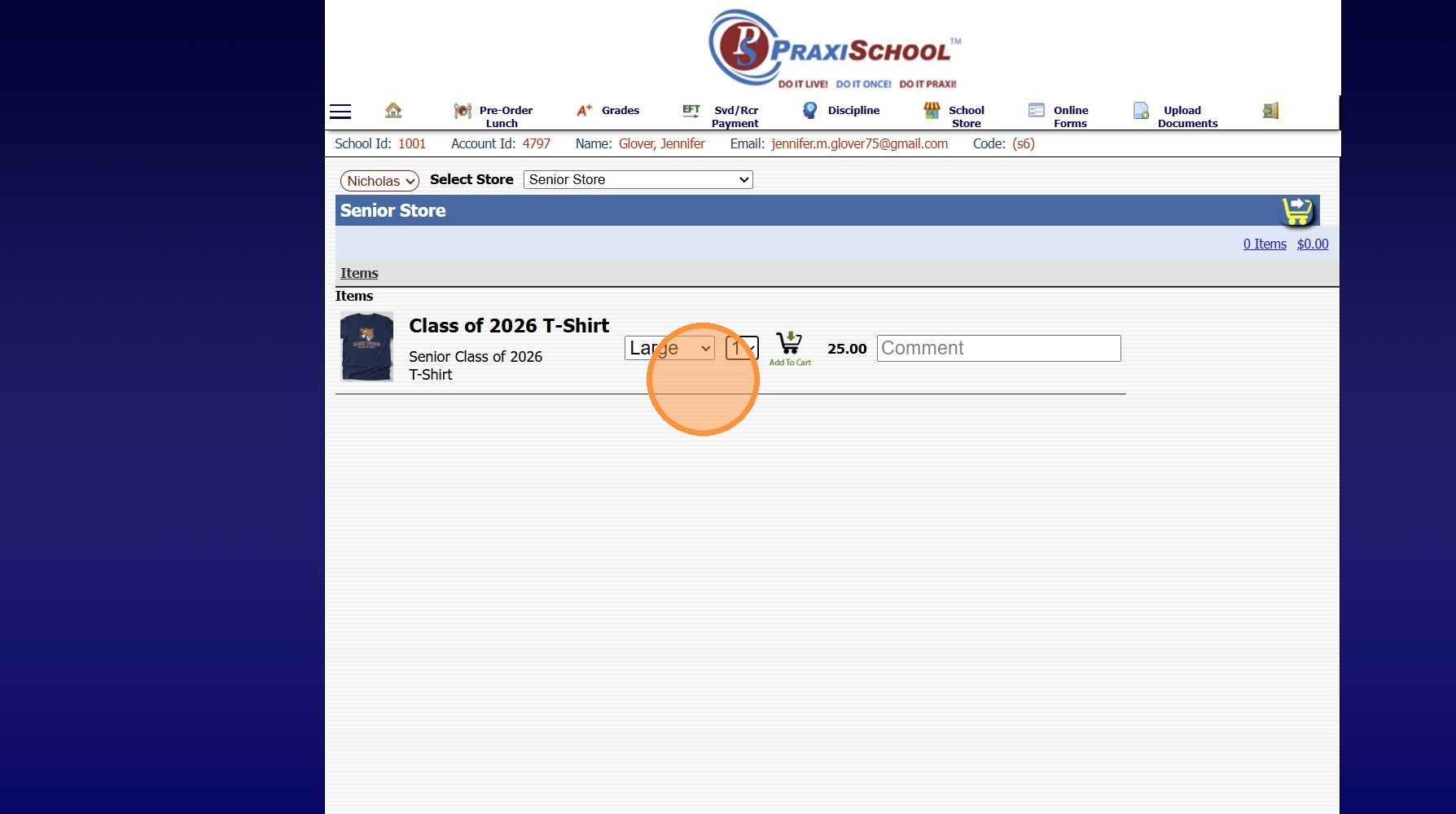
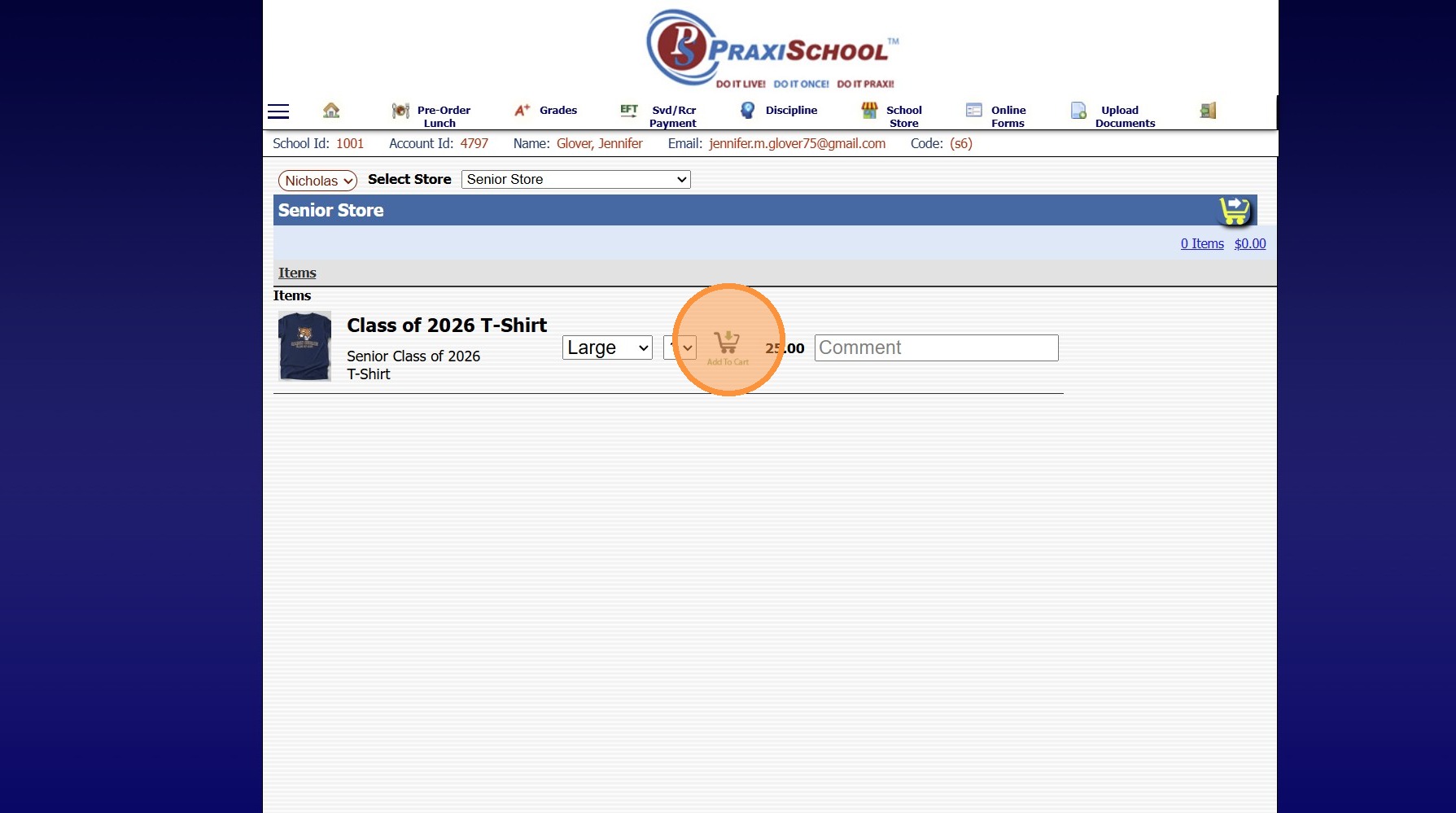
3. Select Size, Color, etc (If Applicable)
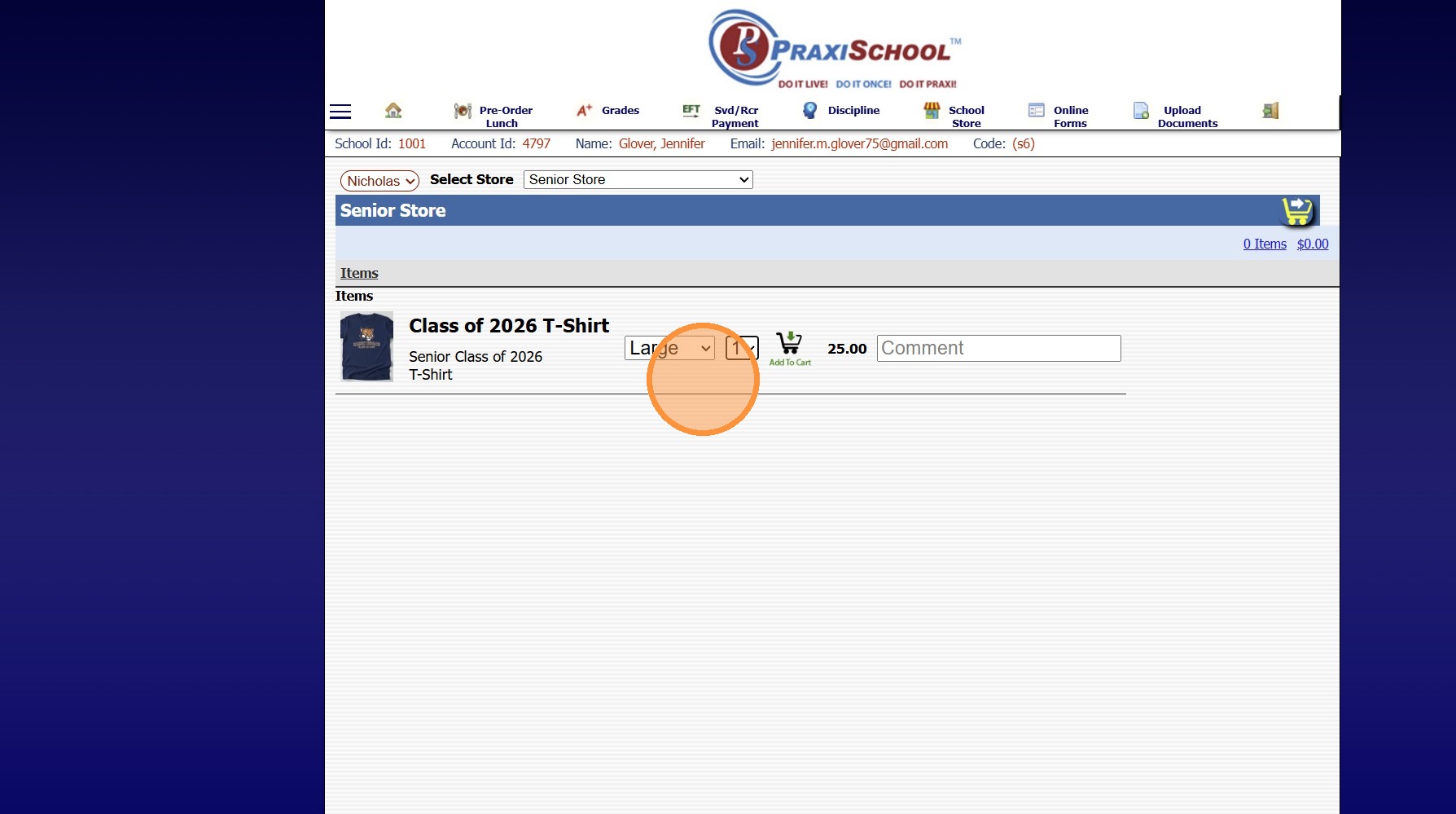
4. Select Quantity
5. Click the Add to Cart Icon
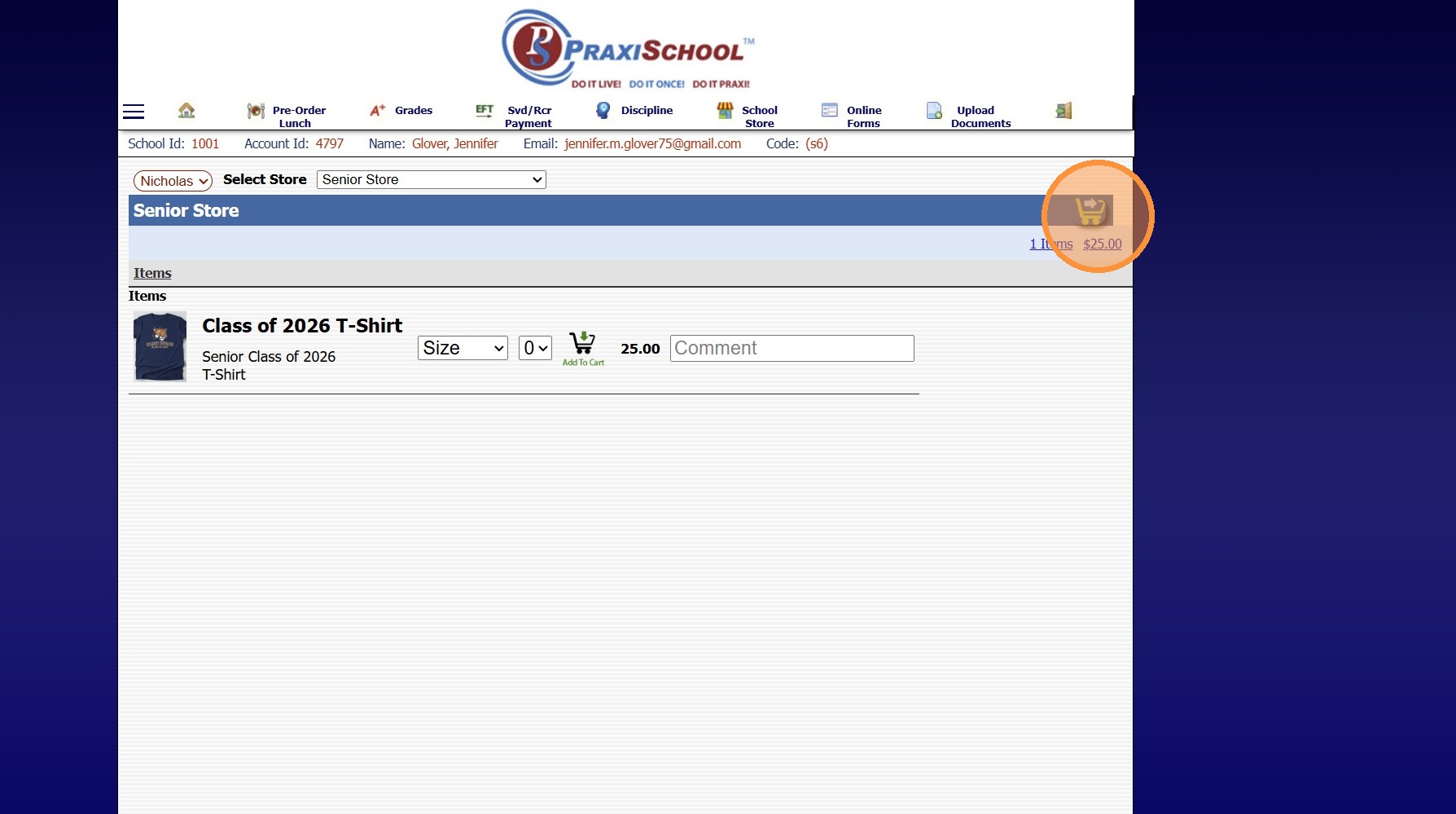
6. Click the Proceed to Cart Icon
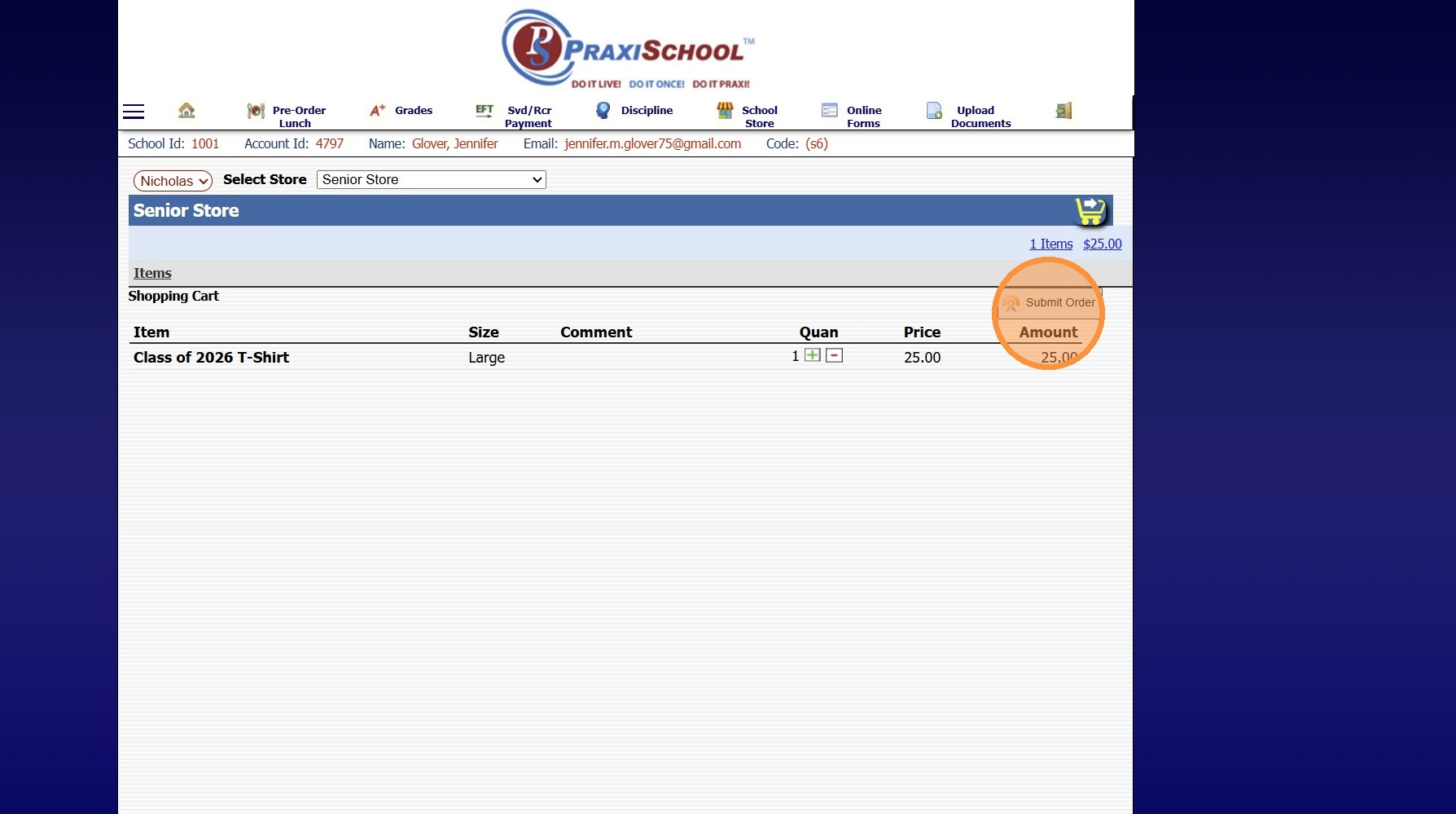
7. Click "Submit Order"
5000.14.1
Related Articles
Store Overview and Training
Welcome to the PraxiSchool Store Overview and Training! Below you will find information about the Store features, Store setup information and the Store training videos. Please review each video before attempting to set up your Store data. PraxiStore ...Making an AR/Lunch Payment on the Parent Portal
1. Log into the Parent Portal 2. Click "Make Payment" 3. Select ACH or Credit Card 4. AR Amount Due will Auto Populate (Click in the Amount Field to Edit Amount to Pay) 5. Lunch Amount Due will Auto Populate (Click in the Amount Field to Edit Amount ...Making a Payment from the Student Portal
1. Log into the Student Portal (Enter School ID, Parent ID & Password) 2. Click "Make Payment" 3. Select ACH or Credit Card 4. Enter ACH or Credit Card Information 5. Enter Payment Amount in the A/R Field 6. Check Terms & Conditions Box 7. Click ...Creating a Store
1. Click "Store" 2. Click "Stores" 3. Click "Stores" 4. Click "Add" 5. Enter Description & Title (Title Appears on Portal Store) 6. Select Action (Order or Collect) (Stores set to Collect require Payment on Submission of Store Order) 7. Select Order ...Accessing the Parent Portal
1. Open Email & Click on Link to Set Password 2. Enter Parent ID (located in email) 3. Enter Email Address that Welcome Email was Sent To 4. Enter Temporary Password (located in email) 5. Enter Desired Password & Confirm Password 6. Click "Submit" to ...