New User Interface Guided Tour
Tip: The first time a User logs into Praxi, they Guided Tour will Automatically Pop-Up, Click "Next" to Preview all 11 Items or Click "Cancel" to Close
1. Item 1 of 11 "Welcome to the new look"
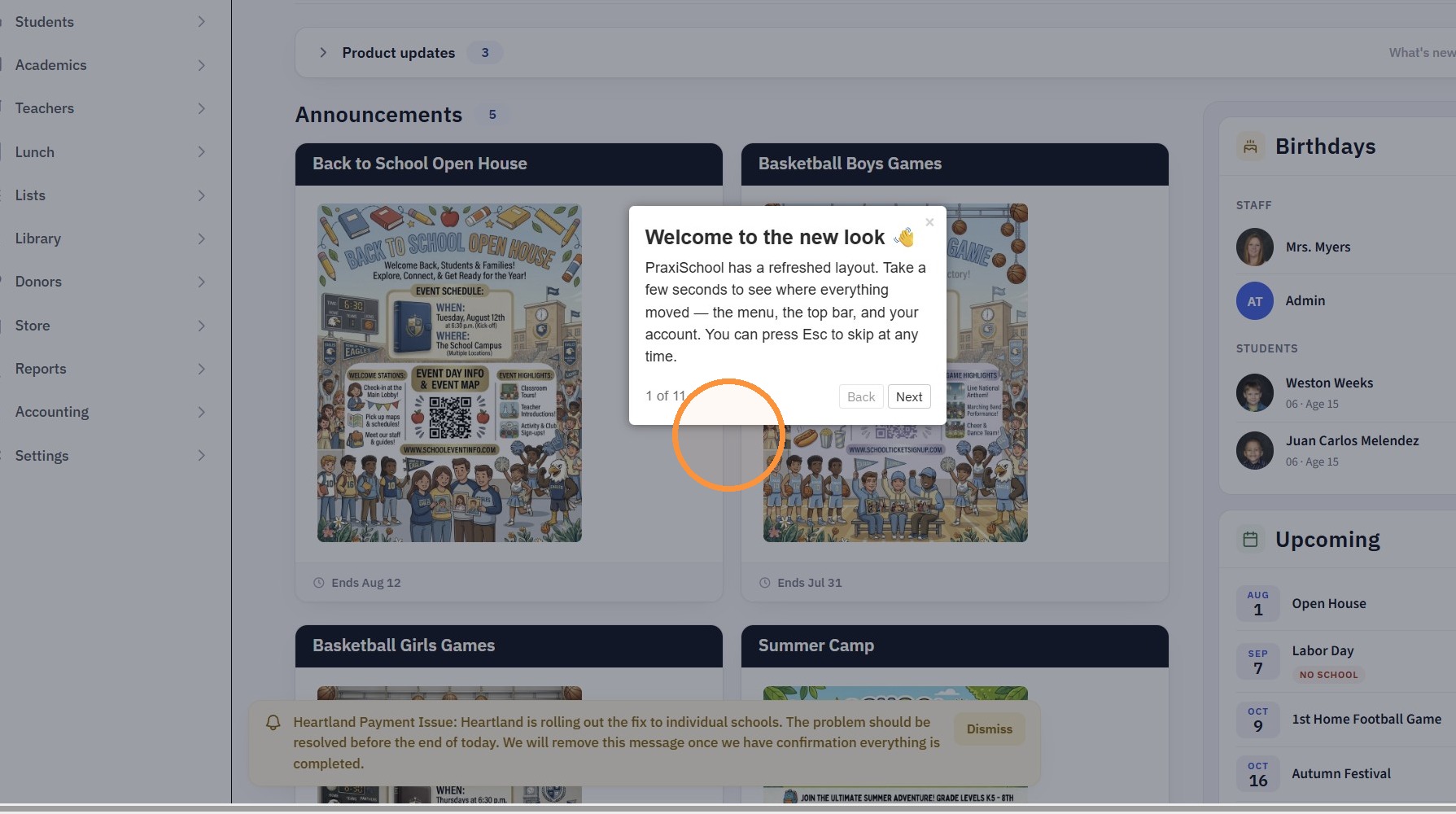
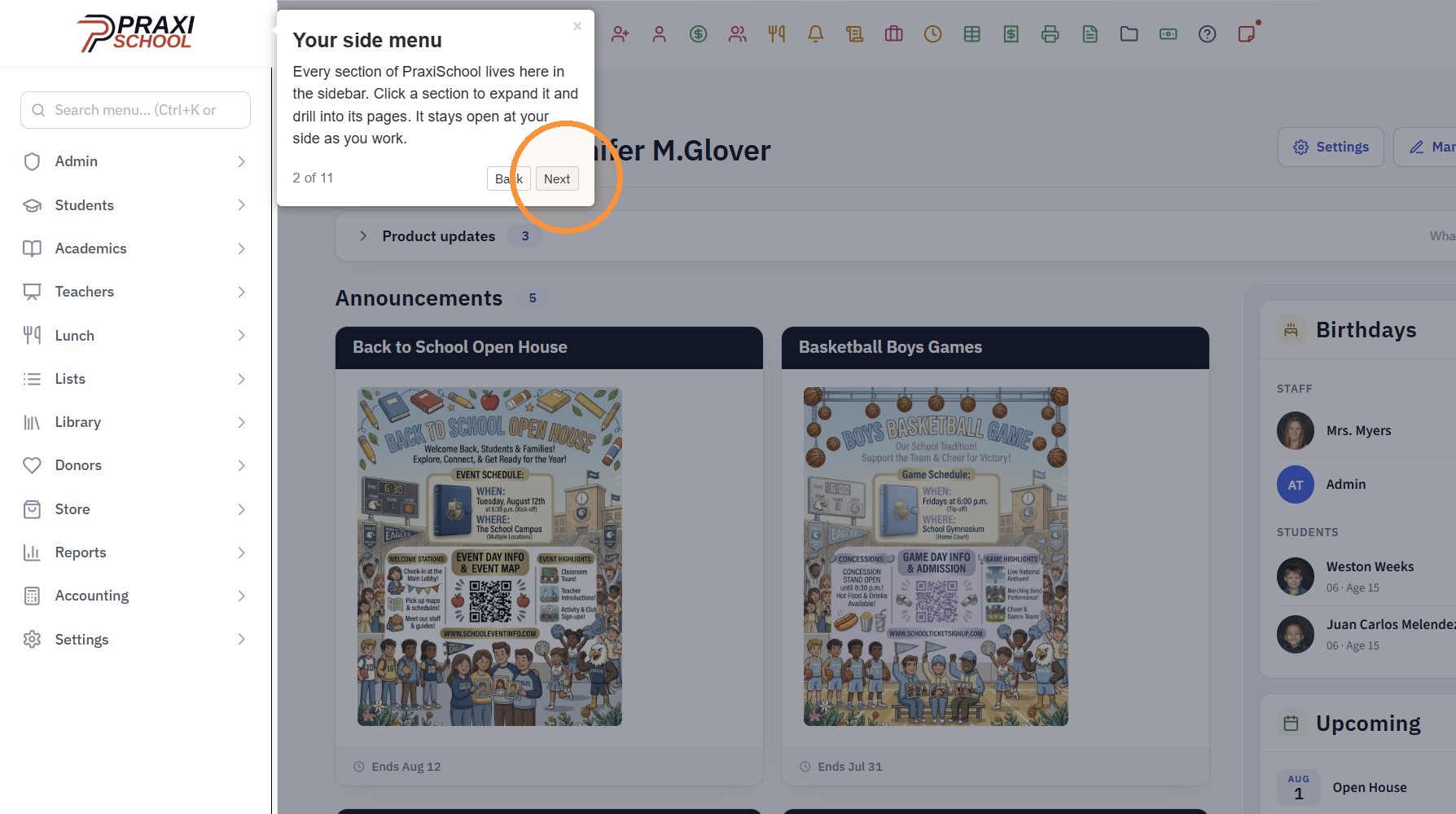
2. Item 2 of 11 "Your side menu"
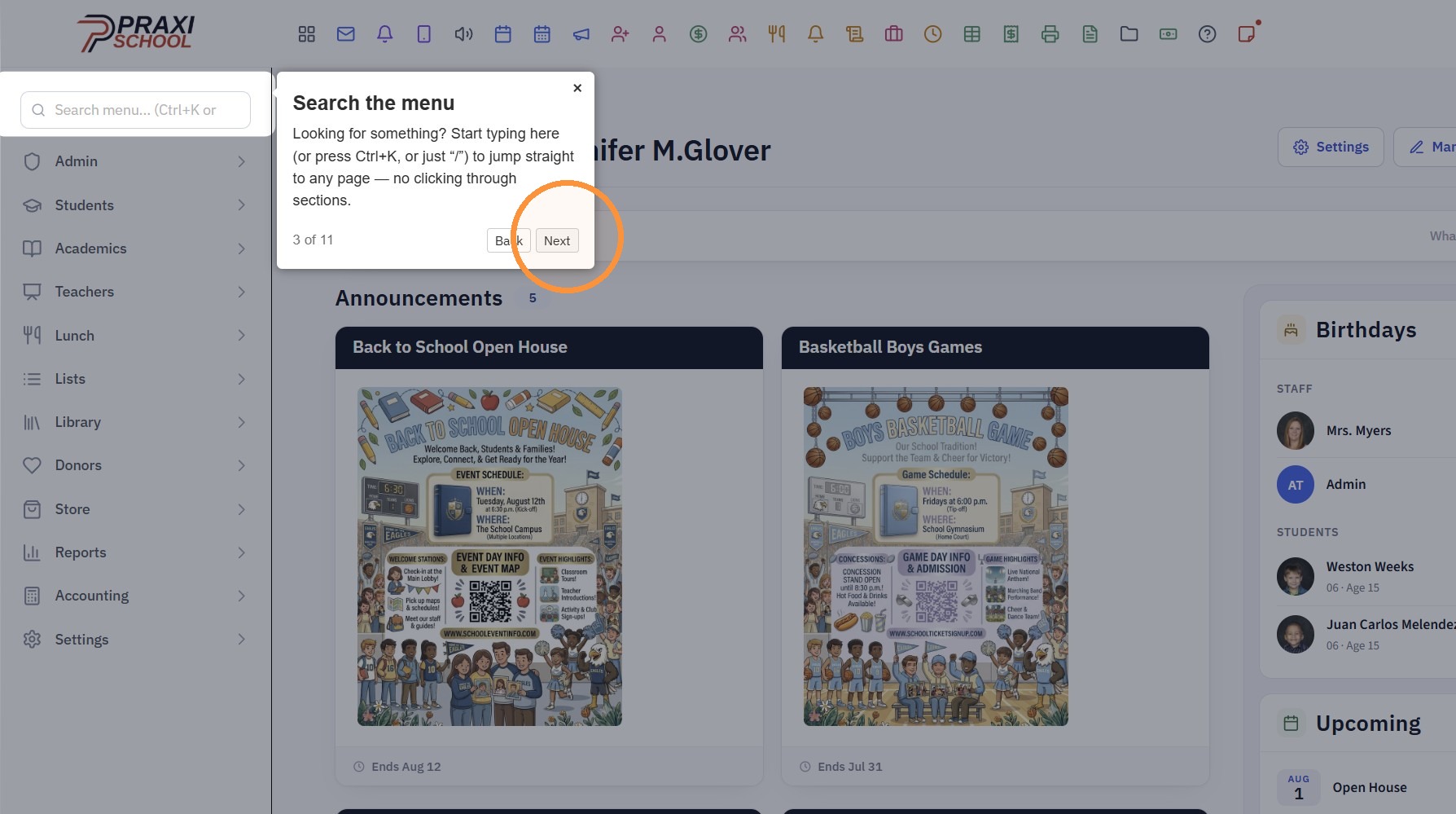
3. Item 3 of 11 "Search the menu"
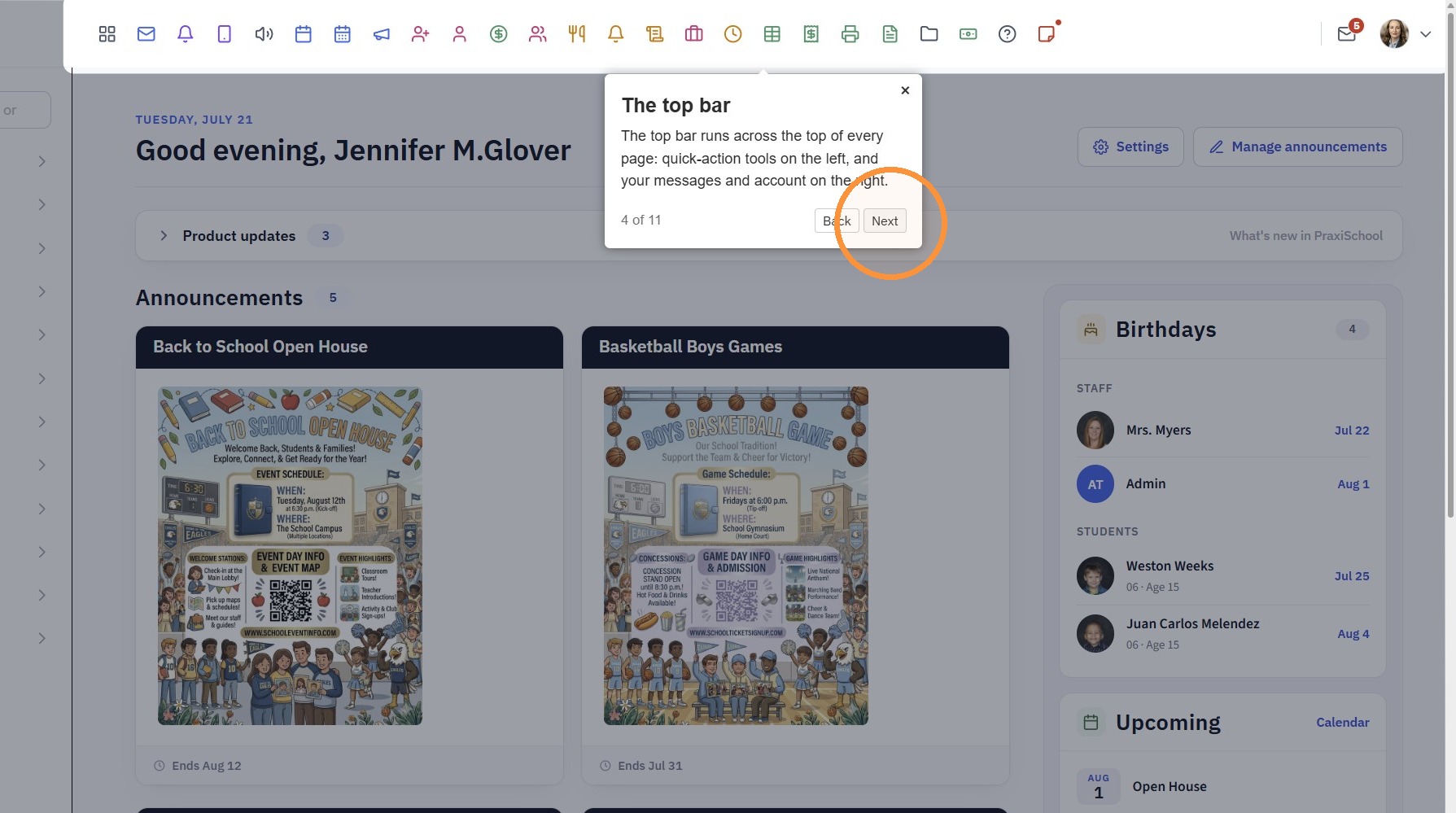
4. Item 4 of 11 "The top bar"
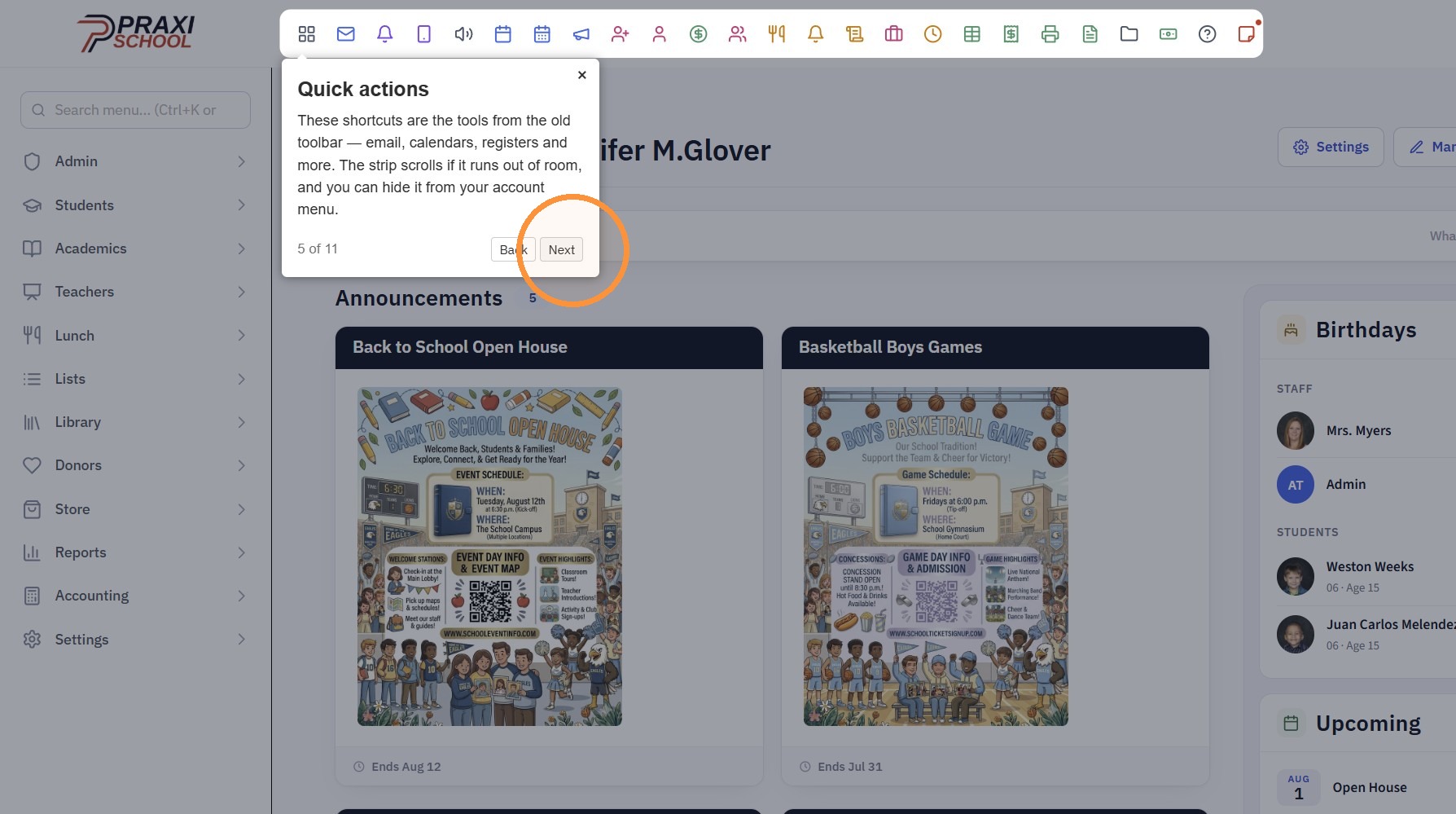
5. Item 5 of 11 "Quick actions"
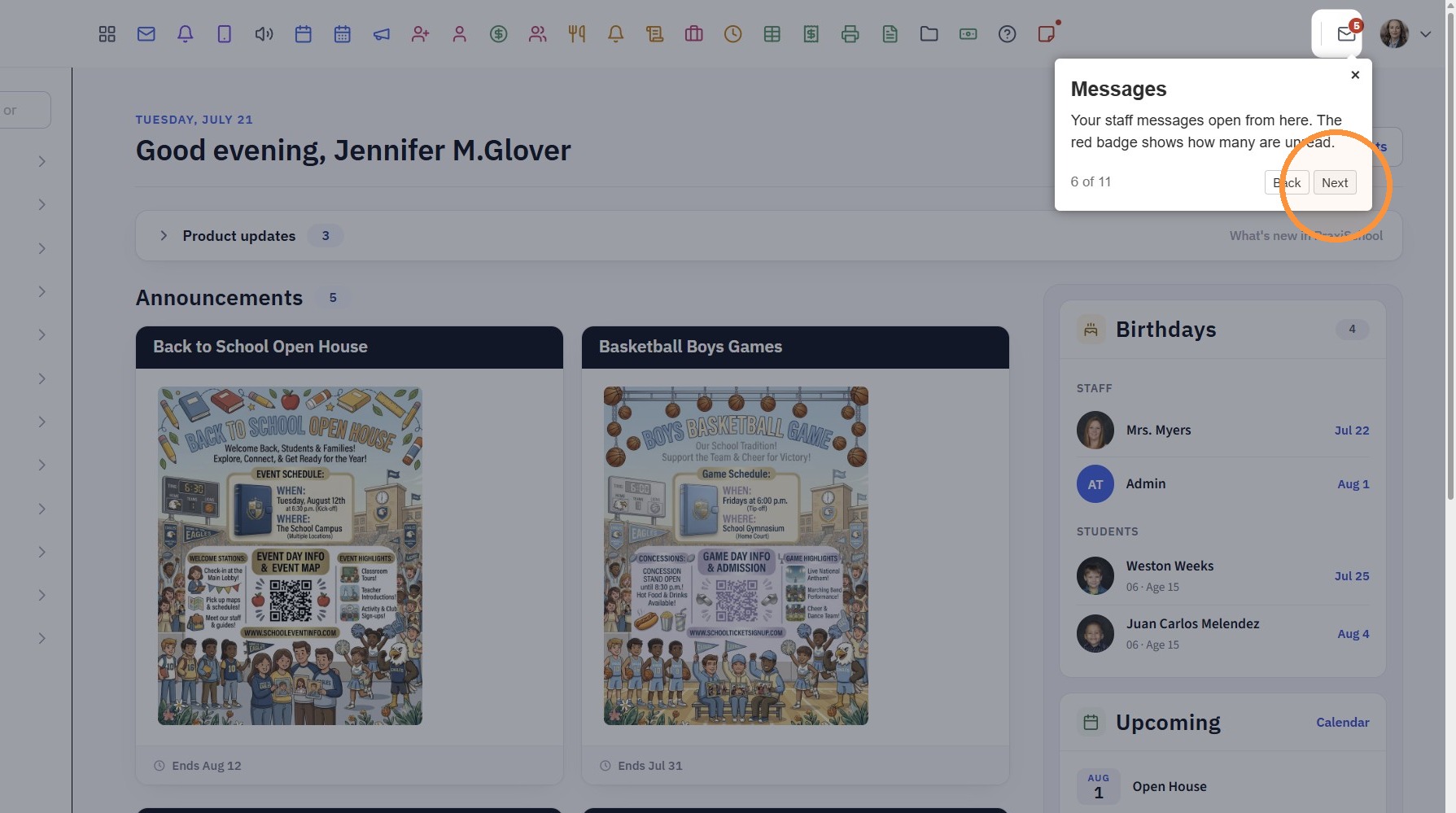
6. Item 6 of 11 "Messages"
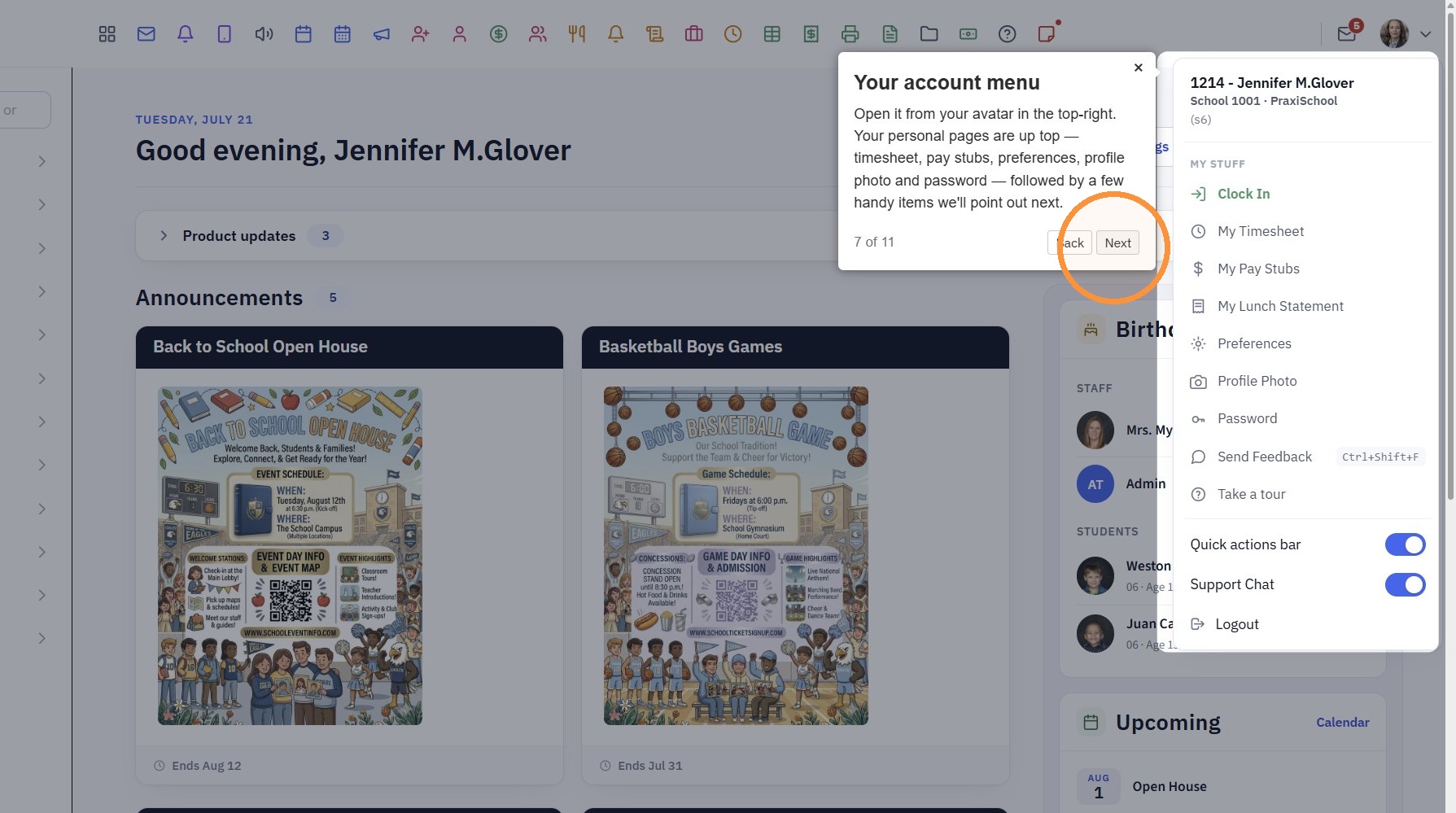
7. Item 7 of 11 "Your account menu"
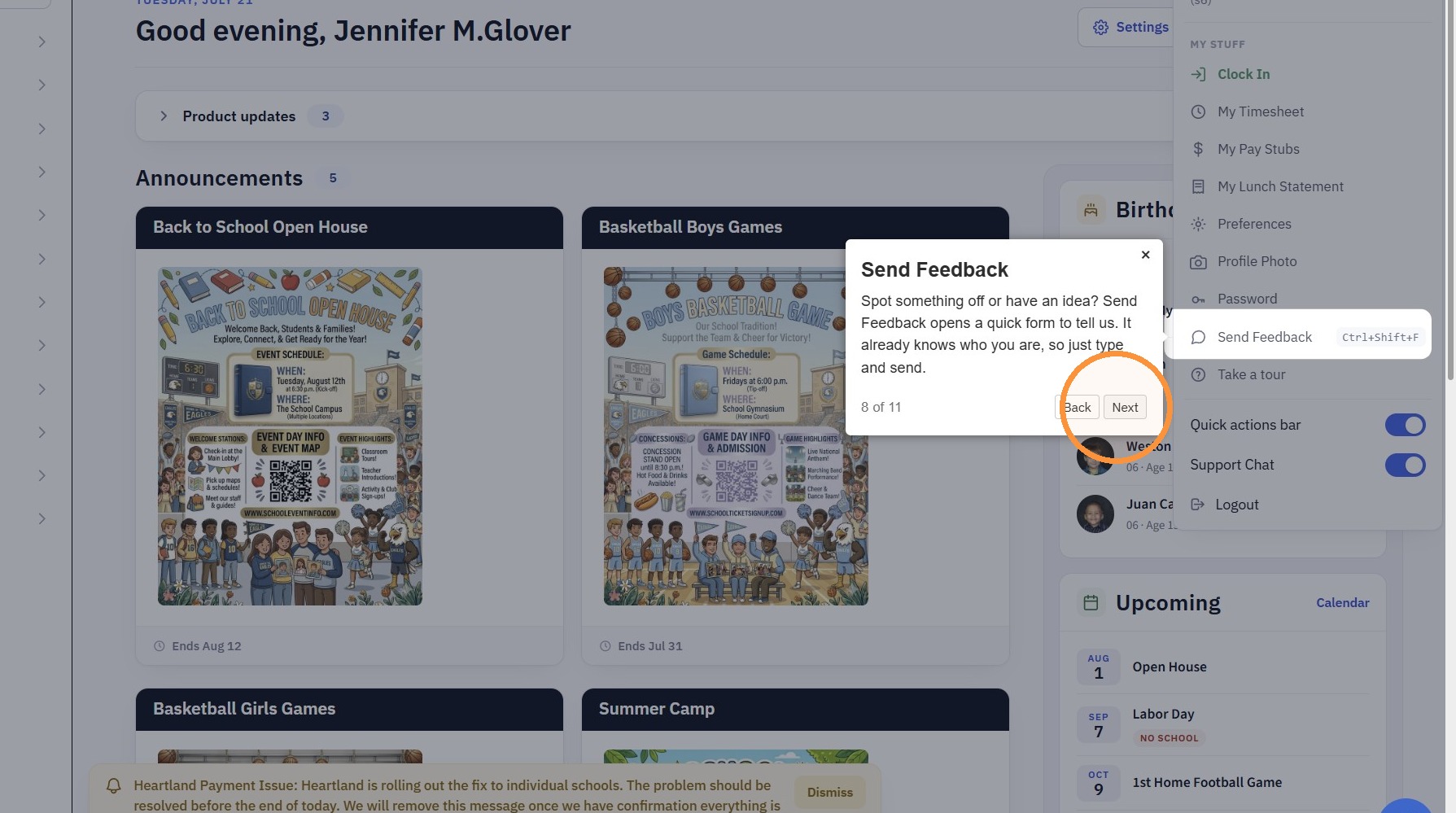
8. Item 8 of 11 "Send Feedback"
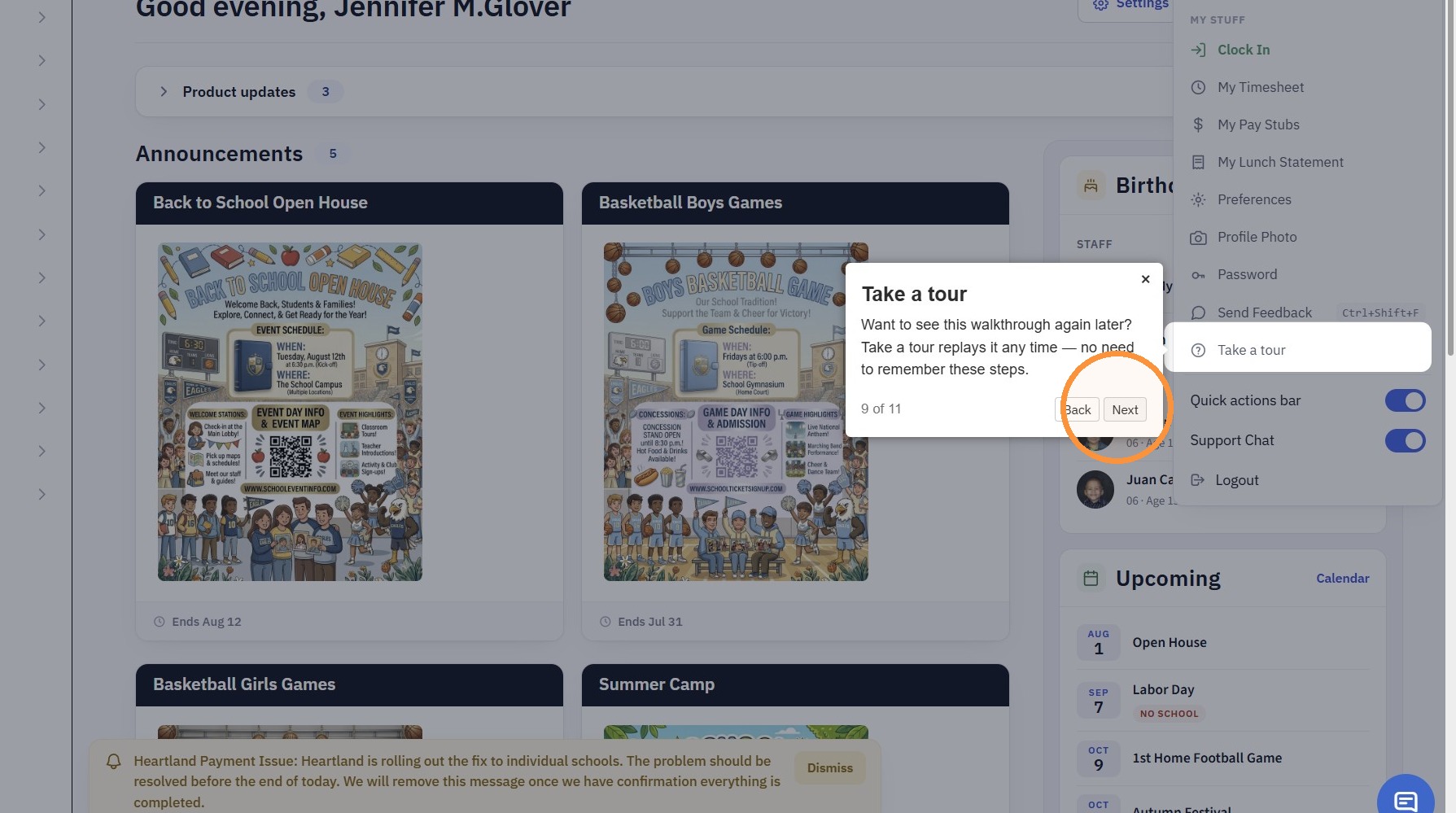
9. Item 9 of 11 "Take a tour"
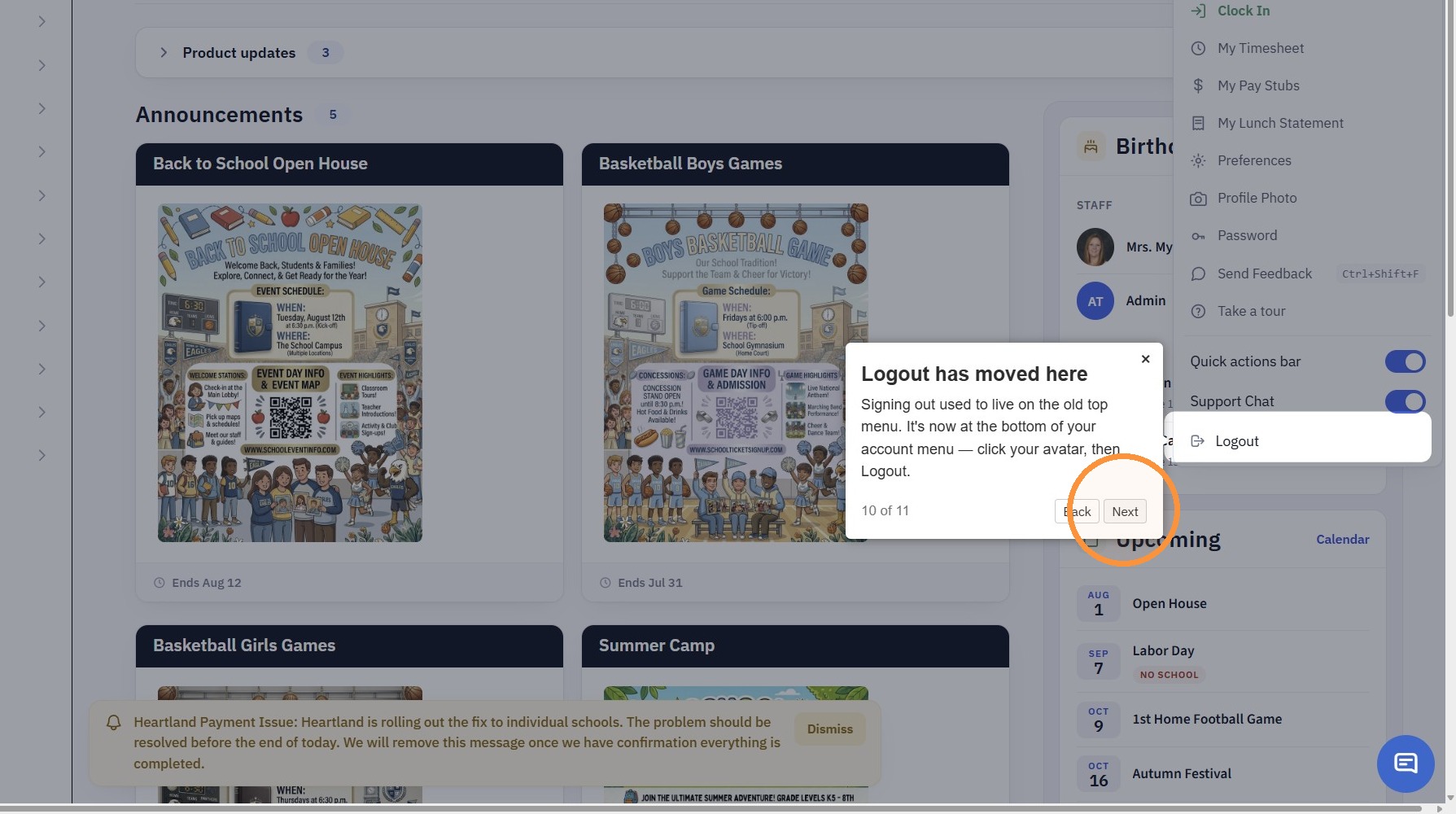
10. Item 10 of 11 "Logout has moved here"
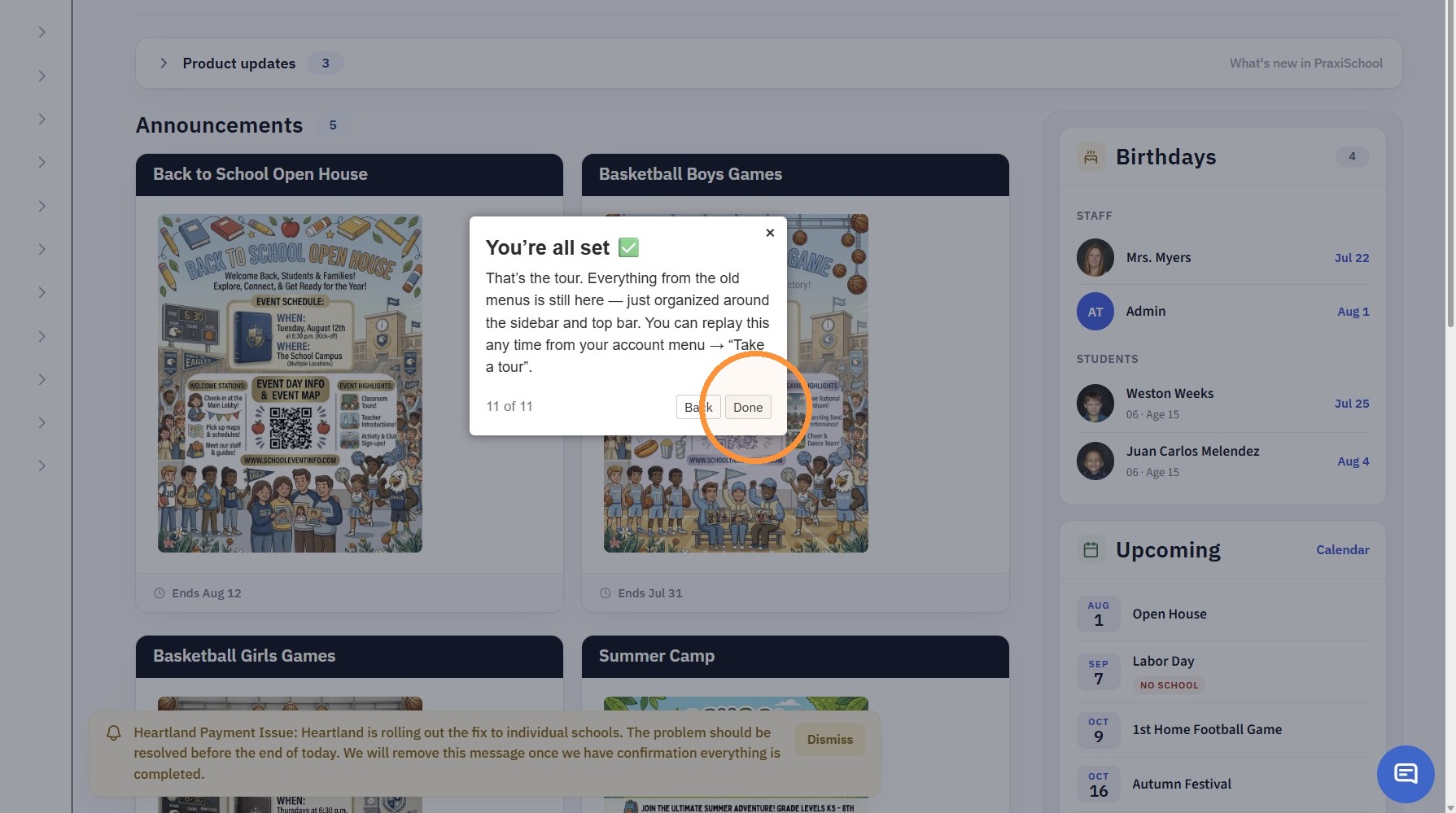
11. Item 11 of 11 "Done"
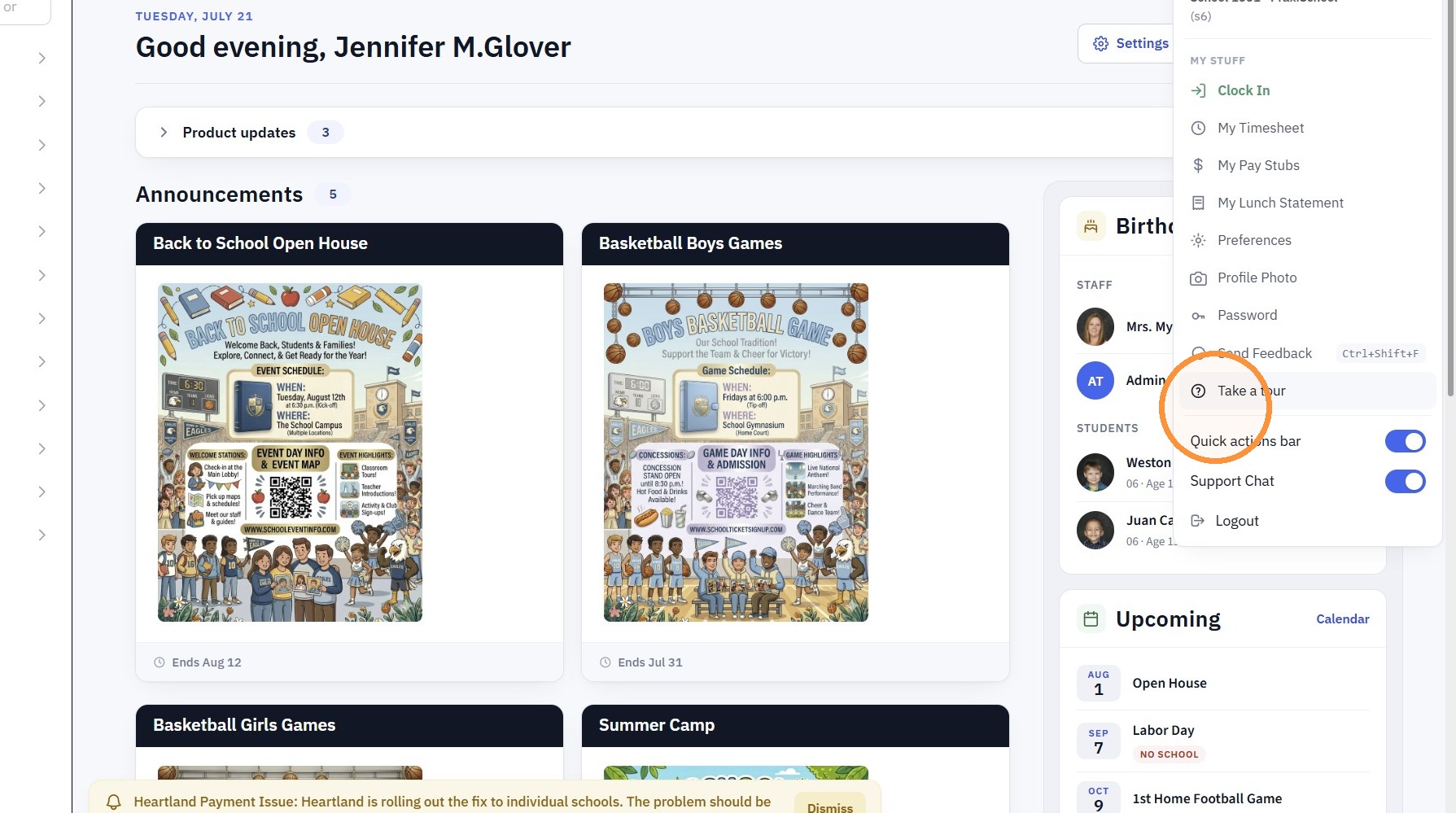
Accessing the Tour After Initial Login
12. Click on the Icon with the Staff Initials or Staff Picture
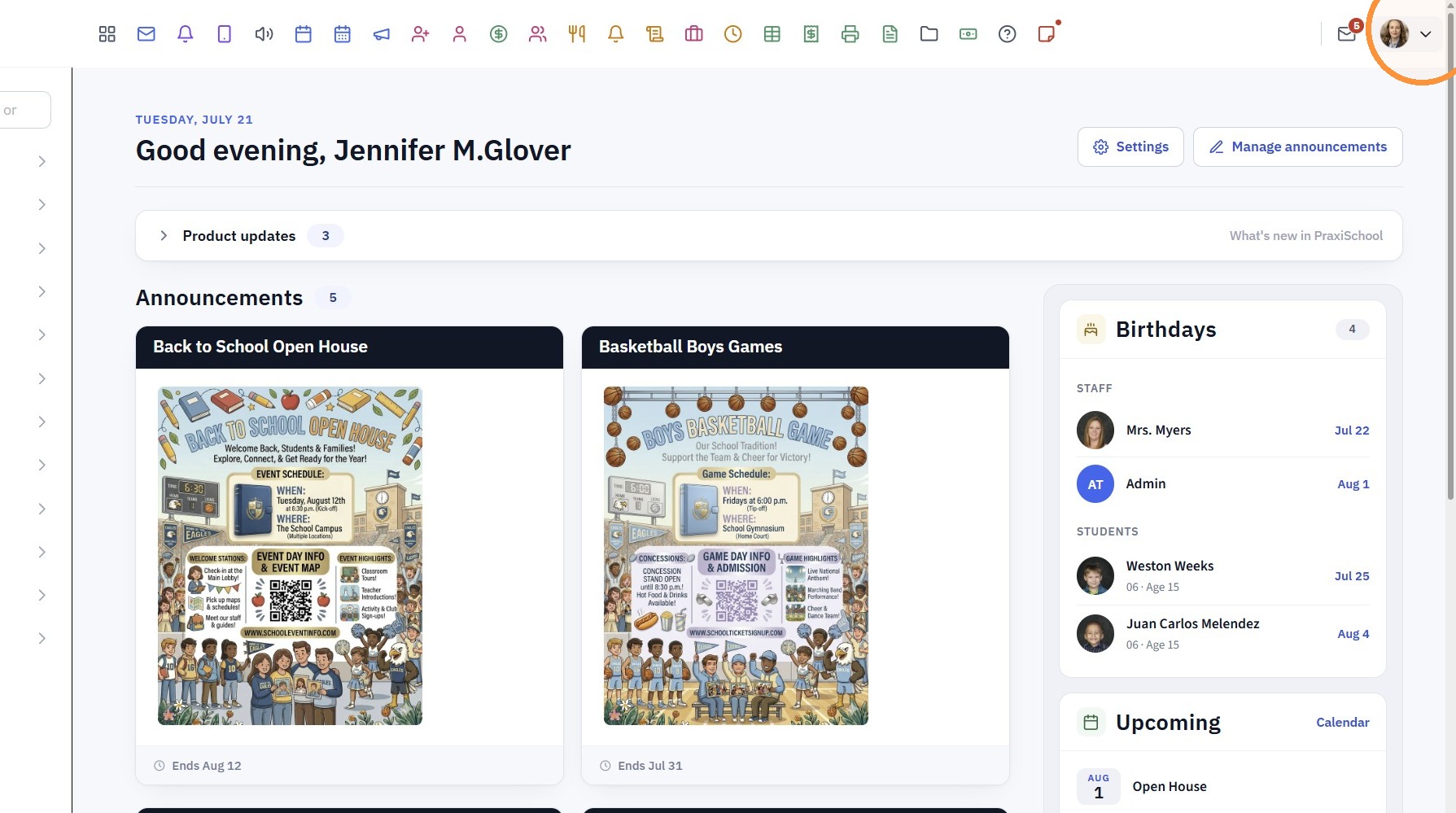
13. Click "Take a tour"
7000.8.1
Related Articles
Adding a New Staff Member in PraxiSchool
Adding a New Staff Member in PraxiSchool 1. Log into PraxiSchool 2. Click "Admin" 3. Click "Staff " 4. Select "Staff" 5. Click "Add" 6. Enter Last Name, First Name, Goes By Name (Goes By Name is NOT Optional, the Goes By Name will populate on Report ...Viewing Site User Data
Viewing Site User Data 1. Click "Admin" 2. Click "Web Applications" 3. Click "Site Users" 4. Select Site User 5. Site User Name, Email, Relationship to Student and Phone Numbers are visible under the Name tab If the check box for Test Forms is ...User Clock In / Clock Out
User Clock In / Clock Out 1. Click "Clock In" Under User ID & Name 2. Click "Clock Out" Under User ID & Name 7500.1.28Adding a User Defined Field
1. Click "Settings" 2. Click "School Settings" 3. Click "User Defined Fields" 4. Select Table to Add User Defined Field Adding User Defined Note Fields 5. Select a field and type the question "Example: How did you hear about our School?" 6. Click ...Accessing the User Clock In Feature
1. From any screen in Praxi, click on the User Icon 2. Click "Clock In" 3. Once Clocked In, the Clock Out option is Visible along with the Clock in Date & Time