Adding a User Defined Field
1. Click "Settings"
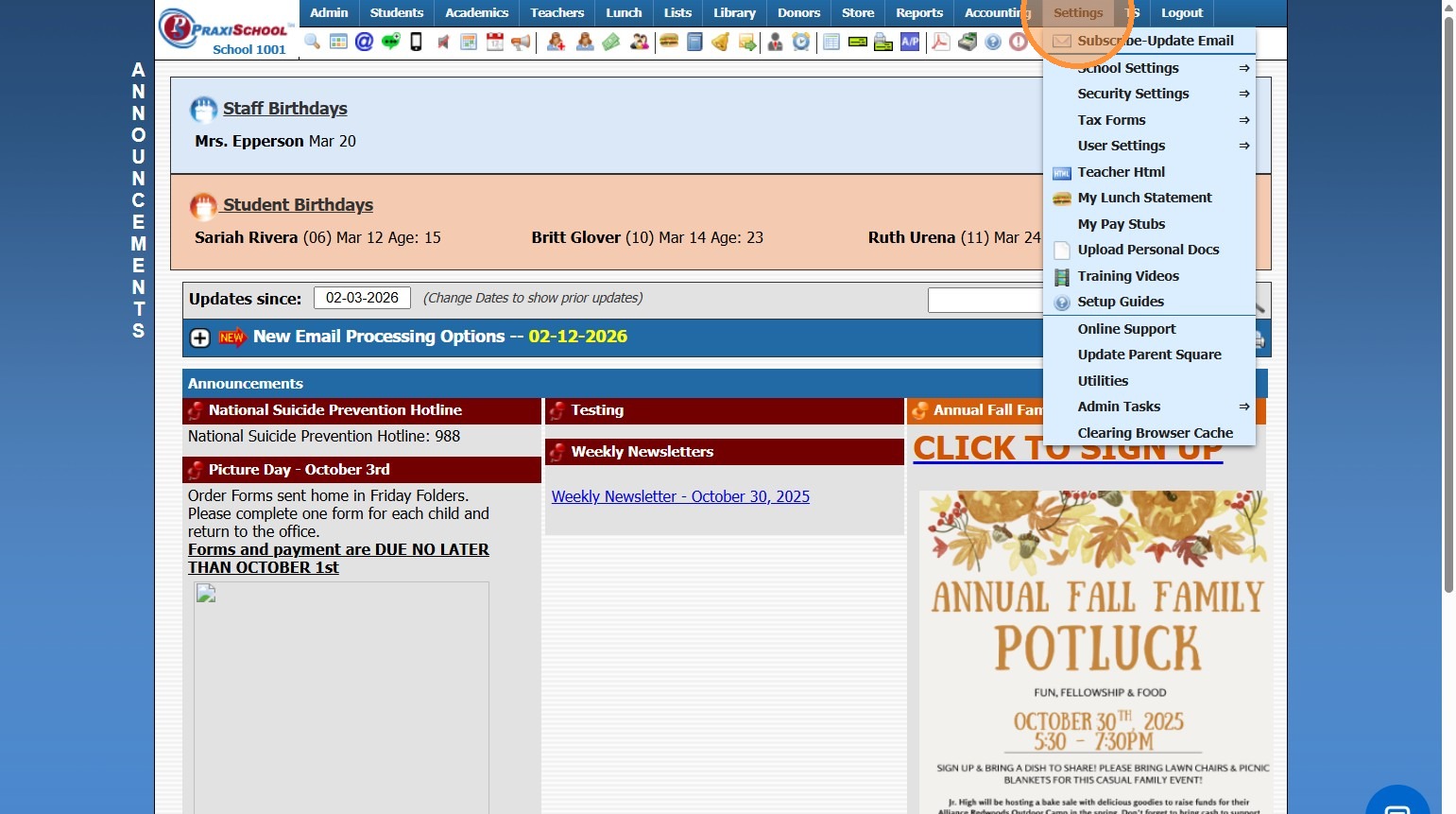
2. Click "School Settings"
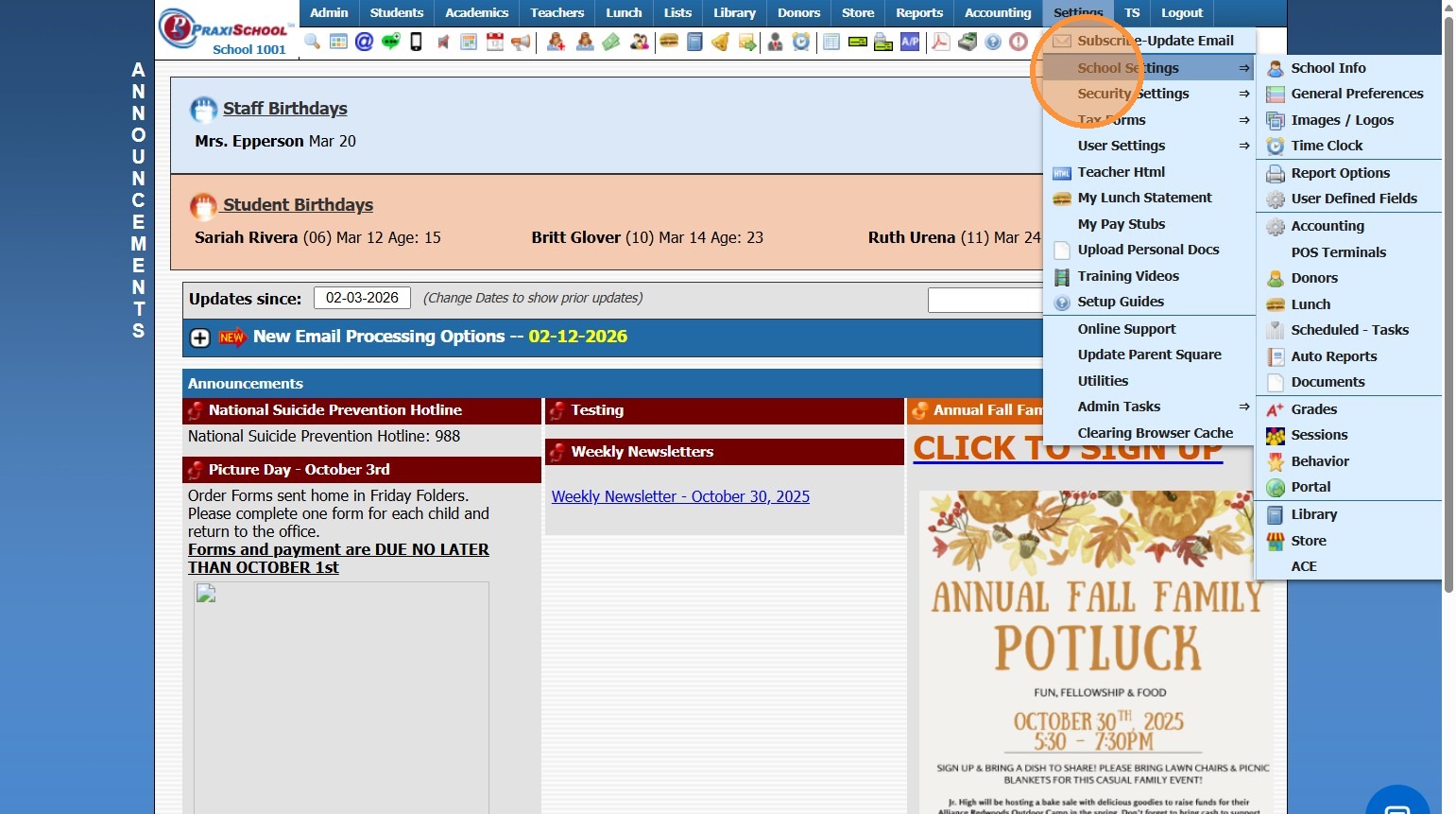
3. Click "User Defined Fields"
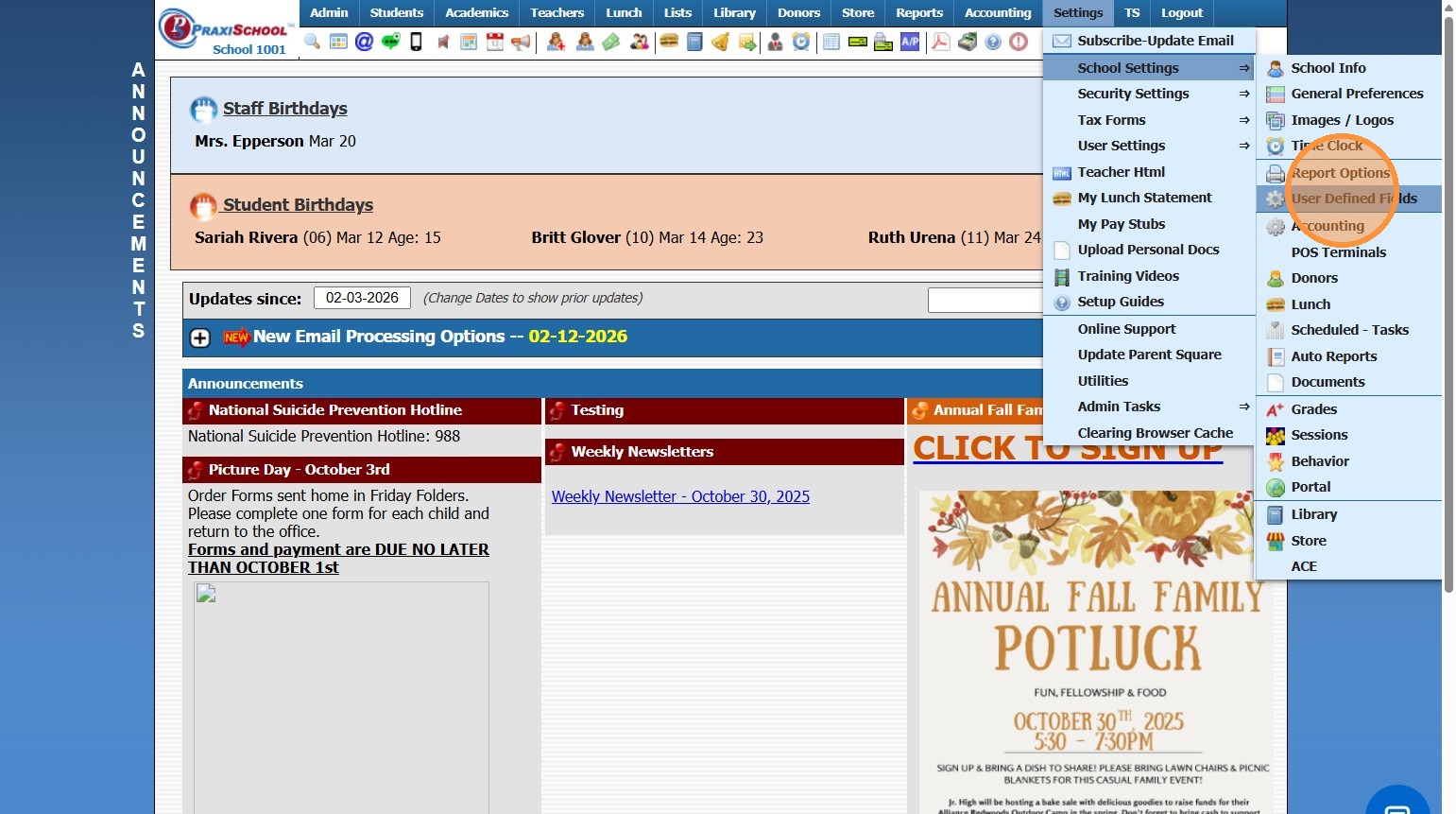
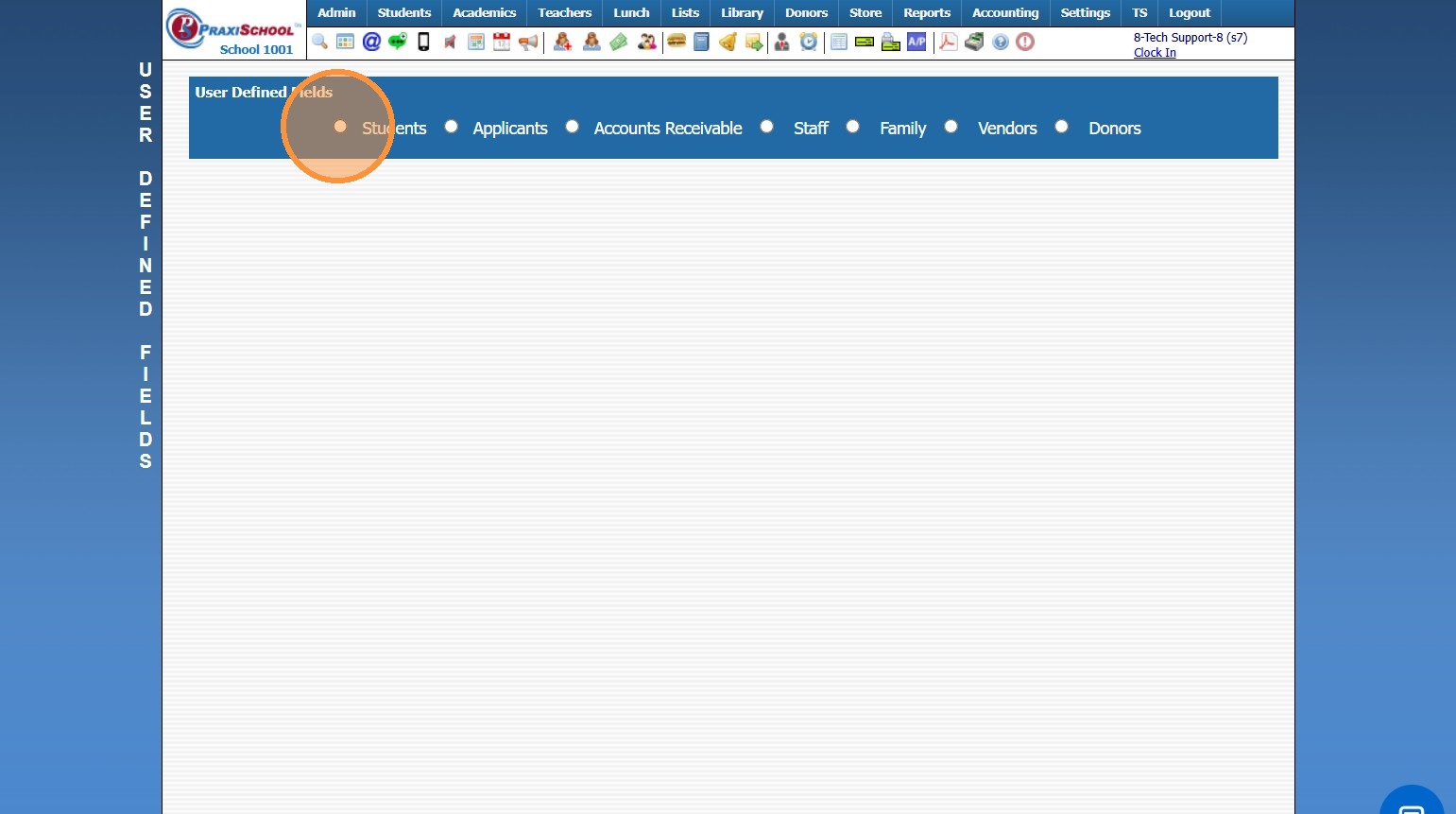
4. Select Table to Add User Defined Field
Adding User Defined Note Fields
5. Select a field and type the question
"Example: How did you hear about our School?"
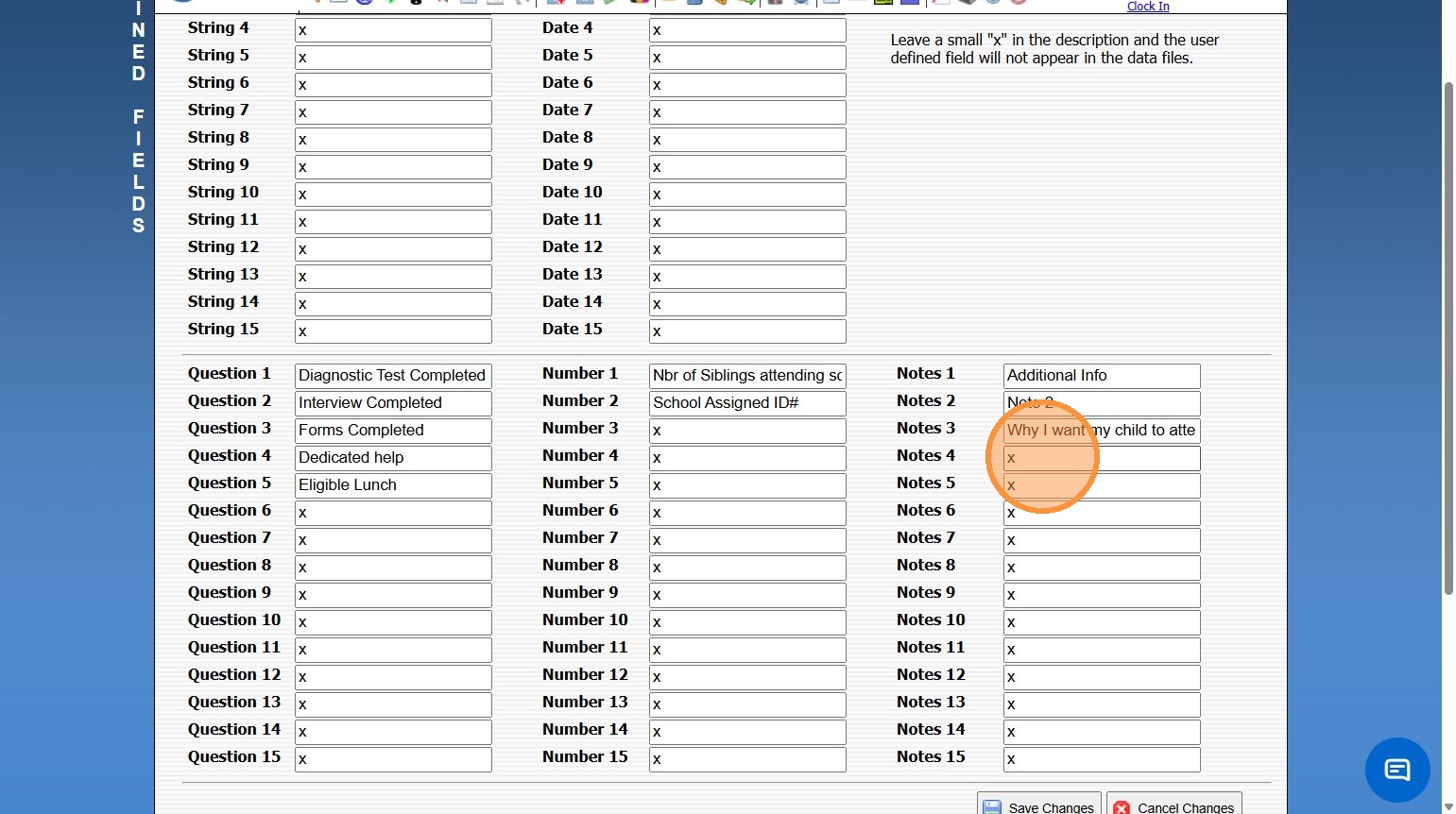
6. Click "Save Changes"
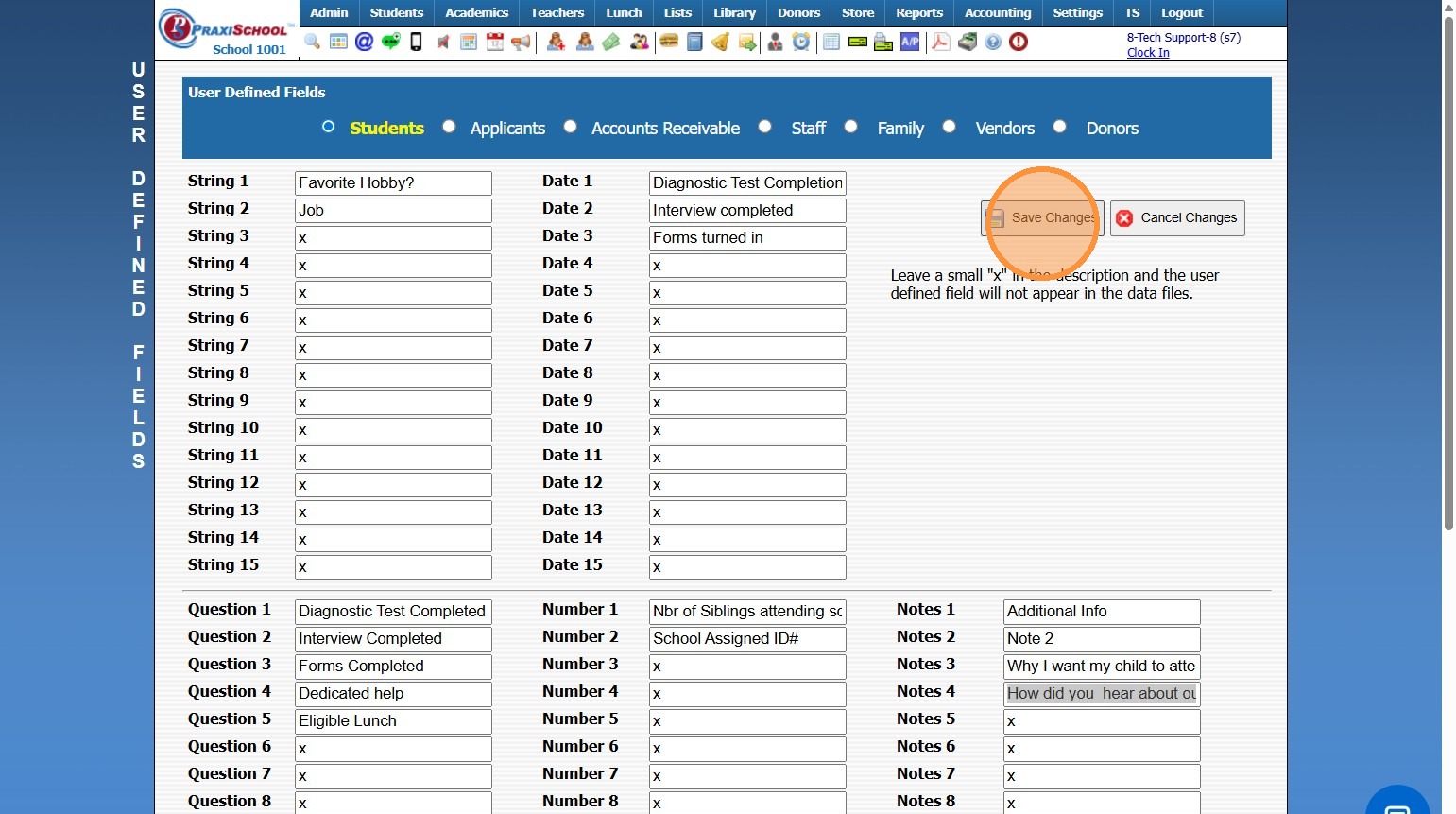
NOTE: When adding Students Questions/Items under Student Toggle, it must also be copied to the same field in the Applicants Toggle.
(This ensures that the same question/answer appears in the Student file as asked on the Application AND that a User Defined Field in Applicants is not used that is only for the Student File.)
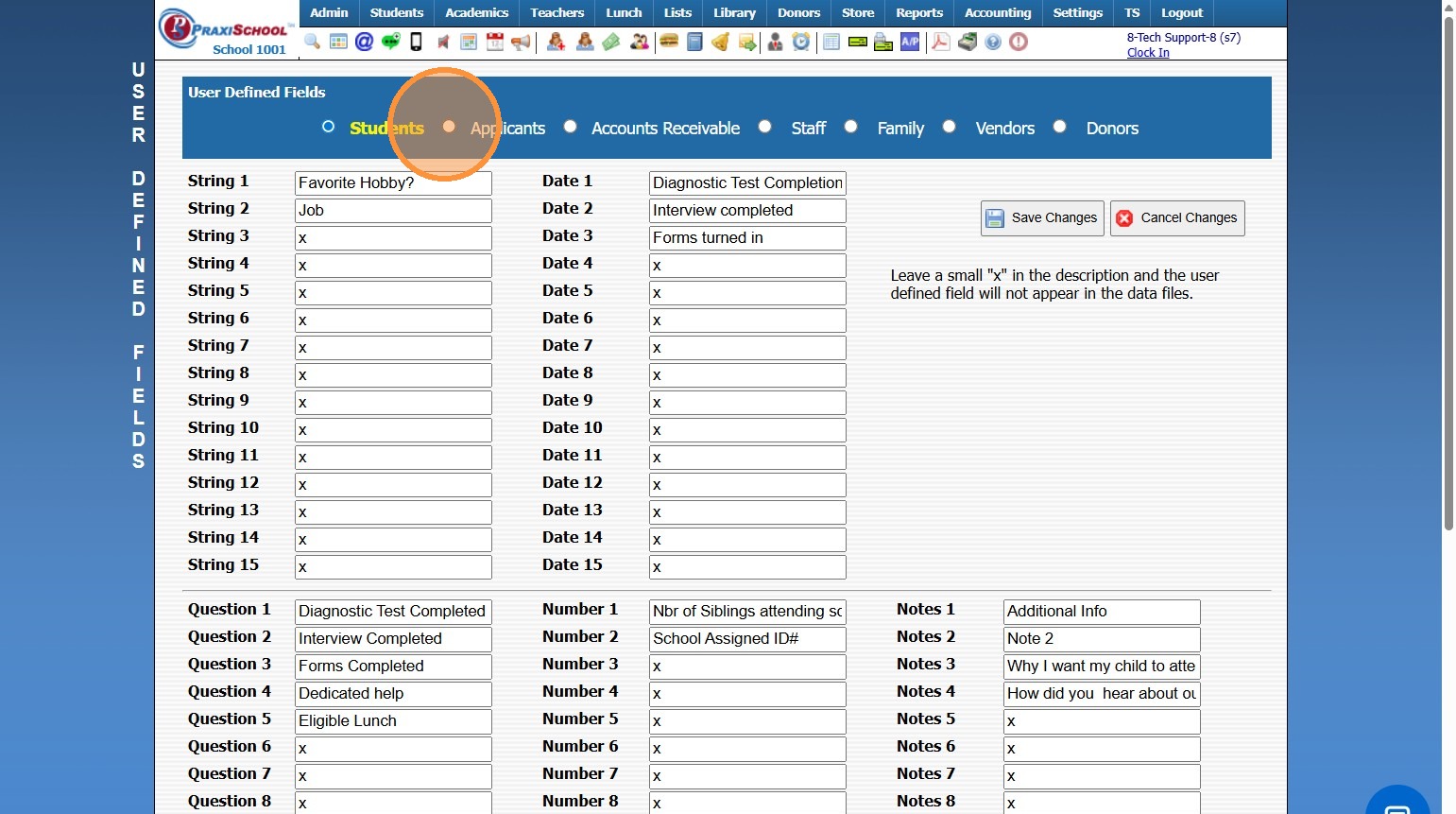
7. Click the "Applicants" Toggle
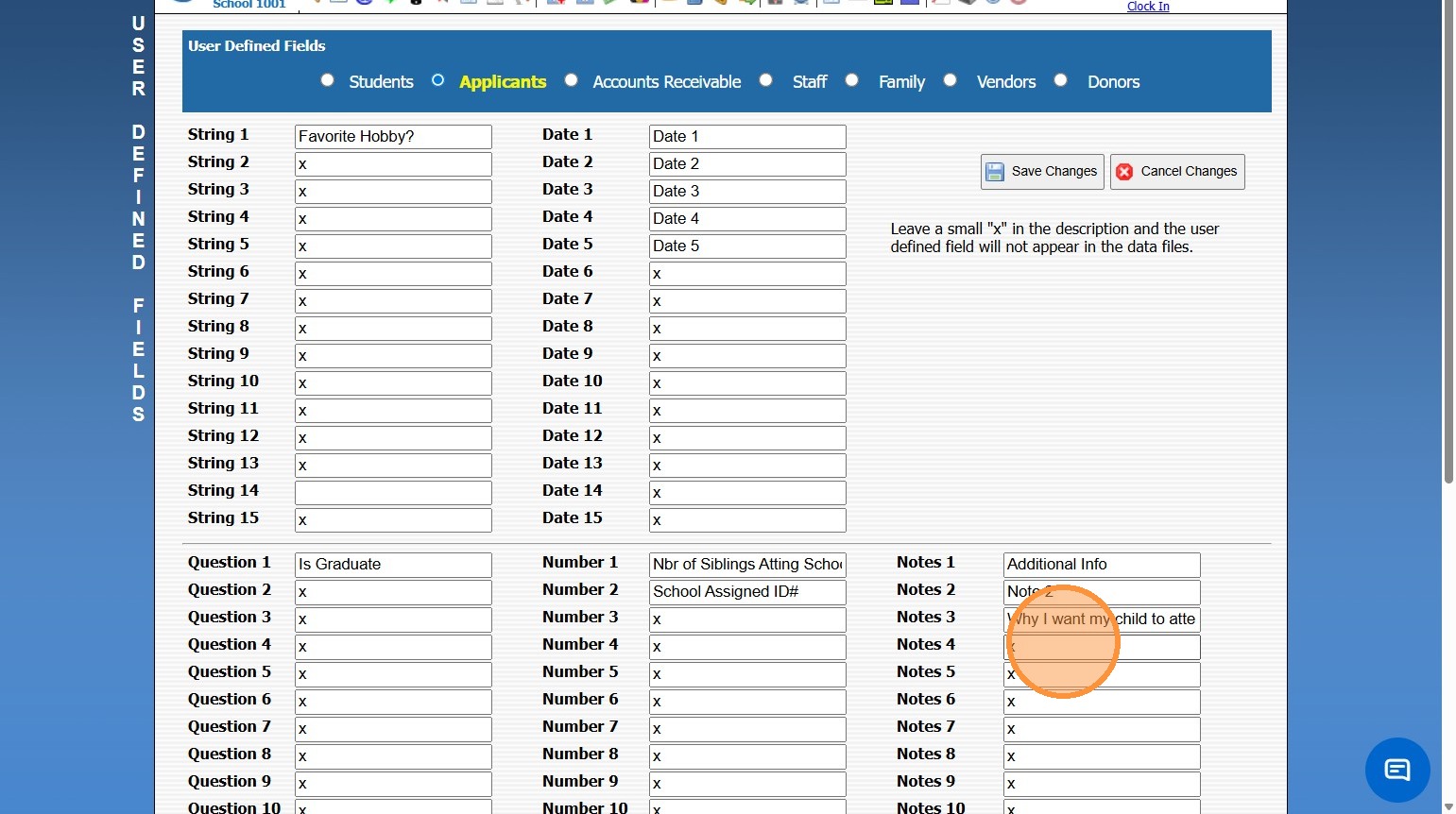
8. Select a field and type the question
"Example: How did you hear about our School?"
9. Click "Save Changes"
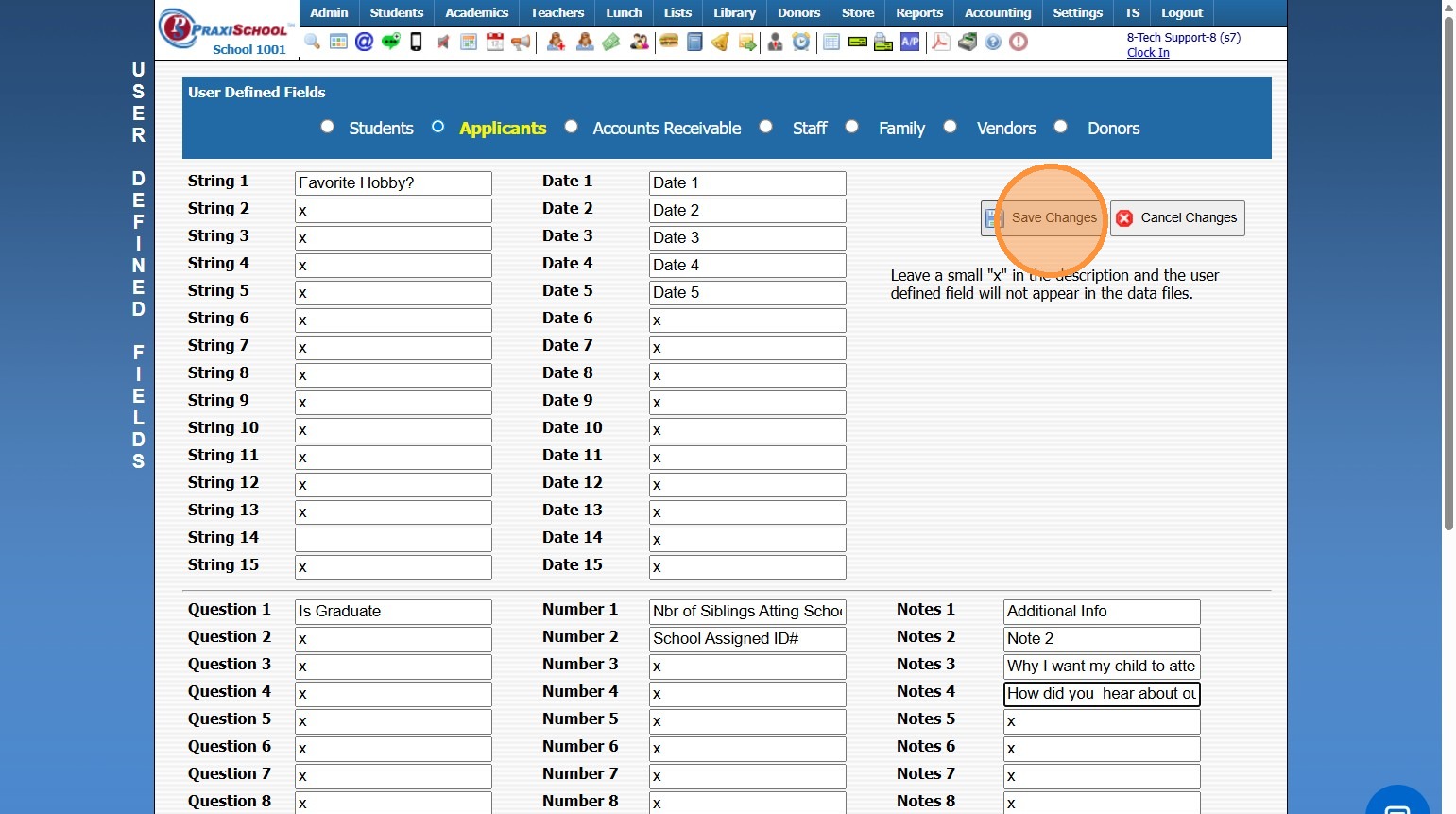
Adding User Defined Select Fields
10. Use the List Field and type the Question
"Example: How did you hear about our School?"
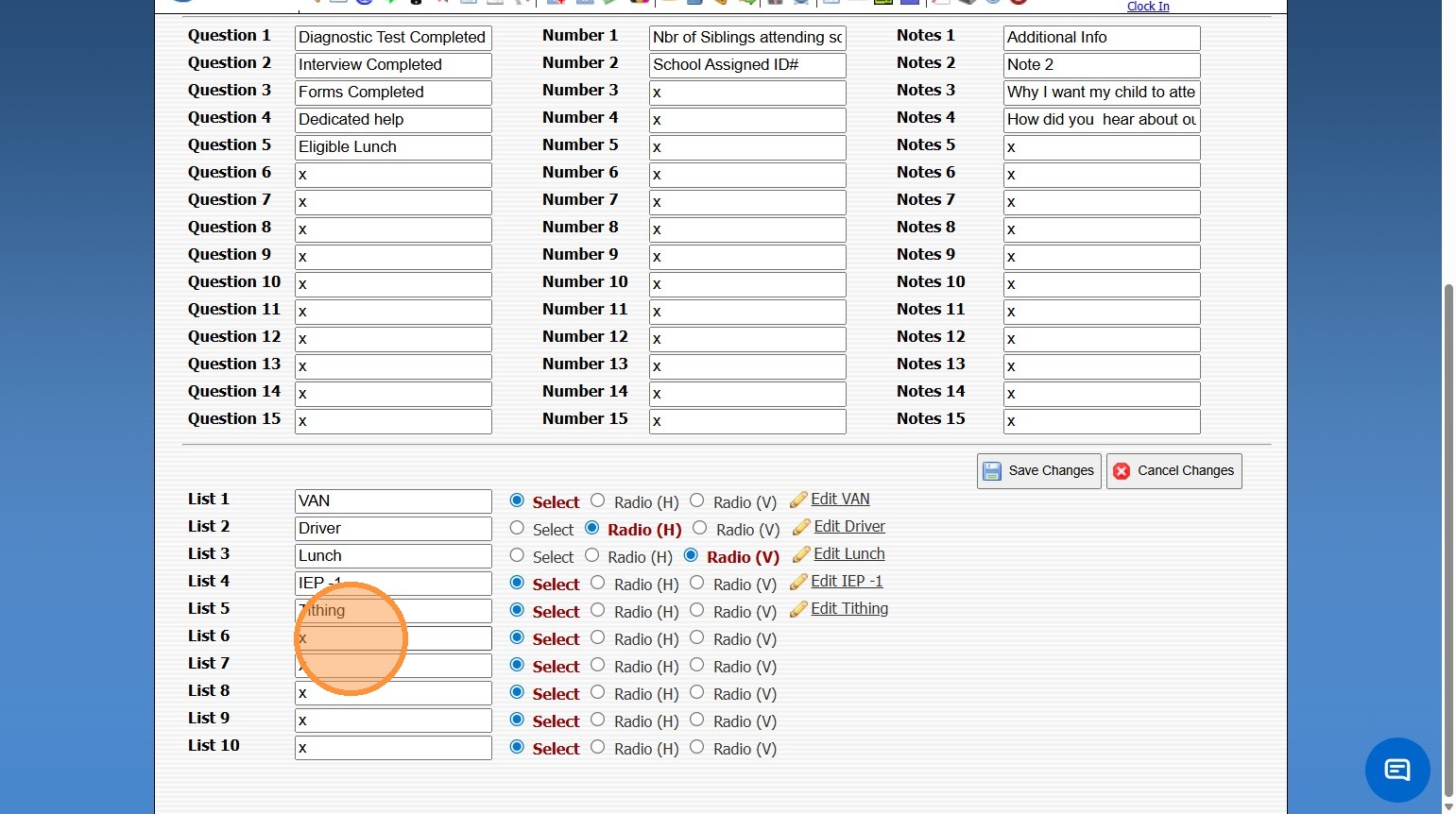
11. Click the Pencil Icon to Edit Selection
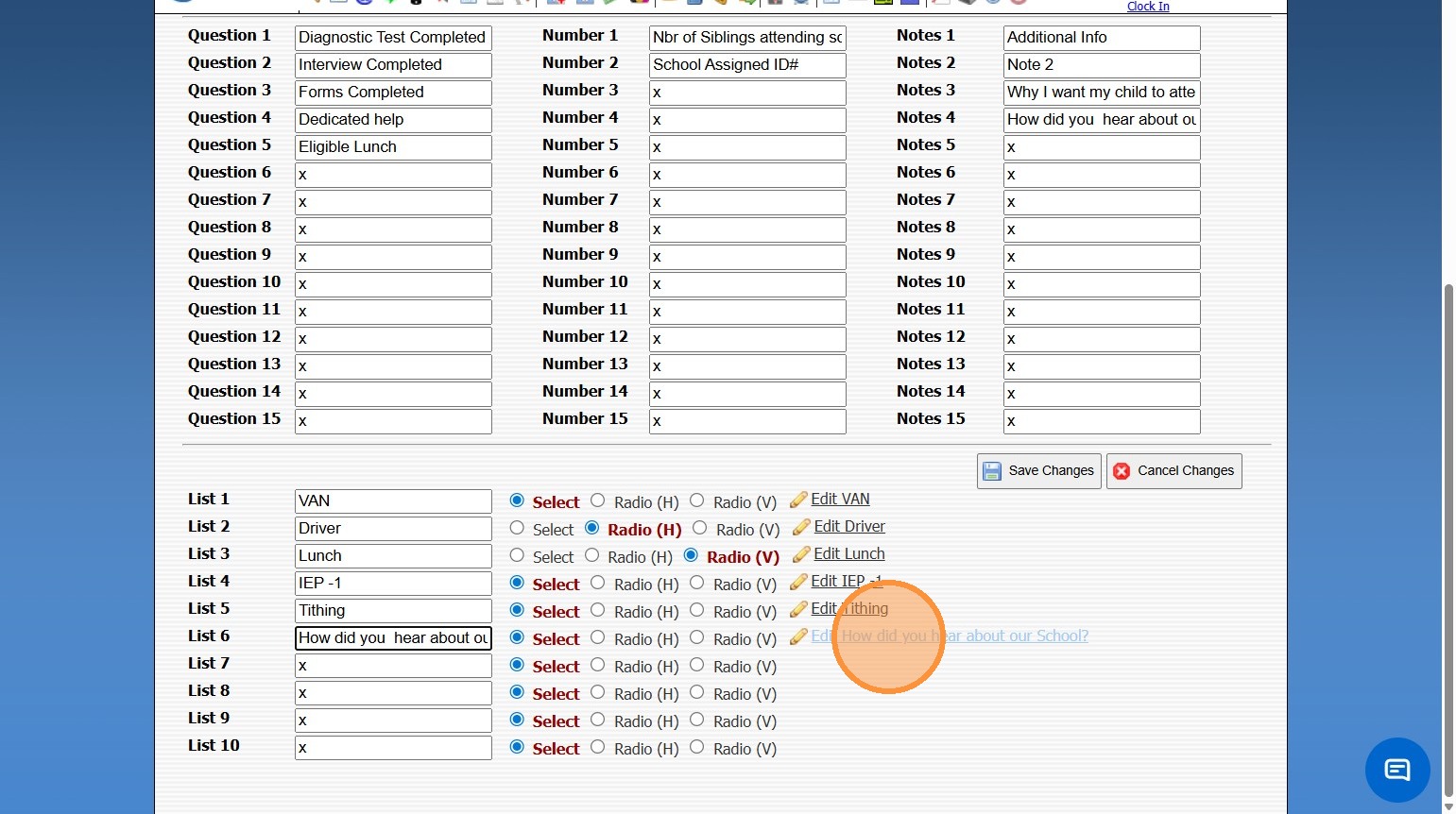
12. Click "Add"
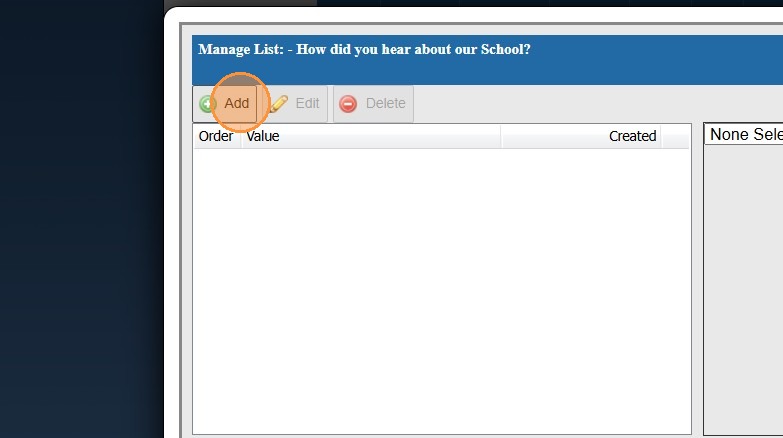
13. Input Order # (Optional)
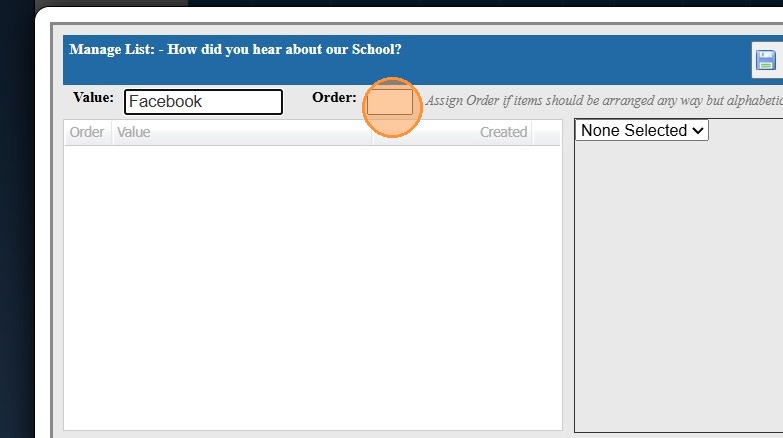
14. Click "Save"
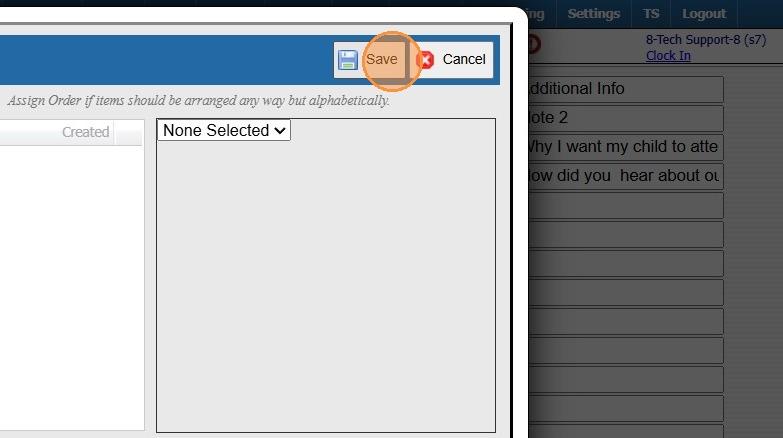
Tip: Add as many Selection as needed
15. Click "Save Changes"
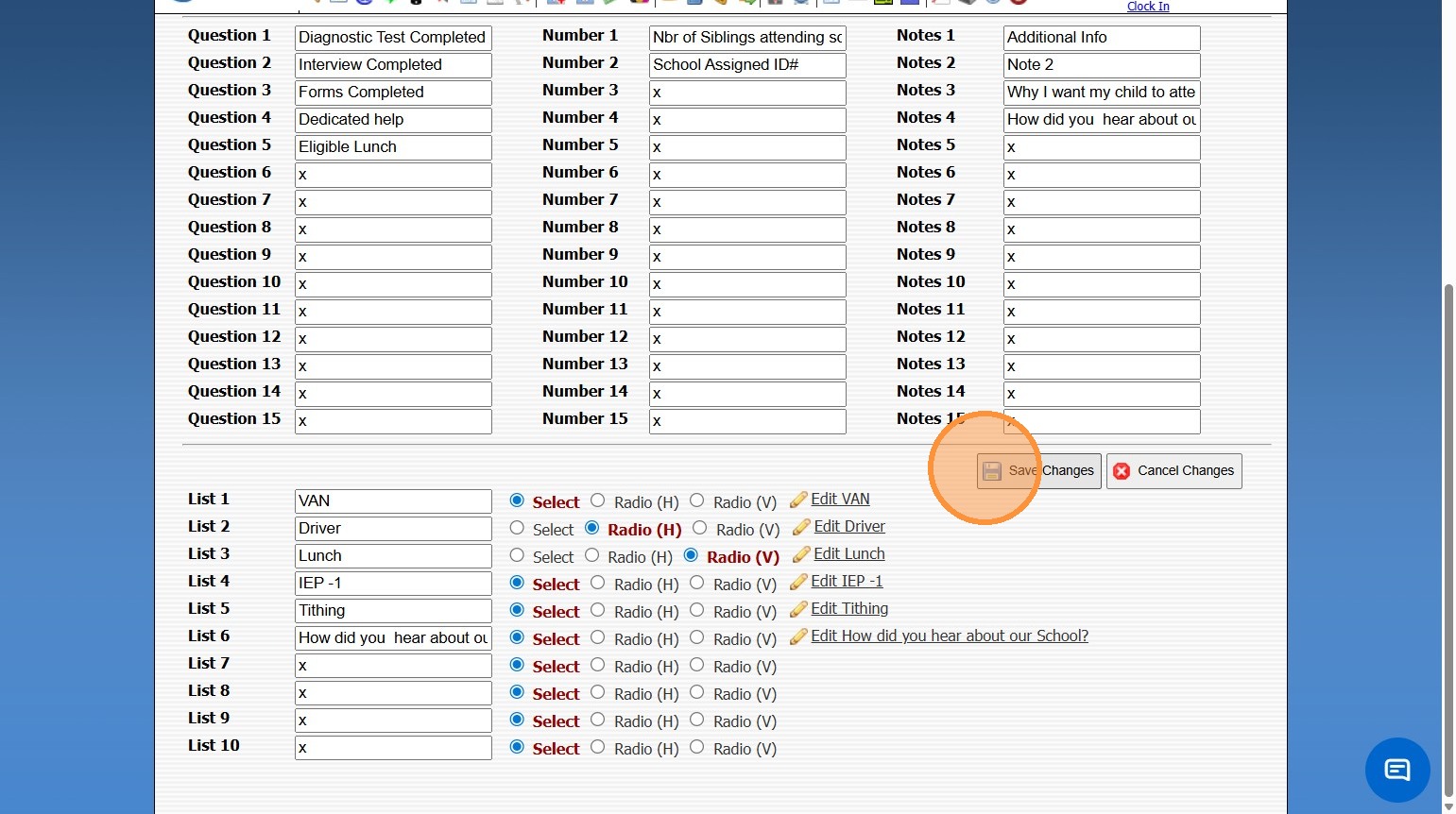
NOTE: When adding Students Questions/Items under Student Toggle, it must also be copied to the same field in the Applicants Toggle
Related Articles
Viewing Site User Data
Viewing Site User Data 1. Click "Admin" 2. Click "Web Applications" 3. Click "Site Users" 4. Select Site User 5. Site User Name, Email, Relationship to Student and Phone Numbers are visible under the Name tab If the check box for Test Forms is ...Adding Transaction Items (Defined Items) - Departments & Rules
Adding Transaction Items (Adding Transaction Items with Assigned Departments and/or Rules) 1. Click "Lists" 2. Click "A/R Accounting" 3. Click "Transaction Items" 4. Click "Add" 5. Enter Description & Comment (Description & Comment are typically the ...Adding a Transaction Item to a Student's AR Account
Adding a Transaction Item to a Student's AR Account Adding a Transaction Item to a Student's AR Account from Defined Items or Manually 1. Log into PraxiSchool 2. Click "Admin" 3. Click "Accounts Receivable" 4. Select Billing Account 5. Click $ to Add ...Adding Personal Course Qualifications
Adding Personal Course Qualifications 1. Click "Settings" 2. Click "User Settings" 3. Click "Course Qualification" 4. Click "Add" 5. Select Course 6. Select Qualification Level 7. Check Teach Course if Qualified to teach the Course 8. Check Sub if ...Adding or Updating Staff Cell Phone Number
Adding or Updating Staff Cell Phone Number 1. Click "Settings" 2. Click "User Settings" 3. Click "Cell Phone" 4. Enter Cell Phone 5. Click "Save" 6500.4.9