Accessing the User Clock In Feature
1. From any screen in Praxi, click on the User Icon
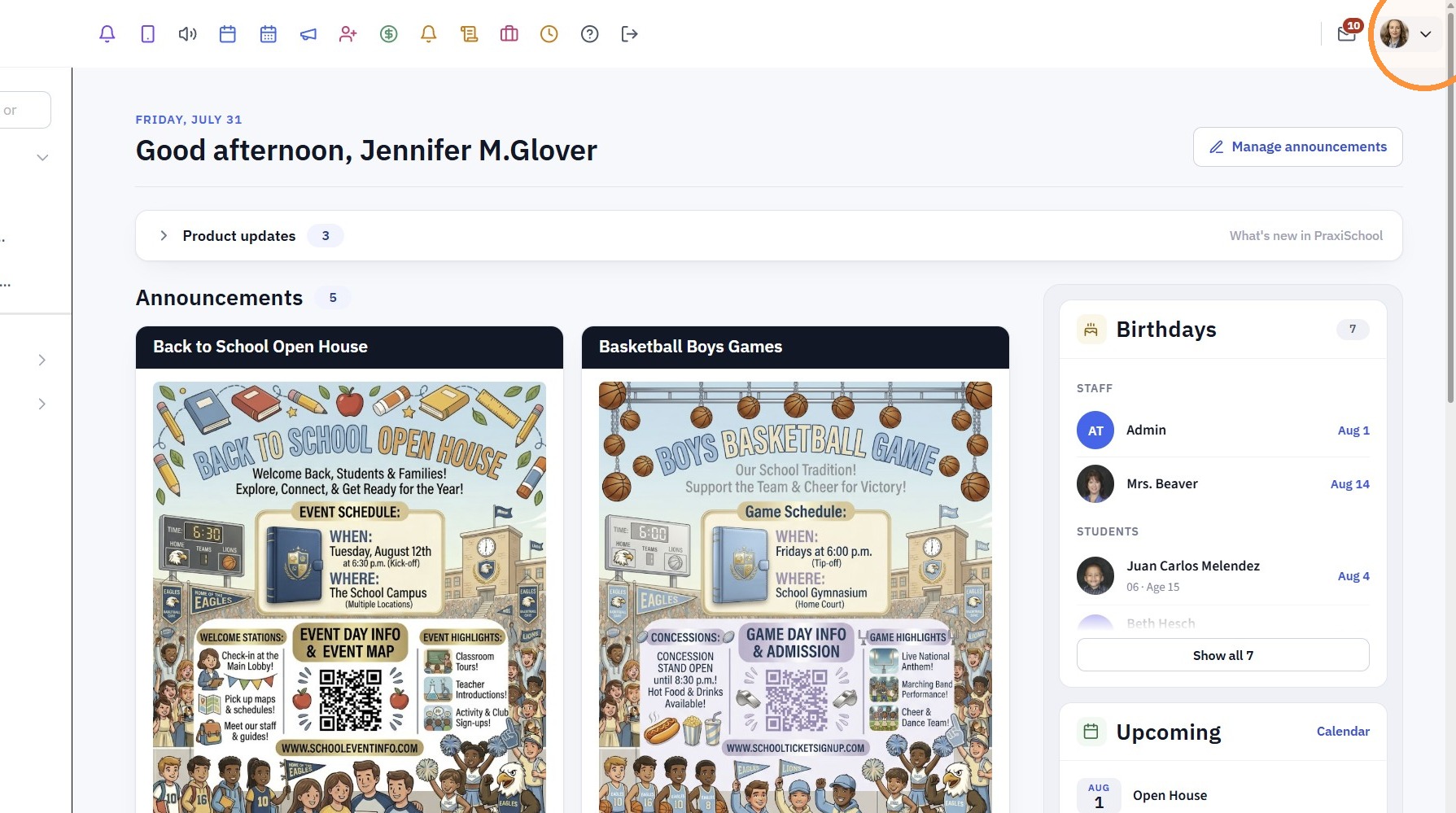
2. Click "Clock In"
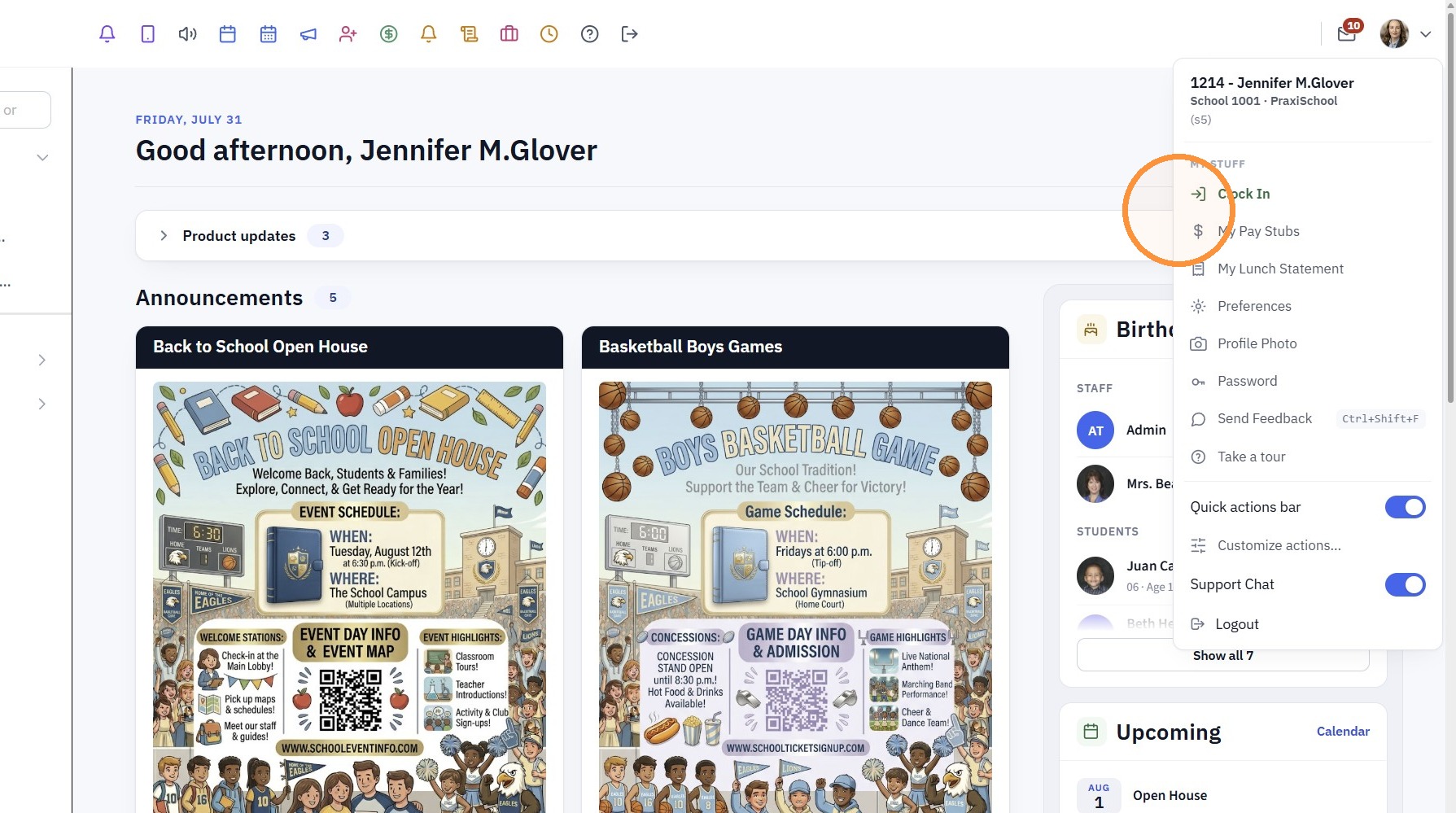
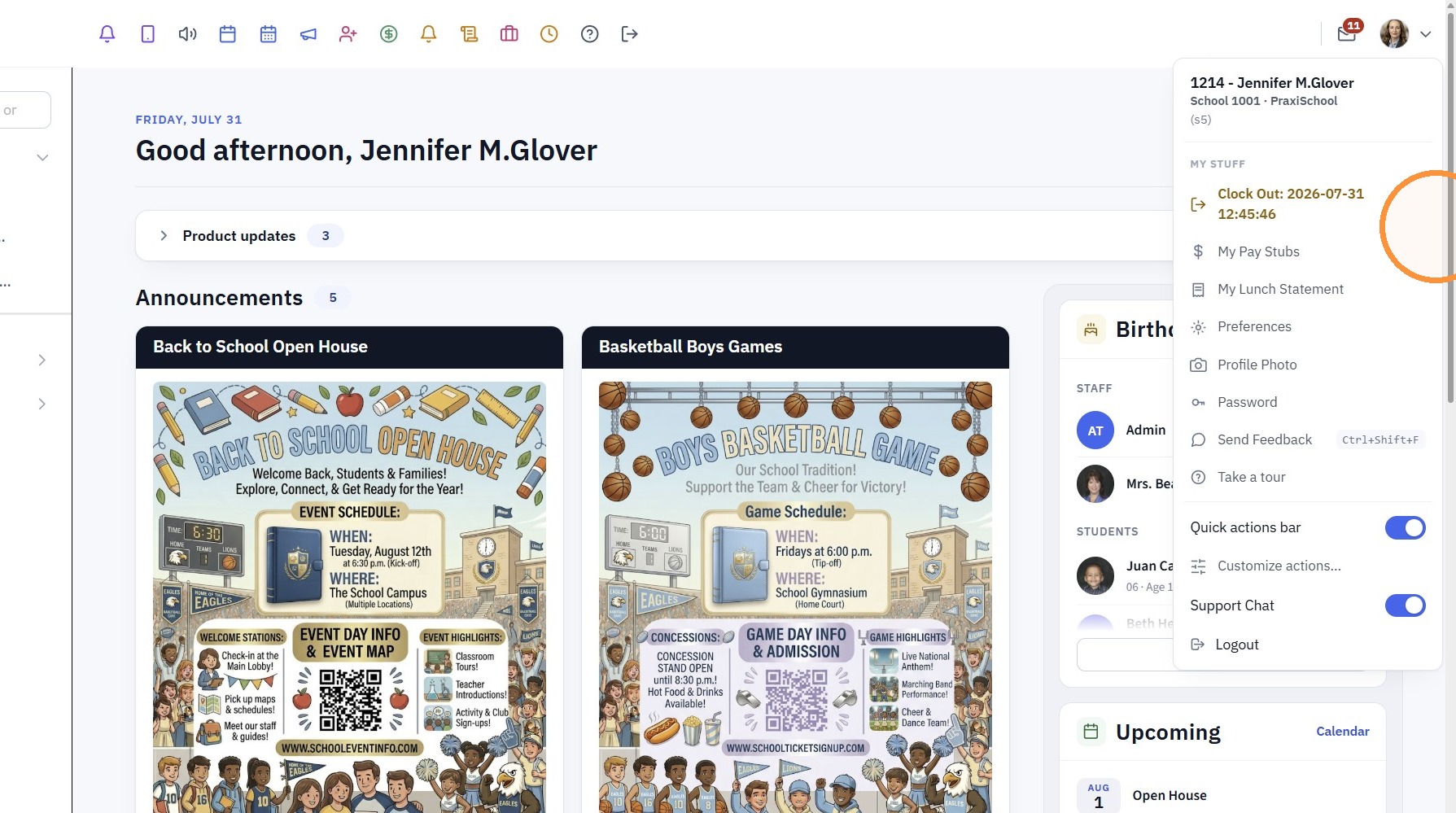
3. Once Clocked In, the Clock Out option is Visible along with the Clock in Date & Time
Related Articles
User Clock In / Clock Out
User Clock In / Clock Out 1. Click "Clock In" Under User ID & Name 2. Click "Clock Out" Under User ID & Name 7500.1.28New User Interface Guided Tour
Tip: The first time a User logs into Praxi, they Guided Tour will Automatically Pop-Up, Click "Next" to Preview all 11 Items or Click "Cancel" to Close 1. Item 1 of 11 "Welcome to the new look" 2. Item 2 of 11 "Your side menu" 3. Item 3 of 11 "Search ...Viewing Site User Data
Viewing Site User Data 1. Click "Admin" 2. Click "Web Applications" 3. Click "Site Users" 4. Select Site User 5. Site User Name, Email, Relationship to Student and Phone Numbers are visible under the Name tab If the check box for Test Forms is ...Adding the Premium Texting Feature
Premium Texting Feature Cost: $10 per month for one phone line, $1 per month for each additional phone line plus 2 cent per text message sent. To request the Premium Texting Feature, complete the Texting Form. 1000.11.6Family Clock
1. Click "Admin" 2. Click "Clock" 3. Click "Time Clock Family" 4. Search Family Member by Name 5. All Students Connected to Family Member Clocking Students In/Out as Primary will Automatically be Selected. 6. Click "Clock" 7. Click "Click To Clock" ...