Does the system automatically calculate a Student’s Cumulative Average?
Tip: Cumulative Grades can be set to Auto Average. However, it is recommended that Grades be Averages prior to Printing Report Card or Posting Grades to Transcripts.
Averaging Grades for Grade Periods, Semesters and the Cumulative Annual Average
1. Click "Academics"
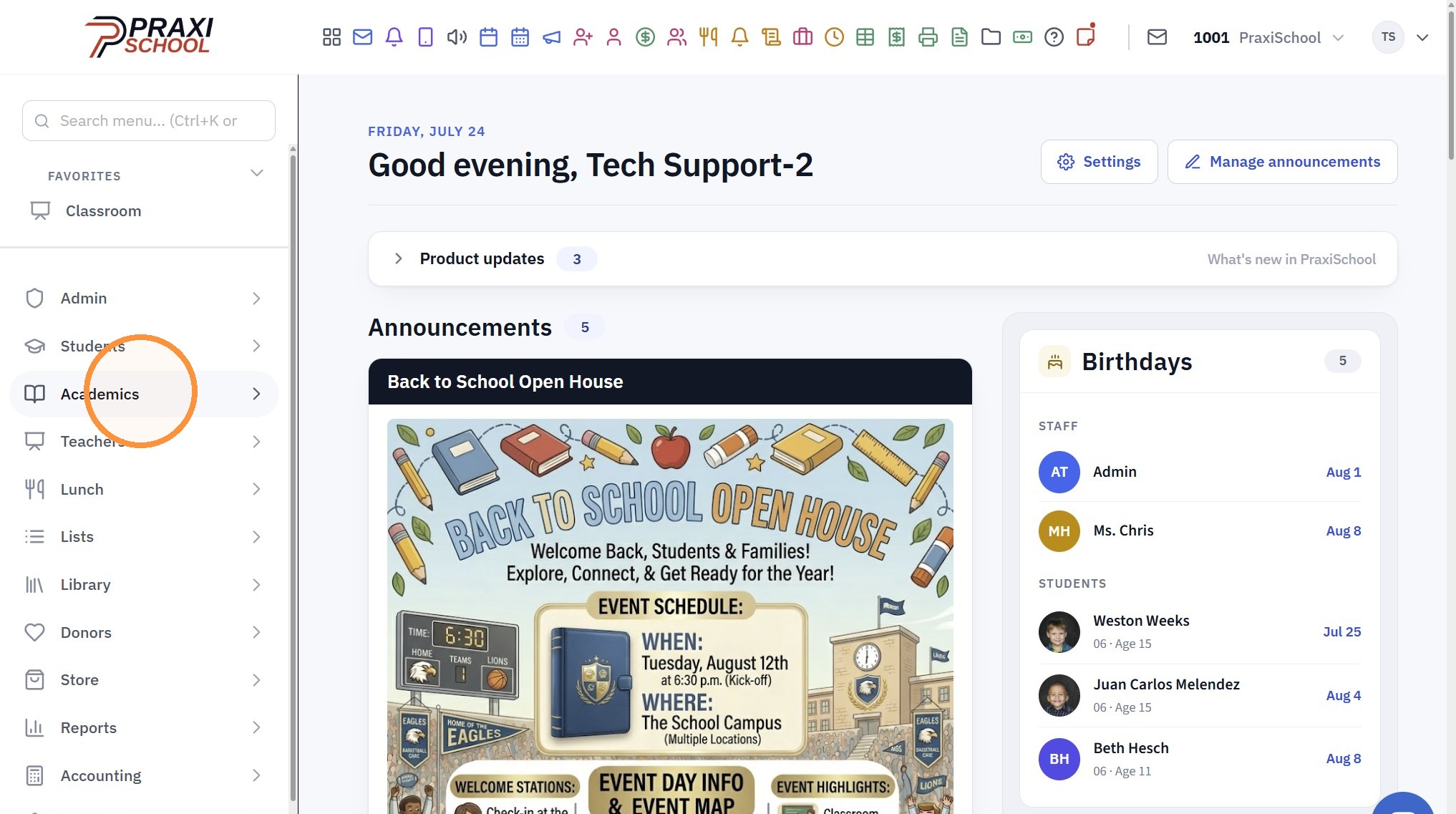
2. Click "Grades Tasks"
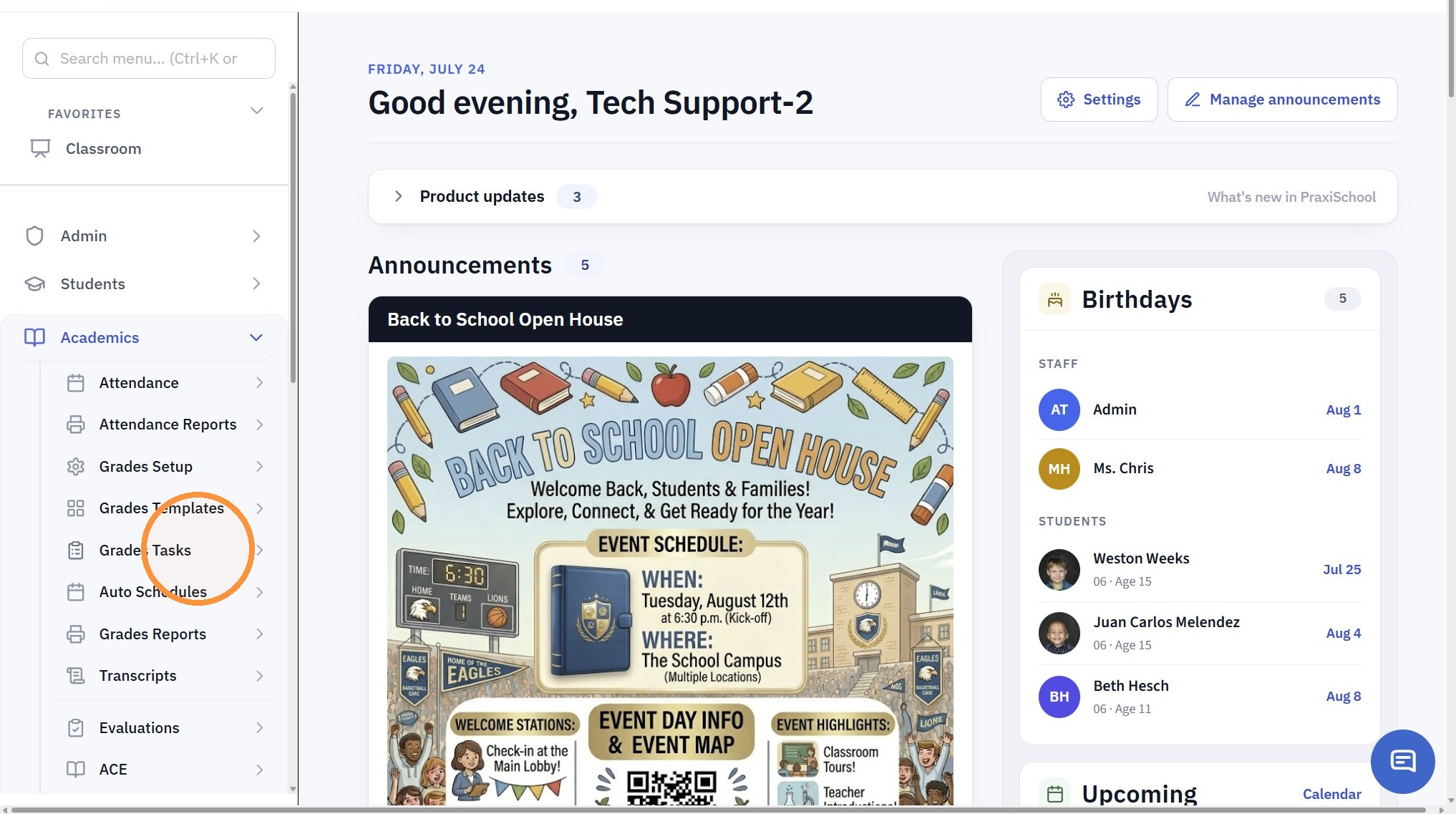
3. Click "Average Grades"
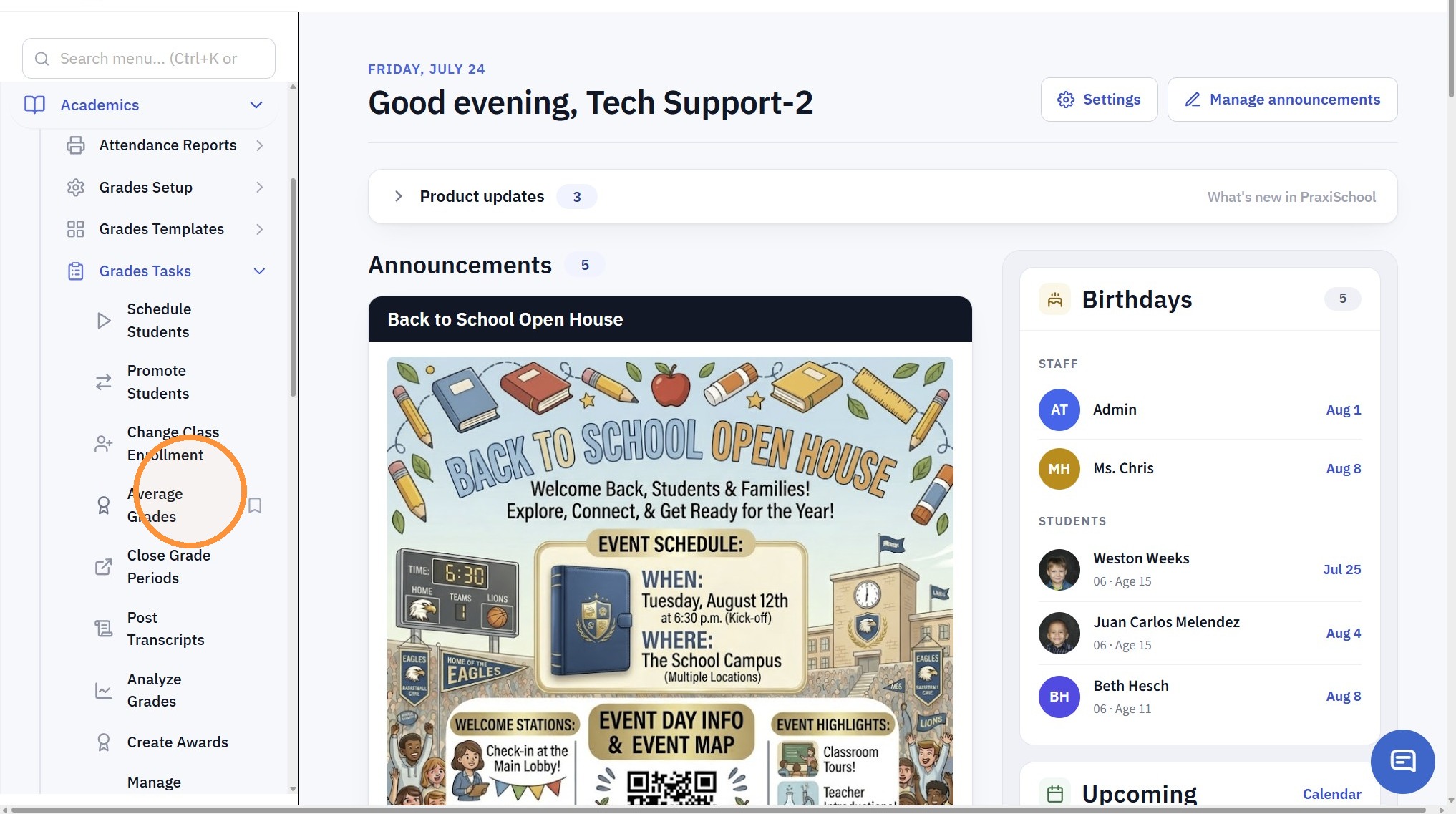
4. Click "Select All"
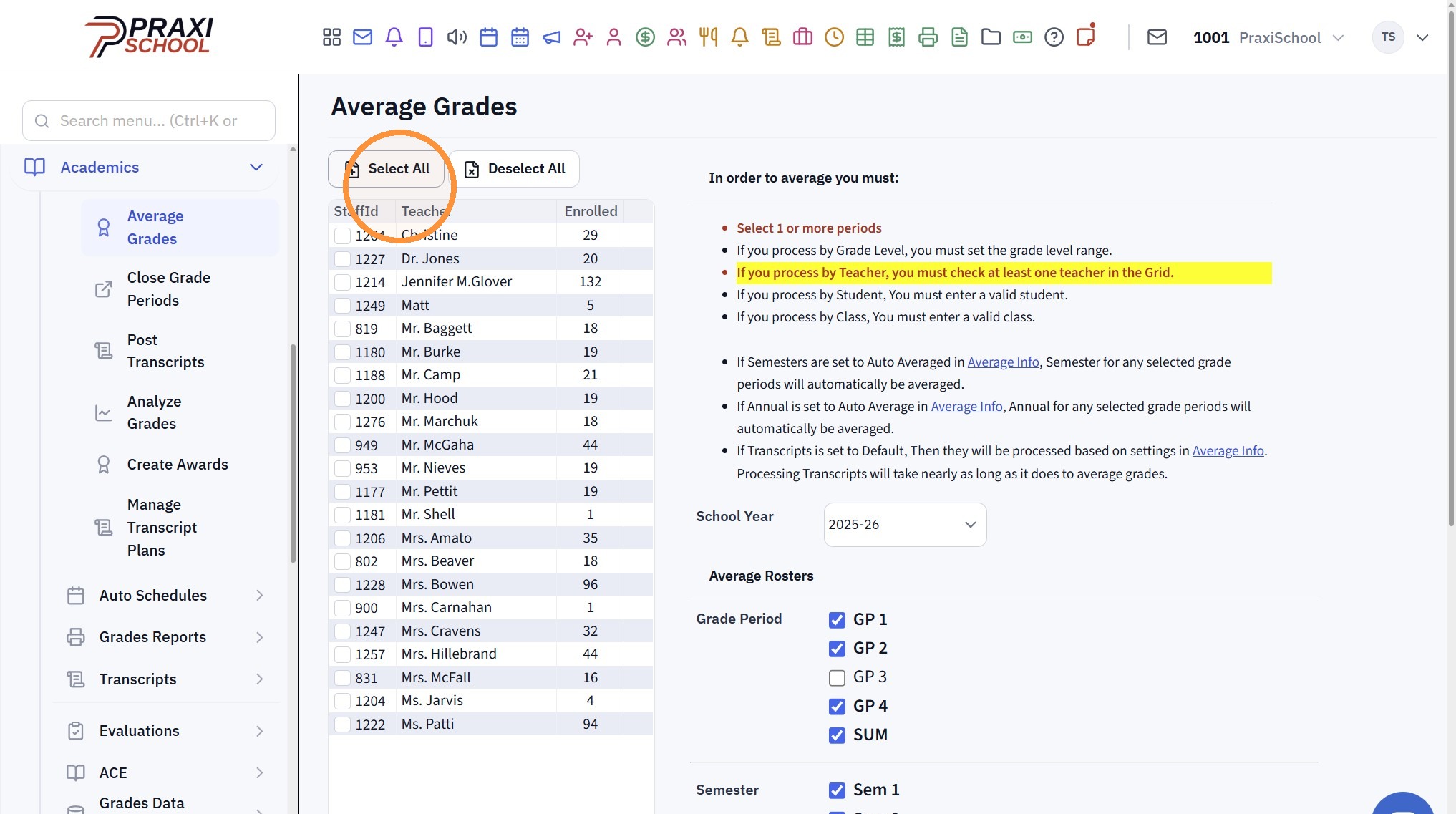
5. Select Grade Averaging Options
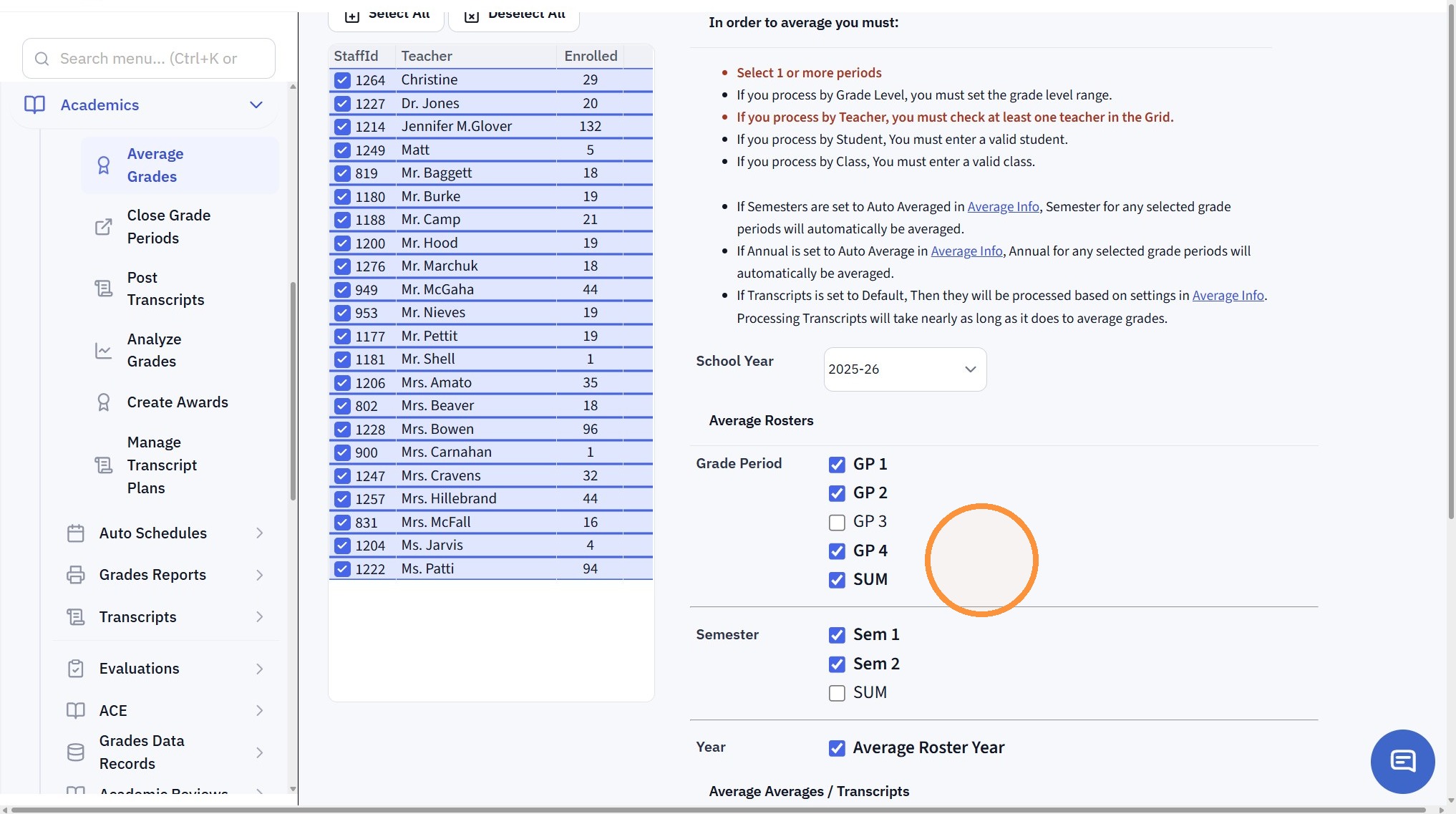
6. Click "Message" to receive a Notification once the Grades are Averaged
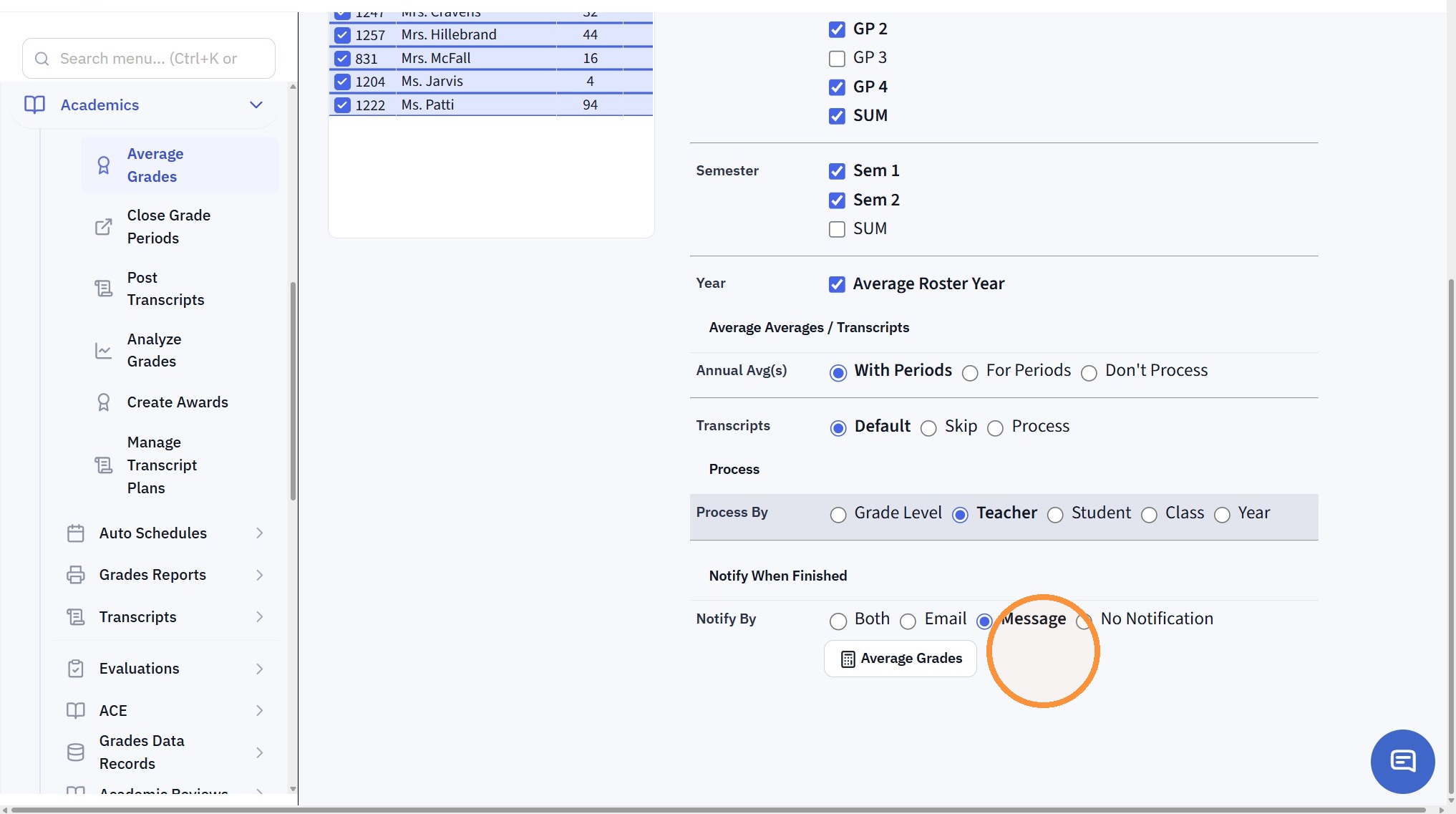
7. Click "Average Grades"
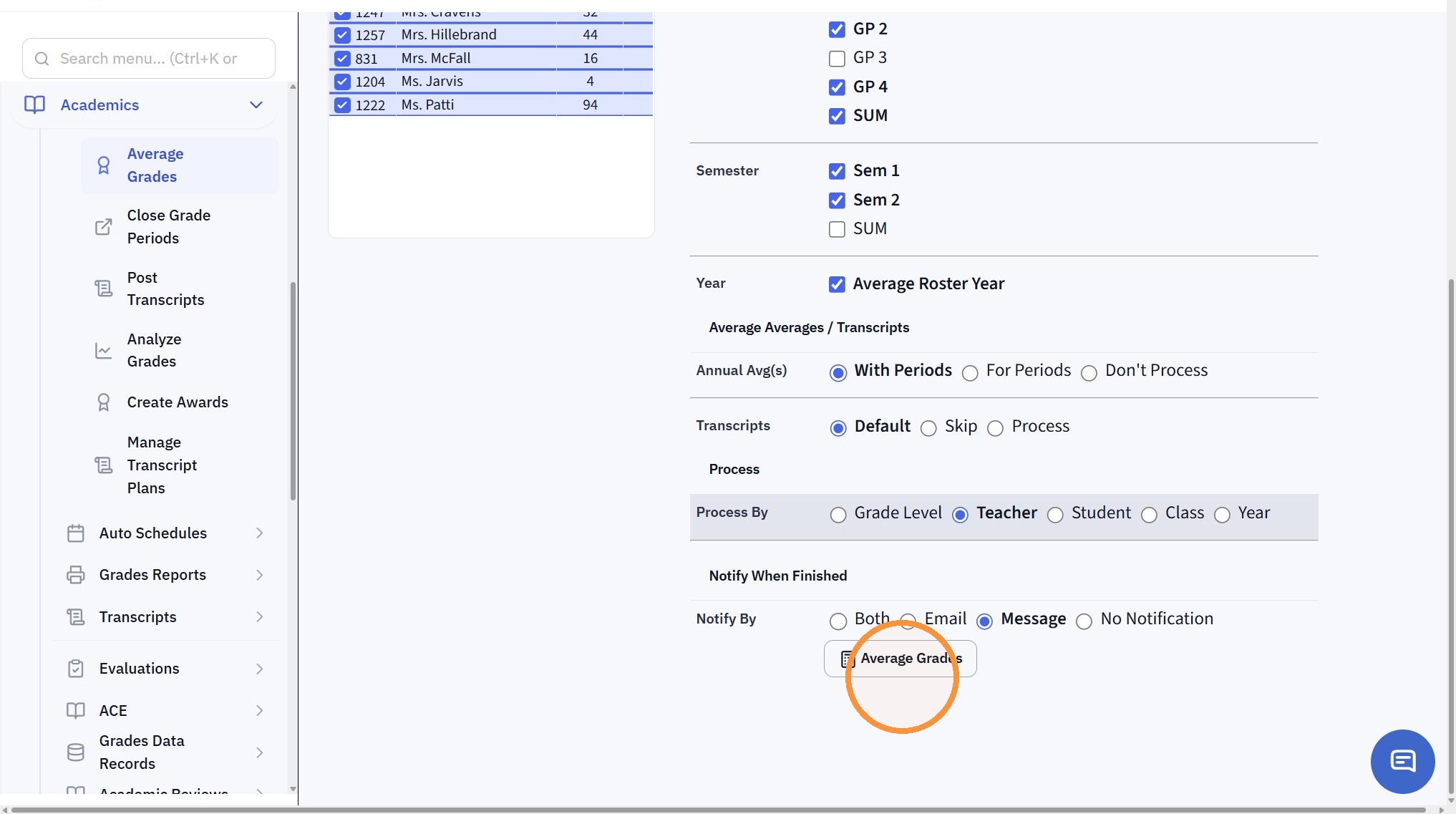
Averaging Grades from the Print Report Card Screen
8. Click "Academics"
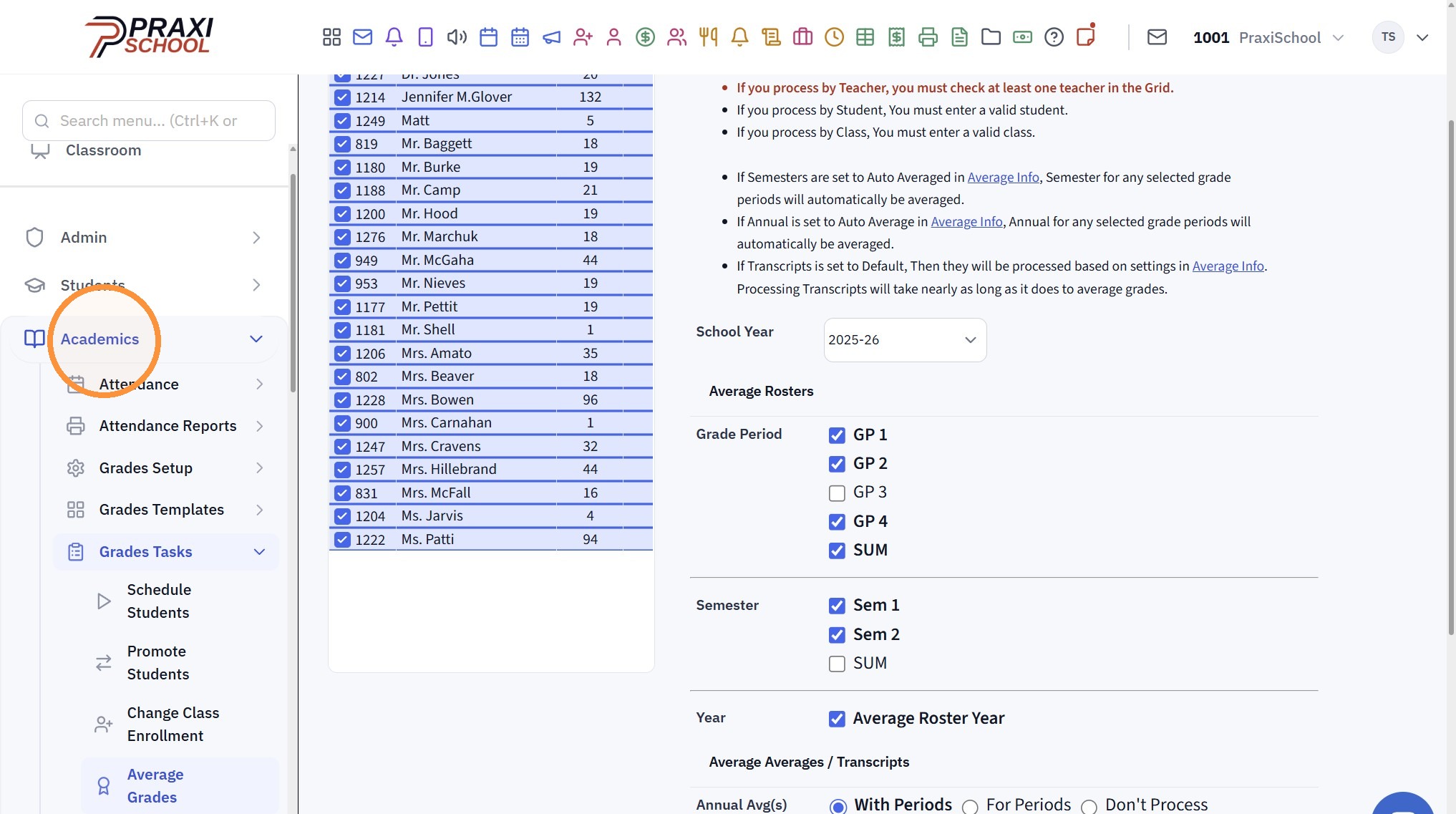
9. Click "Grades Reports"
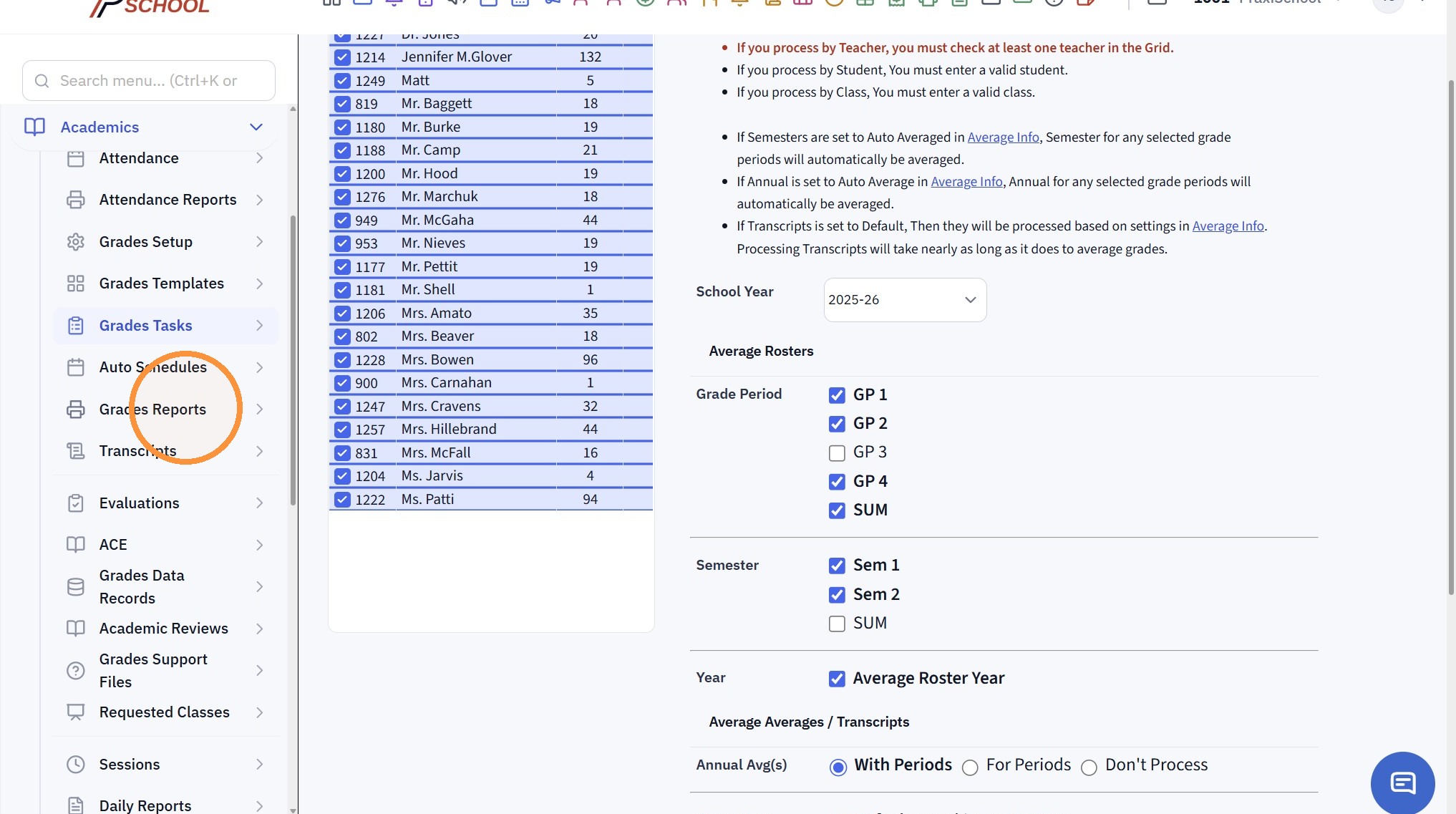
10. Click "Print Report Cards"
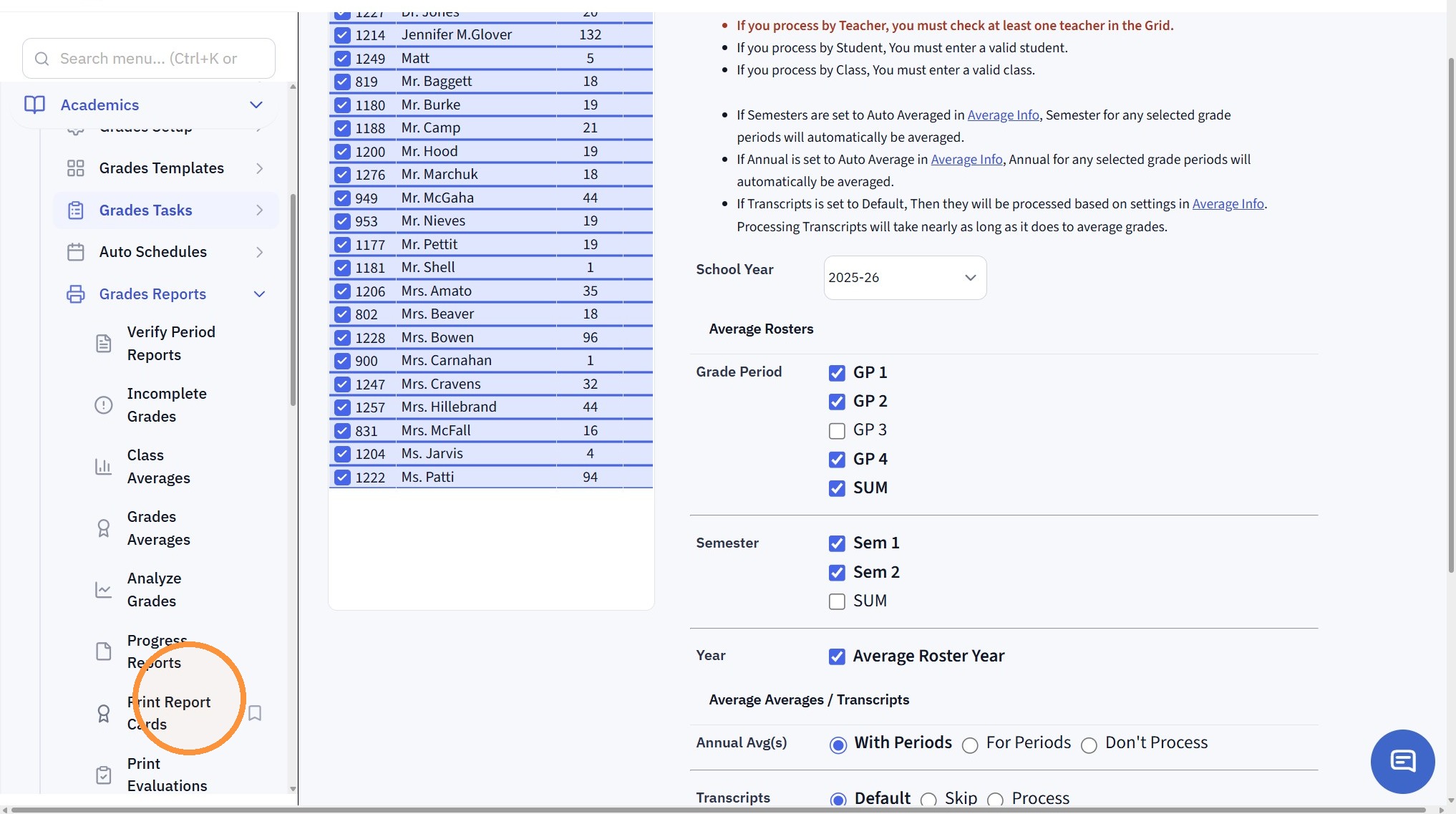
11. Click on the Link "If you haven't averaged grades go to (Academics | Grades Tasks | Average Grade)"
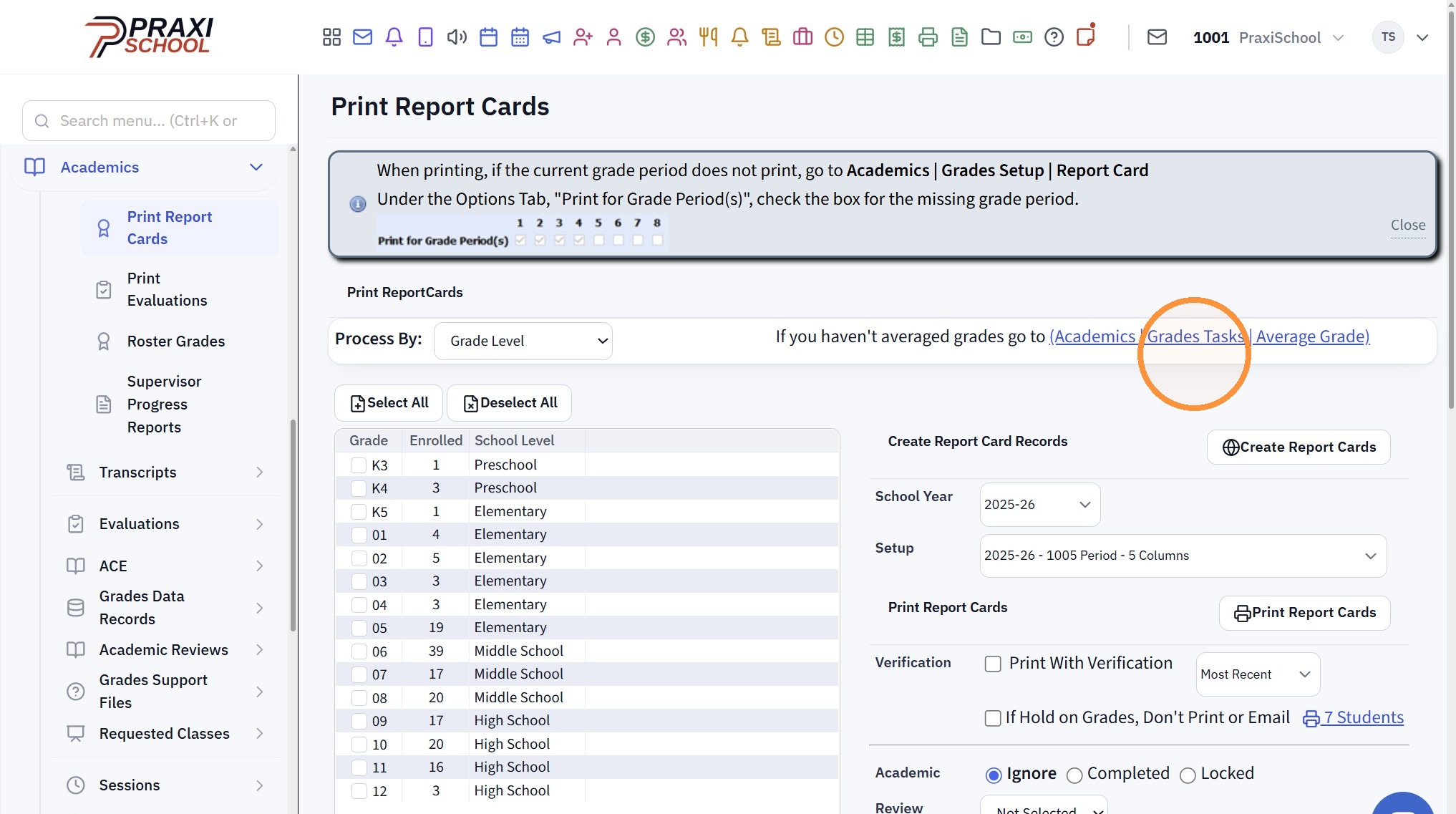
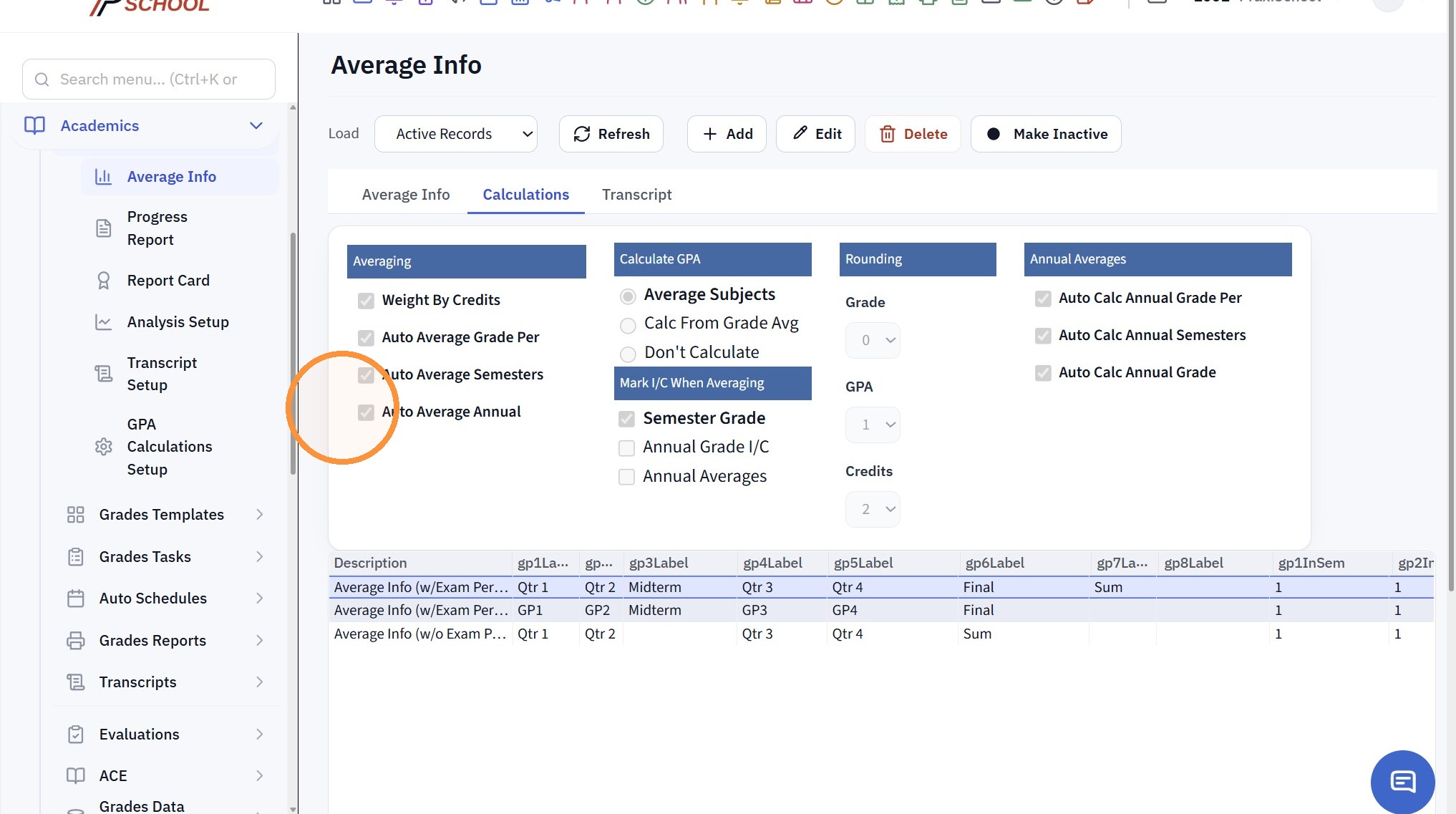
Setting the Auto Averaging Options
12. Click "Academics"
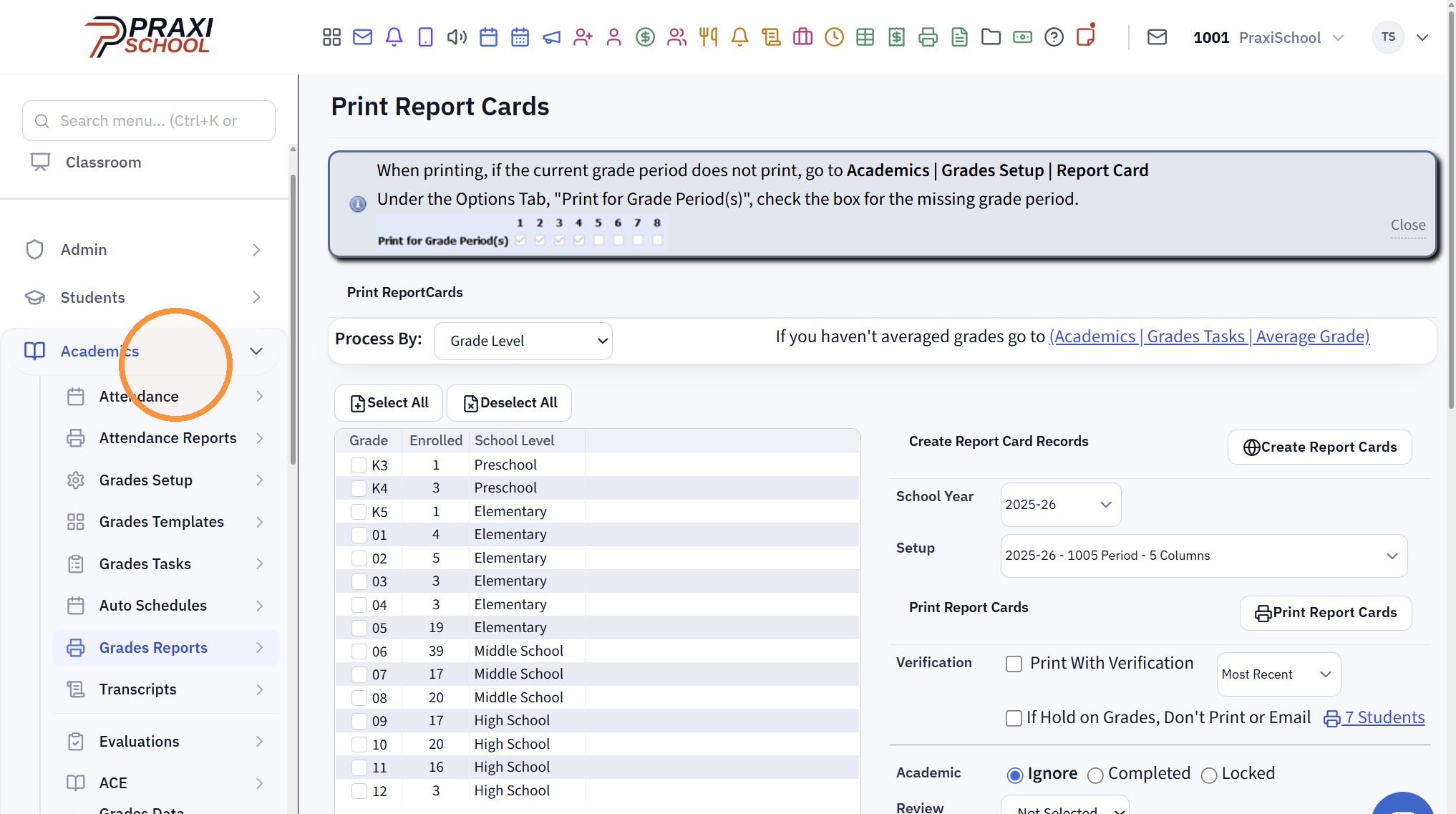
13. Click "Grades Setup"
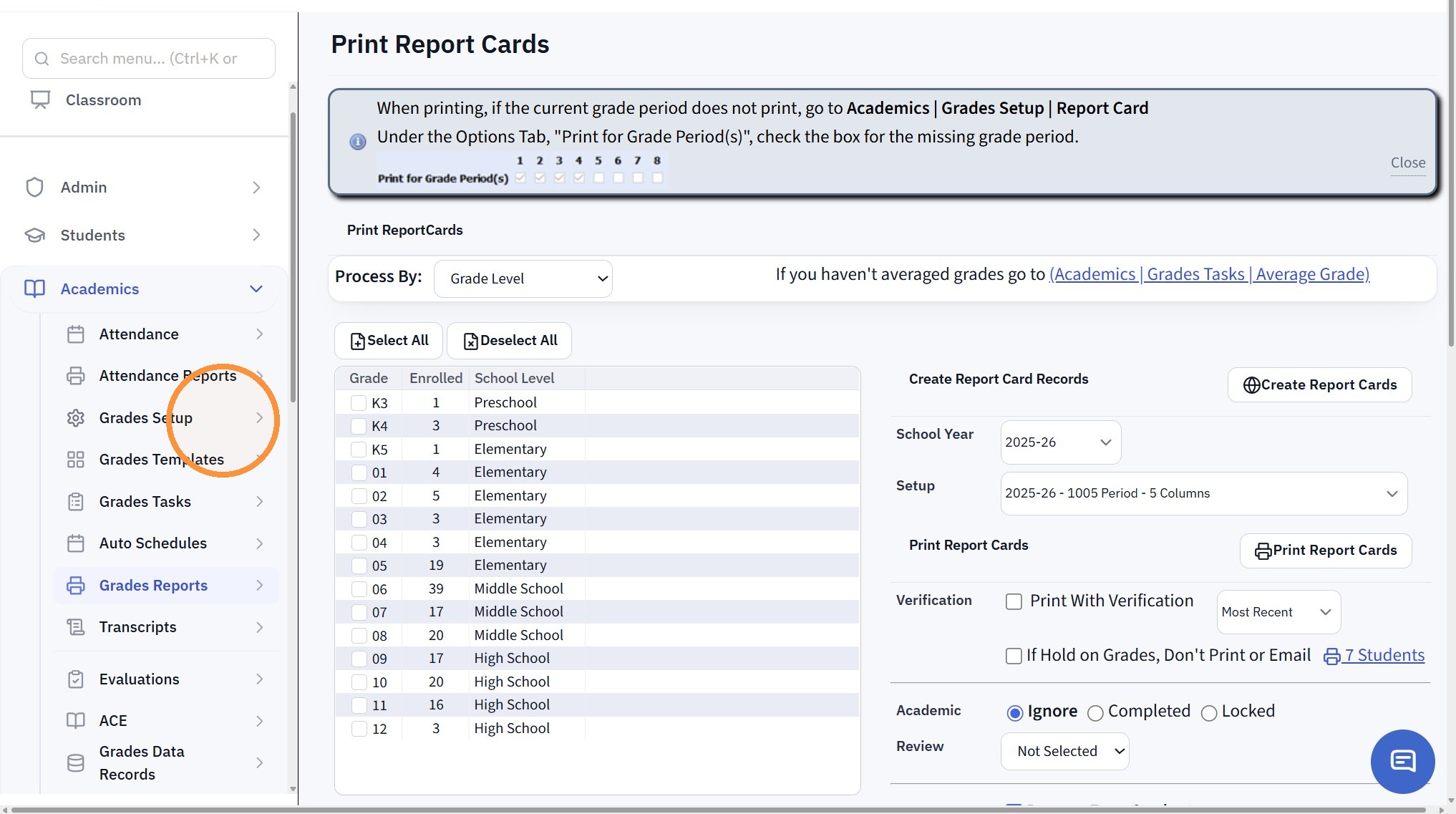
14. Click "Average Info"
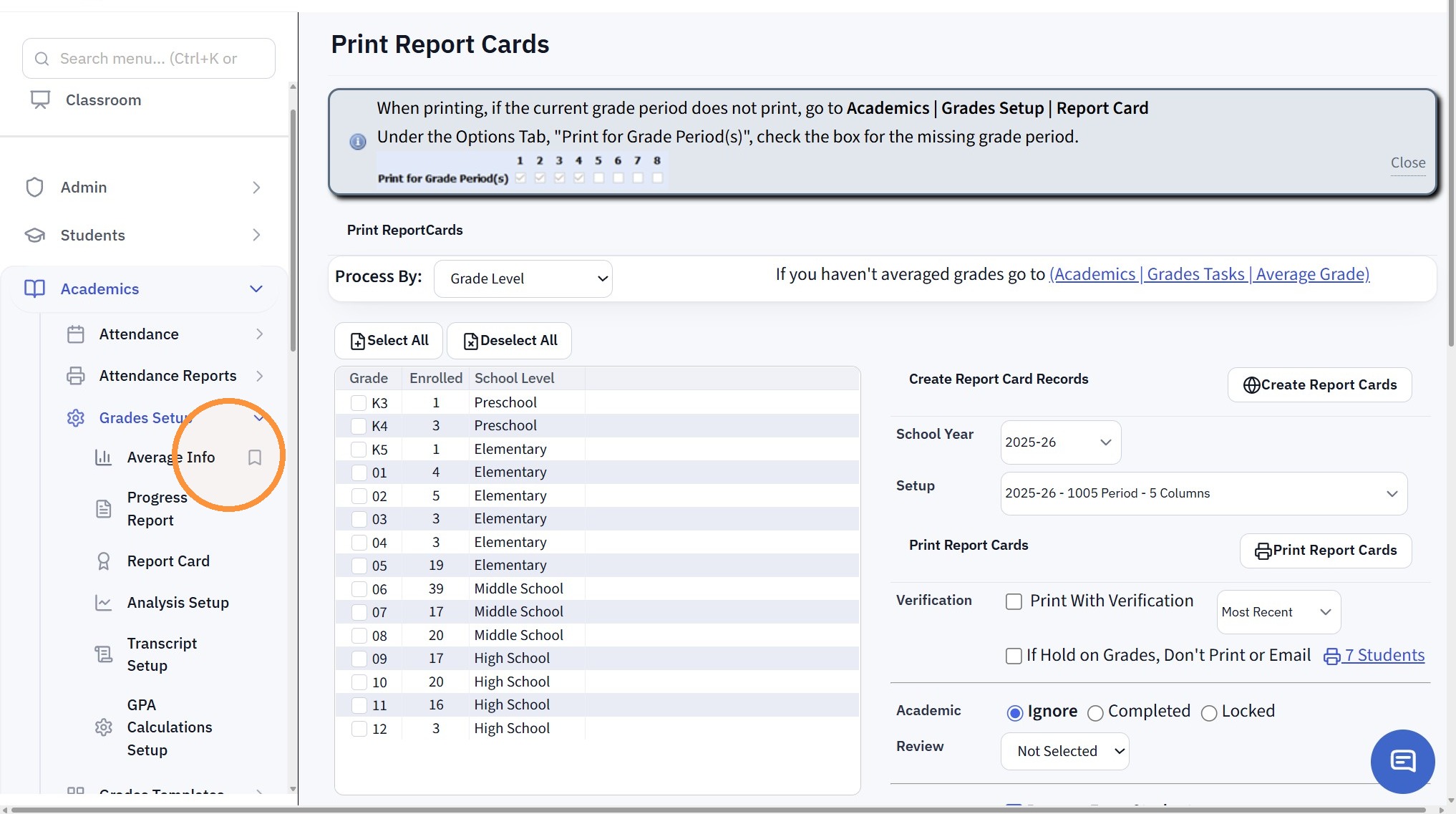
15. Select the Average Info Setup
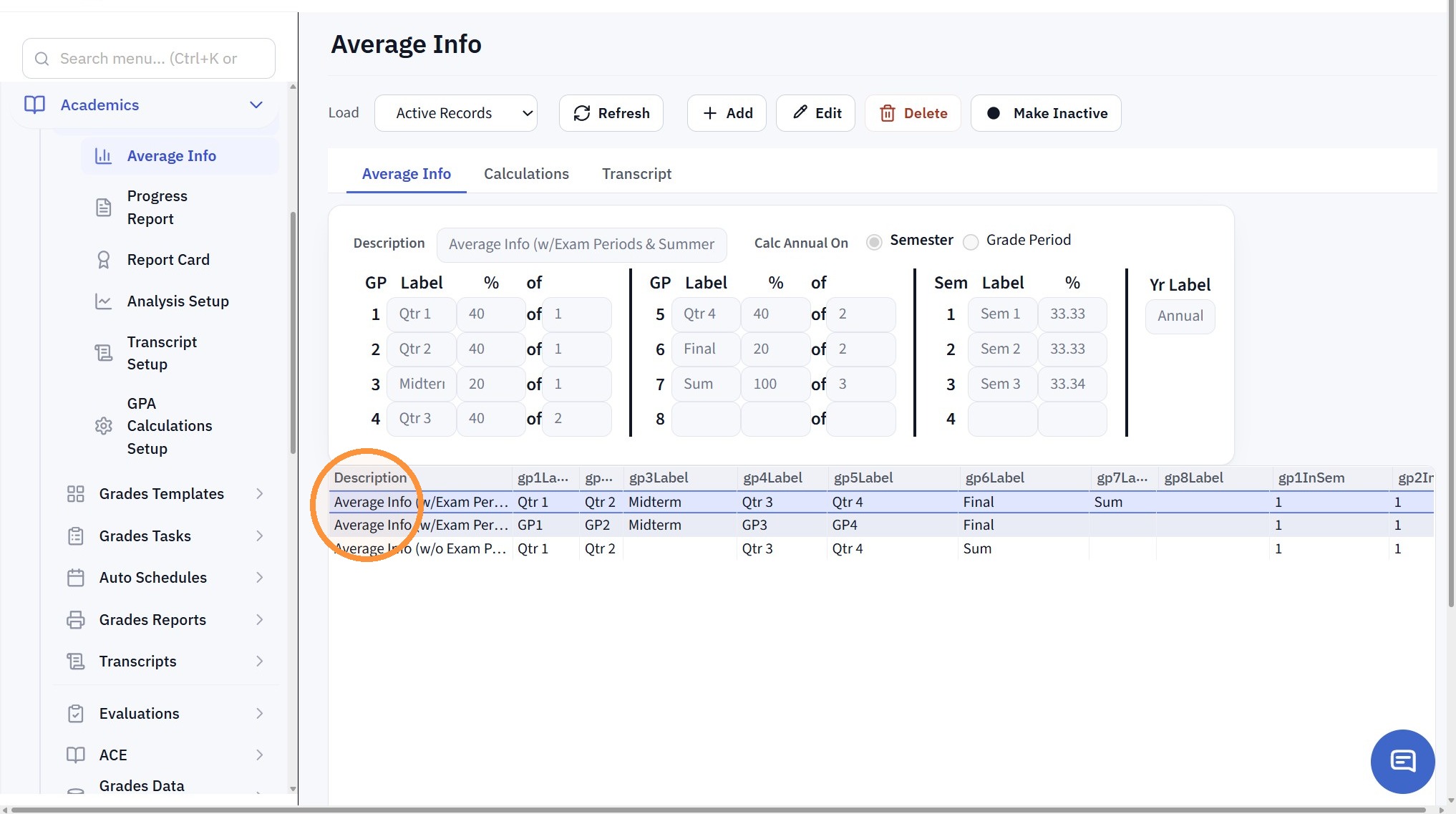
16. Click the "Calculations" Tab & Click "Edit"
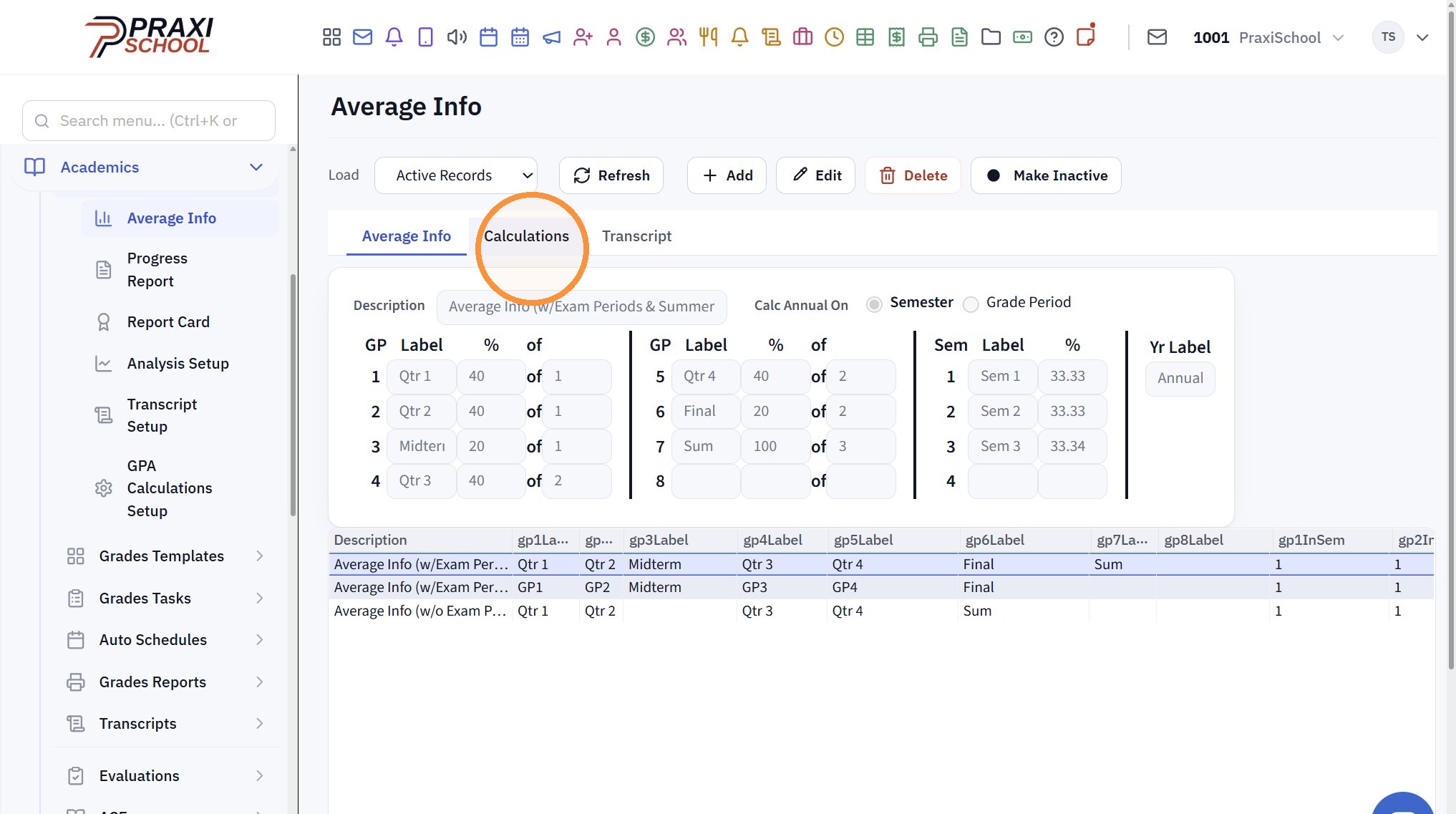
17. Set Auto Average Options & "Save"
Related Articles
Why are the Transcripts not showing the Cumulative Average and Cumulative GPA?
Why are the Transcripts not showing the Cumulative Average and Cumulative GPA? Tip: The Transcript Grade Averages more than likely have not been Averaged. Follow Instructions below to Run Transcript Grade Average. 1. Click "Academics" 2. Click ...Calculate Class Rank for Transcripts
Calculate Class Rank for Transcripts 1. Click "Academics" 2. Click "Transcripts" 3. Click "Transcripts" 4. Select a Student Transcript with the Class Of to be Calculated 5. Click "Actions" 6. Average Grades for the Class Of Year 7. Click "Actions" 8. ...Updating Incorrectly Dropped Grade(s)
Updating Incorrectly Dropped Grade(s) 1. Click "Teachers" 2. Click "Classroom" 3. Select Class 4. Click "Grade Book" 5. Click the "Post Grades" Toggle 6. Select Component 7. Select Assignment 8. Click + Next to Student Name 9. Remove Added Comment ...Showing Extra Credit Comments on Parent & Student Portals
1. Click "Teachers" 2. Click "Classroom" 3. Select Class 4. Click "Grade Book" 5. Select Post Grades Toggle 6. Select the Component 7. Select the Assignment 8. Click the Yellow Bar "One time before entering grades, Click This To Setup" (Clicking the ...Where can Teachers view the Student’s Semester Averages?
1. Go to the Classroom 2. Select a Class & Click "Open" From the Grade Book 3. Click "Grade Book" 4. Click on the 3 Dots 5. Click "All subjects" 6. Click "All subjects" to see the Student's Grades for the Grade Periods & the Semesters 7. From this ...