Updating Incorrectly Dropped Grade(s)
Updating Incorrectly Dropped Grade(s)
1. Click "Teachers"

2. Click "Classroom"

3. Select Class

4. Click "Grade Book"

5. Click the "Post Grades" Toggle
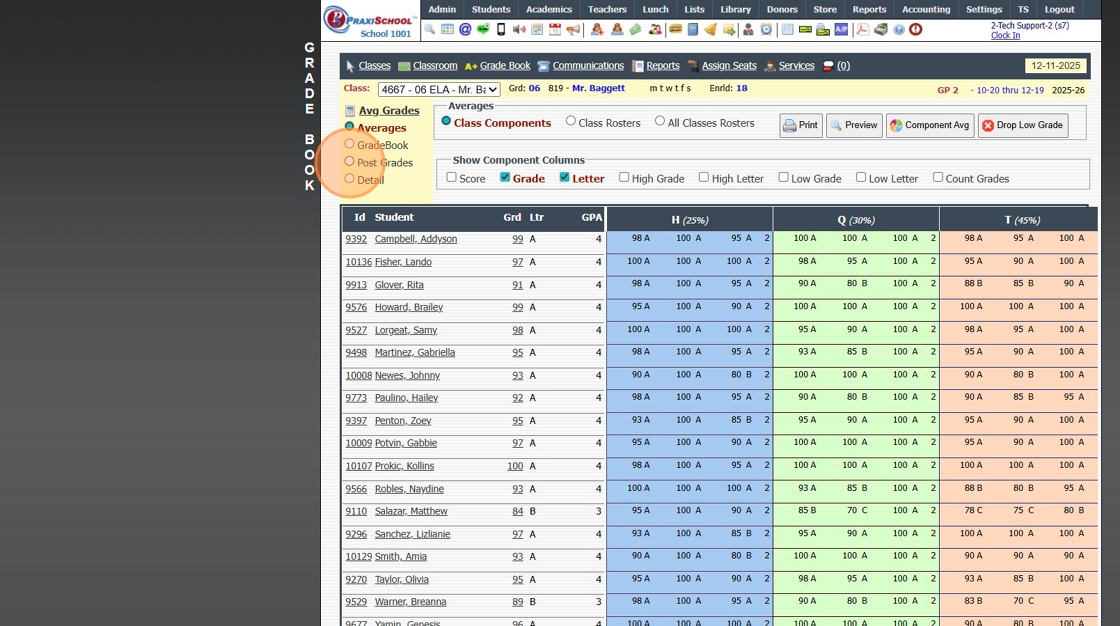
6. Select Component

7. Select Assignment

8. Click + Next to Student Name

9. Remove Added Comment (Optional)

10. Click "Avg Grades" to Recalculate Overall Average

11. 2500.1.47
Related Articles
Updating Student Pictures on Report Cards
Updating Student Pictures on Report Cards Updating Student Pictures, if Student Pictures are added after Report Cards have already been created 1. Click "Academics" 2. Click "Grades Reports" 3. Click "Print Report Cards" 4. Select to Update by ...Updating Grade Book Letter Grades for a Grade Period
1. Click "Settings" 2. Click "Utilities" 3. Select Grade Period 4. Click "Update GradeBook Letter Grades for Grade Period" 6500.12.4Drop Lowest Grade
Drop Lowest Grade 1. Click "Teachers" 2. Click "Classroom" 3. Select Class 4. Click "Grade Book" 5. Click "Averages" Toggle 6. Click "Drop Low Grade" Button 7. Select Component(s) (If more than one component is selected, the lowest grade for each ...Entering an ACE PACE Grade
Entering an ACE PACE Grade 1. Click "Teachers" 2. Click "Classroom" 3. Select Learning Center Course in Grid 4. Click "Grade Book" 5. Select Student 6. Click on the Line "-" Under the Issued PACE Number to Enter Grade 7. Enter "Points" (Numeric ...Updating Homeroom Teacher on Report Cards
Updating Homeroom Teacher on Report Cards 1. Click "Academics" 2. Click "Grades Reports" 3. Click "Print Report Cards" 4. Select Grade Levels 5. Select Report Card Setup for Selected Grade Levels 6. Click "Create Report Cards" 2000.6.14