Update Student's Grade Level on Transcripts by Report Card or Course Grade Level
Update Student's Grade Level on Transcripts by Report Card or Course Grade Level
1. Click "Academics"
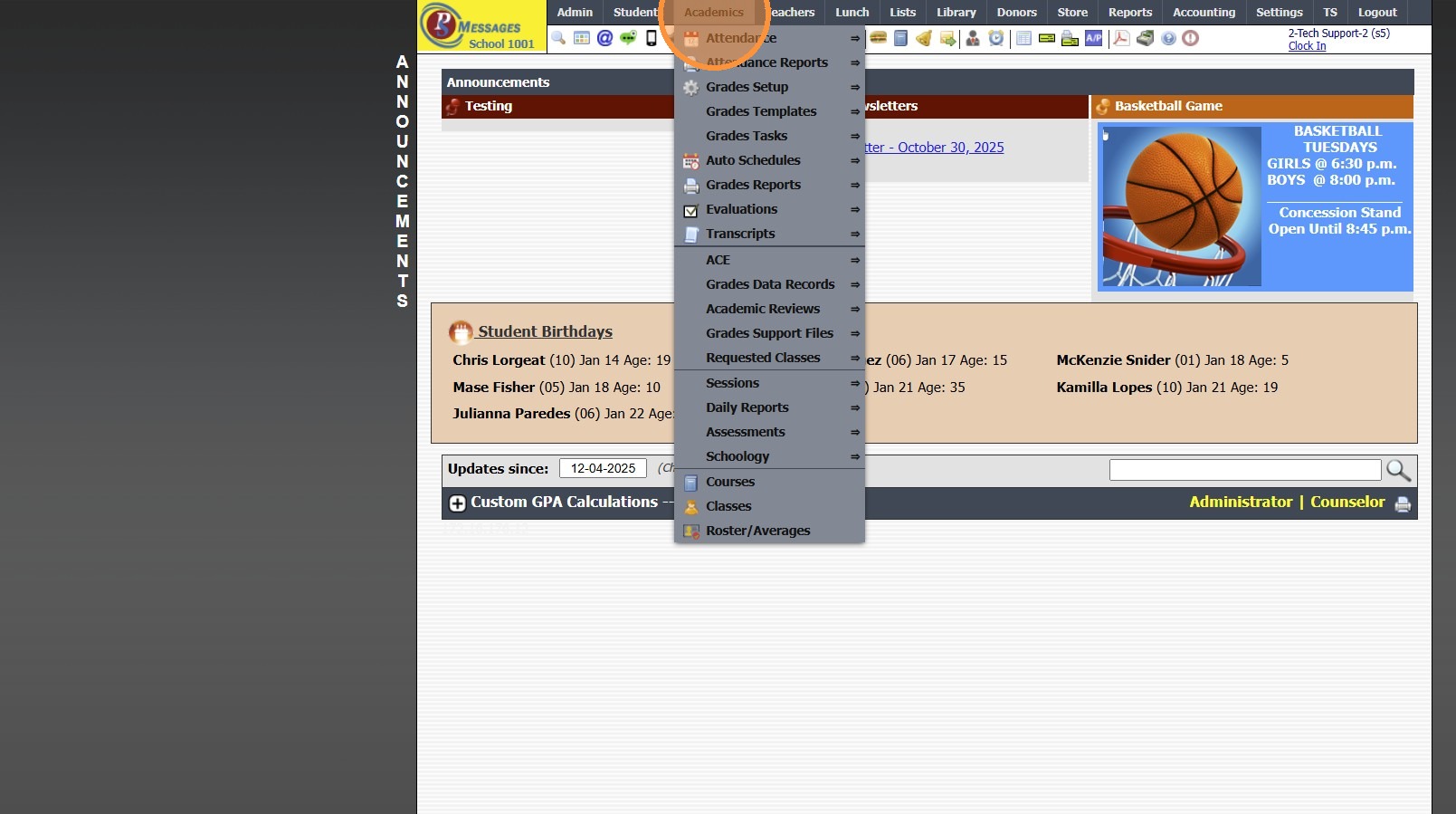
2. Click "Transcripts"
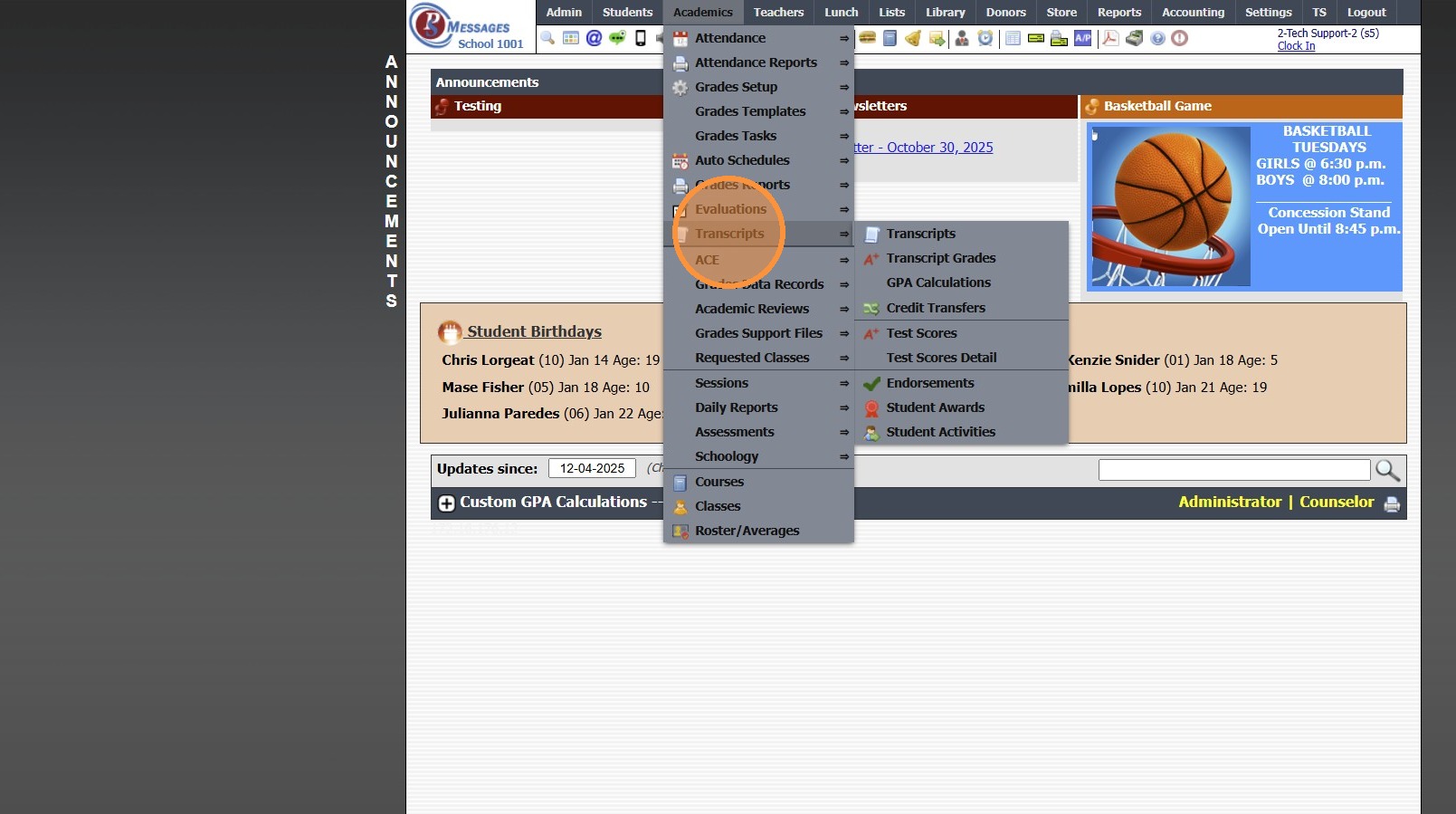
3. Click "Transcript Grades"
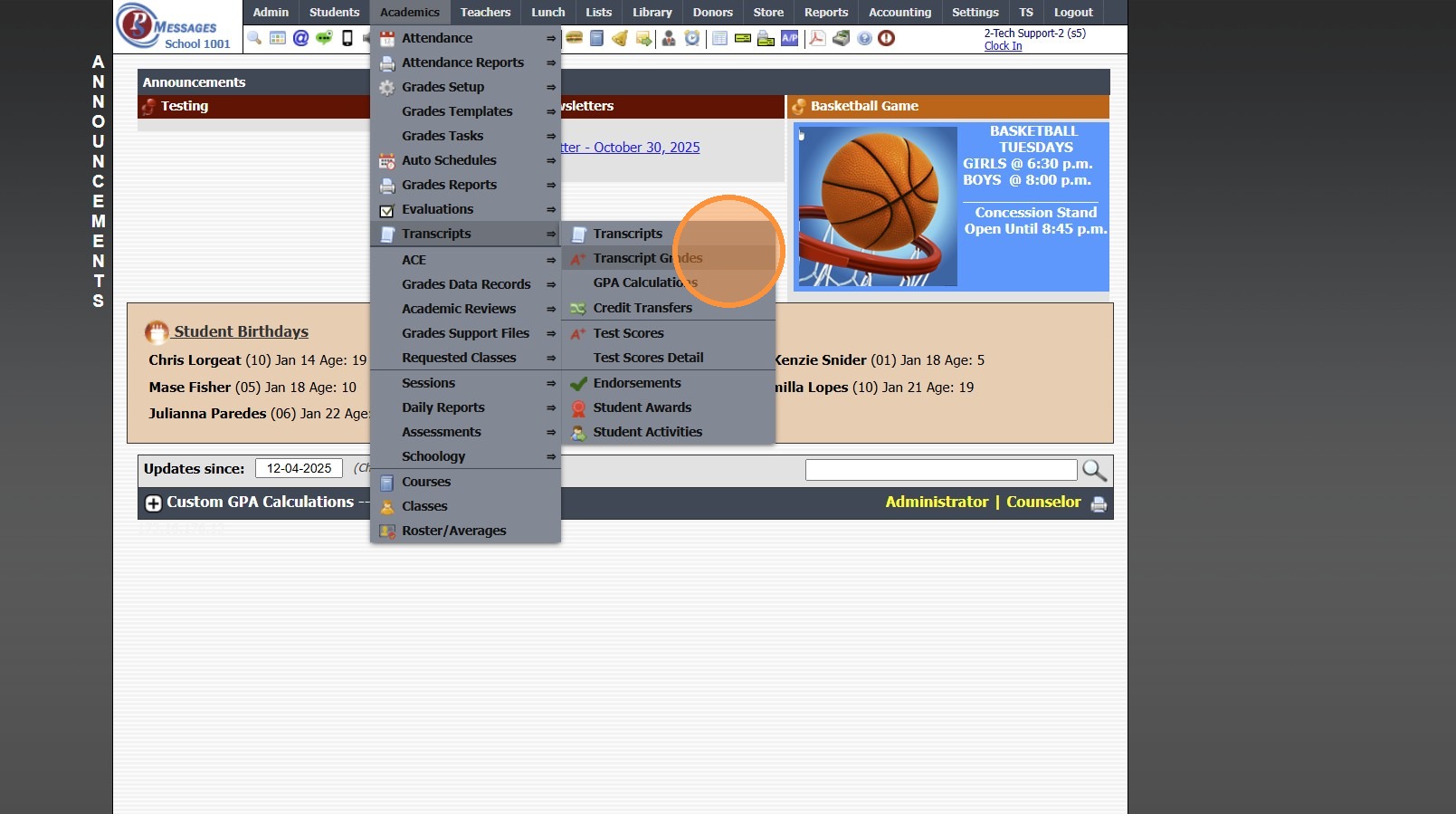
4. Filter & Tag Transcript Grades to Update
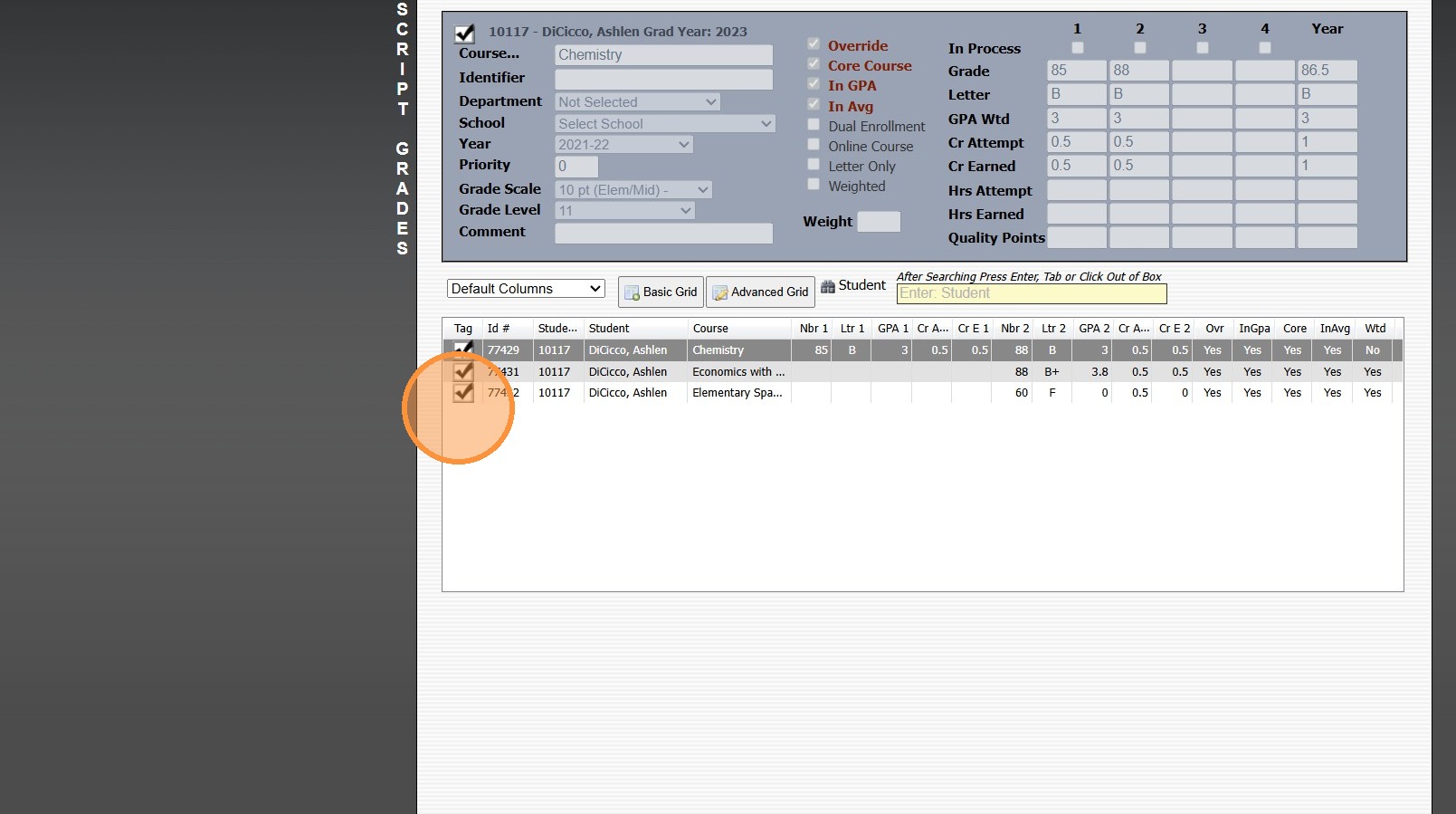
5. Click "Actions"
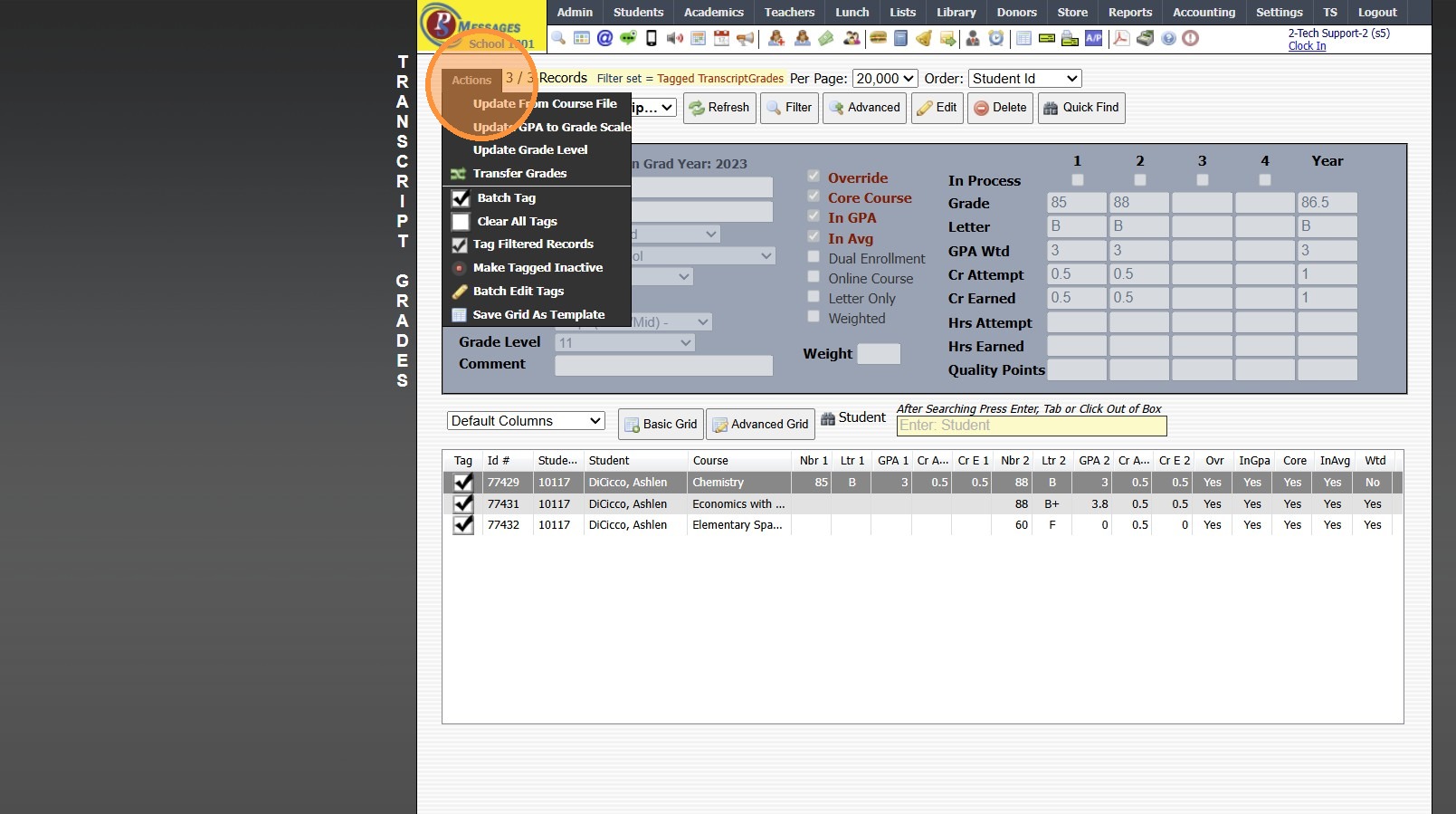
6. Click "Update Grade Level"
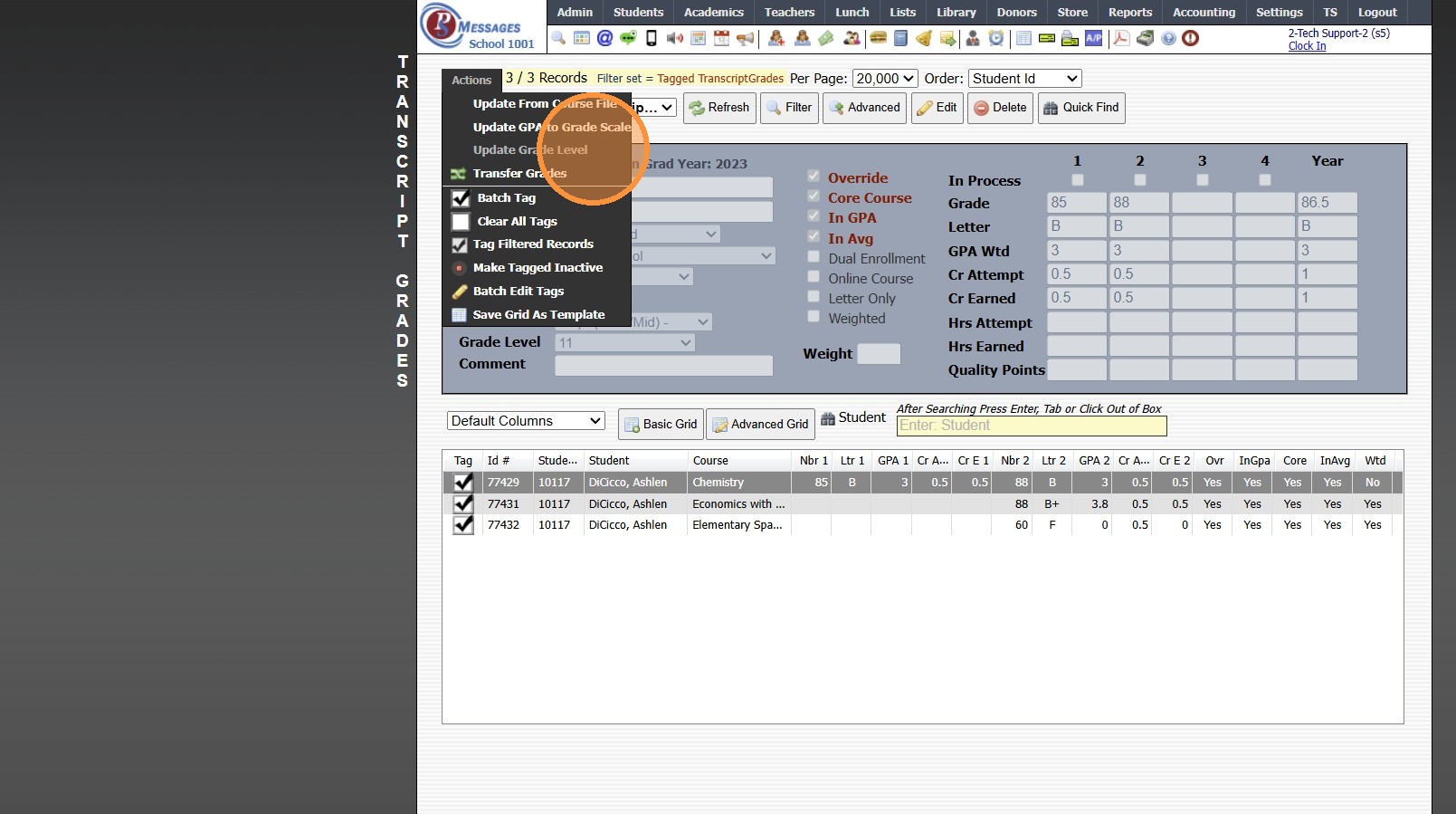
7. Select "Report Cards"
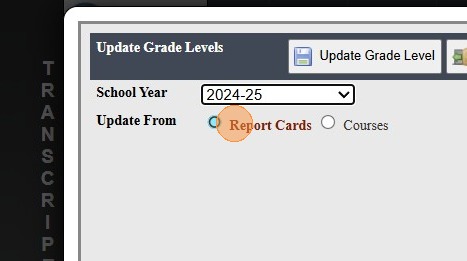
8. Click "Update Grade Level"
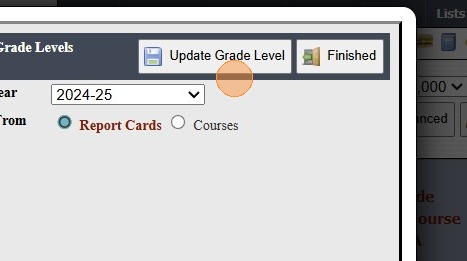
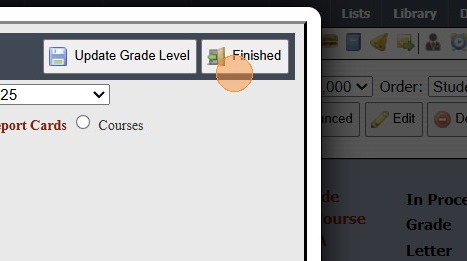
9. Click "Finished"
Updating by Course Grade Level
10. Click "Actions"
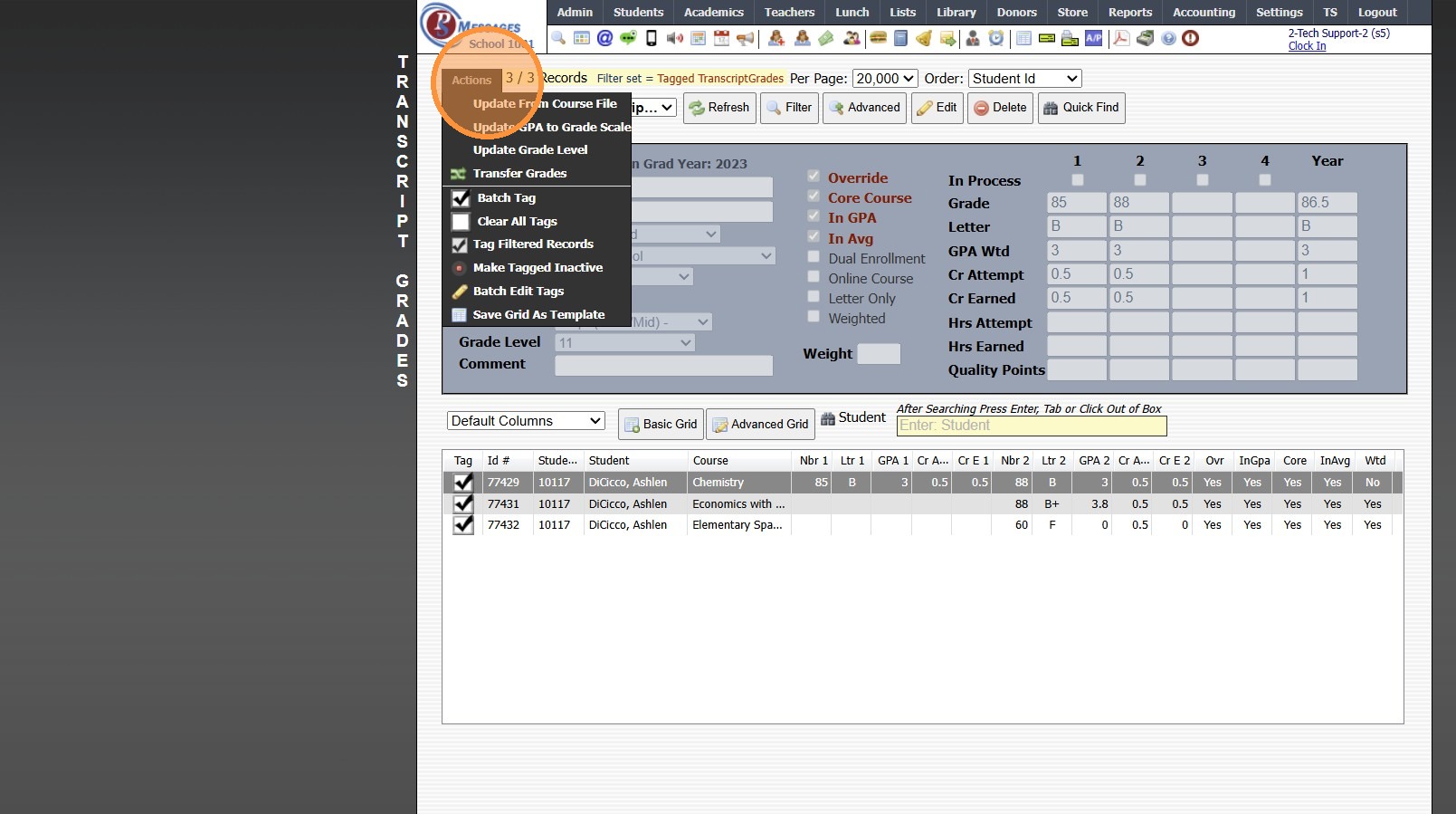
11. Click "Update Grade Level"
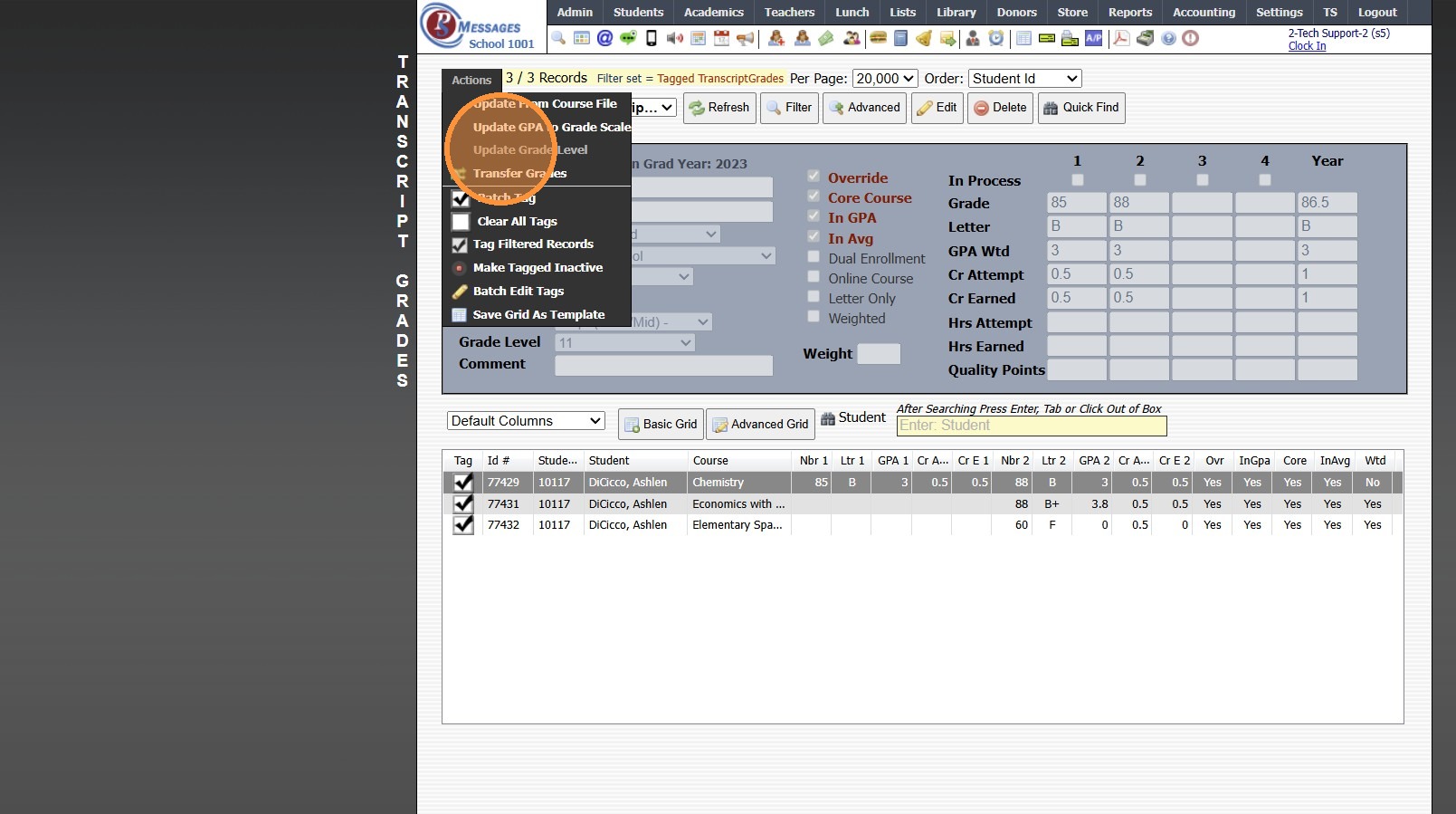
12. Select "School Year"
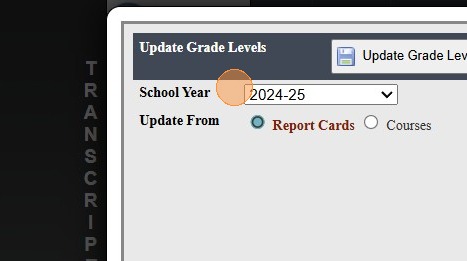
13. Select "Courses"
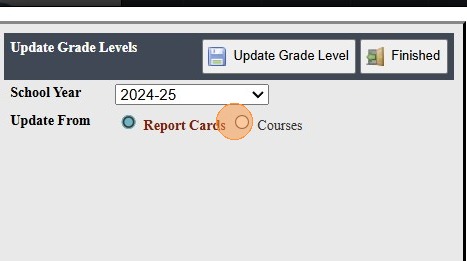
14. Click "Update Grade Levels"
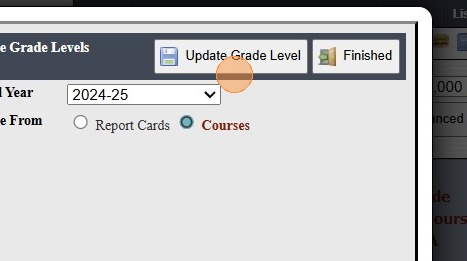
15. Click "Finished."
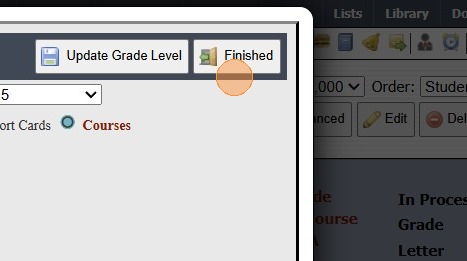
16. 2000.8.23
Related Articles
Updating Student Pictures on Report Cards
Updating Student Pictures on Report Cards Updating Student Pictures, if Student Pictures are added after Report Cards have already been created 1. Click "Academics" 2. Click "Grades Reports" 3. Click "Print Report Cards" 4. Select to Update by ...UPDATE: Adding Prior School Data to Transferring Student Transcripts
UPDATE: Adding Prior School Data to Transferring Student Transcripts 1. Click "Academics" 2. Click "Transcripts" 3. Click "Transcripts" 4. Select the Student's Transcript 5. Click "Actions" 6. Click "Add/Edit Scores" 7. Click "Add" 8. Enter data for ...Adding a New Course
1. Click "Academics" 2. Click "Courses" 3. Click "Add" 4. Enter Course Description & Course Code (Typically these will be the Same) 5. Enter Identifier (Optional) (Ex. Math 09 - MAT-101) 6. Select Department (Optional) (Ex. Mathematics, English, ...Updating a Class/Student Grade Level on a Transcript Class
1. Click "Academics" 2. Click "Transcripts" 3. Click "Transcripts" 4. Select Student 5. Click "Actions" 6. Click "Add/Edit Scores" 7. Select Class 8. Click "Edit" 9. Select Correct Grade Level 10. Click "Save & Close" 11. Click "Close" 8000.36Report Card Set Up - Turning On Grade Periods
Report Card Set Up - Turning On Grade Periods 1. Log into PraxiSchool 2. Click "Academics" 3. Click "Grades Setup" 4. Click "Report Card" 5. Select Report Card Template 6. Click "Grade Periods" 7. Click "Edit" 8. Select Grade Period Option for Print ...