I Withdrew a Student and now the Student's Grade are not on the Report Card.
I Withdrew a Student and now the Student's Grade are not on the Report Card.
Tip: When Withdrawing the Student, next to Clear Class Schedule, the default option of Completed was more than likely changed to Withdrawn. Follow Instructions below to mark Class Rosters to Completed.
1. Click "Academics"
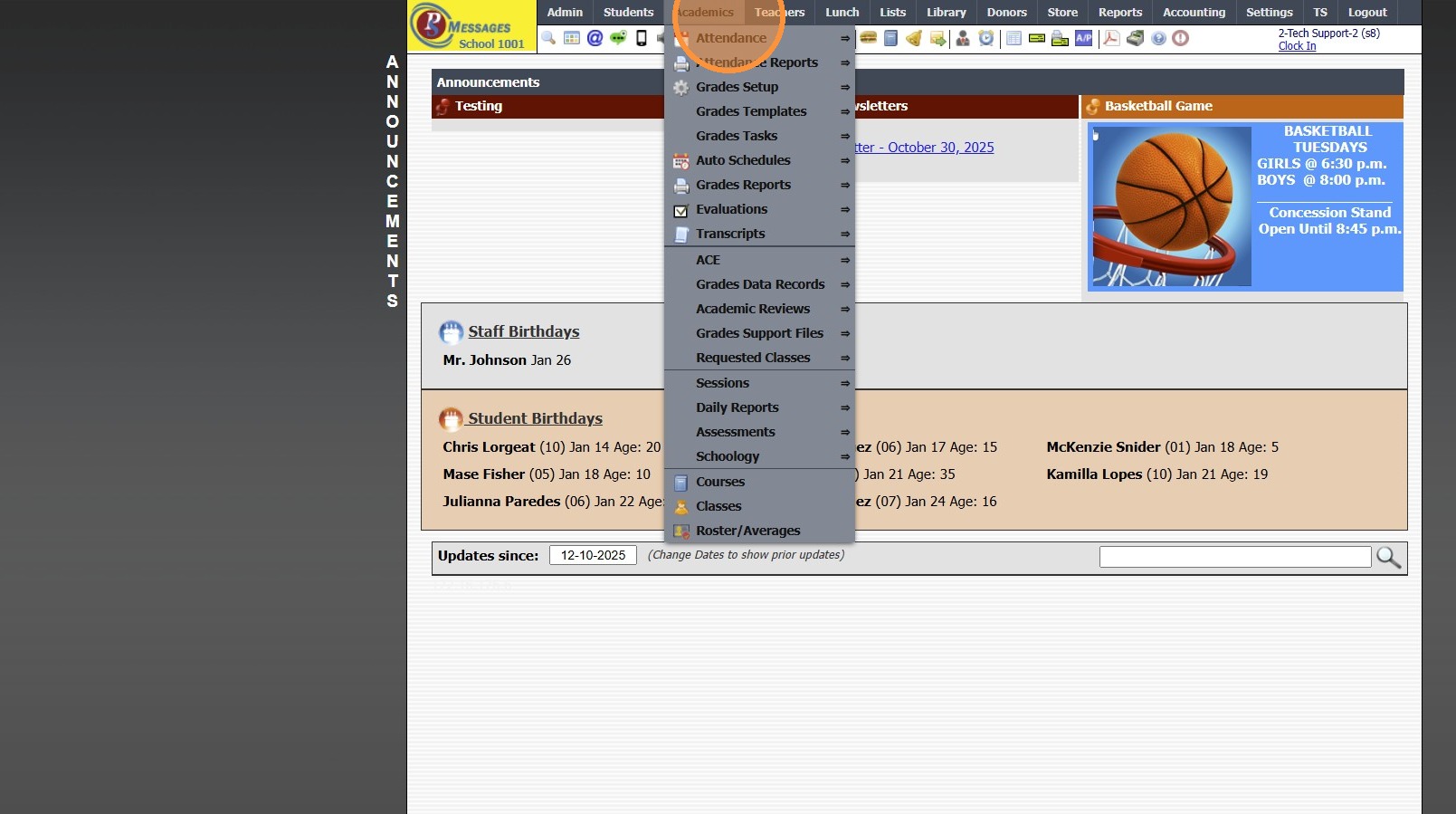
2. Click "Roster/Averages"
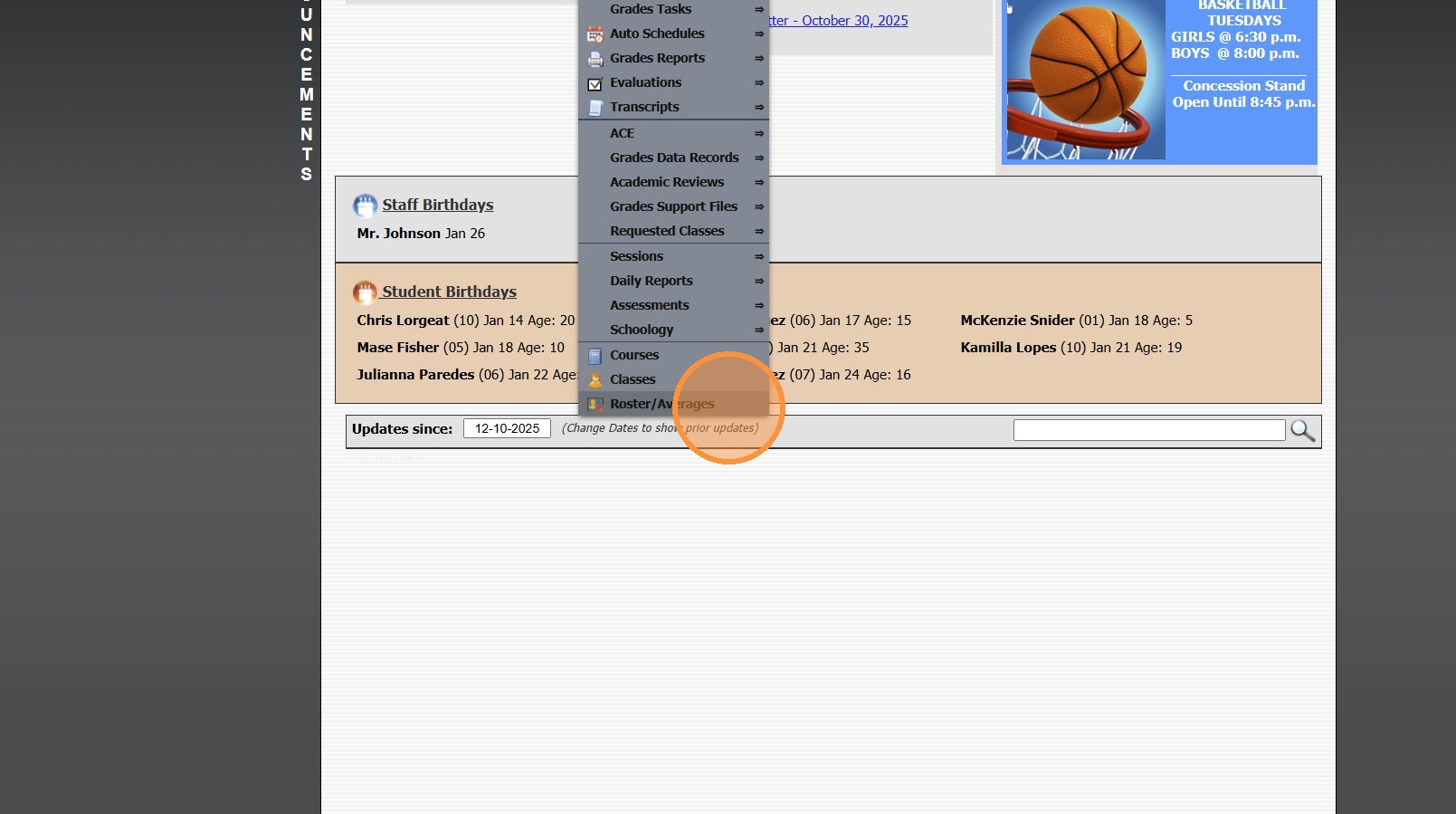
3. Click "Quick Find"
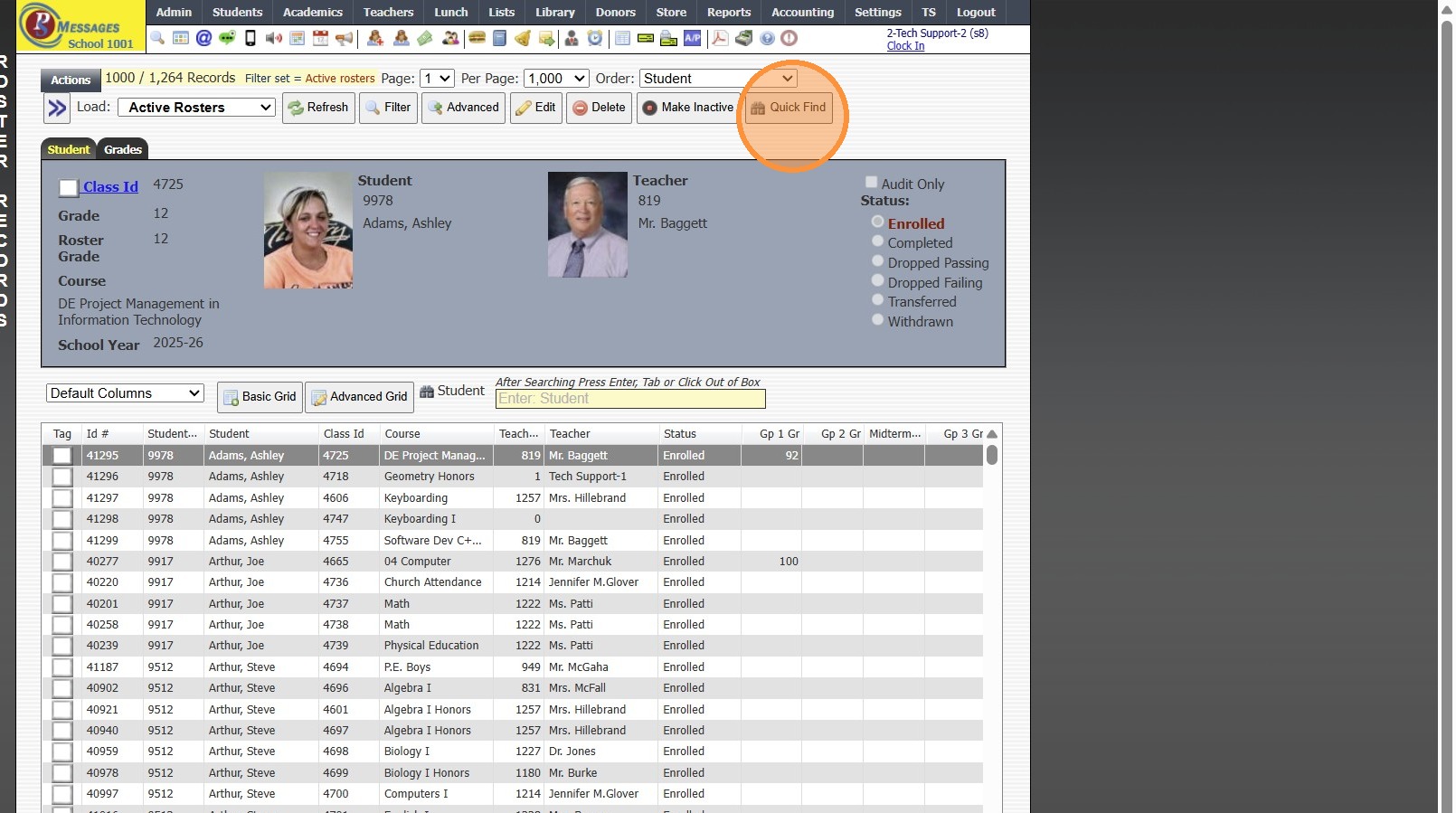
4. Set Active to "All" & Set Status to "All"
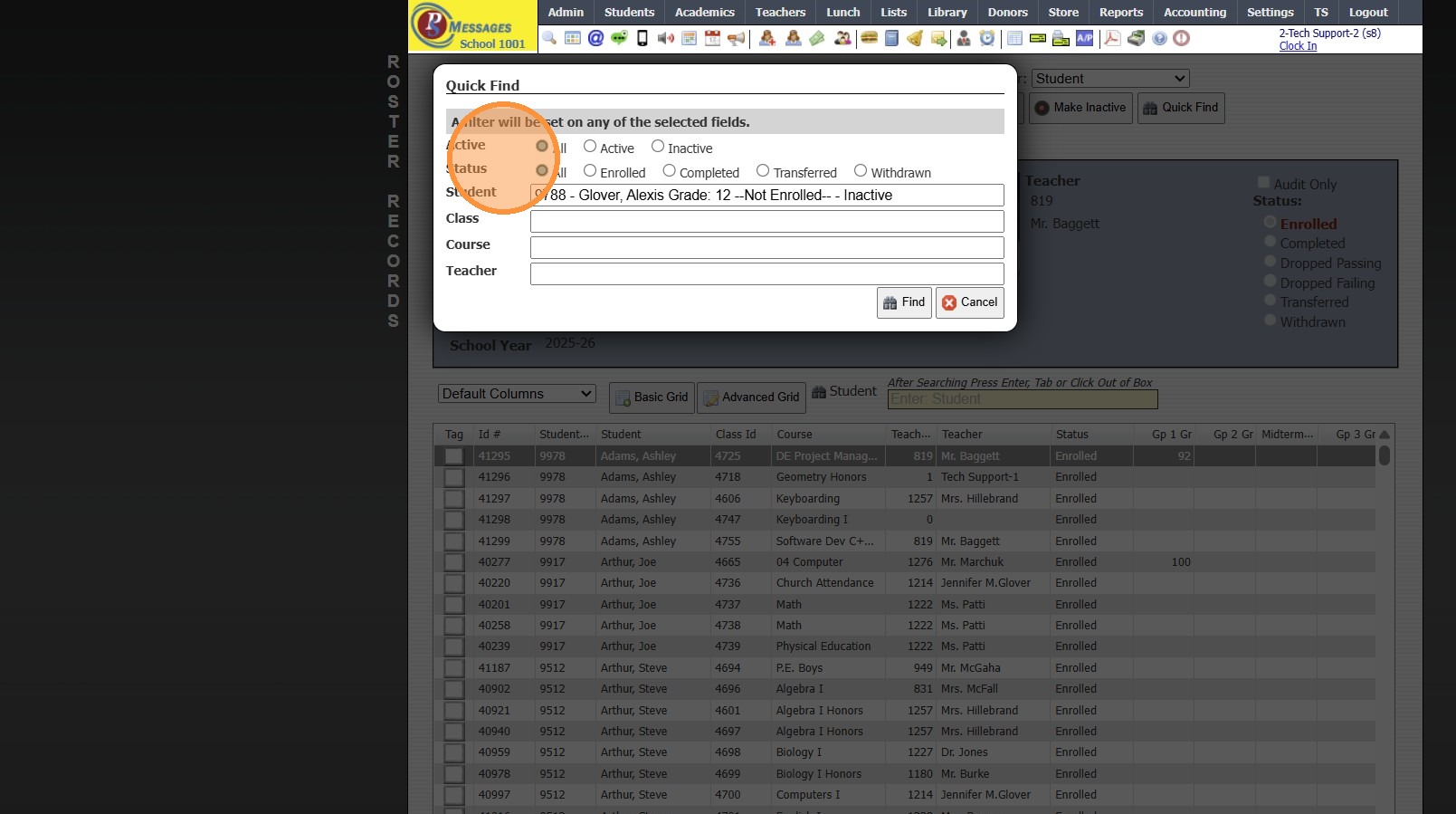
5. Search Student
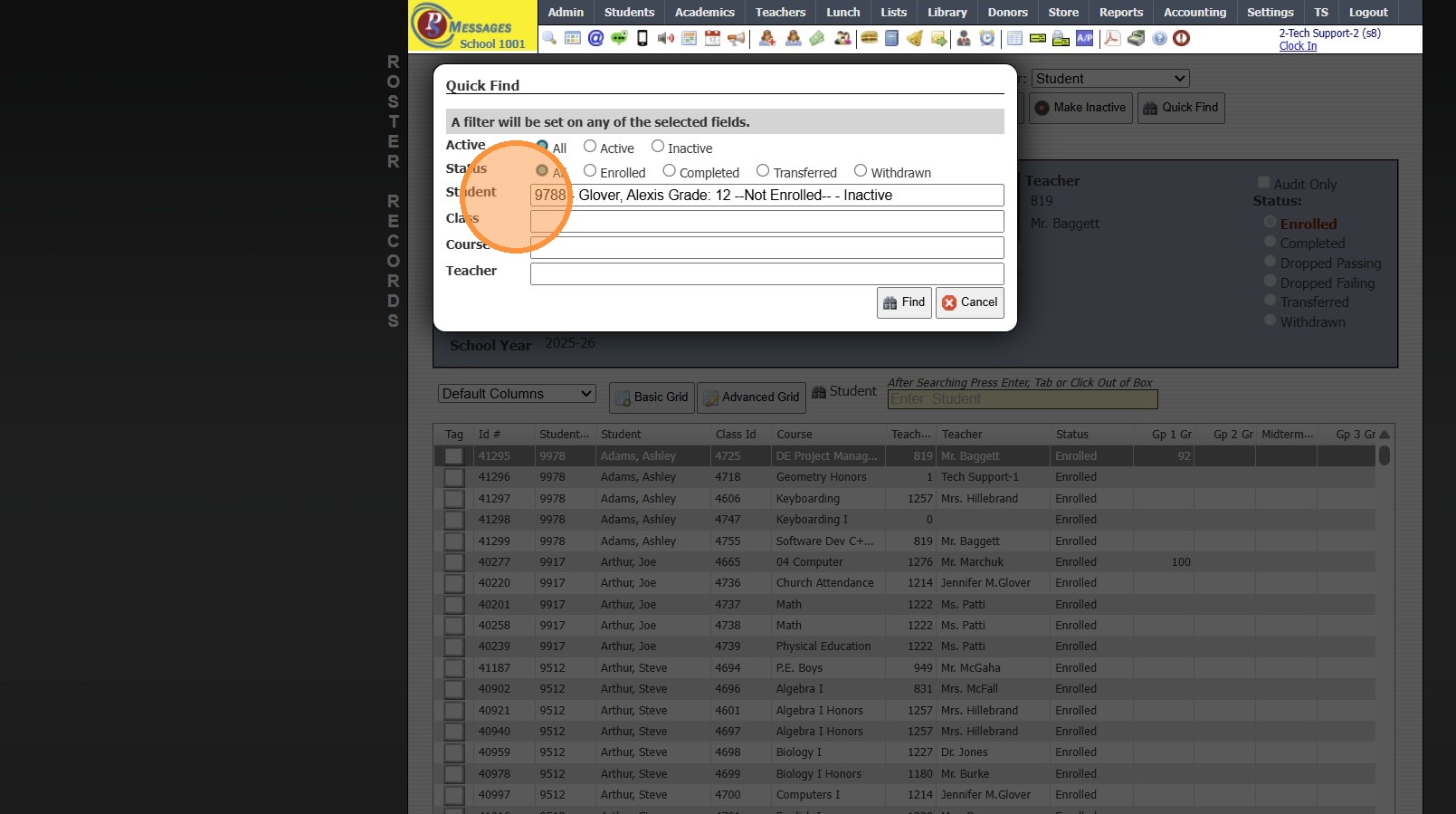
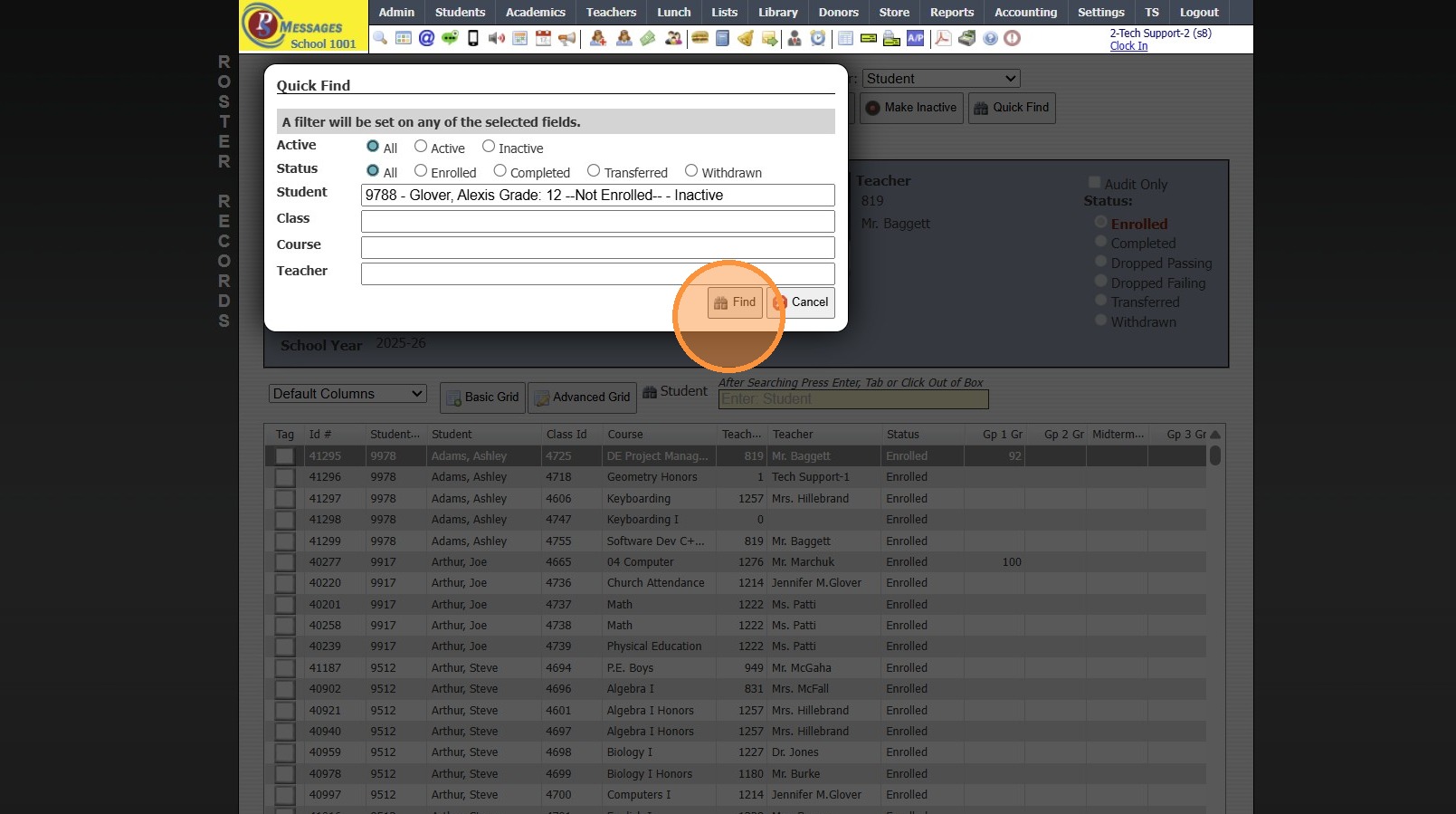
6. Click "Find"
7. Status is Marked "Withdrawn"
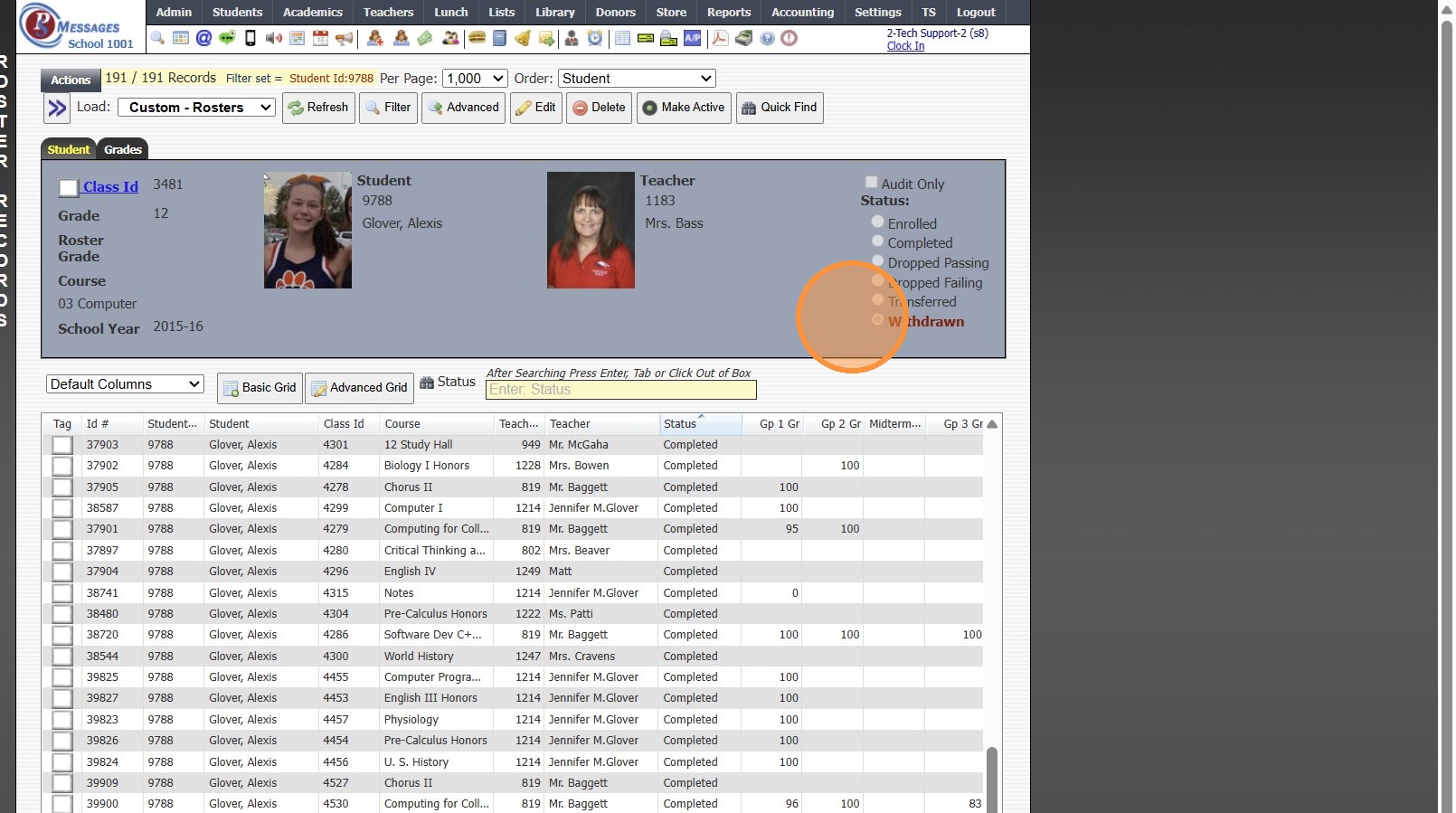
Updating Status Individually
8. Click "Edit"
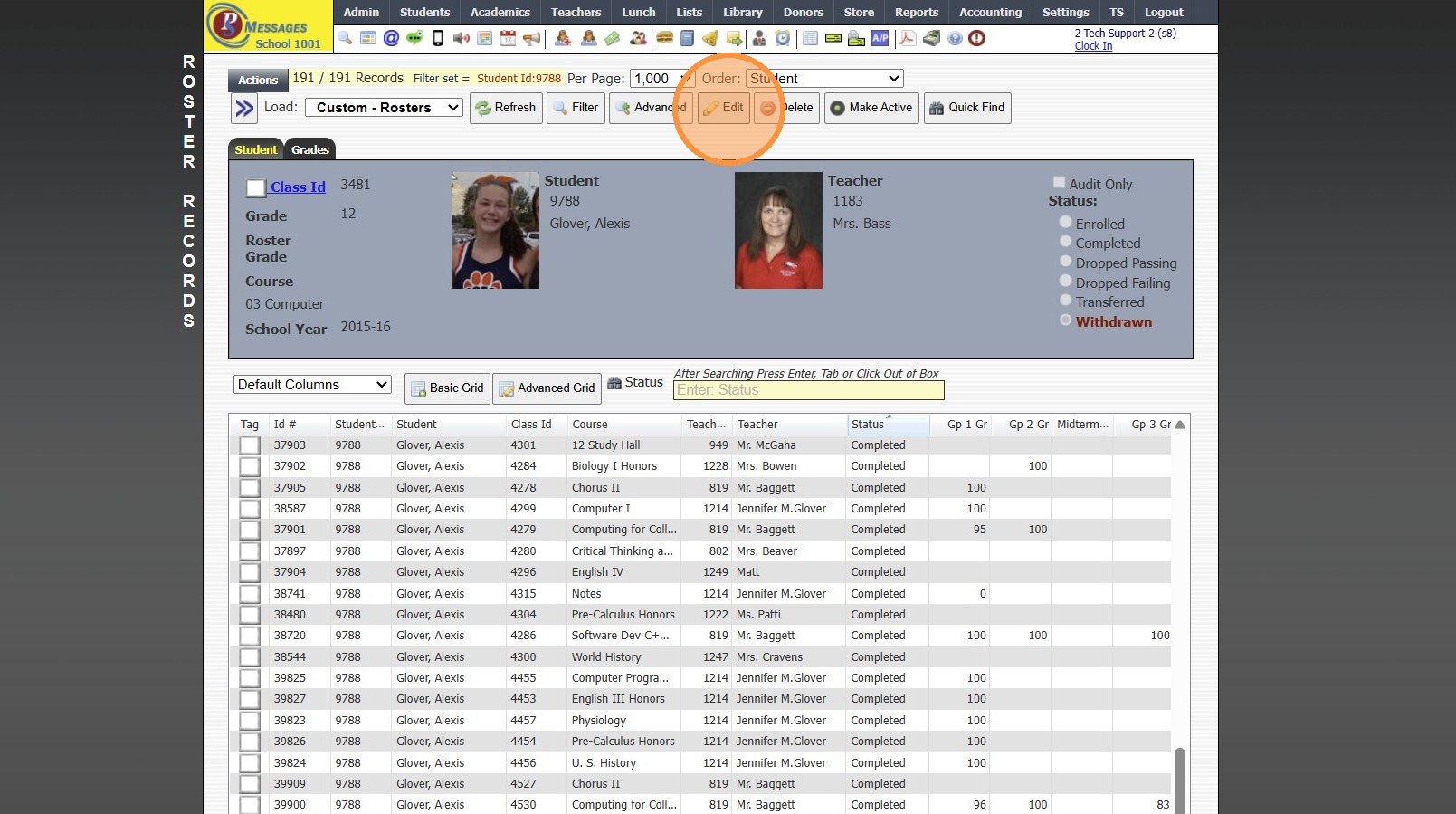
9. Select "Completed"

10. Click "Save"
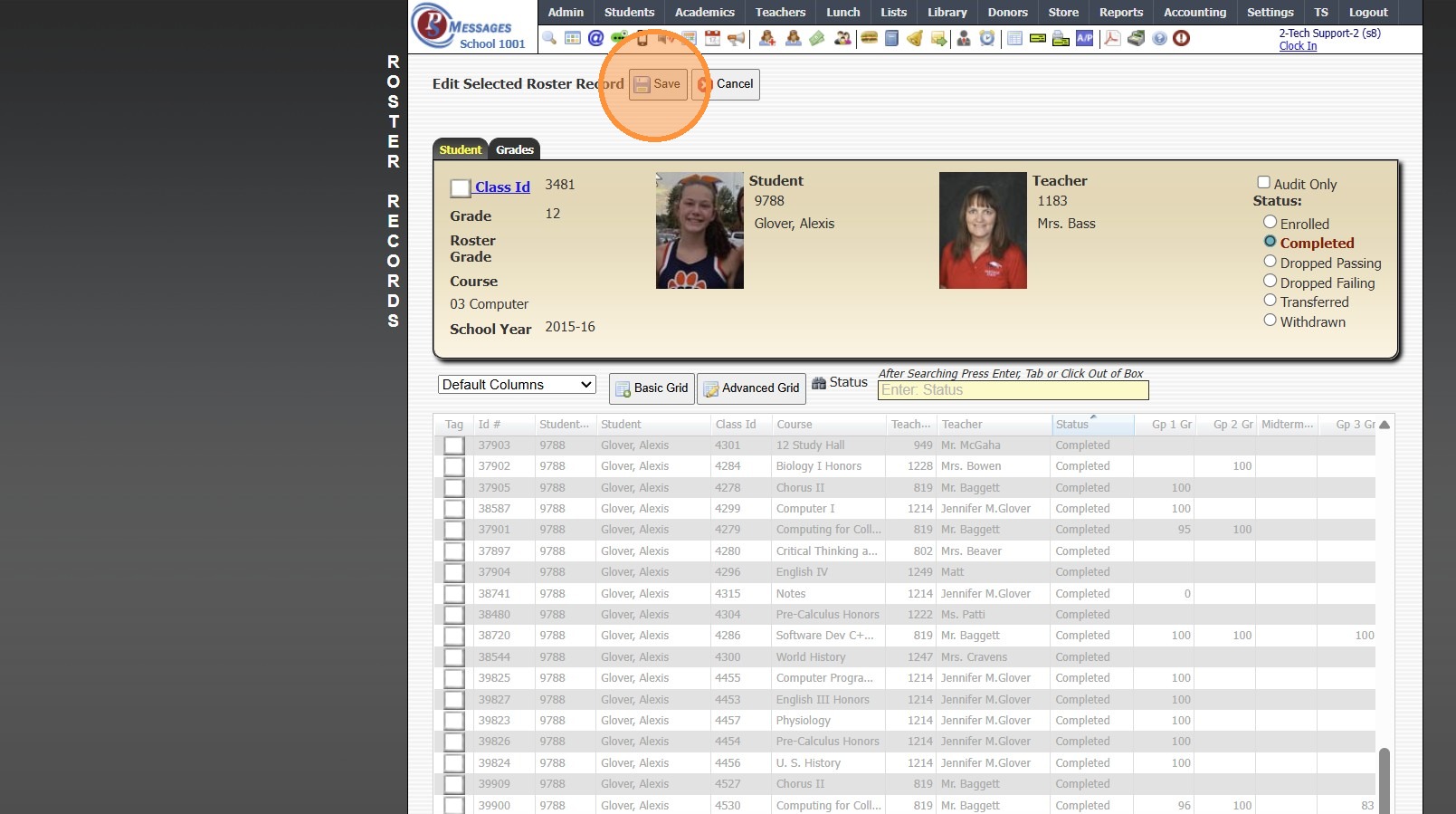
Updating Status In Batch
11. Tag Rosters to Mark Completed
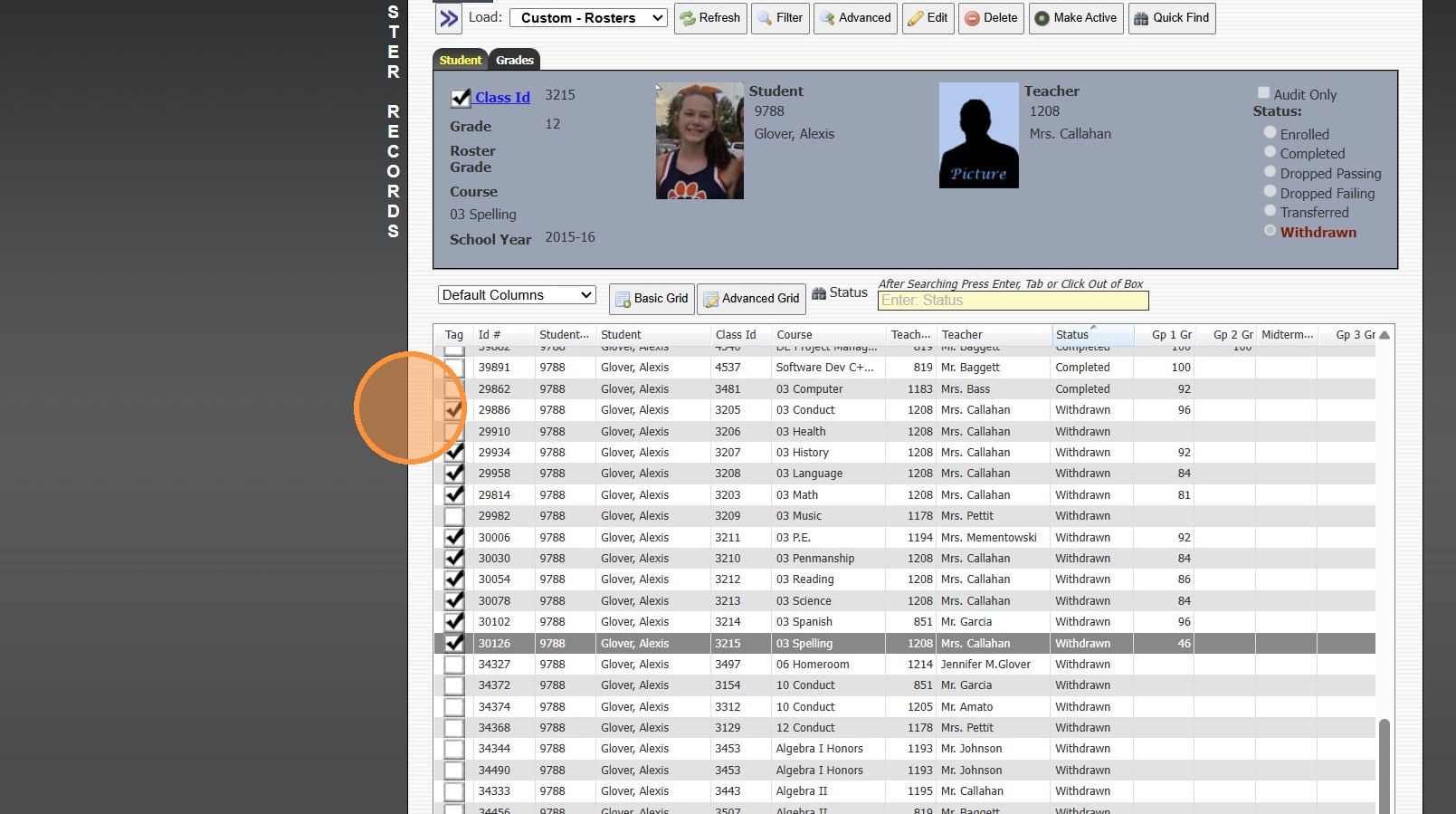
12. Click "Actions"
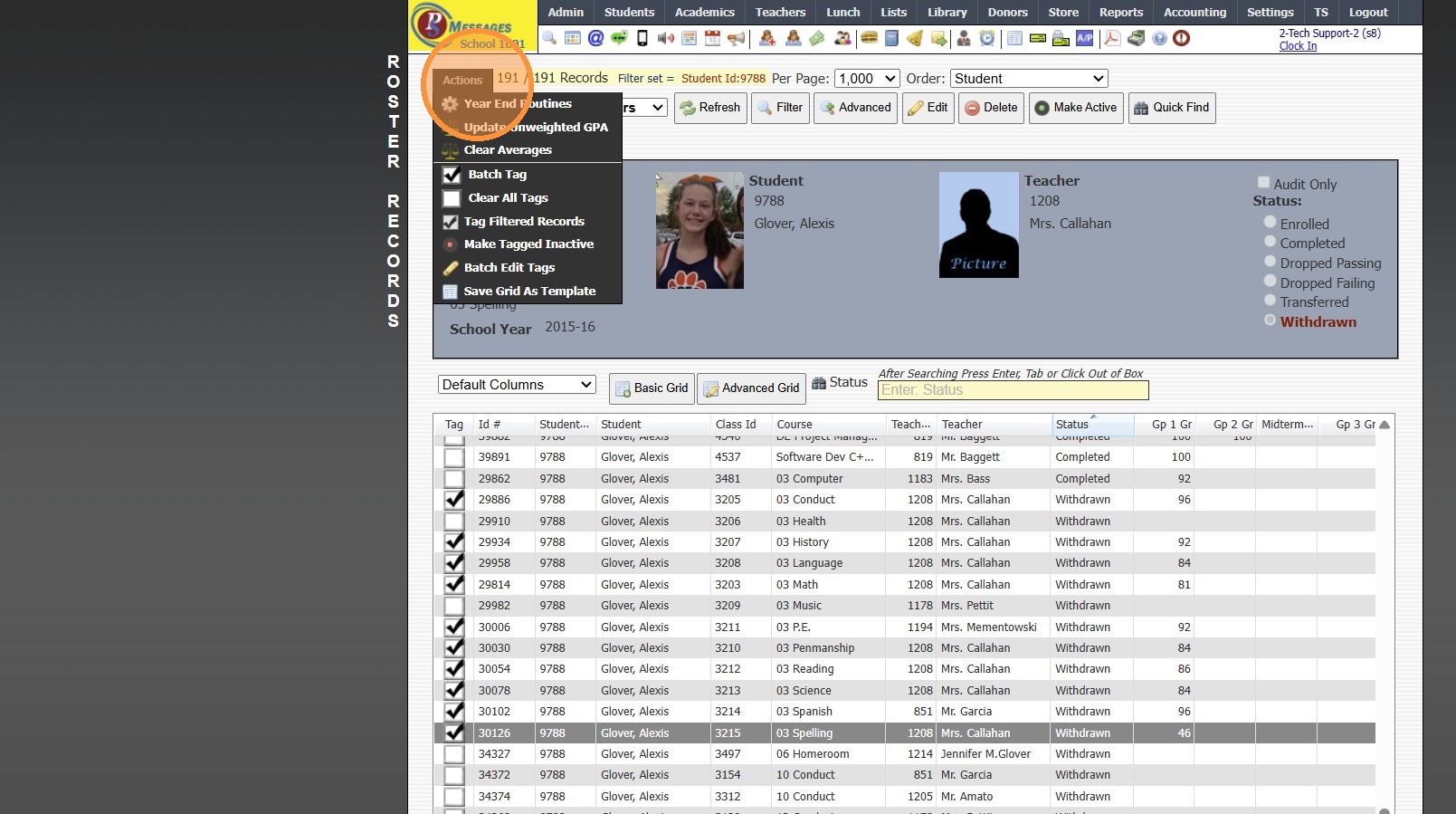
13. Click "Batch Edit Tags"
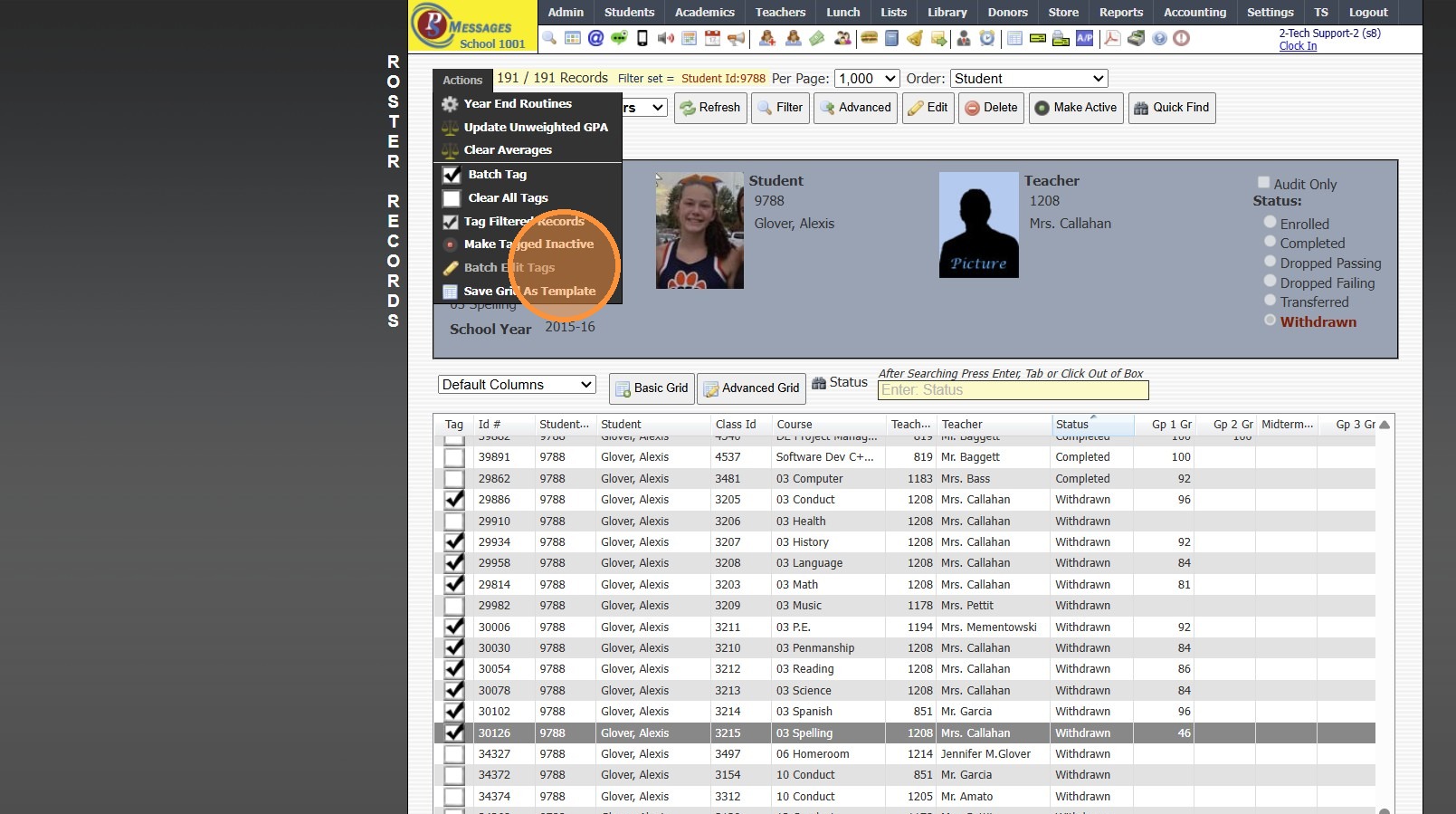
14. Select the "Status" option
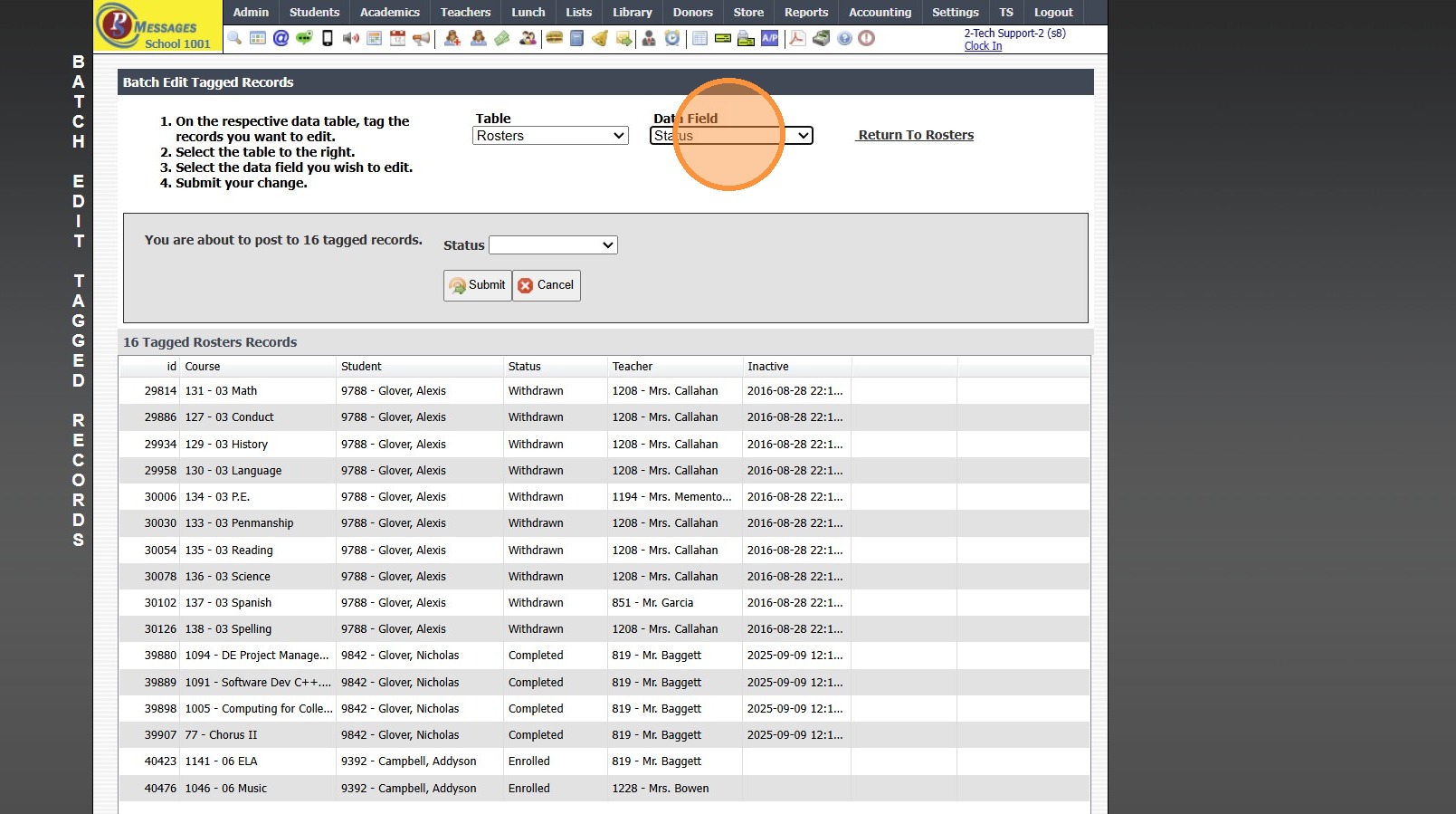
15. Select the Status "Completed"
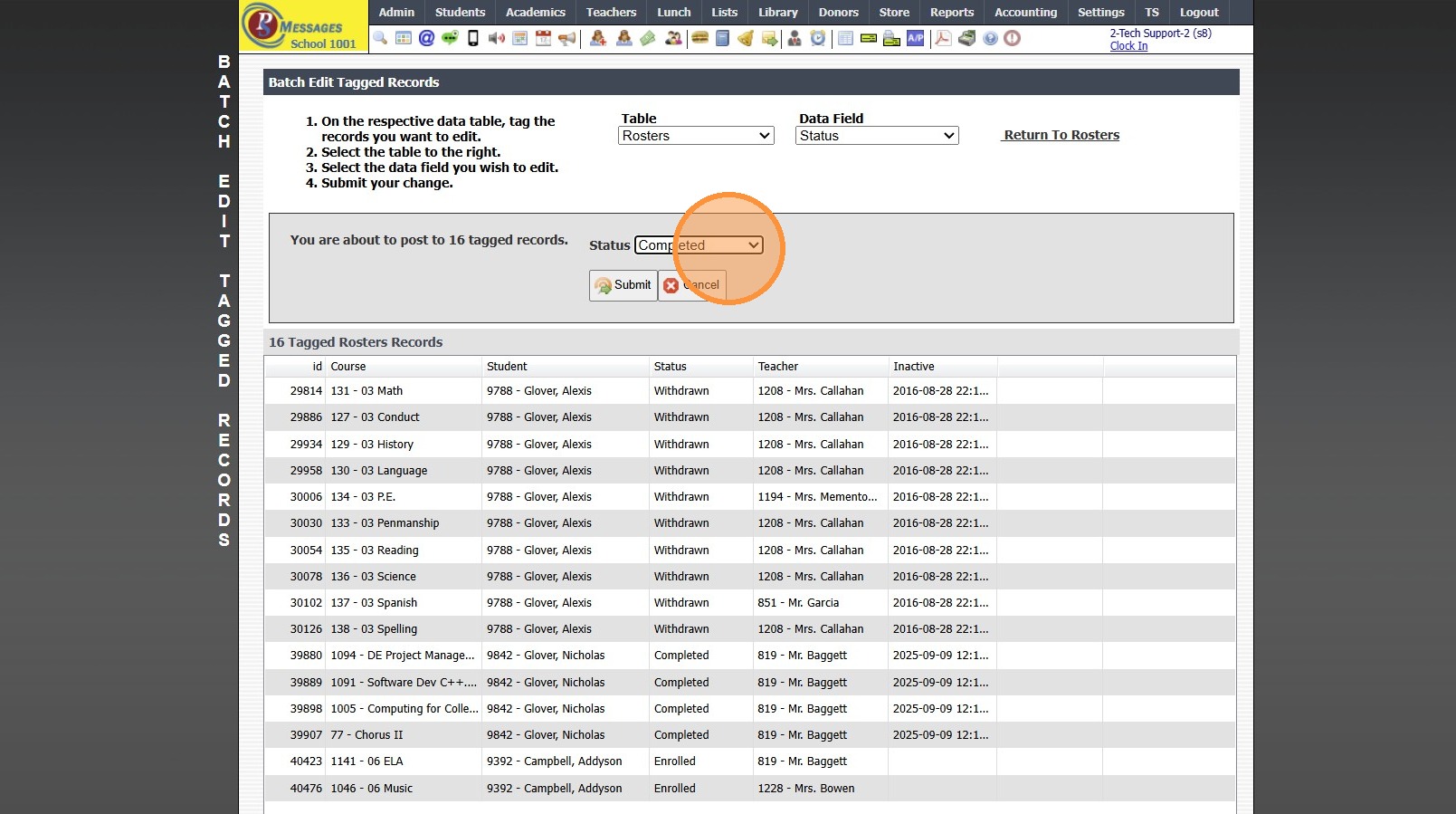
16. Click "Submit" & Type "yes"
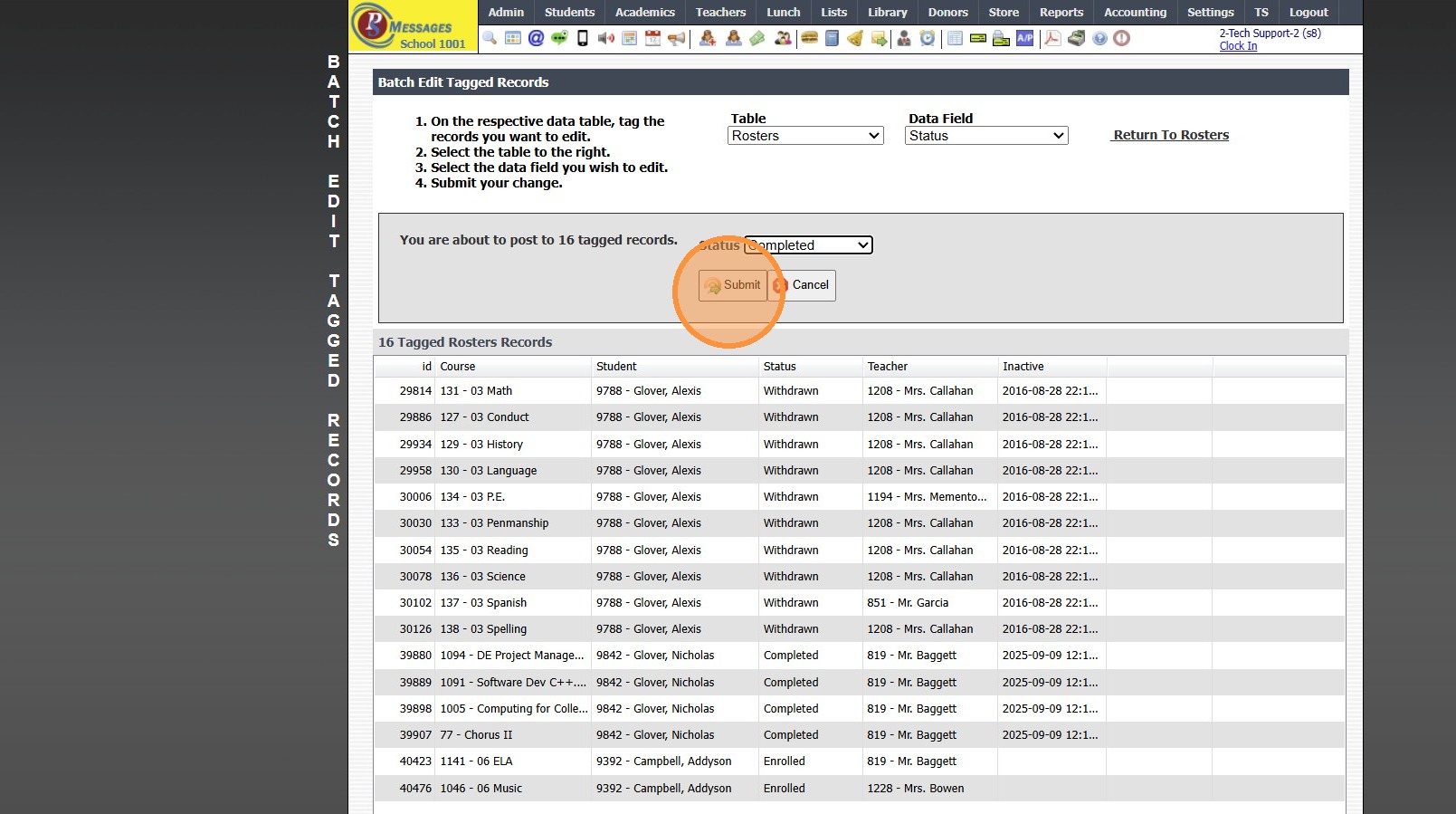
17. Click "Return To Rosters"
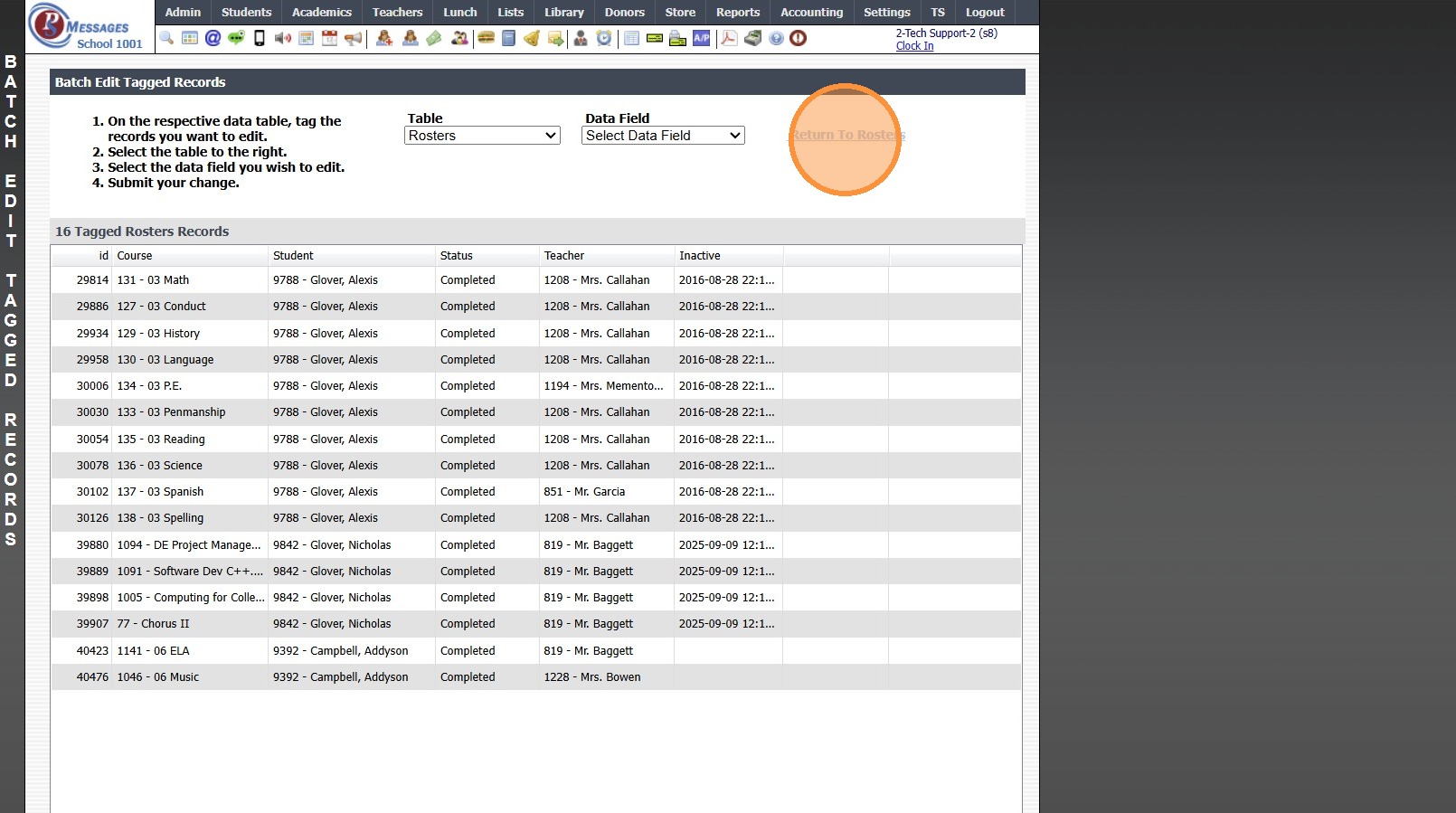
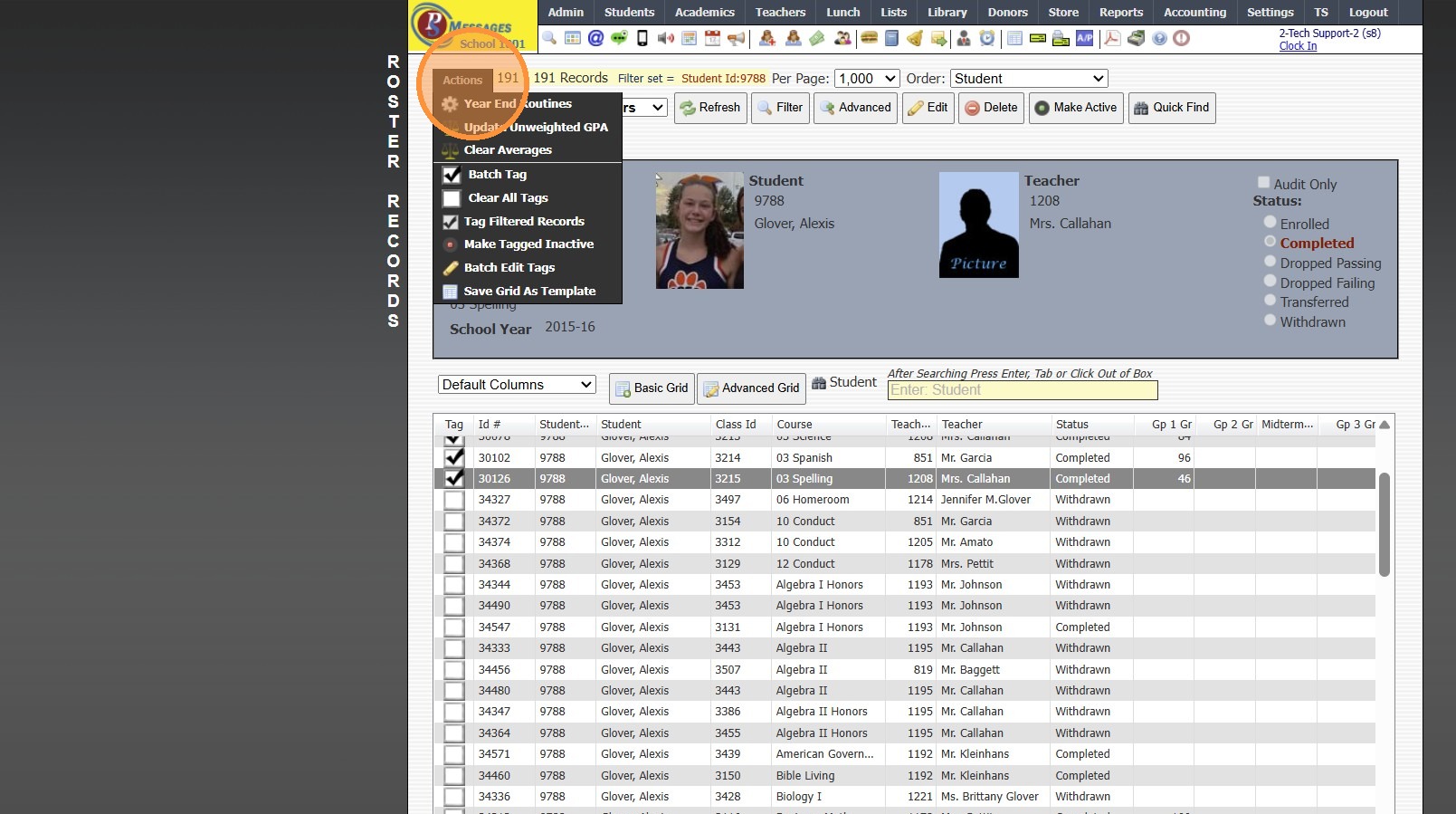
18. Click "Actions"
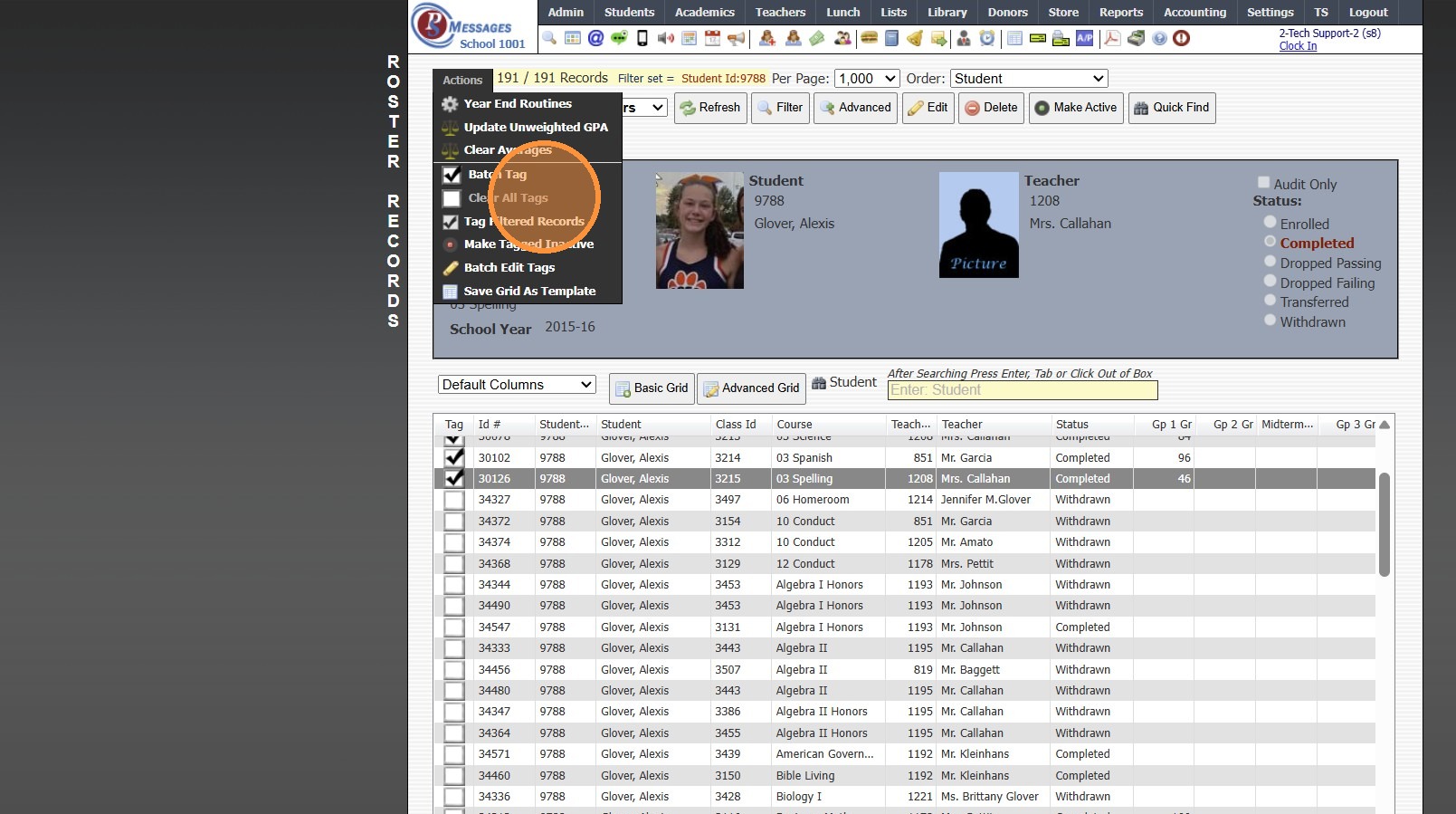
19. Click "Clear All Tags"
8000.4
Related Articles
Update Student's Grade Level on Transcripts by Report Card or Course Grade Level
Update Student's Grade Level on Transcripts by Report Card or Course Grade Level 1. Click "Academics" 2. Click "Transcripts" 3. Click "Transcript Grades" 4. Filter & Tag Transcript Grades to Update 5. Click "Actions" 6. Click "Update Grade Level" 7. ...Report Card Set Up - Turning On Grade Periods
Report Card Set Up - Turning On Grade Periods 1. Log into PraxiSchool 2. Click "Academics" 3. Click "Grades Setup" 4. Click "Report Card" 5. Select Report Card Template 6. Click "Grade Periods" 7. Click "Edit" 8. Select Grade Period Option for Print ...ADMIN: Adding / Editing Report Card Notes to Existing Student Report Card Notes
ADMIN: Adding / Editing Report Card Notes to Existing Student Report Card Notes 1. Click "Academics" 2. Click "Grades Support Files" 3. Click "Report Card Class Notes" 4. Select Student 5. Click "Edit" 6. Click "Notes" 7. Click in Notes Box 8. Add / ...Creating a Report Card Template for a New Student
If a New Student Enrolls After the First Grade Period Report Cards are Created, a Report Card Template will need to be Created for the New Student. 1. Click Academics > Grades Reports > Print Report Cards 2. Click "Process For 1 Student" & Search the ...Updating Student Pictures on Report Cards
Updating Student Pictures on Report Cards Updating Student Pictures, if Student Pictures are added after Report Cards have already been created 1. Click "Academics" 2. Click "Grades Reports" 3. Click "Print Report Cards" 4. Select to Update by ...