Showing Extra Credit Comments on Parent & Student Portals
1. Click "Teachers"
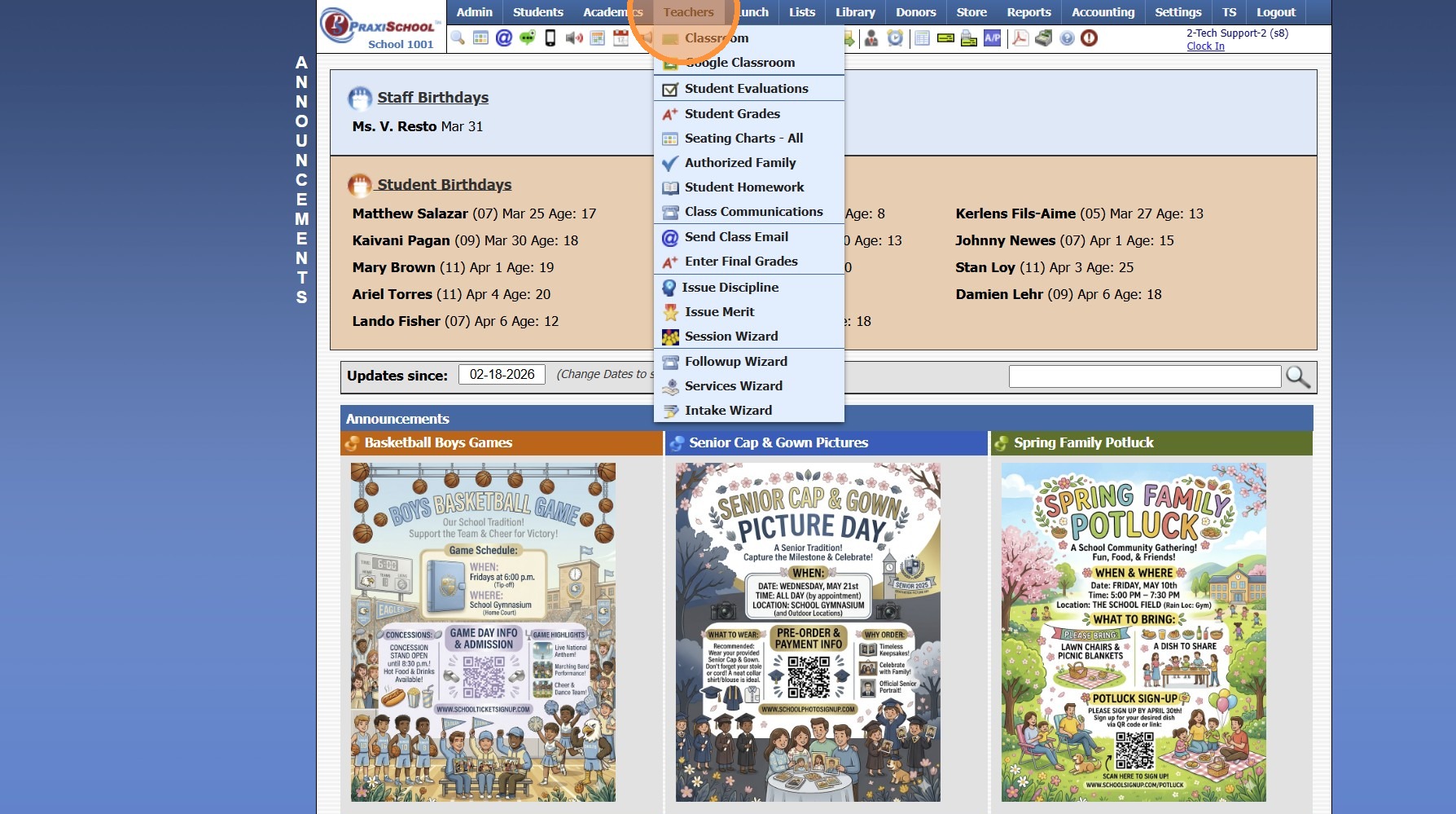
2. Click "Classroom"
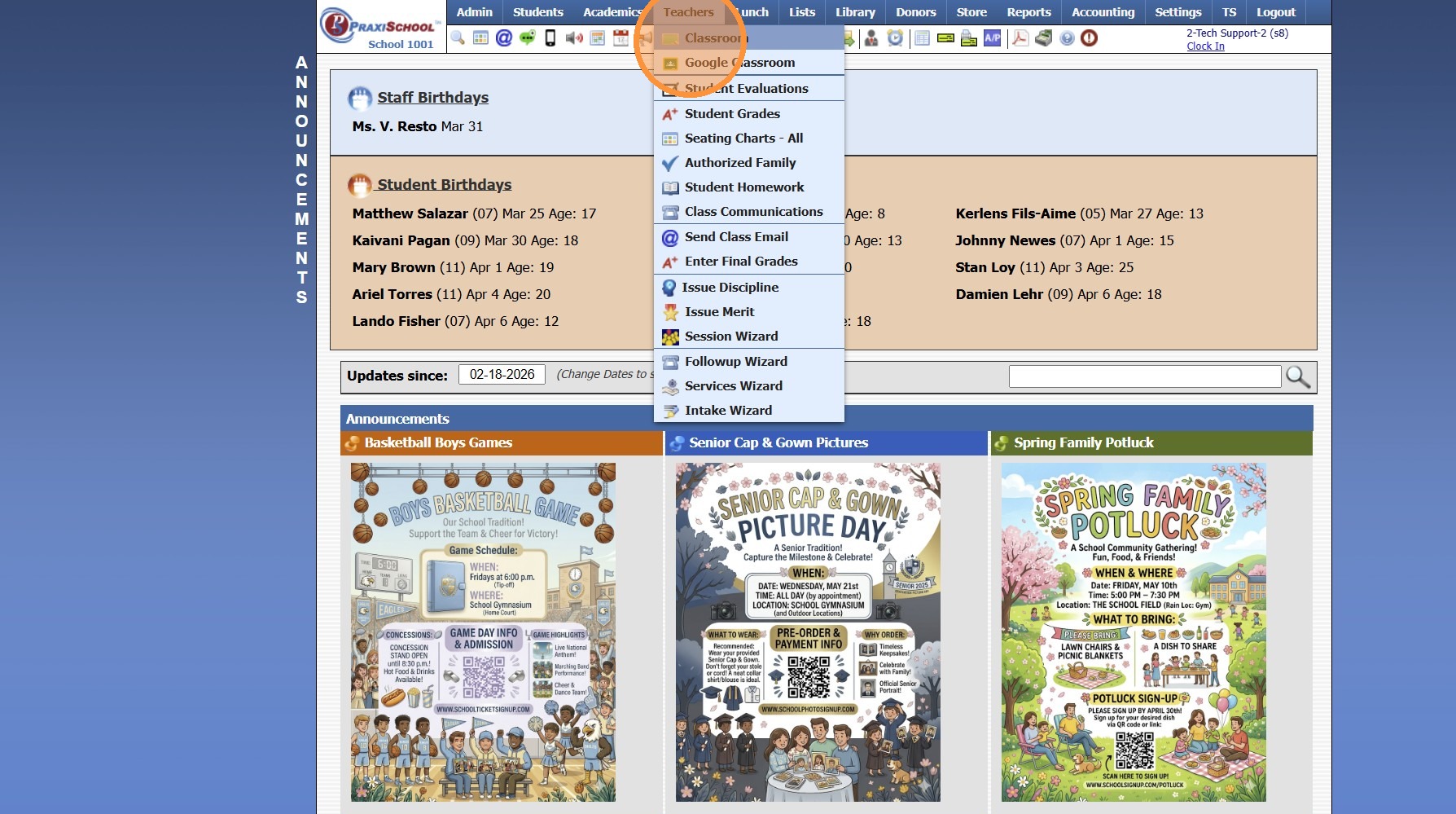
3. Select Class
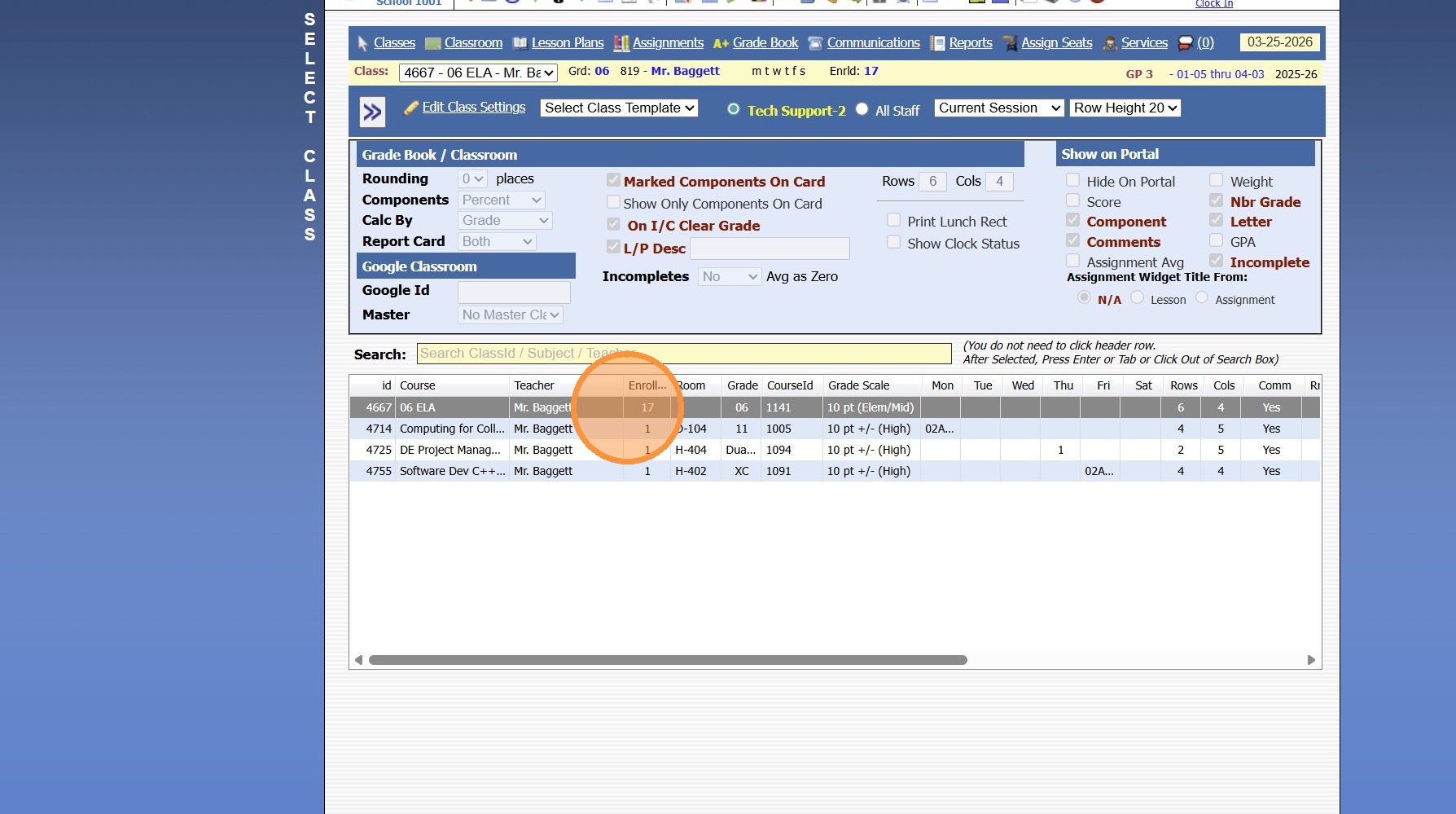
4. Click "Grade Book"
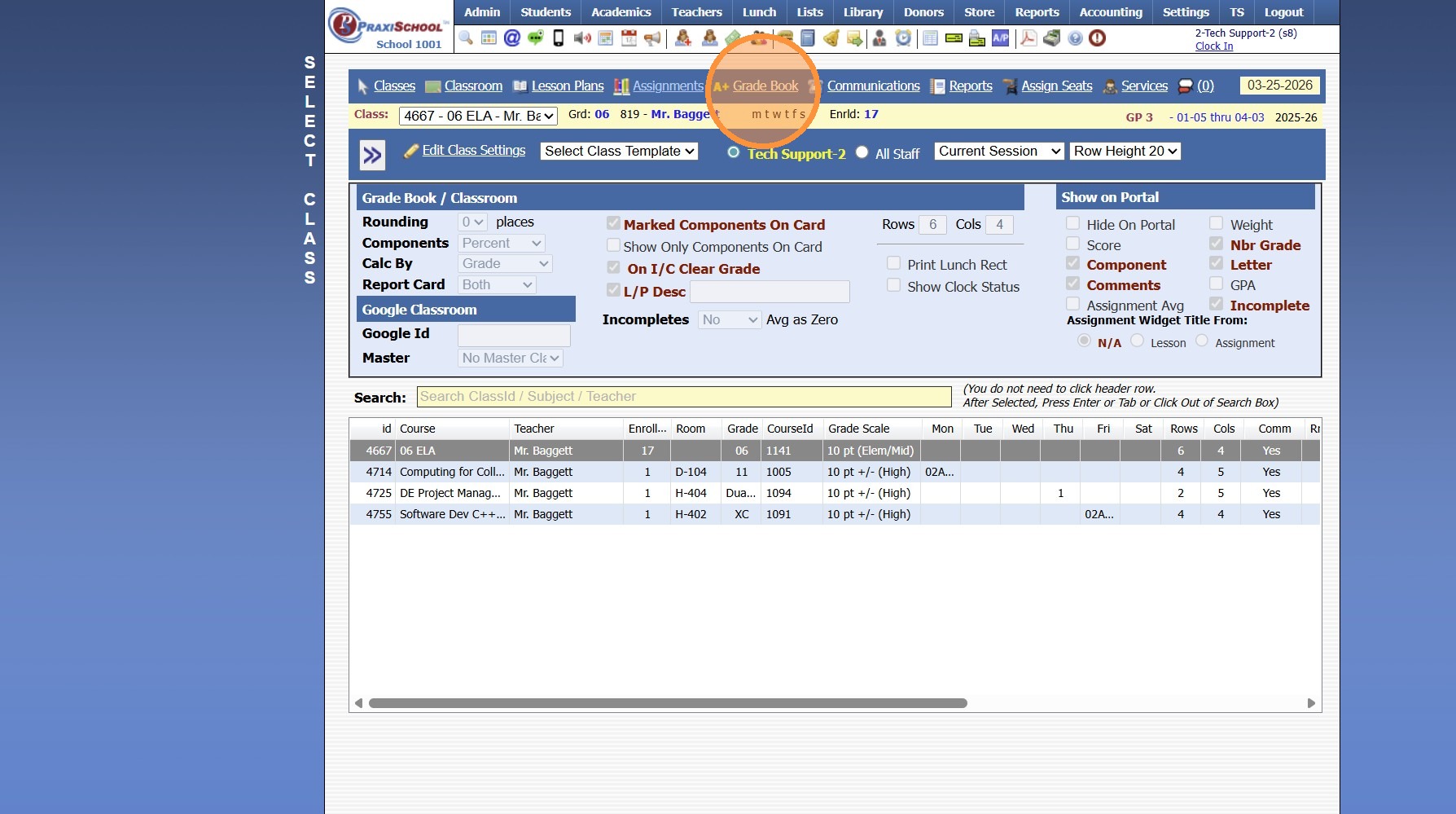
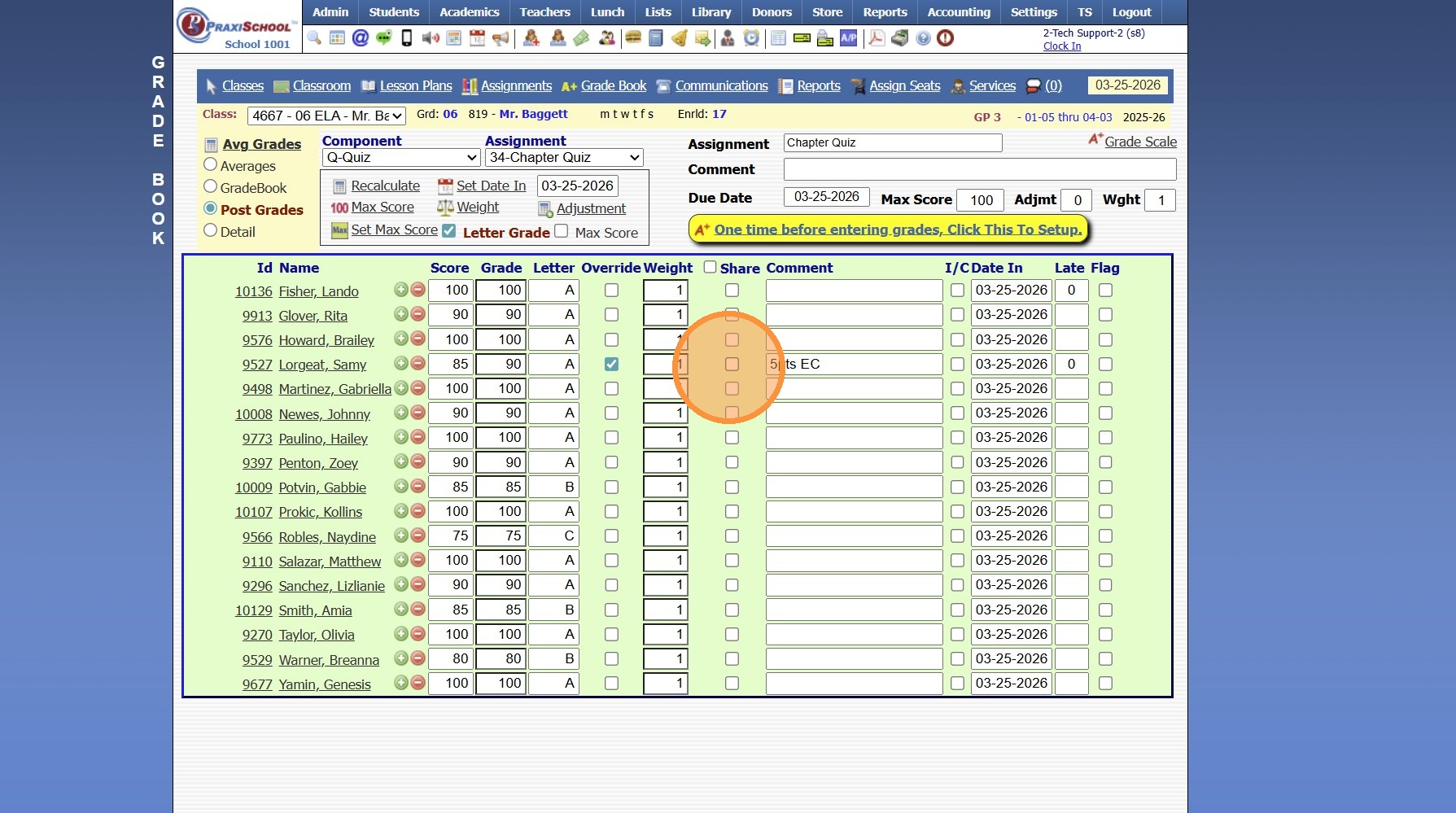
5. Select Post Grades Toggle
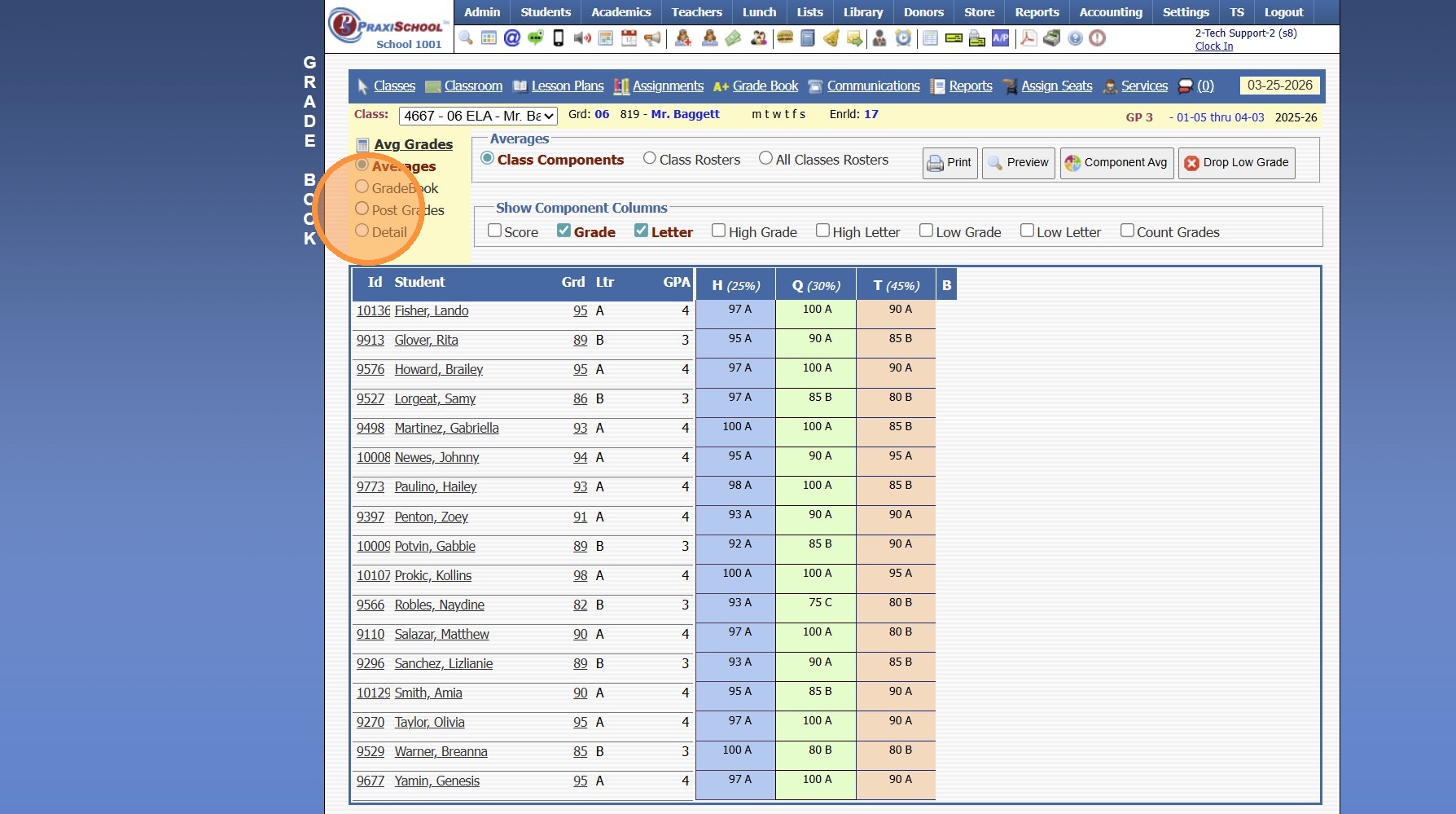
6. Select the Component
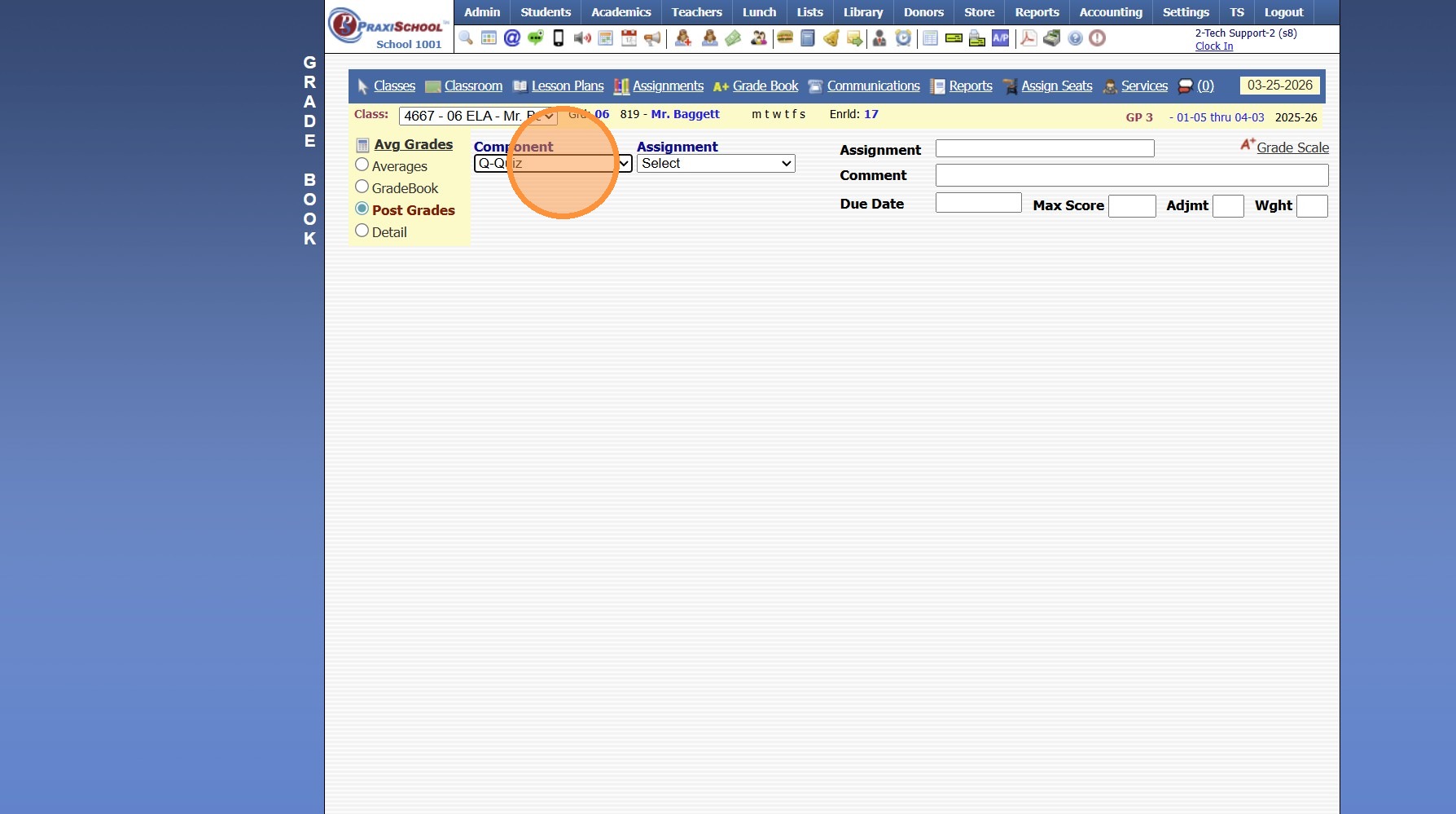
7. Select the Assignment
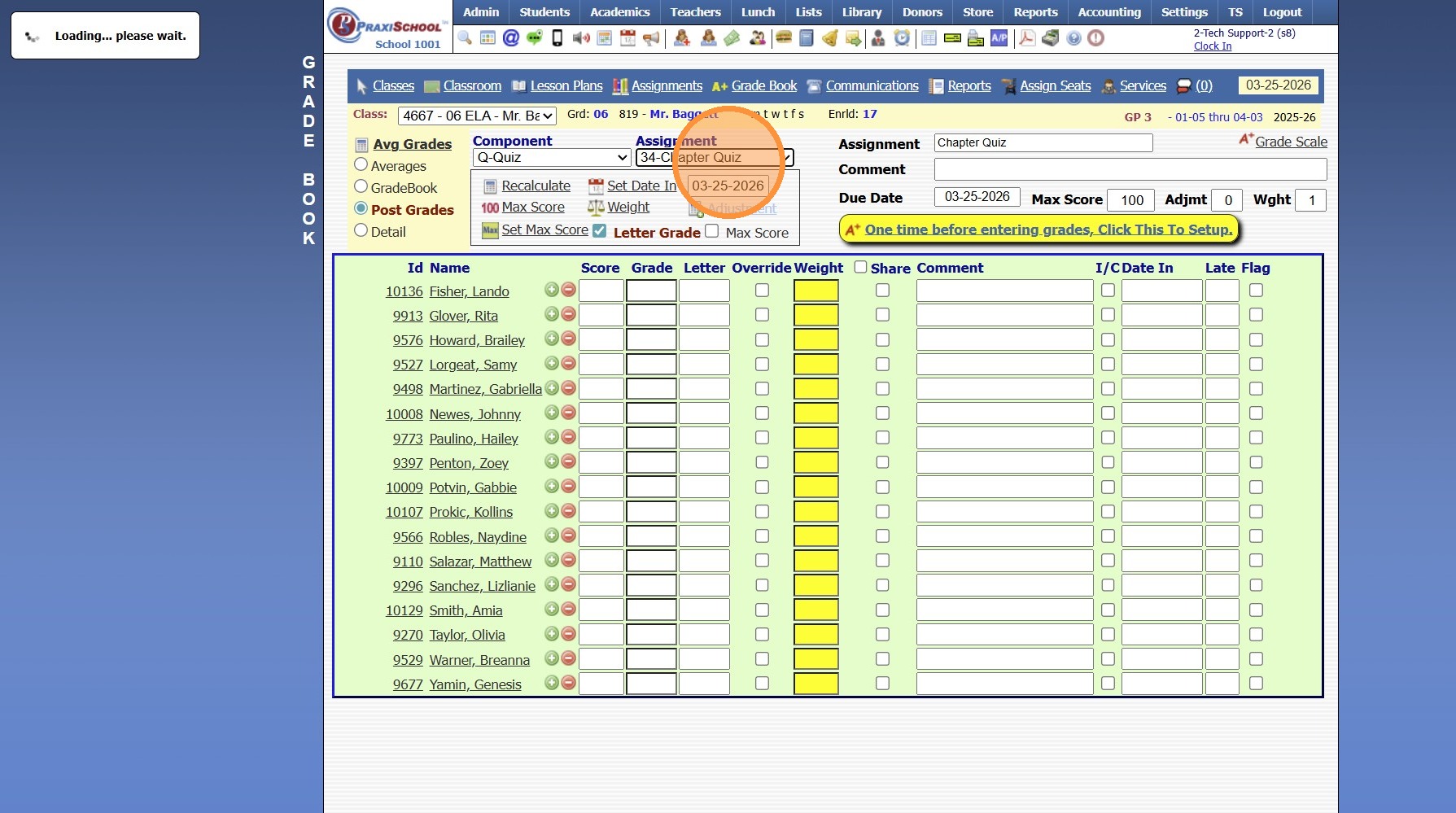
8. Click the Yellow Bar "One time before entering grades, Click This To Setup"
(Clicking the Yellow Bar adds the Weight to the Assignment so that the Assignment is visible in the Parent & Student Portals & tells the System the Assignment should now be included in the Average)
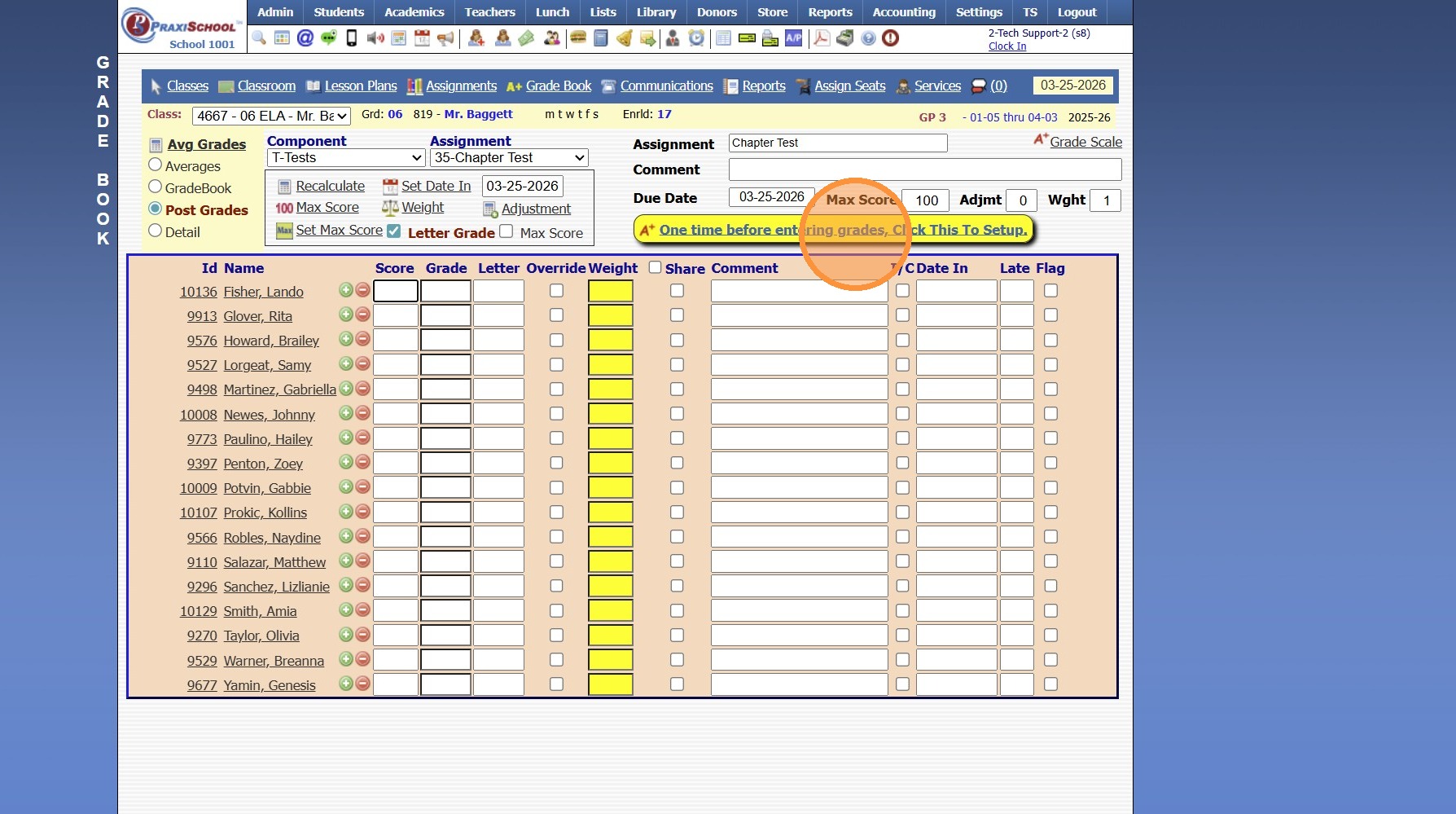
9. Enter the Students Grade in the Score Column, then hit Enter to move to the next Student.
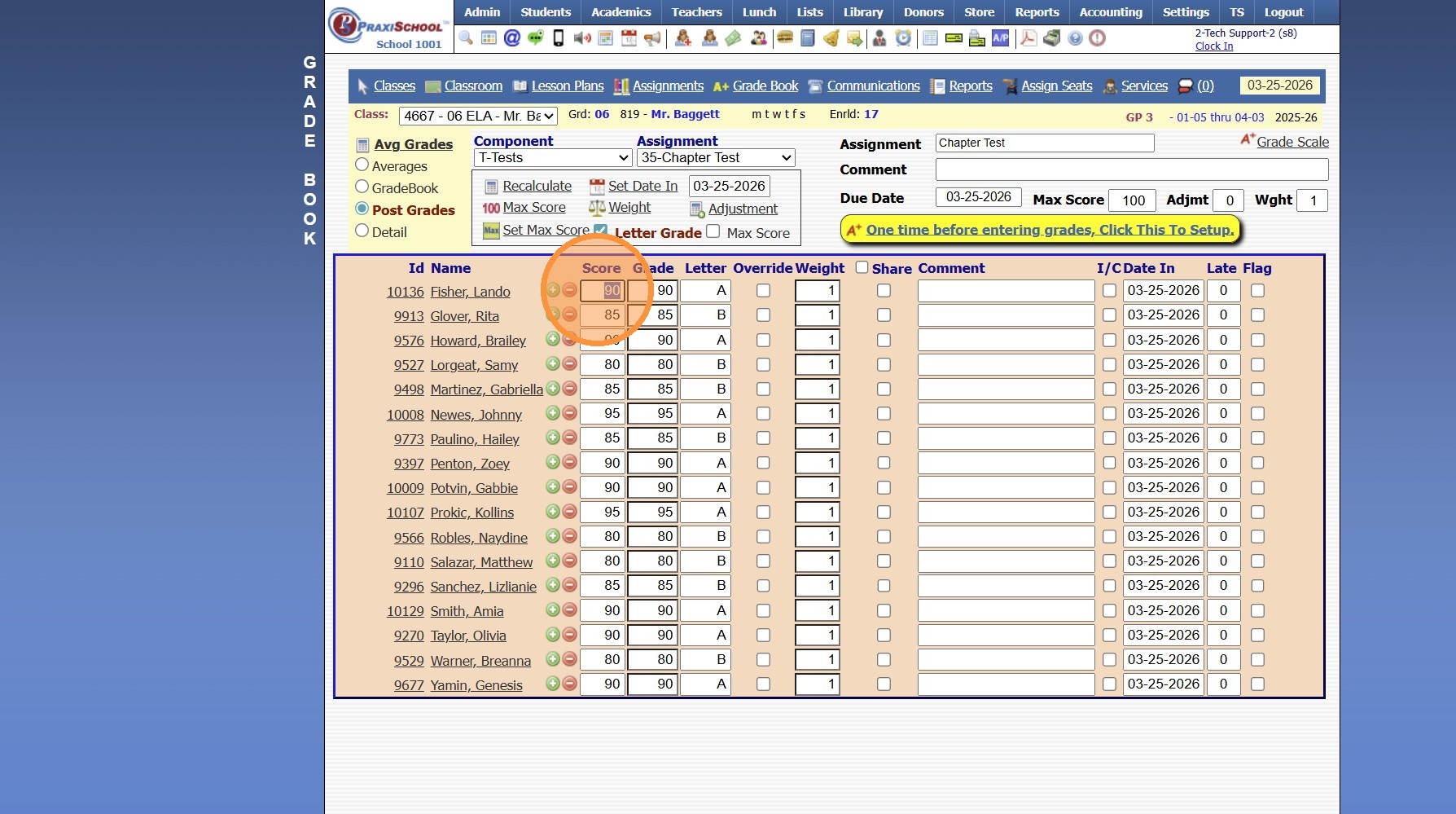
10. Check the Override Box for the Student that Earned Extra Credit
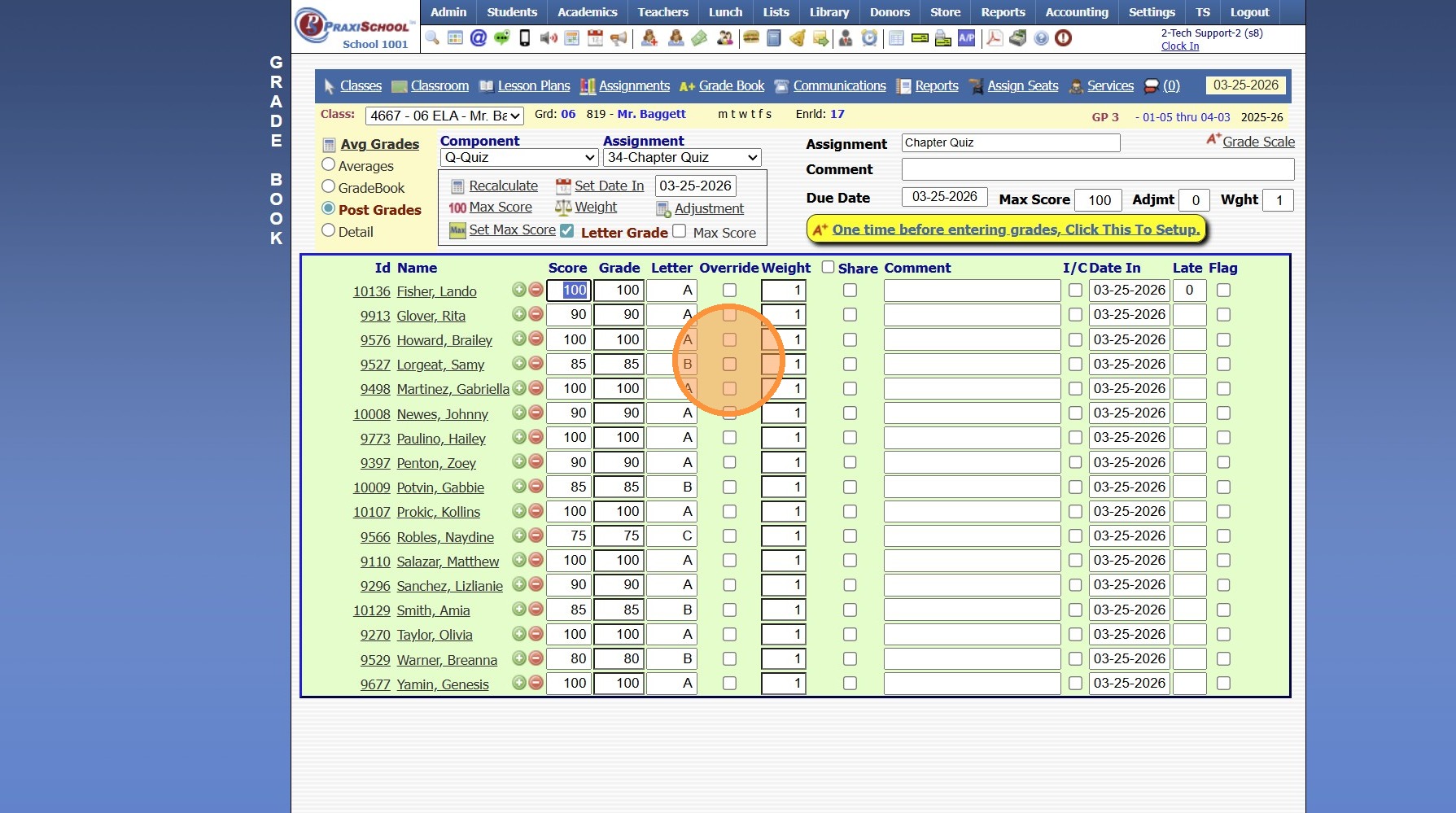
11. Update the Grade to Include the Extra Credit
(Do not change the Score. This allows the Original Grade and the Extra Credit Grade to both be Visible for the Teacher & Admin)
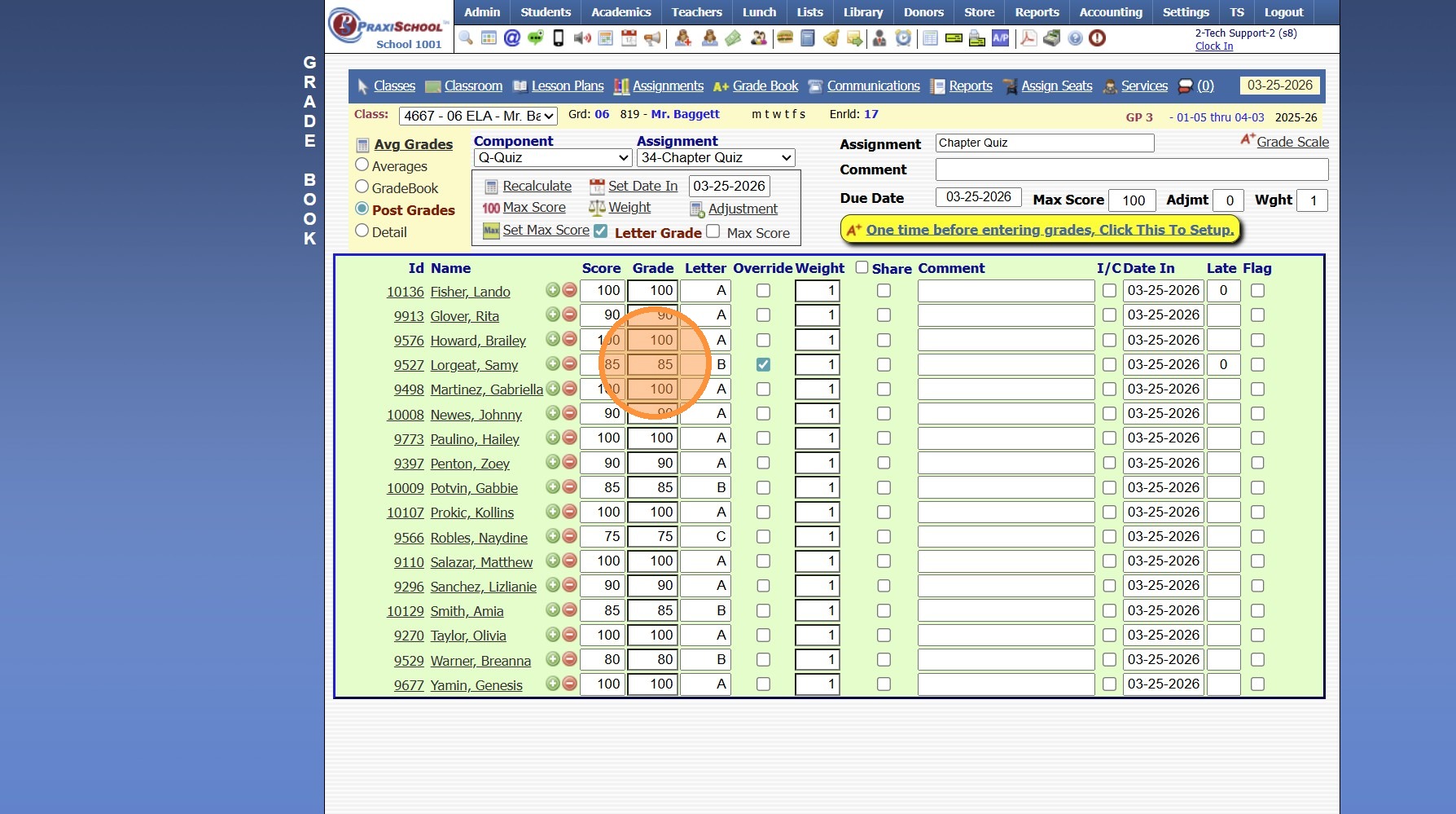
12. Add Comment (Optional)
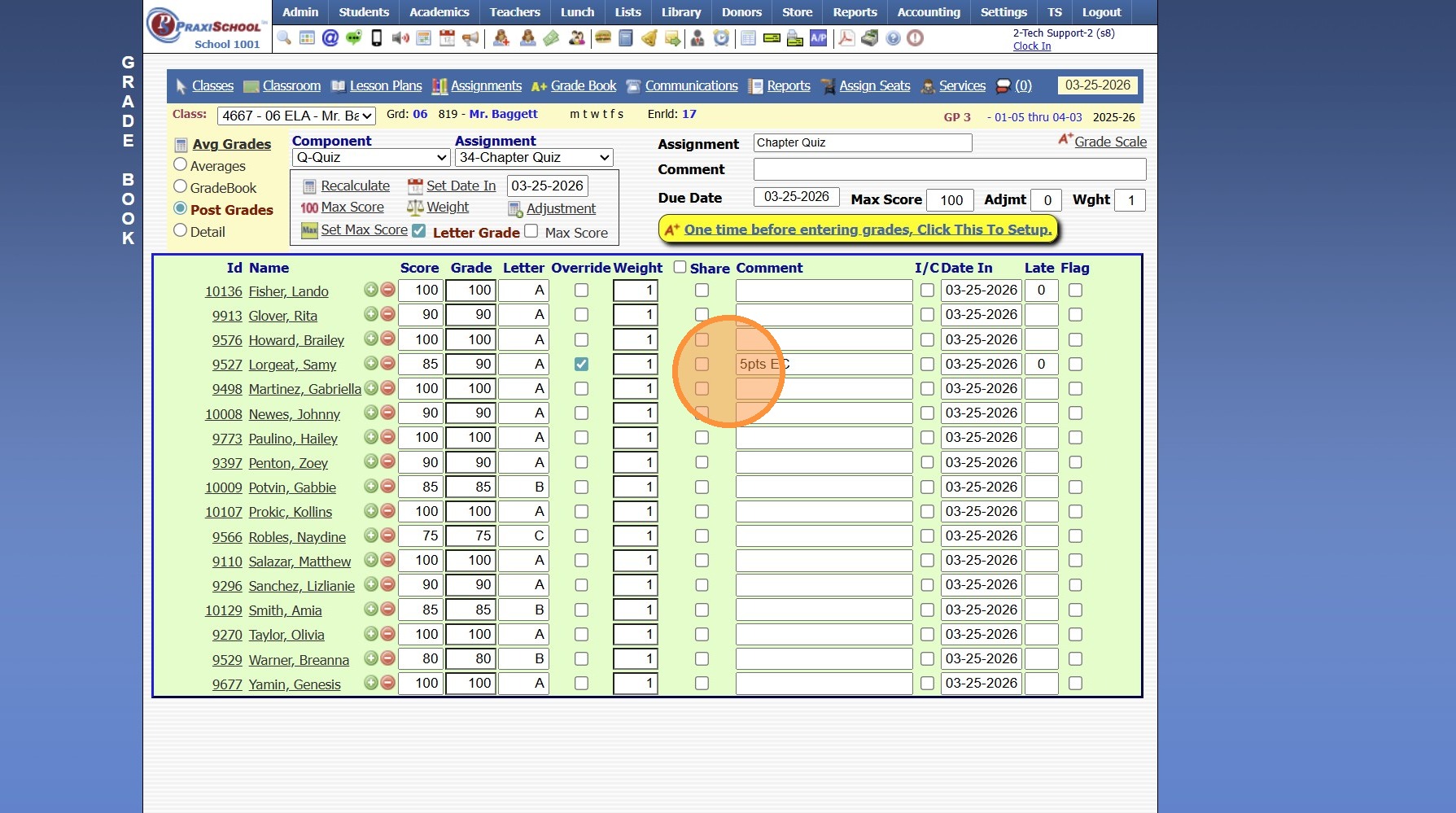
13. Check the Share box to Share Comment on Parent & Student Portals
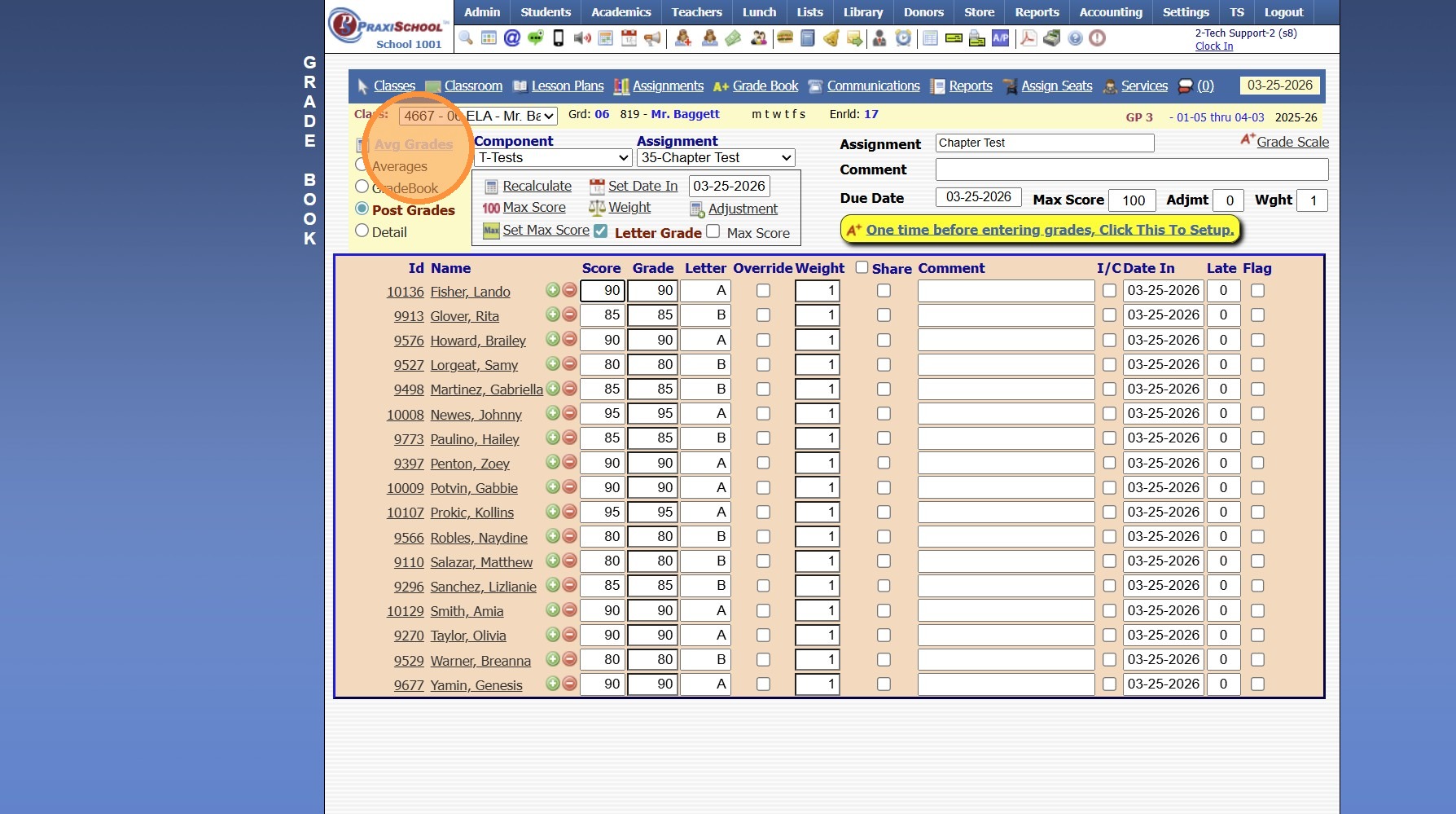
14. Once Grades are Entered, click the Avg Grades button
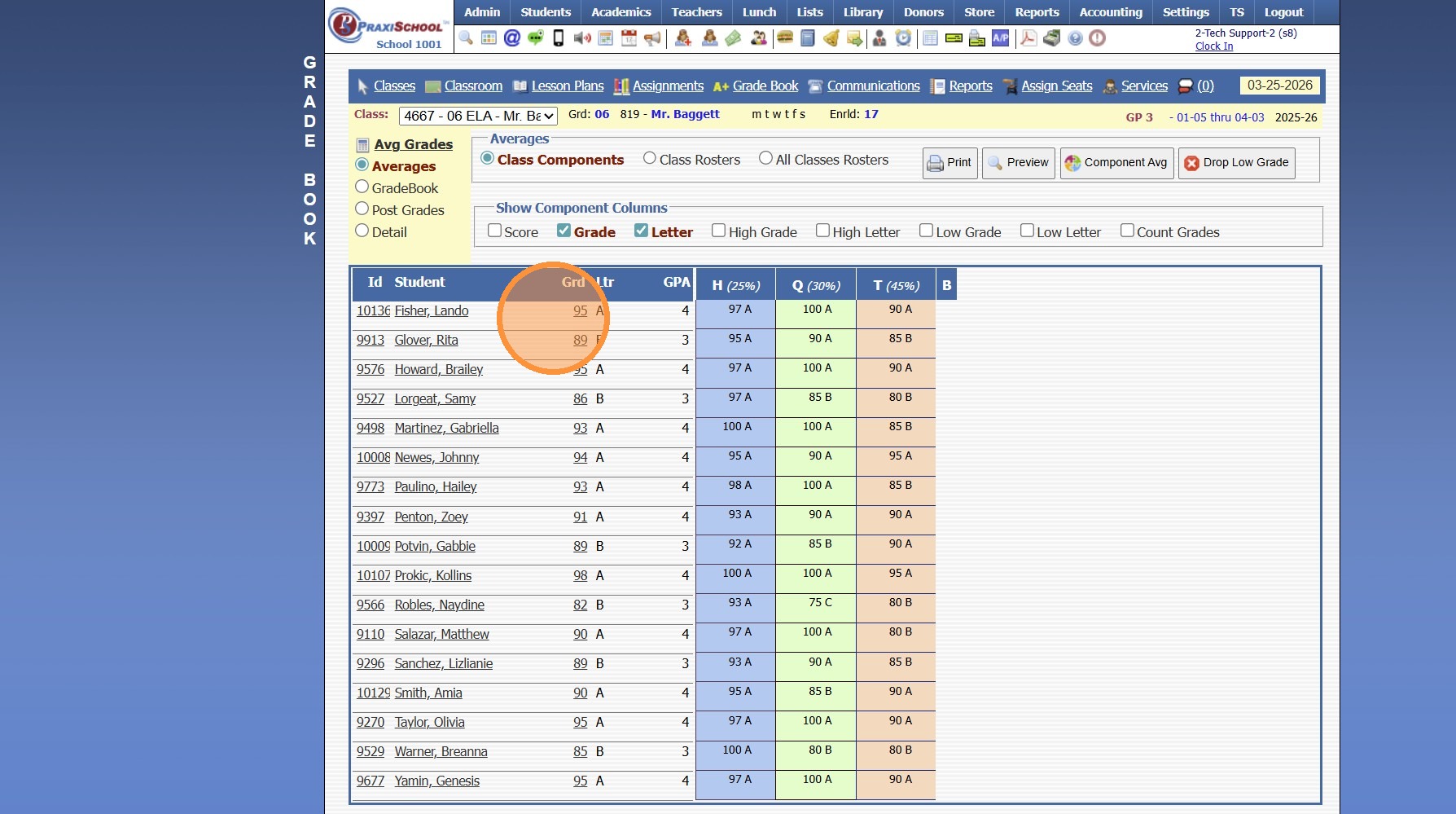
15. Once the Grade Averages run, the Averages Screen will populate
(The Averages Screen shows the Students Current Average, Letter Grade & GPA along with the Students Average in each Component)
Related Articles
Setting the Master Password for Parent, Student & Applicant Portals
Setting the Override Password for Parent, Student & Applicant Portals 1. Click "Settings" 2. Click "School Settings" 3. Click "Portal" 4. Enter Portal Override Password (Must be at least 5 characters) (Once Portal Override Password has been set, it ...Adding Extra Credit Points to an Assignment
1. Click "Teachers" 2. Click "Classroom" 3. Select Class 4. Click "Grade Book" 5. Select "Post Grades" 6. Select the Component 7. Select the Assignment 8. Check the Override Box 9. Enter the Grade with the Extra Credit Points 10. A Comment can be ...Entering Evaluation Marks & Comments
Entering Evaluation Marks & Comments 1. Log into PraxiSchool 2. Click "Teachers" 3. Click "Student Evaluations" 4. Select Load Evaluations For Option (Student, Template or Class) (Search based on Load Option Selected) 5. Grade Scale will Populate on ...Student Directory Portal Options
Student Directory Portal Options 1. Click "Reports" 2. Click "Student Directory" 3. Select Sort & Filter Option 4. If Ignore Directory Preferences is not Selected, Options Selected by Administration and Selected by Parent / Student will be visible on ...Turning on Document Upload Links in Portals
Turning on Document Upload Links in Portals 1. Click "Settings" 2. Click "Security Settings" 3. Click "Portal Access" 4. Click "Edit" 5. Click the "Show A/R Docs" field. 6. Click the "Show Student Docs" field. 7. Click "Resources" 8. Check "Portal ...