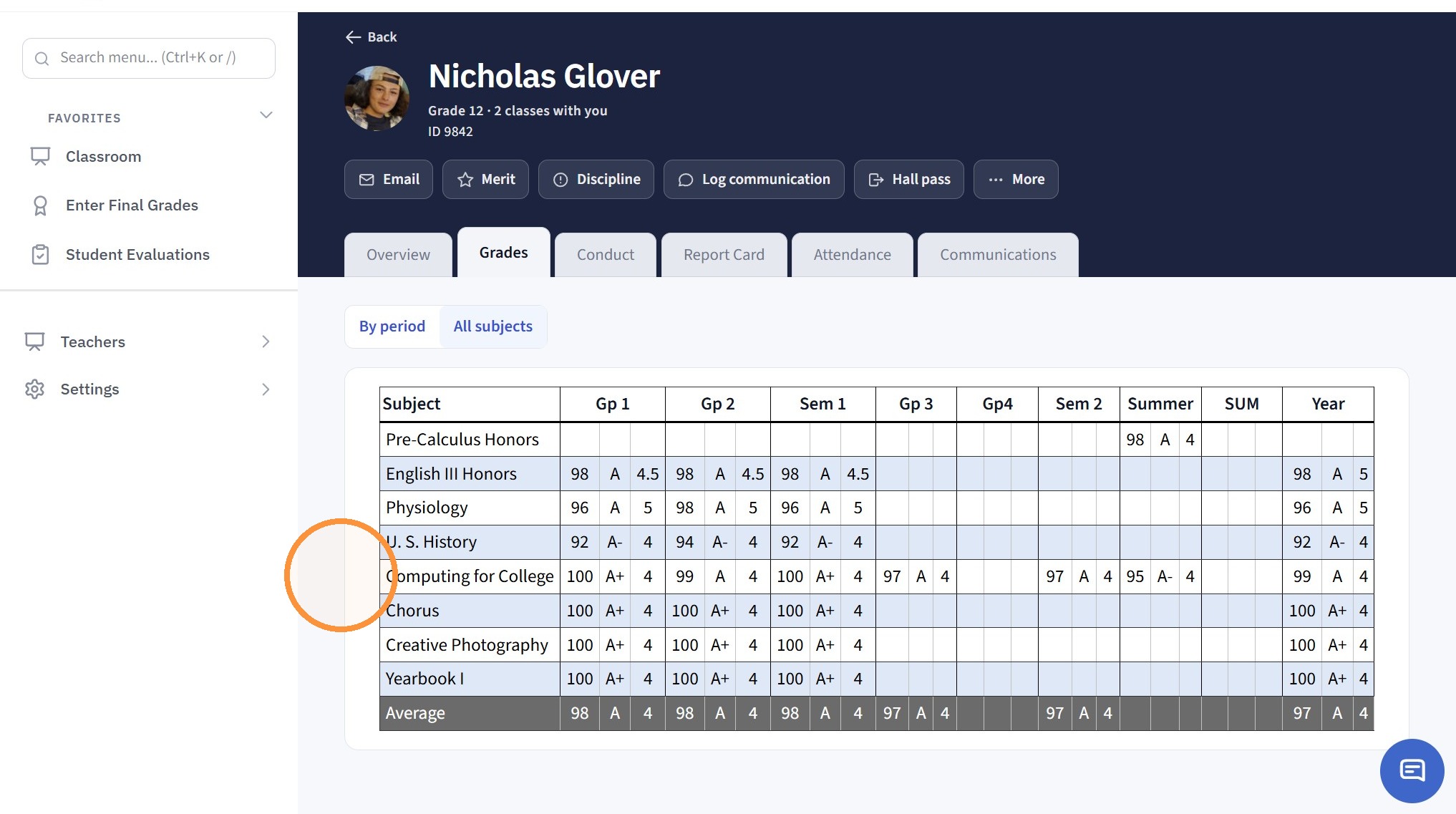
Where can Teachers view the Student’s Semester Averages?
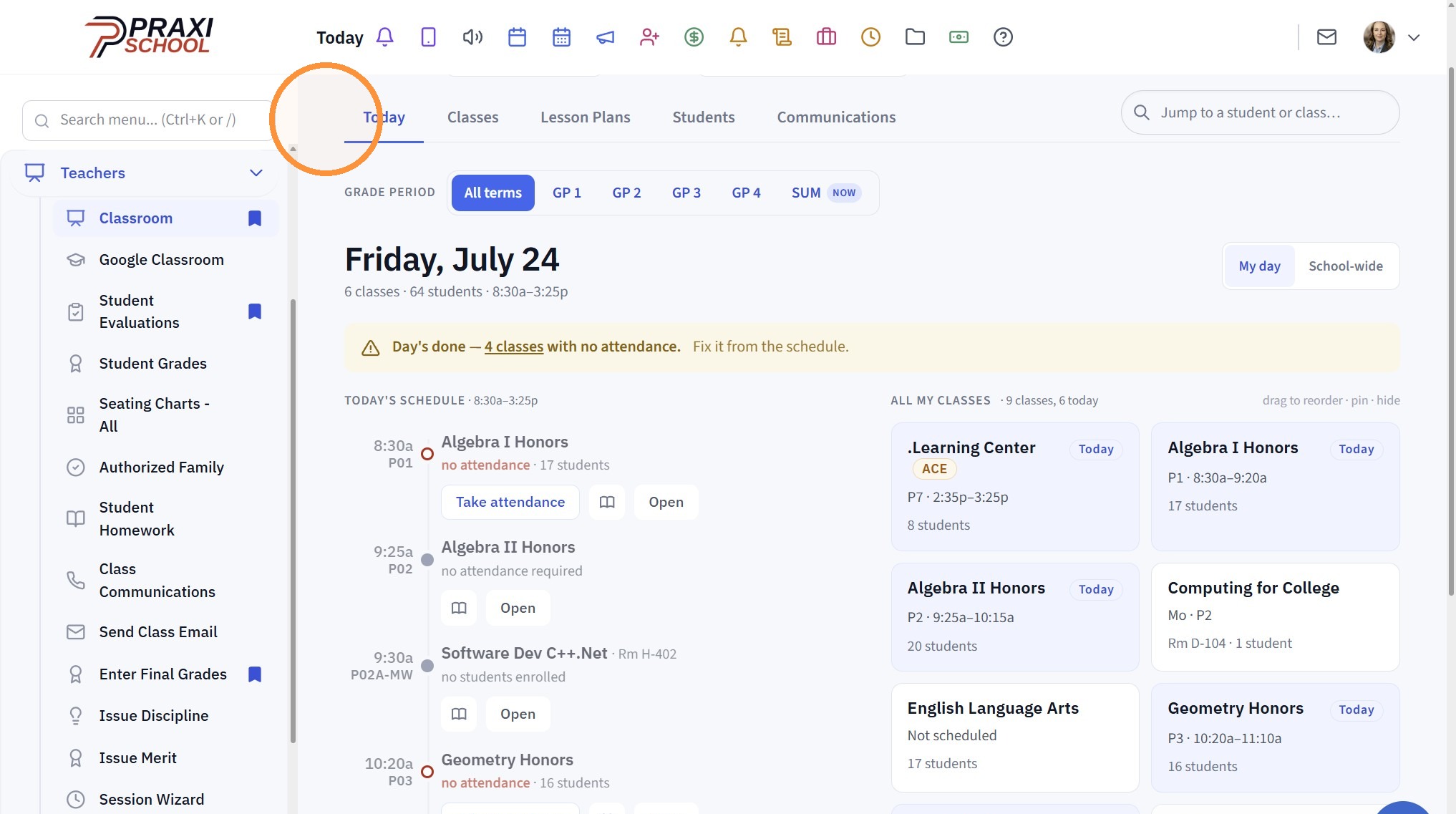
1. Go to the Classroom
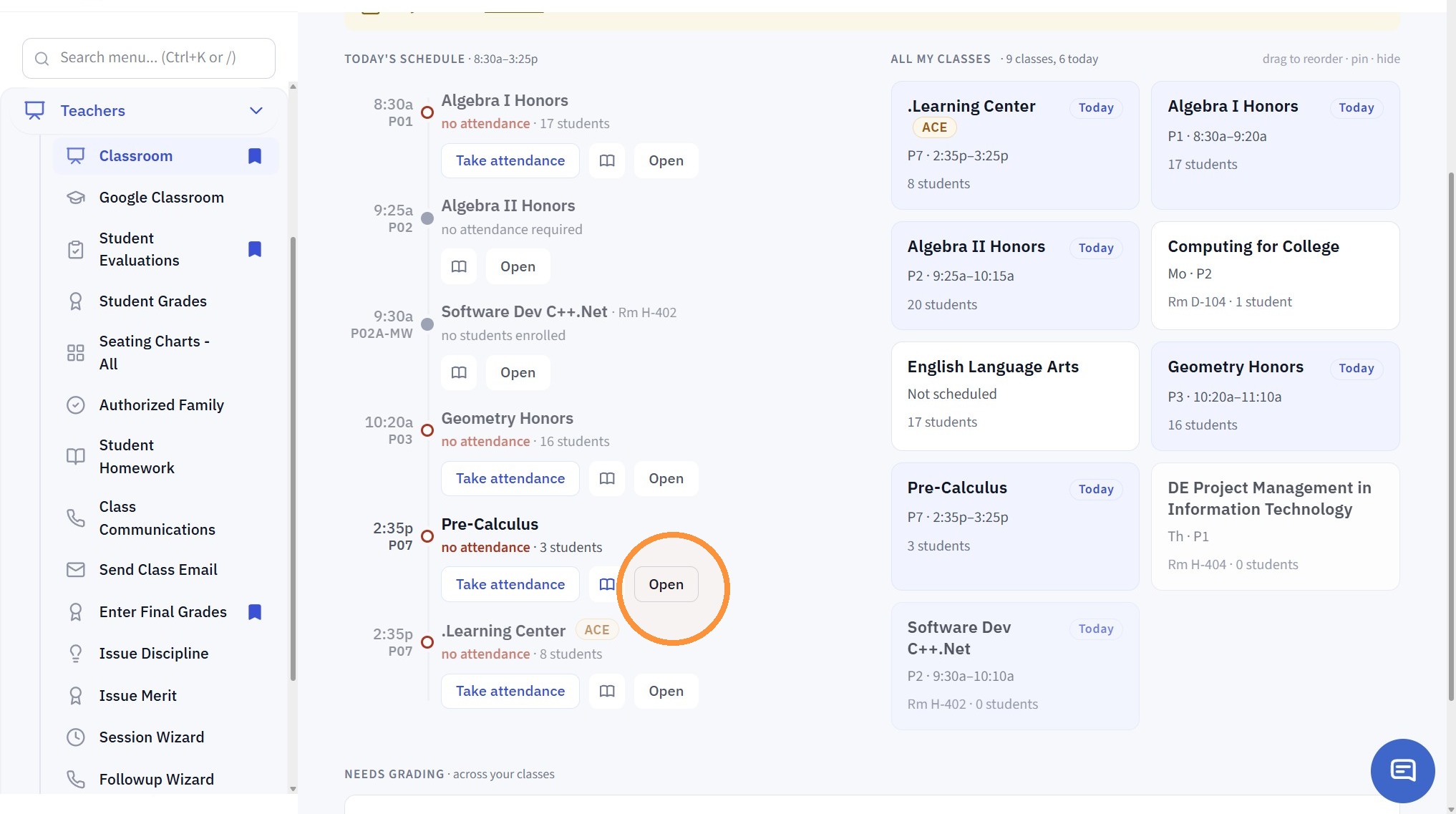
2. Select a Class & Click "Open"
From the Grade Book
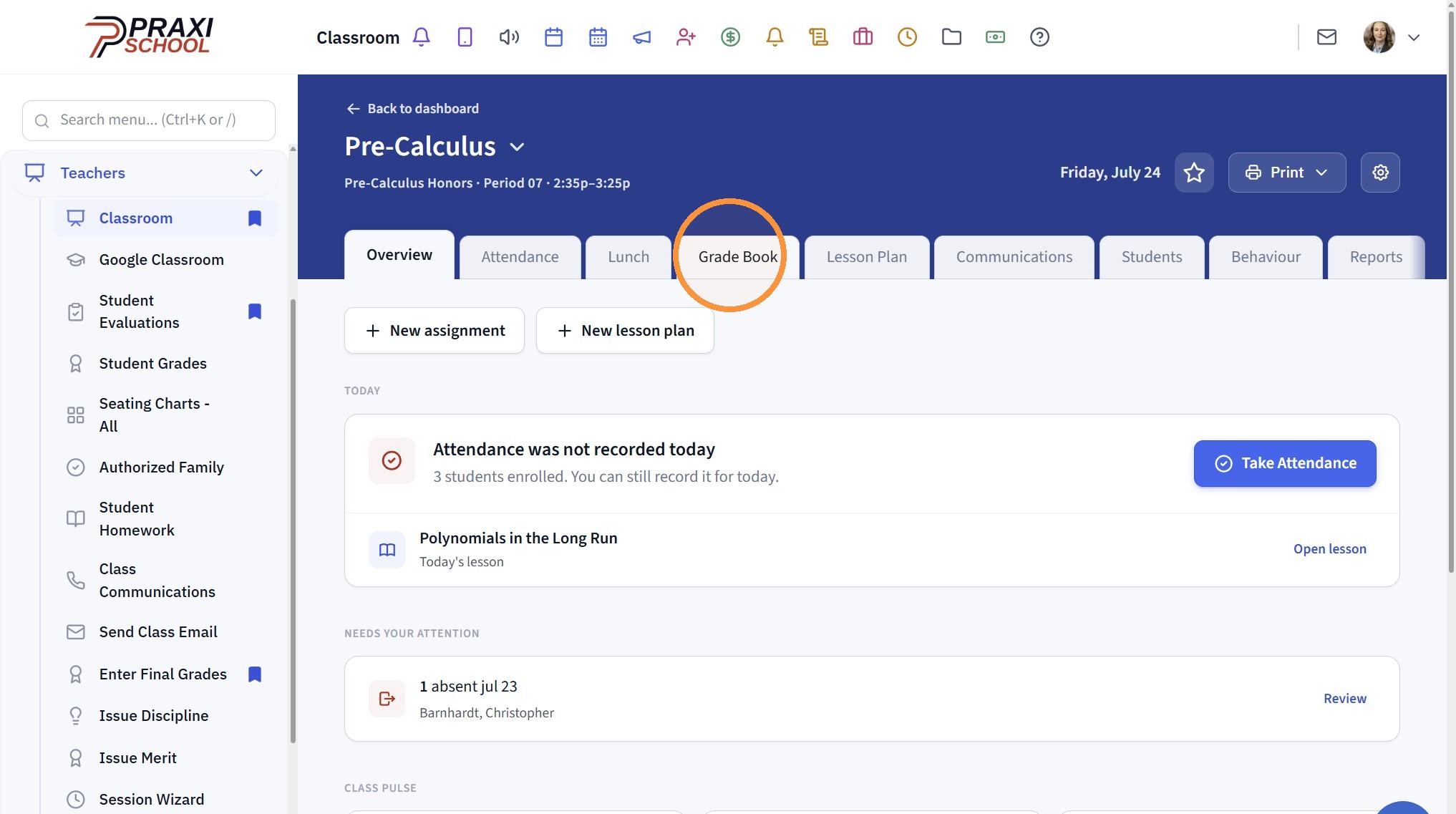
3. Click "Grade Book"
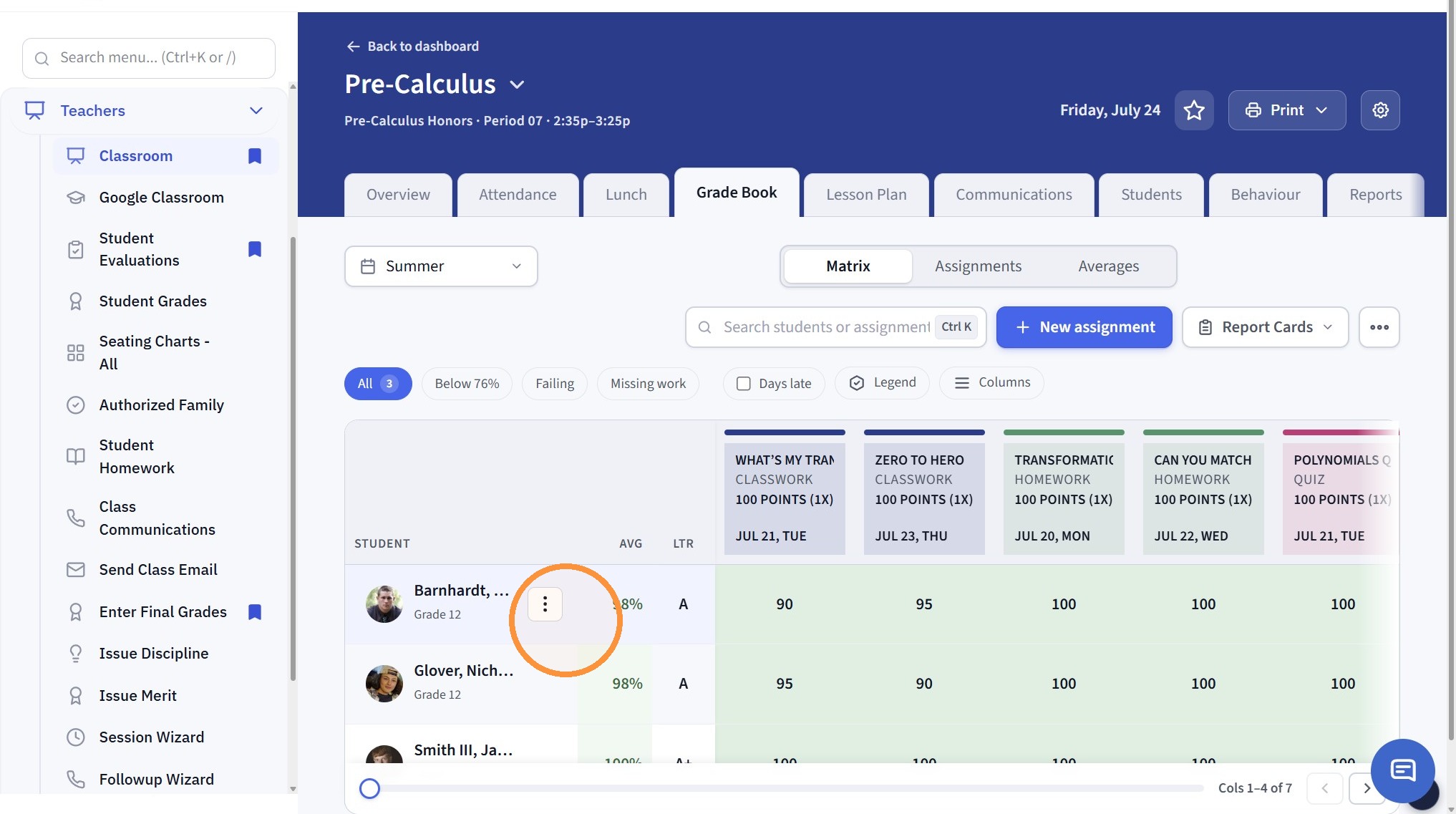
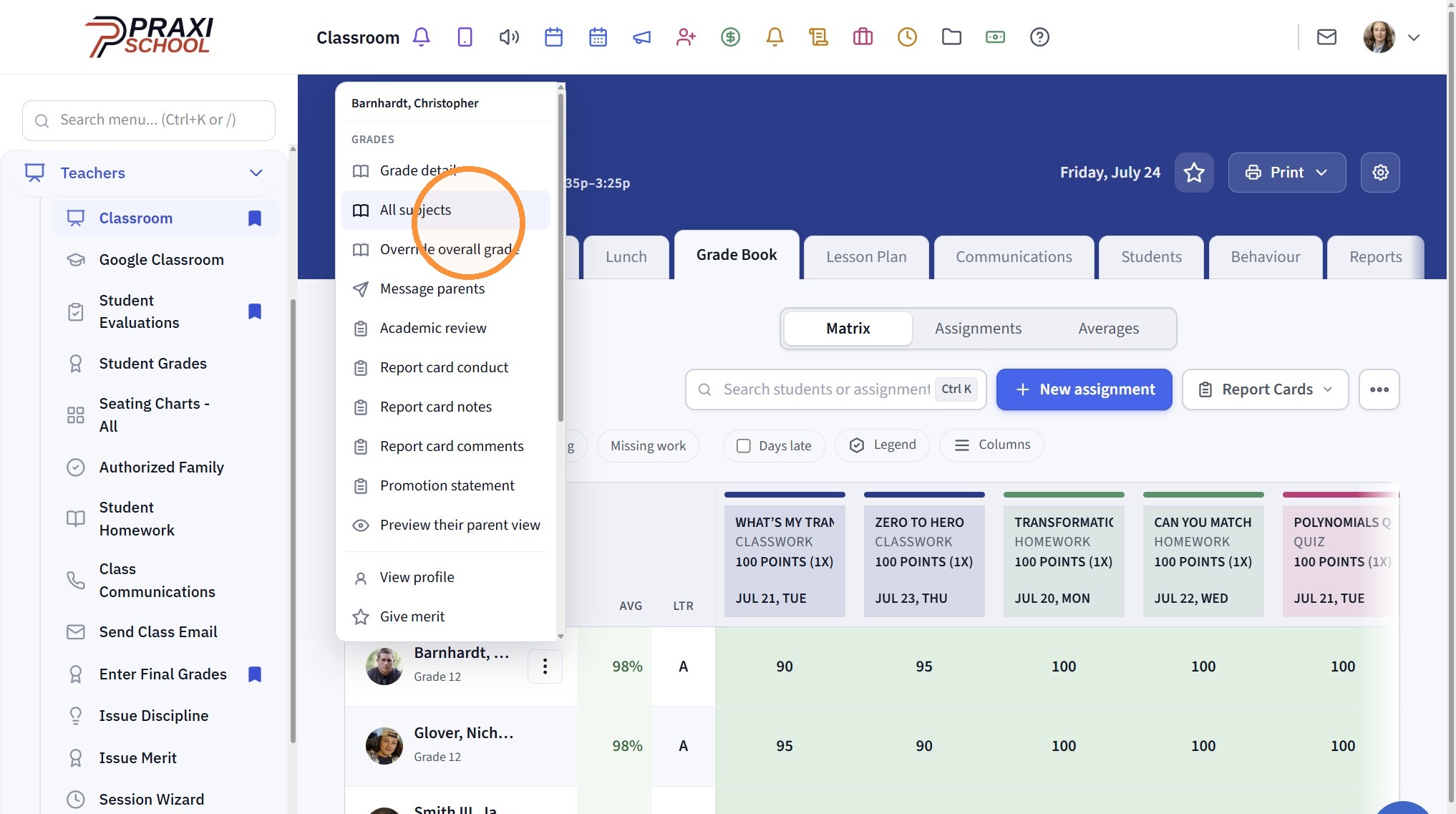
4. Click on the 3 Dots
5. Click "All subjects"
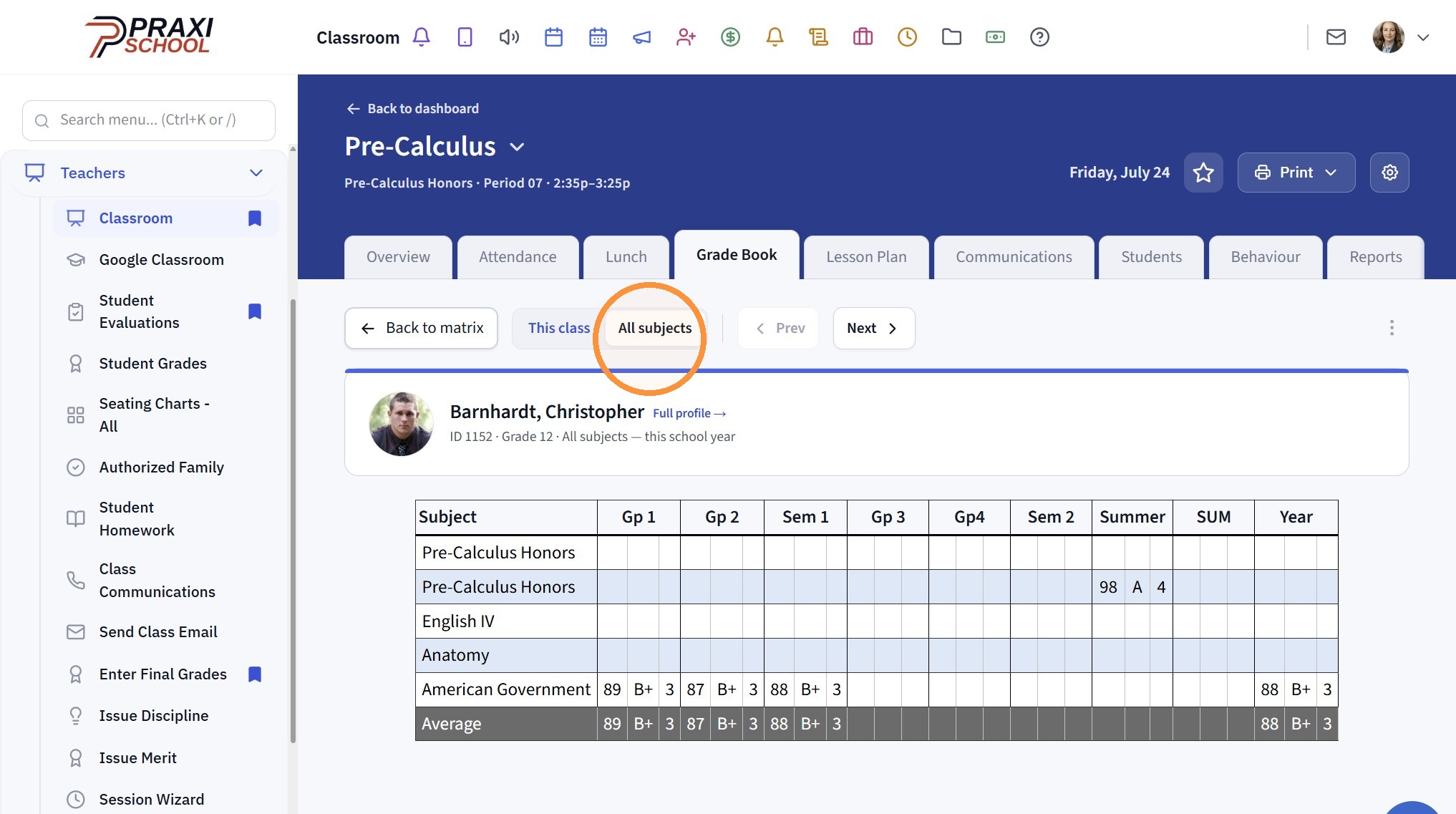
6. Click "All subjects" to see the Student's Grades for the Grade Periods & the Semesters
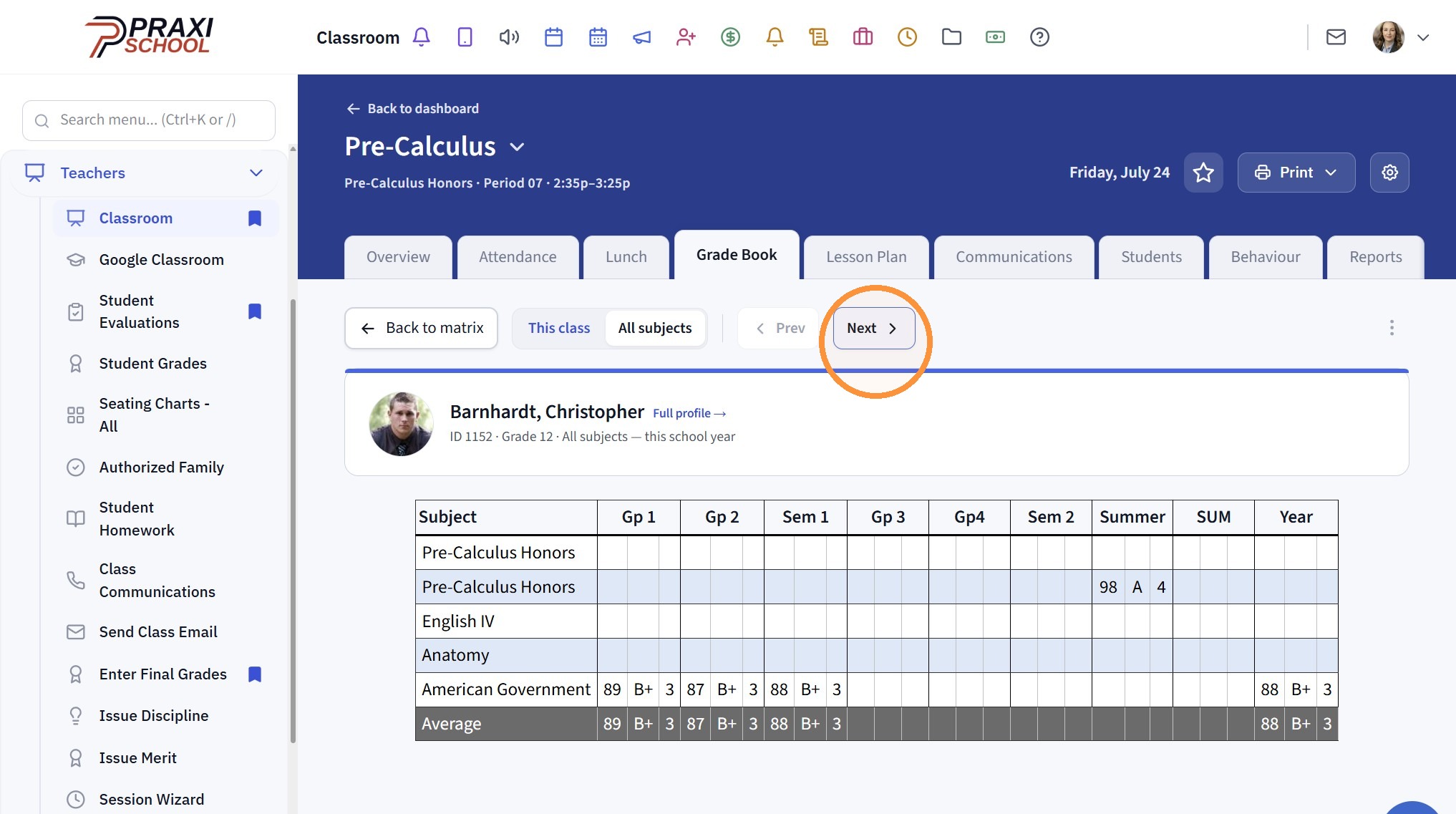
7. From this screen you can Click "Next" to Move to the Next Student in the Class
8. *Next Student's Scree
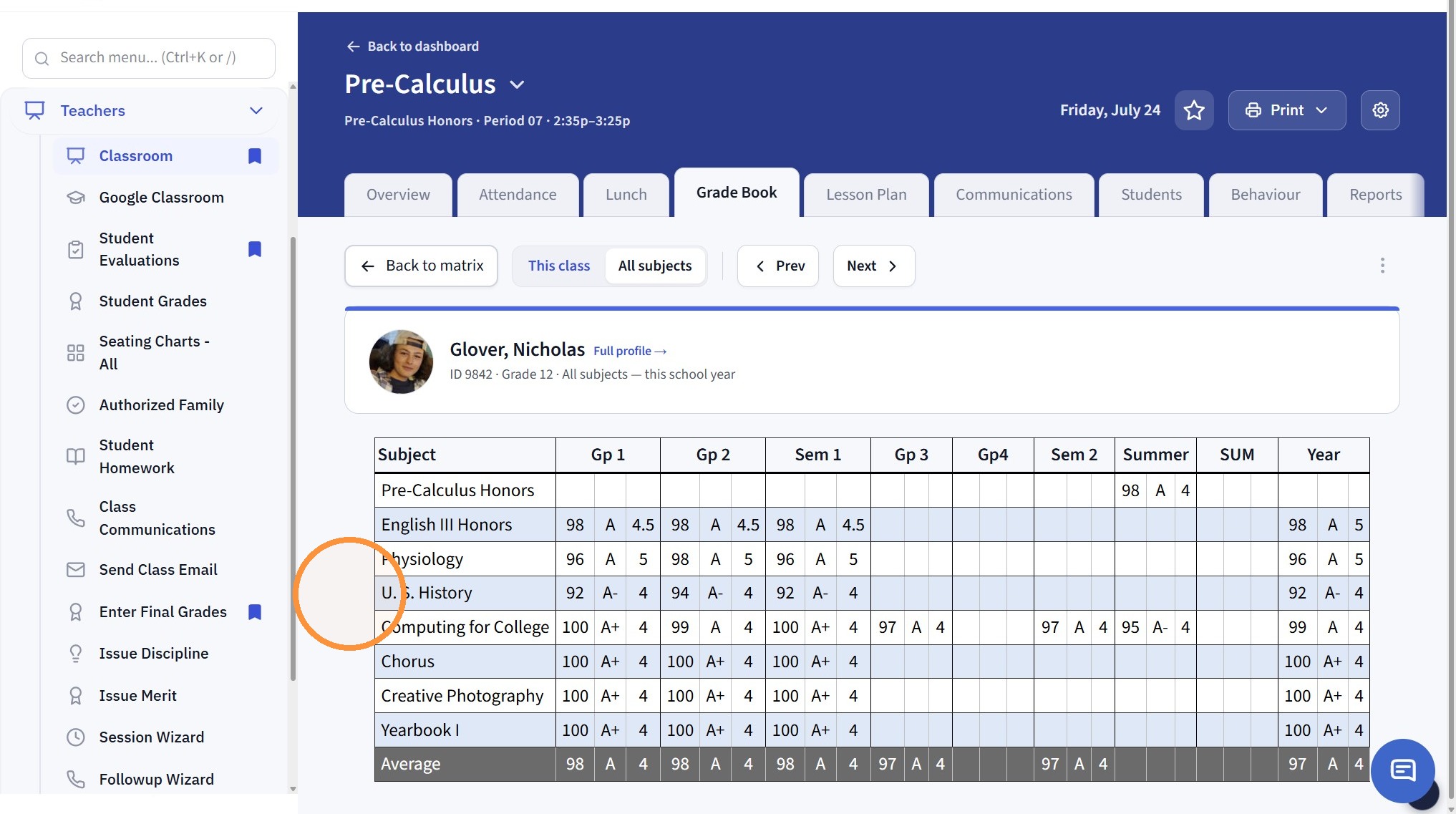
View from Student Profile
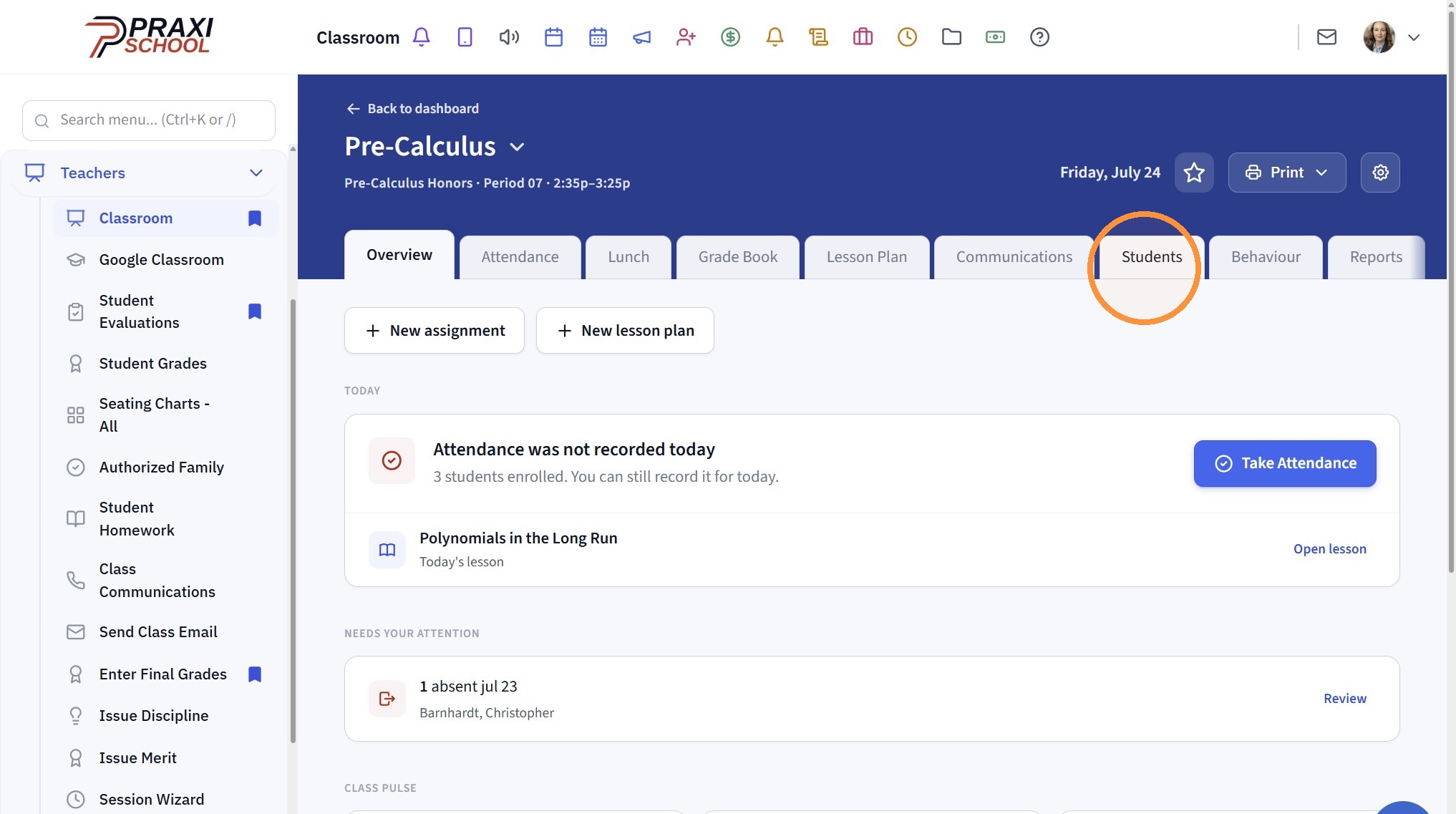
9. Click "Students"
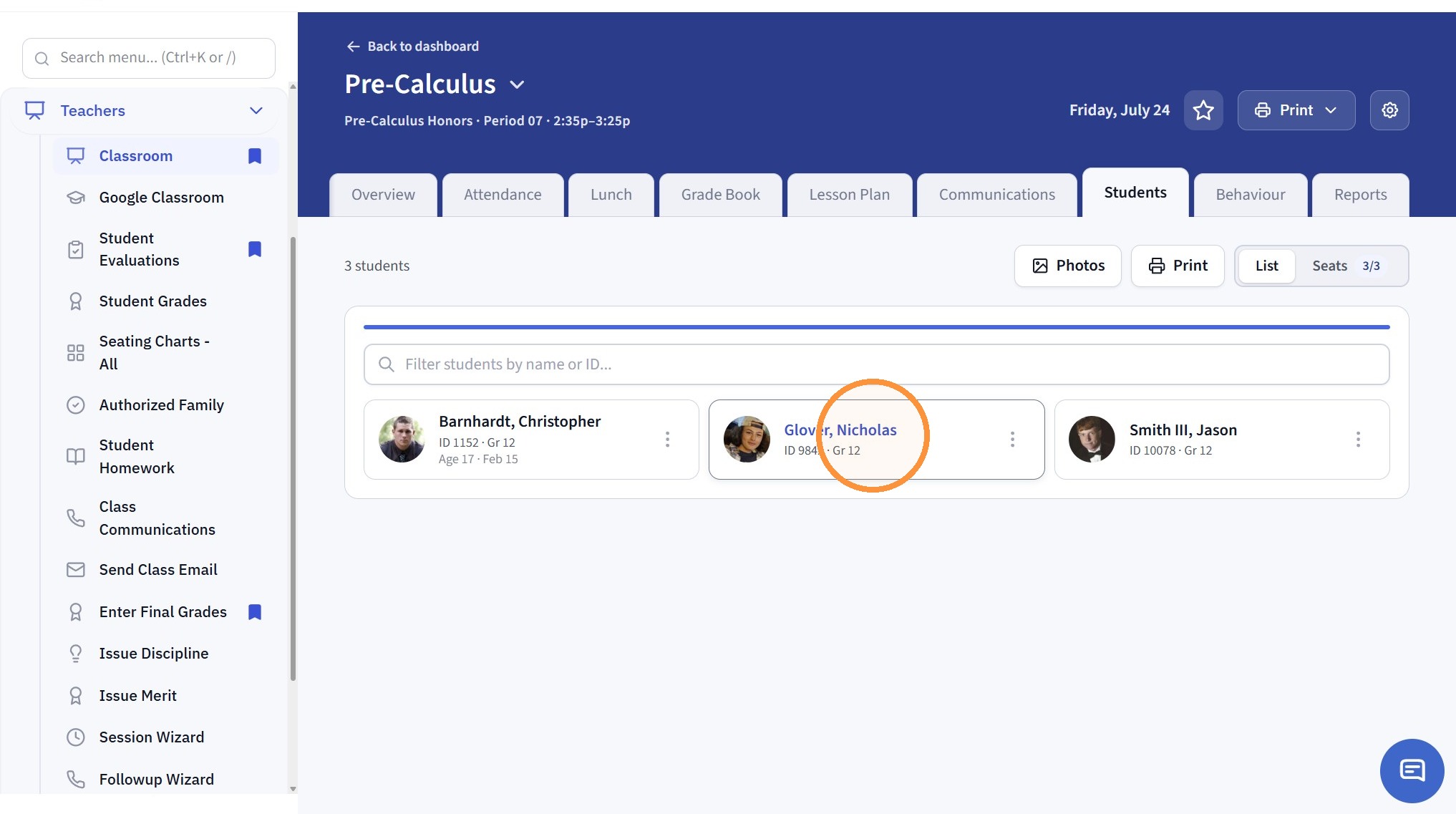
10. Click on the Student's Name
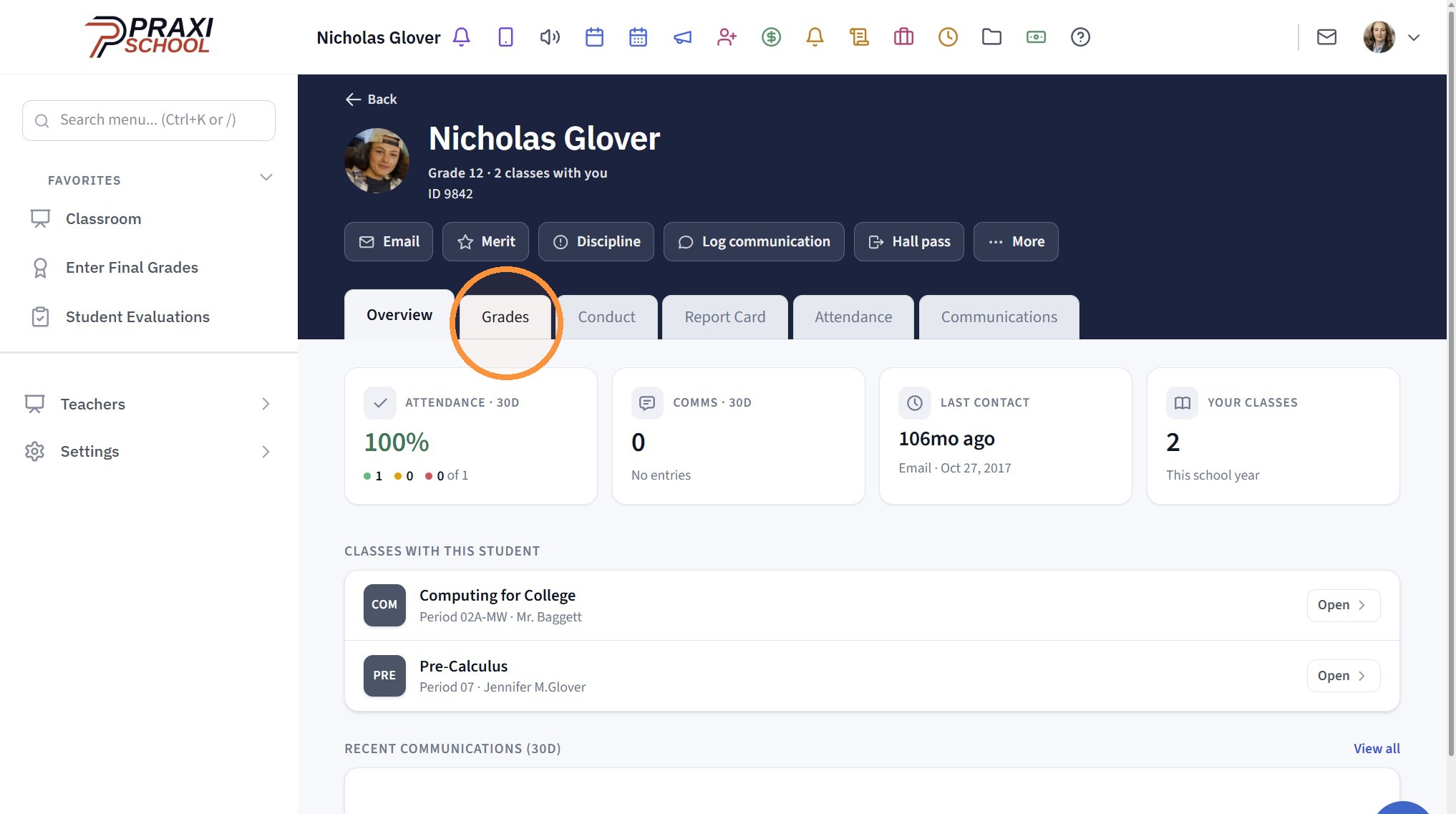
11. Click "Grades"
12. Click "All subjects"
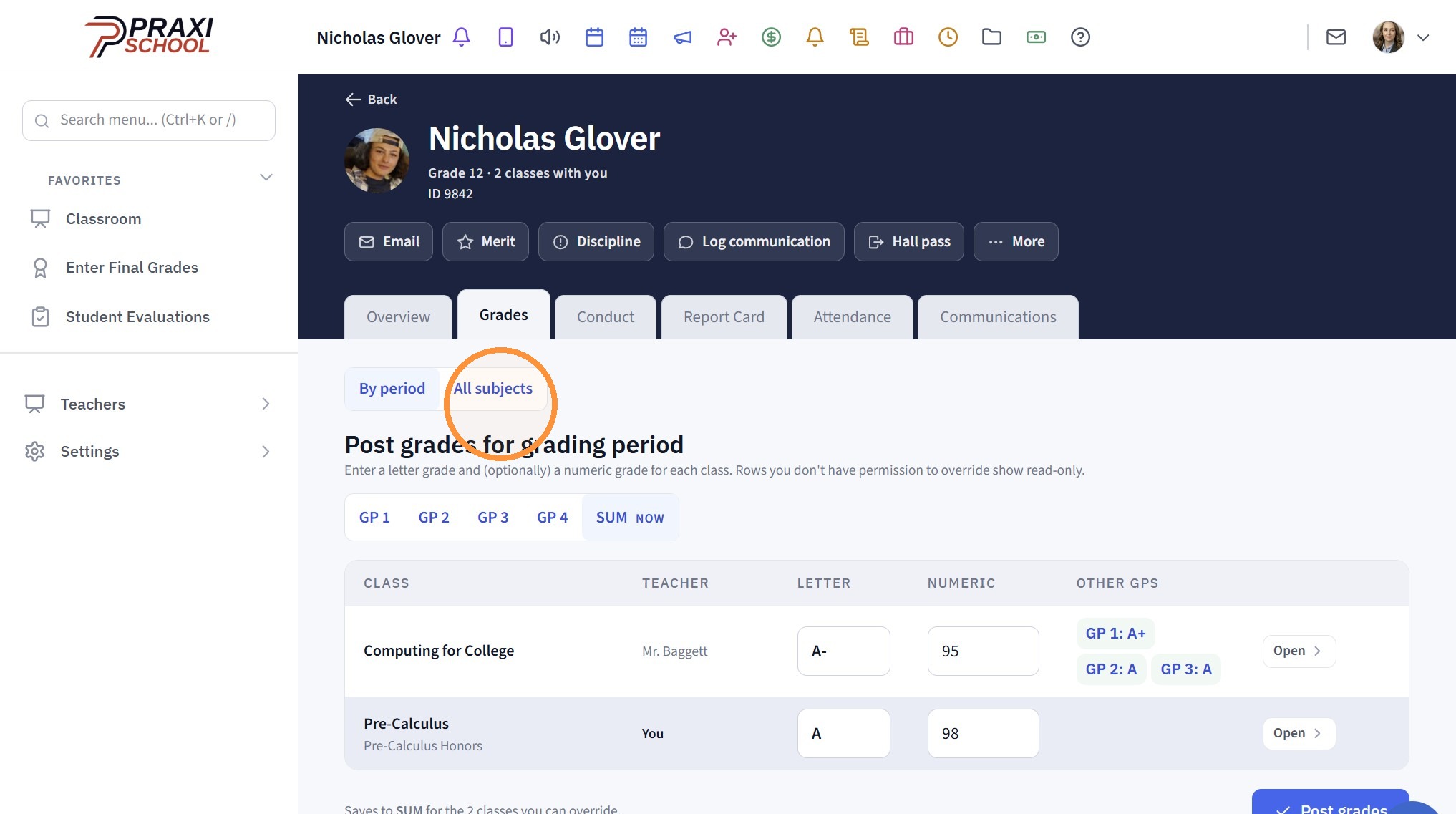
13. Click "All subjects" to see the Student's Grades for the Grade Periods & the Semesters
Related Articles
Creating / Viewing Student Evaluations from Teachers
Creating / Viewing Student Evaluations from Teachers 1. Log into PraxiSchool 2. Click "Teachers" 3. Click "Student Evaluations" 4. Select School Year Creating/Viewing by Student 5. Click Load Evaluations For "Student", Select Student and Click ...View Lunch Orders From Classroom
View Lunch Orders From Classroom 1. Log into PraxiSchool 2. Click "Teachers" 3. Click "Classroom" 4. Select Class 5. Click "Classroom" 6. Click the "Lunch" Toggle 7. Left Click on Student 8. Click "View Order" to View Selected Students Lunch Order 9. ...Printing Class Averages
Printing Class Averages 1. Click "Academics" 2. Click "Grades Reports" 3. Click "Class Averages" 4. Select from School Year Dropdown 5. Select the Grade Period/Quarter Option: (GP1, GP2, GP3, GP4, SEM1, SEM2 or Annual) 6. Select Rounding Option: (0, ...Entering Final Grade Period OR Semester Grades
Entering Final Grade Period OR Semester Grades 1. Click "Teachers" 2. Click "Enter Final Grades" 3. Select Class 4. Select Grade Period / Semester 5. Click "Refresh" 6. Enter Numeric Grade for each Enrolled Student 2500.10.1Entering Grades in Roster/Averages
1. Click "Academics" 2. Click "Roster/Averages" 3. Click "Quick Find" 4. Search the Student 5. Click "Find" 6. Select Class Roster 7. Click "Edit" 8. Click "Grades" tab 9. Enter the Grade Period Number Grade, Letter Grade, Weighted & Unweighted GPA's ...