Creating Teacher HTML Pages
1. Log into PraxiSchool
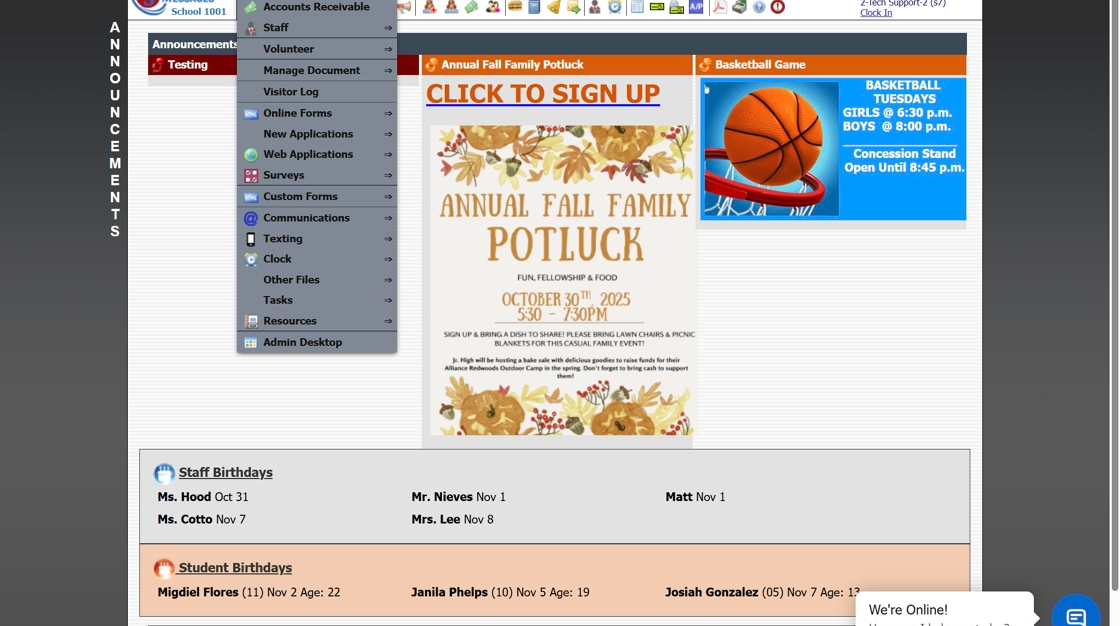
2. Click "Admin"

3. Click "Resources"

4. Click "Teacher Html"

5. Click "Add"

6. Enter Page Title

7. Display If:
Teacher - Will be visible to Students and Parents of Students in Teacher's Classes
Class - Will be visible to Students and Parents of Students in Selected Class
Grade Level - Will be visible to Students and Parents of Students in Selected Grade Level(s)

8. Check "Active:" box to Make Visible on Parent and Student Portals

9. Click "Save"

10. Click Inside Text Area

11. Create HTML Page with Text, Resources, Images and Hyperlinks to other Website with Tables, Fonts, and more

12. Click "Save & Exit"

1000.15.5
Related Articles
Creating a Simple HTML Form Header
1. Click "Admin" 2. Click "Online Forms" 3. Click "School HTML" 4. Select "Form Header" 5. Click inside the HTML box 6. Highlight "SCHOOL LOGO HERE" 7. Click "Images" 8. Select Uploaded Logo 9. Enter the School Name, Address, Phone Number & Website ...Creating a HTML Form Header with Details
1. Click "Admin" 2. Click "Online Forms" 3. Click "School HTML" 4. Click "Add" 5. Enter Description, Select Folder & Check Build Forms Only Box 6. Click "Save" 7. Click inside the HTML box 8. Click the Table Icon to Add a Table 9. Enter Number of ...Adding Store Pages
Adding Store Pages 1. Click "Lists" 2. Click "Store" 3. Click "Store Pages" 4. Click "Add" 5. Enter Order (Optional) 6. Enter Page Description 7. Click "Save" 8. 3500.15.3Creating a Donor Page
1. Click "Donors" 2. Click "Donor Pages" 3. Click "Add" 4. Enter Donor Page Description & Title 5. Select the Campaign 6. Click "Save" 7. Click on the "Html" Tab 8. Click in the Box 9. Create Donor Page HTML 10. Click "Save & Exit" 11. Click on the ...Creating Document Portal Upload Links
Creating Document Portal Upload Links 1. Click "Admin" 2. Click "Manage Document" 3. Click "Upload Links" 4. Click "Add" 5. Click the "Server Docs" field. 6. Enter a description for the document 7. Select the header if you want to group documents ...