Areas to Check for Updates on Replicated Forms

Areas to Check for Updates on Replicated Forms


1. Click "Admin"
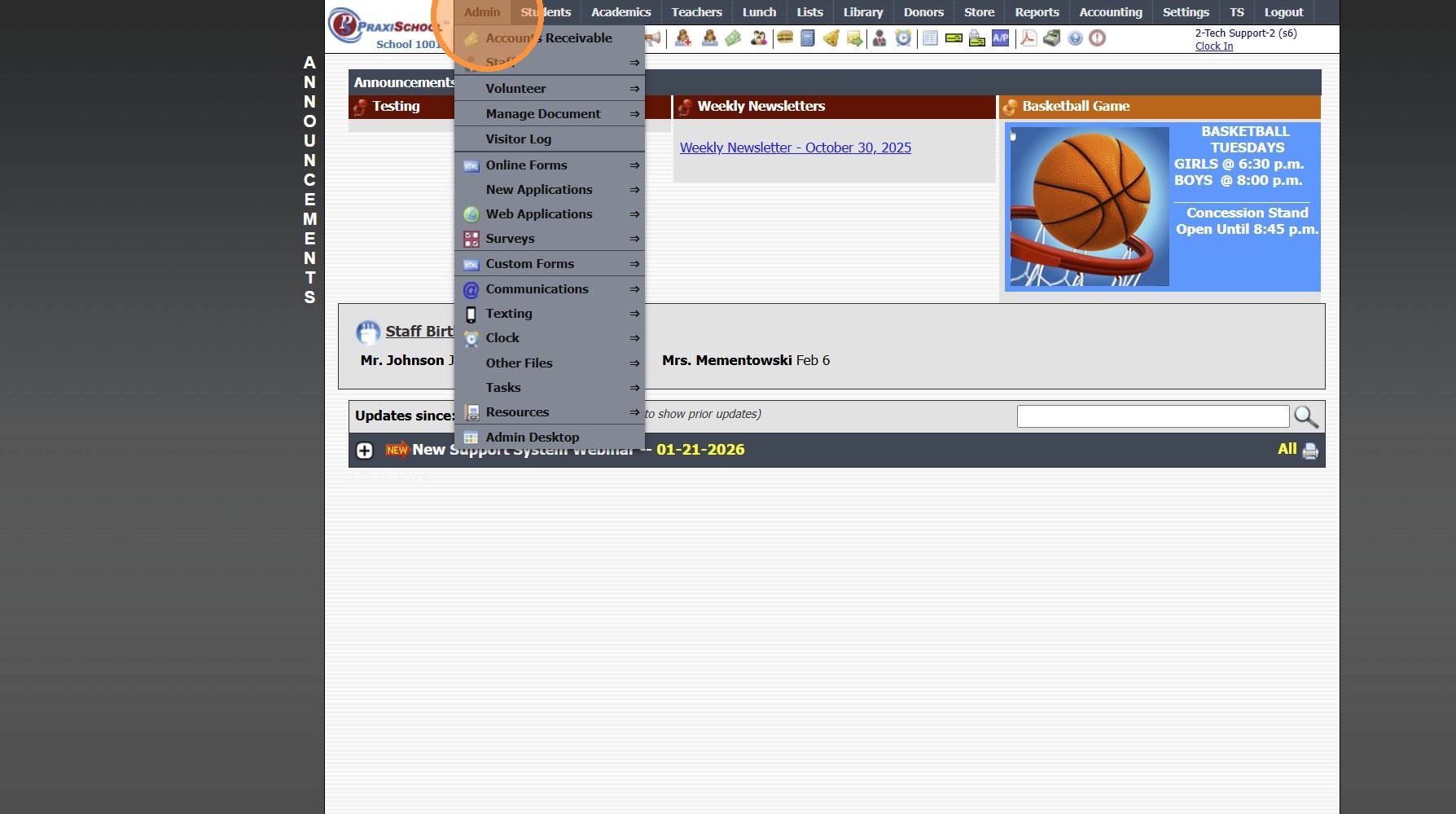
2. Click "Online Forms"
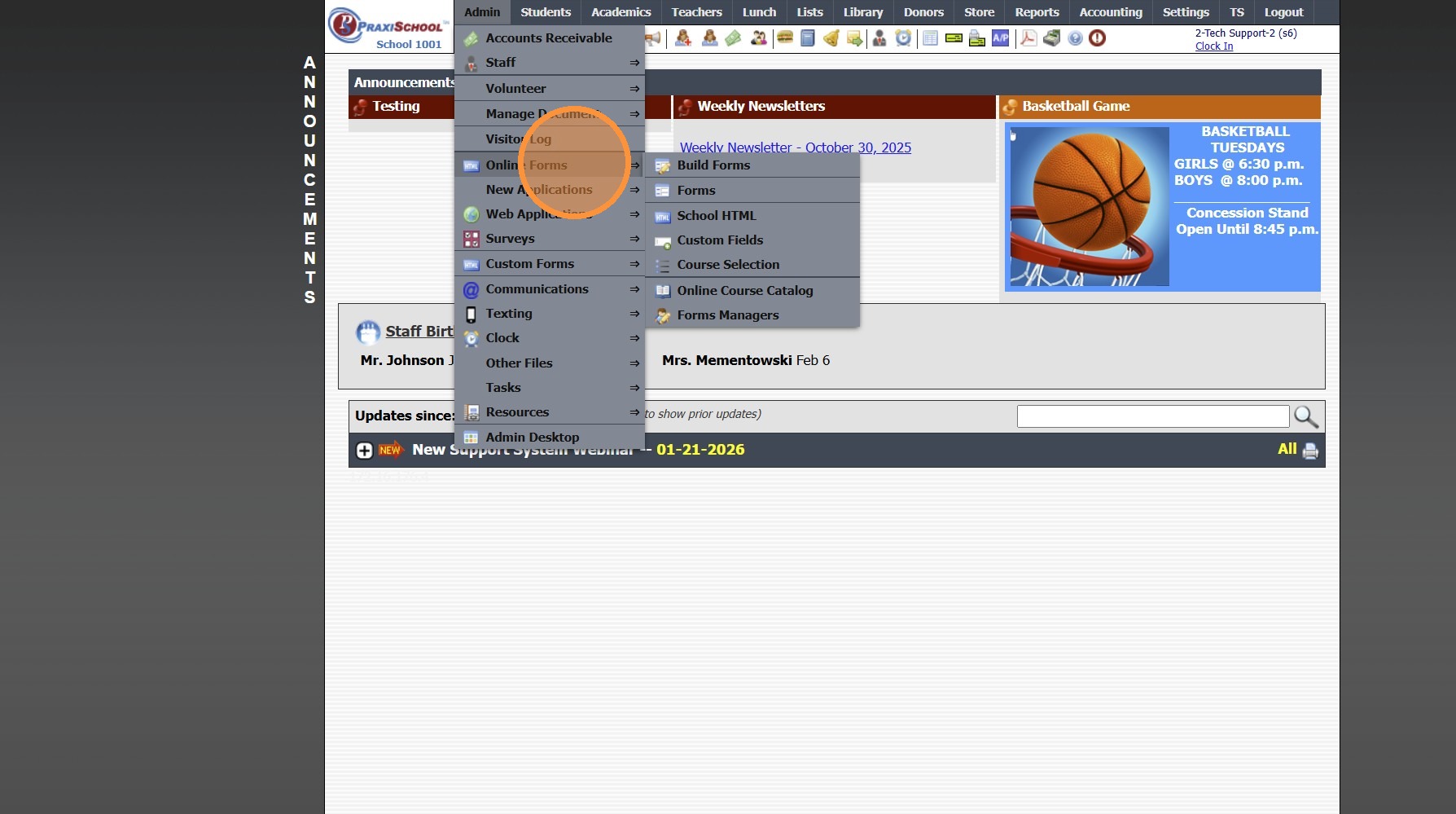
3. Click "Forms"
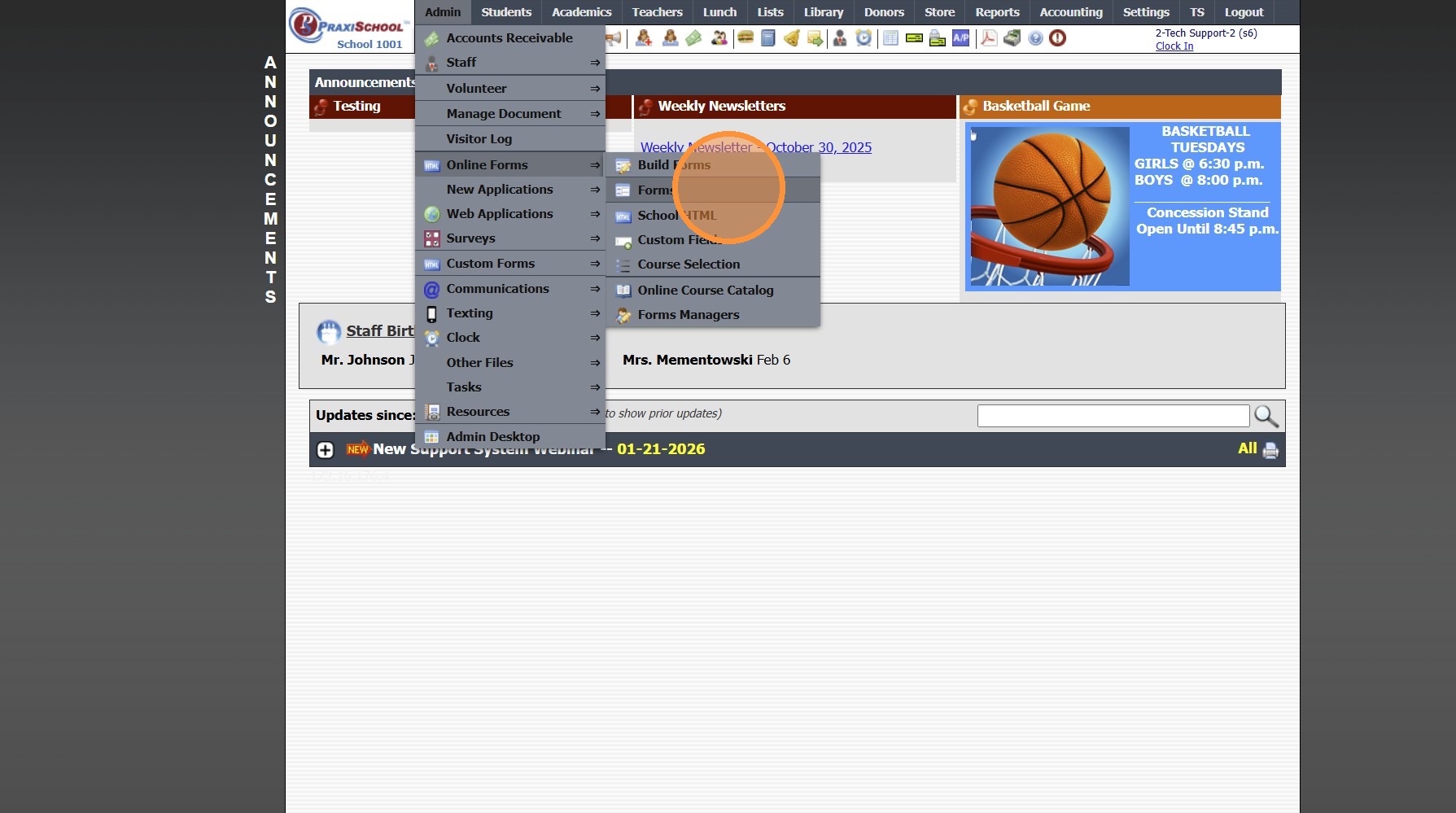
4. Select Form
5. Click "Styles & Functionality" Tab
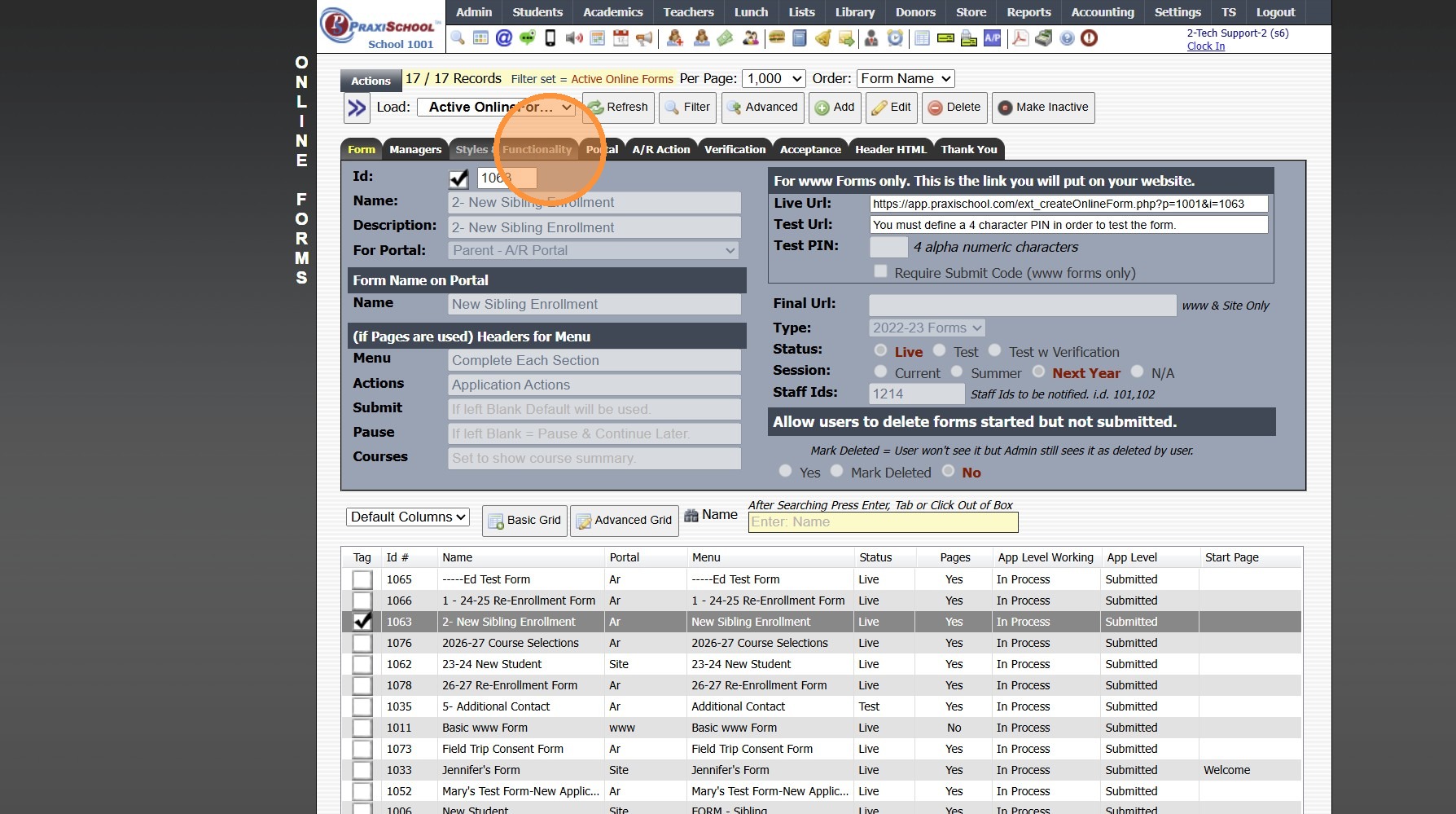
6. Click "Edit"
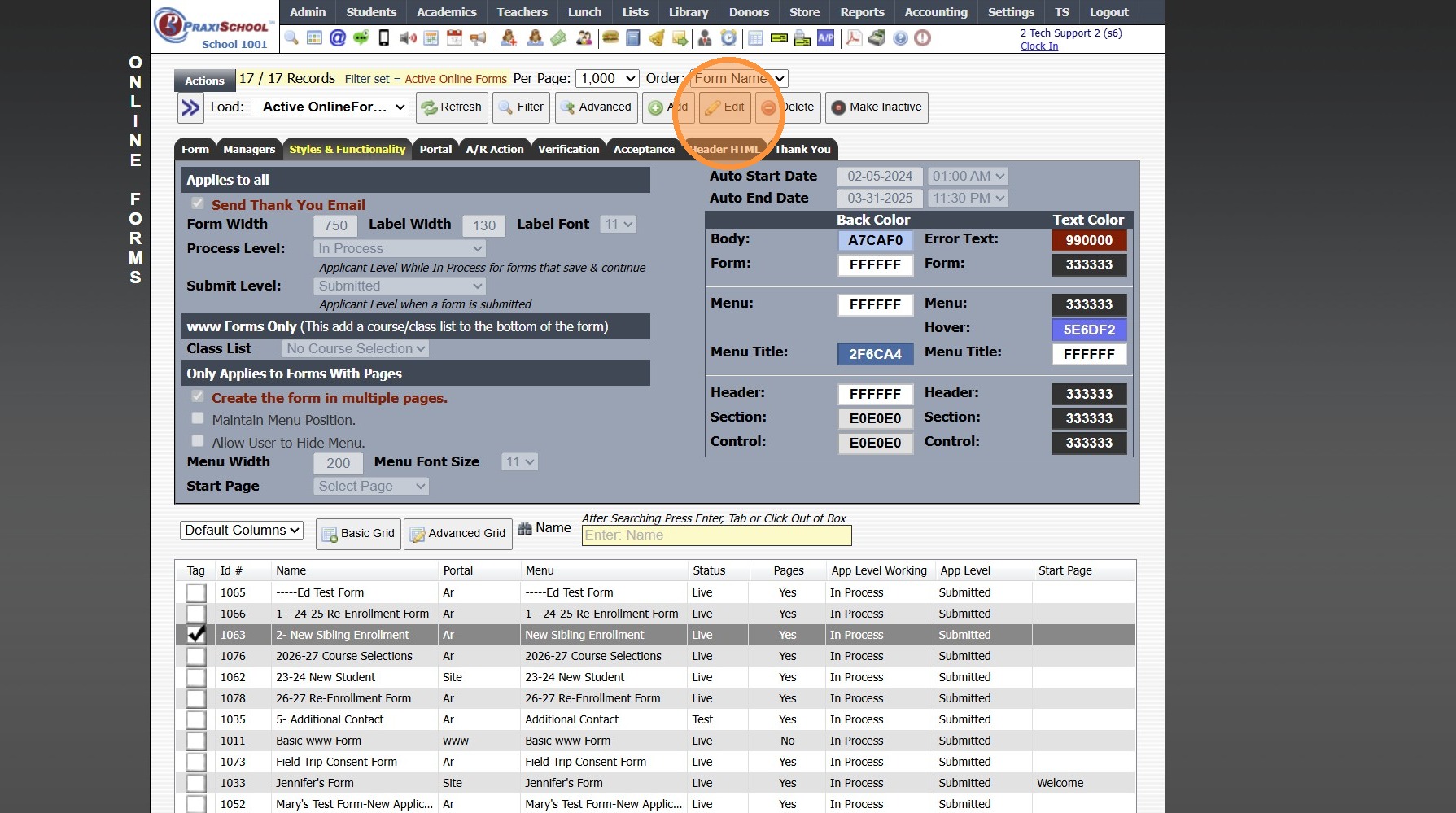
7. Update Auto Start & Auto End Dates (If Using)
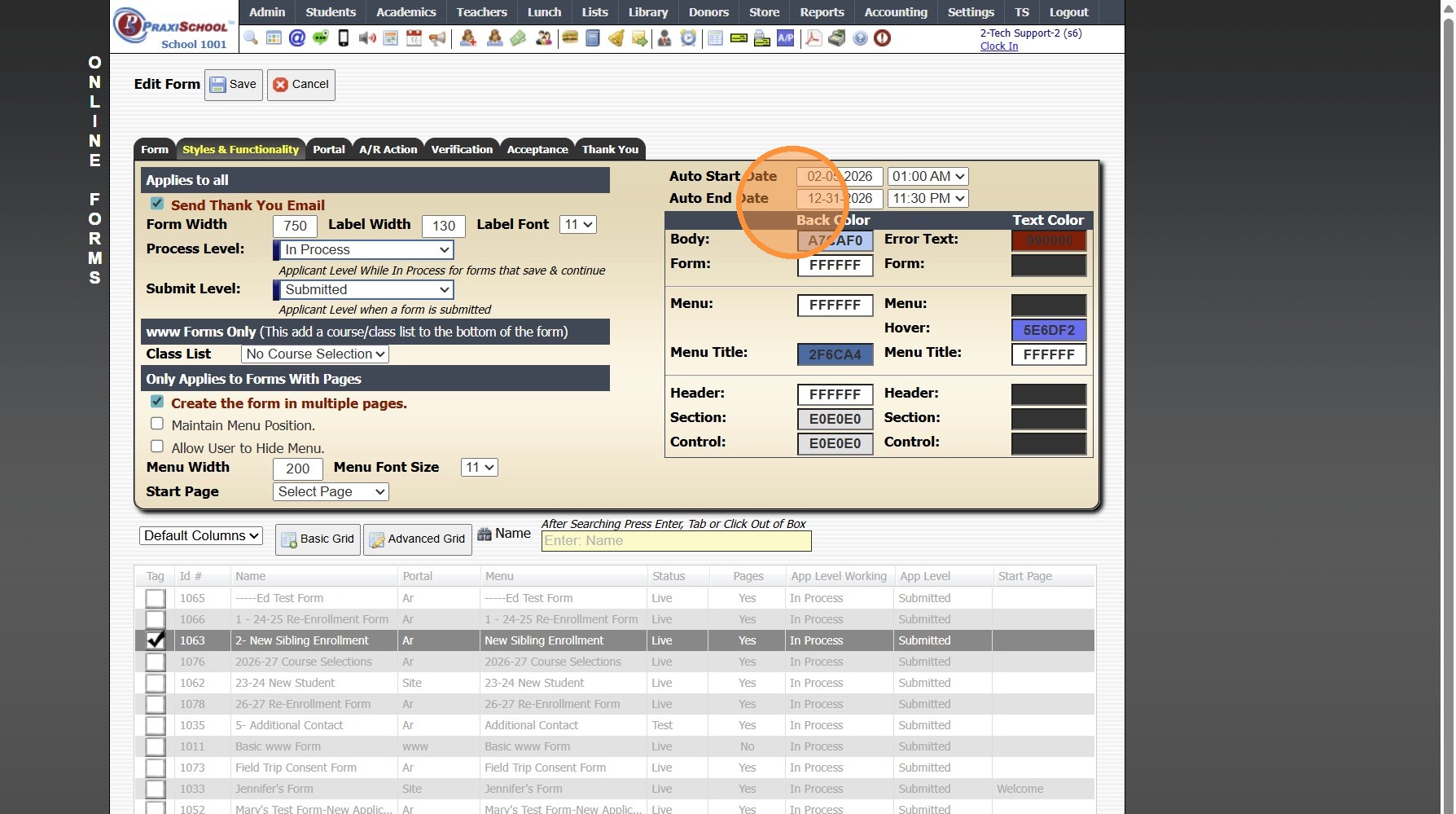
8. Click "Portal" Tab
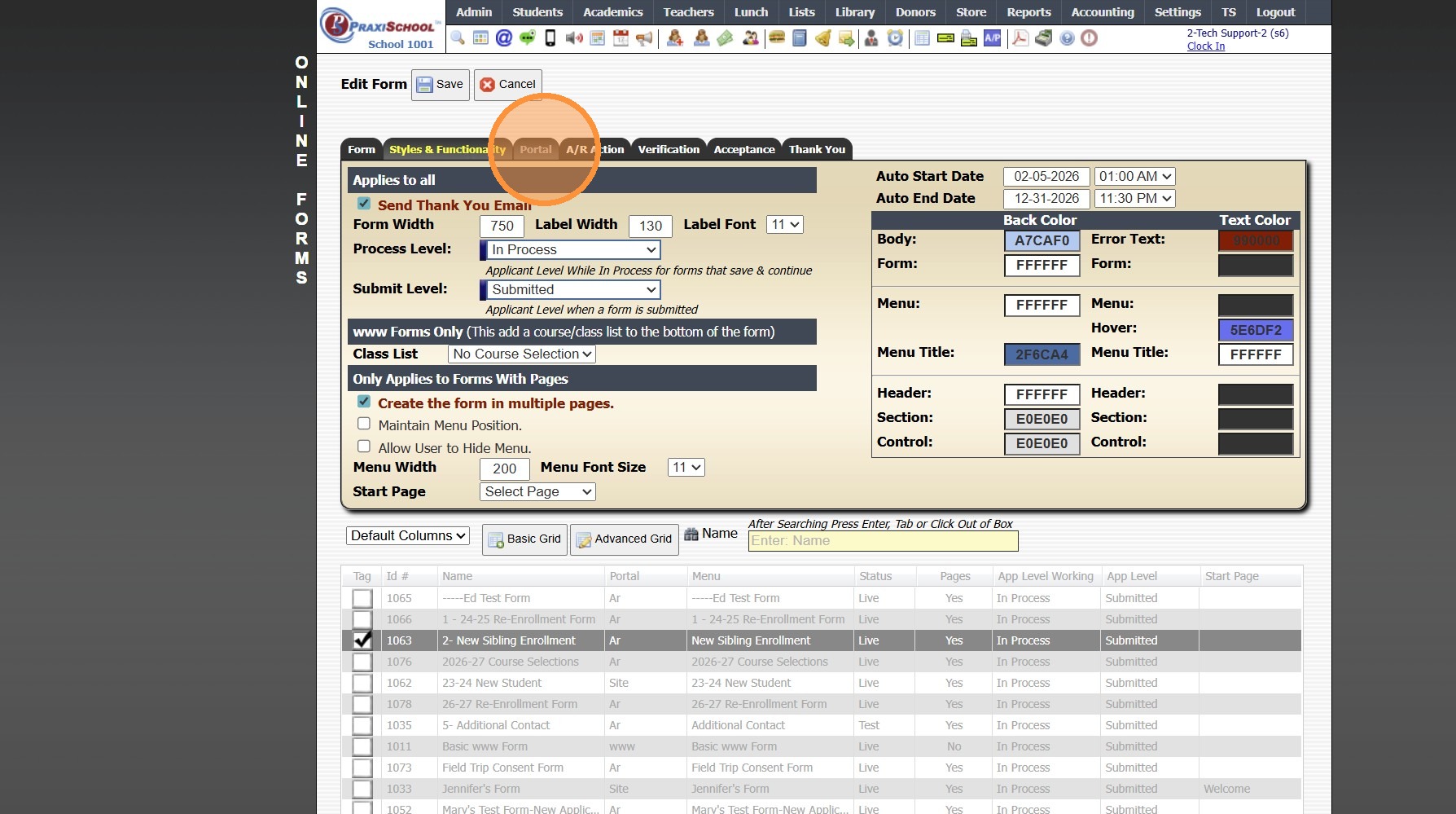
9. Update Verbiage (If Using & Verbiage Contains Year Specific Information
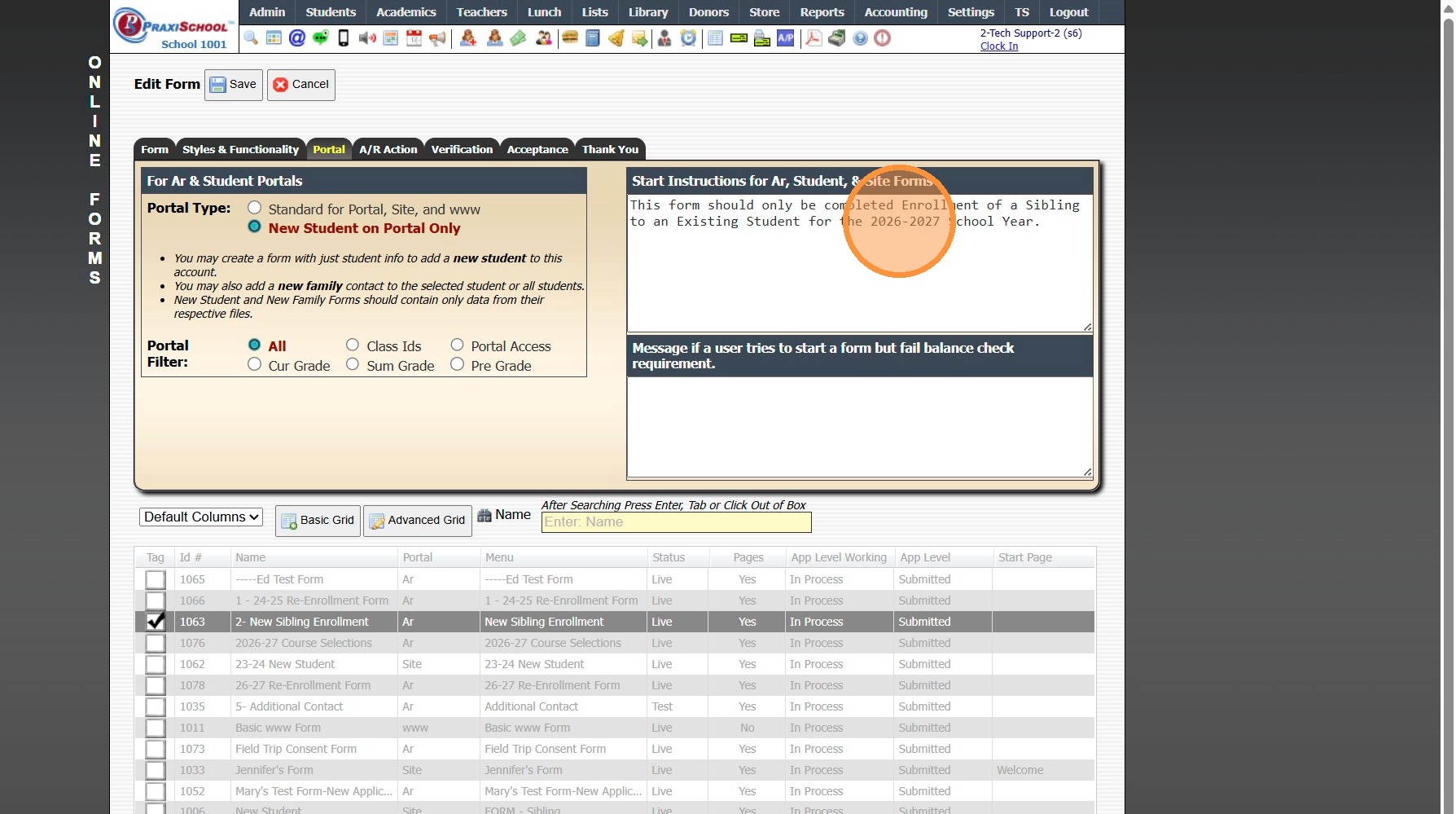
10. Click "A/R Action" Tab
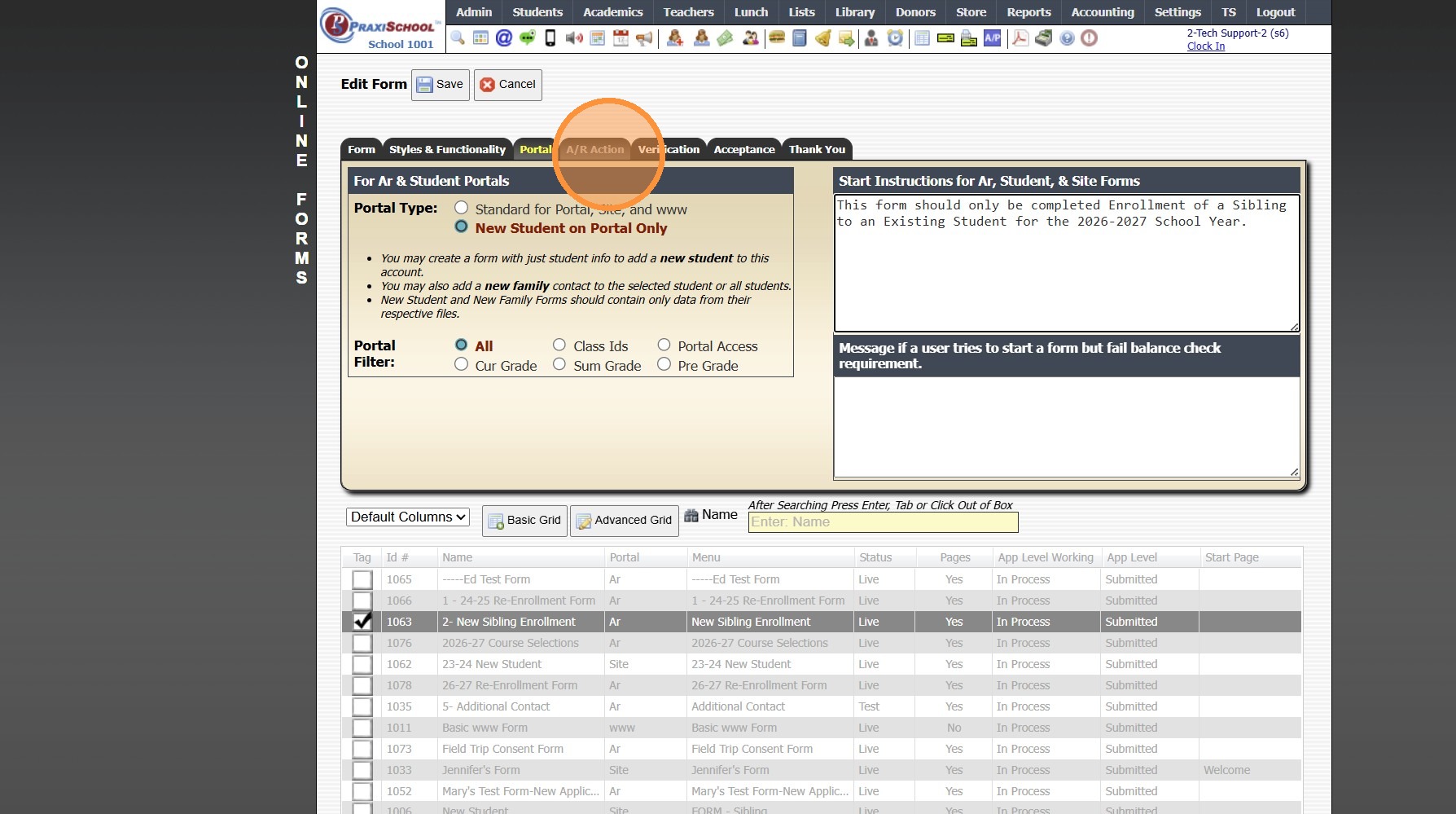
11. Select Correct School Year
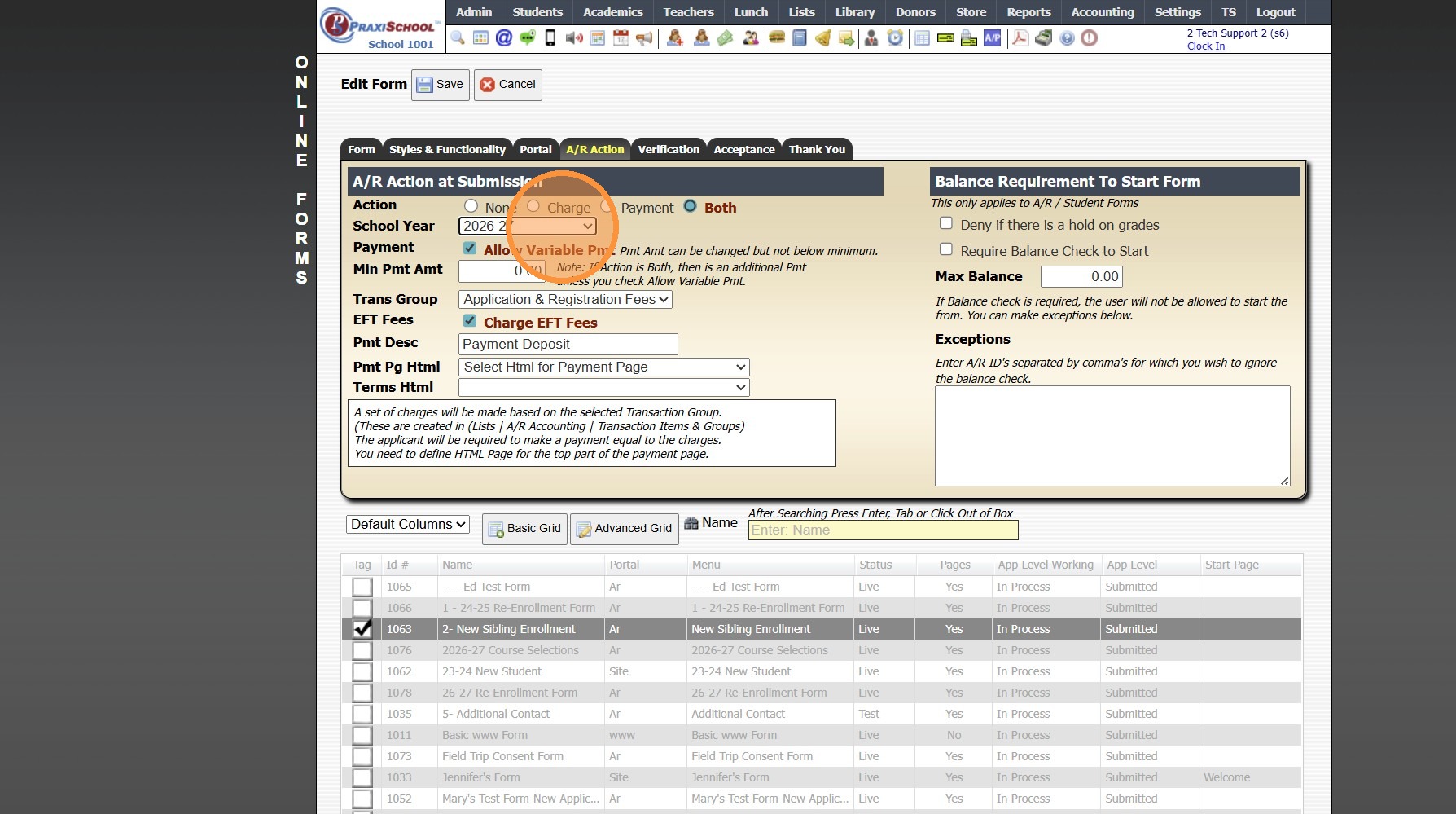
12. Select Correct Transaction Group for School Year
(Creating a New Transaction Group)
13. Click "Acceptance" Tab
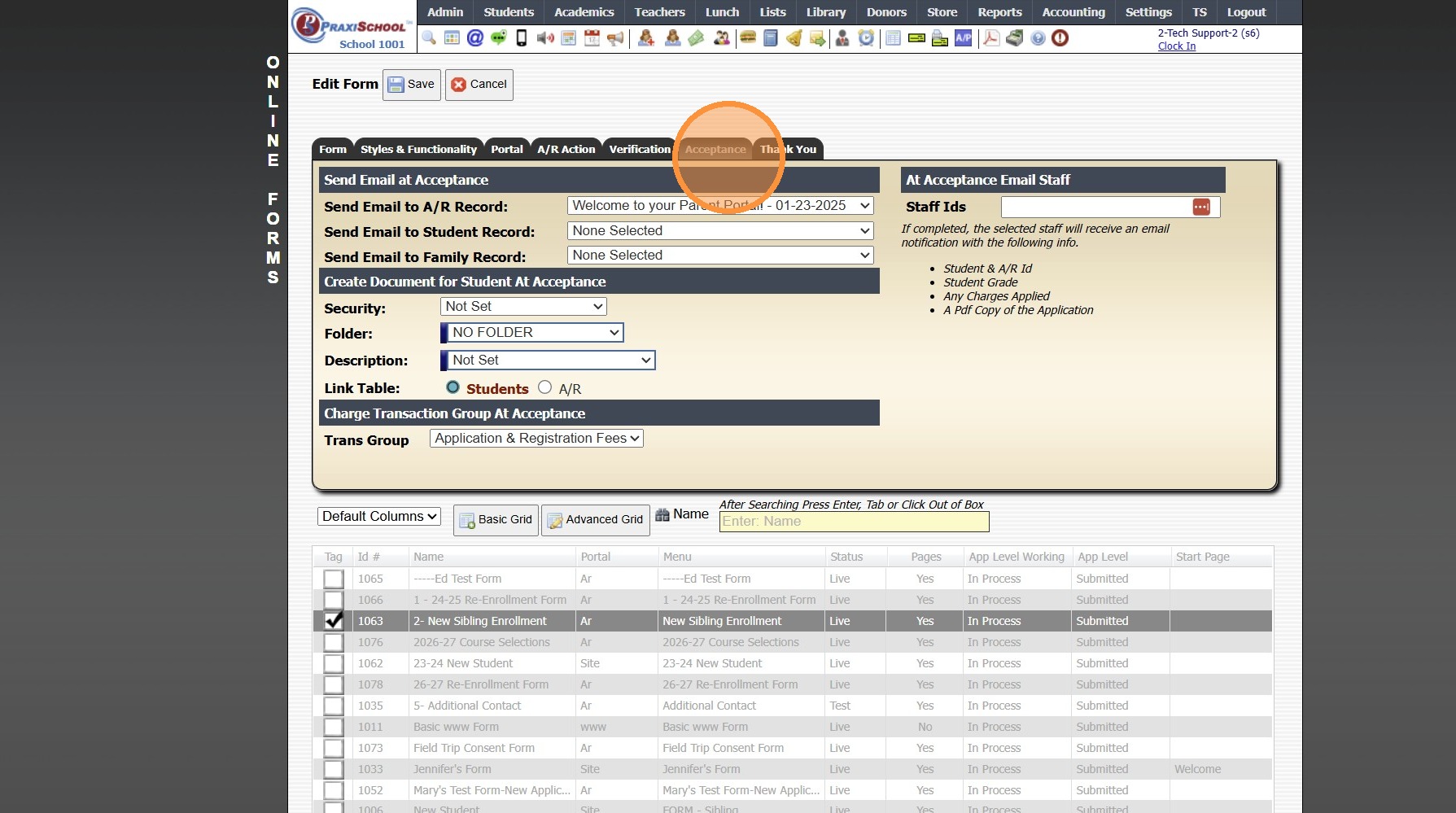
14. Select Correct Acceptance Letter
(Creating a New Acceptance Letter)
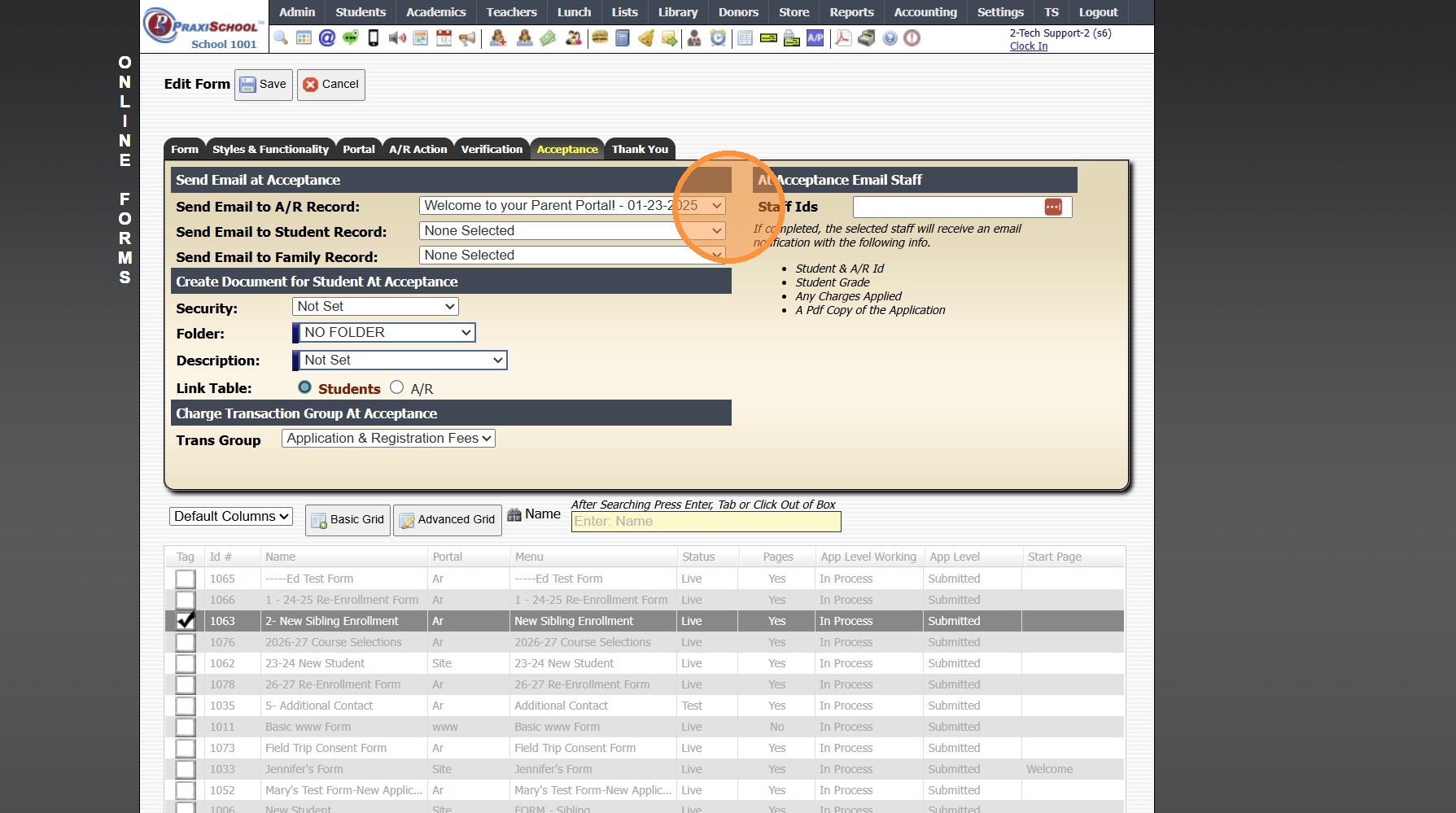
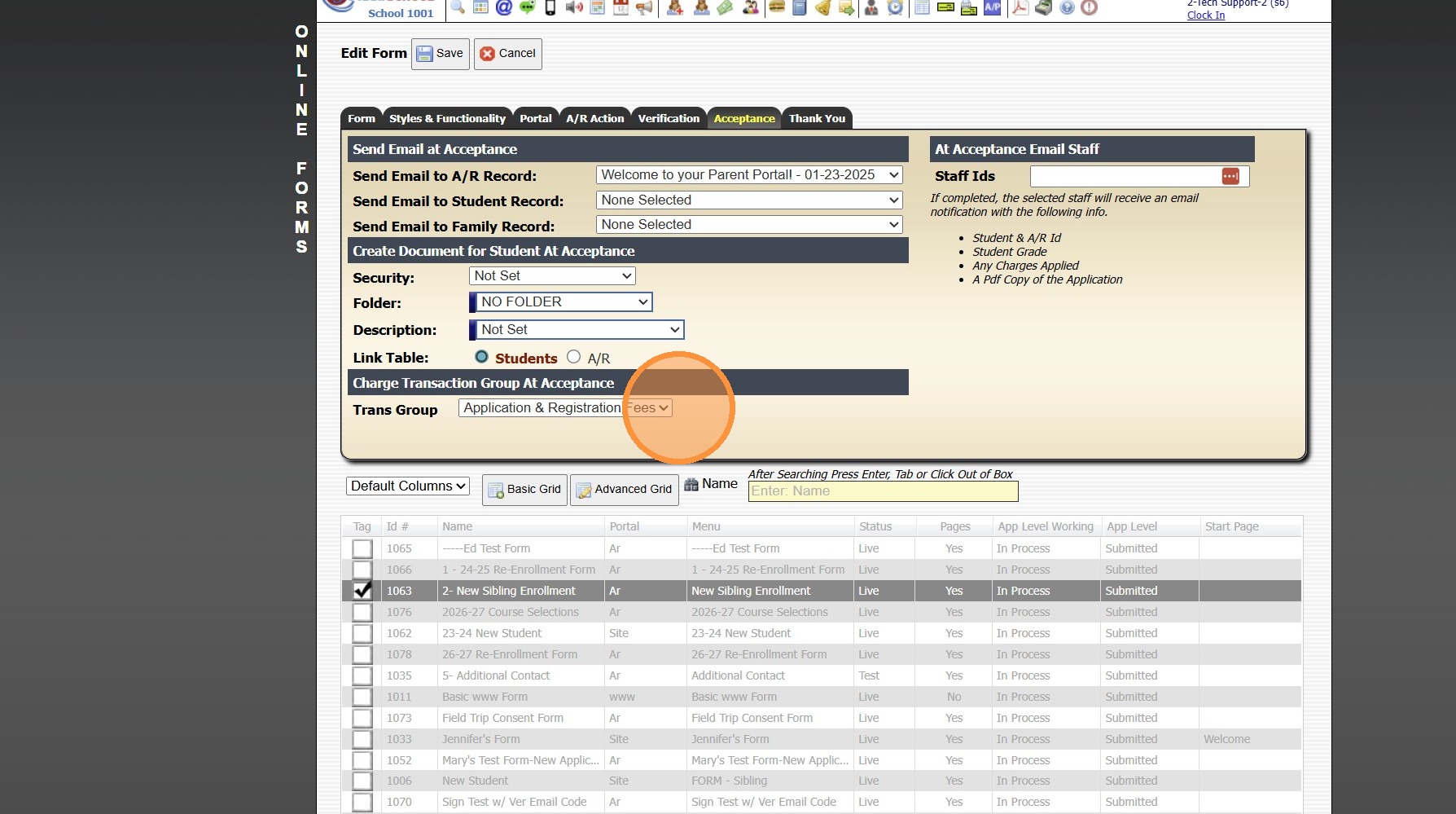
15. Select Correct Transaction Group for At Acceptance (If Using)
(Creating a New Transaction Group)
16. Click "Header HTML" Tab
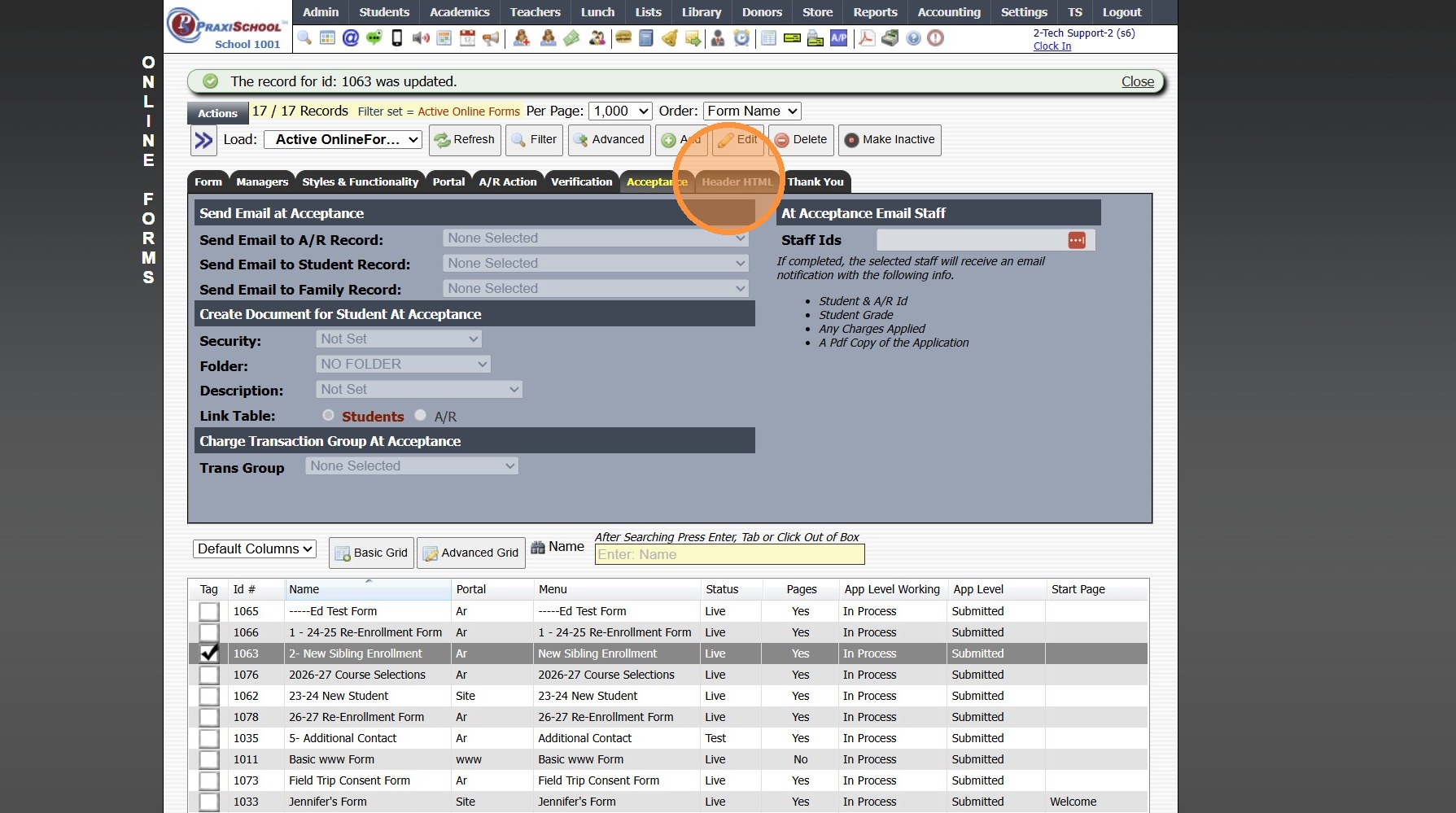
17. Preview Form Header for Viewing Form and for Printing Form
(Update if Necessary)
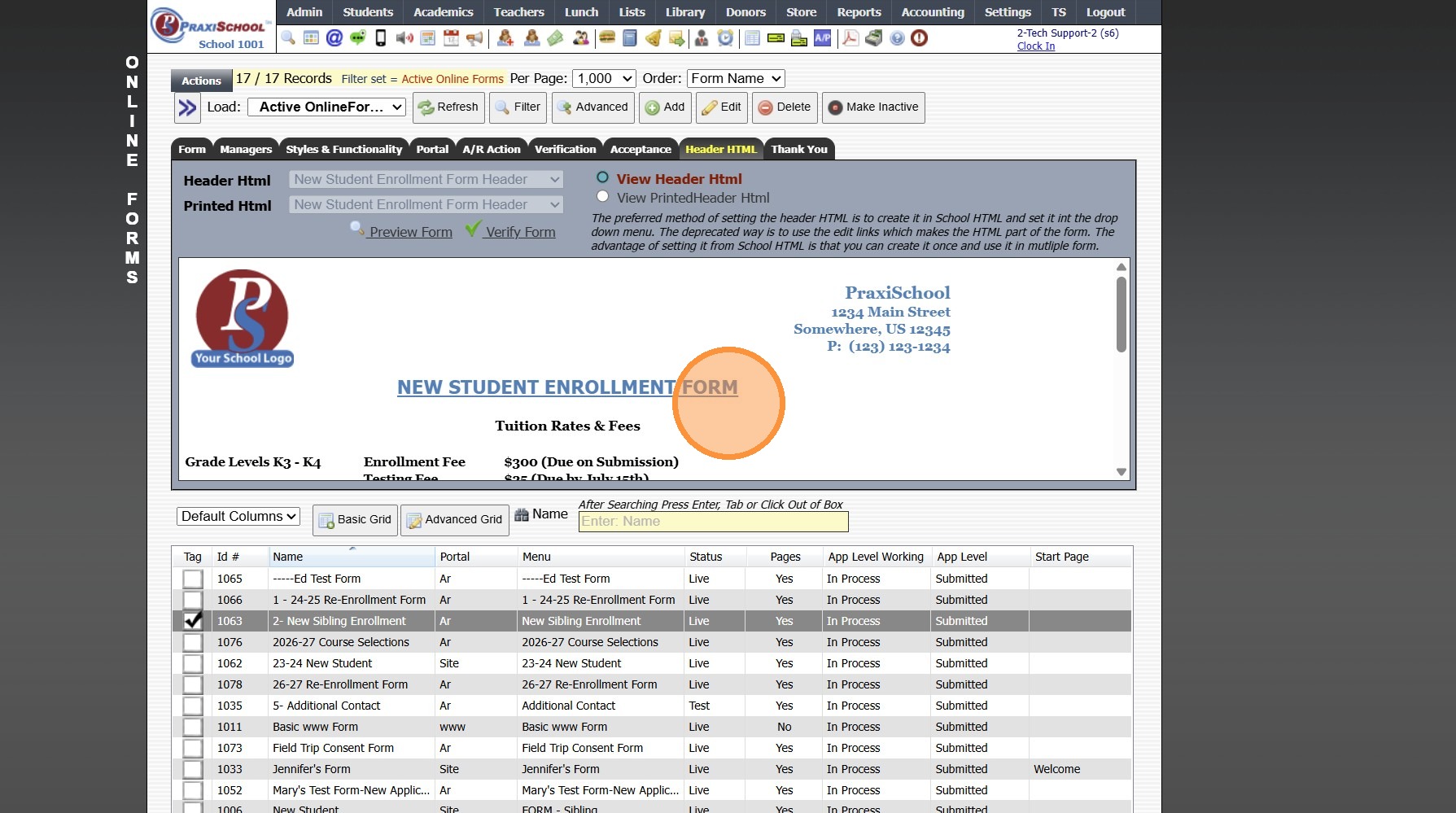
18. Click "Save"
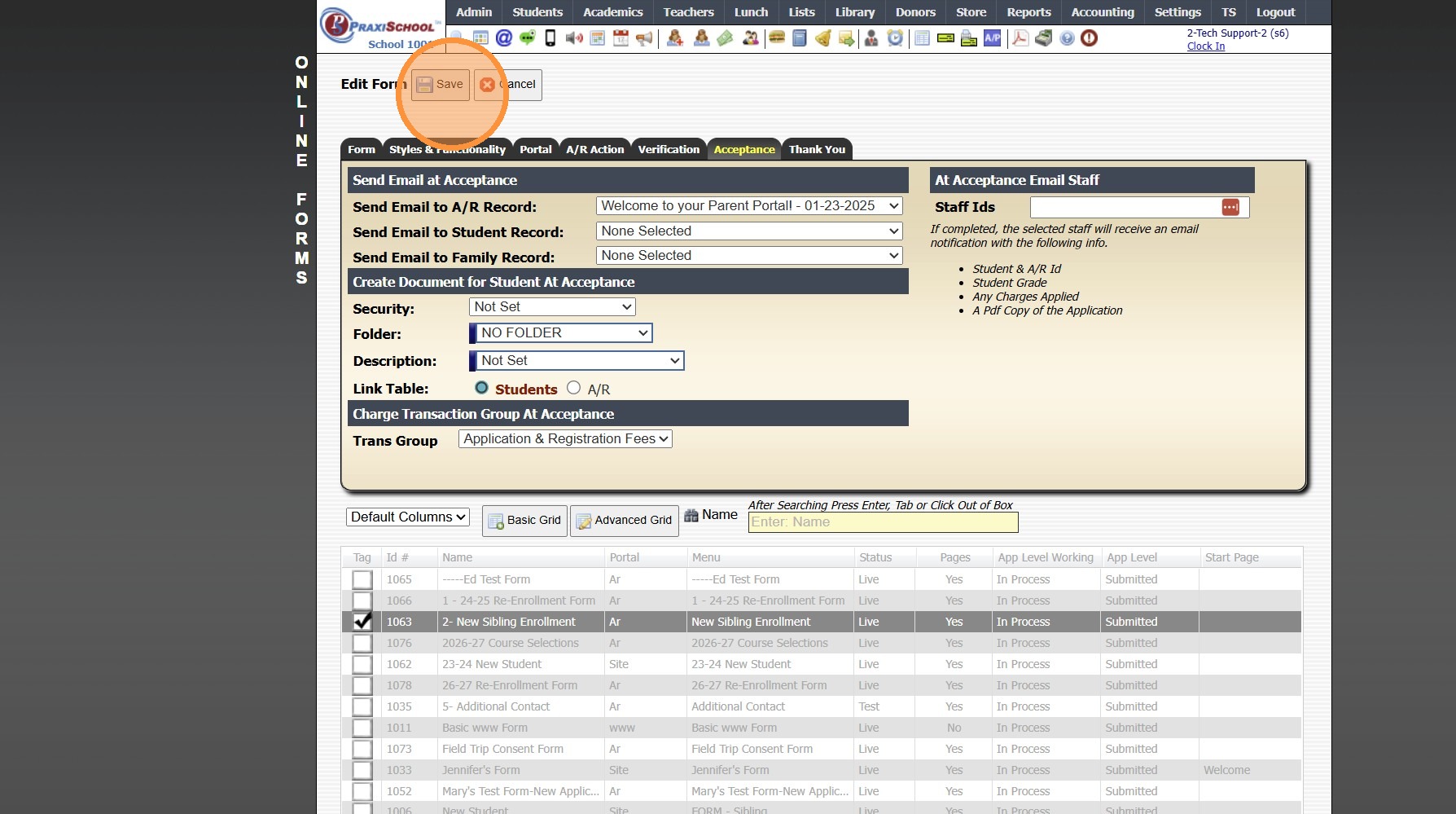
19. Click "Thank You" Tab
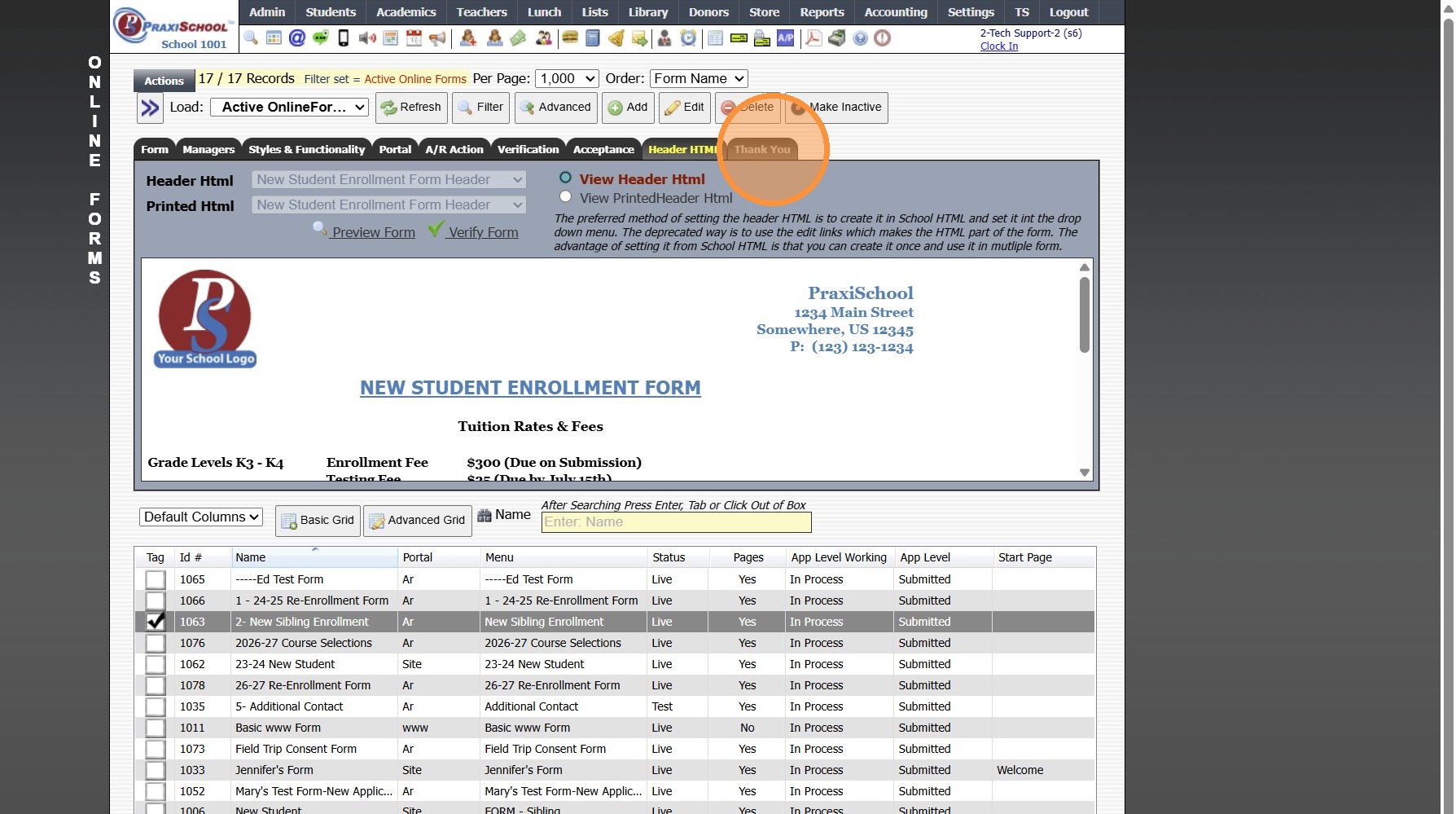
20. Click "Edit Thank You"
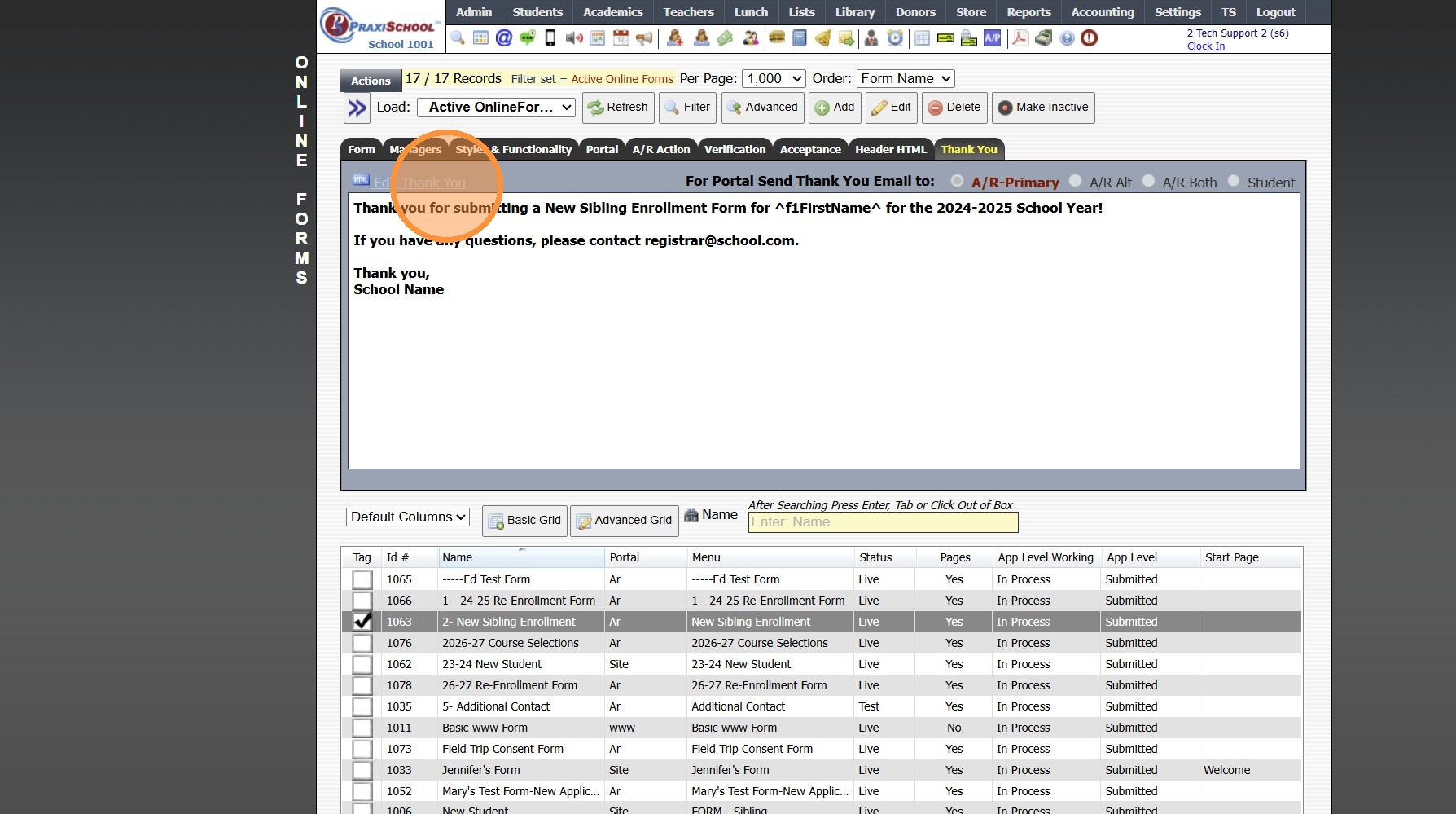
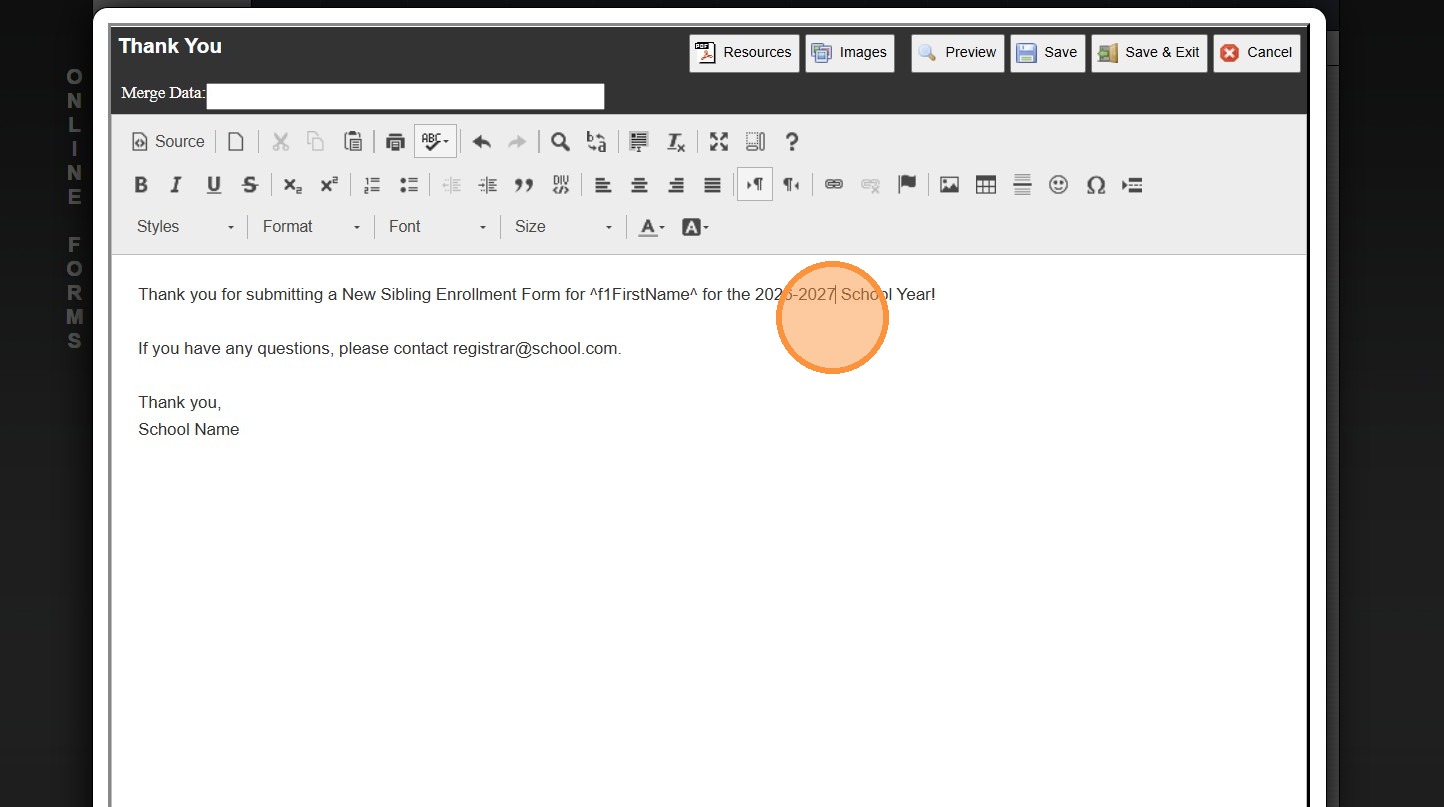
21. Update Verbiage (If Using & Verbiage Contains Year Specific Information
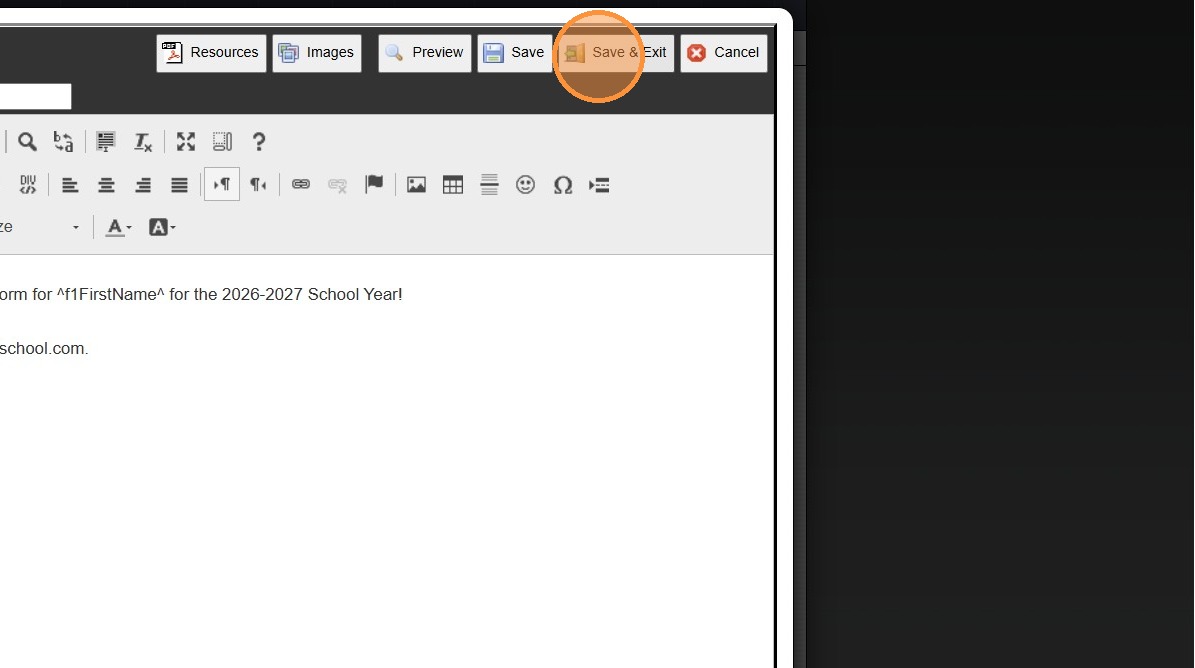
22. Click "Save & Exit"


1000.6.21

    • Related Articles

    • Adding School HTML for Online Forms

      1. Click "Admin" 2. Click "Online Forms" 3. Click "School HTML" 4. Click "Add" 5. Enter Description 6. Select a Folder or Click the Blue Bar & Add a New Folder 7. Check the Build Forms Only Box (If this box is NOT checked, the HTML will not be ...
    • Subscribing to PraxiSchool Updates Emails

      Subscribing to PraxiSchool Updates Emails 1. Log into PraxiSchool 2. Click "Settings" 3. Click "Subscribe-Update Email" 4. Enter Email, First Name, Last Name, School Name and ID Number 5. Select Appropriate Group 6. Click "Submit" 7. Click "Submit" ...
    • Setting a Checkbox Field to Default to Checked in Online Forms

      1. Click "Admin" 2. Click "Online Forms" 3. Click "Build Forms" 4. Select the Form 5. Click the Page 6. Select the Section 7. Select Field to Add OR Click the Pencil Next to Field to Edit 8. Check the Set Default Value Box 9. Type "Yes" 10. Click ...
    • Adding Required Forms

      Adding Required Forms 1. Click "Lists" 2. Click "Enrollment" 3. Click "Forms" 4. Click "Add" 5. Enter Form Name & Type (Order, Abbreviation & Comment can be added) (Optional) 6. Click "Save" 3500.1.9
    • Printing a Check

      Printing a Check 1. Click "Accounting" 2. Click "Reports" 3. Click "Print Checks" 4. Default Bank Account will Populate 5. Verify Next Check Number & Change if Necessary 6. Select Check(s) to Print 7. Click "Print" 8. Check will Populate to Print 9. ...