Printing a Check
Printing a Check
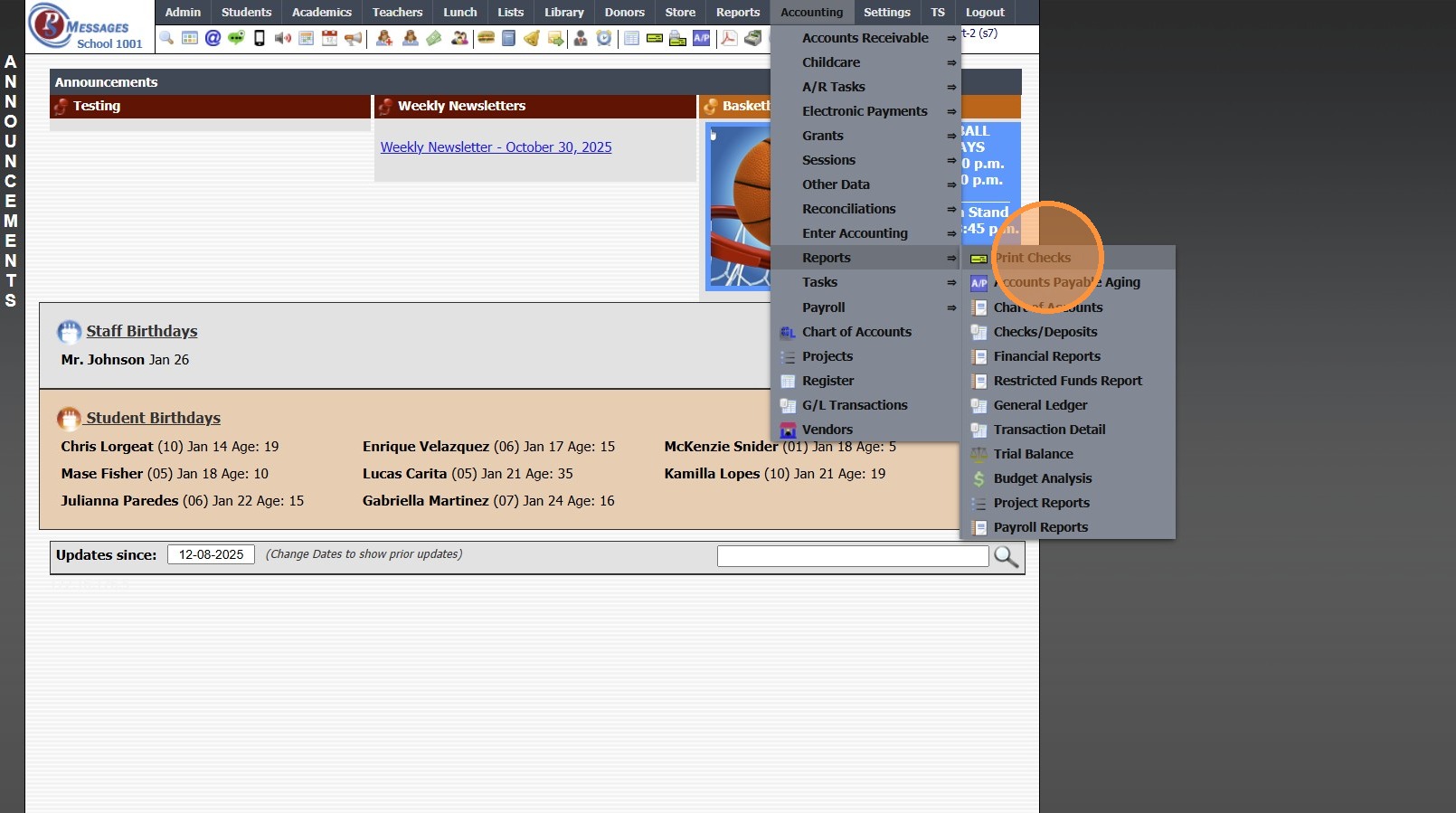
1. Click "Accounting"

2. Click "Reports"

3. Click "Print Checks"
4. Default Bank Account will Populate

5. Verify Next Check Number & Change if Necessary

6. Select Check(s) to Print

7. Click "Print"
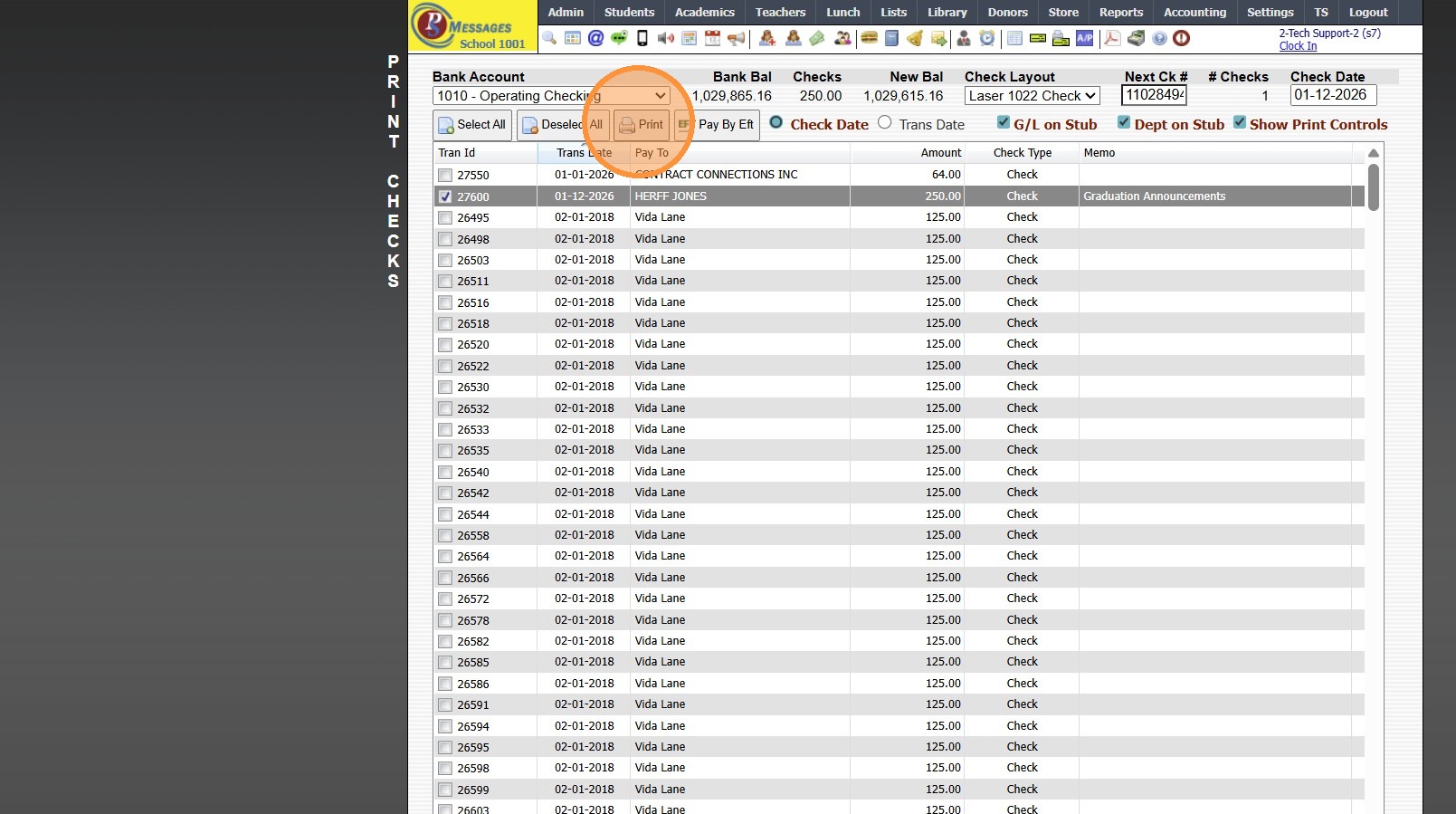
8. Check will Populate to Print

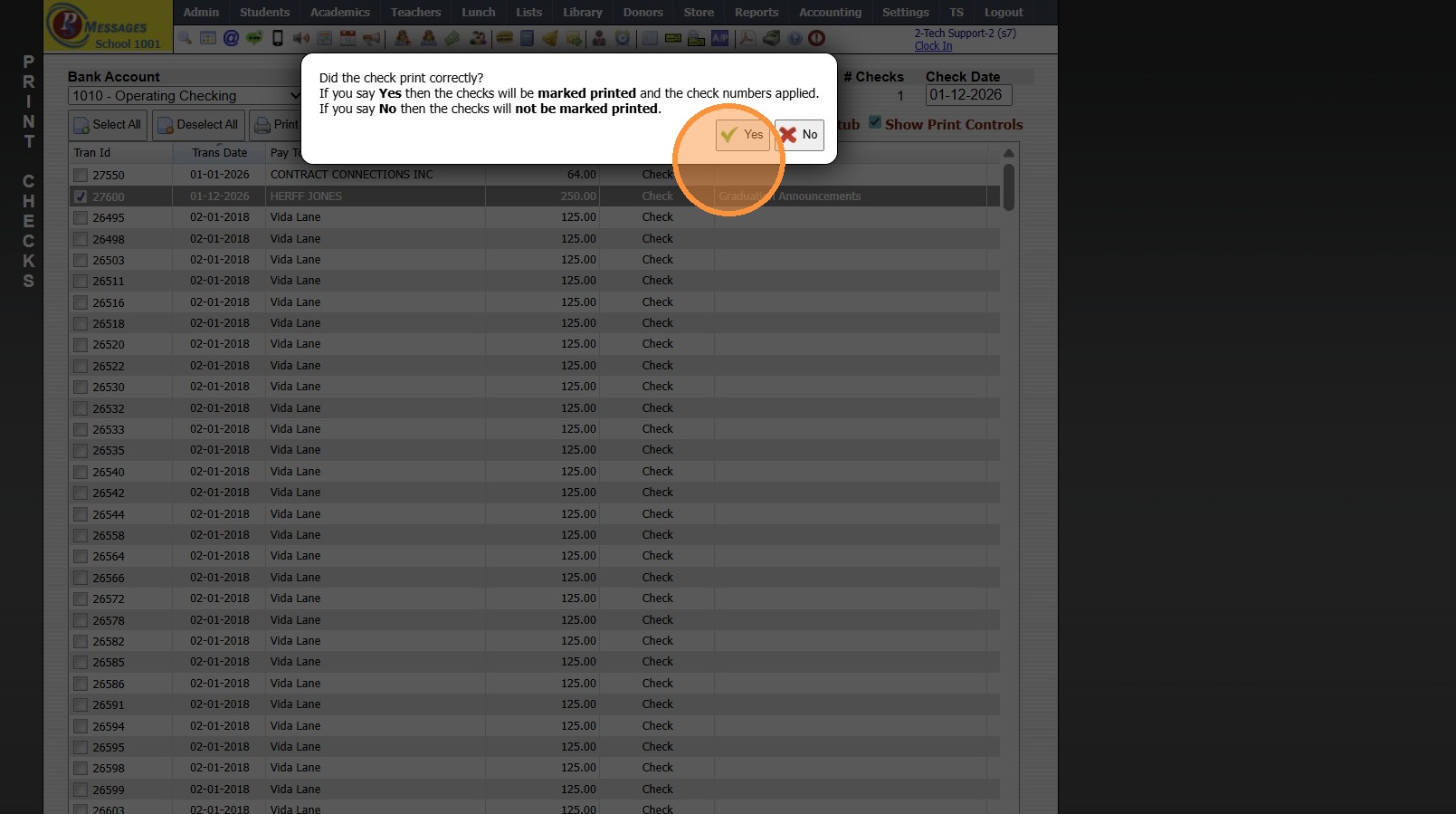
9. Once Check is Printed, click "Yes" to Verify that Check Printed Correctly
(Click "No" if Check did not Print Correctly to Reprint Check)
6000.10.1
Related Articles
Printing the Student Directory
Printing the Student Directory 1. Click "Reports" 2. Click "Student Directory" 3. Select Sort & Filter Options 4. Check "Ignore Directory Preferences" to Print Report based on Administration Preferences Only 5. Select Student Options to Print on ...Printing the Staff Directory
Printing the Staff Directory 1. Click "Reports" 2. Click "Staff Directory" 3. Check "Ignore Directory Preferences" to Print Report based on Administration Preferences Only 4. Click "Print" 5. Staff Directory can be Printed, Emailed or Saved to a PDF ...Printing an Accounts Receivable Statement
Printing/Emailing an Accounts Receivable Statement 1. Log into PraxiSchool 2. Click "Admin" 3. Click "Accounts Receivable" 4. Select Account 5. Click "Actions" 6. Click "Statements" 7. Click "Statements" 8. Enter the Detail Date Range 9. To Include ...Settings Media Student Media Permissions and Printing Report
Marking Media Permissions 1. Click "Students" 2. Click "Students" 3. Select Student 4. Click "Edit" 5. Check all Publicity fields that are Allowed. (Check = yes) 6. Click "Save" Creating Grid Report and Printing 7. Click "Basic Grid" 8. Click "Tag" ...Printing Prior Year Report Cards
1. Click "Academics" 2. Click "Grades Reports" 3. Click "Print Report Cards" 4. Select the School Year 5. Check "Process for 1 Student" box 6. Select the Student 7. Click "Print Report Cards" 8. Report Card will Generate to Print, Export to PDF or ...