Settings Media Student Media Permissions and Printing Report
Marking Media Permissions
1. Click "Students"
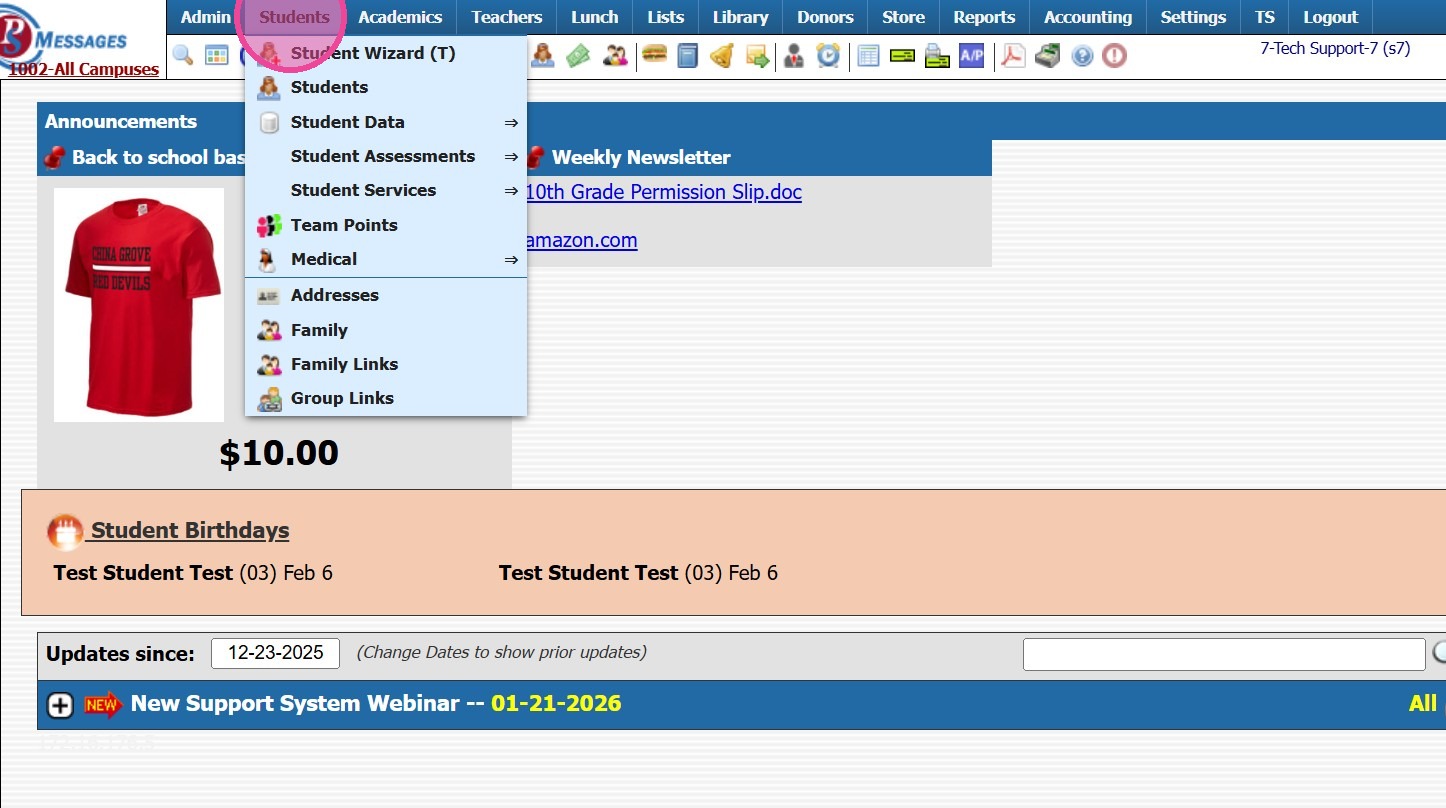
2. Click "Students"
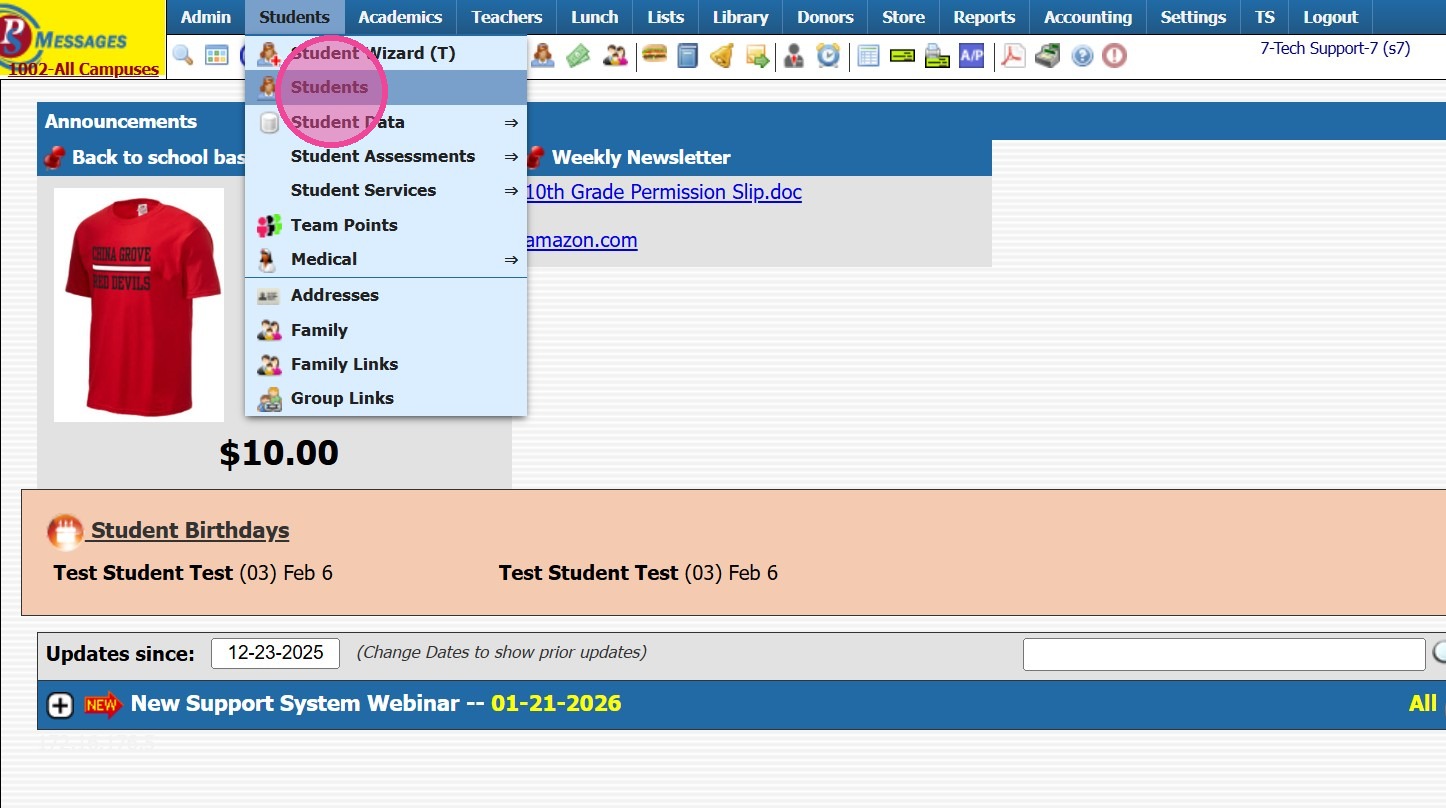
3. Select Student
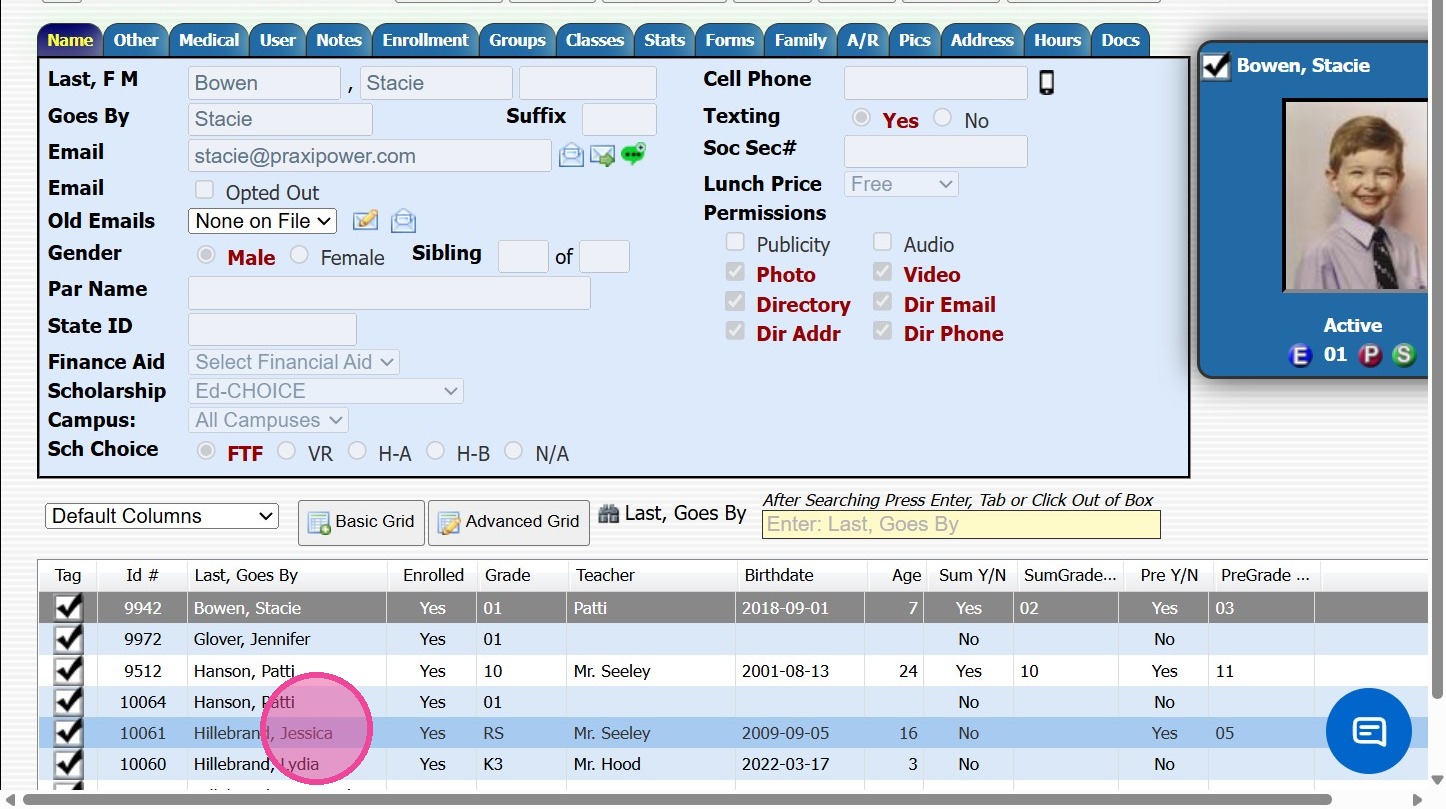
4. Click "Edit"
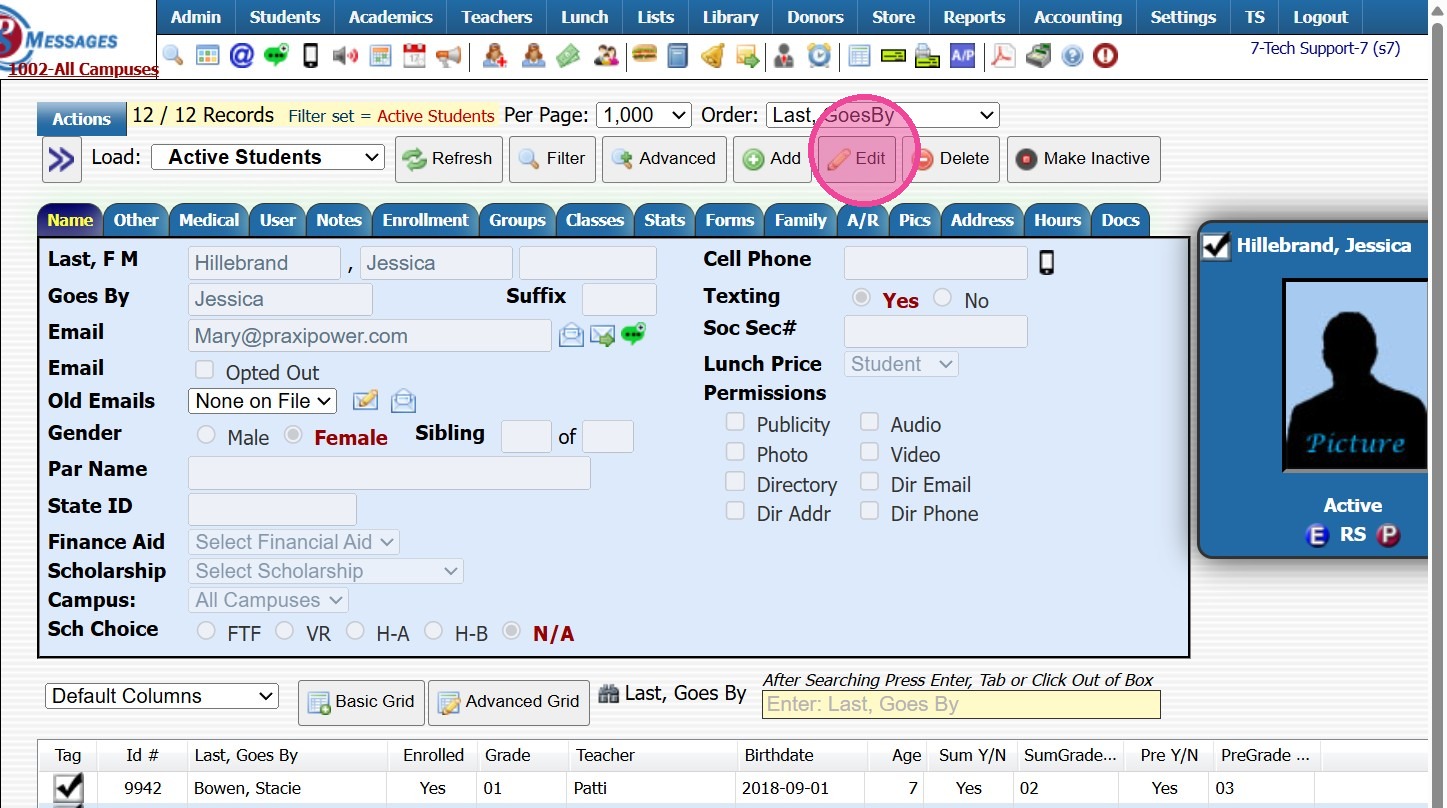
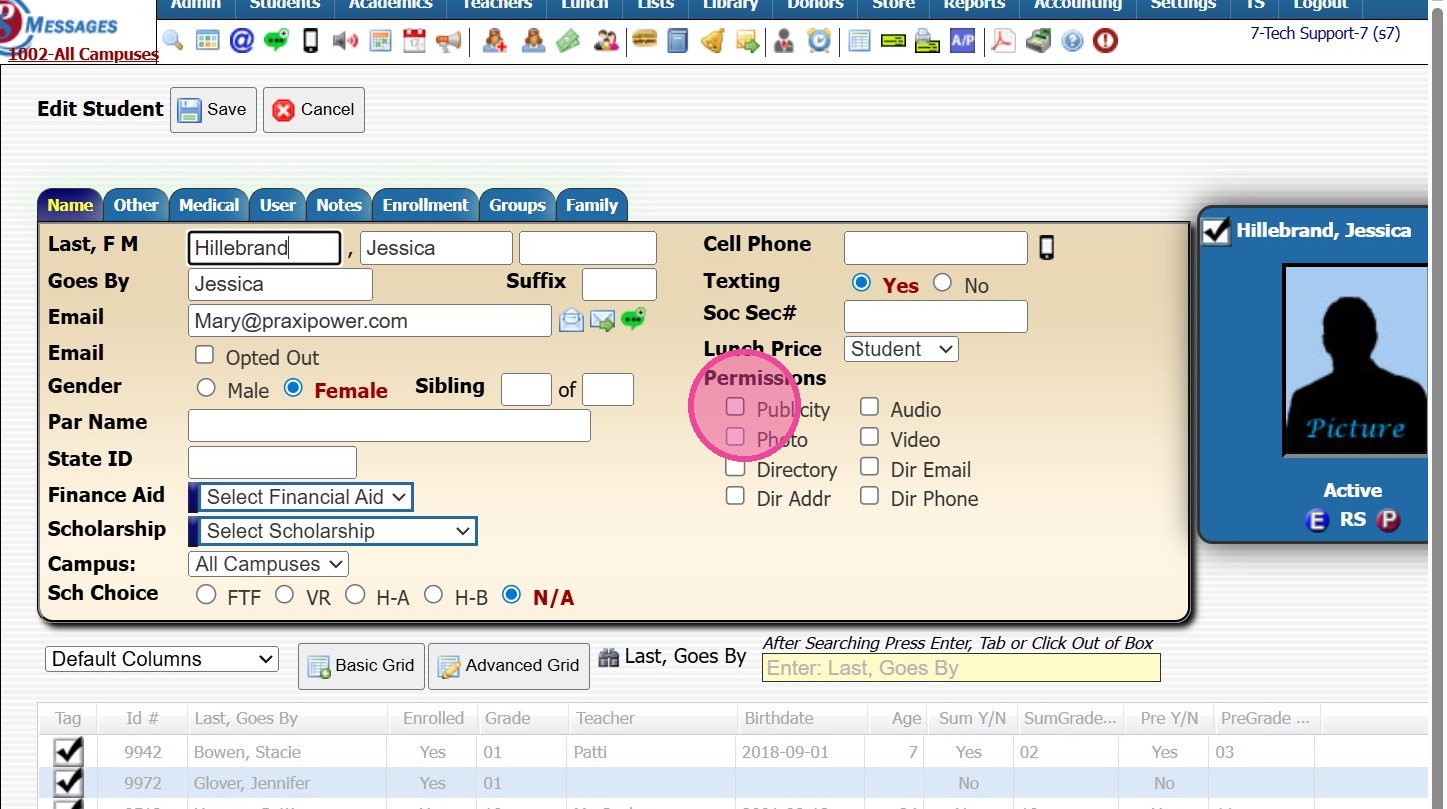
5. Check all Publicity fields that are Allowed.
(Check = yes)
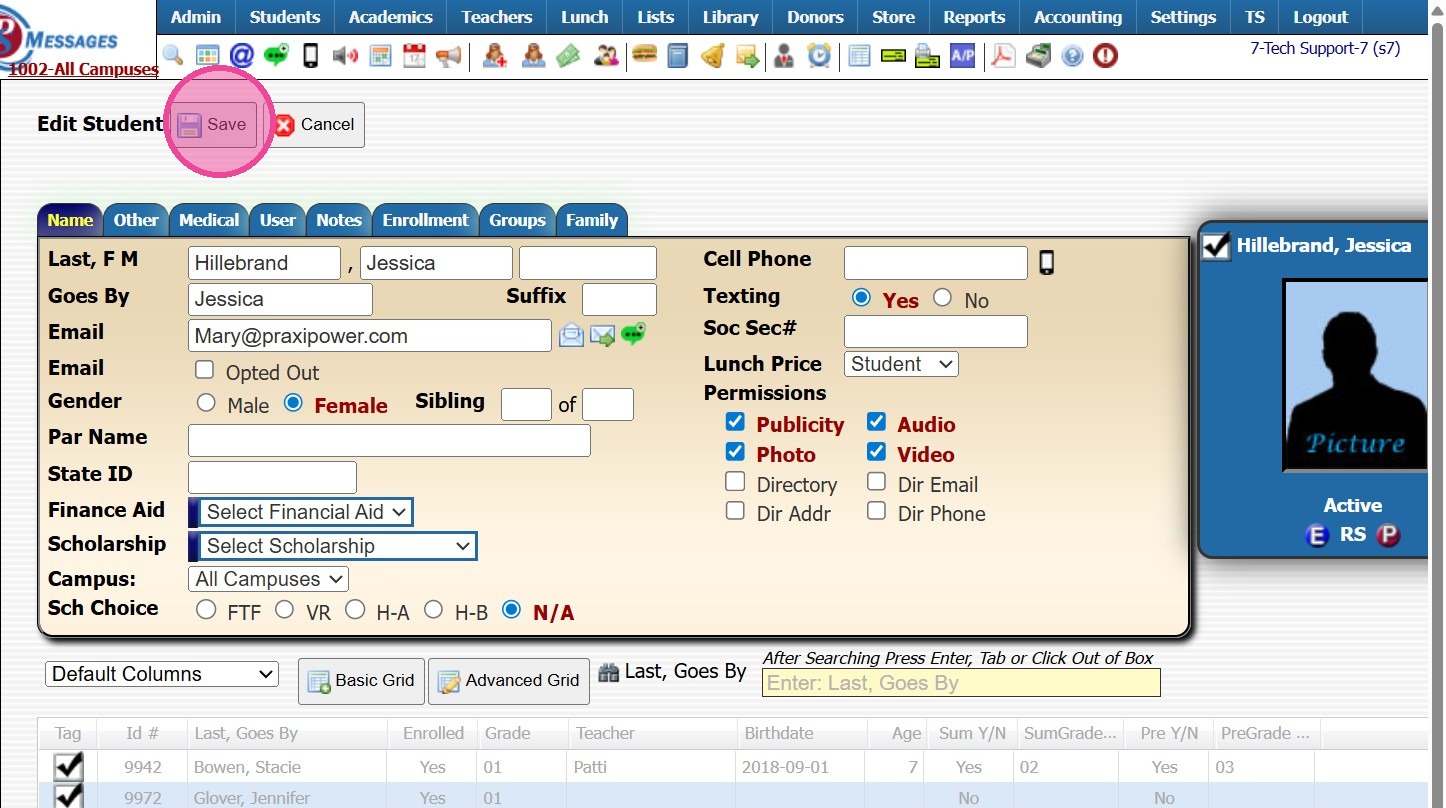
6. Click "Save"
Creating Grid Report and Printing
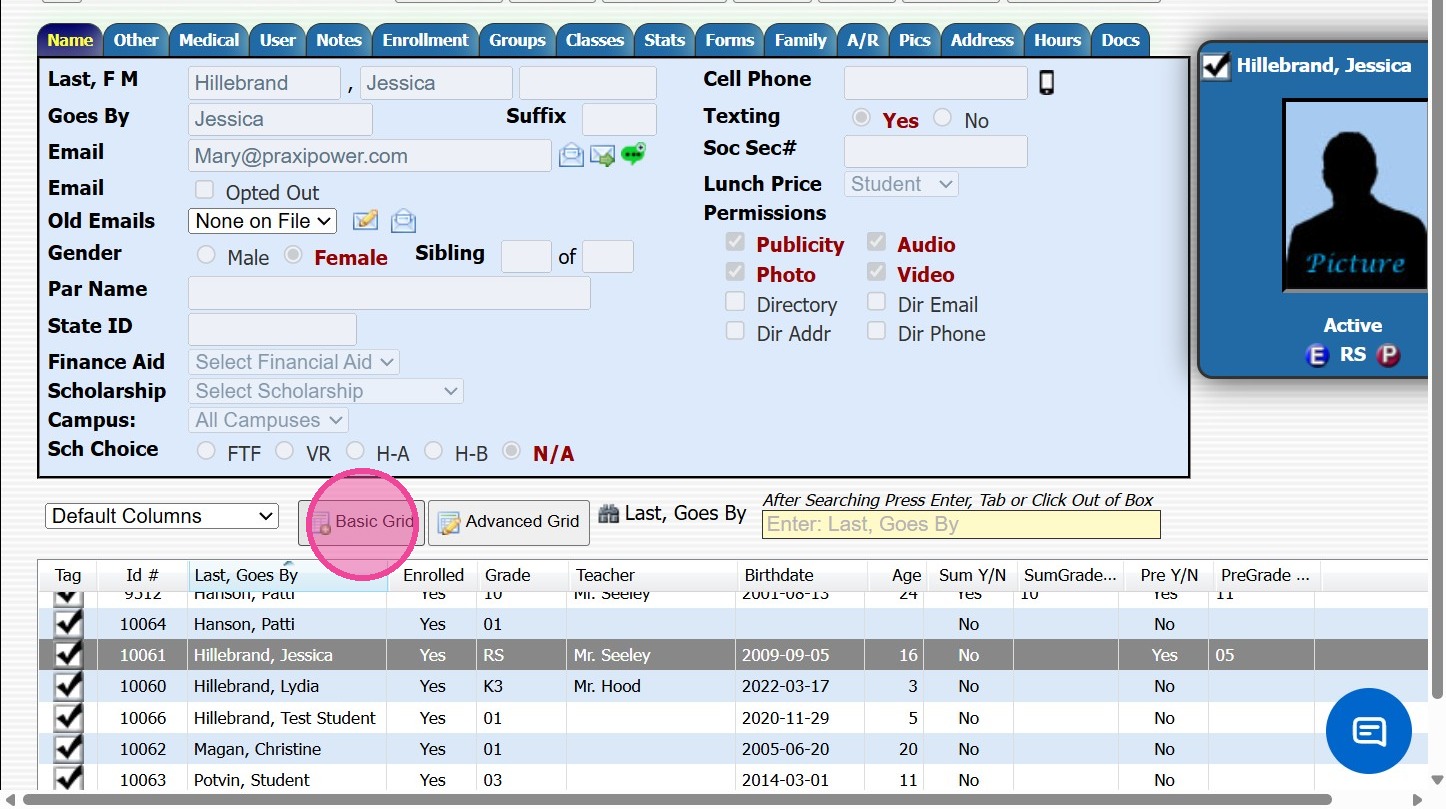
7. Click "Basic Grid"
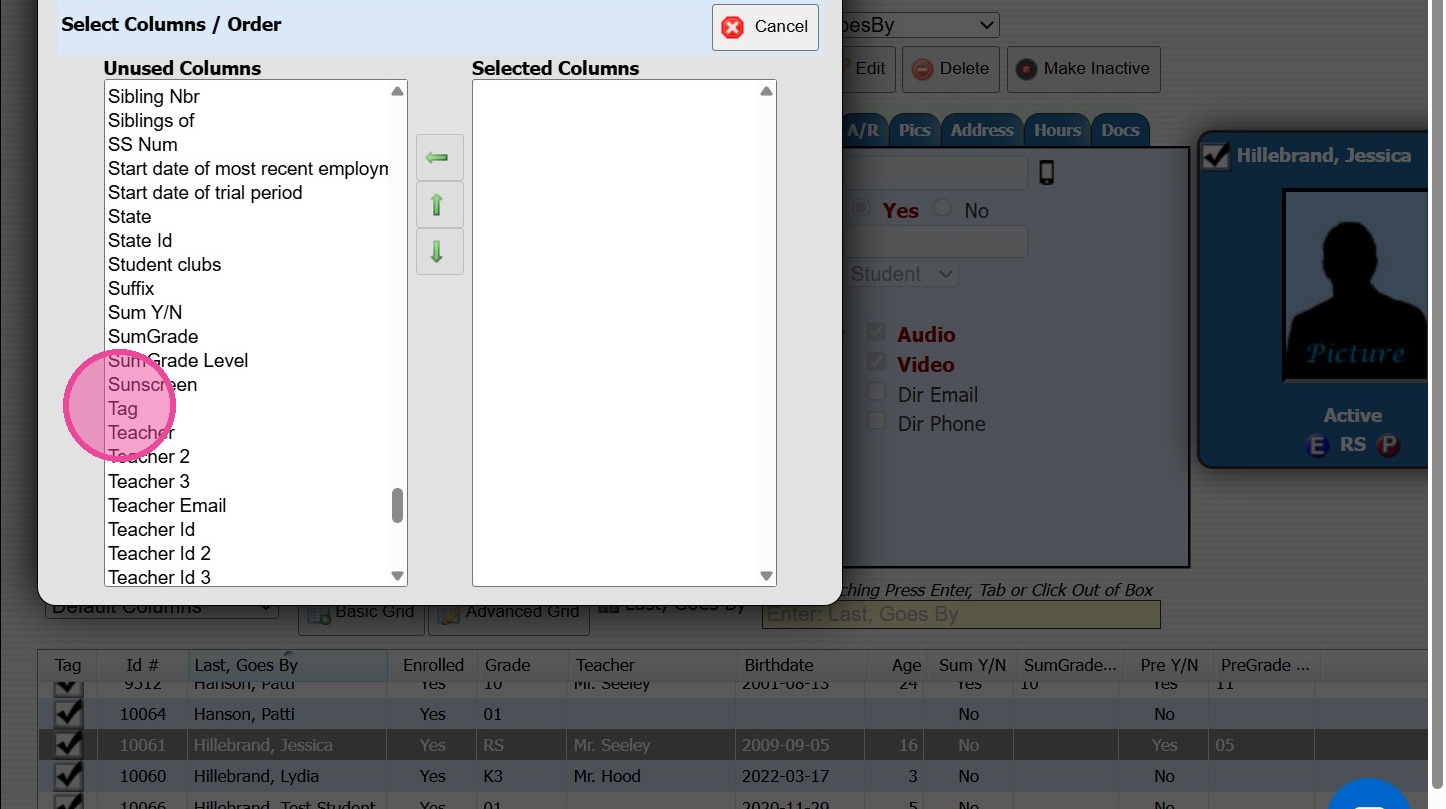
8. Click "Tag"
9. Click "Last, First"
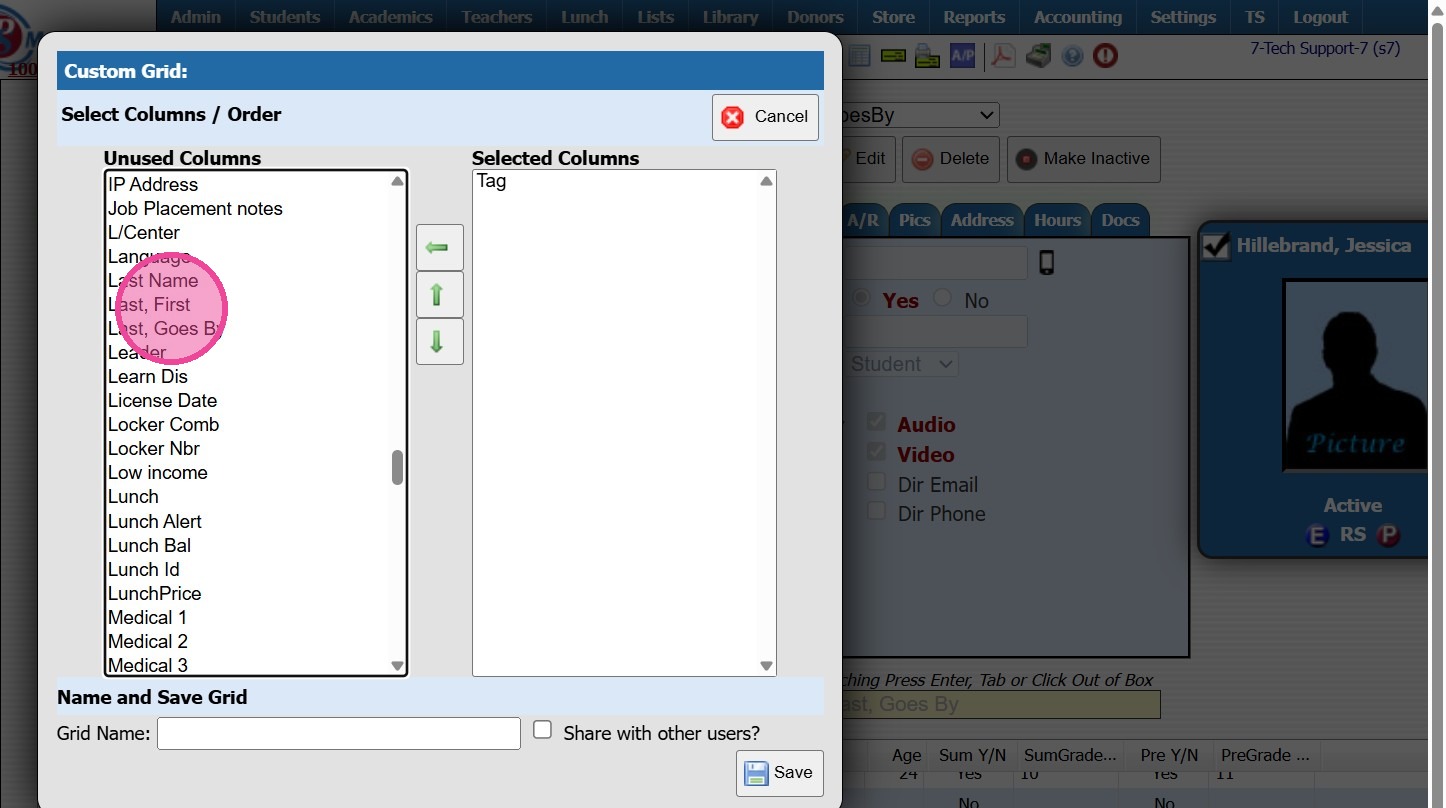
10. Click "Grade"
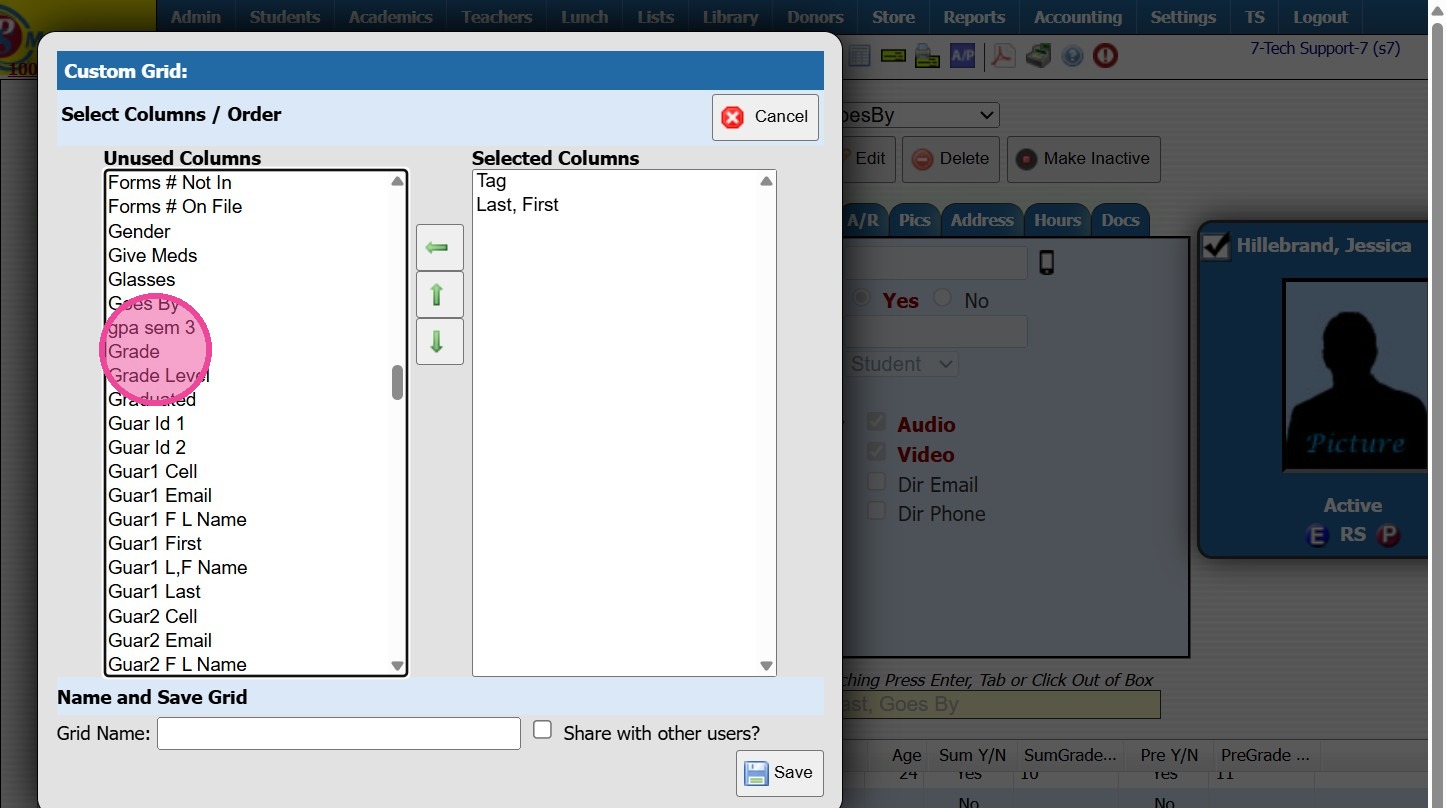
11. Click "Audio"
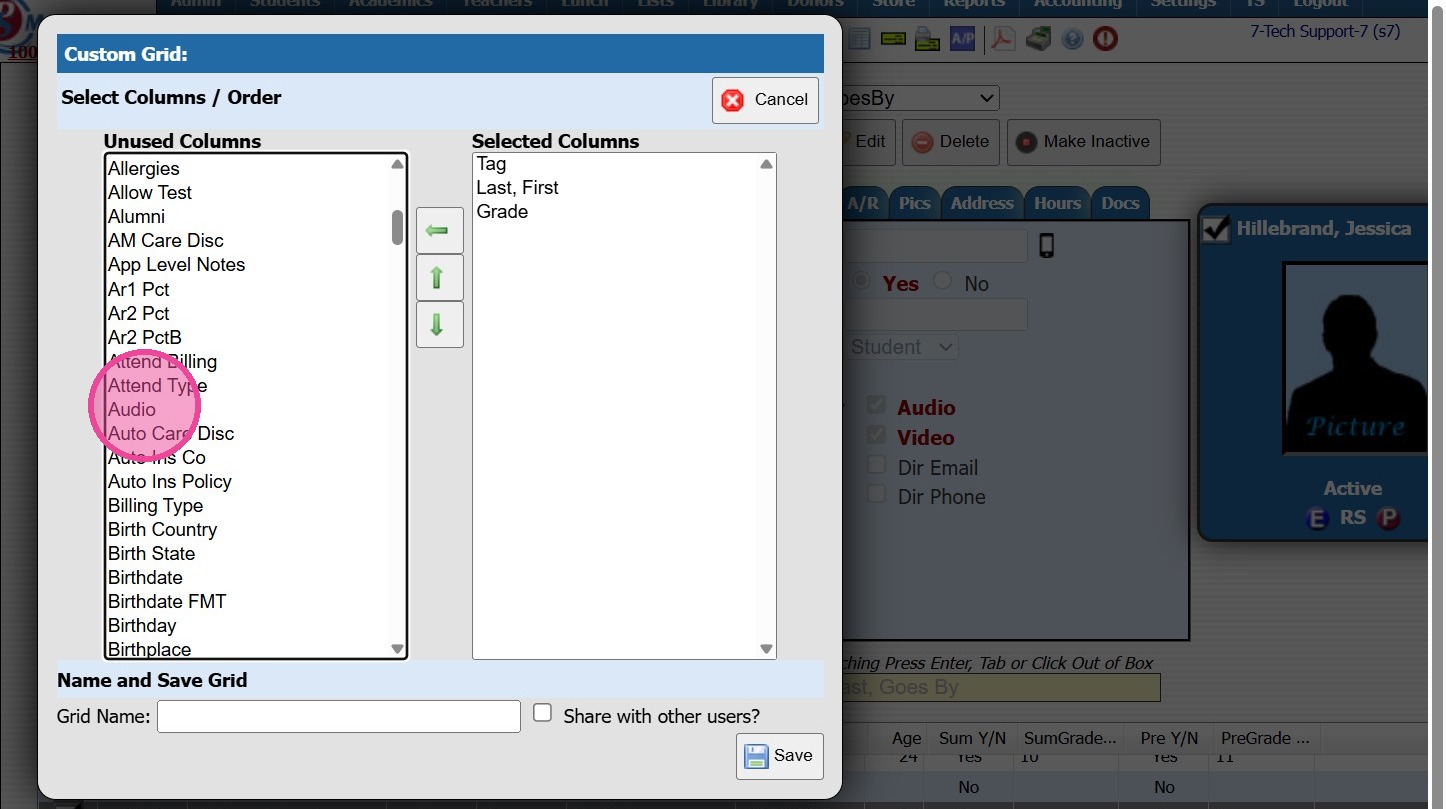
12. Click "Photo"
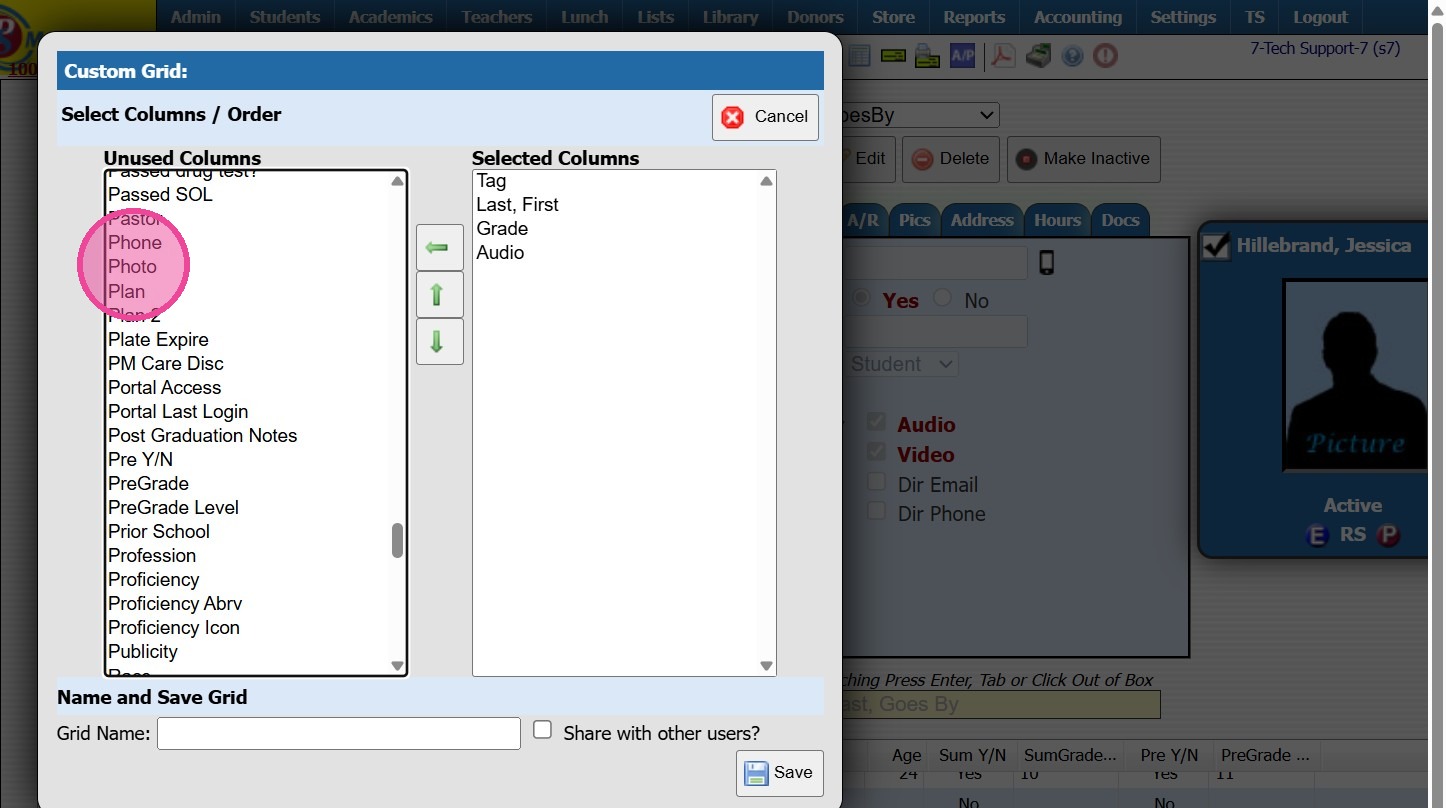
13. Click "Publicity"
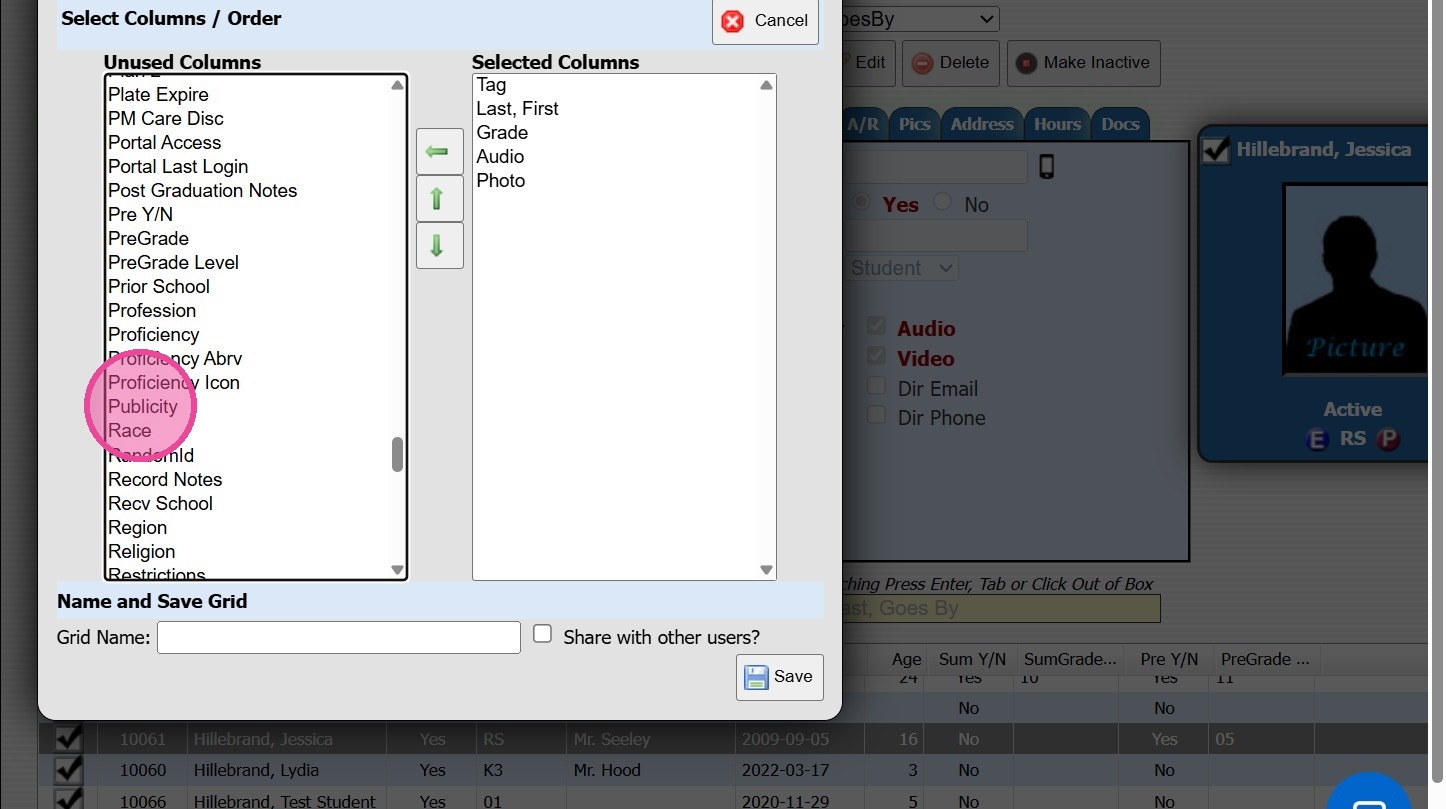
14. Click "Video"
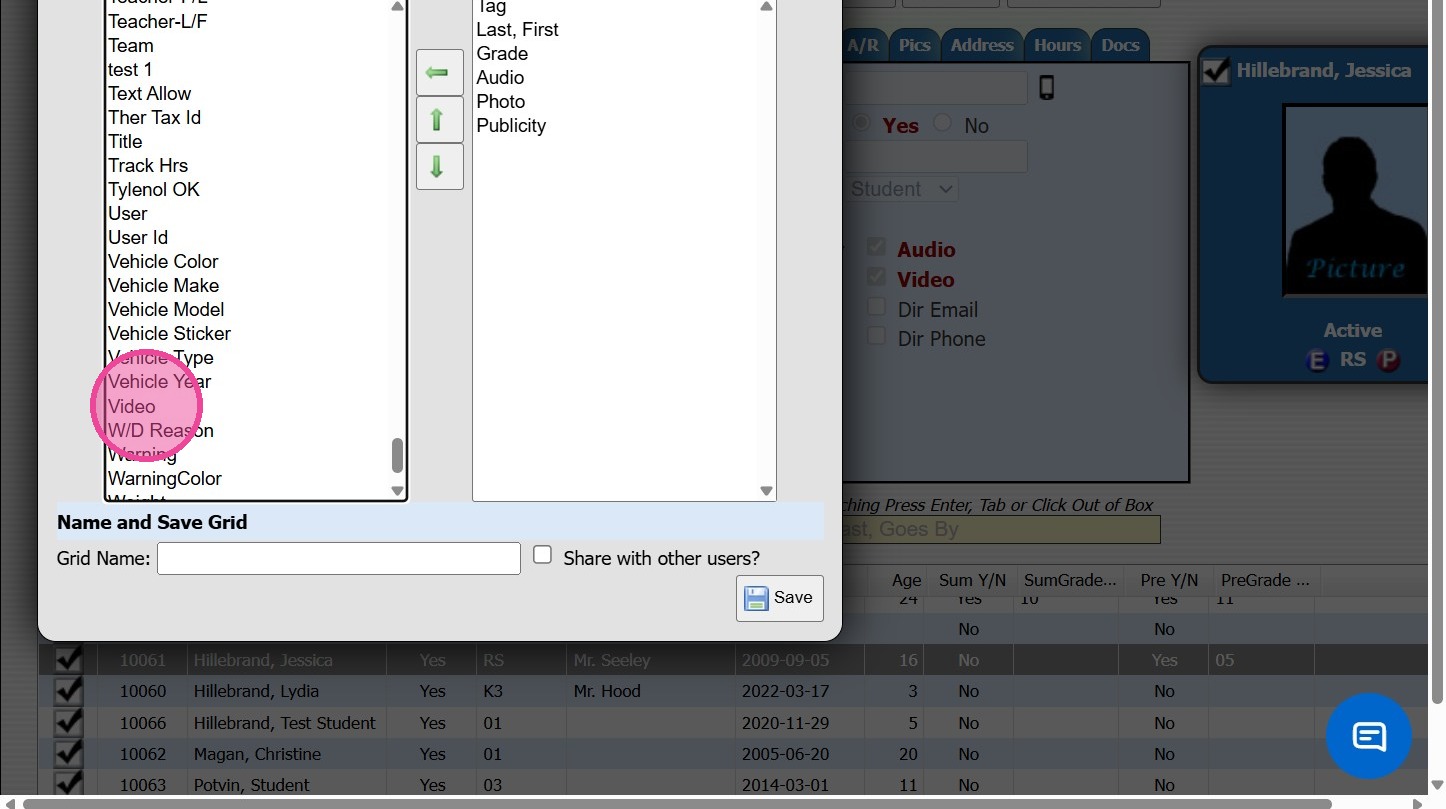
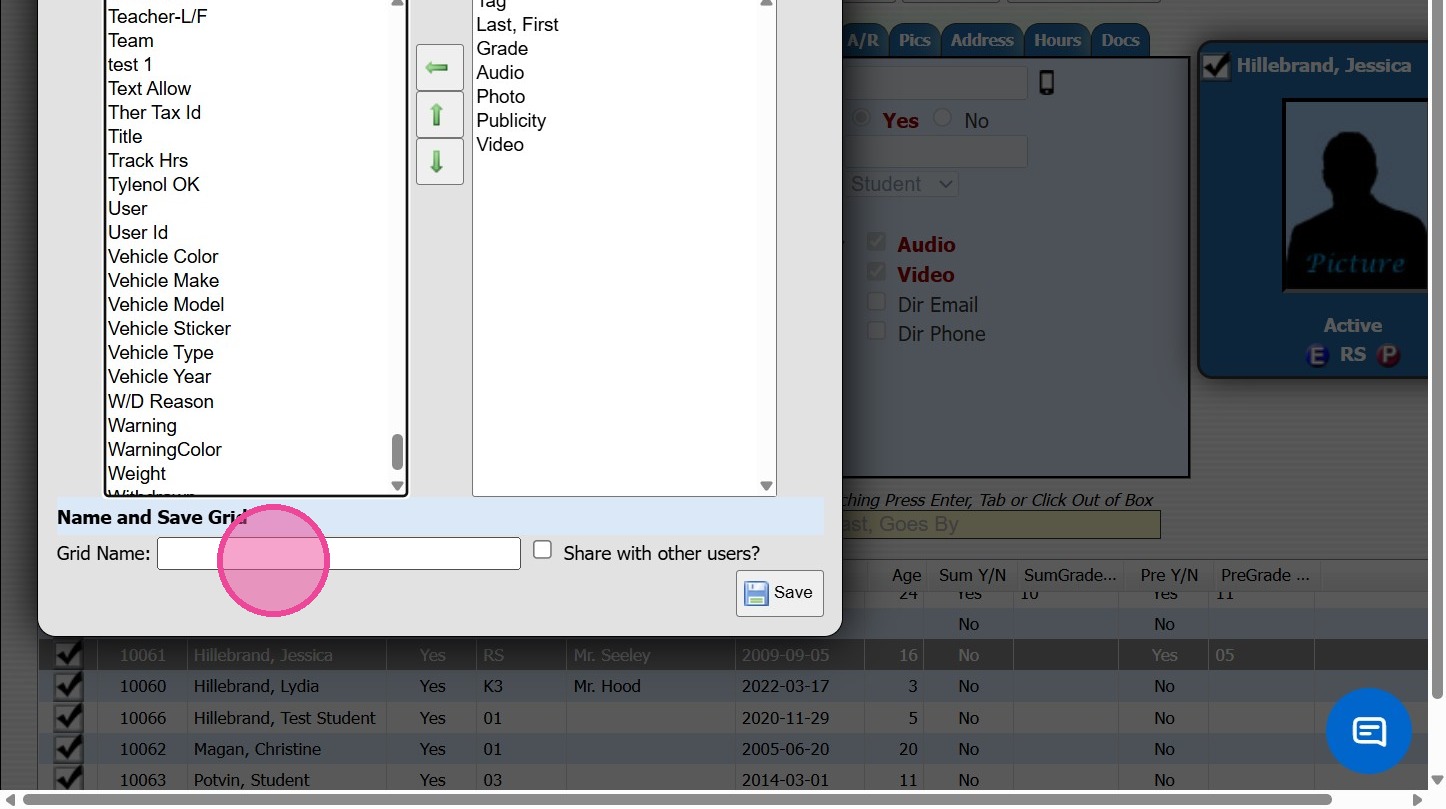
15. Name the grid (Required)
(The Grid will be Saved & allow others to Access the Grid)
16. Click "Save"
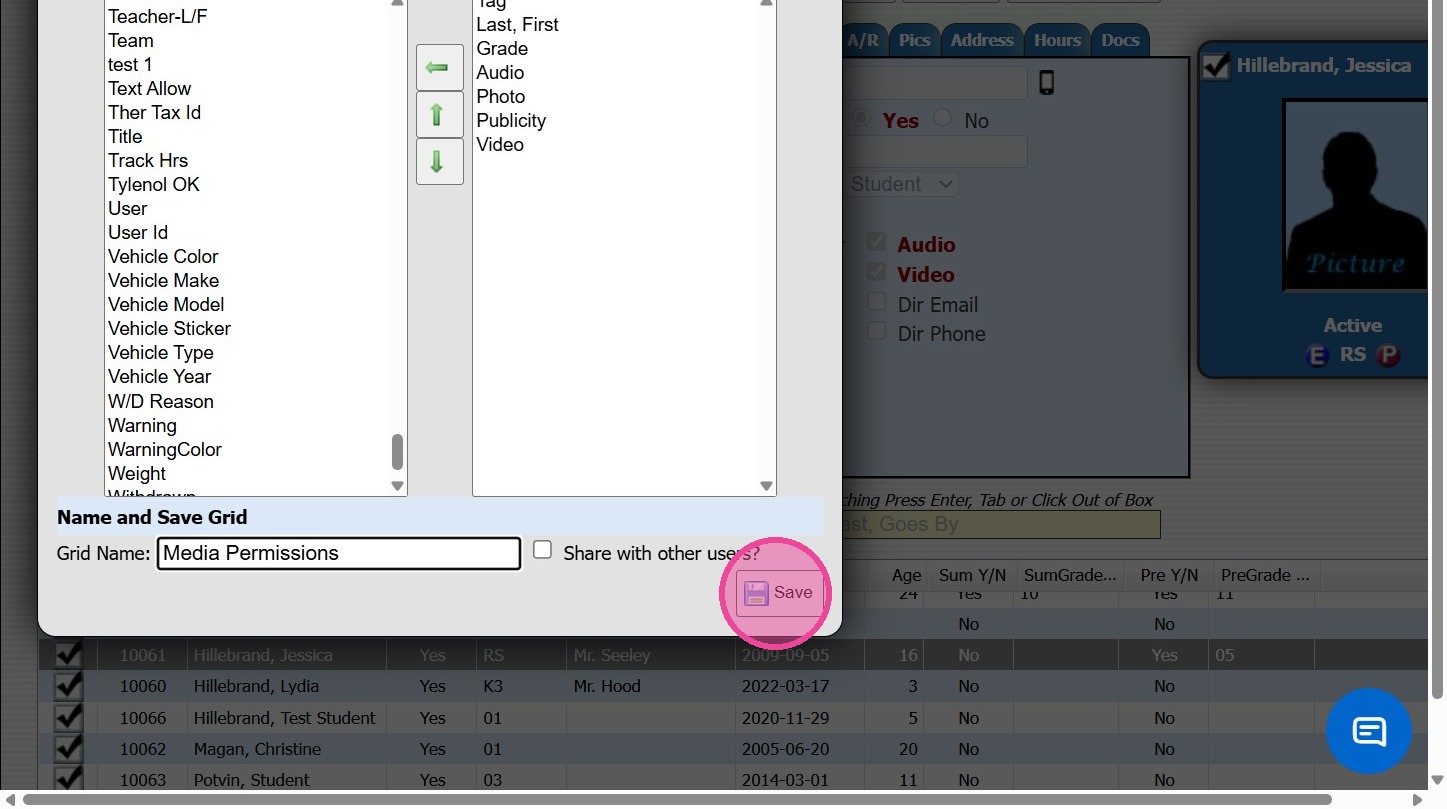
17. The grid report is available in the Dropdown
(To return to the default grid select "Default Grid" from the dropdown)
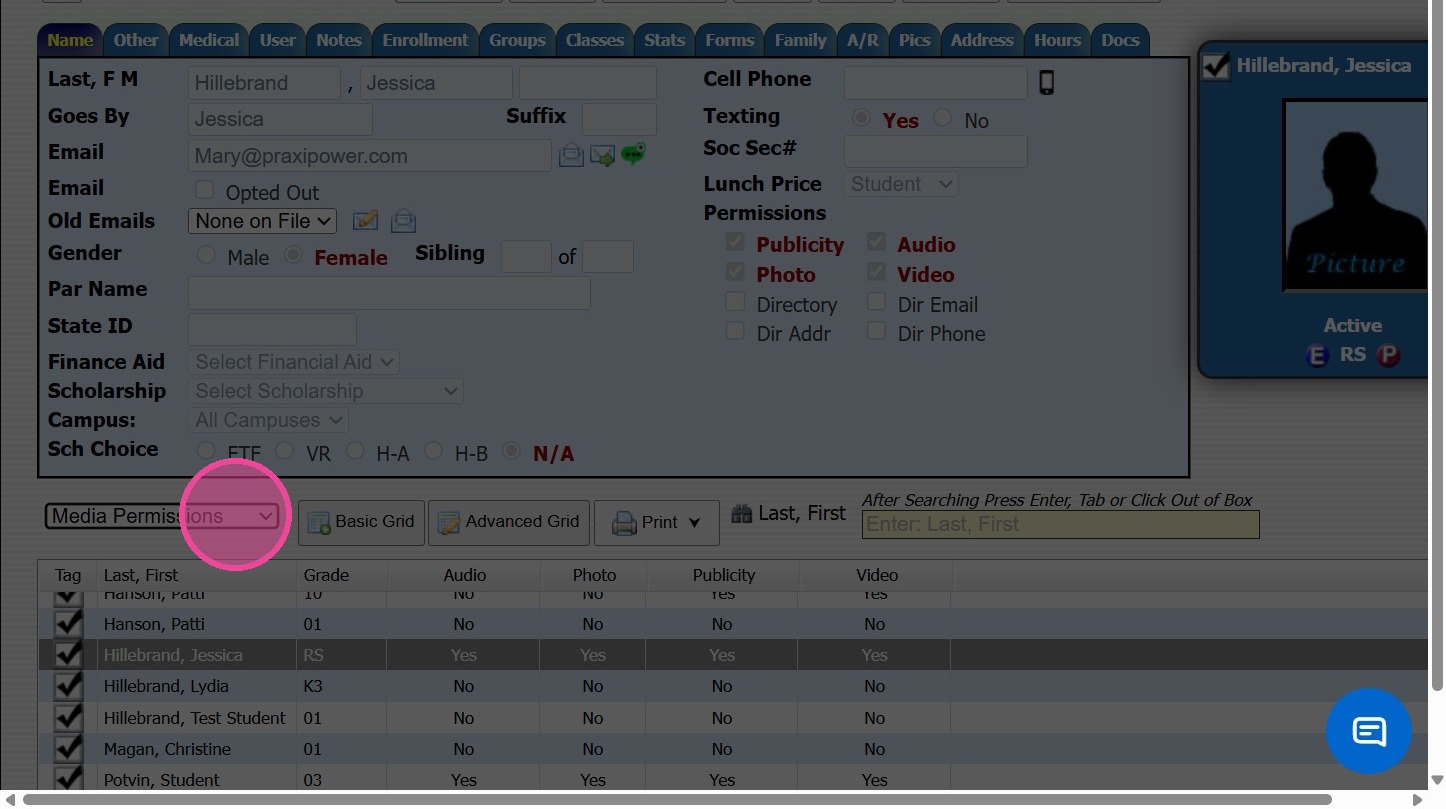
18. Click "Print ⮟"
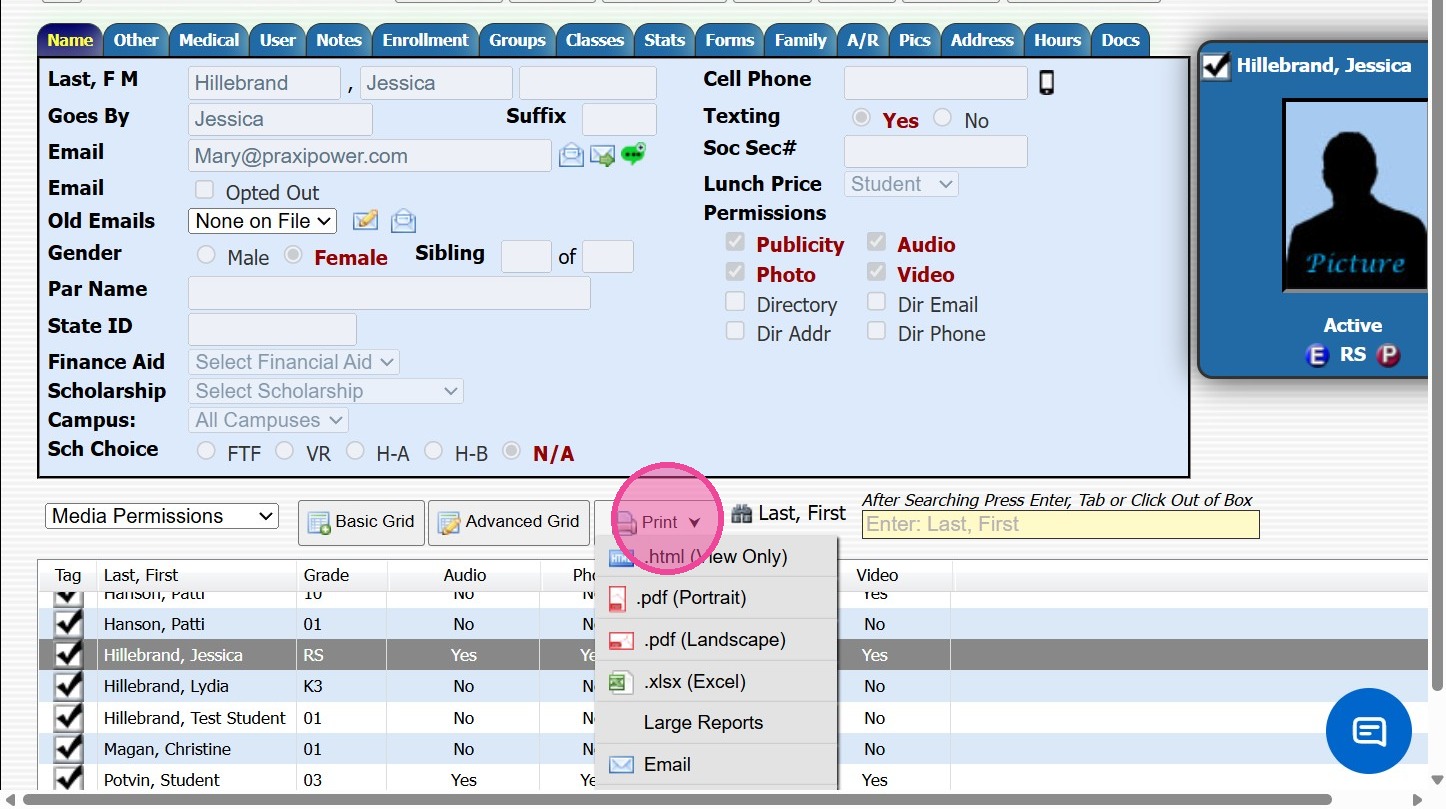
19. Click "Large Reports"
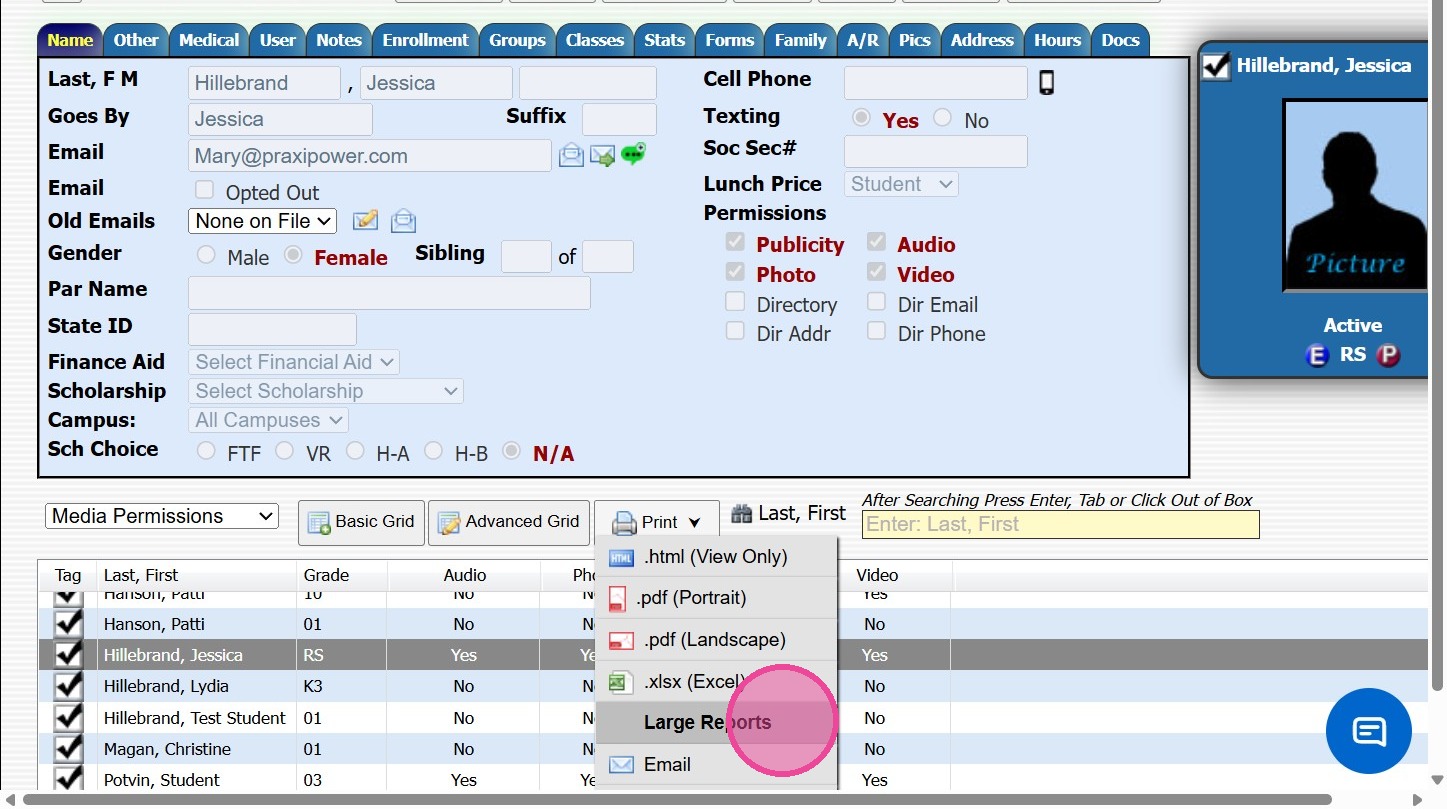
20. Click "Close"
1500.4.25
Related Articles
Printing Student Family Contacts Report
Printing Student Family Contacts Report 1. Click "Reports" 2. Click "Family Contact" 3. Select to Print by Homeroom Teacher, Grade Level or Class 4. Select All to Print for All Homeroom Teacher, Grade Level or Class 5. Report can be printed for one ...Printing Student Family Contacts Report
Printing Student Family Contacts Report 1. Click "Reports" 2. Click "Family Contact" 3. Select to Print by Homeroom Teacher, Grade Level or Class 4. Select All to Print for All Homeroom Teacher, Grade Level or Class 5. Report can be printed for one ...Printing Student Parent Contact (A/R) Report
Printing Student Parent Contact (A/R) Report 1. Click "Reports" 2. Click "Parent Contacts (A/R)" 3. Select to Print by Homeroom Teacher, Grade Level or Class 4. Select All to Print for All Homeroom Teacher, Grade Level or Class 5. Report can be ...Printing the Student Directory
Printing the Student Directory 1. Click "Reports" 2. Click "Student Directory" 3. Select Sort & Filter Options 4. Check "Ignore Directory Preferences" to Print Report based on Administration Preferences Only 5. Select Student Options to Print on ...Printing a Student Barcode Report
1. Click "Students" 2. Click "Students" 3. Click "Actions" 4. Click "Reports" 5. Click "Sign In Sheets" 6. Click "Barcode Report" 7. Select Order By Preference 8. Select For Session Preference 9. Select Student Per Page Option & Other Print Options ...