Using the Tardy Wizard (Icon)
Using the Tardy Wizard (Icon)
1. Click the Tardy Wizard Icon

2. Select Student
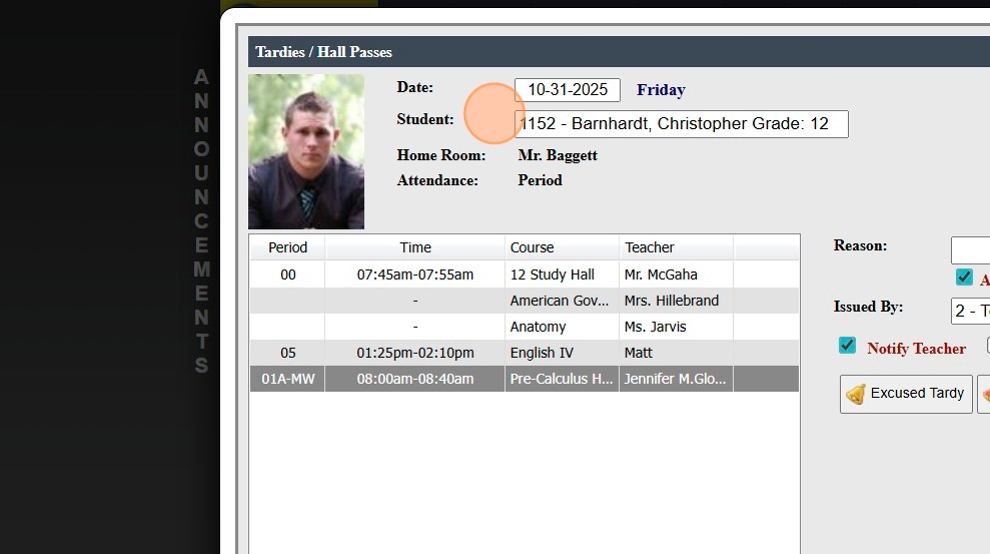
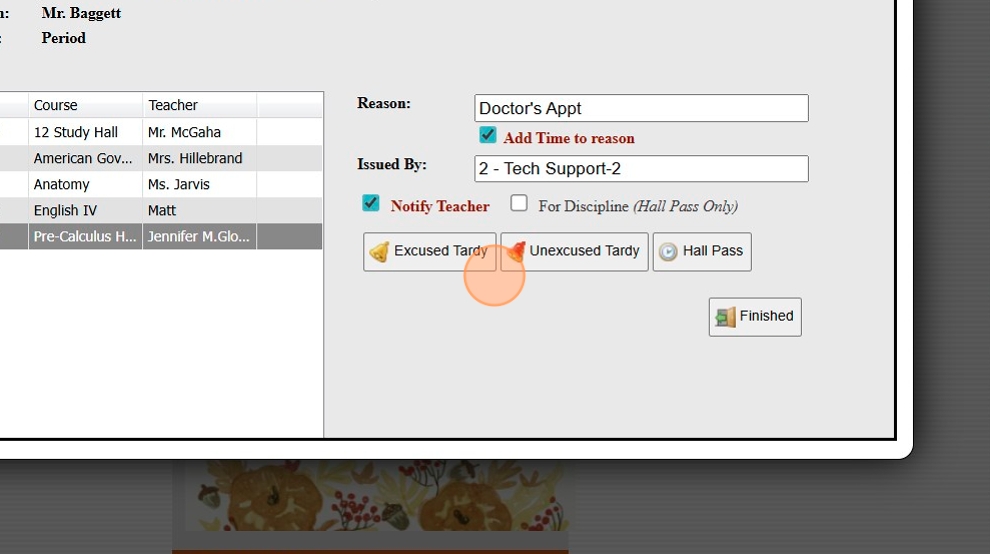
3. Enter Reason (Optional)
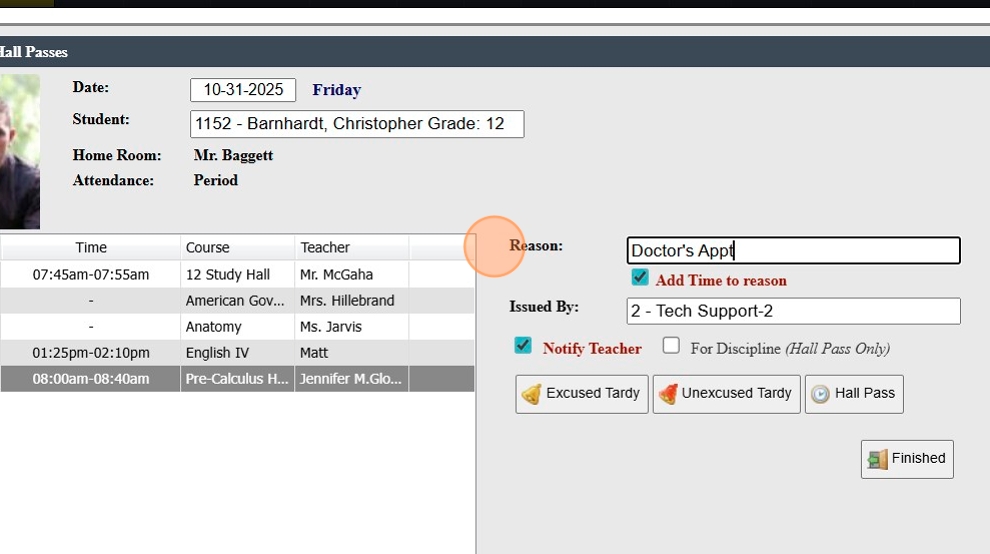
4. Select Class
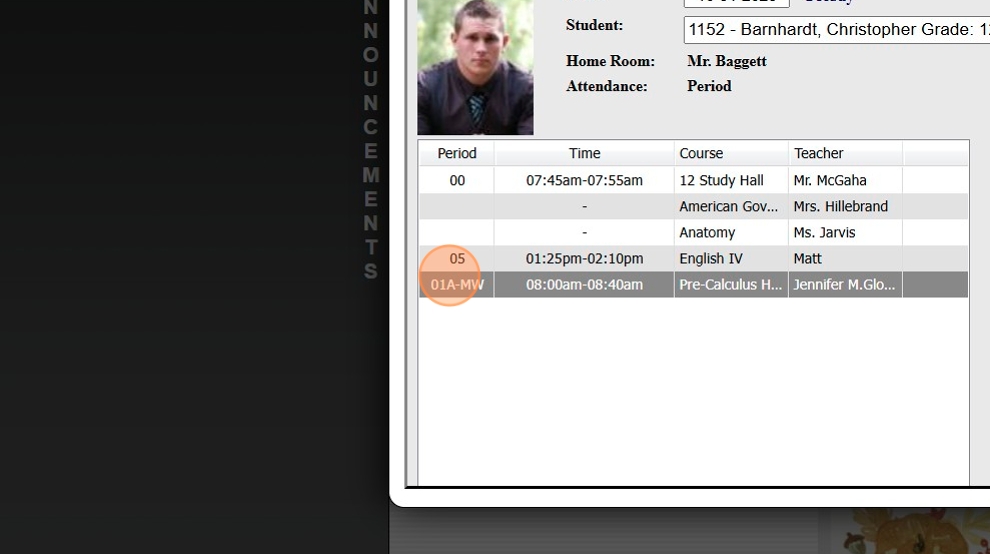
5. Select "Notify Teacher" to Send Teacher a Message
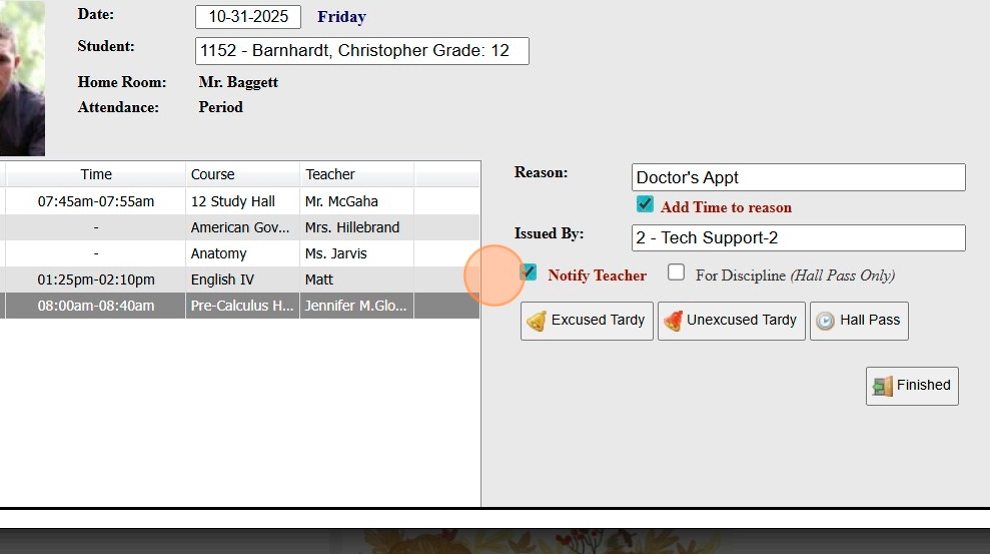
6. Select Excused or Unexcused Tardy
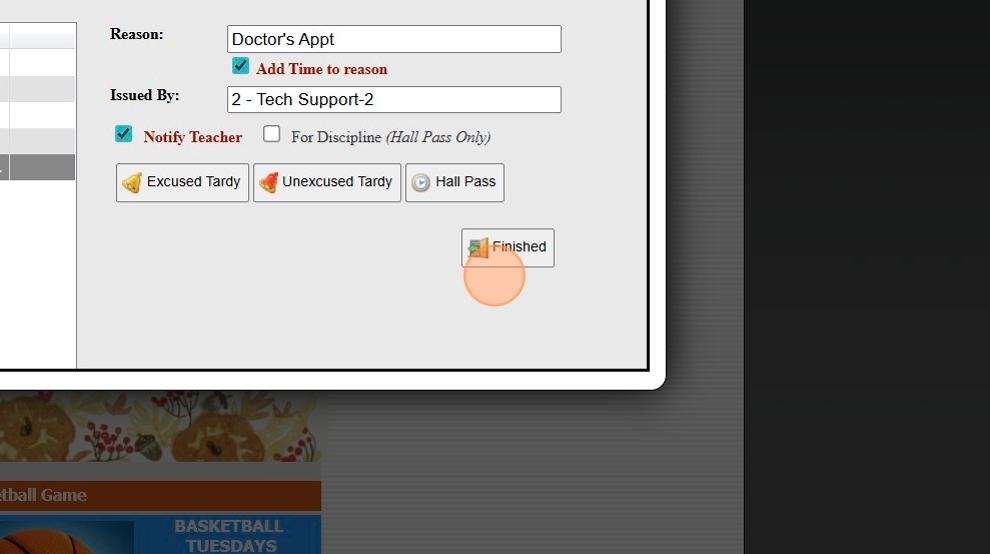
7. Click "Finished"
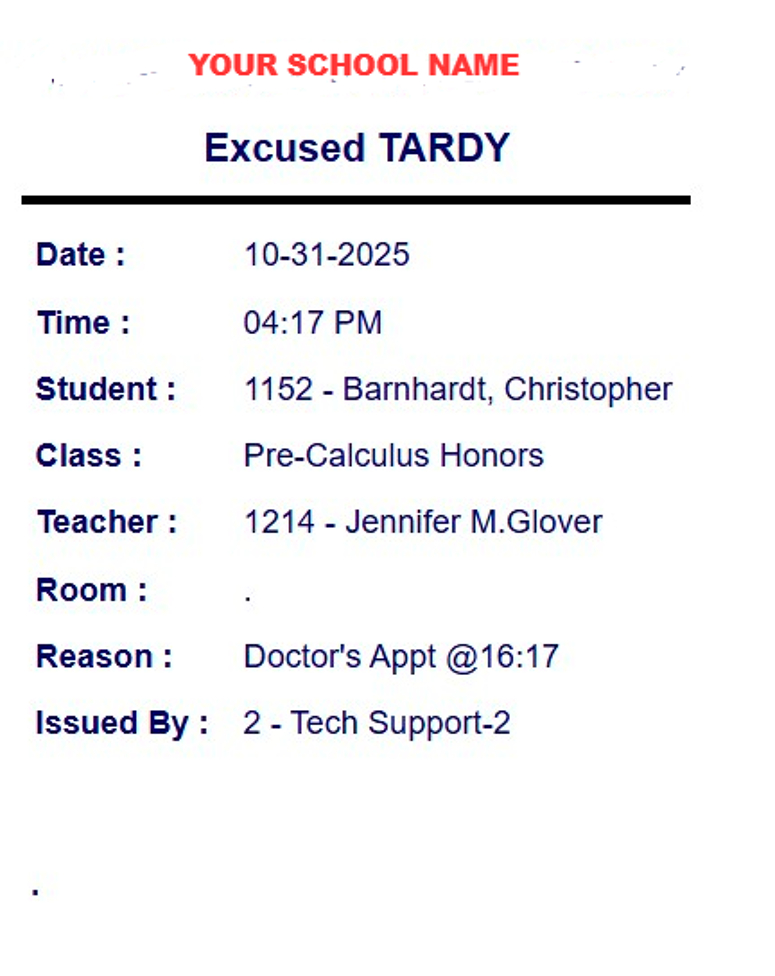
8. Tardy Slip Will Populate to Print
7500.1.16
Related Articles
Using the Tardy Wizard (Attendance Tardy Wizard)
Using the Tardy Wizard (Attendance Tardy Wizard) 1. Click "Academics" 2. Click "Attendance" 3. Click "Tardy Wizard" 4. Select Student 5. Enter Reason (Optional) 6. Select Class 7. Select "Notify Teacher" to Send Teacher a Message 8. Select Excused or ...Icon Toolbar - Student Wizard Icon
Icon Toolbar - Student Wizard Icon Click on the Student Wizard Icon for Quick Access the Student Wizard 7500.1.10Issuing a Hall Pass (Attendance Tardy Wizard)
Issuing a Hall Pass (Attendance Tardy Wizard) 1. Click "Academics" 2. Click "Attendance" 3. Click "Message / Hall Passes" 4. Select Student 5. Select Room From and Room To (Optional) 6. Select Staff to Receive Message 7. Select Message Options: For ...Using the Search Icon on the Toolbar
Using the Search Icon on the Toolbar 1. Click the Search Icon 2. Enter Keyword(s) to Search Database Screens 3. Select Database Screen from Dropdown & Click " [[Enter]]" 4. Search Moves to Selected Database Screen 5. 7500.1.1Pre-Register Students to Next Grade Level Using the Promotion Wizard
Pre-Register Students to Next Grade Level Using the Promotion Wizard 1. Log into PraxiSchool 2. Click "Academics" 3. Click "Grades Tasks" 4. Click "Promote Students" 5. Set the Effective Date 6. Select Grade Level From and Grade Level To 7. Select ...