Using the Feedback Option
1. Log into Praxi
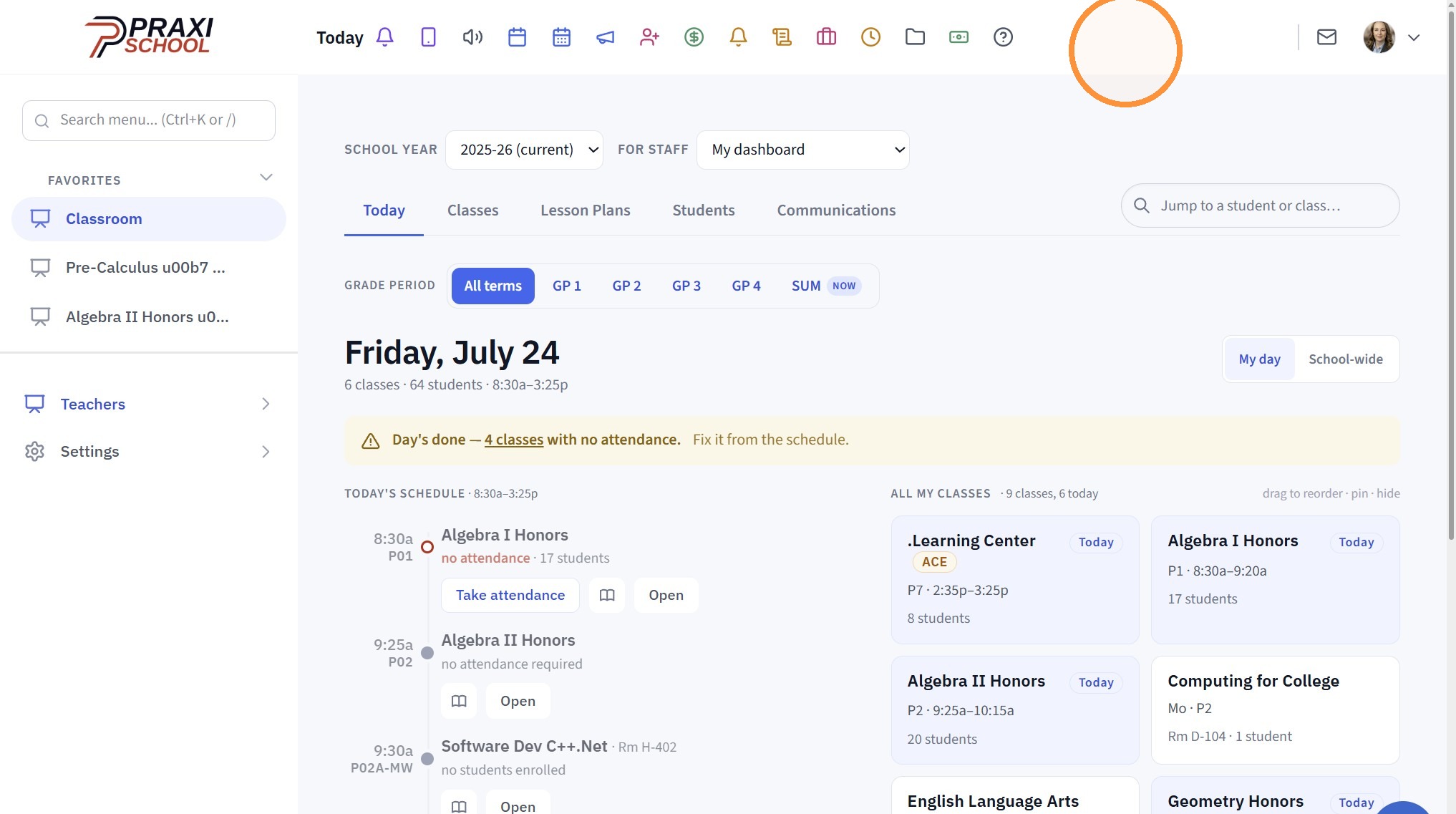
2. Click Icon with the Staff Picture OR Staff Initials
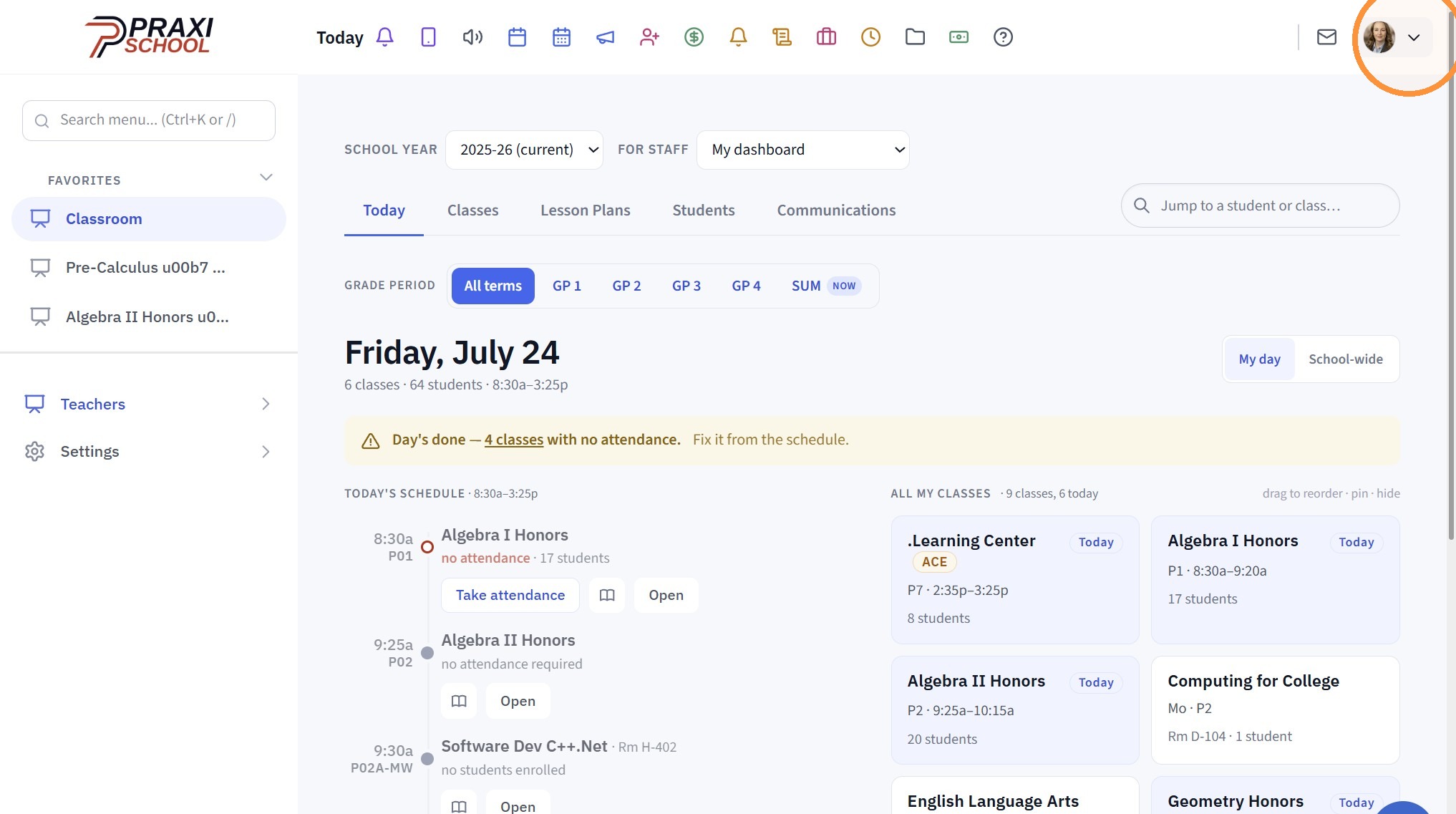
3. Click "Send Feedback"
(Ctrl+Shift+F can also be used)
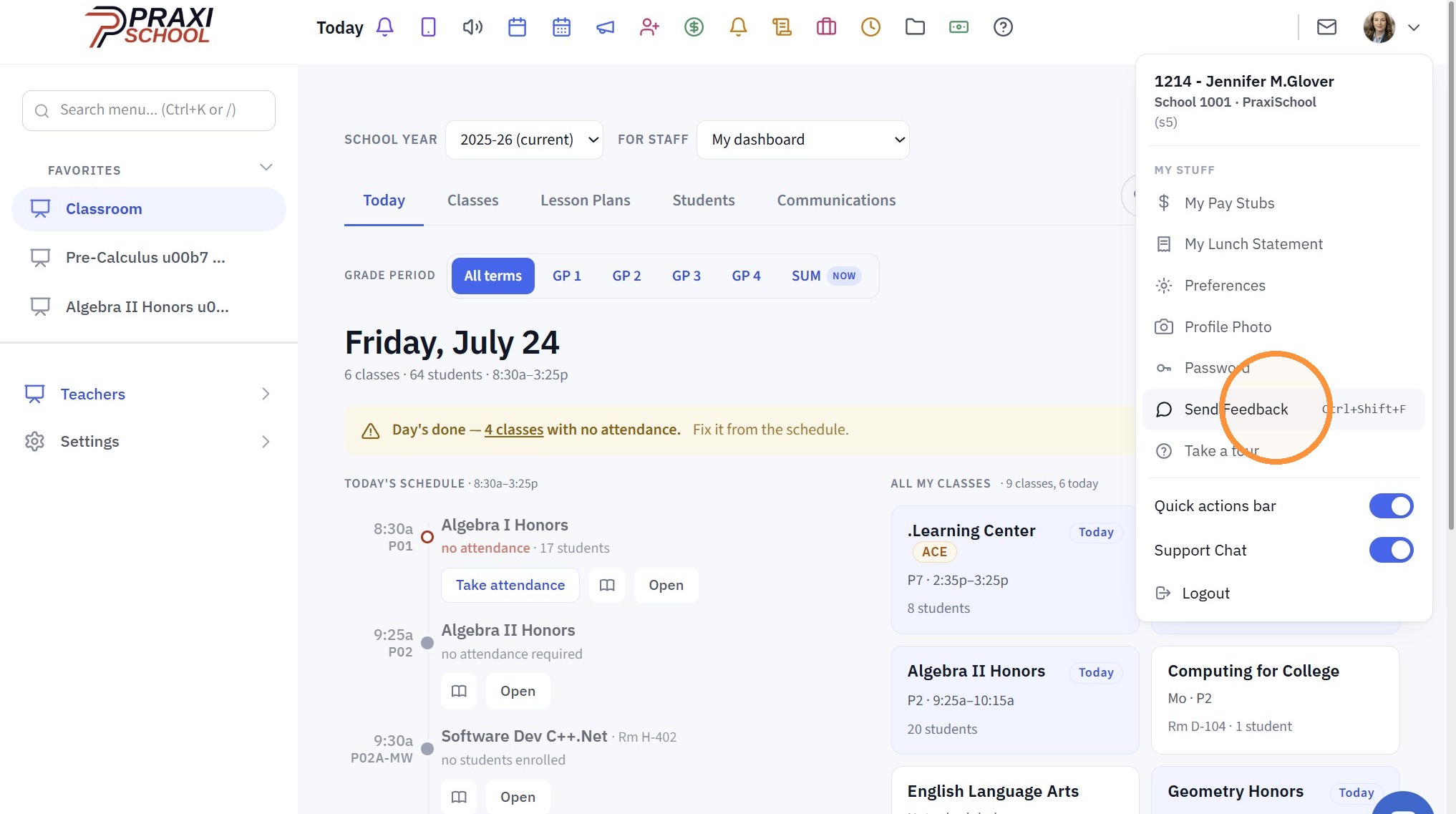
4. Click "Continue" & "Allow"
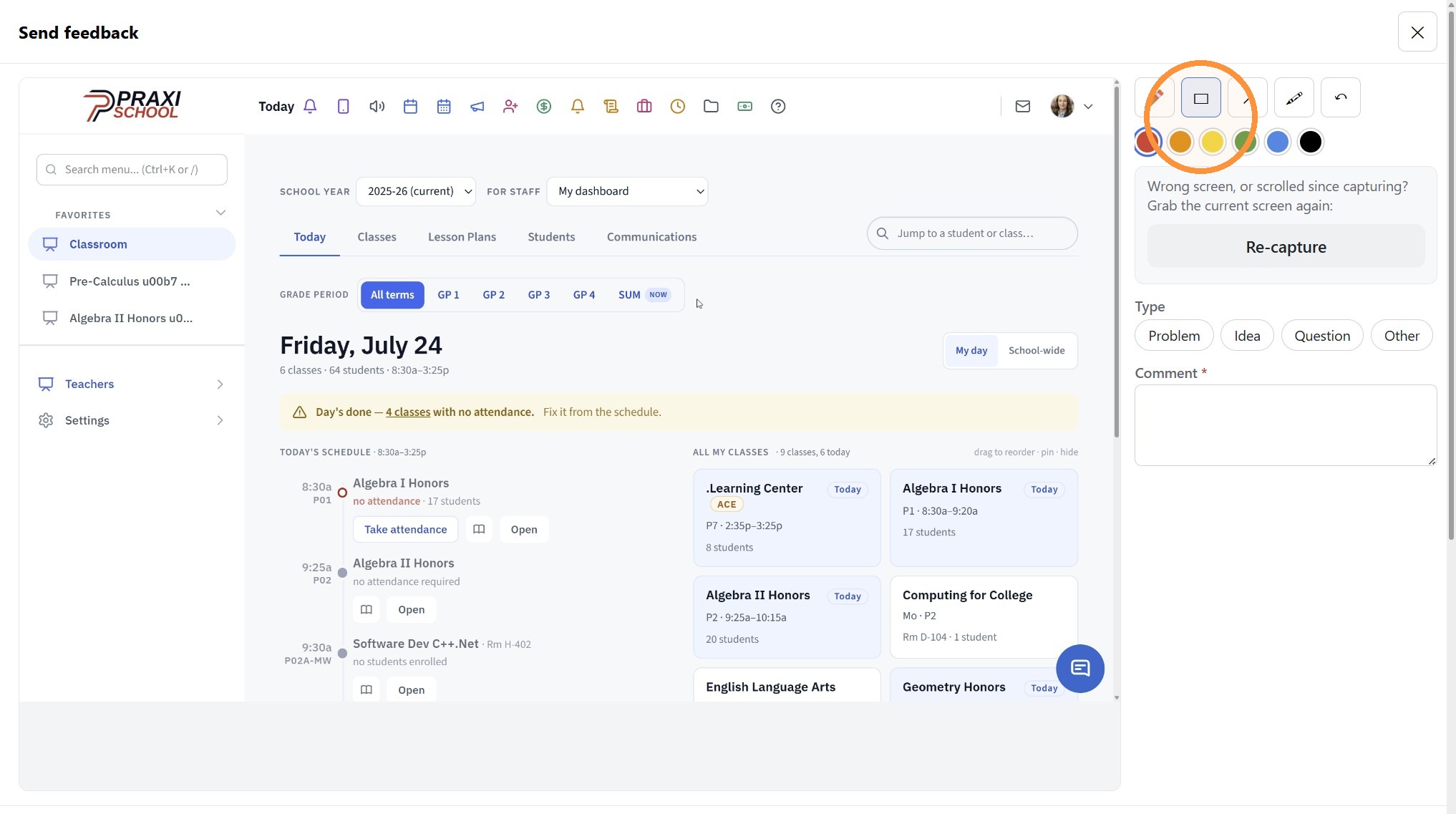
5. Use Tools to Draw, Create a Box around Specific Items, an Arrow to Point to a Specific Item
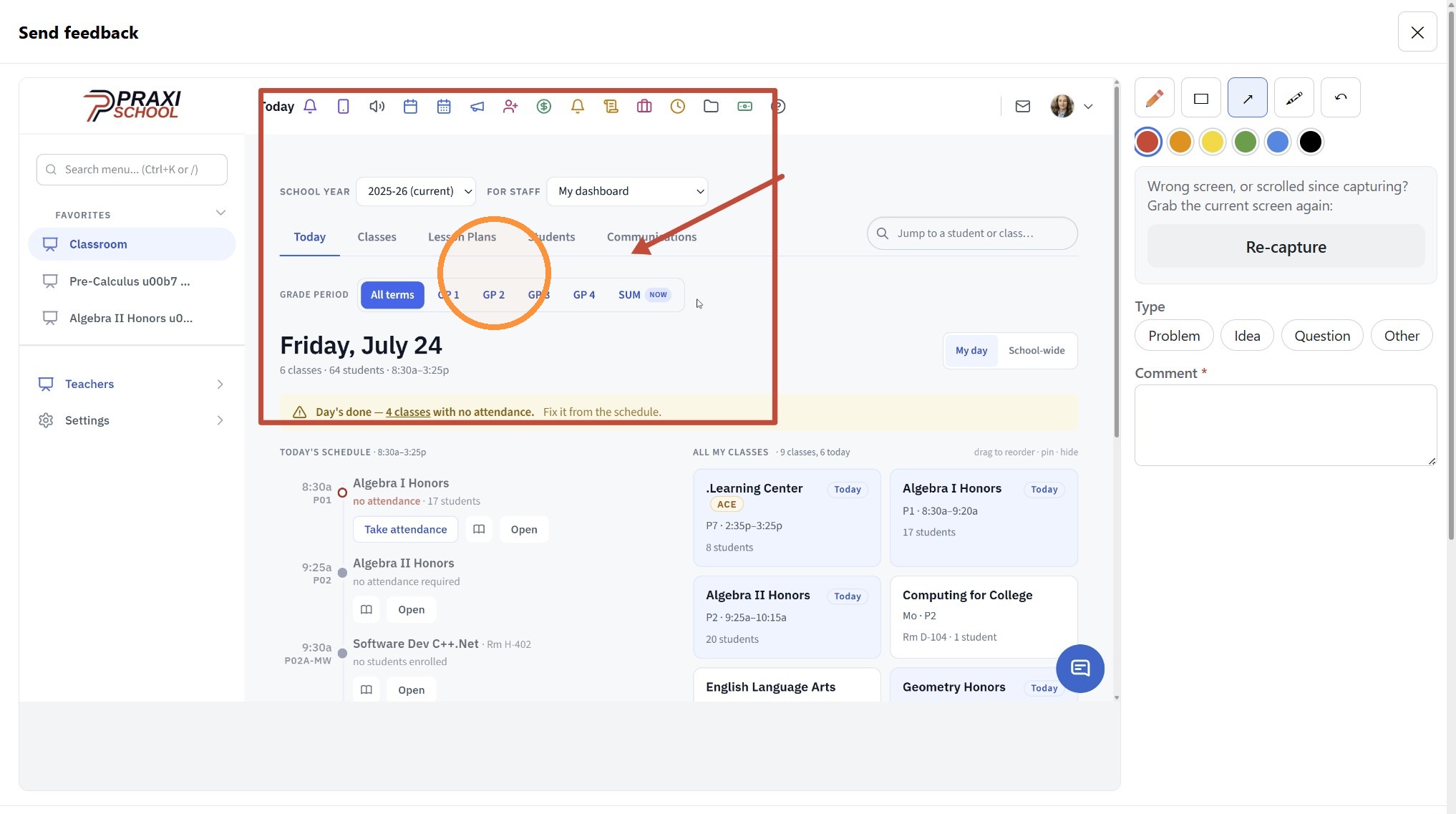
6. Example View of Screen Selections with an Arrow
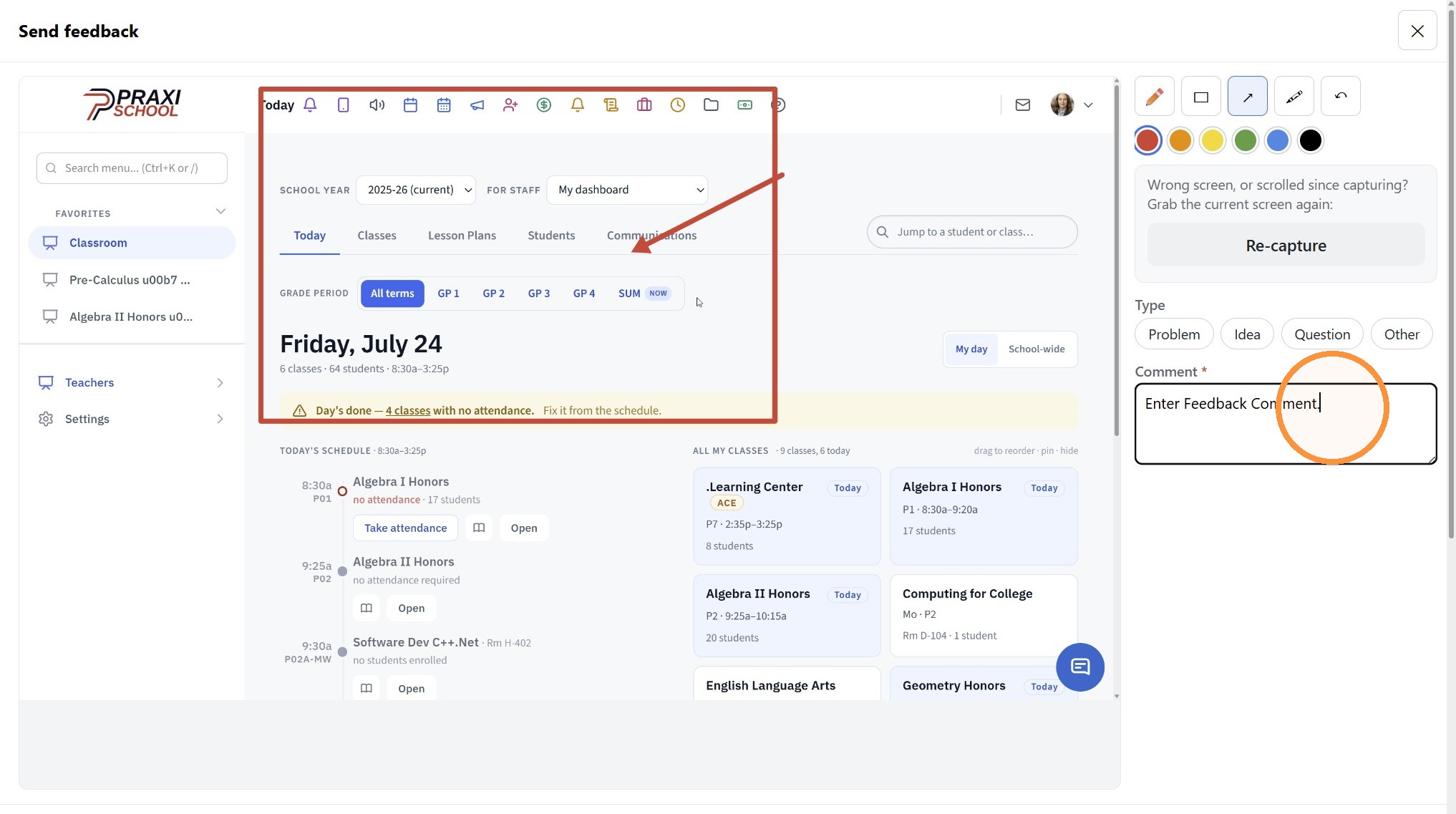
7. Enter Feedback Comment in the Comment box
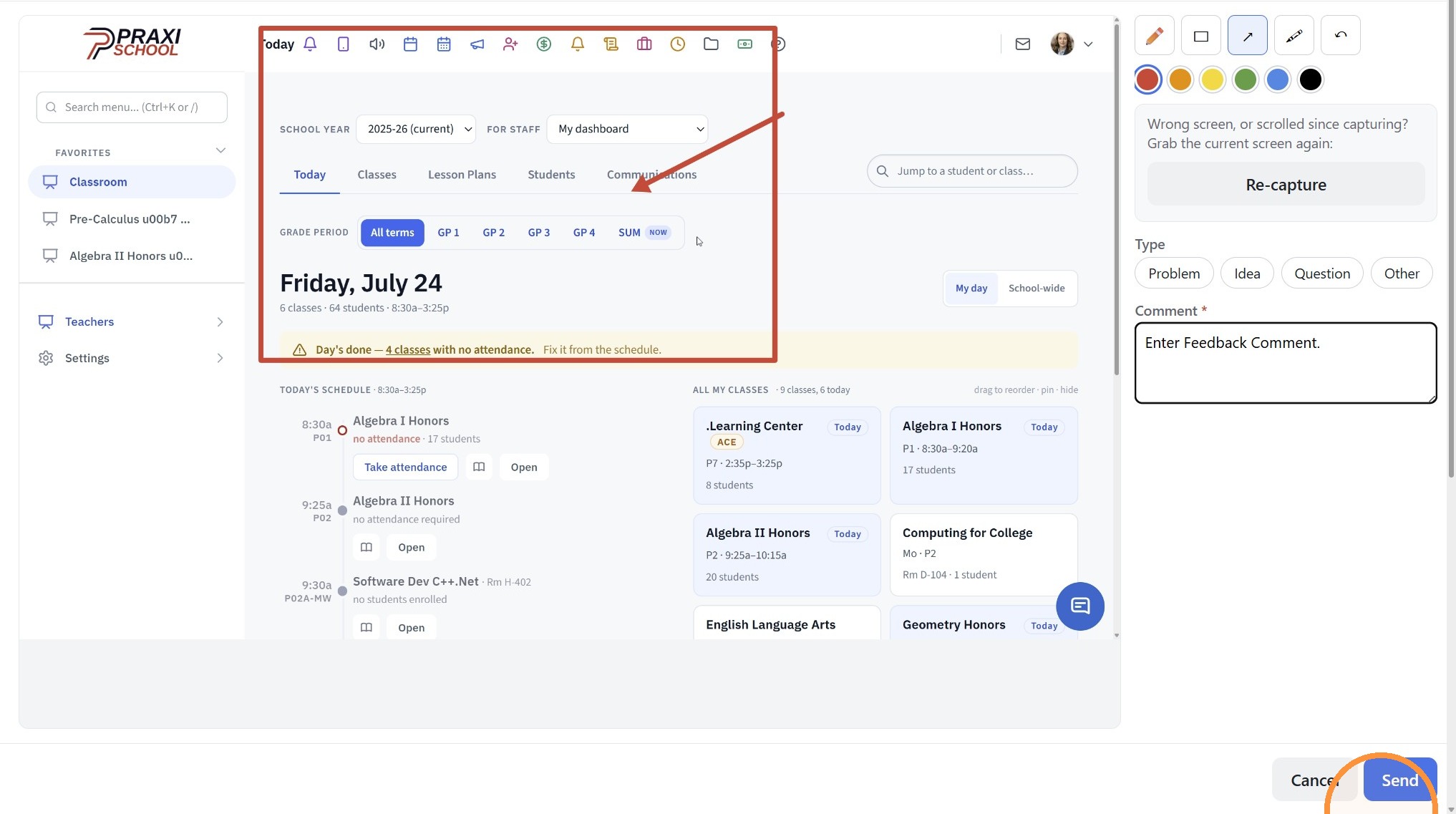
8. Click "Send"
Related Articles
Using the Tardy Wizard (Icon)
Using the Tardy Wizard (Icon) 1. Click the Tardy Wizard Icon 2. Select Student 3. Enter Reason (Optional) 4. Select Class 5. Select "Notify Teacher" to Send Teacher a Message 6. Select Excused or Unexcused Tardy 7. Click "Finished" 8. Tardy Slip Will ...Using the Tardy Wizard (Attendance Tardy Wizard)
Using the Tardy Wizard (Attendance Tardy Wizard) 1. Click "Academics" 2. Click "Attendance" 3. Click "Tardy Wizard" 4. Select Student 5. Enter Reason (Optional) 6. Select Class 7. Select "Notify Teacher" to Send Teacher a Message 8. Select Excused or ...Email Options - Using Friendly Name, Que Processing Notification Options & Suppressing Duplicate Emails
Sending School Wide Email Blasts Tip: School Wide Email Blasts can now be Accessed from the Icon Toolbar OR from the Admin Tab! Icon Toolbar Option 1. Click the "@" Icon Admin Tab Option 2. Click "Admin" 3. Click "Tasks" 4. Click "Send School Wide ...Using the Search Icon on the Toolbar
Using the Search Icon on the Toolbar 1. Click the Search Icon 2. Enter Keyword(s) to Search Database Screens 3. Select Database Screen from Dropdown & Click " [[Enter]]" 4. Search Moves to Selected Database Screen 5. 7500.1.1Creating Student Email Address Using School Domain
Creating Student Email Address Using School Domain 1. Click "Students" 2. Click "Students" 3. Click "Batch Tag" 4. Batch Tag by Grade Level or for All Grade Levels 5. Click "Tag Students" 6. Click "Close & Set Filter" 7. Click "Actions" 8. Click ...