Setting up Recurring Payments from the Student Portal
1. Navigate to the Student Portal & Log In
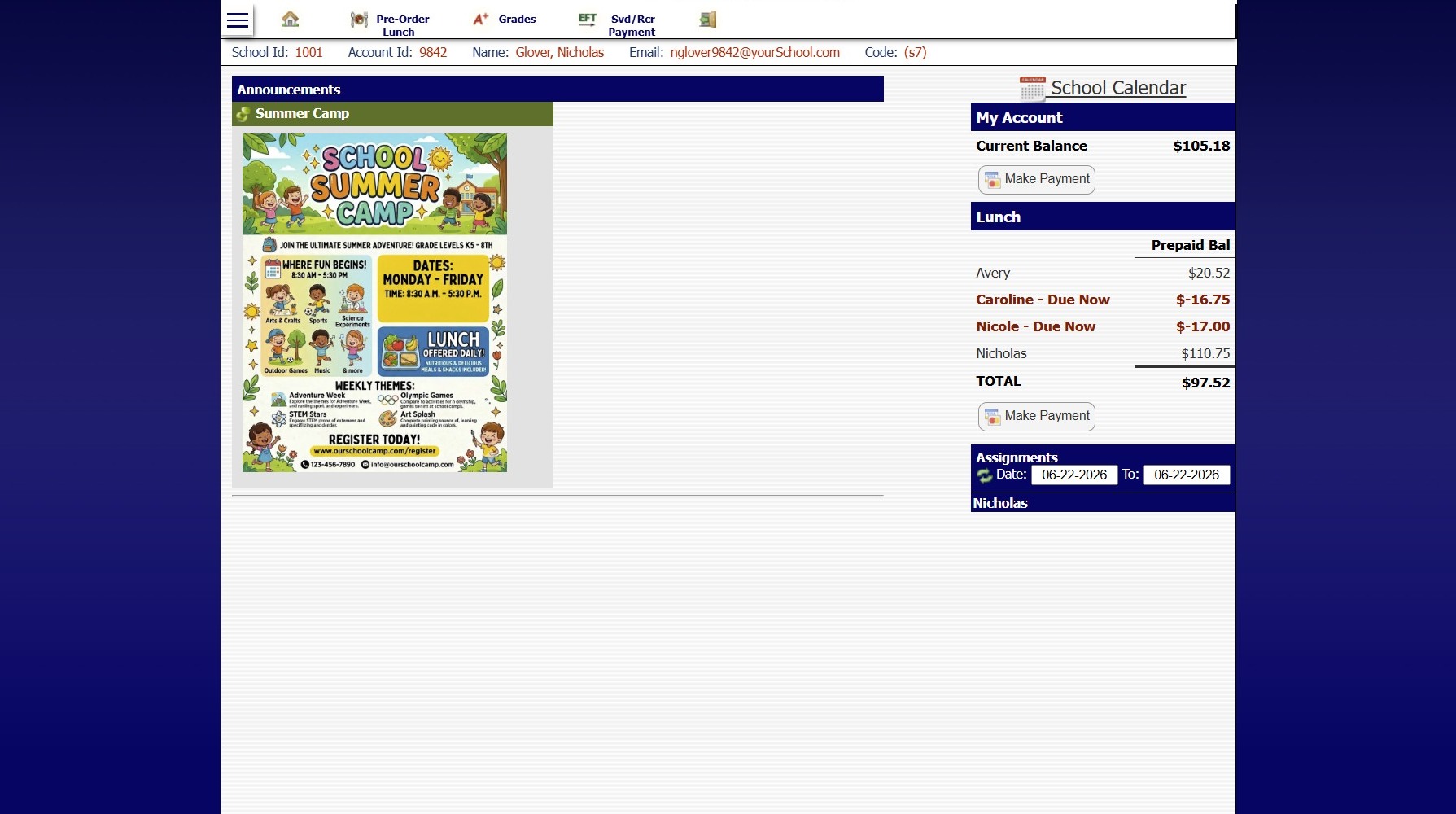
2. Click on the Menu Bars
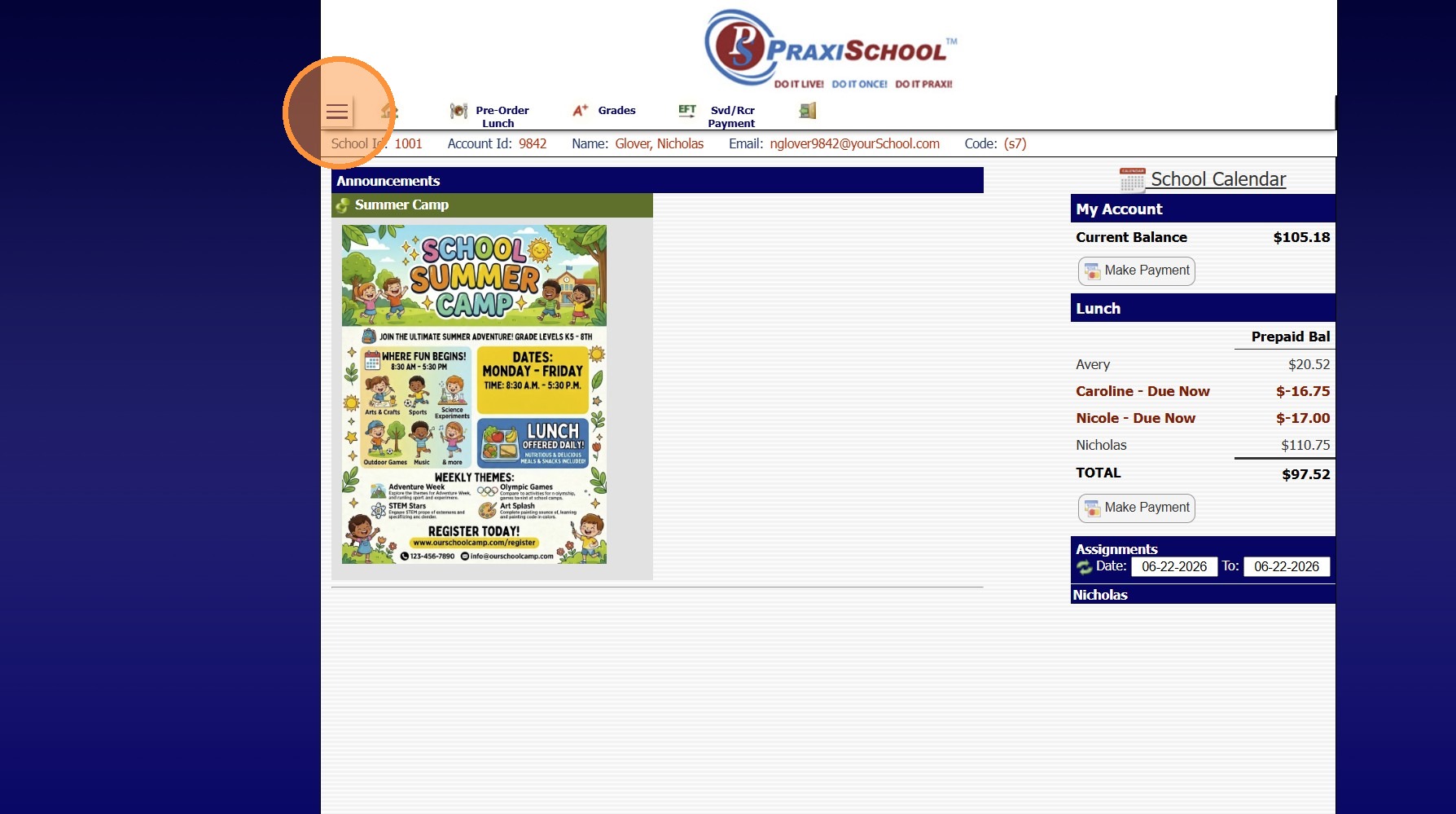
3. Click "Billing"
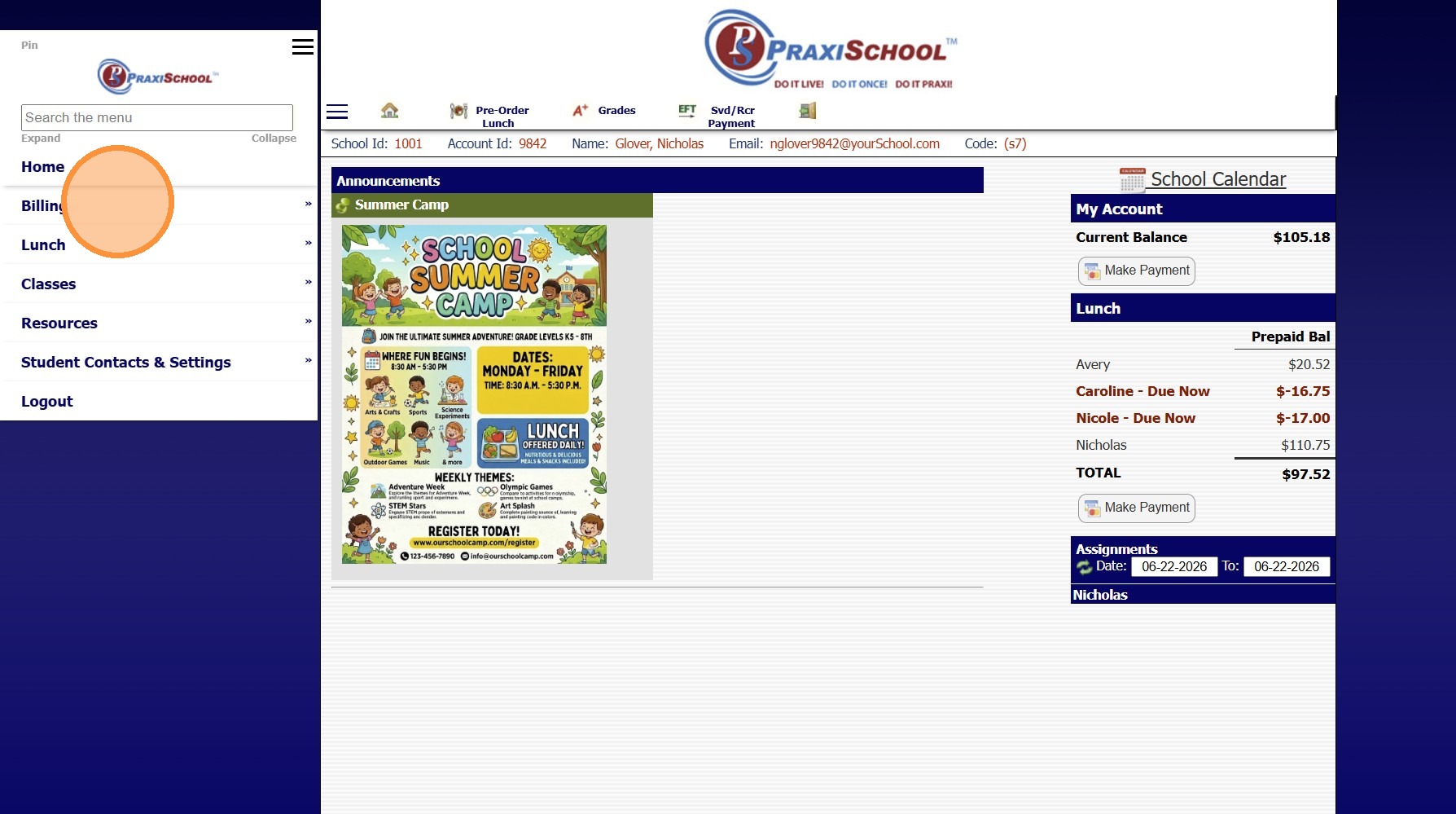
4. Select Recurring Payments
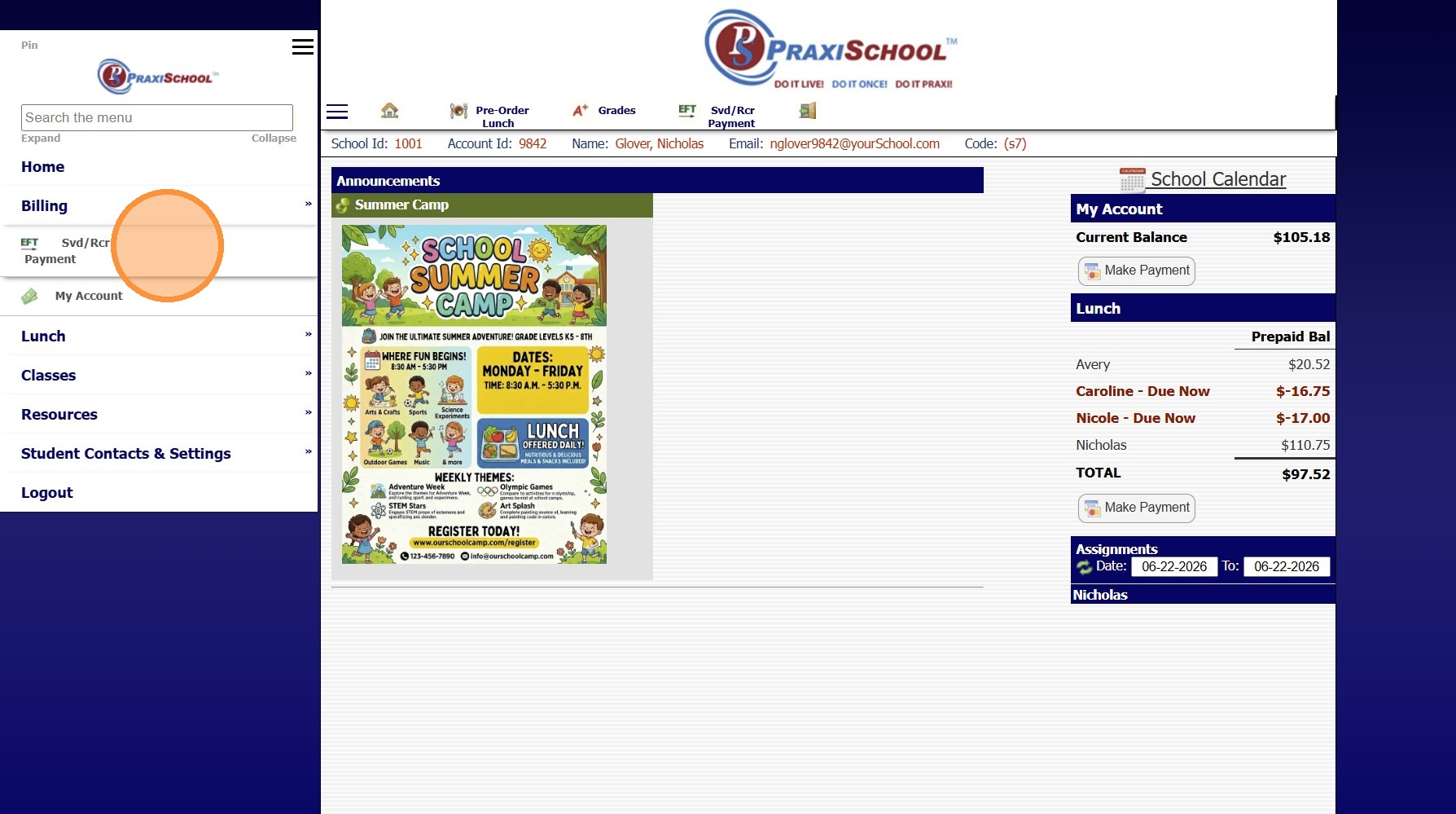
5. Click "Create New Account"
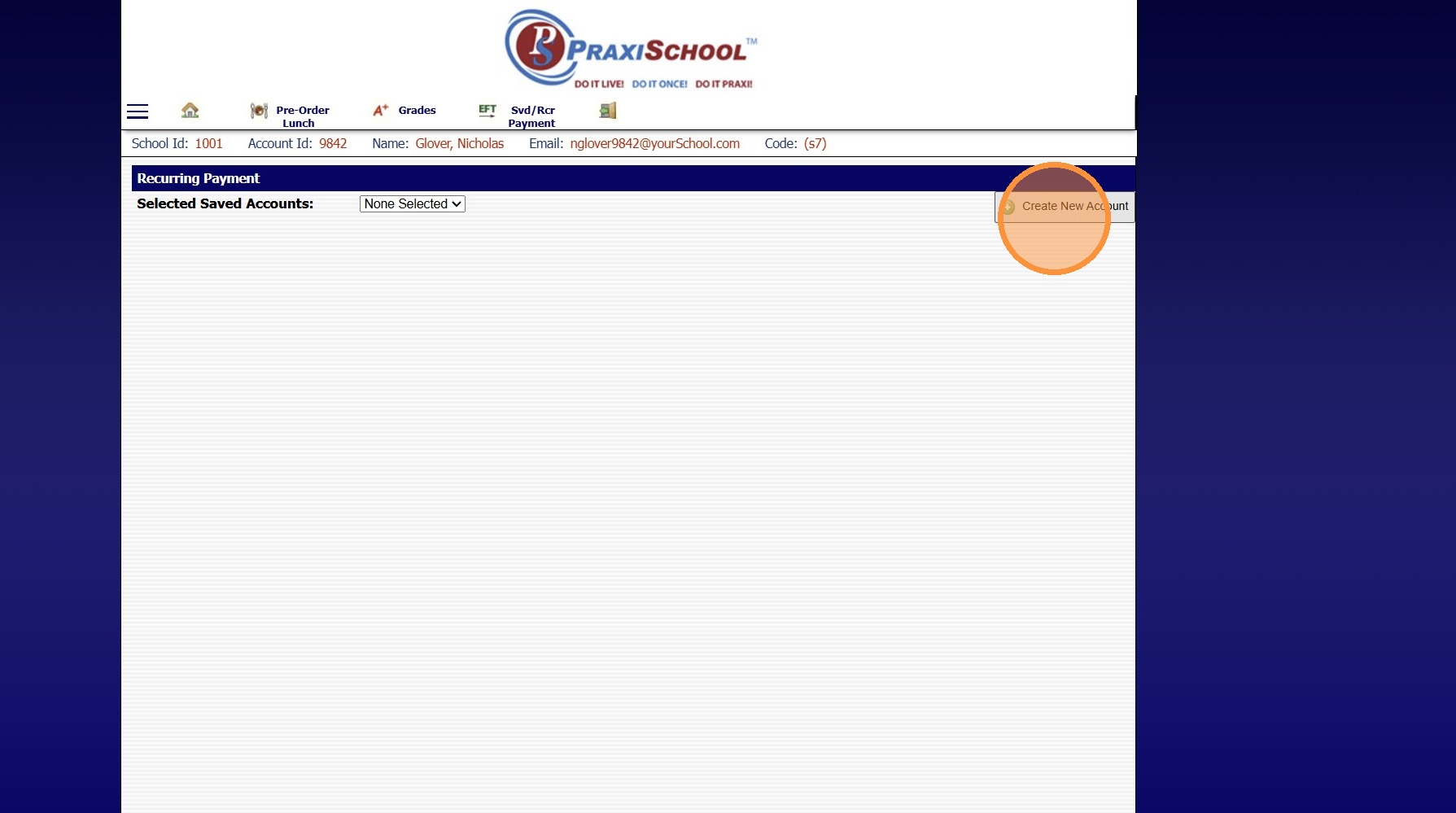
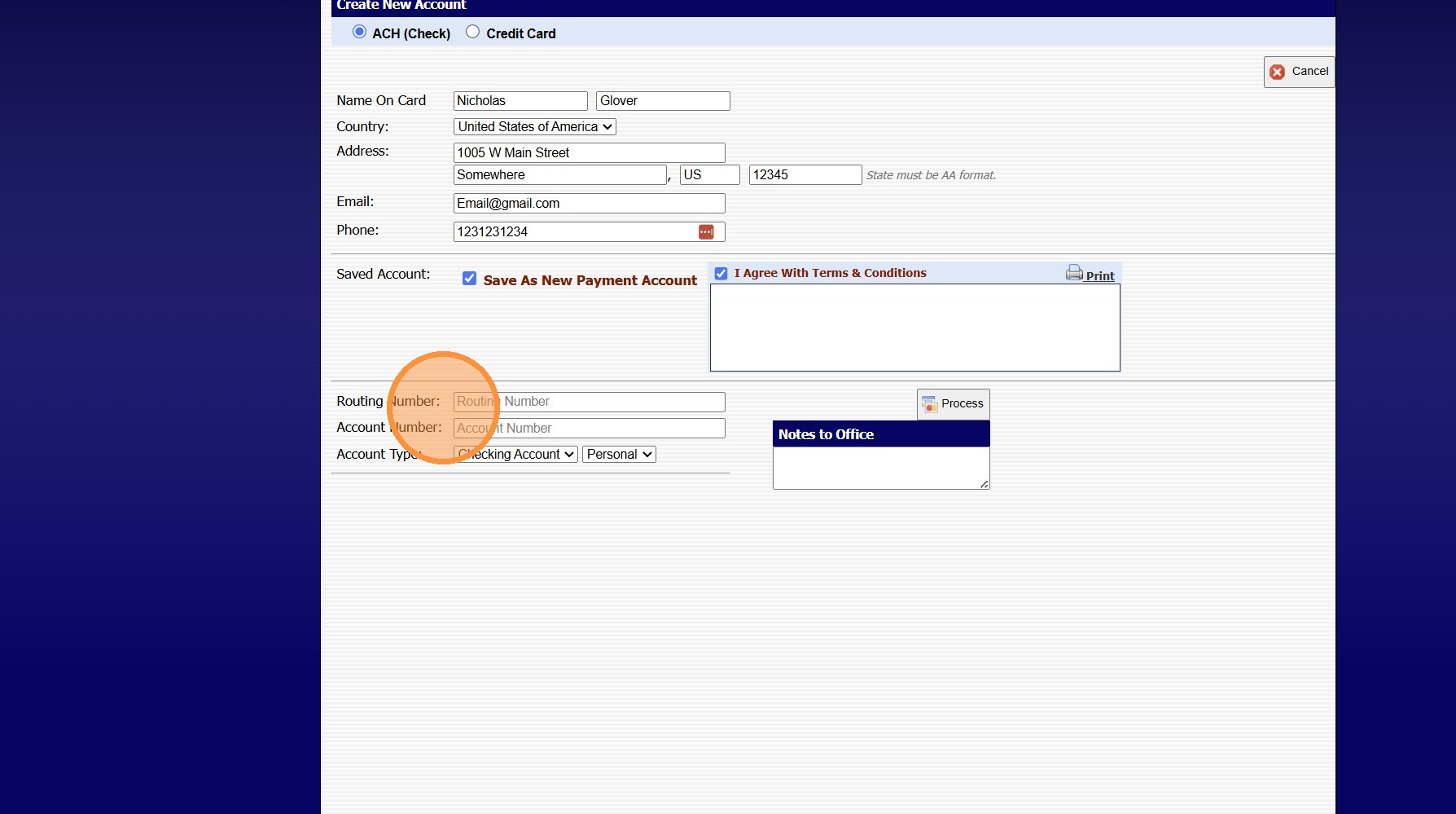
6. Enter Billing Address, Email & Phone for the Payment Type
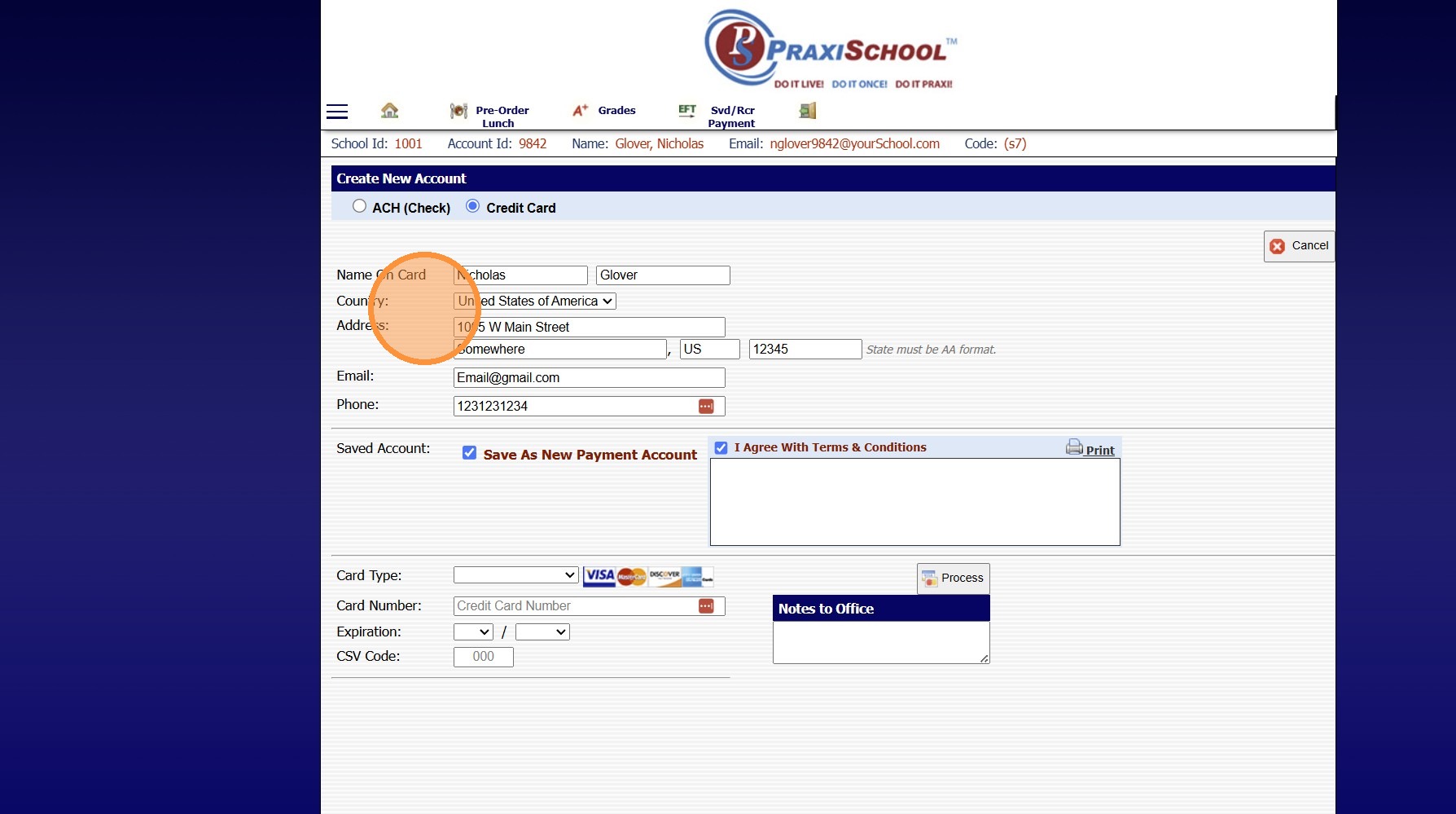
7. Check the "Save As New Payment Account" & the "I Agree With Terms & Conditions" boxes
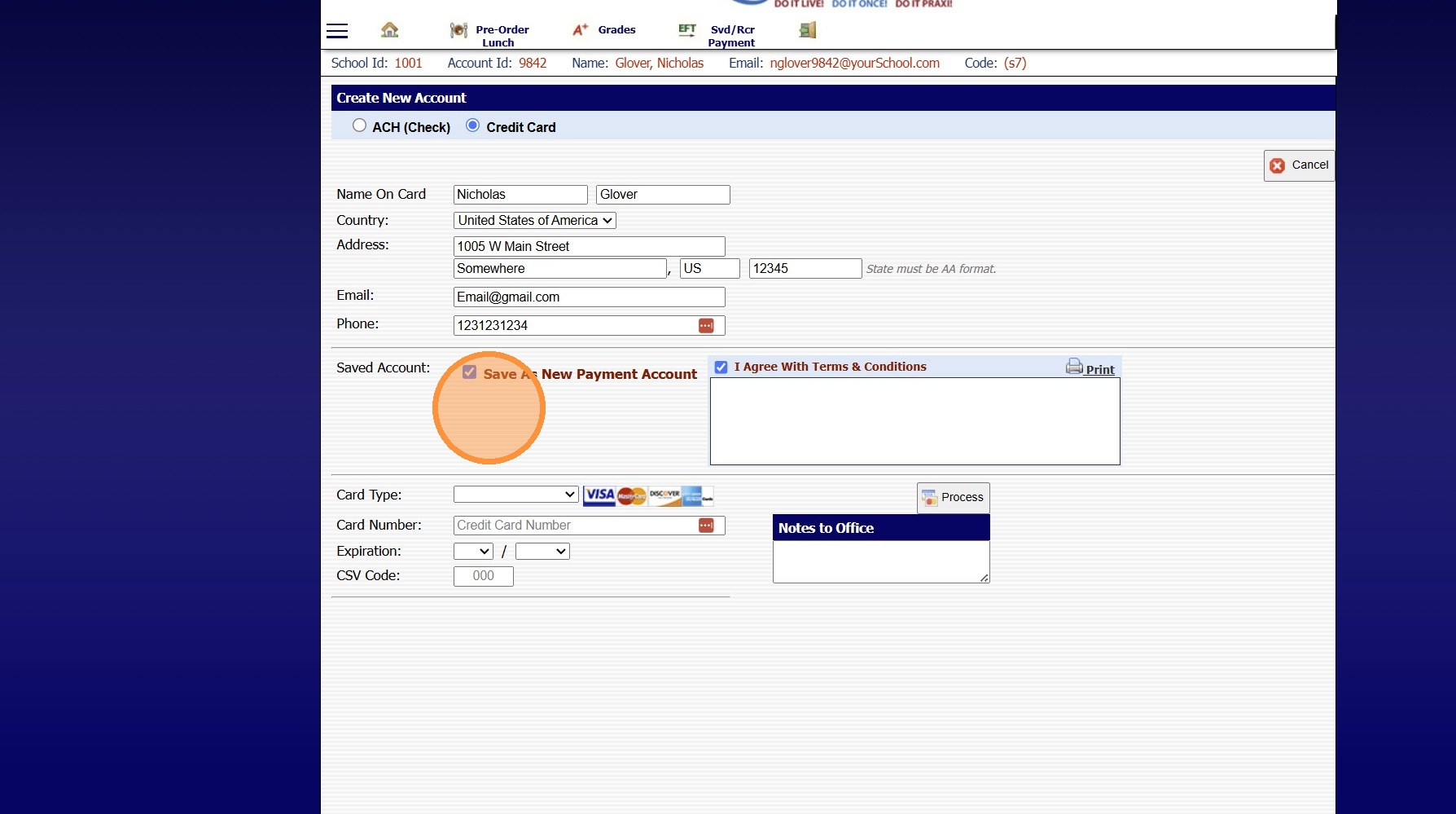
8. Select Payment Type (ACH or Credit Card)
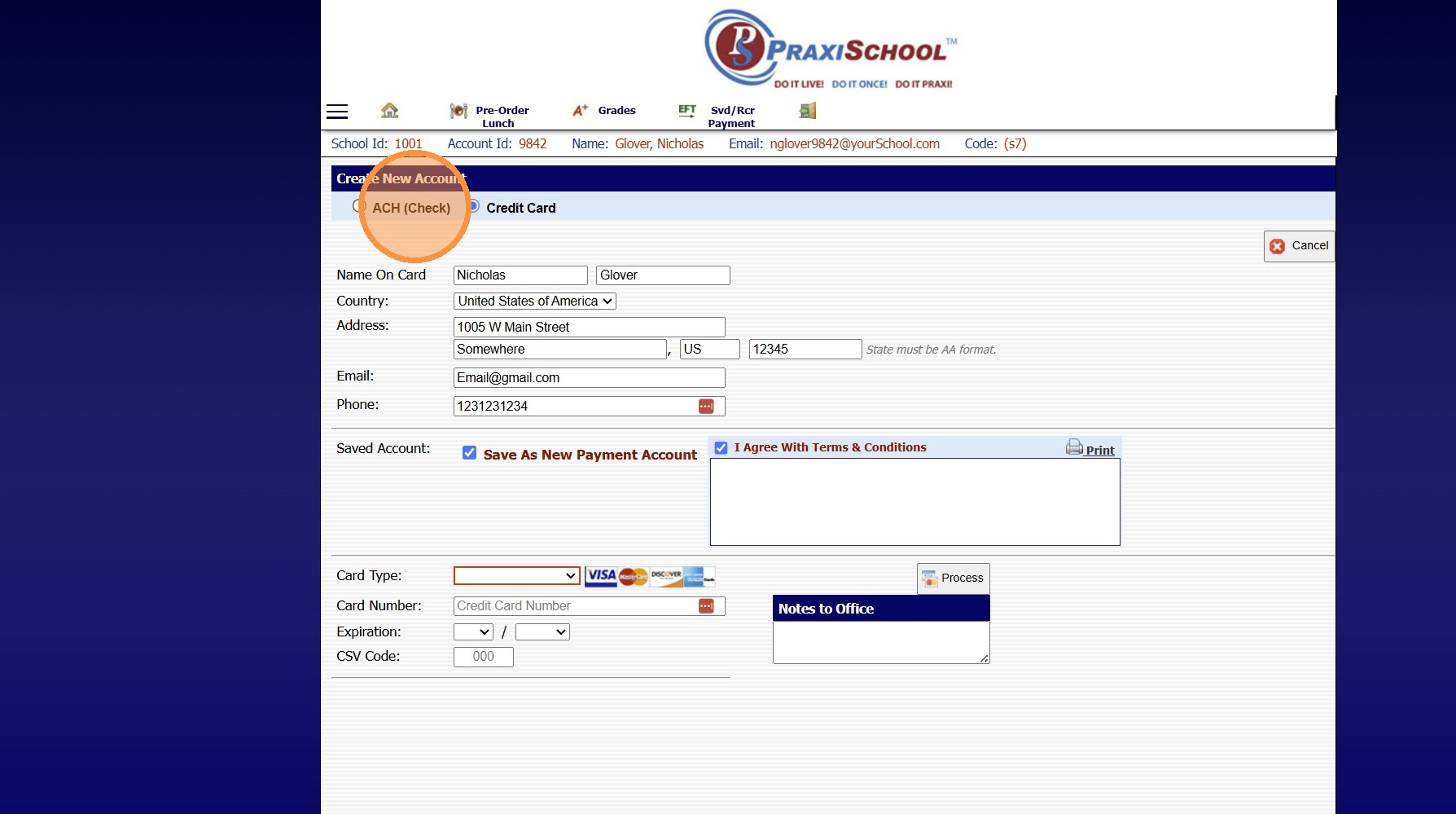
9. For ACH, enter the Routing Number & Account Number
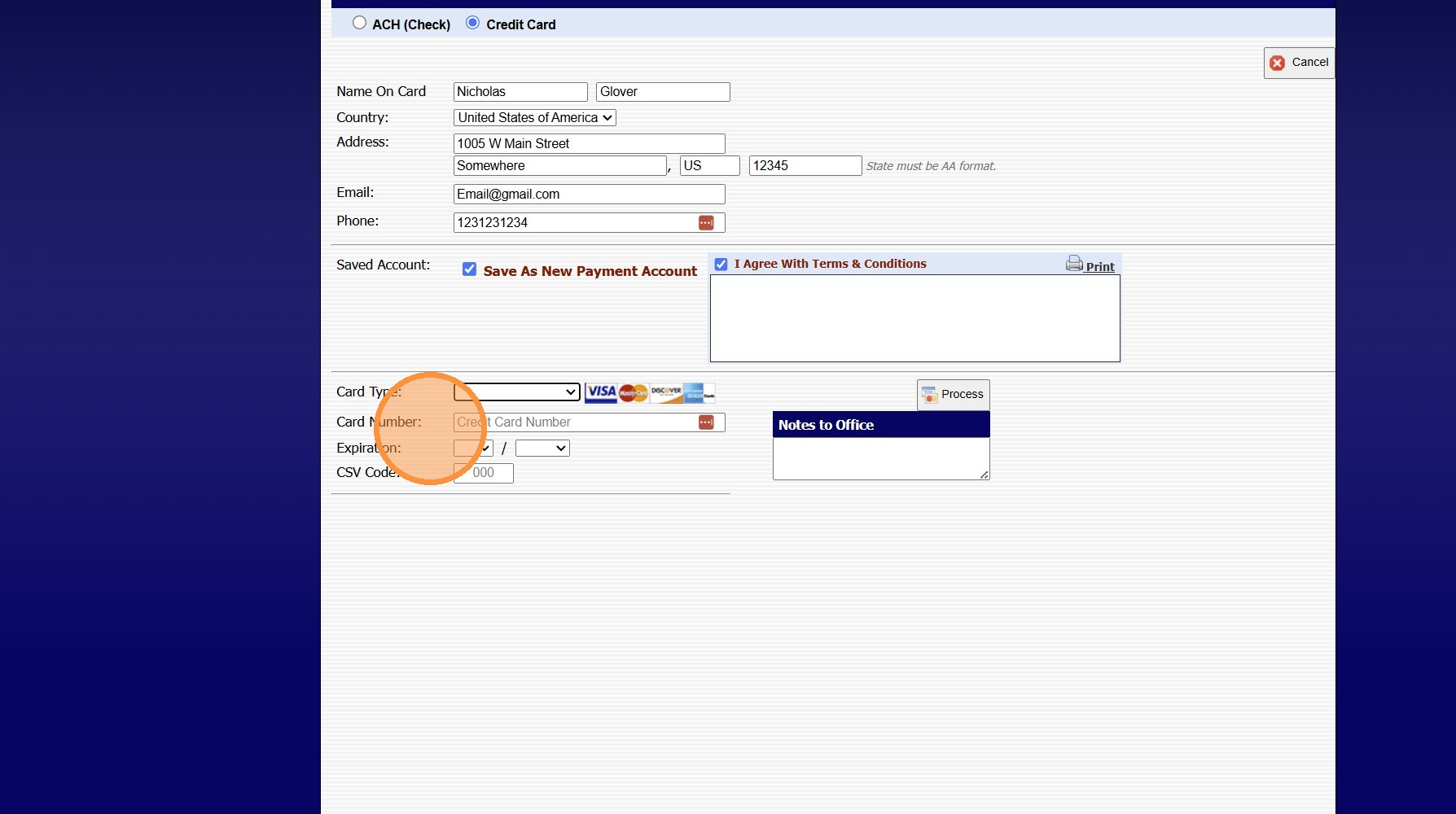
10. For Credit Card, Select the Card Type & enter the Card Number, Expiration Date and CSV Code
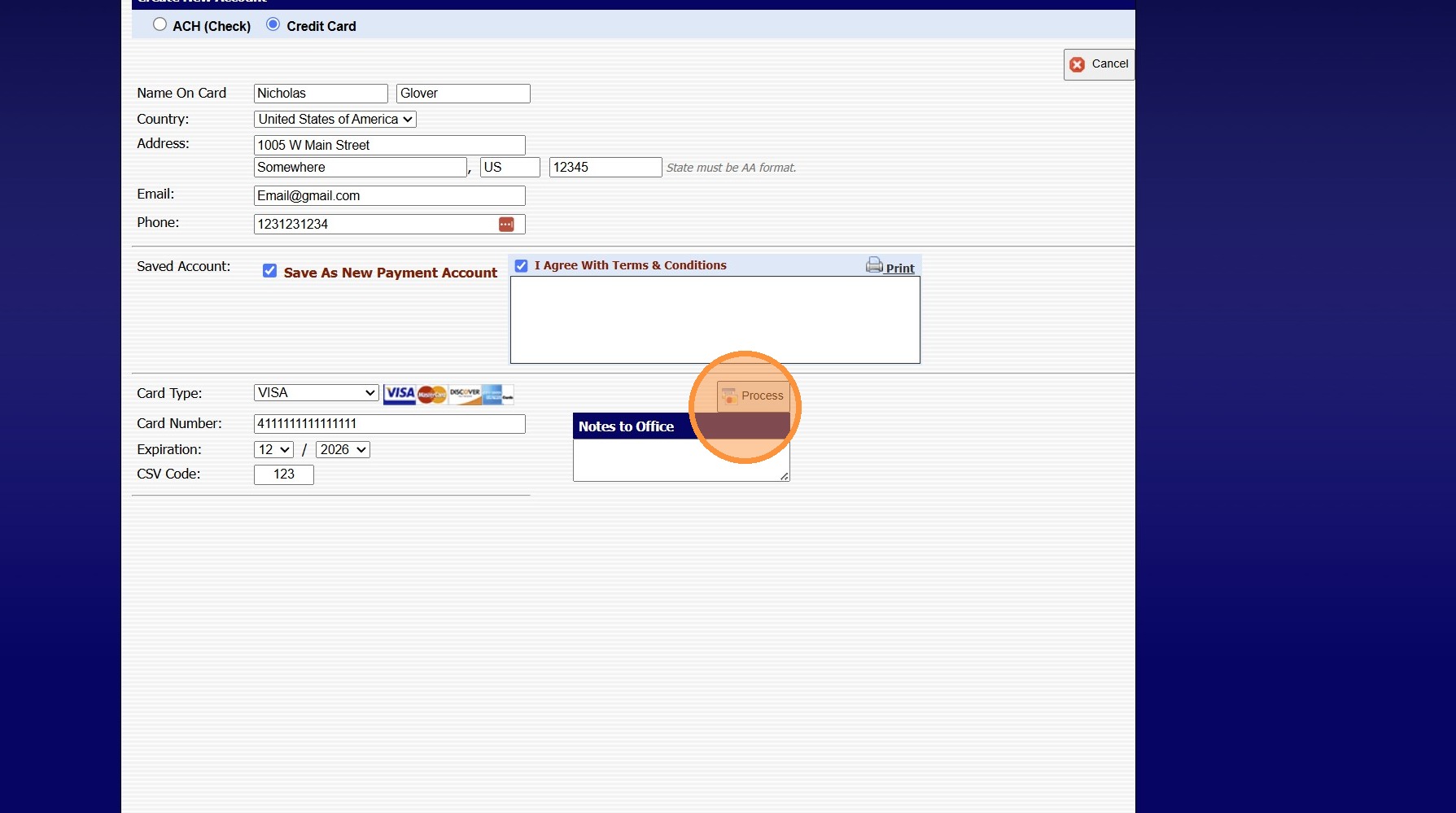
11. Click "Process"
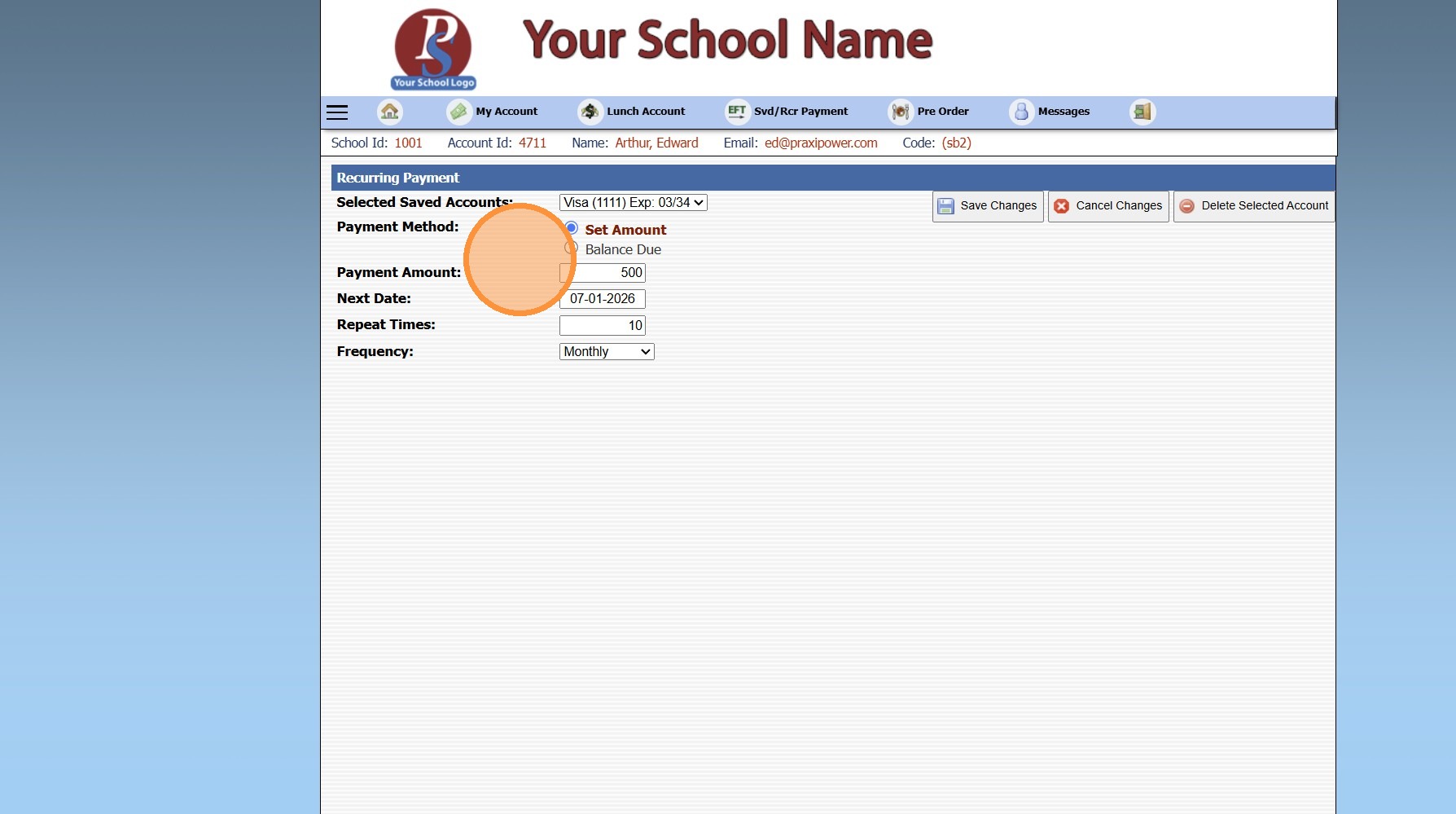
12. Select the Payment Type from the Dropdown Menu
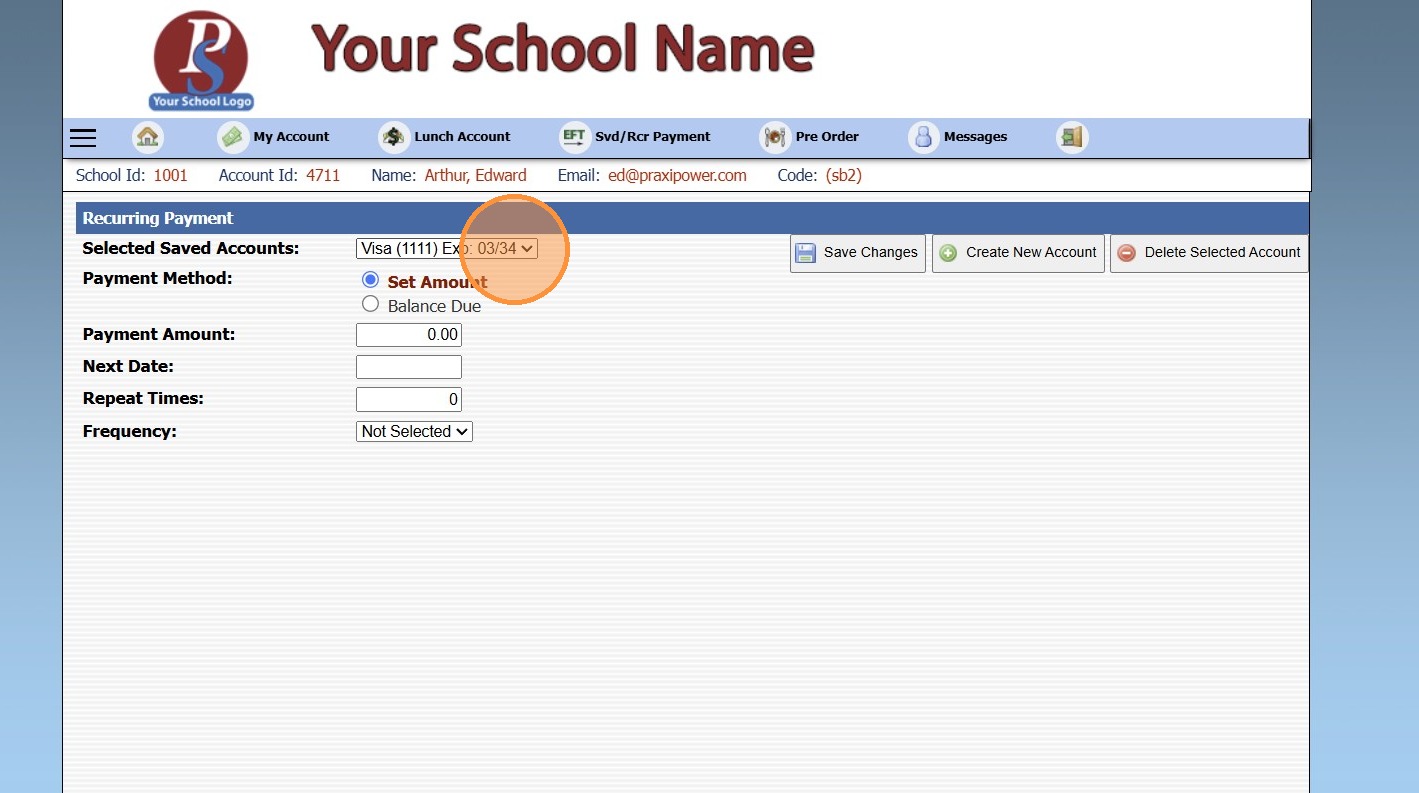
13. For Set Amount, Enter the Payment Amount to process each Billing Cycle, Enter Next Due Date, Number of Times to process the payments and the Frequency.
(If Balance Due is selected, the Balance on the account will process)
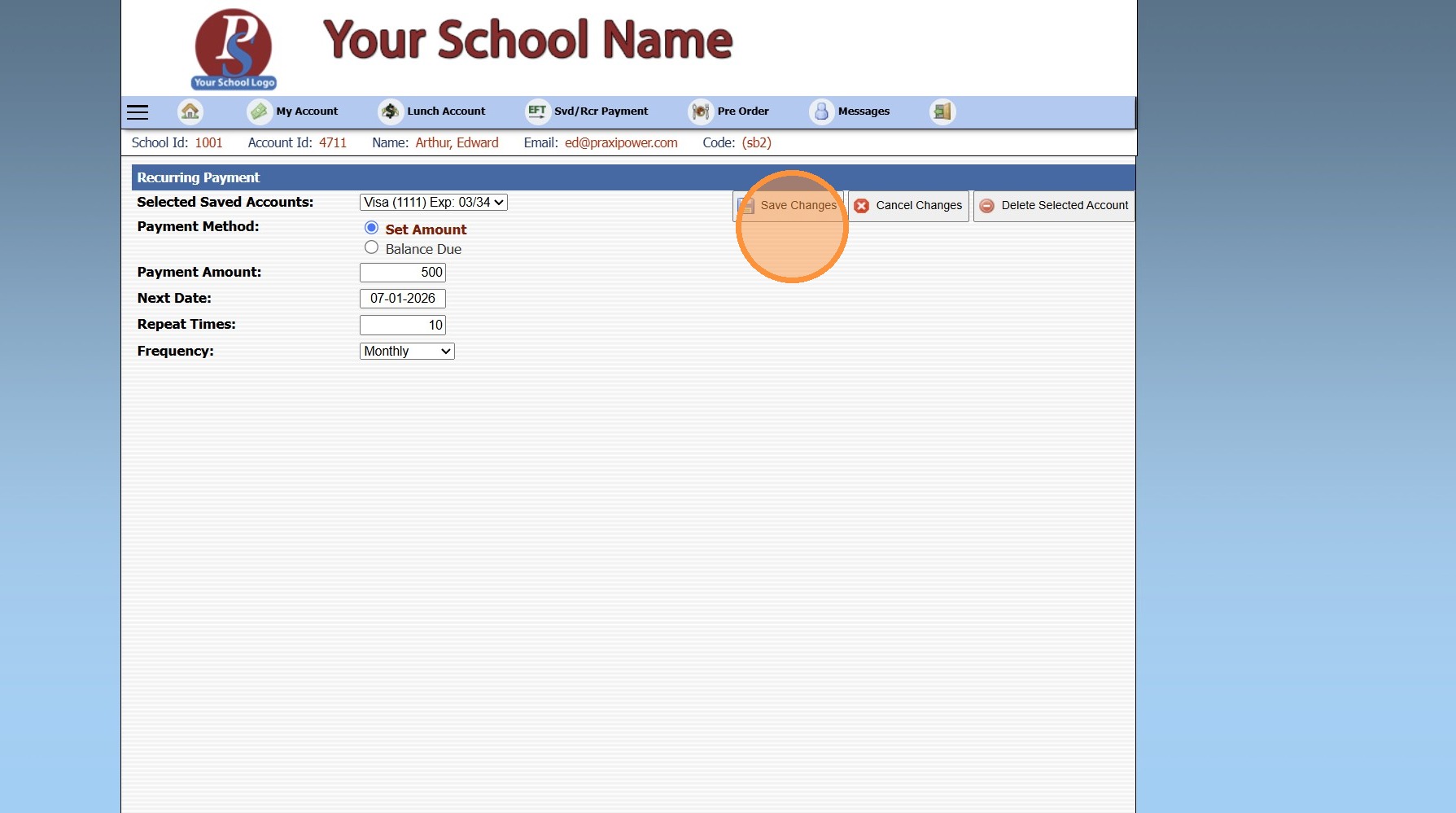
14. Click Save Changes
Related Articles
How to SetUp Recurring Payments in your Parent Portal
1. Enter School ID, Parent ID & Enter Password 2. Click "Login" 3. Click Menu Expand Option 4. Click "Billing" 5. Click "Svd/Rcr Payment/Recurring Payment" 6. Click "Create New Account" 7. Check the "Save As New Payment Account" Box 8. Enter Credit ...Setting the Override Password for the Parent, Student & Applicant Portal
1. Click "Settings" 2. Click "School Settings" 3. Click "Portal" 4. Enter the Password 5. Confirm the Password 6. Click "Save" 6500.2.89Setting the Master Password for Parent, Student & Applicant Portals
Setting the Override Password for Parent, Student & Applicant Portals 1. Click "Settings" 2. Click "School Settings" 3. Click "Portal" 4. Enter Portal Override Password (Must be at least 5 characters) (Once Portal Override Password has been set, it ...Manually Posting Student Lunch Payments
1. Click the "Hamburger Icon" 2. Uncheck Print Receipts for Payments if a Receipt is not Needed 3. Select the Student 4. Select "Payment" 5. Select the Payment Type 6. Enter Amount of Payment 7. Click "Post" 8. Payment will Post to Account & Students ...Student Directory Portal Options
Student Directory Portal Options 1. Click "Reports" 2. Click "Student Directory" 3. Select Sort & Filter Option 4. If Ignore Directory Preferences is not Selected, Options Selected by Administration and Selected by Parent / Student will be visible on ...