Session Close Tasks - Admin: Copy School Calendar
1. Click "Admin"
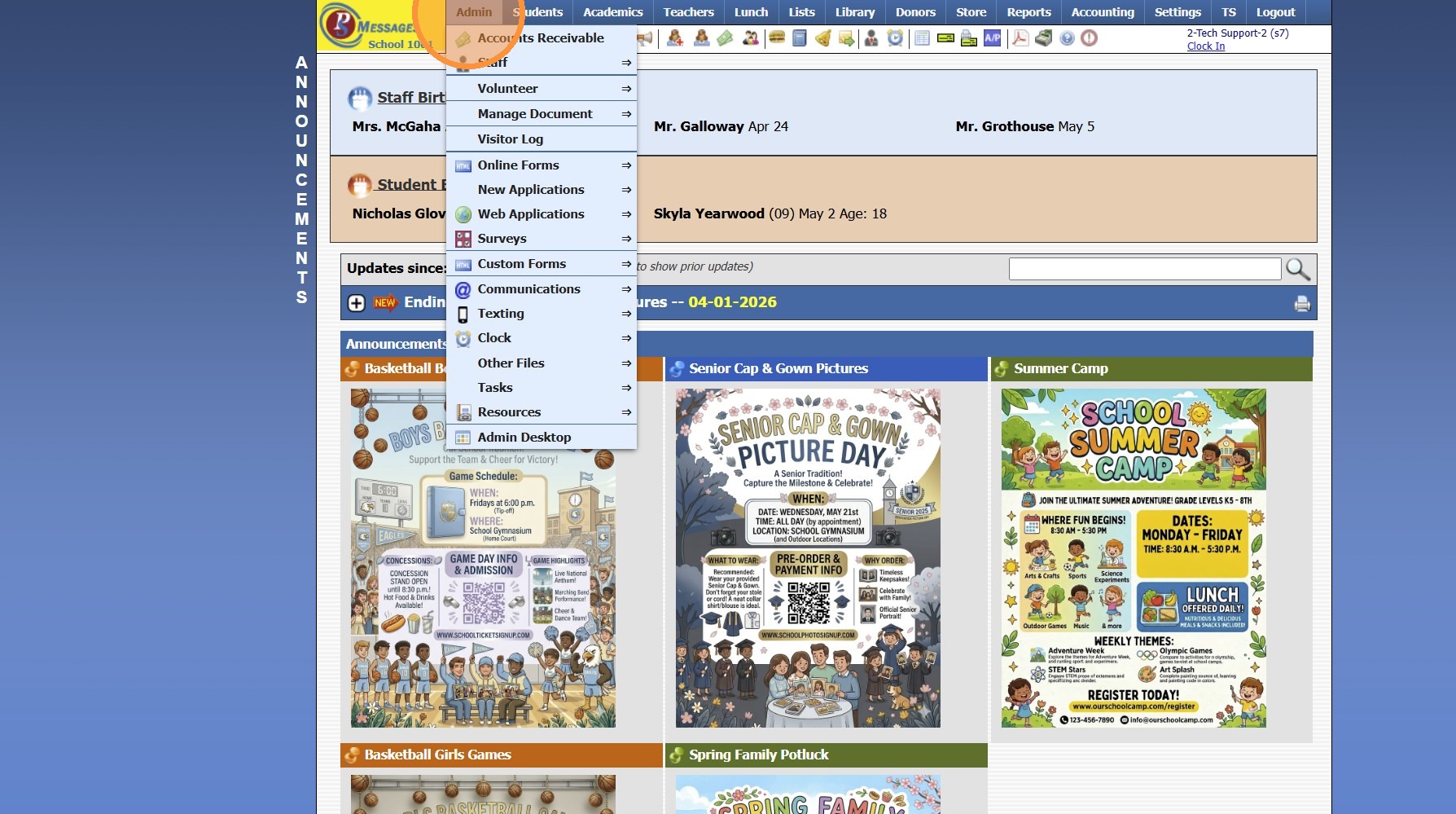
2. Select "Tasks"
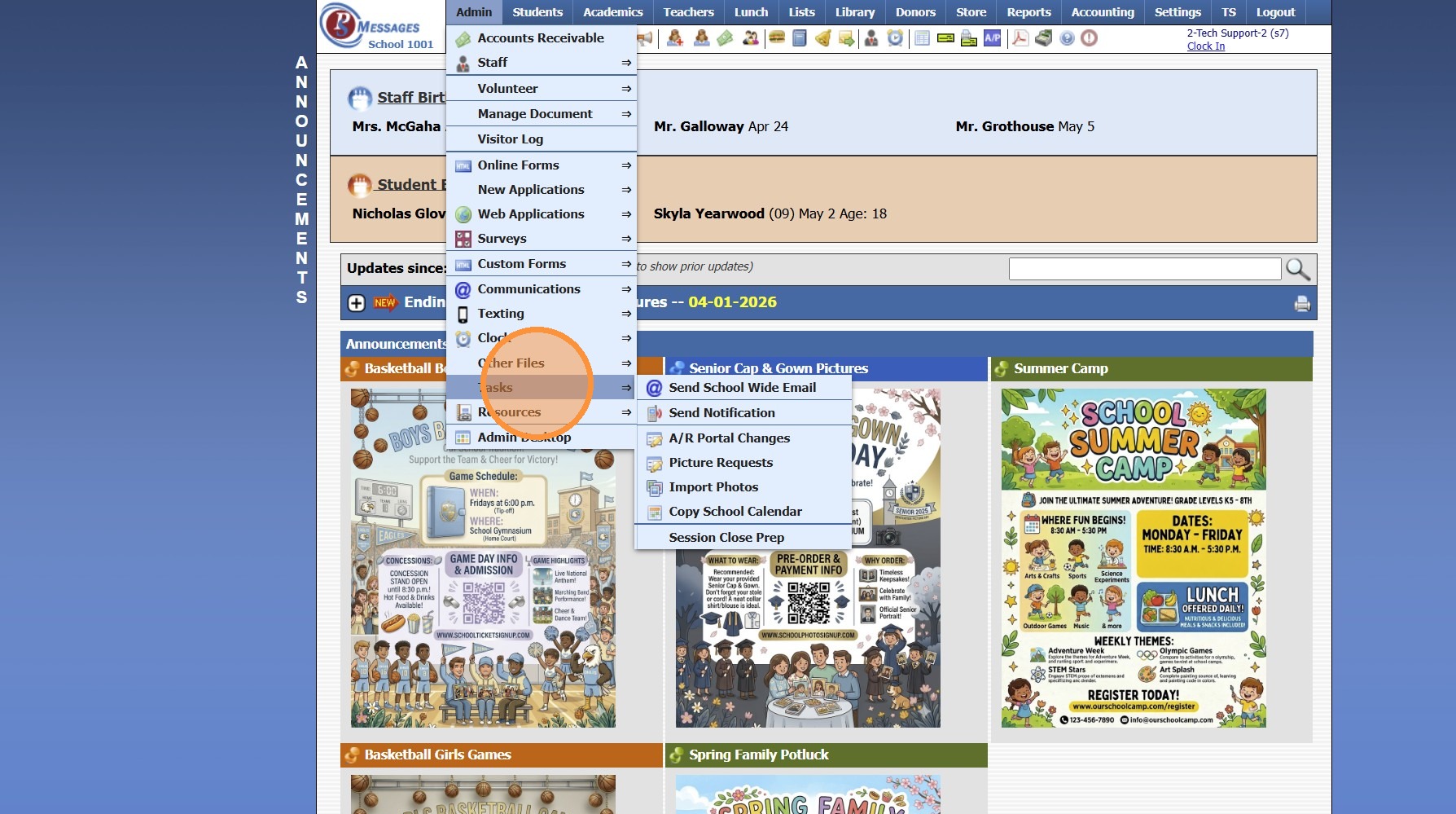
3. Click "Copy School Calendar"
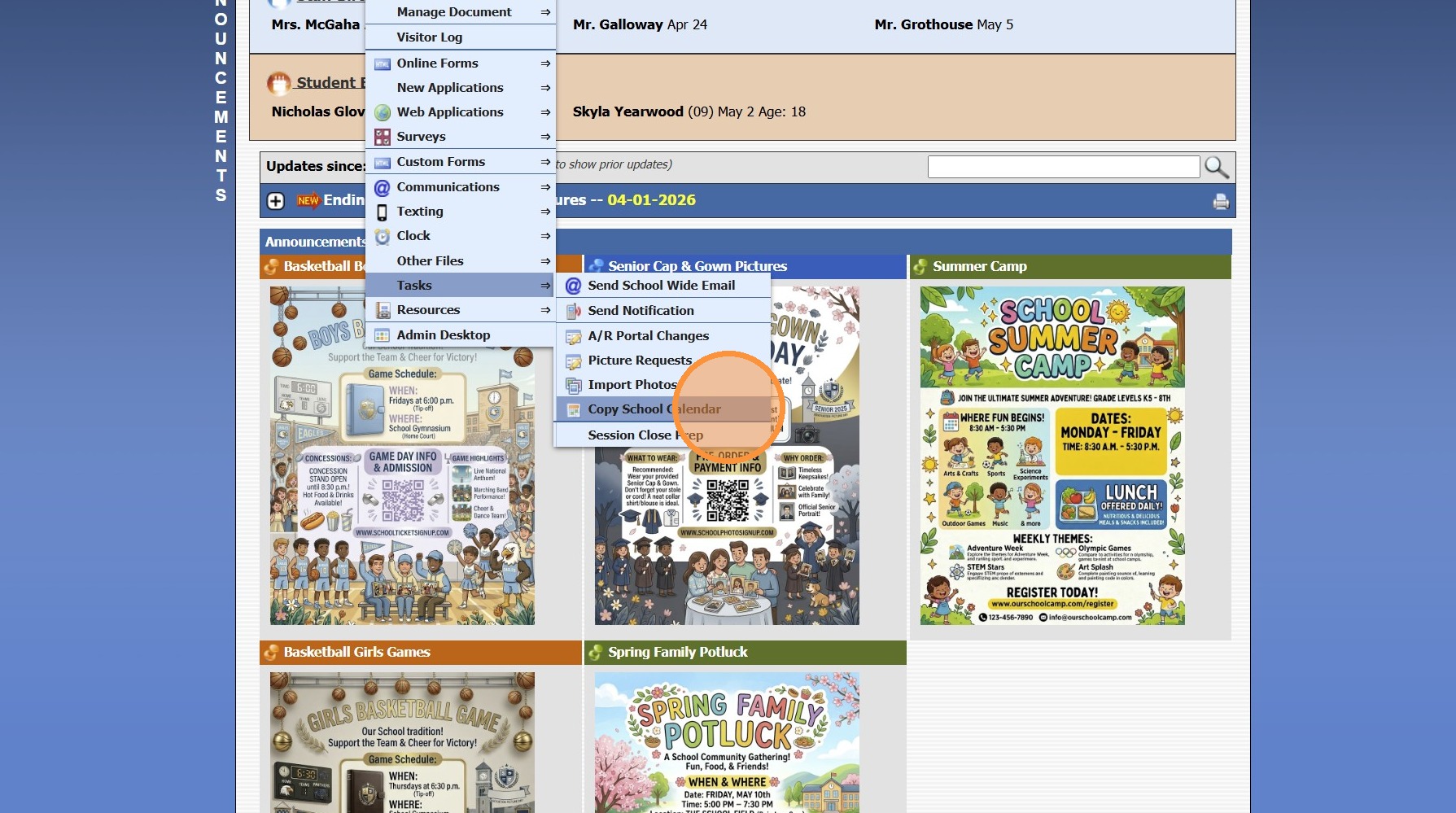
4. Select Current School Year
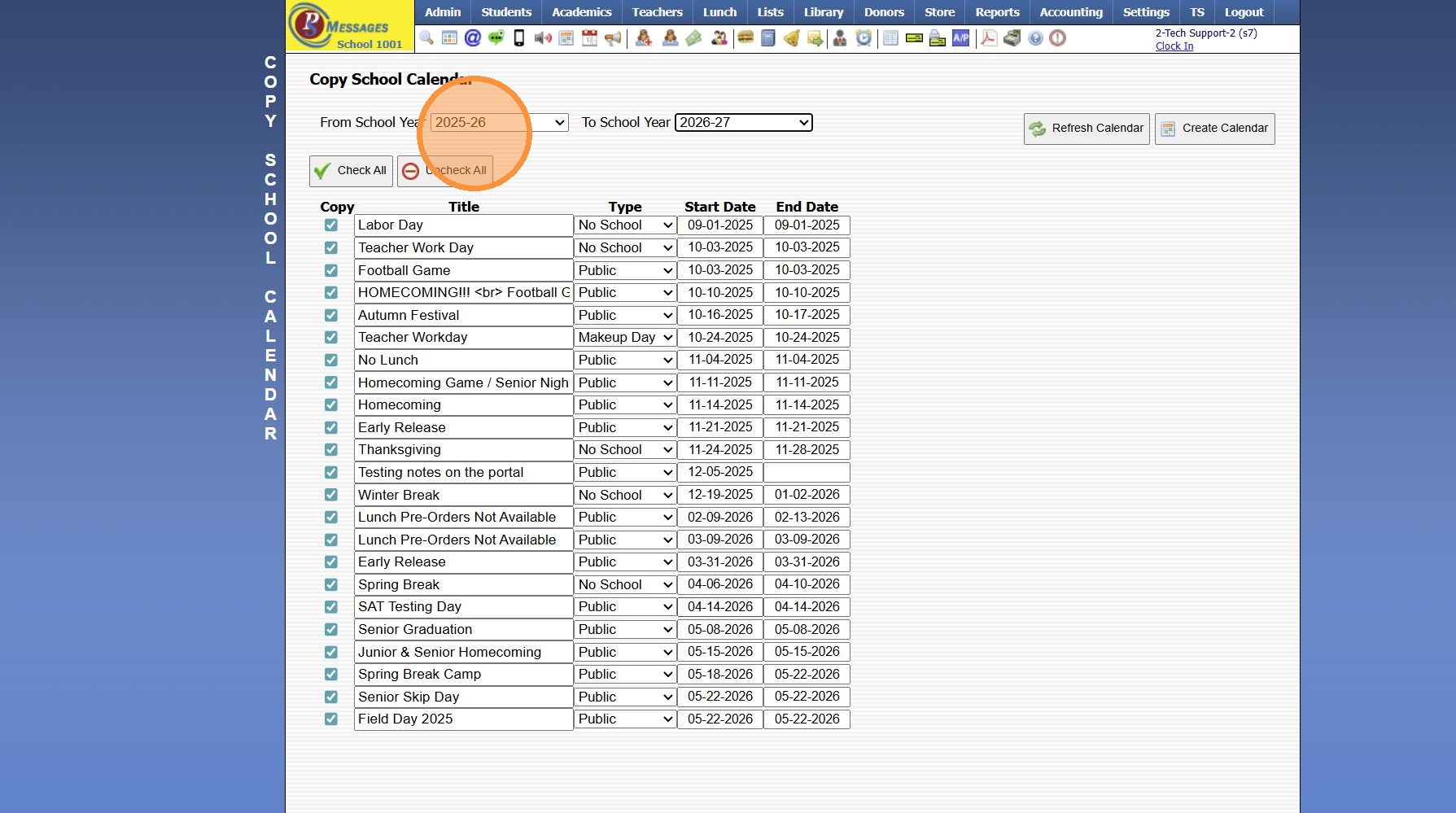
5. Select New School Year
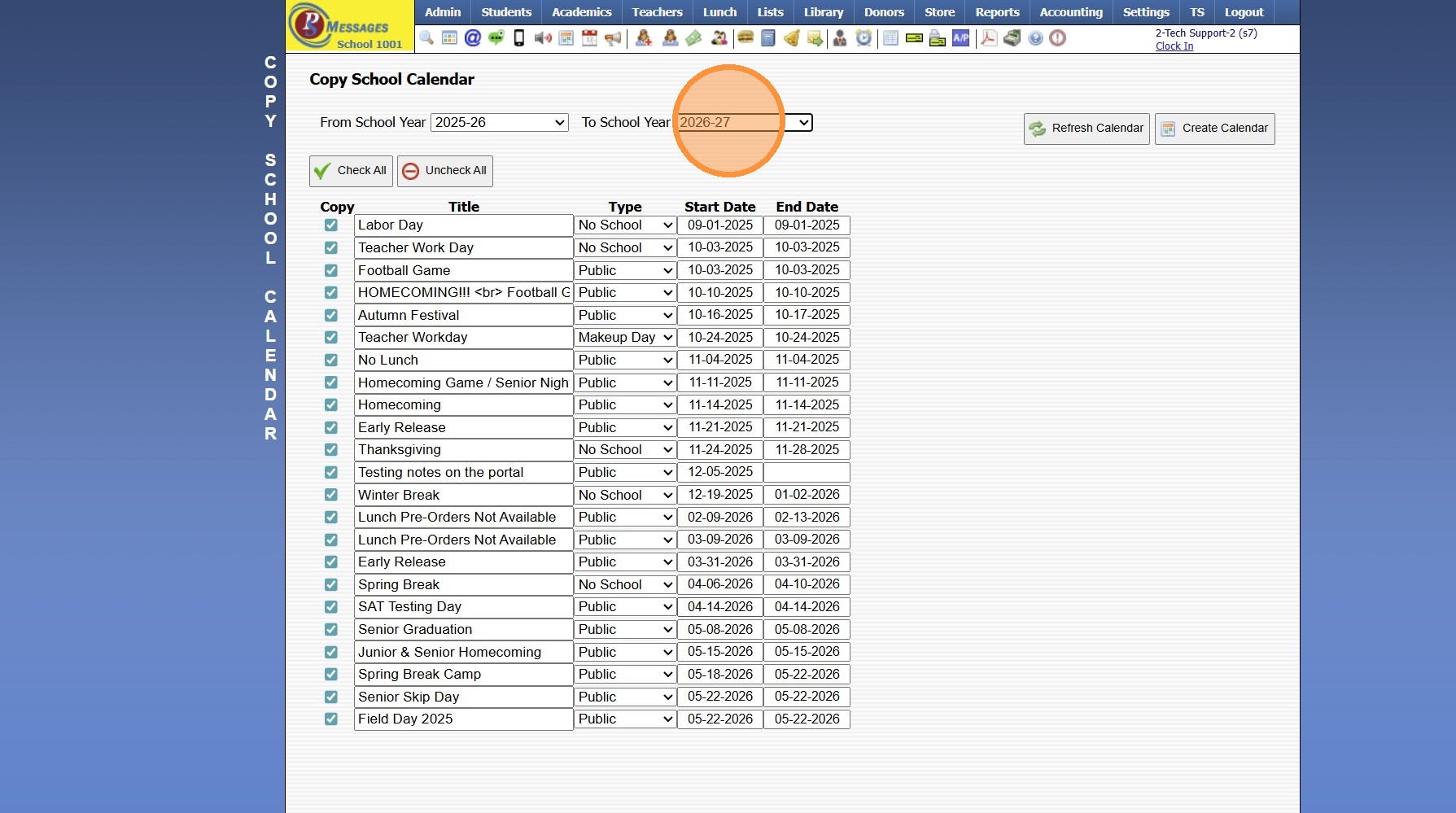
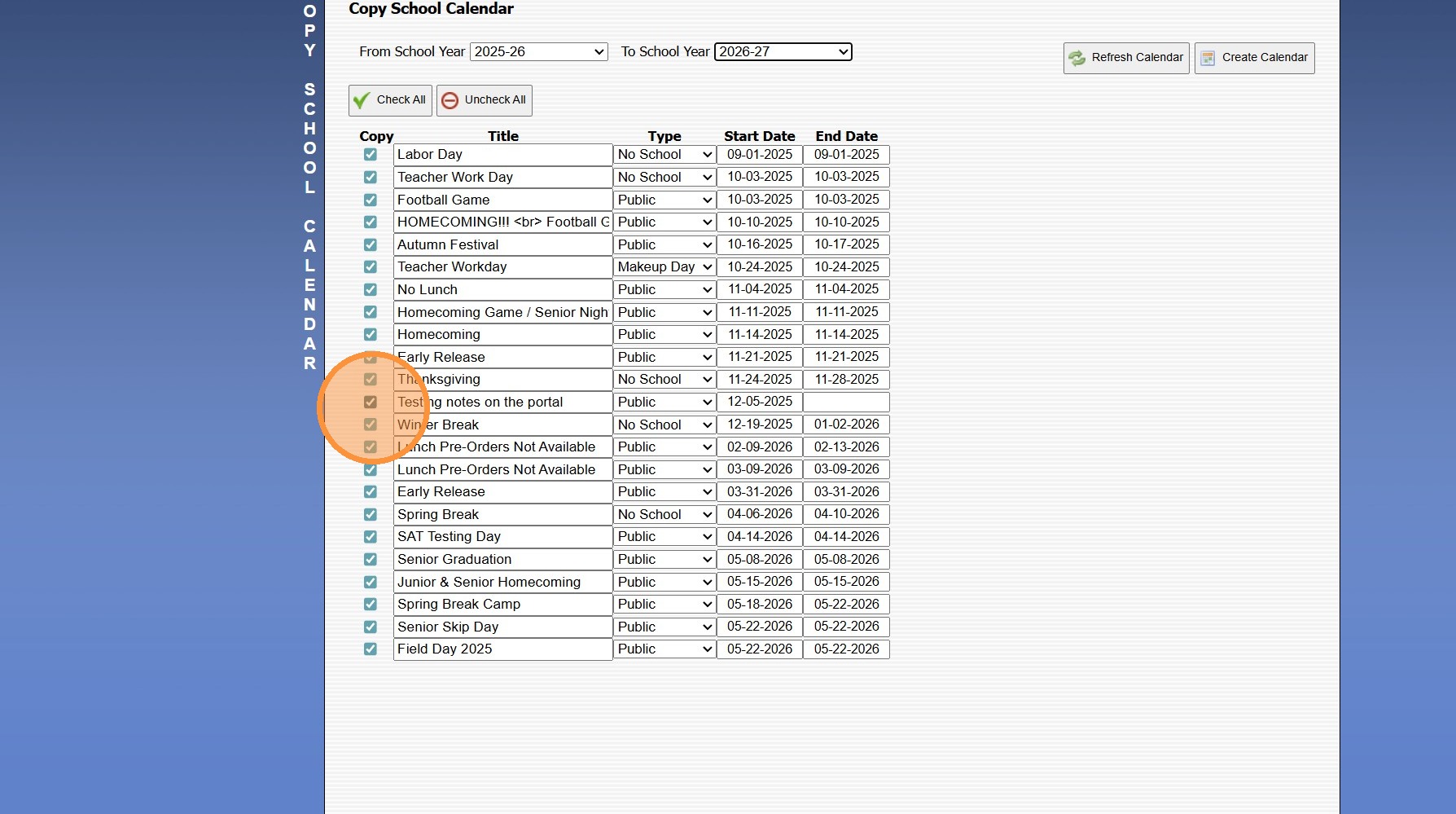
6. Uncheck Box next to any Calendar Item that should NOT be Copied into the New School Year
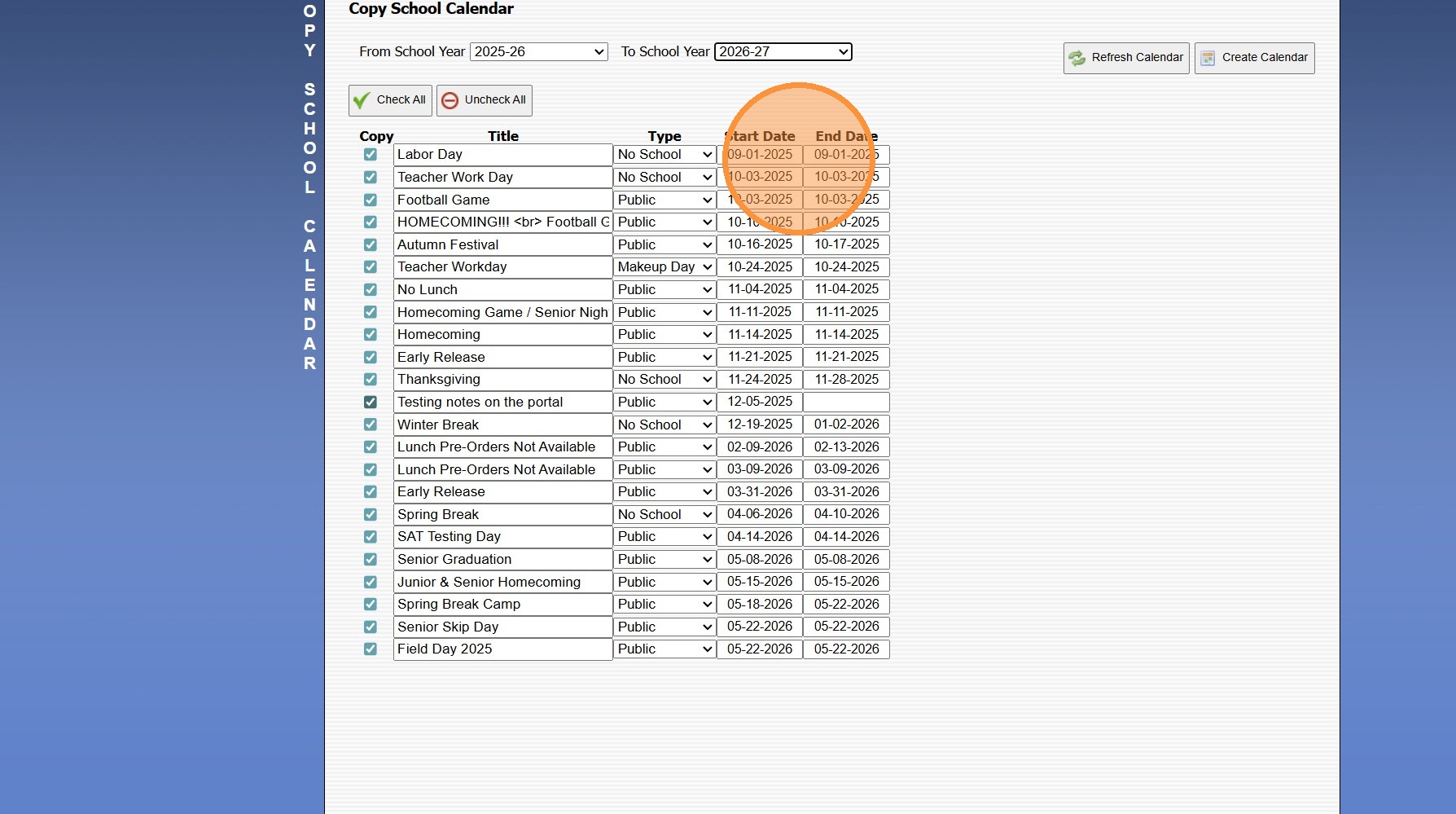
7. Update Start Date & End Date for Items that will be Copied into the New School Year
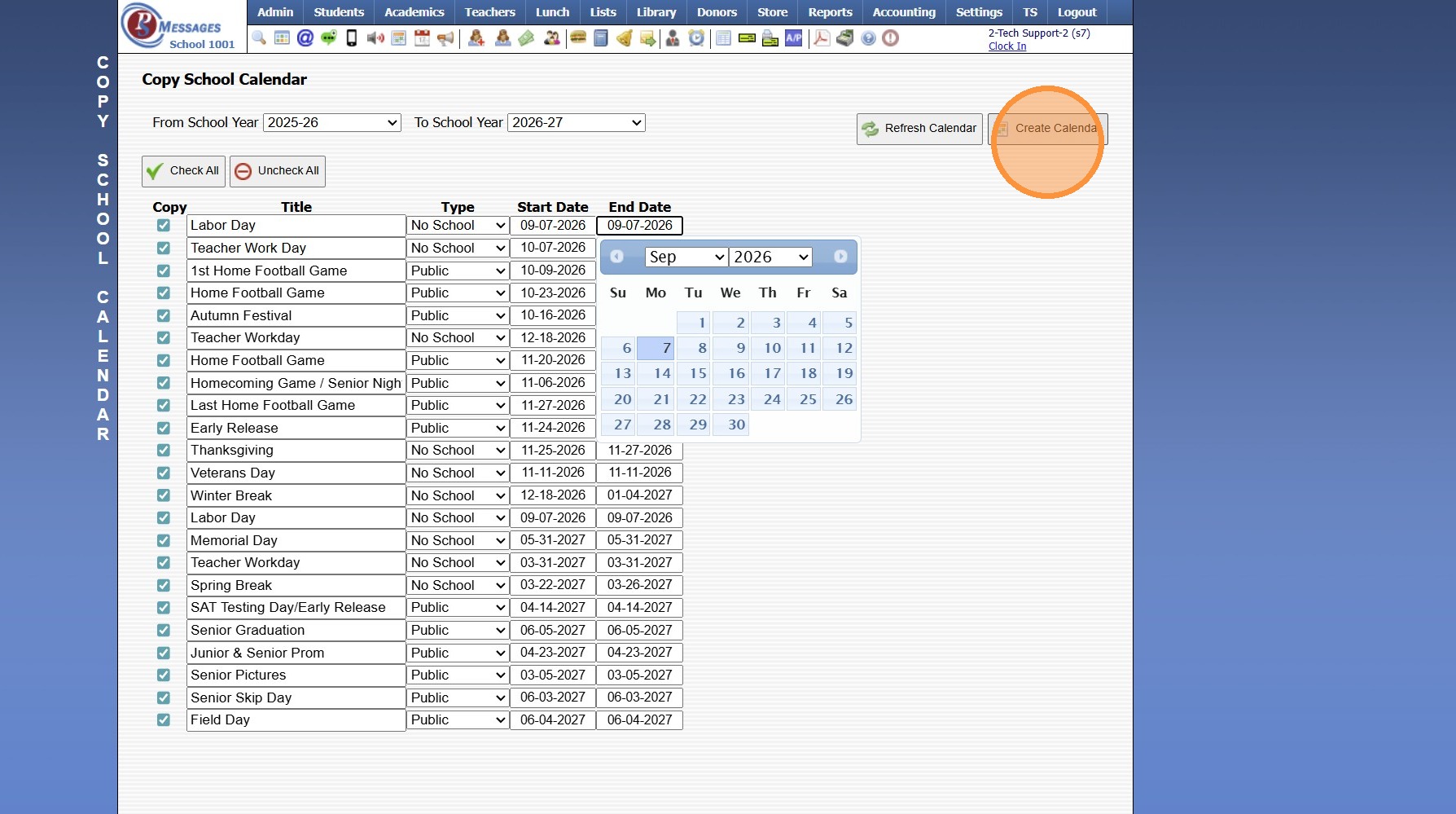
8. Click "Create Calendar" to Finalize
9600.2.2
Related Articles
Session Close Tasks - Admin: Make Prior Year Calendar Inactive
1. Click "Admin" 2. Click "Resources" 3. Click "School Calendar" 4. Click "Actions" 5. Click "Make a Year Inactive" 6. Select the School Year to Make Inactive 7. Click "Save" 9600.2.3Session Close Prep Step II: Creating Current School Year Session Close
1. Click "Admin" 2. Click "Tasks" 3. Click "Session Close Prep" 4. Select "Create New Closing" from dropdown 5. Select "Current Session" to Close Current School Year, Select "Summer Session" to Close a Summer Session 6. Select Current School Year 7. ...Session Close Tasks - Enrollment: New School Year Dates
1. Click "Lists" 2. Click "Enrollment" 3. Click "School Years" Add the School Year 4. Click "Add" 5. Enter New School Year (Enter in YYYY-YY Format) (Ex. 2027-28) 6. Enter the Administrator's Name 7. Enter the Date From & the Date To (NOTE: The Date ...Session Close Tasks - Admin: Archiving Announcements
1. Click "Admin" 2. Click "Resources" 3. Click "Announcements" 4. Click "Actions" 5. Click "Make Inactive by Date" 6. Select From & To Dates 7. Click "Save Changes" 814673Creating School Calendar Items
Creating School Calendar Items 1. Log into PraxiSchool 2. Click "Admin" 3. Click "Resources" 4. Click "School Calendar" 5. Click "Add" 6. Enter the Calendar Item Description 7. Select Type (Public, No School, Make-Up, Staff) Public, No School and ...