Posting a Returned Donation Check
1. Click "Donors"
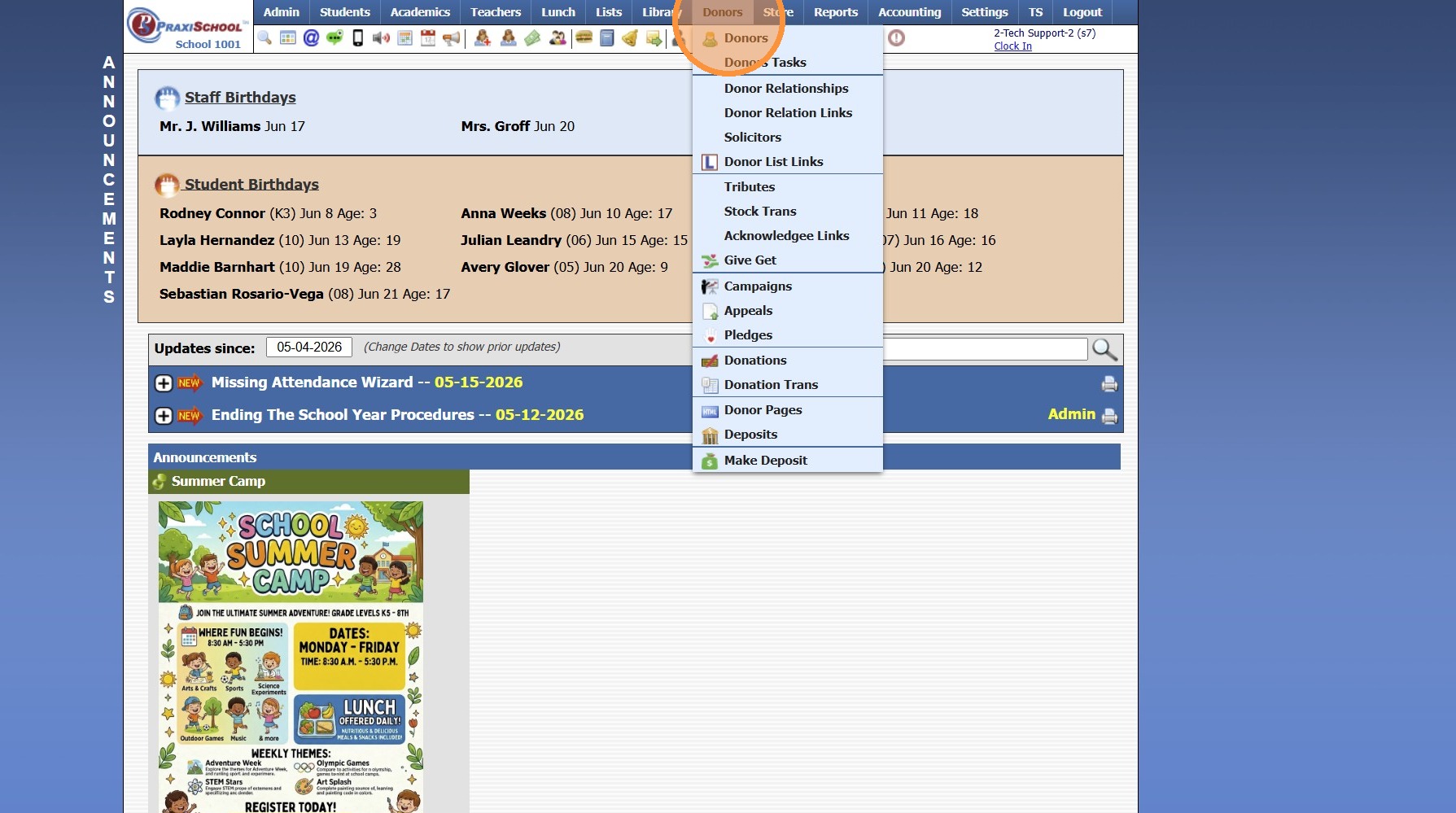
2. Click "Donations"
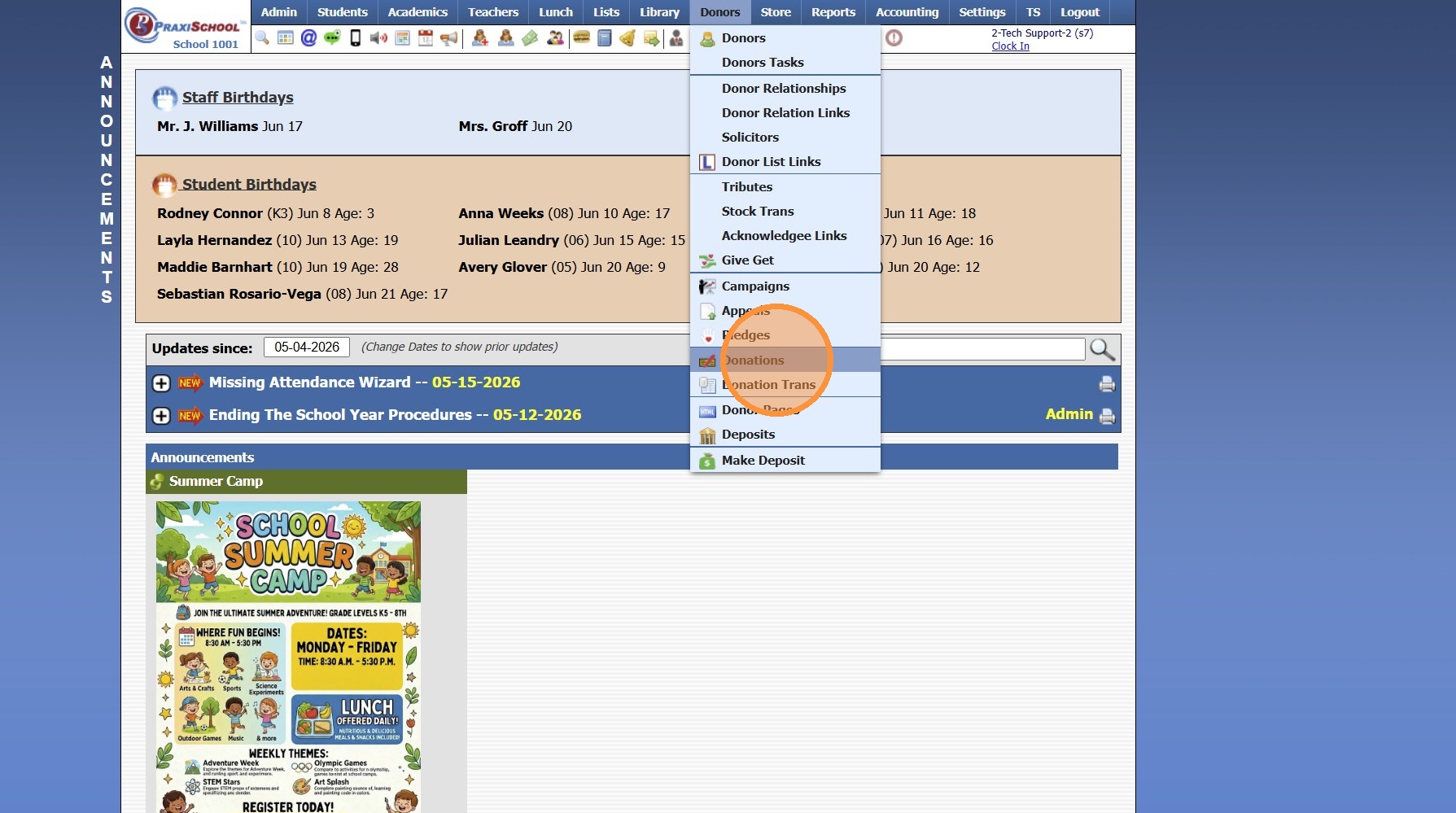
3. Select Donation to Cancel
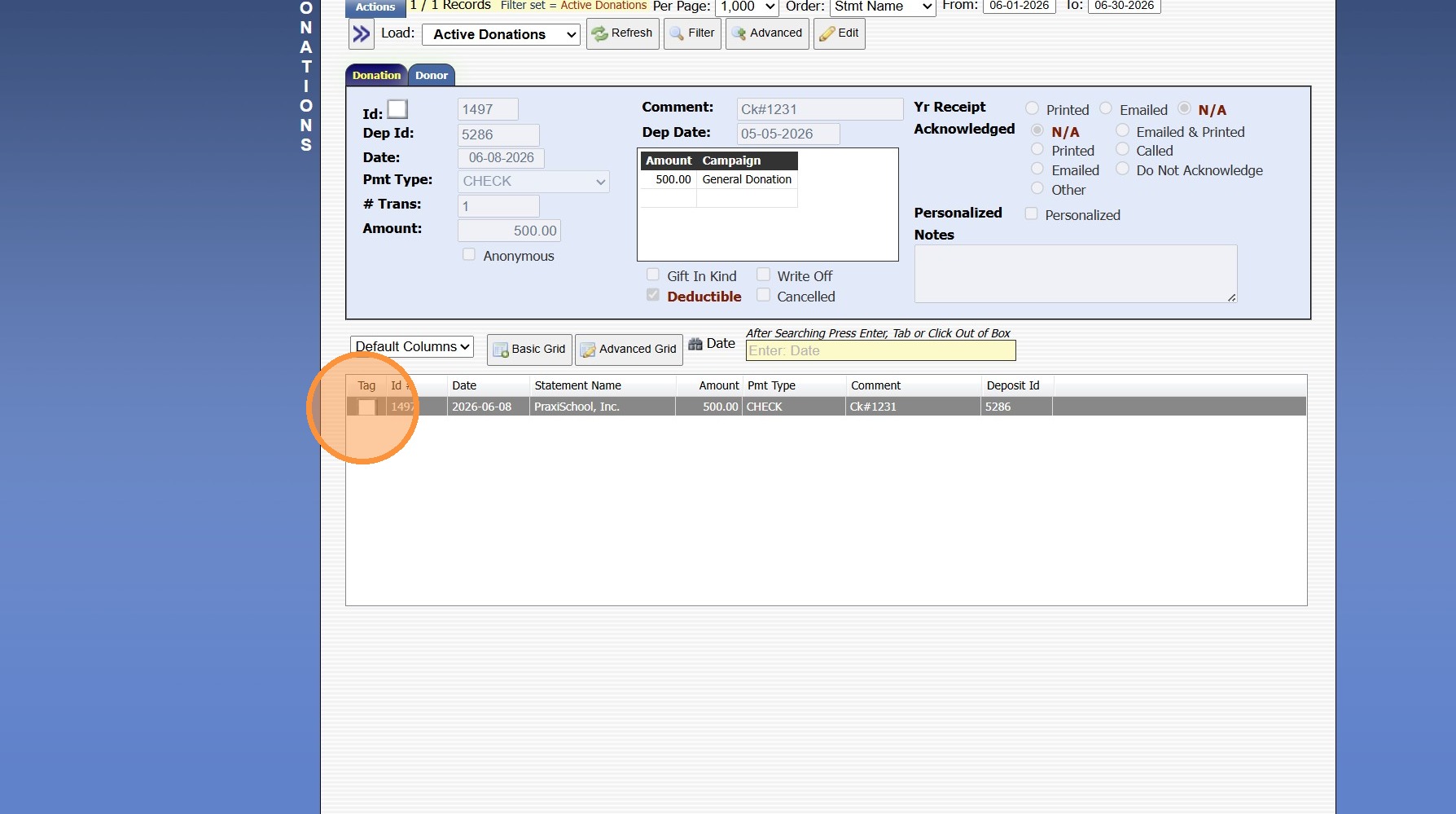
4. Click "Actions"
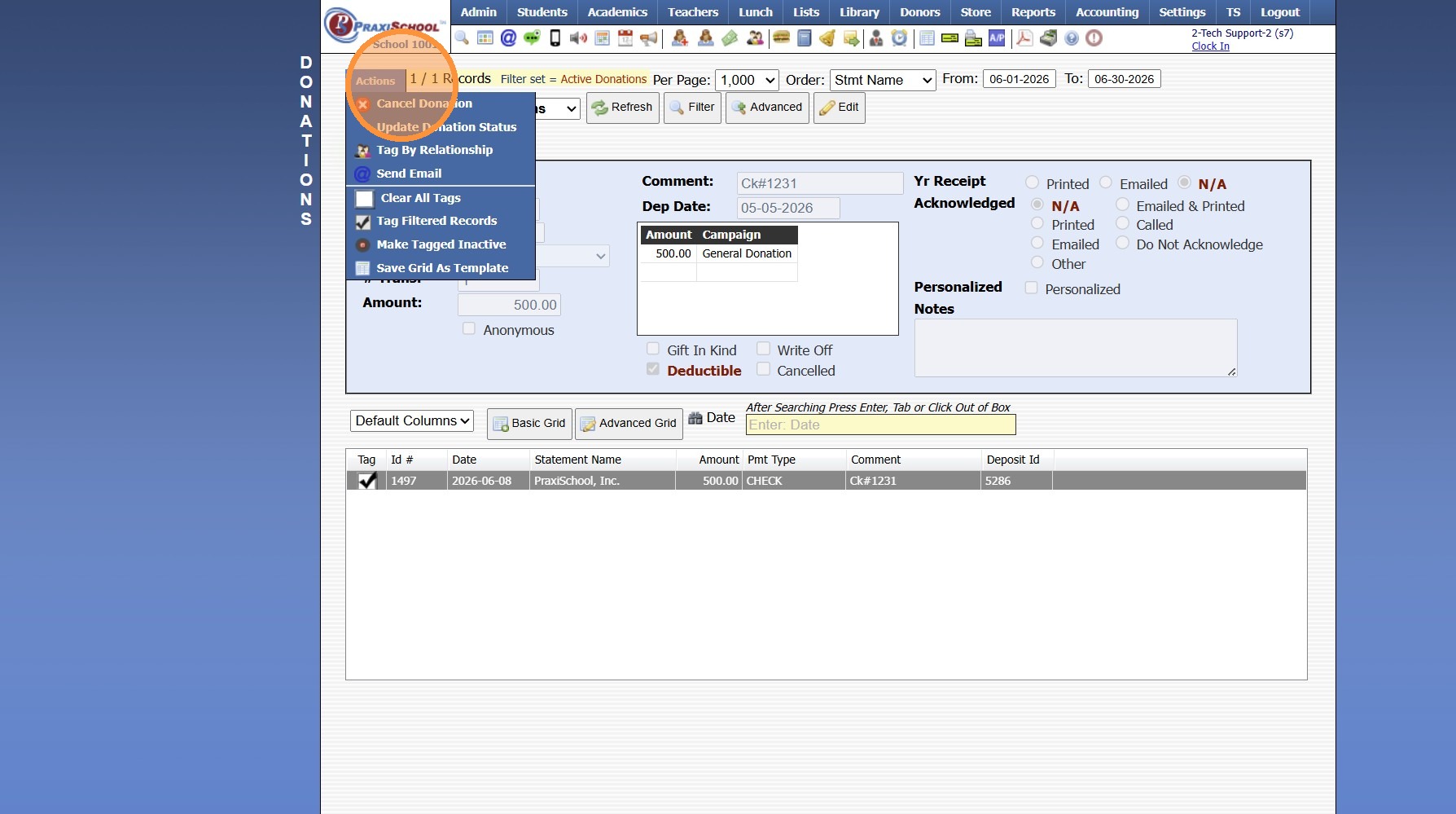
5. Click "Cancel Donation"
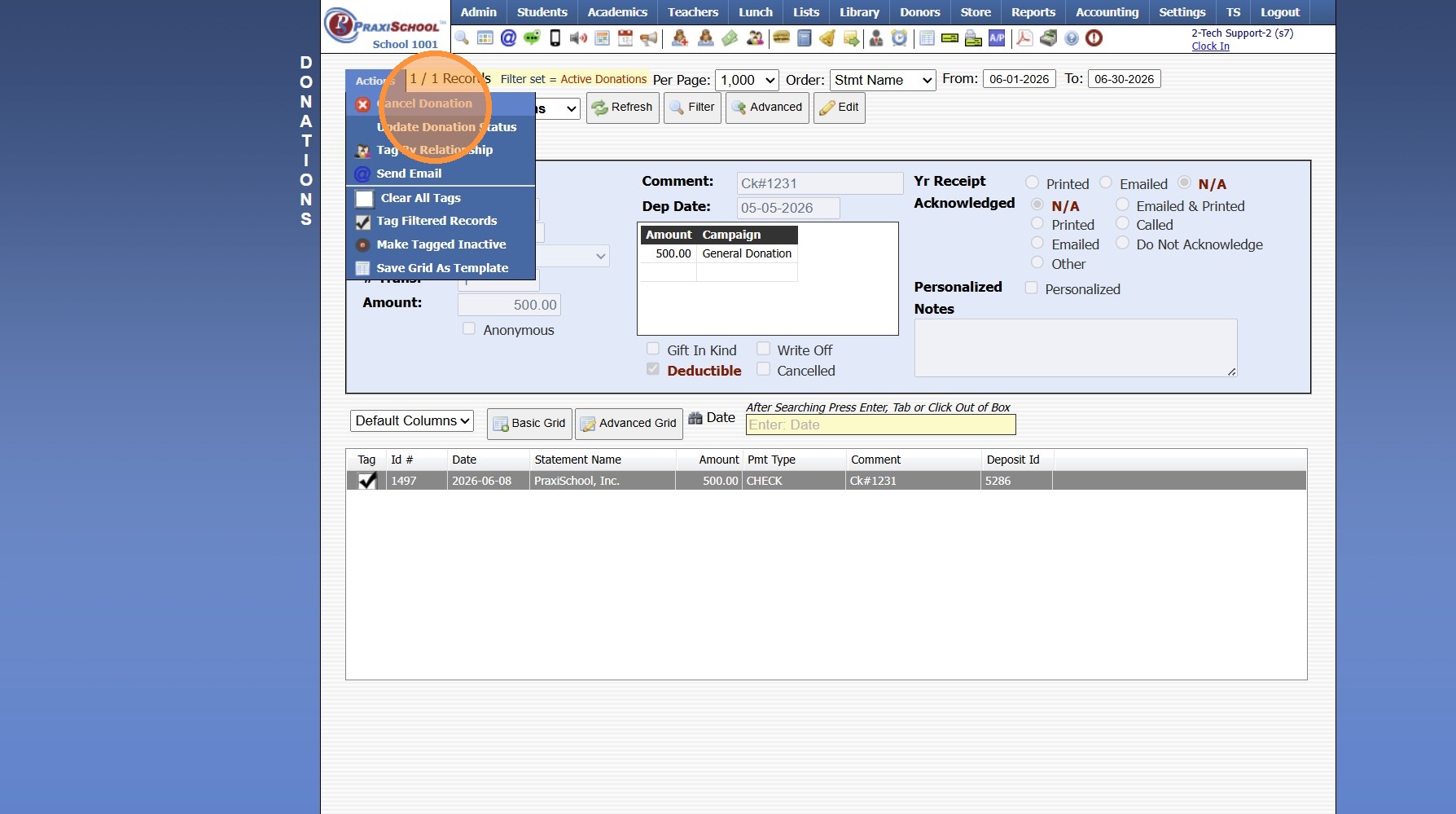
6. Select Cancel
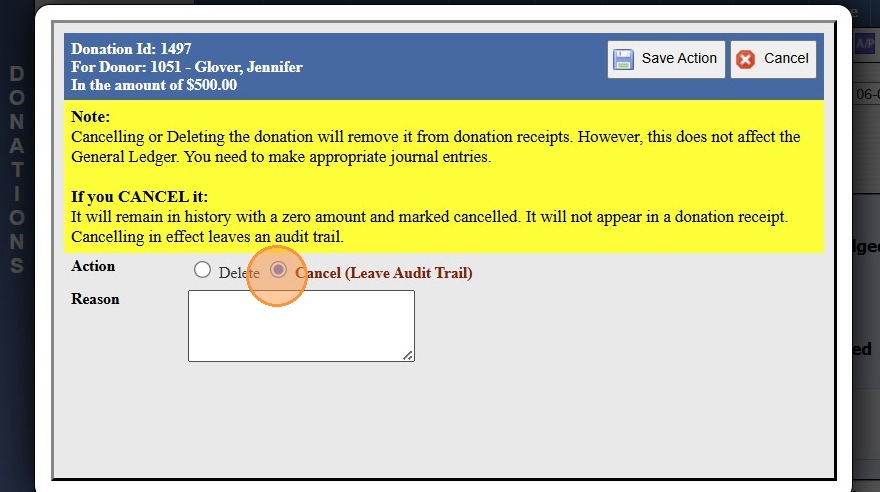
7. Enter the Reason for Cancelling the Donation (Optional)
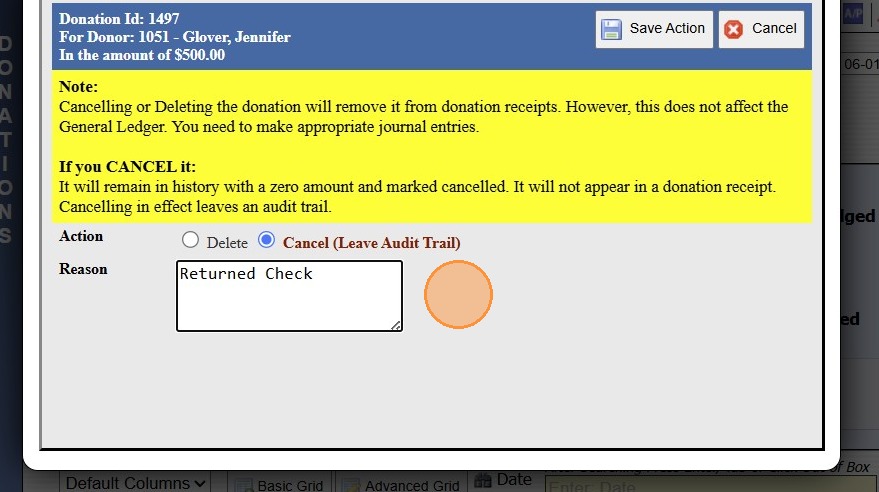
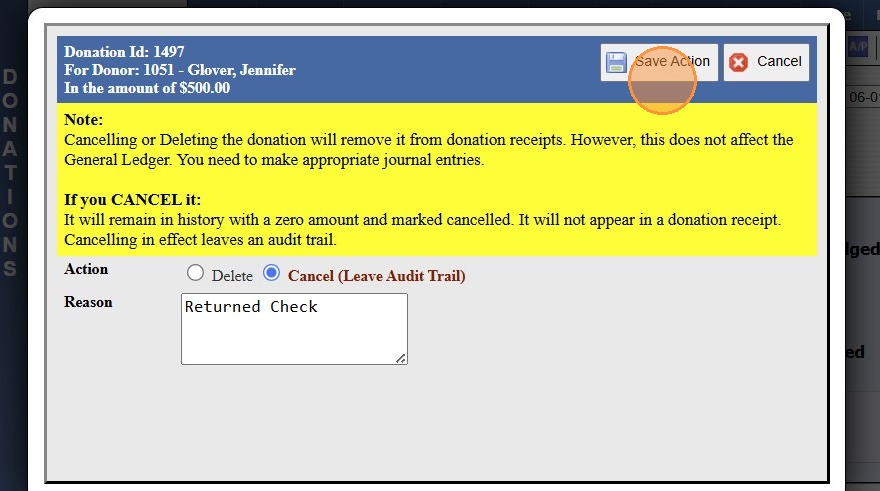
8. Click "Save Action"
9. Click "Accounting"
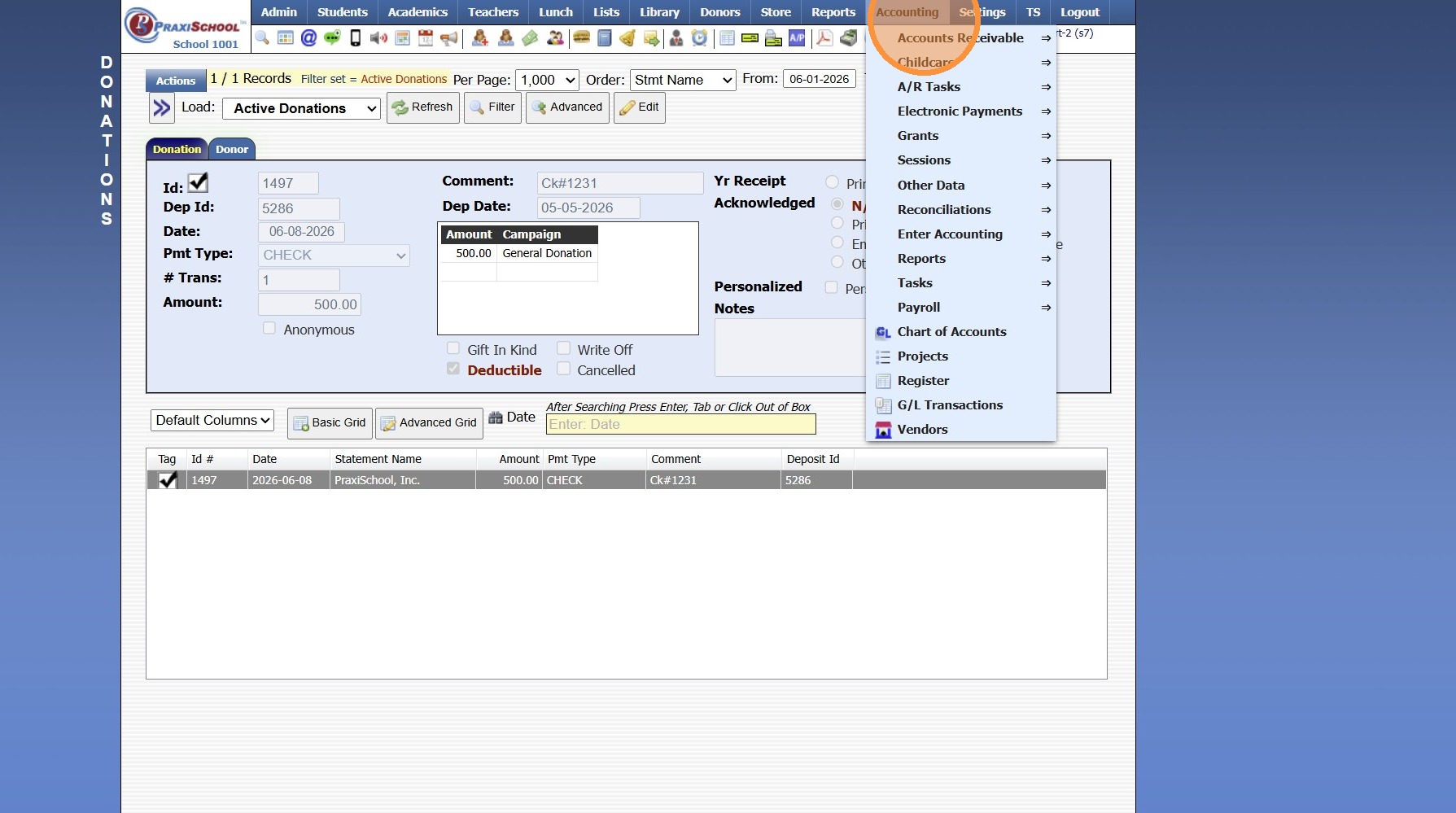
10. Click "Enter Accounting"
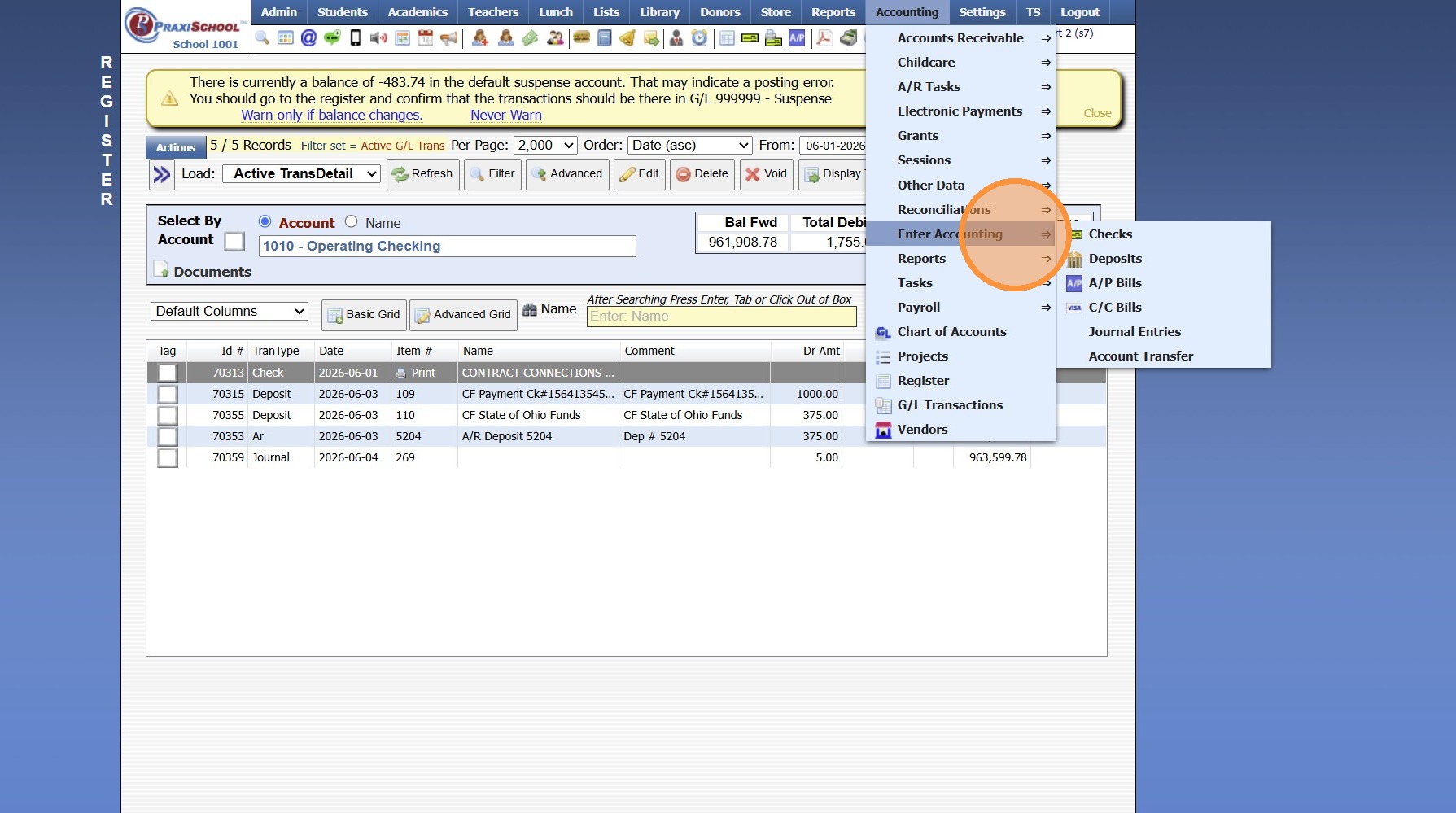
11. Click "Journal Entries"
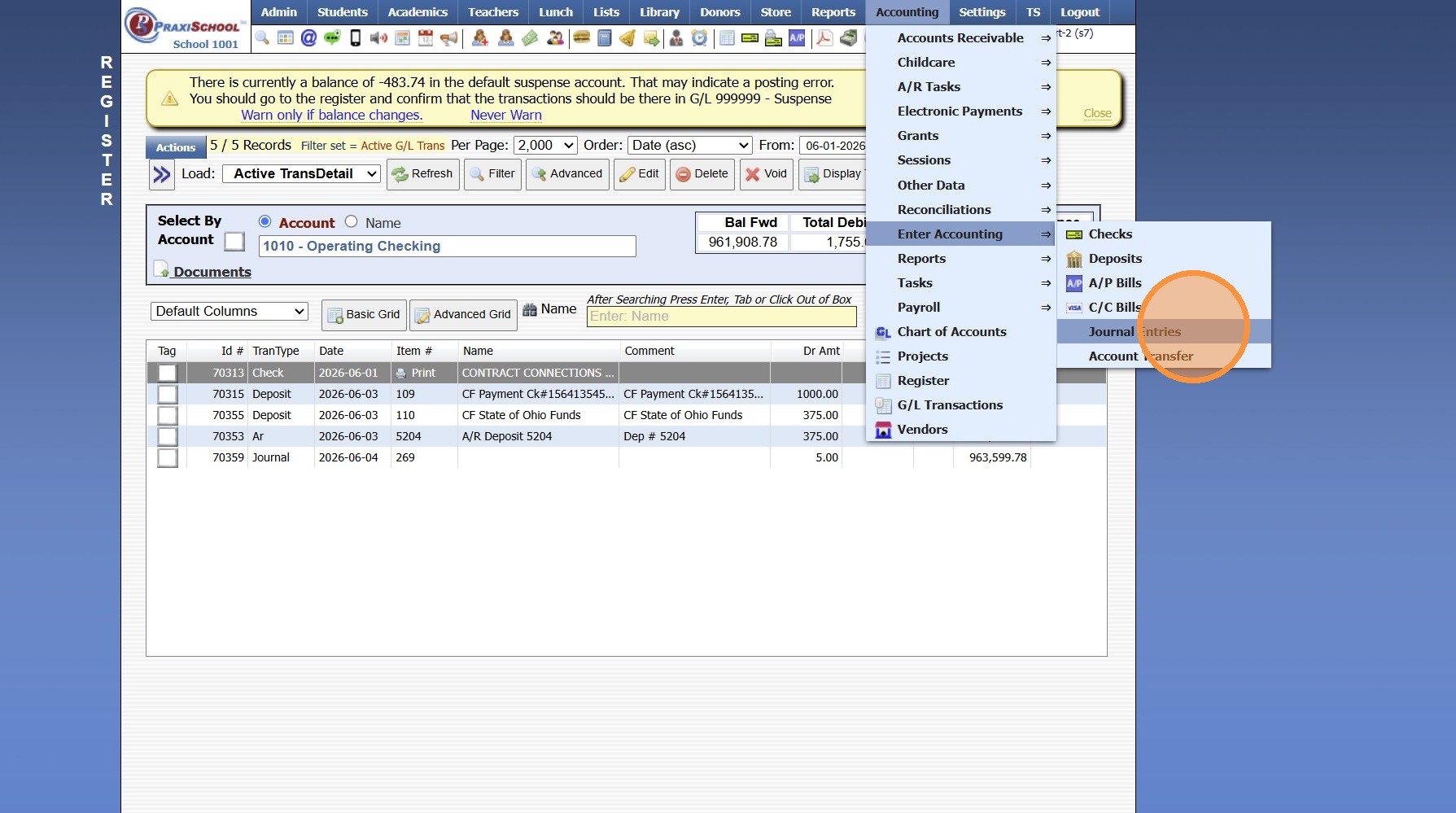
12. Enter Date of the Returned Donor Check
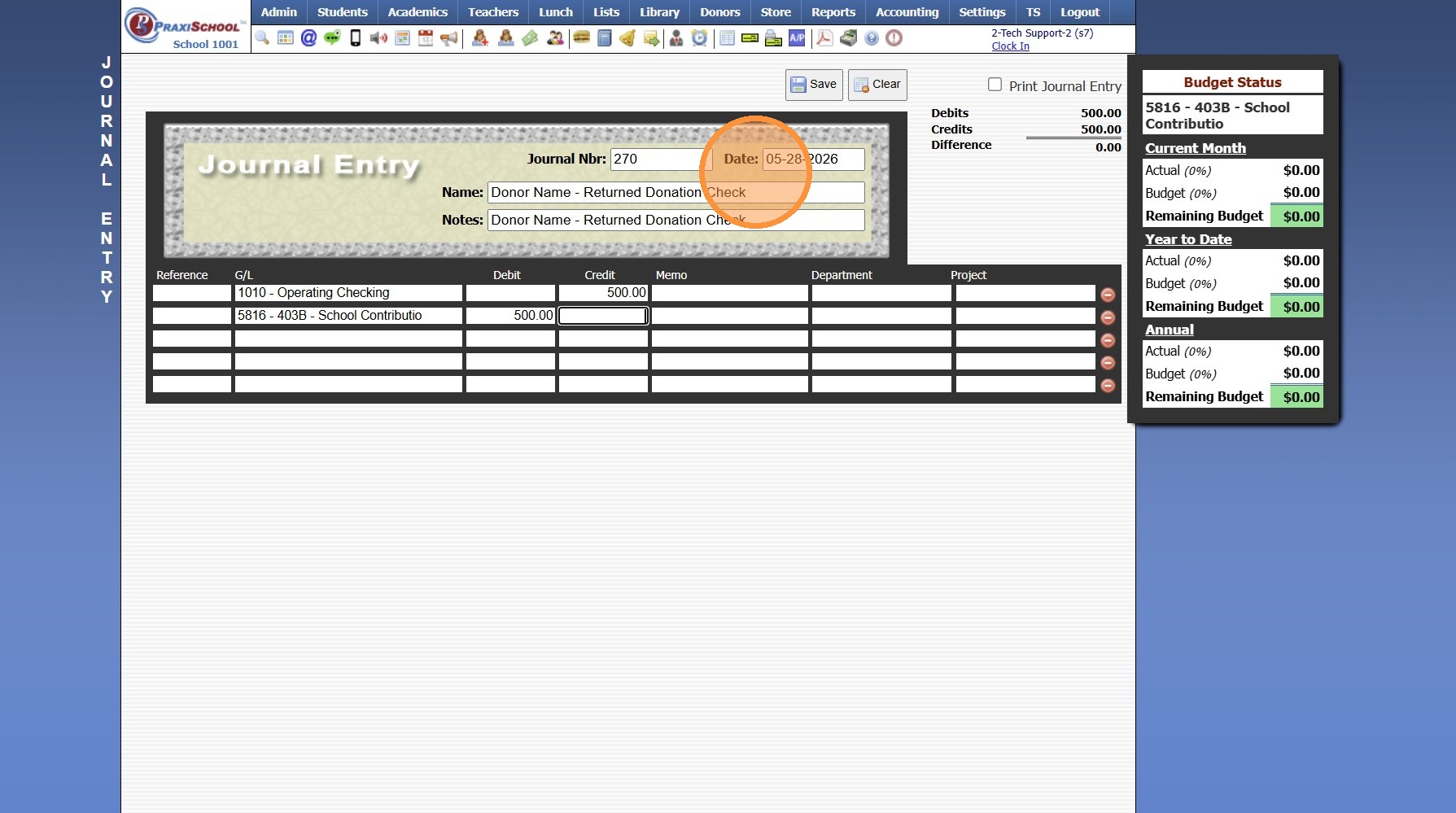
13. Enter Name & Notes for the Journal Entry
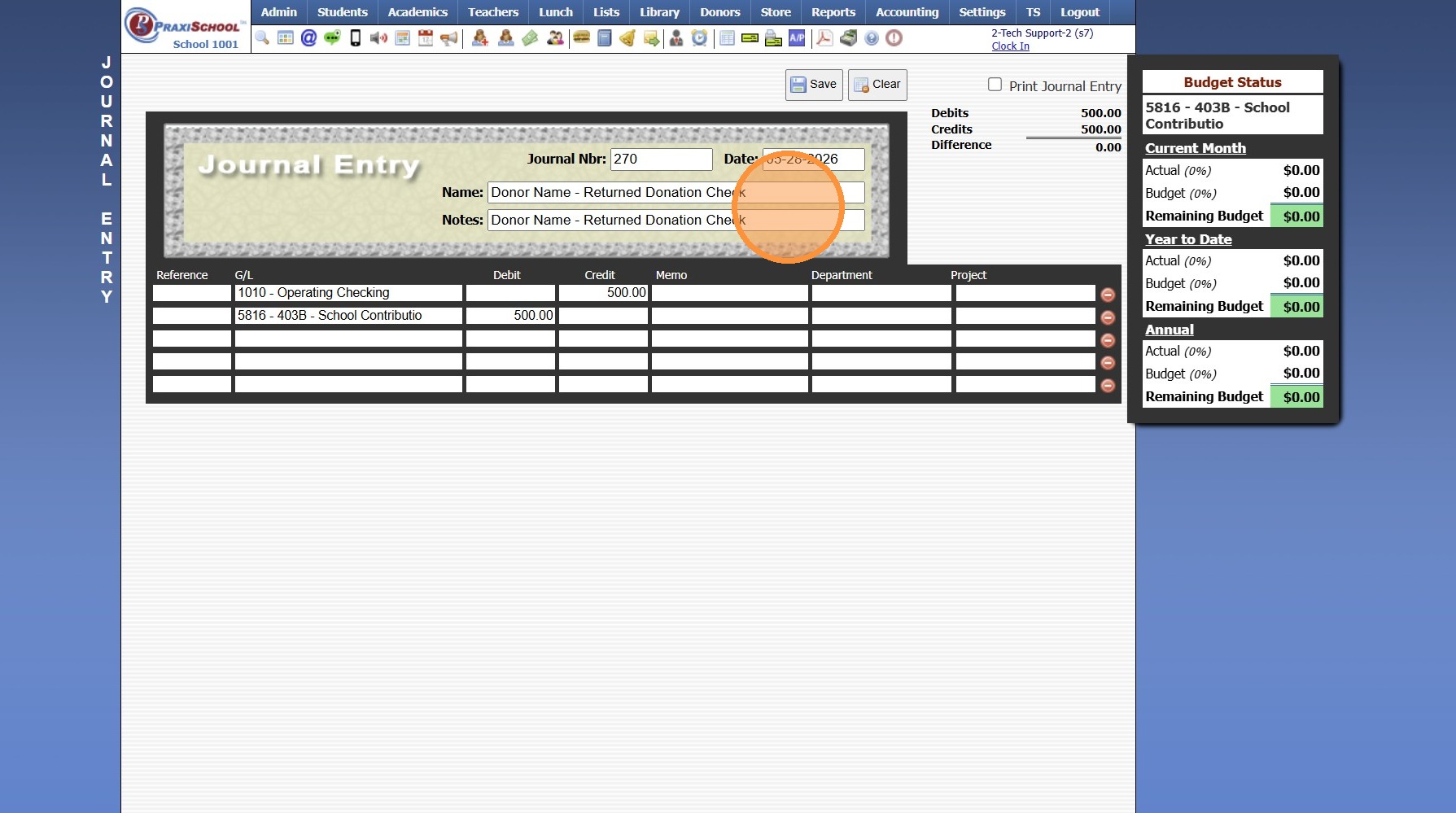
14. Credit the Bank Account
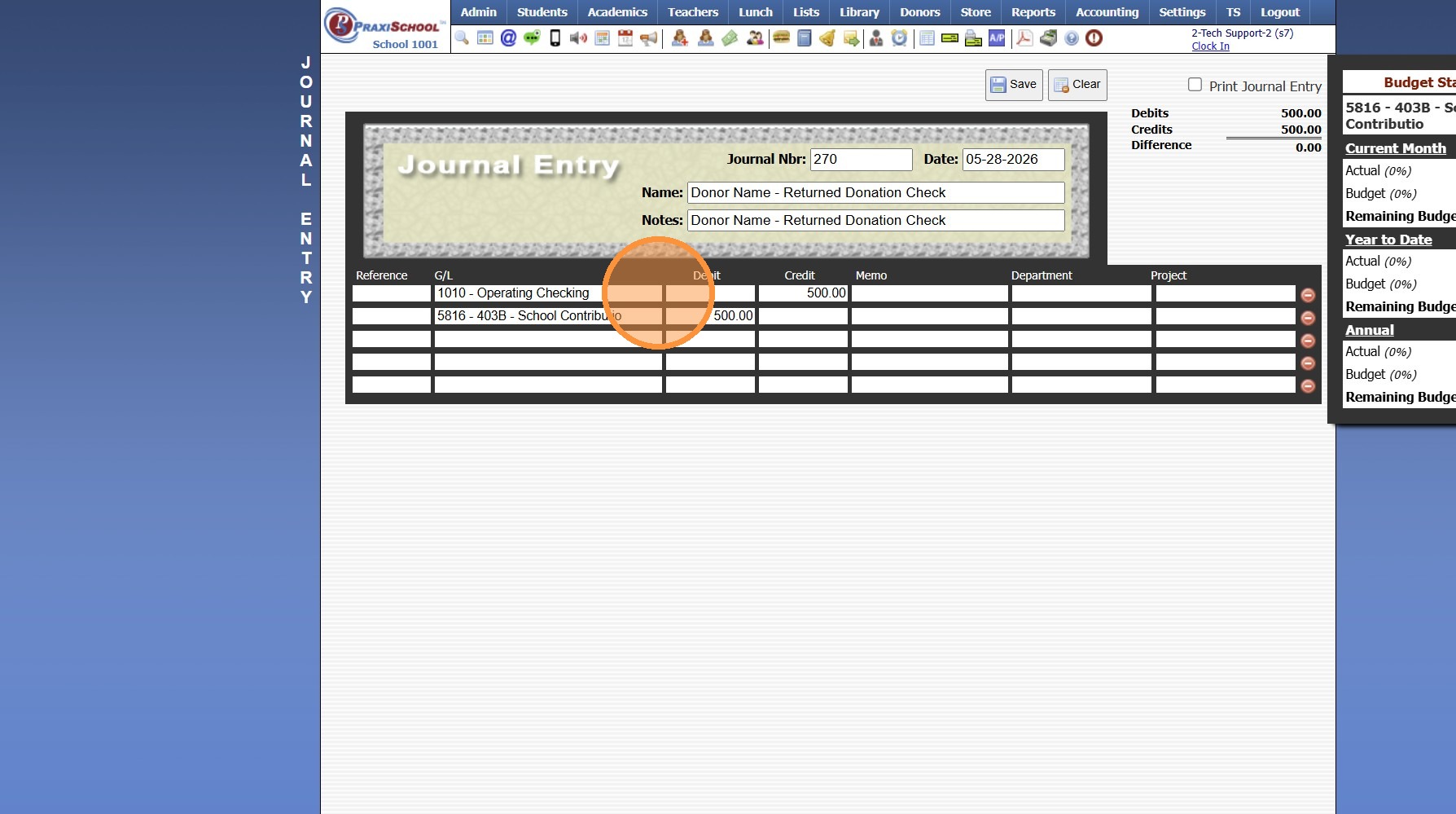
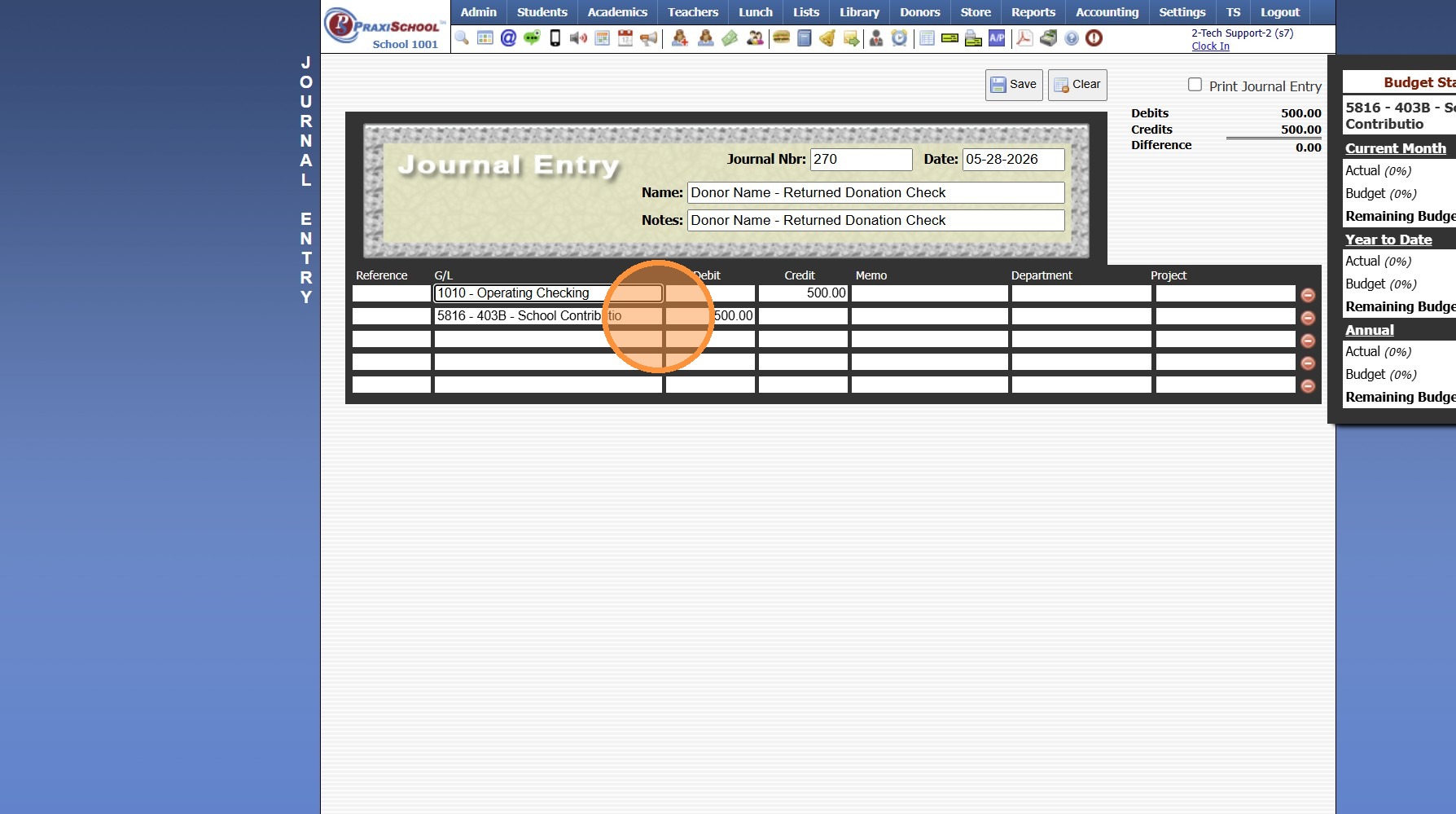
15. Debit the same Income Account used for the Donation
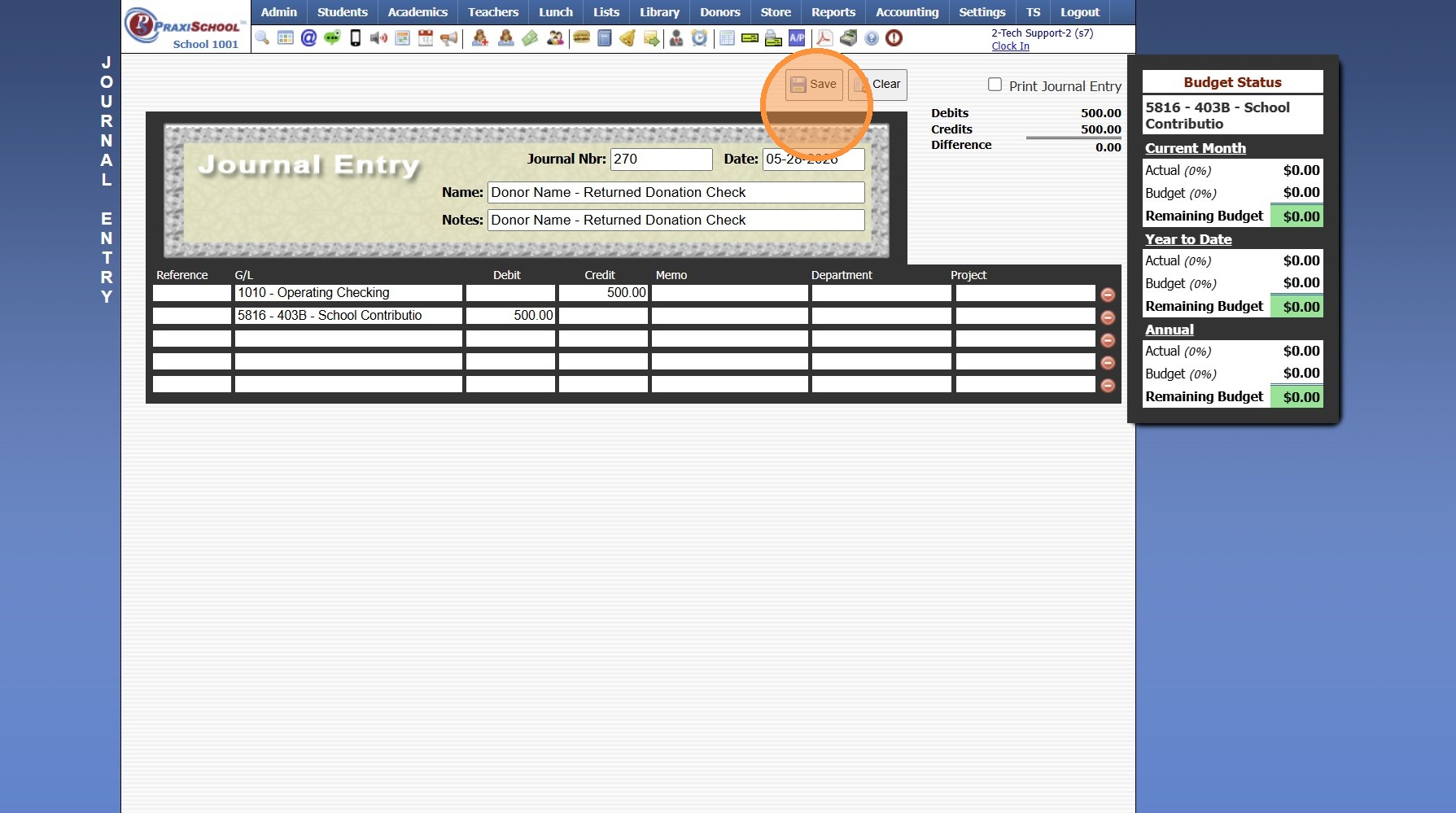
16. Click "Save"
4500.17.10
Related Articles
Posting a Returned Check/ACH in Accounts Receivable
Posting a Returned Check/ACH in Accounts Receivable 1. Log into PraxiSchool 2. Click "Admin" 3. Click "Accounts Receivable" 4. Select AR Account 5. Click "Actions" 6. Click "Post Returned Check" 7. Enter Returned Check Date 8. Enter Check Number or ...Posting a Returned AR Check/ACH
1. Log into PraxiSchool 2. Click "Admin" 3. Click "Accounts Receivable" 4. Select the Account 5. Click "Actions" 6. Click "Post Returned Check" 7. Enter Returned Date 8. Enter Check Number OR ACH (for Online Payments) 9. Enter Check/ACH Amount 10. ...Posting a Check Payment That Includes Both AR & Lunch Payments
Posting a Check Payment That Includes Both AR & Lunch Payments Posting a Check Payment to the Accounts Receivable that Includes Funds for a Students Lunch Account. 1. Log into PraxiSchool 2. Click "Admin" 3. Click "Accounts Receivable" 4. Search for ...Editing Donation Transaction Campaign Allocations
1. Click "Donors" 2. Click "Donation Trans" 3. Set Date Range 4. Click "Refresh" 5. Select Transactions 6. Click "Edit" 7. Update Donation Allocation Amount 8. Click "Save" 9. Select Next Donation Allocation 10. Click "Edit" 11. Update Donation ...Posting a Refund to an AR Account (Owed Balance)
Posting a Refund to an AR Account (Owed Balance) 1. Go to Accounts Receivable 2. Select Student Account 3. Click "Actions" 4. Click "Refund Account" 5. Enter Refund Date 6. Click "Check & Credit" 7. Make sure Bank Acct General Ledger is Selected 8. ...