Open Store to Place Orders from Admin View
1. Click "Store"

2. Click "Stores"
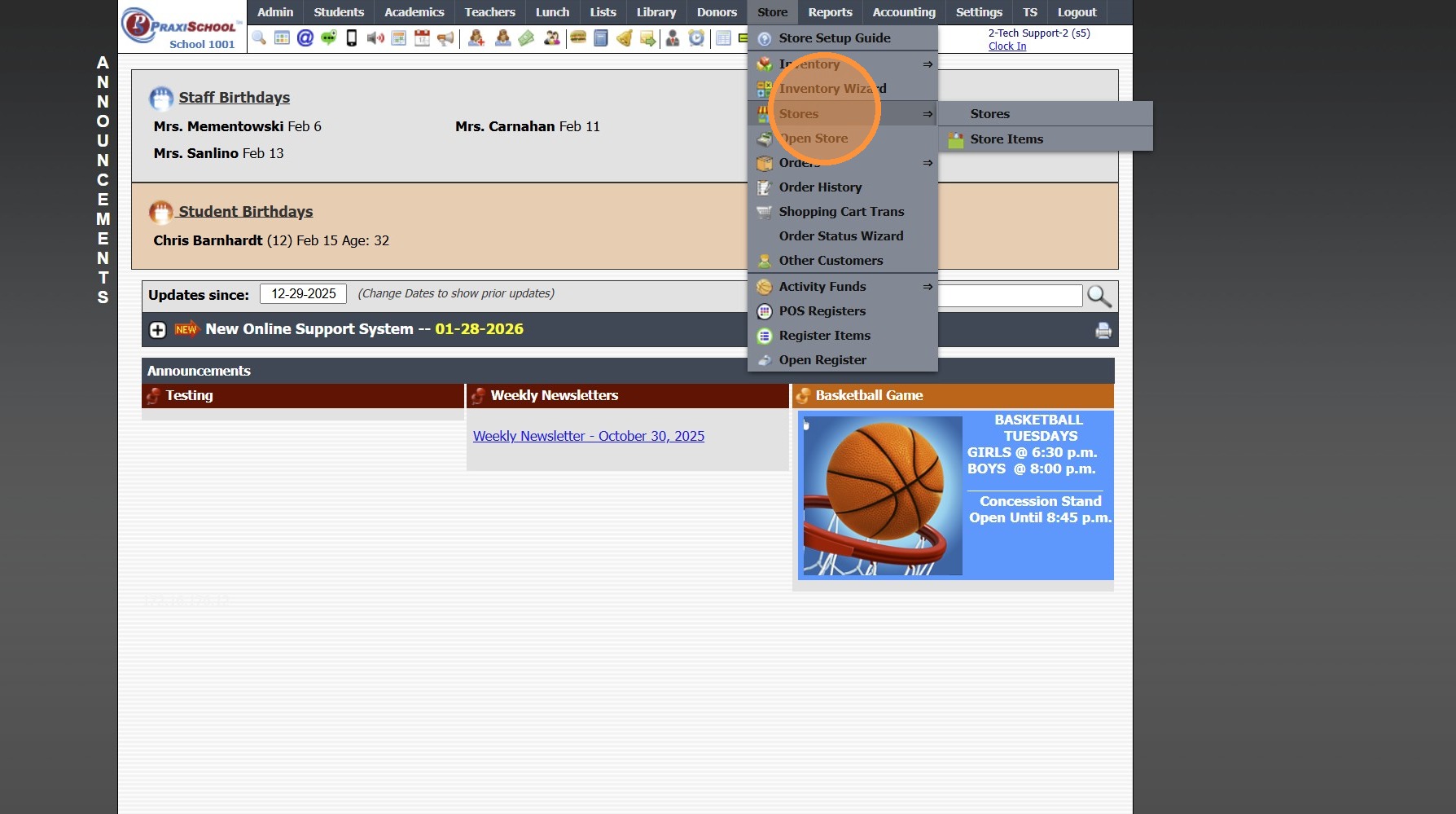
3. Click "Stores"
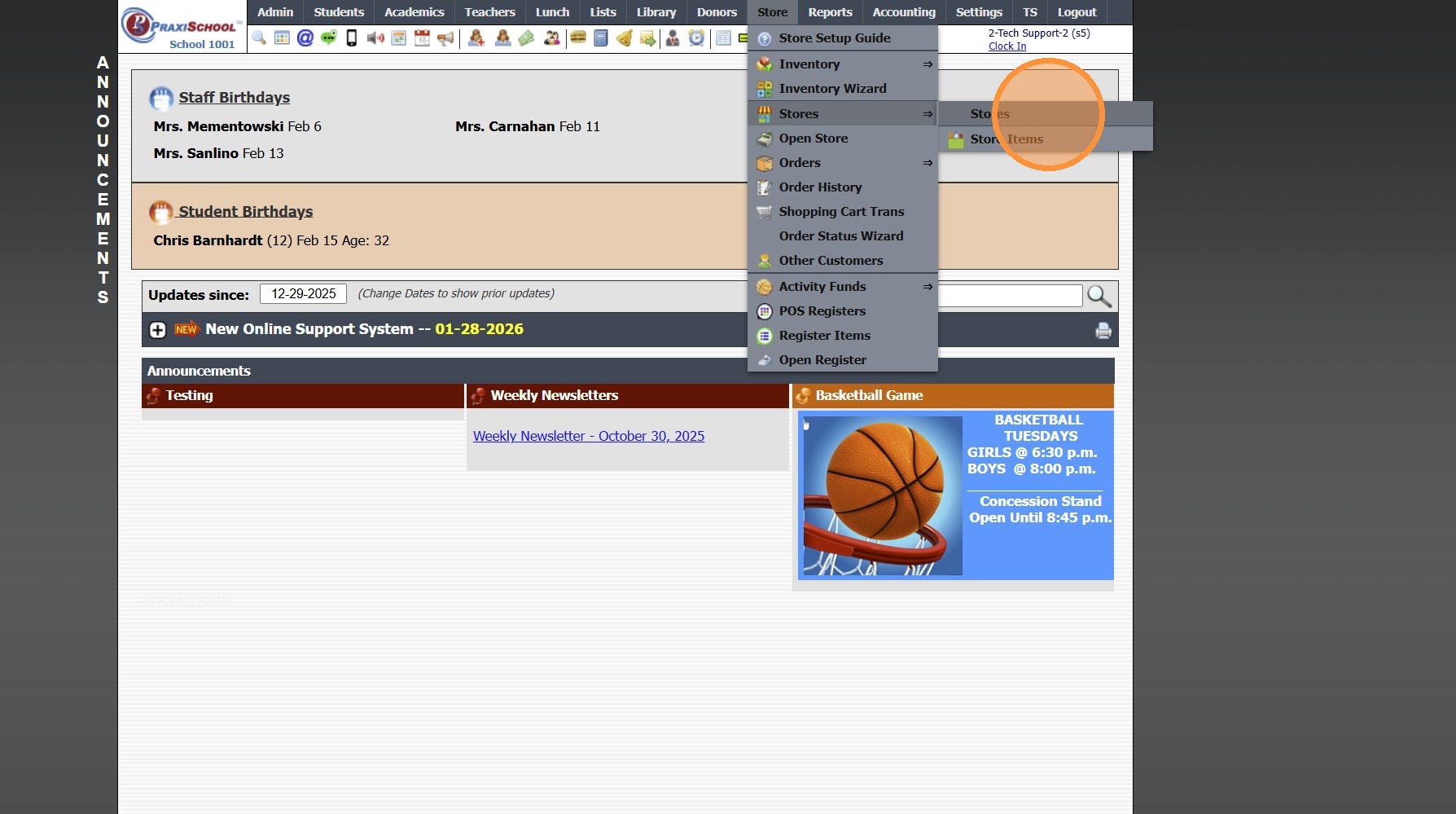
4. Click "Open Store"

5. Select Store & Select From Option

6. Click "Lookup" to Lookup Student, AR, Family, Staff, etc

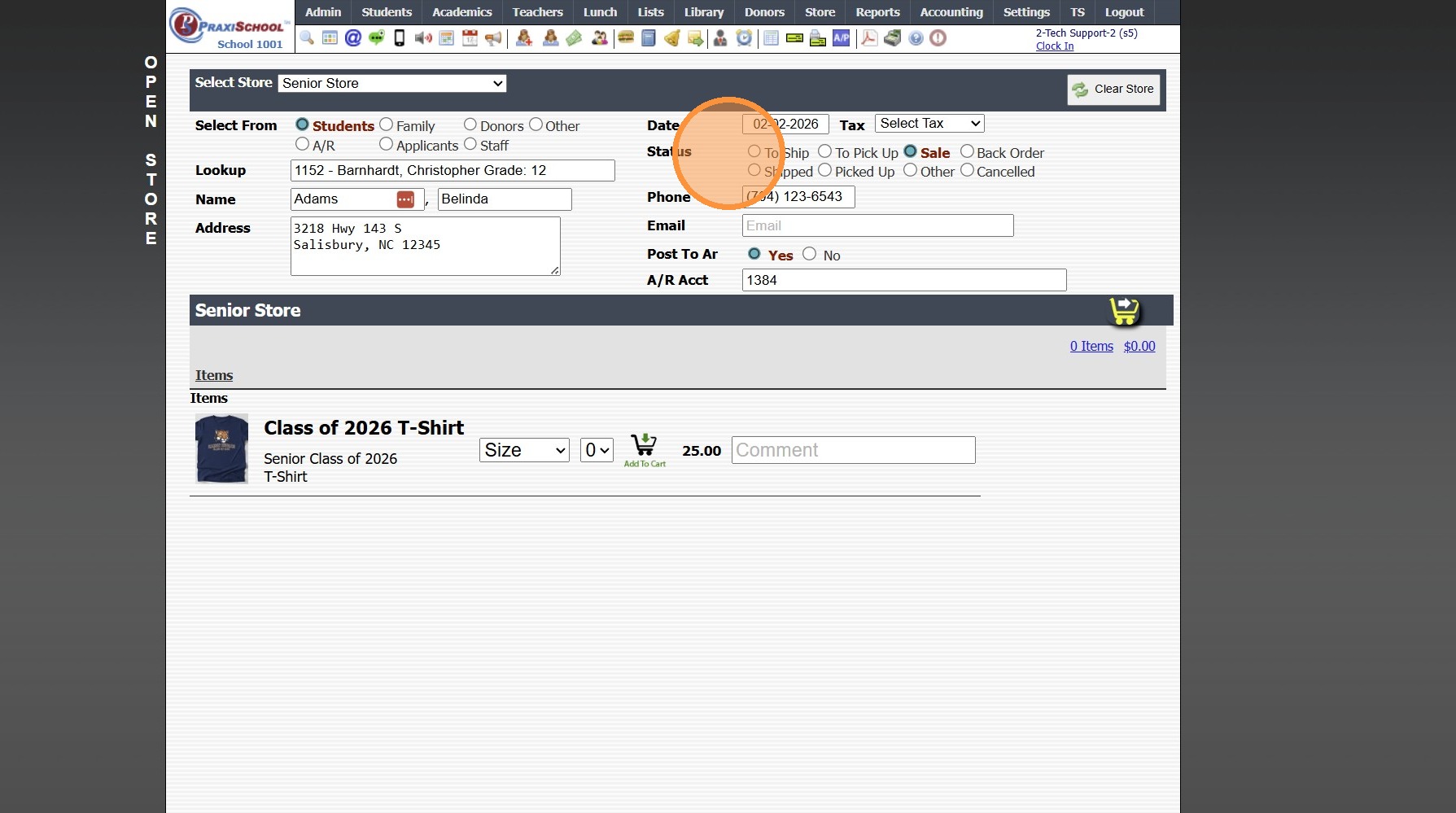
7. Select "Status"
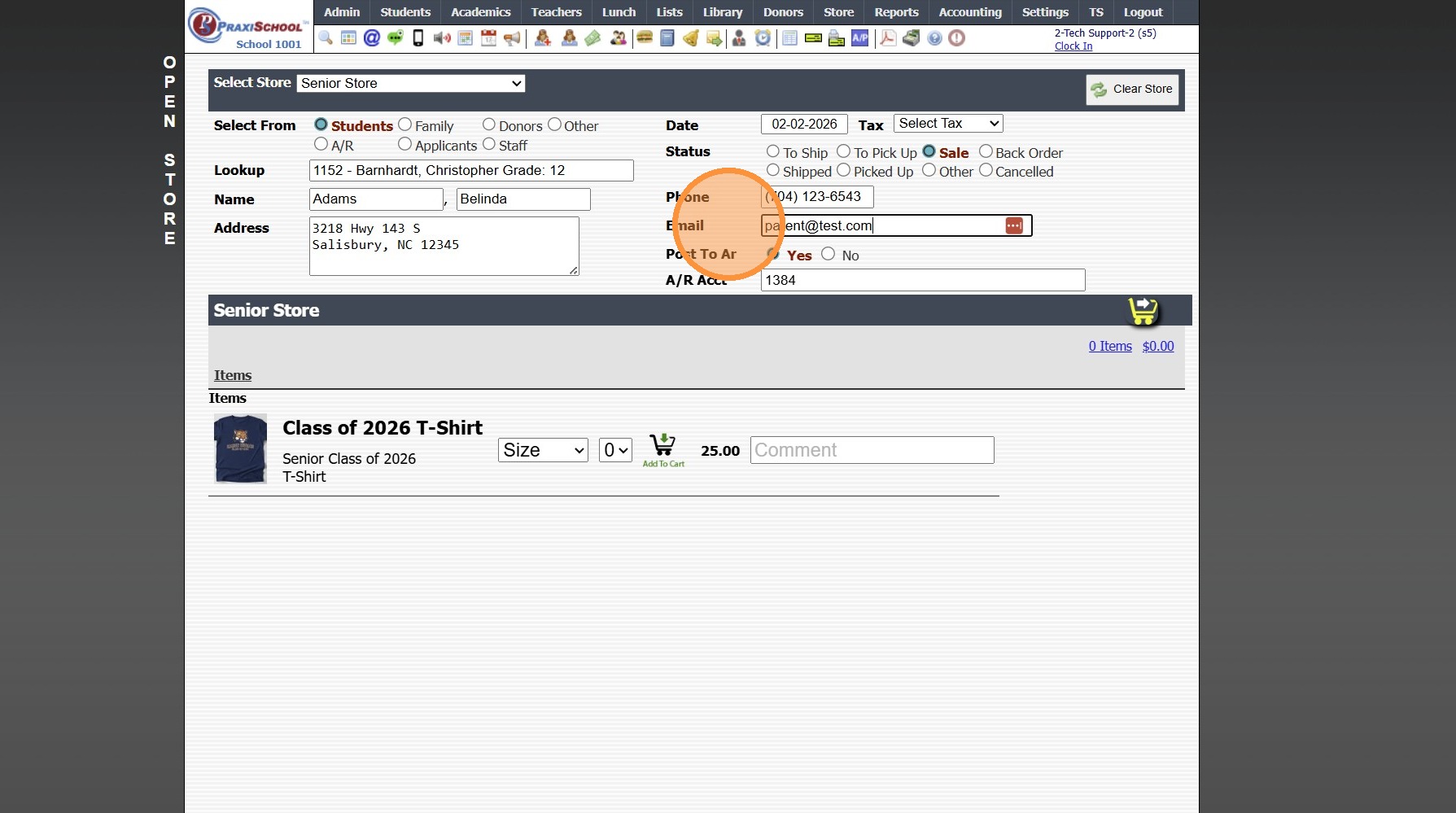
8. Verify Email
9. Select to Post to Ar Option
(If Yes, Verify AR ID Populates)
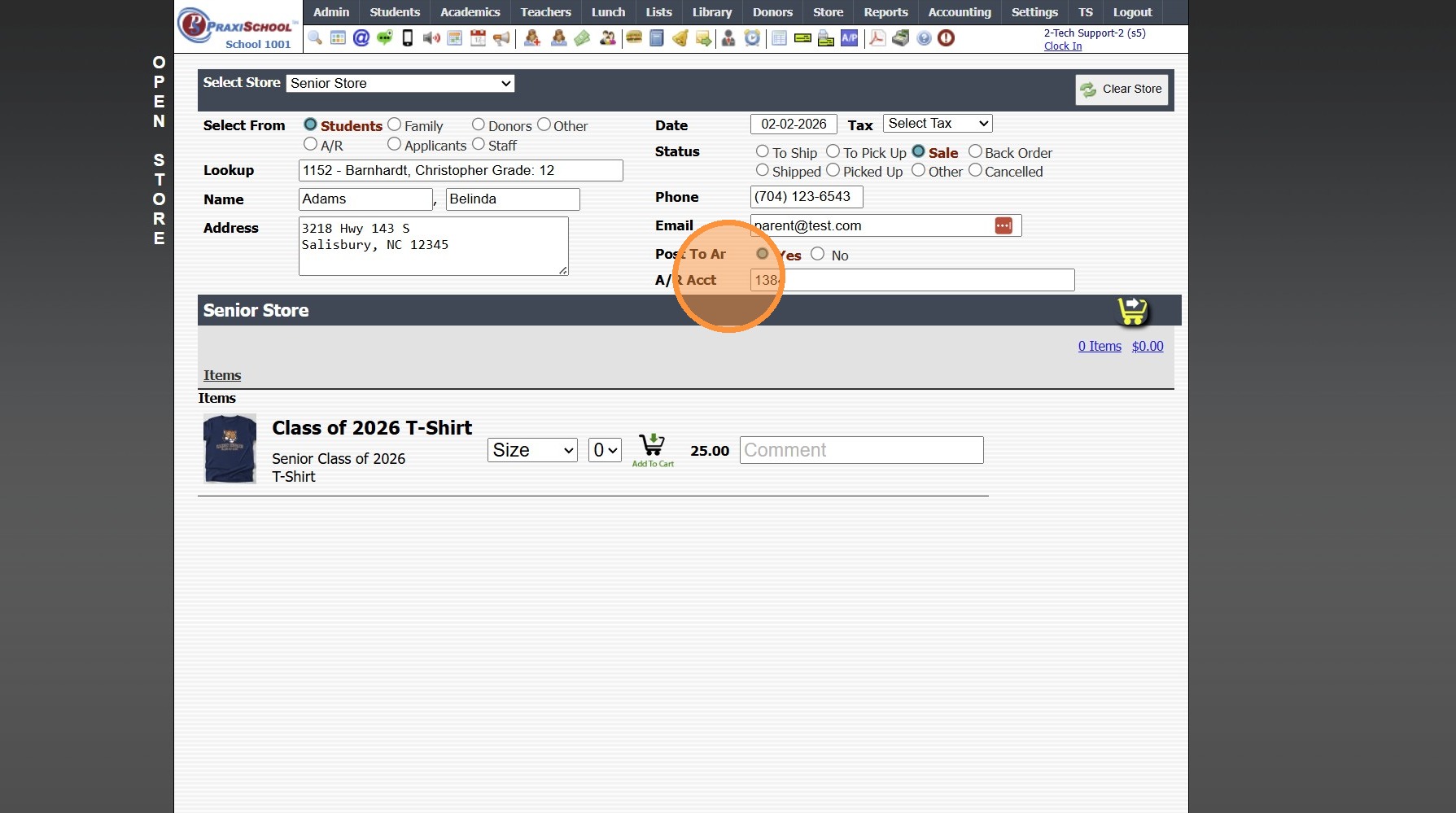
10. Select Item
(Select Size & Color Options)
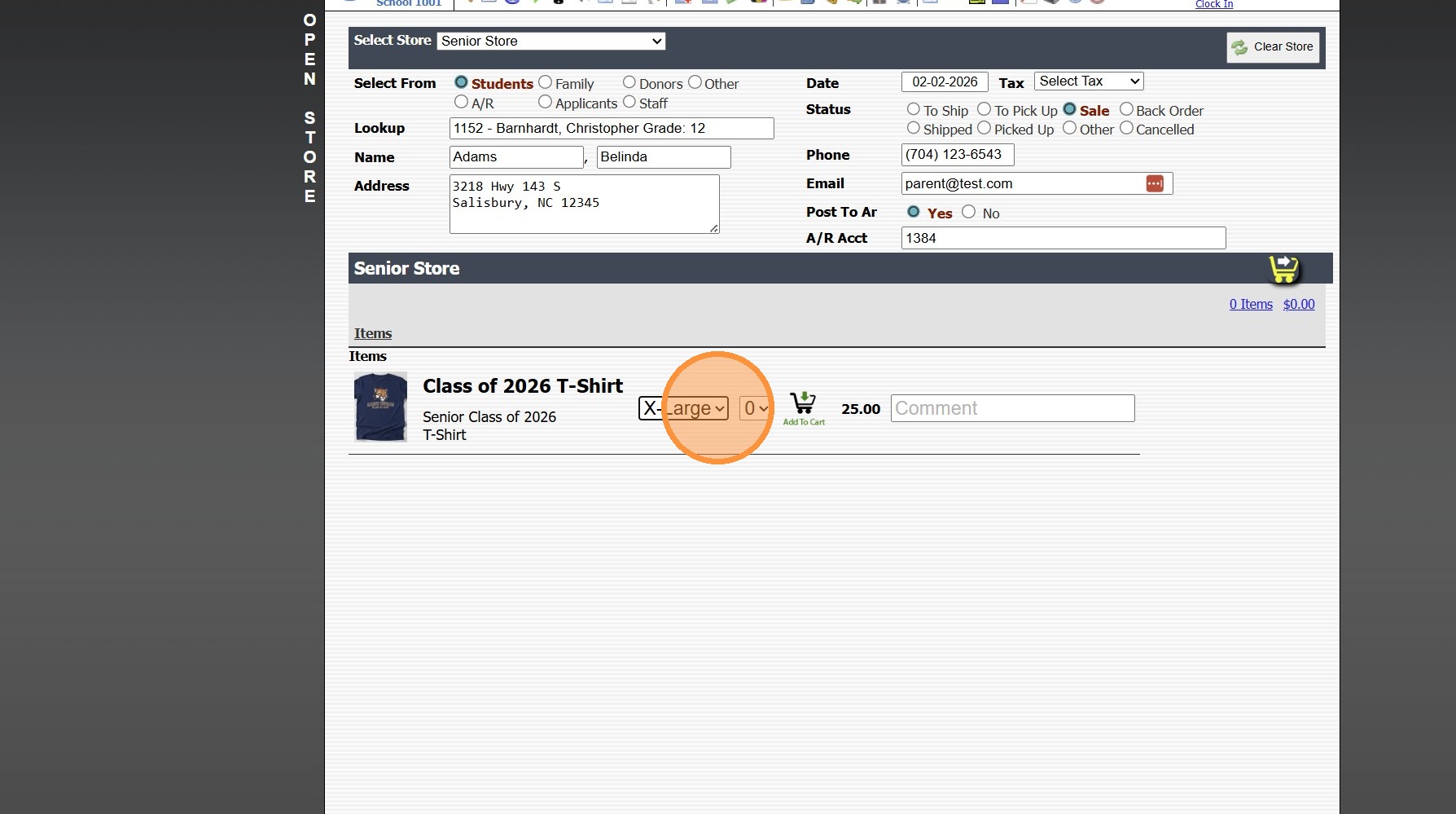
11. Select Quantity

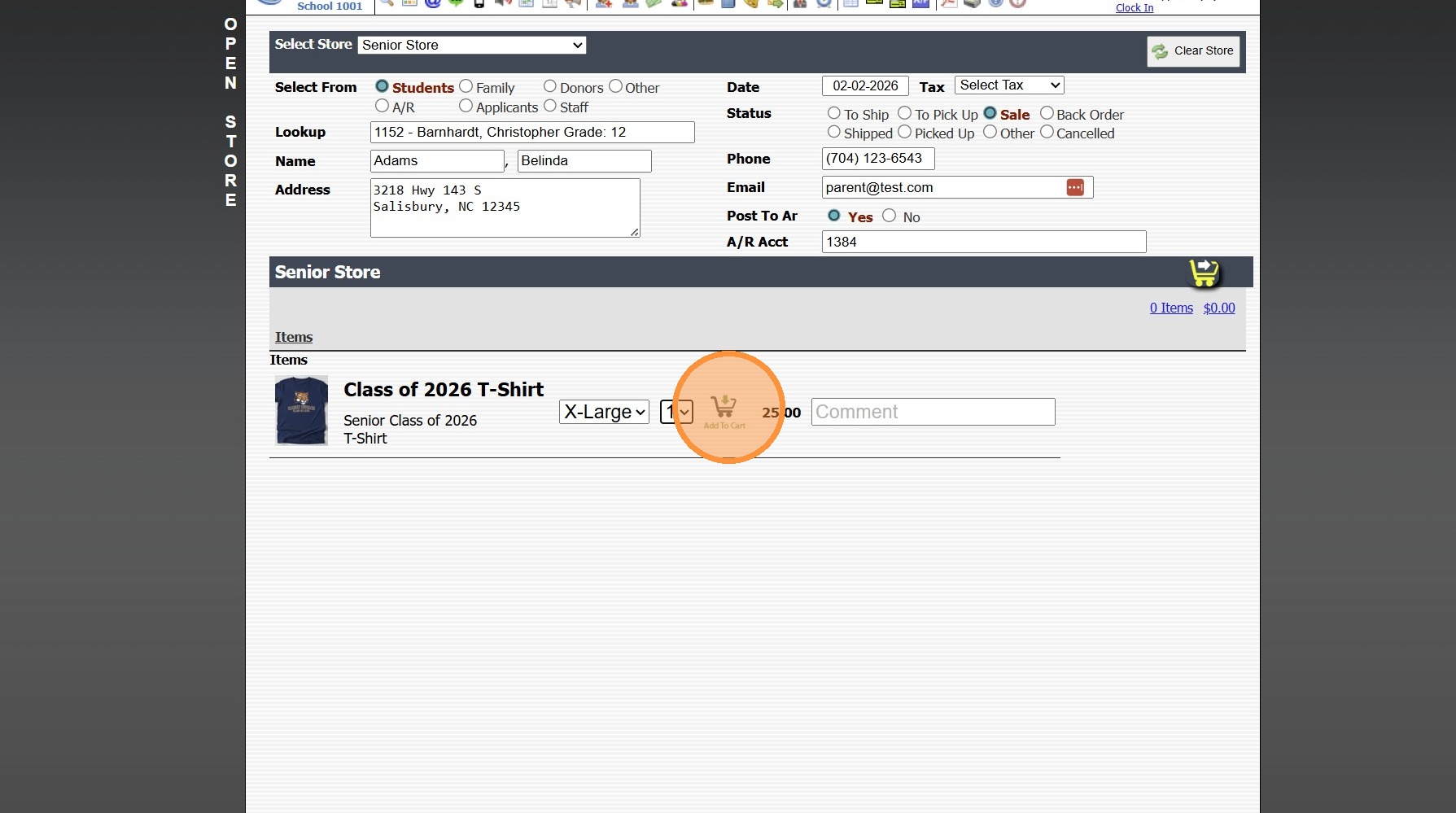
12. Click to Add to Cart
13. Click on Cart Icon Once all Items have been Added
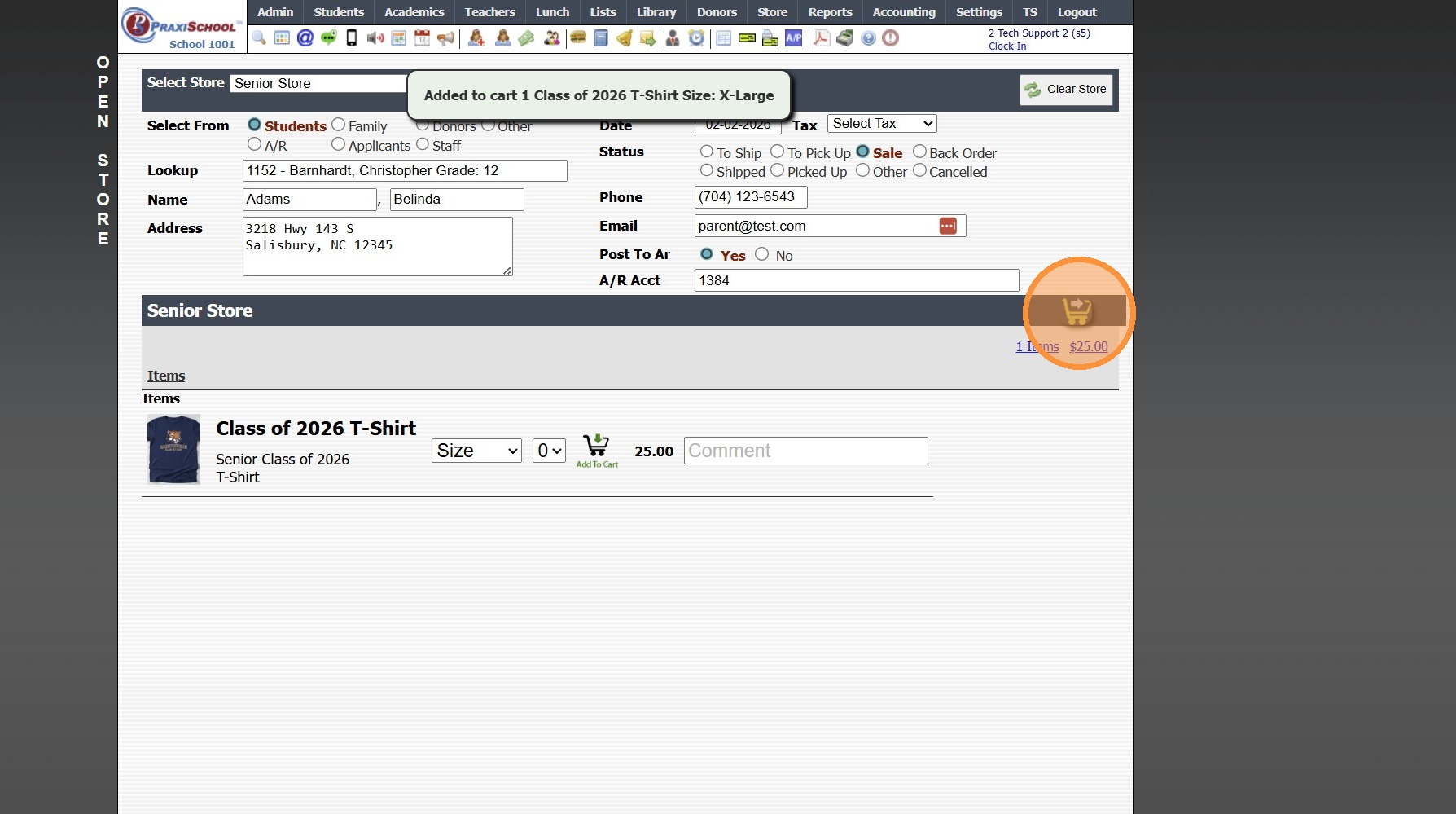
14. Click "Submit Order"
(Submit Order option is ONLY Available for Stores set to Order, NOT Collect)

15. Store Order Verification & AR Invoice Created Notifications are Visible on Screen

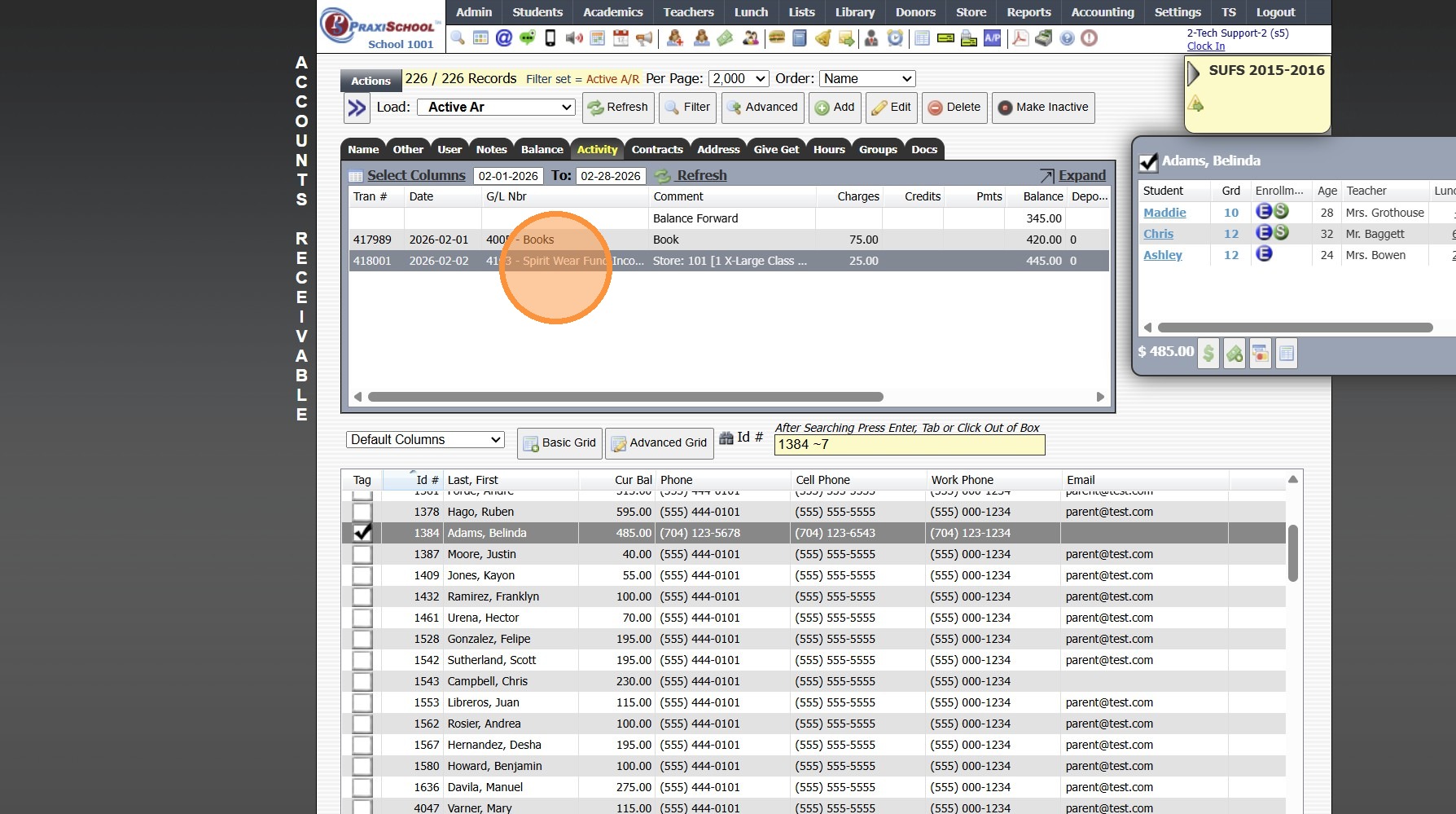
16. Store Order is Posted to AR Activity
5000.4.1
Related Articles
View Lunch Orders From Classroom
View Lunch Orders From Classroom 1. Log into PraxiSchool 2. Click "Teachers" 3. Click "Classroom" 4. Select Class 5. Click "Classroom" 6. Click the "Lunch" Toggle 7. Left Click on Student 8. Click "View Order" to View Selected Students Lunch Order 9. ...Store Overview and Training
Welcome to the PraxiSchool Store Overview and Training! Below you will find information about the Store features, Store setup information and the Store training videos. Please review each video before attempting to set up your Store data. PraxiStore ...Why is the More option in the Store not Expandable?
Tip: The Most Common Reason the More option is Not Expandable is due to the Description being too Long. See Instructions Below. 1. Click "Store" 2. Click "Stores ⇒" 3. Click "Stores" 4. Select Store 5. Click "Open Store" 6. The "More" Option is not ...Creating a Store
1. Click "Store" 2. Click "Stores" 3. Click "Stores" 4. Click "Add" 5. Enter Description & Title (Title Appears on Portal Store) 6. Select Action (Order or Collect) (Stores set to Collect require Payment on Submission of Store Order) 7. Select Order ...Placing Store Orders from the Parent Portal Without Payment Requirements
1. Click "School Store" 2. Select the Store 3. Select Size, Color, etc (If Applicable) 4. Select Quantity 5. Click the Add to Cart Icon 6. Click the Proceed to Cart Icon 7. Click "Submit Order" 5000.14.1