Why is the More option in the Store not Expandable?
Tip: The Most Common Reason the More option is Not Expandable is due to the Description being too Long. See Instructions Below.
1. Click "Store"
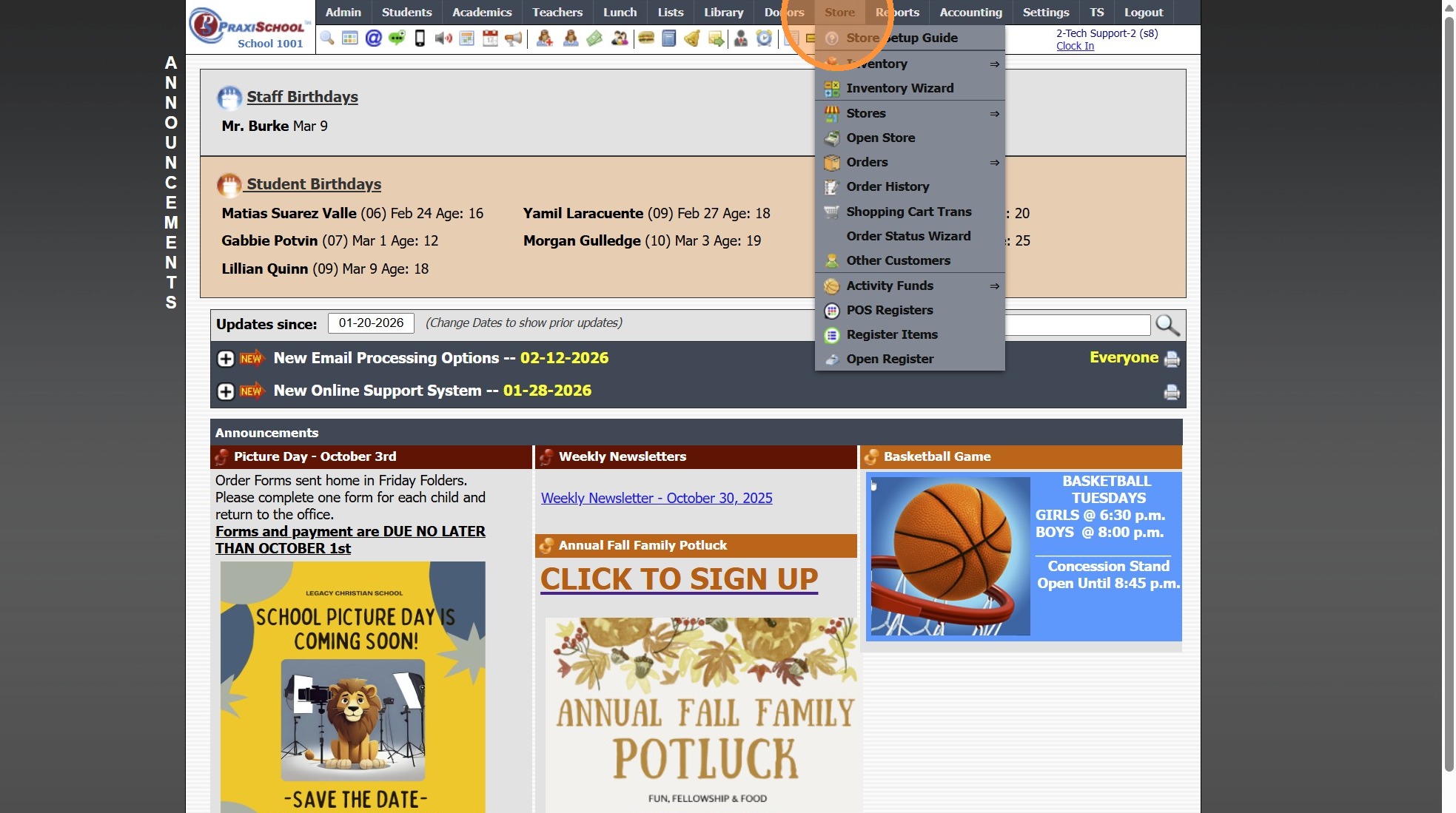
2. Click "Stores ⇒"
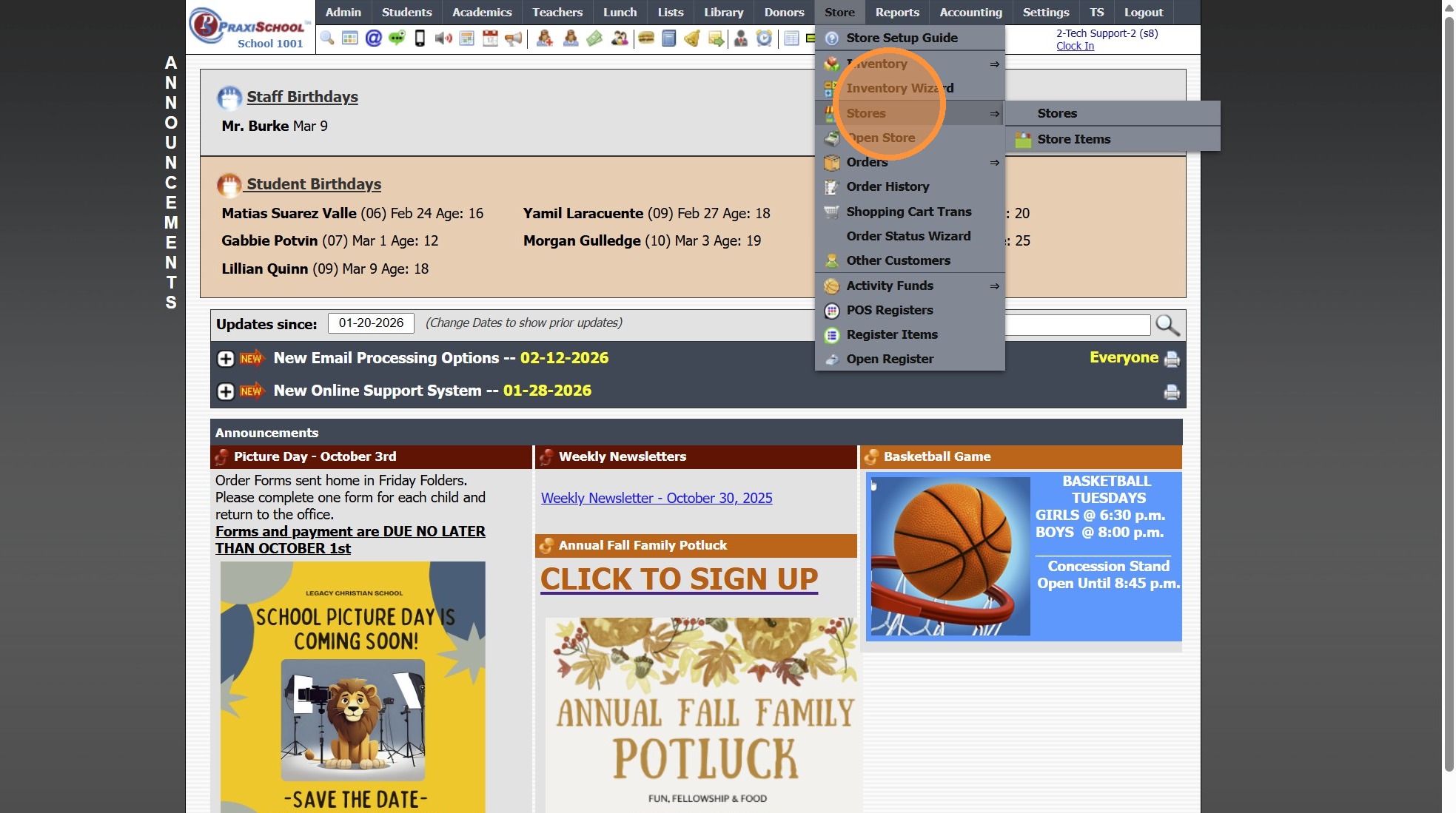
3. Click "Stores"
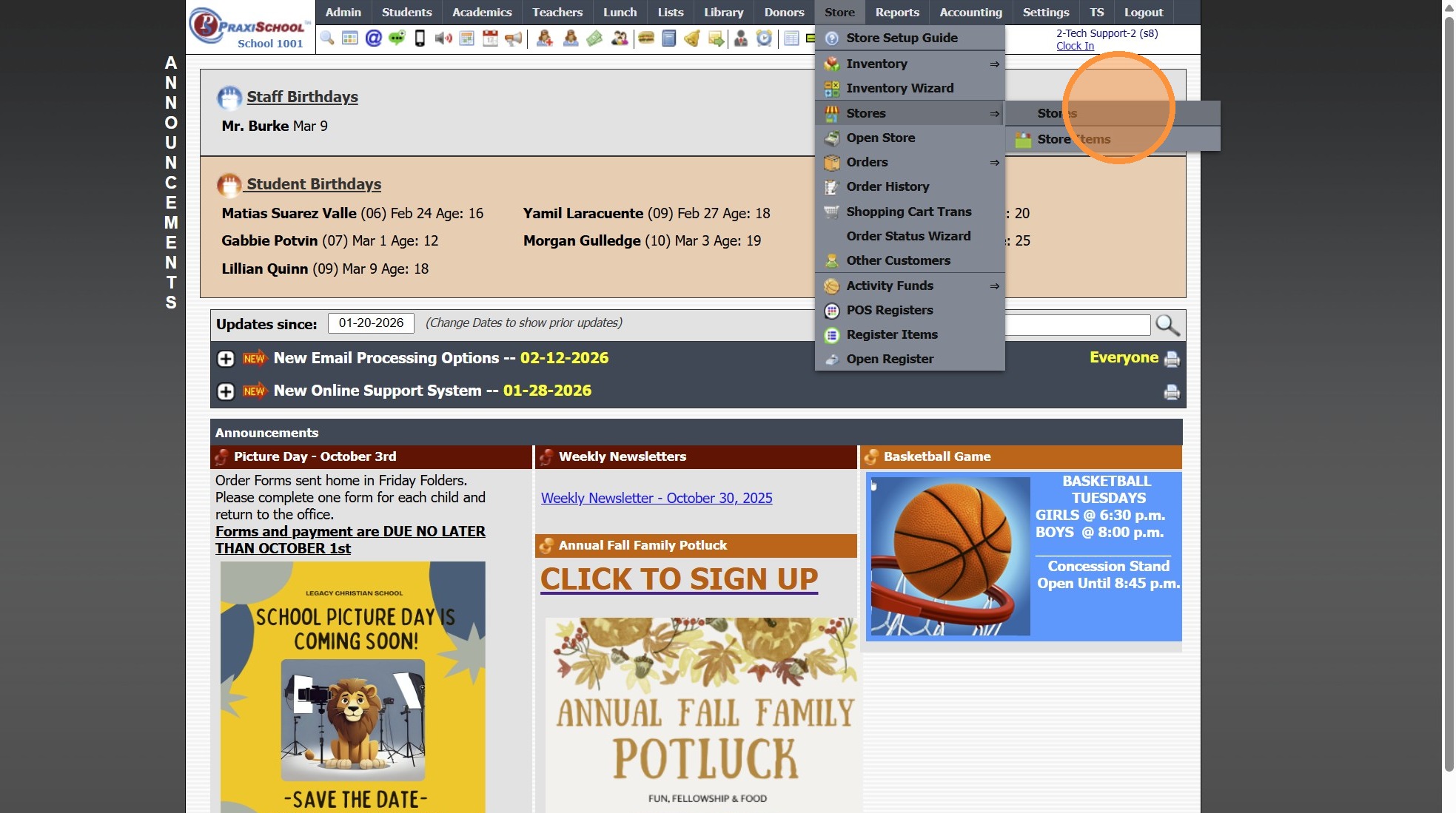
4. Select Store
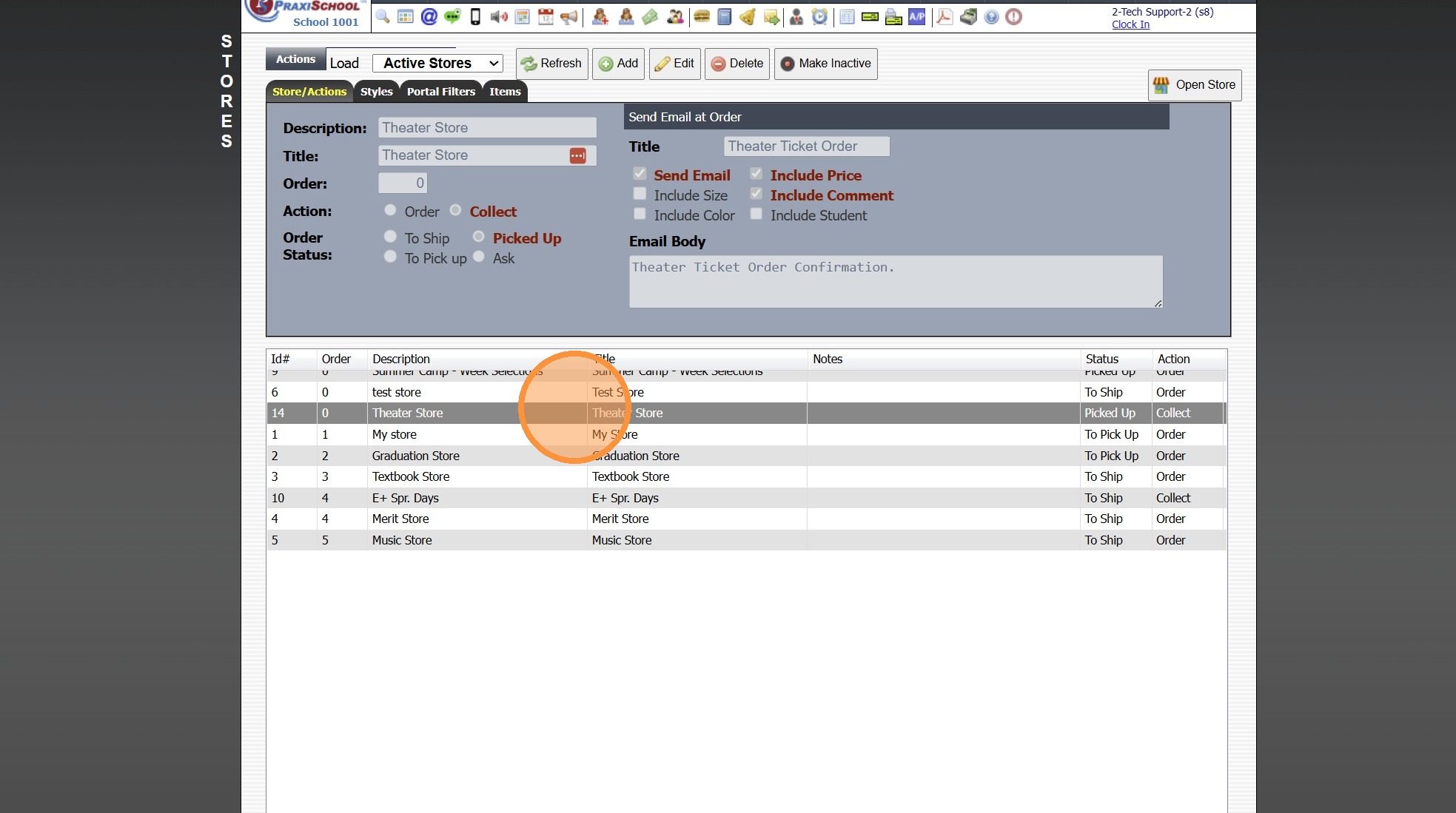
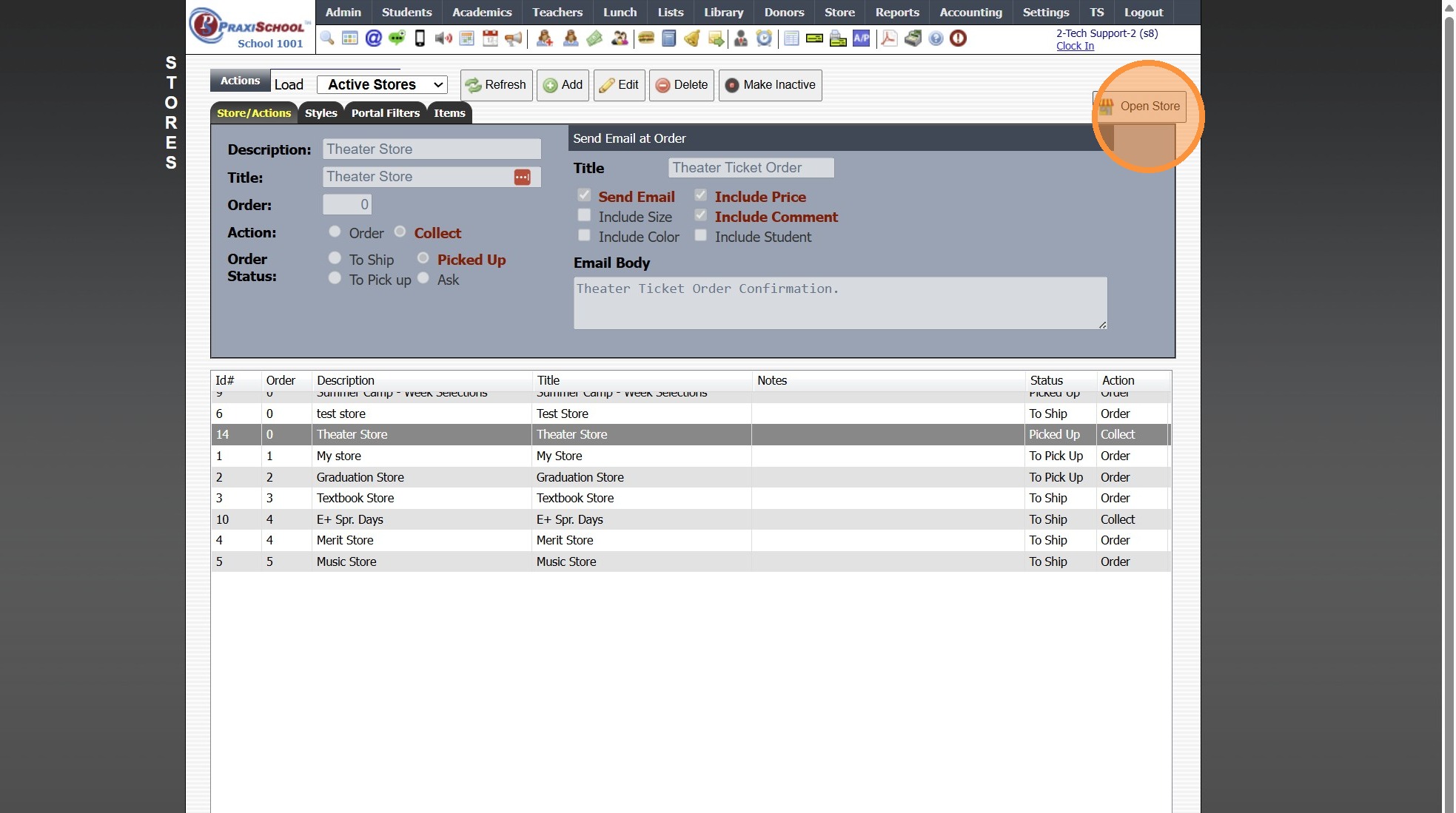
5. Click "Open Store"
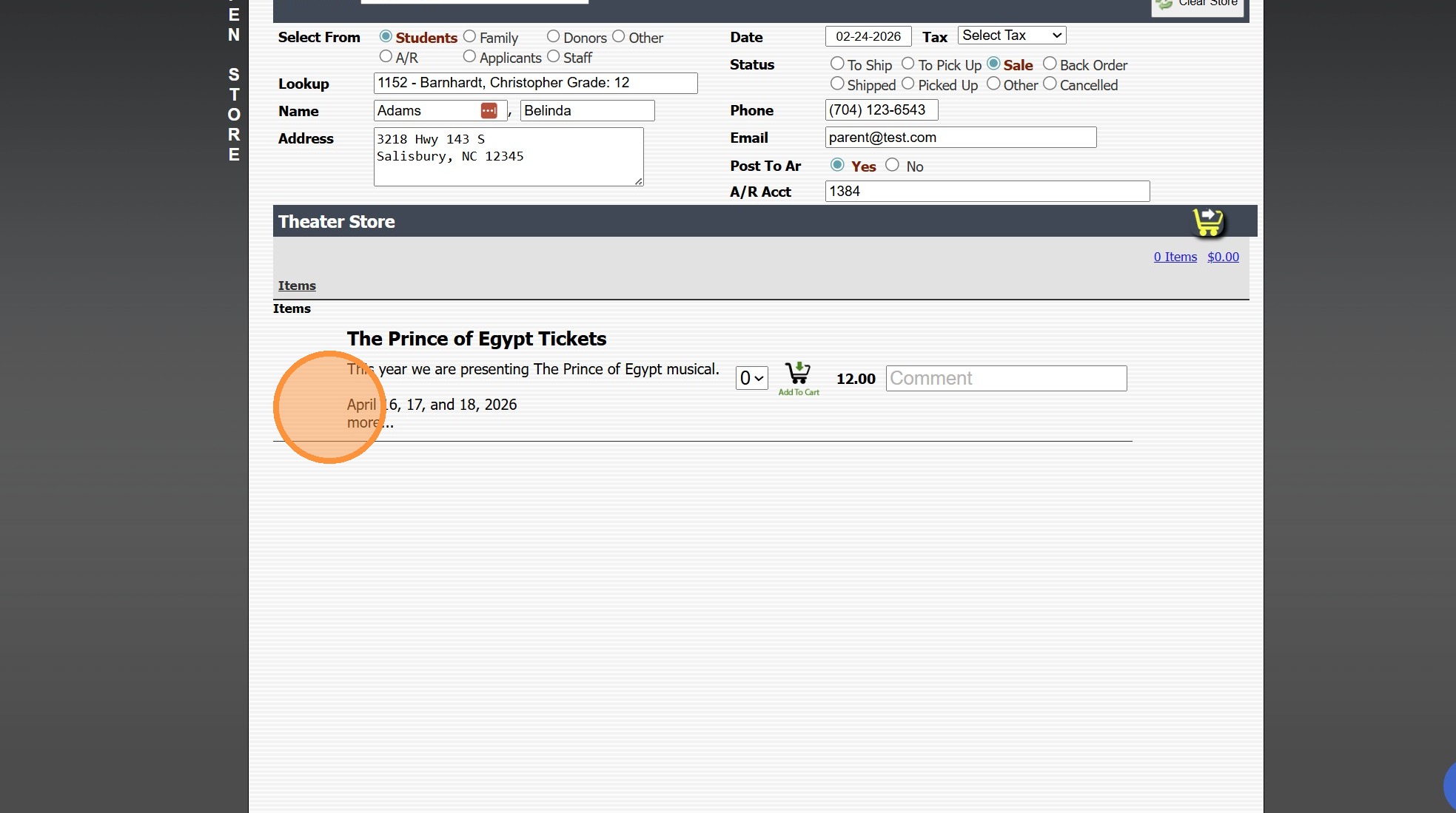
6. The "More" Option is not Expandable
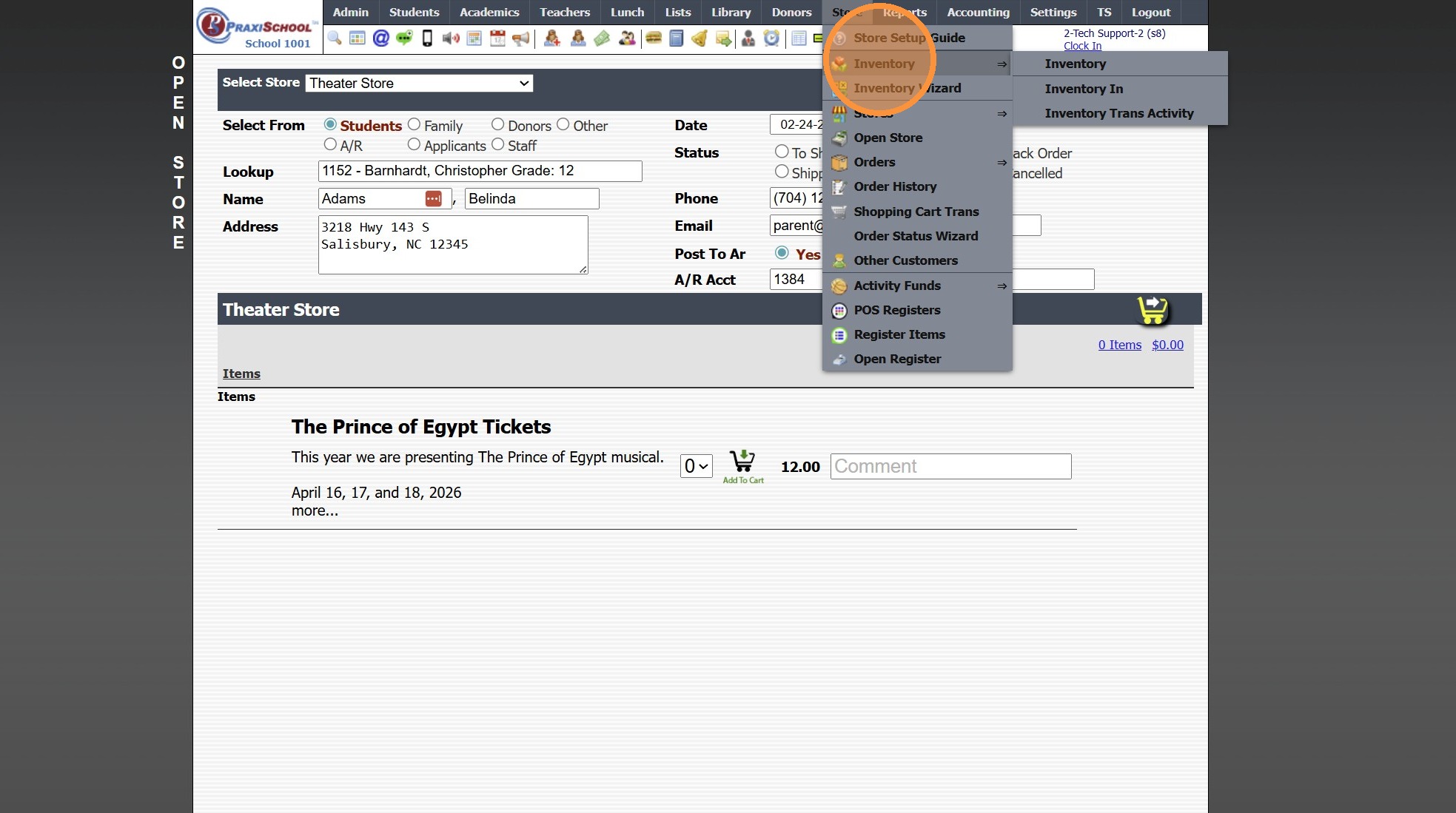
7. Click "Store"

8. Click "Inventory"
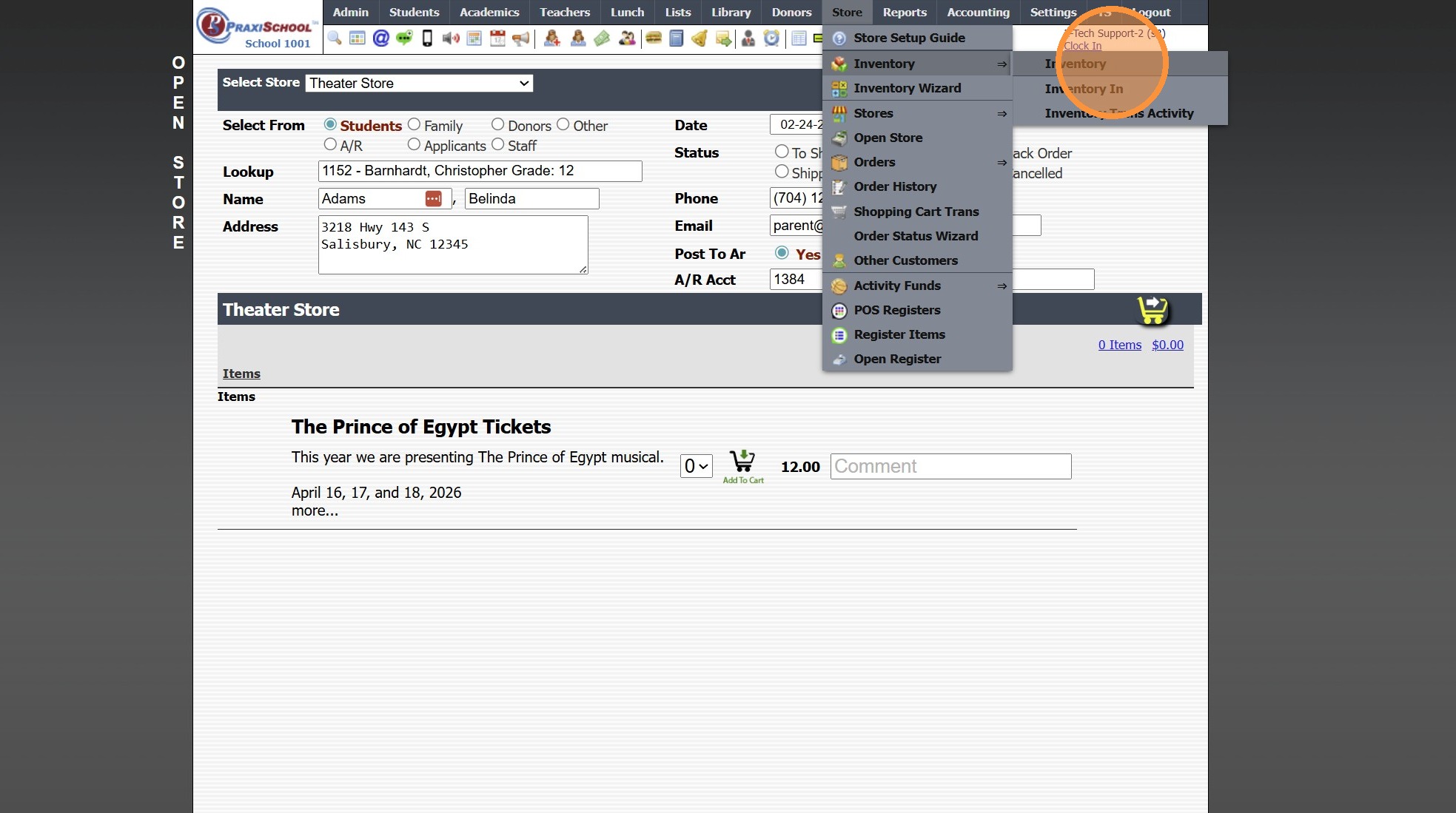
9. Click "Inventory"
10. Select Inventory Item
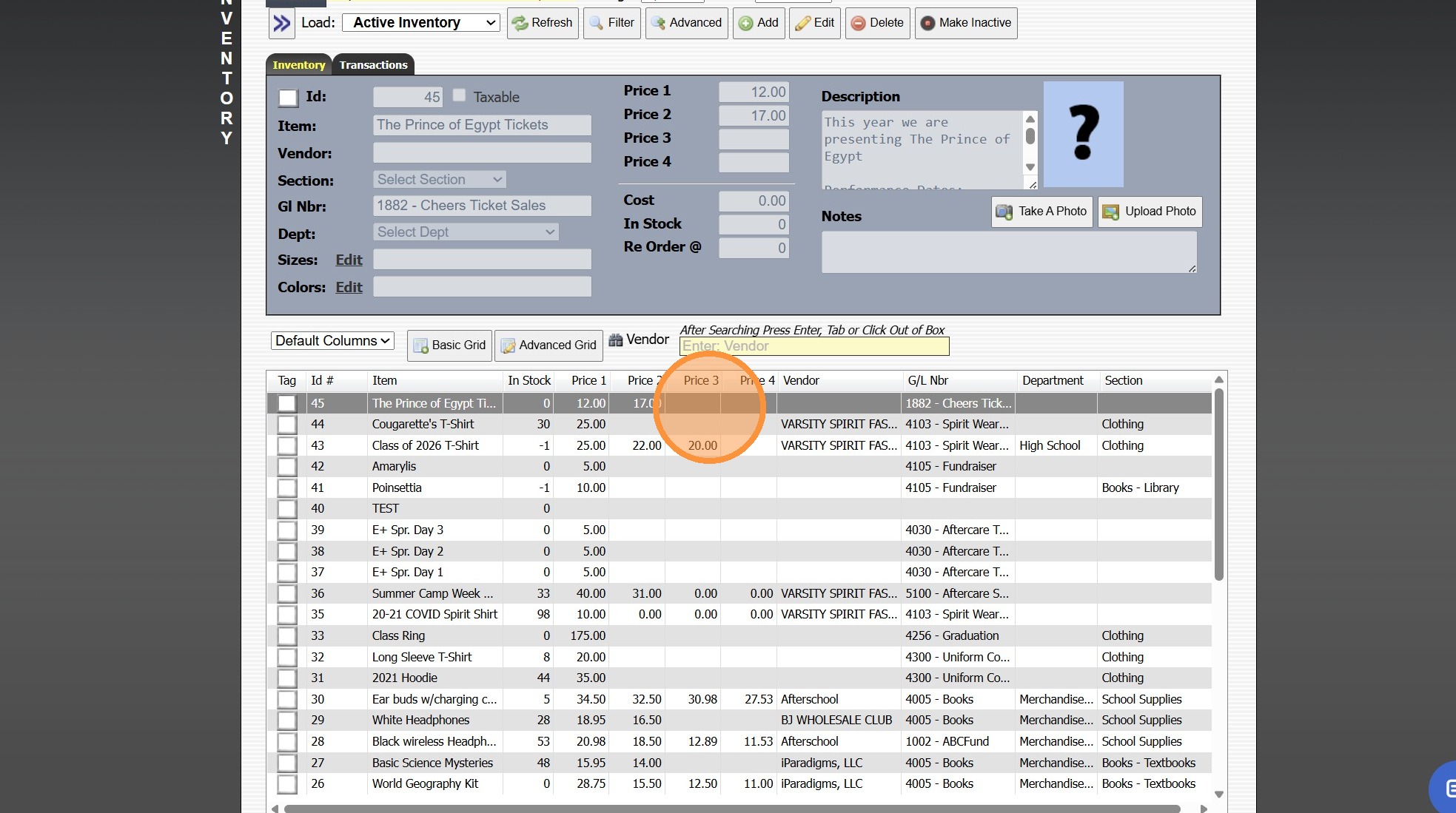
11. Click "Edit"
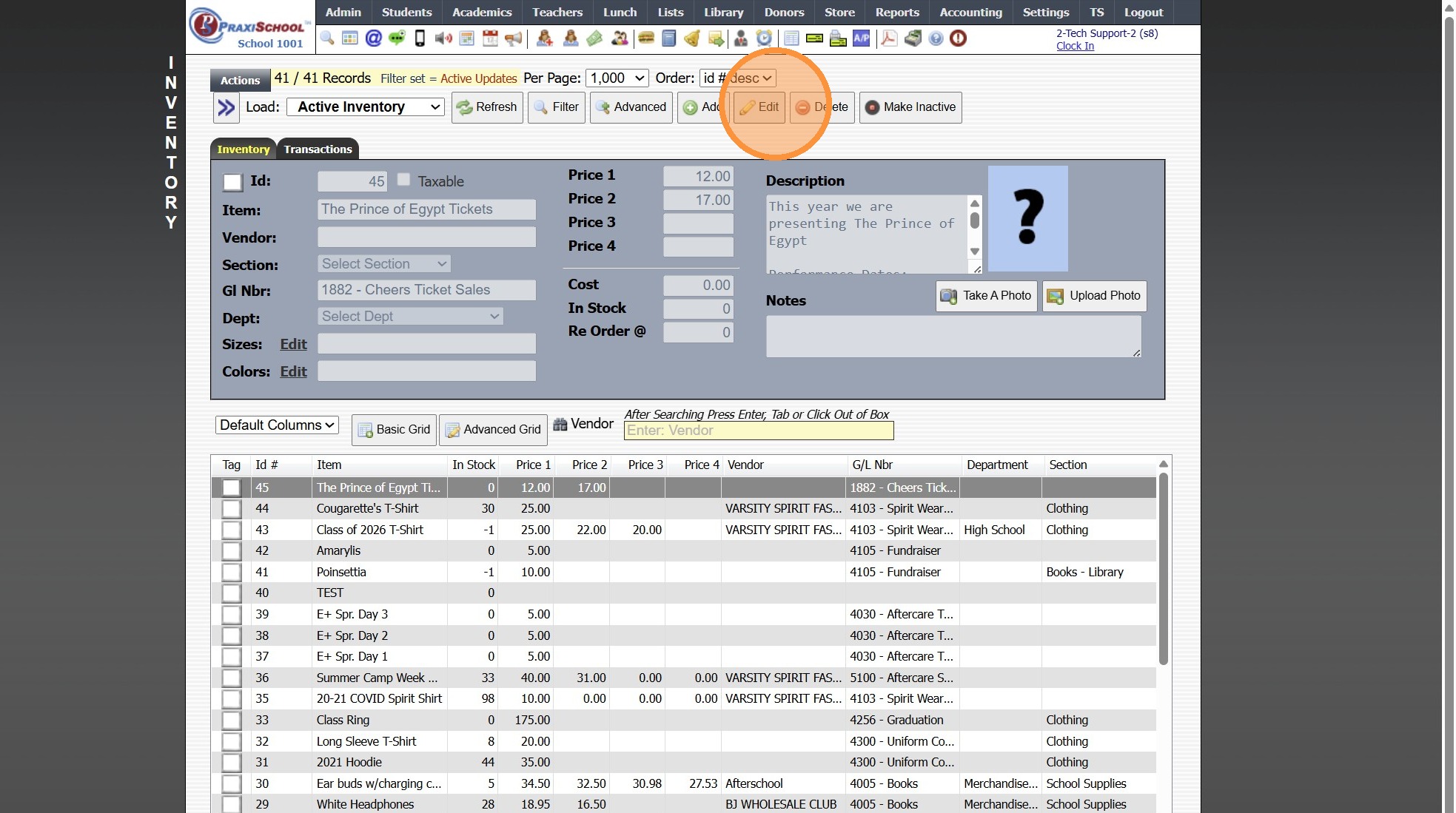
12. Remove Unnecessary Data/Spaces

13. Click "Save"

14. Click "Store"
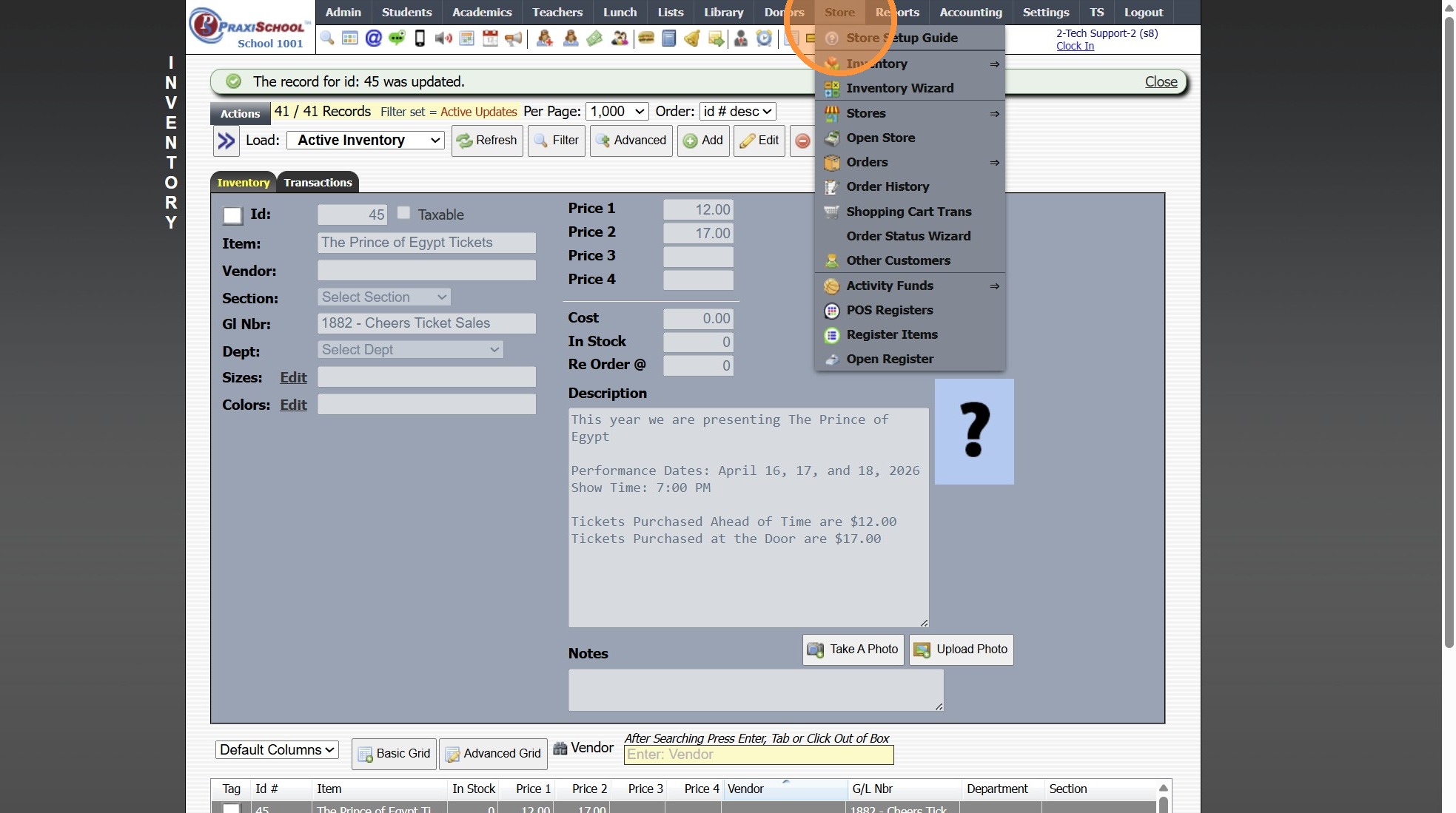
15. Click "Stores"
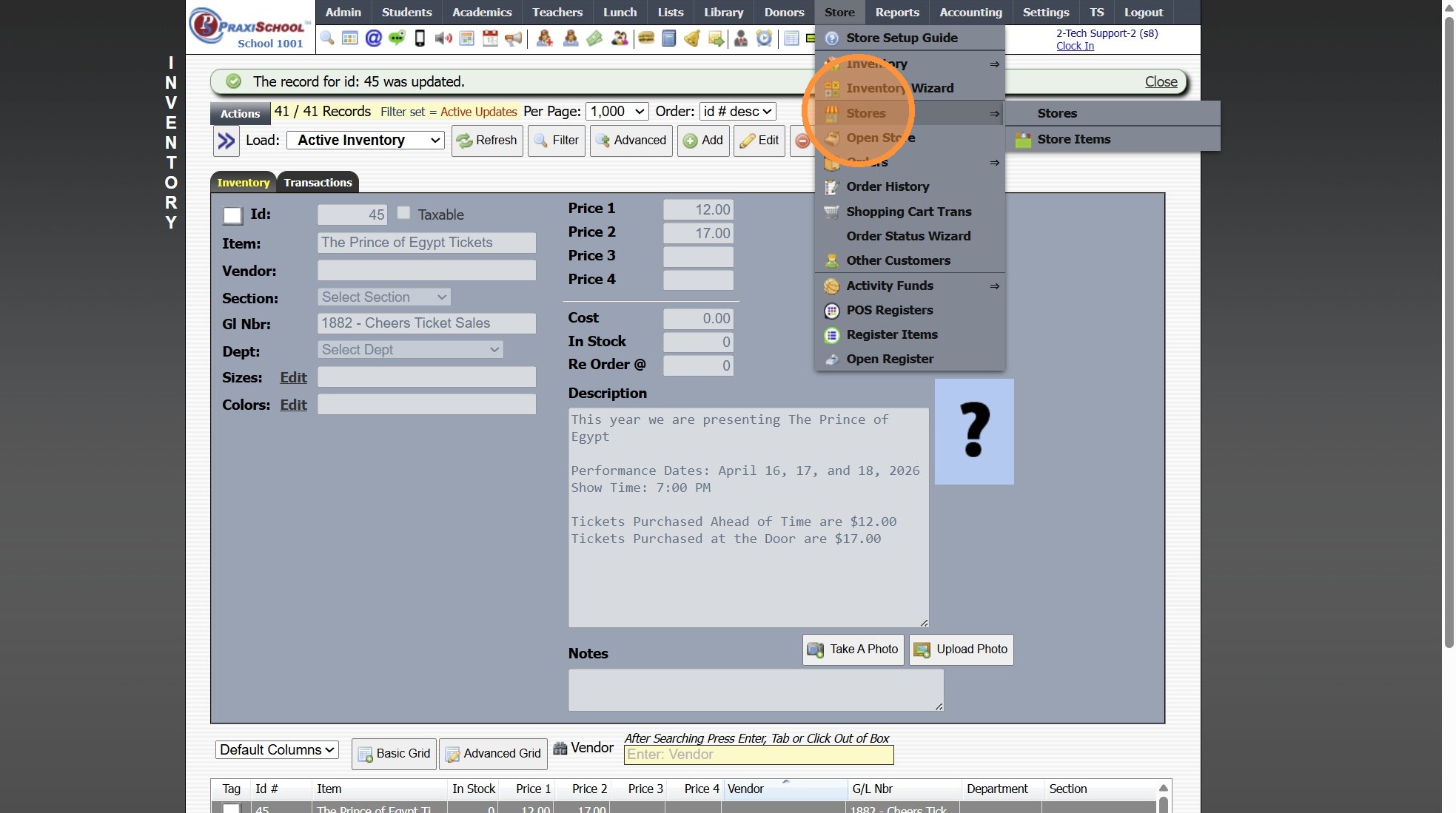
16. Click "Stores"
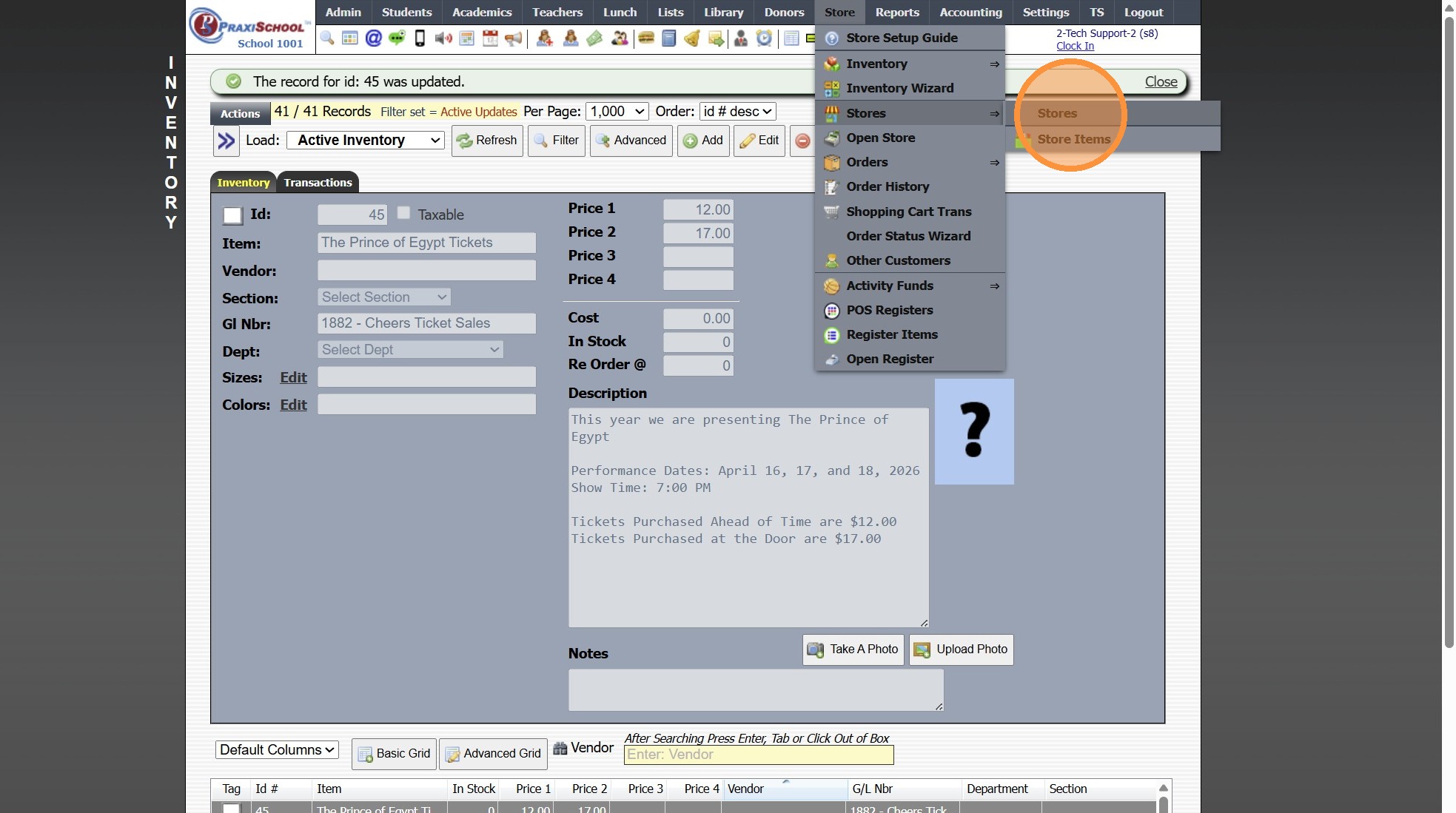
17. Select Store
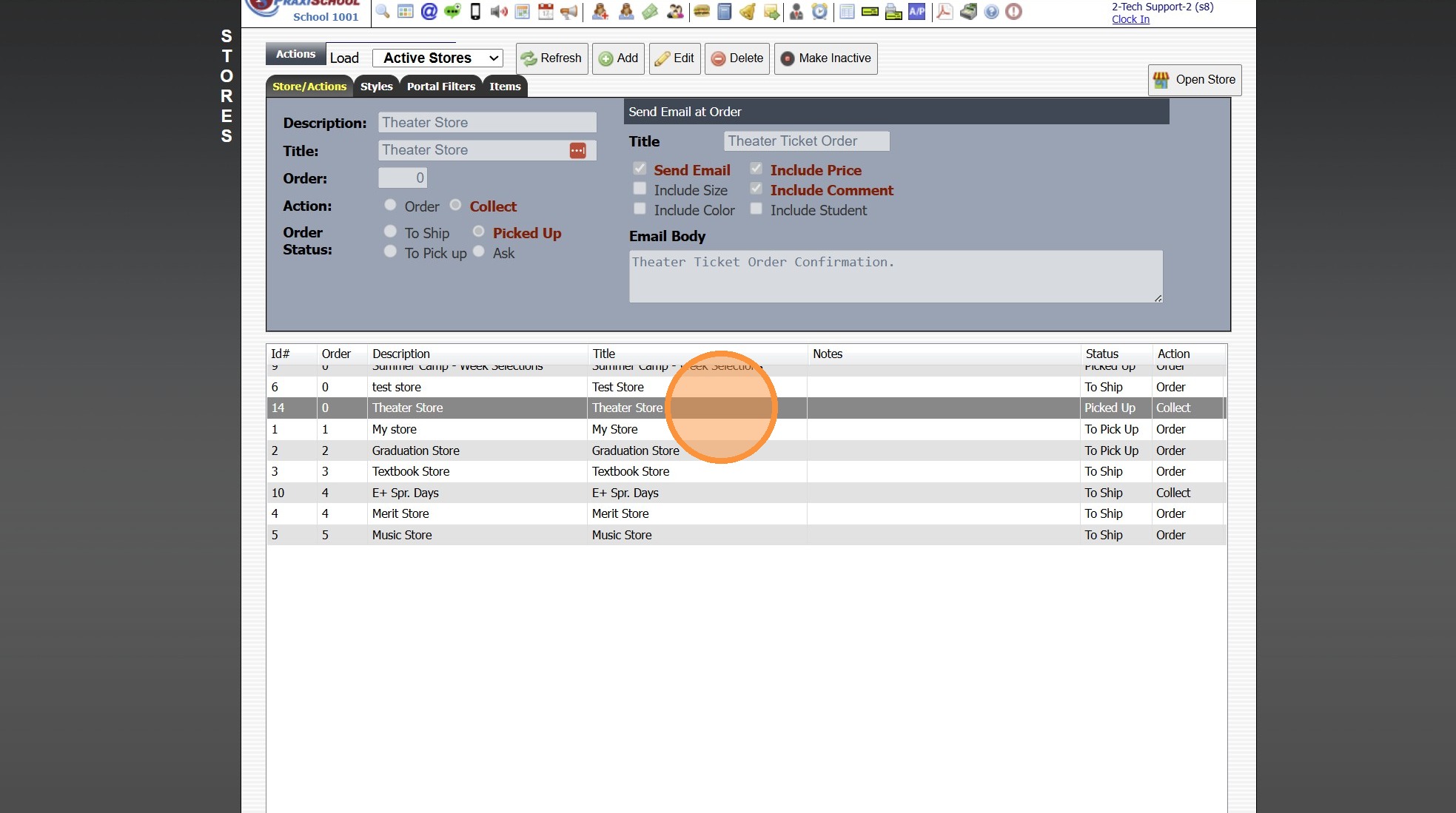
18. Click "Open Store"
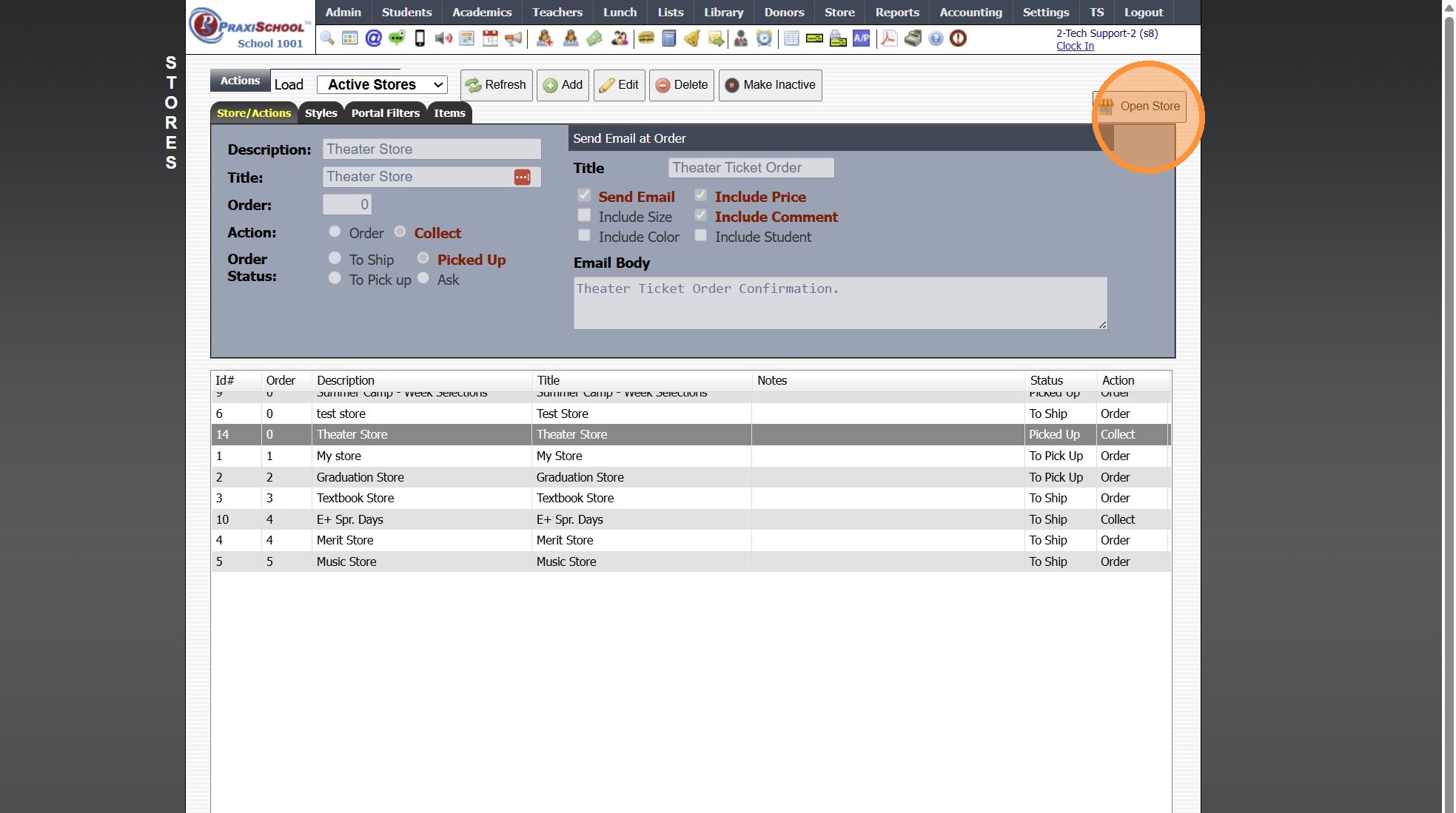
19. The "More" Option is now Available to Expand

20. Expanded View

8000.12
Related Articles
Turning Off the "Collect" Option for a Store
When a Store is Marked Collect, it Requires Payment on Submission. 1. Click "Store" 2. Click "Stores" 3. Click "Stores" 4. Select Store 5. Click "Edit" 6. Select the "Order" Option 7. Click "Save" 5000.3.2Turning Off the "Collect" Option for a Store
When a Store is Marked Collect, it Requires Payment on Submission. 1. Click "Store" 2. Click "Stores" 3. Click "Stores" 4. Select Store 5. Click "Edit" 6. Select the "Order" Option 7. Click "Save" 5000.3.2Adding Store Pages
Adding Store Pages 1. Click "Lists" 2. Click "Store" 3. Click "Store Pages" 4. Click "Add" 5. Enter Order (Optional) 6. Enter Page Description 7. Click "Save" 8. 3500.15.3Creating a Store
1. Click "Store" 2. Click "Stores" 3. Click "Stores" 4. Click "Add" 5. Enter Description & Title (Title Appears on Portal Store) 6. Select Action (Order or Collect) (Stores set to Collect require Payment on Submission of Store Order) 7. Select Order ...Adding Store Inventory Received
1. Click "Store" 2. Click "Inventory Wizard" 3. Select "Receive" 4. Search Inventory Item 5. Select Vendor (Optional) 6. Enter Quantity Received 7. Enter Cost of Each Item 8. Set Date Received 9. Click "Save" 10. Inventory Transaction Wizard Item ...