Making Non-Returning Student Inactive in Batch
1. Click "Students"
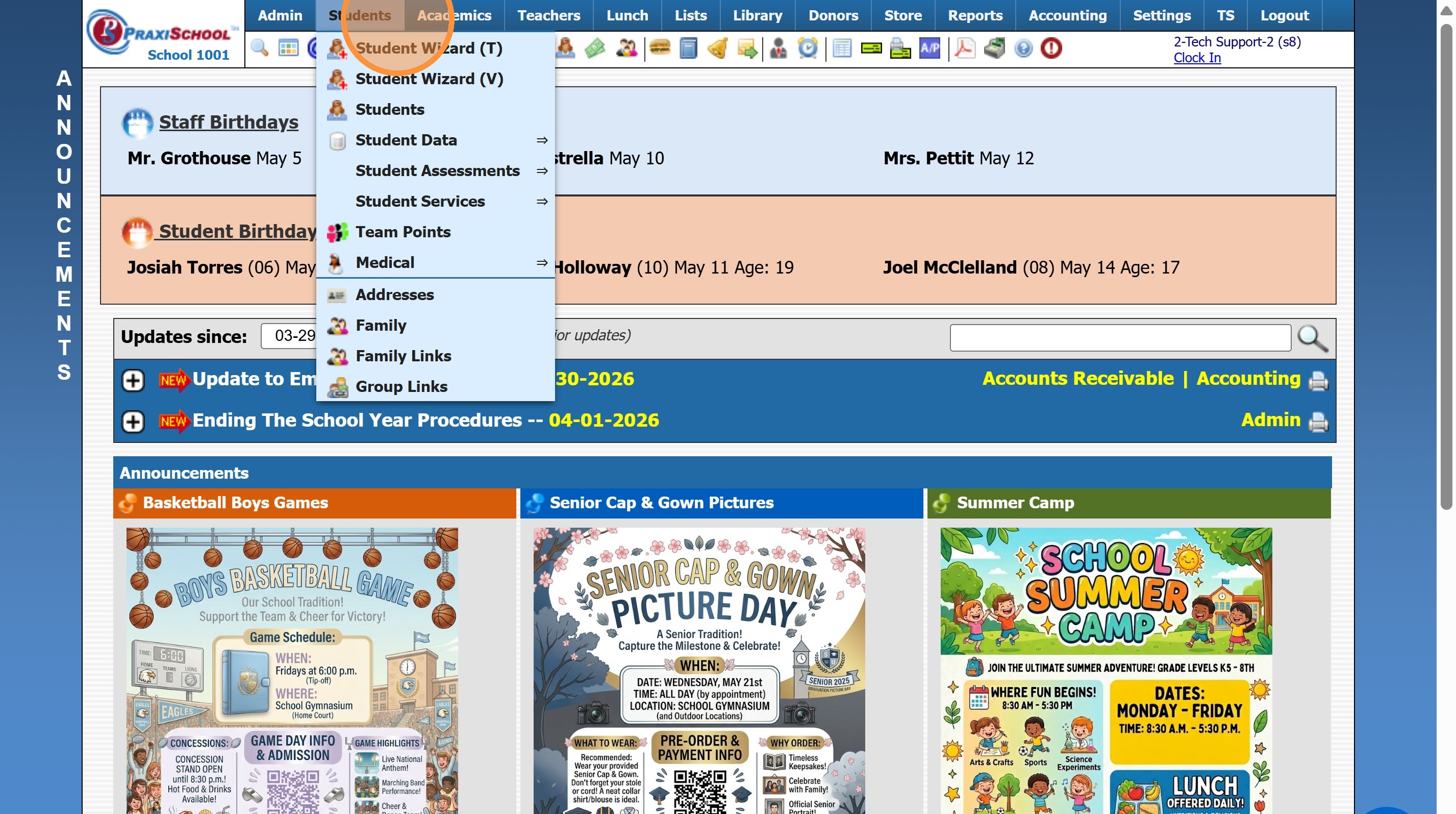
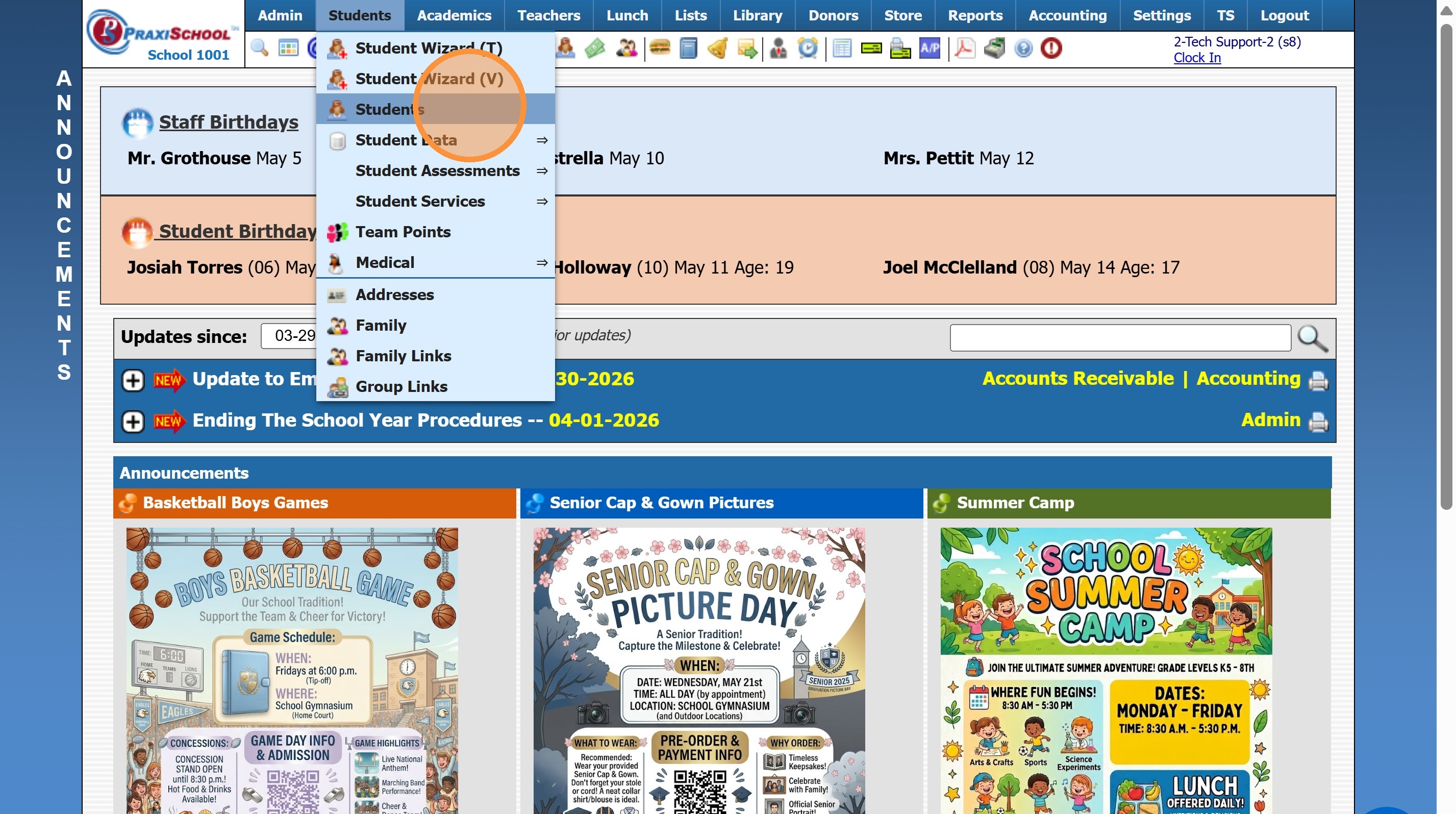
2. Click "Students"
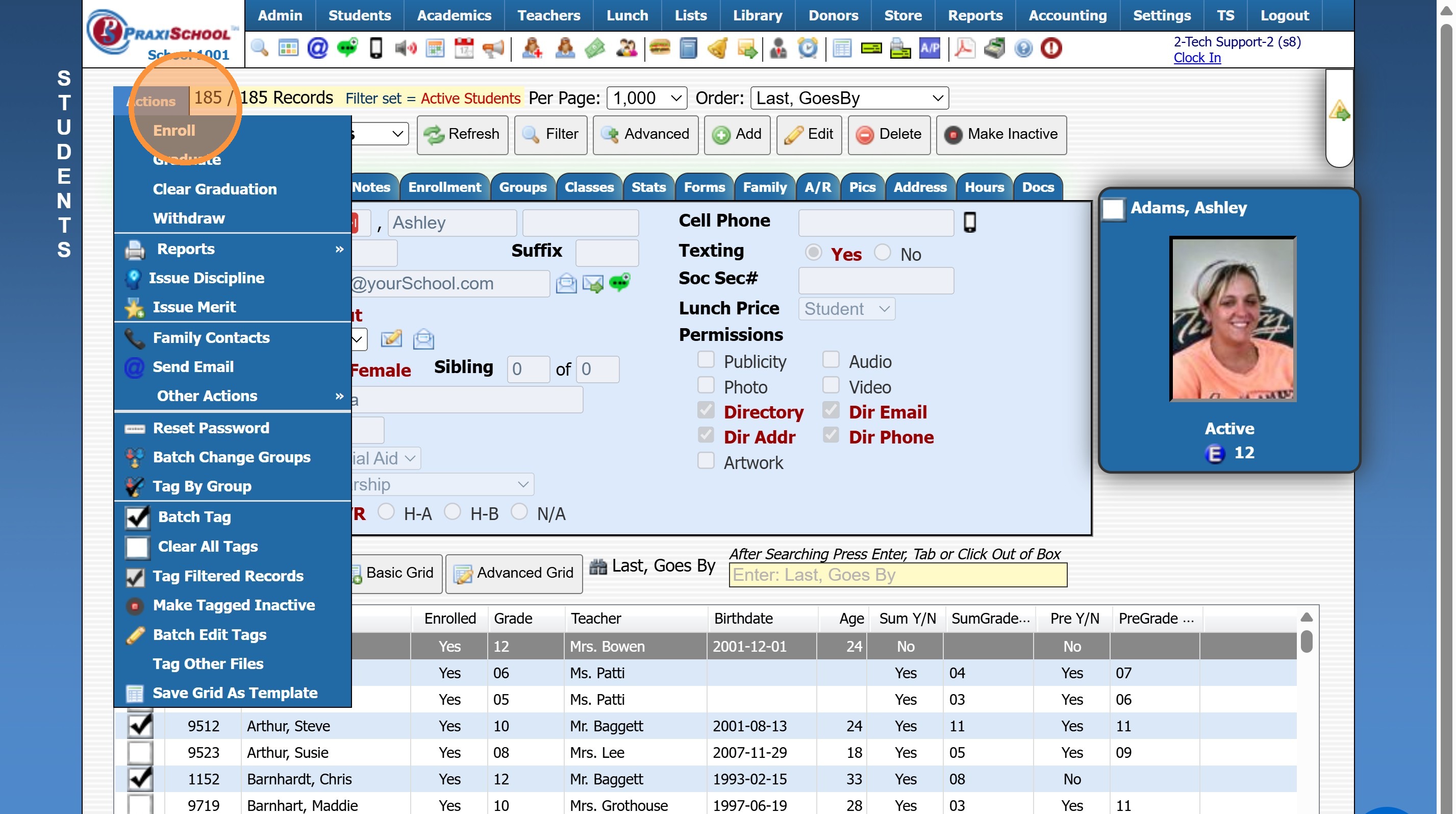
3. Click "Actions"
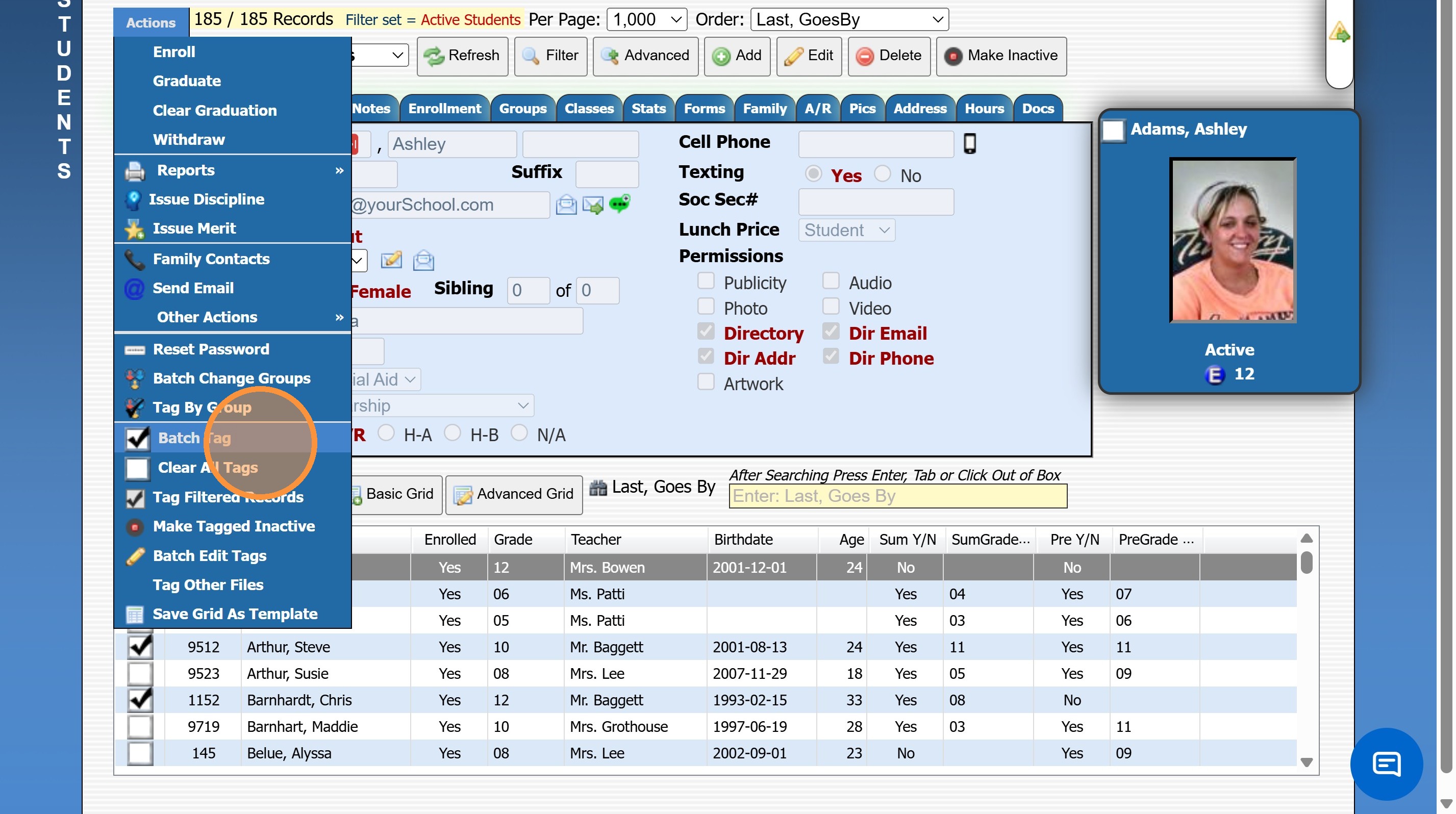
4. Click "Batch Tag"
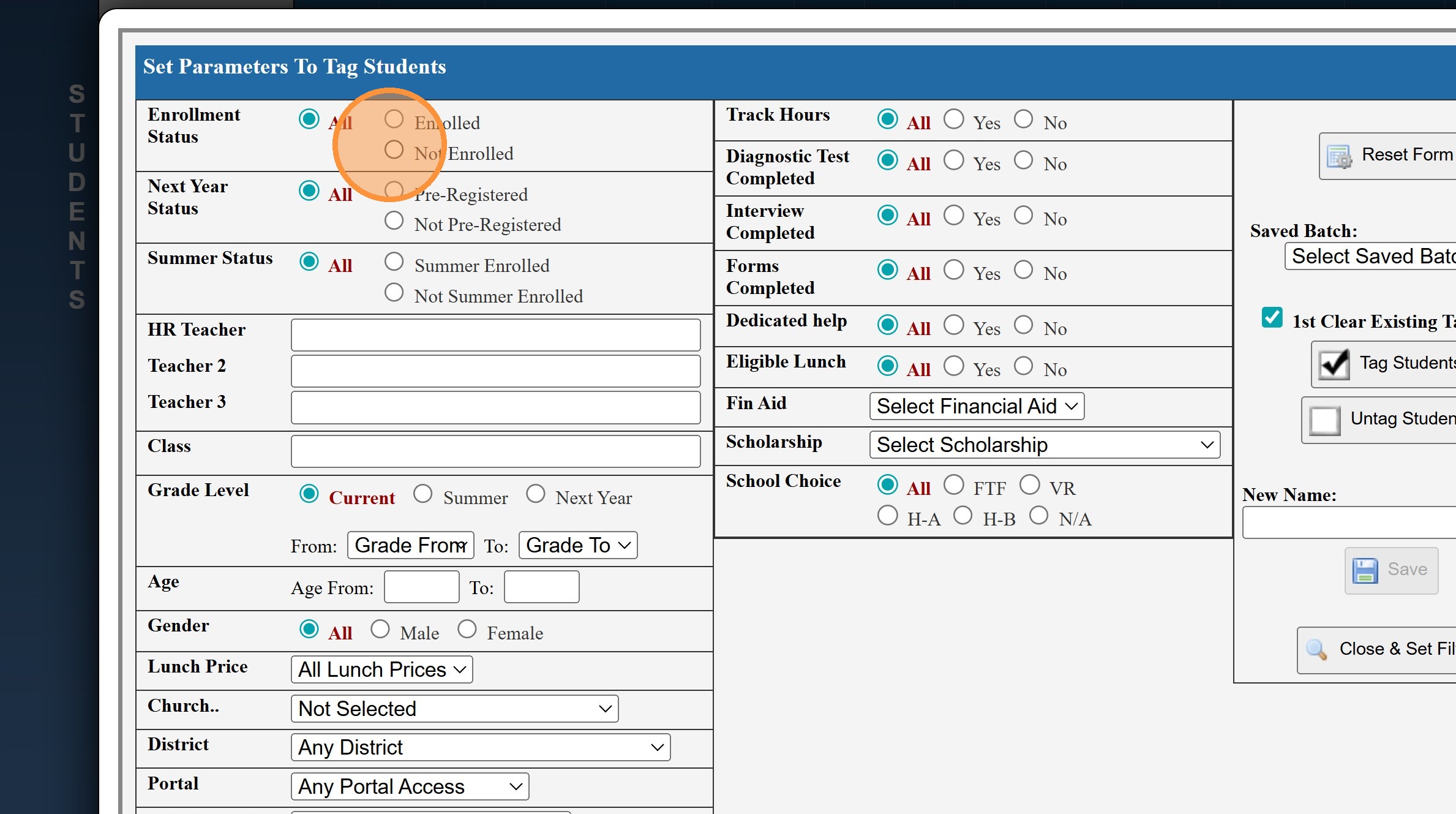
5. Select "Not Enrolled" under Enrollment Status
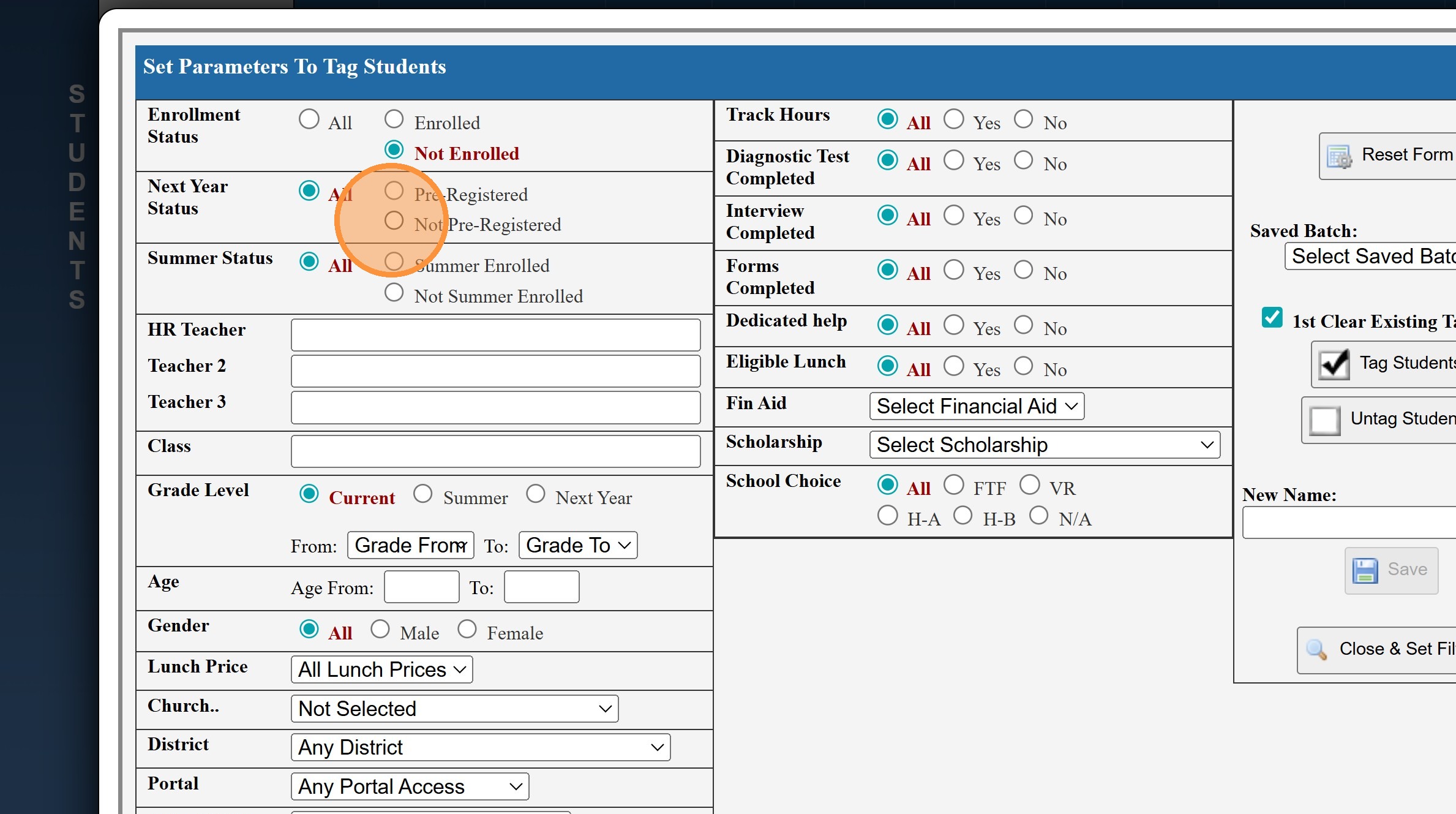
6. Select "Not Pre-Registered" under Next Year Status
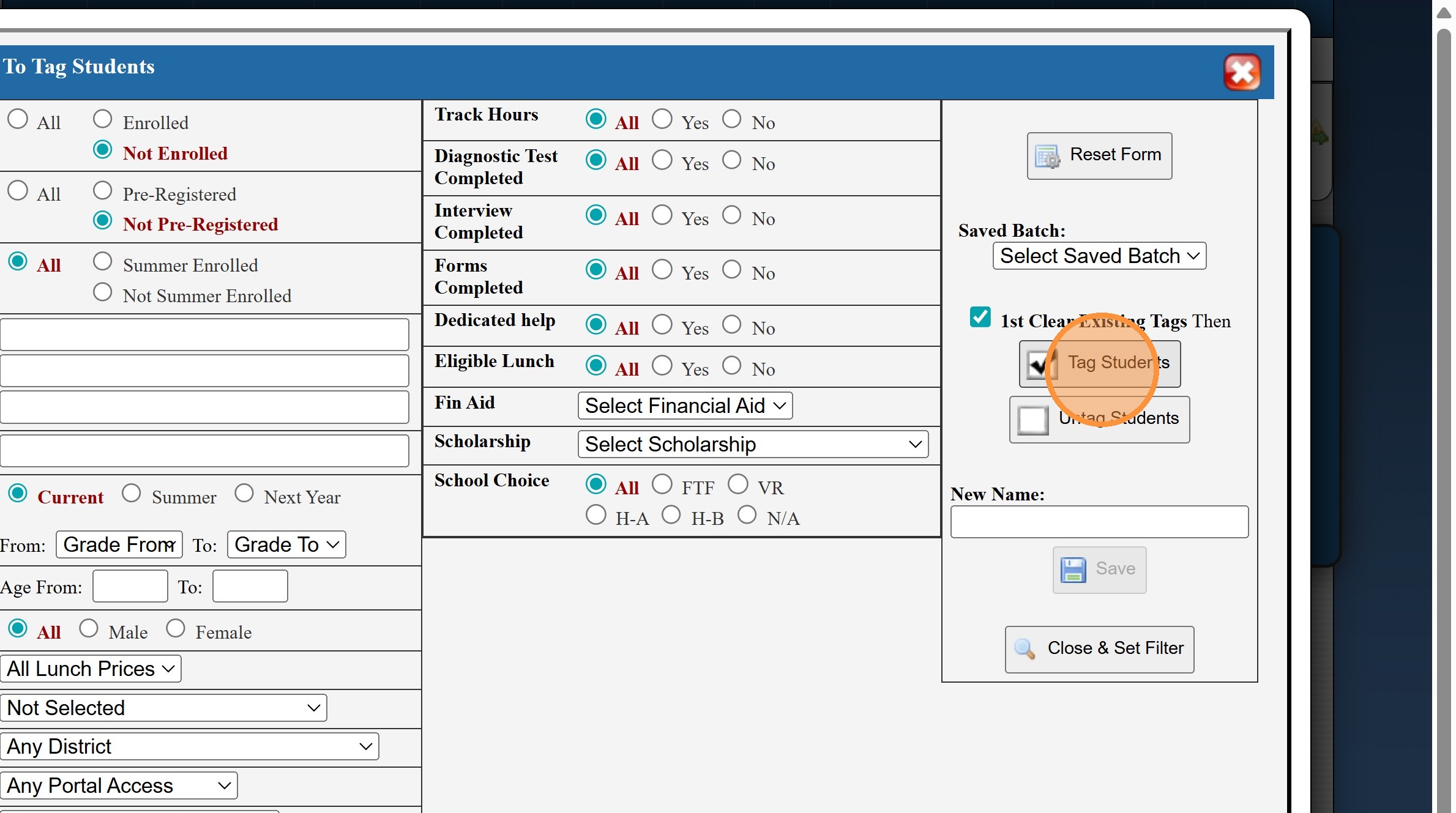
7. Click "Tag Students"
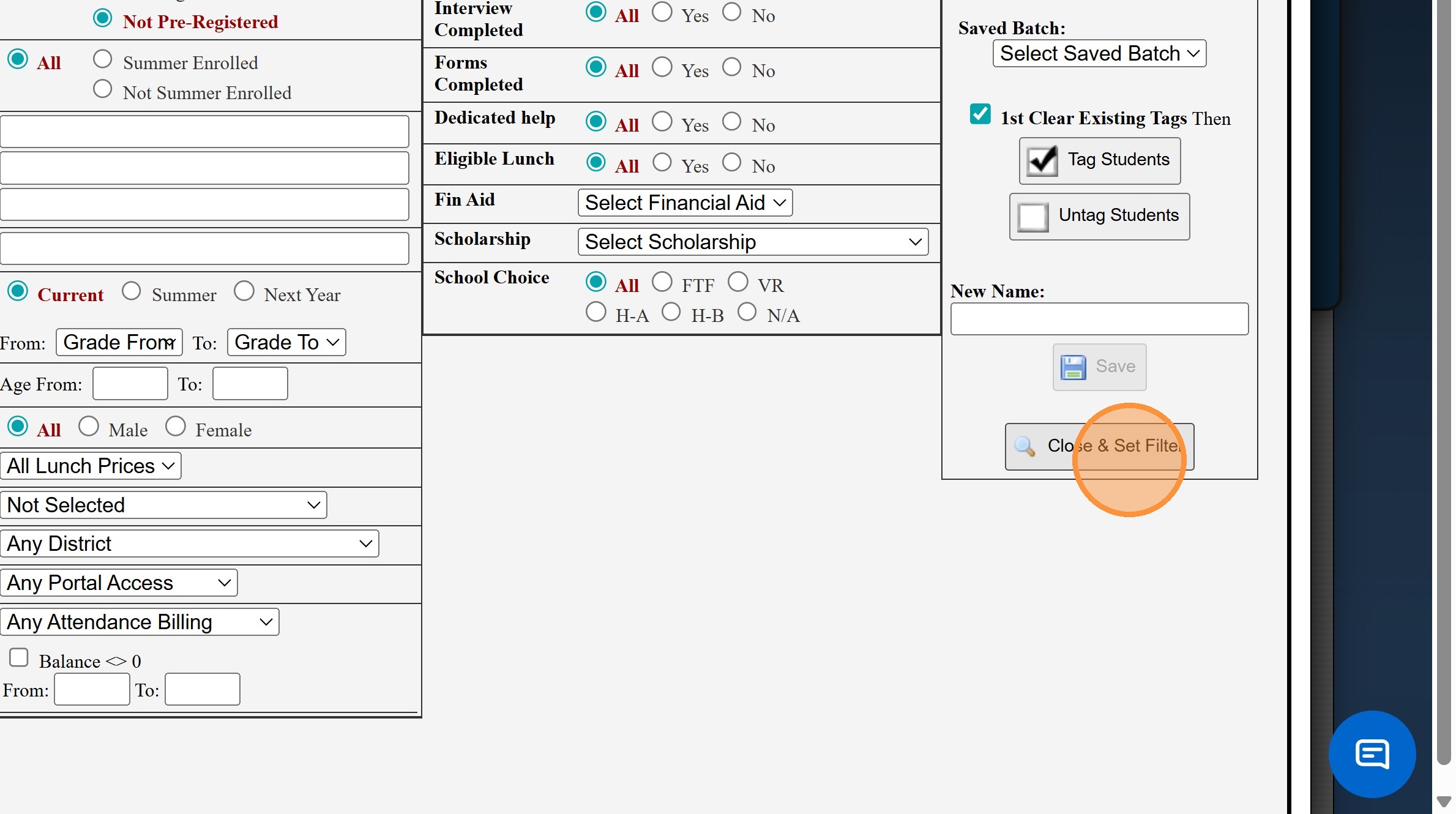
8. Click "Close & Set Filter"
9. Click "Actions"
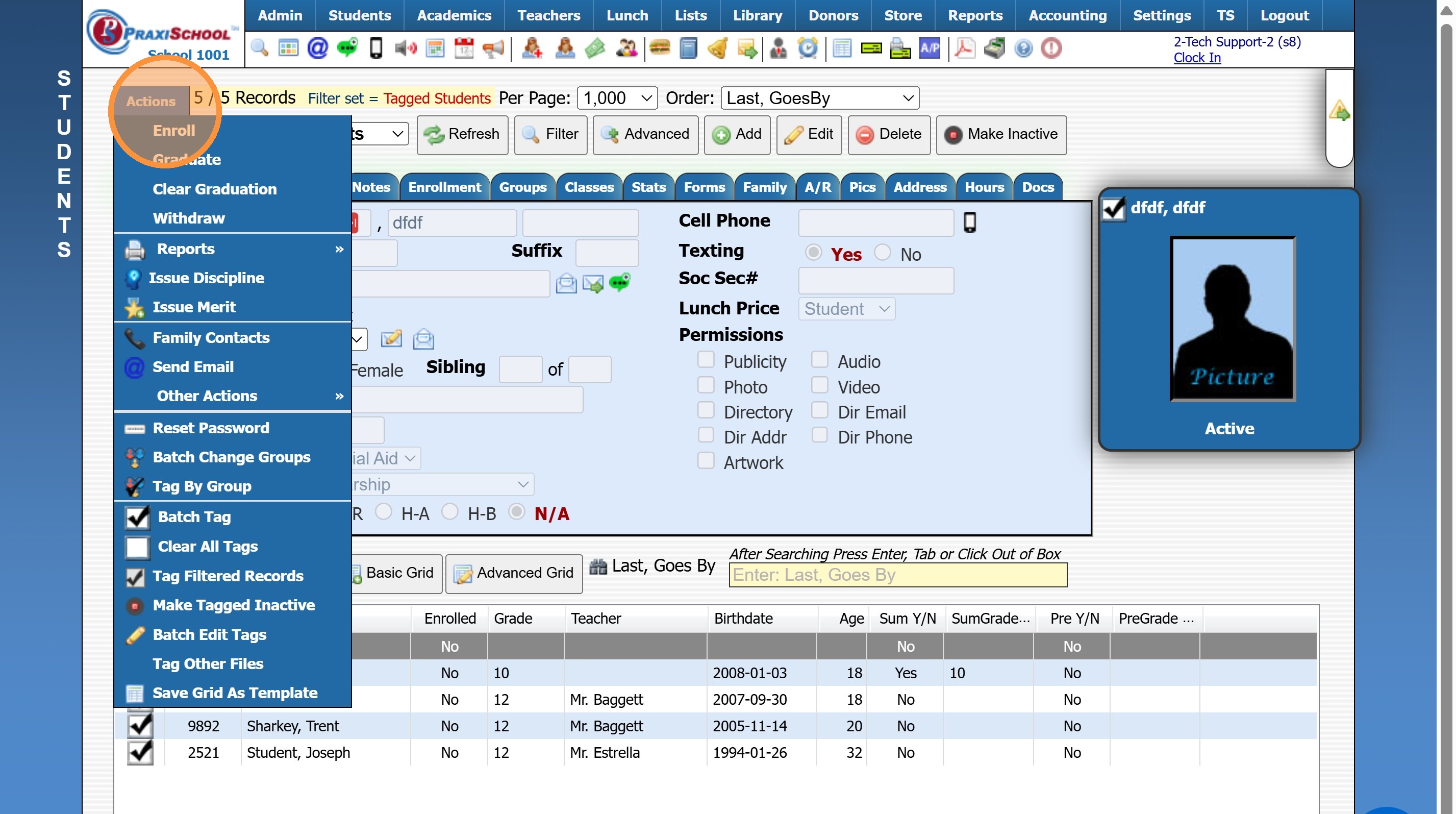
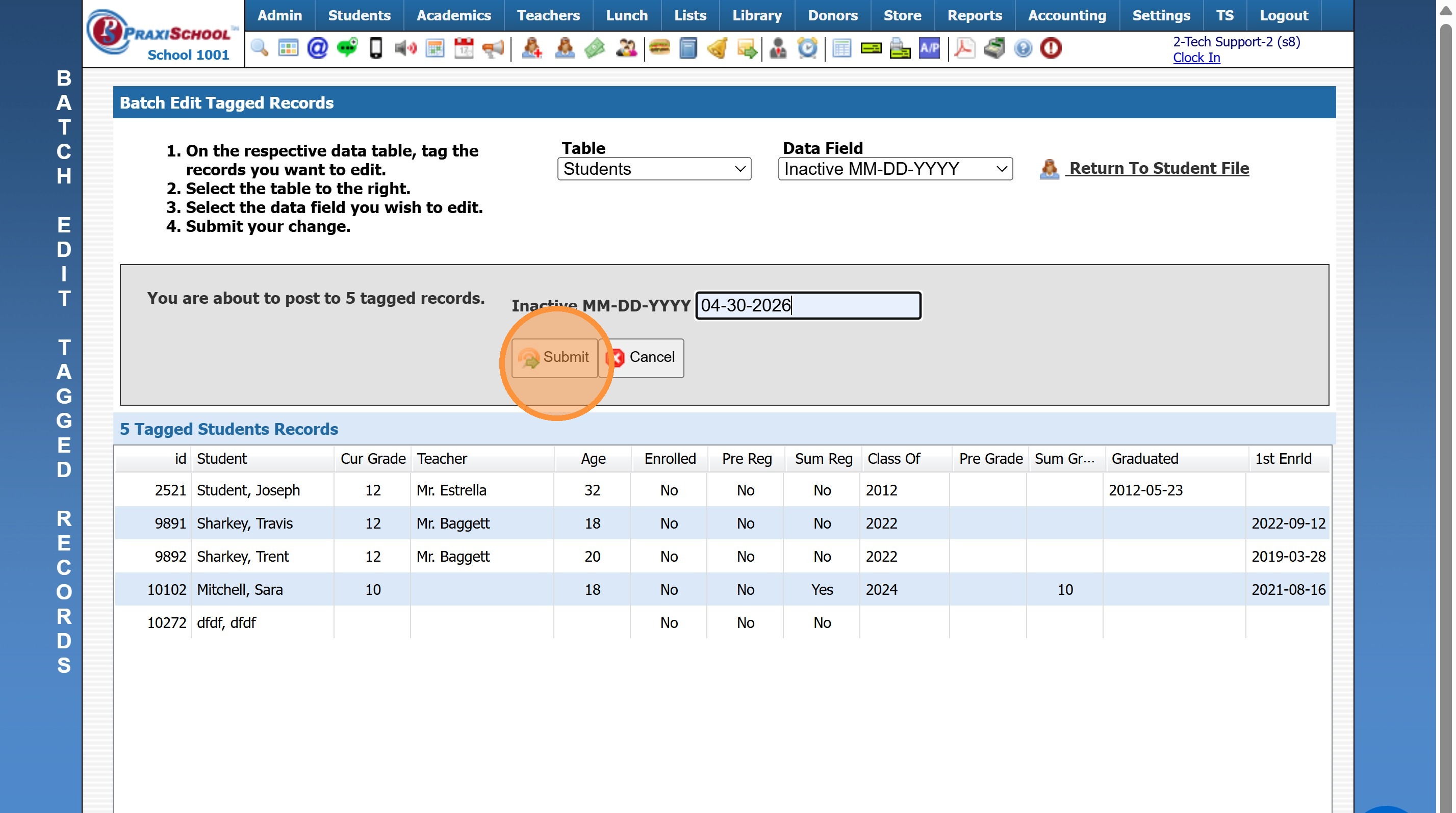
10. Click "Batch Edit Tags"
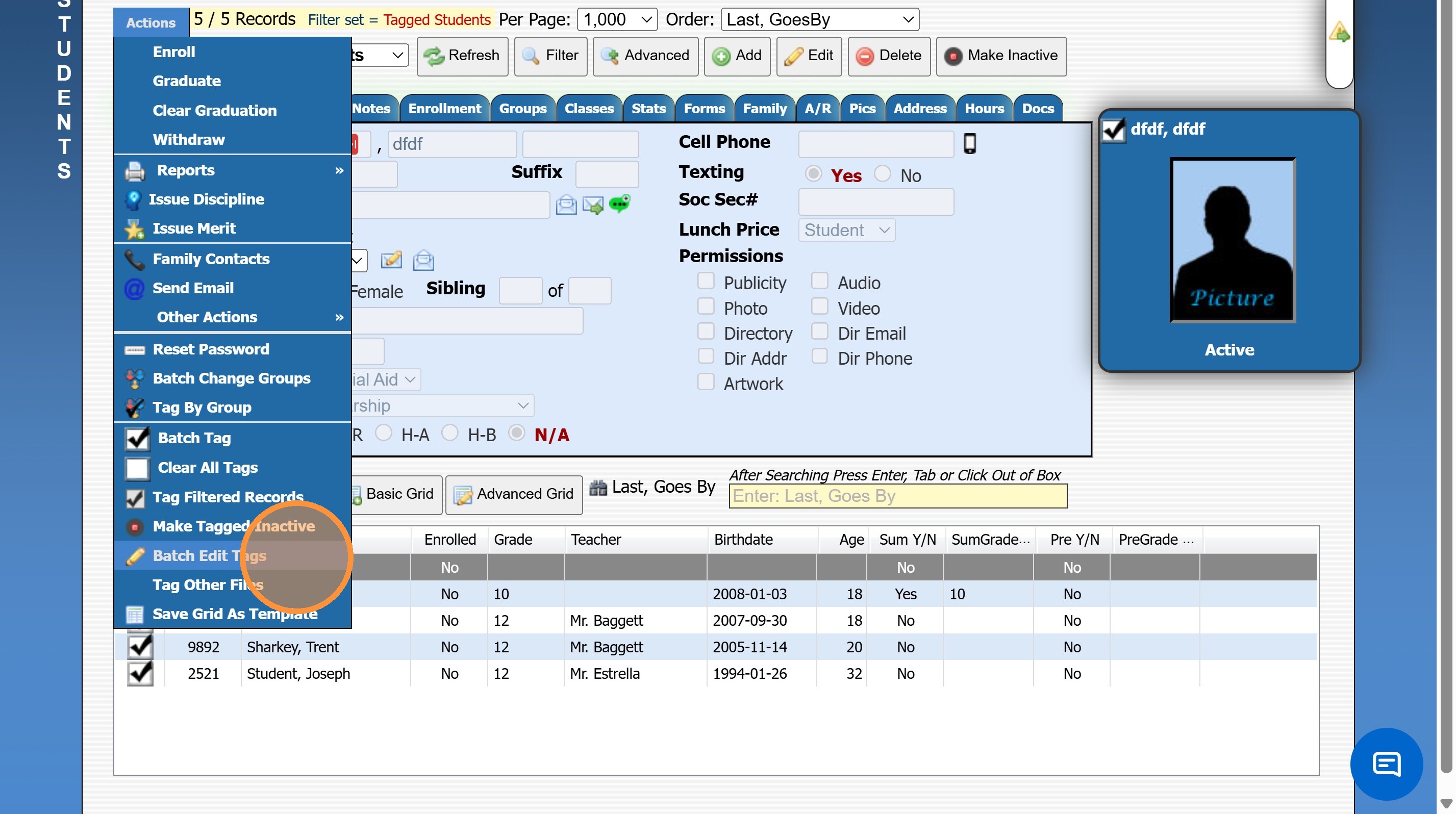
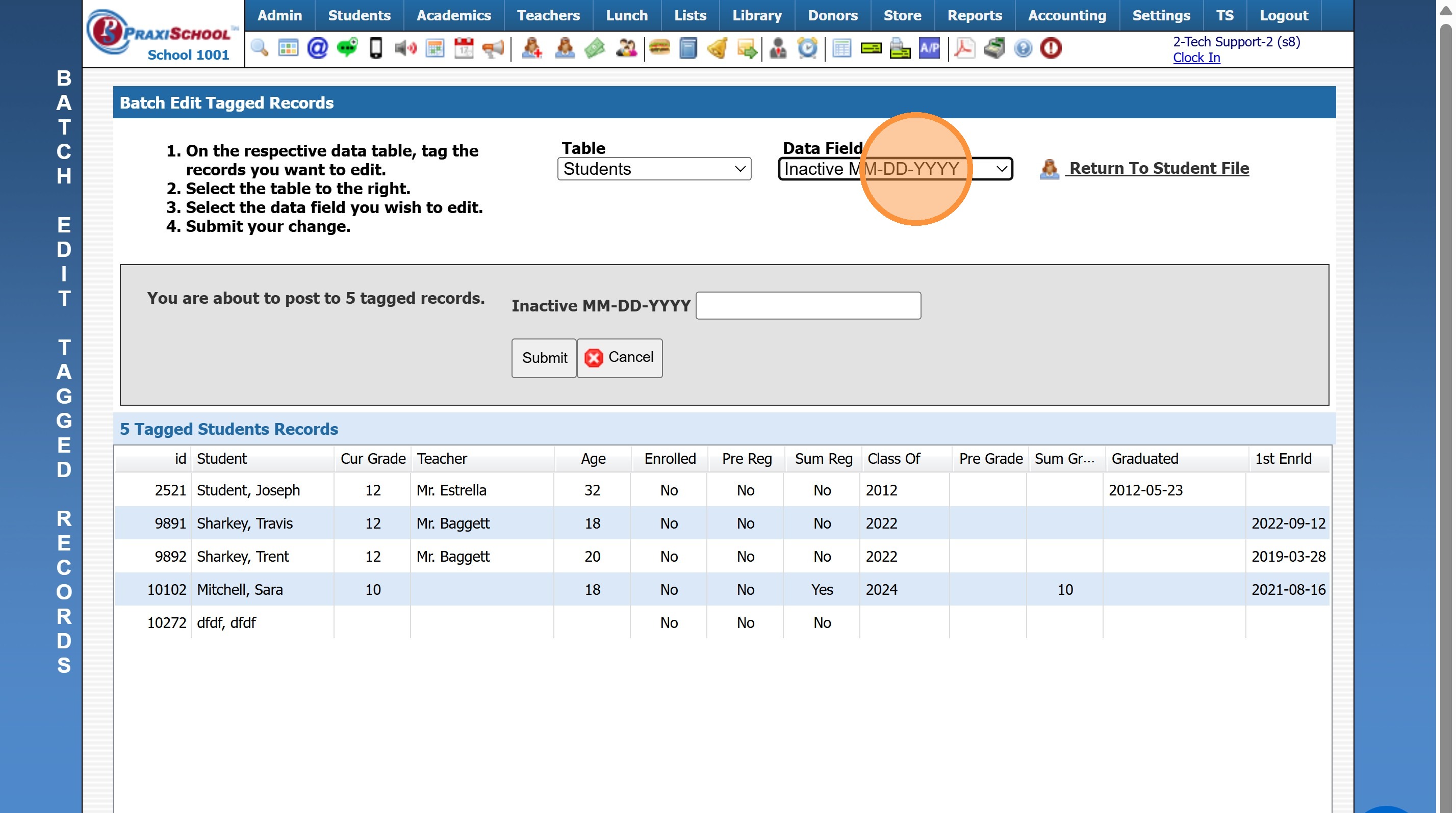
11. Select the Data Field "Inactive MM-DD-YYYY"
12. Enter Inactive Date
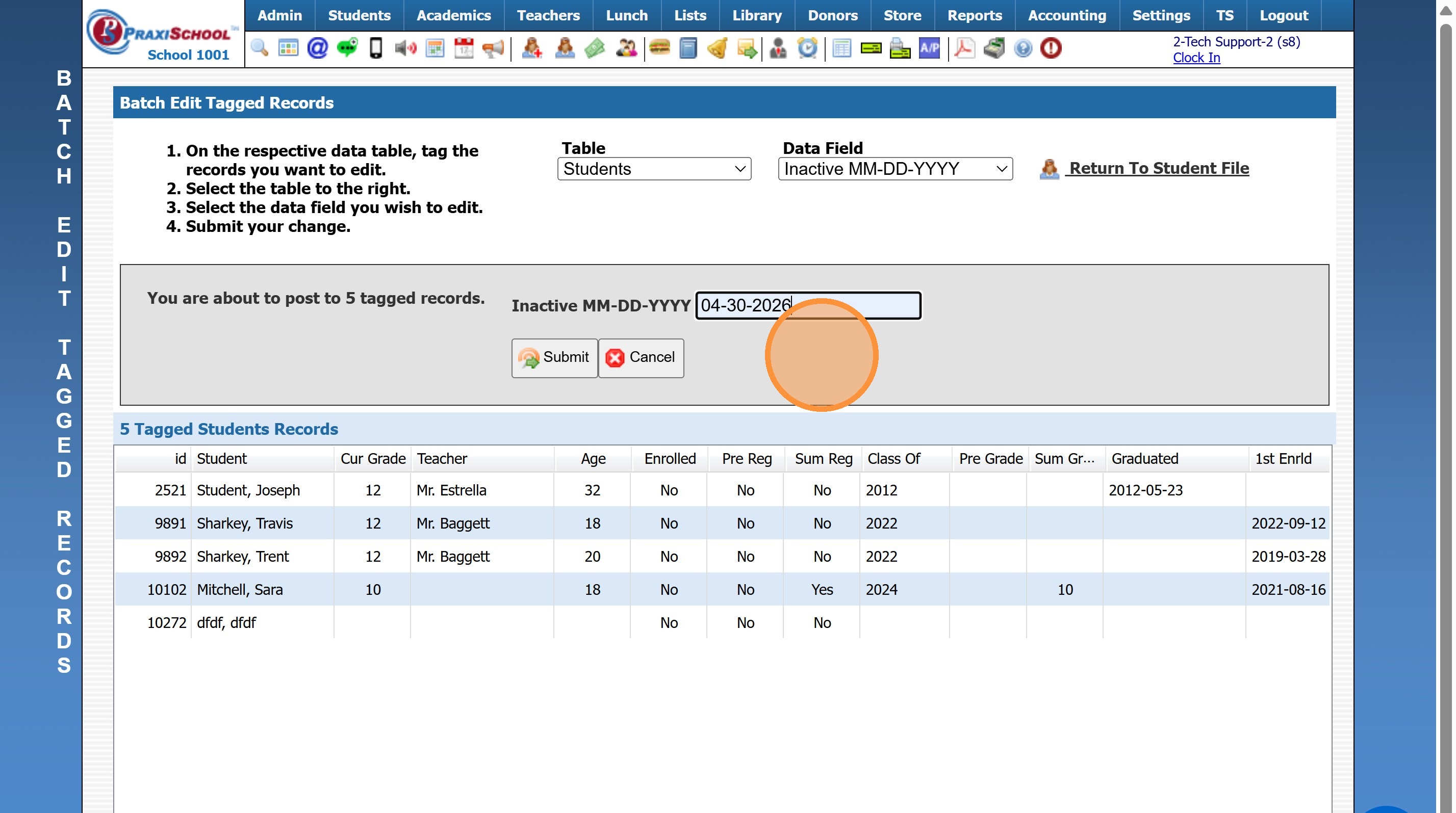
13. Click "Submit" & type "yes"
9600.3.10
Related Articles
Making Inactive Student Transcripts Inactive in Batch
Making Inactive Student Transcripts Inactive in Batch 1. Click "Academics" 2. Click "Transcripts" 3. Click "Transcripts" 4. Click "Actions" 5. Deactivate for Inactive, type "INACTIVE" & Click "Ok" 6. 2000.8.19Batch Making Classes Inactive
1. Click "Academics" 2. Click "Classes" 3. Click "Actions" 4. Click "Make Classes Inactive" 5. Click "Select All" 6. Click "Make Classes Inactive" 2000.13.4Putting a Returning Student back in Classes
1. Click "Academics" 2. Click "Roster/Averages" 3. Click "Quick Find" 4. Click the "All" toggle 5. Click "Student" and Search the Student Name 6. Click "Find" 7. The Student's Class Rosters will Populate 8. Click "Actions" 9. Click "Clear All Tags" ...Adding Batch Contracts to Student Billing Accounts
Adding Batch Contracts to Student Billing Accounts Tip: Tip! All Contract Templates must be set up prior to Batch Adding. Only contracts that have a set dollar amount can be added in the batch process. The NOW financing option in Contract Templates ...Batch Editing Student's Year of Graduation
Batch Editing Student's Year of Graduation 1. Click "Students" 2. Click "Students" 3. Click "Actions" 4. Click "Batch Tag" 5. Select Grade Level 6. Click "Tag Students" 7. Click "Close & Set Filter" 8. Click "Actions" 9. Click "Batch Edit Tags" 10. ...