Putting a Returning Student back in Classes
1. Click "Academics"
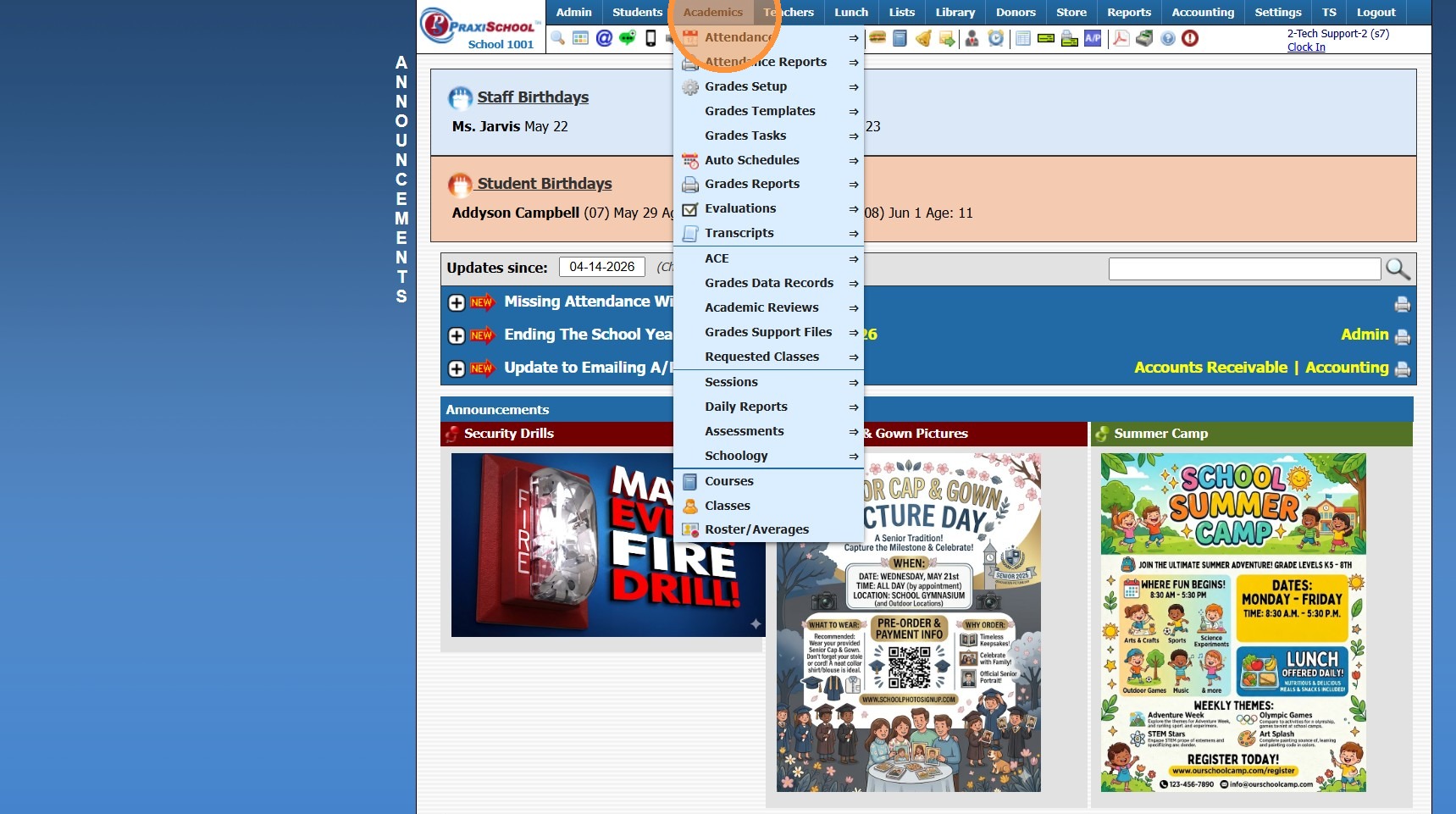
2. Click "Roster/Averages"
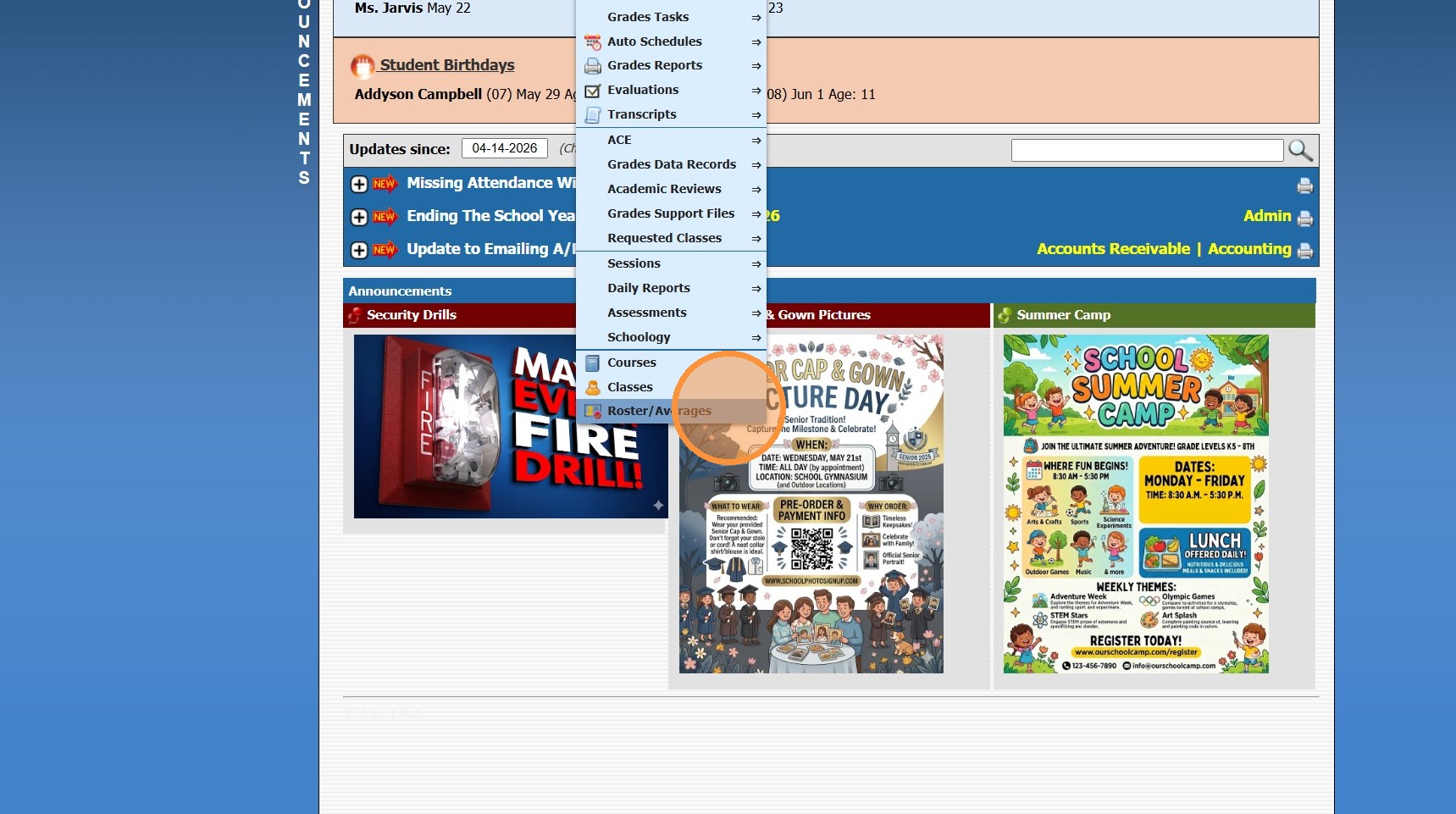
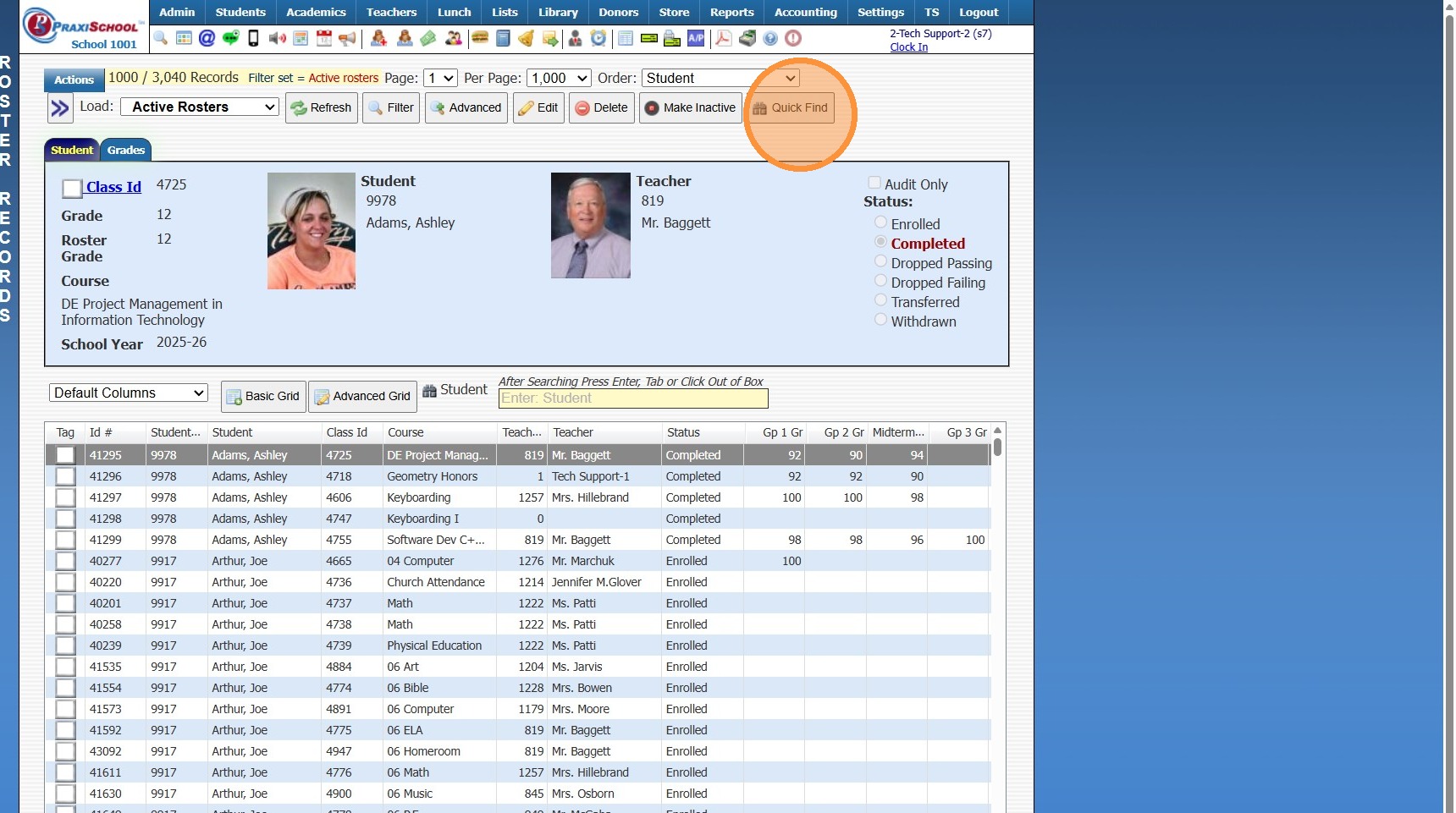
3. Click "Quick Find"
4. Click the "All" toggle
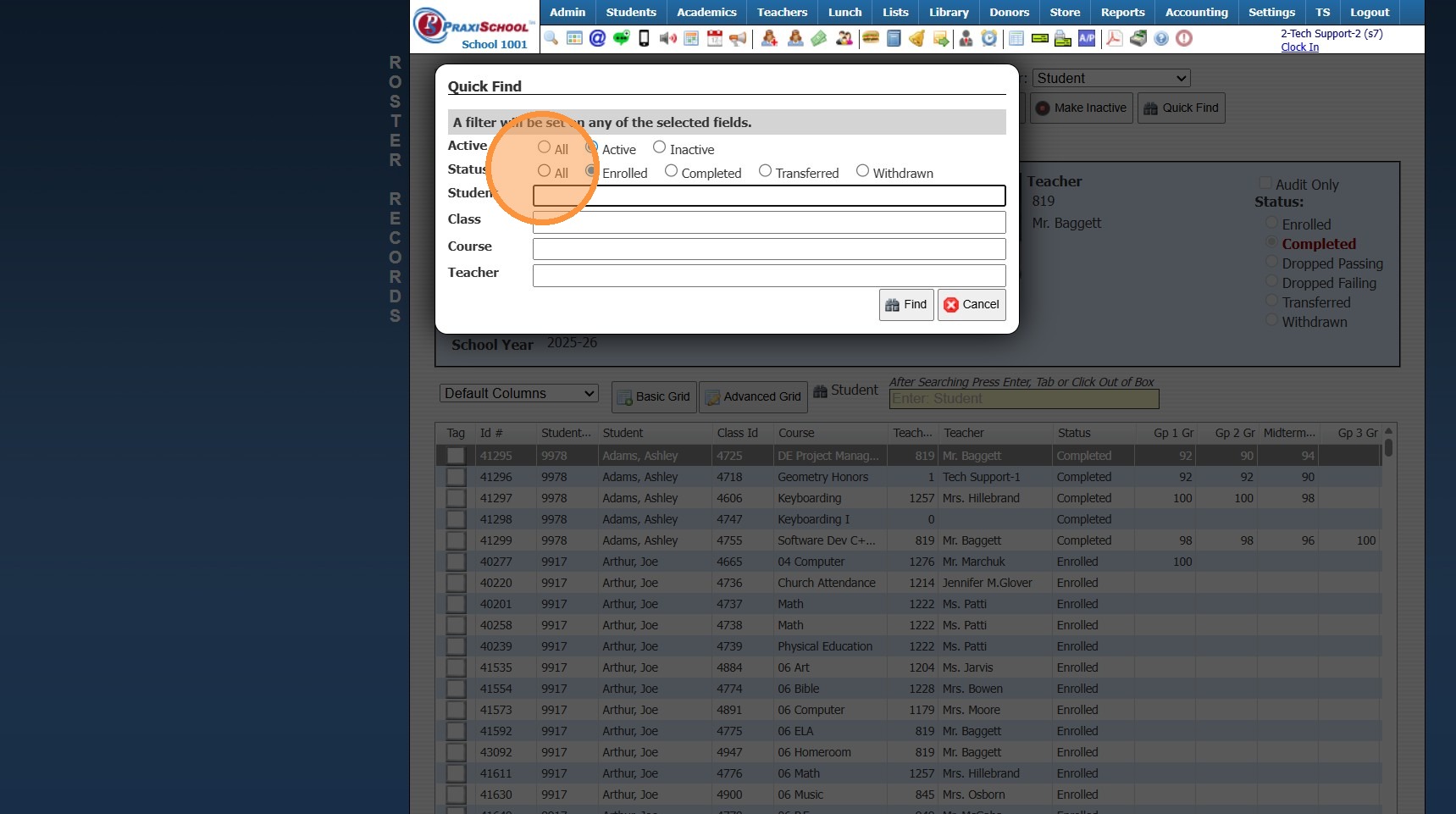
5. Click "Student" and Search the Student Name
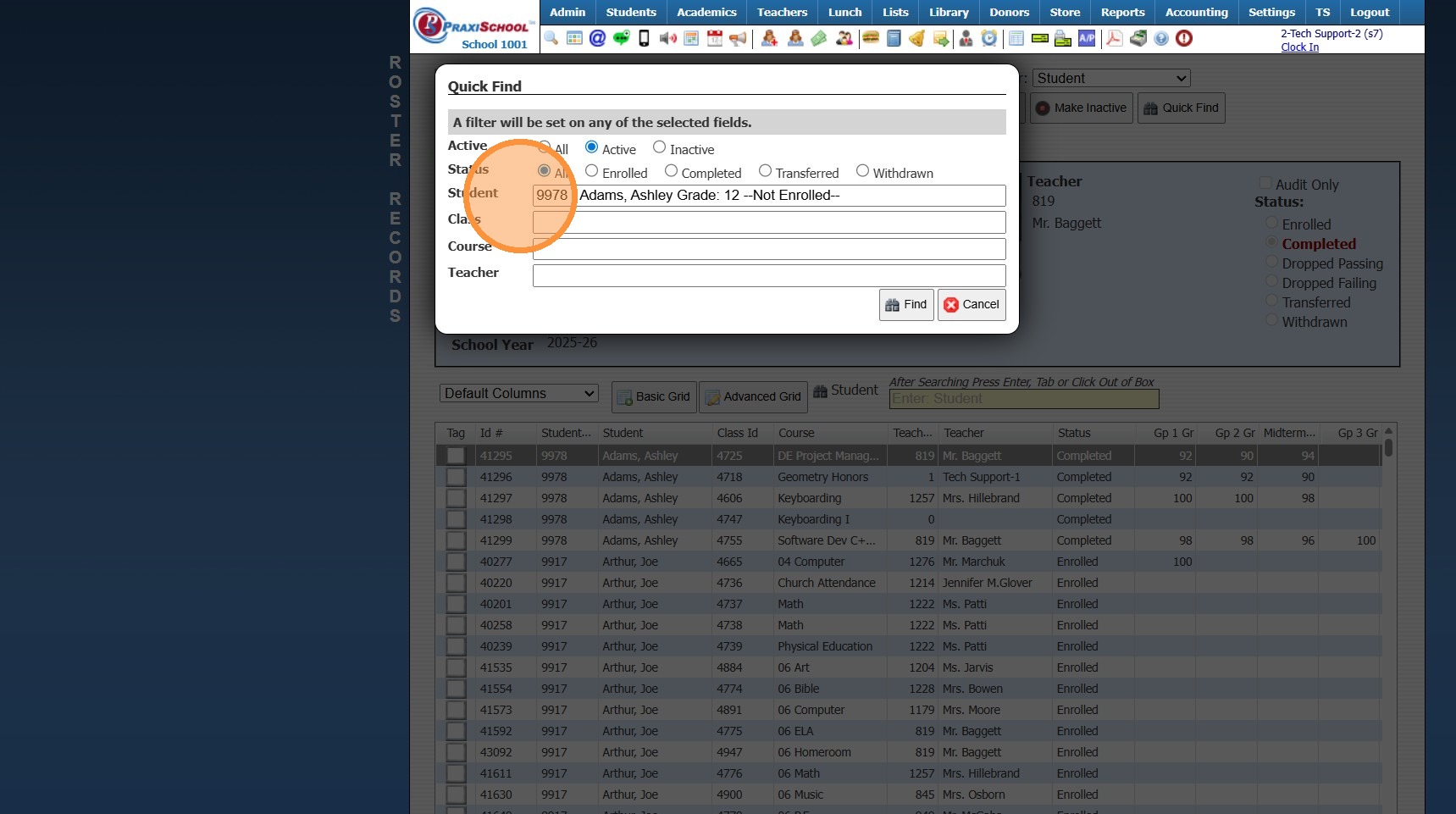
6. Click "Find"
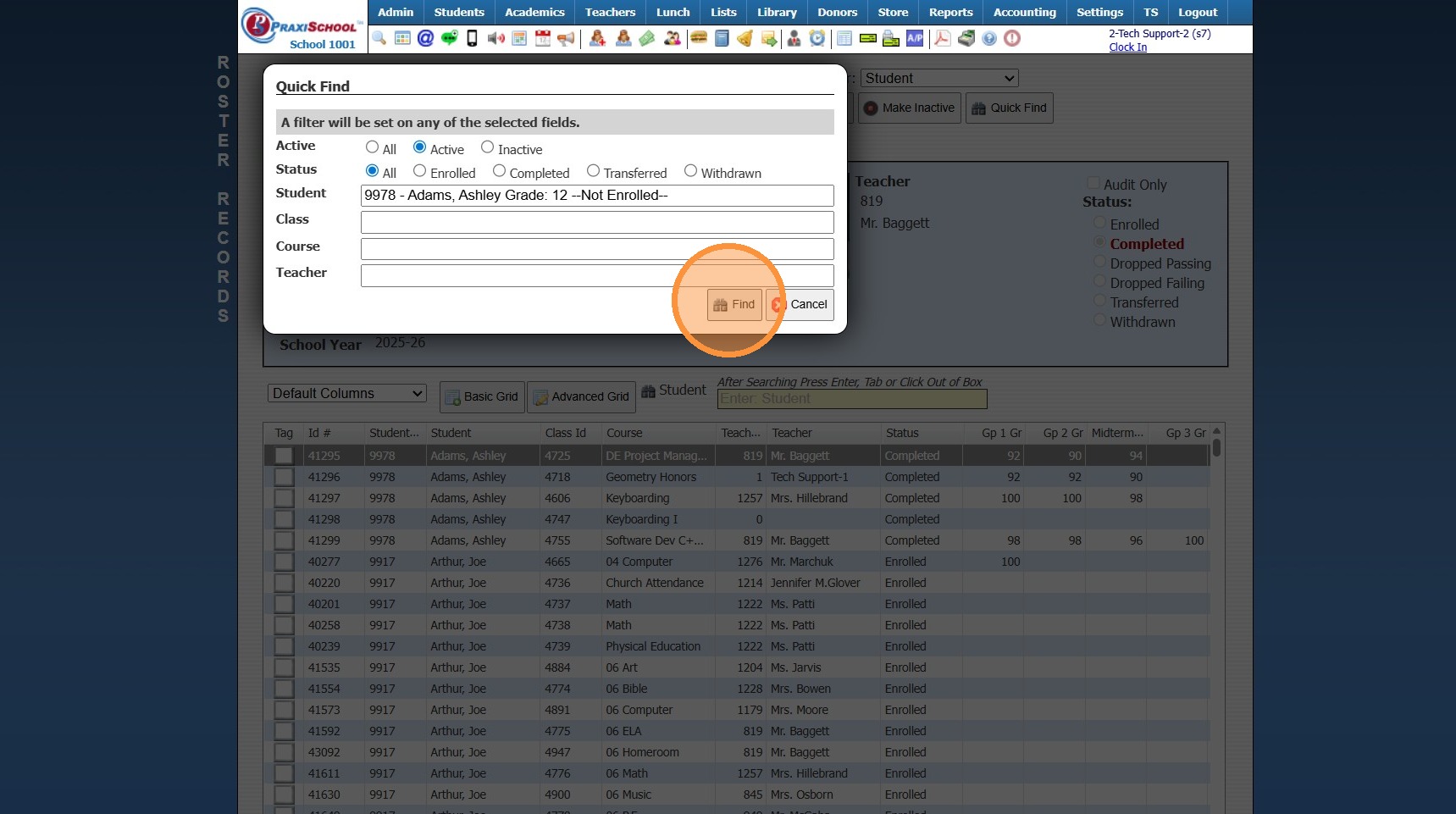
7. The Student's Class Rosters will Populate
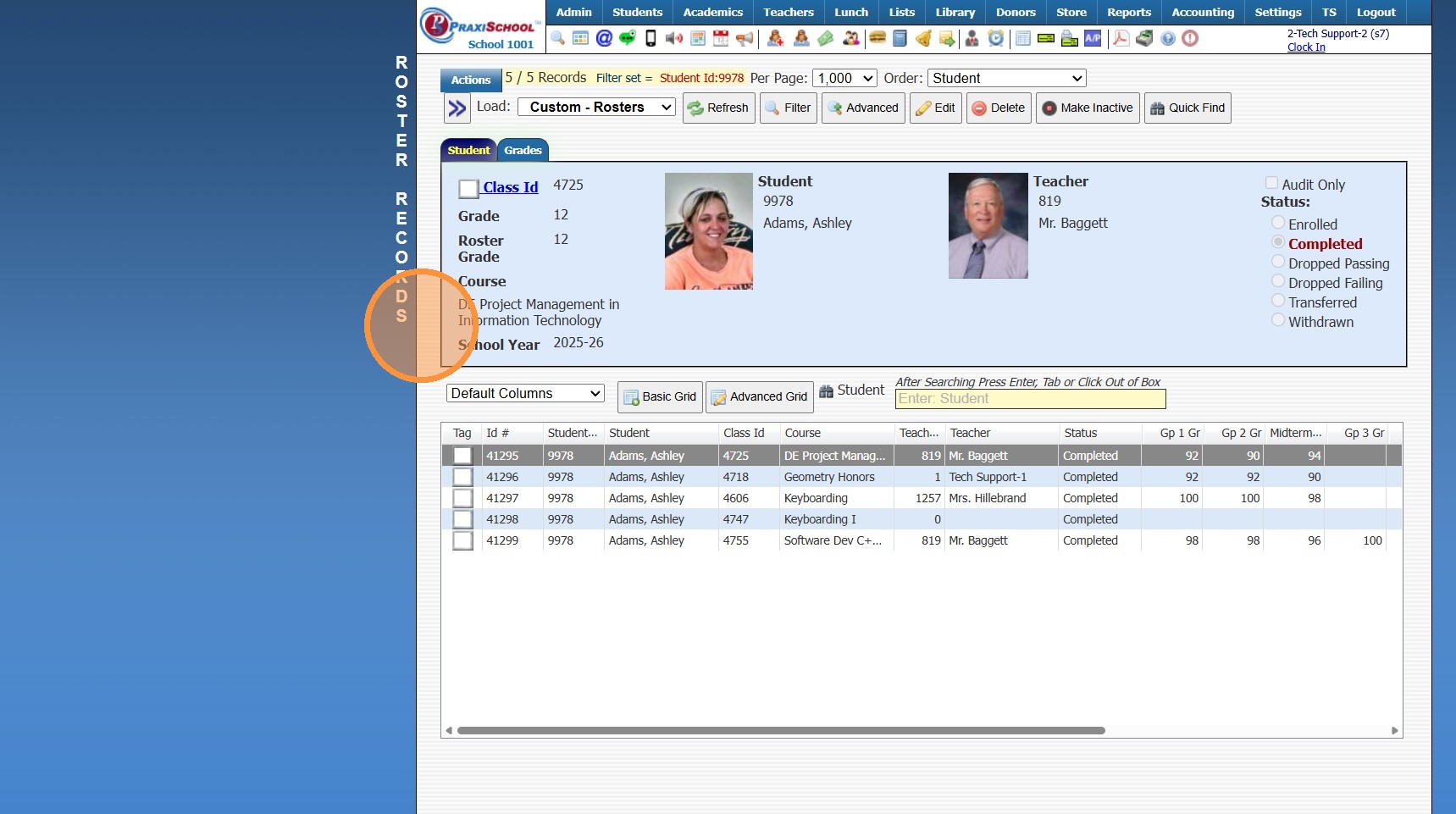
8. Click "Actions"
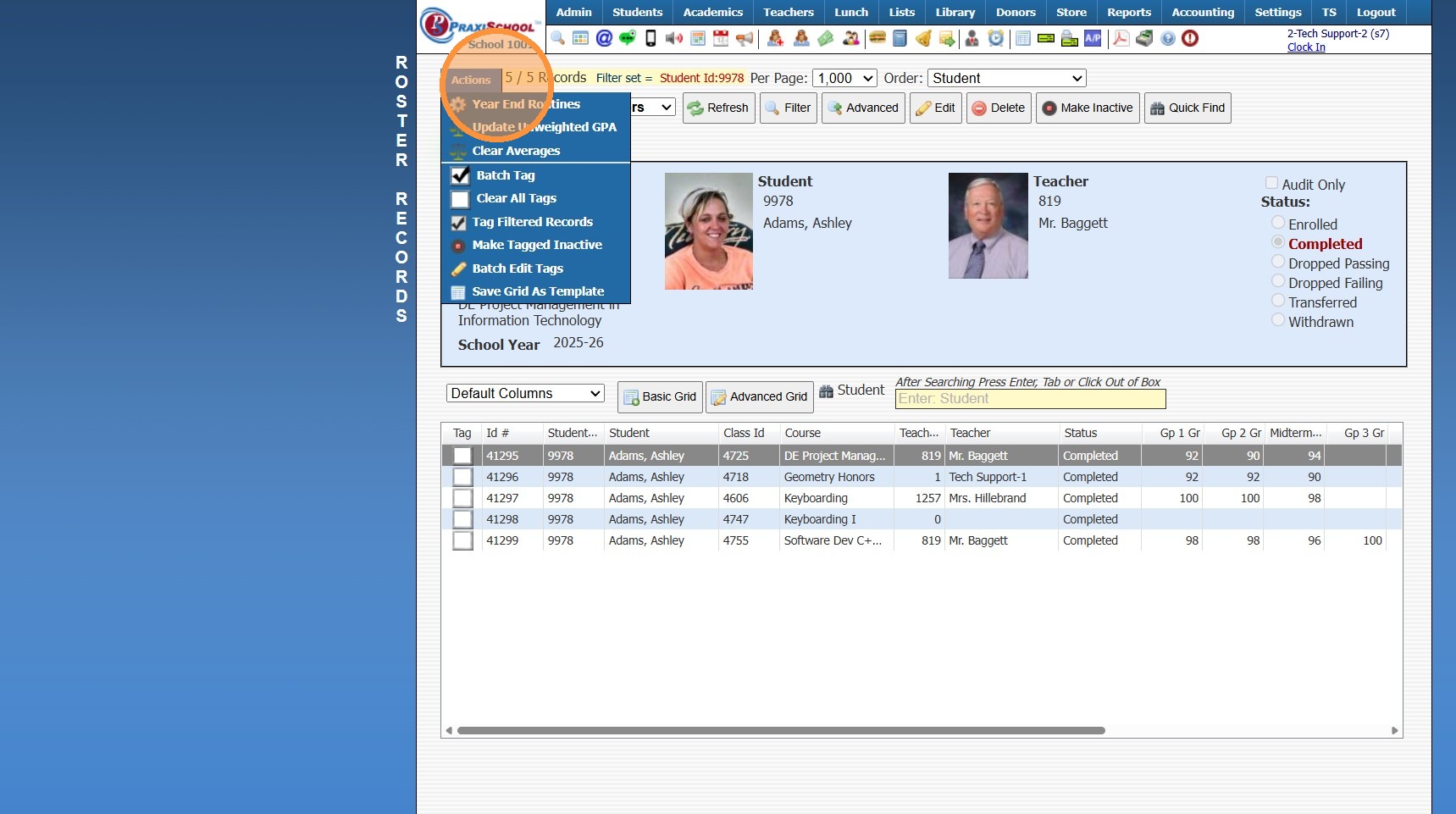
9. Click "Clear All Tags"
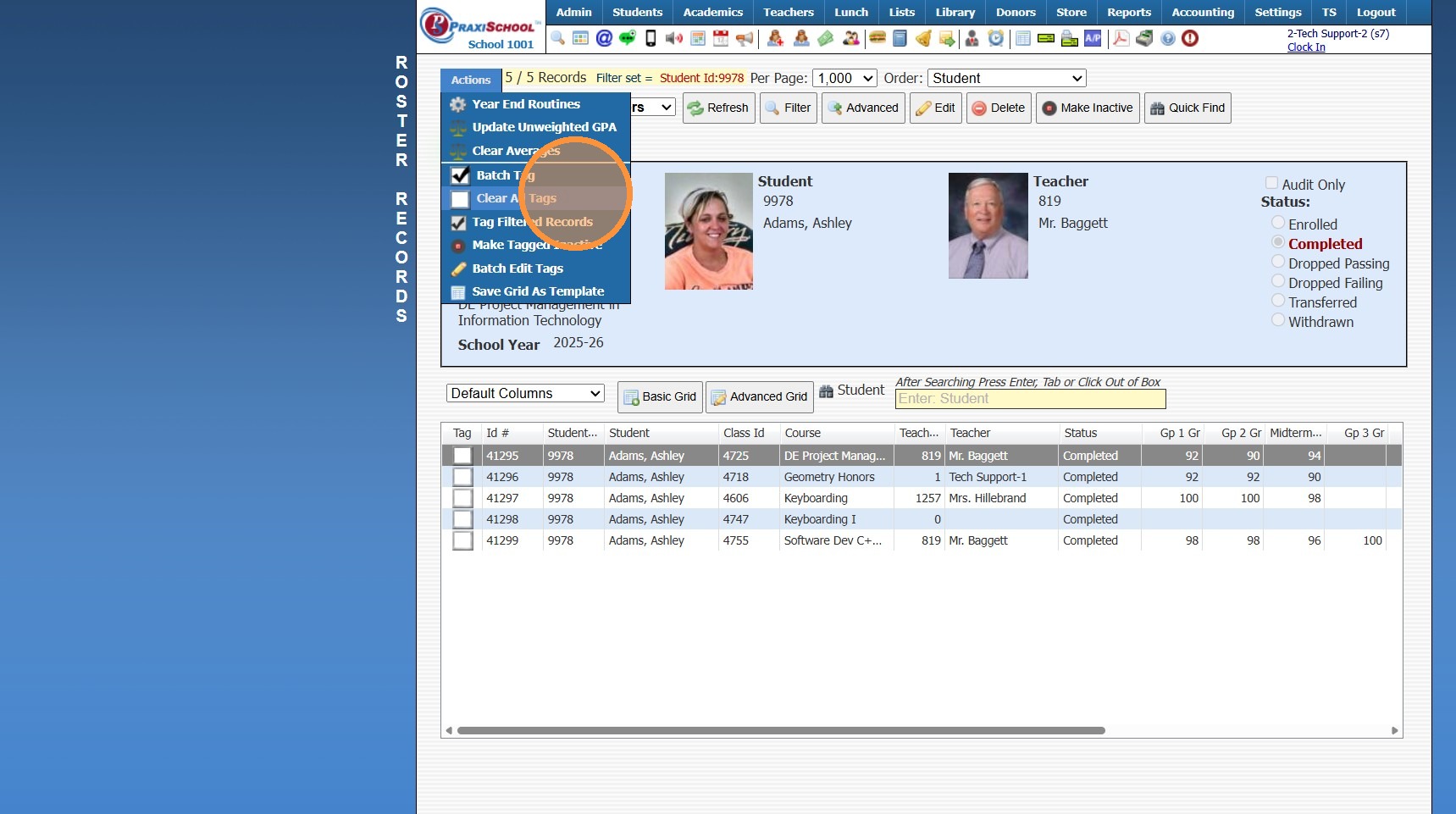
10. Click "Actions"
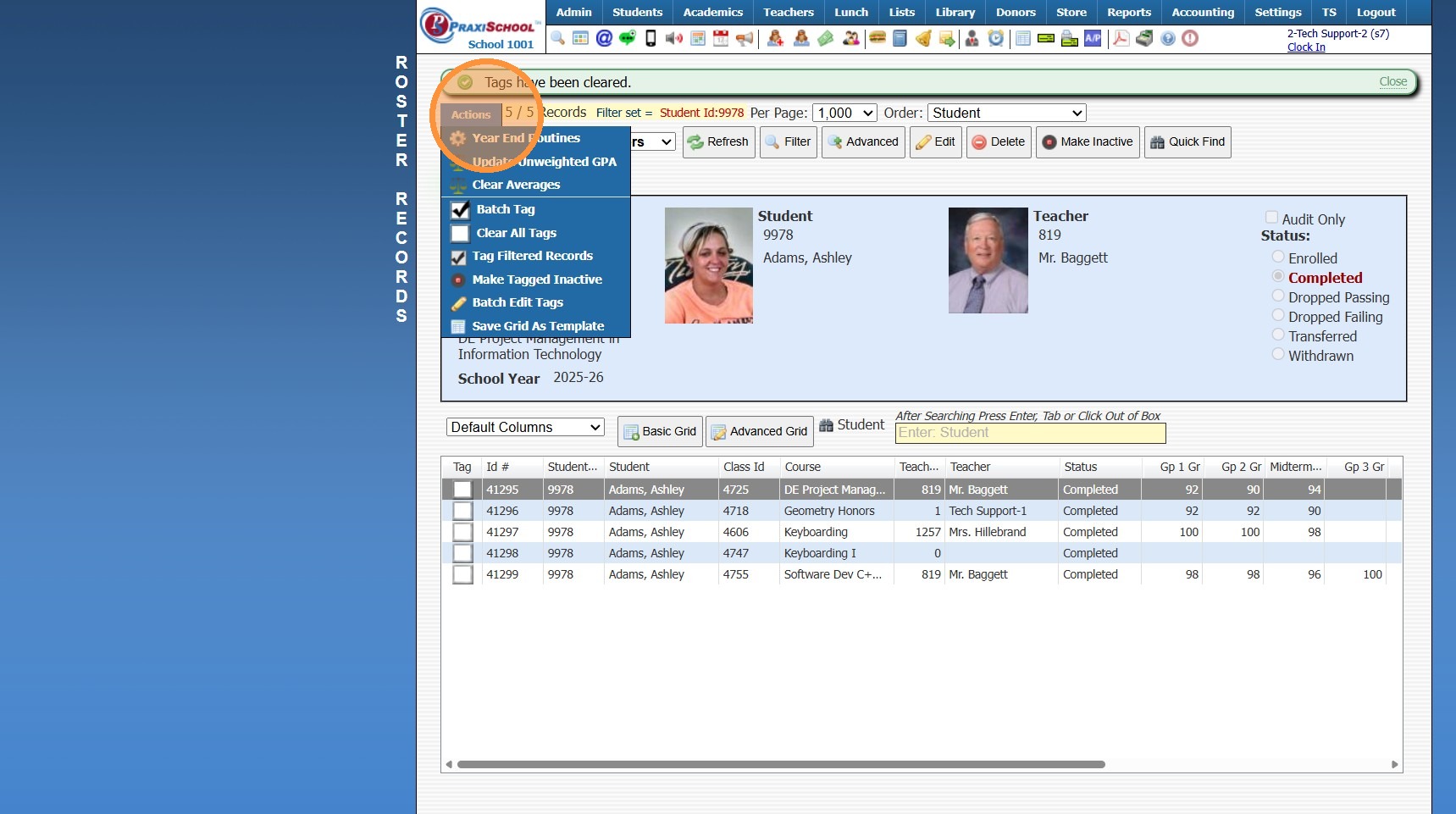
11. Click "Tag Filtered Records"
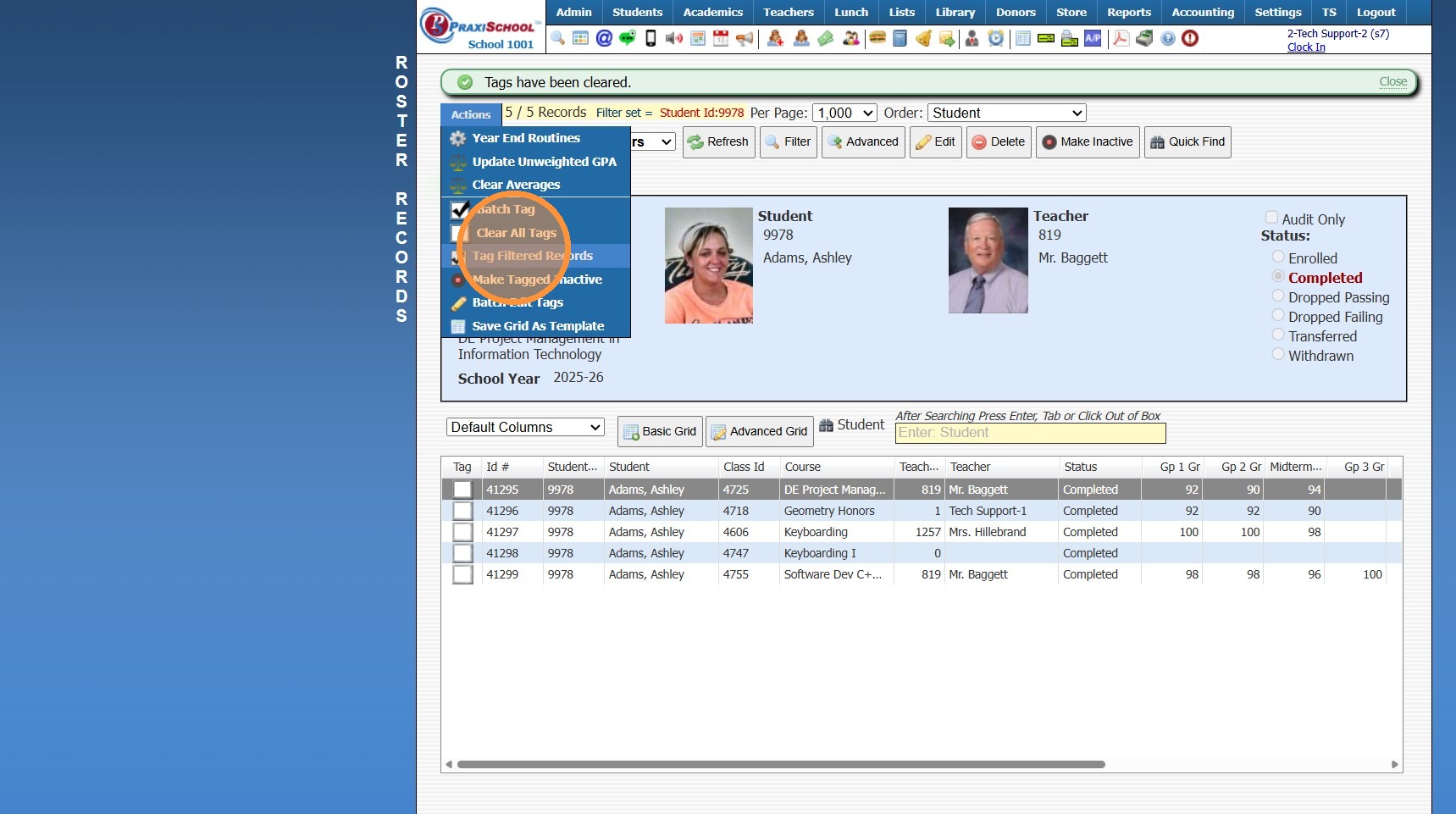
12. Click "Actions"
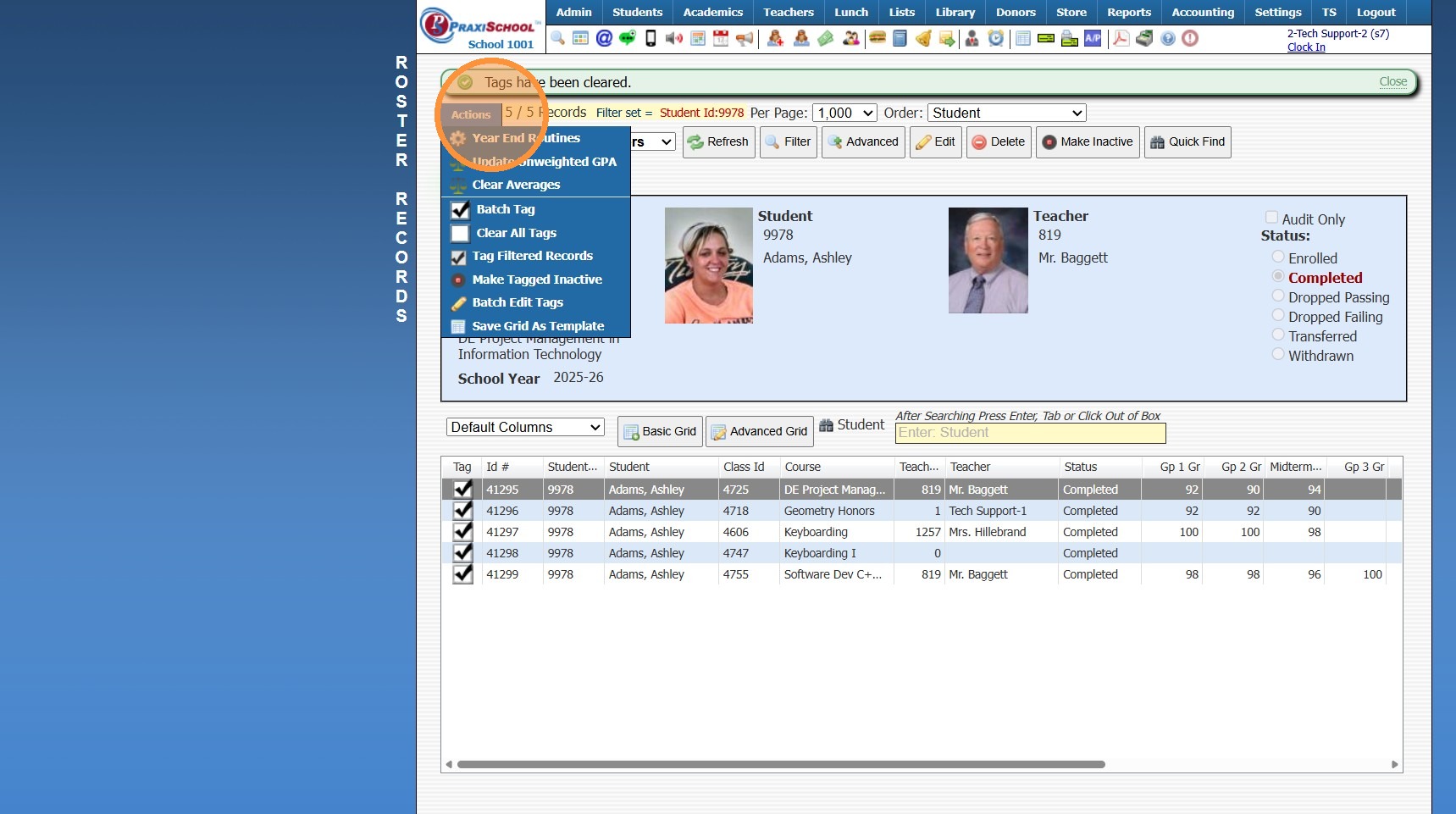
13. Click "Batch Edit Tags"
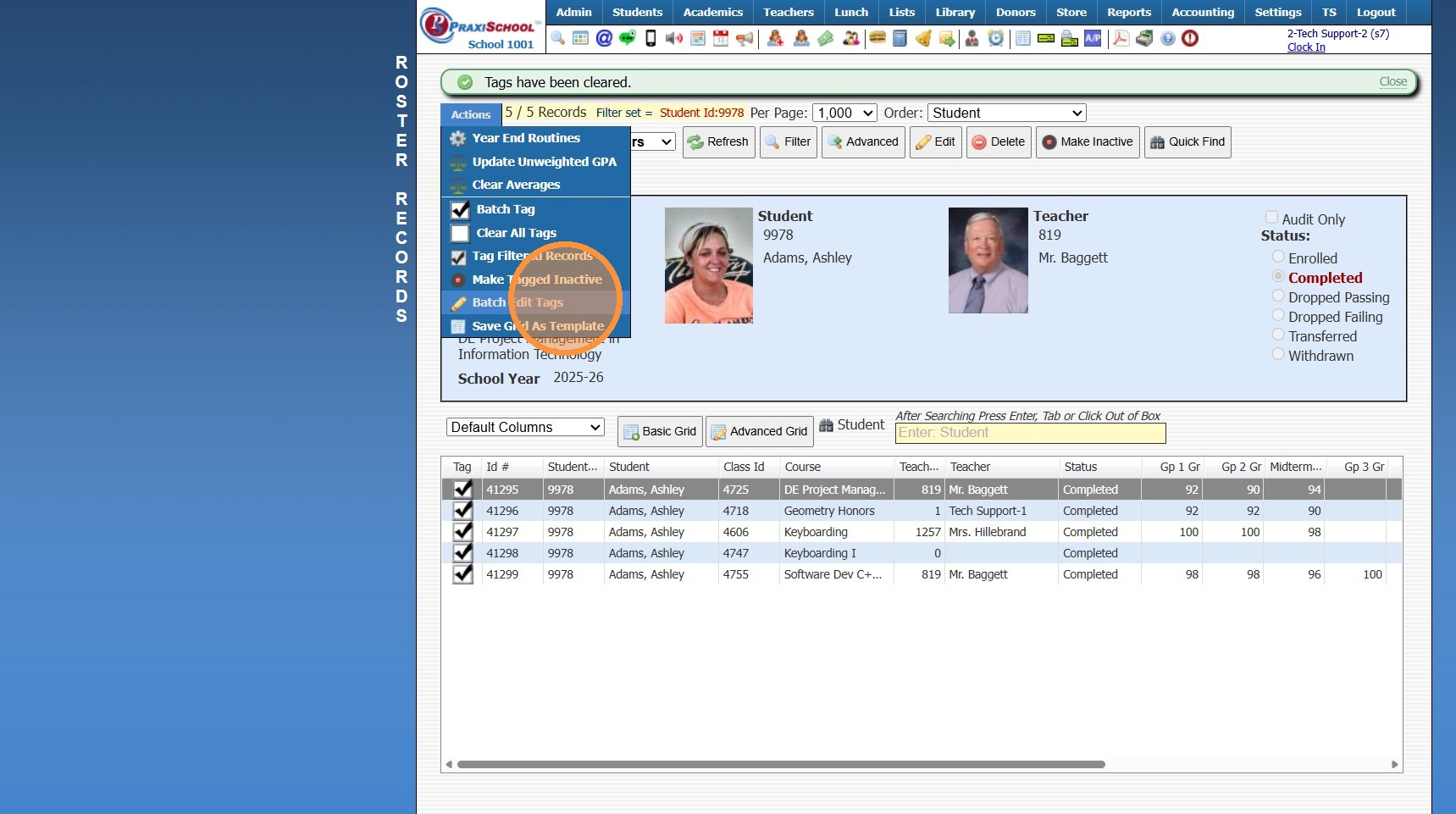
14. Select the Data Field "Status"
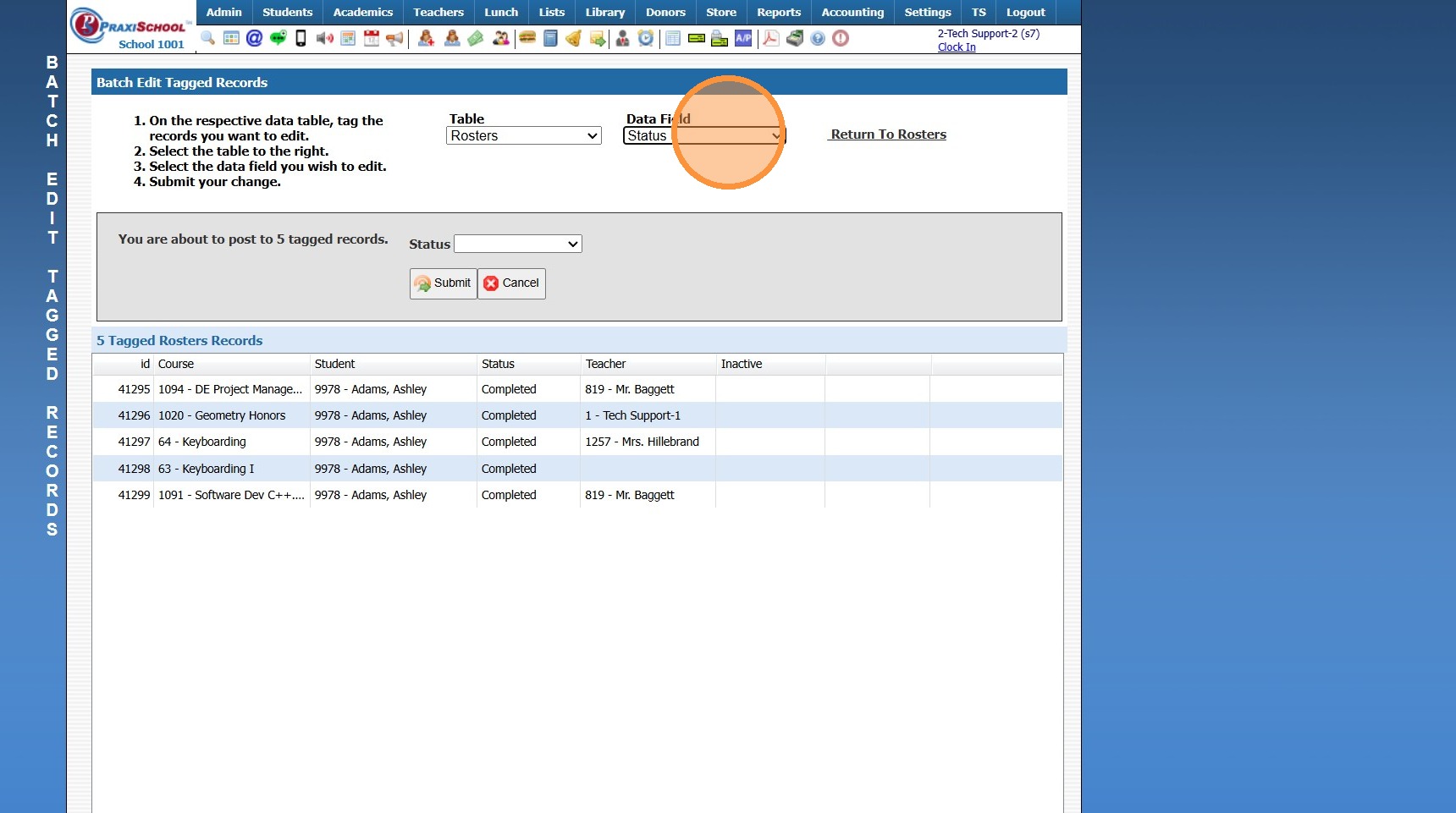
15. Select the "Enrolled" option
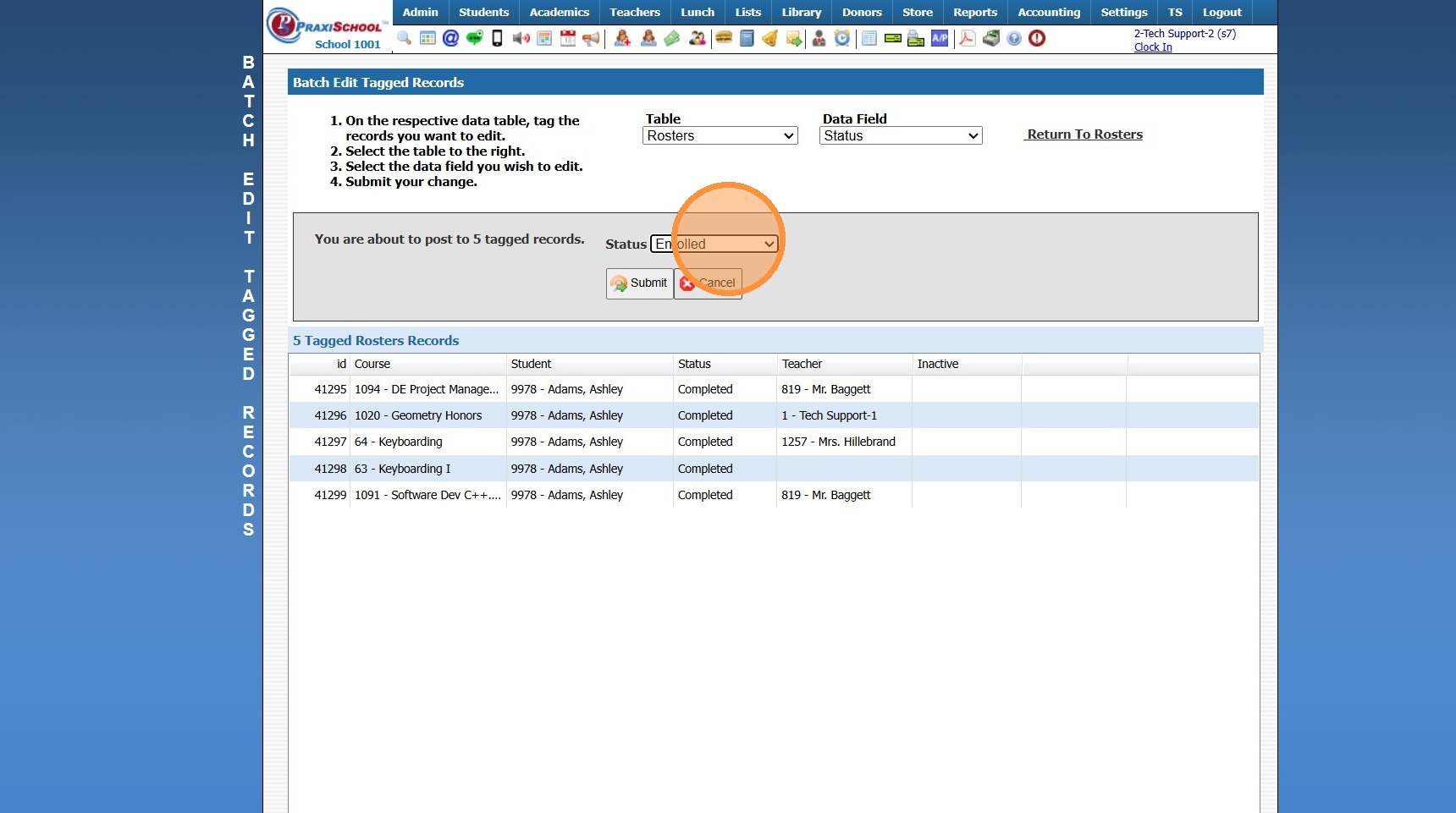
16. Click "Submit" and type "yes"
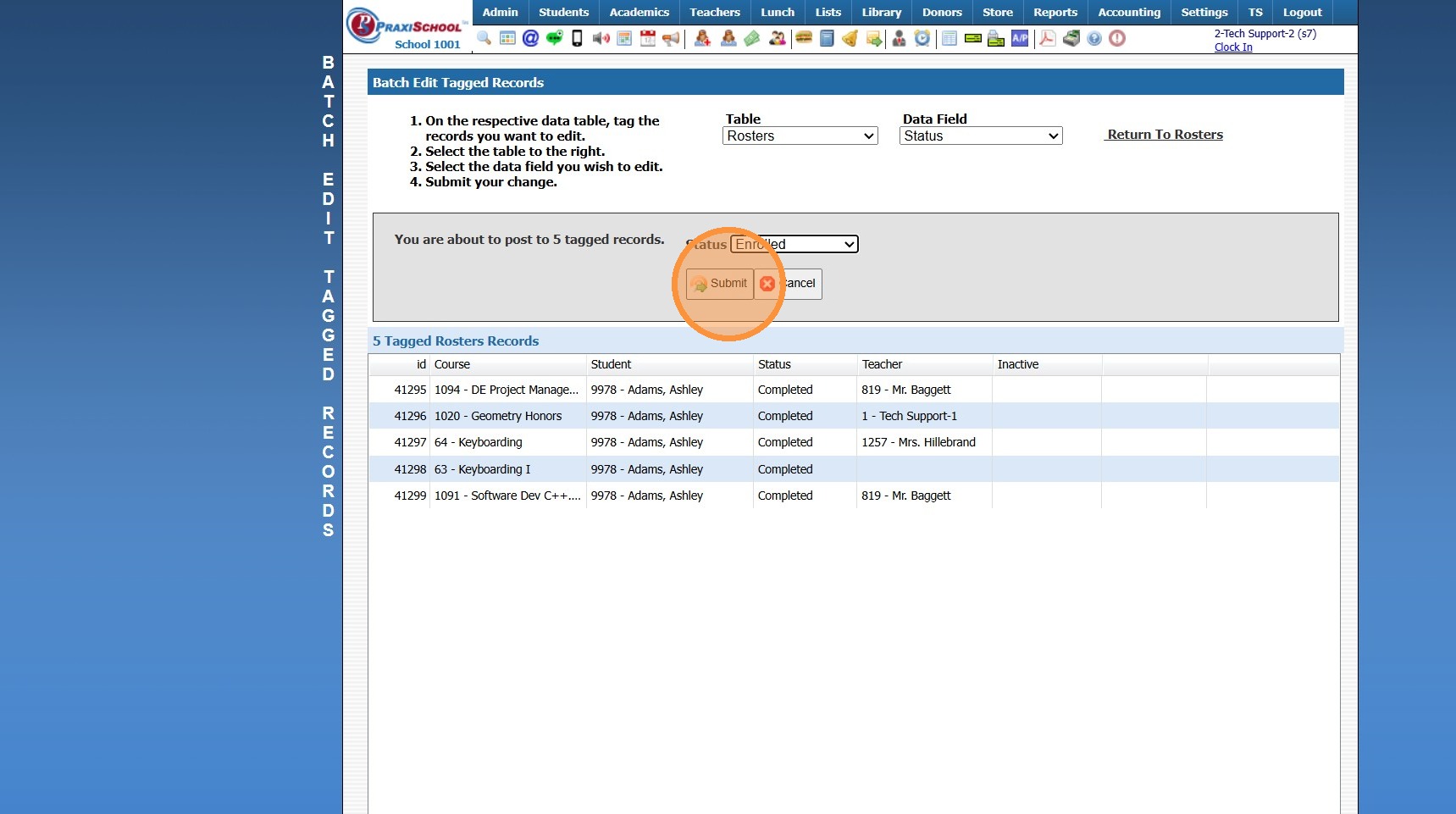
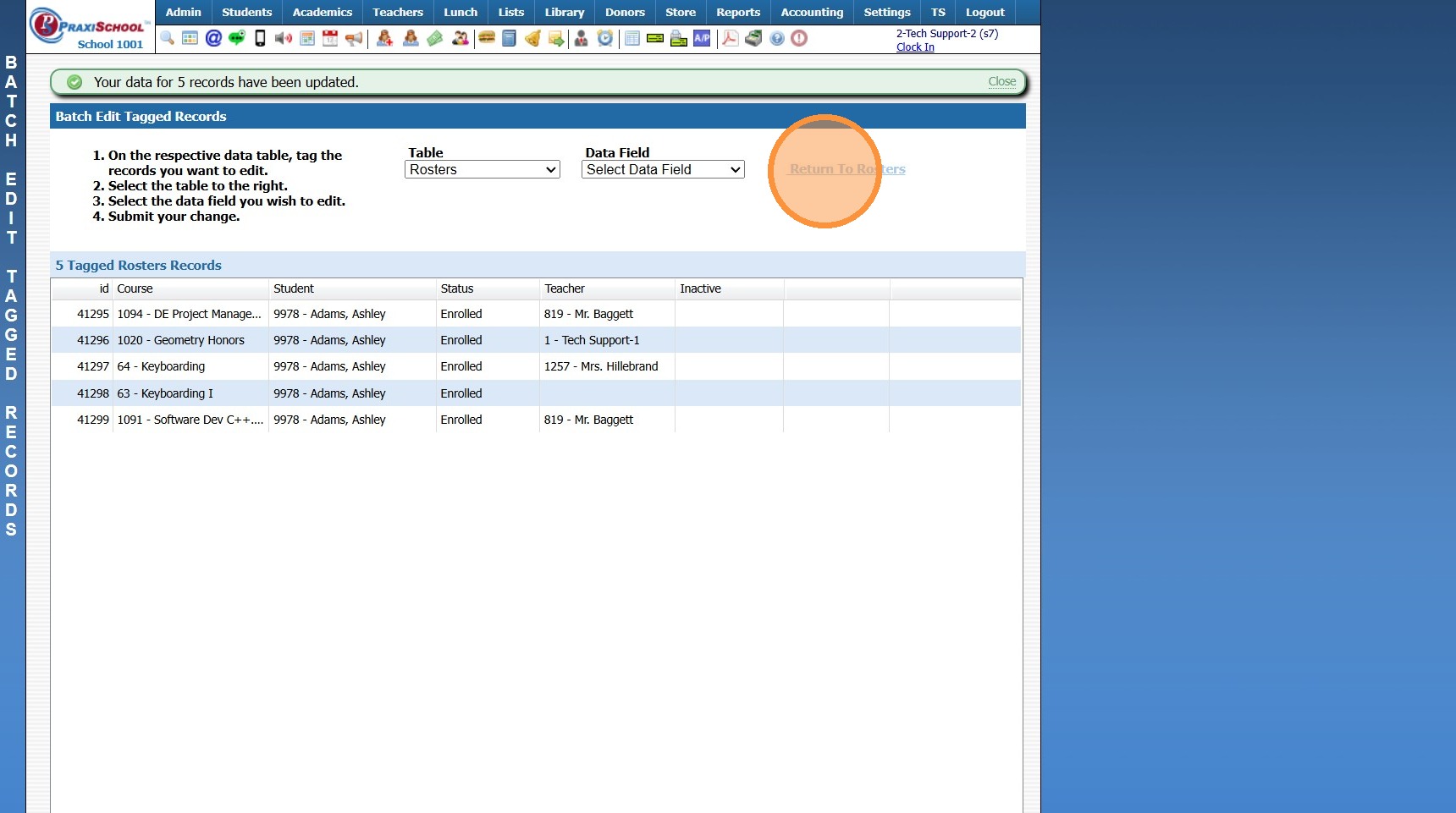
17. Click "Return To Rosters"
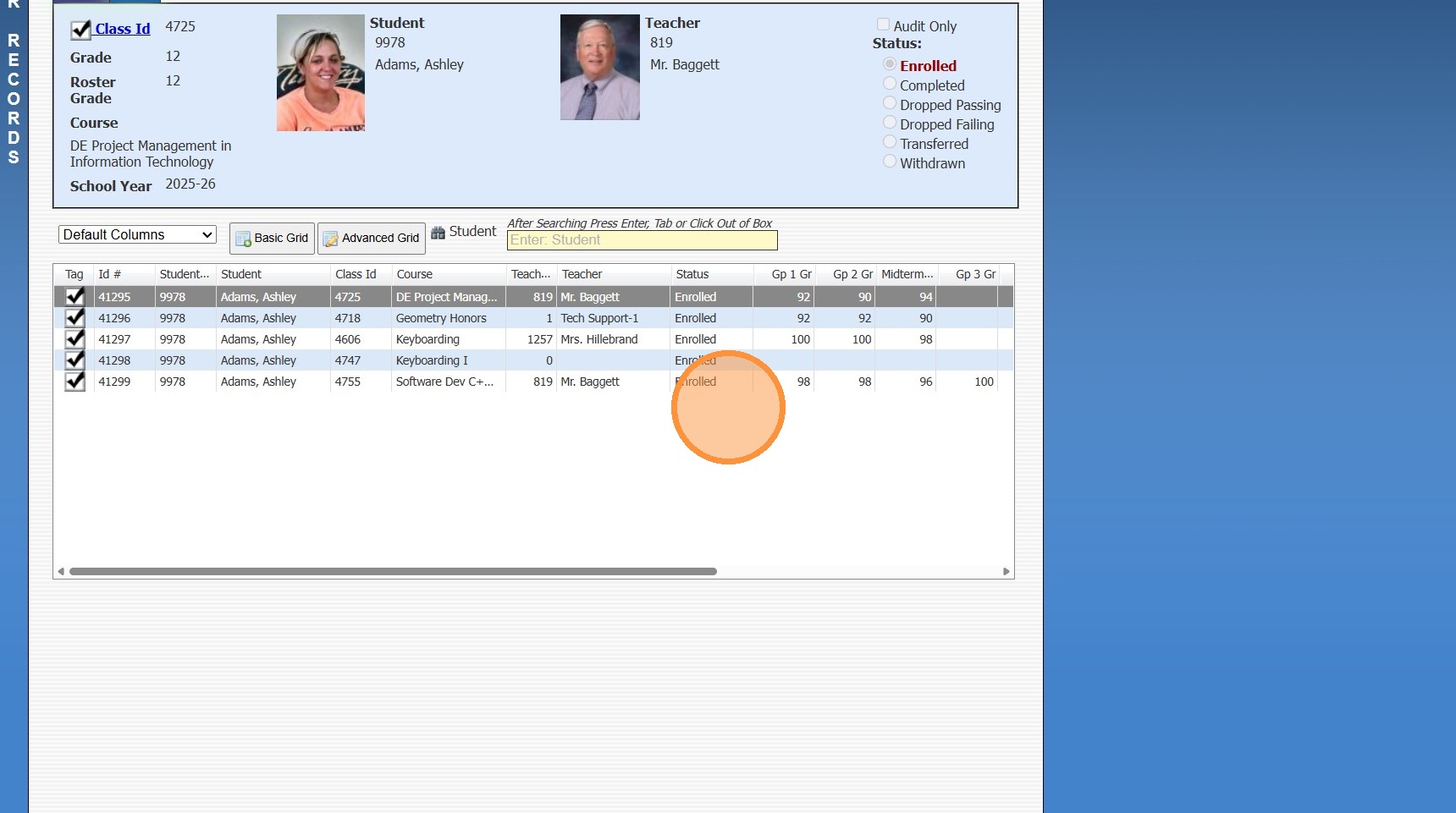
18. The Student will be Enrolled into the Original Classes
2000.14.7
Related Articles
Individually Enrolling a Student in Classes from the Student File
1. Click "Students" 2. Click "Students" 3. Select Student 4. Click the "Classes" tab 5. Click "Add" 6. Select Classes 7. Click "Enroll" 8. Click "Finished" 1500.4.36.1Enrolling a Pre-Registered Student in Next Years Classes
1. Click "Students" 2. Click "Students" 3. Select the Student 4. Click the "Classes" tab 5. Select the Next School Year 6. Click "Add" 7. Select Classes 8. Click "Enroll" 9. Enrolled Classes are Visible under Scheduled Classes 10. Click "Finished" ...Printing a Students Homework for All Classes
Printing a Students Homework for All Classes 1. Click "Teachers" 2. Click "Student Homework" 3. Select Student 4. Set Date Range 5. Click "Print Homework" 6. Homework will Populate on Screen to Print, Email or Save to a PDF 2500.7.1Making Non-Returning Student Inactive in Batch
1. Click "Students" 2. Click "Students" 3. Click "Actions" 4. Click "Batch Tag" 5. Select "Not Enrolled" under Enrollment Status 6. Select "Not Pre-Registered" under Next Year Status 7. Click "Tag Students" 8. Click "Close & Set Filter" 9. Click ...Printing a Student Schedule from the Student File
1. Click "Students" 2. Click "Students" 3. Select the Student 4. Click the "Classes" Tab 5. Click "Print" Printing the Student Schedule by Class Period 6. Click "Schedule/Period" 7. The Student's Schedule will Print based on the Period & Day of the ...