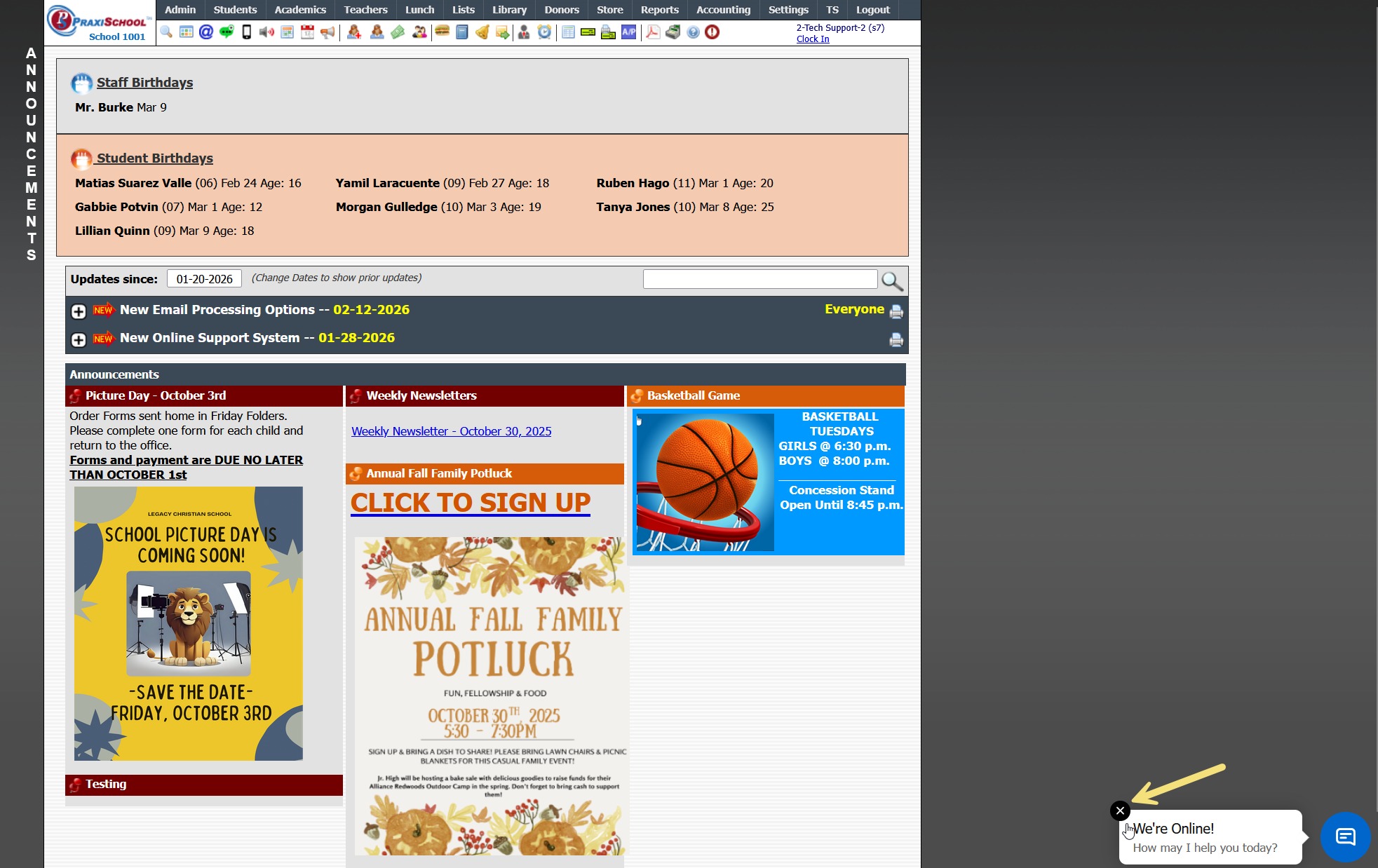
How to Hide the "We're Online" Message
1. Move the Mouse to the "We're Online!" message & Click the "X"
8000.13
Related Articles
Re-Issuing a Failed ACE PACE
Re-Issuing a Failed ACE PACE 1. Click "Teachers" 2. Click "Classroom" 3. Select Learning Center Course in Grid 4. Click "Grade Book" 5. Search Student 6. Failed PACEs will Turn Red 7. NOTE: If Numeric Grade is Below the ACE Grade Scale Min Passing ...Setting Message Alert Tones
Setting Message Alert Tones 1. Click "Settings" 2. Click "User Settings" 3. Click "Message Alerts" 4. Select Volume Preference for Message Alerts 5. Select Message Alerts Sound Preference 6. Select Volume Preference for Urgent Message Alerts 7. ...Updating PACE Re-Order Point, Price & Cost
Updating PACE Re-Order Point, Price & Cost 1. Click "Academics" 2. Click "ACE" 3. Click "Ace Paces (Inventory)" 4. Tag Course / PACEs 5. Click "Actions" 6. Click "Batch Edit Pace Inventory" Updating Reorder Point 7. Check the box for "Change Reorder ...Accessing the Online Chat
1. Click the "Chat Icon" in bottom-right corner of any Praxi Screen 2. Click in the Message field & Type a Message 3. Click "Start Chat" 4. A Support Representative will Respond to Chat 5. Give Support Representative information on how they can help ...Online Form Levels & Meanings
1. There can be many Online Form Levels. However, each Level will connect to 1 of 4 Level Types: Exclude, In Process, Submitted or Approved 2. All Forms start at the In Process level. In Process means the form has been started, but has not been ...