Online Form Levels & Meanings
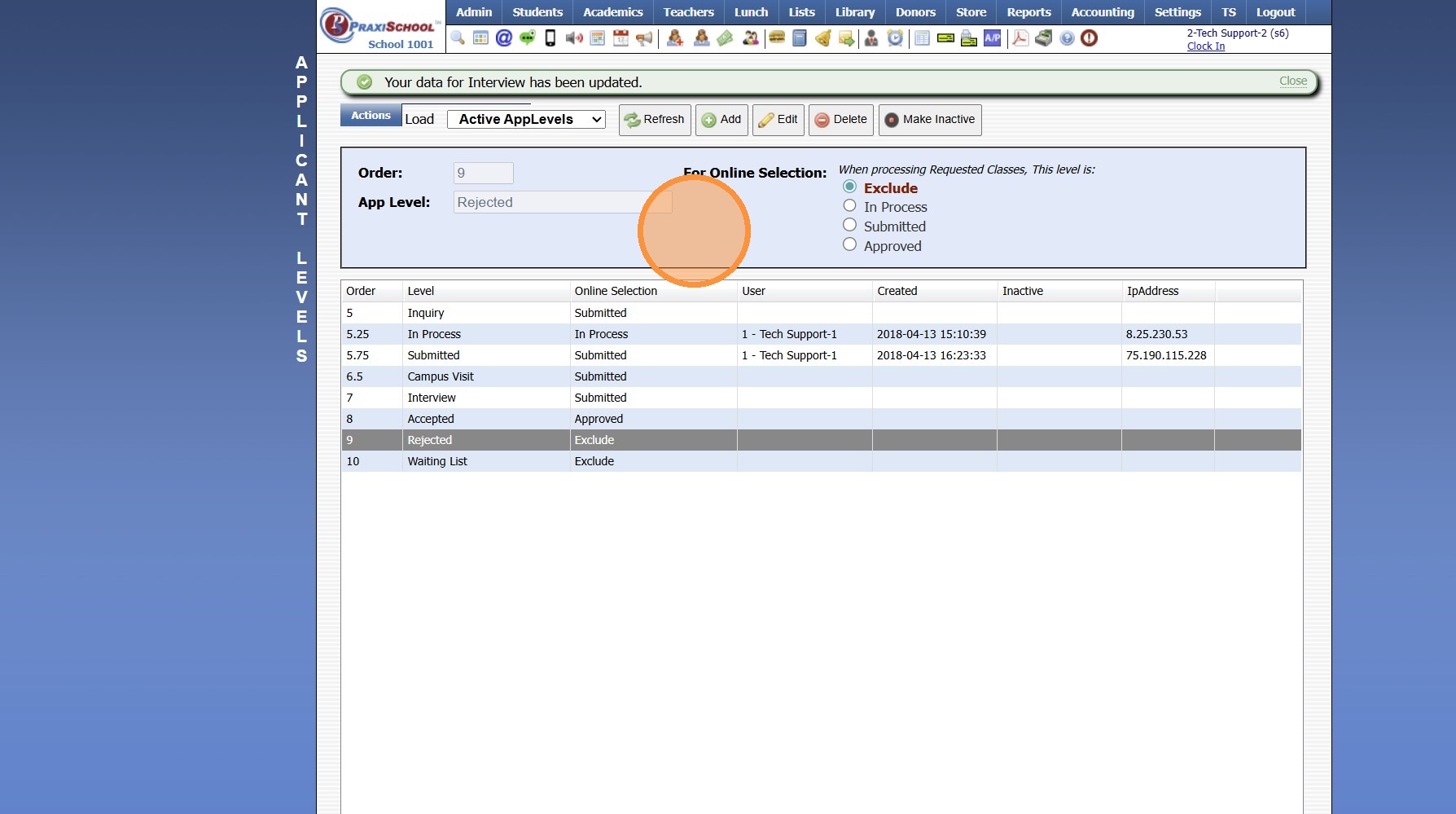
1. There can be many Online Form Levels. However, each Level will connect to 1 of 4 Level Types: Exclude, In Process, Submitted or Approved
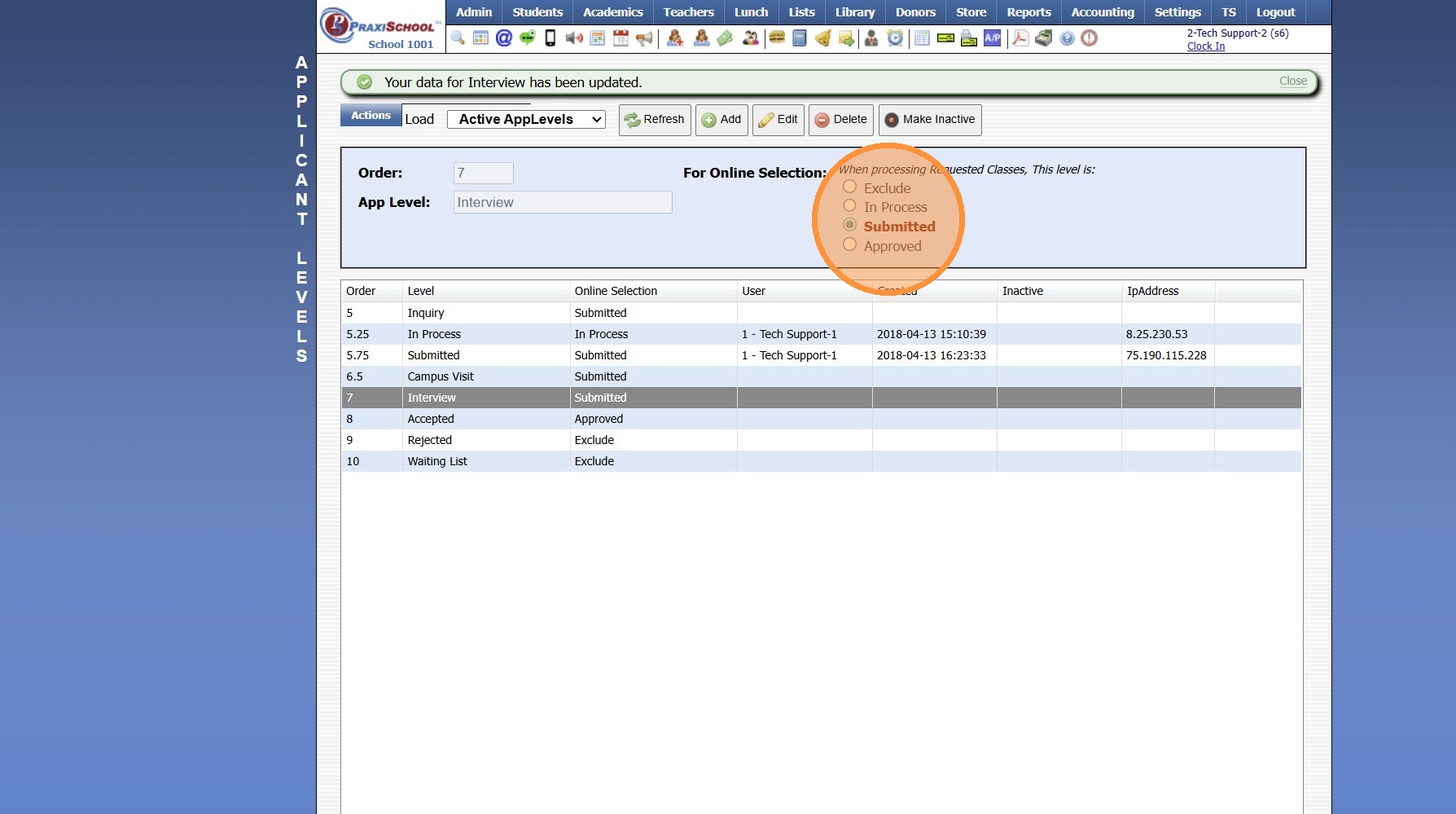
2. All Forms start at the In Process level.
In Process means the form has been started, but has not been submitted.
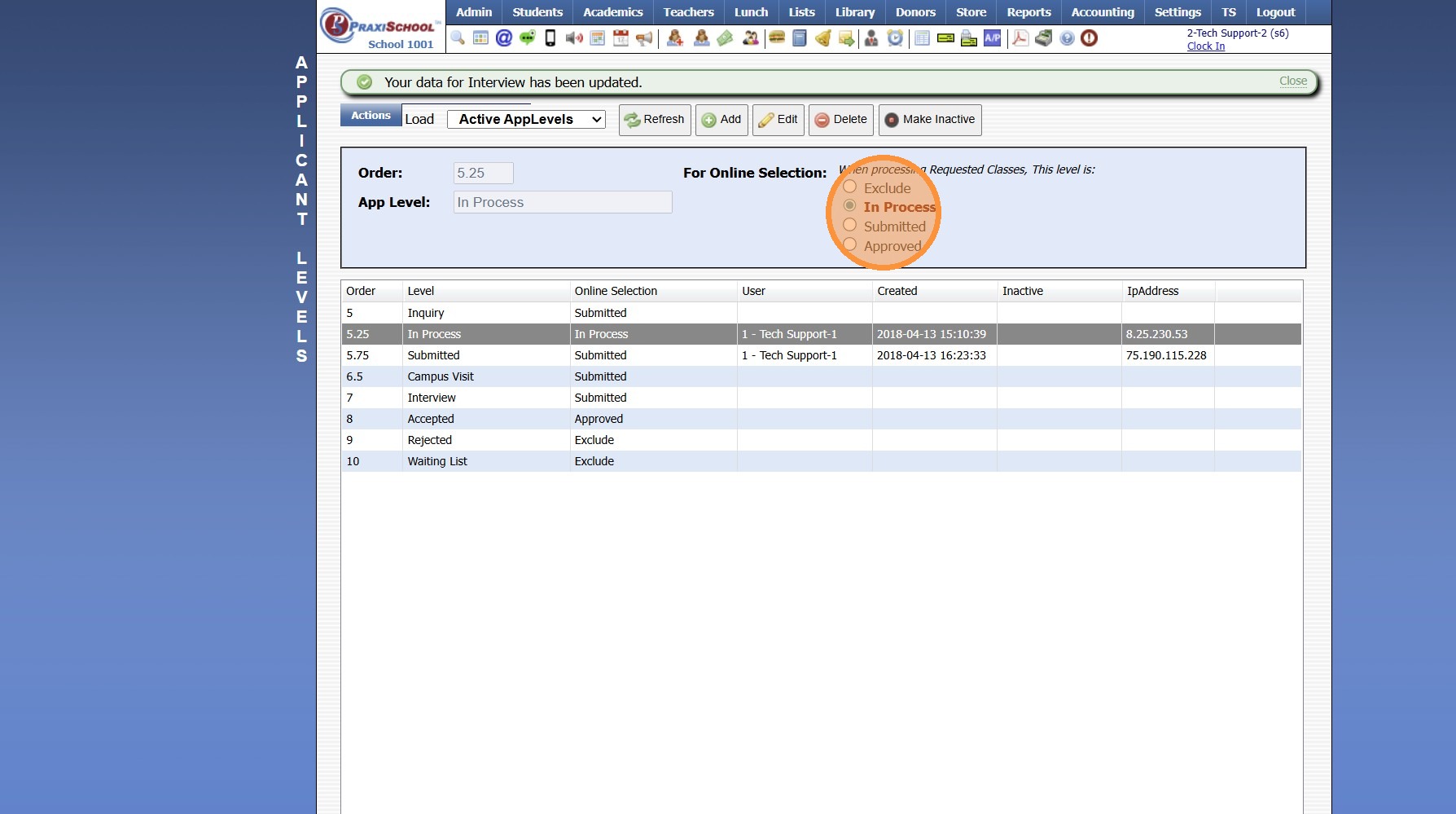
3. Once a Form is Submitted, it goes to the Submitted level. The Submitted level can be used for multiple Applicant Levels:
Submitted - Form has been Submitted
Interview - Form has been Submitted & Applicant is in the Interview Process
Documentation - Form has been Submitted & Awaiting Required Documentation
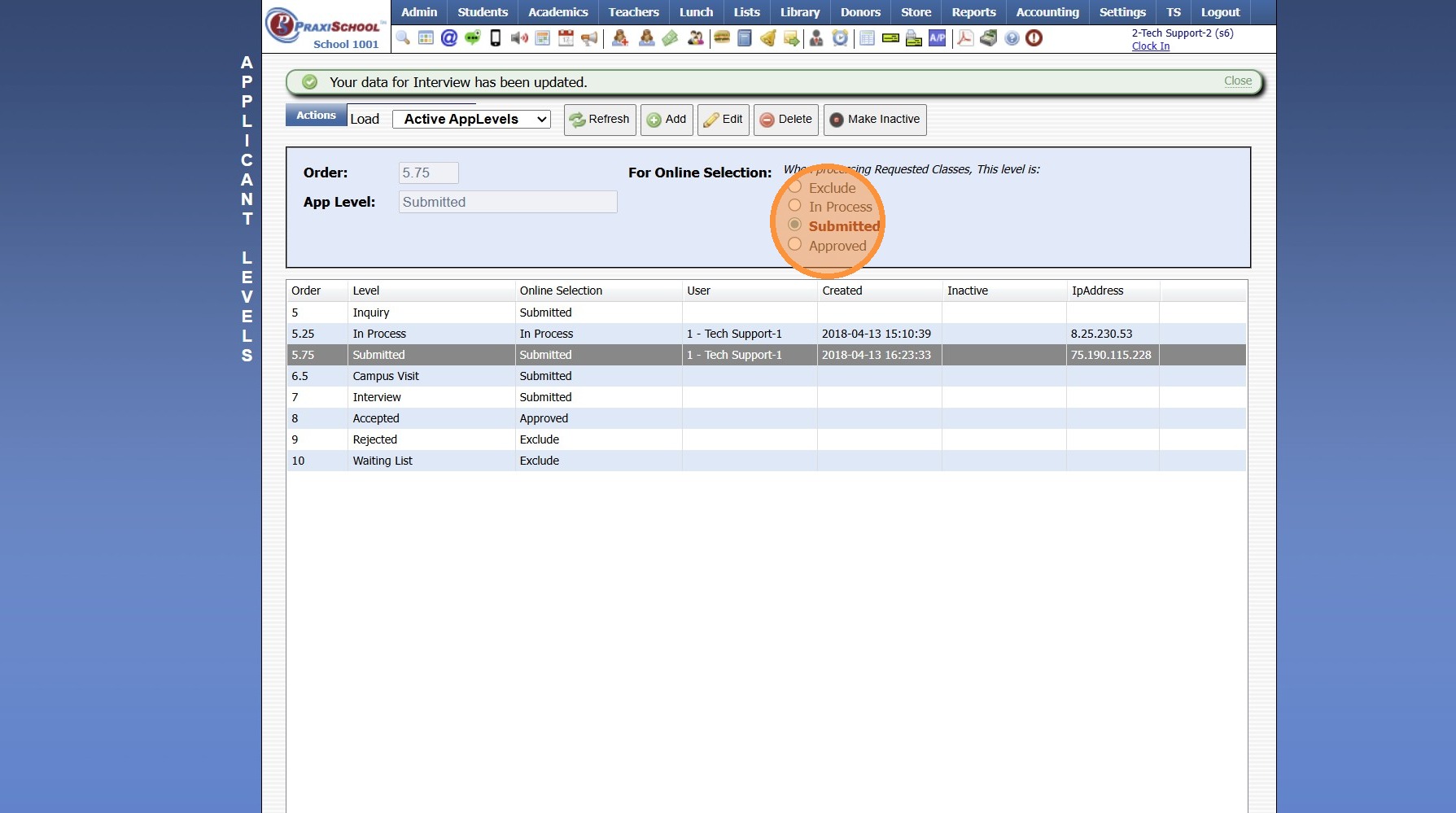
4. Once a Form has been Accepted, it goes to the Approved level
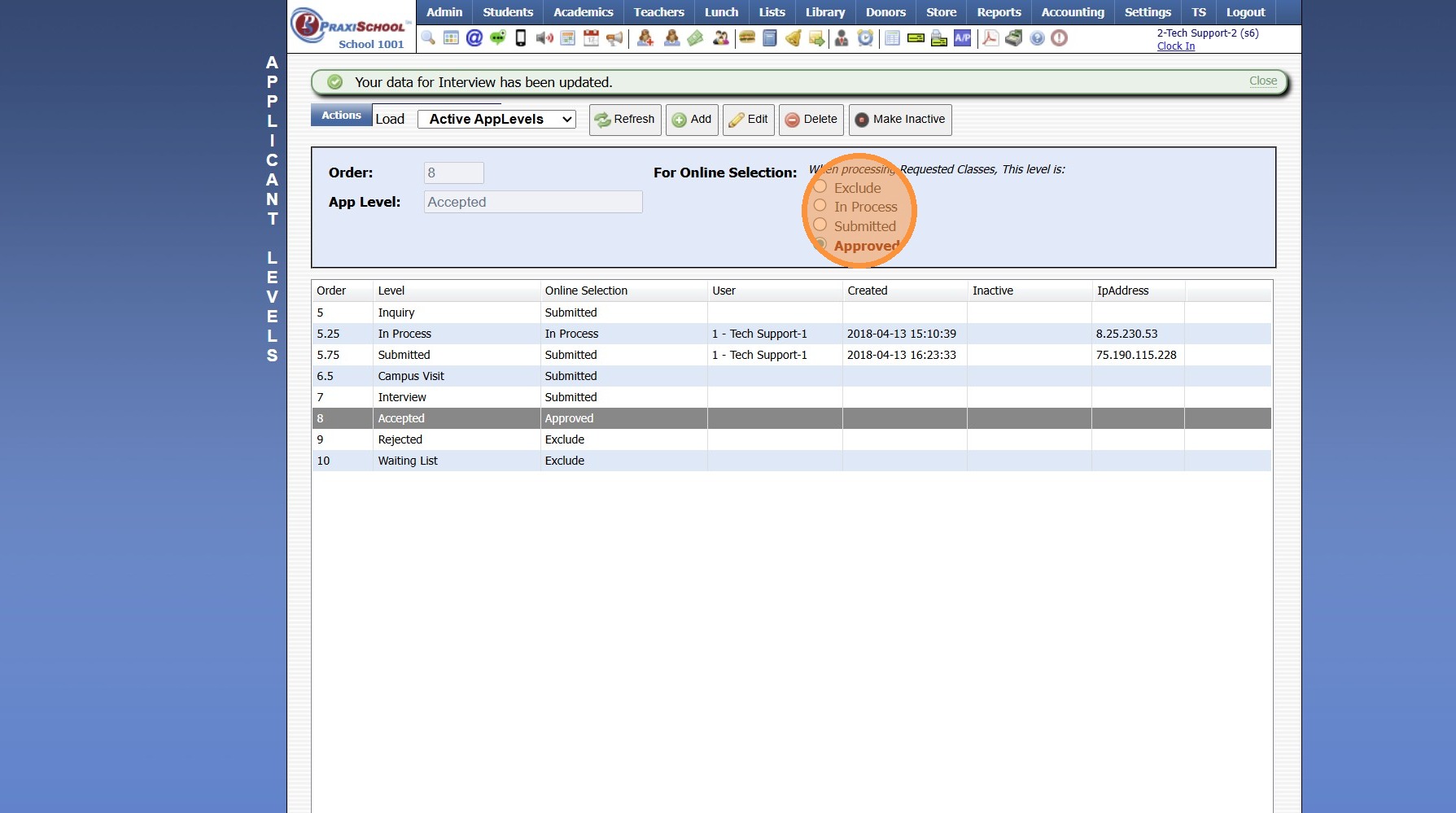
5. Excluded level. The Excluded level can be used for 2 Applicant Levels:
Wait List - Submitted Form has been marked to the Wait List
Rejected - Submitted Form has been Rejected
Related Articles
Setting Form In Process & Submitted Levels
1. Click "Admin" 2. Click "Online Forms" 3. Click "Forms" 4. Select Form 5. Click the "Styles & Functionality" Tab 6. Click "Edit" 7. Verify Process Level is set to In Process 8. Verify Submitted Level is set to Submitted 9. Click "Save" 1000.6.5
Accessing & Previewing Online Form Templates
1. Click "Admin" 2. Click "Online Forms" 3. Click "Forms" 4. Select Form 5. Click "Header HTML" 6. Click "Preview Form" 7. A Preview of the Form will Populate 1000.6.20
Creating Custom Fields for Online Form/Surveys
Custom Fields create for Online Forms are for the purpose of Printing the Form Only, Custom Fields do NOT Save to the Student, AR nor Family Files. 1. Click "Admin" 2. Click "Online Forms" 3. Click "Custom Fields" 4. Click "Add" 5. Select or Add a ...
Online Form Types and Portal Options
Online Form Types and Portal Options Online Form Types 1. Parent - A/R Portal (Forms for Existing Families, available on Parent Portal) 2. Student Portal (Forms for Existing Students, available on Student Portal) 3. From Your Website (Only new ...
Creating Application Levels
1. Click "Lists" 2. Click "Online Forms" 3. Click "Applicant Levels" 4. Click "Add" 5. Enter Order & App Level Description 6. Select App Level Tip: App Level Information: Exclude: All App Levels created for Applications that will not be ...