Accessing the Online Chat
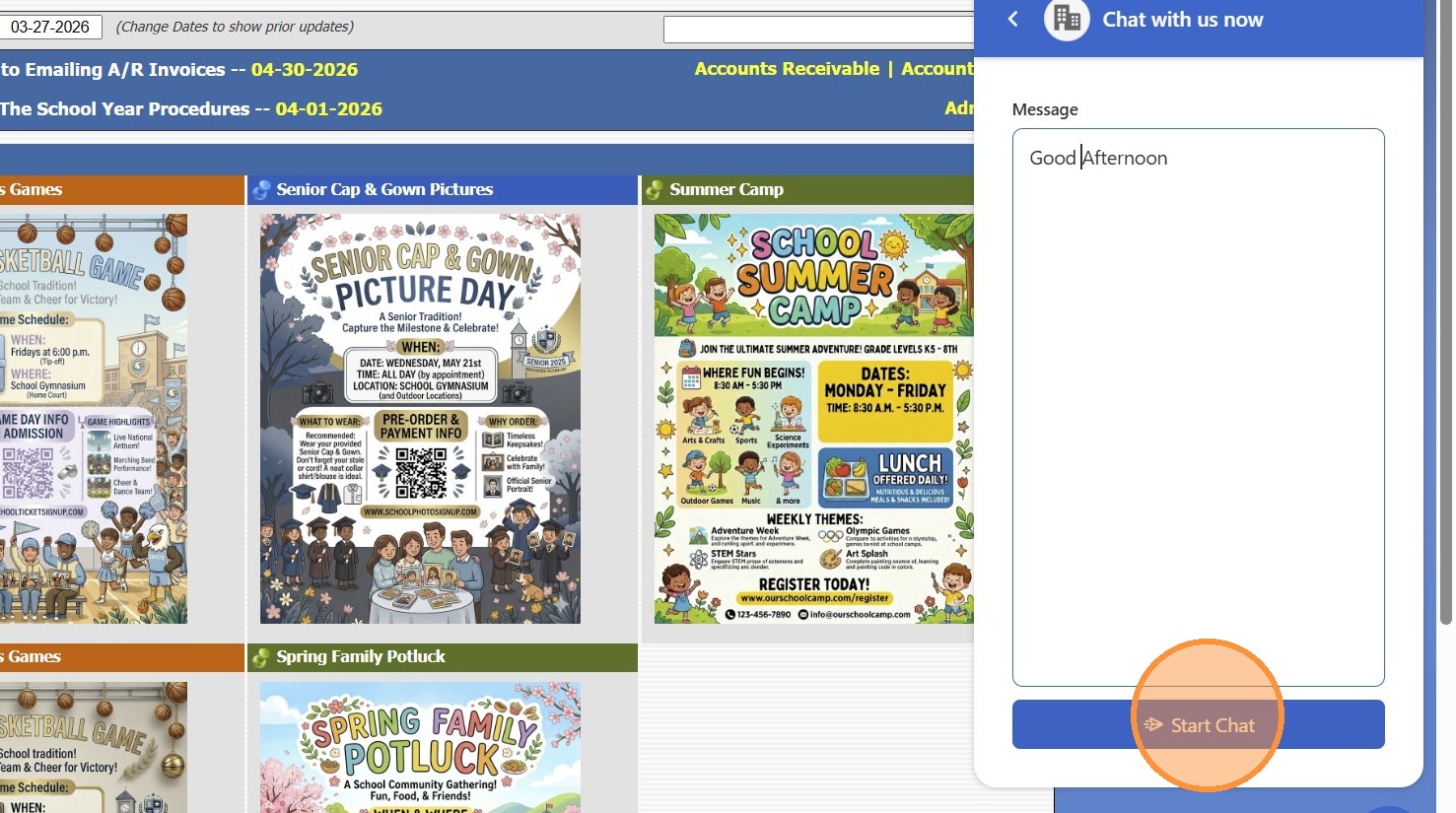
1. Click the "Chat Icon" in bottom-right corner of any Praxi Screen
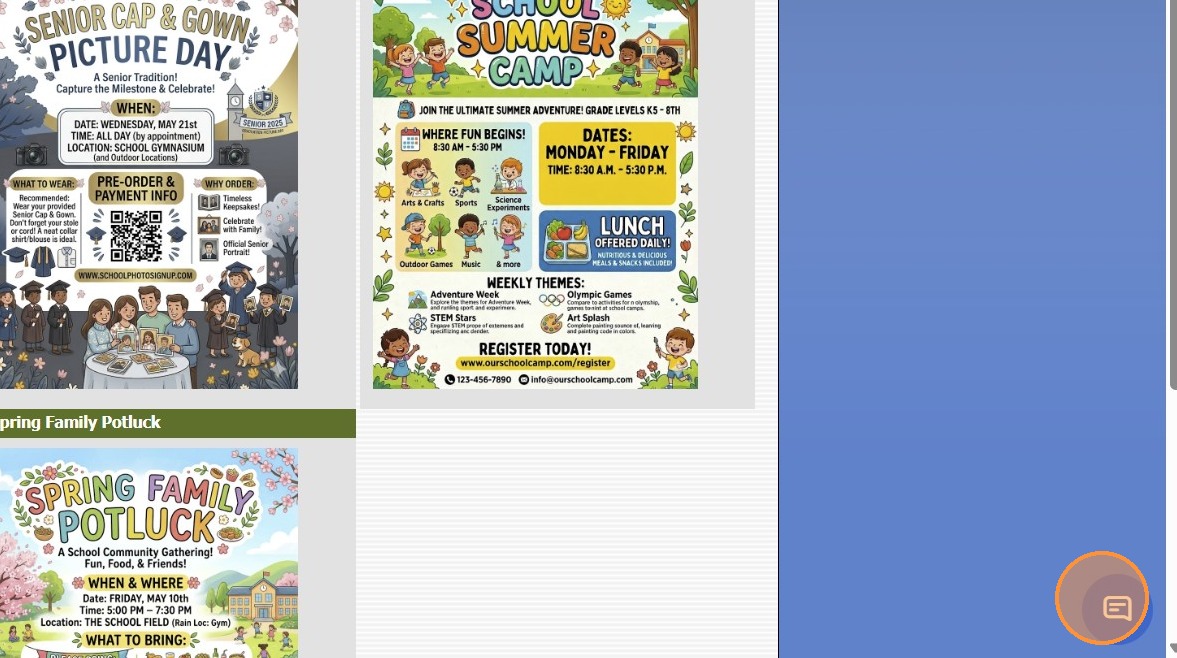
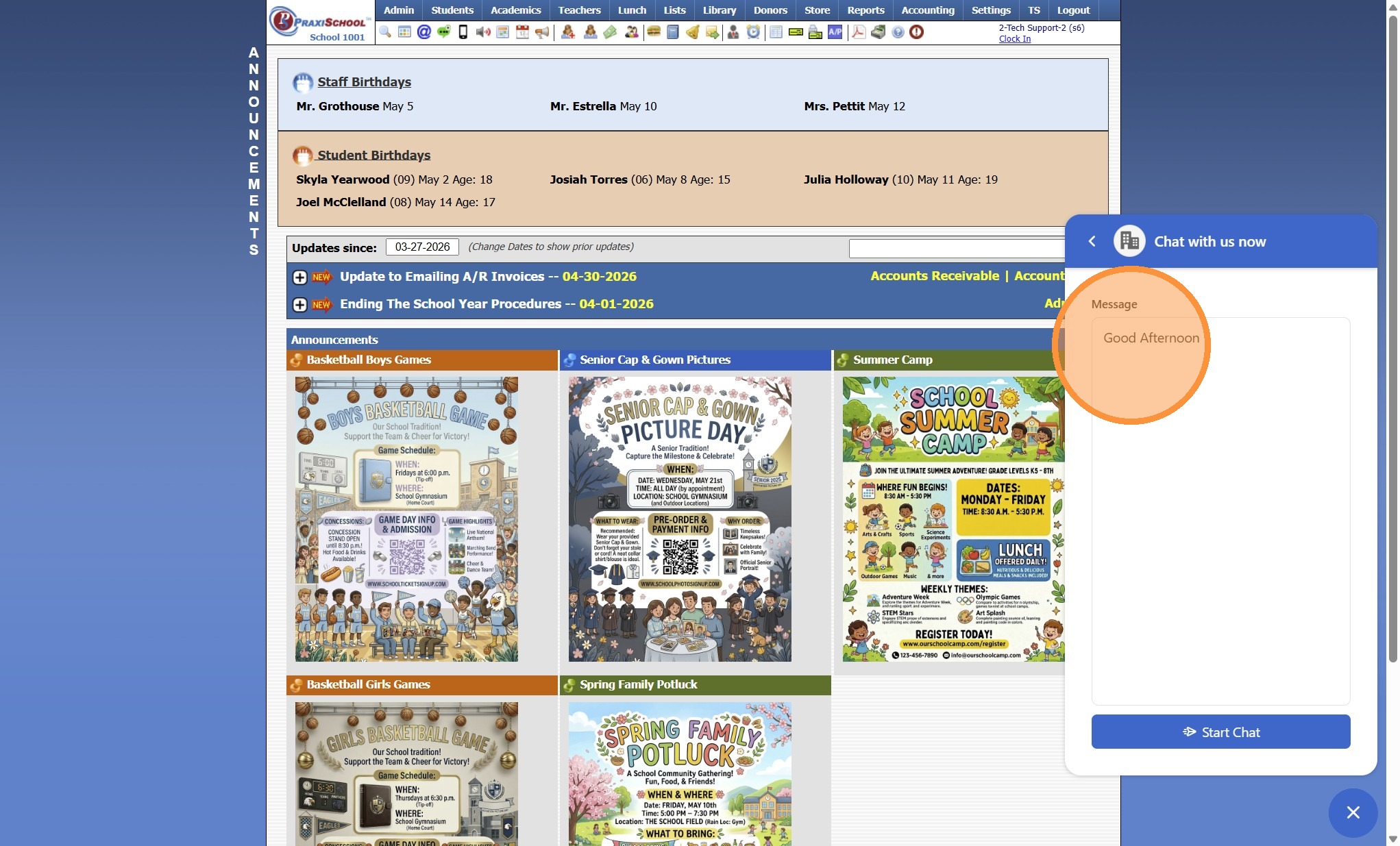
2. Click in the Message field & Type a Message

4. A Support Representative will Respond to Chat
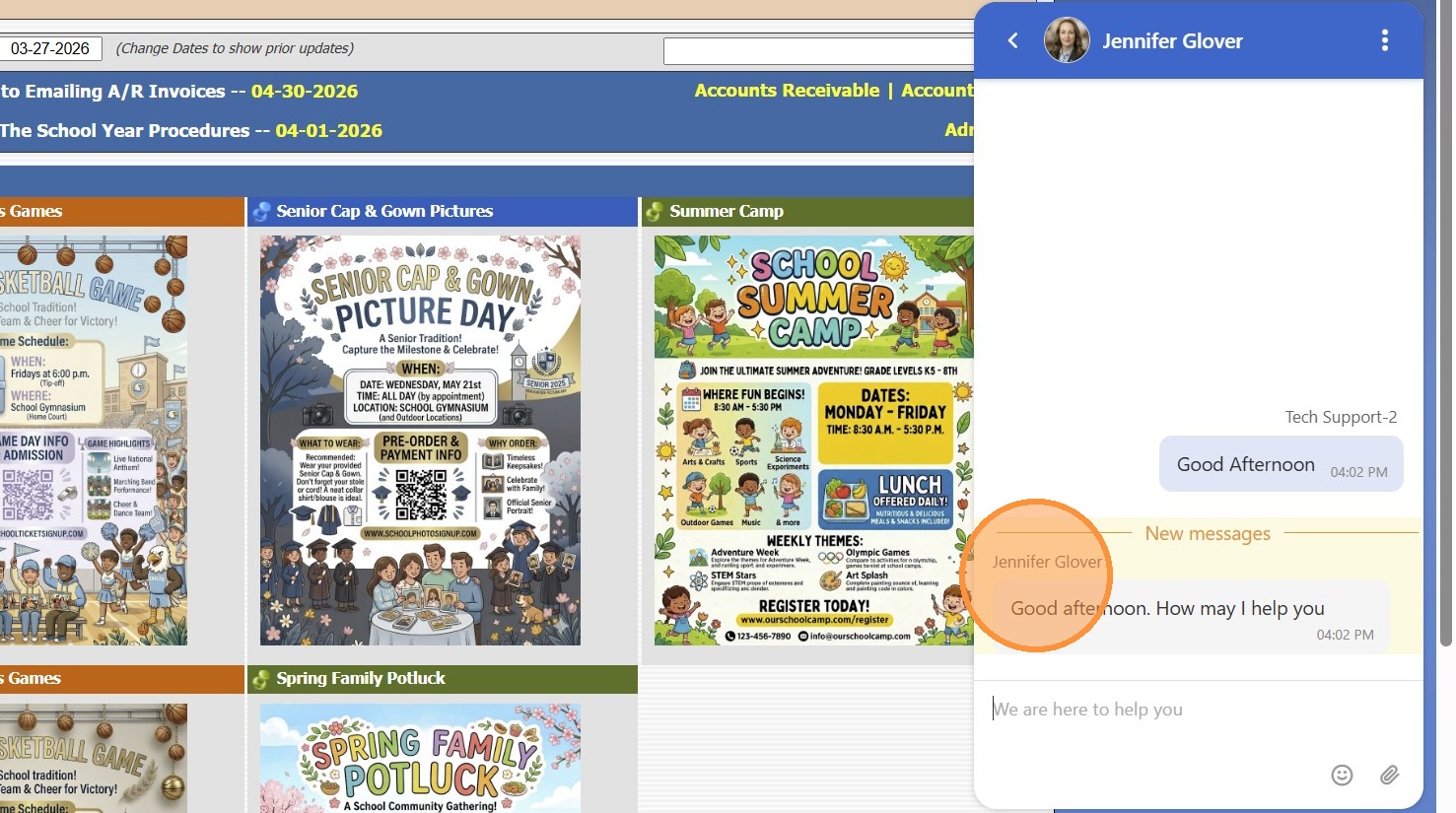
5. Give Support Representative information on how they can help
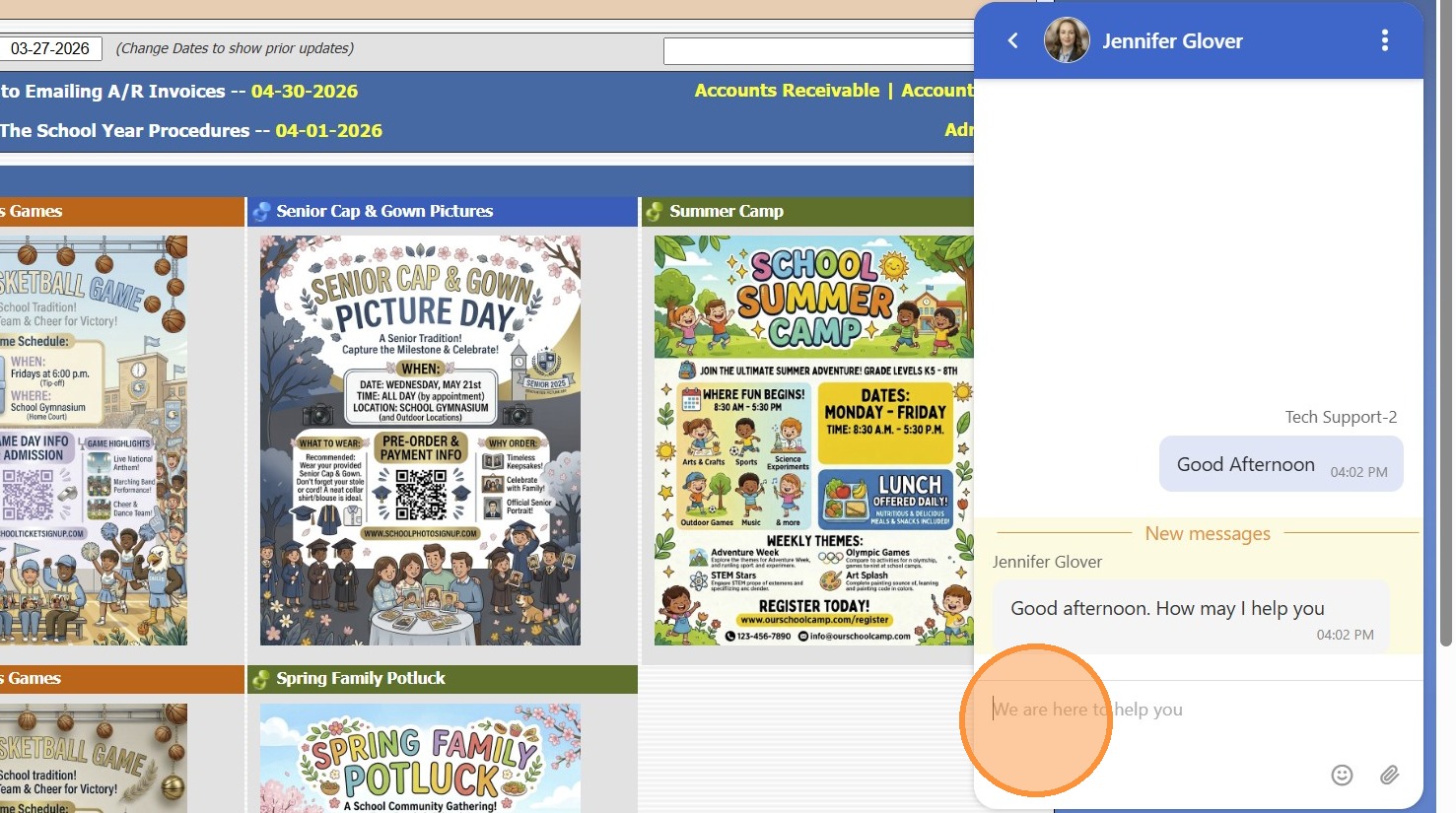
Tip: Support Representative cannot see the screen from the Chat. If more information is needed, the Support Representative may request Screenshare or Remote Access.
Related Articles
Accessing & Previewing Online Form Templates
1. Click "Admin" 2. Click "Online Forms" 3. Click "Forms" 4. Select Form 5. Click "Header HTML" 6. Click "Preview Form" 7. A Preview of the Form will Populate 1000.6.20
Joining Remote Access from Chat Instructions
1. Click "Chat Widget" to Open Chat Screen 2. Begin Chat with Tech Support 3. Click "Share Now" 4. Click "Join Session" 5. Click "Agree and Download" 6. Double Click on AZ_Connect.exe download 7. Click "Yes" 8. Click "Join" 9. Select Screen to Share ...
Accessing School Specific Portal Pages
Accessing School Specific Portal Pages 1. Click "Settings" 2. Click "School Settings" 3. Click "Portal" 4. School Specific Student Portal Link 5. School Specific Parent Portal Link 6. School Specific Applicant Portal Link 6500.2.88
Accessing School Specific Training Videos
Accessing School specific Training videos 1. Click "Admin" 2. Click "Resources" 3. Click "Training Videos" 4. School training videos are stored in this database. Set viewing options (All Staff, Staff Groups, or Specific Staff Members) To select Staff ...
Accessing Announcement Page from Other Pages
Accessing Announcement Page from Other Pages 1. Click Announcement Icon 2. Directed to Announcement Page 7500.1.9